by Contributed | Apr 5, 2021 | Technology
This article is contributed. See the original author and article here.
2020 has been a year like no other. In just a few months’ time, businesses have transformed and have accelerated their efforts to migrate to the cloud. Following our announcement of Azure VMware Solution (AVS) last year, we have been helping customers accelerate this move to cloud by providing an easy lift and shift migration. Albeit customers love the same operational experience for VMware workloads and use familiar VMware technologies like vCenter, NSX Manager, HCX etc. in AVS, they also want to leverage security integrations that they have invested in for years. Below are a few common questions that we get from customers around this topic.
How can they use the same firewalls/tools that they have been using for years?
How do they maintain the same security posture?
How can they use the same firewall for both Azure and VMware workloads in AVS?
In this blog series, we plan to discuss native security options, 3rd party firewall integration with AVS along with a deep dive into configuration details. First in the series, this blog would summarize the security options available at your disposal.
Let’s start with the built-in security capabilities that you can leverage in AVS.
Built-in security/firewall with VMware NSX-T – VMware NSX-T is the default networking stack in AVS and it provides out-of-box security features that you can use to protect your workloads. Following are the capabilities that you can leverage.
Distributed Firewall (DFW) –A stateful L3-L7 firewall that powers micro-segmentation and runs on your ESXi hosts in your AVS private cloud. DFW rules are enforced on the vNIC level of a VM workload and what that means is that the traffic is either allowed or dropped on the vNIC level based on the rule you defined. So, there is no more hair-pinning that traffic through a centralized or perimeter firewall. From a feature standpoint, it’s rich and allows you to define security rules using network or application constructs. You could group the workloads using static (IPSet/NSX constructs like Segment etc.) or dynamic membership (VM tags, guest OS etc.). Even when you have a perimeter firewall, you should secure your East-West traffic.
Gateway Firewall – A L4-L7 aware stateful North-South firewall that can be configured on NSX-T Tier-1 Gateway in AVS. It can also be used as an Inter-tenant or Inter-zone firewall i.e. filtering traffic between different tenants of your organization each with a dedicated Tier-1 Gateway.
Azure Firewall – A managed, stateful firewall with built-in HA and SLA of 99.99% (when deployed in two or more availability zones). Customers can configure L3-L7 policies to filter traffic and take advantage of threat intelligence-based filtering to alert and deny traffic from/to known malicious IP addresses and domains. Please refer to the Azure firewall feature set here.
If you are already using Azure firewall capabilities deployed in Azure Virtual WAN to protect resources in VNETs, you can connect the same virtual WAN hub over an express route connection to AVS and route internet traffic from AVS to Azure firewall.
Let’s switch gears and talk about the 3rd party firewall integration with Azure VMware Solution. There is a strong desire from customers to continue using the same firewall in AVS that they have been using in an on-premises datacenter. Based on the use-case, you could deploy a 3rd party firewall NVA in AVS private cloud or SDDC or leverage a firewall from Azure marketplace. Let’s double click on both options.
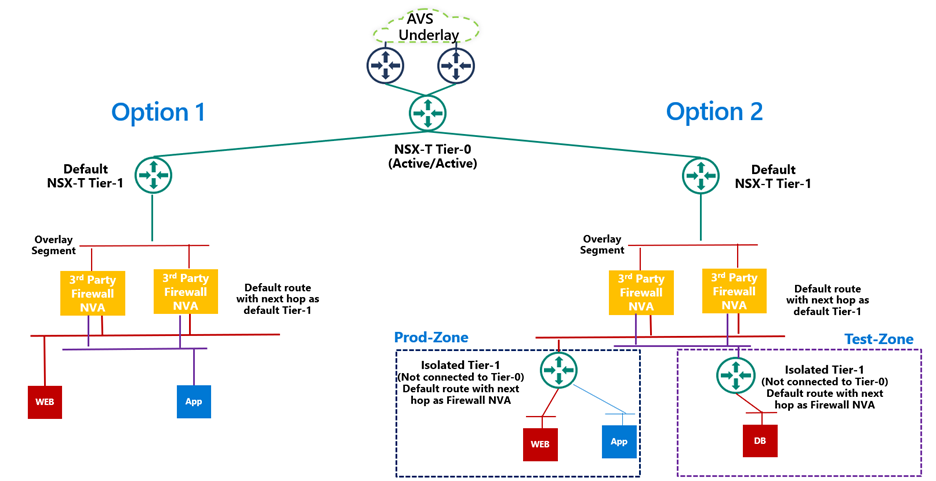
3rd Party firewall deployed as NVA in AVS private cloud or SDDC –Before we discuss this integration, it’s important to understand NSX-T deployment in AVS private cloud. When you create a private cloud in AVS, a default NSX-T Tier-0 Gateway configured in Active/Active mode and a default NSX-T Tier-1 Gateway configured in Active/Standby mode is deployed for you. Users can connect segments (logical switches) and provide East-West and North-South connectivity to the workloads connected on these segments.
A 3rd party firewall NVA can be connected southbound to the default NSX-T Tier-1 gateway and this firewall can act as a North-South firewall or East-West firewall depending upon your use case. This integration is supported in following topologies.
- Option 1: Workload segments are directly connected to the firewall and the gateway on workloads is 3rd party firewall. This topology restricts the users with numerous segments as the vNICs on the NVA becomes a limiting factor.
- Option 2: Workload segments are connected to an isolated Tier-1 and this Tier-1 gateway provides northbound connectivity to a 3rd party firewall. This topology solves the problem of limited number of vNICs on NVA as you connect 100s of workload segments to an isolated Tier-1 which connects to the firewall NVA northbound. In this topology, isolated Tier-1s simulate security zones and the firewall can provide East-West filtering between security zones and North-South filtering for all traffic.
We will discuss routing and other configuration details for these topologies in next part of this blog series.
3rd Party firewall deployed in Azure VNET – Customers can also deploy a 3rd party firewall in Azure VNET and route traffic from AVS to this firewall via Azure Virtual WAN hub. To redirect internet traffic from AVS VMs to the firewall NVA, you need to connect AVS to an express route gateway in Azure virtual WAN and propagate a default route. Next, you configure a default route in Azure Virtual WAN hub to direct internet bound traffic to a NVA in spoke VNET.

We will go through the configuration details in greater detail in upcoming blogs. Stay tuned!
Summary
Azure VMware Solution customers have multiple security options available to protect their workloads. Some of these firewalling capabilities can be used out of the box to provide East-West and North-South firewalling. Along with the built-in security capabilities, customers can also leverage the 3rd party firewalls or next-gen firewalls to provide additional security and maintain the same security posture as they have on-premises.
Following are a few resources to learn more about Azure VMware Solution.
Learn Azure VMware Solution Networking
Try Azure VMware Solution Hands-on-lab
by Contributed | Apr 5, 2021 | Technology
This article is contributed. See the original author and article here.
Howdy folks,
We started on a journey with the open standards community to empower everyone to own and control their own identity. I’m thrilled to share that we’ve achieved a major milestone in making this vision real. Today we’re announcing that the public preview for Azure AD verifiable credentials is now available: organizations can empower users to control credentials that manage access to their information.
This blog post provides an overview of our standards-based platform, and the first solution we’ve built on that platform–to enable a new form of identity verification. We’re also sharing lessons learned from customers during private preview and next steps for improving interoperability with other standards-based systems. Ankur Patel from my team is here to share more.
Best Regards,
Alex Simons (Twitter: @Alex_A_simons)
Corporate Vice President Program Management
Microsoft Identity Division
—————————————————————–
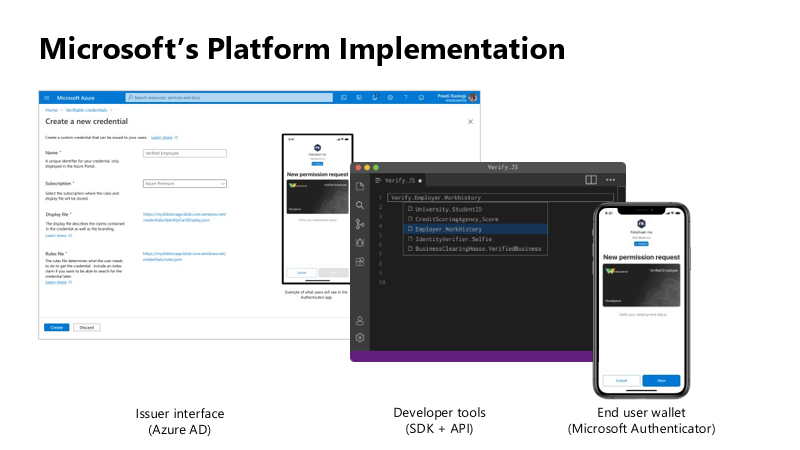
Hello again. In June 2020, we reported on the open standards community’s progress on decentralized identity. The Verifiable Credentials (VC) and Decentralized Identifiers (DID) standards have been ratified. Today, I’m thrilled to share details about the public preview capabilities of Microsoft’s platform, based on these standards, called Azure AD verifiable credentials.
Azure AD customers can now easily design and issue verifiable credentials to represent proof of employment, education, or any other claim, so that the holder of such a credential can decide when, and with whom, to share their credentials. Each credential is signed using cryptographic keys associated with the DID that the user owns and controls.
Please visit http://aka.ms/verifyonce to learn more.
Unlike current proprietary identity systems, verifiable credentials are standards-based which makes it easy for developers to understand, and doesn’t require custom integration. Applications can request and verify the authenticity of credentials from any organization using APIs included in the platform SDK.
Just as they manage any other permission requests, users can manage and present credentials using Microsoft Authenticator, with one key difference under the hood. Unlike domain-specific credentials, verifiable credentials function as “proofs” that users control, even when they’re issued by organizations. Because verifiable credentials are attached to DIDs that users own, they can be confident that they—and only they—control who can access them and how.
Government of Flanders is one of the many early customers that leveraged the private preview capabilities to make it easier for citizens to start a new business. Today, a citizen must provide proof of income and citizenship. By presenting verifiable credentials issued by their bank as proof of income and by their government as proof of citizenship, they could easily meet these requirements. This is one of the many scenarios that came to life during private preview.
In addition to announcing public preview of the Azure AD verifiable credentials platform, we’re excited to share with you a new solution based on this approach. Usually, highly regulated interactions, such as pre-employment checks or applying for a loan, are expensive and time-consuming. Microsoft is partnering with industry leading identity verification service providers to make it possible to verify an identity once and present it to anyone. Azure AD customers can leverage this solution to validate official documents and electronic records across 192 countries to confidently verify identities. End-users can present these credentials to quickly start a job, apply for a loan, or access secure apps and services—without having to repeatedly share their sensitive information.
Please visit http://aka.ms/verifyonce to learn more about all our partners.
We’re grateful for everything we’ve learned from our customers, and to members of Decentralized Identity Foundation, Open ID Foundation, and W3C who collaborated with us to develop new standards that enable individuals and organizations to verify credentials directly.
While this is an important milestone, we have a lot of work ahead to enable verification on a larger scale while protecting individual privacy. Now that we have built the foundation, we are working on our next key milestone: continue to enrich credentials with implementations that enable additional privacy preserving features and increase our interoperability with solutions from other members of the Decentralized Identity and Verifiable Credentials community.
Let’s build a more trustworthy internet together. We were amazed by the variety of ideas that customers presented to us during private preview. We can’t wait for you to try the new platform!
Ankur Patel (@_AnkurPatel)
Principal Program Manager
Microsoft Identity Division
Resources:
Learn more about Microsoft identity:

by Contributed | Apr 5, 2021 | Technology
This article is contributed. See the original author and article here.
You may have heard that the Kubernetes v1.20 release deprecated dockershim. Our friends in the community published a DON’T PANIC blog that does a great job of clarifying, since a lot of people kind of freaked out.
Jim Linwood, CC BY 2.0, via Wikimedia Commons
This didn’t quite do the trick, so they wrote a FAQ too. Still, the message hasn’t landed everywhere it needs to. And none of these publications address the specialness that is Windows head-on. So, we felt we need to share what this means to you as a user of Windows Server containers in Kubernetes (K8s). As dockershim slowly exits Kubernetes, building containers is no different. For both Windows and Linux, containers built with different toolsets can be run with different runtimes. This is no different for Kubernetes. Containers built with Docker will run without modification in Kubernetes with containerd. Microsoft contributes to containerd to ensure that running those containers on Windows takes advantage of the latest and greatest the platform has to offer. For fun, we thought we’d share some of the myths about what all this means for Windows containers and bust (dispel) them for you.
Myth – the K8s docker shim deprecation will break my Windows container builds for Kubernetes!
Busted – Docker Desktop for Windows will continue to build containers! That is what Docker makes it to do! Kubernetes can run those containers using containerd. (The small print: if your containers depend on Docker sockets (aka docker in docker), you’re out of luck.)
Myth – Docker Desktop for Windows uses containerd already!
Busted – Docker Desktop for Windows uses Docker Engine which is built on moby. Moby, as of this writing, partially depends on containerd. There is ongoing work to adapt moby to use more of containerd on Windows.
Myth – All of my Docker CLIs I depend on my local machine for build process are broken!
Busted – Docker CLIs on your dev box are not being affected, and you may continue to use them to build container images. All this works thanks to the way Docker, containerd, and other tools conform to the Open Container Initiative (OCI) – a set of standards which help ensure tools used to build, publish, and run containers all interoperate together.
Myth – If I upgrade my Azure Kubernetes Service (AKS) cluster to Kubernetes v1.24 (when dockershim is currently planned for removal from kubelet) my Windows containers won’t run!
Busted – Your upgrade will deploy the new containerd runtime on the Windows nodes. But the containers will run just fine.
Myth – I must rebuild all my containers and K8s clusters to use containerd!
Busted – The containerd change is only on the host runtime. Container images build with Docker and other tools that are OCI compliant do not require you to rebuild. You can still use the same container image to run with Kubernetes and containerd. If you are using AKS, all you need to do is deploy your workload on a host which has containerd runtime. For more detail read the Don’t Panic blog.
Myth – I’m running my own DIY (do it yourself – unmanaged) K8s cluster and not using a distro and removing dockershim will break me!
Busted – The K8s community has tested the containerd container runtime for both Linux and Windows to ensure that containers that work with the Docker Engine runtime work with the containerd. Before the should replace your docker runtime on both Windows Server nodes and Linux nodes with containerd. You can find instructions on how to configure runtimes in the community documentation.
Myth – My air-gapped Kubernetes cluster will break with the move to containerd!
Busted – Air-gapped k8s operation still requires your container images to be available to the Windows host in the same way, either from a local container registry, or baked into the OS image’s local containerd image store. This is no different whether you are using dockershim or not.
Finally, a note for customers looking into adopting AKS-HCI: The current preview release uses dockershim as the runtime on Windows. Containerd will be the default runtime in a future release and just like AKS, customers can expect a smooth transition – along with documented instructions on how to upgrade.
As a part of the Kubernetes community, we are working to make sure you are covered. Docker and other tools that build OCI containers will work with the containerd runtime in Kubernetes. These topics, and more, are covered in the Kubernetes Special Interest Group for Windows (SIG Windows) where all are welcome. Please reach out to us if you have questions or feedback.
by Contributed | Apr 5, 2021 | Technology
This article is contributed. See the original author and article here.
Detecting anomalies in your data can be a very powerful and desired functionality. Within Azure Monitor we provide a really easy method to alert on Anomalies if they are coming from Metrics (Creating Alerts with Dynamic Thresholds in Azure Monitor – Azure Monitor | Microsoft Docs). But what if the anomalies you want to detect are not a metric but sit in Application Insights or Log Analytics. Well, that’s where the Kusto query language comes to the rescue.
Detecting Anomalies with Kusto
Kusto has anomaly detection built in using series_decompose_anomalies.
series_decompose_anomalies() – Azure Data Explorer | Microsoft Docs
Now I’m not going to lie, the first time I read the above article I came away a little confused. But once you’ve built a query a few time using this then it becomes fairly simple.
Some of the key things you need to do to utilize this is:
- You need to pull the data that you want to detect anomalies on
- You need to order the results.
- You need to then create either a list or series before you use the series_decompose_anomalies
- Create a new column that detect the anomalies.
I think the best way to show this is to walk through a scenario.
Scenario
We want to look at the number of events occurring on each of our servers in the System event log. We want to detect any anomalies where more events than normal happen on a server. To make this query even more useful we’ll take the list of servers that have had anomalies and chart them by eventid.
Step 1: Pulling the Data
Step one is to get the data that you want to detect anomalies on. What the below query will do is filter to only event in the “System” log and then create a count of events for each server in 30 minute aggregates.
Event
| where TimeGenerated >= ago(7d)
| where EventLog == 'System'
| summarize EventCount=count() by Computer, bin(TimeGenerated,30m)
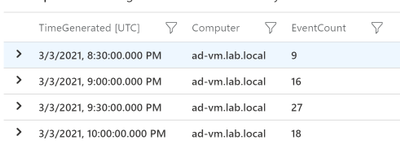
So the output from just this query would look something like this:
Step 2: Order the results
Before we create a list or series we need to order the results by the time generated. This is the simplest step but essential if you want accurate results! Just add the following line to your query:
| order by TimeGenerated
So now our query looks like this.
Event
| where TimeGenerated >= ago(7d)
| where EventLog == 'System'
| summarize EventCount=count() by Computer, bin(TimeGenerated,30m)
| order by TimeGenerated
Step 3: Make a List
Now we have everything ready to create the list in Kusto. Below is the line you need to add to your query. This will make a list of both the TimeGenerated field and the EventCount field. So what we’ll end up with is a single line for each server with a list of the TImeGenerated and EventCount fields.
| summarize EventCount=make_list(EventCount),TimeGenerated=make_list(TimeGenerated) by Computer
So the query looks like this
Event
| where TimeGenerated >= ago(7d)
| where EventLog == 'System'
| summarize EventCount=count() by Computer, bin(TimeGenerated,30m)
| order by TimeGenerated
| summarize EventCount=make_list(EventCount),TimeGenerated=make_list(TimeGenerated) by Computer
And the output should look something like this:

Step 4: Detect Anomalies
We have our query setup to detect the anomalies, we just need to pass the “EventCount” field to series_decompose_anomalies and create a new column with the results:
| extend outliers=series_decompose_anomalies(EventCount)
So the outliers filed will contain 3 values
0=Normal
-1=less events than normal
1=more events than normal
So our query would now look like this:
Event
| where TimeGenerated >= ago(7d)
| where EventLog == 'System'
| summarize EventCount=count() by Computer, bin(TimeGenerated,30m)
| order by TimeGenerated
| summarize EventCount=make_list(EventCount),TimeGenerated=make_list(TimeGenerated) by Computer
| extend outliers=series_decompose_anomalies(EventCount)
And the output should look something like this:

As you can see, we have some anomalies that got detected.
Extra Credit
When I get to this point I always like to look at where the anomalies were detected and make sure that I would consider them anomalies. I won’t go into it in this article but you can adjust how sensitive the calculations. For me to easily see where the anomalies were detected I’ll use mvexpand on any of the list that we’ve made:
| mv-expand TimeGenerated, EventCount, outliers
Then look at the results to make sure where I see a 1 (we’ll later filter to only positive anomalies) it makes sense:
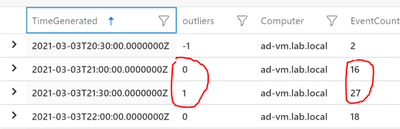
I’d also check on the ones that stay at 0 to make sure the EventCounts are pretty close:
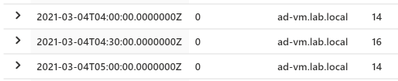
Step 5: Get Useful Information
Not saying what we have right now isn’t useful but I like to use the anomalies info to get more detailed information. So in this case we detected anomalies for the number of events on a server. Now that we know the server had an anomaly maybe we want to graph that by the EventId to determine what caused the anomaly. Lets start by expanding the list like before but then filtering to only outliers that equal 1
| mv-expand TimeGenerated, EventCount, outliers
| where outliers == 1
This will give us every outlier detected by each server. What I really need is a list of each server that has had at least one anomaly. So I just at the following:
| distinct Computer
I want to feed the results into another query so let me set a variable called “Computers” using the let command. So our completed initial query looks like this:
let Computers=Event
| where TimeGenerated >= ago(7d)
| where EventLog == 'System'
| summarize EventCount=count() by Computer, bin(TimeGenerated,30m)
| order by TimeGenerated
| summarize EventCount=make_list(EventCount),TimeGenerated=make_list(TimeGenerated) by Computer
| extend outliers=series_decompose_anomalies(EventCount)
| mv-expand TimeGenerated, EventCount, outliers
| where outliers == 1
| distinct Computer;
So now I can in my next query I can filter down to just these computers using “| where Computer in (Computers)” where Computers is fed in from the above query.
….(prev query)
Event
| where TimeGenerated >= ago(7d)
| where EventLog == 'System'
| where Computer in (Computers)
| extend ChartName = strcat(Computer,'-',EventID)
| summarize EventCount=count() by ChartName,bin(TimeGenerated, 30m)
| render timechart
The only thing different I did here is create a “ChartName” field that is a combination of the Computer and the EventID. I’m using the same time period (7d) and the same aggregation (30m) for both the anomaly detection and this second query. That way you’re looking at the same data for both.
Below is the complete query:
let Computers=Event
| where TimeGenerated >= ago(7d)
| where EventLog == 'System'
| summarize EventCount=count() by Computer, bin(TimeGenerated,30m)
| order by TimeGenerated
| summarize EventCount=make_list(EventCount),TimeGenerated=make_list(TimeGenerated) by Computer
| extend outliers=series_decompose_anomalies(EventCount)
| mv-expand TimeGenerated, EventCount, outliers
| where outliers == 1
| distinct Computer;
Event
| where TimeGenerated >= ago(7d)
| where EventLog == 'System'
| where Computer in (Computers)
| extend ChartName = strcat(Computer,'-',EventID)
| summarize EventCount=count() by ChartName,bin(TimeGenerated, 30m)
| render timechart
Here are the results in my environment.
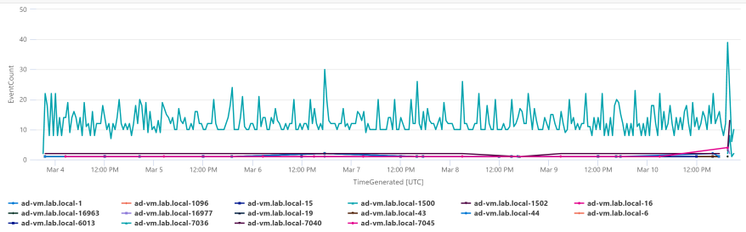
I just have one server in my environment so charting it makes sense. I would probably analyze the data in a table if I had a bunch of servers. But you can see really quickly I can see that EventID 7036 is the one that is causing the anomalies for this server. The rest of the events are staying stable, but that event varies a good bit on the server.
If you’re interested in another scenario where this same process can be useful check out my previous blog about “Detecting Azure Cost Anomalies.”
Summary
Once you get the hand of “series_decompose_anomalies” it can be a very useful tool in your toolbelt. I covered using this to visualize anomalies in the number of events occurring in the System event log. As long as you can follow the steps above (Get the data you want, order the data, make a list or series, and then detect anomalies) you can explore your data for anomalies. Just like we can visualize the data we can also setup alerts through Azure Monitor.
by Contributed | Apr 5, 2021 | Technology
This article is contributed. See the original author and article here.
Welcome back to my series about the Microsoft Graph Fundamentals learning path on Microsoft Learn. This is part 2; if you did not read part 1 yet, this is your chance to catch up! I will stay here and wait for you with a coffee :hot_beverage:
This module is called Configure a JavaScript application to retrieve Microsoft 365 data using Microsoft Graph and we start with an
intro
We are still sticking to the business scenario from module 1: We want to create an app that can access email, chats, files, meetings. To authenticate users, Microsoft 365 uses Microsoft Identity, and we will need to use Microsoft Identity and Microsoft Graph to get the data we want to display in our app by using Microsoft Authentication Library(MSAL).
Wait, what? Don’t worry if you did not completely understand this. We will do this step-by-step.
Understand the role of Azure Active Directory with Microsoft Graph
OK, we already understood that Microsoft Graph is THE API to access data in Microsoft 365 – but of course, this data needs to be secured because we don’t want everyone to access them, right? This is what we need Microsoft Identity platform for. Microsoft identity ensures that only authorized users (delegated permissions) and apps (application permissions) access data stored in Microsoft 365. The challenge now is to link Microsoft Identity (of which we will use Azure Active Directory) to our Microsoft Graph powered app. The module explains in detail how you register your app in Azure AD and retrieve your application ID. Later on, you will add this ID into the MSAL (Microsoft Authentication Library)’s code of your app to link to your Azure Active directory.
But before we do this in an exercise, we will learn some theoretical stuff that we need later on.
Understand Microsoft Graph permissions and consent
Crucial to understand that a user or admin needs to consent before the app requests permission to access Microsoft 365 data via Graph, which is why we need to know a little bit more about:
Scopes
All resources have specific scopes, like User.Read (lets you read the profile of the signed-in user) or User.Read.All lets you read the profiles of all users present in this directory. Of course, you will want only to allow scopes that are necessary for the application. You can look up scopes for each request in the official documentation and also learn about them while trying out requests in Graph Explorer.
Permission types
We can perform requests on behalf of a user (delegated permission), and we can run background processes like creating, reading, updating, or deleting events of all calendars without the requirement of a signed-in user. This means that an admin will need to pre-consent to these permissions.
Access tokens
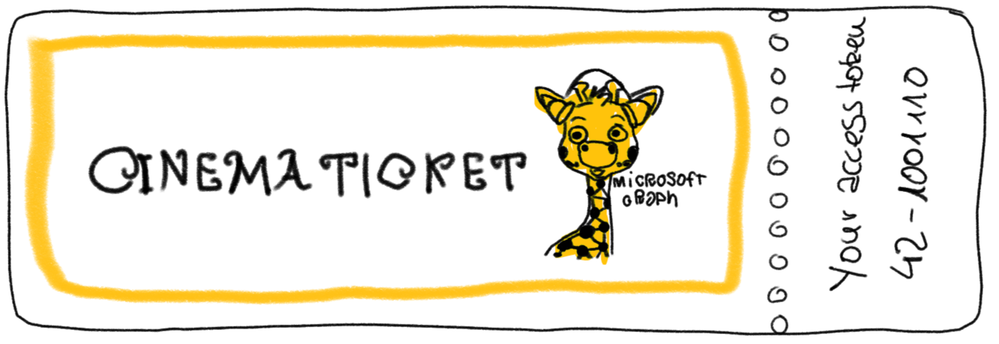
The unit also describes how the magic with an access token works – and uses a great comparison for that! An access token is like a movie ticket – but your application gives it to Graph to show it has permission to access the requested data in Microsoft 365. LOVE this explanation so much!
We use this movie ticket/access token in the Authorization header of our HTTP request.
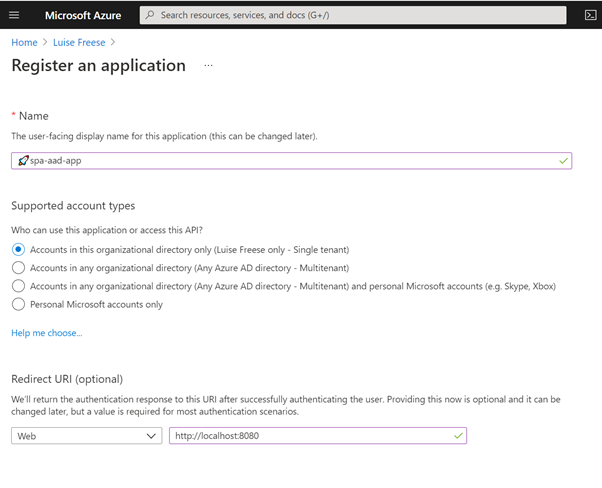
Register an application with Azure Active Directory
In this unit, you learn which account type you can select when registering an app in AD and that web and single-page apps will require a redirect URI so that identity platform redirects and sends security tokens after authentication.
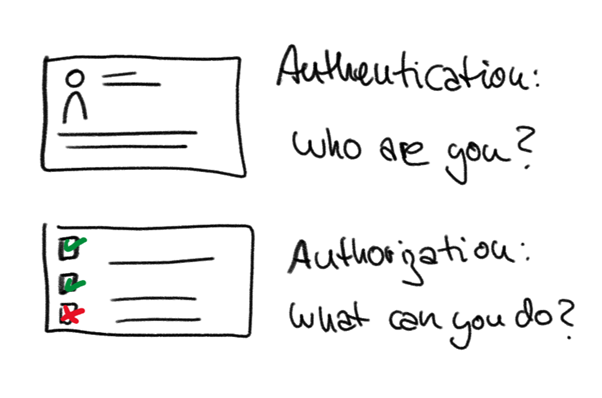
In case you wondered: There is a big difference between authentication and authorization.
Exercise – Register an application with Azure Active Directory
This exercise walks us step by step through registering an app in Azure AD- I highly recommend following this unit if you never registered an application before:
Let’s now
Retrieve an access token using MSAL
MSAL will make Token interaction more effortless for you because we can acquire tokens from the identity platform to authenticate users and access Microsoft Graph.

Now that we understood the authentication flow, it’s time to get our hands dirty with
Exercise – Retrieve an access token using MSAL
To get this straight – you will clone a repository either using git or downloading a zip file. After opening this in Visual Studio Code (or any other editor), you will need to replace two placeholders with tenant ID and app ID from your Azure app registration.
The unit walks you through some crucial parts of your app and lets you map this code to the authentication flow.
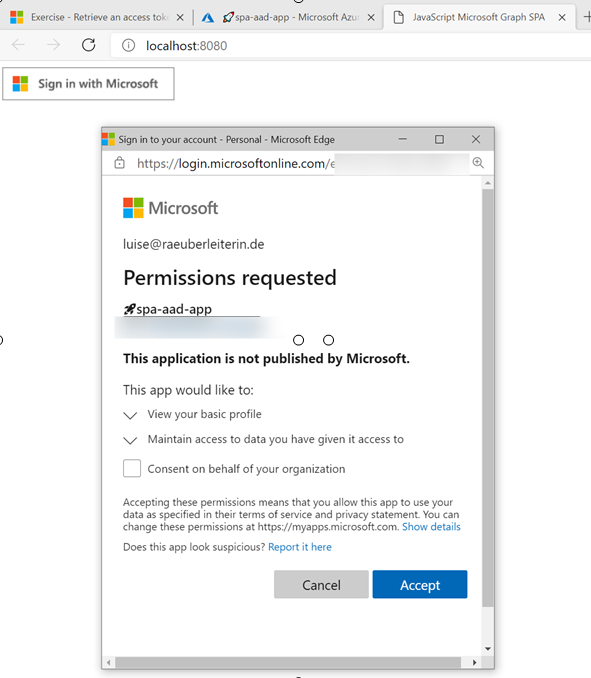
Congratz! – you made it!
Conclusion
I loved this module – even if I already knew how to register applications and what Microsoft Graph does – it clarified the authentication flow once again and walked me nicely through some crucial parts of the code that I cloned from the MSLearn repository. Some basic understanding of JavaScript was beneficial to let the app run and know WHY and HOW it runs.


Recent Comments