This article is contributed. See the original author and article here.
Database migrations often involve multiple phases, steps, and tools based on various scenarios and workload requirements. To help you migrate your databases to Azure, we have published a set of new Azure Database Migration Guides and a Hub page that provides scenario-based migration content and “How To” guides depending on your source database and target database platforms. In this episode with Mohamed Kabiruddin, he will walk you through the new migration hub page to easily navigate to the content you need based on your scenario, how to use the relevant database migration guides, and how to provide feedback to Microsoft for any specific content.
This article is contributed. See the original author and article here.
When you’re juggling work and personal tasks, having clearly defined to-do lists can help reduce stress and improve productivity. Microsoft To Do helps you manage your tasks so you can get more time for yourself. It seamlessly syncs your tasks across devices, so you always have access to them, whether you use To Do on Android, iPhone, Mac, Windows, or the web.
In the third installment of our six tips series, we’ll show you some nifty ways to make the most out of To Do on your iOS device. (Check out our other six tips articles for Windows and Android.)
1. Use Siri to add tasks and open lists in To Do
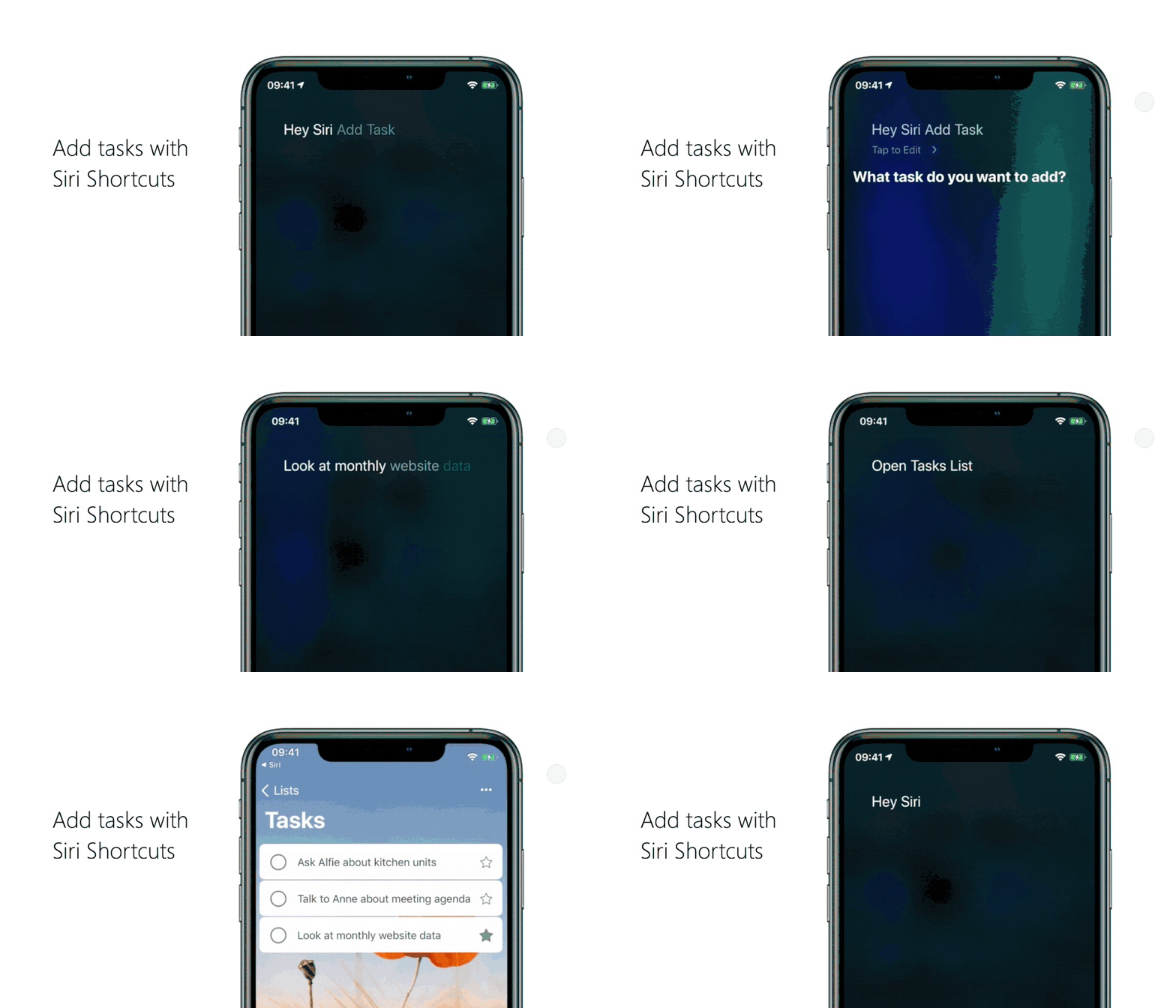
Want a super-fast way to add a task or open a list in To Do? We’ve got you covered. Here’s how to add “Open list” or “Add task” as shortcuts in Siri:
Adding a task with Siri
Head to your To Do settings and tap on Siri Shortcuts, then tap on the plus icon + next to Add Task.
Pick the phrase you want to use with Siri. For example, if you want a shortcut to add something to your grocery list, you can change the When I say phrase to “Add groceries”.
Under Do, select Add task and pick the name of the list you want to add tasks to.
If you want new tasks to be marked as important, come with reminders, or be added to My Day, tap on Show More and configure it the way you want. Once you’re done, select Back > Add to Siri.
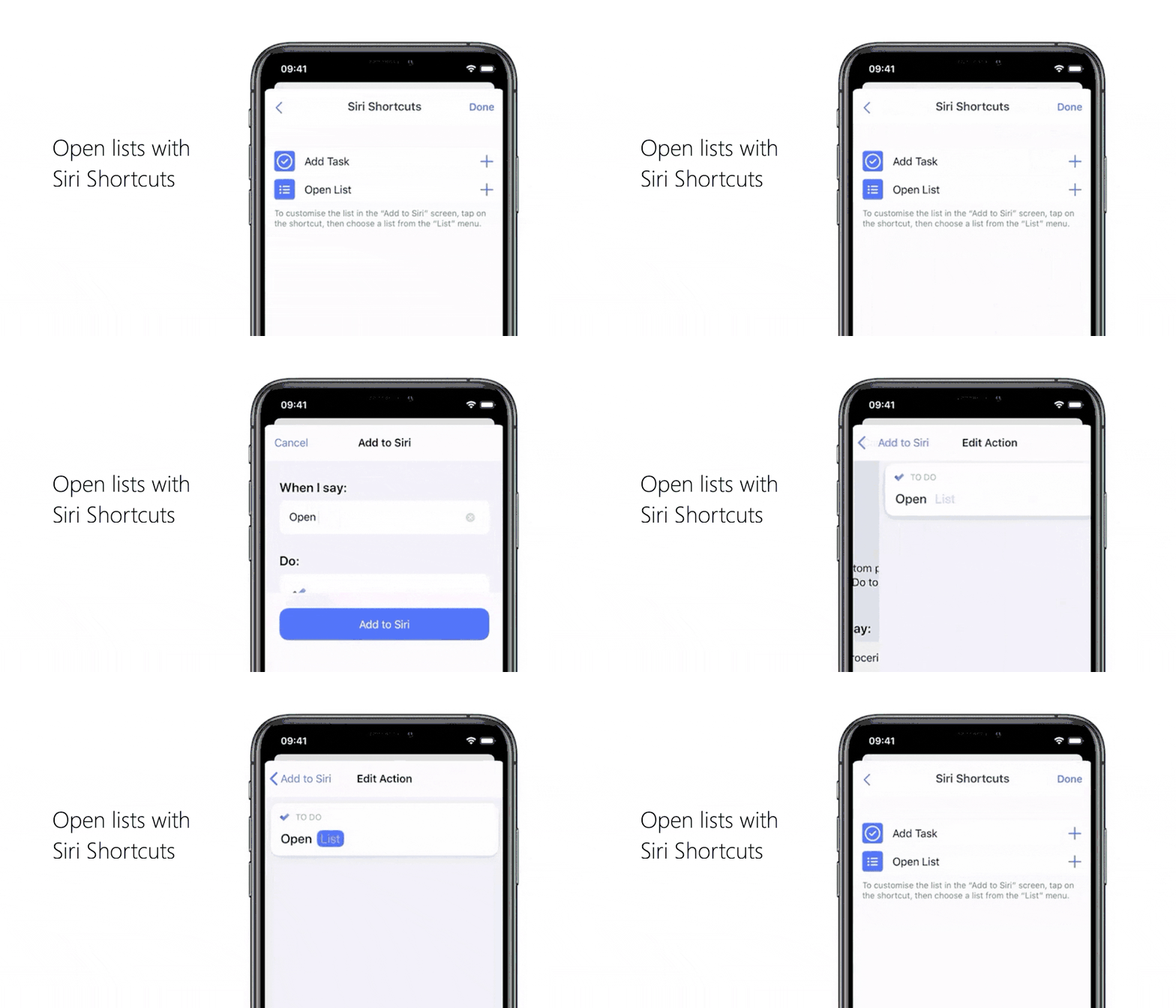
Opening a list with Siri
Head to your To Do settings and tap on Siri Shortcuts, then tap on the plus button next to Open List.
Pick the phrase you want as your shortcut, like “Open grocery list”.
Under Do, select Add task, then select List and pick your grocery list.
Select Back to go to the Add to Siri page, then select Add to Siri.
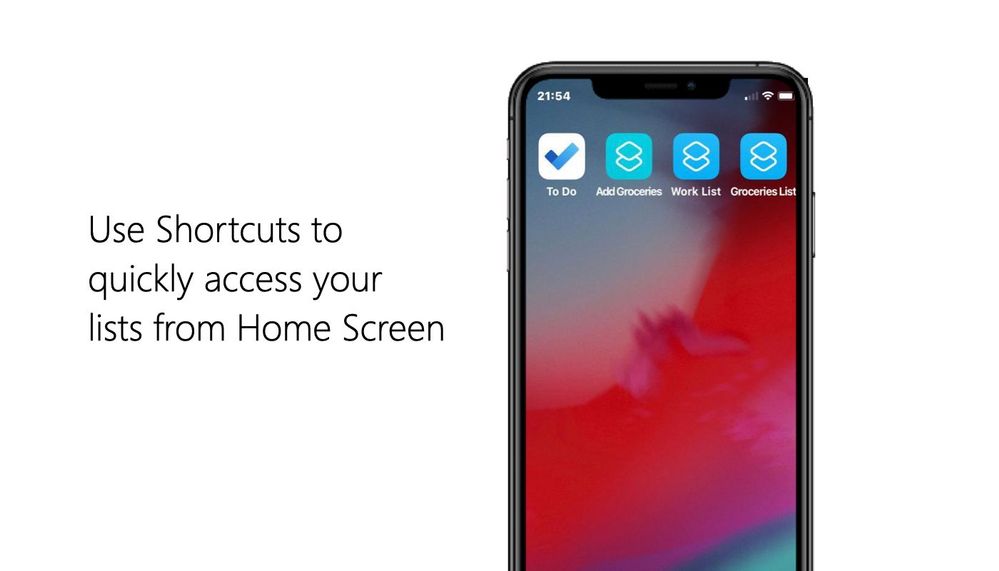
2. Create shortcuts to your lists on your device’s home screen
In To Do for iOS, you can create shortcuts to your lists on your home screen. (Note: you’ll need to install the Siri Shortcuts app to be able to do this.)
Here’s how to add shortcuts to your lists:
Create a Siri shortcut to open a list.
Open the Shortcuts app and open the created shortcut.
Tap the three dots to see more options. Tap on the option to add the shortcut to your home screen.
Check that the shortcut shows up on your home screen.
In To Do for iOS, you can create shortcuts. Or, if you’re using iOS 14, you can add a shortcut with the Shortcuts widget.
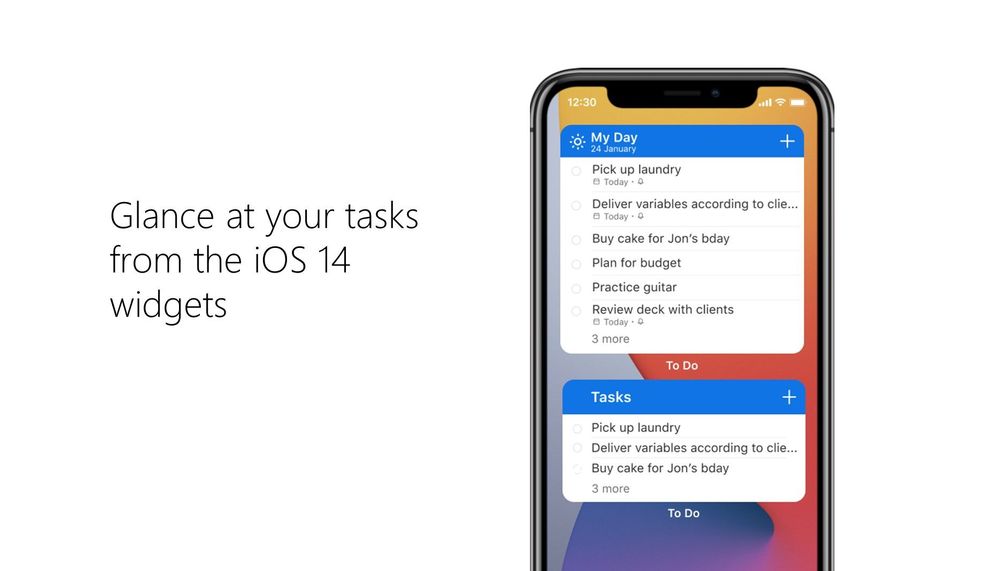
3. Glance at your tasks from the iOS 14 widgets
If you’re using iOS 14, you can check out a To Do list from your home screen with the new Microsoft To Do widgets. To set this up:
Long press on any empty space on your home screen, then tap the plus icon [] to open the widgets menu.
Search for To Do or scroll down to find Microsoft To Do, then add the widget of your choice.
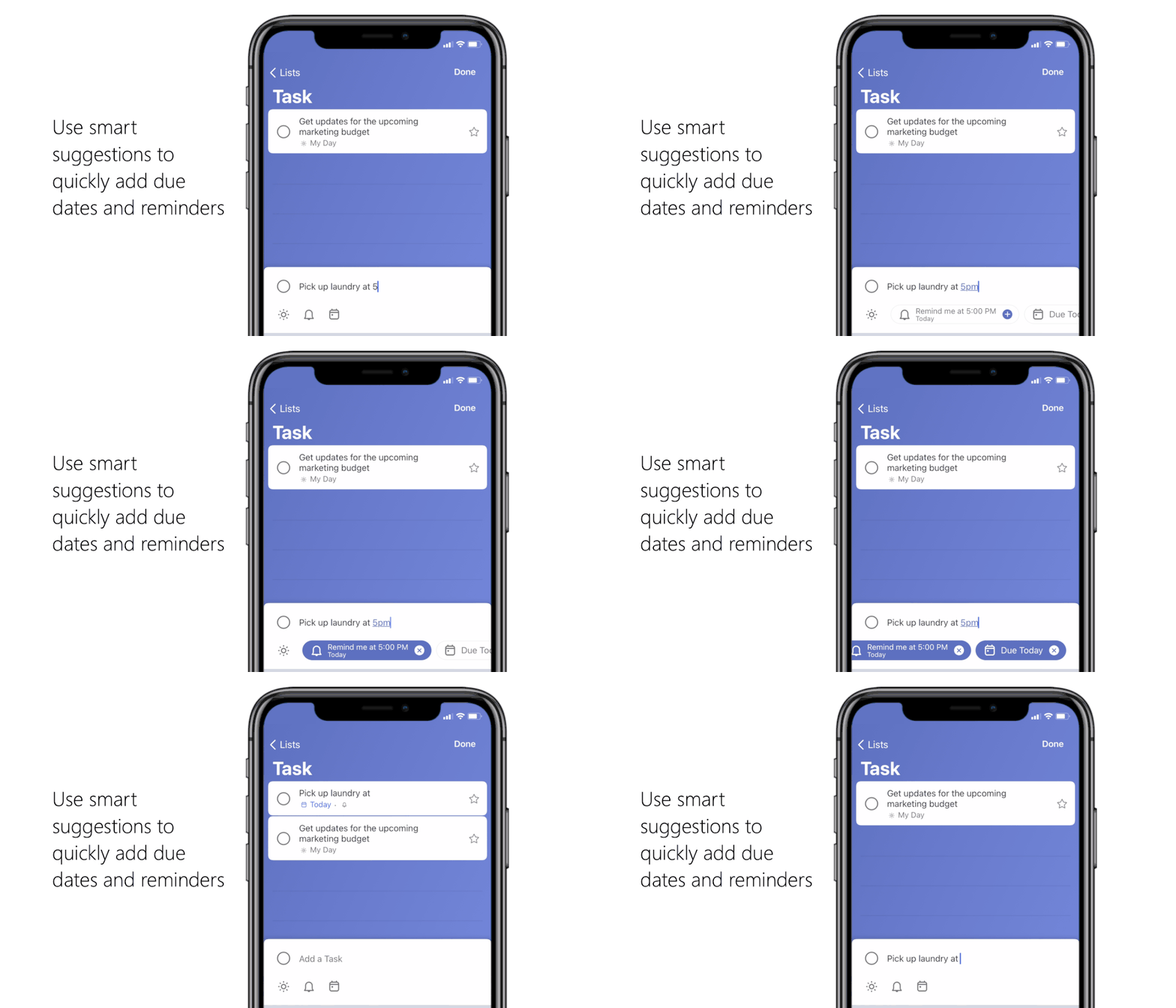
You don’t need to fiddle around with due dates and reminder times when creating a task. When typing a task’s title, include when it’s due or when you want to be reminded in that title and Microsoft To Do will create a task with that due date or reminder time.
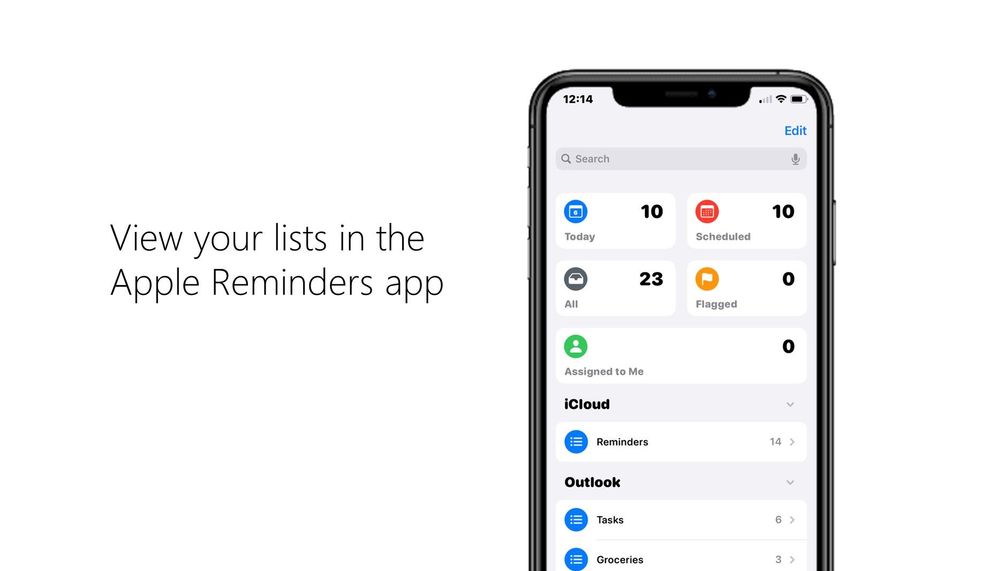
5. View your Microsoft To Do lists in Apple’s Reminders app Microsoft To Do is integrated with Apple’s Reminders app so you can view your To Do lists in Reminders if you use iOS 12 or later. Here’s how to link your Microsoft To Do account with Apple’s Reminders app:
Open your device’s settings and select Reminders > Add Account.
Add the email address associated with your Microsoft To Do account. When you open Apple’s Reminders app, you should be able to see your Microsoft To Do lists.
Note: currently shared lists and smart lists like My Day, Planned, Assigned to you, Important, and Flagged email won’t show up in Apple’s Reminders app.
6. Swipe actions
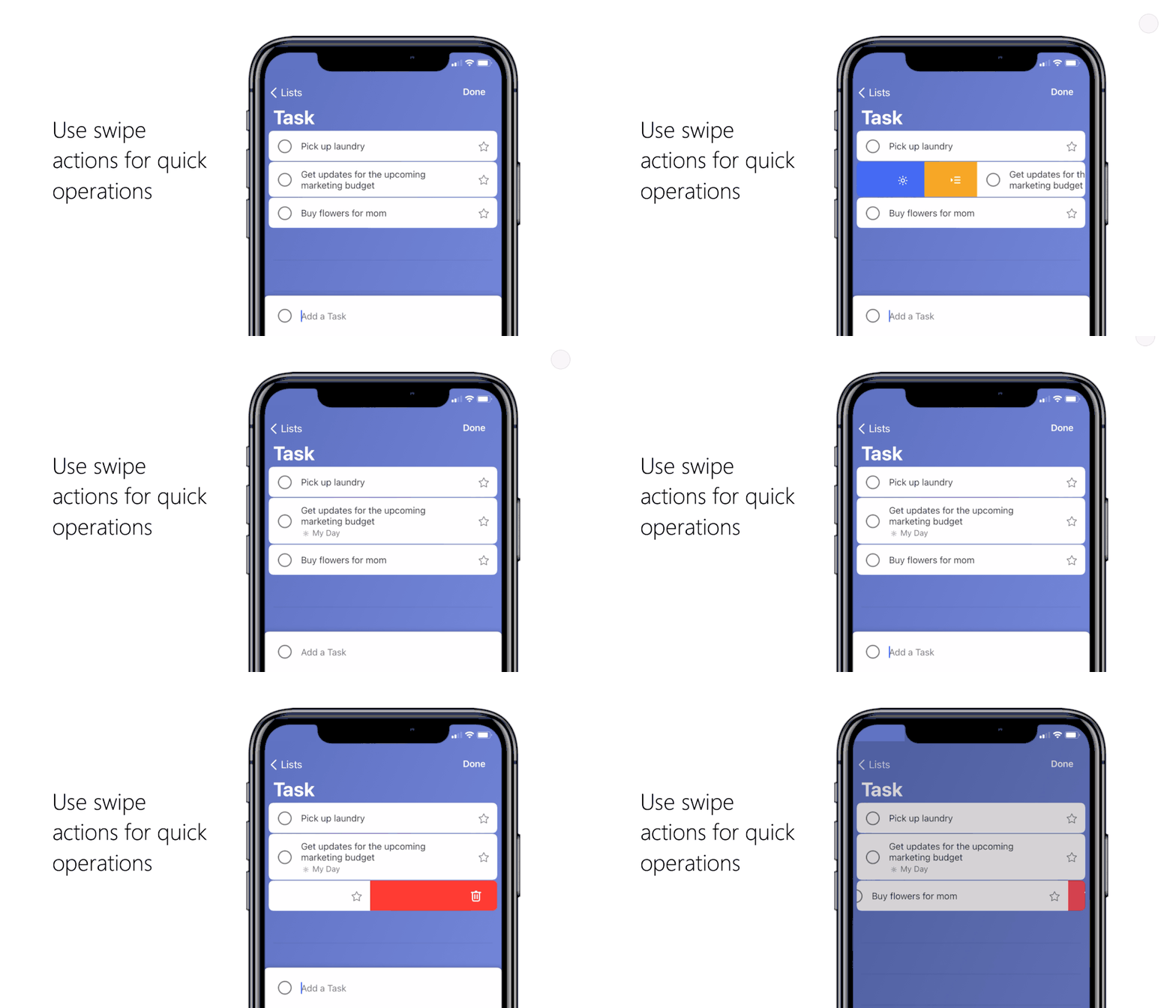
You can take a number of actions on a task just by swiping left or right. By swiping, you can:
Delete a task. Tap on the task, swipe from right to left, tap the trash can icon, and confirm that you want to delete the task.
Add a task to My Day. Tap on the task, swipe from left to right, and select the sun icon . Once a task is added to My Day, you can swipe from left to right again to remove it.
Move a task from one list to another. Tap on the task, swipe from left to right, and select the icon that looks like a list with an arrow. Tap it and pick the list you want to move your task to.
We hope these tips help you out! We’d love to hear your feedback. Let us know in the comments below or connect with us on Twitter and Facebook. You can also write to us at todofeedback@microsoft.com.
This article is contributed. See the original author and article here.
This article was written by Tracy Van der Schyff, a Business Applications and Office Apps & Services MVP, from South Africa. She shares her personal journey to support educators and teachers globally through community efforts.
To identify and celebrate success, we need to have empathy and compassion for the challenges that our fellow #HumansofIT experience. Low self esteems can make us wonder if we add any value, and this cannot be further from the truth. Never forget that an extended hand lifts someone up, and that together we can make a difference and overcome the greatest of challenges life presents us with.
To understand why this success story is so important to me, I must first share a glimpse into my colourful life with you. We all have a purpose of being (even multiples), some have figured it out, some of us are creating it for ourselves, and others are still searching.
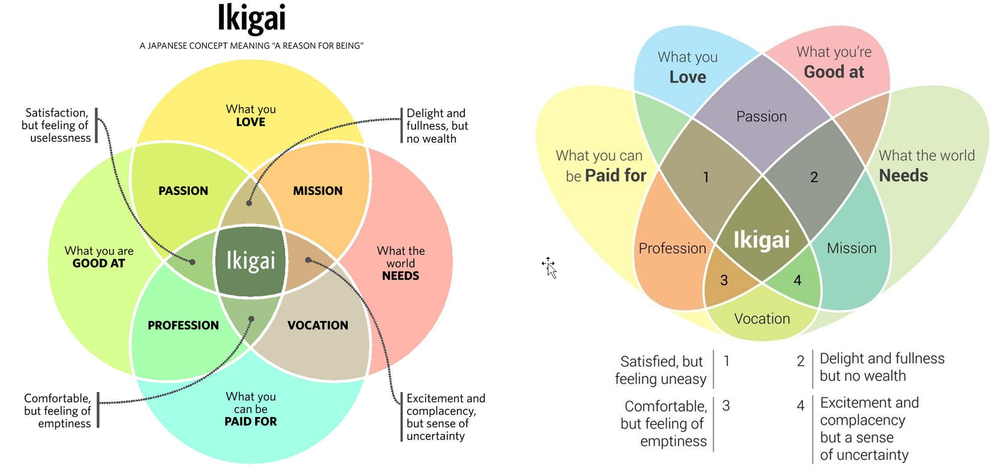
I spent many years searching and at 40, I had an epiphany with relation to my “purpose”. It all started with an image. The image was of the Ikigai Venn Diagram. Although this is the “western interpretation” and more accurately represents a Purpose Venn Diagram. Still, it had a profound impact on my life.
Ikigai & doing your part
My most important realisation was that I had never given myself enough credit to say that I was good at something, which meant that I felt unbalanced and that I had no purpose. As soon as I gained awareness of this “self-abuse” I was subjecting myself to, I focused even more on enabling others, especially when they do not have the means to do so themselves. It became clear as daylight that millions of others were doing the same, not believing in themselves and due to this, not achieving what they are capable of.
Over the next couple of years I wrote / created nearly a thousand blogs & videos (see more about my crazy personal challenge here) and joined various social media groups across Facebook, LinkedIn and Twitter to help support the incredible #HumansofIT out there.
Of course, 2020 delivered a curve ball and I saw the group rapidly grow from 10,000 members to 60,000. Most of those being teachers in desperate need of support. I saw something in this group during the year which both scared me and inspired me. The emotions in the group went through the typical stages of the Kubler Ross Change Model Curve: Shock, denial, frustration, depression, experiment, decision and eventually integration.
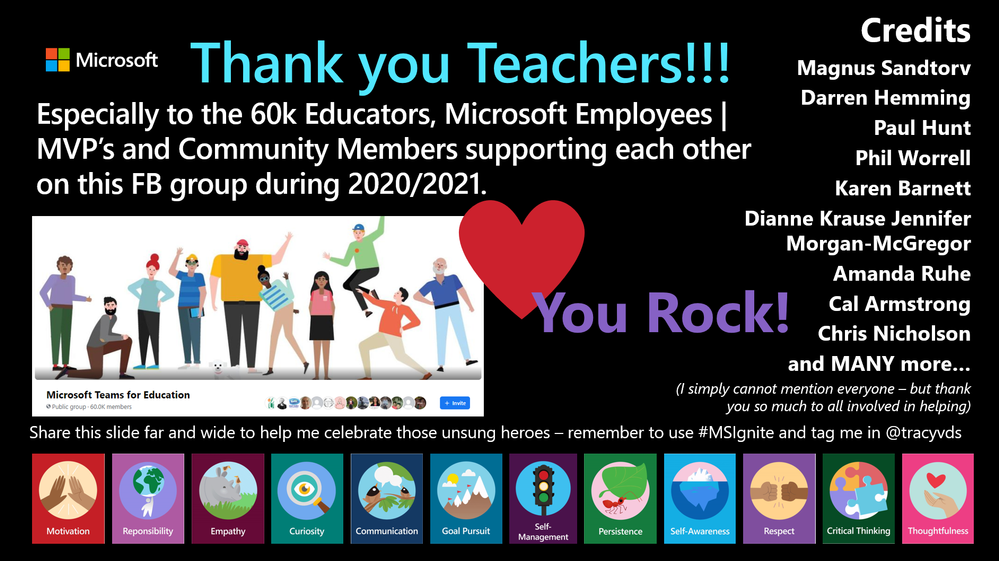
It broke my heart as I could see that many of these teachers did not have the internal IT support in their companies / institutions they needed. I was also overwhelmed with gratitude towards the thousands who were helping (Microsoft employees, MVP’s, and community members) by answering questions and making suggestions to help these educational superheroes navigate these incredibly difficult times. Also, never losing sight, that by helping, we were all having a positive impact on our future (learners / students).
The Kubler Ross Change Curve – Success story 1
Towards the end of 2020 I noticed a change in the group. The teachers started supporting each other, sharing tips and tricks, cool new features and in general being more positive. This of course being the “experiment, decision and eventually integration” phase. I was overjoyed. A self-sustaining ecosystem of community support and love had evolved, right in front of our eyes.
Although not my success story to tell, it is a success story that needs to be highlighted and from the bottom of my heart – thank you to everyone who was (and is) part of that process.
ADvTECH Group – Success story 2
This brings me to the second success story. I have had the privilege to work with ADvTECH Group in South Africa, which consists of many schools and tertiary divisions. During 2020 I ‘nervously’ reached out to see how they were doing. I was pleasantly surprised when their overall experience had been positive, even though they had also moved completely to just using Microsoft Teams during this period. I was convinced that they must have done something different, which they had.
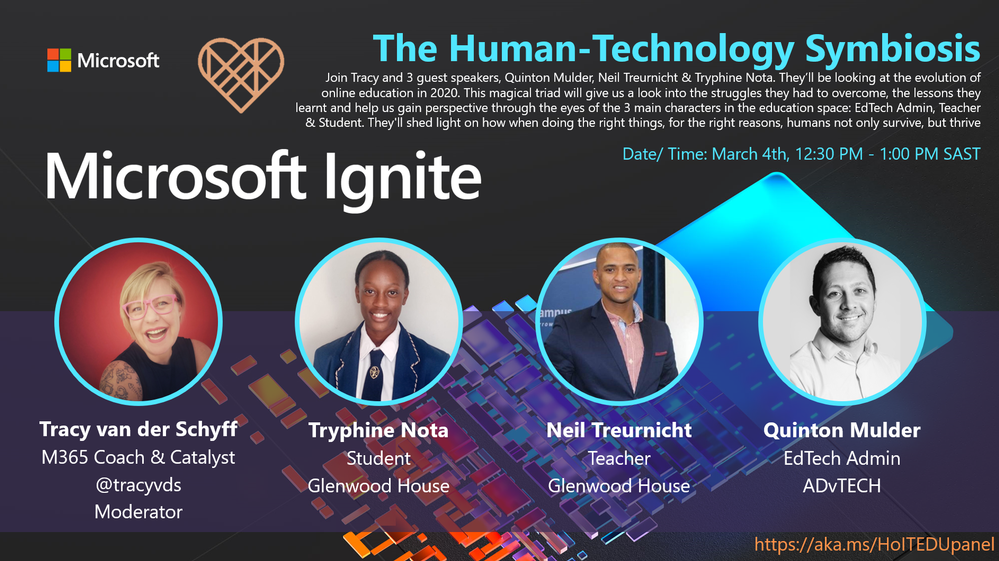
Soon Allie Thompson (Wieczorek) and I were “scheming ideas” on how to tell this story at Microsoft Ignite, which of course happened on the 4th of March, 2021. I was fortunate to be the moderator for this incredible panel which consisted of a EdTech Admin, Teacher & Student. I was so inspired by the passion, compassion, and empathy they share, and I am sure you will be as well.
So, block out 30 minutes in your calendar, go get a cup of coffee or tea and watch the video recording to see how they approached the most difficult “test” the education space has ever been challenged with and not only survived, but thrived.
This article is contributed. See the original author and article here.
Data is king, of course.
IoT technologies have sprung up to collect data from anything you can imagine, from the status of the fan in a building’s air conditioning unit to the noise level of the lathe on a factory floor. Businesses have sprung up turning that data into insights, and those insights into actions that drive value. For example, monitoring the sensors in the buildings on the Microsoft Puget Sound campus, and in the equipment attached to those buildings, has helped Microsoft reduce electrical consumption by over 20 percent. Generally speaking, securely connecting sensors to a cloud-based system with analytics and dashboards is a recipe for improving operations and the environment.
There are two primary ways sensors can connect to the cloud-based system. The most common way is for some separate application to query the sensor for the data, either directly from the cloud or using a on-premises gateway to query the sensor and push the data to the cloud. The other way is for a sensor with more compute power to create a direct connection to the cloud and push the data. Which of these methods is used depends upon the capabilities of the sensor, and the enterprise architecture into which the data is to be pumped. Two concerns that are top of mind with either of these methods are the cost-performance and the security of the data.
Consider the common scenario of monitoring the quality of the air inside or outside of buildings. It is important for understanding the environment and for enabling building owners to provide a healthier place for people to live and work. Sensors are available on the market which measure the levels of harmful chemicals and particles in the air, and the task for the enterprise is to select a sensor and how to get those readings into a centralized system or dashboard that allows the enterprise to take whatever actions are appropriate based upon the levels detected.
Most of the existing air quality sensors are standalone devices that can only respond to queries. The disadvantage of this method in the context of a large enterprise monitoring environment is that it requires a separate application (a gateway) to issue those queries and forward the data. This introduces additional cost and management effort, as well as potentially increasing security risks if the gateway needs to be accessed remotely (for example over RDP). A company by the name of Sysinno has an alternative to this, with an air quality sensor that can directly and securely connect to the cloud without the need of a local gateway using an onboard Azure Sphere chip from Microsoft. The onboard Azure Sphere thus reduces operating cost and complexity, and it does so in a highly secure manner.
We’ve written a whitepaper to show how to build an end-to-end solution using the Sysinno iAeris air quality sensor and a number of Azure IoT elements. In addition to showing how to configure the Sysinno detector to send data to Azure IoT Hub, the paper shows how to write an Azure function to send the data to SQL Server, and how to create Power BI and Time Series Insights (TSI) dashboards to display real-time and historical data. At this point, the air quality data could be consumed by any enterprise monitoring system, and furthermore be accessed by a tool such as Dynamics 365 Field Service for generating maintenance work orders or building-wide alerts to occupants. More broadly, the whitepaper shows how to easily build an end-to-end workflow for capturing, storing, and displaying certain types of IoT data. You could use the code shown to display room temperatures, occupancy, noise levels, traffic, or almost any other data for which you have a sensor.
To read the article and see the code, please follow this link to the Sysinno website.
This article is contributed. See the original author and article here.
In our exploration of how to run GraphQL on Azure, we’ve looked at the two most common aspects of a GraphQL server, queries and mutations, so we can get data and store data. Today, we’re going to look at the third piece of the puzzle, subscriptions.
What are GraphQL Subscriptions
In GraphQL, a Subscription is used as a way to provide real-time data to connected clients. Most commonly, this is implemented over aWebSocketconnection, but I’m sure you could do it with long polling or Server Sent Events if youreallywanted to (I’ve not gone looking for that!). This allows the GraphQL server to broadcast query responses out when an event happens that the client issubscribedto.
Let’s think about this in the context of the quiz game we’ve been doing. So far the game is modeled for single player, but if we wanted to add multiplayer, we could have the game wait for all players to join, and once they have, broadcast out a message via a subscription that the game is starting.
Defining Subscriptions
Like queries and mutations, subscriptions are defined as part of a GraphQL schema, and they can reuse the types that are available within our schema. Let’s make a really basic schema that contains a subscription:
type Query {
    hello: String!
}

type Subscription {
    getMessage: String!
}

schema {
    query: Query
    subscription: Subscription
}
The subscriptiontypethat we’re defining can have as many different subscriptions that clients can subscribe via, and each might return different data, it’s completely up to the way your server wants to expose real-time information.
Implementing Subscriptions on Azure
For this implementation, we’re going to go back to TypeScript and useApollo. Apollo have some really great docs on how toimplement subscriptions in an Apollo Server, and that’ll be our starting point.
But before we can start pushing messages around, we need to work out what is going to be the messaging backbone of our server. We’re going to need some way in which the server and communicate with all connected clients, either from within a resolver, or from some external event that the server receives.
In Azure, when you want to do real-time communications, there’s no better service to use thanSignalR Service. SignalR Service takes care of the protocol selection, connection management and scaling that you would require for a real-time application, so it’s ideal for our needs.
Creating the GraphQL server
In the previous posts, we’ve mostly talked about running GraphQL in a serverless model onAzure Functions, but for a server with subscriptions, we’re going to useAzure App Service, and we can’t expose a WebSocket connection from Azure Functions for the clients to connect to.
When it comes to implementing the integration with SignalR, Apollo uses thegraphql-subscriptionsPubSubEngineclass to handle how the broadcasting of messages, and connections from clients.
So that means we’re going to need an implementation of that which uses SignalR, and thankfully there is one,@aaronpowell/graphql-signalr-subscriptions(yes, I did write it :squinting_face_with_tongue:).
We’ll start by adding that to our project:
npm install --save /graphql-signalr-subscriptions
You’ll need tocreate a SignalR Service resourceand get the connection string for it (I usedotenvto inject it for local dev) so you can create PubSub engine. Create a newresolvers.tsfile and create theSignalRPubSubinstance in it.
import { SignalRPubSub } from "@aaronpowell/graphql-signalr-subscriptions";

export const signalrPubSub = new SignalRPubSub(
    process.env.SIGNALR_CONNECTION_STRING
);
We export this so that we can import it in ourindex.tsand start the client when the server starts:
// setup ApolloServer
httpServer.listen({ port }, () => {
    console.log(
        ` Server ready at http://localhost:${port}${server.graphqlPath}`
    );
    console.log(
        ` Subscriptions ready at ws://localhost:${port}${server.subscriptionsPath}`
    );

    signalrPubSub
        .start()
        .then(() => console.log(" SignalR up and running"))
        .catch((err: any) => console.error(err));
});
It’s important to note that you must callstart()on the instance of the PubSub engine, as this establishes the connection with SignalR, and until that happens you won’t be able to send messages.
Communicating with a Subscription
Let’s use the simple schema from above:
type Query {
    hello: String!
}

type Subscription {
    getMessage: String!
}

schema {
    query: Query
    subscription: Subscription
}
In thehelloquery we’ll broadcast a message, which thegetMessagecan subscribe to. Let’s start with thehelloresolver:
So ourhelloresolver is going to publish a message with the nameMESSAGEand a payload of{ getMessage: “…” }to clients. The name is important as it’s what the subscription resolvers will be configured to listen for and the payload represents all the possible fields that someone could select in the subscription.
A resolver for a subscription is a little different to query/mutation/field resolvers as you need to provide asubscribemethod, which is what Apollo will invoke to get back the names of the triggers to be listening on. We’re only listening forMESSAGEhere (but also only broadcasting it), but if you added anotherpublishoperation with a name ofMESSAGE2, thengetMessagesubscribers wouldn’t receive that. Alternatively,getMessagecould be listening to a several trigger names, as it might represent an aggregate view of system events.
Conclusion
In this post we’ve been introduced to subscriptions in GraphQL and seen how we can use the Azure SignalR Service as the backend to provide this functionality.
You’ll find the code for the SignalR implementation of subscriptionshereand the full examplehere.





Recent Comments