by Contributed | Apr 20, 2021 | Technology
This article is contributed. See the original author and article here.
Microsoft is committed to helping public sector leaders through their intergovernmental agency data sharing, cybersecurity, and collaboration initiatives. Register here for our Microsoft State and Local Government Collaboration and Cybersecurity Summit on April 27th. This free virtual event will deliver key insights, practical guidance, and direct conversations with public sector leaders and Microsoft stakeholders. Join us to learn more about:
- Advancing cybersecurity in State and Local Government.
- Cultural transformations that drive new ways of working and digital modernization.
- Connecting with people and information from the office or in the field to securely share and protect sensitive information in today’s modern environment.
Our virtual event provides sessions tailored specifically for state and local organizations, as well as live interactive conversations with industry peers and Microsoft experts to address real world issues. Also gain access to content presented during the Federal and Civilian agency sessions delivered on April 20, 2021.
Learn from others. Share common strategies. Register today at https://aka.ms/MicrosoftinGov.
by Contributed | Apr 20, 2021 | Technology
This article is contributed. See the original author and article here.
We’re excited to announce support for a new authentication method for Automated Device Enrollment (ADE) which is Setup Assistant with Modern Authentication. This new authentication method will be available for iOS/iPadOS devices running 13.0 and later and for macOS devices running 10.15 and later, in public preview in Microsoft Endpoint Manager.
Overview
This new authentication method for automated device enrollment will allow your organization to require authentication with Azure AD (required) and multi-factor authentication (optional) in order to successfully enroll the device. The end user will be required to authenticate with their Azure AD credentials during Setup Assistant, with an additional Azure AD login to the Company Portal after enrollment. If the admin has a Conditional Access policy that requires multi-factor authentication (at enrollment only, or enrollment and Company Portal login) then MFA will be required, otherwise it is optional. This will benefit organizations that are looking to require authentication in the out-of-box experience (OOBE) during enrollment in the Setup Assistant screens prior to users accessing the home screen.
Enrollment is completed once the user lands on the home screen, and users can freely use the device for resources not protected by Conditional Access. User affinity is established when users complete the additional Azure AD login into the Company Portal app on the device. That additional Azure AD login to the Company Portal app completes Azure AD registration, which establishes user affinity between the device user and Intune. Once user device affinity is established, the device will show up in the given user’s device list in the Azure AD portal since device identity association is established upon a successful login into the Company Portal.
When creating an Automated Device Enrollment profile, you’ll be able to choose a new authentication method: Setup Assistant with modern authentication (preview). This method provides all the security from authenticating with the Company Portal but avoids the issue of leaving end users stuck on a device they can’t use while the Company Portal installs on the device. With this new authentication method, the user has to authenticate using Azure AD credentials during the setup assistant screens. This will require an additional Azure AD login post-enrollment in in the Company Portal app to gain access to corporate resources protected by Conditional Access. The correct Company Portal version will automatically be sent down as a required app to the device for iOS/iPadOS, which we recommend choosing a VPP token for the enrollment profile. Otherwise, it will be sent down if the end user completes setting up their Apple ID during the Setup Assistant screens. For macOS, here are the options to get the Company Portal on the device – Add the Company Portal for macOS app – Microsoft Intune | Microsoft Docs.
If the admin configures a Conditional Access policy to require multi-factor authentication (MFA), then the end user will need a second device to complete MFA. Multi-factor authentication is optional based on the configuration of the MFA Azure AD settings.
Company Portal Redirection
A new improvement we’ve made to our onboarding experience helps guide end users to complete that second Azure AD authentication by automatically redirecting to the iOS/iPadOS Company Portal when the user attempts to access corporate data.
If users open any managed iOS/iPadOS applications that are protected by Conditional Access and they haven’t completed the additional Azure AD login into the iOS/iPadOS Company Portal, they will be redirected to the iOS/iPadOS Company Portal from those other apps as part of this new change. This way, users will know exactly where to go to get access to resources protected by Conditional Access and will be guided to complete that last step.
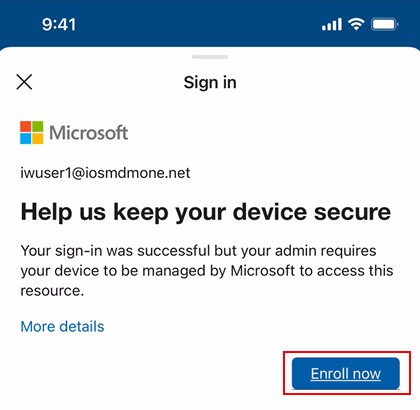
Here is what it will look like if the end user tries to open any app protected by Conditional Access before authenticating in the Company Portal –
Conditional Access block screen
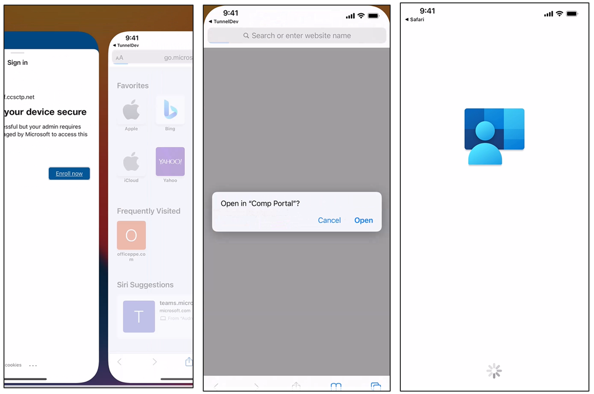 System prompt that opens the iOS/iPadOS Company Portal
Configuration in Microsoft Endpoint Manager admin center
Learn how to configure the new Setup Assistant with Modern Authentication for iOS/iPadOS and macOS in the Microsoft Endpoint Manager admin center by reading Enroll iOS/iPadOS devices by using ADE – Microsoft Intune | Microsoft Docs and Enroll macOS devices – Apple Business Manager or Apple School Manager | Microsoft Docs. Within the MEM admin center, you can control where a user is prompted for multi-factor authentication using different cloud apps when creating a Conditional Access policy. The following screenshot provides an example of the prompt locations:
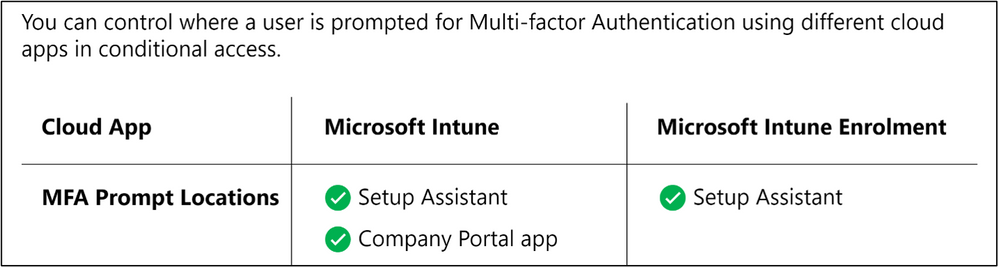 MFA Prompt Locations for Microsoft Intune and Microsoft Intune Enrolment
Using the enrolled device as user-less (device without user device affinity)
For both iOS/iPadOS and macOS, user device affinity is established with the additional Azure AD login to the Company Portal app as mentioned above. That is also when device compliance is assessed, and the device shows up as compliant in the Microsoft Endpoint Manager admin center. If you would like to keep the device as enrolled with Intune but without user device affinity, that is also supported.
Once enrollment is completed during Setup Assistant, the end user lands on the home screen and can freely use the device. If there are no resources protected by Conditional Access and if Azure AD registration is not required, then this authentication method can be used to fully enroll the device as a user-less device. Note the following device behavior if you choose this automated device enrollment flow without guiding end users to login to the Company Portal post enrollment:
- The device will not show up in a given user’s device list in the Azure AD portal/admin center (since there is no device identity association).
- The device will not show up as compliant in the Microsoft Endpoint Manager admin center.
Keep in my mind
- If you choose “Setup assistant with Modern Authentication” as the authentication method when creating a profile for a device not running the correct software version, users will fall back to the legacy setup assistant Automated Device Enrollment flow.
- For iOS/iPadOS, we recommend selecting to install the Company Portal app from a VPP token in the enrollment profile. When VPP is used, the application can be downloaded and installed without user interaction. When VPP isn’t used, an Apple ID is required to install the application. If the user doesn’t log into an Apple ID during Setup Assistant they will be prompted to log in when Intune attempts to install the Company Portal.
Let us know if you have any questions by commenting on this post or reaching out to @IntuneSuppTeam on Twitter.
by Contributed | Apr 20, 2021 | Technology
This article is contributed. See the original author and article here.
While back-to-back meetings have become a hallmark of the pandemic era, our recent research proves that even small breaks between meetings can have a positive impact on our stress levels and our ability to focus and engage in meetings.
New settings in Microsoft Outlook make it easy to automatically carve out these essential breaks between back-to-backs – and because we know that one size does not fit all, companies have two options.
- This past summer we released settings that allow individuals to set scheduling defaults that automatically shorten meetings they schedule.
- And based on our research and customer feedback, today we are releasing an additional new setting that allows our commercial customers to set organization-wide scheduling defaults that shorten meetings and create space for breaks for everyone at a company.
The organization-wide setting can be deployed by company administrators using PowerShell.
Administrators can set the meetings in their organization to start late or end early automatically, determining if the break happens at the beginning or end of meetings. From there, a company can also apply different settings to different meeting lengths – 60 minutes and over or under 60 minutes. For example, you can make all meetings under 60 minutes start late with a five minute break and all meetings 60 minutes or over start late with a 10-minute break.
Because we know flexibility is important, once the setting is deployed at the organization level, it is easy for individuals to adjust the setting for their needs – for individual meetings, or all meetings they schedule – by following these instructions.
How does it work?
Once the PowerShell cmdlet has been enabled, the following will happen:
- Individuals in the organization will see their meeting length reduced when creating an event in Outlook.
- If a user has already created an individual setup at any point, the company-wide policy will not apply to them.
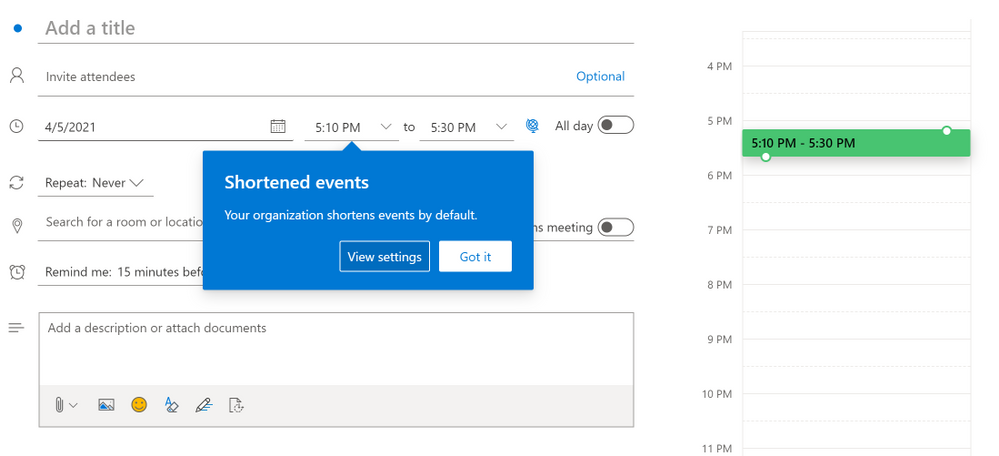
- For now, Outlook on the web will notify users that their organization has implemented a change in their meeting length
Outlook on the web users will see an in-app notification of the change
- The notification will come later to other Outlook clients and users will see it then
- If users have created an individual setup, they will not see the notification – since the change does not apply to them
- All Outlook clients in their latest version will respect the setting but for now only Outlook on the web will show the in-app notification of the change. For the most updated information on which versions respect the settings, read this article.
- Meetings scheduled from Microsoft Teams will not respect this setting at this time, but shortened events created in Outlook will show up in the Teams calendar with the shortened length. The capability will be coming to meetings scheduled from Teams in the future.
- We know that even in the same organization, teams and individuals have different needs so users can change their meeting length at any point and override the company setting by following the instructions in Make all your events shorter automatically – Office Support (microsoft.com)
How do I enable this?
For our main Microsoft Exchange Online PowerShell documentation, please go here. You can also follow the instructions below.
Admins can set the default settings for shortened events using Set-OrganizationConfig.
- [-ShortenEventScopeDefault <String | Uint32>]
The ShortenEventScopeDefault parameter specifies whether events start late or end early.
Possible values:
- None | 0: shortened events is OFF (i.e. unchecked in the UX) – This is the default value
- EndEarly | 1: end early
- StartLate | 2: start late
- [-DefaultMinutesToReduceShortEventsBy <Uint32>] – optional
The DefaultMinutesToReduceShortEventsBy parameter specifies the number of minutes to shorten events under 60-minutes long.
Possible values: 0-29.
Default value: 5.
This parameter cannot be set without the ShortenEventScopeDefault parameter.
- [-DefaultMinutesToReduceLongEventsBy <Uint32>] – optional
The DefaultMinutesToReduceLongEventsBy parameter specifies the number of minutes to shorten events that are 60-minutes or longer.
Possible values: 0-29.
Default value: 10.
This parameter cannot be set without the ShortenEventScopeDefault parameter.
Examples:
- (valid) All users in the organization start 5/10min late:
Set-OrganizationConfig -ShortenEventScopeDefault 2 (this uses the default length)
- (valid) All users in the organization have short (under 60 minutes) and long (60-minutes or longer) events start 5-min late:
Set-OrganizationConfig -ShortenEventScopeDefault 2 -DefaultMinutesToReduceLongEventsBy 5
- (invalid) All users in the tenant have events start 5 min late.
Set-OrganizationConfig -DefaultMinutesToReduceLongEventsBy 5 Invalid. Missing ShortenEventScopeDefault.
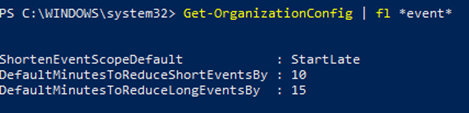
Note: Admins can see the current value of the settings using Get-OrganizationConfig cmdlet.
As always, your feedback helps us prioritize our work and understand better how we can help you, so stop by our UserVoice channel and share your ideas.
Thanks!
Gabriel

by Contributed | Apr 20, 2021 | Technology
This article is contributed. See the original author and article here.
This series highlights Microsoft Learn Student Ambassadors who achieved the Gold milestone and have recently graduated from university. Each blog features a different student and highlights their accomplishments, their experience with the Student Ambassadors community, and what they’re up to now.
Today we’d like to introduce Sabiha Shaik, who is from the United Arab Emirates and graduated last September from the Birla Institute of Technology and Science Pilani, Dubai Campus.
Responses have been edited for clarity and length.
When you became a Student Ambassador in the Fall of 2018, did you have any specific goals you wanted to reach, like attain a skill or work on a particular quality? What were they, and did being a Student Ambassador help you achieve them?
I wanted to form connections with others who are as passionate about technology as I was, learn about upcoming technologies, and have an opportunity to reach as many people as possible and create a greater impact in my local community. Through the program, I was able to achieve all the above and so much more.
I was able to learn more about two specific areas I wanted to develop myself in–digital accessibility and mobile and web development. Attending weekly office hours, asking questions to Cloud Advocates, and participating in topic-specific hackathons all really helped me push my technical knowledge further. With the resources available to improve soft skills and interacting with other Student Ambassadors, I was able to increase the impact in my community by growing attendance at events.
I met many Student Ambassadors and was able to collaborate with a few along with a Microsoft Most Valuable Professional to start the MSInspir YouTube Channel. Since the channel started in Aug 2019, it has gained 41,789 views and a subscriber count of 1.59K. It includes 114 videos to date consisting of workshops, interviews, podcasts, and quick tips on all aspects related to technology.
Overall, the program was exactly what I needed as a student. It offered me a supportive community where I could be myself, thrive, and work towards building something that was much greater than myself. This community has had a tremendous impact on me, especially during university because I felt a bit left out as I couldn’t find others who were as passionate or interested in technology as I was. This community gave me a chance to not only develop technical skills and soft skills but also have connections to cherish even after leaving the program.
You’ve mentioned some of your accomplishments, but what was one of the accomplishments that you’re proudest of?
If I had to pick one, it would be speaking at the Student Zone of Microsoft Build 2020 about Microsoft MakeCode Arcade, where I gave a hands-on tutorial introducing programming concepts while creating a simple sprite-based game. Being able to interact and speak to an audience consisting of a mix of young students and new and experienced programmers who were looking to getting started creating games with block coding was truly an amazing experience. Session evaluations showed that 77% of the attendees learned new skills, and 88% were likely to use the skills discussed. It was amazing to learn that the session had such a huge impact, one that I was aiming to create when I joined the program. The session recording was later uploaded to YouTube where it was able to reach many more youths interested in getting started with programming, games, and block coding.
You graduated several months ago. What have you been up to since then?
I joined as a Junior Developer at the Chalhoub Group, the leading partner for luxury across the Middle East for over 60 years. I’m helping to develop the internal learning experience platform that employees use to learn everything from retail, leadership, digital and enabling artsthrough interactive interactions and experiences using code!
I still plan to continue conducting sessions and give back to the community during my free time.
If you could redo your time in the program, is there anything you would have done differently?
I don’t think there is a lot I would have done differently as my time in the program was filled with so many opportunities that I got to experience. I would probably have been a bit more confident and assured that what I’m doing is on the right track and do the thing, no matter how scary it might seem at first!
If you were to describe the Student Ambassadors community to a student who is considering joining, what would you say to convince them to join?
Imagine waking up every day knowing there is a community of people you can share your ideas with, collaborate with and leave a lasting impact on the world. That’s the Student Ambassadors program. The opportunities in the program are endless – you get to develop your soft skills, event organization skills, and marketing skills on top of technical skills, and you get to expand your network. It’s a program that provides you a perfect blend of everything you might want to experience as a student.
And what advice would you give to new Student Ambassadors?
You’ll get as much out of the program as much work as you put in it. Seek as many experiences as you can in the program. Any given week there are plenty of things that are happening in the Student Ambassador community. Be active in the program.
Set goals and milestones for yourself in the program and think of how you can work on it by thinking of specific things you can do in the Student Ambassador community to achieve them.
Reach out to others in the program to learn from them and experiment with their tips for your local community. It’s not often that you have access to such a huge network of students from all across the world!
Finally, remember that it’s all about giving back and being proud of what you’ve accomplished, even if it’s just making that difference for one person in your community.
Do you have a motto in life, a guiding principle that drives you?
Do one thing every day (or week) that scares you! Growth comes from new challenges, and one way to ensure you keep growing is to keep doing things outside your comfort zone.
Lastly, on a lighter note, can you share one random fun fact about you that not many people know?
I enjoy art and painting in my leisure time, specifically sketching and acrylic painting. I was a part of the graphic design club at university where I designed posters for various events.
Thank you, Sabiha, and good luck to you in all your future endeavors! Learn more about the Student Ambassadors community and start your own journey today.



Recent Comments