by Contributed | May 11, 2021 | Technology
This article is contributed. See the original author and article here.
The Microsoft Teams Community has not been more exciting! In-person events and gatherings are close to being a reality and in some parts of the world have already begun. More and more user groups and community events are popping up, the activity in the Tech Community has never been stronger, and there’s all kinds of chatter around the many recent feature updates.
Here’s a few updates I’d like to share from the last month.
We would like to congratulate Theresa Lubelski who has been named the April Microsoft Teams Community Start Award winner. As Women in Teams Community kicked off earlier this year, we knew it’d take a village to make things run smooth, to host a vibrant online community, and monthly gatherings. Theresa jumped in with both feet in getting the community off the ground and has worked to make sure those in the community can collaborate with one another and have the opportunity to participate. She has brought her depth of SharePoint and has been a vital member of the planning team. Follow Theresa on Twitter @SharePointMadam or find her on LinkedIn. If you are interested in being part of the Women in Teams Community, we invite you to join us! The next monthly gathering is June 8th.
Anyone can nominate an individual for the Microsoft Teams Community Star Award.
There are some fantastic Community Events happening in the coming months, both virtual and in-person. You can find a list of regional and worldwide User Group and Events in the Microsoft Technical Community Event Listings. If you have your own UG or Event to share, please add it!
I hope you’ll join me May 12th at Teams Nation, a 100% free, 100% community based monthly meeting and community conference focused on Microsoft Teams, its underlying technologies and extensibility options. Its aim is to bring together Microsoft, Community Leaders and the Tech Community to share technical knowledge, provide opportunities for speaking and create a network of Teams enthusiasts the world over. @Allie Thompson and I will be speaking on ‘Solving the #MVPBuzz Mystery and how you can have a bigger impact on community’. There’s a packed schedule covering just about everything Microsoft Teams – check it out!
If you’re up for sunshine and a bit of travel, you can join us at the M365 Conference in Orlando! If you prefer to stay in the comfort of your home, you can do that too. M365 Conference is a hybrid event which means you can travel or not – but you won’t miss out on the great content delivered across all M365 technologies. This event is a precursor to the main event taking place late this year in Las Vegas.
Originally there were some in-person events scheduled this summer which have since pushed out to fall and I can’t WAIT to be a part of them. You won’t want to miss:
European SharePoint, O365 & Azure Conference – virtual in June, 2021
CommsVerse in UK – September, 2021
TeamsFest / SharePointFest in Washington DC – September, 2021
Thrive Conference in Slovenia – October, 2021
European Collaboration Summit – November, 2021
M365 Conference – Las Vegas, NV – December 2021
Finally, we’re always looking for bloggers like YOU to contribute to this space! If you’d like to share your knowledge in blog format with this community, please submit your topic!
What community activities are you participating in? What community support do you need? Let us know!
Until next month – Be well!
#CommunityRocks!
Laurie Pottmeyer
Community Lead, Microsoft Teams Engineering
@lauriepottmeyer
by Contributed | May 10, 2021 | Technology
This article is contributed. See the original author and article here.
The 24th cumulative update release for SQL Server 2017 RTM is now available for download at the Microsoft Downloads site. Please note that registration is no longer required to download Cumulative updates.
To learn more about the release or servicing model, please visit:
Starting with SQL Server 2017, we adopted a new modern servicing model. Please refer to our blog for more details on Modern Servicing Model for SQL Server
by Contributed | May 10, 2021 | Technology
This article is contributed. See the original author and article here.
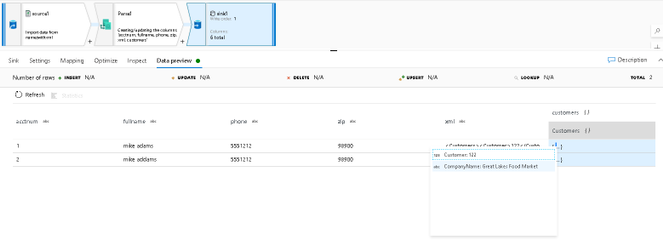
The Parse transformation in Azure Data Factory and Synapse Analytics data flows allows data engineers to write ETL data transformations that take embedded documents inside of string fields and parse them as their native types. For example, you can set parsing rules in the Parse transformation to handle JSON and delimited text strings and transform those fields into complex types. Now, we’ve updated Parse to also understand XML as a source type in your incoming string data.
In this example, I have a text delimited CSV data source. Since this is a simple text file, the embedded XML document in the column labeled “xml” is read as a string, so I am unable to treat it like a hierarchical structure. However, by adding the Parse transformation, I can select XML as my incoming embedded type and define the structure “customers” as the new column that is now hierarchical:
by Contributed | May 10, 2021 | Technology
This article is contributed. See the original author and article here.
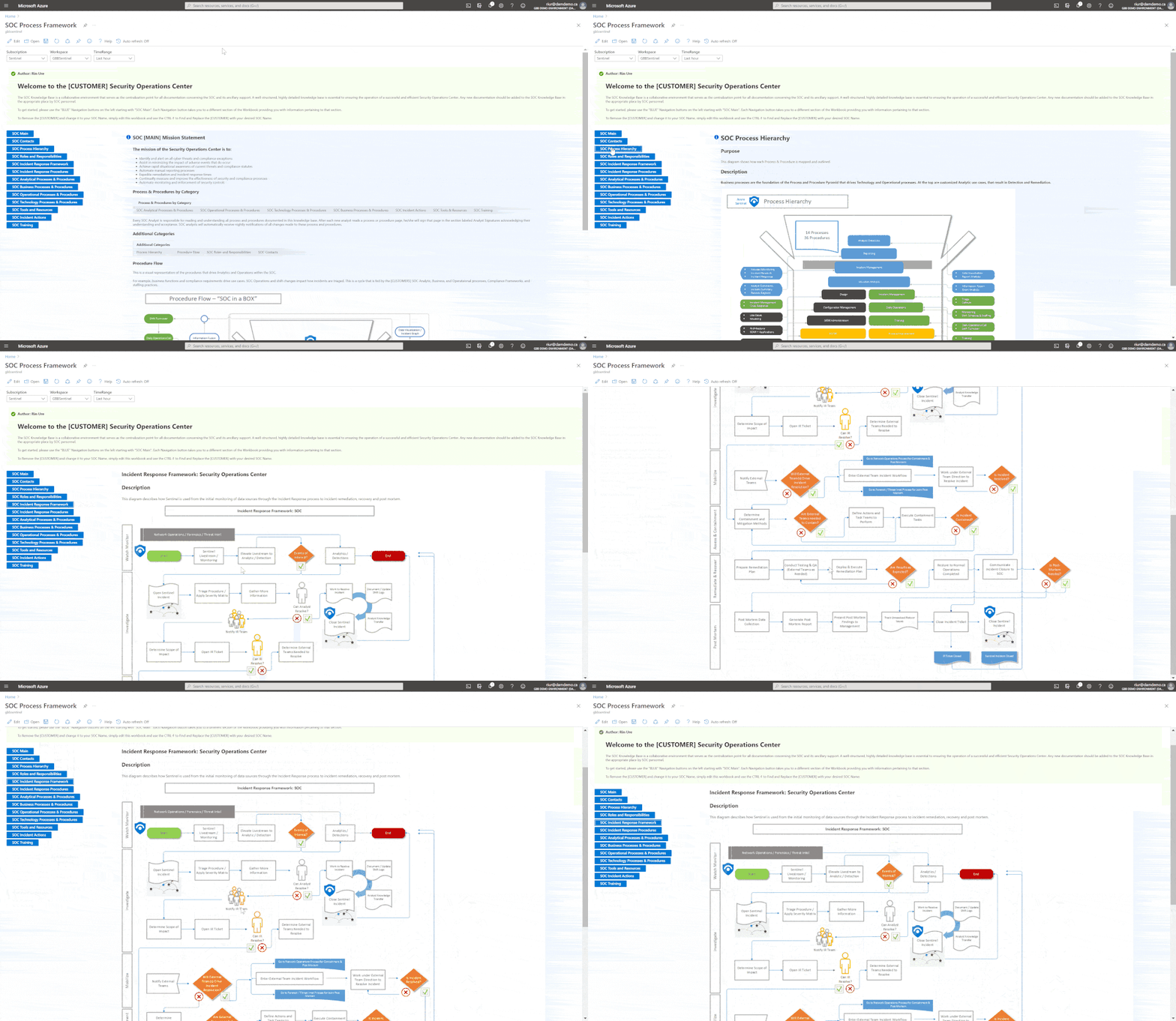
If you are like me, you are probably excited with how fast Azure Sentinel has grown. This means more capabilities, functions and integrations to work with. So with all that power, how do I build a SOC and operationalize my Security Operations to keep up? At long last, there is a new Workbook to help you do just that… I have spent over a decade helping to build SOCs and together at Microsoft my team of GBB’s, built a SOC Process Framework Workbook that combines SOC industry standards and best practices and applied them to Azure Sentinel.
A special thanks to my team members who helped me on this project. (Clive Watson, Beth Bischoff, Chuck Enstall, Josh Heizman, Matthew Littleton) Each one of you brought a wealth of knowledge and a unique perspective. A heart felt Thank you to you all!!
Deploying the Workbook
It is recommended that you have a working instance of Azure Sentinel get the full benefit of the SOC Process Framework Workbook, but the workbook will deploy regardless of your available log sources. Follow the steps below to enable the workbook:
Requirements: Azure Sentinel Workspace and Security Reader rights.
1) From the Azure portal, navigate to Azure Sentinel.
2) Select Workbooks > Templates.
3) Search SOC Process Framework and select Save to add to My Workbooks.
NOTE: If the workbook is not yet available in your Azure Sentinel Workbook Templates, you can pull down a copy by going to my GitHub repo: https://github.com/rinure-msft/Azure-Sentinel/blob/master/Workbooks/SOCProcessFramework.json and simply open a New Workbook and paste in the Gallery Code.
If you need steps on manually deploying the workbook after copying the code from GitHub, I suggest following the instructions from this article that has them outlined: https://docs.microsoft.com/en-us/azure/azure-monitor/visualize/workbooks-automate.
There are 14 Processes and 36 Procedures broken into detail to help deliver a comprehensive start to operationalizing Azure Sentinel and applying a SOC methodology.
Working Example of SOC Process Framework Workbook
This workbook is built so that SOC practices can deploy this workbook and edit the following Parameters:
– [CUSTOMER] Simply replace with your customer SOC Name.
– Upload Diagrams and or Docs under the Technology sections.
– Make any necessary changes to fit the way your SOC operates and use this workbook as your Central SOC Operational Process and Procedures Knowledge Base.
This workbook has a TON of features (too many to mention) so go grab this workbook and find out how easy it is to build your SOC processes around Azure Sentinel, XDR, Azure Security Center, or any of our Security tools.
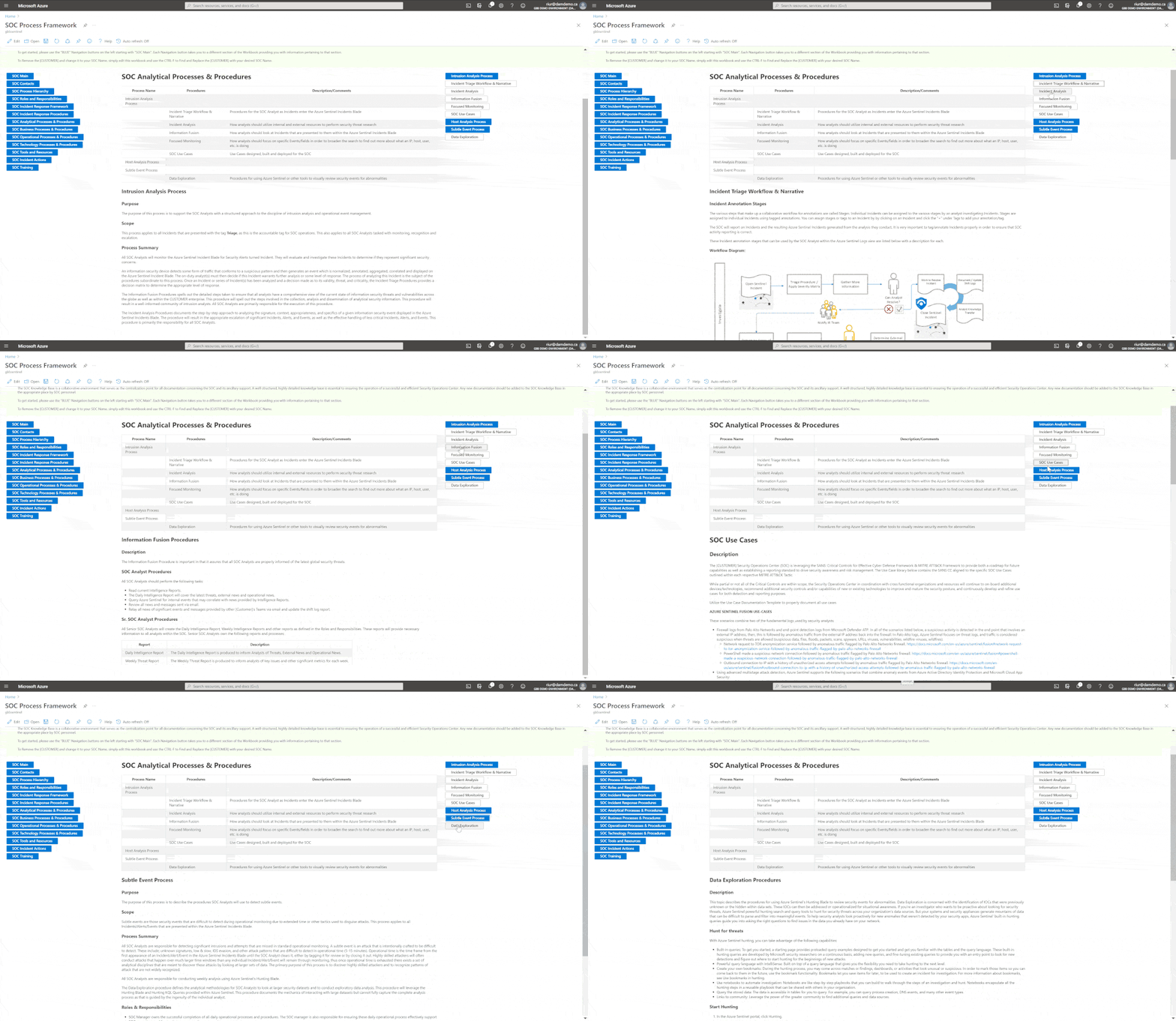 SOC Process Framework – Analytical Processes
There are a couple of other artifacts that are complimentary to this workbook that were uploaded recently! Here they are:
– Get-SOCActions Playbook – Azure-Sentinel/Playbooks/Get-SOCActions at master · rinure-msft/Azure-Sentinel (github.com)
– SocRA Watchlist – https://github.com/rinure-msft/Azure-Sentinel/blob/master/docs/SOCAnalystActionsByAlert.csv
The Get-SOCActions Playbook with “SocRA” Watchlist gives SOCs the ability to onboard SOC Actions for their Analysts to follow that snap to the SOC Process Framework Workbook. As they onboard Use-Cases and apply triage steps, this playbook can then be run to add those steps to the Incident for an Analyst to follow to closure.
I am positive this workbook will help you build a successful SOC framework needed to mature your SOC around Azure Sentinel.
Happy SOC Building!
by Contributed | May 10, 2021 | Technology
This article is contributed. See the original author and article here.
Hello everyone, Chris Vetter Customer Engineer at Microsoft. I am writing to talk about creating OneDrive for Business profiles with Microsoft Endpoint Manager Configuration Manager (MEMCM). Let us start with the why. Since more businesses are allowing remote work these days what better way to allow your workforce to access their files from any device when their files are synchronized with OneDrive for Business. This can also lower the dependency on the company provided devices and provide less data loss in the case of faulty hard drives or if a machine needs a refreshed image. By using OneDrive for Business Profiles, we also automatically synchronize the content of the known folders unlike when we use folder redirection. Why should we do this with MEMCM when we can just set it with Group Policy? Two reasons number one: If you are like most organizations your On-Premises Active Directory environment already has plenty GPO (Group Policy Objects) settings being applied which can cause things like long logon times and waiting for all the Group Policies to process and refresh. Number two: The path to fully Azure Active Directory joined environment is to move away from group policy and apply these settings with Microsoft Endpoint Manager being that is one dependency a lot of environments have on staying hybrid joined is that Azure Active Directory does not have group policy like On-Premises Active Directory. So let us begin!!
Create OneDrive for Business Profile
This feature was introduced into Configuration Manager with Current Branch 1902 so if you are not on at least CB (Current Branch). 1902 (You are in an unsupported state since 1902 is no longer supported) you will need to upgrade to the latest version of MEMCM Current Branch. See my blog post on how to do this here.
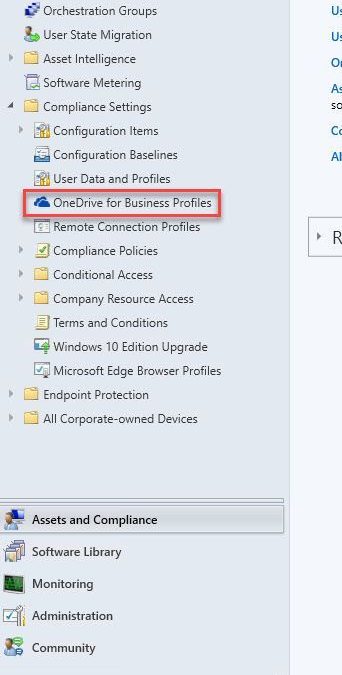
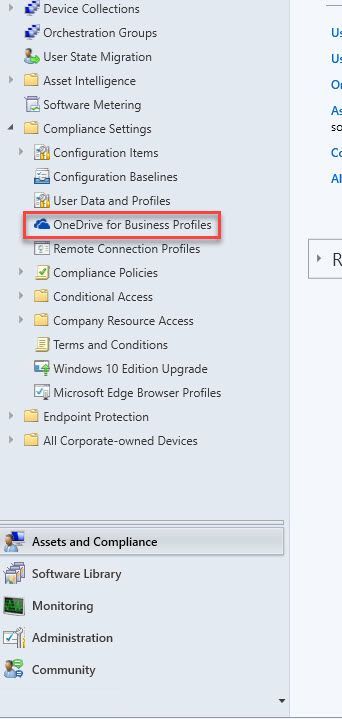
From the Assets and Compliance tab expand the Compliance Settings Folder and click on the OneDrive for Business Profiles Node. From the ribbon select Create OneDrive for Business Profile,
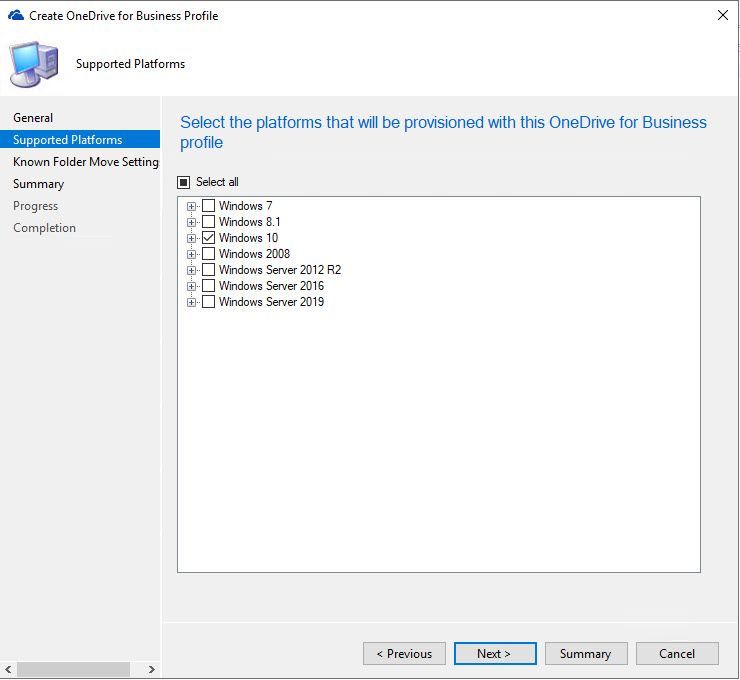
On the General Tab we name our Profile and give it a brief description then we select next, this brings up the Supported Platforms Tab Select any Operating systems you will be supporting in your environment then select next.
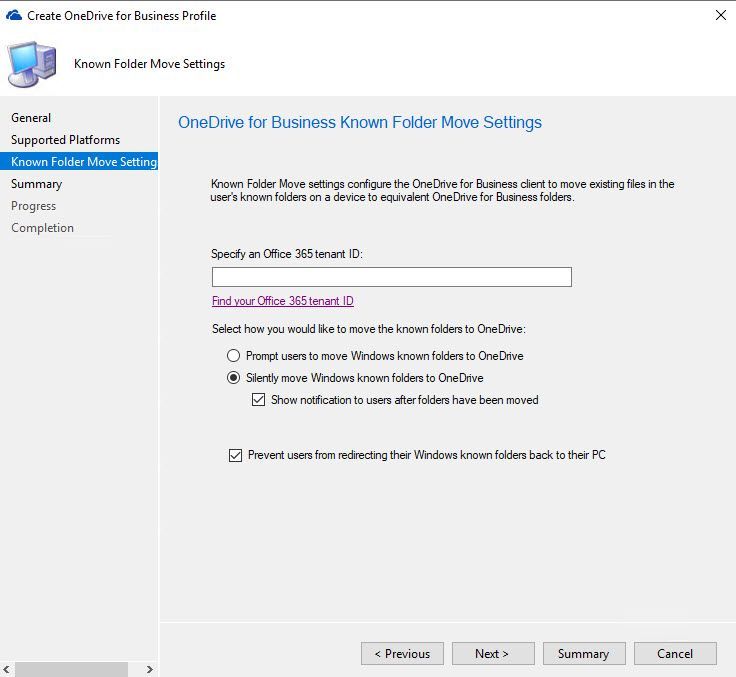
The next tab is the Known Folder Move Settings. You can select what will work best for your environment or create multiple Profiles with different settings if you have dissimilar needs for different users. You will also need to add your tenant ID for your M365 subscription which can be found by following this link,
https://docs.microsoft.com/en-us/onedrive/find-your-office-365-tenant-id
Here is a brief explanation of the settings on this tab:
- Prompt users to move Windows known folders to OneDrive: With this option, the user sees a wizard to move their files. If they choose to postpone or decline moving their folders, OneDrive periodically reminds them.
- Silently move Windows known folders to OneDrive: When this policy applies to the device, the OneDrive client automatically redirects the known folders to OneDrive for Business.
- Show notification to users after folders have been redirected: If you enable this option, the OneDrive client notifies the user after it moves their folders.
- Prevent Users from redirecting their Windows known folders back to their PC: This disables the option for users to be able to move their folders back to being local on the device.
Select next to get to the Summary Tab then next again to begin the creation process. When you are finished select close.
Next, we will select our newly created Profile and deploy it to our desired device collection.
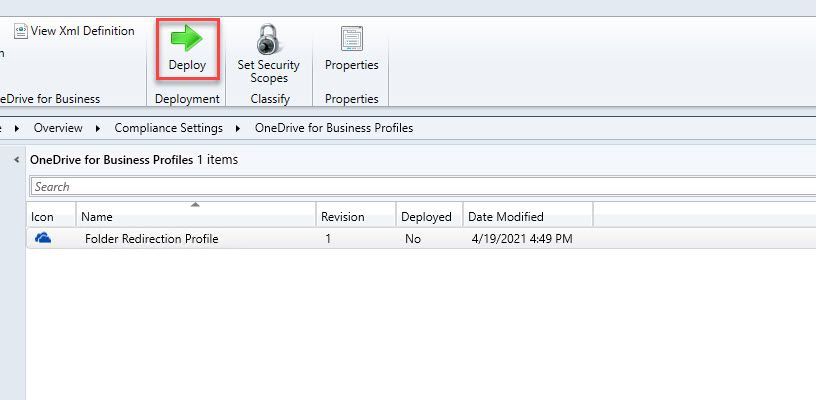
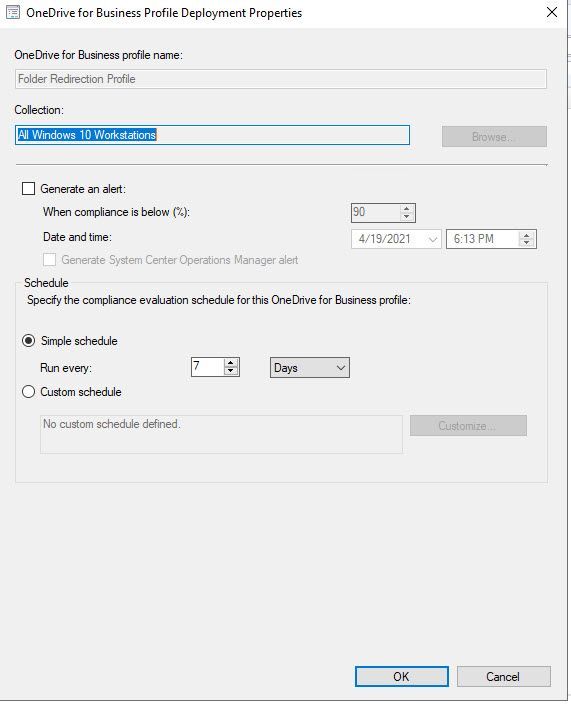
When the Deployment Wizard opens select your Device Collection you wish to target as well as if want an alert generated for non-compliance and the schedule in which you want this profile to evaluate.
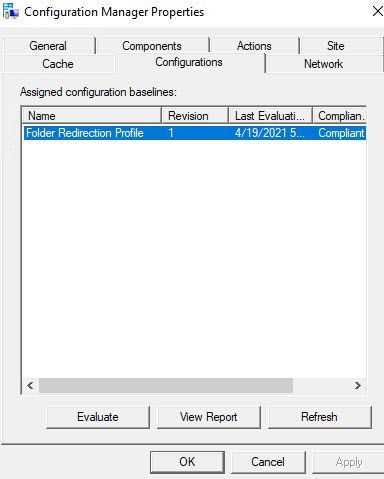
From the Windows Client this looks like a Configuration Baseline in the Configuration Manager control panel applet.
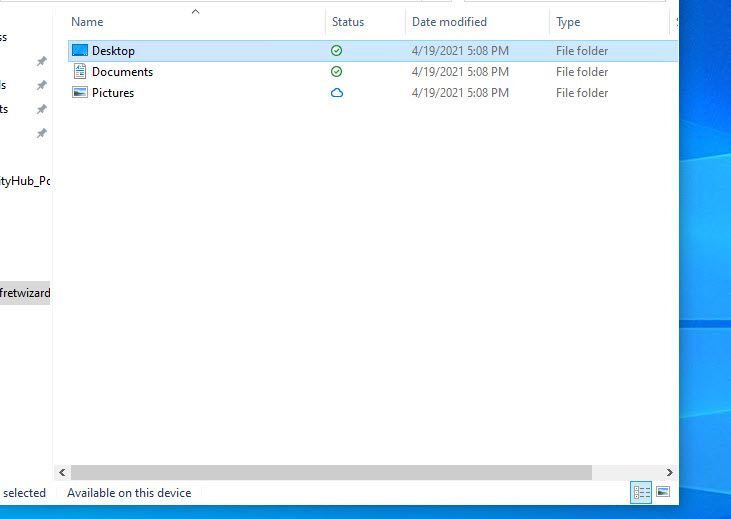
The experience in my lab was delivered on the next log on and I saw my known folders were now redirected to my OneDrive section in File Explorer.
Disclaimer
All screenshots and folder paths are from a non-production lab environment and can/will vary per environment. All processes and directions are of my own opinion and not of Microsoft and are from my years of experience with the configuration manager product in multiple customer environments.
Resources
OneDrive for Business Profiles – Configuration Manager | Microsoft Docs


Recent Comments