by Contributed | May 12, 2021 | Technology
This article is contributed. See the original author and article here.
The Central Laser Facility (CLF) carries out research using lasers to investigate a broad range of science areas, spanning physics, chemistry, and biology. Their suite of laser systems allows them to focus light to extreme intensities, to generate exceptionally short pulses of light, and to image extremely small features.
The Central Laser Facility is currently building the Extreme Photonics Applications Centre (EPAC) in Oxfordshire, UK. EPAC is a new national facility to support UK science, technology, innovation and industry. It will bring together world-leading interdisciplinary expertise to develop and apply novel, laser based, non-conventional accelerators and particle sources which have unique properties.
The software control team inside Central Laser Facility develops applications that enable scientists to monitor and communicate with a wide range of scientific instruments. For example, the application can be used to move a motorised mirror to direct the laser beam toward a target, to watch a camera feed showing the current status of the system, or to configure and record data from a suite of cutting-edge scientific instruments such as x-ray cameras or electron spectrometers. These applications aggregate data and controls for specific tasks that a user needs to undertake – say, point the laser at a new target – and present them in a single screen to avoid the need to individually access all the different hardware necessary to make that happen.
The Challenge: Moving forward the control system for EPAC
As CLF started planning the design of a new control system for EPAC, their main goal was to tackle some of the challenges they were facing with the existing set of applications:
- Minimise the adaptations needed to run on multiple operating systems. CLF currently supports Windows and Linux, with other platforms like Android and Web in planning.
- Maximize code reuse while, at the same time, creating a scalable user interface. Their applications need to scale from mobile devices to large displays placed around the facility.
- Support advanced graphical features, like themes for easily changing colour schemes; the palette needed for viewing a screen through laser goggles in a laboratory is different than one would use in a control room, where no goggles are necessary.
The Solution
WinUI and Uno Platform were a perfect combination to tackle these challenges.
WinUI provides a state-of-the-art UI platform, which offers the powerful rendering capabilities needed by the application to show the real time feed coming from the cameras; to generate complex graphs that display in real-time the data captured by the instruments; to adapt to different layouts and form factors; ultimately, to easily create easy-to-use experiences thanks to a wide range of modern controls with full support to accessibility and multiple input types. Uno Platform is enabling the Central Laser Facility to take these features which empower the experience built for Windows and run it with no or minimal code changes on all the other platforms targeted by Central Laser Facility: Linux, Android and Web.
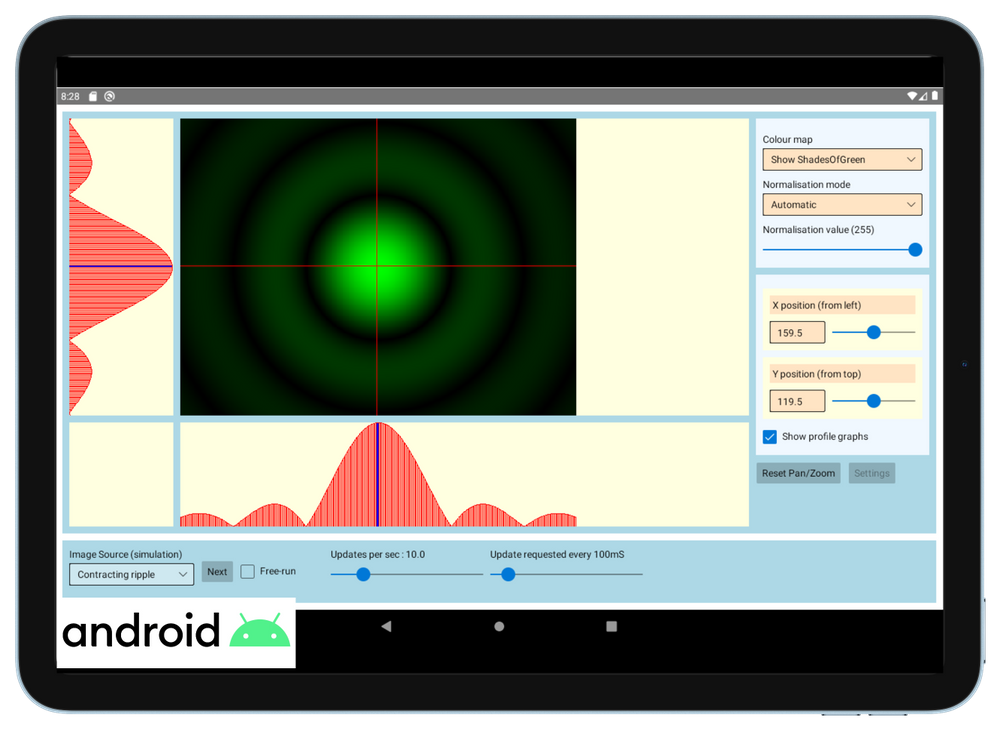
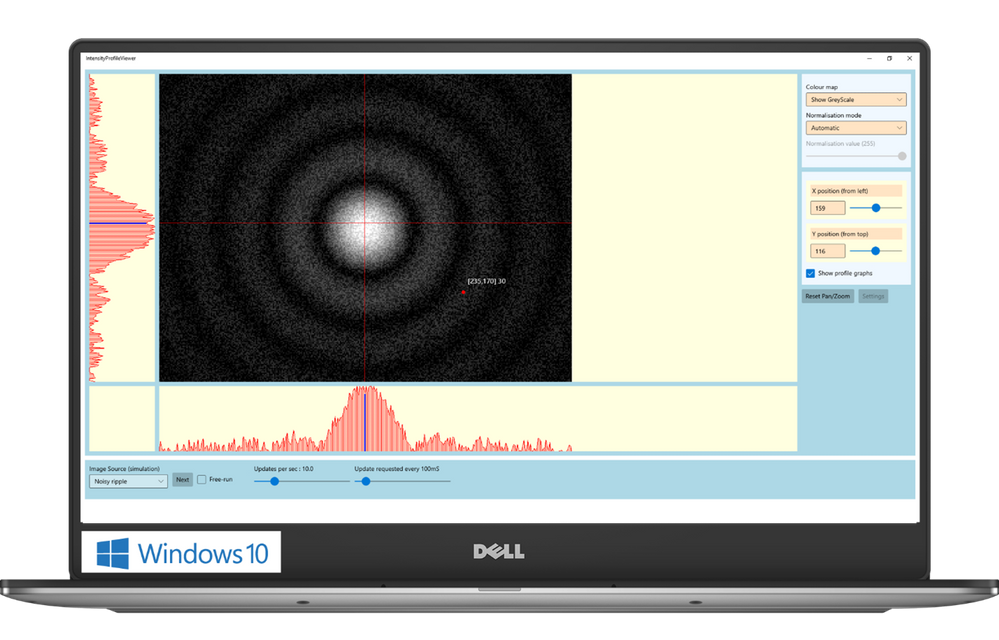
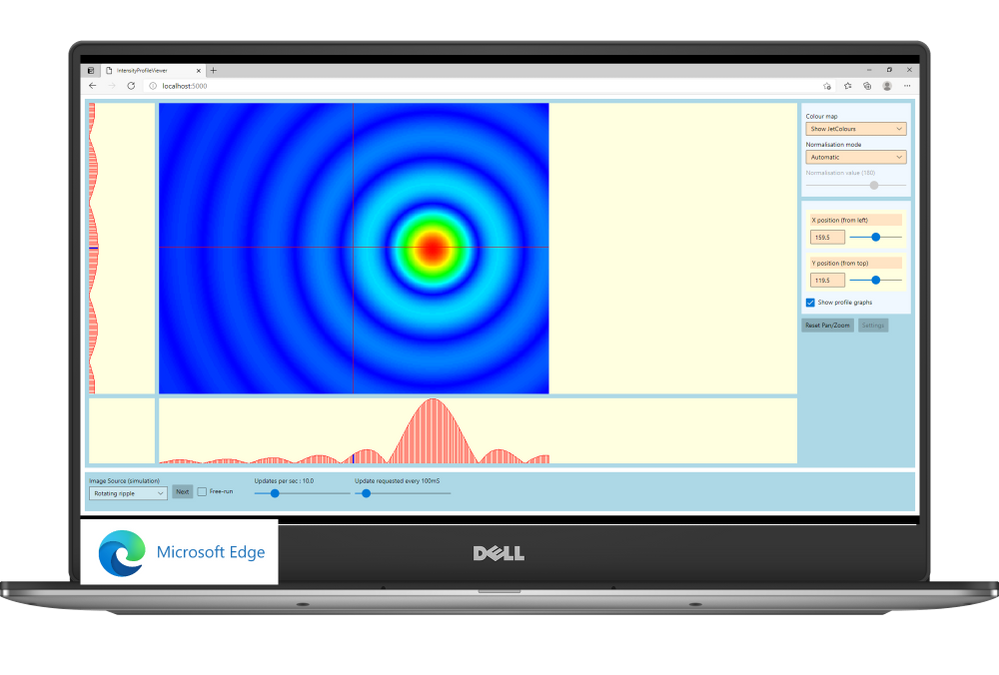
“Thanks to WinUI and Uno Platform, we were able to leverage the excellent set of developer tools that exists in .NET, and provides access to the reusable content in the Windows Community Toolkit and the XAML controls gallery.” shared Chris Gregory, Software Control Engineer. “The primary attraction for us was the ability to deploy applications cross-platform. This will allow us to visualise what’s happening with our instrumentation on the Windows machines in the control room, the Linux systems running the back end, on a tablet inside the laboratory, or on a mobile device for off-site monitoring.
This flexibility means that scientists and engineers can see a uniform presentation of the information they need no matter where they are in our facility, with minimal extra developer effort. Added to this, the availability of such a rich set of controls will result in the development of applications that are much more intuitive to use”.
by Contributed | May 12, 2021 | Technology
This article is contributed. See the original author and article here.
Adopt a Zero Trust approach for security and benefit from the core ways in which Microsoft can help. In the past, your defenses may have been focused on protecting network access with on-premises firewalls and VPNs, assuming everything inside the network was safe. But as corporate data footprints have expanded to sit outside your corporate network, to live in the Cloud or a hybrid across both, the Zero Trust security model has evolved to address a more holistic set of attack vectors.
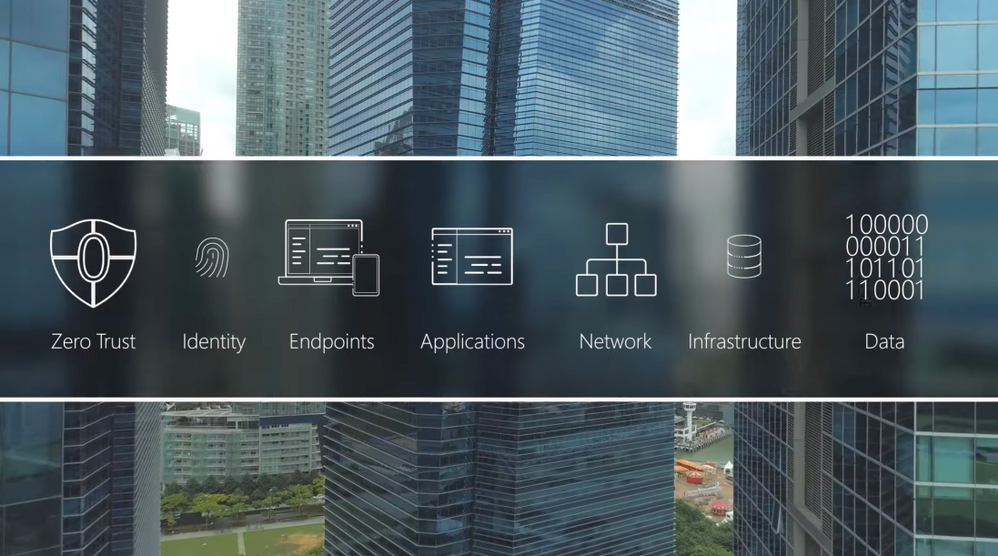
Based on the principles of “verify explicitly”, “apply least privileged access” and “always assume breach”, Zero Trust establishes a comprehensive control plane across multiple layers of defense:
Identity
Azure Active Directory assigns identity and conditional access controls for your people, the service accounts used for apps and processes, and your devices.
Endpoints
Microsoft Endpoint Manager assures devices and their installed apps meet your security and compliance policy requirements
Applications
Microsoft Endpoint Manager can be used to configure and enforce policy management. Microsoft Cloud App Security can discover and manage Shadow IT services in use.
Network
Get a number of controls, including Network Segmentation, Threat protection, and Encryption.
Infrastructure
Azure landing zones, Blueprints and Policies can ensure newly deployed infrastructure meets compliance requirements for cloud resources. Azure Security Center and Log Analytics help with configuration and software update management for on-premises, cross-cloud and cross-platform infrastructure.
Data
Limit data access to only the people and processes that need it.
QUICK LINKS:
00:37 — Six layers of defense
02:31 — Identity
03:48 — Endpoints
04:48 — Applications
05:46 — Network
06:36 — Infrastructure
07:18 — Data
08:11 — Wrap Up
Link References:
Learn more at https://aka.ms/zerotrust
For tips and demonstrations, check out https://aka.ms/ZeroTrustMechanics
Unfamiliar with Microsoft Mechanics?
We are Microsoft’s official video series for IT. You can watch and share valuable content and demos of current and upcoming tech from the people who build it at Microsoft.
Keep getting this insider knowledge, join us on social:
Video Transcript:
-Welcome to Microsoft Mechanics and our new series on Zero Trust Essentials. In the next few minutes, I’ll break down what you can do to adopt a Zero Trust approach for security and how Microsoft can help. In the past, you may have focused your defenses on protecting network access with on-premise firewalls and VPNs assuming that everything inside the network was safe. But as corporate data footprints have expanded to sit outside your corporate network, to live in the cloud or hybrid or across both, the Zero Trust security model has evolved to address a more holistic set of attack vectors.
-Based on the principles of verify explicitly, apply least privileged access, and always assume breach, Zero Trust establishes a comprehensive control plan across multiple layers of defense. And this starts with identity and verifying that only people, devices and processes that have been granted access to your resources can access them. Followed by device endpoints including IoT systems at the edge where the security compliance of the hardware accessing your data is assessed. Now, this oversight applies to your applications too, whether local or in the cloud, as the software-level entry points to your information. Then there are protections at the network layer for access to resources, especially those that are within your corporate perimeter. Followed by the infrastructure, hosting your data both on premises or in the cloud. This can be physical or virtual including containers and microservices, and the underlying operating systems and firmware. And finally, the data itself across your files and content, as well as structured and unstructured data wherever it resides.
-Now, each of these layers are important links in the end-to-end chain of Zero Trust, and each can be exploited by malicious actors or inadvertently by users as entry points or channels to leak sensitive information. That said, core to Microsoft’s approach for Zero Trust is not to disrupt end users but work behind the scenes to keep users secure and in their flow as they work. The key here is end-to-end visibility and bringing then all this together with threat intelligence, risk detection and conditional access policies to reason over access requests and automate response.
-Here, as we’ll explore in the series, the good news is that both Microsoft 365 and Azure are designed with Zero Trust as a core architectural principle and have built-in and best-in-class controls to help deliver a Zero Trust environment. And you can then use these tools to extend Zero Trust to hybrid or even multi-cloud.
-In fact, let me walk you through some highlights for how Microsoft can help you implement Zero Trust starting with identity. Here, Azure Active Directory is the underlying service that assigns identity and conditional access controls for your people, the service accounts used for apps and processes, and your devices. Importantly, beyond Microsoft services, Azure AD can provide a single identity control plane with common authentication and authorization services for your cloud-based services and your on-premises resources. This prevents the use of multiple credentials and weak passwords spread across different services and helps you to universally apply strong authentication methods, like passwordless multifactor authentication for your users.
-Also to make the authentication process significantly less intrusive to users, you can take advantage of real-time intelligence at sign-in with conditional access and Azure AD. You can set policies to assess the risk level of the user or a sign-in, the device platform along with a sign-in location, to make point of log on decisions and enforce access policies in real time to either block access outright, grant access but require an additional authentication factor such as a biometric or a FIDO2 key, or limit it for example, to just view-only privileges.
-And moving on to end points, because not all devices accessing corporate data are managed or owned by your organization, they can represent another weak link in establishing Zero Trust. They may not be up to date or protected and run the risk of data exfiltration from unknown apps or services. Using Microsoft Endpoint Manager, you can make sure that devices and their installed apps meet your security and compliance policy requirements, regardless of whether the device is corporate owned or personally owned, wherever they’re connecting from, whether that’s on a network perimeter including over a VPN, on the home network or the public internet. Also on Microsoft Defender with its extended detection and response or XDR management controls can identify and contain breaches discovered on an endpoint and then force the device back into a trustworthy state before it’s allowed to connect back to resources.
-Next we’ve already touched on the benefits of Azure AD as the single identity provider for authenticated sign-in along with the use of conditional access, and these recommendations also apply to cloud apps and local apps that connect to cloud-based resources as well. Now for your local apps, Microsoft Endpoint Manager can be used to configure and enforce policy management for both desktop and mobile apps including browsers. For example, you can prevent work-related data from being copied and used in personal apps. that said on the SaaS side of the house knowing what apps and services are in use within your organization including those acquired by other teams known as Shadow IT is critical to mitigate any new vulnerabilities. Microsoft Cloud app security and its catalog of more than 17,000 apps can discover and manage Shadow IT services in use. And you can then set policies against your security requirements to scope how information may be accessed or shared within those services. For example, you can use policies to block actions within the cloud app such as downloading confidential files or discussing sensitive topics while using unmanaged devices.
-And this brings us to our fourth layer, the network. With modern architectures and hybrid services spanning on-premises and multiple cloud services, virtual networks or VNets and VPNs, we give you a number of controls starting with network segmentation to limit the blast radius and lateral movement of attacks on your network. We also enable threat protection to harden the network perimeter from things like DDoS or brute force attacks, then the ability to quickly detect and respond to incidents and encryption for all network traffic, whether that’s internal, inbound, or outbound. Microsoft offers several solutions to help secure networks such as Azure Firewall and Azure DDoS Protection to protect your Azure VNet resources. And Microsoft’s XDR and SIEM solution comprising Microsoft Defender and Azure Sentinel, help you to quickly identify and contain security incidents.
-Next, for your infrastructure, the most important consideration here is around configuration management and software updates so that all deployed infrastructure meets your security and policy requirements. For cloud resources, Azure landing zones, blueprints and policies can ensure that newly deployed infrastructure meets compliance requirements and the Azure Security Center, along with Log Analytics, help with configuration and software update management for your on-premises, cross-cloud and cross-platform infrastructure. Also monitoring is critical for detection of vulnerabilities, attacks and anomalies. Here again, Microsoft Defender plus Azure Sentinel provide threat protection for multi-cloud workloads enabling automated detection response.
-Of course, at the end of the day, Zero Trust is all about understanding, then applying the right controls to protect your data. Now we give you the controls to limit data access to only the people and processes that need it. The policies that you set along with real-time monitoring can then restrict or block the unwanted sharing of sensitive data and files. For example, with Microsoft Information Protection, you can automate labeling and classification of files and content. Policies are then assigned to the labels to trigger protective actions, such as encryption or limiting access, restricting third-party apps and services and much more. Additionally, for data outside of Microsoft 365, Azure Purview automatically discovers and maps data sitting across your Azure data sources, on premises and SaaS data sources, and works with Microsoft Information Protection to help you classify your sensitive information.
-So that was a quick overview, the Zero Trust security model and examples of some of the core ways that Microsoft can help. Moving to Zero Trust doesn’t have to be all or nothing. You can use a phased approach and close the most exploitable vulnerabilities first. Of course, keep checking back at aka.ms/ZeroTrustMechanics for more in our series where I’ll share tips and hands-on demonstrations of the tools for implementing the Zero Trust security model across the six layers of defense that I covered today. And you can also learn more at aka.ms/zerotrust. Thanks for watching.
by Contributed | May 12, 2021 | Technology
This article is contributed. See the original author and article here.
Today we released an exciting new feature in Microsoft Endpoint Manager that we call “Filters”. The feature adds greater flexibility for assigning apps and policies to groups of users or devices. Using filters, you can now combine a group assignment with characteristics of a device to achieve the right targeting outcome. For example, you can use filters to ensure that an assignment to a user group only targets corporate devices and doesn’t touch the personal ones. Read more about the announcement here and review the feature documentation here.
The feature is enabled with the service-side update of the 2105 service release, so you can expect to see it in the Microsoft Endpoint Manager admin center starting May 7 and continuing as the service-side updates.
Here is an overview of the feature: Use Microsoft Endpoint Manager filters to target apps and policies to specific users | YouTube.
The feature is released for Public preview and is supported by Microsoft to use in production environments. The following known issues apply. We will remove items off this list as issues are resolved.
Known issues:
- Compliance policy for “Risk score” and “Threat Level”: If your tenant is connected to a partner Mobile Threat Detection (MTD) partner service or Microsoft Defender for Endpoint (MDE), Compliance policies for Windows 10, iOS or Android can include the optional setting “Require the device to be at or under the machine risk score” or “Require the device to be at or under the Device Threat Level”. Using this setting configures the Microsoft Endpoint Manager compliance calculation engine to include signals from external services in the overall compliance state for the device. Using Filters on assignments for compliance policies with these settings is not currently supported.
- Available Apps on Android DA enrolled devices: Filter evaluation for available apps requires Company Portal app version 5.0.4868.0 (released to Android Play store August 2020) or higher for filter evaluation. If a device does not have this version (or higher) installed, apps will incorrectly show as available in the Company portal but be blocked from installing on the device.
- OSversion property for macOS devices: MacOS version numbers are reflected in Intune as a string that combines version number and build version in Intune, for example: “11.2.3 (20D91)” includes version number 11.2.3 along with build version 20D91. When creating a filter based on OS version for macOS device you can specify the full string including both components. There is a known issue where the device check-in gateway does not gather the full build version for evaluation, resulting in an incorrect evaluation result. For example, if you specified a filter (Device.OSversion -eq “11.2.3 (20D91)”) and a device of this version was evaluated, the result would be “Not match” because only the first half of the version number is evaluated.
Known issues for reporting:
- Filter evaluation reports for Available Apps: Evaluation results are currently not collected for apps assigned to groups with the “Available” intent. The “Managed Apps” (Device > [Devicename] > Managed Apps) “Resolved intent” column incorrectly shows a status of “Available for install” even if the device should be excluded by a Filter.
- Delay in filter evaluation report data: There is a case where filter evaluation reports (Devices > All Devices > [Devicename]> Filter evaluation) are not updated with the most recent evaluation results. This case only occurs in a special case where a filter is used in an assignment, some evaluation results are produced and then the filter is later removed from that assignment. In this scenario the report may take up to 48 hours to reflect. Note, this occurs only if the filter is removed from the assignment and not if the assignment is recreated by removing the group and then re-adding it without a filter.
- Win32 apps reporting: There is a known issue where Win32 apps reports (Apps > All apps > [App Name] > Device install status] for a device may be incomplete when a filter was used for any of the targeted apps for a device. Apps that were filtered out during a check-in may fail to report evaluation status events back to the MEM admin center. This impacts the app that used the filter, along with other Win32 apps in the same check-in session.
- Unexpected policies for other platform types show up in filter evaluation report: The Filter evaluation report for a single device (Devices > All Devices > [DeviceName]> Filter evaluation (preview)) shows all policies and apps that were targeted at the device or primary user of the device for which there was a filter evaluation performed, even if the policy type is not applicable for the platform of the device you are interested in. For example, if you assign a Windows 10 configuration policy to a user (a group that contains the user) along with a filter, you will notice that the filter evaluation report lists of policies for that user’s iOS, Android and macOS devices will also show Windows 10 policies and evaluation results. Note: The evaluation results will always be “Not Match” due to platform.
- No way to see which policies and apps are using a filter: When editing or deleting an existing filter, there is no way in the UX to see where that filter is currently being used. We’re working on adding this (see “Features in development” below). As a workaround, you can use this PowerShell script that will walk through all assignments in your tenant and return the policies and apps where the filter has been used. See Get-AssociatedFilter.ps1 script here.
Features in development:
- Pre-deployment reporting – We’re working on adding reporting experiences that make it possible to know the impact of a Filter before using it in a workload assignment.
- Associated assignments – We’re working on an improvement to select a filter and be able to identify all the associated policies and apps where that filter is being used.
- More workloads – We’re adding filters to the assignment pages of more MEM workloads including Endpoint Security, Proactive remediation scripts, Windows update policies and more.
Frequently Asked Questions
Do filters replace group assignments?
No. Filters are used on top of groups when you assign apps and policies and give you more granular targeting options. Assignments still require you to target a group and then refine that scope using a filter. In some scenarios, you may wish to target “All users” or “All devices” virtual groups and further refine using filters in include or exclude mode.
What about “Excluded groups”? Can I use a filter on these assignments?
While filters cannot be added on top of an “Excluded group” assignment the desired outcome can be achieved by combining Included groups with filters. Filters provide greater flexibility than Excluded groups because the “excluded groups” feature does not support mixing group types. See: supportability matrix to learn more.
Excluded groups are still a great option for user exception management – For example, you deploy to “All Users” and exclude “VIP Users”.
Now with filters you can build on top of existing capability by mixing user and device targeting. You can, for example define a filter to – Deploy to “All Users”, exclude “VIP Users” and only install on the “Corporate-owned” devices.
Here is summary guidance on how to use Groups, Exclude groups and Filters:
- Filters complement Azure AD groups for scenarios where you want to target a user group but filter ‘in’/’out’ devices from that group. For example: assign a policy to “All Finance Users” but then only apply it on corporate devices.
- Filters provide the ability to target assignments to ‘All Users’ and ‘All Devices’ virtual groups while filtering in/out specific devices. The “All users” groups are not Azure AD groups, but rather Intune “virtual” groups that have improved performance and latency characteristics. For latency-sensitive scenarios admins can use these groups and then further refine targeted devices using filters.
- “Excluded groups” option for Azure AD groups is supported, but you should use it mainly for excluding user groups. When it comes to excluding devices, we recommend using filters because they offer faster evaluation over dynamic device groups.
General recommendations on groups and assignment:
- Think of Include/Exclude groups as an initial starting point for deploying. The AAD group is the limiting group so use the smallest group scope possible.
- Assigned (also known as static) Azure AD groups can be used for Included or Excluded groups, however it usually is not practical to statically assign devices into an AAD group unless they are pre-registered in AAD (eg: via autopilot) or if you want to collect them for a one-off, ad-hoc deployment.
- Dynamic Azure AD user groups can be used for Include/Exclude groups.
- Dynamic AAD device groups can be used for Include groups but there may be latency in populating group membership. In latency-sensitive scenarios where it is critical for targeting to occur instantly upon enrollment, consider using an assignment to User groups and then combine with filters to target the intended set of devices. If the scenario is userless, consider using the “All devices” group assignment in combination with filters.
- Avoid using Dynamic Azure AD device groups for Excluded groups. Latency in dynamic device group calculation at enrollment time can cause undesirable results such as unwanted apps and policy being delivered before the excluded group membership can be populated.
Are Intune Roles (RBAC) and scope tags supported?
Yes. During the filter creation wizard, you can add scope tags to the filter. (Note: The “Scope Tags” wizard screen only shows if your tenant has configured scope tags). There are four new privileges available for filters (Read, Create, Update, Delete). These permissions exist for built-in roles (Policy admin, Intune admin, School admin, App admin). To use a filter when assigning a workload, you must have the right permissions: You must have permission to the filter, permission to the workload and permission to assign to the group you chose.
Is the Audit Logs feature supported?
Yes. Any action performed by an admin on assignment filter objects is recorded in audit logs (Tenant administration -> Audit logs). This also includes the action of enabling the Filters feature in your account.
Can I use filters with user group assignments?
Yes. This is a good scenario for using filters. For example, you can assign a policy to “All finance users” and then apply an assignment filter to only include “Surface Laptop” devices.
Can I create a filter based on any device property I can see in MEM?
No, not yet but we plan to add more filter properties over time. The list of supported properties is here. Please let us know about the properties that would help in your scenarios to: aka.ms/MEMfiltersfeedback.
Can I use filters in any assignment in MEM?
While in preview, filters are available to use in a core set of workload types (Apps, Compliance and Configuration profiles). The list of supported properties is here. Please let us know about the properties that would help in your scenarios at aka.ms/MEMFiltersfeedback.
How does assignment filtering get reflected in device status and device install status reports in the MEM admin center?
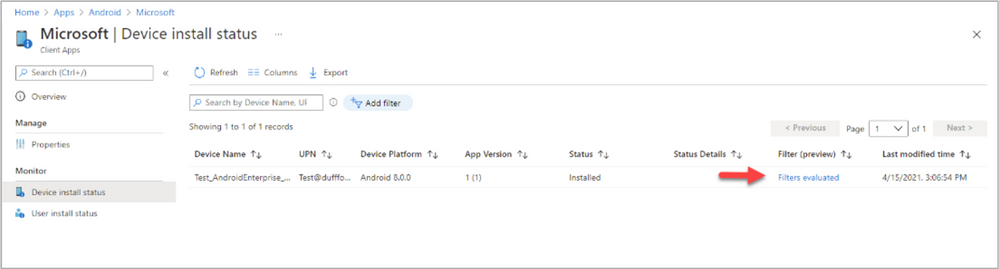
Filter reporting information exists for each device under a new stand-alone report area called “Filter evaluation” and we’re working to further integrate reporting information into existing reports such as the “Device status” and “Device install” reports. As an example of where this is going, the apps report has a new column called “Filter (preview)” under Device install status. Over time you will see further integration of the filter information into other workload type reports.
If you deploy a policy (Compliance or Configuration) to a group and navigate to the “Device status” report, there is a row in the report for each targeted device. When each targeted device checks-in the device will be evaluated against the associated filter and this status will be updated (For example, the status will show “Not Applicable” if the assignment filter filtered the policy out). For apps, the experience (in the Device install status report) is similar, except that you can view details on the filter evaluation by clicking on the “Filters evaluated” link.
Example of filter evaluation under the Device install status report
How many filters can I create?
There is a limit of 50 filters per customer tenant.
How many expressions can I have in a filter?
There is a limit of 3072 characters per filter.
Can I use more than one filter in an assignment?
No. An assignment includes the combination of Group + Filter + Other deployment settings. While you can’t use more that one filter per assignment you can certainly use more than one assignment per policy or app. For example, you can deploy an iOS device restriction policy to “Finance users” and “HR users” groups and have a different assignment filter linked to each of those assignments. However, be careful not to create overlaps or conflicts. We don’t recommend it but have documented the behavior here.
How do Filters work with the Windows 10 “Applicability Rules” feature?
Filters are a super-set of functionality from “Applicability rules” and as such we recommend that you use filters instead. We do not recommend combining the two together or know of a reason to, but if you do have a policy assigned with both, the expected result is that both will apply. The filter will be processed first, then a second iteration of applicability will be undertaken by the applicability rules feature.
Documentation
Let us know if you have any questions by replying to this post or reaching out to @IntuneSuppTeam on Twitter.
by Contributed | May 12, 2021 | Technology
This article is contributed. See the original author and article here.
Howdy folks!
We’re excited to be joining you virtually at RSA Conference 2021 next week. Security has become top-of-mind for everyone, and Identity has become central to organizations’ Zero Trust approach. Customers increasingly rely on Azure Active Directory (AD) Conditional Access to protect their users and applications from threats.
Today, we’re announcing a powerful bundle of new Azure AD features in Conditional Access and Azure. Admins can gain even more control over access in their organizations and manage a growing number of Conditional Access policies and Azure AD authentication for virtual machines (VMs) deployed in Azure. These new capabilities enable a whole new set of scenarios, such as restricting access to resources from privileged access workstations or even specific countries or regions based on GPS location. And with the capability to search, sort, and filter your policies, as well as monitor recent changes to your policies you can work more efficiently. Lastly, you can now use Azure AD login for your Azure VMs and protect them from being compromised or used in unsanctioned ways.
Here’s a quick overview of the features we’re announcing today:
Public Preview
Named locations based on GPS: You can now restrict access to sensitive resources from specific countries or regions based on the user’s GPS location to meet strict data compliance requirements.
Filters for devices condition: Apply granular policies based on specific device attributes using powerful rule matching to require access from devices that meet your criteria.
Enhanced audit logs with policy changes: We’ve made it easier to understand changes to your Conditional Access policies including modified properties to the audit logs.
Azure AD login to Linux VMs in Azure: You can now use Azure AD login with SSH certificate-based authentication to SSH into your Linux VMs in Azure with additional protection using RBAC, Conditional Access, Privileged Identity Management and Azure Policy.
General Availability
Named locations at scale: It’s now easier to create and manage IP-based named locations with support for IPv6 addresses, increased number of ranges allowed, and additional checks for mal-formed addresses.
Search, sort, and filter policies: As the number of policies in your tenant grows, we’ve made it easier to find and manage individual policies. Search by policy name and sort and filter policies by creation/modified date and state.
Azure AD login for Windows VMs in Azure: You can now use Azure AD login to RDP to your Windows 10 and Windows Server 2019 VMs in Azure with additional protection using RBAC, Conditional Access, Privileged Identity Management and Azure Policy.
We hope that these enhancements empower your organization to achieve even more with Conditional Access and Azure AD authentication. And as always—we’re always listening to your feedback to make Conditional Access even better.
Named locations based on GPS location (Public Preview)
This capability empowers organizations to meet strict compliance regulations that limit where specific data can be accessed. Due to VPNs and other factors, determining a user’s location from their IP address is not always accurate or reliable. GPS signals enable admins to determine a user’s location with higher confidence. When the feature is enabled, users will be prompted to share their GPS location via the Microsoft Authenticator app during sign-in.
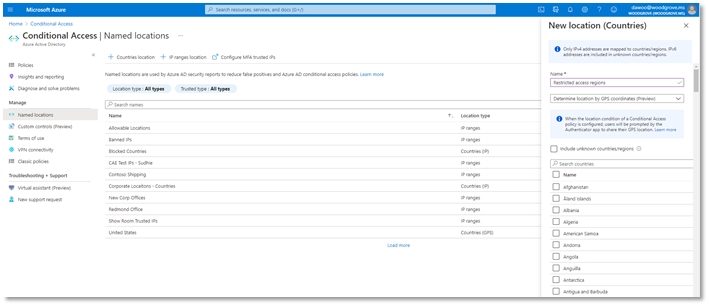
Conditional Access named locations is more versatile than ever with the addition of new GPS-based country locations. When selecting countries or regions to define a named location that will be used in your Conditional Access policies, you can now decide whether to determine the user’s location by their IP address or GPS location through the Authenticator App. This feature will be available in public preview later this month.
To configure a GPS-based named location for Conditional Access:
- Go to Azure AD -> Security -> Conditional Access -> Named locations
- Click + Countries location to define a new named location defined by country or region
- Select the dropdown option to Determine location by GPS coordinates (Preview)
- Select the countries you want to include in your named location and click Create.
Once you’ve created a GPS-based country named location, you can use Conditional Access to restrict access to selected applications for sign-ins within the named location. In the locations condition of the policy, select the named locations where you want your policy to apply.
When users sign-in, they’ll be asked to share their GPS location through the Authenticator app to access applications in scope of the policy.
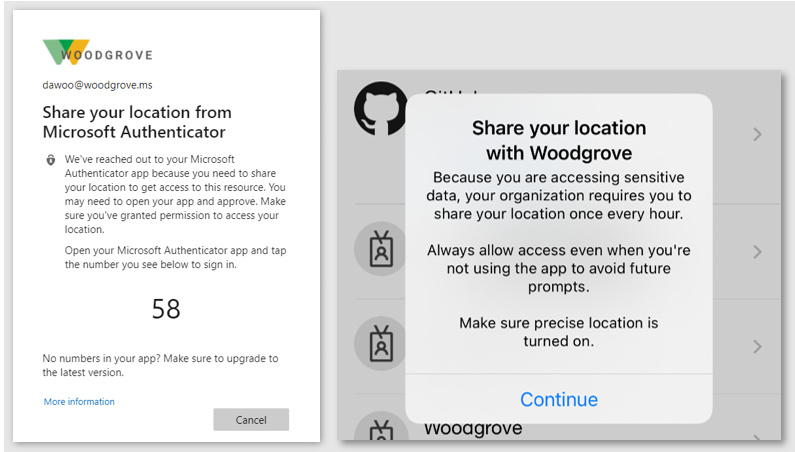
At left, users are asked in the browser to share their location. At right, users are prompted to share their location.
Filters for devices (Public Preview)
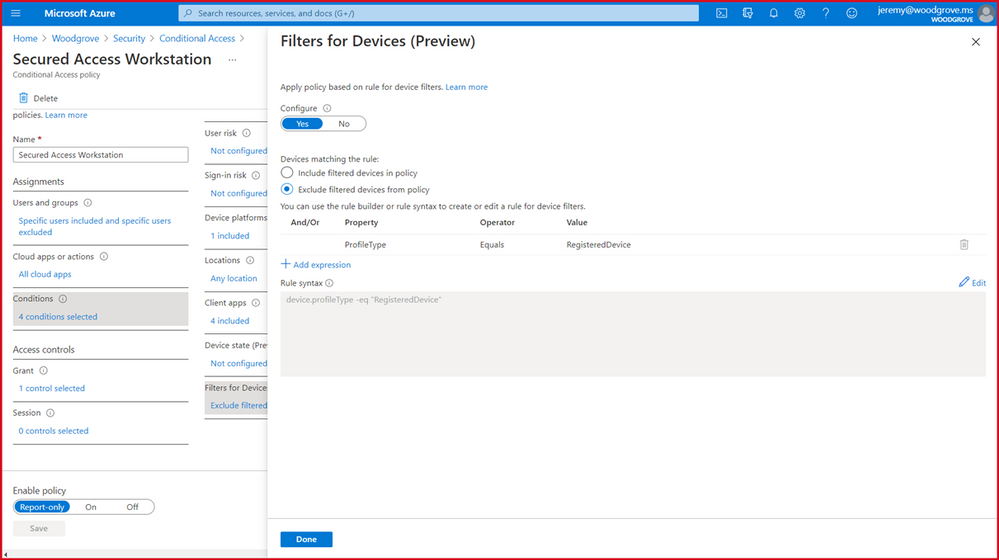
Next, we’re excited to release a powerful new Filters for devices condition. With filters for devices, security admins can enhance protection of their corporate resources to the next level by targeting Conditional Access policies to a set of devices based on device attributes. This capability unlocks a plethora of new scenarios we have envisioned and heard from customers, such as restricting access to privileged resources from privileged access workstations. Additionally, organizations can leverage the device filters condition to secure use of Surface Hubs, Teams phones, Teams meeting rooms, and all sorts of IoT devices. Filters were built with a consistent and familiar rule authoring experience for admins who use Azure AD dynamic device groups or are discovering the new filters capability in Microsoft Endpoint Manager.
In addition to the built-in device properties such as device ID, display name, model, MDM app ID, and more, we’ve provided support for up to 15 additional extension attributes. Using the rule builder, admins can easily build device matching rules using Boolean logic, or they can edit the rule syntax directly to unlock even more sophisticated matching rules. We’re excited to see what scenarios this new condition unlocks for your organization! This feature will be available before end of this month.
Enhanced Conditional Access audit logs with policy changes (Public Preview)
Another important aspect of managing Conditional Access is understanding changes to your policies over time. Policy changes may cause disruptions for your end users, so maintaining a log of changes and enabling admins to revert to previous policy versions is critical. Today, we’re announcing that in addition to showing who made a policy change and when, the audit logs will also contain a modified properties value so that admins have greater visibility into what assignments, conditions, or controls changed. Check it out today!
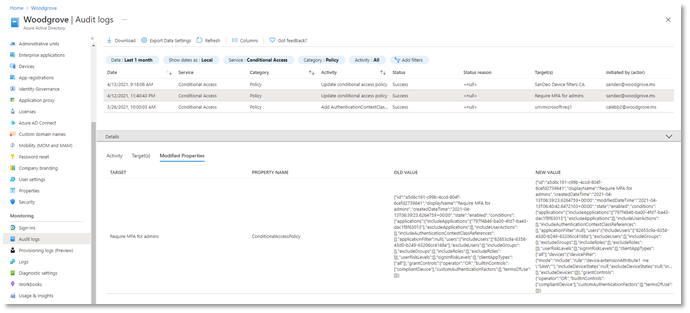
If you want to revert to a previous version of a policy, you can copy the JSON representation of the old version and use the Conditional Access APIs to quickly change the policy back to its previous state. This is just the first step towards giving admins greater back-up and restore capabilities in Conditional Access.
Named locations at scale (General Availability)
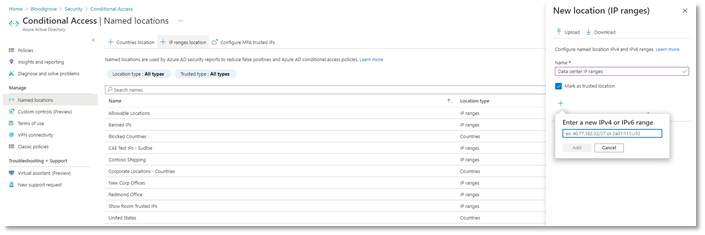
We’re also announcing the general availability for IPv6 address support in Conditional Access named locations. We’ve made a bunch of exciting improvements including:
- Added the capability to define IPv6 address ranges, in addition to IPv4
- Increased limit of named locations from 90 to 195
- Increased limit of IP ranges per named location from 1200 to 2000
- Added capabilities to search and sort named locations and filter by location type and trust type
Additionally, to prevent admins from defining problematic named locations, we’ve added additional checks to reduce the chance of misconfiguration:
- Private IP ranges can no longer be configured
- Overly large CIDR masks are prevented (prefix must be from /8 to /32)
As a result of these improvements, admins can define more accurate boundaries for their Conditional Access policies, increasing Conditional Access coverage and reducing misconfigurations and support cases.
Search, sort, and filter policies (General Availability)
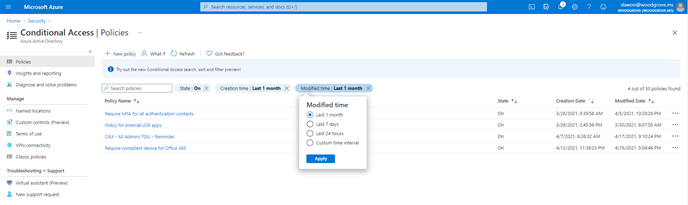
We know that as you deploy more Conditional Access policies, managing a growing list of policies can become more difficult. That’s why we’re excited to give admins the ability to search policies by name, and sort and filter policies by state and creation/modified date. Also, as part of General Availability we will be gradually rolling out the feature to Government clouds. Say goodbye to scrolling through a long list of policies!
Azure AD login for Azure VMs (General Availability – Windows, Preview Update – Linux)
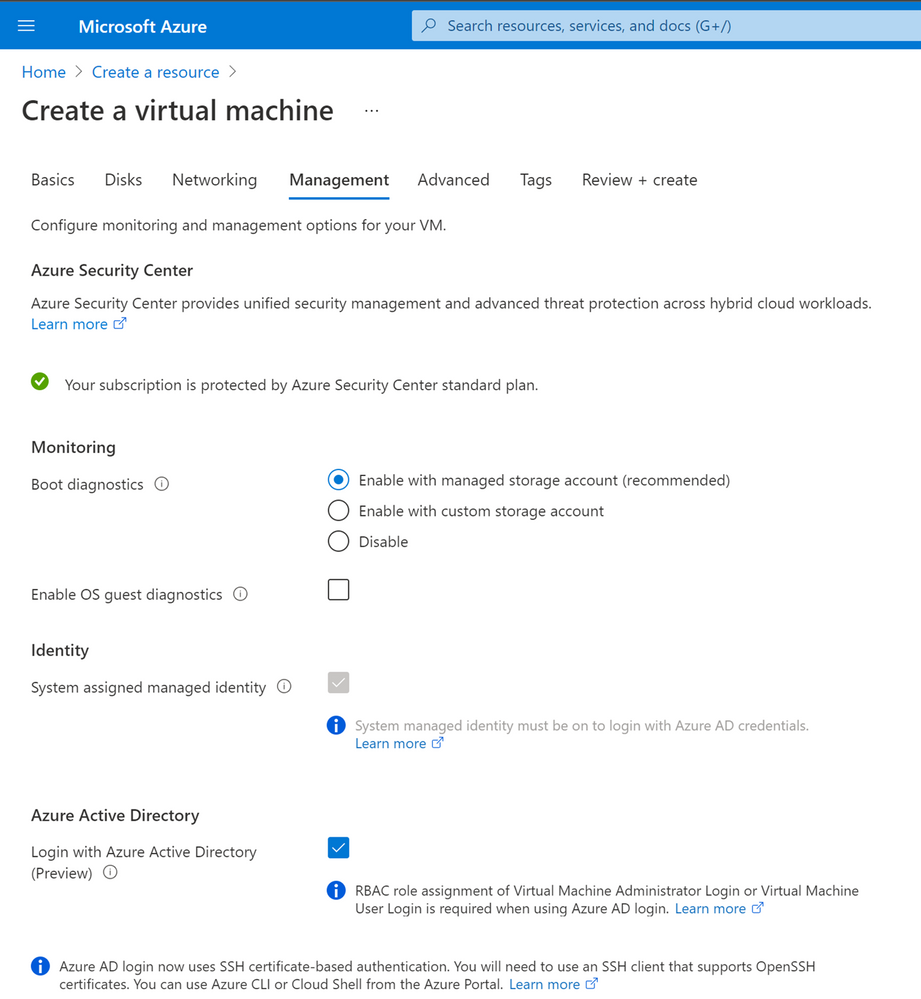
Organizations deploying virtual machines (VMs) in the cloud face a common challenge of how to securely manage the accounts and credentials used to login to these VMs. To protect your VMs from being compromised or used in unsanctioned ways, we are excited to announce General Availability of Azure AD login for Azure Windows 10 and Windows Server 2019 VMs. Additionally, we are also announcing an update to preview of Azure AD login for Azure Linux VMs. These features are now available in Azure Global and will be available in Azure Government and China clouds before the end of this month.
With the preview update for Azure Linux VMs, you can use either user or service principal-based Azure AD login with SSH certificate-based authentication for all major Linux distributions. As a result, you don’t need to worry about credential lifecycle management since you no longer need to provision local accounts or SSH keys. And with Azure RBAC, you can authorize who should have access to your VMs and whether they get administrator or standard user permissions.
Using Conditional Access, you can require MFA or managed devices and prevent risky sign-ins to your VMs. Additionally, you can deploy Azure Policies to require Azure AD login if it wasn’t enabled during VM creation. You can also audit existing VMs where Azure AD login isn’t enabled, and track VMs when a non-approved local account is detected on the machine.
We hope that these new Azure AD capabilities in Conditional Access and Azure make it even easier to secure your organization and unlock a new wave of scenarios for your organization.
As always, join the conversation in the Microsoft Tech Community and share your feedback and suggestions with us. We build the best products when we listen to our customers!
Best regards,
Alex Simons (@Alex_A_Simons)
Corporate VP of Program Management
Microsoft Identity Division
Learn more about Microsoft identity:
by Contributed | May 12, 2021 | Technology
This article is contributed. See the original author and article here.
IT administrators can now use filters in Microsoft Endpoint Manager to target apps, policies and other workload types to specific devices. Available in public preview with the May release of Microsoft Intune, the filters feature gives IT admins more flexibility and helps them protect data within applications, simplify app deployments, and speed up software updates.
Microsoft built filters with a consistent and familiar rule authoring experience for admins who use Azure Active Directory dynamic device groups or are discovering the new filters capability in Conditional Access. With filters, administrators can achieve granular targeting of policies and applications to users on specific devices.
For example, this new capability makes it easier for administrators to comply with their organizational policies and compliance requirements by deploying:
- A Windows 10 device restriction policy to just the corporate devices of users in the Marketing department while excluding personal devices
- An iOS app to only the iPad devices for users in the Finance group
- An Android compliance policy for mobile phones to all users in the company but exclude Android-based meeting room devices that don’t support the settings in that mobile phone policy
Filters work in conjunction with Azure AD group assignments or the “All users” or “All devices” groups to dynamically filter the assignment to only apply to a subset of devices during check-in. Dynamic filtering means that devices can be targeted with the right security policy and applications faster than ever before.
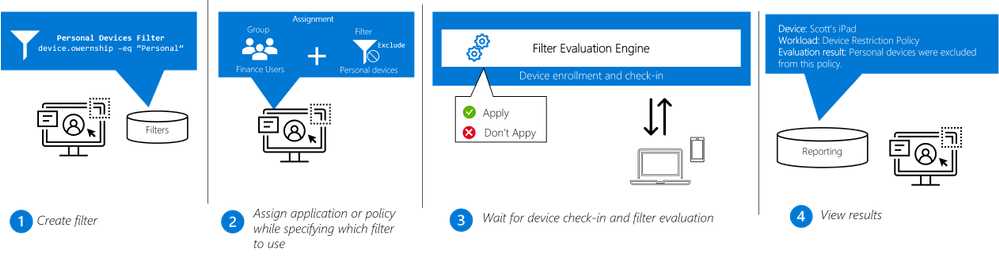
Filters are re-usable objects that can be applied to many workload types across the Endpoint Manager admin center. IT administrators can create a filter object using expressions across a set of supported device properties and then apply to that filter with an app or policy assignment. When devices check in to receive the policy, the filter evaluation engine determines applicability – either applying or not applying the policy based on the filter result. Results are reported back to the Endpoint Manager admin center so administrators can track policy and app deployment.
Workflow:
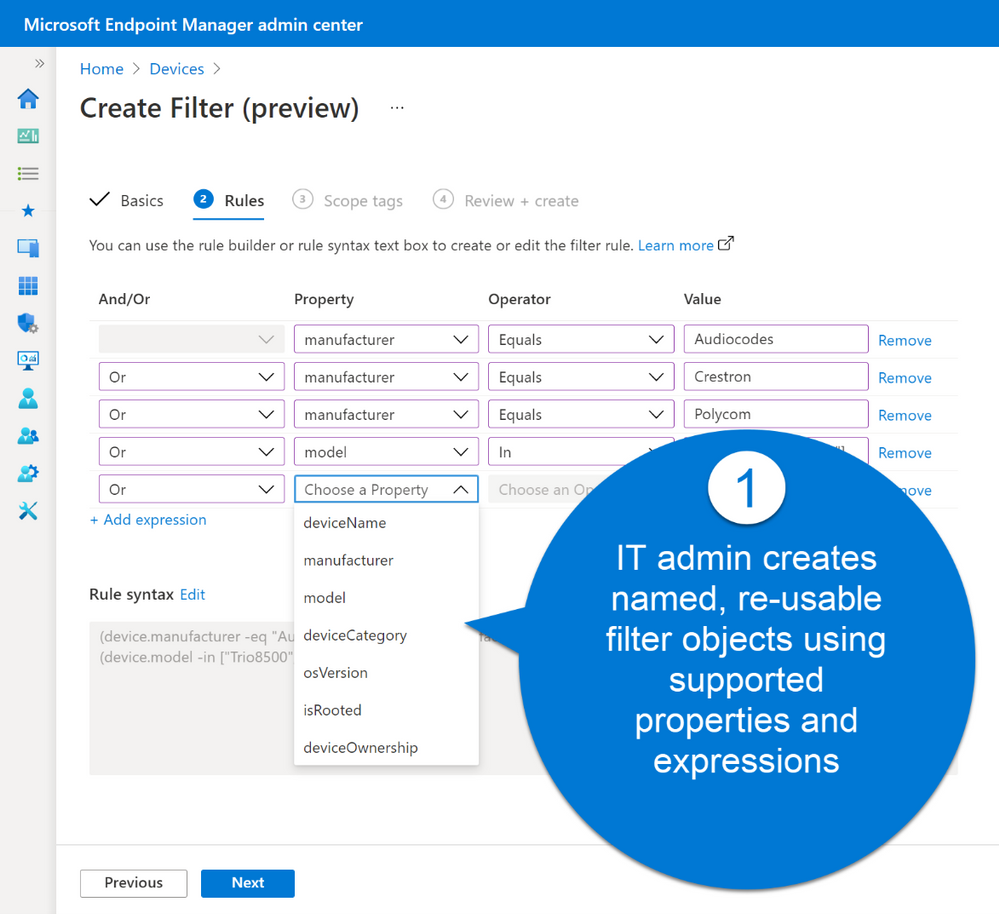
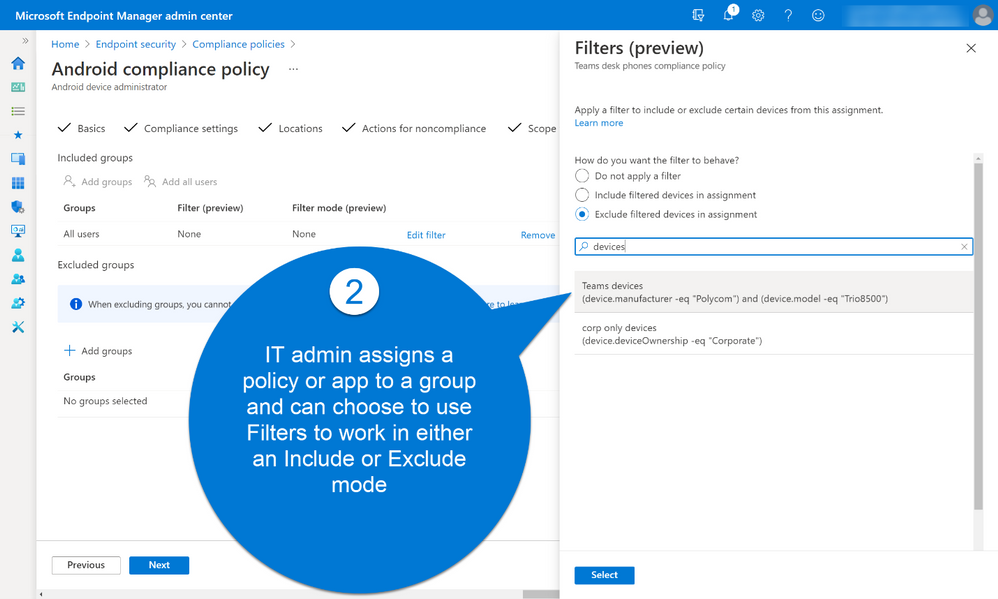
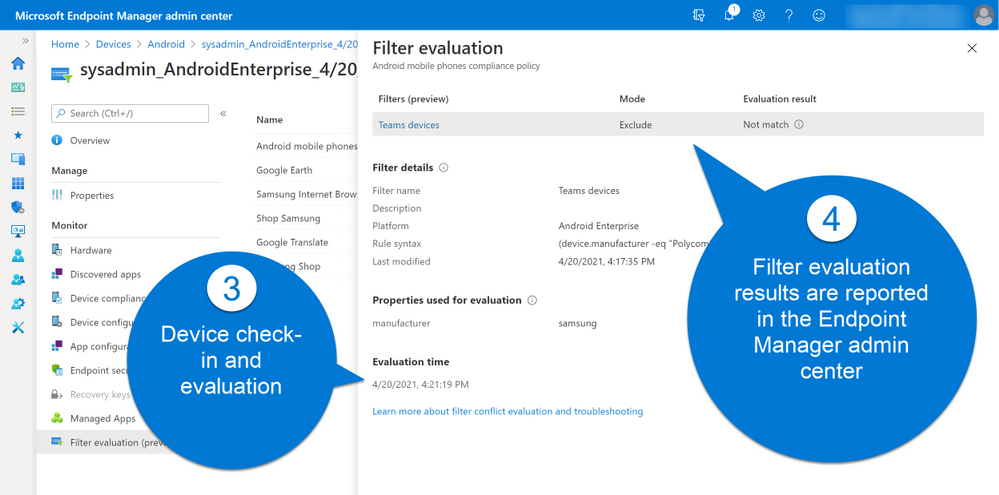
Filters is being rolled out with full support across platforms (Windows, Android, iOS and macOS) and an initial set of supported workloads and filter properties. Based on customer feedback, we will expand the capabilities across workloads in the coming months.
We value the input we received from customers in private preview. Here are a few highlights:
“We are starting to use filters a lot more. We are really looking forward to the previews coming up.”
“The Endpoint Manager filters feature has solved the challenges we faced with managing user-targeted settings and apps for users who have access to both a laptop and virtual desktop. For example, we can now apply a filter to prevent a user-assigned VPN profile from being applied when a user signs into their virtual desktop”
“Since we support a large number of different use cases, it’s always difficult to find a seamless way to target your workloads to ensure everyone in the field gets exactly what they need (configurations, apps, certificates, profiles). This is exactly where the Filters feature play a key role to accomplish difficult targeting scenarios. Filters helped us achieve complex assignment models eliminating the need of manual assignment work and helping IT stuff save important time to focus on further strategical and technical design key aspects for a truly modern workplace in our organization.”
“MEM Filters feature is allowing more granularity for assigning our policies as well as applications. Filters helped us adopt MEM even further in our very mixed environment, allowed us creating a better targeted approach. Filters also addressed a specific use case where we had to exclude virtual devices and critical systems from some of our assignments.”
“At Krones we support a large number of different use cases and it has always been difficult to find a way to target the specific workloads. Besides we have to ensure, that all employees get the tools they need for their work, like configurations, apps, certificates or profiles. This is exactly where the Filters feature plays a key role to accomplish difficult targeting scenarios. Filters helped us achieve complex assignment models eliminating the need of manual assignment work. As a result, our IT staff saved important time and is now able to focus on further strategic and technical design key aspects for a truly modern workplace within our organization.” –Roman Kleyn, Head of Workplace Design at Krones AG
As always, we appreciate your feedback. Please feel free to post your comment here or or tag me on LinkedIn.
To learn more about AAD, go here: https://aka.ms/RSACIdentity2021


Recent Comments