by Contributed | Mar 17, 2021 | Technology
This article is contributed. See the original author and article here.
こんにちは。SQL Server サポート チームです。
今回は1つの OS 上に SQL Server x64 版 と x86 版が両方インストールされており、x64 版でフェールオーバークラスターインスタンス(以下、FCI)を構成している環境に対して、x86 版の更新プログラムを適用した場合に発生する問題について説明します。
本現象が発生すると、FCI 構成の SQL Server の役割を移動(フェールオーバー)する際に失敗しますので、発生した場合は後述する回避策を実施ください。
■概要
任意のバージョンの SQL Server x64 版と、x86 版を両方インストールしている環境に、x86 版の更新プログラムを適用した場合、FCI で使用する x64 版用の DLL ファイルが、意図せず x86 版用の DLL ファイルで置き換えられてしまう事があります。
具体的には、x86 版の更新プログラムの動作により、本来 x86 版用の「C:WindowsSysWOW64SQSRVRES.DLL」を置き換えるべきところが、誤って x64 版用の「C:WindowsSystem32sqsrvres.dll」を置き換えてしまうことによって発生します。
なお、「C:WindowsSystem32sqsrvres.dll」や「C:WindowsSysWOW64SQSRVRES.DLL」は、FCI 構成において、役割の移動時などリソースの操作や管理に使用されるライブラリです。
■影響
x64 版の SQL Server にて FCI を構成している環境において本現象が発生すると、「C:WindowsSystem32sqsrvres.dll」がx86 版用のファイルで置き換えられたノードに SQL Server の役割を移動(フェールオーバー)させようとすると、エラーとなり役割の移動(フェールオーバー)や起動が行えません。
■発生条件
以下の条件を全て満たす場合に発生します。
・SQL Server(x64)の任意のバージョンで FCI 構成をしているインスタンスが存在する。
・SQL Server(x86)のインスタンスが存在する。
※ SQL Server 2016 以降 64ビット OS で 32ビットで稼働する WOW64 のサポートが終了しているため、SQL Server 2014 以前が対象となります。
・C:WindowsSysWOW64 フォルダーに SQSRVRES.DLL が存在する。
■問題が発生する手順
・SQL Server(x86) のインスタンスに更新プログラムを適用します。
■発生状況の確認方法
「C:WindowsSystem32sqsrvres.dll」が、下記例のようなパスに格納される x86 版のファイルと同じであれば、本現象が発生していると判断できます。
同じか否かは、ファイルのプロパティを開き、[詳細] タブから [製品バージョン] を比較することが可能です。
(x86 版の sqsrvres.dll の格納先例)
C:Program Files (x86)Microsoft SQL ServerMSSQL12.SQLEXPRESSMSSQLBinnSQSRVRES.DLL
※ バージョン(12)やインスタンス ID(SQLEXPRESS)により上記パスは異なります。適宜読み替えてください。
■回避策
上記条件に該当する環境にて、x86 版 SQL Server の更新プログラムを適用する際、適用前に「C:WindowsSysWOW64」に「SQSRVRES.DLL」がある場合には、削除を行ってください。
また、更新プログラムを続けて複数インストールする場合には、インストールした更新プログラムで「C:WindowsSysWOW64SQSRVRES.DLL」にファイルを配置する可能性があるため、各インストールごとに上記ファイルの削除の手順を実施ください。
※ SQL Server の更新プログラムはサービスパックごとに累積型となっており、適用予定の更新プログラムのうち最新の更新プログラムを適用するのみで、対処可能ですので、併せてご検討ください。
既に「C:WindowsSystem32sqsrvres.dll」が置き換わってしまっている場合や、更新プログラムが多くあり上記回避策が難しい場合には、x64 版 SQL Sever のインストール フォルダーの「Binn」フォルダーより「SQSRVRES.DLL」を、「C:Windowssystem32」へ、コピーすることで対処できます。
例)
コピー元: C:Program FilesMicrosoft SQL ServerMSSQL15.MSSQLSERVERMSSQLBinn
コピー先: C:Windowssystem32
※ バージョン(15)やインスタンスID(MSSQLSERVER)により上記パスは異なります。適宜読み替えて下さい。
※ファイルが使用中で置き換えられない場合、クラスター サービスを停止する必要があります。まずは、パッシブノードから実施することをご検討ください。
以上となります。
by Contributed | Mar 17, 2021 | Technology
This article is contributed. See the original author and article here.
The 21.03 Azure Sphere OS quality update is now available for evaluation in the Retail Eval feed. The retail evaluation period provides 14 days for backwards compatibility testing. During this time, please verify that your applications and devices operate properly with this release before it is deployed broadly via the Retail feed. The Retail feed will continue to deliver OS version 21.02 until we publish 21.03 in two weeks.
This evaluation release of 21.03 includes updates to mitigate against the following CVEs. It does not include an updated SDK.
For more information on Azure Sphere OS feeds and setting up an evaluation device group, see Azure Sphere OS feeds and Set up devices for OS evaluation.
For self-help technical inquiries, please visit Microsoft Q&A or Stack Overflow. If you require technical support and have a support plan, please submit a support ticket in Microsoft Azure Support or work with your Microsoft Technical Account Manager. If you would like to purchase a support plan, please explore the Azure support plans.
![[Guest Blog] Human Touch with Microsoft Teams](https://www.drware.com/wp-content/uploads/2021/03/large-1155)
by Contributed | Mar 17, 2021 | Technology
This article is contributed. See the original author and article here.
This blog is written by Mario Trentim as a part of our Humans of IT guest blogger series. Mario has a passion for creativity, problem solving, continuous improvement and technology. He shares his best practices to adding a human touch to your remote experience on Microsoft Teams.
I delivered a webinar about team building and teamwork. To my surprise, I got a lot of comments mentioning that it is challenging to engage with colleagues virtually. People even mentioned that we are losing touch with our human side because of technology. What are your thoughts on this, especially as we’ve shifted to remote work?
As we’ve all experience remote work now and picked up a tip or two, we know virtual meetings do not have to be boring, inflexible, impersonal neither meetings have to be always “straight to the point.” It is important to know that if you feel disconnected from your coworkers, you can make a change in the way you’re conducting or participating in meetings, and ultimate, it’s on you. The technology is “just” a tool.
In this article, I bring some tricks and tricks to engage and motivate coworkers using Microsoft Teams. Please read on if this is relevant to you.
By working in a physical space, you have the chance to approach your colleagues in various ways. You meet informally at the cafeteria, you have lunch together. You can walk across the office and ask for help or chat about personal topics.
Working from home and moving to virtual-only meetings, are we sentenced to behave like machines? The answer is no.
It is on you and your team to build productive habits. To be a valuable team member, it is essential that you:
- Participate actively in the discussions;
- Provide feedback;
- Be empathetic.
As we reflect on the principles above, we can come up with simple behaviors for our daily virtual meetings and teamwork collaboration. Let’s start with virtual meetings:
1) Turn on your camera;
2) Take a few minutes to talk about personal topics;
3) Pay attention to people’s reactions and ask questions;
4) Take notes, paraphrase, and summarize.
I discovered that by changing my Microsoft Teams’ background can spark interesting warm-up conversations. I use photos from the places I visited, sometimes cartoons or movie scenes.
Warming-up questions are a cornerstone of every meeting. Ask direct questions about hobbies, family, or other appropriate topics. For example, “How is Ana doing with homeschooling?”, “Is your dog okay?”, “Did you had a chance to go for a run yesterday?”. Well, use your imagination.
It is not a chore. You have to be genuinely interested in the other person. Start doing that, and you will feel better.
Multi-tasking and half-hearted attention are obstacles to productivity and team morale. Avoid them at all costs. To get people focused, ask questions, engage people, summarize.
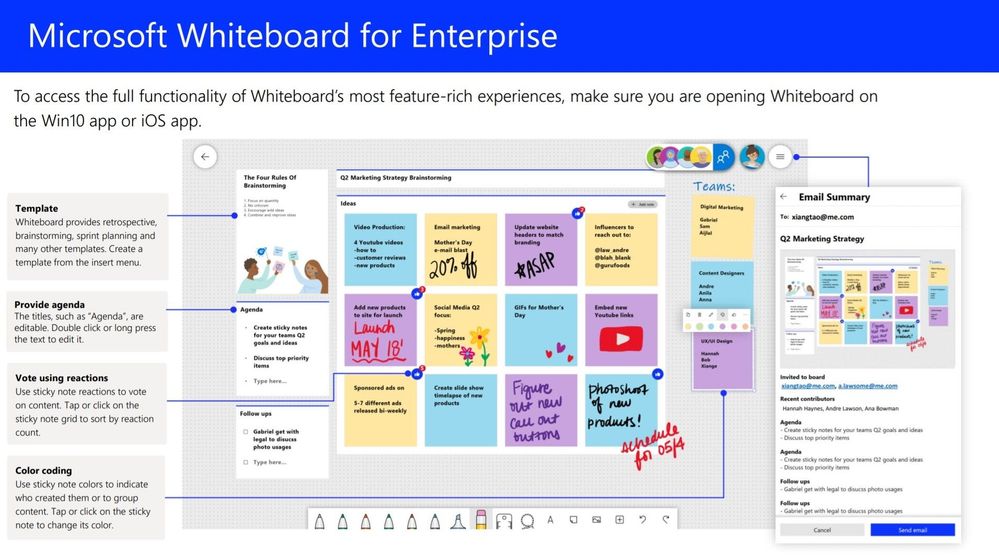
By using Microsoft Teams, I take full advantage of collaboration with Microsoft Whiteboard. It is an engaging and fun process.
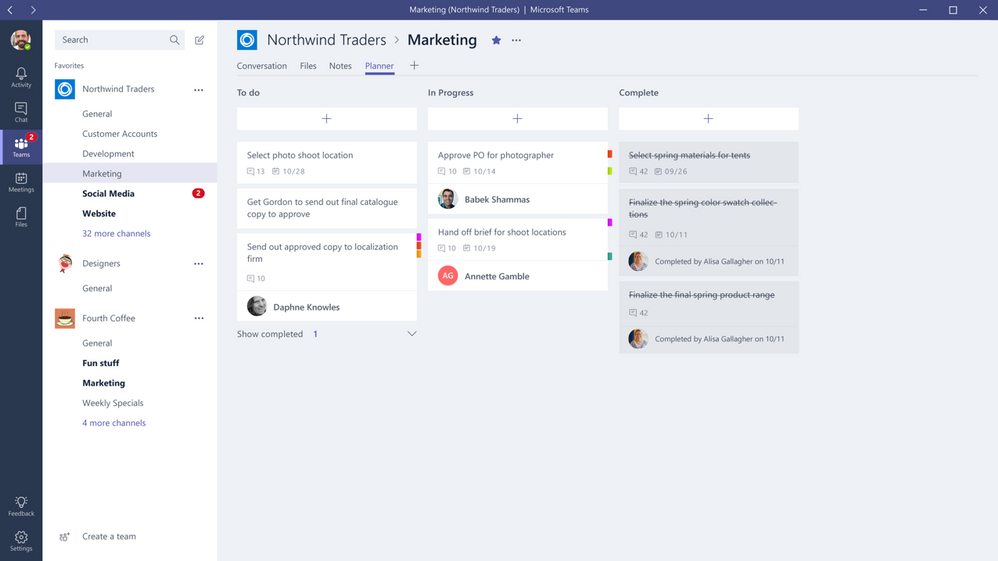
Finally, don’t forget to define action plans and owners. Assigning responsibility and following up on decisions is a final touch on team motivation. In the physical office, we could have those Post-It notes.
You can do the same with Microsoft Teams by using Lists or Planner. Visually tracking goals and activities is another tool for engagement and motivation.
Hope that this article was a reminder of the human touch we’re are all capable of having from our homes. As we are all now well-versed in remote work, what other suggestions do you have? Share in the comments below!
by Contributed | Mar 17, 2021 | Technology
This article is contributed. See the original author and article here.
March is Women’s History Month and what a more fitting time for our team, Microsoft Azure Engineering, to have our first post go up here on the Tech Community Blog.
As a woman working in tech, I’m proud to work for a company like Microsoft, where diversity and inclusion is celebrated. This mindset also shapes the way we build our products and services. That’s where a program like Microsoft Customer Co-creation comes into play. If you haven’t heard about it, I’d like to take this opportunity to tell you more.
Microsoft Customer co-creation connects you directly with engineers within the Cloud Engineering (C+ AI) organization so you can talk to them about the products you care about. Sometimes this could mean playing an early role in product and service development before a single line of code is even written. Ultimately, our hope is your feedback will result in the creation of something you’ll really love using.
You can start by filling out your profile and telling us about yourself and what you’re interested in.
When the right opportunity comes up, our team will contact you, let you know the topic, and ask your availability to participate in a feedback session.
Your voice matters and I hope you’ll consider joining the Microsoft Customer Co-creation program and help influence the services and products you use.
by Contributed | Mar 17, 2021 | Technology
This article is contributed. See the original author and article here.
Hi Teams Community,
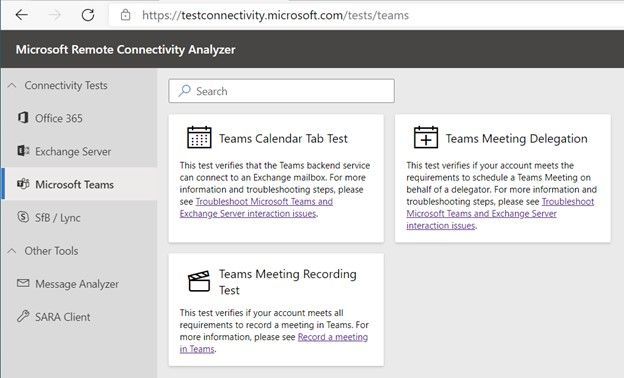
We’re back with another addition to Support Diagnostics for Microsoft Teams. @João Loureiro has written our third offering in the Microsoft Remote Connectivity Analyzer, the Meeting Recording test.
This new Diagnostic will help you troubleshoot and test if you meet requirements to record a Teams meeting. If you recently attempted to record a Teams meeting or group call and you were unable to, for example the Recording button was greyed out, you should use this diagnostic to help you troubleshoot.
To access the new diagnostic, navigate to Microsoft Remote Connectivity Analyzer, select Microsoft Teams, then click on the Teams Meeting Recording Test.
You’ll need to enter valid credentials of an affected account. Optionally you can specify the Teams Meeting URL you are planning to record. Keep in mind your end users can also perform these tests, you do not need to be an Administrator of your tenant. In some scenarios you’ll want to work with your impacted end user to run the tests and collect additional data for Microsoft Support.
At a high level the test checks a couple things:
- The user is licensed and fully provisioned for Teams
- The user is enabled for cloud meeting recording
- Recordings saved to OneDrive for Business and SharePoint or Microsoft Stream
- If recordings configured to use Stream will check if user is within valid region for streaming
- The user as permissions to record provided Teams Meeting URL
You’ll also want to go over the following documents carefully when configuring Teams cloud meeting recording
Teams cloud meeting recording
Use OneDrive for Business and SharePoint or Stream for meeting recordings
Record a meeting in Teams
Please give the new diagnostic a try if you’re having trouble with Teams Meetings Recording and let us know if it helped?
Thanks!
Microsoft Teams Support


Recent Comments