by Contributed | Mar 22, 2021 | Technology
This article is contributed. See the original author and article here.
At Microsoft, we recognize the need to easily and securely collaborate with people outside of your business. Organizations need to engage with vendors, partners, customers, consultants and other stakeholders while adhering to privacy and security policies and protocols that keep your business running smoothly. In December, we announced a preview for Azure AD business-to-business (B2B) guest support in Yammer and today, we are excited to announce that Guest Access in Yammer powered by Azure B2B is now generally available.
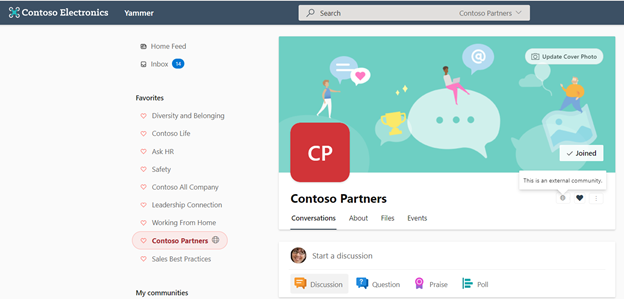
Communities with external members are denoted by a globe icon.
What is Azure Active Directory B2B?
Azure B2B collaboration enables you to share your company’s applications and services with guest users from any other organization, while maintaining control over your own corporate data. Work safely and securely with external partners, large or small, even if they don’t have Azure AD or an IT department.
How can you enable the Azure AD B2B guest functionality in your Yammer network?
If your Yammer network is provisioned after December 15th, 2020 then Azure AD B2B guest functionality is already enabled by default for you. Community admins in your Yammer network can add guests to their communities. Note: Yammer network should be aligned to Native Mode to enable Azure AD B2B guest functionality.
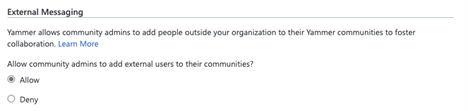
The functionality is now available to all existing Yammer networks but disabled by default. Yammer network admins can enable guest access on their networks from Yammer admin center > Security Settings > External messaging settings.
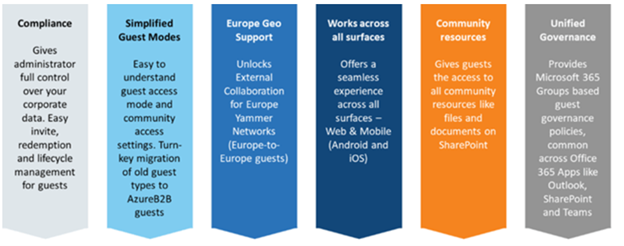
Azure AD B2B guest support in Yammer brings the following capabilities:
- Robust policies for guest invitations and providing access give administrators full control over who can invite guests, which organizations guests can be invited from, and which communities they can be invited to.
- Simplification of guest modes in Yammer with community level guests. A guest can be added to any specific Yammer community based on the admin policy instead of the entire network.
- Easy and compliant external collaboration (within Europe networks) for Yammer networks with data based in the EU geo.
- Parity between participation in Yammer communities across all Yammer experiences (web, mobile (Android / iOS).
- Guests access to community resources like files stored in SharePoint.
- Ability to review guest membership and block unauthorized guest access through Azure AD access reviews and track the guest lifecycle through Azure AD audit logs.
Learn more about Guest Access in Yammer here. We’re continuing to invest in features and capabilities that foster engagement and deliver value to businesses. Stay tuned for updates soon.
Nagaraj Venkatesh
Nagaraj is a PM on the Yammer engineering team
Resources:
Business-to-business (B2B) Guest support in Yammer Preview – Customer Terms and FAQ – Yammer
Microsoft 365 guest sharing settings reference | Microsoft Docs
by Contributed | Mar 22, 2021 | Technology
This article is contributed. See the original author and article here.
We just released new features and capabilities to the Microsoft Live Video Analytics (LVA) service and if you are thinking about Live Video Analytics (LVA) on a Windows IoT device, an Azure Percept DK (dev kit), or on other edge devices powered by AI acceleration from NVIDIA and Intel, then you will really want to learn more about it! Organizations can now drive the next wave of business automation via AI-powered, real-time analytic insights from their own video streams with Microsoft Live Video Analytics (LVA).
In line with Microsoft’s vision of simplifying AI and IoT at the edge from silicon to service, the new features and capabilities we announced at the Microsoft Ignite 2021 event will allow you to deploy LVA capabilities seamlessly on Windows IoT devices, for you to build intelligent video analytics systems leveraging and capitalizing on your Windows expertise and investments. We have also ensured that LVA functions on the new family of Azure Percept devices and works seamlessly across our partner platforms such as Intel and NVIDIA.
With our focus on ensuring a consistent experience for video analytics solutions developers, irrespective of the OS and of underlying hardware acceleration platform, here are the new capabilities that help complete your end-to-end scenarios:
- Deploy LVA with Azure IoT Edge for Linux on Windows (EFLOW) : Leverage LVA to build and deploy Video Analytics workflows on Windows IoT devices with EFLOW.
- LVA with Azure Percept: At Ignite 2021, we announced Azure Percept, an end-to-end platform for creating edge AI solutions in minutes with hardware accelerators built to integrate seamlessly with Azure AI and Azure IoT services. LVA can be leveraged on Percept to record and stream videos from edge to cloud to help you deliver business insights in real time.
- Intel OpenVINO DL Streamer – Edge AI Extension with LVA: With the latest release of OpenVINO’s DL Streamer – Edge AI Extension from Intel, you can leverage it alongside LVA to detect, classify, and track multiple object classes (e.g., person, vehicle, bike) at high efficiency on a variety of Intel HW architectures
- NVIDIA DeepStream — AI Skills and AI Acceleration for LVA: With the latest DeepStream release (5.1), you can now deploy LVA across multiple cameras for object detection, classification and tracking on NVIDIA GPUs.
Since the preview launch of the Live Video Analytics (LVA) platform on June 2020, we evolved product capabilities and strengthened our platform to meet partner and customers’ needs in the version 2.0 refresh announced in Feb 2021 and related announcements. Additionally, we have a set of exciting capabilities that are not in the public domain yet, but we are getting ready to announce them soon at Build 2021. Please reach out to us (amshelp@microsoft.com) to learn more.
Leverage Windows edge devices as LVA processors
As a customer in industries like Manufacturing, Retail, Public Safety etc. you may have many Windows devices that are enabled as IoT sensors and processing devices. Along with Windows IoT, there is also a growing trend of Linux based containerized microservices backed by cloud-based ISV ecosystem especially for video analytics in real time. Many customers we talk to want to leverage their existing assets, be it cameras, Windows IoT devices or other IoT sensors to derive real time business intelligence by applying AI to video.
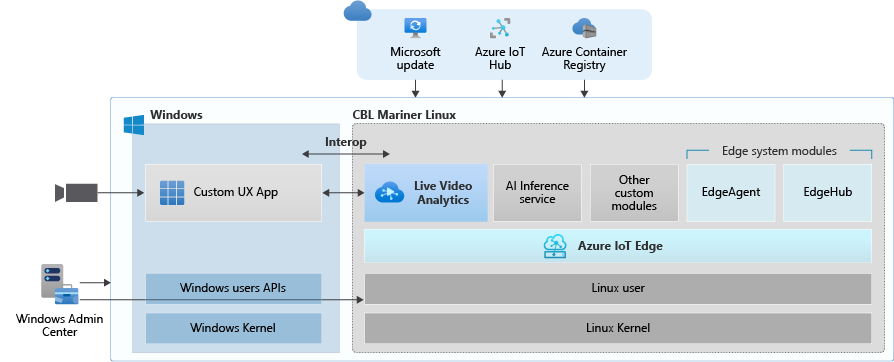
Using LVA on EFLOW you get the best of both worlds – a Windows IoT device that leverages existing Windows tooling, infrastructure investment and IT knowledge, Azure managed and deployed as well as gathering business insights via Linux based Live Video Analytics. At Ignite 2021, we delivered a set of simple steps, that can help you bring LVA and EFLOW together and unleash the power of LVA’s media graph on Windows IoT Edge devices.
As an example, you could be a retail store owner with cameras and network video recorders powered by Windows IoT and today the video might be archived and manually reviewed. With LVA and EFLOW, the operator can easily deploy Linux-based Azure Live Video Analytics on Windows, leveraging their existing Windows expertise and investments and could go from having a basic video recording system to an intelligent video analytics solution that can trigger actions driven by AI. You can also learn more about EFLOW, currently in Public preview about its features and deployments.
Live Video Analytics with Azure Percept
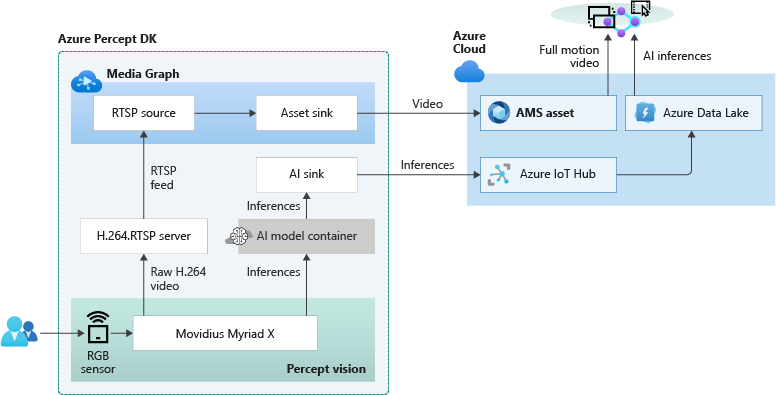
At Ignite 2021, our leadership team has announced Azure Percept that focuses on extending AI to the edge with an end-to-end platform that integrates Intel Movidius Myriad X vision processing unit (VPU) hardware accelerators with Azure AI and Azure IoT services and is designed to be simple to use and ready to go with minimal setup.
Percept helps customers overcome one of the key challenges of navigating the end-to-end edge AI solution creation. As a solution builder, you might already have a working AI model that you want to leverage as part of an end-to-end video analytics solution. We have partnered with the Azure Percept team to provide you with a reference solution. You can get started today by ordering your dev kit and leveraging the GitHub code.
As seen from the reference solution’s architecture below, Azure Percept leverages LVA to record video to the cloud, so that when combined with analytics metadata from the AI, you get a solution for object counting in pre-defined zones. You can visualize the results thanks to video streaming and playback capabilities of LVA.
LVA with Intel’s OpenVINO DL Streamer – AI Edge Extension
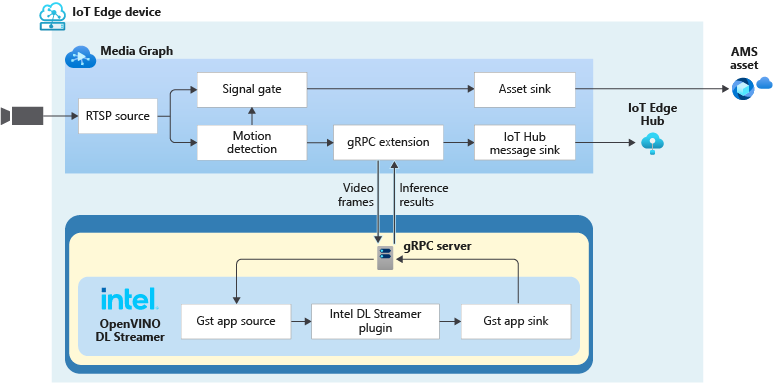
Last year, we announced an integration of LVA with Intel’s OpenVINO Model Server –Edge AI Extension module via LVA’s HTTP extension processor. This enabled our customers to run AI inferences such as object detection and classification on a variety of Intel hardware architectures (CPU, iGPU, VPU) at the edge and use cloud services like Azure Media Services and Azure IoT. At Ignite 2021, with the announcement of the OpenVINO DL Streamer – AI Edge Extension module, we are enabling additional capabilities over a highly performant gRPC extension processor while keeping the core OpenVINO inference engine the same to scale across the Intel architectures. With this integration you can now get object detection, classification and tracking for high frame rate video across multiple classes. See this tutorial for more details.
With the pre-validated configurations, pre-trained models as well as scalable hardware, users can jump start solutions to improve business efficiencies across variety of use cases such as retail, industrial, healthcare or smart cities. For example, with the vehicle classification model you can see the type of vehicle and add your own business logic i.e., validate certain vehicle types are parked in the designated area. With the object tracker you can track objects of interest and map on a timeline.
Get Started Today!
- Deploy LVA with Intel DL Streamer – Edge AI Extension using this tutorial
- Explore and deploy Intel DL Streamer – Edge AI Extension Module from Azure Marketplace
- Watch the Intel Ignite 2021 session
LVA with NVIDIA’s DeepStream SDK – AI Skills and AI Acceleration
LVA and NVIDIA DeepStream SDK can be used to build hardware-accelerated AI video analytics apps that combine the power of NVIDIA graphic processing units (GPUs) with Azure cloud services, such as Azure Media Services, Azure Storage, Azure IoT, and more.
NVIDIA recently released DeepStream SDK 5.1, bringing support for NVIDIA’s Ampere architecture GPUs for massive acceleration to inference. With this release, you can leverage LVA to build video workflows that span the edge and cloud, and then combine DeepStream SDK 5.1 to build pipelines to extract insights from video.
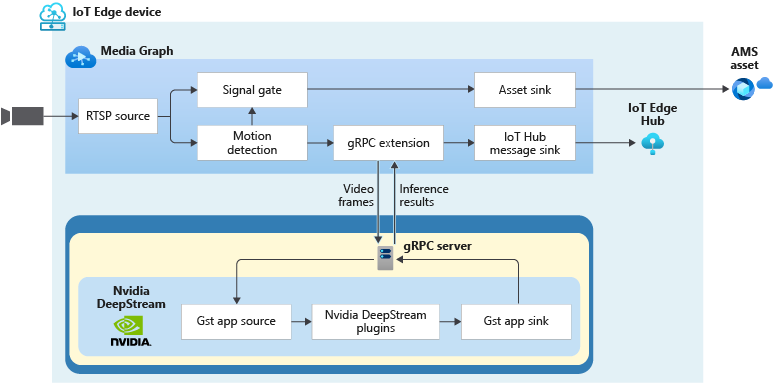
Imagine you work for a county or city government that wants to understand traffic patterns across certain times, a retailer that wants to deliver curbside pickup to certain vehicle types, or a parking lot operator that wants to understand parking lot utilization, traffic flows and monitor in real time. With LVA managing video workflows and NVIDIA DeepStream’s investment in providing optimized AI for their underlying hardware architecture combined with the power of the Azure platform, you can now develop such video analytics pipelines from cloud to edge.
You can explore some samples on GitHub that showcase the composability of both platforms and have been tested for vehicle detection, classification, and tracking on high frame rate video. Feel free to add additional object classes such as bicycle, road sign etc. to leverage detection and tracking capability.
Get Started Today!
In closing, we’d like to thank everyone who is already participating in the Live Video Analytics on IoT Edge public preview. For those of you who are new to our technology, we encourage you to get started today with these helpful resources:
And finally, the LVA product team wants to hear about your experiences with LVA. Please feel free to contact us via TechCommunity to ask questions and provide feedback including what future scenarios you would like to see us focusing on.
**Intel, the Intel logo, and other Intel marks are trademarks of Intel Corporation or its subsidiaries.

by Contributed | Mar 22, 2021 | Business, Microsoft 365, Technology
This article is contributed. See the original author and article here.
n April 2020—just a month into a global pandemic that triggered a worldwide move to remote work—my team and I shared early research on how work was changing. There was so much we didn’t know back then, but we did know there was no going back. As I said at the time, “This moment will change the way we work and connect with each other forever.”
The post One year in: 7 urgent trends for leaders in the shift to hybrid work appeared first on Microsoft 365 Blog.
Brought to you by Dr. Ware, Microsoft Office 365 Silver Partner, Charleston SC.
by Contributed | Mar 22, 2021 | Technology
This article is contributed. See the original author and article here.
This document is provided “as is.” MICROSOFT MAKES NO WARRANTIES, EXPRESS OR IMPLIED, IN THIS DOCUMENT. This document does not provide you with any legal rights to any intellectual property in any Microsoft product. You may copy and use this document for your internal, reference purposes.
|
As announced at Ignite 2021, Azure Defender for Resource Manager is available in Public Preview. This new Azure Defender plan provides threat detection against malicious usage of Azure Resource Management Layer (Portal, Rest, API, PowerShell). To learn more about Azure Defender for ARM, read our official documentation.
During the public preview time you can enable Azure Defender for Resource Manager without any additional charge, just go to Price & settings, select the subscription, change the plan to ON (as shown below) and click Save to commit the change.

Now that you have this plan set to ON, you can use the steps below to validate this threat detection:
- Provision a new VM and keep the default TCP/IP configuration.
- Connect to this machine using RDP.
- Create a file on this machine called runtime-disable-enabe.ps1 and paste the content below in this file:
Param([switch] $Force)
# Check if PowerShellGet exists
if (Get-Module -ListAvailable -Name PowerShellGet) {
Write-Host “PowerShellGet Module exists”
}
else {
if ($PSBoundParameters.ContainsKey(‘Force’)) {
Install-Module -Name PowerShellGet -Force
}
else {
Write-Warning -Message (‘PowerShellGet Not Found. Please use the -force flag to install PowerShellGet and Azure Powershell’)
Exit
}
}
# Install Azure Powershell
if ($PSVersionTable.PSEdition -eq ‘Desktop’ -and (Get-Module -Name AzureRM -ListAvailable)) {
Write-Warning -Message (‘Az module not installed. Having both the AzureRM and ‘ +
‘Az modules installed at the same time is not supported. Use the -force flag to install the necessary modules.’)
Exit
} elseif($PSBoundParameters.ContainsKey(‘Force’)) {
Install-Module -Name Az -AllowClobber -Scope CurrentUser
} elseif (!(Get-Module -Name Az.Compute -ListAvailable)) {
Write-Warning -Message (‘Azure Powershell Not Found. Please use the -force flag to install Azure Powershell’)
Exit
}
# Login User
Connect-AzAccount
# Select Subscription
$Subscription = Get-Az bscription | out-gridview -Title “Select a subscription” -PassThru
Select-AzSubscription $Subscription
# Settings to exclude a binary
$SettingsDisable = ‘{“AntimalwareEnabled” : “true”, “Exclusions” : {“Extensions” : “”, “Paths” : “”, “Processes” : “”},
“RealtimeProtectionEnabled” : “false”, “ScheduledScanSettings” : {“isEnabled”: “true”, “scanType” : “Quick”, “day” : “7”, “time” : “100” }}’
# Settings to remove the exclusion
$SettingsEnable = ‘{“AntimalwareEnabled” : “true”, “Exclusions” : {“Extensions” : “”, “Paths” : “”, “Processes” : “”},
“RealtimeProtectionEnabled” : “true”, “ScheduledScanSettings” : {“isEnabled”: “true”, “scanType” : “Quick”, “day” : “7”, “time” : “100” }}’
# Provide VM info
$VMObject = Get-AzVM | out-gridview -Title “Select a VM” -PassThru
$VMName = $VMObject.Name
$Loc = $VMObject.Location
$ResourceGroup = $VMObject.ResourceGroupName
Write-Host “Disable Runtime …”
# Exclude the binary
Set-AzVMExtension -ResourceGroupName $ResourceGroup -VMName $VMName -Name “IaasAntimalware” -Location $Loc -Publisher “Microsoft.Azure.Security” -Type “IaasAntimalware” -TypeHandlerVersion “1.3” -SettingString $SettingsDisable
Write-Host “Enable Runtime …”
# Remove the exclusion
Set-AzVMExtension -ResourceGroupName $ResourceGroup -VMName $VMName -Name “IaasAntimalware” -Location $Loc -Publisher “Microsoft.Azure.Security” -Type “IaasAntimalware” -TypeHandlerVersion “1.3” -SettingString $SettingsEnable
- Save this file
- Execute runtime-disable-enabe.ps1
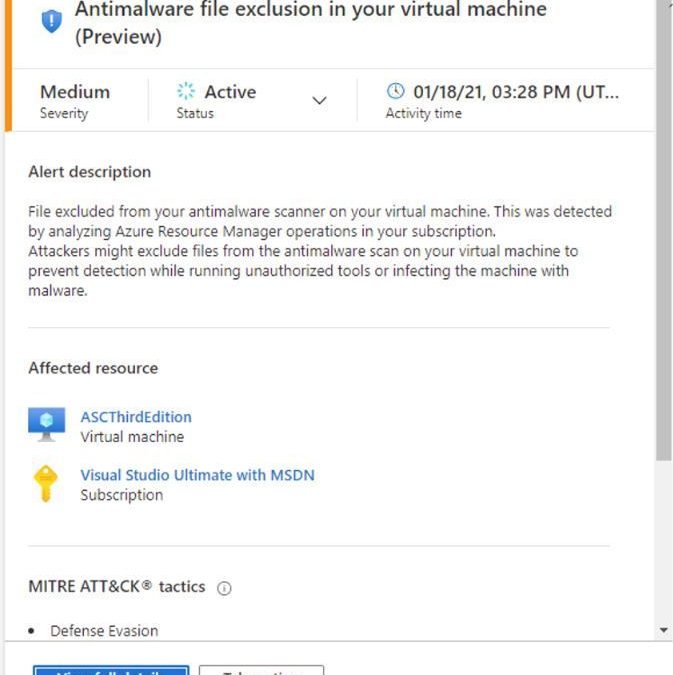
After some minutes you should see Azure Defender for Resource Manager alert showing up on your dashboard, like the one below:
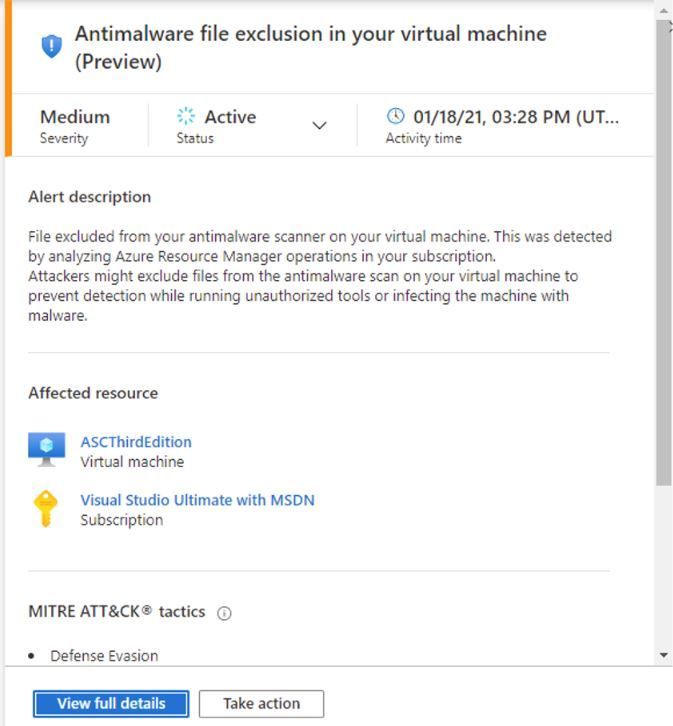
Is important to emphasize that these operations (disable AM runtime) are done over built-in capabilities of Azure, in this case VM extensions. Using VM extension one doesn’t need to log-in into the affected VM (no node-level credentials are required!). For a deeper discussion on a use case scenario for this threat detection, read the article Azure LoLBins: Protecting against the dual use of virtual machine extensions.
Reviewers
Tal Rosler, Program Manager
Ram Pliskin, Senior Security Research Manager
Script by Johnathan Simon, Security Researcher
by Contributed | Mar 22, 2021 | Technology
This article is contributed. See the original author and article here.
Azure Service bus ||change broker property of Azure Service Bus message using azure-spring-cloud-stream-binder-servicebus Library
Use Case:
To change broker property of Azure Service Bus message using spring-cloud-stream-binder-servicebus library.
Pre-Requisites:
- Azure Service bus Namespace
- Azure Service bus SAS connection string
- Console Application to change the messageID of the service bus using spring-cloud-stream library.
Scenarios:
- Set the custom MessageID of the Service bus message using the Spring-cloud-stream library.
Steps to follow:
At present azure-spring-cloud-stream-binder-servicebus library do not support setting the messageID.
MessageID/Broker properties are auto-generated from spring-cloud library and doesn’t use the properties from Service bus Message.
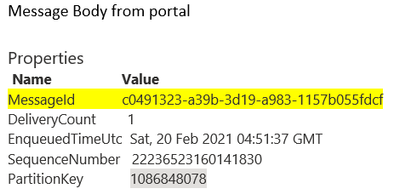
Here we are trying to set the MessageID of the Service bus broker message as ‘ce095552-b466-4d03-ac41-430ec9286806’, however post receiving the same message and checking the messageID, it will be different ‘c0491323-a39b-3d19-a983-1157b055fdcf’ as this is auto-generated by the spring-cloud library as shown below:
Code trying to set the MessageID of the broker message:
Code
|
Reference Code
|
Properties
|
Map<String,Object> accessorMap = new HashMap<>();
accessorMap.put(MessageHeaders.ID, “ce095552-b466-4d03-ac41-430ec9286806”);
accessorMap.put(“messageId”, “ce095552-b466-4d03-ac41-430ec9286806”);
accessorMap.put(MessageHeaders.TIMESTAMP, new Date().getTime());
accessorMap.put(MessageHeaders.CONTENT_TYPE,”application/json”);
|
Reference Payload
|
StreamMessage streamMsg = StreamMessage.builder().id(123123)
.message(“Message from Publisher”).build();
|
Construction of Message
|
com.microsoft.azure.servicebus.Message newMessage = new com.microsoft.azure.servicebus.Message(“ce095552-b466-4d03-ac41-430ec9286806”,MessageBody.fromValueData(streamMsg.toString()),”application/json”);
newMessage.setPartitionKey(“12”);
newMessage.setTimeToLive(Duration.ofMinutes(1));
newMessage.setProperties(accessorMap);
|
Sent Message using Spring cloud stream
|
source.output().send(new GenericMessage<>(newMessage));
|
MessageID of the message set with above code:
Refer the workaround, in following code, you can provide a subclass of ServiceBusTopicTemplate, and override the logic of how the message id is defined.
So, in the example below, you can set the header when building spring integration message.
@Bean
public ServiceBusTopicOperation topicOperation(ServiceBusTopicClientFactory factory) {
return new CustomizeMessageIdServiceBusTopicTemplate(factory);
}
public static class CustomizeMessageIdServiceBusTopicTemplate extends ServiceBusTopicTemplate {
public CustomizeMessageIdServiceBusTopicTemplate(
ServiceBusTopicClientFactory clientFactory) {
super(clientFactory);
this.messageConverter = new ServiceBusMessageConverter(){
@Override
protected void setCustomHeaders(MessageHeaders headers, IMessage serviceBusMessage) {
super.setCustomHeaders(headers, serviceBusMessage);
if(headers.containsKey(“customer-message-id”)){
serviceBusMessage.setMessageId(headers.get(“customer-message-id”,String.class));
}
}
};
}
}
Message<String> build = MessageBuilder.withPayload(message).setHeader(“customer-message-id”, WATH_EVER_VALUE_WANT_TO_BE_USED_AS_MESSAGE_ID).build();
Running the above sample code, you should be able to set the MessageID of the Azure service bus using azure-spring-cloud-stream-binder-servicebus library.
Hope this helps!


Recent Comments