by Contributed | Mar 24, 2021 | Technology
This article is contributed. See the original author and article here.
As companies embark on the journey to be data-driven, they need access to data both within and outside of their organization. It is critical to be able to share data easily and securely with external business partners and internally between different departments. Azure Data Share enables easy and secure sharing of files, folders, and databases with just a few clicks. Through the integration with Azure Purview, you can now have a 360-degree view of data sharing including what data is shared with or received from other organizations, which helps you perform impact and root cause analysis on your datasets.
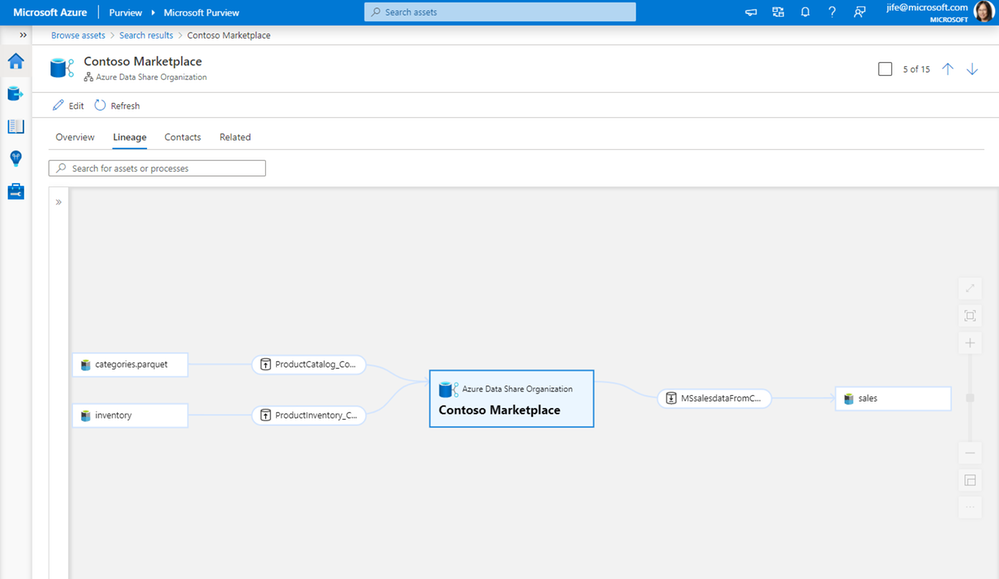
Scenario 1: 360-degree view of data sharing
Whether you are sharing data with business partners or within your organization, you can see bi-directional sharing relationships in the Purview asset lineage graph. You can discover all the datasets that are shared to or received from a specific organization.
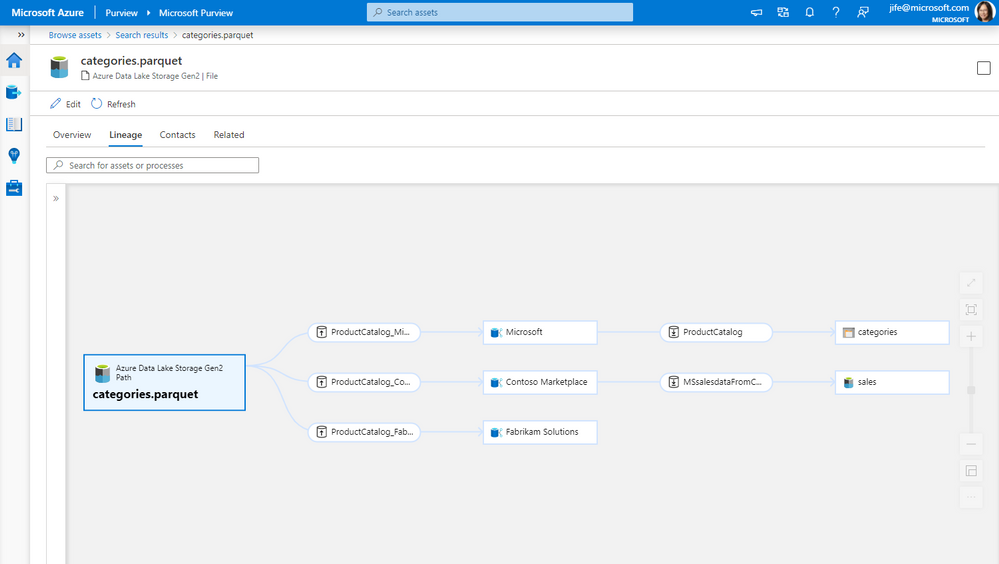
Scenario 2: Impact analysis on data shared with another organization
When you make a change to a dataset, such as changing the file format or the schema of a database table, it is important to know who is using that data and will be impacted by the change. Lineage lets you easily understand the impact of the downstream internal or external users who you have shared the data with.
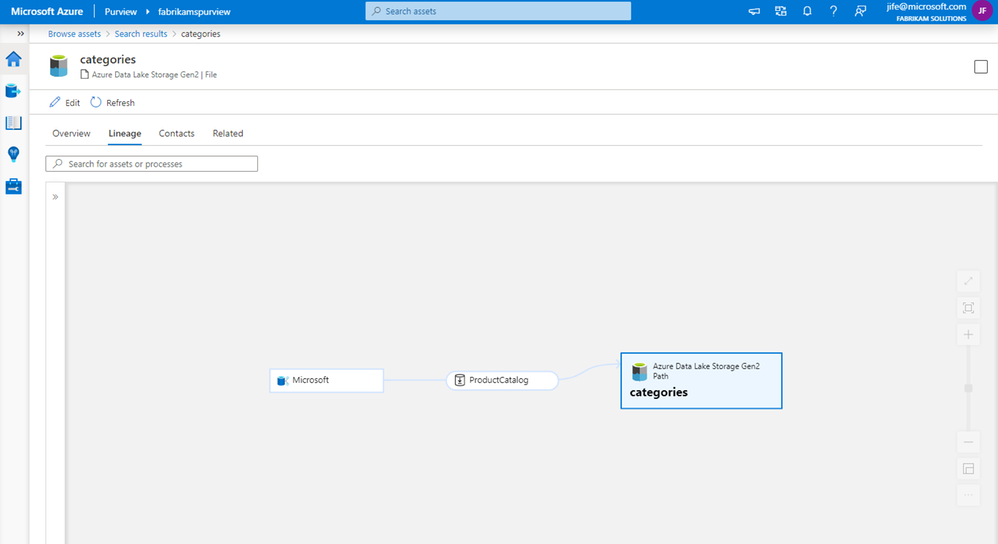
Scenario 3: Root cause analysis for data received from other organizations
When troubleshooting a data issue, it is important to find out source of the data. Using lineage, you can identify where the data is originally coming from, and if it is from within or outside your organization.
Get started
It just takes a few simple steps to get data sharing lineage in Purview.
- Connect your Azure Data Share account to a Purview account
- Trigger scheduled or on-demand snapshots in Azure Data Share
- Browse and select an asset in Purview
- View the asset lineage in Purview
This quick demo shows the steps:
Resources
Connect to Azure Data Share – Azure Purview | Microsoft Docs
Azure Data Share | Microsoft Docs

by Contributed | Mar 24, 2021 | Technology
This article is contributed. See the original author and article here.
If you are evaluating , kicking off or in the process of moving your organizational data to Microsoft 365 here are some recommendations from the subject matter experts based on their learnings managing large scale migrations for multiple organizations.
Tune in to learn more about the tools and options available to enable you to successfully migrate your organizational data to Microsoft 365 as well as best practices that will help you run an effective, speedy and seamless migration to OneDrive and SharePoint
so that you can empower your users for collaboration and productivity.
Webinar details :
Choosing the right tools for your Microsoft 365 migration
Date: 6/6/2021
Time: 9:00 am PT
Agenda:
- Introduction
- Migration from file shares and SharePoint servers
- Migration from cloud providers
- Future investments
- Conclusion and QA
Please register for the free webinar here.
Best practices for data migrations to Microsoft 365
Date: 6/13/2021
Time: 9:00 am PT
Agenda:
- Introduction
- How to prepare data for migration
- How to plan and communicate about the migration
- How to run a successful migration
- Conclusion and QA
Please register for the free webinar here.
Looking forward to interacting with you! :)
Thanks,
Ankita
by Contributed | Mar 24, 2021 | Technology
This article is contributed. See the original author and article here.
Back in September of 2020, we announced the new Outlook for Mac preview experience, available as a toggle for all our users. Now more than a third of Outlook for Mac users are using this new experience and that number is growing every day.
From the very beginning our strategy has been to build an exceptional Outlook experience based on direct feedback from you, our users. We’ve paid very close attention to what you have to say, and since September, we have added more than 50 top-asked-for features to the new Outlook for Mac, including support for additional account types, security enhancements, and more ways to stay on top of your calendar. The valuable feedback we’ve received has also helped us adjust our priorities.
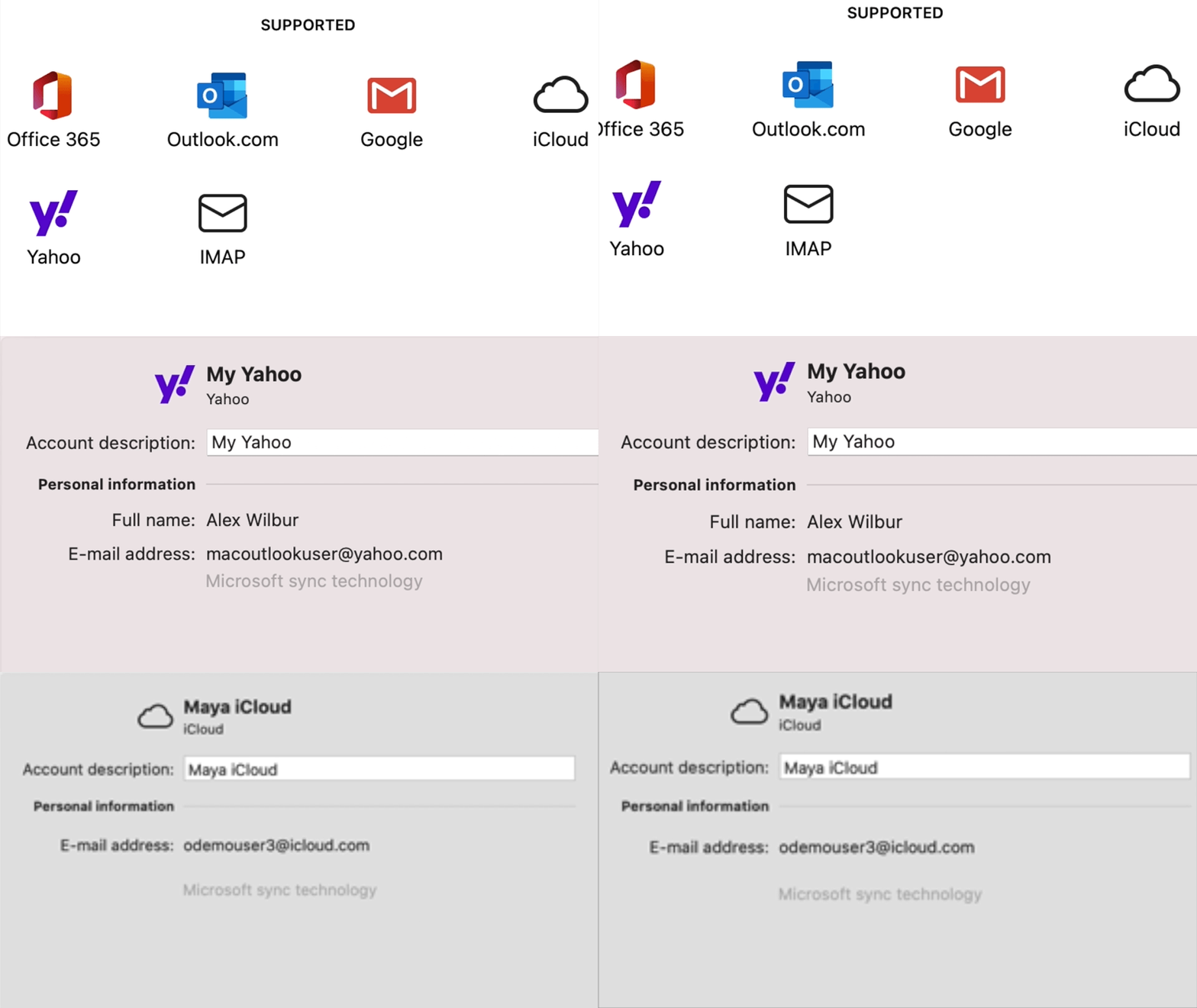
Support for iCloud, Yahoo, & IMAP Accounts
Let’s start with your accounts. The new Outlook for Mac now supports iCloud and Yahoo accounts, with full mail, calendar, and contact synching. IMAP support is also now available for your other email accounts. Additionally, when you first switch to the new Outlook, you’ll be asked about bringing your accounts into the new Outlook. Once you provide any missing account details, your account will appear in the new Outlook and start synching.
Shared Calendars, Shared Mailboxes, & Delegation
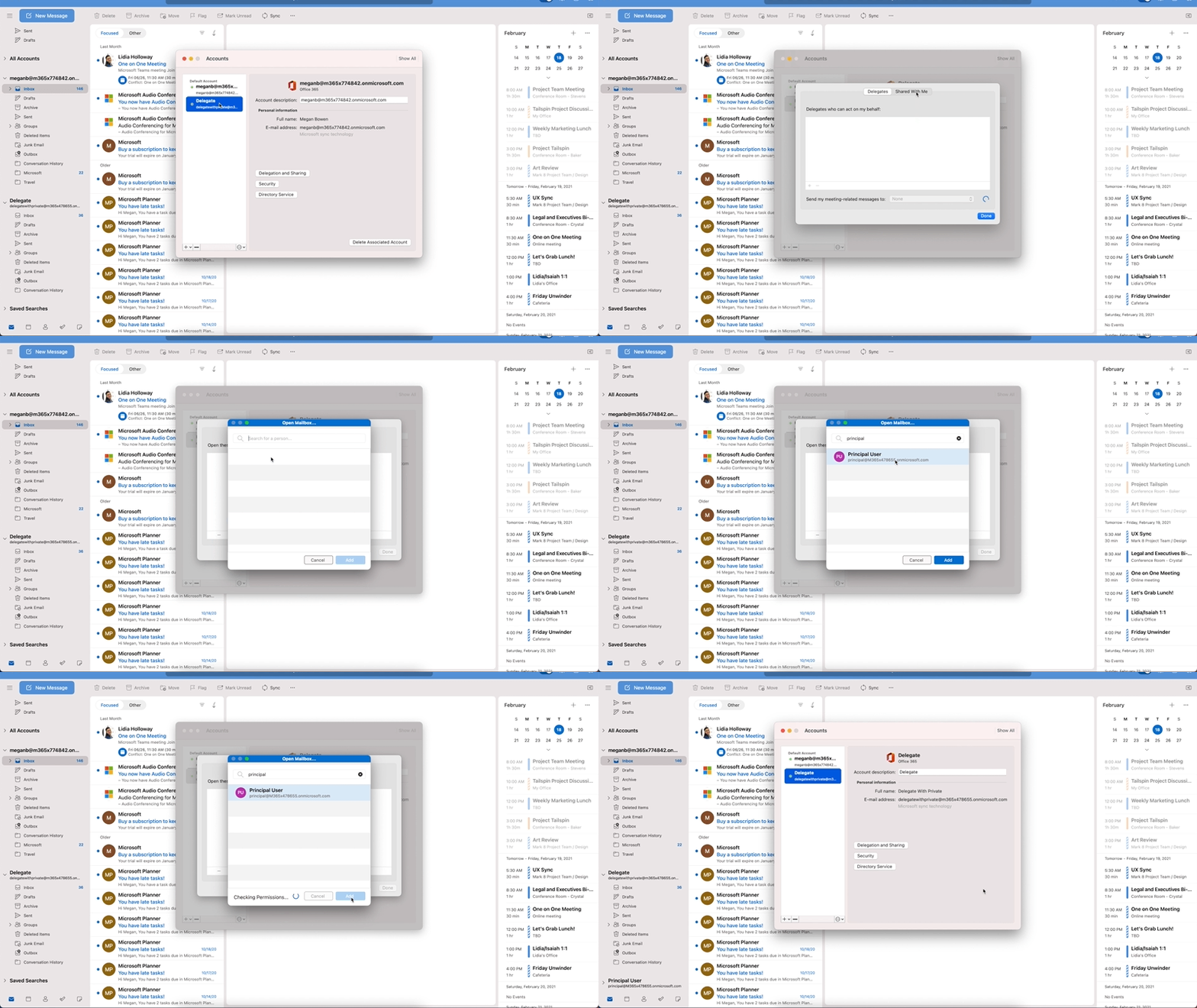
Since first releasing the new Outlook for Mac preview, support for shared calendars, mailboxes and mailbox delegation has been one of the top asked for features, critical to daily workflows of many users. We are very excited to announce that these are now available.
You can add a shared calendar, a shared mailbox, or a mailbox that has been delegated to you directly from within the new Outlook for Mac. Not just that but you can also manage your delegates via Outlook.
Preferences > Account settings.
Get caught up with updates around Security & Enterprise Features
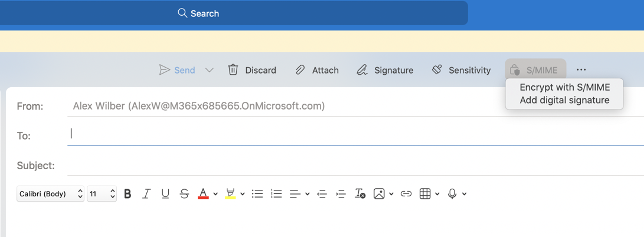
S/MIME? You bet! With S/MIME support, you can add additional security by signing and encrypting messages end-to-end ensuring only you and your email recipients are able to view messages sent back and forth and rest assured that your emails haven’t been tampered with.
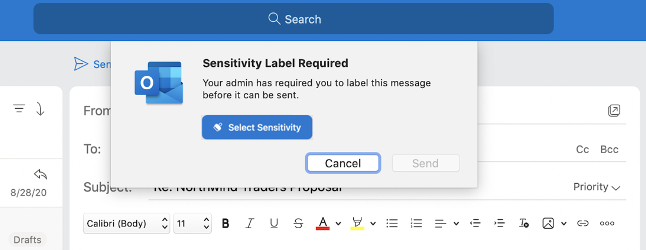
We’ve also added support for Microsoft Information Protection, to help you classify and protect your organization’s data. MIP policy labels can be configured in various ways to suit the needs of your organization.
Focus, Share, and stay on top of your calendar
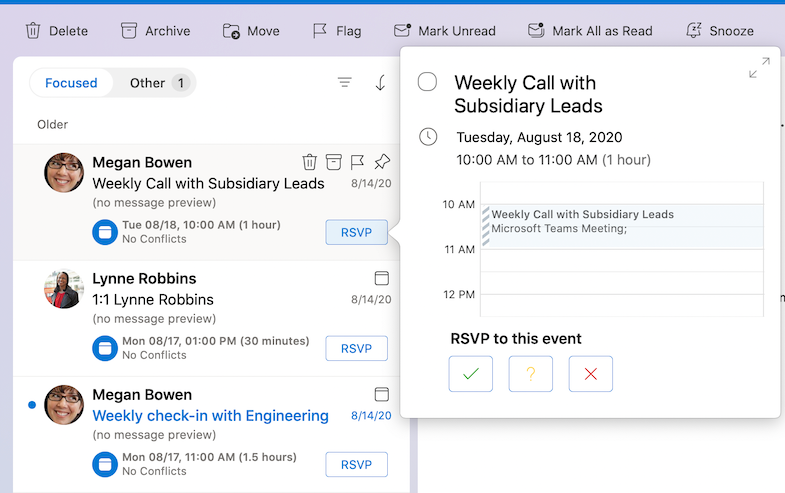
The new Outlook for Mac continues to improve, to help you focus on what matters. Without leaving your inbox, you can now respond (RSVP) to events right from your message list and share an email to Teams.
If you are running Mac OS Big Sur, you can add the calendar widget to help stay on top of your day. You can even add events right from within the widget or click on an event to open it in Outlook.

Manage your contacts, in more ways than one!
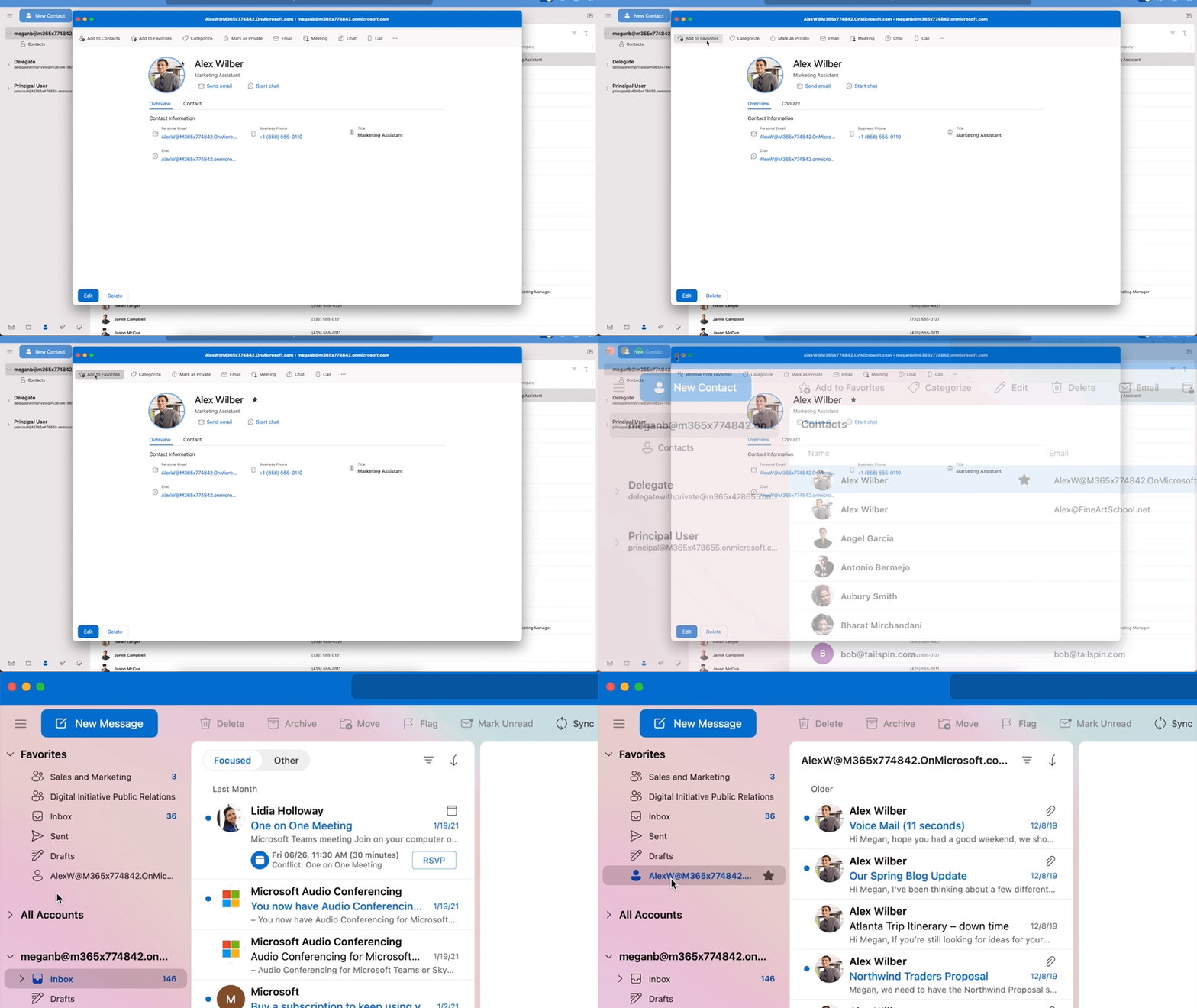
You probably find yourself looking for emails from people with whom you interact a lot. Now you can add your most important contacts to your “Favorites”, so you can prioritize their messages and never miss an email from them. Simply click on a favorite person in the Sidebar in your mail view to see your recent email interactions with them.
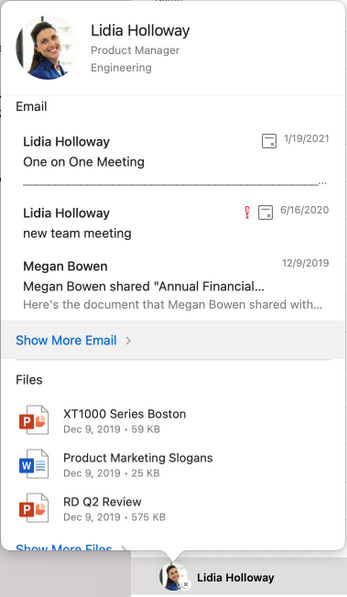
We also have an updated contact card that has new panels for emails and files, providing quick access to relevant items for the contact.
Enhancements to Search, add-ins, and more
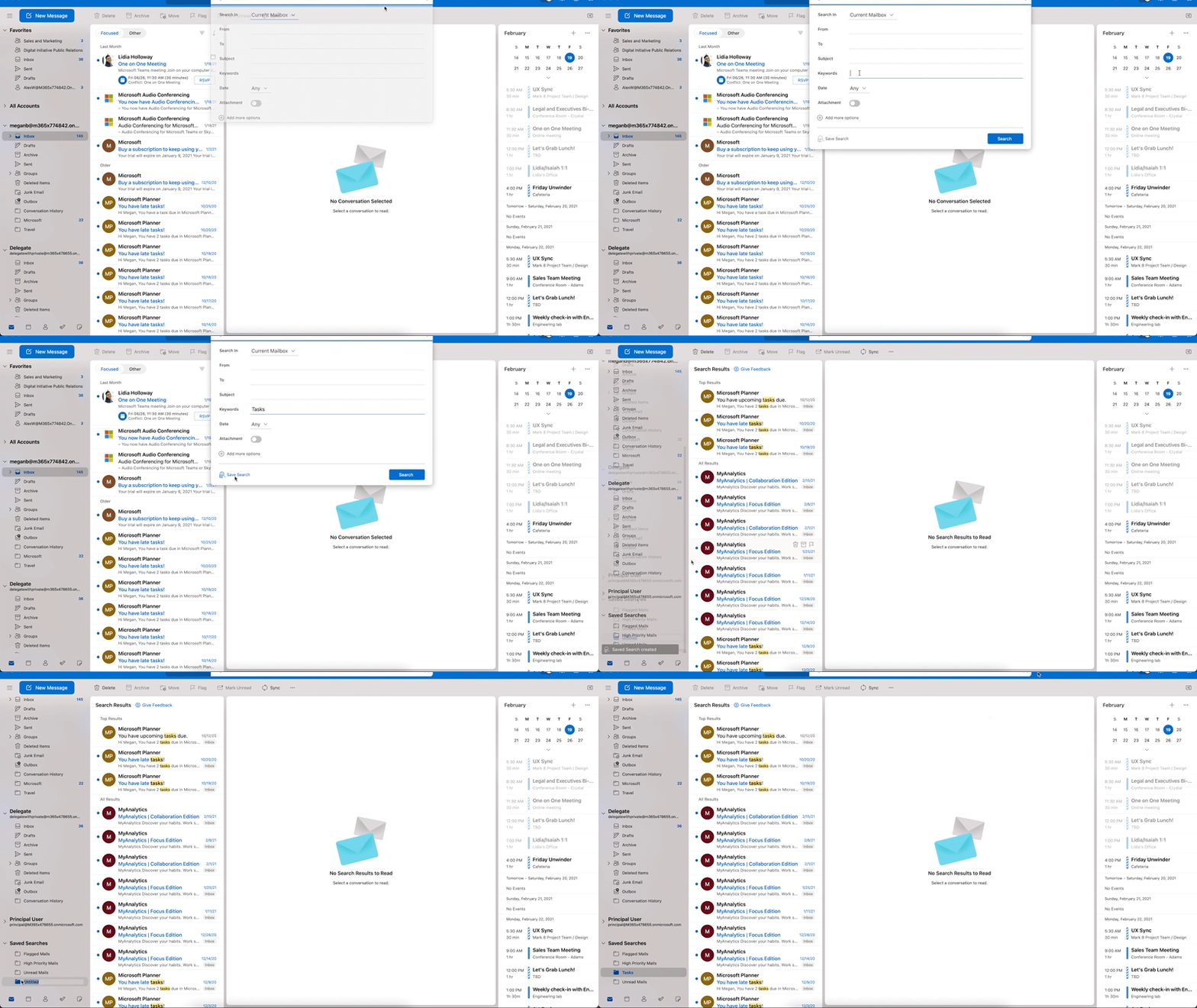
Do you find yourself often doing the same search over and over? Now you can save those searches and access them in one click! Saved searches are virtual folders that dynamically display a set of search results.
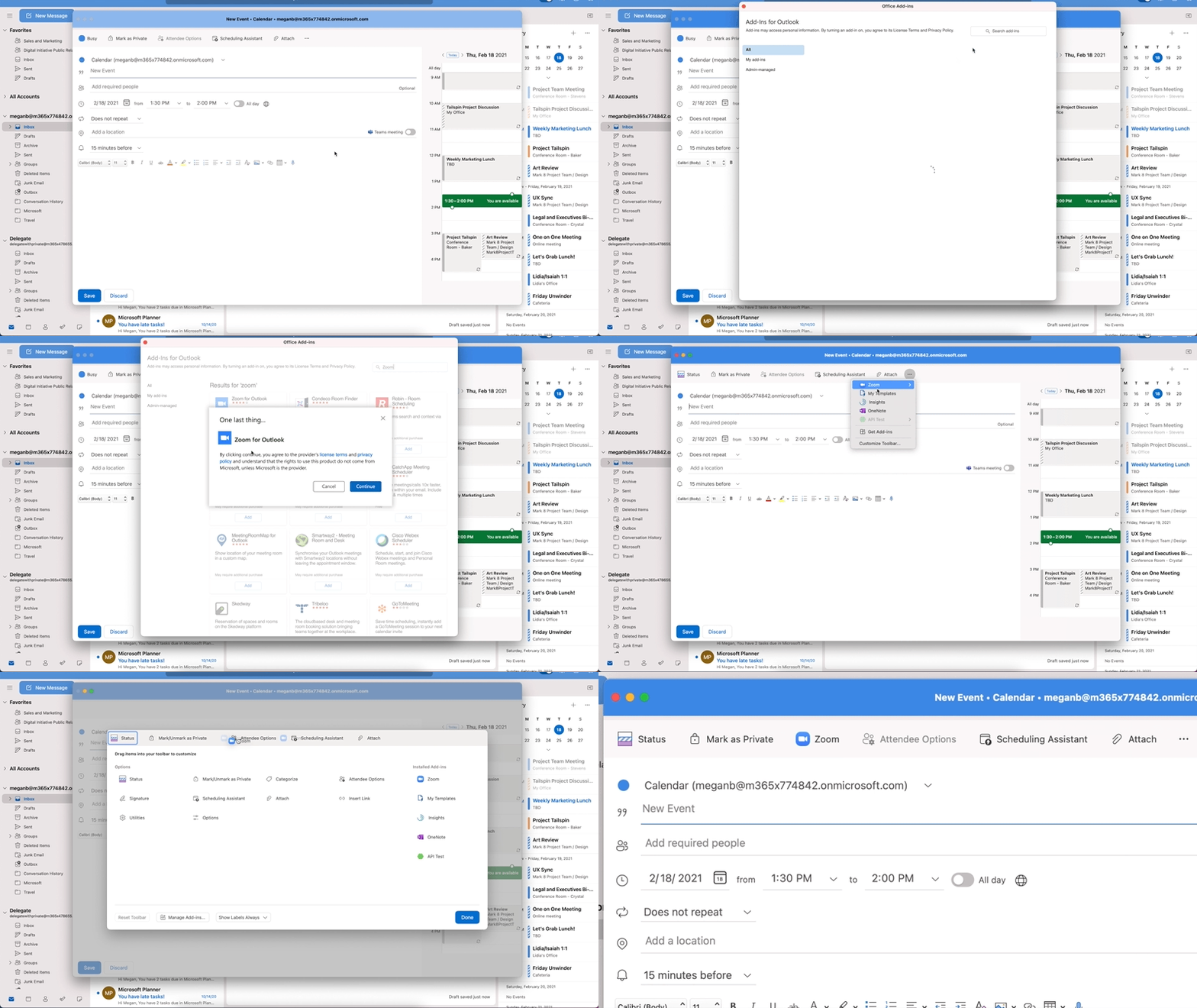
Add-ins have also been improved as frequently used add-ins are automatically pinned in your toolbar, and some add-ins can also be activated automatically and contextually, like from the text in an email or an appointment. To help with security and organizational compliance, emails and calendar invites can be blocked synchronously by an add-in at send time.
Our adaptive cards have been redesigned, which scale across several Microsoft services, including Outlook, Teams, SharePoint, Azure, and more, to bring about a seamless and consistent developer and user experience.
If you have not yet, you can preview and experience the new Outlook for Mac by turning on the “New Outlook” switch. If you would like to access features not yet supported, you can keep the “New Outlook” switch in the Off position and use the current version of Outlook for Mac.
To learn more about the requirements and detailed instructions on to enable the new Outlook for Mac preview, visit our support page.
Thank you for all your feedback, please keep it coming in our UserVoice channel as it helps us build a better product and prioritize our work.
If you want to learn more about how Microsoft 365 is improving the experience for Mac users, we recently shared a blog with 4 ways in which we are doing so.
Please note: The new Outlook for Mac is available as a preview experience. Certain features and account types are currently not supported in the preview. More information about the preview experience and known issues are available on our support page and as always, new feature availability is shared on the Microsoft 365 roadmap.

by Contributed | Mar 24, 2021 | Technology
This article is contributed. See the original author and article here.
This will be your guide to the best things about Microsoft Compliance at Ignite March 2021. Bookmark it. Save it. Come back to it. Share it. Reference it. Enjoy.
Microsoft Ignite March 2021 may be over but that does not mean you have to stop learning about Microsoft Compliance. Earlier this year Microsoft CVP of Security, Compliance, and Identity (SCI), Vasu Jakkal spoke about how Microsoft surpassed over $10 billion of security business revenue. And while that’s a significant milestone we are just getting started. Don’t be fooled…we are not just best in suite; we are best in breed. Just ask Gartner – the Magic Quadrants we reside in say so.
Anyway, I digress. Here is a quick recap of the Compliance announcements you may have missed:
Additionally, here goes the list of on-demand sessions you must absolutely watch in case you missed any of our Compliance goodies.
Security Keynote
CVP Vasu Jakkal talked about Microsoft’s vision on Security for All including how to reduce complexity and defend your organization against business risk with innovations in security, compliance, identity, and management. She is joined by a start studded cast in Security leader Andrew Conway, Identity leader Irina Nechaeva, and Compliance leader as they dig into the latest news, releases, and updates. WATCH ON-DEMAND Security for All
Compliance Keynote
Microsoft Compliance GM Alym Rayani illuminates how Microsoft’s risk management and compliance solutions enable you to identify and respond to these emerging risks while keeping your most important information safe. WATCH ON-DEMAND Manage risk and secure information across your environment
Compliance Sessions
Ask the Experts
Security & Compliance Certifications
Security & Learning Path (Online – Free)
Compliance Blogs
To learn more about Microsoft Security solutions, visit our website. Bookmark the Security blog to keep up with our expert coverage on security matters. Also, follow us at @MSFTSecurity for the latest news and updates on cybersecurity.
Follow Christopher on Twitter and LinkedIn
by Contributed | Mar 24, 2021 | Technology
This article is contributed. See the original author and article here.
Many organizations are coming up on their first-year anniversary of supporting a remote workforce. While some have already started transitioning people back to the office, whether in full-time or hybrid mode, others are looking to make remote work permanent. Either way, having modern collaboration tools that help people share information and work together in real time has become absolutely essential to maintaining productivity. Last year, many IT organizations found themselves scrambling to quickly get people access to tools and information they needed to work from home effectively. Now, they’re in a position to think more strategically about the best ways to support a remote workforce. For organizations who’ve deployed Microsoft 365, one of those ways is by migrating content to SharePoint and OneDrive.
Why migrate?
Your organization may have any number of reasons for migrating to SharePoint and OneDrive. Maybe you were already planning the migration when the pandemic hit, maybe you realized that asking people to VPN in to access on-premises file shares wasn’t providing a good employee experience, or maybe your subscription to 3rd party cloud storage is expiring and you realized you can centralize administration and save costs by moving to Microsoft 365.
But the most important reason to migrate is that SharePoint and OneDrive work securely and seamlessly with Microsoft Teams, the digital hub for teamwork that over 115 million daily users rely on to connect and collaborate. And the integration between Teams, SharePoint, and OneDrive empowers you to set governance and compliance policies at an organizational level that can be extended across Teams, SharePoint, and OneDrive—something you can’t do with third-party tools.
With content stored in SharePoint and OneDrive, you can configure secure sharing policies, use Microsoft Information Protection to create policies for automatic classification of sensitive data, or implement information barriers to restrict communication and collaboration between specific business units or teams to avoid conflicts of interest from occurring or between certain people to safeguard internal information. You can also monitor shared content, adding an extra layer of security and control. Through detailed audit logs and reports available in the Microsoft 365 Security and Compliance Center, you can trace SharePoint and OneDrive activity at the folder, file, and user levels, so you can see at a glance if any unauthorized users have tried to access sensitive company or client information. Every user action, including changes and modifications made to files and folders, is recorded for a full audit trail. In addition, even remotely, you also get device visibility and control that’s especially important for thwarting breaches and ransomware attacks.
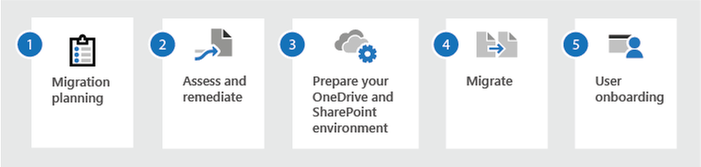
What are the critical steps for a successful migration?
No matter what your reasons for migrating to SharePoint and OneDrive, the process can seem overwhelming. You have so much to consider: What content do you have, and where is it stored? What will you move? What needs extra consideration, like regulatory compliance? How will you get data from file shares or third-party cloud apps into SharePoint and OneDrive? And those are just some of the logistical aspects—you also need to think about things like timing for the migration and how to communicate what’s happening to the rest of the organization. To help, we’ve outlined some critical steps for you to consider for a successful migration.
Consider your current environment
The first step is to understand your current environment. Many organizations have a combination of solutions: file servers with many years’ worth of data, third-party storage solutions holding archived data for legal or regulatory reasons, or third-party cloud storage apps adopted by specific business units. In considering your current environment, you’ll want to review:
- Where your data is located, and whether you need it. As a first step you need to determine what content you have, what you need to keep, and what you want to get rid of.
- What content people are using. You’ll also want to understand how people across the organization are using the file shares or cloud storage apps to do their daily jobs, so you can plan around the way people work to avoid disrupting productivity.
- Who has access to what. You probably have certain groups who need to share a lot of information with external parties—clients, partners, or vendors. You’ll need to know what access has been granted so you can ensure they still have access once the content is migrated.
- How you want to structure things going forward. Once you’ve collected that information from the business, you can reconsider your file and permissions structures for more streamlined administration and better security.
- Whether you need help. All of this can be daunting, so consider enlisting support: Microsoft FastTrack services can help you get started by helping to assess your environment and develop a plan, If you need help with migrating your file shares, on-premises SharePoint environments, or other cloud sharing solutions to Microsoft 365.
Create a high-level timeline and outline any risks
Develop a high-level timeline for your migration based on priority and your earlier assessments. This will help you determine cutover dates for all content and users and address any risks you’ve identified, such as sites or file shares that need to be scrubbed, legal hold or eDiscovery issues, or even holidays or other important business dates or events that you need to consider.
Choose the right tool(s)
You may not want or need to migrate all your data the same way. For example, your organization may prefer to have users in some business units manually move their content to OneDrive or SharePoint from share network files or other sharing apps, while other business units with many TBs of customer content or sensitive IP may prefer that IT and security teams work together to move content to its new location. Microsoft offers a broad range of tools to help you migrate different types of content, depending on your needs:
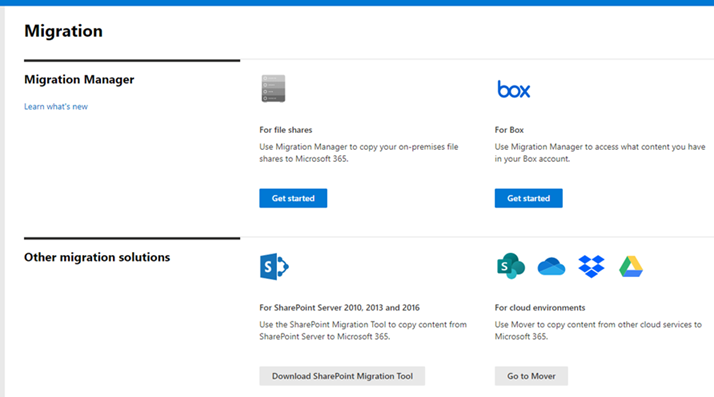
Manual Upload. You can ask users to manually upload their files to SharePoint or OneDrive. This works best for smaller files like general Word documents, Excel spreadsheets, and PowerPoint presentations.
Best for: Moving small individual files
OneDrive Sync App. For individual users who have a lot of content to move, they can install the OneDrive Sync App for Windows or Mac to drag and drop files from file shares or their computer’s File Explorer to OneDrive. This app also lets users easily manage and access OneDrive files in the same way they manage and access files in File Explorer.
Best for: Moving a personal file library to the cloud
SharePoint Migration Tool. You can use the SharePoint Migration Tool (SPMT) to migrate your files from SharePoint on-premises document libraries, lists, or regular files shares.
You can also use the new PowerShell cmdlets based on the SharePoint Migration Tool (SPMT) migration engine to move files from SharePoint 2010 and SharePoint 2013 on-premises document libraries and list items, and file shares to Microsoft 365.
Best for: Migrating SharePoint Server 2010, 2013, and 2016 environments
SharePoint Assessment Tool. You can use this simple command line executable to assess and identify issues with your on-premises SharePoint Server content prior to migration. It also includes the SharePoint Migration Identity Management Tool, that performs identity mapping by scanning SharePoint, Active Directory, and Azure Active Directory.
Best for: Assessing SharePoint Server 2010 and 2013 content prior to migration
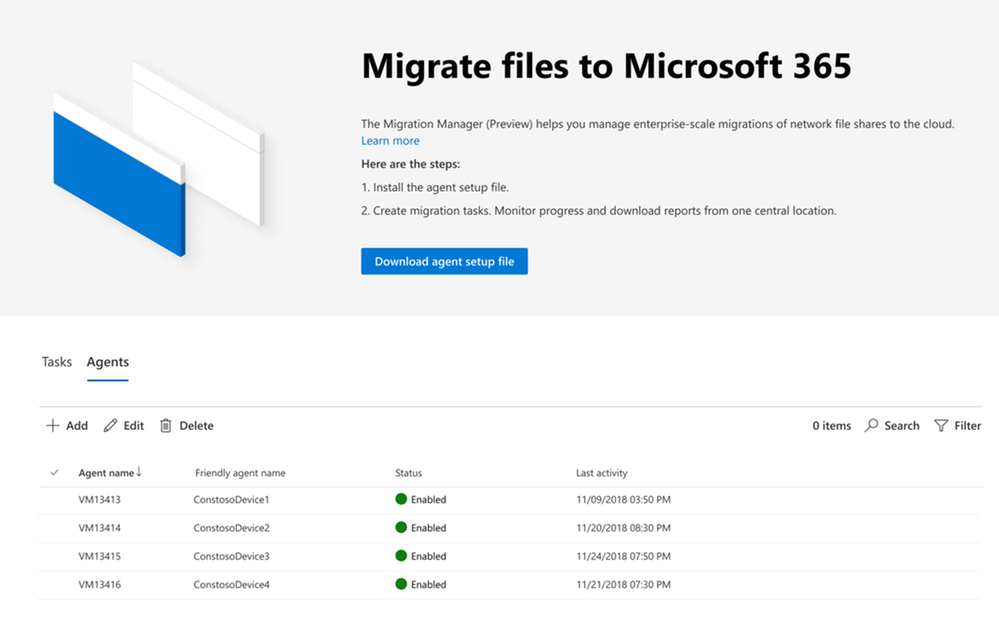
Migration Manager. Available in the SharePoint Admin center, Migration Manager provides a centralized way of connecting servers, creating tasks, and automatically distributing your migration tasks.
Best for: Migrating network file shares
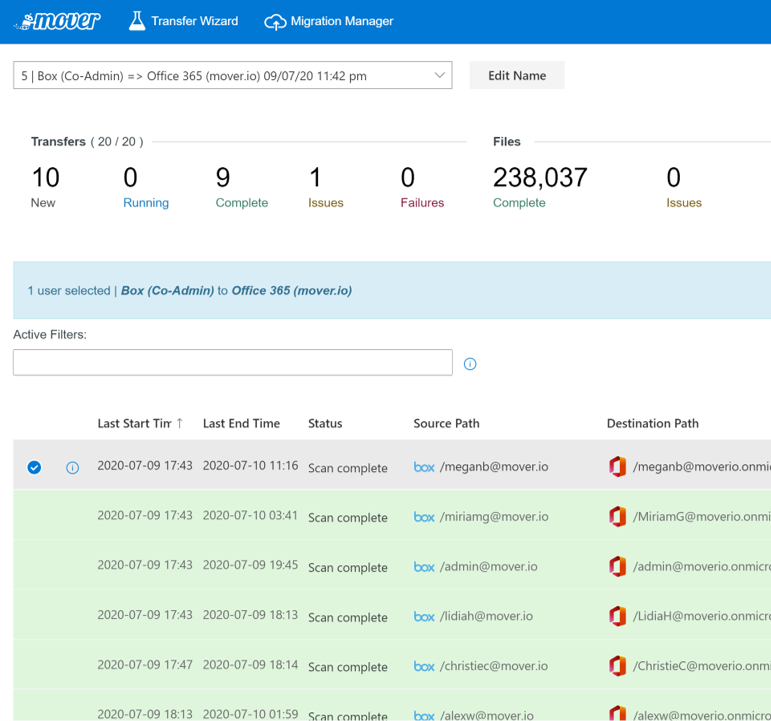
Mover. Automated cloud-to-cloud migration service for Office 365 tenant-to-tenant migrations or moving from cloud apps like Box and DropBox.
Best for: Migrating data from other cloud service providers
Azure Data Box. The Microsoft Azure Data Box is a service that lets you order a device from the Microsoft Azure portal. You can then copy TBs of data from your servers to the device, ship it back to Microsoft, and your data is copied into Azure. Once your data is in Azure, you can use SPMT to migrate content to SharePoint.
Best for: Removing the dependency on your WAN link to transfer data when migrating files
Plan your migration and communicate the plan
Depending on the tool you choose to use for your migration and your organization’s business needs, you may want to plan your migration during off-work hours or on weekends, if possible, just to avoid disrupting daily business. You may decide to move content and users in waves by business units or teams, or you may decide to move certain content types first—for example, moving smaller documents and working your way up to larger files such as video or CAD files. Whenever and however you decide to move content, you should also create a communications plan, giving people plenty of advanced notice and explaining what they should expect and when. If you have a change management team, you could also work with them on ensuring that documentation and training materials are readily available when the migration begins.
Prepare and run your migration
Before you begin your actual migration, consider running a pilot to ensure you’ve worked out most of the kinks. A successful pilot can help build confidence, especially with leadership and other key stakeholders, and can help you mitigate risks. Select people from across the organization who own data that they are sharing with each other and/or with external parties so you can test how permissions transfer. You can keep your pilot running even during the actual migration just to help minimize surprises.
On the selected migration date—one you’ve communicated ahead of time to everyone in the organization—ensure people cannot edit or add files. We also suggest leveraging the “Big Bang” approach that involves moving all your users at once providing highest concurrency, throughput and speed.
To keep key stakeholders up-to-date on the progress consider publishing a report that highlights data migrated, status and any errors which can be mostly eliminated by re-running your transfers. Once concluded, your change management team can help with user adoption and onboarding for a smooth transition to OneDrive and SharePoint.
Learn more and stay engaged..
Check out all the details on migrating to Microsoft 365 documented here.
We are very thrilled to showcase the tools and best practices for migrating to Microsoft 365 . Please join us for these webinars
Choosing the right tools for your Microsoft 365 migration on April 6, 2021 at 9:00 am PT.
Best practices for data migrations to Microsoft 365 on April 13, 2021 at 9:00 am PT.
Also, check out our latest episode of Sync Up- a OneDrive podcast to hear the experts on success factors that can help you drive an effective migration.
https://html5-player.libsyn.com/embed/episode/id/18429635/height/90/theme/custom/thumbnail/yes/direction/backward/render-playlist/no/custom-color/f99400/
We continue to evolve OneDrive as a place to access, share, and collaborate on all your files in Office 365, keeping them protected and readily accessible on all your devices, anywhere.
You can stay up-to-date on all things via the OneDrive Blog and the OneDrive release notes.
Check out the new and updated OneDrive documentation.
Take advantage of end-user training resources on our Office support center.
Thank you again for your support of OneDrive. We look forward to your continued feedback on UserVoice and hope to connect with you at Ignite or another upcoming Microsoft or community-led event.
Thanks for your time reading all about OneDrive,
Ankita Kirti
OneDrive | Microsoft


Recent Comments