
by Contributed | Mar 30, 2021 | Technology
This article is contributed. See the original author and article here.
Hello!
Microsoft has been working with a variety of hardware key manufacturers to give customers a rich set of choices for their passwordless solutions. In today’s post, we hear from Athena Chang from AuthenTrend, who describes the company’s flagship security key, ATKey.Pro. AuthenTrend is based in Taiwan and focuses on building biometric-based passwordless solutions.
The paradigm of in-office work has been shattered as a result of COVID-19
By Athena Chiang, Director of Business Development, AuthenTrend
The paradigm of in-office work has been shattered because of the pandemic. This transition to a permanent hybrid workforce forces organizations to adjust their security strategies to ensure that only the right user can remotely access sensitive systems. A growing number of AuthenTrend customers are asking about passwordless with biometrics as a more secure alternative to traditional passwords.
One customer illustrates the benefits of adopting a passwordless with biometrics solution. After adopting ATKeyPro, this manufacturing company decreased IT costs by 30% to 50% annually and eliminated the hassles of password reset. This improves the user experience because like many companies, employees were previously required to reset their passwords every three months.
This customer adopted the mobile authentication application, but most employees on the factory floor are not allowed to use mobile phones, and some executives are hesitant to use their personal phones for business purposes. At AuthenTrend’s suggestion, they migrated their solution from Active Directory and on-premises servers to a hybrid solution – Office 365 E3 with Azure Active Directory. They adopted ATKeyPro and ATKeyCard based on employees’ device usage.
Founded in 2016, AuthenTrend has one of the largest number of FIDO2 certifications in Taiwan and is the first fingerprint security key company to receive these certifications. Today, AuthenTrend is part of the Microsoft Intelligent Security Association (MISA), FIDO Alliance, RSA. The customer’s CTO trusts the fingerprints security key solution since AuthenTrend’s fingerprint sensor comes with a top industry-level FRR rate and smallest form factor.
Why your passwordless journey should include biometrics
That company’s concern about security is understandable. Consider these statistics on threats from a Microsoft Threat Intelligence report and the 2018 Data Breach Investigations Report (DBIR):
- 230% increase in password spray attacks in 2020
- Nearly one in three of all attacks on enterprises involve phishing.
- 81% of data breaches are caused by compromised, weak, and/or reused passwords.
A weak password does not protect against modern malware, phishing, or man-in-the-middle attacks. By moving from passwords to hardware-based security keys, organizations enable the most robust authentication form and mitigate the threat of account takeovers.
Multifactor authentication, such as secondary tokens or one-time codes, may not be enough to prevent cybercrime, according to a FBI Private Industry Notification (PIN) report. The report recommends that the addition of biometric factors and behavioral information checks to multifactor authentication approaches is crucial to protect identity. Bret Arsenault, CVP/CISO at Microsoft, also indicated that using biometrics as part of the Azure Active Directory multifactor authentication process boosts security by making it more difficult for backers to steal a person’s identity.
Fingerprint-enabled authentication with Azure AD. With the expanded remote workforce, security and accountability risks increase and traditional authentication methods can’t absolutely ensure that the person signed-in is the authorized user. AuthenTrend partnered with Microsoft to offer biometrics solutions to secure this workforce.
Employees can use AuthenTrend’s FIDO2 fingerprint-enabled Security Keys to sign into their Azure Active Directory-joined or hybrid Azure AD-joined Windows 10 devices using single-sign-on for cloud and on-premises resources. Users can also sign in to supported browsers. With the fingerprint-matching requirement, enterprises can ensure that only authorized users can assess company information. It’s an option for highly security-sensitive enterprises or enterprises with scenarios or employees who aren’t willing or able to use their phones as a second factor.
AuthenTrends flagship product, ATKey.Pro, provides a fingerprint recognition security key that supports Fido2 and U2F. This lets users leverage standard devices to authenticate online services in both mobile and desktop environments. With AuthenTrend’s patented standalone enrollment technology, new users can register their fingerprints through the card or the USB key itself without using any supplemental enrollment app.
To learn more about AuthenTrend’s fingerprint-enabled security key solutions and how they can decrease IT costs visit the Azure commercial marketplace or reach out to AuthenTrend directly.
Learn more
I hope you’ve been inspired by AuthenTrend’s story of integrating its passwordless solutions with Azure AD. Microsoft is partnering with AuthenTrend on a pilot program if you’re a SMB or service provider and want to try Azure AD passwordless flow.
Learn more about Microsoft identity:
by Contributed | Mar 30, 2021 | Technology
This article is contributed. See the original author and article here.
Recently, Azure Synapse Analytics has made significant investments in the overall performance for Apache Spark workloads. As Azure Synapse brings the worlds of data warehousing, big data, and data integration into a single unified analytics platform, we continue to invest in improving performance for customers that choose Azure Synapse for multiple types of analytical workloads—including big data workloads.
Our efforts have focused on:
- Query optimization: New query execution elements and better plan selection yielded major gains
- Autoscaling: Automatically scaling clusters up and down with load, even as a job is running
- Cluster optimizations: Picking the right VM types, rapid provisioning of VMs
- Intelligent caching: Using local SSDs, native code, and hardware-assisted parsing
- Indexing: Optimizing data representation in the data lake for the workload yields significant improvement
Query Execution and Optimization
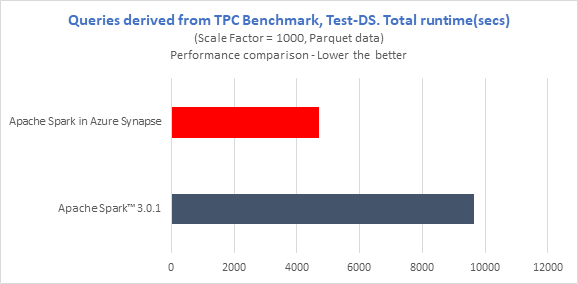
To compare the performance, we derived queries from TPC-DS with 1TB scale and ran them on 8 nodes Azure E8V3 cluster (15 executors – 28g memory, 4 cores). Even though our version running inside Azure Synapse today is a derivative of Apache Spark™ 2.4.4, we compared it with the latest open-source release of Apache Spark™ 3.0.1 and saw Azure Synapse was 2x faster in total runtime for the Test-DS comparison.
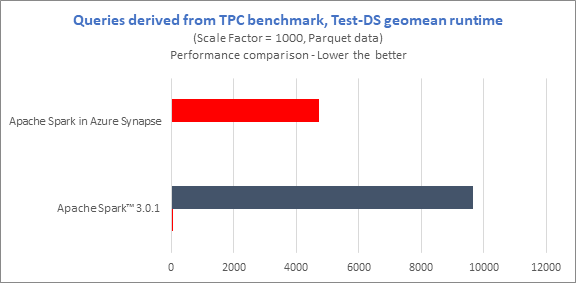
Also, we observed up to 18x query performance improvement on Azure Synapse compared to the open-source Apache Spark™ 3.0.1.
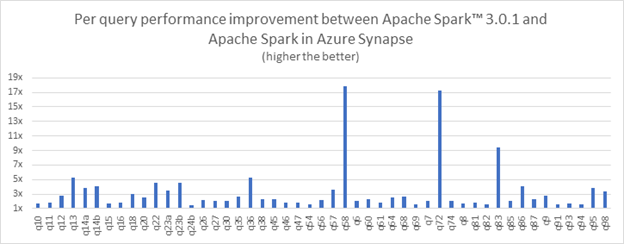
Below are some of the techniques and optimizations we implemented to achieve these results.
Scan reuse
Many queries refer to the same table multiple times. This is not a mistake — self-joins are a common example. But an engine does not actually have to scan the same data multiple times — it can combine multiple logical scans into a single physical one.
This optimization introduces new super operators which can avoid redundant IOs. In a TPC-DS like benchmark, 40% of the queries have redundant IO and a large fraction of them spend half of their time in stages with redundant IOs.
For instance, one query shows close to 3x improvement with this optimization.
Preaggregation
As part of this optimization, partial aggregation can be pushed down below join and thus help in reducing shuffle and compute. This is because a pushed-down aggregation can then be partially evaluated on the mappers, thus dramatically reducing the amount of data being shuffled. And, of course, joining the aggregated results is cheaper than joining the original data.
Determining when to deploy this technique is non-trivial. Sometimes, the aggregation key is nearly unique (e.g. where aggregation is being used to remove duplicates). In other cases, there is insufficient reduction within each partition, to “pay” the hashing costs of pre-aggregation.
Bloom Filters
When doing a join, it is wasteful to shuffle the rows that are not going to match the other side. We construct a Bloom filter using one (smaller) side of the join, and then feed it to the other side. We can then use the Bloom filter to eliminate the large majority of non-matching rows from the shuffle. The gains are amplified for plans with deep join trees because now we are dropping the non-matching rows at the point of the scan rather than processing them in several operators.
Deeper pushdowns
We extended the standard technique of pushing filters below joins to disjunctive filters, greatly increasing its applicability.
We now choose sort orders based on the rest of the query plan, eliminating unnecessary shuffles. And we are capable of pushing aggregations even below anti-semi and left-semi joins.
Autoscaling
Autoscaling is at the heart of the Azure Synapse promise for big data workloads to minimize maintenance of clusters and control costs. When jobs are submitted (or notebooks connected), we launch clusters on demand. We then grow and shrink those clusters as the load changes, and auto-pause them when no longer needed. We then grow and shrink those clusters as the load changes, and auto-pause them when no longer needed.
Autoscaling operates at two levels:
- Growing and shrinking individual jobs while running, by adding or removing executors when such growth would result in linear scaling. We do that by constantly examining queues and task histories.
- Adding or removing VMs to the cluster to accommodate the executor demands of all of its jobs, via smart probes running inside the cluster.
Together, these come close to striking a balance between cost and speed.
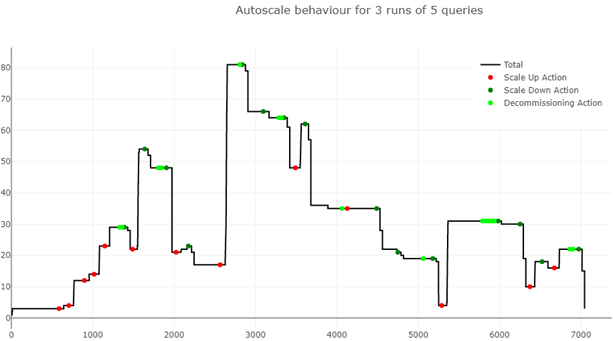
For instance, this graph shows the resources that Azure Synapse used over time and the actions it took (automatically) while running several particularly complex TPC-DS derived queries. The pool was configured to automatically scale between 3 and 100 nodes, and the queries were submitted in a tight loop.
Cluster Optimizations
For autoscale to be truly efficient, new clusters (and cluster expansions) need to come up very quickly. A series of investments in Azure Synapse allowed us to cut cluster creation times significantly, to Let’s look at some of the techniques that were used to achieve this.
In Azure Synapse, Apache Spark clusters are created (automatically, on-demand) by the Spark Cluster Service, by provisioning Azure VMs using a Spark image that has necessary binaries already pre-installed. The virtual machines that host the Spark cluster components are created in Azure Synapse managed system subscriptions and the network interfaces associated with the VMs
This behind-the-scenes provisioning allows us to offer several workspace flavors, from Microsoft-managed VNET, to customer-supplied managed VNET, and even an exfiltration-protected VNET.
We worked on the following optimizations in the Spark cluster provisioning and setup flow to improve the cluster startup times.
- SKU Selection: Spark cluster is provisioned on optimized Azure SKU that are best fitted for Spark workloads. We are now upgrading we use to one with high i/o throughput the cost and implementation of this are just something that we take care of.
- Bulk VM creation: On receiving a cluster creation request, we send a bulk VM creation to Azure. Batching VM creations has improved VM allocation times than individual VM allocations.
- Quick Start. Spark Cluster Service waits for at least 3 nodes to heartbeat with initialization response to handover the cluster to Spark Service. Spark Service then submits the spark application to the Livy endpoint of the spark cluster. The Cluster Service adds the rest of the VMs in the background as not all nodes are immediately needed to start the application.
- Overprovisioning of VMs: Spark Cluster Service overprovisions VMs to help with any transient VM allocation delays from Azure. The cluster service will always request a few extra VMs from Azure for every cluster and will delete the extra ones after the cluster is provisioned with the required number of nodes. This helped improve faster cluster creation and startup times.
- VM image: The image through which the Spark VM is created is a specialized VHD image that is optimized for Spark performance. The image is optimized via a prefetching process that caches blocks accessed during startup and that improved spark VM startup time by 25%.
Indexing with Hyperspace
Hyperspace is a project we have recently open-sourced and shipped into Azure Synapse. Hyperspace introduces the ability for users to build multiple types of secondary indexes on their data, maintain them through a multi-user concurrency model, and leverage them automatically – without any change to their application code – for query/workload acceleration. All the meta-data is stored in the lake and available for other engines.
Several features of Hyperspace stem from our interaction with various enterprise customers. Some of the key highlights include:
- Very simple ways to build indexes on your data (e.g., CSV, JSON, Parquet), including Delta Time Travel feature.
- The ability to incrementally refresh an index in the data is suitable for streaming workloads.
- An easy-to-use optimize() API to handle index fragmentation.
- A novel hybrid scan feature that allows you to exploit indexes even when they are out-of-date.
When running test queries derived from industry-standard TPC benchmarks (Test-H and Test-DS) over 1 TB of Parquet data, we have seen Hyperspace deliver up to 11x acceleration in query performance for individual queries. We ran all benchmark derived queries using open-source Apache Spark™ 2.4 running on a 7-node Azure E8 V3 cluster (7 executors, each executor having 8 cores and 47 GB memory) and a scale factor of 1000 (i.e., 1 TB data).
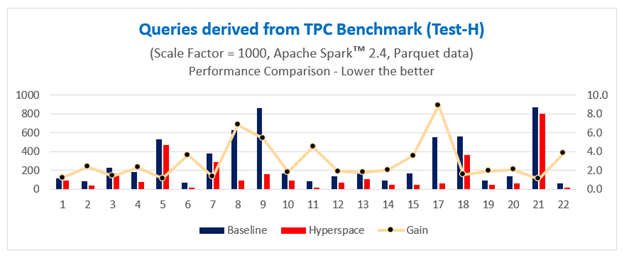
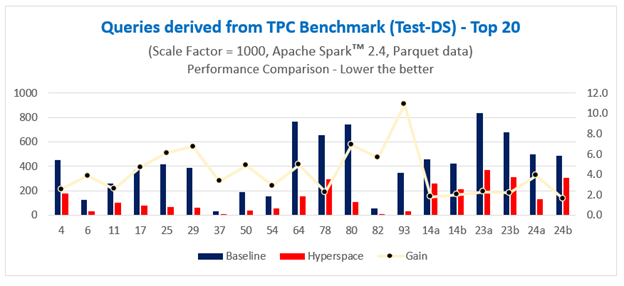
Overall, we have seen an approximate 2x and 1.8x acceleration in query performance time, respectively, all using commodity hardware.
To learn more about Hyperspace, check out our recent presentation at Spark + AI Summit 2020 or better yet, come talk to us on GitHub!
Soon: Intelligent Caching
Much as cloud providers aim to optimize their raw storage solutions, there is still a big difference between data stored in a general-purpose remote store and locally in the compute cluster. This is why we built a caching solution for Azure Synapse. It operates inside the cluster and serves several purposes.
First, IO caching. We use the locally-attached NVMe SSDs to avoid repeatedly going to Azure Storage (e.g. ADLS) to fetch the data — they have orders of magnitude for more IO bandwidth. We cache and thus optimize away file enumerations — a major time sink in scenarios where large numbers of smallish data files exist. Our caching solution is implemented in native code, mostly for careful memory and IO management.
Second, location awareness. We place data on the nodes that need that (portion of the) file, and then influence Spark scheduling to locate future tasks on nodes that have the data.
But third, we realized that caching original data is often a waste! Most of the time, the data is, at the very least, parsed every time it is read. Why repeat this work every time the cache is accessed?
Therefore, our cache is designed to parse the incoming data, and cache in the format that is most amenable to subsequent processing, such as the Spark-native Tungsten.
Here, we benefit from running in native code. We use state-of-the-art SIMD-optimized parsers from Microsoft Research for CSV and JSON files (still the workhorse of Big Data processing). And we execute it in the download path, hiding the parsing costs under IO. Going forward, we are aiming to move even more processing into this layer, including filter evaluation and shuffle prep.
But why use CPU cores (even highly optimized), when a custom hardware could be faster and cheaper? This brings us to the next section.
Hardware
We can use FPGA VM SKUs to accelerate Spark. The data formats CSV, JSON and Parquet account for 90% of our customers’ workloads. Based on profiling data we concluded that parsing the CSV and JSON data formats is very CPU intensive — often 70% to 80% of the query. So, we have accelerated CSV parsing using FPGAs. The FPGA parser reads CSV data, parses it, and generates a VStream formatted binary data whose format is close to Apache Spark internal row format which is Tungsten. The internal raw performance of CSV parser at FPGA level is 8GB/sec, although it’s not possible to get all of that in end to end application currently.
FPGA choice
We are using a Xilinx accelerator PCIe card. The usable bandwidth is 12GB/sec. It has 64GB of DDR4 memory locally connected to FPGA over 4-channels. The peak write/read bandwidth between FPGA and DDR4 memory is 76.8 GB/sec. But the usable bandwidth is 65.0 GB/sec.
The CSV parsing logic occupies 25% of the FPGA and provides a raw CSV performance of 8.0 GB/sec. The parser is micro-code driven and by changing the micro-program we can handle parsing of JSON too.
Conclusion
Performance improvements in Azure Synapse today (from query optimization, to autoscaling, to in-the-lake indexing) make running big data workloads in Azure Synapse both easy and cost-effective. With on-demand scaling, data professionals do not need to choose between saving time and saving money—they can have both, coupled with the ease-of-use of a fully managed, unified analytics service.
Get Started Today
Customers with *qualifying subscription types can now try the Apache Spark pool resources in Azure Synapse using free quantities until July 31st, 2021 (up to 120 free vCore-hours per month).
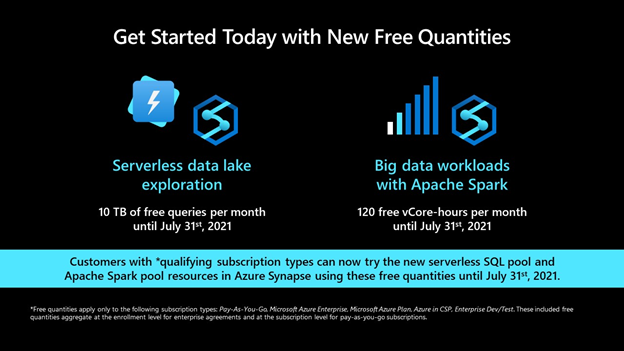
*Free quantities apply only to the following subscription types: Pay-As-You-Go, Microsoft Azure Enterprise, Microsoft Azure Plan, Azure in CSP, Enterprise Dev/Test. These included free quantities aggregate at the enrollment level for enterprise agreements and at the subscription level for pay-as-you-go subscriptions.
by Contributed | Mar 30, 2021 | Technology
This article is contributed. See the original author and article here.
How do you keep your 10-year-old twins entertained during a lockdown? If you’re Microsoft Technical Specialist and dad Adeel Khan, you send them to the internet. However, the results surprised the family when Zara and Zenubia Khan became the youngest twins to earn the Microsoft Power Platform certification. They join the ranks of talented young ladies that started with Arfa Karim Randhawa, the computer prodigy who in 2004 became the youngest Microsoft Certified Professional.
Those of us who work at Microsoft Learn were beyond excited to hear about the twins’ success. We talked to Adeel about how it happened.
The Khan family spent the first part of the COVID-19 lockdown stuck in a hotel away from home, where the girls could overhear their father’s work conversations. “They would come to me and say, ‘You keep on talking about this Microsoft Power Platform,’” recounts Adeel, who helps Microsoft customers implement Microsoft Power Platform, a low-code (or no-code) way to build apps that analyze data and automate processes. “They’re always asking me questions about how things work, so I introduced them to Microsoft Learn.”
While Adeel worked from home, Zara and Zenubia studied videos, online documentation, sample applications, and other Microsoft Learn resources. A few days later, the girls demoed their very first Microsoft Power Platform app—an expense tracker that reads data from an Excel spreadsheet and helps users create a budget.
The twins hoped that their father would use their app, but Adeel saw something more. “I saw how self-learning got them started, so I introduced them to more apps and resources to see how far they could go.”
Lockdown leads to more learning
The journey to the twins’ first app happened during a three-month period when the Khans were sheltering in place away from home and school was on hiatus due to the COVID-19 pandemic. Adeel introduced Zara and Zenubia to Power Platform Labs and Challenges, a set of learning resources that help professionals—and, apparently, 10-year-olds—learn more about Microsoft Power Platform and its solutions for building apps, designing workflows, connecting data, and displaying the results.
He also pointed the twins to App in a Day events and hands-on App in an Hour Labs to find out how to create more custom apps without writing code. “I had used these resources myself when I was learning Power Platform for my job,” he points out. “I knew from experience how helpful it is to take the courses and learn about product areas that my job might not otherwise expose me to.”
Life for the Khans began to look a bit more normal when the family was finally able to return home and the twins went back to school. Adeel thought that the twins would be too busy to resume their study of Microsoft Power Platform, until he heard them talking to their cousins one day.
Much to his surprise, the twins were conducting a bootcamp session from home and explaining to their cousins what Microsoft Power Platform could do. Seeing the twins’ commitment, Adeel volunteered to help them go deeper.
“I didn’t want to pressure them in any way. Besides, you can’t force a 10-year-old!” Adeel laughs. Instead, he began sharing new product features that he was learning about, and he and the twins set aside regular time after homework to talk about how to use them.
One day, Adeel’s wife asked the twins whether they were interested in studying for the certification exam as they’d watched their father do in the past, and they were. Adeel holds several Microsoft Certifications. His most recent addition is the Microsoft Certified: Power Platform Solution Architect Expert certification.
During the holiday break in December 2020, Adeel, Zara, and Zenubia studied together. They redid the labs, reviewed the Microsoft Learn modules, and took the sample exams to test their knowledge.
“The twins passed the test on their first attempt,” says the proud father. They earned the Microsoft Certified: Power Platform Fundamentals certification.
Zara reports that she told her school friends about the certification, but they hadn’t heard of it. “I told them to search it up on Google, and then they said that I’m famous.” Now she hopes she can help them learn Microsoft Power Platform so they can have more fun together at school.
The heady whirl of success
Since receiving the distinction of being the first twins (and among the youngest learners) to earn Microsoft Power Platform certification, Zara and Zenubia have been on an unexpected press tour of sorts. Several social media outlets and news channels have interviewed the girls about their achievement, and they’ve been asked to speak at events, including Women in Technology, Power Apps 4 Kids, and Power Platform Boot camp – Pakistan.
Adeel reports that the girls never expected to be the focus of so much attention. “We were not expecting this type of response from the social media outlets and from friends and the community,” he notes. “They were just focused on what they were doing.”
The twins never thought of their pursuit as too much work, as some social media critics wondered. “Honestly, we were getting bored a lot, especially during lockdown,” Zara explains. “Thanks to Power Platform, we had exciting challenges to work on.”
Zenubia notes that their parents kept a close eye on their activities and made sure they took breaks. “We have a good balance between learning and playing,” she says.
Recently, Zara and Zenubia taught a Microsoft Power Platform session for other young people. Afterward, a girl told them, “I want to be like you! I want to get a certification.”
“The moment they realized that a lot of people are getting inspired by their story, they felt so proud,” Adeel reports. Both girls want to spread the word so more kids can see how easy it is to use Microsoft Power Platform make their own apps.
One way to get started, Zara advises, is to get involved with science, technology, engineering, and math, also known as STEM. “It’s really fun! If there’s anything else you want to learn in the world, you can learn it—but learn it by doing it.”
What’s next for the Khan family coders
Zara and Zenubia have continued to write apps—both for their own learning and for others. Currently, they’re creating a mobile app to make it easier for teachers to take attendance at their school and to distribute homework. The app uses the automated notification and reminder features of Microsoft Power Platform.
“It was all their idea,” Adeel notes.
They also developed a quiz app that helps them study for tests. Even their six-year-old sister uses the app in her playtime. “The best thing that I learned about is how fast we can build apps that can work on mobile, use the camera, and even build games,” Zara explains. “l love Power Automate.”
When asked whether the certification process was too much work for 10-year-olds, they said it was no such thing. “I don’t think that it was too much,” Zenubia insists. “And our parents never let us get burdened with our studies.”
Zara agrees. “I would have never imagined that I could build applications for my own learning with such speed.” Besides creating apps during the lockdown, the twins also learned to ride bikes. “So, yeah, we had fun learning and playing!” she adds.
They may have started out by following their father’s example, but it was their own curiosity and drive that kept them working toward the goal of certification. “We definitely want to get all the certifications like our father,” Zenubia points out, “and I am sure that you’ll see us with more cool Microsoft badges soon!”
As for Adeel, he cherishes his certifications. “The certification process exposes you to the capabilities of a platform, a system, or a technology beyond your immediate needs and gives you a chance to excel or expand into those new areas. There is also a massive respect for Microsoft Certifications in the industry. The moment you have those credentials on your résumé, the question is not about your capabilities on the platform but how you can leverage them.”
Who knows where the twins’ curiosity and drive will take them next? As Zenubia says, “Even if you have slight failures in beginning, don‘t worry. You’ll improve as you move on. Never give up!”
At Microsoft Learn, we add our congratulations and best wishes for the future.
If you’re interested in following in the twins’ footsteps, consider charting a path as they did on Microsoft Learn.
by Contributed | Mar 30, 2021 | Technology
This article is contributed. See the original author and article here.
What is Microsoft Intune for GCC and GCC High?
Microsoft Intune is now part of Microsoft Endpoint Manager, a suite that includes Intune and Configuration Manager. Microsoft Intune for Microsoft 365 GCC and GCC High is available as a standalone license or part of the Microsoft 365 EM+S E3 and E5 licenses.
Both products within Microsoft Endpoint Manager integrate with Azure Active Directory in Azure Government to give visibility and configuration management for mobile device access, while providing robust native control to IT leaders within small to large defense contractor organizations.
Does Microsoft Intune in GCC High Help Meet CMMC Level 3 Compliance?
Organizations can meet CMMC compliance for specific practices across several different domains using Microsoft Intune in GCC or GCC High in combination with configuration settings and policies in Azure Government and Microsoft Defender for Endpoint.
CMMC Level 3 has 130 practices that an organization will be assessed on. Organizations can meet 31 of these practices using Microsoft Intune in conjunction with other Microsoft products. While each domain and practice won’t be covered here, one of the key areas addressed in CMMC is the Access Control (AC) Domain.
For example, Intune allows you to fulfill the requirements for practice AC.3.022, which requires organizations to encrypt CUI on mobile devices and mobile platforms. Using Intune combined with the native polices and configuration options in Azure, users can set device compliance policies and configure Conditional Access to deny access to unencrypted devices to your systems, ensuring compliance with this specific practice. This in addition to data and file encryption applied through Microsoft Information Protection allows organizations to encrypt the data and the container on mobile devices.

In this blog and video below from Matt Soseman, Microsoft Sr Security Architect, you will find more insights on how to meet CMMC with Intune, current feature parity with GCC and GCC High, and other demonstrations on how companies in the Defense Industrial Base (DIB) are deploying Intune for their MDM and MAM needs.
https://www.youtube-nocookie.com/embed/0rn0arDbqRs

by Contributed | Mar 30, 2021 | Technology
This article is contributed. See the original author and article here.
Background
Azure Batch supports mounting Azure file share with a Azure Batch pool. Our official document only has sample for C#. In this Blog, we will include the following content:
- Mount Azure file share via Azure PowerShell for Windows and Linux.
How to access the mounting files for tasks.
How Azure Batch agent implements mounting.
- Troubleshoot the failure of mounting.
Access to the mounting drive manually.
- Manually mount Azure file share via RDP/SSH.
Pre-requirement
- Prepare an Azure Batch account.
- Prepare a Azure Storage account with Azure Fileshare in the same region as the Batch account.
- Prepare Azure PowerShell or use Azure CloudShell from Portal.
Steps:
- Log in to your subscription in Azure PowerShell:
Connect-AzAccount -Subscription "<subscriptionID>"
- Get the context for your Azure Batch account:
$context = Get-AzBatchAccount -AccountName <batch-account-name>
- For Windows, the following script will create an Azure Batch pool with these settings:
- Azure File share mounting disk “S”
- Image: “WindowsServer”, “MicrosoftWindowsServer”, “2016-Datacenter”, “latest”
- VM size: STANDARD_D2_V2
- Dedicated Compute Nodes: 1
- Low priority Compute Nodes: 0
$fileShareConfig = New-Object -TypeName "Microsoft.Azure.Commands.Batch.Models.PSAzureFileShareConfiguration" -ArgumentList @("<Storage-Account-name>", https://<Storage-Account-name>.file.core.windows.net/batchfileshare1, "S", "Storage-Account-key")

$mountConfig = New-Object -TypeName "Microsoft.Azure.Commands.Batch.Models.PSMountConfiguration" -ArgumentList @($fileShareConfig)

$imageReference = New-Object -TypeName "Microsoft.Azure.Commands.Batch.Models.PSImageReference" -ArgumentList @("WindowsServer", "MicrosoftWindowsServer", "2016-Datacenter", "latest")

$configuration = New-Object -TypeName "Microsoft.Azure.Commands.Batch.Models.PSVirtualMachineConfiguration" -ArgumentList @($imageReference, "batch.node.windows amd64")

New-AzBatchPool -Id "<Pool-Name>" -VirtualMachineSize "STANDARD_D2_V2" -VirtualMachineConfiguration $configuration -TargetDedicatedComputeNodes 1 -MountConfiguration @($mountConfig) -BatchContext $Context
- For Linux, the following script will create an Azure Batch pool with these settings:
- Azure File share mounting disk “S”
- Image: “ubuntuserver”, “canonical”, “18.04-lts”, “latest”
- VM size: STANDARD_D2_V2
- Dedicated Compute Nodes: 1
- Low priority Compute Nodes: 0
$fileShareConfig = New-Object -TypeName "Microsoft.Azure.Commands.Batch.Models.PSAzureFileShareConfiguration" -ArgumentList @("<Storage-Account-name>", https://<Storage-Account-name>.file.core.windows.net/batchfileshare1, "S", "<Storage-Account-key>", "-o vers=3.0,dir_mode=0777,file_mode=0777,sec=ntlmssp")

$mountConfig = New-Object -TypeName "Microsoft.Azure.Commands.Batch.Models.PSMountConfiguration" -ArgumentList @($fileShareConfig)

$imageReference = New-Object -TypeName "Microsoft.Azure.Commands.Batch.Models.PSImageReference" -ArgumentList @("ubuntuserver", "canonical", "18.04-lts", "latest")

$configuration = New-Object -TypeName "Microsoft.Azure.Commands.Batch.Models.PSVirtualMachineConfiguration" -ArgumentList @($imageReference, "batch.node.ubuntu 18.04")


New-AzBatchPool -Id "<Pool-Name>" -VirtualMachineSize "STANDARD_D2_V2" -VirtualMachineConfiguration $configuration -TargetDedicatedComputeNodes 1 -MountConfiguration @($mountConfig) -BatchContext $Context
How to access the mount files
For Windows:
- We use the Drive path directly to access the files.
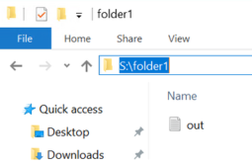
- For example, I have a file out.txt under path S:folder1 as shown below:
- The task can access the file by the following command:
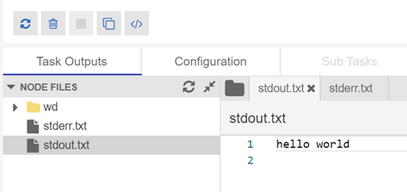
cmd /c "more S:folder1out.txt & timeout /t 90 > NULL"
- Then you will see the result in the output file:
For Linux:
- We can use the environment variable “AZ_BATCH_NODE_MOUNTS_DIR” or the path directly.
- For example, here is the command of the task to access file via environment variable:
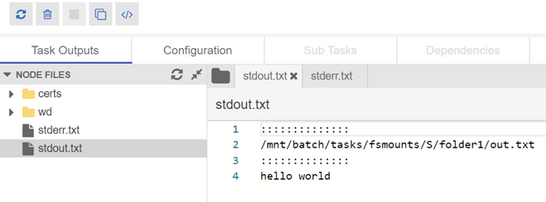
/bin/bash -c 'more $AZ_BATCH_NODE_MOUNTS_DIR/S/folder1/out.txt; sleep 20s'
- Here is the output file:
Troubleshoot the failure of mounting
How Azure Batch agent implements mounting:
For Windows:
Azure Batch uses cmdkey to add credential for Azure Batch account, then issue the mount command via “net use”.
net use g: <storage-account-name>.file.core.windows.net<fileshare> /u:AZURE<storage-account-name> <storage-account-key>
For Linux:
Batch agent installs package cifs-utils ,then will issue the mount command.
How to check the mounting logs
- When mounting failed, you may observe the following error:

- We are not able to find more detailed information about the error via Azure Batch Portal or Azure Batch Explorer. So we need to RDP/SSH to the node and check related log files.
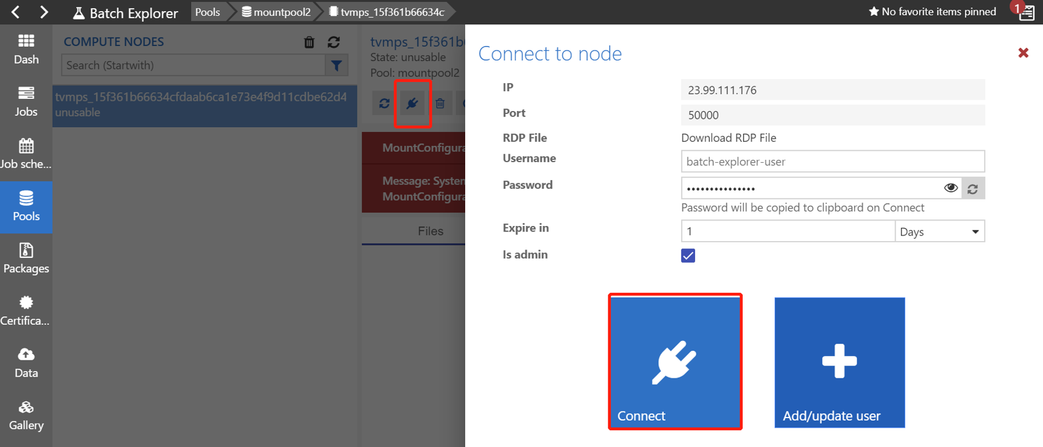
- For Windows, we can connect to the node via Remote Desktop as shown below(the screenshot is from Batch Explorer):
- The log file “fshare-S.log” is under path D:batchtasksfsmounts.
- In this sample, we can find the following messages:
CMDKEY: Credential added successfully.
System error 86 has occurred.
The specified network password is not correct.
You can refer to this document to troubleshoot Azure Files problems in Windows:
https://docs.microsoft.com/en-us/azure/storage/files/storage-troubleshoot-windows-file-connection-problems
- For Linux, we can connect to the node via SSH as shown below:
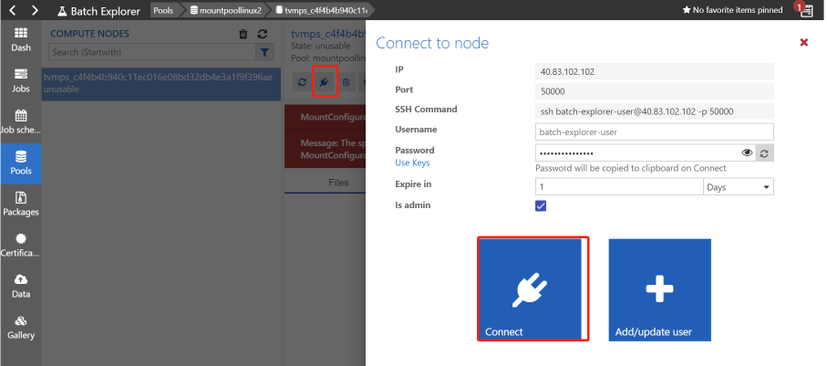
- You can find the log file “fshare-S.log” under /mnt/batch/tasks/fsmounts.
- In this sample, the account key was wrong and the message is “permission denied”.

You can refer to the following document to troubleshoot Azure Files problems in Linux:
https://docs.microsoft.com/en-us/azure/storage/files/storage-troubleshoot-linux-file-connection-problems
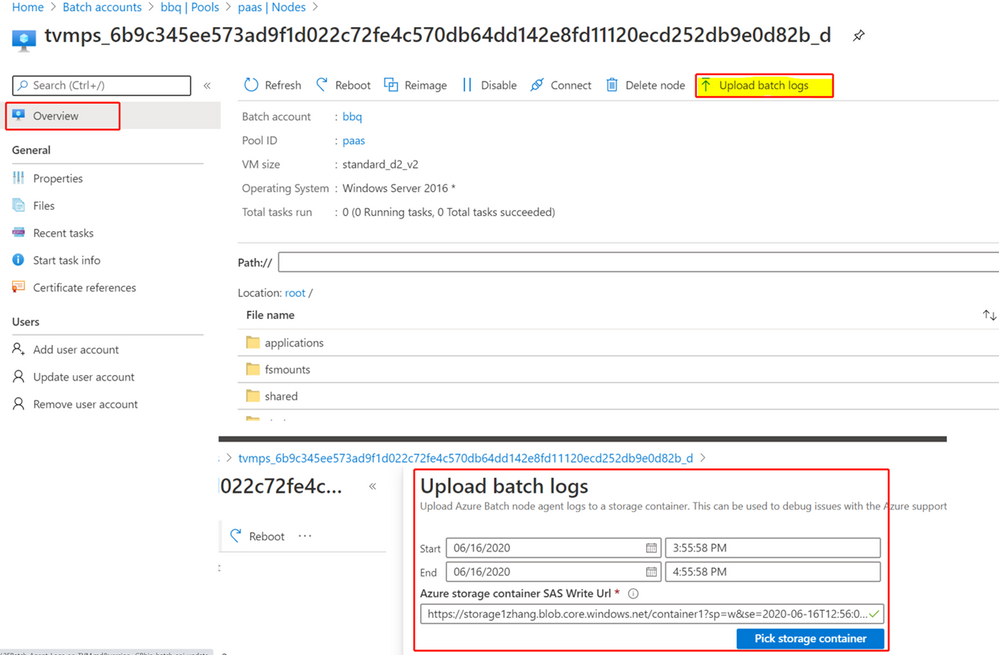
If you are not able to RDP/SSH, you can check the batch logs directly.
- Navigate to the node and click “upload batch logs” as shown below:
- You will be able to download the logs from the selected Azure Storage account:
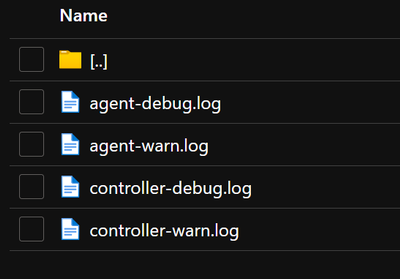
- You can check the log named “agent-debug” and will see some error messages.
- You will find the same error messages as shown below.
..20210322T113107.448Z.00000000-0000-0000-0000-000000000000.ERROR.agent.mount.filesystems.basefilesystem.basefilesystem.py.run_cmd_persist_output_async.59.2912.MainThread.3580.Mount command failed with exit code: 2, output:
CMDKEY: Credential added successfully.
System error 86 has occurred.
The specified network password is not correct.
- It’s the same to get the logs for Linux.
Manually mount Azure File share
If you are not able identify the cause of failure, you can RDP/SSH to the node and manually mount the Azure File share to narrow down this issue.
Here are the detailed steps:
- You can create a pool without mounting configuration by the following command(let’s take Windows for example).
$imageReference = New-Object -TypeName "Microsoft.Azure.Commands.Batch.Models.PSImageReference" -ArgumentList @("WindowsServer", "MicrosoftWindowsServer", "2016-Datacenter", "latest")

$configuration = New-Object -TypeName "Microsoft.Azure.Commands.Batch.Models.PSVirtualMachineConfiguration" -ArgumentList @($imageReference, "batch.node.windows amd64")

New-AzBatchPool -Id "<Pool-Name>" -VirtualMachineSize "STANDARD_D2_V2" -VirtualMachineConfiguration $configuration -TargetDedicatedComputeNodes 1  -BatchContext $Context
- After the node reaches idle status, you can connect to the node via RDP.
- You can go to the Azure File Share Portal and get the Azure PowerShell command for mount as shown below:
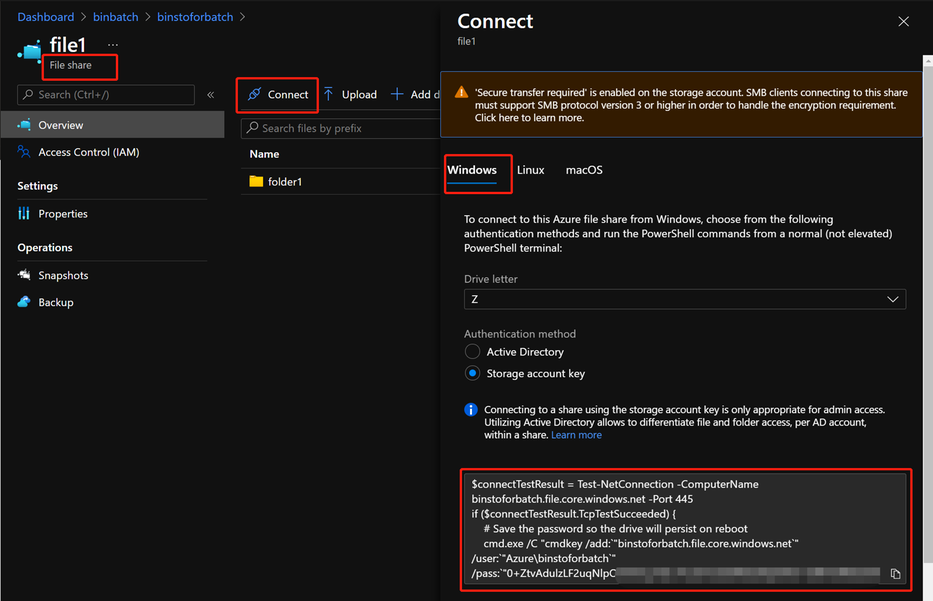
- Then you can enter the command inside the node and mount the Azure File share.
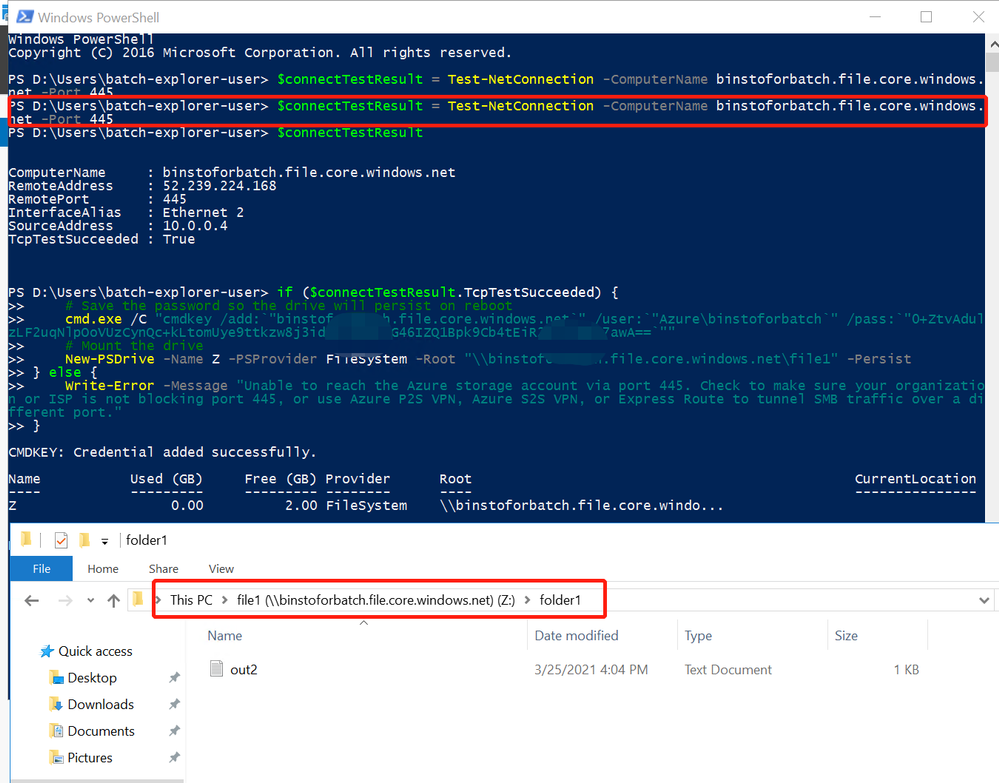
- If there is any connection issue, you may observe the error message:
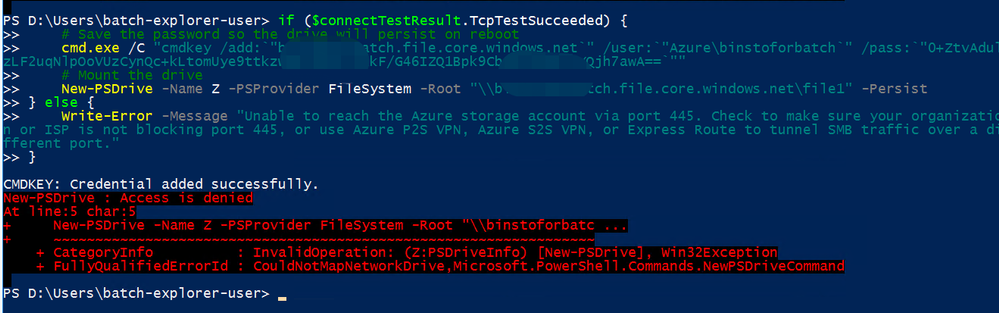
- You can troubleshoot Networking related issue in this way.
Access to the mounting drive manually.
When the mounting is successful, you can manually access the drive S directly in Linux in the following path:
/mnt/batch/tasks/fsmounts/S
However, you will get access denied when accessing the drive S in Windows:
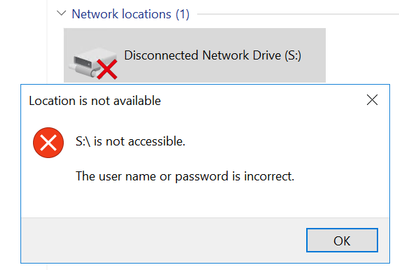
- This is because Azure Batch agent only grants access for Azure Batch tasks in Windows.
- When RDP to the node, the user account doesn’t have access to the mounting drive.
- You need to use cmdkey to add the credential for yourself in cmd:
cmdkey /add:"<storage-account-name>.file.core.windows.net" /user:"Azure<storage-account-name>" /pass:"<storage-account-key>"
- After the credential is added, you will be able to access the S drive directly.


Recent Comments