by Contributed | Mar 31, 2021 | Technology
This article is contributed. See the original author and article here.
I’ve heard a bit of interest expressed recently in the ability to create a customizable Endpoint Configuration Manager (SCCM/ConfigMgr) console that could either be pruned down or featured up in a way to customize it to fit the specific needs of different departments and roles within the business. Help desk personnel may need to view installed apps on a device, while Software Update managers may need to view the status of software updates, while Application Deployment managers may only need to deploy apps. There’s a not-so-well known console customization tool that comes with every ConfigMgr admin console called Console Builder (see Matt Hinson’s blog post here for more on that.) However, what Console Builder cannot do, is it can’t make buttons hidden or visible based on the application user’s persona. It also doesn’t enable any external capabilities above and beyond what the out-of-the-box console offers, such as going out to Azure AD and grabbing a Bitlocker unlock key or displaying information about the endpoints in such a way that makes more sense to the needs of the business. This interest led me to an idea of creating a custom, Power Apps based Endpoint Manager / Intune administrative console and associated connectors to communicate with the Microsoft Endpoint Configuration Manager AdminService, Teams, and Intune.
Initially, I went down a path of creating individual Power Automate Flows for every AdminService request that I wanted to invoke. While this worked great, I soon realized how many different Power Automate Flows I’d eventually end up having when it was all said and done and decided instead to opt for creating a custom Power Apps connector. This would not only allow me to make the API calls within a single custom connector that could be wired in to any future Power App I create, but the same connector I create for my Power Apps could also be utilized for any Power Automate flows as well.
To facilitate the communications with ConfigMgr from the cloud, the ConfigMgr AdminService would need to handle the administrative action, by way of a Cloud Management Gateway (CMG) running within the site. The AdminService is a web service that provides connectivity to your on-premises SMS Provider role. It’s a Rest API service based on the OData v4 protocol that allows you to securely communicate with your on-premises SCCM/ConfigMgr/MECM hierarchy. While not 100% of the administrative actions are currently available via the AdminService just yet, you can accomplish a wide array of administrative actions against your hierarchy. For a very thorough blog posting along with some sample scripts that interact with the AdminService, do check out Adam Gross’ blog at https://www.asquaredozen.com and click on the ConfigMgr AdminService link at the very top. For the official documentation on setting up the AdminService, visit How to set up the admin service – Configuration Manager | Microsoft Docs.
First, you’ll need to enable access to the AdminService via CMG so that the Power App can access the AdminService. Then, you’ll need to create an Azure AD app registration in to allow communications with the AdminService via your CMG. This will allow you to launch your Power App from any web browser, or you can opt to create a mobile or responsive version of your Power App so it will automatically resize from a browser to an iPhone or Android as well.
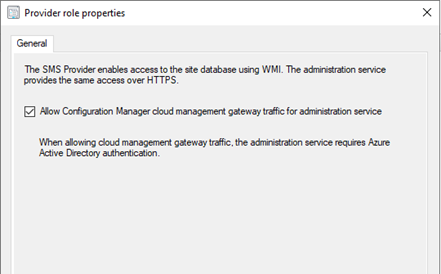
One of the pre-requisites to accessing the AdminService by way of the CMG, is to enable CMG traffic for the accessing the AdminService.
Configure the SMS Provider to allow access to the AdminService via CMG by going to Administration -> Servers and Site System Roles, selecting the server hosting the SMS Provider role, and clicking Properties.
Next, you’ll need to create an Azure AD app registration to facilitate the authentication and access to the AdminService API to external endpoints requesting it.
Creating the Azure AD Application Registration to allow access to the AdminService via CMG
An Azure AD app registration allows users to authenticate with their Azure AD credentials (or on-premises credentials of Azure AD Connect is syncing on-prem to Azure AD) to access the application. The Azure AD application will ultimately be used to provide a bearer token for authorization when connecting to the AdminService through CMG.
- 1. Log in to the Azure Portal -> Azure Active Directory -> App Registrations.
- 2. Click New registration.
- 3. Enter a name for the application and click Register
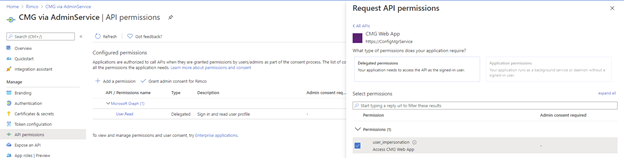
- Click API Permissions –> Add a permission.
- Click APIs my organization uses.
- Select your existing CMG server application.
- Check user_impersonation and click Add permissions.
- Click Grant admin consent for <orgname>
- Click Yes
- Click Overview
- Click Add a Redirect URI next to Redirect URIs
- Click Add a platform
- Click Mobile and Desktop applications
- Check the box to enable https://login.microsoftonline.com/common/oauth2/nativeclient
- Click Configure
- Click Expose an API
- Click Set next to Application ID URI and type in any FQDN that’s not already used in the tenant: ex: https://CMGAdminService and click Save.
- Click Certificates & secrets
- Under Client secrets, click New client secret.
- Enter a description, select an expiration date, and click Add
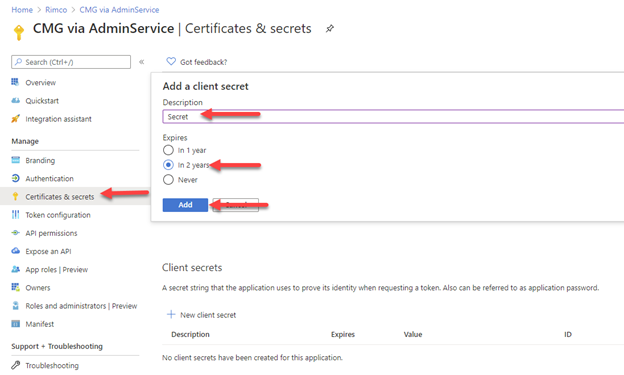
- Save the Client secret value to a safe place.
- Click Overview and save the Application (client) ID and Directory (tenant) ID to a safe place.
Creating the ConfigMgr AdminService Power Apps Custom Connector
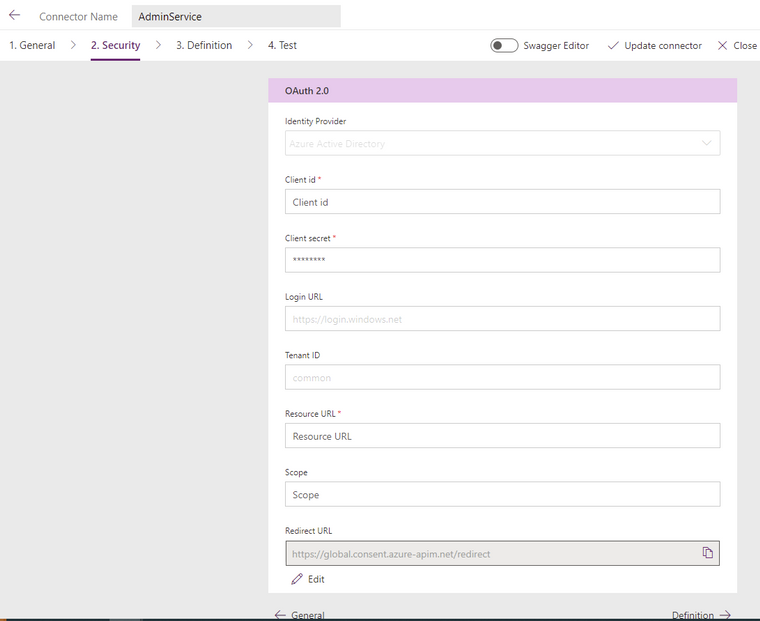
After you create the app registration in Azure AD, you can begin to create the Custom Connector in Power Apps. To do so, you’ll need to define some basic settings such as the authentication type, as well as the Application URI. The Identity Provider should be Azure Active Directory, the Client id and Client secret should come from your Azure AD app you registered previously. Login URL, Tenant ID, and Scope can be left default. The resource URI should be something like <your CMG fqdn>/CCM_Proxy_ServerAuth/72057594037927941/AdminService/
Verify your external facing AdminService URL by running the following SQL query against your site database:
select ExternalEndpointName, ExternalUrl from vProxy_Routings where ExternalEndpointName = ‘AdminService’
The Identity Provider should be Azure Active Directory.
The Client id, and Client secret fields should come from your new Azure AD app registration properties. Tenant ID can be left as common or be populated with your Azure AD tenant ID.
Resource URL will come from the Expose an API screen on your new Azure AD app registration in the Application ID URI box. If it’s blank, you need to pick any URL to use. The only important requirement for this URL is it must be unique within your tenant. In my Azure AD application example, I used https://CMGAdminService so this is where I will enter this FQDN. This URL is not related in any way to the Homepage URL used when defining your CMG Web App.
The Redirect URL should be https://global.consent.azure-apim.net/redirect. The Redirect URL should also appear in your new Azure AD app registration in the Authentication section as either a Web, or Mobile and desktop application platform type.
After the security settings are defined, the next step is to define each action you want to perform. The actions make up the overall definition of the custom connector, and each action can be called directly from the Power App once the custom connector is wired to the Power App.
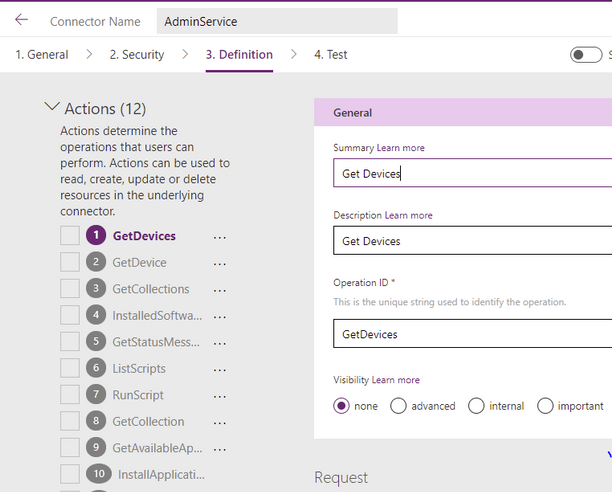
An example of a Definition within an Action is to get a list of devices. I named my first Action Get Devices and gave it an OperationID of GetDevices. When you call this action from the Power App, you will use the format CustomConnectorName.OperationID(<Parameters to pass>).
For example:
AdminService.GetDevices(({‘$filter’:”ClientType eq 1″,’$select’:”MachineId,Name,CNIsOnline,IsClient,SiteCode,ClientActiveStatus,LastDDR,LastHardwareScan,LastSoftwareScan,LastMPServerName,LastActiveTime,ADSiteName,LastClientCheckTime,Domain,ClientVersion,DeviceOS,DeviceOSBuild,PrimaryUser,CurrentLogonUser,ClientState,AADDeviceID,SMSID”}).value)
For the parameters, you can pass any of the same parameters that you would pass in the Rest API call including the parameter ‘$select’ to define which properties to select, filter to define any specific filters (ClientType eq 1 filters out things like unknown computers). It’s important to note that any time you change the parameters, the JSON schema that is in your response will likely also change. Therefore, you will probably have to make multiple updates to the action each time you change it in some way. This way, the action will be prepared for the overall structure of the request’s response that it should expect to receive from the request to the API.
The next step in creating an action, is to click Import from sample.
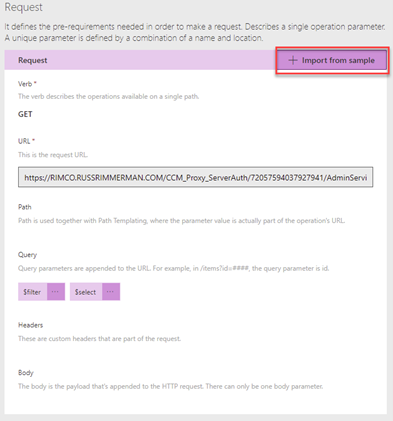
This will let you select a verb (ie. GET, PUT, POST), define the specific URL to call, any query parameters for the request ($filter, $select), any headers, and the body of the request.
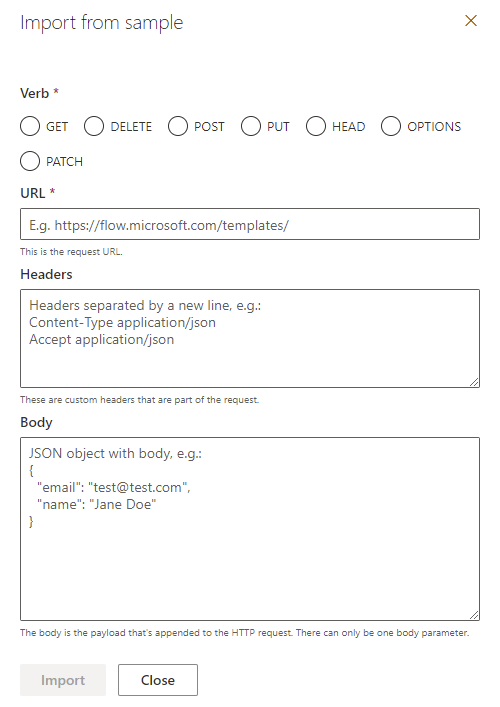
From this sample URL, each of these will get automatically populated based on your sample. For example, let’s say you use a sample URL like: HTTPS://RIMCO.RUSSRIMMERMAN.COM/CCM_Proxy_ServerAuth/72057594037927941/AdminService/v1.0/Device?$filter=(startswith(Name,’DC1‘) eq true) and (ClientType eq 1)&$select=MachineId,Name,SMSID
The query will automatically populate with $filter and $select since they were used in the request URL. If you also entered any headers and a body, those would also automatically populate and when you call the action from within the Power App, you will be able to customize them each time you make the API call depending on what you want to take place.
A good way to test all your API calls before using them within your custom connector definition is to use an API testing tool like Postman. Not only can you test them here, but you can also export from Postman Collections into Power Apps to create the custom connector definitions that you’ve tested.
To make Rest API calls from Postman, the first step is to request a token from your Azure AD using the following information in the body of the POST. These body properties will come from the Azure AD app that was registered. When you make this POST request, you will receive back a Bearer token, which expires after 1 hour of inactivity and is used to make all subsequent API calls and a Refresh token to refresh the results and expires after 14 days of inactivity. The Bearer tokens are used in the Authorization tab of Postman and you can utilize Postman’s variables feature to automatically set the token upon its request to a variable so that you don’t have to copy/paste it each time into your subsequent requests.
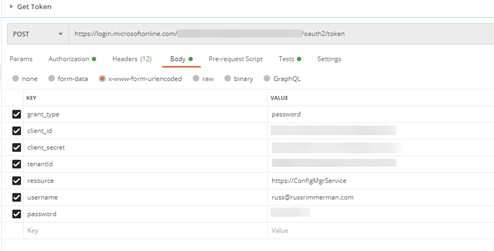
Here’s an example of requesting the installed software for a specific Resource ID:
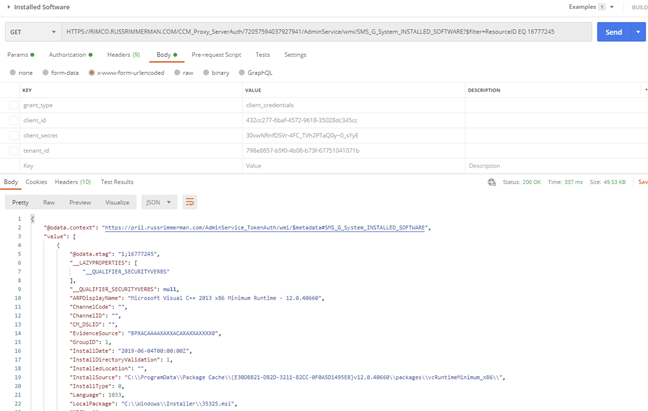
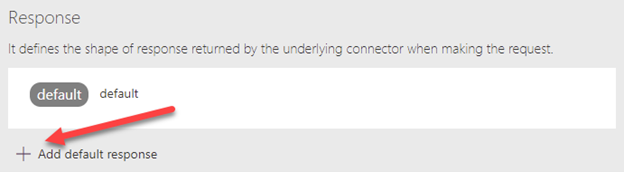
Once you get the request URL and results just the way you want to use it in the custom connector including any $filters, $selects, or other query parameters, copy the JSON formatted body of the results so you can paste it into the custom connector’s Response section for the action. Do this by clicking on the Add default response and pasting in the JSON results from Postman. You can also use the Test option within the connector to test the API call and get the JSON formatted results as well.
Utilizing the custom ConfigMgr connector in a Power App
Once you’ve created some or all the actions you want your connector to support, you are ready to connect it to a Power App and begin making your API calls with it.
Here is a list of devices along with their Client install status, Activity, and SiteCode, and the Azure AD Join Type (if applicable). Additionally, I added a Pending Restart icon if the endpoint has one pending.
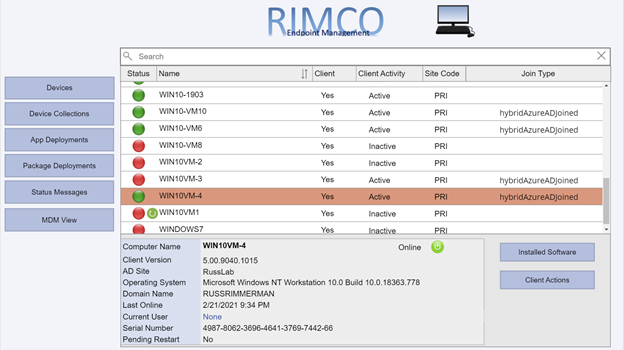
Clicking the Installed Software button makes the following request to the AdminService:
https://RIMCO.RUSSRIMMERMAN.COM/CCM_Proxy_ServerAuth/72057594037927941/AdminService/wmi/SMS_G_System_INSTALLED_SOFTWARE
In the Power App, I have the OnSelect property of the Installed Software button call the custom connector with the following function:
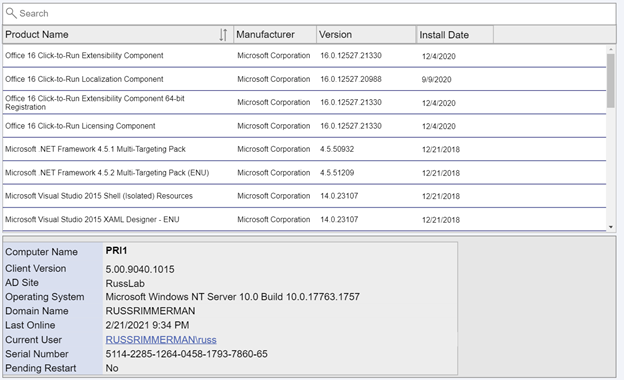
ClearCollect(installedsoftware,AdminService.InstalledSoftware({‘$filter’:”ResourceID eq ” & selectedid,’$top’:25,’$skip’:0,’$select’:”ProductName,ProductVersion,Publisher,InstallDate”}).value)
This clears out anything that might already happen to be in the Power Apps collection I named installedsoftware from a previous request and populates it with the results of the request with the specified $filter parameters using the ResourceID of the selected machine, gets only the $top 25 results, and $select’s ProductName, ProductVersion, Publisher, and InstallDate and returns the array as “value” so I use .value to make sure this array is what is used to populate my installedsoftware collection. I also added sort options on the Product Name column and use the SortByColumns Power App function to sort by using either Ascending or Descending at the end of the SortByColumns function.
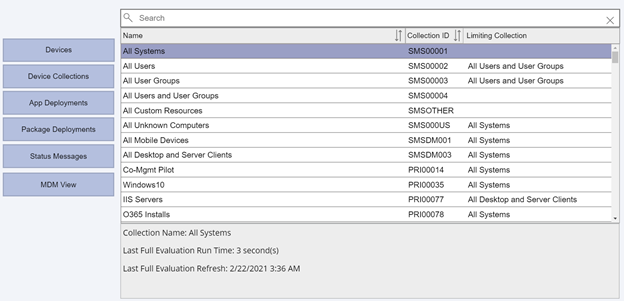
If I click the Device Collections button, my collections are listed along with their Collection ID and Limiting Collection. These are also sortable, and if I select any collection, it shows the last full evaluation run time and refresh times for the ConfigMgr collection (not to be confused with a Power Apps collection!)
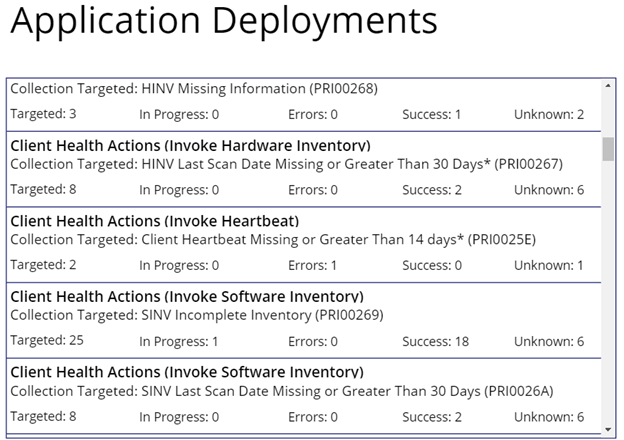
Upon clicking App Deployments, it becomes obvious that I haven’t yet made a nice-looking display for the application deployment status info, but in the meantime have just dropped a basic gallery to show the results.
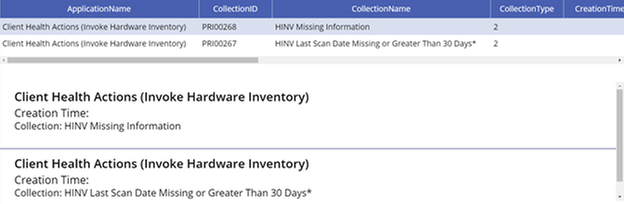
Clicking on any of the applications drills into the specifics of the app (another screen I haven’t put any beautification effort into yet.)
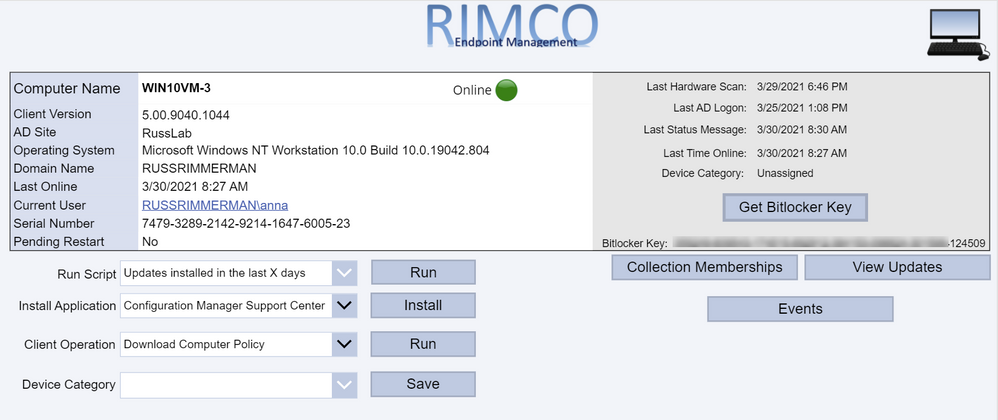
When clicking on the Client Actions button, it drills into the selected client. If you’re currently viewing a workstation OS, the Get Bitlocker Key button will also be visible. Clicking that button utilizes another Power Apps custom connector I created which makes a Graph API call to get the Bitlocker Key stored in Azure AD for the selected device. Just like the AdminService connector, using all the various documented Graph API calls for Intune can be useful for viewing and updating any Intune specific configurations.
If you’re using the Bitlocker Administration Service in ConfigMgr, you could also potentially have it go get and display your Bitlocker keys from there as well.
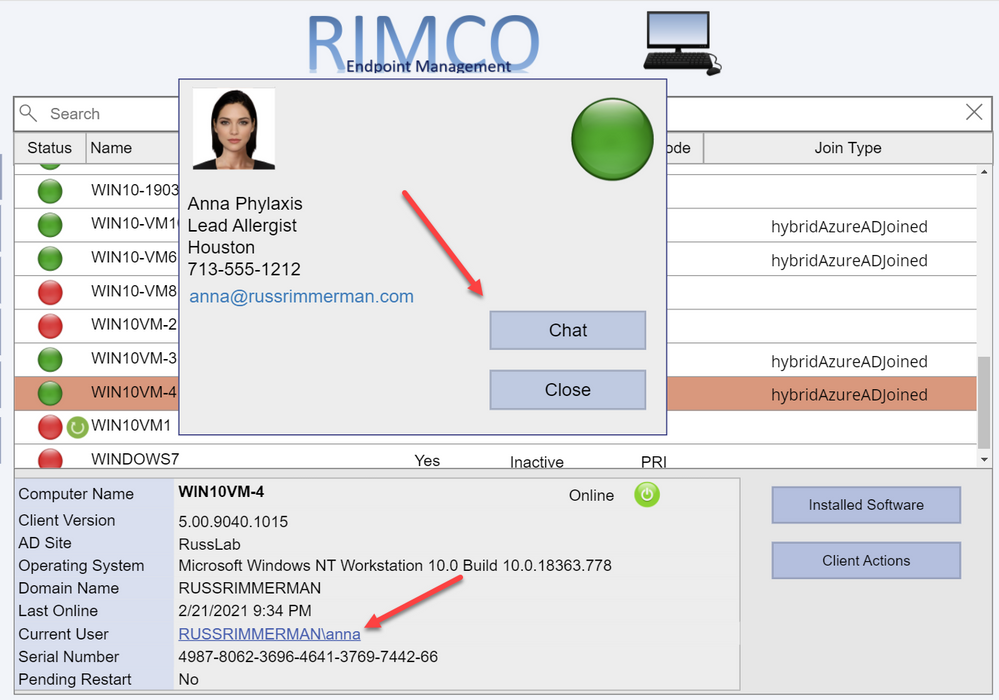
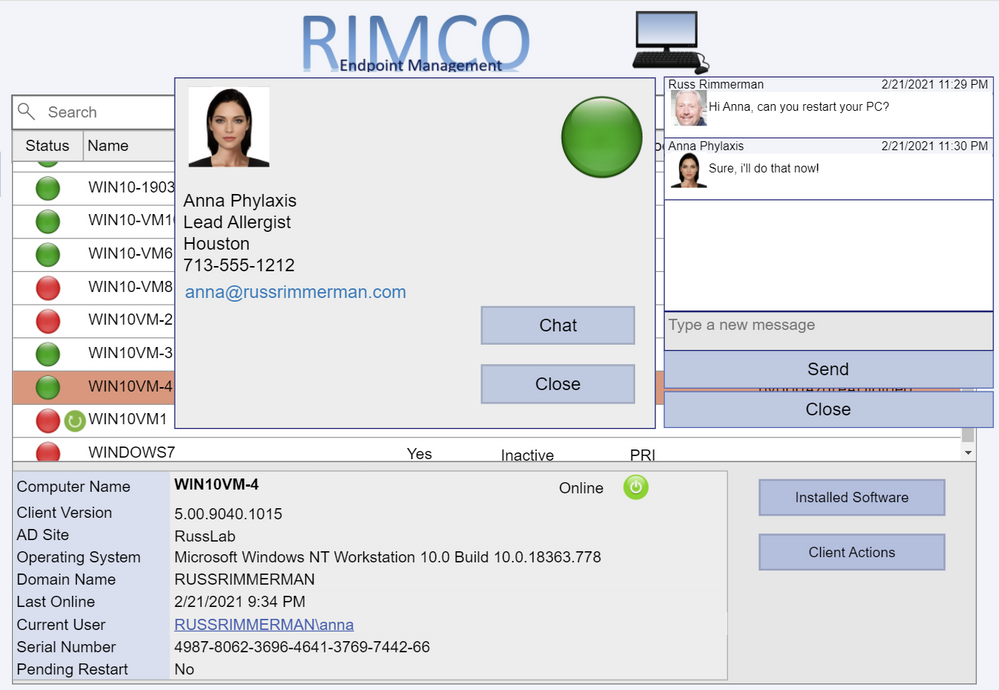
Clicking on the Current User brings up a dialog showing details of the currently logged on user including their current presence. This is all accomplished by leveraging Graph to query info using the user-id from both Azure AD as well as Teams. If you click the Chat button, it will bring up a chat window so you can communicate with the end-user via Teams without launching, using, or even having the Teams application installed on the device the Power App based console is running on. This is also done using Graph along with a Power Apps Gallery to display the chat messages between the user of the Power App and the end-user of the individual device. See Create chat – Microsoft Graph beta | Microsoft Docs for more information on this Graph request.
The chat session is first initiated using a POST to https://graph.microsoft.com/beta/chats. The body of the request must be the same structure as the following JSON, using the object ID GUIDs of each of the users in the chat session which is retrieved from their Azure AD user object.
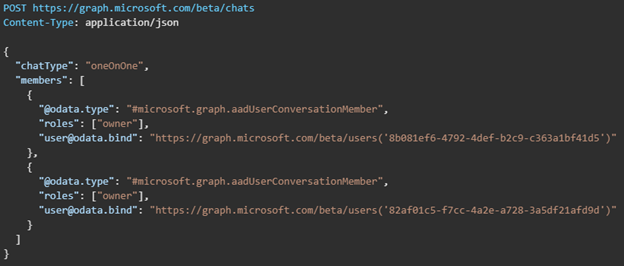
The response will provide an id value which is the unique ID for the chat session.
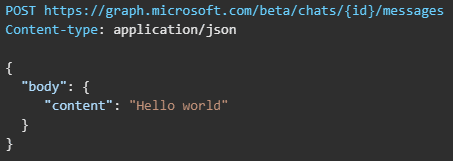
Next, a chat message can be sent between the users in either direction using the Send chatMessage request. See Send chatMessage in a channel or a chat – Microsoft Graph beta | Microsoft Docs for more information on this Graph request.
The chat message is sent using the https://graph.microsoft.com/beta/chats/{id}/messages. The POST URL of the request must include the chat id provided in the Create chat request response.
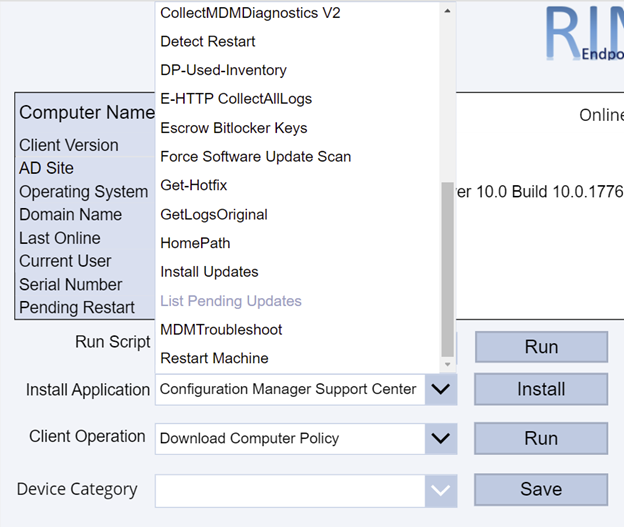
Additionally, I’ve added some additional ideas I came up with to this custom console, like the ability to use the native ConfigMgr Run Script action on a given client or collection which lists all my available scripts in the Scripts node of the native console in a dropdown menu. You can use this to run any script like one to install all required updates immediately, collect all logs from the client (see https://github.com/russrimm/CollectAllLogs) and zip them up to a UNC share, etc. Leveraging the Run Scripts feature allows you to do things like gather all the updates currently pending installation in Software Center and display them prior to running the script to immediately initiate their installation on the selected client, and subsequently reboot the client.
Immediate software update insight + immediate software update action = immediate increased security!
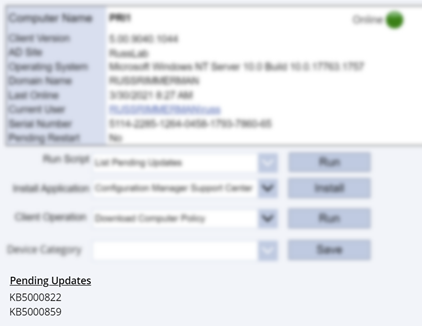
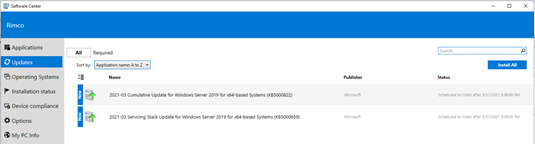
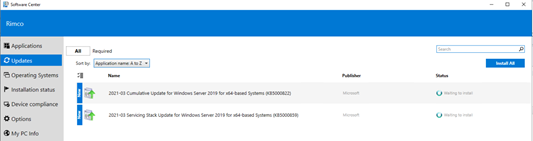
The Install Application button allows selecting an available deployed application to be immediately installed on an endpoint. This is a feature introduced in ConfigMgr 1906 which installs applications in real time. See install applications for device for more details on this.
The Client Operation button allows you to run all the same client operations you can initiate from the native ConfigMgr console (restart, download policy, run hardware inventory, etc.)
The Device Category dropdown menu makes another call to Graph to enumerate and assign a Device Category to the device. You could also leverage Graph to allow creating/deleting categories as well.
Clicking Collection Memberships shows all the collections the device is currently a member of:
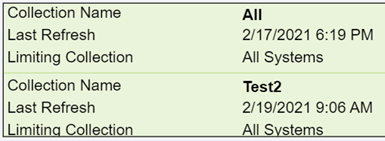
Since ConfigMgr now collects information related to boot performance as well as events including application crashes, driver installs, etc, all of this could be displayed to the administrator using the Power App.
Graph API calls can also be made from Power Apps in order to perform read and write operations in Intune. For example, I can enumerate all the applications in my tenant using a dropdown menu to pick iOS vs Android vs Built-In vs Win32.
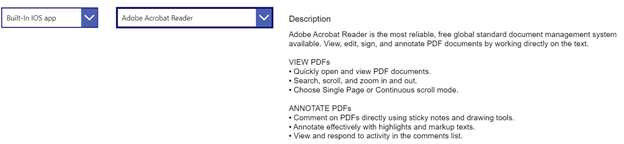
As you can see, making your own Power App based console to accomplish the tasks you want to accomplish can be extremely powerful. I hope to continue improving my custom connector enough to eventually submit them as official Power Apps connectors so others can benefit from them. If you have any other ideas or suggestions, please do not hesitate to reach out to me. Also, if you’d like a demo of this or want to see any of it in more detail, feel free to hit up your Customer Success Account Manager (CSAM) and we can set up a time to discuss your specific needs and ideas further.
Thanks for reading!
by Contributed | Mar 30, 2021 | Technology
This article is contributed. See the original author and article here.
Today Microsoft announced the result of a leadership study on Security Signals in the IT industry. The study delves into the biggest challenges reported by security decision makers. Specifically, the report shows that as organizations are pivoting to hybrid work environments, attacks on endpoint devices have grown increasingly more frequent and sophisticated.
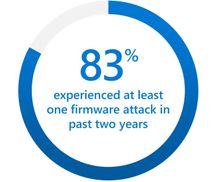
One area that is called out in the study is the recent surge (5x) of attacks against device firmware. The firmware, which lives below the operating system, is emerging as a primary target because it’s where devices store sensitive information, like credentials and encryption keys. The study points out that 83 percent of enterprises have experienced at least one firmware attack in the past two years. And during that time, less than a third of security decision makers allocated any budget resources on firmware protection. Respondents reported that little effort is made to invest in firmware protection until a breach occurs.
UEFI firmware protection
Microsoft introduced its own open-source UEFI to enable a secure and maintainable interface to manage firmware. On the Surface side, we have been enabling the automation of firmware protection since the 2015 release of Surface Pro 4. That’s when we made the decision to to build our own Microsoft UEFI 1 and move away from the third party UEFI that our OEM partners were using. The result is a fully transparent open-source project called Project Mu.
If you’re not already familiar with UEFI, it stands for Unified Extensible Firmware Interface. It’s essentially a modern version of a BIOS that initializes and validates system hardware components, boots Windows 10 from an SSD, and provides an interface for the OS to interact with the keyboard, display, and other input/output devices.
Centralized device management down to the firmware level
As Microsoft further developed the UEFI for Surface, we also built tools for managing and updating UEFI, beginning with SEMM (Surface Enterprise Management Mode). You can use it as a stand-alone tool or integrated with Microsoft Endpoint Configuration Manager to manage the UEFI settings on your Surface. SEMM lets you remotely enable and disable key components of Surface devices that would otherwise require you to physically go to every machine and boot straight into the UEFI (Power button + Volume Up). From a security perspective this is important as the more components you disable, that are not normally used, the smaller the attack vector.
Aligned to Microsoft’s broader commitments, we moved SEMM capabilities to the cloud with the launch of DFCI (Device Firmware Configuration Interface). DFCI enables cloud-based control over UEFI settings through the Intune component of Microsoft Endpoint Manager. The best part is that DFCI can be enabled via policy and deployed with Windows Autopilot before anyone even logs into the device. This advancement placed Surface into a distinct technical advantage over other devices on the market. With DFCI a Surface device can be fully managed from Windows 10 down to firmware all through the power of the cloud and Microsoft Endpoint Manager.
Surface drives innovation into firmware security
So, what makes our UEFI secure? To start, it can be updated via Windows Update. Our UEFI does not require an outside tool from a third party or download site. In fact, when the vulnerability of Spectre and Meltdown was announced, Surface already had a fix available that was automatically pushed to every Surface device accepting updates. Windows Update patched the microcode of our processors all through UEFI. Another security step we take is to lock down the UEFI, to protect against known exploits. Surface UEFI uses Boot Guard and Secure Boot, which translates to a measured and signed firmware check at each stage in the initial boot process.
To take it a step further, Boot Guard enables the SoC (System on a Chip) to use the Surface/OEM key to verify that the initial UEFI firmware stage was signed by the OEM. The OEM key is a Surface key that is fused into the SoC at the factory. In simpler terms Boot Guard ensures valid firmware is booted during the initial boot phase of the device.
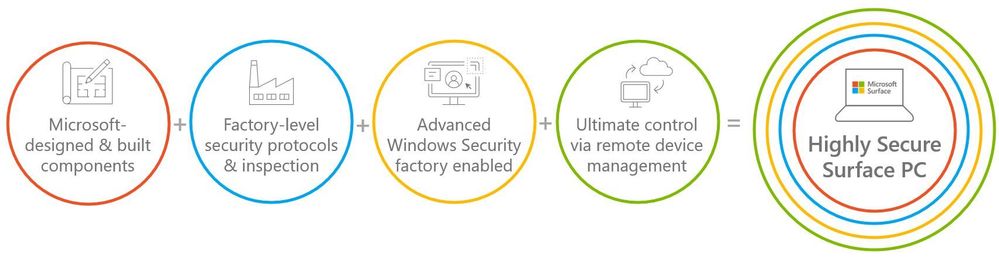
All of this leads us back to the Security Signals study. Microsoft Surface has implemented safeguards to address firmware vulnerabilities. Surface devices are developed with our own UEFI that is open-source, and we’ve built tools – both on-prem and in the cloud — to centrally manage devices at the firmware level to help further reduce attack vectors. We also provide a means to ensure your UEFI stays up to date via Windows Update, and we’ve secured the UEFI via Boot Guard to ensure what you boot is authentic and what you expect. At Surface, we are fully committed to continuing our iteration on the Security front by designing and building innovative practices to protect your devices and data.
To learn more about Surface Security please visit the Surface for Business security website: Security & Endpoint Protection – Microsoft Surface for Business
1 Surface Go and Surface Go 2 use a third-party UEFI and do not support DFCI. DFCI is currently available for Surface Laptop Go, Surface Book 3, Surface Laptop 3, Surface Pro 7, Surface Pro 7+ and Surface Pro X. Find out more about managing Surface UEFI settings at https://docs.microsoft.com/en-us/surface/manage-surface-uefi-settings.
by Contributed | Mar 30, 2021 | Technology
This article is contributed. See the original author and article here.
We are bringing together Microsoft, SAP and a select number of Global System Integrator partners in a jointly led, live webinar series now through June 2021, to showcase how SAP and Microsoft technologies along with our partner solutions, solve a unique business challenge for our customers. We invite you to participate in the upcoming live webinar and view the on-demand webinars. Stay tuned for new webinar topics in May & June!
Upcoming Webinar on Tue Apr 27 at 11 am ET:
Real-Time Inventory Replenishment powered by T-systems with SAP on Azure
Digital Transformation is in the middle of historic acceleration, fueled by a pandemic, and it has brought up new ways of collaboration, disruption, and innovation. Organizations must fundamentally adapt and change their business models so they can be nimble, agile, and responsive. T-Systems believes that tech intensity will play a key role in enhancing business resilience and the transformation of organizations amid the pandemic and beyond.
Join experts from T-systems, Microsoft, and SAP on this webinar, who will showcase their collective innovation and technology capabilities to demonstrate a Real-time Inventory Replenishment solution. The solution brings a perspective of how a responsive supply chain dynamically flexes itself to avoid business disruption and alerts a low stock inventory within the retail landscape, and the insights gained results in issuing a real-time order with SAP to fulfill new sales orders. The entire process is transparent such that customer satisfaction and experience is safeguarded from stock out situation. Register here.
Available On Demand
Imagine What’s Possible: Real Success Stories for Business Leaders Seeking SAP Modernization on Microsoft Azure
Join Microsoft, SAP and DXC Technology on this webinar to explore the possibilities enterprises realize from migrating their SAP workloads to S/4HANA on Azure. Sharing real customer stories, DXC illustrates how customers have transformed and modernized their SAP applications and derived greater business insights from their SAP data through Azure cloud native analytics, while achieving the resiliency required for these mission critical applications. Watch the webinar
Maximize your investment in SAP and Azure Synapse to create a cost-effective data analytics strategy
Many businesses struggle trying to wrangle multiple data sources into a cohesive data analytics strategy. Bringing together SAP and non-SAP data can be complex and require significant technical resources. IBM can help you bring this data together in data fabric that maximizes your investment in SAP combined with Azure Synapse creating a cost- effective data analytics strategy and implementation.
Join this webinar to learn:
- How to build a cost-effective data fabric across your SAP and non-SAP data that delivers business insights.
- Utilize the Microsoft & SAP reference architectures and data patterns to reduce complexities of duplication and maximize insights.
- Understand how Azure Synapse brings together data integration, enterprise data warehousing, and big data analytics for unified experience. Watch the webinar.
Understand the phased path to SAP S/4HANA and the differentiated benefits of running SAP on Microsoft Azure
SAP S/4HANA offers simplifications, efficiency, and compelling features such as planning and simulation options in many conventional transactions. Yet because moving your complete application portfolio from on-premises to cloud-based SAP S/4HANA is a big investment, it can be difficult to get organizational buy-in, let alone know where to start. SAP, Microsoft, and Infosys have come together in this interactive webinar to help answer business decision maker questions such as where to start, how to scope the project for your company’s unique needs, choosing the right path of transition versus transformation. View the webinar on demand.
To learn more about Infosys solutions for SAP, visit SAP End to End Consulting, Implementation, Support Services | Infosys
by Contributed | Mar 30, 2021 | Technology
This article is contributed. See the original author and article here.
The Workplace Analytics team is excited to announce our feature updates for April 2021. (You can see past blog articles here). This month’s update describes a coming attraction: Collaboration and Manager metrics with Teams IM and call data.
Coming soon: Collaboration and manager metrics with Teams IM and call data
Overview
We are pleased to announce a new feature release for April 19, 2021. The new release includes a few exciting updates:
- Integration of Microsoft Teams chats and Teams calls into the Collaboration hours metric and refined Collaboration hours logic to better accommodate overlapping activities
- New “is person’s manager” and “is person’s direct report” attributes available in Person query participant filters
Additionally, we’ve implemented a handful of improvements to other metrics:
- Outlier improvements to Email hours and Call hours metrics
- Better alignment of After-hours collaboration hours and Working hours collaboration hours to total Collaboration hours, and of After-hours email hours and Working hours email hours to total Email hours
These updates reflect customer feedback and help leaders better understand how collaboration in Microsoft Teams impacts wellbeing and productivity.
How do these changes impact you?
For Workplace Analytics analysts
- Adjusted results – If you are accessing insights in Microsoft Viva Insights app in Teams or the Workplace Analytics web application, running custom queries, or using Workplace Analytics Power BI templates, some of the aggregated results might show different numbers than previously seen.
These changes will not impact any queries that have already been run and saved, and starting April 19, 2021, new queries and calculated insights will use the new logic over the entire historical period of collaboration data. If you are in the middle of an active project that uses these metrics, we recommend re-running your queries to update the results with the new versions of the impacted metrics.
- “Unstacking” the Collaboration hours metric – You might be used to seeing or using visualizations that “stack” the components of collaboration time (like Meeting hours and Email hours) to get to the total collaboration time. But since emails and Teams chats and calls can occur during meetings and Teams calls, we’ve refined the logic so that these “overlapping activities” only count toward total collaboration time once.
As a result, expect to see Collaboration hours that is no longer just the sum of its parts – Email hours, Call hours, Teams chat hours, and Meeting hours. If you have reports and visuals that compare collaboration hours with its parts, you might want to adjust the report to show these components side by side instead. For example, the Workplace Analytics Ways of working assessment and Business continuity templates for Power BI both previously included examples of this “stacked” view, which will reflect revised visuals when you download the newest versions of the templates.
- New manager measures – Want to know how many emails the average manager sends to their directs? Or whether managers on a team tend to use unscheduled calls instead of scheduled 1:1s? You are no longer limited to just the “built-in” manager meeting metrics in Workplace Analytics.
If you are interested in understanding how employees communicate with their direct managers, you can create new custom measures in a Person query to measure the meeting, email, call, and chat activity where any or all participants are the measured employee’s direct manager or direct report.
- Impact on Plans – If you are currently running a Wellbeing plan to reduce after-hours collaboration, you might observe a shift in the baseline After-hours collaboration hours metric, which might cause the goal that was selected for the plan to no longer make sense. If this is the case, we recommend requesting a deferral of this feature so that ongoing plans can finish running undisturbed.
For manager or leader insights
Shifting points of reference – If you are used to seeing a specific result for some metrics (for example, “I know that our average email hours are usually around 8 hours per week, and that’s something we’d like to reduce.”), the new changes will likely change the results. However, that baseline number might shift as a result of the improved methodology. If you are working directly with a Workplace Analytics practitioner from Microsoft, a partner, or your own organization, they can help you evaluate whether this raises any new considerations for ongoing projects.
What if you want to get these features sooner than April 19, 2021?
To sign up for early access, please complete this online form.
Can you defer this release?
Expect to see some shifts in the results for metrics impacted by these changes (full list below). If you are in the middle of an active project that uses these metrics, we recommend re-running your queries to update the results with the new version of collaboration hours.
If this shift would be disruptive to your project, you can optionally request a one-time deferral of this feature release for up to three months. Please complete the online form by April 15, 2021, if you would like to request a one-time, three-month deferral.
Additional details about the changes
Integrates Microsoft Teams chats and calls into Collaboration hours and related metrics
The legacy Collaboration hours metric simply added email hours and meeting hours. However, in reality, these activities can overlap. Collaboration hours now reflect the total impact of different types of collaboration activity, including emails, meetings, Teams chats, and Teams calls. With this release, Collaboration hours capture more time and activity, and adjusts the results so that any overlapping activities are counted only once.
The following queries and metrics will reflect this new logic:
Person query and Peer analysis query
- Collaboration hours
- Working hours collaboration hours
- After hours collaboration hours
- Collaboration hours external
Person-to-group query
Group-to-group query
The following join the other metrics that already include Teams activity:
Person query and Peer analysis query
- Workweek span
- Internal network size
- External network size
- Networking outside organization
- Networking outside company
Network: Person query
Network: Person-to-person query
Adds new “Is person’s manager” and “Is person’s direct report” metric filter options
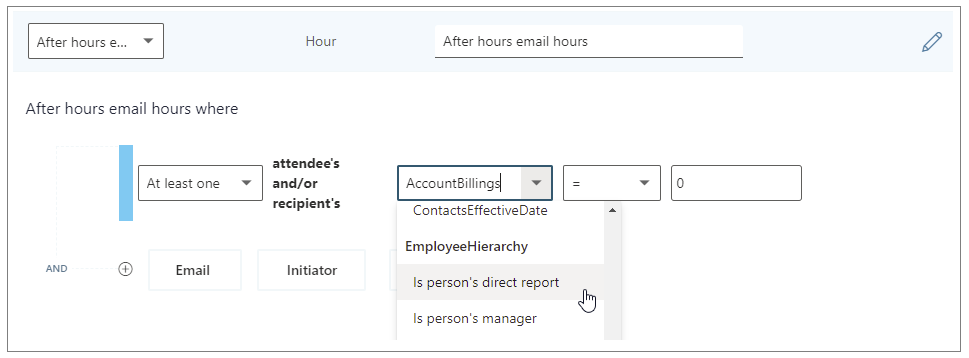
We’re adding new participant filter options to our email, meeting, chat, and call metrics for Person queries. These new options enable you to filter activity where all, none, or at least one participant includes the measured employee’s direct manager or their direct report.
You can use the new filters to customize any base metric that measures meeting, email, instant message, or call activity (such as Email hours, Emails sent, Working hours email hours, After hours email hours, Meeting hours, and Meetings).
Selecting the “Is person’s direct report” filter to customize a metric
The following are examples of some custom metrics you can create in a Person query with these new filters.
Analysis question
|
Definition
|
Base metric
|
Customized filter
|
How much time do employees spend chatting with their manager?
|
The number of hours the person’s manager spent talking to the person through IMs
|
Instant message hours
|
(Participant: At least one participant’s: Is person’s manager = True)
|
How often do managers use unscheduled calls for 1:1s with their direct reports?
|
Total number of hours that a manager spent in 1:1 calls with their direct reports
|
Call hours
|
(Call: Participant Count =2) AND (Participant: At least one participant’s: Is person’s direct report = True) AND
(Call: IsScheduled = FALSE)
|
How much discussion between employees and their manager occurs via email?
|
Total number of hours that a person spent in emails with their manager
|
Email hours
|
(Participant: At least one participant’s: Is person’s manager = True)
|
Improves outlier handling for Email hours and Call hours
When actual received email data is not available, Workplace Analytics uses logic to impute an approximation of the volume of received mail. We are adjusting this logic to reflect the results of more recent data science efforts to refine these assumptions. Further, we have received reports about measured employees with extremely high measured call hours. This was a result of “runaway calls” where the employee joined a call and forgot to hang up. We have capped call hours to a maximum of three hours to avoid attributing excessive time for these scenarios.
The following queries and metrics will use the new logic:
Person query and Peer analysis query
- Collaboration hours
- Working hours collaboration hours
- After hours collaboration hours
- Collaboration hours external
- Email hours
- Working hours email hours
- After hours email hours
- Call hours
Person-to-group query
- Collaboration hours
- Email hours
Group-to-group query
- Collaboration hours
- Email hours
Better aligns working hours and after-hours metrics with their respective overall metrics
Previously, After-hours email hours plus Working hours email hours and After-hours collaboration hours plus Working hours collaboration hours did not add up to total Email hours or Collaboration hours, because of limitations attributing certain types of measured activity to a specific time of day. We improved the algorithm to better attribute time for these metrics, resulting in better alignment between working hours and after-hours metrics.
The following queries and metrics will reflect the new logic:
Person query and Peer analysis query
- Working hours collaboration hours
- After hours collaboration hours
- Working hours email hours
- After hours email hours
Impacted metrics by query type
Person and Peer analysis queries
|
Collaboration hours
|
The number of hours the person spent in meetings, emails, IMs, and calls with at least one other person, either internal or external, after deduplication of time due to overlapping activities (for example, calls during a meeting).
- Updated with time-journaling logic to deduplicate time due to overlapping activities
- Improved logic for imputation of reads from unlicensed employees
- Added a cap to prevent outliers for call hours.
|
Working hours collaboration hours
|
The number of hours the person spent in meetings, emails, IMs, and calls with at least one other person, either internal or external, after deduplication of time due to overlapping activities (for example, calls during a meeting), during working hours.
- Updated with time-journaling logic to deduplicate time due to overlapping activities
- Improved logic for imputation of reads from unlicensed employees
- Improved logic to attribute email read time to time of day
- Added a cap to prevent outliers for call hours
|
After hours collaboration hours
|
The number of hours the person spent in meetings, emails, IMs, and calls with at least one other person, either internal or external, after deduplication of time due to overlapping activities (for example, calls during a meeting), outside of working hours.
- Updated with time-journaling logic to deduplicate time due to overlapping activities
- Improved logic for imputation of reads from unlicensed employees
- Improved logic to attribute email read time to time of day
- Added a cap to prevent outliers for call hours
|
Collaboration hours external
|
The number of hours the person spent in meetings, emails, IMs, and calls with at least one other person outside the company, after deduplication of time due to overlapping activities (for example, calls during a meeting).
- Updated with time-journaling logic to deduplicate time due to overlapping activities
- Improved logic for imputation of reads from unlicensed employees
- Added a cap to prevent outliers for call hours.
|
Email hours
|
The number of hours the person spent sending and receiving emails.
- Improved logic for imputation of reads from unlicensed employees
|
After hours email hours
|
The number of hours the person spent sending and receiving emails outside of working hours.
- Improved logic for imputation of reads from unlicensed employees
- Improved logic to attribute email read time to time of day
|
Working hours email hours
|
The number of hours the person spent sending and receiving emails during working hours.
- Improved logic for imputation of reads from unlicensed employees
- Improved logic to attribute email read time to time of day
|
Generated workload email hours
|
The number of email hours the person created for internal recipients by sending emails.
- Improved logic for imputation of reads from unlicensed employees
|
Call hours
|
The number of hours the person spent in scheduled and unscheduled calls through Teams with at least one other person, during and outside of working hours.
- Added a cap to prevent outliers for call hours
|
After hours in calls
|
The number of hours a person spent in scheduled and unscheduled calls through Teams, outside of working hours.
- Added a cap to prevent outliers for call hours
|
Working hours in calls
|
The total number of hours a person spent in scheduled and unscheduled calls through Teams, during working hours.
- Added a cap to prevent outliers for call hours
|
Person-to-group queries
|
Collaboration hours
|
The number of hours that the time investor spent in meetings, emails, IMs, and calls with one or more people in the collaborator group, after deduplication of time due to overlapping activities (for example, calls during a meeting). This metric uses time-allocation logic.
- Updated with time-journaling logic to deduplicate time due to overlapping activities
- Improved logic for imputation of reads from unlicensed employees
- Added a cap to prevent outliers for call hours.
|
Email hours
|
Total number of hours that the time investor spent sending and receiving emails with one or more people in the collaborator group. This metric uses time-allocation logic.
- Improved logic for imputation of reads from unlicensed employees
|
Group-to-group queries
|
Collaboration hours
|
The number of hours that the time investor spent in meetings, emails, IMs, and calls with one or more people in the collaborator group, after deduplication of time due to overlapping activities (for example, calls during a meeting). This metric uses time-allocation logic.
- Updated with time-journaling logic to deduplicate time due to overlapping activities
- Improved logic for imputation of reads from unlicensed employees
- Added a cap to prevent outliers for call hours.
|
Email hours
|
Total number of hours that the time investor spent sending and receiving emails with one or more people in the collaborator group. This metric uses time-allocation logic.
- Improved logic for imputation of reads from unlicensed employees
|
by Contributed | Mar 30, 2021 | Technology
This article is contributed. See the original author and article here.
Introduction
Recent attacks highlight the fact that in addition to implementing appropriate security protection controls to defend against malicious adversaries, continuous monitoring, and response for every organization. To implement security monitoring and response from a networking perspective, you need visibility into traffic traversing through your network devices and detection logic to identify malicious patterns in the network traffic. This is a critical piece for every infrastructure/network security process.
Readers of this post will hopefully be familiar with both Azure Firewall which provides protection against network-based threats, and Azure Sentinel which provides SEIM and SOAR (security orchestration, automation, and response) capabilities. In this blog, we will discuss the new detections for Azure Firewall in Azure Sentinel. These new detections allow security teams to get Sentinel alerts if machines on the internal network attempt to query/connect to domain names or IP addresses on the internet that are associated with known IOCs, as defined in the detection rule query. True positive detections should be considered as Indicator of Compromise (IOC). Security incident response teams can then perform response and appropriate remediation actions based on these detection signals.
Scenario
In case of an attack, after breaching through the boundary defenses, a malicious adversary may utilize malware and/or malicious code for persistence, command-and-control, and data exfiltration. When malware or malicious code is running on machines on the internal network, in most cases, it will attempt to make outbound connections for command-and-control updates, and to exfiltrate data to adversary servers through the internet. When this happens, traffic will inevitably flow out through the network egress points where it will be processed and logged by the by devices or ideally a firewall controlling internet egress. The data logged by devices/firewalls processing internet egress traffic can be analyzed to detect traffic patterns suggesting/representing command-and-control or exfiltration activities (also called IOCs or Indicator of Compromise). This is the basis of network-based detections discussed in this blog.
When customers use Azure Firewall for controlling their internet egress, Azure Firewall will log all outbound traffic and DNS query traffic if configured as a DNS Proxy, to the defined Log Analytics workspace. If a customer is also using Azure Sentinel, they can ingest log data produced by Azure Firewall and run built-in or custom Analytic Rules templates on this data to identify malicious traffic patterns representing IOCs, that these rules are defined to detect. These rules can be configured to run on a schedule and create an incident (or perform an automated action) in Azure Sentinel when there is a match. These incidents can then be triaged by the SOC for response and remediation.
What’s New
Up until now, there were only a couple of Analytic Rule based detections for Azure Firewall available in Azure Sentinel. We are excited to announce availability of eight new detections for well-known IOCs in Azure Sentinel based on traffic patterns flowing through the Azure Firewall. The table below provides a list of new detections which have been added recently and are available to you at the time of publishing this blog.
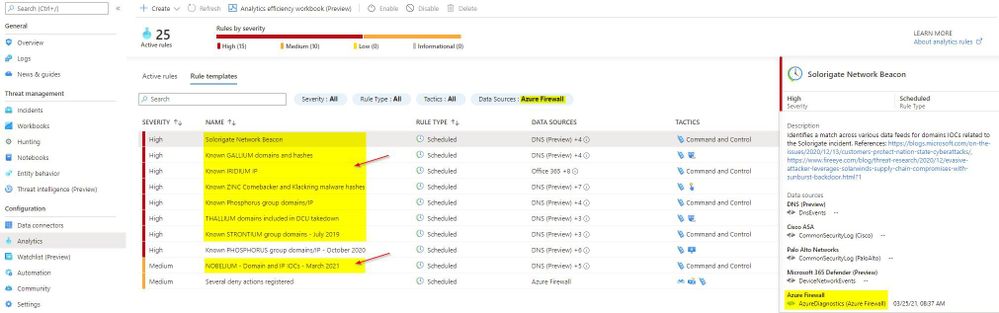
The screenshot below shows the new Azure Firewall detections in the Azure Sentinel Analytic Rule blade
Azure Firewall Detection Rules in Azure Sentinel
How Network Based Detection Work
To understand how these detections work, we will examine the “Solorigate Network Beacon” detection which indicates a compromise associated with the SolarWinds exploit. The query snippet below identifies communication to domains involved in this incident.
- We start by declaring all the domains that we want to find in the client request from the internal network
let domains = dynamic(["incomeupdate.com","zupertech.com","databasegalore.com","panhardware.com","avsvmcloud.com","digitalcollege.org","freescanonline.com","deftsecurity.com","thedoccloud.com","virtualdataserver.com","lcomputers.com","webcodez.com","globalnetworkissues.com","kubecloud.com","seobundlekit.com","solartrackingsystem.net","virtualwebdata.com"]);
- Then we perform a union to look for traffic destined for these domains in data from multiple sources which include Common Security Log (CEF), DNS Events, VM Connection, Device Network Events, Azure Firewall DNS Proxy, and Azure Firewall Application Rule logs
(union isfuzzy=true
(CommonSecurityLog
        | parse ..
),
(DnsEvents
        | parse ..
),
(VMConnection
        |parse ..
),
(DeviceNetworkEvents
        | parse ..
),
(AzureDiagnostics
    | where ResourceType == "AZUREFIREWALLS"
    | where Category == "AzureFirewallDnsProxy"
    | parse msg_s with "DNS Request: " ClientIP ":" ClientPort " - " QueryID " " Request_Type " " Request_Class " " Request_Name ". " Request_Protocol " " Request_Size " " EDNSO_DO " " EDNS0_Buffersize " " Responce_Code " " Responce_Flags " " Responce_Size " " Response_Duration
    | where Request_Name has_any (domains)
    | extend DNSName = Request_Name
    | extend IPCustomEntity = ClientIP
    ),
  (AzureDiagnostics
    | where ResourceType == "AZUREFIREWALLS"
    | where Category == "AzureFirewallApplicationRule"
    | parse msg_s with Protocol 'request from ' SourceHost ':' SourcePort 'to ' DestinationHost ':' DestinationPort '. Action:' Action
    | where isnotempty(DestinationHost)
    | where DestinationHost has_any (domains)
    | extend DNSName = DestinationHost
    | extend IPCustomEntity = SourceHost
    )
    )
- When this rule query is executed (based on schedule), it will analyze logs from all the data sources defined in the query which also includes the Azure Firewall DNS Proxy and Application Rule logs. The result will identity hosts in the internal network which attempted to query/connect to one of the malicious domains which were declared in Step 1
Instructions to Configure Azure Firewall Detections in Sentinel
These detections are available as Analytic Rules in Azure Sentinel and can be quickly deployed by following the steps below.
- Open the Azure Sentinel blade in the Azure Portal
- Select the Sentinel workspace where you have the Azure Firewall logs
- Select Analytics blade and then click on Rule templates
- Under Data Sources, filter by Azure Firewall
- Select the Rule template you want to enable and click Create rule and configure rule settings to create a rule
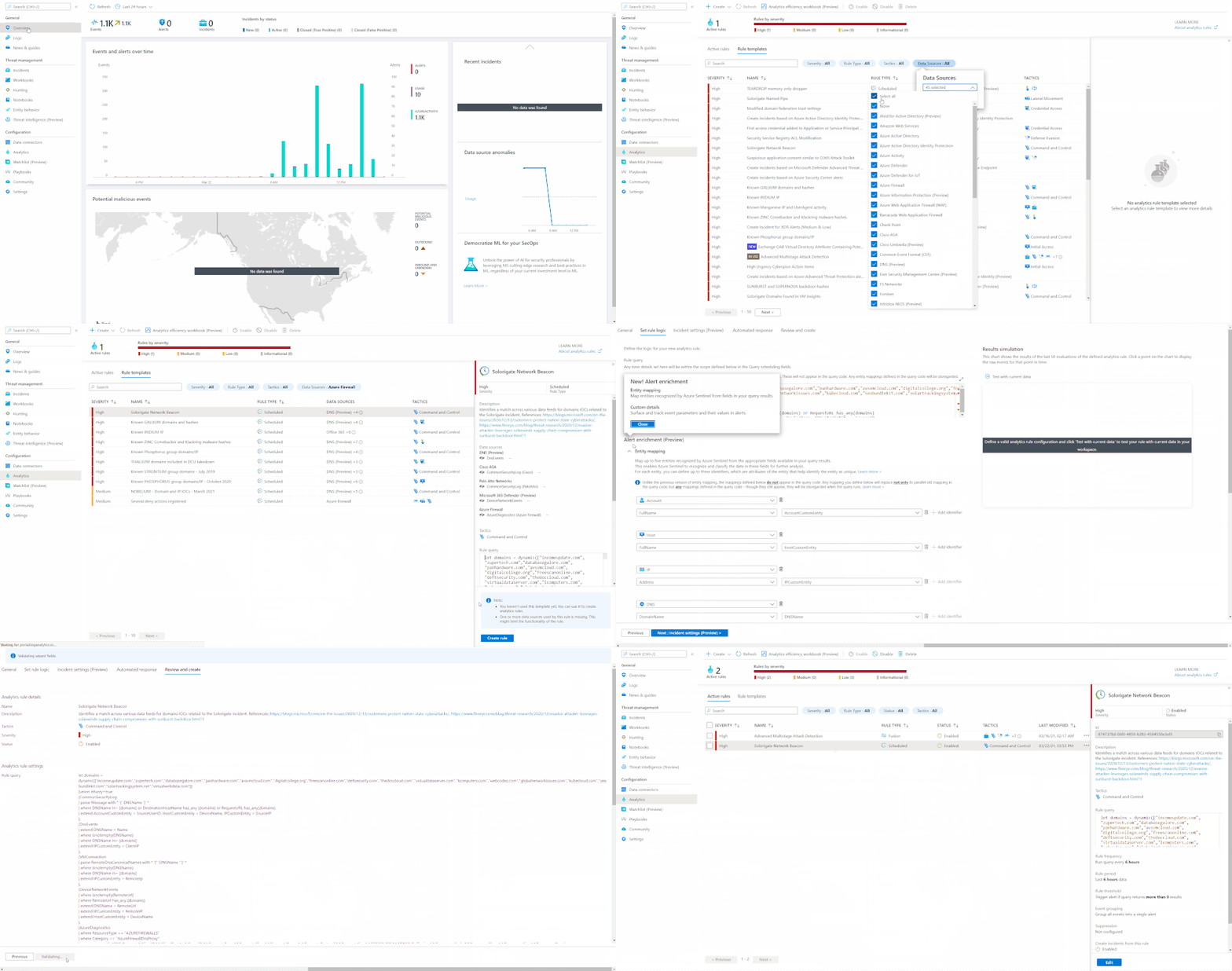 Steps to Configure Azure Firewall Rules in Azure Sentinel
Summary
Azure Firewall logs can help identify patterns of malicious activity and Indicators of Compromise (IOCs) in the internal network. Built-in Analytic Rules in Azure Sentinel provide a powerful and reliable method for analyzing these logs to detect traffic representing IOCs in your network. With added support for Azure Firewall to these detections, you can now easily detect malicious traffic patterns traversing through Azure Firewall in your network which allows you to rapidly respond and remediate the threats. We encourage all customers to utilize these new detections to help improve your overall security posture.
As new attack scenarios surface and associated detections are created in future, we will evaluate them and add support for Azure Firewall or other Network Security products, where applicable. You can also contribute new connectors, detections, workbooks, analytics and more for Azure Firewall in Azure Sentinel. Get started now by joining the Azure Network Security plus Azure Sentinel Threat Hunters communities on GitHub and following the guidance.
Additional Resources


Recent Comments