by Contributed | Apr 28, 2021 | Technology
This article is contributed. See the original author and article here.
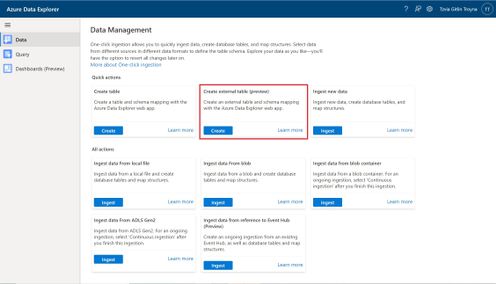
An external table is a schema entity that references data stored outside the Azure Data Explorer database. Azure Data Explorer Web UI can create external tables by taking sample files from a storage container and creating schema based on these samples. You can then analyze and query data in external tables without ingestion into Azure Data Explorer. For information about different ways to create external tables, see create and alter external tables in Azure Storage or Azure Data Lake.
One of the most common scenarios for External table is with historian data (e.g. data that need to be stored due to legal requirements, log records for longer retention period, etc.) that need to be query rarely.
Please read create an external table document for detailed explanation, here are some highlighted points.
1. at the Source Page, In Link to source, enter the SAS URL of your source container. You can add up to 10 sources (You can remove the 10 limitation by using the create external table command at the Query page). The first source container will display files below the File filters. In a later step, you will use one of these files to generate the table schema.
2. At the Schema Page, in the right-hand side of the tab, you can preview your data. On the left-hand side, you can add partitions to your table definitions to access the source data more quickly and achieve better performance.
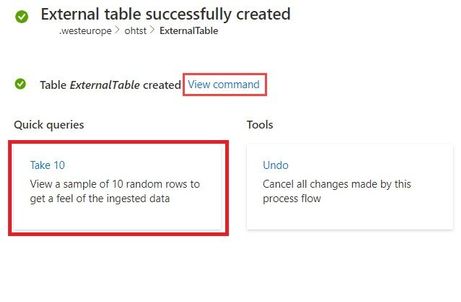
3. At the Summary Page, you can query this table using the query buttons or with external_table() function. For more information on how to query external tables, see Querying an external table.
by Contributed | Apr 27, 2021 | Technology
This article is contributed. See the original author and article here.
The new Exchange admin center (EAC) is a modern, accessible, web-based management portal for managing Exchange Online that is based on the Microsoft 365 admin center experience. The new EAC is simple and accessible, and it enables you perform tasks like restoring mailboxes, migrating data, and much more.
Since entering Public Preview in June 2020, over half a million admins around the world have used it. We thrived on the feedback of our early adopters and we have steadily improved the new EAC with the help from a great community of early users.
Today, we are excited to announce that the new EAC is now generally available for customers (including GCC customers) in 10 languages. With this announcement, we are also releasing a new dashboard, new usability features, and several intelligent reports to help admins be more productive in their work. The new EAC is expected to be available to customers in GCC High at the end of May 2021, and to customers in DoD at the end of June 2021.
Here are some highlights:
- Personalized Dashboard, Reports, Insights – The new EAC offers actionable insights and includes reports for mail flow, migration, and priority monitoring.
- Azure Cloud Shell – Cloud Shell is a browser-accessible shell that provides a command-line experience built with Azure management tasks in mind. It enables admins to choose a shell experience that best suits their workstyle.
- Mailbox management and recover deleted items – Recipient management is one of the most crucial tasks that admins perform. The new EAC now includes easier mailbox management.
- Modern, simplified management of Groups – The new EAC also enables you to create and manage 4 types of groups: Microsoft 365 Groups, distribution lists, mail-enabled security groups, and dynamic distribution lists.
- Migration – The new EAC supports various kinds of migrations, including cross-tenant migrations for M&A scenarios, and automation Google Workspace/G-Suite migrations.
- Left navigation panel – The new EAC also includes a new left navigation panel to make it easier to find features.
You can access EAC today at https://admin.exchange.microsoft.com.
To learn more, check out https://docs.microsoft.com/en-us/exchange/exchange-admin-center.
Take a tour of the new EAC at https://www.microsoft.com/en-us/videoplayer/embed/RE4FqDa.
by Contributed | Apr 27, 2021 | Technology
This article is contributed. See the original author and article here.
Welcome to your single resource for ways to learn and communities to join to always stay up-to-date on Azure Storage.
Microsoft Learn
Azure Storage Learning Paths & Modules
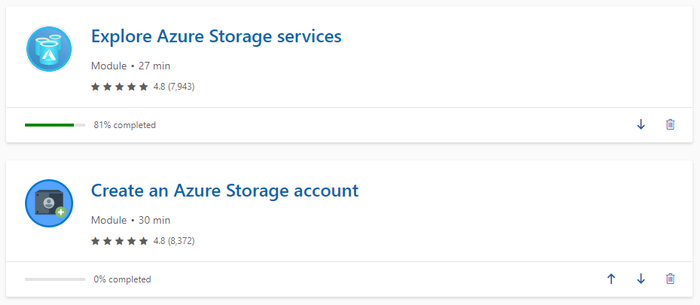
Explore Azure Storage in-depth through guided paths and learn how to accomplish a specific task through individual modules.
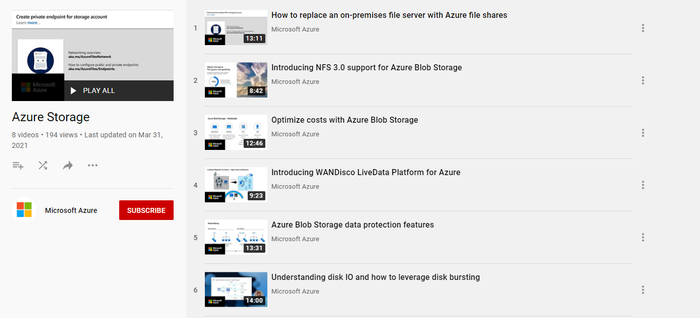
Technical Videos
Azure Storage on the Microsoft Azure YouTube Channel
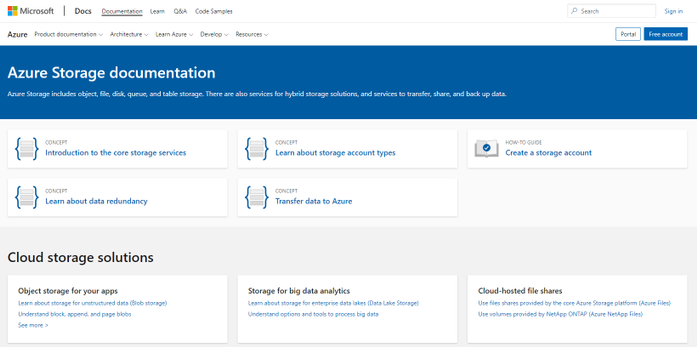
Azure Storage Documentation
Check out technical documentation, frequently asked questions, and learning resources on the Azure Storage Documentation page.
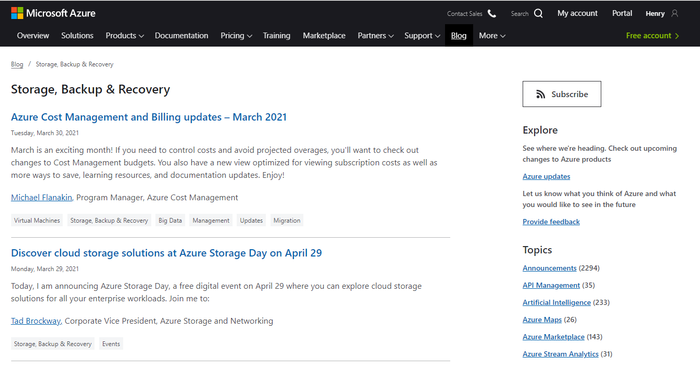
Azure Storage Blogs
Stay up to date on the latest news, product updates and announcements on the Azure Storage blog.
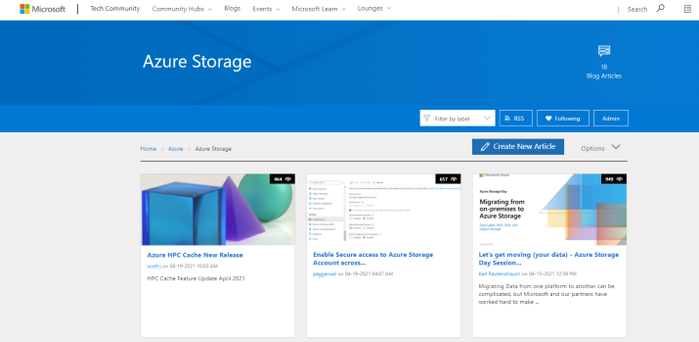
Azure Storage Tech Community
Share best practices, get the latest news, and learn from experts about Azure Storage here.
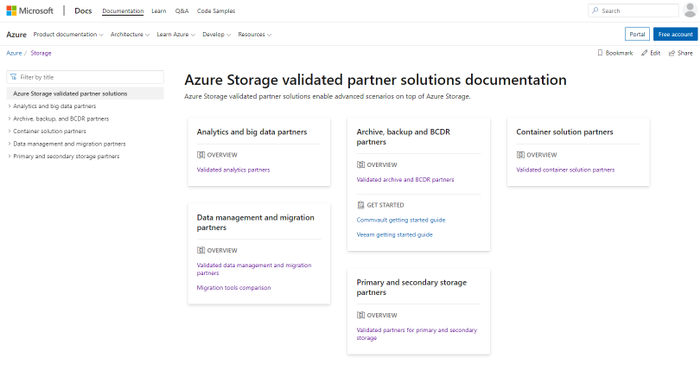
Azure Storage Partners
Discover the wide range of Azure Storage partner solutions that enable advanced scenarios on top of Azure Storage services.
With all these resources and content, we are excited see what you build with Azure Storage!
by Contributed | Apr 27, 2021 | Technology
This article is contributed. See the original author and article here.
According to a recent study, cloud misconfigurations take an average 25 days to fix. This number can even be higher if you are managing the cloud security posture across multiple providers without having an aggregate visualization of the current security state of all cloud workloads. Not only it becomes a challenge to understand the current security state, but also to manage multiple dashboards and prioritize which issues should be resolved first.
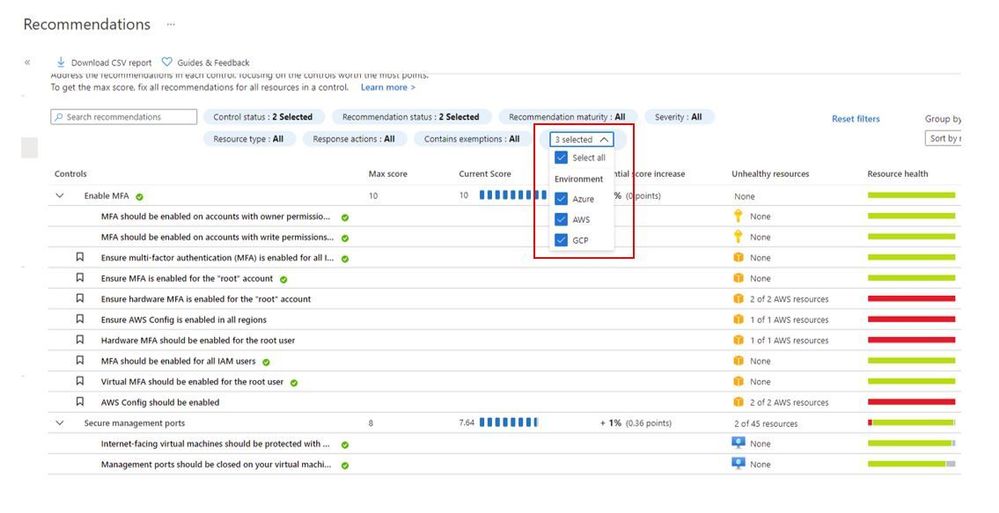
When you upgrade Azure Security Center free tier to Azure Defender you will be able to connect to AWS and GCP using native Azure Defender connectors. Once you connect to each cloud provider, you will be able to use the Security Recommendations to quickly filter the environment and see only the recommendations that are relevant for the cloud provider that you want, as shown below:
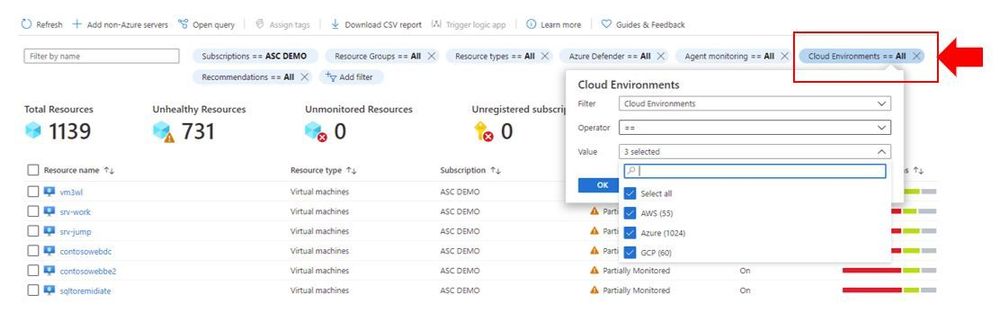
You can also quickly identify resources on each cloud provider by using the Inventory dashboard, by using the Cloud Environment filter as shown below:
In addition to all that, you can also take advantage of centralized automation by leveraging the Workflow Automation feature to automate response for security recommendations generated in Azure, AWS or GCP.
Cloud security posture management and workload protection
The security recommendations are relevant for the cloud security posture management scenario, which means that you drive the enhancement of your security posture across multiple cloud providers by remediating those recommendations. However, this is not the only scenario available for multi-cloud, you can also use the following Azure Defender plans to enhance your workload protection. When planning cloud workload protection for workloads in AWS and GCP, make sure to first enable the VMs to use Azure Arc, once you do that, the following Azure Defender plans will be available across Azure, AWS and GCP:
The potential alerts generated by workloads protected by those plans is going to be surfaced in the Security Alerts dashboard in Azure Defender. Which means that you again will have a single dashboard to visualize alerts across different cloud providers. These alerts can be streamed to your SIEM platform using Continuous Export feature in Azure Security Center.
Design considerations
Prior to implementing your multi-cloud adoption using Azure Defender, it is important to consider the following aspects:
When connecting with AWS
- An account is onboarded to a subscription, the subscription has to have Azure Defender for Servers enabled
- The VMs under this account will automatically be onboarded to Azure using Azure Arc, and will be covered by Defender (list of supported OS)
- Arc cost is inclusive with Defender (you won’t pay twice)
- To receive the security recommendations, you will need to enable AWS Security Hub on the accounts you want to onboard
- Security Hub is a paid service that can vary depending on how many accounts and regions it’s enabled on (please refer to AWS official pricing)
When connecting with GCP
- Same requirement for Defender enabled on the subscription
- Servers are not onboarded automatically, and will need to be onboarded through Arc (Arc onboarding guide)
- To receive security recommendations, you will need to enable GCP Security Command Center
- Google Security Command Center have two pricing tiers: standard (free) and premium
- Free tier includes ~12 recommendations, premium around 120
- Premium tier costs 5% of annual spending in GCP, please refer to GCP official pricing)
Additional Resources
The resources below will be useful for you to implement this multi-cloud capability in Azure Defender:
Reviewer
Or Serok Jeppa, Program Manager
by Contributed | Apr 27, 2021 | Technology
This article is contributed. See the original author and article here.
Active geo-replication for Azure SQL Hyperscale now in preview
Business continuity is a key requirement to implement any business-critical system, not having a disaster recovery plan in place can put organizations at great financial loss, reputation damage and customer churn.
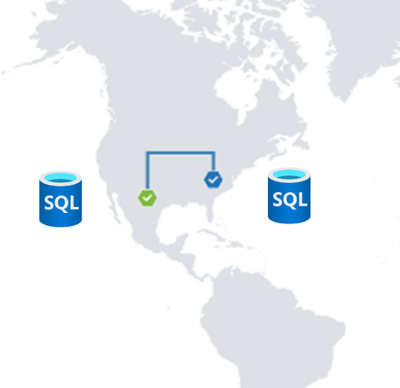
We are excited to announce the preview release of Active geo-replication for Azure SQL Database Hyperscale tier. Azure SQL geo-replication feature provides the availability to create a readable secondary database in the same or in different region, in the case of regional disaster, failover to the secondary can initiated to have business continuity.
Hyperscale service tier supports 100 TB of database size, rapid scale (out and up) and nearly instantaneous database backups, removing the limits traditionally seen in cloud databases.
How Geo-replication works for Hyperscale?
When creating a geo-replica for Hyperscale all data is copied from the primary to a different set of page servers. A geo-replica does not share page servers with the primary, even if they are in the same region. This provides the necessary redundancy for geo-failovers.
Current preview limitations:
- Only one geo-secondary in the same or a different region
- Only forced failover supported
- Using a geo-replica as the source database for Database Copy, or as the primary for another geo-secondary is not supported
- Restore database from geo-secondary not supported
- Currently no support for Auto-failover groups
We are working on addressing these limitations to have Hyperscale with the same Active geo-replication capabilities that we have for other Azure SQL service tiers including Auto-failover groups support.
Available regions
Active Geo-replication for Hyperscale will be supported in all regions where Azure SQL Hyperscale is supported.
Quick Start
a. Configure from Portal using the Geo Replication blade

b. Configure using Azure CLI
c. Configure using Powershell
To learn more,
https://aka.ms/activegeoreplication
https://docs.microsoft.com/en-us/azure/azure-sql/database/service-tier-hyperscale


Recent Comments