by Contributed | Jun 17, 2021 | Technology
This article is contributed. See the original author and article here.
As a critical mass of companies and organizations embrace some form of a hybrid work environment, many customers are looking for the best technology to build or maintain their competitive position. That’s why I’m pleased to announce the latest Surface Hub innovations to help customers thrive in this new “boundaryless” workspace — from new Microsoft Teams features and a new Edge browser experience to improved management and admin capabilities.
Microsoft Teams Rooms on Surface Hub
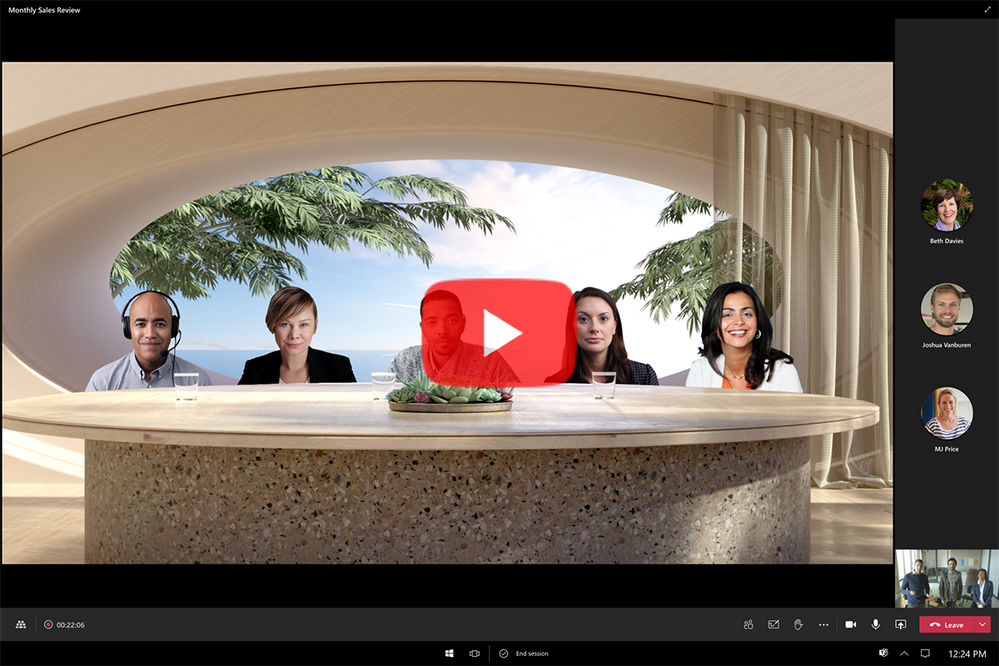
Coming soon to the Windows Insider Program: The new Microsoft Teams Rooms on Surface Hub experience, designed to enable boundaryless collaboration on a device purpose-built for teams to meet and co-create, wherever they work. For a sneak peek and how to join the Windows Insider program, check out this video:
This next generation of Teams on Surface Hub has been redesigned to bring your favorite features from the desktop and Microsoft Teams Rooms into the meeting space. With a new meeting stage, a robust set of meeting controls, and popular features including Together Mode scenes, background noise suppression, chat bubbles, and live reactions, Teams Rooms on Surface Hub enriches collaboration for the hybrid workplace. You can easily access your Microsoft 365 files and confidently present using features like PowerPoint Live in Teams, letting you see slides, notes, and your audience all in one view.
Simply put, Teams is evolving to provide more “presence” so instead of just looking at a wall of faces, you can create personal spaces like a dining room table or a coffee shop.
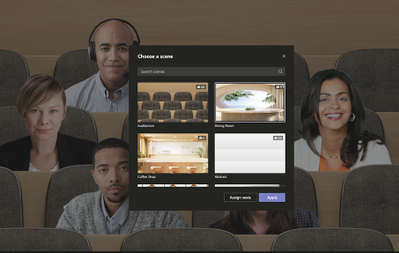 This public preview will be available starting next week via the Windows Insider Program for Surface Hub, and we will add exciting features like Coordinated Meeting and Proximity based meeting joins over the course of the preview.
If you’re not already familiar with the Windows Insider program, when the public preview concludes later this year, these features will become available to all Surface Hubs. For terms and conditions, refer to the Microsoft Windows Insider Program Agreement.
Coming soon
New Microsoft Edge experience on Surface Hub
With the Surface Hub Windows 10 Team 2020 Update, we provided a way for our customers to experience the new Microsoft Edge on Surface Hub. Also coming with this Insiders update, we’re making the new Microsoft Edge the default browser. on Surface Hub. With this, you can now experience the same desktop Microsoft Edge Chromium browser that our customers love on the Surface Hub.
IT management of Surface Hub
Later this year we will also integrate Surface Hub into the Microsoft Managed Service and into Microsoft Teams Admin Center to make it even simpler to deploy and manage your devices on scale.
Productivity in the hybrid workplace
Building Surface Hub 85″
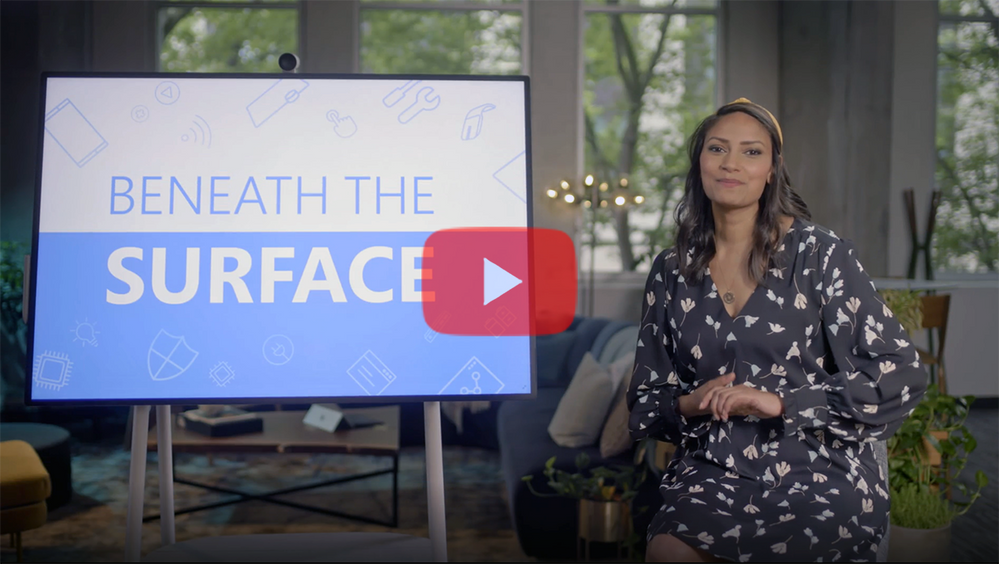
When we set out to build our our biggest Surface device ever, we could no longer rely on side by side, in person processes. To learn how we approached this challenge of retooling our processes for the remote and hybrid environment, check out the latest episode of Beneath the Surface.
Learn more
by Contributed | Jun 17, 2021 | Technology
This article is contributed. See the original author and article here.
Azure Static Web Apps is a serverless web app hosting service offering streamlined full-stack development, with many built-in features designed to make your life easier. Because it’s always hard to get started with any new technology, we created a series of practical, short videos with all the tips and tricks you need to get your apps up and running in a blink.
We choose to cover all the basics you need to get started, and then focus on specific use-cases that may be useful in most situations. With these videos, you’ll get all the essential knowledge to move your project forward with Azure Static Web Apps!
The full video series is available for free here:
This series is made of 16 videos, organized in 4 modules each with a different focus. You can either follow all of them as a full course or pick some as you need to complete your skill set.
Azure Static Web Apps essentials
If you’ve never heard of Static Web Apps or if you’re just being curious, this is the place to start. You’ll discover the basics about it, install all the tools to work efficiently and see how fast you can get your website online. Then you’ll set up a full CI/CD pipeline and see how to use pre-production environments, and finally create your own personal blog with Gatsby.
Videos:
Building a shopping app
Now that you’re ready to code, we’ll cover the use case of building a shopping app progressively, configuring the routing, adding an API and securing your app with built-in authentication and authorization. And because as web developers we love to have nice looking URLs, we’ll also see how to configure your custom domain step by step.
Videos:
Using C# and Blazor to create full-stack web apps
With Blazor and Web Assembly you can use C# all the way to create full-stack web apps. This especially great if your’re well versed in C#, and want to use your skills to create a comple serverless web app and API entirely written in C# with .Net. You’ll start your journey here from the beginning, and see all the important aspects you need to care for while creating your Blazor app.
Videos:
Using Cosmos DB with MongoDB API and Mongoose with your Static Web Apps
Almost every web project will require client and server-side code, and ultimately, a database. With Static Web Apps you’ve seen how to create and deploy websites, and we’ll expand on that using tools you’re already familiar with, including MongoDB and Mongoose for managing data. You’ll save time learning how to create a complete app with a database from this starter kit, going through every steps you need to deploy your project and database.
Videos:
Want more?
Videos are great for visual learning, but having additional forms of content is always helpful.
Tell us your feedback!
Of course, we can’t cover every single thing there is to know about Static Web Apps in these videos. But we want to give you all the essential knowledge you need to get started on your project.
And more importantly, we’re also here to listen and help as much as we can! :)
Please tell us your experience, your difficulties and questions, and how we may improve this series in the comments.
On behalf of the whole team, THANK YOU for taking this journey with us! :folded_hands:
by Contributed | Jun 17, 2021 | Technology
This article is contributed. See the original author and article here.
The hybrid workplace is here, and Microsoft Teams Rooms has the latest innovations to enhance everyone’s experiences, whether in the room, or remote. To make meetings more engaging for both remote and in room attendees, we are announcing a new category of intelligent speakers for Teams Rooms on Windows.
1. Inclusive meetings powered by Microsoft Teams
Intelligent speakers are intelligent peripherals for Microsoft Teams Rooms on Windows and are designed to bring high quality audio experiences to remote participants can clearly hear all the voices in the room. And they are optimized for Cortana voice assistance to offer touch-less experience to join and end meetings in shared spaces.
2. Intelligent transcription with speaker attribution
Intelligent speakers will bring people identification in live transcription in a shared environment enabling clear voice capture of participants in the meeting room. Allowing everyone in the meeting to spend less time note taking and easily follow along who said what in the room. Intelligent speakers include a 7-microphone array to identify voices of up to ten people in meeting rooms so whether you are working remotely or in the conference room, you can effectively see who said what during and after the meeting.
3. Powered by Microsoft Graph
Knowing who is speaking makes transcription more accurate and meaningful. Once we know who is speaking, we can leverage the power of intelligence through Microsoft Graph that provides access to rich people-centric data and insight in the Microsoft Cloud to contextualize the transcription. For example, because we know who the speaker is, the acronyms, names of colleagues, and different words the speaker uses can be more accurately transcribed.
4. Enterprise grade privacy and security
Voice data will be securely stored in the Office 365 Cloud, and users will retain control of their information, including the ability to delete it at any time. The capture of voice data can be turned on or off for each meeting. Additionally, admins have full control to turn on/off people identification through voice recognition feature across the organization.

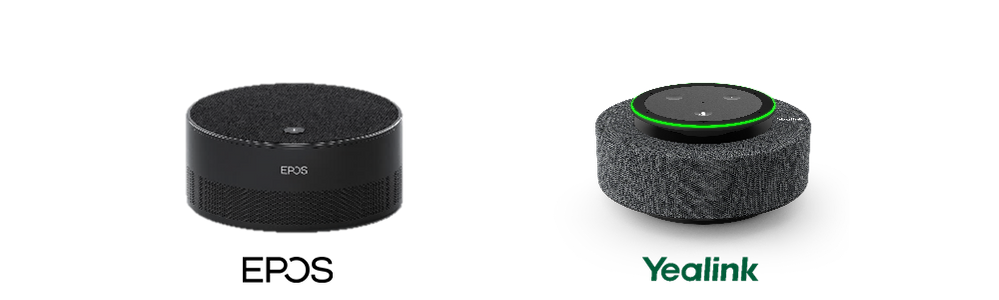
The first two partners to launch intelligent speakers are EPOS with Capture 5 and Yealink with MS Speech, they will both require a Microsoft Teams Rooms Standard or Premium license to be enabled. EPOS Capture 5 and Yealink M Speech intelligent speakers can be purchased individually and in bundles to work with Microsoft Teams Rooms on Windows products.
Yealink offers a Microsoft Teams Room on Windows bundle with (MVC 320 or MVC 640) and MS Speech Intelligent Speaker. EPOS and Lenovo have partnered to offer a Microsoft Teams Room on Windows bundle with Lenovo ThinkSmart Hub Gen 2 and EPOS Capture 5.
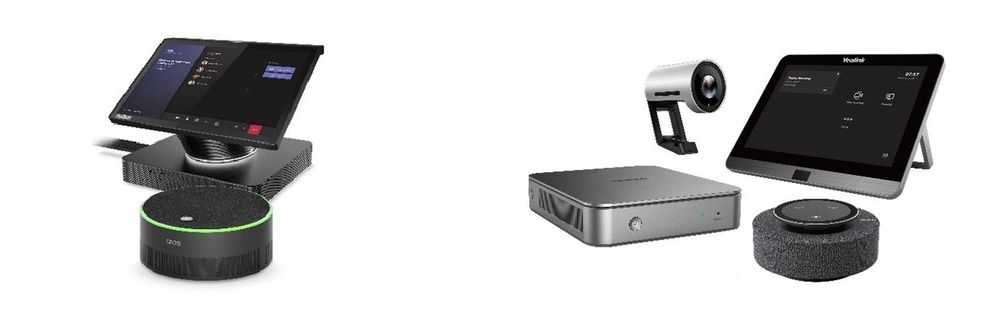 Lenovo ThinkSmart Hub Gen 2 bundle(left) and Yealink MVC 320 bundle (right)
Intelligent speakers people identification is available in preview and will be available with a Teams Rooms Standard or Premium license. Future licensing requirements for people identification in transcription are subject to change. The Teams intelligent speaker is available in English in the United States, future regions to come.
by Contributed | Jun 17, 2021 | Technology
This article is contributed. See the original author and article here.
We introduced Microsoft Whiteboard with the goal of bringing people together for visual collaboration, working across a range of devices and ecosystems including Microsoft Teams.
Over the past 18 months, while many people were working remotely, we learned that customers needed virtual-first tools to creatively problem solve with others. To help people thrive in a more flexible work environment, we have reimagined the Whiteboard experience to help our customers collaborate, wherever and whenever.
Today we’re excited to announce a completely new Microsoft Whiteboard, the visual collaboration workspace in Microsoft 365, designed for hybrid work.
With the new innovations in Microsoft Whiteboard, we’re providing better hybrid work and collaboration experiences, whether or not you’re physically in the room together. To achieve this, our innovations focus on five key areas: guided collaboration, new content types, new user interface, improved inking experience and expanded Microsoft 365 integration. Let’s look at what’s new in each key area.
Make real-time collaboration easier
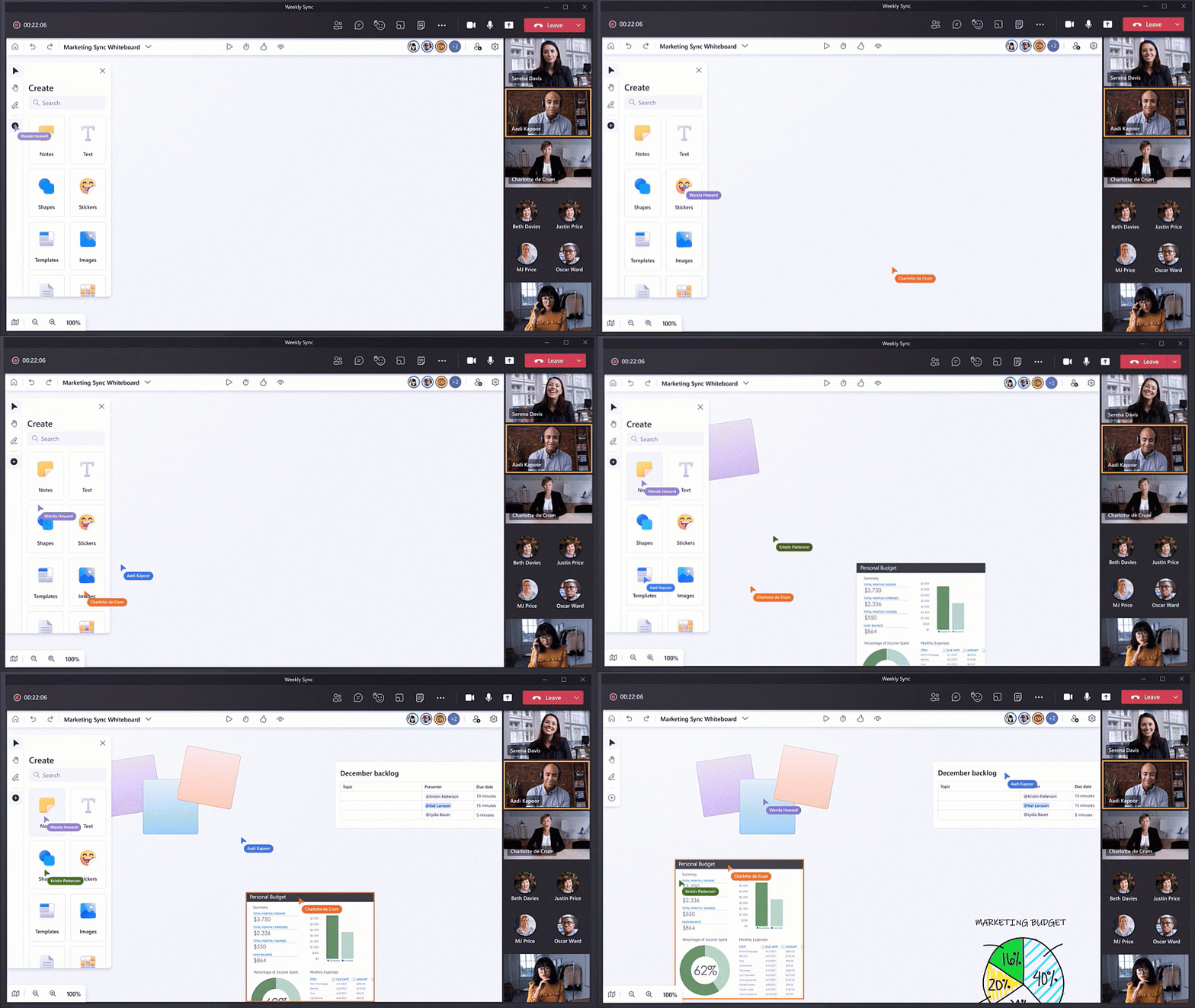
Collaboration that just works is core to the new Whiteboard experience, and we’re introducing a number of new features to make this a reality. Collaboration Cursors help you be remote, but feel together, by showing where and what other collaborators are doing on the whiteboard. Get other people’s attention as you share your best ideas with the new Laser Pointer. Reduce distractions while guiding users through ideas with Follow Along. And finally, easily get started with the most common scenarios like problem-solving, planning, and workshops, with our wide array of new Templates. Together, these features improve collaboration, engage all participants, and reduce hybrid work barriers—no matter where you are.
Boost creativity with rich and interactive content
Collaboration powered by rich content is a key part of the new Whiteboard experience. This allows everyone to contribute in the way that best suits their idea, device type, or personal preference. Combine shapes, lines, text and ink to create Collaborative Diagrams. Make connections, annotate, and iterate together across multiple types of content with our new Insert Image and Document capabilities. Organize related thoughts, ideas or solutions in an auto-layout grid with Notes Grid. Provide lightweight, contextual feedback via a range of engaging and fun Reaction Stickers. Collaborate across apps by bringing in Fluid Components like tables or task lists. Yes, you can still use Whiteboard for inking, but all of these new capabilities transform Whiteboard into a rich visual collaboration workspace that lets you and your team be more creative together.
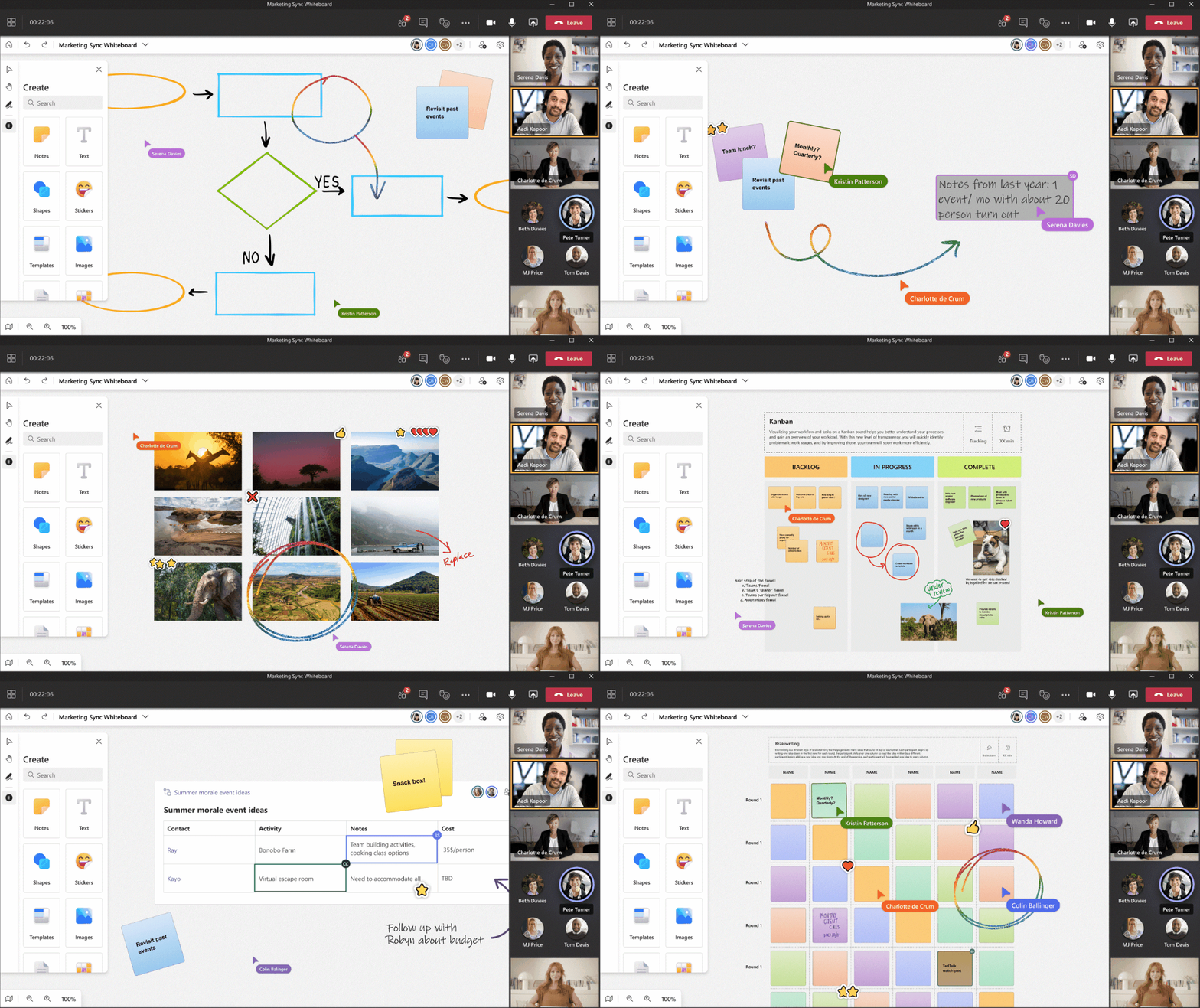
Experience a unified modern look and feel
With the introduction of so many new collaboration features and content types, we’ve created a new user interface to support our ever-growing capabilities. Our new Fluent Toolbar adds a modern visual refresh to our expanded set of visual collaboration tools. The new Creation Gallery provides a highly discoverable, intuitive and responsive layout across devices as large as a Surface Hub and as small as a phone. See who is on the board and collaborating with you at all times in the new Top Bar. The new Whiteboard provides a Single Unified User Experience across all devices, operating systems, and platforms. Ultimately, the new Whiteboard user interface emphasizes what matters most—people and content—so you can do your best work.
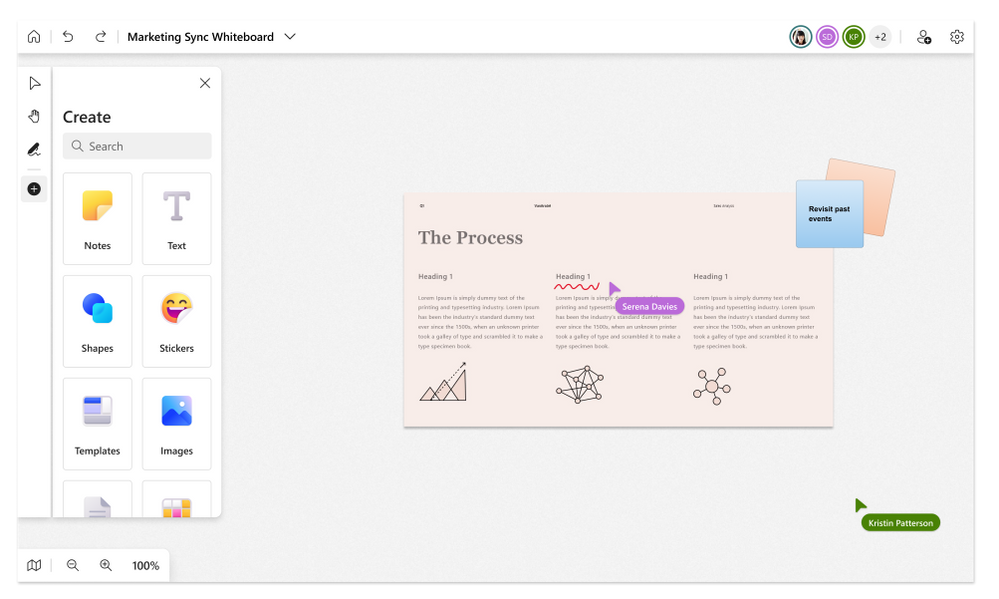 Experience a unified modern look & feel in the new Microsoft Whiteboard
Maximize creativity with ink for everyone
Digital ink is an important part of whiteboarding, whether used to express your own ideas or to comment and annotate on others’ ideas. The new Whiteboard is empowering everyone, no matter if you have a pen or not, to leverage the unique visual expression capabilities that ink can offer. Improved Mouse Inking smoothes ink, making it easier than ever for those with a mouse or trackpad to visually communicate ideas that are hard to write in words. Pen Support for Whiteboard in Teams allows you to ink automatically or get the unique benefits of using a pen, such as the tail eraser. Quickly draw shapes and watch them automatically straighten with Shape Recognition. Spark the imagination and creativity of your team with Rainbow & Galaxy Ink.

Integrate seamlessly across Microsoft 365
The new Whiteboard is now integrated into even more areas across Microsoft 365 to more seamlessly fit into your existing workflows. Whiteboard is now available in Teams Channels & Chats. The new Share Content experience in Teams Meetings allows you to easily start a collaborative whiteboard for everyone in the meeting with just one click. Pre-prep or reuse whiteboards across multiple Teams Meetings with the new Open Existing Board functionality. Search and discover whiteboards on Office.com and SharePoint, and leverage the rich content management features of OneDrive for Business.
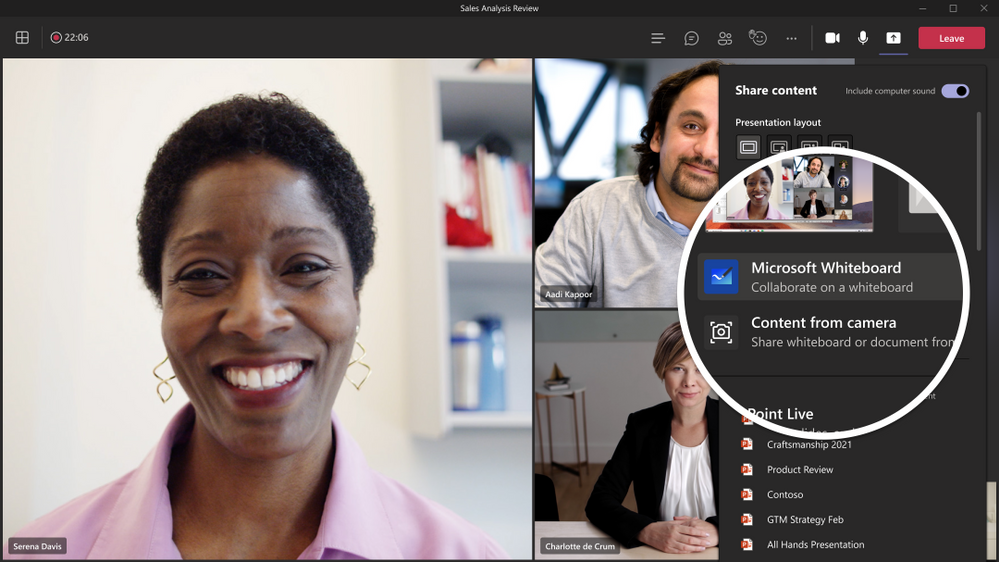 The new Microsoft Whiteboard is integrated seamlessly across Microsoft 365 such as Teams, Office.com, OneDrive and SharePoint.
We hear from customers every day that while the future of work may be evolving, one thing remains clear—it’s never been more important for people to be able to collaborate effectively wherever and whenever. We’ve created the completely new, hybrid work focused Whiteboard experience to meet this need, so both remote and in-person attendees can visually collaborate across the same digital canvas. To get started, try the new Whiteboard today. To learn more, visit the Whiteboard product page or read the FAQ.

by Contributed | Jun 17, 2021 | Business, Microsoft 365, Technology
This article is contributed. See the original author and article here.
The future of work is collaboration without compromise—wherever, whenever.
The post New hybrid work innovations in Microsoft Teams Rooms, Fluid, and Microsoft Viva appeared first on Microsoft 365 Blog.
Brought to you by Dr. Ware, Microsoft Office 365 Silver Partner, Charleston SC.


Recent Comments