by Contributed | Jun 17, 2021 | Technology
This article is contributed. See the original author and article here.
Starting later this month, we’re introducing new personal wellbeing experiences including a Headspace integration with Microsoft Viva Insights to empower people to balance the need to stay connected and informed with the need to disconnect and recharge. In the 2021 Work Trend Index – a study of over 31,000 people in 31 countries – over half of the respondents reported feeling overworked and over a third described themselves as outright exhausted. The research uncovered something crucial: employees want flexible remote work options to stay, but the digital overload associated with more remote work is challenging their wellbeing. To help address these challenges, we’re introducing updates to the Viva Insights app in Microsoft Teams including a Headspace integration, a new focus mode, and quiet time settings.
Headspace meditations and mindfulness exercises
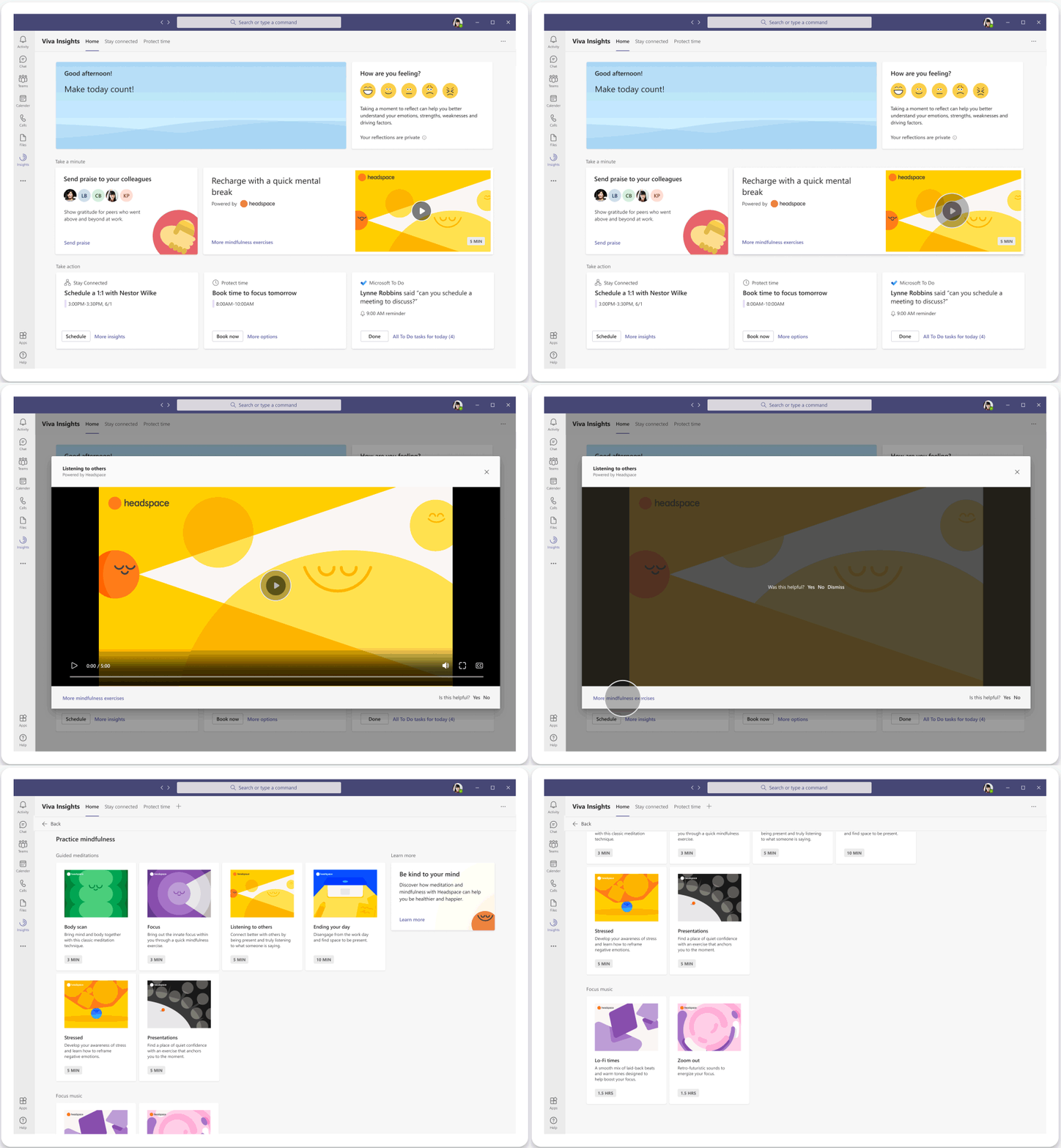
Weekly meeting time for Teams users has more than doubled since the onset of the COVID-19 pandemic. Back-to-back meetings increase stress and make it harder to stay engaged and focused. In just a few minutes a day, meditation and mindfulness with Headspace can help you reduce stress and improve focus. Starting later this month, we’re bringing a curated set of guided meditations and mindfulness exercises from Headspace to the Viva Insights app to help you start your day grounded, relax your mind before a big presentation, or disconnect from work in the evening.
Recharge with a quick mental break and tap into Headspace guided meditations in the Viva Insights app in Teams
Focus mode with Headspace music and timers
Back-to-back meetings not only increase our stress, but can also cause a rise in after-hours work to finish individual tasks. To help you protect time to work uninterrupted with Teams notifications silenced, Viva Insights offers the ability to schedule daily focus time. Building upon this, later this year, we are introducing a new focus mode in the Viva Insights app. This will feature Focus music from Headspace and implement timers to help you make progress on important tasks in regular intervals, with breaks planned in between.
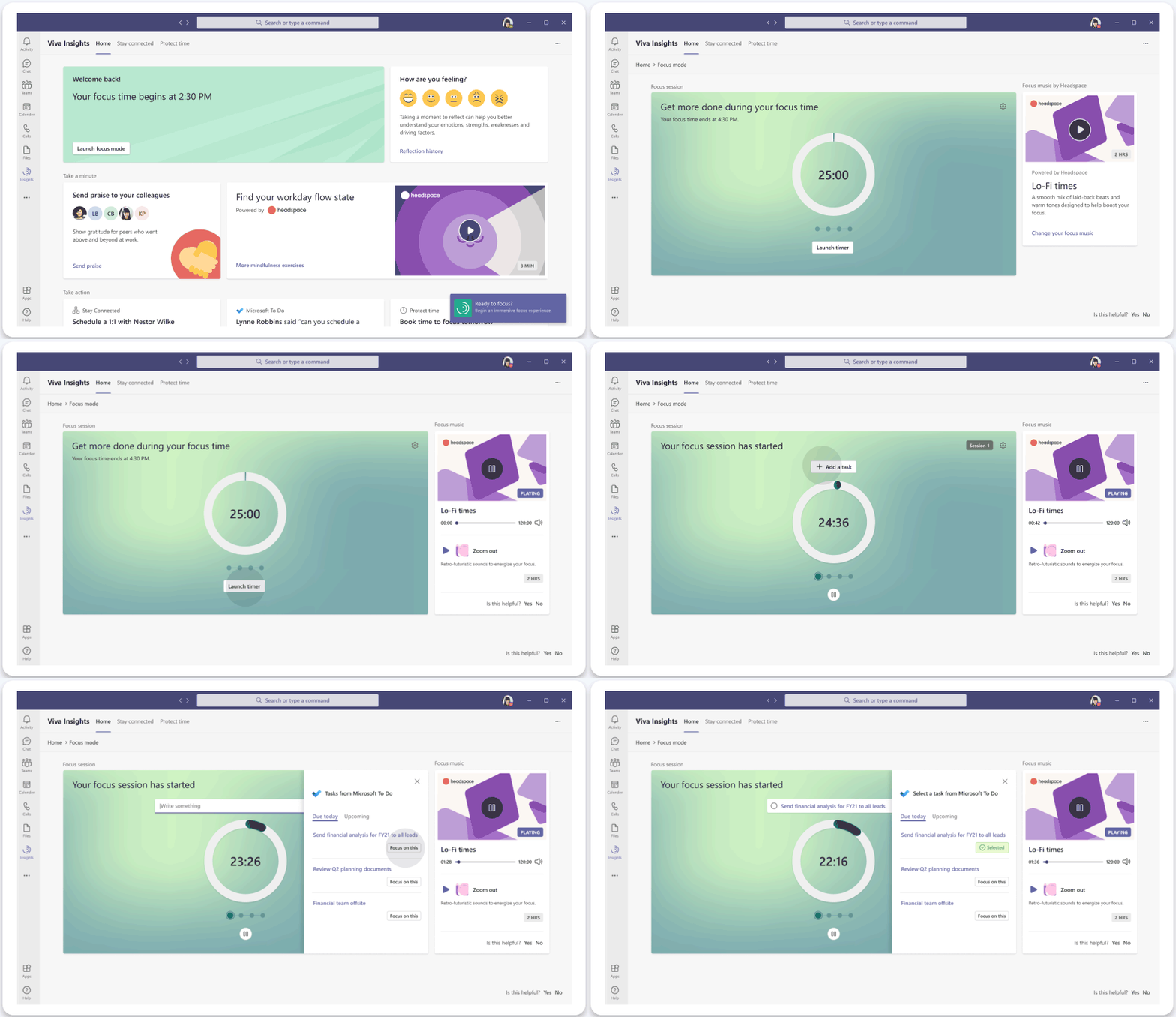 Introducing a new focus mode in the Viva Insights app in Teams featuring Headspace music and timers
Quiet time user and admin settings
Remote work has eliminated physical boundaries between work and life, and an increase in after-hours chats has led to a feeling of being always-on. To help create better boundaries and protect your personal time, later this year Viva Insights will offer the ability to configure quiet time to silence mobile notifications from Outlook and Teams outside your working hours as well as provide personalized insights on how well you are disconnecting. You will also be able to set quiet time directly from Teams and Outlook mobile.
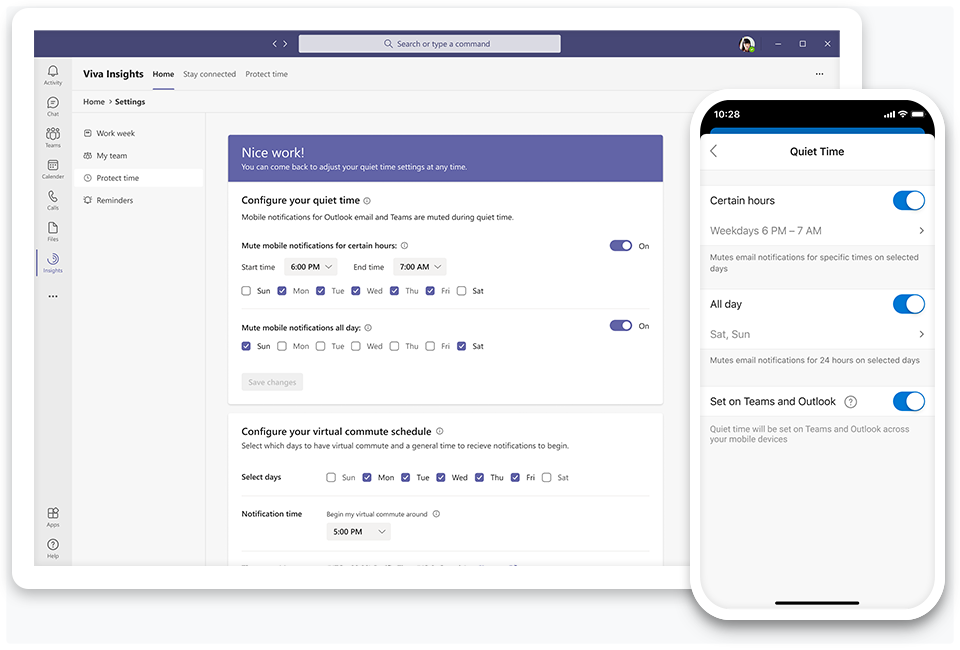 Introducing quiet time settings to silence after-hours mobile notifications from Teams and Outlook
Additionally, with new controls coming in Microsoft Endpoint Manager, IT administrators can create org-level policies to mute after-hours notifications. This will provide organizations a way to encourage their employees to disconnect and recharge during their personal time, as well as support compliance with regulations that limit use of work applications outside of working hours.
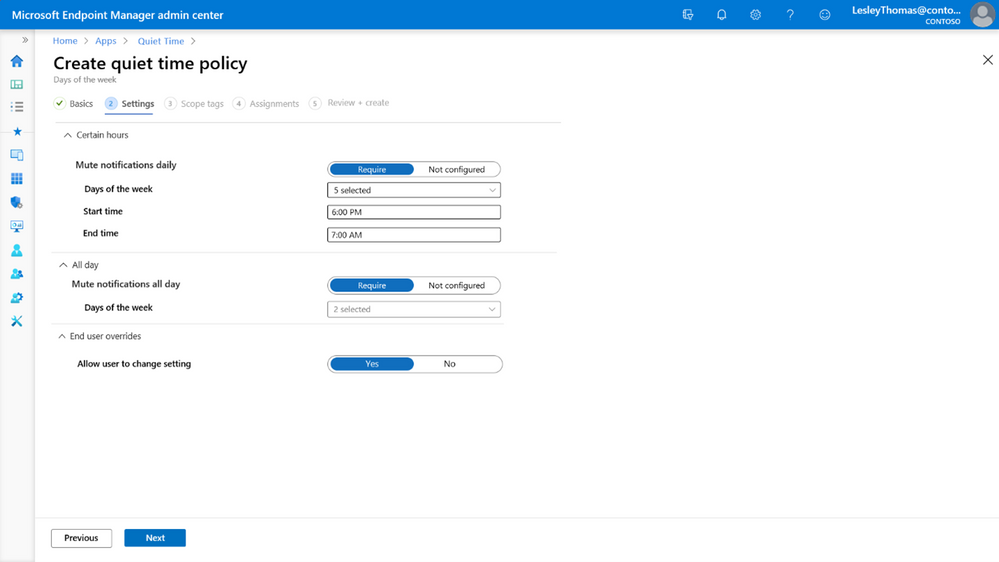 Introducing quiet time settings in Microsoft Endpoint Manager admin center
Learn more
- For more on Microsoft Viva, head over to aka.ms/Viva
- For more on getting started with the Viva Insights app in Teams, visit aka.ms/InsightsDocumentation
- Join our first Microsoft Viva Ask Microsoft Anything (AMA) event on June 23, 2021, where members of the Viva team will be available to respond to questions.
- Join Kamal Janardhan, Product Management lead for Viva Insights and Jeremy Chapman, the host of Microsoft Mechanics, as they walk through the Viva Insights user experience and showcase steps for IT admins to configure access. Watch the full Microsoft Mechanics video series at aka.ms/VivaMechanics.
by Contributed | Jun 17, 2021 | Technology
This article is contributed. See the original author and article here.
As offices begin to open, there is great anticipation of reuniting and collaborating in person. But as people’s habits have changed over the past year, so have their expectations. Going forward, the workplace will be hybrid. This fluid experience will be realized across a continuum of spaces, where extreme flexibility allows you to choose where and when you work.
Now, more than ever people need collaboration experiences that put everyone on an equal footing, whether they join meetings from a conference room, home office, or on the go. In March, Microsoft unveiled our vision for the future of Teams Rooms, where connections feel natural and people feel included, represented, and can collaborate without boundaries. And today, Jared Spataro shared new innovations from Microsoft Teams and Teams Rooms designed to help you connect and engage, regardless of where you work.
Over the course of this year, we will deliver new experiences in Teams Rooms built to ensure everyone can be seen, heard, and fully participate from anywhere. Today we are announcing a new set of features, capabilities and devices that support the best hybrid meeting experience yet.
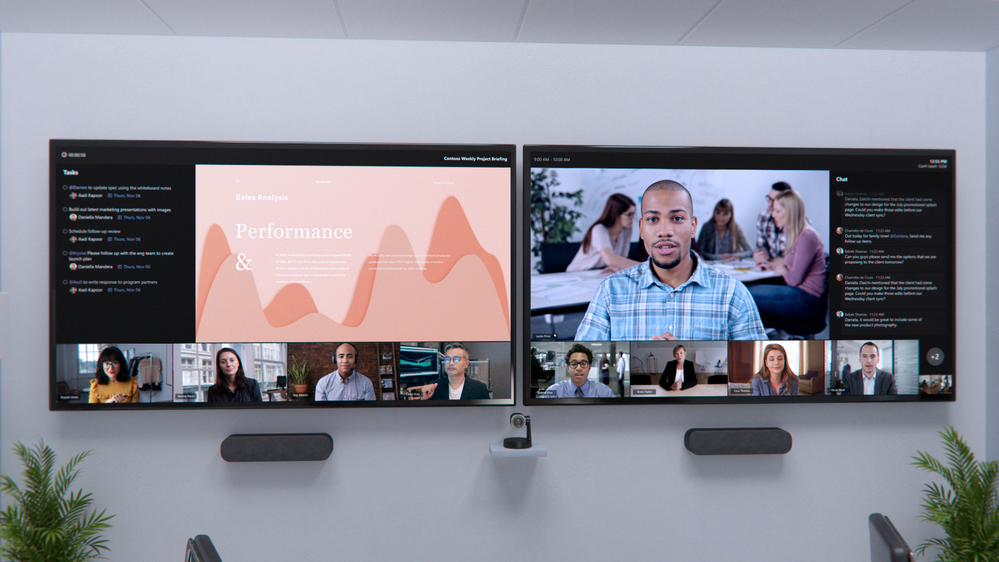
Front row, a new content layout for Teams Rooms, with a dual-monitor configuration, gives participants a greater sense of connection with remote attendees.
Participate on equal footing, no matter where you are
With so many people working from home this past year, we shared a more balanced meeting experience, where nearly all participants were joining remotely and on equal footing. As your organization plans for the hybrid work world, you have an opportunity to extend this equitable meeting experience across workspaces, ensuring everyone can collaborate without compromise.
To give people in the room a greater sense of connection to remote participants and support collaboration before, during, and after meetings, we’re introducing a new content layout called front row. Visually, this new layout moves the video gallery to the bottom of the screen so in-room participants can see remote colleagues face to face across a horizontal plane – similar to if they were in the same room.
Meeting content is surrounded by contextual fluid components like the agenda, tasks, and notes, which can be updated in real-time, helping you stay engaged and productive. Additionally, the meeting chat is brought clearly into view so when in a room you can easily see and engage in the conversation in real-time. This layout will be supported across both single and dual display configurations.
Single screen configuration of Front row, a new content layout for Teams Rooms brings remote users on equal footing with in-room meeting participants. Single screen configuration of Front row, a new content layout for Teams Rooms brings remote users on equal footing with in-room meeting participants.
Helping remote participants establish a genuine presence in the room is key to delivering an inclusive hybrid meeting experience. Turning on video is one of the best things you can do when joining remotely and with new video layouts for Teams Rooms, we’ll maximize screen real estate by splitting the video gallery across all available displays when content isn’t being shared. With increased screen space, video of remote participants can be seen more clearly, bringing greater attention to the people who aren’t in the room.
New video layouts for Teams Rooms maximizes screen real estate by splitting the video gallery across available displays.
We’re also bringing popular features from the personal Teams meeting experience to Teams Rooms. With the ability to pin or spotlight multiple video streams, you can maintain a clear view of the selected videos when in a room. Remote participants can promote their presence in the room by engaging in the meeting, which doesn’t always require speaking up. Live reactions, now visible in a Teams Room, allows you to share sentiments, and when using the classic video grid layout, chat bubbles alert in-room participants to the conversation happening alongside the meeting, so nothing gets missed and all voices are heard.

Teams Rooms now include popular features from the personal Teams meeting experience that help remote attendees promote their presence in the room.
Optimize how remote viewers can see and hear what happens in the room
When you join meetings from a personal account, your individual video and profile information makes it easy to identify who said what but faces and voices can get lost in the crowd when joining from a shared meeting space. We are working with our certified OEM partners to deliver audio and video capabilities that allow every person in the room to be seen and heard more clearly.
Meeting transcripts are a great tool for you to catch up on a meeting asynchronously, but traditional transcription services can’t identify or differentiate between speakers. Intelligent speakers, now generally available from EPOS and Yealink, are designed for Teams Rooms and use Microsoft’s voice recognition technology in Teams to identify who is speaking and apply their name to the meeting transcript. After a quick voice enrollment in Teams, speakers are recognized automatically, and biometric enrollment information is securely stored and manageable in the Office 365 Cloud. Learn more about intelligent speakers for Teams Rooms here.
New category of intelligent speakers for Teams Rooms make meetings more engaging for both remote and in room attendees.
We are also working with our certified OEM partners to deliver enhanced views of rooms that are optimized for remote participants, allowing every person in the room to be seen more clearly. With new advanced camera capabilities, Teams Rooms devices from Neat, Jabra, Logitech and Poly help you feel even closer to the people in the room when joining remotely.
We’re thrilled to announce the newest partner to join the Teams device family, Neat. Later this year, Teams experiences will be available across Neat’s full device portfolio, designed to support hybrid work across home and office workspaces. All Neat devices incorporate unique sensory capabilities like Neat Symmetry, which allows everyone to be seen equally up close. Neat Symmetry combines advanced AI with high-resolution sensors to focus in and individually auto frame each in-room participant, instinctively following them as if they have their own camera person. Learn more about Neat and Neat Symmetry here.
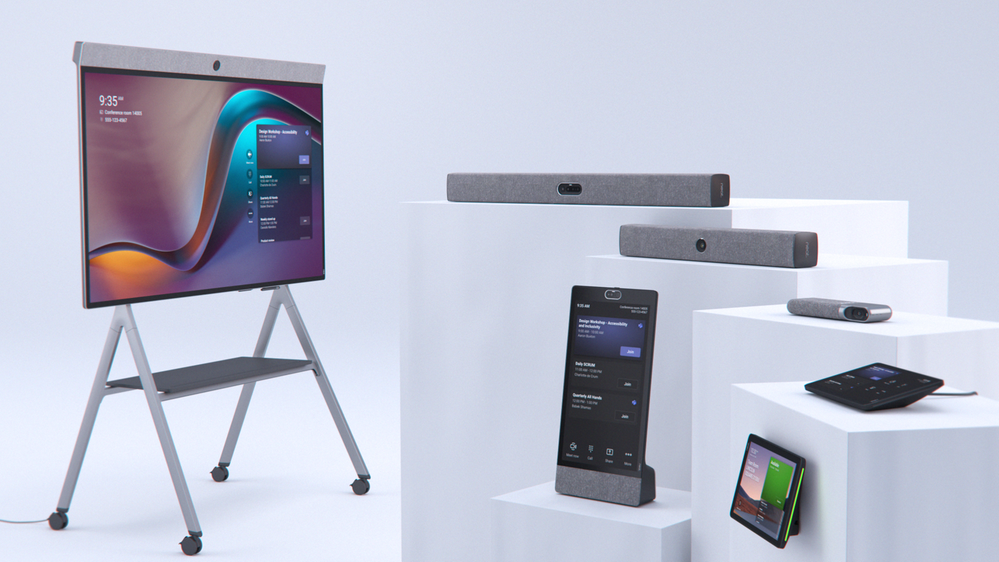
Neat joins the Teams family. Teams experiences available across device portfolio later this year are designed to support hybrid work.

All Neat devices incorporate unique sensory capabilities to allow everyone to be seen equally up close.
The new Jabra PanaCast 50 front-of-room video bar provides an immersive 180-degree view of the room so everyone can be seen. With the new dynamic gallery view, active speakers in the room are shown up close, in their own video pane. PanaCast 50 can also be used to capture an in-room whiteboard so it can be brought into Teams and enhanced, using Microsoft’s intelligent capture feature, eliminating the need for a second content camera. These new views will come to the PanaCast 50 through a software update coming later this year. Learn more about Jabra and Jabra PanaCast 50 here.
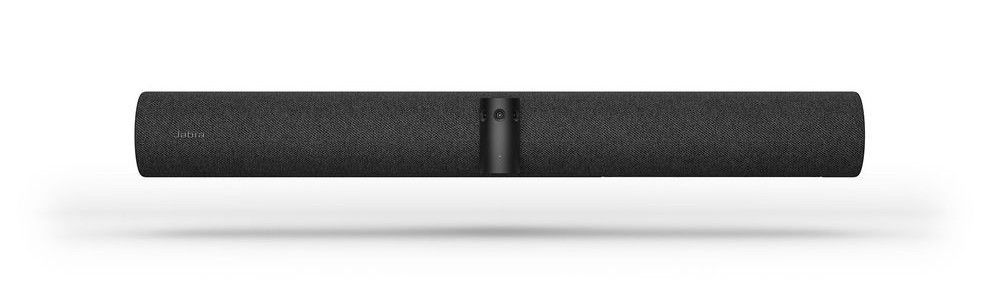
Jabra PanaCast 50 front-of-room video bar provides an immersive 180-degree view of the room so everyone can be seen.
New dynamic gallery view enable active speakers in the room to be shown up close, in their own video pane.
RightSight2, a new feature for Logitech Rally Bar and Rally Bar Mini, creates a more inclusive meeting experience for remote users by displaying two views on the Teams meeting screen: one of the active speaker, and another that captures everyone in the room. As the conversation shifts to a different speaker, so does the camera. RightSight2 will be available later this year as a software update for Teams Rooms. Learn more about Logitech Room Solutions for Microsoft Teams Rooms here.
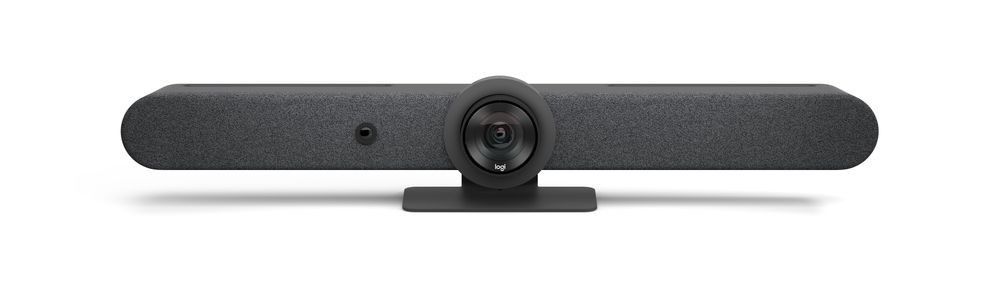
RightSight2, a new feature for Logitech Rally Bar and Rally Bar Mini, will be available later this year for Teams Room.

The RightSide2 feature for Logitech Rally Bar and Rally Bar Mini, creates a more inclusive meeting experience for remote users on a Teams meeting screen.
The new Poly Studio E70 intelligent camera detects and tracks active speakers to help remote participants more clearly follow what is happening in the room. Poly DirectorAI is the brain behind the camera’s capabilities, leveraging AI and machine learning technology to deliver real-time automatic transitions, framing to zoom in closer to the person speaking and tracking to follow the conversation. A future segmented view will display multiple people in their own individual frames. The Poly Studio E70 will be available globally later this year. Learn more about Poly and Poly Studio E70 here.
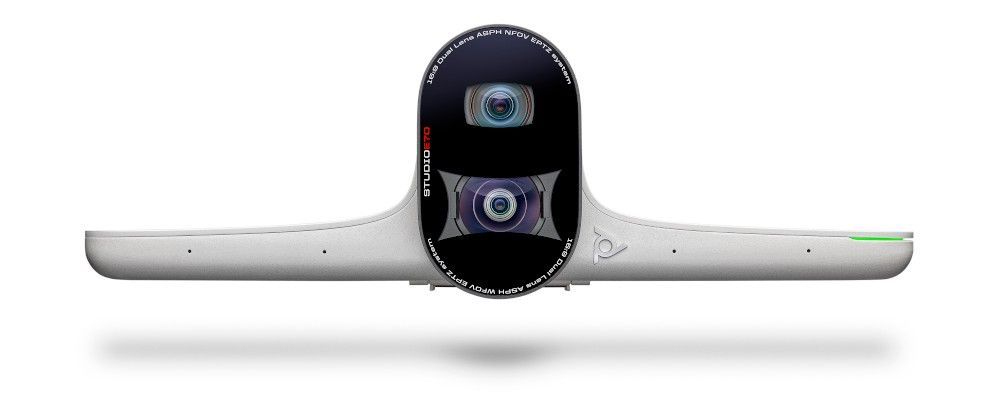
New Poly Studio E70 intelligent camera, available later this year, will help remote participants more clearly follow what is happening in the room.
Poly DirectorAI, the brain behind the new Poly Studio E70, leverages AI and machine learning technology to deliver real-time automatic transition.
Teams Room on Surface Hub brings boundaryless collaboration to your hybrid meetings
We are all looking forward to those moments of brainstorming huddles back in the office. But in a hybrid environment one of the biggest challenges is finding ways to collaborate fully with participants joining from different locations. We are pleased to share the new Teams Rooms on Surface Hub experience, designed to enable boundaryless collaboration on a device purpose built for teams to meet and co-create, wherever you work.
New Teams Rooms on Surface Hub experience has been redesigned to bring popular features from the desktop to enrich collaboration for the hybrid workplace.
This next generation of Teams on Surface Hub has been redesigned to bring your favorite features from the desktop into the meeting space. With a new meeting stage, a robust set of meeting controls, and popular features including Together Mode scenes, background noise suppression, chat bubbles, and live reactions, Teams Rooms on Surface Hub enriches collaboration for the hybrid workplace. You can easily access your Microsoft 365 files and confidently present using features like PowerPoint Live in Teams, letting you see slides, notes, and your audience all in one view.
People love the rich collaboration capabilities on Surface Hub, and the new Microsoft Whiteboard experience announced today will also come to Teams Rooms on Surface Hub so everyone can draw and ink on the same digital canvas, no matter where they are.
The new Teams Rooms on Surface Hub experience will be rolling out in preview to the Windows Insider Program for Surface Hub later this month. Learn how to enroll in the program here.
Be seen, heard and collaborate from anywhere, at any time
As part of an increasingly mobile workforce, you may work from offices where you do not have an assigned space. Imagine coming into the office for the day or working from a satellite location – you’ll need spaces that give you the flexibility to touch down and focus for a few hours, or simply take a quick call or meeting in private. The new hotdesk capability on the Teams display provides you a way to reserve workspaces ahead of time, and gain access to your personal Teams account in a shared space. Simply log in with your Office 365 credentials and use the display to access your Teams chats, files, and calendar. You can also pair the display with your PC, providing a second screen to help you multitask. When finished, securely sign out and the space is ready for the next person.
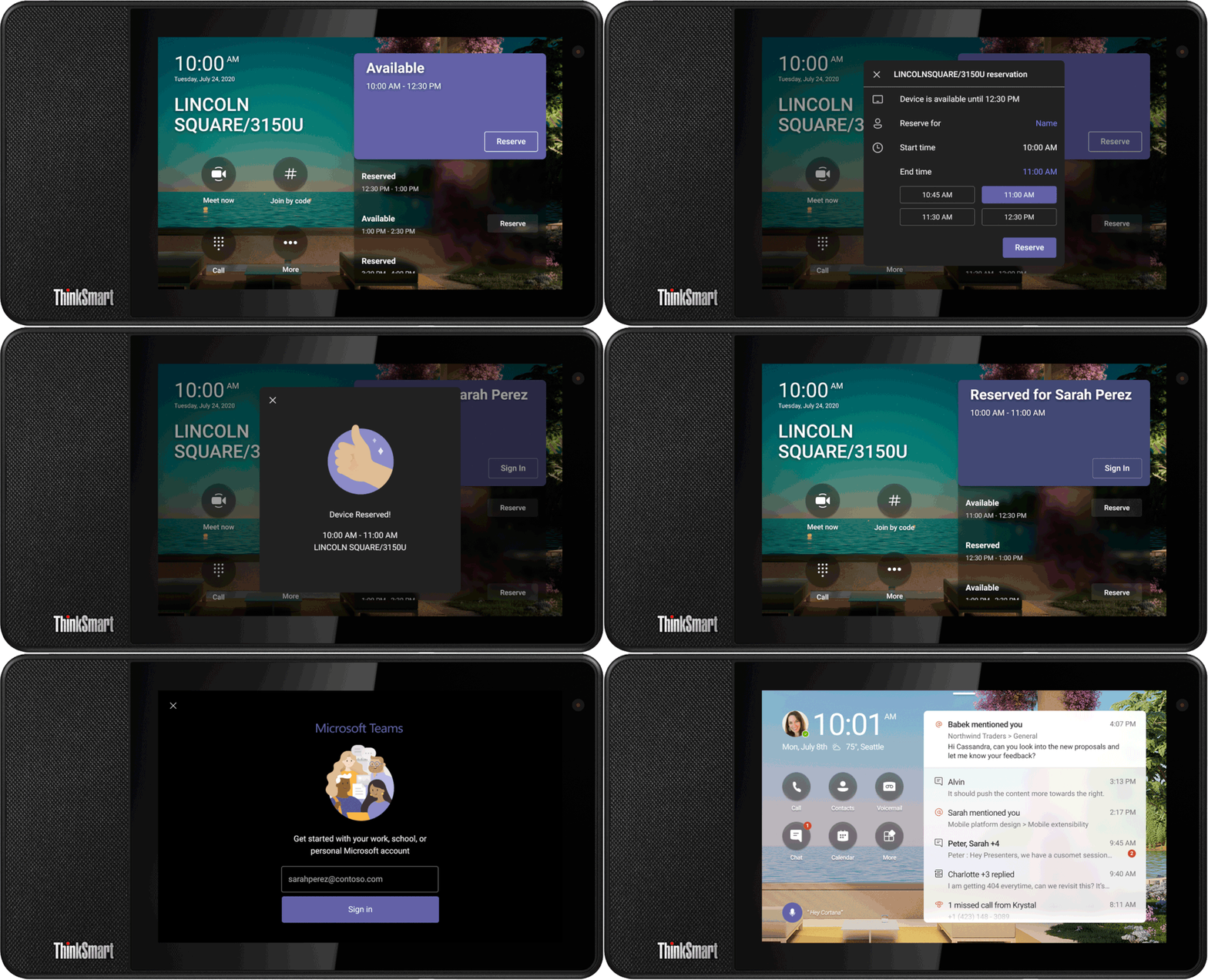
New hotdesk capability on the Teams display provides you a way to reserve workspaces ahead of time, and gain access to your personal Teams account in a shared space.
When working from your personal workspace, you will be able to enjoy the rich features of the Teams display on the newest member of the portfolio, Neat Frame. You can easily chat, collaborate, and access the Teams and AI features found on the display on this larger, portrait oriented, 15.6-inch form factor. Now there is a new way for you to easily see colleagues better and engage with live reactions, quick responses, and more.
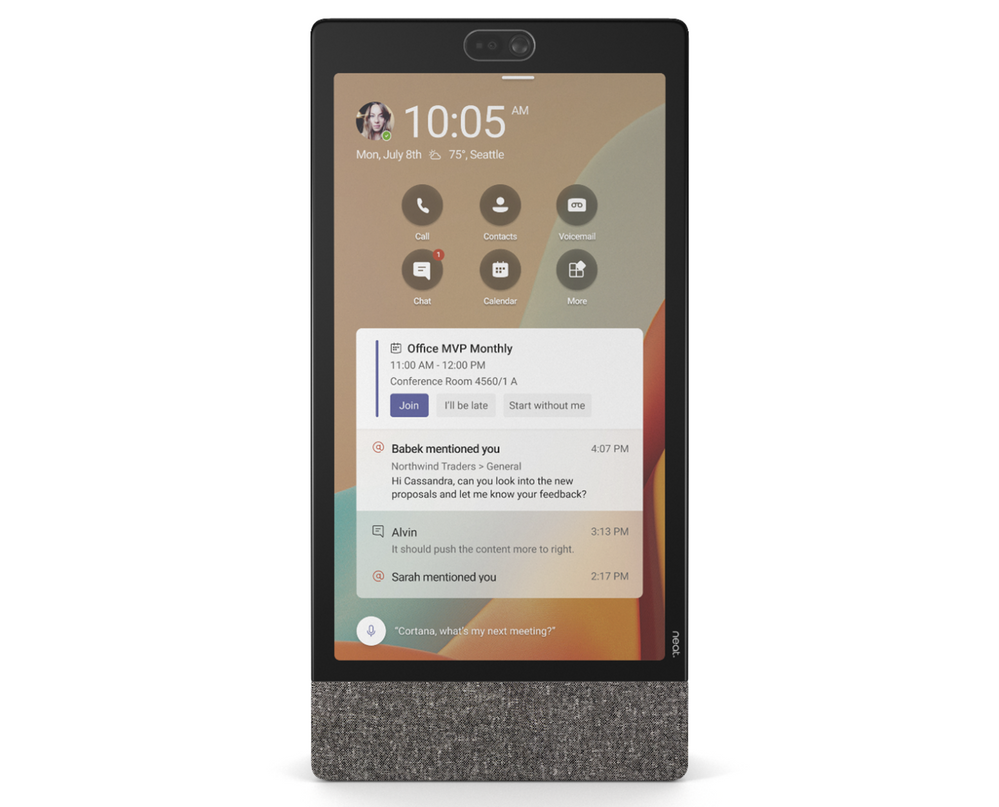
Enjoy rich features of Teams display from personal workspace with newest member of the portfolio, Neat Frame.
Finally, for seamless connectivity on the go, the first Teams-certified true wireless earbuds will soon be available from Logitech in both Graphite and Rose colors for an always-on Teams experience from your mobile device or desktop.
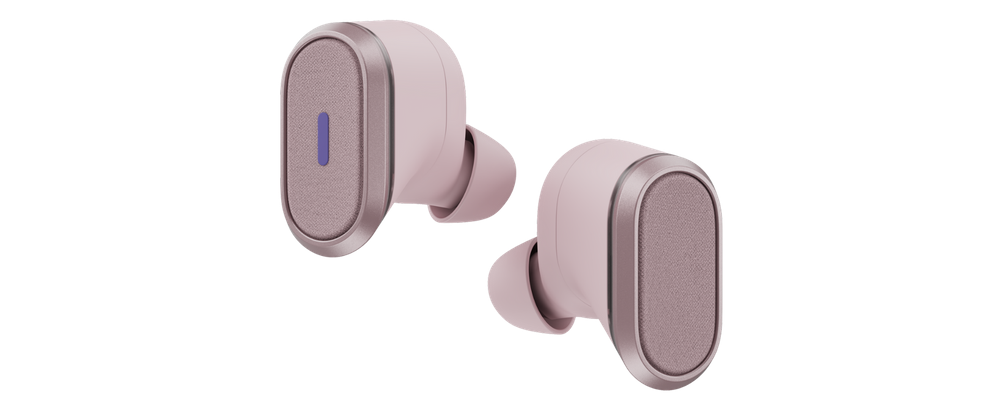
The first Teams-certified true wireless earbuds from Logitech will soon be available; an always on Teams experience from your mobile device or desktop.
Businesses around the world have been consumed with making remote work successful during the past 18 months, focusing on the physical office took a temporary backseat. That’s all changing as people begin to go back into the office. The way we work has permanently changed. As we return to the office and the physical meeting room, Microsoft, with our device partners, are committed to bringing experiences to Teams Rooms that allow everyone to participate on equal footing, whether in the room or remote.
by Contributed | Jun 17, 2021 | Technology
This article is contributed. See the original author and article here.
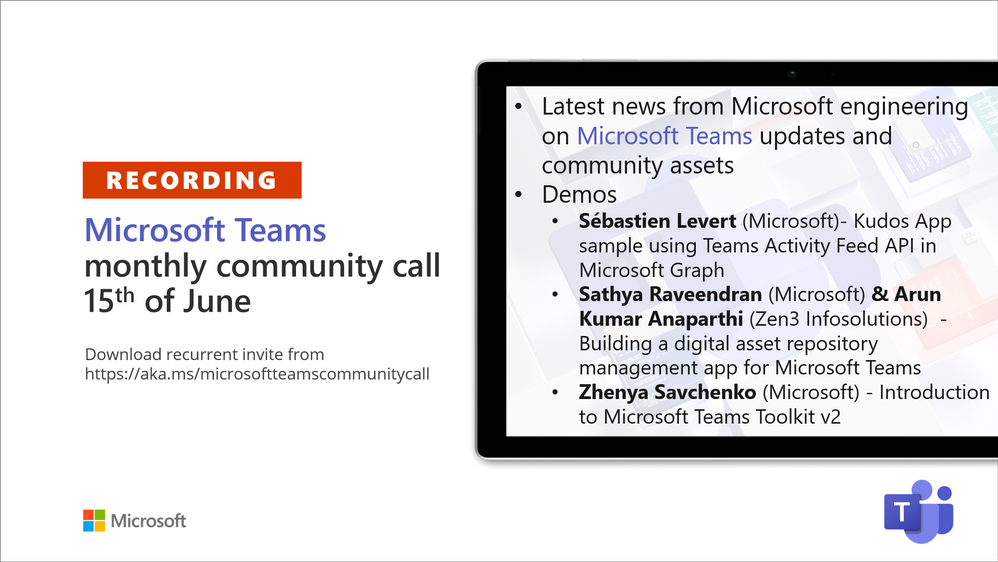
Recording of the Microsoft Teams monthly community call from June 15, 2021.
Call Summary
Latest news from Microsoft engineering on Microsoft Teams updates and community assets.
It’s time for summer break and for upcoming changes to community call cadence. Sign up for June trainings on Sharing-is-caring. See the new Microsoft 365 Extensibility look book gallery co-developed by Microsoft Teams and Sharepoint engineering. Visit the Microsoft Teams samples gallery to get started with Microsoft Teams development. Build your Teams apps fast with yo teams – go to PnP Teams Quickstart. Build 2021 – latest news on the Microsoft Teams platform and integrations including: Shared stage, Together Mode, Fluid components, Adaptive Cards, Microsoft Teams Toolkit and Developer Portal. The host of this call was Vesa Juvonen (Microsoft) | @vesajuvonen. Q&A takes place in chat throughout the call
Actions:
- Register for Sharing is Caring Events:
- First Time Contributor Session – June 29th (EMEA, APAC & US friendly times available)
- Community Docs Session – June 23rd
- PnP – SPFx Developer Workstation Setup – June 17th
- PnP SPFx Samples – Solving SPFx version differences using Node Version Manager – June 24th
- Ask Me Anything – Teams Dev – July 13th
- First Time Presenter – June 30th
- More than Code with VSCode – June 16th
- Maturity Model Practitioners – July
- PnP Office Hours – 1:1 session – Register
- PnP Buddy System – Request a Buddy
- Call attention to your great work by using the #PnPWeekly on Twitter.
Microsoft Teams Development Samples: (https://aka.ms/teams-samples)

Always a highlight to see you here. Looking forward to seeing you in person at an event one day.
Demos delivered in this session
Kudos App sample using Teams Activity Feed API in Microsoft Graph – showcases how to build a solution leveraging the Teams Activity Feed API for sending notifications to selected users. See how activities (notifications) are gated in the manifest. Create a Kudos app (100 lines code) with appropriate Graph services permissions, layout UI using Fluent UI components, add out-of-box controls from Microsoft Graph Toolkit. Activity feed is now a fully supported workload.
Building a digital asset / document repository management app for Microsoft Teams – Document manager – an asset management system sample app that makes use of Teams platform capabilities to simplify searching, retrieving, sharing, contributing, and governing assets. Uses messaging extensions to find documents, task module to upload documents, Graph APIs, and creates awareness of / gains approvals on assets leveraging user specific views in Adaptive Cards. Stores documents awaiting approval in staging folder in library.
Introduction to Microsoft Teams Toolkit v2 – helps developers create and deploy Teams apps with integrated Identity, access to cloud storage, data from Microsoft Graph, and other services in Azure and M365 with a “zero-configuration” approach (single-line statements and no side trips to Azure and ADD) to the developer experience. Efficiently configures front-end, back-end, bot at same time. Simplifies creating proof-of-concepts! Get the toolkit through the Extensions Marketplace in VS Code.
Thank you for your work. Samples are often showcased in Demos.
Topics covered in this call
- News and updates – Vesa Juvonen (Microsoft) | @vesajuvonen – 3:11
- Build 2021 Recap on Microsoft Teams platform announcements – 9:15
Demo: Kudos App sample using Teams Activity Feed API in Microsoft Graph – Sébastien Levert (Microsoft) | @sebastienlevert – 15:39
Demo: Building a digital asset / document repository management app for Microsoft Teams – Sathya Raveendran (Microsoft) & Arun Kumar Anaparthi (Zen3 Infosolutions) – 30:38
Demo: Introduction to Microsoft Teams Toolkit v2 – Zhenya Savchenko (Microsoft) – 45:27
Resources:
Additional resources around the covered topics and links from the slides.
General resources:
Upcoming Calls | Recurrent Invites:
Microsoft Teams monthly community calls are targeted at anyone who’s interested in Microsoft Teams development topics. This includes Microsoft Teams, Bots, App templates, Samples, and more. Details on the Microsoft 365 community from http://aka.ms/m365pnp. We also welcome community demos, if you are interested in doing a live demo in these calls!
You can download recurrent invite from https://aka.ms/microsoftteamscommunitycall. Welcome and join in the discussion. If you have any questions, comments, or feedback, feel free to provide your input as comments to this post as well. More details on the Microsoft 365 community and options to get involved are available from http://aka.ms/m365pnp.
“Sharing is caring”
Microsoft 365 PnP team, Microsoft – 16th of June 2021
by Contributed | Jun 17, 2021 | Technology
This article is contributed. See the original author and article here.
After releasing many features that unblock and accelerate the migration of SQL Server Integration Services (SSIS) packages into Azure Data Factory (ADF), see https://techcommunity.microsoft.com/t5/sql-server-integration-services/blast-to-the-future-accelerating-legacy-ssis-migrations-into/ba-p/1792821, we’d like to show you how to quickly extend ADF capabilities by leveraging these SSIS features, all without designing/deploying your own package.
Instead, we’ll provide a sample package with parameterized properties that you can simply download, drag & drop into an Execute SSIS Package activity in ADF pipeline and run it on your self-hosted/SSIS integration runtimes (SHIR/SSIS IR) with run-time parameter values assigned for your specific scenario.
This article illustrates 3 easy steps to run any SQL statements/script anywhere using SSIS in ADF: (1) Prepare your SHIR/SSIS IR; (2) Prepare an Execute SSIS Package activity in ADF pipeline; and (3) Run the Execute SSIS Package activity on your SHIR/SSIS IR.
1) Prepare your SHIR/SSIS IR
Our sample package will allow you to run any SQL statements/script on premises and in the cloud. To access SQL Server or any other SQL-based relational database management system (RDBMS) on premises, your SSIS IR will need to join a virtual network (VNet) connected to your on-premises network or use an SHIR as a proxy. For this purpose, we’ll use the proxy method that’s relatively easier/quicker to configure than the VNet method.
First, to prepare an SHIR as a proxy for your SSIS IR, see https://docs.microsoft.com/en-us/azure/data-factory/self-hosted-integration-runtime-proxy-ssis.
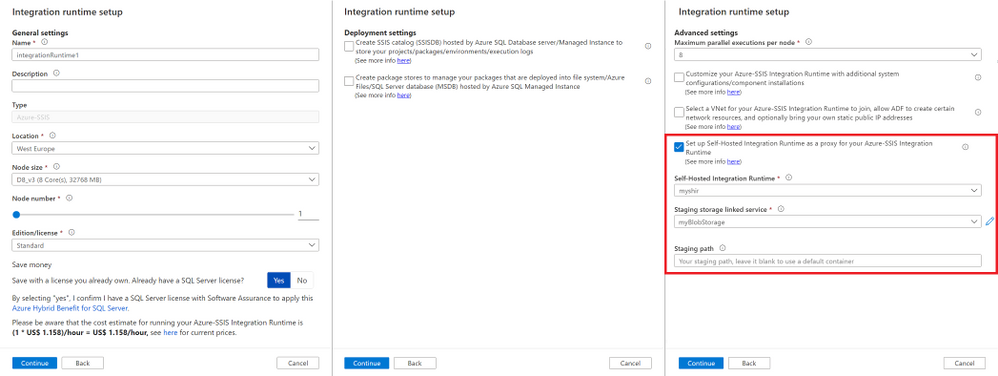
Next, to quickly prepare your SSIS IR for this purpose, you can unselect all checkboxes on the Deployment settings page and only select the checkbox to configure an SHIR as a proxy on the Advanced settings page of Integration runtime setup pane, see https://docs.microsoft.com/azure/data-factory/tutorial-deploy-ssis-packages-azure.
Since your SSIS IR isn’t joining a VNet, it should be running within 5 minutes.
2) Prepare an Execute SSIS Package activity in ADF pipeline
Once your SHIR and SSIS IR are running, you can go to the Integration runtimes page in ADF Manage hub and select the Execute SSIS package button on the right side of your SSIS IR name.
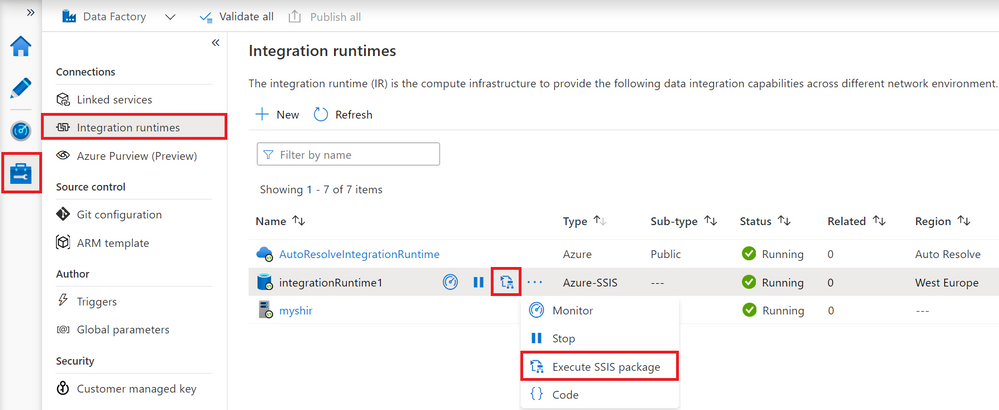
This will auto-create an ADF pipeline with Execute SSIS Package activity already in it.
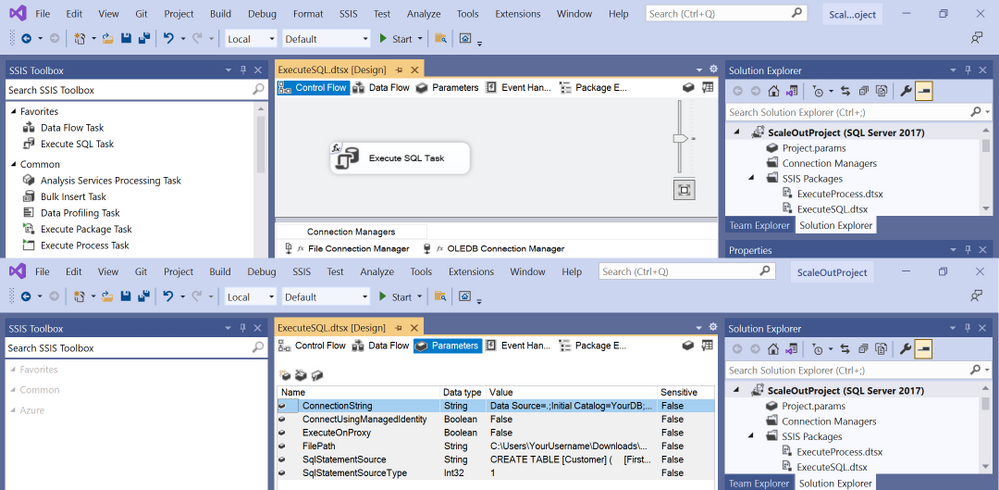
We’ve created a sample package (ExecuteSQL.dtsx) on SQL Server Data Tools (SSDT) containing 3 components named after their actual type/function: Execute SQL Task to run any SQL statements/script, OLEDB Connection Manager to access SQL Server or any other SQL-based RDBMS, and File Connection Manager to access any SQL script stored in file system. We’ve also parameterized the following package properties for you to assign your run-time values:
— ConnectionString: Enter the usual connectivity info for OLEDB Connection Manager, e.g.
— To use Windows Authentication:
— Data Source=[.|YourSQLServerName];Initial Catalog=YourDBName;Provider=SQLNCLI11.1;Integrated Security=SSPI;Auto Translate=False;
— To use SQL Authentication:
— Data Source=[.|YourSQLServerName|YourAzureSQLServerEndpoint];User ID=YourUserID;Password=YourPassword;Initial Catalog=YourDBName;Provider=SQLNCLI11.1;Persist Security Info=True;Auto Translate=False;
— To use Azure Active Directory (AAD) Authentication with ADF managed identity:
— Data Source=YourAzureSQLServerEndpoint;User ID=;Initial Catalog=YourDBName;Provider=MSOLEDBSQL;Integrated Security=SSPI;Auto Translate=False;
— ConnectUsingManagedIdentity: Enter True or False to enable or disable AAD Authentication with ADF managed identity on your OLEDB Connection Manager, respectively.
— ExecuteOnProxy: Enter True or False to run Execute SQL Task on your SHIR or SSIS IR, respectively.
— FilePath: Enter the local/UNC path of your SQL script stored in file system.
— SQLStatementSource: Enter your SQL statements or File Connection Manager depending on what you assigned to the SQLStatementSourceType parameter.
— SQLStatementSourceType: Enter 1 or 2 to run your SQL statements assigned to the SQLStatementSource parameter or your SQL script file referenced by the FilePath parameter, respectively.
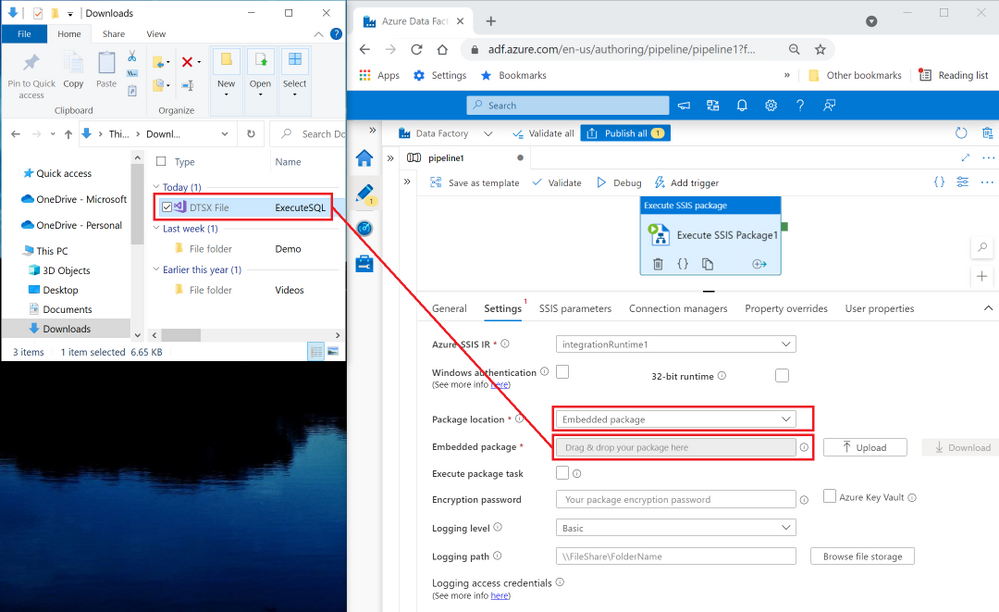
You can download our sample package from https://ssisazurefileshare.blob.core.windows.net/blogs/ExecuteSQL.dtsx and then drag & drop it as an embedded package on the Settings tab of your Execute SSIS Package activity in ADF pipeline.
3) Run the Execute SSIS Package activity on your SHIR/SSIS IR
Once you embed our sample package in your Execute SSIS Package activity in ADF pipeline, you can run it on your SHIR/SSIS IR with run-time parameter values assigned for your specific scenario. Here are some examples:
Example 1) Run any SQL statements on your SQL Server on premises
To run any SQL statements on your SQL Server on premises, complete the following steps:
a) Configure the Windows authentication feature on the Settings tab of your Execute SSIS Package activity to connect to your SQL Server on premises with Azure Key Vault (AKV) to store your sensitive data.
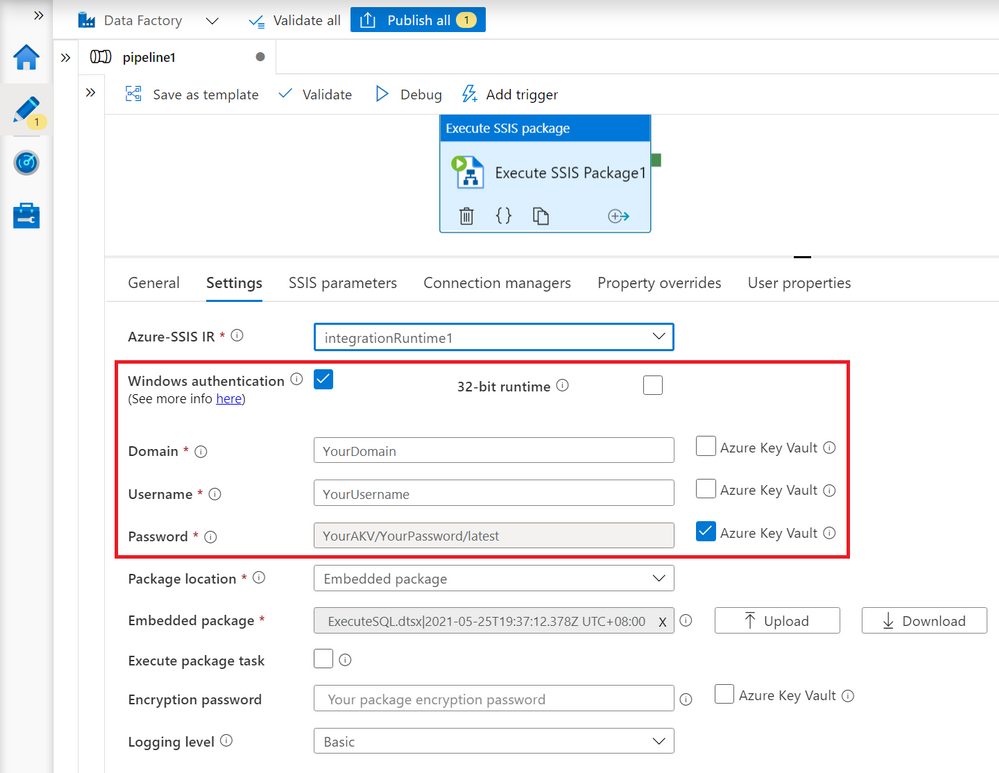
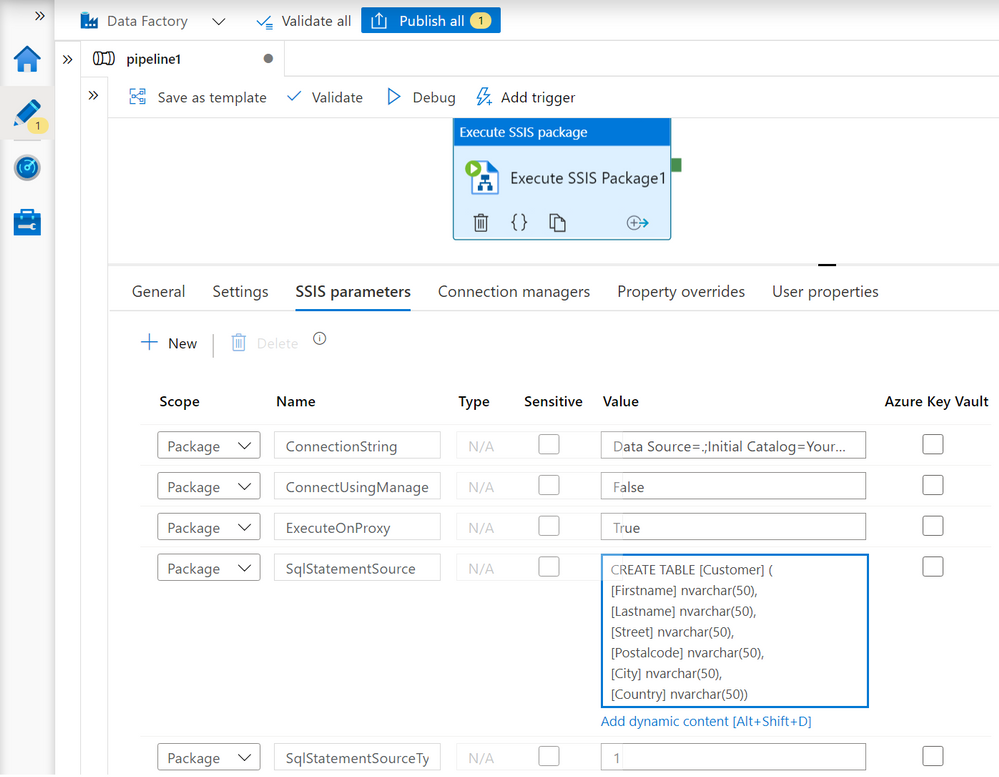
b) Add the following parameters on the SSIS parameters tab to assign their run-time values:
— ConnectionString: Use Windows authentication, e.g.
Data Source=.;Initial Catalog=YourDBName;Provider=SQLNCLI11.1;Integrated Security=SSPI;Auto Translate=False;
— ConnectUsingManagedIdentity: False
— ExecuteOnProxy: True
— SQLStatementSource: Enter any SQL statements, e.g.
CREATE TABLE [Customer] (
[Firstname] nvarchar(50),
[Lastname] nvarchar(50),
[Street] nvarchar(50),
[Postalcode] nvarchar(50),
[City] nvarchar(50),
[Country] nvarchar(50))
— SQLStatementSourceType: 1
Example 2) Run any SQL script file on your SQL Server on premises
To run any SQL script file on your SQL Server on premises, complete the following steps:
a) If you store your SQL script file on the same machine as your SQL Server/SHIR:
1) Configure the Windows authentication feature on the Settings tab of your Execute SSIS Package activity to connect to your SQL Server on premises with AKV to store your sensitive data – See the above example.
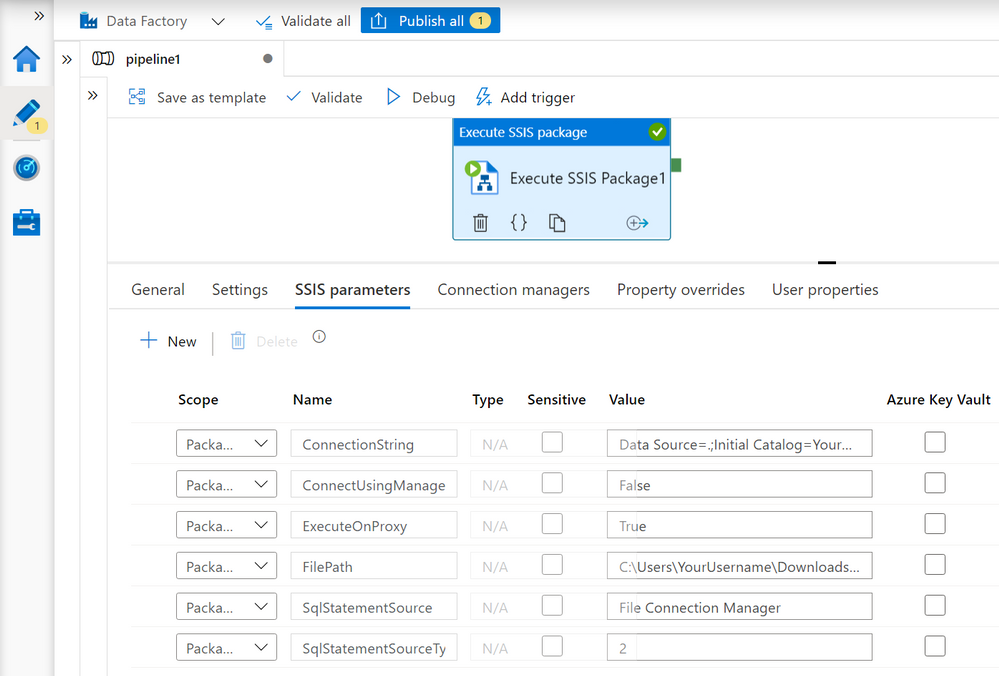
2) Add the following parameters on the SSIS parameters tab to assign their run-time values:
— ConnectionString: Use Windows authentication, e.g.
Data Source=.;Initial Catalog=YourDBName;Provider=SQLNCLI11.1;Integrated Security=SSPI;Auto Translate=False;
— ConnectUsingManagedIdentity: False
— ExecuteOnProxy: True
— FilePath: Enter the local path of your SQL script file, e.g.
C:UsersYourUsernameDownloadsSQLScript.sql.
— SQLStatementSource: File Connection Manager
— SQLStatementSourceType: 2
b) If you store your SQL script file in Azure Files:
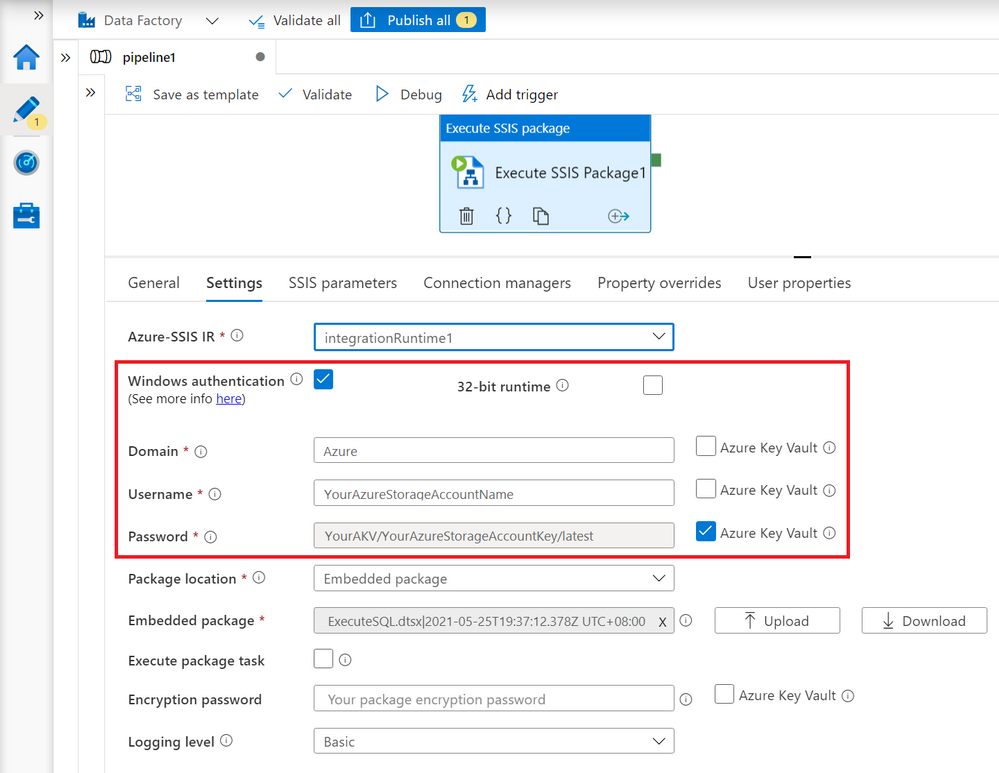
1) Configure the Windows authentication feature on the Settings tab of your Execute SSIS Package activity to connect to Azure Files with AKV to store your sensitive data.
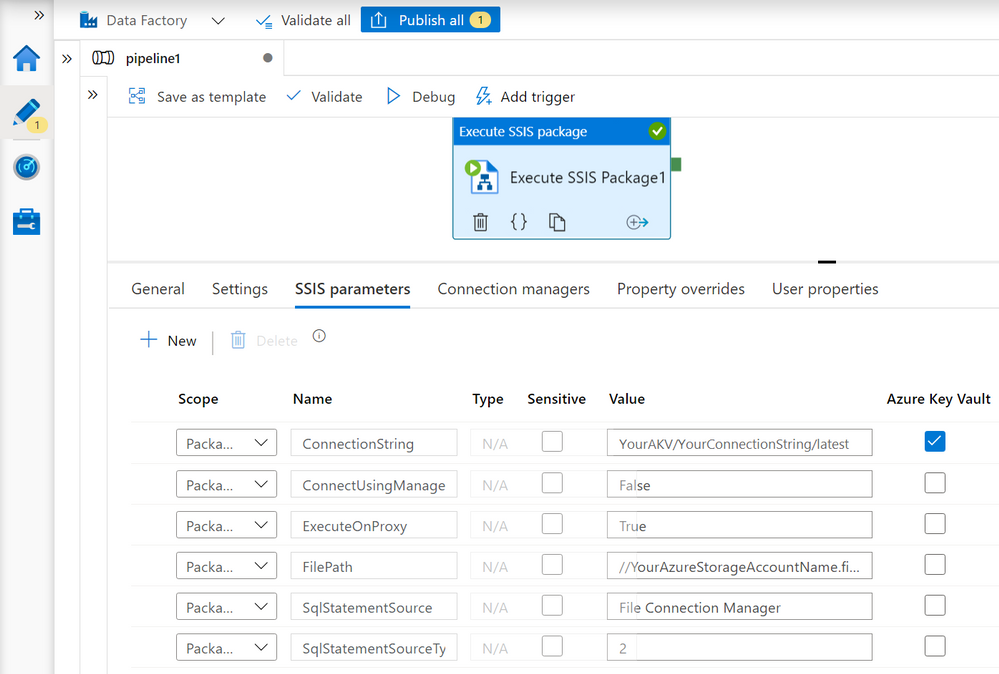
2) Add the following parameters on the SSIS parameters tab to assign their run-time values:
— ConnectionString: Use SQL authentication, e.g.
Data Source=.;User ID=YourUserID;Password=YourPassword;Initial Catalog=YourDBName;Provider=SQLNCLI11.1;Persist Security Info=True;Auto Translate=False;
You can also configure AKV to store your sensitive data.
— ConnectUsingManagedIdentity: False
— ExecuteOnProxy: True
— FilePath: Enter the UNC path of your SQL script file, e.g.
//YourAzureStorageAccountName.file.core.windows.net/YourFileShareName/SQLScript.sql
— SQLStatementSource: File Connection Manager
— SQLStatementSourceType: 2
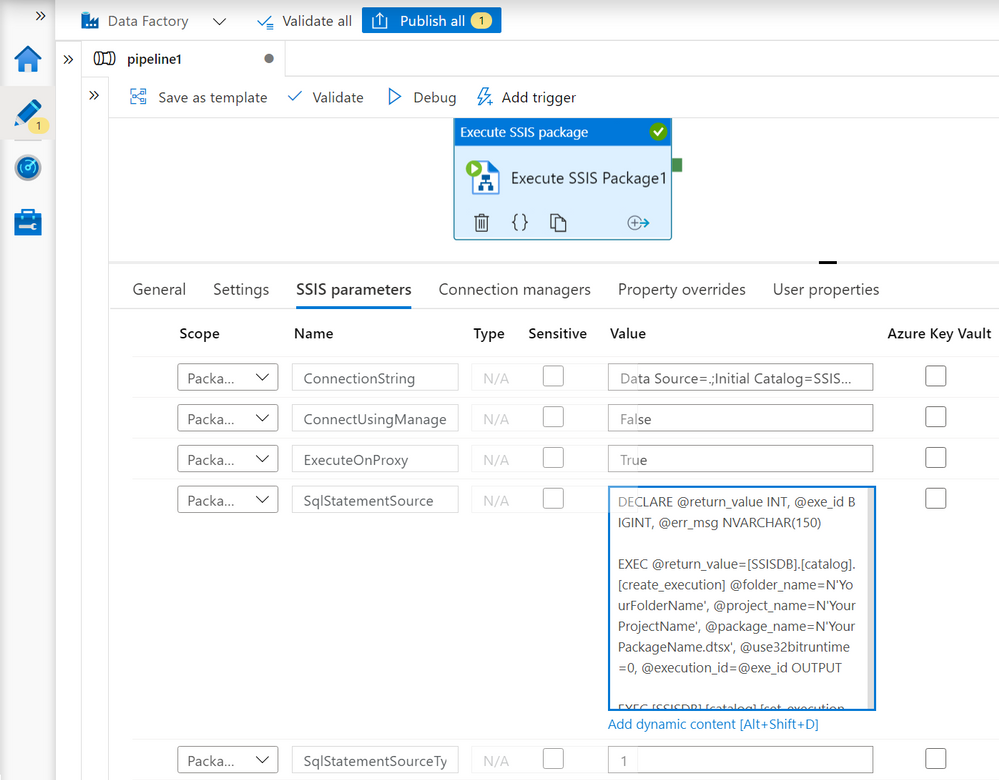
Example 3) Run any package stored in SSISDB hosted by your SQL Server on premises
To run any package stored in SSISDB hosted by your SQL Server on premises, complete the following steps:
a) Configure the Windows authentication feature on the Settings tab of your Execute SSIS Package activity to connect to your SQL Server on premises with AKV to store your sensitive data – See the above example.
b) Add the following parameters on the SSIS parameters tab to assign their run-time values:
— ConnectionString: Use Windows authentication, e.g.
Data Source=.;Initial Catalog=SSISDB;Provider=SQLNCLI11.1;Integrated Security=SSPI;Auto Translate=False;
— ConnectUsingManagedIdentity: False
— ExecuteOnProxy: True
— SQLStatementSource:
DECLARE @return_value INT, @exe_id BIGINT, @err_msg NVARCHAR(150)
EXEC @return_value=[SSISDB].[catalog].[create_execution] @folder_name=N’YourFolderName’, @project_name=N’YourProjectName’, @package_name=N’YourPackageName.dtsx’, @use32bitruntime=0, @execution_id=@exe_id OUTPUT
EXEC [SSISDB].[catalog].[set_execution_parameter_value] @exe_id, @object_type=50, @parameter_name=N’SYNCHRONIZED’, @parameter_value=1
EXEC [SSISDB].[catalog].[start_execution] @execution_id=@exe_id, @retry_count=0
IF(SELECT [status] FROM [SSISDB].[catalog].[executions] WHERE execution_id=@exe_id)<>7
BEGIN
SET @err_msg=N’Your package execution did not succeed for execution ID: ‘ + CAST(@exe_id AS NVARCHAR(20))
RAISERROR(@err_msg,15,1)
END
— SQLStatementSourceType: 1
Example 4) Clean up package execution logs outside the configured retention window for SSISDB hosted by your Azure SQL Database server
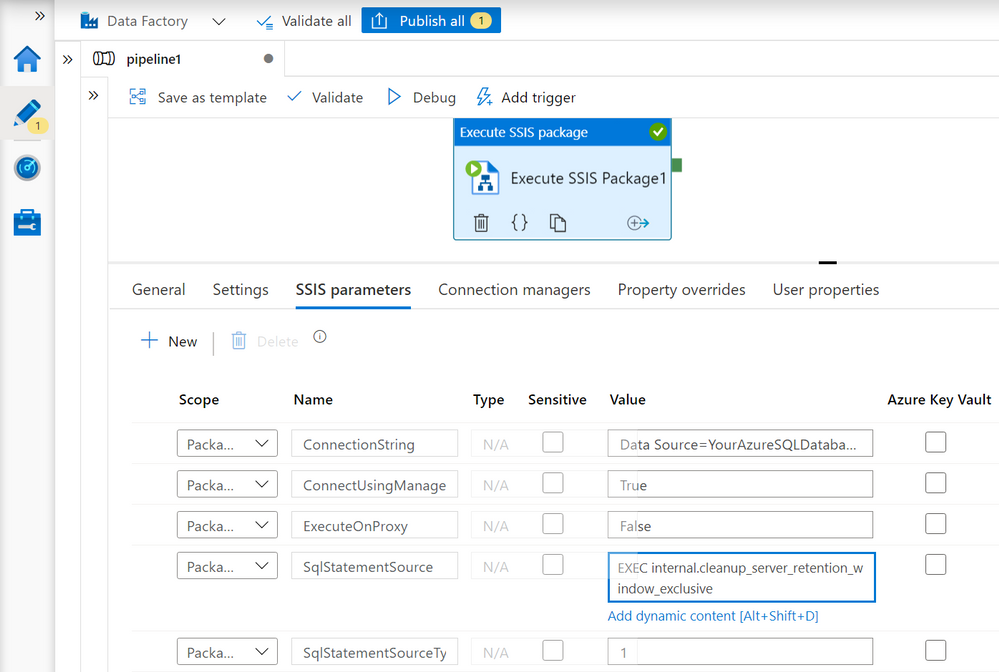
To clean up package execution logs outside the configured retention window for SSISDB hosted by your Azure SQL Database server, complete the following steps:
a) Add the following parameters on the SSIS parameters tab of your Execute SSIS Package activity to assign their run-time values:
— ConnectionString: Use AAD authentication with ADF managed identity, e.g.
Data Source=YourAzureSQLDatabaseServerName.database.windows.net;User ID=;Initial Catalog=SSISDB;Provider=MSOLEDBSQL;Integrated Security=SSPI;Auto Translate=False;
— ConnectUsingManagedIdentity: True
Make sure that you configure your Azure SQL Database server to allow access using AAD authentication with ADF managed identity, see https://docs.microsoft.com/sql/integration-services/connection-manager/ole-db-connection-manager?view=sql-server-ver15#managed-identities-for-azure-resources-authentication.
— ExecuteOnProxy: False
— SQLStatementSource:
EXEC internal.cleanup_server_retention_window_exclusive
— SQLStatementSourceType: 1
If you have other scenarios that require you to assign run-time values to different properties that aren’t parameterized in our sample package, you can still do so on the Connection managers/Property overrides tabs of your Execute SSIS Package activity by referencing the component names (Execute SQL Task/OLEDB Connection Manager/File Connection Manager).
I hope you’ll find this article useful to run any SQL statements/script anywhere using SSIS in ADF. Please don’t hesitate to contact us if you have any feedbacks, questions, or issues, and we’ll follow up ASAP. Thank you as always for your support.



Recent Comments