by Contributed | Jul 6, 2021 | Technology
This article is contributed. See the original author and article here.
With the switch to remote working, we also switched to remote meetings. The differences between the two are quite big – and since for a lot of my customers that move was made in haste – they often lack knowledge and/or ability to take the most out of virtual meetings.
So, with this blog, I wanted to share with you some quick tips and hints as to how you can improve those calls! How to make them more effective, more fun, and finally – less tiresome! We will discuss this in three stages, starting with…
Before the meeting
1. Prepare an agenda
Sounds obvious, but the number of meetings without any agenda or an almost non-existent description is staggering. It is great that you, as an organizer, know what this meeting is about, but oftentimes to a lot of attendees this will be one of many, many meetings – especially when we switched to remote working.
Add at least a short description that will include what the meeting is about, possibly some key points of discussion and at best – what you would like to get out of it.
It may seem pointless (everyone knows what this meeting should be about), but since the increase in online meetings a lot of them start with five-minute talks as to why we meet or what should we start with.
2. Choose date and time wisely
You might have heard the “location, location, location” saying, but with online meetings (since we know the location ;)) it is all about time, time, time!
Don’t schedule your meetings too early (everyone has different sleeping habits) nor too late (meeting at 4:30 pm? BAD idea!). I would personally avoid beginning and end of the week for bigger meetings/workshops as well, since people might think of the weekend still!
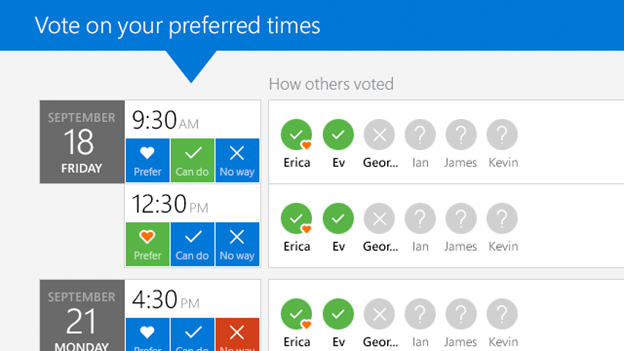
Finding a time that all attendees are available at is also a challenge – if the meeting is in your organization – remember to use scheduling assistant in Outlook! However, if you need to have a talk with your clients or business partners OUTSIDE – it might be a great idea, to utilize the FindTime add-on (produced by Microsoft, available for free), so that everyone can vote for the best time :smiling_face_with_smiling_eyes:!
3. Setup your meeting options
Now THAT is something that (unfortunately) not many use but SHOULD.
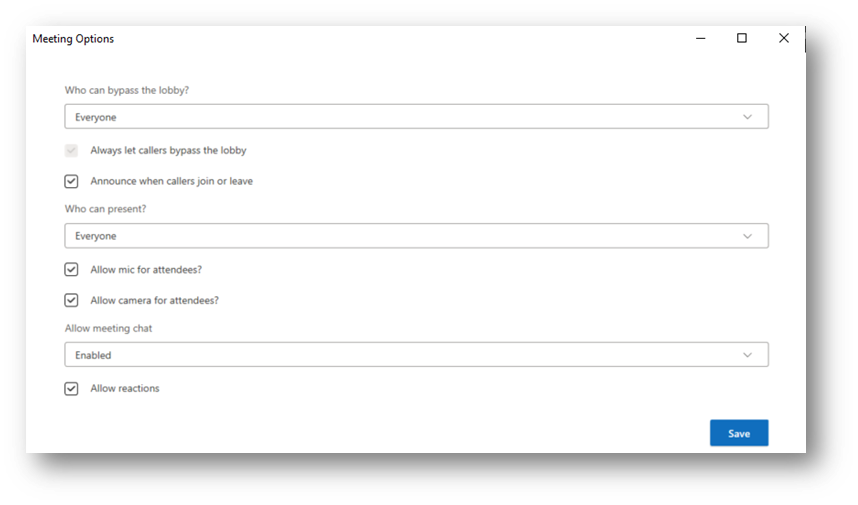
Meeting options (available either when editing a meeting from Outlook or Microsoft Teams calendar) will allow you to decide who is the presenter and who is the attendee – and believe me, that is crucial for bigger meetings! With this you can keep control of your meeting – you decide who (and when) can use their microphones, whether chat is available (or maybe only there for the duration of the meeting?) or if the lobby should be enabled and for whom.
Also – if you plan larger meetings with the option to join via phone – please consider turning off the “Announce when callers join or leave.” I have participated in meetings that were a disaster at the beginning due to this option being marked and the automated voice constantly interrupting presenters!
4. Extend your meeting with forms and quizzes from Microsoft Forms!
Since this is a fairly new option, I have not seen this used much – but boy, is it fun. Since November last year, you can include Forms questions and/or quizzes in your meetings!
Whenever you need to vote for something during a meeting or just to check if your participants are paying attention ;) use the Microsoft Forms tab in a meeting. With this, you can prepare interactive polls beforehand (or if needed add those ad-hoc during a meeting) and when the time comes – launch them from the meeting window, so that others can share their thoughts.
Since I am conducting quite a lot of training sessions with Teams – this is one of my favorite things and my trainees love it too.

So the meeting begins – what then?
5. BE ON TIME! I cannot stress this enough – do not make others wait for you
I would even extend this point to “do not wait for others.” unless it is the presenter who is late :smiling_face_with_smiling_eyes: Why? If we have 10 people at a meeting and 9 are on time, but we wait 5 minutes for the last person – overall you lose 45 minutes of company time (5 minutes times 9 people who are waiting). Imagine what happens during bigger meetings with hundreds of participants!
6. Show yourself
The biggest difference between on-site and online meetings is the lack of… how should we call it, physical presence? During remote calls we often cannot see the reactions of others, their body language etc.
So, what you should do is for sure to enable your cameras. This will at least give you a tiny little bit of feeling like you are in the same place.
Extend this with Together mode – that should help you with the video fatigue as mentioned in the linked article.
And as a presenter – you will not lose touch with your audience. With together mode I can see the reactions of the participants and adjust my content or breaks accordingly.

7. Record the meetings and, if possible, delegate someone to take notes
Always remember that by recording the meeting, those who are out of office or cannot join due to other responsibilities can catch-up at convenient time. If the conference is a channel meeting – the recording will be saved in the files in that channel. If it is a regular Teams meeting – it will end up in the OneDrive folder of the person who initiated the recording.
Keep in mind, that you might need to share that video externally as well.
Additionally, I would very much recommend adding a OneNote notebook to your team and using it as an universal place for all the meeting minutes. With meeting recap all the important details of a meeting will be listed in that meetings chat on Microsoft Teams!
8. Mix it up!
Remember when I mentioned the Microsoft Forms add-on in point 4? Launch those forms for a change of pace.
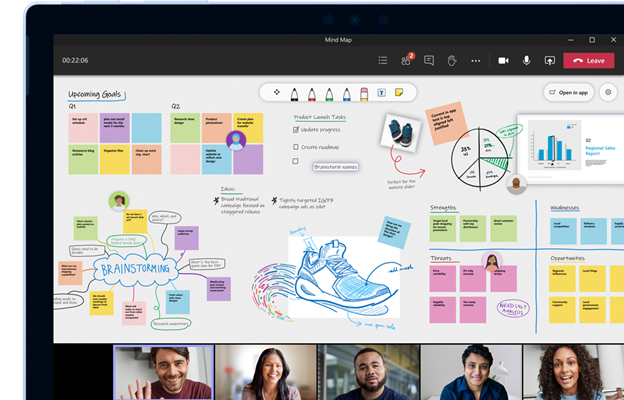
Also – have you tried the Microsoft Whiteboard? With this app, you can create your virtual flip-chart and have a free-form canvas, to use as you want! It is even better when you have access to touchscreens (like Microsoft Surface devices).
Suggestion from my side – the Whiteboard available from Teams in the “web” version of the app does NOT yet support many of its features. I highly recommend opening whiteboard in a meeting but continuing the editing of the canvas in the app you can download from Microsoft Store. There, you get the option to use templates, import images and many, many more, while still being able to communicate and collaborate with others.
As a side note: if you are presenting slides made in PowerPoint, do NOT share your app window or whole screen, but utilize PowerPoint Live. With that, you will not lose contact with the audience – you can still see them, still monitor the chat and you will also get the presenter view, with options to skip slides or use ink! Be aware of the raised hands as well.
9. And if you want to work in groups – make use of breakout rooms feature!
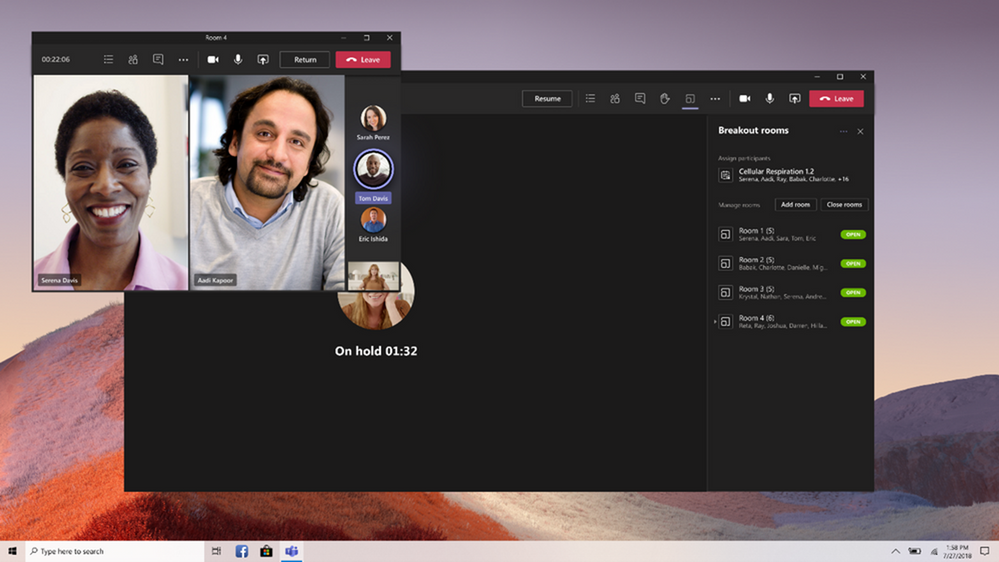
This is especially useful in all the bigger meetings when you want to work in subgroups or during brainstorming – with the Breakout rooms feature, you can divide your meeting into few smaller ones, so that your participants can work in groups!
There are however slight limitations to this right now – the biggest one (from my experience) is that only the meeting organizer can manage the rooms (so launch them, move people around and freely move across the rooms). Keep that in mind and DRY RUN before you use this feature.
And with the meeting finished…
10. Share the notes/recording/used resources and forms results
All of those things should be in the meeting chat (available in the Microsoft Teams), however with our email-oriented culture, many users still prefer a short summary via email. Copy the links and share the summary, and over the time – switch completely to Microsoft Teams held resources :smiling_face_with_smiling_eyes:!
Keep in mind that attendees outside your organization will NOT have access to the recording by default (and often to the shared materials as well) – so it is crucial to share those with them via email.
To sum things up
Microsoft Teams is a powerful tool, that can be further extended with that use of third-party add-ons/apps, so you could try those out as well. Try not to use it as a straight replacement to legacy Skype for business meetings.
Play with available options, plan a meeting thoroughly, mix things up, so that no one is bored and finally… have fun! Virtual meetings, when used properly, should be even more effective than those held in person ;)
Kuba Borkowski is a Microsoft Cloud solutions specialist at Integrity Partners. With years of experience in anything Modern workplace related, he helps customers with all topics around security, compliance and productivity. As a change practitioner he has worked with various big and small customers supporting them in their adoption journey and much, much more. LinkedIn: https://www.linkedin.com/in/kubaborkowski
To write your own blog on a topic of interest as a guest blogger in the Microsoft Teams Community, please submit your idea here: https://aka.ms/TeamsCommunityBlogger
by Contributed | Jul 6, 2021 | Technology
This article is contributed. See the original author and article here.
There are 16 million developers in the world today. So an understanding of cloud development is therefore a good skill to have as you are looking to land that first job and build a career in Cloud Computing.
But where do you begin to learn all that? With this path
Cloud developer
Cloud Developers design and develop cloud applications, services, and products. With the support of these Microsoft Learn Modules students will gain knowledge and develop hands-on experience solving real-world problems in the field of cloud development. This learning path will introduce this domain and cover the topics of cloud infrastructures, virtualization, software-defined networks and storage, cloud storage, and programming models (analytics frameworks). Modern data centers enable many of the economic and technological benefits of the cloud paradigm; hence, we will describe several concepts behind data center design and management and software deployment. Subsequently, students will learn about different cloud storage concepts including data distribution, durability, consistency and redundancy. Student will gain experience of how to use MapReduce, clean, prepare and analyze a large data set as well as serverless computing through Functions as a Service. It is our goal that students will develop the required skills needed to become a cloud developer.
This learn path covers everything from using virtualization, work with Cloud storage. Apply techniques around streaming data, and stream processing using Spark and more. These modules were developed in Partnership with Prof. Majd Sakr and Carnegie Mellon University.
Students who complete the Cloud Developer Learning Path should be able to:
- Explain the core concepts of the cloud computing paradigm: how and why this paradigm shift came about, the characteristics, advantages and challenges brought about by the various models and services in cloud computing.
- Apply fundamental concepts in cloud infrastructures to understand the tradeoffs in power, efficiency and cost, and then study how to leverage and manage single and multiple datacenters to build and deploy cloud applications that are resilient, elastic and cost-efficient.
- Discuss system, network and storage virtualization and outline their role in enabling the cloud computing system model.
- Describe the overall organization of data and the fundamental concepts of cloud storage. Compare and contrast different types of distributed file systems and discuss their design considerations. Compare and contrast different types of databases and discuss their design tradeoffs. Discuss the concepts of cloud object storage.
- Explain the main execution flow, scheduling and fault tolerance concepts in various cloud programming models. Recall and contrast different cloud programming models (MapReduce, Spark, GraphLab, Spark Streaming and Samza).
- Design, architect, implement, test, deploy, monitor and maintain cloud-based applications.
- Identify the appropriate tools and architectures to implement a cloud-based design.
- Analyze the tradeoffs between different tools and cloud offerings to meet real-world constraints.
- Evaluate performance characteristics of cloud-based services to implement optimizations.
The Cloud Developer Learning path contains the following modules.
Get an introduction to virtualization, one of the many technologies that power the cloud. Learn what virtualization is, its benefits, and how cloud resources are shared.
Take a deep dive into virtualization by understanding its formal definition as well as the different types of virtual machines.
Learn about how computing power is virtualized to create cloud resources. Covers different types of CPU virtualization.
Learn how memory is virtualized to support cloud resources. Covers different types of memory mapping and related issues.
Learn about how computer input/output is virtualized. Covers I/O basics and a case study of virtualizing I/O.
Learn about how storage and network resources can be virtualized to support software defined datacenters.
- 1 hr 20 min
- Module
- 9 Units
Discover what the cloud is, the history of cloud computing, what types of clouds are available, and how you might use the cloud.
Learn how developers pay to use the cloud and how cloud providers are able to charge for their services. Get an overview of how the cloud is kept secure.
Datacenters power the cloud. Learn what they are, how they work, and challenges in managing them.
- 1 hr 58 min
- Module
- 9 Units
Take a deep dive into datacenters to discover how they are laid out and how computing resources are provisioned and metered.
Get into the nitty-gritty of cloud computing to understand how resources are provisioned, billed, and monitored. Learn about how to orchestrate cloud infrastructure with examples.
- 1 hr 21 min
- Module
- 9 Units
Learn how developers write programs that run on the cloud, including how to deploy, be fault-tolerant, load balance, scale, and deal with latency.
- 2 hr 43 min
- Module
- 15 Unit
Learn all about data and get an overview of how it’s stored, including local and distributed file systems, databases, and object storage.
- 1 hr 7 min
- Module
- 6 Units
Discover how distributed file systems work, then learn about Hadoop and Ceph.
- 1 hr 22 min
- Module
- 6 Units
Learn about two more types of storage – NoSQL databases and object storage – with case studies from industry.
- 1 hr 57 min
- Module
- 15 Units
Learn about distributed programming and why it’s useful for the cloud, including programming models, types of parallelism, and symmetrical vs. asymmetrical architecture.
- 1 hr 47 min
- Module
- 9 Units
MapReduce was a breakthrough in big data processing that has become mainstream and been improved upon significantly. Learn about how MapReduce works.
- 1 hr 3 min
- Module
- 9 Units
GraphLab is a big data tool developed by Carnegie Mellon University to help with data mining. Learn about how GraphLab works and why it’s useful.
- 1 hr 5 min
- Module
- 7 Units
Spark is an open-source cluster-computing framework with different strengths than MapReduce has. Learn about how Spark works.
- 1 hr 2 min
- Module
- 8 Units
The increase of available data has led to the rise of continuous streams of real-time data to process. Learn about different systems and techniques for consuming and processing real-time data streams.
by Contributed | Jul 6, 2021 | Technology
This article is contributed. See the original author and article here.
Previously, when you migrated content from Google Workspace (formerly G Suite) to Microsoft 365, a user could bring over their Mail, Calendar, and Contact information. While this did help reduce friction for users getting used to the new platform, it did not avoid the burden of re-creating all their email organization rules in Outlook. To address this, we have now added the capability to migrate Gmail filters to Outlook rules as a part of the standard migration offering!
With this feature you can now migrate Mail, Rules, Calendar and Contact data for all users and everyone is opted in by default.
Here are some of the conversions we support:
Gmail filter criteria
Gmail filter Criteria
|
Criteria Syntax
|
Outlook Rule Condition
|
From:
|
user@domain.com
|
From people or public group
|
|
!user@domian.com
|
Except it from people or public group
|
|
-user@domain.com
|
Except it from people or public group
|
To:
|
me
|
Where my name is in the To box
|
|
user@domain.com
|
Send to people or public group
|
|
!user@domain.com
|
Except it send to people or public group
|
|
-user@domain.com
|
Except it from people or public group
|
Has the words:
|
cc:me
|
Where my name is in the CC box
|
|
word1 or word2
|
With word1 or word2 in the subject or body
|
Doesn’t have:
|
Word1 or word2
|
Except if the subject or body contains word1 or word2
|
|
cc:me
|
Except where my email address is in the cc box
|
Subject:
|
Word1 or word2
|
With word1 or word2 in the subject
|
|
!word1 AND !word2
|
Except if the subject contains word1 or word2
|
|
word1 AND !word2
|
(With word1 in the subject) AND (Except if the word2 contains B)
|
|
!word2 AND word1
|
(Except if the subject contains word2) AND (With word1 in the subject)
|
Size:
|
Greater than number unit
|
With a size in a specific range
|
Has attachment:
|
|
Which has an attachment
|
Gmail filter action
Gmail filter Action
|
Outlook Rule Action
|
Skip Inbox (Archive it)
|
Move it to the Archive folder
|
Mark as read
|
Mark it as read
|
Apply the label
|
Move a copy to the specific folder
|
Forward it
|
Forward it to people or public group
|
Delete it
|
Delete it (Move to Deleted Items folder)
|
Always mark it as important
|
Mark it as important
Importance: High
|
Never mark it as important
|
Mark it as important
Importance: Medium
|
Conversions that are not supported
We do not currently support migrations of Categories from Google Workspace to Microsoft 365.
Additionally, if there are certain filters we are unable to process and convert, we mark these as bad items. And bad items from filters to rules migration do not negatively impact the DCS score of a job since that mechanism is more relevant for identifying data loss for the underlying data set (like Mail, Calendar and Contacts).
How to configure the feature
By default, the feature is enabled when you use New-MigrationBatch for Google Workspace migrations. If, however, you wish to disable the rule migration capability, you can do so by specifying the –SkipRules parameter via PowerShell.
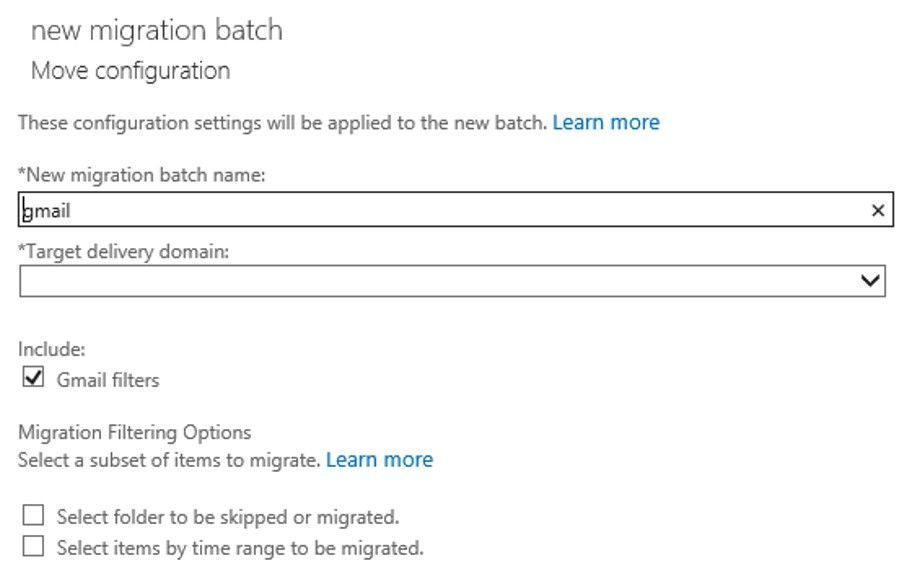
In the screenshot below, you can see that there are now checkboxes for migrating Gmail Filters (to Outlook Rules) – which is checked by default. Simply un-checking the checkbox for Rules will skip migrating those items. Currently you need to do this via the Classic Exchange Admin Center; this change will be incorporated into the Modern Exchange Admin Center in the future.
Note: We do not have a way to reset rules once migrated, as is the case for any other data like Mail, Calendar or Contacts.
Try the feature out and give us feedback in the comments if the conversion was to your liking and what improvements we can make in the future!
The Exchange Migration team
by Contributed | Jul 6, 2021 | Technology
This article is contributed. See the original author and article here.
Senaj Lelic is the managing direct at oneAssist, a Microsoft-certified partner. oneAssist brings fun and joy to the way other companies work. They are experts in process documentation and data visualization and build custom Microsoft cloud solutions for products like Microsoft Visio, Microsoft Teams, and Microsoft SharePoint that enhance customers’ work through helpful work environments.
COVID-19 has made many organizations aware that they lack proper business process documentation (BPM). But even those with the right documentation felt unprepared for the dramatic upheaval the pandemic caused.
But why? For years, the general perception was that if you had your processes adequately documented and “knew” how the organization was supposed to work, you were prepared for any situation. But the pandemic taught us this is not necessarily true. For more than three decades, our team at oneAssist has helped educate and counsel companies to prepare for various disruptions, and now we want to share our expertise to assist you in today’s environment.
What we learned was that those business processes lived “on paper” in idyllic flowcharts, connected data, and files. They assumed the best-case scenario and that all the people, systems, and non-human components in the organization operated as they should. But in reality, and especially in the face of a pandemic, those processes break down in the face of unexpected challenges.
So, what is the answer? How can you build business processes that account for the unprecedented?
The answer is, you can’t with BPM. You need a business continuity plan (BCP).
What is the difference between BPM and BCP? Basically, a BPM describes the desired way the organization works and performs with all its contributing components. It’s the foundation of your processes. We’ve long used and recommended Microsoft Visio to document and visualize business processes. Any process documentation is a “visualization code or language”; hence, we suggest using the BPMN or ISO standard within the cross-functional flowchart template in Visio, which comes out of the box with all Visio plans. But this is only a suggestion. The most important thing is that the process is easily understood in your organization, so choose the flowchart template that will resonate best with your team. Visio offers more than 325 templates, of which over 40 are flowcharts. Whichever template you choose, remember it will be the visual standard for all documentation types, be it BPM or BCP. Designing your BPM is the first step in building a robust BCP. Without the former, you can’t have the latter.
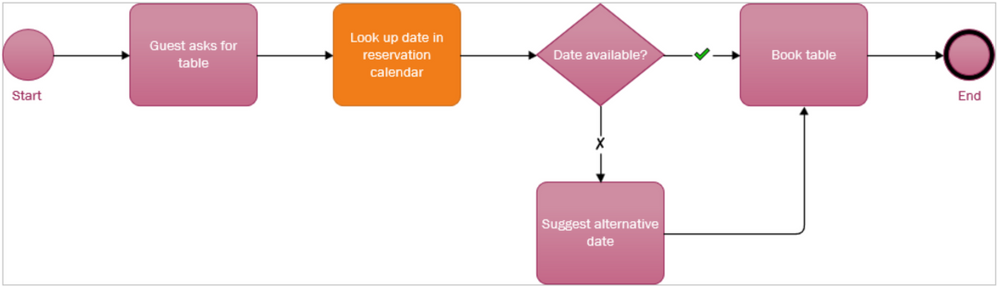
A simple BPM for restaurant employees to make table reservations.
Once the BPM is in place, you need to get from that to a BCP. Doing this is straightforward.
- Evaluate the documented business processes
- Assume that one or more vital components fail or experience some turbulence/interruption
- Remodel the process so that the desired outcome is possible again
- Repeat this for all critical processes and process categories
The easiest way to start a BCP is to open the process you’ve already documented in Visio. You’ll then need to identify the critical steps and components—you can do this with any number of built-in Visio tools, like changing the shape color or adding an icon—estimate which of those could fail, and determine the possible causes of failure. After that, create a copy of the Visio file and add the failing component to the file name. For example, if your original BPM file name is, “production.vsdx” and you’ve identified parts delivery as the reason certain production parts are missing, rename the file to, “production-faileddelivery.vsdx.”
Working in the new file, you can now remodel the process so the failed component is replaced in a way that makes the process work again.
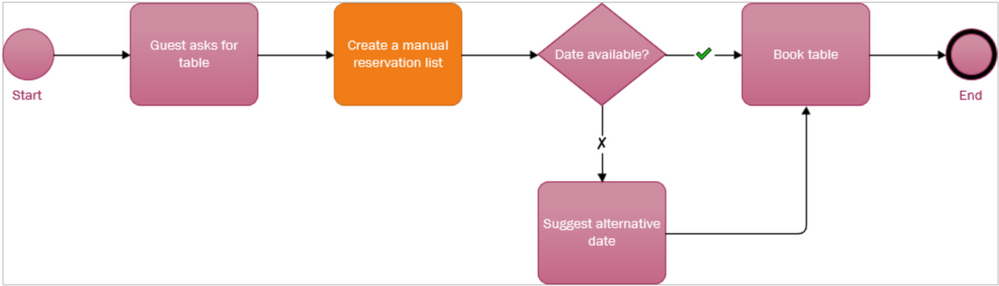 The remodeled table reservation process. This BCP assumes the reservation calendar has failed and replaces that component with a manual alternative. You might name this file, “tablereservation-nocalendaraccess.”
Store your processes in a place where others can securely access it, like Microsoft Teams or Microsoft SharePoint. You could even export the new file to Microsoft Word, which pastes each diagram component and its associated metadata separately so you can add additional written context next to it.
It may sound like every process needs a bunch of “shadow” variations that document the what-if scenarios. But in reality, you only need to do this for the core processes that are not inherently resilient. For example, IT systems, especially now with the cloud, are backed-up by design, so you can likely skip IT entirely.
But what about the rest? One simple approach could suffice.
Look over the processes that are not related to an IT system and check how often they failed in the last 12 months. If a process fails:
- less than once a month on average, this can be considered as an irregularity and therefore ignored.
- once a month, a continuity plan is needed for this component and process.
- more often than once a month, consider remodeling the process itself and/or generate a new process since this process seems error-prone.
Now that the BPM and BCP processes are both in Visio, the next step is adding insights to critical process components. To do this, add a metadata element to the necessary component shapes, configure a data graphic element with a critical indicator (e.g., a flag), and turn it on for shapes/components so you immediately see what’s critical. The metadata you add can come from another underlying data source, like an org chart or cost sheet, and when that source changes the critical indicator you added will change too.
The second step for the BCP assessment should be the business impact. If the failure of this process only has minor consequences, a BCP is not needed. The larger the business impact of the process, the more likely it requires a BCP. Various components can have a significant business impact and can be located within and outside of your company. Some examples of business interruptions include delayed delivery of product parts, team member illness, or the breakdown of a machine, each of which can cause a process to fail and result in lost clients, missed revenue, and general disruptions to the company’s success.
Feel free to reach out to us if your company needs assistance building a BPM or BCP or would like more in-depth advice. We believe in times like these, every company should use its knowledge, skills, and expertise to help others prepare for and, more importantly, overcome challenges. We will be happy to assist you!
This is the first of two articles from our team about business continuity. Next week, we’ll consider whether the COVID-19 pandemic and all its challenges should part of or outside of traditional business process thinking and planning.
by Contributed | Jul 6, 2021 | Technology
This article is contributed. See the original author and article here.
In this article, I am providing the step-by-step instructions on provisioning a Logic App Standard resources and deploying a simple workflow to it through GitHub actions.
1. Generate deployment credentials and store it under GitHub Secrets:
To create a Service Principal for GitHub to deploy resources to Azure, In the below command, replace myApp with a unique name for your service principal and provide the resource ID of the Resource Group to which you are deploying the Logic App.
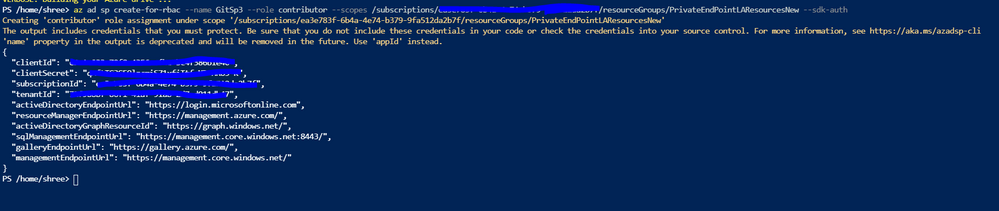
az ad sp create-for-rbac –name {myApp} –role contributor –scopes /subscriptions/{subscription-id}/resourceGroups/{MyResourceGroup} –sdk-auth
Run this command in Azure CLI and copy the complete output which looks like below.
{
“clientId”: “<GUID>”,
“clientSecret”: “<GUID>”,
“subscriptionId”: “<GUID>”,
“tenantId”: “<GUID>”,
(…)
}
In the GitHub repository, go to Settings > Secrets > New secret.
Name the secret as AZURE_CREDENTIALS and paste the output of the above CLI command.

Deploy Resource Manager templates by using GitHub Actions – Azure Resource Manager | Microsoft Docs
2. Provisioning Logic App with all the dependent resources.
1. Create ARM templates to deploy the Logic app and all the dependent resources:
Please find below the sample template and param file. This template would help to create a Storage Account, App service plan, App insight and a Logic App under the specified resource group. Please modify the parameter value as per your requirement and place these files in the GitHub repository.
https://github.com/ShreeDivyaMV/LogicAppGithub/blob/7e968a3676725ad43d5ddb2fed34f3a624919679/ARMTemplates/LA_Standard_Basic.json
https://github.com/ShreeDivyaMV/LogicAppGithub/blob/7e968a3676725ad43d5ddb2fed34f3a624919679/ARMTemplates/LA_Standard_Basic_Param.json
This example doesn’t have any API connections. If any API connections, add those to the ARM template as well. Please refer the link in the reference section for more examples.
2. Create GitHub action to deploy the Logic App:
Go to Actions tab in the repository, click on ‘new workflow’
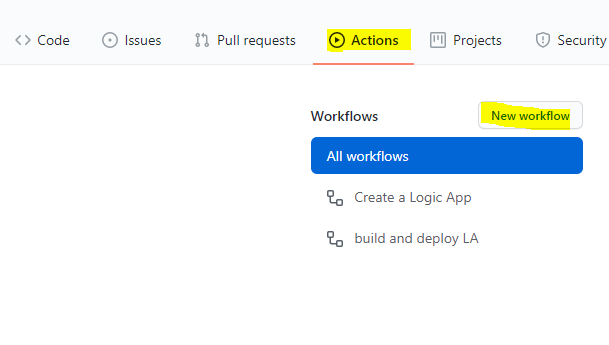
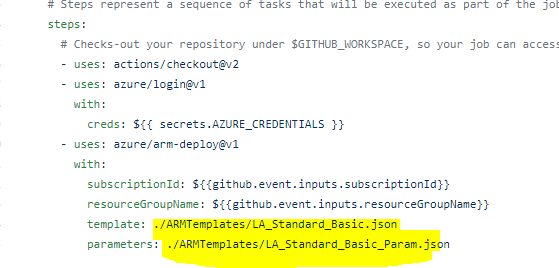
You can refer the below YAML file for the template. You might have to modify the path and name of your ARM templates. Save this file and go back to Actions tab.
https://github.com/ShreeDivyaMV/LogicAppGithub/blob/7e968a3676725ad43d5ddb2fed34f3a624919679/.github/workflows/DeployLogicApp.yml
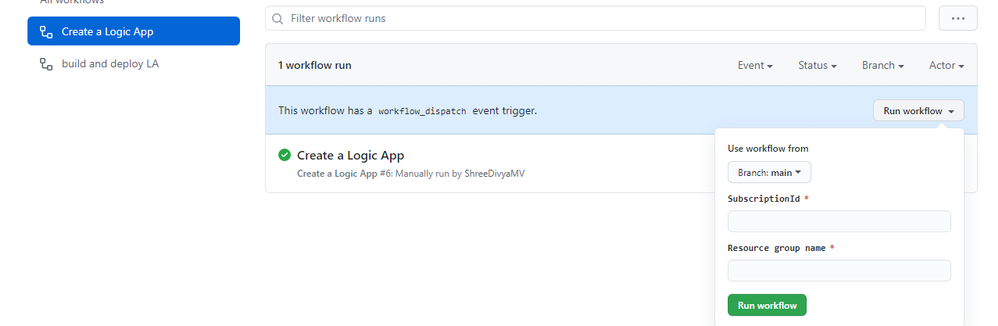
3. Run the GitHub action:
Select the action “create a Logic App” and provide the Subscription ID and Resource group Name and run the action.
This would create the Logic app based on the ARM template provided.
3. Deploy the workflows to the Logic App:
Copy your Logic App project folder to GitHub repository.
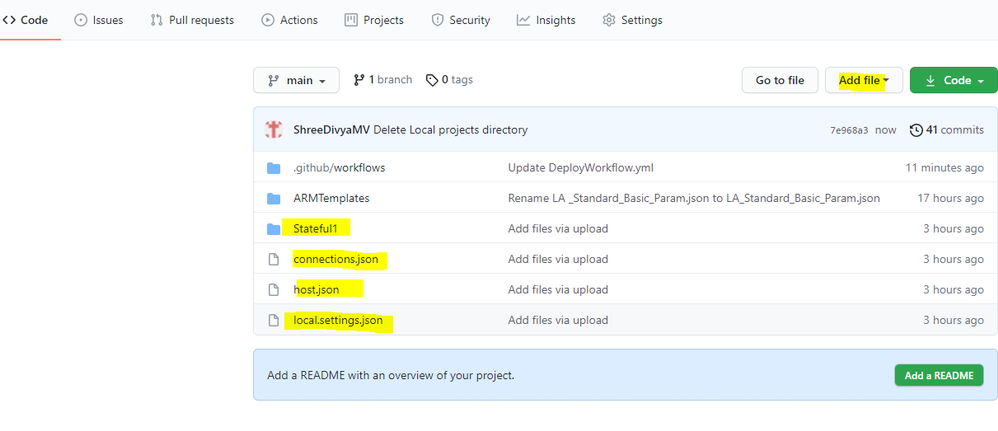
Go to Actions tab and create another action to deploy the workflow to the earlier provisioned Logic App.
You can refer the below YAML file for the sample.
https://github.com/ShreeDivyaMV/LgoicAppGithub/blob/44ac6e908b4818bacccab484a33075e76949e20f/.github/workflows/DeployWorkflow.yml
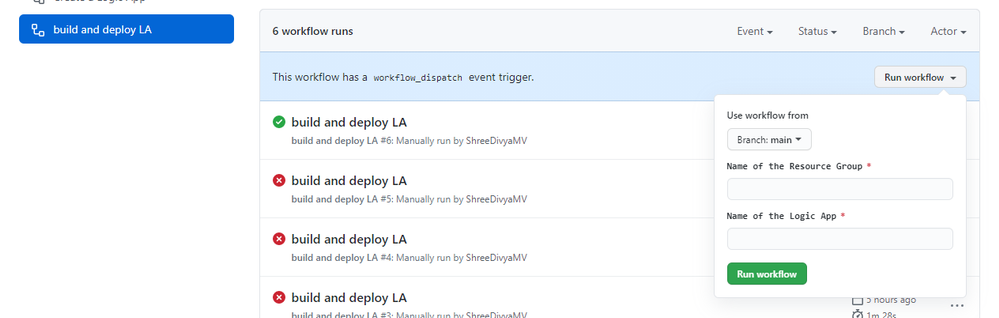
You can run this workflow by providing the Resource Group name and Logic App Name
References:
GitHub Repository of the above example- ShreeDivyaMV/LogicAppGithub
GitHub Repository for more examples on Logic App Standard- Azure/logicapps: Azure Logic Apps labs, samples, and tools (github.com)
More info on Logic App Standard: Overview – Single-tenant Azure Logic Apps – Azure Logic Apps | Microsoft Docs


Recent Comments