by Contributed | Aug 18, 2021 | Technology
This article is contributed. See the original author and article here.
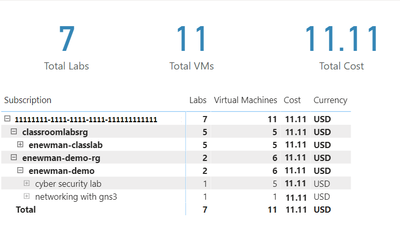
Azure Lab Services costs are integrated with Cost Management on the lab account level. However, sometimes it’s useful to create a custom report for your team. We can do this using the line item data from Cost Management. In this blog post we will use Power BI desktop to create a basic report that shows total cost, total number of virtual machines and total number of labs. The report will also include a table that shows cost per lab and cost per virtual machine.
To create this report, we need to complete four major tasks.
- Get the data. We need to import data into PowerBI.
- Transform the data. Each cost line item has all the information we need, but it will need to be separated, so we can work with lab and lab virtual machine information individually.
- Create the data visualization.
- Publish the report for others to see.
Get the data
There are couple options to import the Cost Management data into PowerBI. Which one to use will depend on your type of Azure agreement and your permission level.
Azure Cost Management connector
The first option is the Azure Cost Management connector. Follow the instructions at Create visuals and reports with the Azure Cost Management connector in Power BI Desktop. You will need to provide a billing scope which could cover from a billing agreement to a specific resource group. See understand and work with Azure Cost Management scopes for more information about scopes. See identify resource id for a scope for instructions to get billing scope based on the type of scope you are using.
The Azure Cost Management connector currently supports customers with a Microsoft Customer Agreement or an Enterprise Agreement (EA). There are also some unsupported subscription types. To successfully use the connector, you must have correct permissions and the ability for users to read cost management data must be enabled by the tenant administrator. You can check your access by calling the cost management usage detail api directly.
Azure Cost Management exports
The second option is to export costs to a storage account fromAzure Cost Management. Follow instructions at Tutorial – Create and manage exported data from Azure Cost Management | Microsoft Docs to create the recurring export. You can choose to have data exported daily, weekly or monthly. Each export will be a CSV file saved in blob storage.
In PowerBI Desktop, we will use the Azure Blob Storage connector to import this data. Select the usage detail data from the storage account container you used when scheduling the cost management data exports. Choose to combine the files when importing the CSV file data.
Transform the data
Each usage detail line item has the information for the full resource id of the virtual machine (either template or student) associated with the cost. As explained in cost management guide for Azure Lab Services, these resources will follow one of two patterns.
For templates virtual machines:
/subscriptions/{subscription-id}/resourceGroups/{resource-group}/providers/Microsoft.LabServices/labaccounts/{lab-account-name}/environmentsettings/default
For student virtual machines:
/subscriptions/{subscription-id}/resourceGroups/{resource-group}/providers/Microsoft.LabServices/labaccounts/{lab-account-name}/environmentsettings/default/environments/{vm-name}
For our report, we will need to extract the required data the from the InstanceId property of the Cost Management usage details. Complete the following steps in Power Query.
- Filter on ConsumedService equal to microsoft.labservices.
- Remove duplicate rows. We do this to avoid any issues if using Cost Management exports and data is accidentally exported multiple times. Select all columns except the Source.Name.
- Duplicate InstanceId column and rename it ResourceId.
- Split the InstanceId column on the ‘/’ character.
- Clean up split columns.
- Delete InstanceId.1 to InstanceId.8. We already have the SubscriptionGuid and ResourceGroup columns, so the InstanceId.3 and InstanceId.5 columns aren’t needed.
- Rename InstanceId.9 to LabAccount.
- Delete InstanceId.10.
- Rename InstanceId.11 to Lab.
- Delete InstanceId.12 to InstanceId.14.
- Rename InstanceId.15 to VirtualMachine.
- Replace ‘null’ values with ‘template’. Any rows that don’t have a value for VirtualMachine are costs associated with running the template virtual machine for the lab.
- Save transformations.
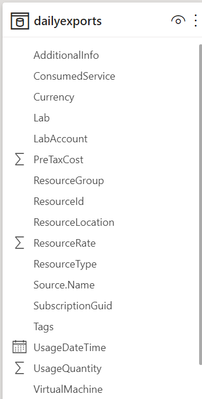
Schema for the table should look something like the picture below. Depending on your Azure subscription type, there may be more columns not seen in this example.
Visualize the data
First, let’s create some cards for high-level information. Our cards will show the total cost, number of labs and number of virtual machines used.
Total Cost
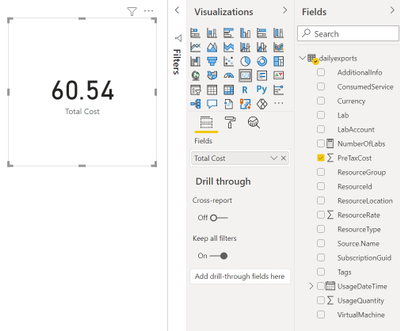
The total cost is held in the PreTaxCost column. PowerBI already recognizes that PreTaxCost is number and will automatically add all the column values to create a sum. Add a card to the visual and add PreTaxCost to the Field property of the card visualization. Optionally change the name for the visualization from PreTaxCost to Total Cost.
Number of Labs
Next, let’s display the number labs. We’ll need to create a new measure for this. For instructions explaining how to create a new measure, see create your own measures in Power BI Desktop tutorial.
For the most accurate reporting, we can’t just create a measure that counts all the distinct values in the Lab column because it is possible to have two labs with the same name in different lab accounts. So, for our measure named NumberOfLabs we will count the number of rows when grouped by all the identifying columns for a lab, which are subscription, resource group, lab account and lab name. Note, in this example the table name is dailyexports.
NumberOfLabs = COUNTROWS(GROUPBY(dailyexports, dailyexports[SubscriptionGuid], dailyexports[ResourceGroup], dailyexports[LabAccount], dailyexports[Lab]))
Now we can create a card for the NumberOfLabs measure by following instructions at create card visualizations (big number tiles).
Total Number of Virtual Machines
Creating a card for the total number of virtual machines used will be similar to creating a card for total number of labs. We need to create a measure that counts the unique combination of subscription, resource group, lab account, lab and virtual machine name. Our new measure is
NumberOfVMs = COUNTROWS(GROUPBY(dailyexports, dailyexports[SubscriptionGuid], dailyexports[ResourceGroup], dailyexports[LabAccount], dailyexports[Lab], dailyexports[VirtualMachine]))
Now we can create a card for NumberOfVMs measure by following instructions at create card visualizations (big number tiles) .
Matrix
Now let’s create a matrix visual to allow us to drill down into our data. For instructions how to create a matrix visualization, see create a matrix visual in Power BI. For our matrix visualization, we’ll add the Subscription, ResourceGroup, Lab Account, Lab, VirtualMachine for the rows. NumberOfLabs, NumberOfVMs, PreTaxCost and Currency will be our values. Note, for the currency column, the first value for currency will be shown with the matrix is collapsed.
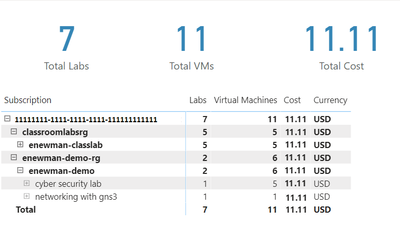
After of renaming the columns for the visuals and applying some theming, our report now looks like the following picture. I’ve expanded the subscription, resource groups and the ‘enewman-demo’ lab account. Under the lab account you can see the two labs and total cost for each lab. As you can see by the plus sign next to the lab’s names, each lab could be expanded to list the virtual machines for the lab as well as the cost for each virtual machine.
Publish the data
Last step is to publish the report! See publish datasets and reports from Power BI Desktop for further instructions.
Happing Reporting!
The Lab Services Team
by Contributed | Aug 16, 2021 | Technology
This article is contributed. See the original author and article here.
Co-Authored: Ashwin Kabadi, Senior Product Manager, Azure VMware Solution, Microsoft
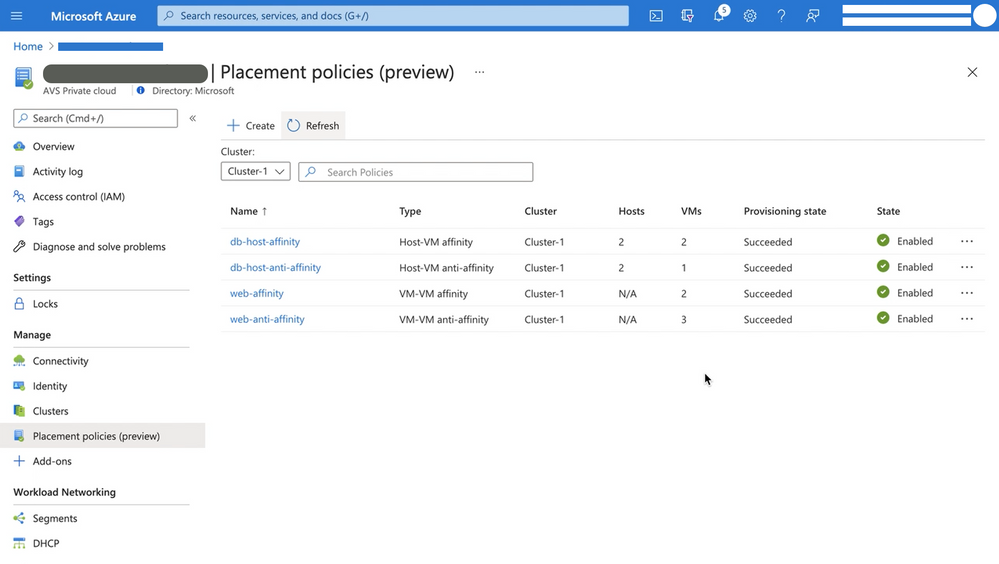
Placement policies enable admins to specify constraints or rules when allocating Virtual Machines within an Azure VMware Solution (AVS) private cloud. With this update the creation and assignment of vSphere Distributed Resource Scheduler (DRS) rules for running Virtual Machines (VMs) in an AVS SDDC has been simplified and is now executable directly from the Azure Portal for cloud admin roles.
Making updates to VM (Virtual Machine) groups and Host groups is a cumbersome operation, especially for hosts in a cloud environment where they can be more frequently cycled. In an on-premises environment, as hosts are replaced in the vSphere inventory, the vSphere admin must modify the host group to ensure that the desired VM-Host placement constraints continue to stay in effect. Placement policies in AVS take care of updating the Host groups when a host is rotated or changed. Similarly, if you scale-in a cluster, the Host Group is also updated automatically, as applicable. This eliminates the overhead of managing the Host Groups.
Placement policies essentially define constraints or rules that allow you to decide where and how the VMs should run within the AVS SDDC clusters. Placement polices are used to support VM performance and availability by grouping multiple VMs that communicate regularly on the same host. policy and help mitigate the impact of maintenance operations to policies within the SDDC cluster. Placement polices in AVS also reduce the complexity and administrative burden of updating host groups via DRS rules in vSphere during SDDC maintenance operations.
When you create a placement policy, it creates a vSphere Distributed Resource Scheduler (DRS) rule in the specified vSphere cluster. It also includes additional logic for interoperability with Azure VMware Solution operations.
There are two basic placement policy types now supported:
- Virtual Machine to Virtual Machine: this refers to a policy that is applied to VMs with respect to each other.
- VM-VM Affinity policies instruct DRS to try keeping the specified VMs together on the same host for performance reasons as an example.
- VM-VM Anti-Affinity policies instruct DRS to try keeping the specified VMs apart from each other on separate hosts. It’s useful in scenarios where you may want to spread your virtual machines across hosts to ensure availability of the applications.
- Virtual Machine to SDDC Host: this refers to a policy applied to selected VMs to either run on, or avoid selected hosts .
- VM-Host Affinity policies instruct DRS to try running the specified VMs on the hosts defined.
- VM-Host Anti-Affinity policies instruct DRS to try running the specified VMs on hosts other than those defined.
For more information on requirements for placement policies in Azure VMware Solution and how to create and apply them, see Microsoft Docs pages here.
Start using placement polices directly from the Azure Portal today!
by Contributed | Aug 14, 2021 | Technology
This article is contributed. See the original author and article here.
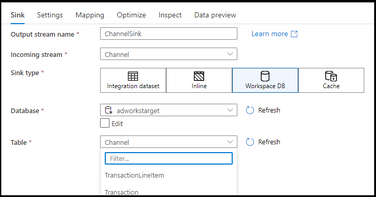
Azure Synapse Analytics Data Flows has enabled Direct Workspace DB Connector as a public preview. This new connector type in data flows enables data engineers to quickly and easily build ETL processes using Spark-based lake databases in Synapse without the need to first create linked services or datasets.
https://docs.microsoft.com/en-us/azure/data-factory/data-flow-source#workspace-db-synapse-workspaces-only
https://docs.microsoft.com/en-us/azure/data-factory/data-flow-sink#workspace-db-synapse-workspaces-only
By using Synapse Analytics for your end-to-end big data analytics projects, you can now define lake database tables using Spark Notebooks, then open the visual data flow designer graph environment and immediately access those tables and data for ETL pipeline building. This new Workspace DB process eliminates the need to create ADF-based linked services and datasets inside of your Synapse workspace studio UI because Synapse is providing the complete integrated experience for data engineers in a single pane of glass.

by Contributed | Aug 13, 2021 | Technology
This article is contributed. See the original author and article here.
Are you enjoying the summer or winter – wherever you are in the world, and want to keep up to date with the latest and greatest? We can help you cure that need :smiling_face_with_smiling_eyes:
Over the past few months, we have made big product announcements across the Microsoft Defender products and Microsoft Cloud App Security, and of course we want you to stay updated!
With the following resources you can bring yourself up to speed, and with the knowledge check at the end you can verify your learnings. Plus, you can request either a Ninja summer or winter special edition fun certificate to enrich your Ninja certs collection!

Legend:
 Product videos Product videos
|
 Webcast recordings Webcast recordings
|
 Tech Community Tech Community
|
 Docs on Microsoft Docs on Microsoft
|
 Blogs on Microsoft Blogs on Microsoft
|
 GitHub GitHub
|
⤴ External
|
 Interactive guides Interactive guides
|
|
Microsoft Defender for Endpoint
Unmanaged devices
Mobile threat defense
Threat and vulnerability management
Device control
Live response
Evaluation Lab
Microsoft 365 Defender:
Threat Analytics
Advanced hunting
Integration and APIs
Webinar: Monthly threat insights: New webinar series: Monthly threat insights – Microsoft Tech Community
Defender for Office 365:
Phishing protection
Business Email Compromise
Incident investigation
Configuration
Threat Analytics
Attack Simulation Training
Defender for Identity:
General:
Portal Convergence:
Detections
Identity Security Posture Management assessments
Cloud App Security:
3rd Party Integration
Threat Protection
Conditional Access App Control
Data Loss Prevention
If you want to verify your learnings, you can participate in this knowledge check.
Once you’ve finished the knowledge check, please click here to request your certificate (you’ll see it in your inbox within a couple of days.)
Let us know how you like it!
As a reminder, the full Ninja Trainings are here:
Microsoft 365 Defender > http://aka.ms/m365dninja
Microsoft Defender for Office 365 > https://aka.ms/mdoninja
Microsoft Defender for Endpoint > http://aka.ms/mdeninja
Microsoft Defender for Identity > http://aka.ms/mdininja
Microsoft Cloud App Security > http://aka.ms/mcasninja
by Contributed | Aug 12, 2021 | Technology
This article is contributed. See the original author and article here.
By: Zoe Statman-Weil & Mark Mathis, Impact Observatory, Inc.
Global decision makers need timely, accurate maps
Land use and land cover (LULC) maps are used by decision makers in governments, civil society, industries, and finance to observe how the world is changing, and to understand and manage the impact of their actions. Historically, LULC maps are produced using expensive, semi-automated techniques requiring significant human input and thus leading to significant delays between collection of satellite images and production of maps, limiting the ability to get regular and frequent temporal updates to users. Making the detailed, accurate maps the whole world needs to understand our rapidly changing planet with timely updates requires automation. A groundbreaking artificial intelligence-powered 2020 global LULC map was produced for Esri on Microsoft Azure by Impact Observatory, a mission-driven technology company bringing AI algorithms and on-demand data to environmental monitoring and sustainability risk analysis. This map will be used to help decision makers address challenges in climate change mitigation and adaptation, biodiversity preservation, and sustainable development.
The Impact Observatory LULC machine learning (ML) model was trained on an Azure NC12s v2 virtual machine (VM) powered by NVIDIA® Tesla® P100 GPUs using over 5 billion pixels hand-labeled into one of ten classes: trees, water, built area, scrub/shrub, flooded vegetation, bare ground, cropland, grassland, snow/ice, and clouds. The model was then deployed over more than 450,000 Copernicus Sentinel-2 Level-2A 10-meter resolution, surface reflectance corrected images, each 100 km x 100km in size and totaling 500 terabytes of satellite imagery (1 terabyte = 1012 bytes) hosted on the Microsoft Planetary Computer. The processing leveraged geospatial open standards, Azure Batch, and other Azure resources to efficiently produce the final dataset at scale and at a low cost.
Geospatial Open Standards support distributed processing
The Microsoft Planetary Computer and Impact Observatory (IO) make extensive use of geospatial open standards, specifically Cloud Optimized GeoTIFF (COG) and Spatial Temporal Asset Catalog (STAC). Use of these standards enabled the team to produce the Esri 2020 Land Cover map using distributed processing at scale.
GeoTIFF is a widely used open standard for geospatial data based on the common TIFF image file format, able to support imagery with bands beyond the usual red, green, blue visible light bands, and containing additional metadata to locate the image on the surface of the Earth. A COG is a regular GeoTIFF file, aimed at being hosted on a HTTP file server, with an internal organization that enables more efficient workflows on the cloud. Not only can COGs be read from the cloud without needing to duplicate the data to a local filesystem, but a portion of the file can be read using HTTP GET Range requests allowing for targeted reading and efficient processing. Azure Blob Storage is an ideal solution for hosting COGs as it is an unstructured data storage system accessible via HTTP requests. The LULC map was produced using Sentinel-2 COGs hosted on Microsoft’s Planetary Computer in Blob Storage, and all prediction rasters produced from the model were saved as COGs to Blob Storage.
The STAC specification is a common language used to index geospatial data for easy search and discovery. IO searched the Planetary Computer’s STAC catalog to identify Sentinel-2 imagery for certain locations, times, and cloud coverage. IO applied a community supported implementation of the STAC interface to create its own STAC catalog on Azure App Services with Azure Database for PostgreSQL as the underlying data store. IO’s STAC catalog was used to index data throughout the model deployment pipeline and thus served as both a tool for checkpointing pipeline progress, as well as indexing the final product.
COGs and STAC, both easily leveraged in Azure, provide a scalable and highly flexible framework for processing geospatial data.
Azure Batch enabled Impact Observatory to map the globe at record scale & speed
Azure Batch was used by IO to efficiently deploy the model over satellite images in parallel at a large scale. IO bundled the ML model, and deployment and processing code into Docker containers, and ran Batch tasks within these containers on a Batch pool of compute nodes.
The data processing pipeline consisted of three primary tasks: 1) Deploying the model over one 100 km x 100 km Sentinel-2 COG by chipping it into hundreds of overlapping 5 km X 5 km smaller images, running those chips through the model, and finally merging the chips back together; 2) Computing a class weighted mode across all model predictions for a given Sentinel-2 image footprint; and 3) Combining the class weighted modes produced in #2 for a given Military Grid Reference System (MGRS) zone into one COG. IO relied heavily on Batch’s task dependency capabilities, which allowed, for example, for the class-weighted mode task (#2) to only be scheduled for execution when the relevant set of model deployment tasks (#1) were completed successfully.
While the model was trained on a GPU-enabled VM, the model deployment over the image chips was executed on CPU-based virtual machines, enabling resource efficient computation at scale. Due to the task dependent nature of the pipeline, all tasks needed to be run on the same pool, and thus the same VM type. RAM and network bandwidth requirements fluctuated for the tasks, but the high CPU usage ended up being the defining factor in VM choice. In the end, the data was processed on low-priority Standard Azure D4 V2 virtual machine powered by Intel® Xeon® scalable processors with seven task slots allocated per node.
It took over one million core hours to process the data for the entire LULC map. With the scaling flexibility of Batch, IO was able to process over 10% of the earth’s surface a day. The completed Esri 2020 Land Cover map is now freely available on Esri Living Atlas and the Microsoft Planetary Computer.
For additional information visit https://www.impactobservatory.com/


Recent Comments