by Contributed | Jul 6, 2022 | Technology
This article is contributed. See the original author and article here.
Microsoft invites you to participate in the annual IT Skills and Salary Survey led by Skillsoft. The Microsoft community have been strong supporters of the annual IT Skills and Salary Survey by Skillsoft for over eight years. If you’ve taken any Microsoft training or earned a Microsoft fundamentals, role-based, or specialty certification, we want you to represent Microsoft.
Here are some key themes from the Skillsoft 2021 IT Skills and Salary Report, which will be available to download here.
- IT salaries continue to increase.
- IT values certifications.
- Certifications deliver value to organizations and employees.
- The skills gap remains a critical challenge.
- Investing in employee development can close skills gaps and help retain top talent.
- For the second year in a row, Cloud and Cybersecurity skills are the most in-demand, as IT decision-makers continue to struggle to hire in these areas.
- Once again, Microsoft holds the number one position in our top ten areas of focus for IT departments.
All contributions collected in the survey are confidential and will offer insight into industry salaries, in-demand certifications, skill gaps, and the existing career landscape. Survey results help generate an annual report used by industry insiders, hiring managers, and IT professionals. Please help us contribute and take the 15-25 minute survey by 11:59 ET on Sunday, July 31, 2022. Don’t forget to invite your IT colleagues and communities to complete it as well!
At the end of the survey, participants who request an advanced copy of the 2022 report before it’s published will be automatically entered to win a $100 gift card from Skillsoft.
Take the IT Skills and Salary Survey now.
by Contributed | Jul 5, 2022 | Technology
This article is contributed. See the original author and article here.
MySQL workloads are often read-heavy and support customers with operations in different geographical locations. To provide for Disaster Recovery (DR) in the rare event of a regional disaster, Azure Database for MySQL – Flexible Server offers Geo-restore. An alternate option for DR or read scaling across regions is to create an Azure Database for MySQL flexible server as the source server and then to replicate its data to a server in another region using Data-in replication. This set up helps improve the Recovery Time Objective (RTO) as compared to geo-restore and the Recovery Point Objective (RPO) will be equal to the replication lag between the primary server and the replica server.
Data-in replication, which is based on the binary log (binlog) file position, enables synchronization of data from one Azure Database for MySQL flexible service to another. To learn more about binlog replication, see MySQL binlog replication overview.
In this blog post, I’ll use mydumper/myloader and Data-in replication to create cross region replication from one Azure Database for MySQL flexible server to another in a different region, and then I’ll synchronize the data.
Prerequisites
To complete this tutorial, I need:
- A primary and secondary Azure Database for MySQL flexible server, one in each of two different regions, running either version 5.7 or 8.0 (it is recommended to have the same version running on the two servers. For more information, see Create an Azure Database for MySQL flexible server.
Note: Currently, this procedure is supported only on flexible servers that are not HA enabled.
- An Azure VM running Linux that can connect to both the primary and replica servers in different regions. The VM should have the following client tools installed.
- A sample database for testing the replication. Download mysqlsampledatabase.zip, and then run the included script on the primary server to create the sample classicmodels database.
- The binlog_expire_logs_seconds parameter on the primary server configured to ensure that binlogs aren’t purged before the replica commits the changes.
- The gtid_mode parameter set to same value on both the primary and replica servers. Configure this on the Server parameters page.
- Networking configured to ensure that primary server and replica server can communicate with each other.
- For Public access, on the Networking page, under Firewall rules, ensure that the primary server firewall allows connection from the replica server by verifying that the Allow public access from any Azure service…check box is selected. For more information, in the article Public Network Access for Azure Database for MySQL – Flexible Server, see Firewall rules.
- For Private access, ensure that the replica server can resolve the FQDN of the primary server and connect over the network. To accomplish this, use VNet peering or VNet-to-VNet VPN gateway connection.
Configure Data-in replication between the primary and replica servers
To configure Data-in replication, I’ll perform the following steps:
- On the Azure VM, use the mysql client tool to connect to the primary and replica servers.
- On the primary server, verify that log_bin is enabled by using the mysql client tool to run the following command:
SHOW VARIABLES LIKE 'log_bin';
3. On the source server, create a user with the replication permission by running the appropriate command, based on SSL enforcement.
If you’re using SSL, run the following command:
CREATE USER 'syncuser'@'%' IDENTIFIED BY 'yourpassword';
GRANT REPLICATION SLAVE ON *.* TO ' syncuser'@'%' REQUIRE SSL;
If you’re not using SSL, run the following command:
CREATE USER 'syncuser'@'%' IDENTIFIED BY 'yourpassword';
GRANT REPLICATION SLAVE ON *.* TO ' syncuser'@'%';
4. On the Azure VM, use mydumper to back up the primary server database by running the following command:
mydumper --host=<primary_server>.mysql.database.azure.com --user=<username> --password=<Password> --outputdir=./backup --rows=100 -G -E -R -z --trx-consistency-only --compress --build-empty-files --threads=16 --compress-protocol --ssl --regex '^(classicmodels.)' -L mydumper-logs.txt
–host: Name of the primary server
–user: Name of a user having permission to dump the database.
–password: Password of the user above
–trx-consistency-only: Required for transactional consistency during backup.
For more information about using mydumper, see mydumper/myloader.
5. Restore the database using myloader by running the following command:
myloader --host=<servername>.mysql.database.azure.com --user=<username> --password=<Password> --directory=./backup --queries-per-transaction=100 --threads=16 --compress-protocol --ssl --verbose=3 -e 2>myloader-logs.txt
–host: Name of the replica server.
–user: Name of a user. You can use server admin or a user with readwrite permission capable of restoring the schemas and data to the database.
–password: Password of the user above.
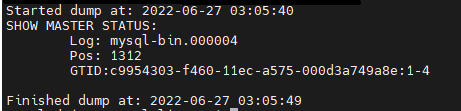
- Read the metadata file to determine the binary log file name and offset by running the following command:
cat ./backup/metadata
In this command, ./backup refers to the output directory specified in the command in the previous step.
The results should appear as shown in the following image:
- Depending on the SSL enforcement on the primary server, connect to the replica server using the mysql client tool, and then perform the following the steps.
If SSL enforcement is enabled, then:
a. Download the certificate needed to communicate over SSL with your Azure Database for MySQL server from here.
b. In Notepad, open the file, and then copy and paste the contents into the command below, replacing the text “PLACE PUBLIC KEY CERTIFICATE CONTEXT HERE“.
SET @cert = ‘-----BEGIN CERTIFICATE-----
PLACE PUBLIC KEY CERTIFICATE CONTEXT HERE
-----END CERTIFICATE-----'
c. To configure Data-in replication, run the updated command above along with the following command to set @cert
CALL mysql.az_replication_change_master(‘<Primary_server>.mysql.database.azure.com’, ‘<username>’, ‘<Password>’, 3306, ‘<File_Name>’, <Position>, @cert);
If SSL enforcement isn’t enabled, then run the following command:
CALL mysql.az_replication_change_master(‘<Primary_server>.mysql.database.azure.com’, ‘<username>’, ‘<Password>’, 3306, ‘<File_Name>’, <Position>, ‘’);
–Primary_server: Name of the primary server
–username: Replica user created in step 4
–Password: Password of the replica user created in step 4
–File_Name and Position: From the information in step 7
8. On the replica server, to ensure that write traffic is not accepted, set the server parameter read_only to ON.
call mysql.az_replication_start;
- On the replica server, to ensure that write traffic is not accepted, set the server parameter read_only to ON.
Test the replication
On the replica server, to check the replication status, run the following command:
show slave status G;
In the results, if the state of Slave_IO_Running and Slave_SQL_Running shows “Yes” and Slave_IO_State is “Waiting for master to send event”, then replication is working well. You can also check Seconds_Behind_Master, which indicates how late the replica is. If the value is something other than 0, then the replica is still processing updates.
For more information on the output of the show slave status command, in the MySQL documentation, see SHOW SLAVE STATUS Statement.
For details on troubleshooting replication, see the following resources:
Optional
To confirm that cross region is working properly, you can verify that the changes to the tables in primary have been replicated to the replica.
- Identify a table to use for testing, for example the Customers table, and then confirm that it contains the same number of entries on both the primary and replica servers by running the following command on each server:
select count(*) from customers;
- Make a note of the count of entries in each table for later comparison.
To confirm that replication is working properly, on the primary server, add some data to the Customer table. Next, run the select count command each of the primary and replica servers to verify that the entry count on the replica server has increased to match the entry count on the primary server.
Note: For more information about how to monitor Data-in replication and create alerts for potential replication failures, see Monitoring and creating alerts for Data-in replication with Azure Database for MySQL-Flexible Server.
Conclusion
We’ve now set up replication between Azure Database for MySQL flexible servers in two different regions. Any changes to primary instance in one region will be replicated to the server in the other region by using the native replication technique. Take advantage of this solution to scale read workloads or to address DR considerations for potential regional disasters.
If you have any feedback or questions about the information provided above, please leave a comment below or email us at AskAzureDBforMySQL@service.microsoft.com. Thank you!

by Contributed | Jul 4, 2022 | Technology
This article is contributed. See the original author and article here.
In the previous episodes, we have journeyed through airports, real estate, and wine industry, gaining insight on the different industries, and utilizing the data in decision making. Alas, now we are in the final episode of a Four-part series – An introduction to R and Machine learning. Join us for the session at Introduction to clustering models by using R and Tidymodels – part 4 of 4, Tue, Jul 12, 2022, 4:00 PM | Meetup. If you missed previous episodes, watch them on demand below:
Introduction to clustering models by using R and Tidymodels – part 4 of 4
In this session, you will train a clustering model. Clustering is the process of grouping objects with similar objects. This kind of machine learning is considered unsupervised because it doesn’t make use of previously known values to train a model.
Who is it aimed at?
This session is aimed at anyone who would like to get started with data science in R
Why should you attend?
Get an introduction to clustering models and learn how to train a clustering model in R
Any pre-requisites?
Knowledge of basic mathematics
Some experience programming in R
Speaker Bio’s
Carlotta Castellucio – Cloud Advocate, Microsoft
Carlotta Castelluccio is a Cloud Advocate at Microsoft, focused on Data Analytics and Data Science. As a member of the Developer Relationships Academic team, she works on skilling and engaging educational communities to create and grow with Azure Cloud, by contributing to technical learning content and supporting students and educators in their learning journey with Microsoft technologies. Before joining the Cloud Advocacy team, she worked as an Azure and AI (ARTIFICIAL INTELLIGENCE) consultant in Microsoft Industry Solutions team, involved in customer-face engagements focused on Conversational AI solutions. Carlotta earned her master’s degree in Computer Engineering from Politecnico di Torino and her Diplôme d’ingénieur from Télécom ParisTech, by completing an E+/EU Double Degree Program.
Eric Wanjau – Data Scientist/Researcher at the Leeds Institute for Data Analytics (LIDA)
Eric is an Early Career Researcher who continually seeks to tackle real-world challenges using applied research, data analytics and machine learning; all wrapped in unbridled empathy and enthusiasm. He is currently a Data Scientist/Researcher at the Leeds Institute for Data Analytics (LIDA) in the University of Leeds, working on the British Academy project undertaking urban transport modelling in Hanoi. He has also done research in robotics, computer vision and speech processing in Japan and Kenya, aimed at creating safe working environments and exploring human-robot interaction in board games. Eric holds a BSc. in Electrical and Electronic Engineering (2021) from Dedan Kimathi University of Technology Kenya. He plays the guitar (terribly but passionately).
Join us for the session.

by Contributed | Jul 3, 2022 | Technology
This article is contributed. See the original author and article here.
Animated July O T logo
#JulyOT is back for 2022! Throughout the month of July, the IoT teams at Microsoft will be sharing content and events put together by IoT enthusiasts from around the world. This includes content from community members, Microsoft employees, and could even involve you! For every working day in July, we’ll focus on one or more featured content pieces from our curated collection at the new home of #JulyOT – JulyOT.dev!. The idea is to inspire those curious about IoT to pursue their own personal projects within the realm of Internet of Things, and then share them on social media with the hashtag #JulyOT.
We’ll be updating JulyOT.dev with new content every working day in July, so check back there often, or subscribe to the RSS feed. We’ll also be updating this post at the end of each week with a round up of what we covered in that week.
IoT live streams
 IoT for Beginners Reactor stream logo
JulyOT kicks off with live streams from the Microsoft Reactor. Check out our events page to learn more and register. These include the first 4 lessons of IoT for Beginners, our free, open source IoT curriculum, as well as live streams in English and Spanish.
IoT Cloud Skills Challenge
 A cartoon raccoon holding medals
We’ll also challenge y’all to grow your IoT skills with a cloud skills challenge! More details coming on the 1st July.
Digital swag
What better way to celebrate #JulyOT than with digital swag! Set your desktop or video chat background, and get cool visuals to share on social on our digital swag page.
Enjoy the celebration of #JulyOT
See you all at JulyOT.dev as we celebrate #JulyOT.

by Contributed | Jul 1, 2022 | Technology
This article is contributed. See the original author and article here.
Oracle 19c is the terminal release for Oracle 12c. If you aren’t familiar with that term, a terminal release is the last point release of the product. There were terminal releases for previous Oracle versions (10.2.0.4, 11.2.0.7.0) and after 19c, the next terminal release will be 23c. Therefore, you don’t see many 18c, 20c or 21c databases. We’ve gone to yearly release numbers, but the fact remains that 19c is going to receive all major updates and continue to be supported unlike the non-terminal releases.
Oracle will tell you for support, you should be upgrading to 19c. Premier Oracle Support ended for December 1st, 2020 and as we discussed, not many are going to choose or stay on non-terminal releases, so 19c is it.
With that said, we must offer guidance on recommended practices for Oracle versioning and patching in Azure. Although I will list any bugs and document IDs that back up the recommendations I’m making, be aware that many of these will be behind Oracle Support’s paywall, so you’ll only be able to access them with an Oracle Support CSI. Let’s talk about the things not to do first-
Don’t Upgrade DURING Your Migration
I know it sounds like an awesome idea to upgrade to the latest database version while you are migrating to the cloud, but please, don’t do these two things- migrating to the cloud and upgrading the database/app at the same time. It’s a common scenario that I’m brought in after the Azure specialists are left scratching their head or scrambling to explain what has changed and then I come in to tell them to stand down because it’s the DATABASE THAT’S CHANGED.
Do Patch to the LATEST Patchset for Oracle
I am part of the crowd that often did the latest patchset -1 approach. We would always be one patchset behind and let others figure out how many bugs might be introduced by the patch that had sneaked through testing.
Not anymore… I have a few customers on 19.14, which should be safe, considering the previous practice I mentioned, but the sheer number of bugs and serious bugs that were experienced has changed my thinking to recommend going to the latest patchset.
I think it’s easy to think, “Oh, it’s just a small bug” but I’m in agreement with you, if it’s a small impact and it has an easy work around, that’s one thing, but these bugs I’m referring to are quite impactful and here’s how:
High CPU Usage
- 19.14 release, there were 11 bugs that caused high CPU usage for Oracle.
- High CPU usage to the point of doubling the core count for the VM the database ran on in Azure.
- Doubling the need for Oracle licenses for the database, even though it was a bug that was causing all the additional CPU usage.
- At $47500 list price per processor license, this isn’t something I’d recommend letting go on.
For one customer that I was deeply involved in, the VM sizing required 20 vCPU to run the workload. I sized up to 32 vCPU for peak workloads and yet they were at 97.6% CPU busy with a 64-core machine. The workload hadn’t changed, and the CPU usage traced was out of control!
I would start here: After Upgrade to 19c, One or More of the Following Issues Occur on Non-Linux Platforms: High Paging/Swapping, High CPU, Poor Performance, ORA-27nnn Errors, ORA-00379 Errors, ORA-04036 Errors (Doc ID 2762216.1)
Bug examples for high CPU usage in 19.14:
NB
|
Prob
|
Bug
|
Fixed
|
Description
|
|
II
|
31050103
|
19.15, 23.1.0.0.0
|
fbda: slow sql performance when running in pluggable database
|
|
–
|
32869560
|
19.15, 21.6
|
HIGH CPU ON KXSGETRUNTIMELOCK AND SSKGSLCAS
|
|
I
|
29446010
|
20.1
|
Query Using LIKE Predicate Spins Using NLS_SORT=’japanese_m’ NLS_COMP=’linguistic’
|
|
–
|
32431067
|
23.1.0.0.0
|
Data Pump Export is Slow When Exporting Scheduler Jobs Due to Query Against SYS.KU$_PROCOBJ_VIEW
|
|
–
|
33380871
|
19.15, 21.6
|
High CPU on KSLWT_UPDATE_STATS_ELEM
|
|
–
|
33921441
|
19.15
|
Slow performance in AQ dequeue processing
|
*
|
II
|
32075777
|
|
Performance degradation by Wnnn processes after applying july 2020 DBRU
|
|
III
|
32164034
|
|
Database Hang Updating USER$ When LSLT (LAST SUCCESSFUL LOGIN TIME) Is Enabled
|
|
III
|
30664385
|
|
High count of repetitive executions for sql_id 35c8afbgfm40c during incremental statistics gathering
|
|
II
|
29559415
|
|
DMLs on FDA enabled tables are slow, or potential deadlocks on recursive DML on SYS_FBA_* tables
|
|
II
|
29448426
|
20.1
|
Killing Sessions in PDB Eventually Results in Poor Buffer Cache Performance Due To Miscalculating Free Buffer Count
|
Time Slip
This issue will often display an ORA-00800 error and you will need to check the extended trace file for details. It will include the VKTM in the error arguments.
…/trace/xxxxx_vktm_xxxx.trc
ORA-00800: soft external error, arguments: [Set Priority Failed], [VKTM], [Check traces and OS configuration], [Check Oracle document and MOS notes]
The trace file will include additional information about the error, including:
Kstmmainvktm: failed in setting elevated priority
Verify: SETUID is set on ORADISM and restart the instance highres_enabled
This refers to a bug and has two documents around time drift and how to address it-
ORA-00800: soft external error, arguments: [Set Priority Failed], [VKTM] (Doc ID 2718971.1)
I’d also refer to this doc, even though you aren’t running AIX:
Bug 28831618 : FAILED TO ELEVATE VKTM’S PRIORITY IN AIX WITH EVENT 10795 SET
Network Connection Timeouts
Incident alerting will occur in the alert log, and it will require viewing the corresponding trace file for the incident.
ORA-03137: malformed TTC packet from client rejected.
ORA-03137: Malformed TTC Packet From Client Rejected: [12569] (Doc ID 2498924.1)
Potential Tracing to gather more data:
Getting ORA-12569: TNS:Packet Checksum Failure While Trying To Connect Through Client (Doc ID 257793.1)
Block Corruption
Thanks to Jeff Steiner from the NetApp team who advised on this one.
Bug 32931941 – Fractured block Corruption Found while Using DirectNFS (Doc ID 32931941.8)
- This can result in 100’s to 1000’s of corrupted blocks in an Oracle database.
- All customers using dNFS with 19c should run 19.14 or higher to avoid being vulnerable to this bug.
Also follow the Recommended Patches for Direct NFS Client (Doc ID 1495104.1)
Summary
If you’re considering an upgrade to Oracle 19c, please review the following Oracle Doc:
Things to Consider to Avoid Database Performance Problems on 19c (Doc ID 2773012.1)
It really is worth your time and can save you a lot of time and headache.


Recent Comments