by Scott Muniz | Aug 4, 2020 | Uncategorized
This article is contributed. See the original author and article here.
We heard the message loud and clear: organizations want to start using Universal Print today. Learn how to start sharing existing printers across your organization using the Universal Print connector.
The future of print
Universal Print moves printing to the cloud by removing the need for the on-premises print servers and Active Directory domain controllers that have been traditionally necessary for printing. Instead, Universal Print uses Azure Active Directory (Azure AD) and enables IT administrators to share printers across their organization, regardless of where end users are located.
For the best experience with Universal Print, organizations should look to Universal-Print-ready printers—intelligent printers that can communicate directly with Universal Print to fetch print jobs and report statuses. Major printer manufacturers are partnering with Microsoft to create new printers that have these capabilities as well as provide firmware upgrades for existing printers that organizations are using today.
The temporary need for a connector
There are many organizations; however, that want to use Universal Print today, without having to wait for Universal-Print-ready printers to be widely available in the market. Some have recently made investments in printers that they do not expect to replace soon, while others simply want to start taking advantage of cloud-based printing.
The connector was created to enable companies to use existing printers with Universal Print. Some printers will receive firmware updates from the printer manufacturer. For other printers; however, the connector acts as a proxy between the Universal Print cloud service and the printer installed on Windows. Once these printers are replaced with newer, Universal-Print-ready versions or updated with the ability to communicate directly with Universal Print, the connecter will no longer be required.
Connector overview
Components
The connector is made up of two major components:
- A cloud service interface
- A printer interface
The cloud service interface handles the communication with Universal Print. It performs tasks, such as registering printers in Universal Print, managing device authentication with Azure AD, fetching print jobs from the cloud, and communicating printer and job status to Universal Print.
The printer interface handles communication with the physical print device. It performs tasks, such as submitting print jobs to printers and getting status information from these printers.
Implementation
Communication with Universal Print is based on the public Internet Printing Protocol (IPP) standard from PWG and the Microsoft Microsoft Graph API. The cloud service interface of the connector is a communication client of Universal Print. It uses the same protocol and API.
The connector printer interface could be implemented using any API that is suitable for communicating with the target device or group of devices. For example, if the connector is running on Windows, then the Windows print APIs could be used.
Although Microsoft created the first connector implementation as a background service that runs on a PC, the two components of the connector could be implemented by any software developer. As a result, some Microsoft partners have already created their own implementations of the connector, offering features that the Microsoft Universal Print connector does not provide, and vice versa.
For example, as Bruce Leistikow, Product Marketing Director at Y Soft, states:
|
“On July 21, Y Soft announced a new Universal Print solution comprised of YSoft OMNI Bridge™, a serverless edge device, and YSoft OMNI UP365™. This combined solution instantly and cost-effectively connects in-market multifunction devices and printers to Universal Print. Additionally, Y Soft simultaneously announced that YSoft SAFEQ also offers a connector for Universal Print as a free extension; thereby creating additional value for all SAFEQ on-prem and cloud customers and any business who wants to take advantage of the new Universal Print feature in their Microsoft 365 subscription as part of a print management solution.”
|
Partner connectors are typically designed to better fit into the partner’s existing solutions, as noted by Jamie McClunie, Product Manager at PaperCut:
|
“We wanted to make it easy for admins to use, so we’ve implemented all the connector functions natively in our print management software PaperCut MF and NG, meaning one less thing to install and manage. Plus, we’re adding a few enhancements of our own, like the network printer discovery we use in Mobility Print and some of our high availability features for resilience.”
|
Deploying the connector
Instructions on how to download and install the connector, and a short list of prerequisites, can be found in the Universal Print connector quick start guide.
To act as a proxy for printers, the Universal Print connector must be located on the same network as these printers. The printers need to be installed (i.e. via the Settings app or the Print Management app) on the device that hosts the connector service. Additionally, the connector needs to have an outbound connection to the internet to communicate with the Universal Print service in the cloud.
There are many deployment configurations for the connector:
- On the Windows print servers on which the organization’s printers are already installed.
- On dedicated virtual machines at each site where printers are located.
- On virtual machines in Azure that have VPN access to the sites where the printers are located.
For example, an organization that uses a multi-protocol label switching (MPLS) network to connect its sites could install connectors at a central data center. An organization that uses network appliances that can host virtual machines could install connectors on these appliances at each site.
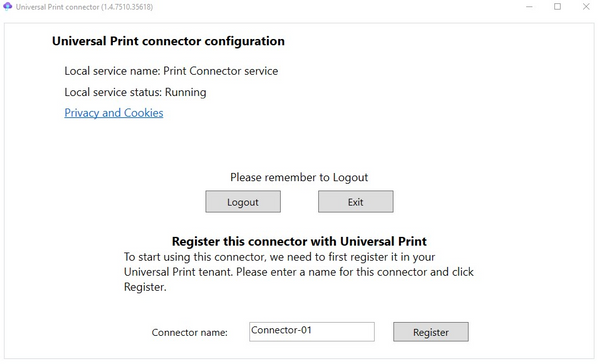
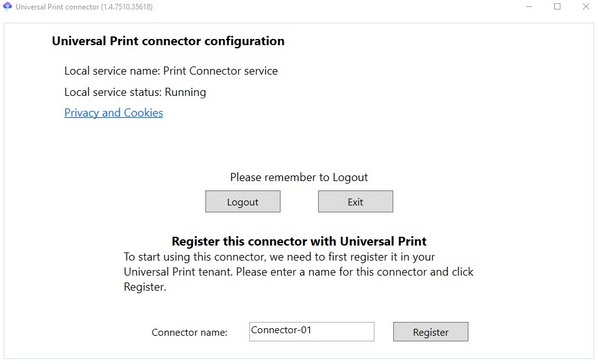 Registering the connector with Universal Print
We want to hear from you!
The Universal Print connector was developed in response to requests and feedback received via our Universal Print feature requests board on Tech Community. Please continue to add features you would like to see in the connector on that page or upvote ideas that are already there.
If you have questions about the connector, please check out the Universal Print Community to find an answer or post your question for our team to answer.

by Scott Muniz | Aug 4, 2020 | Uncategorized
This article is contributed. See the original author and article here.
August Edition Sections:
- Highlighted
- Upcoming Reston MTC Events
- Microsoft Teams – IT Admins & Planning
- Microsoft Teams – End Users & Champions
- Other M365 Topics (Lists & Office)
- Security & Azure AD
- Blogs of Interest
Highlighted
Remote Working Federal Training
The Microsoft Federal Customer Success team has been working hard to provide remote working skilling and instruction to our customers working remote on the following topics:
- Teams Fundamentals: High-level Teams overview
- Productivity in Teams: Best practices for using Teams
- App Integration: Microsoft & 3rd Party apps that be utilized in GCC
- Smart Meetings: Using meetings in Teams to their full potential
- Live Events: Hosting virtual events up to 10K+
- Best Practices: Various topics based on feedback
Below is a schedule of upcoming events. Join all sessions at https://aka.ms/LearnTeamsforGov (we will use the same links daily to host the sessions). Feedback will be available during each session.
|
Date
|
Time (EST)
|
Topic
|
|
Tuesday, Aug 4, 2020
|
1:00-2:30pm |
Teams Fundamentals
|
|
Thursday, Aug 6, 2020
|
1:00-2:30pm |
Smart Meetings
|
|
Tuesday, Aug 11, 2020
|
1:00-2:30pm |
Live Events
|
|
Thursday, Aug 13, 2020
|
1:00-2:30pm |
App Integration |
| Tuesday, Aug 18, 2020 |
1:00-2:30pm |
Smart Meetings
|
|
Thursday, Aug 20, 2020
|
1:00-2:30pm |
Teams Fundamentals
|
| Tuesday, Aug 25, 2020 |
1:00-2:30pm |
Productivity in Teams
|
|
Thursday, Aug 27, 2020
|
1:00-2:30pm |
Best Practices
|
Above times don’t work? Check out our on-demand recordings of previous sessions.
Microsoft 365 Adoption Portal
Microsoft recently announced its launch of a comprehensive M365 Adoption Portal. Here you’ll find numerous resources, including: Adoption Guides in flipbook format, Day in the Life training cards, Links to key scenario guidance such as enabling remote work and virtual events, Links to our newly expanded Microsoft 365 Champion program information, Microsoft 365 learning pathways overview, and more.
Do it in Teams Adoption Resources
For end-user content, quick-start guides, and beginner/advanced interactive demos (which are a fantastic first step for new Teams users!), look no further than the “Do it in Teams” portal. This is a fantastic resource for users learning Microsoft Teams.
Upcoming Reston MTC Events
The Reston MTC is open for business and is delivering virtual customer engagements. Reach out to your account teams to schedule and coordinate your request.
Microsoft Teams – IT Admins & Planning

Microsoft Teams: Plan your upgrade (Start here!)
Discover everything you need to facilitate a successful upgrade to Teams. By the end of this workshop, participants will be able to: (1) Understand why a formal plan is crucial for upgrade success, (2) Identify the steps to the upgrade success framework, (3) Recognize common attributes of successful customers, and (4) Create and implement their own upgrade plan. The audience for this session is All (Business Sponsors, IT Admins, User Readiness/Change Manager, Project Lead).
- On-Demand Session
- Tuesday, August 4, 2020 at 8am PT
- Wednesday, August 5, 2020 at 9am PT
- Tuesday, August 11, 2020 at 8am PT
- Wednesday, August 12, 2020 at 9am PT
- Tuesday, August 18, 2020 at 8am PT
- Wednesday, August 19, 2020 at 9am PT
- Tuesday, August 25, 2020 at 8am PT
- Wednesday, August 26, 2020 at 9am PT
Microsoft Teams: Identify your upgrade approach
Determine the most suitable approach based on your current Skype for Business implementation and upgrade goals. By the end of this workshop, participants will be able to: (1) Understand common scenarios and upgrade approaches, (2) Visualize the user experience for each approach, and (3) Determine the optimal upgrade approach for your organization. IT Admins are the primary audience for this session.
- On-Demand Session
- Tuesday, August 4, 2020 at 9am PT
- Tuesday, August 4, 2020 at 4pm PT
- Tuesday, August 11, 2020 at 9am PT
- Tuesday, August 11, 2020 at 4pm PT
- Tuesday, August 18, 2020 at 9am PT
- Tuesday, August 18, 2020 at 4pm PT
- Tuesday, August 25, 2020 at 9am PT
- Tuesday, August 25, 2020 at 4pm PT
Microsoft Teams: Implement your upgrade approach
Execute your defined upgrade approach as part of your formal upgrade plan. By the end of this workshop, participants will be able to: (1) Recognize the upgrade settings in your O365 tenant admin portal, (2) Understand technical tips and considerations for a successful upgrade, and (3) Apply the appropriate settings in the Portal to execute your upgrade. The primary audience for this session is IT Admins.
- On-Demand Session
- Thursday, August 6, 2020 at 9am PT
- Thursday, August 6, 2020 at 4pm PT
- Thursday, August 13, 2020 at 9am PT
- Thursday, August 13, 2020 at 4pm PT
- Thursday, August 20, 2020 at 9am PT
- Thursday, August 20, 2020 at 4pm PT
- Thursday, August 27, 2020 at 9am PT
- Thursday, August 27, 2020 at 4pm PT
Microsoft Teams: Ready your end users
Design a user readiness strategy to help your users love and adopt Teams. By the end of this workshop, participants will be able to: (1) Recognize factors that influence user acceptance and adoption, (2) Define core value messaging for Teams in your organization, and (3) Outline your awareness, training and support activities. The audience for this session is: User Readiness/Change Manager.
- On-Demand Session
- Tuesday, August 4, 2020 at 10am PT
- Wednesday, August 5, 2020 at 7am PT
- Wednesday, August 5, 2020 at 4pm PT
- Thursday, August 6, 2020 at 10am PT
- Tuesday, August 11, 2020 at 10am PT
- Wednesday, August 12, 2020 at 7am PT
- Wednesday, August 12, 2020 at 4pm PT
- Thursday, August 13, 2020 at 10am PT
- Tuesday, August 18, 2020 at 10am PT
- Wednesday, August 19, 2020 at 7am PT
- Wednesday, August 19, 2020 at 4pm PT
- Thursday, August 20, 2020 at 10am PT
- Tuesday, August 25, 2020 at 10am PT
- Wednesday, August 26, 2020 at 7am PT
- Wednesday, August 26, 2020 at 4pm PT
- Thursday, August 27, 2020 at 10am PT
Microsoft Teams – End User & Champions
Do it in Teams Adoption Resources
For end-user content, quick-start guides, and beginner/advanced interactive demos (which are a fantastic first step for new Teams users!), look no further than the “Do it in Teams” portal. This is a fantastic resource for users learning Microsoft Teams.
Get Started with Microsoft Teams
Whether you are switching from Skype for Business or brand new, join us to learn the basics of how to use Teams to chat with your colleagues and collaborate on projects. Through a series of live demonstrations and best practices, you’ll leave this session with everything you need to start using Teams. After this session, you will be able to: (1) Set up your profile and notifications in Microsoft Teams, (2) Use chat and calling for 1:1 and group conversations, sharing and collaboration in Microsoft Teams, (3) Schedule and conduct meetings in Microsoft Teams, and (4) Align your team and teamwork in Microsoft Teams.
- On-Demand Session
- Tuesday, August 4, 2020 at 5am PT
- Tuesday, August 4, 2020 at 8am PT
- Tuesday, August 4, 2020 at 3pm PT
- Thursday, August 6, 2020 at 12pm PT
- Monday, August 10, 2020 at 5pm PT
- Tuesday, August 11, 2020 at 5am PT
- Wednesday, August 12, 2020 at 11am PT
- Friday, August 14, 2020 at 8am PT
Microsoft Teams: Staying connected with your team while remote
We designed Microsoft Teams to be a virtual office you can take anywhere you go. Work seamlessly and transparently with your remote team and discover greater collaboration and productivity. Join us for this session and explore how to avoid communication sinkholes and do more together, no matter where you are. Each session is limited to 12 participants, reserve your seat now.
Microsoft Teams: Master working from home
Working from home offers the opportunity to maintain your workflow while allowing flexibility in how and where you get your work done. Shifting to a remote worker status can be an adjustment as you look for ways to balance home and work life, maintain focus and be fully productive. Microsoft Teams can help you stay connected to your team while providing access to all of the tools and resources you need to get your work done. Join us to learn tips that can help set you up for success as you transition into a ‘work from home’ scenario. During this session, we’ll share: (1) Guidance for setting up your home environment for work, (2) Best practices for maintaining your workflow while working at home, (3) Tips for staying connected to your team while remote, and (4) Insights for effectively supporting a remote team.
Microsoft Teams: Seamless Collaboration with Microsoft 365
Are you still sending an e-mail with an attachment to your teammates when you want to collaborate on a file? How fast do they respond? How do you know if they are working on the file? How do you manage version control? With Microsoft 365 tools for teamwork, you can seamlessly collaborate on files with your team members. Using Microsoft Teams, you can invite your teammates into an environment where they can effectively collaborate and engage in a persistent conversation. Join us for this session and explore how to avoid productivity sinkholes and increase productivity. This interactive 2-hour session will give you the opportunity to test drive Microsoft Teams in a live cloud environment. A trained facilitator will guide you as you apply these tools to your own business scenarios and experience how they can work for you. Each session is limited to 12 participants, reserve your seat now.
Go Deeper with Microsoft Teams: Build collaborative workspaces in Microsoft Teams
Designed for those who are already familiar with Microsoft Teams, our ‘Go Deeper’ sessions offer insights and best practices. Learn how Teams can help organize your workday and make it easier to stay connected with colleagues. Explore ways to determine the best approach for creating workspaces for projects and workgroups. After this session, you will be able to: (1) Determine the best approach for your collaboration needs (chat versus teams & channels), (2) Create workspaces for your team to provide the best teamwork experience, and (3) Determine best practices in Microsoft Teams to enhance productivity. Note: This session was previously called ‘Learn tips for taking Microsoft Teams to the next level – Part 1’.
- On-Demand Session
- Monday, August 3, 2020 at 3pm PT
- Tuesday, August 4, 2020 at 10am PT
- Wednesday, August 5, 2020 at 5am PT
- Monday, August 10, 2020 at 12pm PT
- Thursday, August 13, 2020 at 8am PT
Microsoft Teams: Enabling Real-time Collaboration for Cross-functional Teams
How do you bring various stakeholders together across multiple teams to achieve your goal? Do you wish you could reduce the number of meetings or e-mails while still being able to solicit feedback, keep everyone informed, and get consensus? Join us to explore how to bring everything together in a shared workspace with Microsoft Teams. Learn how to chat, meet, share files, and work with other business applications to effectively engage others. This interactive 2-hour session will give you the opportunity to try it for yourself and test drive Microsoft Teams in a live cloud environment. A trained facilitator will guide you as you apply these tools to your own business scenarios and experience how they can work for you. Each session is limited to 12 participants, reserve your seat now.
Run Effective Meetings with Microsoft Teams
Have you spent significant time and resources to prepare for a meeting and still felt it wasn’t productive? Have you attended a meeting only to leave feeling like not much was accomplished? Join this class to learn how to make your meetings engaging, productive and effective. Microsoft Teams can help make your meetings worth showing up for. After this session, you will be able to: (1) Use Teams for your entire meeting experience, (2) Record your meeting, making it easy for those who couldn’t attend to get caught up, (3) Keep important meetings at your fingertips by pinning them for easy access, and (4) Assess which audio and video devices are best for your meeting needs.
- On-Demand Session
- Monday, August 3, 2020 at 5pm PT
- Tuesday, August 4, 2020 at 12pm PT
- Friday, August 7, 2020 at 8am PT
- Tuesday, August 11, 2020 at 3pm PT
- Wednesday, August 12, 2020 at 5am PT
- Thursday, August 13, 2020 at 10am PT
Go Deeper with Microsoft Teams: Leverage pro tips and tricks for Microsoft Teams
Designed for those who are already familiar with Microsoft Teams, our ‘Go Deeper’ sessions offer insights and best practices. Learn how Teams can help organize your workday and make it easier to stay connected with colleagues. Learn tips and tricks for managing and organizing work and communications in Teams. After this session, you will be able to: (1) Leverage formatting best practices to help get your messages noticed (and responded to), (2) Easily find files, chats and projects, (3) Implement strategies to manage and organize your work, and (4) Simplify your workday. Note: This session was previously called ‘Learn tips for taking Microsoft Teams to the next level – Part 2’.
Microsoft Teams: Do more with apps
Join Microsoft Teams experts as we review how you can deploy commonly-used applications directly within Teams, enabling your users to work more efficiently and effectively by accessing everything they need in a single interface. This foundational workshop covers basic capabilities across app management and security. With over 400 out-of-the-box applications available (and growing), you’re sure to find an app, or two, that your team can begin using today in Teams. After this session, you will be able to: (1) Identify suitable apps to meet the needs for your organization, (2) Recognize common attributes of successful app deployment, (3) Navigate security and compliance considerations for Teams’ apps, and (4) Determine the next steps to deploy an app to your environment.
Integrate apps to do more in Microsoft Teams
Do you want to get more done in Teams? Receive targeted and timely updates? Access services directly through Teams? Apps let you complete tasks, receive updates and communicate. This session introduces you to the key activities needed to get started with adding applications, bots and connectors in Microsoft Teams today. Through a series of live demonstrations and best practices, you’ll leave this session with everything you need to start using apps in Teams. After this session, you will be able to: (1) See how applications, bots and connectors can help you be more efficient while working in Teams, (2) Select an application, bot or connector for your workspace, (3) Install an application, bot or connector, and (4) Use an application, bot or connector in your workspace.
Other M365 Topics
Webinar: Working with Microsoft Lists
When: Wednesday, August 5, 2020 at 9:00am PT | Learn how to get started with Microsoft Lists from the Microsoft Lists engineers themselves. Start a list from a template, add your information, and then use conditional formatting, rules, and key collaboration features to make the list your own – to make it work across your team. Lots to learn. Lots of demos. Don’t forget to add this event to your calendar, and join us live!
Ask Microsoft Anything (AMA): Upcoming Changes to Office Support
When: Wednesday, September 9, 2020 at 9:00am PT | Join us for an opportunity to “Ask Microsoft Anything” (AMA) about upcoming changes to support for Office 2016 for Mac, Office 2010 and Office 2013 connectivity to Office 365 services. To join, simply visit the Office End of Support AMA space at 9:00am Pacific and submit a question. An AMA is a live, online, text-based question-and-answer event similar to a “YamJam” on Yammer or an “Ask Me Anything” on Reddit. Note: While we’ll only be answering questions in real-time from 9am – 10am Pacific, you can post your questions for the AMA to the Office End of Support AMA space up to 24 hours in advance. We look forward to seeing you there!
Security & Azure AD
Customer Immersion Experience: Protecting Identity, Apps, Data and Devices
Identity is at the center of security: don’t compromise when it comes to your company’s valuable information. Join us to explore how to use secure authentication, govern access, get comprehensive protection and set the right identity foundation. During this 2-hour interactive session, you will explore how to: (1) Enable password protection, (2) Bring multi-factor authentication to your Windows 10 users, (3) Protect your users and data through Office 365 multi-factor authentication, and (4) Use conditional access to protect across devices, locations and apps. Each session is limited to 12 participants, reserve your seat now.
Customer Immersion Experience: Protecting Your Sensitive Information
Data needs to be protected wherever it’s stored and whenever it travels, and you need the tools to monitor policy violations and risky behavior. Join us to explore how to implement a comprehensive and integrated approach across devices, apps, cloud services, and on-premises. During this 2-hour interactive session, you will explore how to: (1) Identify, monitor and automatically protect sensitive information across Office 365, (2) Help classify and protect documents and email, and (3) Use policies to enable BYOD scenarios by protecting data at the app level. Each session is limited to 12 participants, reserve your seat now.
Customer Immersion Experience: Protecting Assets and Empowering Your Defenders
Today’s workforce can work from anywhere, on any device, and on any app. Security teams need to understand threat signals from disconnected products and optimize security with minimal complexity. During this 2-hour interactive session, you will explore how to: (1) Safeguard users from malware attacks such as phishing and spoofing with Office 365, (2) Use the Windows Defender ecosystem to proactively monitor and protect your users, (3) Utilize Office 365 ATP to help protect users from bad links and attachments, and (4) Let machine learning and automation protect users from threats. Each session is limited to 12 participants, reserve your seat now.
Customer Immersion Experience: Simplifying Your Privacy and Compliance Journey
Your business needs to control how sensitive data is managed. Join us and explore how to assess your compliance risk, protect sensitive and business critical data, and respond efficiently to data discovery requests. During this 2-hour interactive session, you will explore how to: (1) Simplify assessment of compliance risk, (2) Integrate protection and governance of data, and (3) Intelligently respond to data discovery requests. Each session is limited to 12 participants, reserve your seat now.
Blogs of Interest
Public Sector Blog Website | RSS Feed
Microsoft Teams Blog Website | RSS Feed
Office & Microsoft 365
Enterprise identity, mobility, and security
Microsoft Azure and Development
Windows, Operations, Management, and Deployment
Support and adoption
Misc
Thanks for stopping by and reading our monthly resources. Feel free to reach out in the comments below with any comments, questions or ideas on other events to add to the list. Here in Public Sector we want to make sure we are giving you the information and insights to best serve your needs in this community.
by Scott Muniz | Aug 4, 2020 | Uncategorized
This article is contributed. See the original author and article here.
It’s that time again where we provide a wrap-up of the Microsoft Security & Compliance News for the previous month. For July, it picked up right where June left off with a plethora of great content around product enhancements and new product announcements (tip: scroll to the bottom and read about the Endpoint DLP preview). Enjoy the news below and as always I have called out recommended reading in italics.
General News
Afternoon Cyber Tea: Peak, Plateau, or Plummet? Cyber security trends that are here to stay and how to detect and recover from ransomware attacks
Afternoon Cyber Tea: Cybersecurity & IoT: New risks and how to minimize them
Preventing data loss and mitigating risk in today’s remote work environment
5 cybersecurity paradigm shifts that will lead to more inclusive digital experiences
CISO Stressbusters Post #3: 3 ways to share accountability for security risk management
Microsoft Intelligent Security Association expands to include managed security service providers
Johnson Controls makes working from home easier and more secure with Azure AD and Zscaler ZPA
Microsoft takes legal action against COVID-19-related cybercrime
Introducing Kernel Data Protection, a new security technology for preventing data corruption
How to protect your remote workforce from application-based attacks like consent phishing
The world is your authentication and identity oyster
Azure Security & Compliance News
Azure Sentinel Ninja Training: The July 2020 update
Hunting the Demons- Azure Sentinel Administrative Suspicious Activities Library
New Azure Sentinel connectors
Azure Sentinel Workbooks 101 (with sample Workbook)
Azure Sentinel: What’s New: Incident Auto-refresh hits GA!
Hunting the Clues- Azure Sentinel Administrative Suspicious Activities Library
Azure Sentinel: Ensuring Internet-blocked Azure VMs Can Still Connect
Enrich Azure Sentinel security incidents with the RiskIQ Intelligence Connector
Azure Sentinel: What’s New: Cross Workspace Hunting is now available!
What’s New: Azure Sentinel Machine Learning Behavior Analytics: Anomalous RDP Login Detection
Azure Sentinel: The connectors grand (CEF, Syslog, Direct, Agent, Custom and more)
Making Azure Sentinel work for you
Azure Sentinel API 101
Azure Sentinel Side-by-Side with QRadar
Handling sliding windows in Azure Sentinel rules
New: Per data type retention is now available for Azure Sentinel
New Azure Sentinel notebook experience and the retirement of the Azure Notebooks service preview
Monitoring SQL Server with Azure Sentinel
Categorizing Microsoft alerts across data sources in Azure Sentinel
Asset inventory experience in Azure Security Center
Fileless Attack Detection for Linux Preview is Expanding
Azure Security Center in the Field – YouTube Series
Threat Protection for SQL IaaS VMs using Azure Security Center
The Benefits of Advanced Threat Detection in Azure SQL Database
Creating a Custom Dashboard for Azure Security Center with Azure Resource Graph
Azure Files support and new updates in advanced threat protection for Azure Storage
Security Controls in Azure Security Center: Secure Management Ports
Azure Firewall Manager is now generally available
Microsoft 365 Security (All Up News)
Announcing general availability of the new version of Microsoft Secure Score
Boost security of your remote workers with confidence using Security Policy Advisor
SolarWinds announces collaboration with Microsoft to enhance monitoring and management for MSPs
A Journey to Holistic Cloud Protection with the Microsoft 365 Security Stack Pt 6 – M365 Integration
Security baseline for Microsoft Edge v84
M365 Identity & Data Protection (Azure AD, Intune, AIP, MCAS)
Guiding principles of our identity strategy: staying ahead of evolving customer needs
Prevent and detect more identity-based attacks with Azure Active Directory
Azure AD Application Proxy now supports the Remote Desktop Services web client
Advancing Privacy with Zero-Knowledge Proof Credentials
Enhanced support for Azure AD Guest Users for Azure SQL
Azure AD Mailbag: Managing and reviewing exception lists more rigorously with access reviews
Microsoft Endpoint Manager: Create & Audit an ASR Policy
New study shows customers save time, resources with Microsoft Cloud App Security
M365 Threat Protection (Office ATP, Windows Defender ATP, Azure ATP/ATA)
Microsoft Defender ATP awarded a perfect 5-star rating by SC Media
Webinar series: Unleash the hunter in you!
Short & sweet educational videos on Microsoft Threat Protection
Microsoft Threat Protection advanced hunting cheat sheet
Become a Microsoft Defender ATP Ninja
MDATP: An update on Web Content Filtering
Announcing high value asset tagging in Microsoft Defender ATP
Welcome to the new community home for Microsoft Threat Protection (MTP)
Pivot fast and investigate freely with go hunt & other advanced hunting enhancements
See how consolidated incidents improve SOC efficiency through this attack sprawl simulation
Inside Microsoft Threat Protection: Solving cross-domain security incidents through the power of correlation analytics
Customer Offerings: Modern Workplace Threat Protection
M365 Compliance & Governance
Announcing public preview of Microsoft Endpoint Data Loss Prevention
Protecting against insider risks in an uncertain environment
Announcing public preview of Double Key Encryption for Microsoft 365
Announcing GA: Mark new files as “sensitive by default” in OneDrive & SharePoint
Regards,
Jeremy Windmiller | Enterprise Security Architect, CISSP, CEH, ITIL | Microsoft – Healthcare
by Scott Muniz | Aug 4, 2020 | Uncategorized
This article is contributed. See the original author and article here.
When looking into performance issues on support cases there is one pattern called ALL-IN-ONE QUERY that we always sees that cause many issues. This pattern is very common and logically looks correct but will cause huge performance degradation.
The idea behind this pattern is that you want a query that filter by the parameter or ignore the filter if send null or zero. And as said logically it looks correct
- (CustomerID = @CustomerID OR @CustomerID = 0)
Or some other variations
- (CustomerID = @CustomerID OR @CustomerID IS NULL)
- CustomerID = CASE WHEN ISNULL(@CustomerID, 0) = 0 THEN CustomerID ELSE @CustomerID END
Find below a sample. For this test I want to filter by Customer ID or by Last Name.
- If I send @CustomerID = XXX I want to filter specific customer ID filter
- If I send @CustomerID = 0 I want the query to ignore the customer ID filter
- if I send @LastName I want to filter specific last name
- if send NULL to @LastName filter, want to ignore it
- I can also ignore both to list all users
DROP PROCEDURE IF EXISTS spTEST
GO
CREATE PROCEDURE spTEST
(
	 @CustomerID int = 0
	,@LastName varchar(50) = NULL
)
AS
	SELECT * FROM [SalesLT].[Customer]
	WHERE
			(CustomerID = @CustomerID OR @CustomerID = 0)
		AND (LastName   = @LastName   OR @LastName IS NULL)
GO

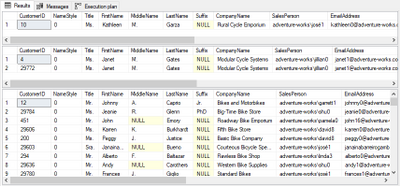
EXEC spTEST @CustomerID = 10, @LastName = NULL
EXEC spTEST @CustomerID = 0, @LastName = 'Gates'
EXEC spTEST @CustomerID = 0, @LastName = NULL
What will happen is that the query works, usually on dev databases with small datasets will run fine, but when you go to production with huge databases you going to notice a huge slowdown
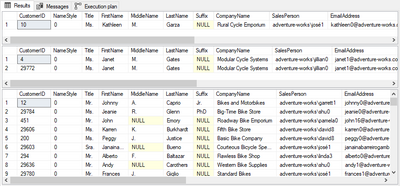
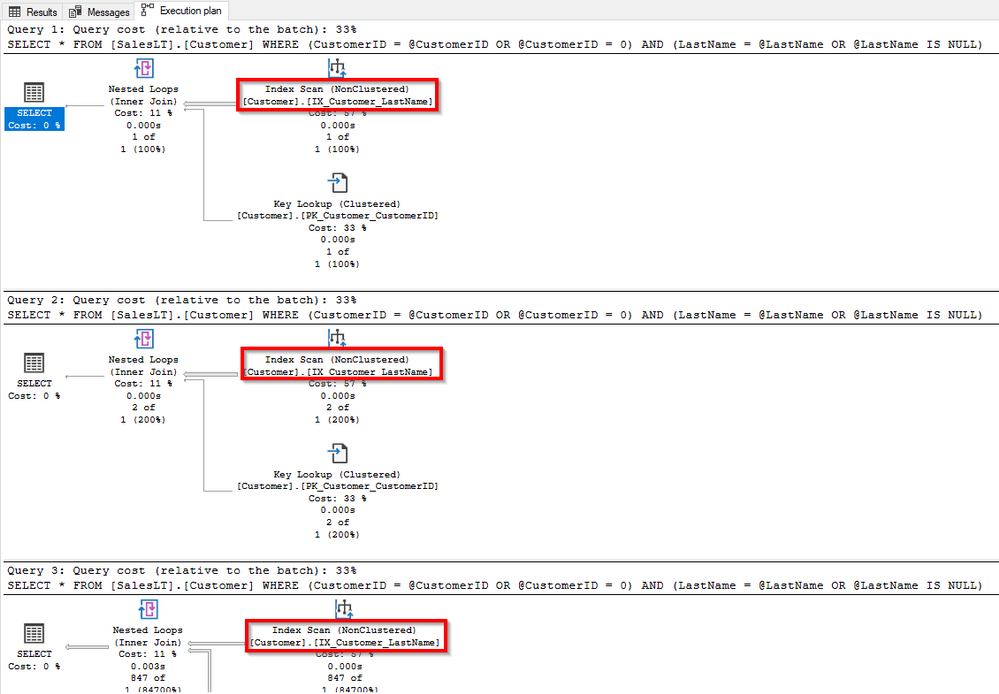
Does not matter the parameter you sent it will always scan the index. Even that you have a covering index it will completely ignore it.
This is not a defect this is an expected behavior when SQL is building query plan.
Solution 1 – OPTION RECOMPILE
One workaround, if query is not executed very often, is to use OPTION (RECOMPILE) at end. This might not be a good option if running very frequently because it will increase the CPU usage and can cause compilation queue waits because for each new execution SQL will have to create a new plan.
DROP PROCEDURE IF EXISTS spTEST
GO
CREATE PROCEDURE spTEST
(
	 @CustomerID int = 0
	,@LastName varchar(50) = NULL
)
AS
	SELECT * FROM [SalesLT].[Customer]
	WHERE
			(CustomerID = @CustomerID OR @CustomerID = 0)
		AND (LastName   = @LastName   OR @LastName IS NULL)
	OPTION (RECOMPILE) --------- MAY INCREASE CPU / RESOURCE_SEMAPHORE_QUERY_COMPILE
GO

EXEC spTEST @CustomerID = 10, @LastName = NULL
EXEC spTEST @CustomerID = 0, @LastName = 'Gates'
EXEC spTEST @CustomerID = 0, @LastName = NULL
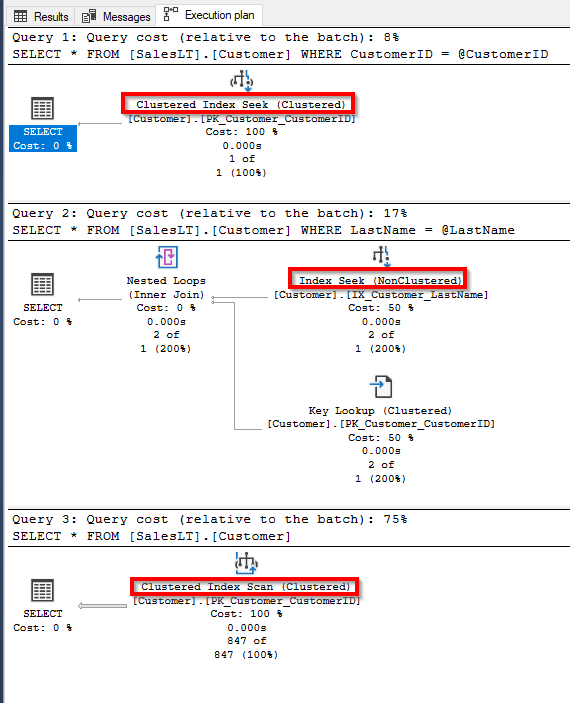
It will create the best plan for each set of filters used
Solution 2 – IF/ELSEs
One workaround when you have a limited number of options is to create a series of IF and ELSEs. But this can be an issue as number of options increase.
DROP PROCEDURE IF EXISTS spTEST
GO
CREATE PROCEDURE spTEST
(
	 @CustomerID int = 0
	,@LastName varchar(50) = NULL
)
AS
	IF @CustomerID = 0 AND @LastName IS NULL
		SELECT * FROM [SalesLT].[Customer]

	ELSE IF @CustomerID = 0 AND @LastName IS NOT NULL
		SELECT * FROM [SalesLT].[Customer]
		WHERE LastName = @LastName

	ELSE IF @CustomerID != 0 AND @LastName IS NULL
		SELECT * FROM [SalesLT].[Customer]
		WHERE CustomerID = @CustomerID

	ELSE IF @CustomerID != 0 AND @LastName IS NOT NULL
		SELECT * FROM [SalesLT].[Customer]
		WHERE   (CustomerID = @CustomerID)
			AND (LastName   = @LastName)

GO

EXEC spTEST @CustomerID = 10, @LastName = NULL
EXEC spTEST @CustomerID = 0, @LastName = 'Gates'
EXEC spTEST @CustomerID = 0, @LastName = NULL
Solution 3 – Dynamic query
When you have multiple options the best option is to use Dynamic query + sp_executesql sending the parameters, this way you will have good plan depending on parameters sent to procedure and also will reuse plan.
!!! Use sp_executesql parameters. Do not concatenate parameters to the string. This can lead to SQL Injection issues
DROP PROCEDURE IF EXISTS spTEST
GO
CREATE PROCEDURE spTEST
(
	 @CustomerID int = 0
	,@LastName varchar(50) = NULL
)
AS
	DECLARE @SQL NVARCHAR(MAX) = ''

	SET @SQL += 'SELECT * FROM [SalesLT].[Customer] ' + CHAR(10)
	SET @SQL += 'WHERE 1=1' + CHAR(10)
	IF @CustomerID != 0
		SET @SQL += '	AND (CustomerID = @CustomerID)' + CHAR(10)
	IF @LastName IS NOT NULL
		SET @SQL += '	AND (LastName = @LastName)' + CHAR(10)

	EXEC sp_executesql @SQL
		,N'@CustomerID int, @LastName varchar(50)'
		,@CustomerID = @CustomerID
		,@LastName = @LastName
GO

EXEC spTEST @CustomerID = 10, @LastName = NULL
EXEC spTEST @CustomerID = 0, @LastName = 'Gates'
EXEC spTEST @CustomerID = 0, @LastName = NULL
I hope this help you build better queries
REF: https://deep.data.blog/2008/12/19/t-sql-anti-pattern-of-the-day-all-in-one-queries/
by Scott Muniz | Aug 4, 2020 | Uncategorized
This article is contributed. See the original author and article here.
Scenario: When executed more than 325 columns in a select query the error bellow was thrown:
[110813] Invalid operation. The connection is closed.
The same query with fewer columns than that worked. So it seems it was hitting some kind of limit.
Once we got the request after some troubleshooting we found the following error on the logs:
The service has encountered an error processing your request. Please try again. Error code 8632.
So it was not a matter of hard limit, but complexity and translation that may happen in any version of SQL Server.
I know this doc is SQL Server 2005, but the issue is the same. When the query is too complex it must be simplified. So SQL does not map de number of expressions directly. Using the doc words:
“This issue occurs because SQL Server limits the number of identifiers and constants that can be contained in a single expression of a query. This limit is 65,535. For example, the following query only has one expression:
select a, b + c, d + e
This expression retrieves all five columns, calculates the addition operators, and sends three projected results to the client.”
https://support.microsoft.com/en-us/help/913050/error-message-when-you-run-a-query-in-sql-server-2005-internal-error-a
The solution was simplified the query text. Some functions were added on Select statement, SQL query text was simplified and the query worked after that.
That is it!
Liliam
UK Engineer
by Scott Muniz | Aug 4, 2020 | Alerts, Microsoft, Technology, Uncategorized
This article is contributed. See the original author and article here.
Final Update: Tuesday, 04 August 2020 07:38 UTC
We’ve confirmed that all systems are back to normal with no customer impact as of 08/04, 02:42 UTC. Our logs show the incident started on 08/04, 00:35 UTC and that during the 2 hours and 7 minutes that it took to resolve the issue some of the customers might have experienced delayed alerts. Alerts would have eventually fired.
- Root Cause: The failure was due to an issue in one of our back-end services.
- Incident Timeline: 2 Hours & 7 minutes – 08/04, 00:35 UTC through 08/04, 02:42 UTC
We understand that customers rely on Azure Monitor as a critical service and apologize for any impact this incident caused.
-Saika


Recent Comments