This article is contributed. See the original author and article here.
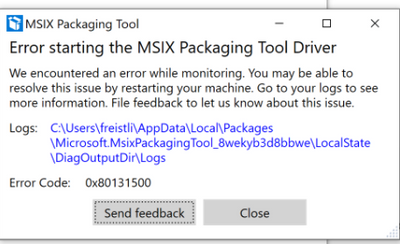
Recently I work on one MSIX packaging task to convert a traditional Win32 installer to .msix package with MSIX packaging tool, however always faced this kind of error message once start the packaging:
By checking the error log, it shows:
[8/14/2020 10:29:06 AM] [Error] Error monitoring: Insufficient system resources exist to complete the requested service
[8/14/2020 10:29:06 AM] [Debug] Getting environment object from %UserProfile%AppDataLocalPackagesMicrosoft.MsixPackagingTool_8wekyb3d8bbweLocalStateMsixGenerator.ConversionState.xml
[8/14/2020 10:29:06 AM] [Error] Error Occurred: Microsoft.ApplicationVirtualization.Packaging.Sequencing.SequencerException: Insufficient system resources exist to complete the requested service —>
Microsoft.ApplicationVirtualization.Packaging.MonitorException: Insufficient system resources exist to complete the requested service —>
System.ComponentModel.Win32Exception: Insufficient system resources exist to complete the requested service at Microsoft.ApplicationVirtualization.Packaging.Tracing.TraceController.Start(String logfilePath) at Microsoft.ApplicationVirtualization.Packaging.TracingSubsystem.<>c__DisplayClass6_0.<.ctor>b__0() at System.EventHandler`1.Invoke(Object sender, TEventArgs e)
However my PC has enough RAM (free 20GB), with latest Windows 10 update. I tried restarting PC and it doesn’t help as well. Don’t think it is a resource limit issue. With this question, I used Windows Feedback [Windows + F] to raised a feedback. The response from Window team was quick and quite helpful.
The error indeed failed when start new system event tracing sessions. These sessions can only be a limited amount of them system-wide, this limit is 64 by default, otherwise we will hit this ERROR_NO_SYSTEM_RESOURCES error.
2. Editing the REG_DWORD key at HKEY_LOCAL_MACHINESYSTEMCurrentControlSetControlWMIEtwMaxLoggers. Permissible values are 32 through 256
I didn’t take the steps as some system trace sessions can start when machine is starting up, and some traces should be stopped if they are not necessary. I used commands “logman query -etc”, “tracelog -l”, the result shows a lot of running trace sessions (up to 50). Although they are not hit 64 limits, I thought reducing them will be definitely worth trying.
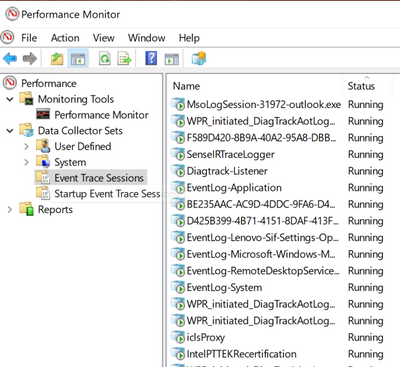
After some quick research, I can see the Perfmon Monitor will be helpful to manage the running system trace session easily. After taking below steps, the MSIX error is resolved immediately:
1. In Start command, type “Performance Monitor”, start it as Admin
2. Choose Data Collector Sets -> Event Trace Sessions, right click to stop some sessions
3. To avoid this issue from next rebooting, can disable some of them in Data Collector Sets -> Startup Event Trace Sessions
This article is contributed. See the original author and article here.
What is the issue?
The customer asked SI (system integration) partner to migrate their system to cloud in the form of “lift-and-shift”, but session affinity did not work properly.
Environment and deployment topology
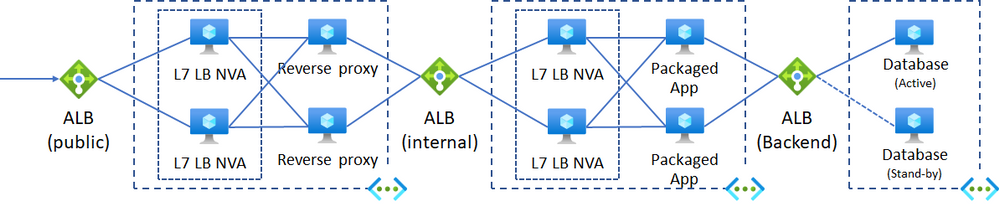
Their deployment topology is listed below. This issue occurred after migration completed. The customer does not configure their system on multi-region for availability.
Azure Load Balancer (ALB) : Traffic routing is based on protocol and client IP.
We’d like to configure cookie based session affinity.
We’d like to achieve it as inexpensive as possible.
Situation
In case packaged application is hosted on Java EE application server, session affinity is typically configured using clustering of Java EE application server or session sharing with in-memory data grid or cache. However, they cannot configure application server cluster since clustering is restricted against the edition they use. And the SI partner deployed L7 LB NVA behind ALB to achieve session affinity, as the SI partner knew ALB did not have session affinity feature.
Let’s imaging causes of this issue
There are many people who can imagine the root cause when looking at the deployment topology above. The following points should be checked.
Would source IP of inbound traffic to ALB (public) change? Specifically, would global IP be changed when transforming local IP to global IP using SNAT on customer site?
ALB does not have any feature for session affinity. Therefore, if source IP of inbound traffic is changed, the destination VM which hosts packaged application should change.
Would reverse proxy develop side effect?
Would L7 LB NVA which deploys behind ALB work as expected? Would session information be shared between both NVAs?
Root cause
This issue occurred due to the following configuration.
Source IP of inbound traffic was sometimes changed.
When source IP was changed, ALB (public) recognized that this traffic came from another client and routed the traffic to another L7 LB NVA.
L7 LB NVAs were deployed behind ALB for session affinity, but they did not work expectedly since session information was not shared with the NVAs. When inbound traffic was routed to one L7 LB NVA, the L7 LB NVA did not have any way to identify session continuity. So, the NVA recognized that this traffic came from other client.
The following URL describes traffic distribution rule.
The following table is listed what happened in each component specifically.
Component
What would happens?
ALB (Public)
The fact of the matter is that traffic comes from the same client, but the traffic is sometimes NATed into other global IP. In this case, ALB (public) recognizes that this traffic comes from different client, and routes the traffic to any L7 LB NVAs. Therefore, chosen L7 LB NVA might be different from the one processed previous traffic from the same client.
L7 LB NVA
If L7 LB NVAs are configured in the form of “Active-Active” but session information is not shared between L7 LB NVAs, no L7 LB NVA can identify whether or not the traffic comes from the same client. Therefore, L7 LB NVA can route traffic to any reverse proxy NVAs and chosen reverse proxy NVA might be different from the one processed previous traffic.
ALB (Internal)
If a reverse proxy NVA where current traffic passed is different from the one processed previous traffic, ALB (Internal) recognizes that this traffic comes from different client since source IP is different, and routes the traffic to any internal L7 LB NVAs. Therefore, chosen L7 LB NVA might be different from the one processed previous traffic from the same client.
Internal L7 LB NVA
This is the same as mentioned above. Since session information is not shared between internal L7 LB NVAs, no internal L7 LB NVA can identify whether or not the traffic comes from the same client. Therefore, internal L7 LB NVA can route traffic to any VMs hosted packaged application and chosen VM might be different from the one processed previous traffic.
Packaged Application
Traffic routing was not consistent due to reasons mentioned above, so traffic was sometimes routed to the VM which handled previous traffic, and at other times another traffic was routed to the different VM.
Solution
I commented points to be fixed and SI partner reconfigured component topology. After that, traffic was routed to an expected package application node.
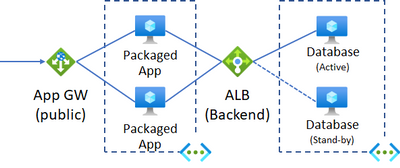
ALB, L7 LB NVAs, and Reverse Proxy NVAs were replaced with Azure Application Gateway (App GW).
Cookie based affinity was enabled following the document.
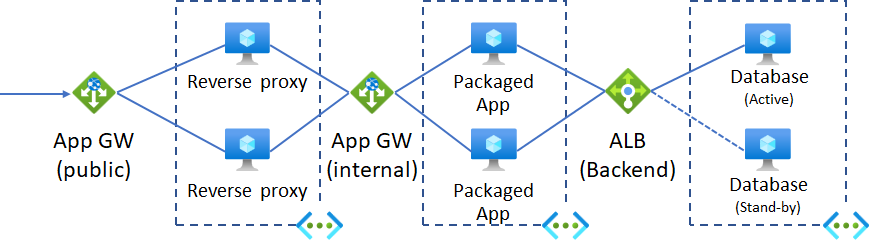
Here is the reconfigured component topology. This topology helped the customer reduce NVA related cost and operational cost.
Others
I did not recommend using Azure Front Door as a public L7 LB since the customer’s system was not multi-region supported and global service was useless.
In this case, requirements for reverse proxy could cover App GW’s features. If App GW does not meet customer requirements for reverse proxy (for example, reverse proxy for authentication gateway is required), the following topology would be better.
Conclusion
The following points are important when migrating existing systems to cloud.
Good understanding of services you are using.
Simple deployment topology. In other words, decrease the number of components you use.
This article is contributed. See the original author and article here.
A few months ago, I had a chance to do live streaming with Cheese (@seojeeee) about this topic – Part 1 and Part 2 in Korean. I know it’s warm and humid in the summer season in Korea. Therefore, I implemented this feature for my air-conditioning system at home, as well as other home appliances that work with remote controllers. However, as I have very little knowledge of Raspberry PI and other hardware, it was really challenging. This is the post to note to future self and others who might be interested in this topic.
Part 1: Turning Raspberry PI into Remote Controller
Part 2: Turning on/off Home Appliances Using Raspberry PI, Serverless and Power Platform
The sample codes used in this post can be found at this GitHub repository.
Check Hardware and Software Specs
It might be only me, but I found that Raspberry PI and its extension modules like IR sensor are very version sensitive. I Google’d many relevant articles on the Internet, but they are mostly outdated – not valid information any longer. Of course, this post will also have a high chance to be obsolete. Therefore, to avoid visitors from being disappointed in the future, it would be a great idea that I specify which hardware and software spec I used.
Your Raspberry PI OS has now been up-to-date and got the LIRC module installed.
LIRC Module Configuration
Let’s configure the LIRC module to send and receive the IR signal.
Bootloader Configuration
By updating the bootloader file, when Raspberry PI starts the LIRC module starts at the same time. Open the bootloader file:
sudo nano /boot/config.txt
Uncomment the following lines and correct the pin number. The default values before being uncommented were 17 for gpio-ir and 18 for gpio-ir-tx. But it should be swapped (line #5-6).
Of course, it might be working without swapping the pin numbers. But it wasn’t my case at all. I had to change them to each other.
# Uncomment this to enable infrared communication.
#dtoverlay=gpio-ir,gpio_pin=17
#dtoverlay=gpio-ir-tx,gpio_pin=18

dtoverlay=gpio-ir,gpio_pin=18
dtoverlay=gpio-ir-tx,gpio_pin=17
LIRC Module Hardware Configuration
Let’s configure the LIRC module hardware. Open the file below:
Once you’ve completed by now, reboot Raspberry PI to recognise the updated bootloader.
sudo reboot
Send this command to check the LIRC module working or not.
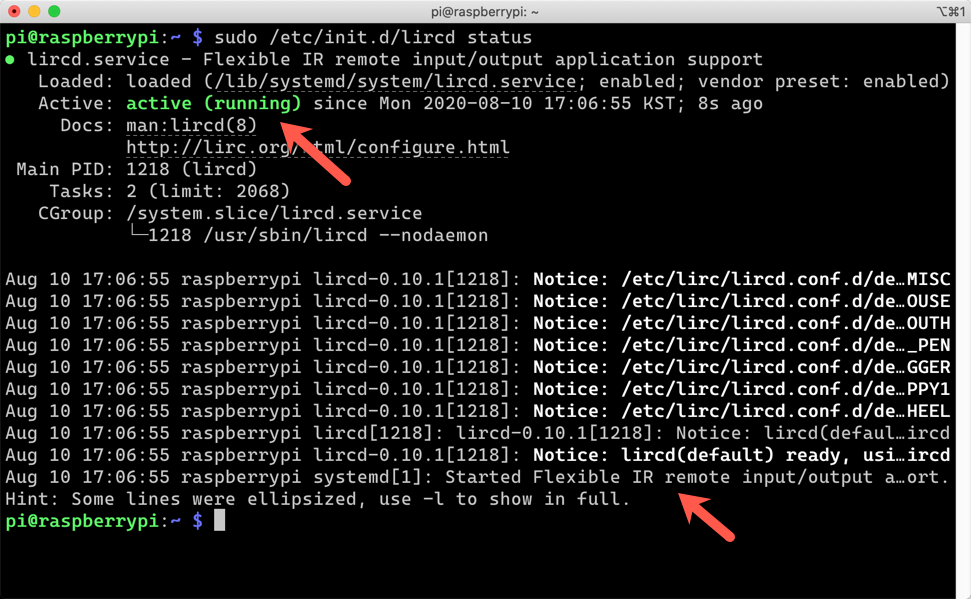
sudo /etc/init.d/lircd status
It’s now working!
Remote Controller Registration
This is the most important part of all. I have to register the remote controller I’m going to use.
Use Remote Controller Database for Registration
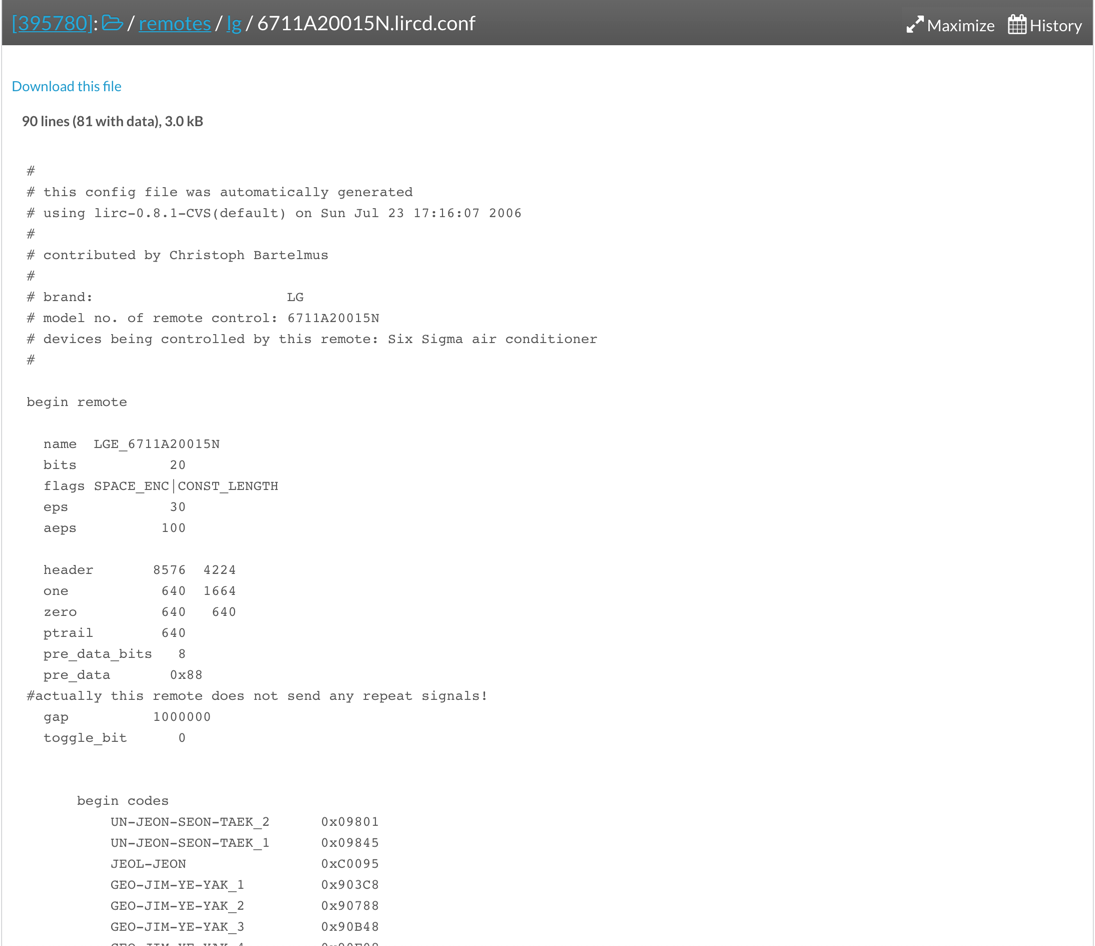
The easiest and promising way to register the remote controller is to visit Remote Controller Database website, search the remote controller and download it. For example, as long as you know the remote controller model name, it can be found on the database. I just searched up any LG air-conditioner.
If you can find your remote controller details, download it and copy it to the designated location.
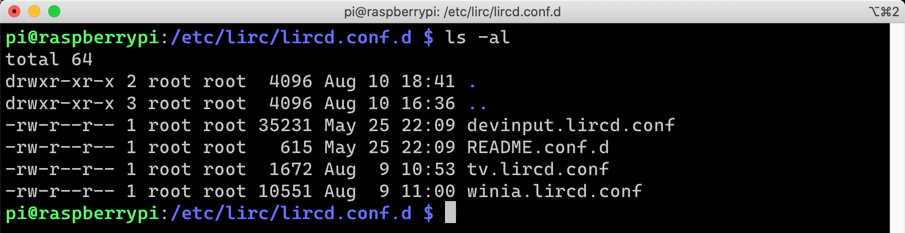
Not every remote controller has been registered to this database. If you can’t find yours, you should create it by yourself. Winia makes my air-conditioning system, but it doesn’t exist on the database. I’ve got a local branded TV which doesn’t exist on the database either. I had to create them. To create the configuration file, Raspberry PI should be double-checked whether the IR sensor on it captures the remote controller signal or not. First of all, stop the LIRC service.
sudo /etc/init.d/lircd stop
Run the following command to wait for the incoming IR signals.
sudo mode2 -m -d /dev/lirc0
If you’re unlucky, you’ll get the following error message. Yeah, it’s me.
It’s because both the IR sender and receiver are active. At this time, we only need the receiver, which is for capturing the IR signals. Disable the sender part. Open the bootloader.
sudo nano /boot/config.txt
We used to have both gpio-ir and gpio-ir-tx activated. As we don’t need the sender part, for now, update the file like below (line #5-6).
# Uncomment this to enable infrared communication.
#dtoverlay=gpio-ir,gpio_pin=17
#dtoverlay=gpio-ir-tx,gpio_pin=18

dtoverlay=gpio-ir,gpio_pin=18
#dtoverlay=gpio-ir-tx,gpio_pin=17
Once completed, reboot Raspberry PI using the command, sudo reboot. Once it’s restarted, run the following command so that you can confirm it works.
sudo mode2 -m -d /dev/lirc0
Now it’s waiting for your IR signal input. Locate your remote controller close to Raspberry PI and punch some buttons. You’ll find out the remote controller buttons are captured.
We confirm the incoming signals are properly captured. It’s time to generate the remote controller file. Enter the following command:
sudo irrecord -d /dev/lirc0 --disable-namespace
Once running the command above, it gives you instructions to follow. Record your buttons by following the instruction. By the way, the recording application sometimes doesn’t work as expected. Yes, I was in the case. I had to use a different approach. Instead of using irrecord, I had to use mode2 to capture the button signals. Run the following command:
sudo mode2 -m -d /dev/lirc0 > .lircd.conf
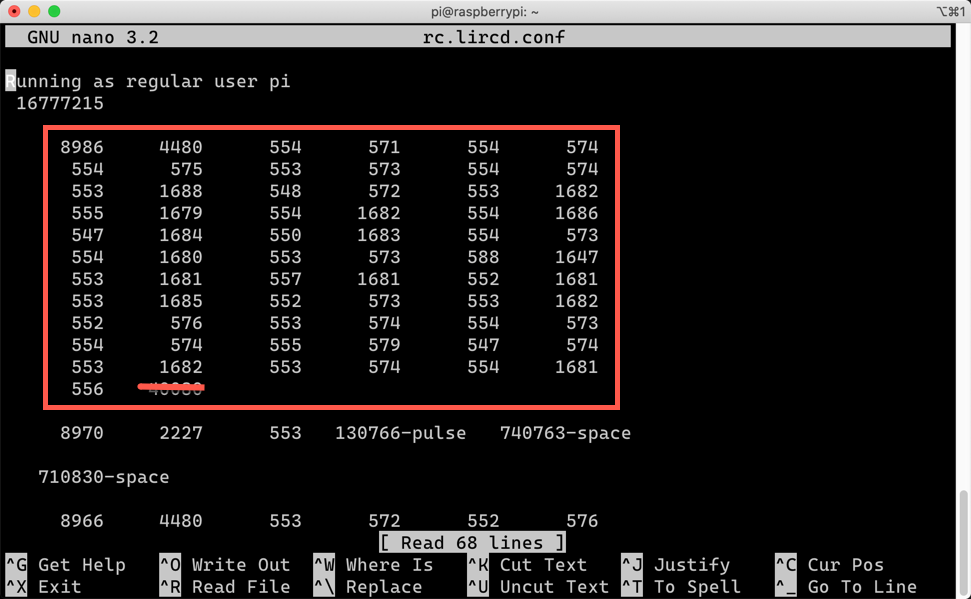
Record the button signals. When you open the <remote_controller_name>.lircd.conf file, you’ll be able to see some number blocks.
The number blocks in the red rectangle are the set of the controller button. As the last value of the box is an outlier, delete it. And remove all others except the number blocks. Let’s add the followings around the number blocks.
Add begin remote ... begin raw_codes before the fist number block. They are from the random file on the database. I don’t know what the exact value might look like. I just copied and pasted them to the file (line #1-13).
Give each number block a name like name SWITCH_ON. Each button has a different value represented by the number block. Therefore give those names extensively (line #15, 22).
Add the lines at the end of the final number block (line #29-30).
begin remote

  name   tv
  flags RAW_CODES
  eps            25
  aeps          100

  ptrail          0
  repeat     0     0
  gap    20921


  begin raw_codes

    name SWITCH_ON
     8996     4451      552      574      551      576
      552      576      551      579      550      575
      553     1683      577      550      551     1683
      ...
      564

    name SWITCH_OFF
     9000     4453      578      548      580      548
      578      549      556      572      552      576
      552     1683      577      551      550     1683
      ...
      573

  end raw_codes
end remote
After this update, copy this file to the LIRC directory.
Remote controllers have been registered. Open the bootloader for the update.
sudo nano /boot/config.txt
Update the IR sender part (line #5-6).
# Uncomment this to enable infrared communication.
#dtoverlay=gpio-ir,gpio_pin=17
#dtoverlay=gpio-ir-tx,gpio_pin=18

dtoverlay=gpio-ir,gpio_pin=18
dtoverlay=gpio-ir-tx,gpio_pin=17
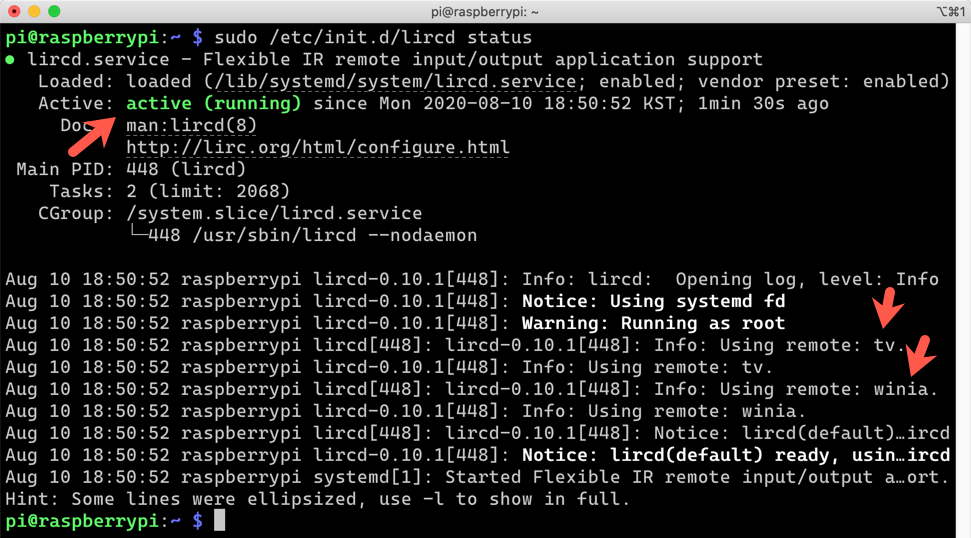
Run sudo reboot to reboot Raspberry PI. Check whether the LIRC module is working or not.
sudo /etc/init.d/lircd status
We can confirm that the LIRC module read both air-conditioner and TV configurations and ready for use!
Theoretically, we can register as many remote controllers as we like!
Controlling Air-Conditioner and TV on Raspberry PI
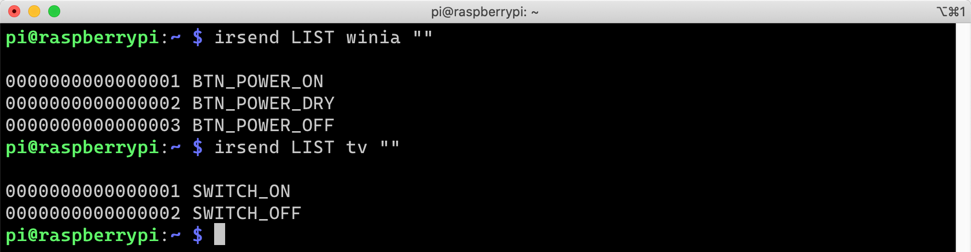
Let’s check whether the remote controller on Raspberry PI. Enter the following command to see the list of names that I can execute.
irsend LIST ""
I’ve registered both air-conditioner (winia) and TV (tv). The following screenshot is the result I’ve got. Each remote controller has more buttons, but I only need two buttons – on and off. Therefore, I only registered those two buttons.
OK. Let’s run the command.
irsend SEND_ONCE tv SWITCH_ON
Although the terminal shows nothing, I actually turn on and off the TV.
Can you see the TV being turned on and off?
Unfortunately, I can make my air-conditioner working. I might have incorrectly captured the IR signal for the air-conditioner. But TV works! To me, the air-conditioner was the top priority. I should spend more time to get it working. If I have a more sophisticated device to capture the IR signal, it would be better.
So far, we have walked through how Raspberry PI turns into a remote controller that turns on and off home appliances. In the next post, I’ll build a Power App and Power Automate that talks to Azure Functions app to access to the remote controller (Raspberry PI) outside the home network.
This article was originally published on Dev Kimchi.
This article is contributed. See the original author and article here.
Final Update: Sunday, 16 August 2020 19:47 UTC
We’ve confirmed that all systems are back to normal with no customer impact as of 8/16, 19:30 UTC. Our logs show the incident started on 8/16, 16:56 UTC and that during the 2 hours and 34 minutes that it took to resolve the issue small set of customers in West Central US Region experienced issues with data access in Log Analytics and also issues with delayed or missed Log Search Alerts.
Root Cause: The failure was due to issues with one of the dependent services.
Incident Timeline: 2 Hours & 34 minutes – 8/16, 16:56 UTC through 8/16, 19:30 UTC
We understand that customers rely on Azure Log Analytics as a critical service and apologize for any impact this incident caused.
This article is contributed. See the original author and article here.
With 57 speakers, 57 non-stop hours of content, and $15,000 in charitable donations, it’s safe to say the first-ever virtual edition of the Excel Global Summit was a resounding success.
Australian MVPs for Office Apps and Services Tim Heng and Liam Bastick brought the fifth instalment to life in unprecedented circumstances by using the event as a vehicle for good. All ticket sales to the summit not only went to fight the international battle against COVID-19 but also toward cancer research following the recent death of a popular figure in the Microsoft community.
“When Liam suggested that we put on a 48+ hour, round the clock, global event, my initial reaction was one of disbelief,” says Tim. “It turns out that if you’re dedicating an event towards raising charity money towards a global problem, you get a global community coming together to make it happen – and who would miss a chance to talk more about Excel?!”
The multi-language event boasted presentations from Excel, Data Platform and PowerPoint MVPs together with other regarded experts from Microsoft to demonstrate the future of Excel.
Co-organizer Liam says it was an exciting, yet challenging, idea to make a reality. The team needed to quickly get up to speed with Microsoft Teams and manage global timezones while trying to keep costs as low as possible.
Tickets to the summit ranged from $8 to $33 (AUD) with all proceeds intended for international COVID-19 research charity Doctors Without Borders. However, the co-organizers decided that part of the fundraiser should also go toward cancer research after Microsoft staff member Chris “Smitty” Smith lost his life to the disease. In total, the summit raised about $15,000 (AUD) with all funds donated to the dual causes.
Summit speaker and MVP award holder (2009 – 2017) Purna Chandra Rao – who is known as “Chandoo” – says he was inspired to take part in the event and present in his native tongue of Telugu. Aside from English, presentations were also available in Mandarin, Portuguese, and Spanish. “The highlights were collaborating with organizers on topic and schedules, creating top-notch content in my native language, and promoting the event through social media,” Chandoo says.
“It was like a station that was broadcasting new and exciting topics all day long,” reveals summit speaker and MVP for Office Apps and Services Leila Gharani. Viewers certainly had plenty of “stations” to choose from, with presentations ranging from dynamic arrays and financial modelling to forecasting, maps, and Microsoft 365. “Exploring new topics, learning new skills, and having fun at the same time from the comfort of your own home was an unforgettable experience,” Leila says.
The Excel MVP community is full of passionate and giving people, says MVP for Office Apps and Services Bill Jelen. Bill notes that the Excel Virtually Global Summit was hosted soon after another Excel charity event in May, Excel Tips by the Experts, created by Paula Guilfoyle. This inaugural event featured 26 instructors offering 15-minute lessons with all money raised toward the GOAL organization’s COVID-19 response team. In all, 650 student attendees raised $8300 for the cause.
“With many people stuck at home during the quarantine, there are few live in-person training events. Both of these events offered Excellers the opportunity to learn Excel tips from a variety of instructors,” Bill says.
MVP for Data Platform Michael Olafusi concurs, saying he enjoyed “tapping into the wealth of knowledge” from Excel experts around the globe as the software continues to evolve and expand in features.
For more on the summit, check out #ExcelVirtuallyGlobal on Twitter.
This article is contributed. See the original author and article here.
This blog post shows you how to use Helm chart to run a WordPress application on Azure Kubernetes services(AKS) and Azure Database for MySQL. We will be using Bitnami WordPress helm chart which is the easiest way to get started with this applications on Kubernetes in Azure.
Prerequisites
To complete this process, you need:
An Azure subscription. If you don’t have an Azure subscription, you can create a free account.
Create a resource group in the East US Azure region for your Kubernetes cluster and your Azure Database for MySQL resources by running the following command:
az group create --name myresourcegroup --location eastus
Create an Azure Kubernetes Service (AKS) cluster
Create an AKS cluster; the below command creates an AKS cluster named myaks in the East US Azure region.
az aks create -g myresourcegroup -n myaks --location eastus --generate-ssh-keys
Connect to your AKS cluster
To connect to the Kubernetes cluster from your local computer, use the Kubernetes command-line client, known as kubectl. If you use the Azure Cloud Shell, kubectl is already installed. You can also install kubectl locally using the command az aks install-cli.
Note: Make sure you set the PATH environment variables to include path to kubectl on your local environment.
To configure kubectl to connect to your Kubernetes cluster, use the az aks get-credentials command.
az aks get-credentials --resource-group myresourcegroup --name myaks
Create a MySQL database with Azure Database for MySQL
Create a MySQL server with MySQL version 8.0 in your resource group and provide a server admin login and a strong password.
az mysql server create --resource-group myresourcegroup --name mydemoserver --location eastus --admin-user myadmin --admin-password <server_admin_password> --sku-name GP_Gen5_2 --version 8.0 --tags 'AppProfile=WordPress'
Now we create the database by running the following command:
az mysql db create --resource-group myresourcegroup --server-name mydemoserver --name wpdatabase
To allow your AKS cluster to connect to the MySQL server, you will need to create a firewall rule to allow all Azure-internal IP addresses to access your Server. If your AKS cluster and MySQL server are created securely in a virtual network , then you can skip this this step. For simplicity, we are not using virtual networks in this example.
az mysql server firewall-rule create --resource-group myresourcegroup --server-name mydemoserver –-name allowazure --start-ip-address 0.0.0.0 --end-ip-address 0.0.0.0
Create a firewall rule to connect to your server from your local environment. You can find your IP address using https://whatismyipaddress.com/ if you don’t know how to find the IP address.
az mysql server firewall-rule create --resource-group myresourcegroup --server-name mydemoserver –-name allowmyIP --start-ip-address <YOUR IP ADDRESS> --end-ip-address <YOUR IP ADDRESS>
Installing WordPress
For this tutorial, we are using an existing Helm Chart for WordPress built by Bitnami. This Bitnami helm chart uses local MariaDB as the database and we need to override these values to use the app with Azure Database for MySQL. You can override the values you want to modify with a custom values.yaml file.
Create a new directory for your project settings in your local environment.
mkdir myblog
cd myblog
Next, create a file named values.yaml using any text editor of your choice. This file will be used to set up a few parameters that will define how WordPress connects to the database and some additional WordPress settings like sitename and your site administrator’s information.
Copy the values.yaml file below. Please update the database information with your MySQL database and blog Information below. Do not forget to disable MariaDB as shown in the final section.
values.yaml
## Blog Info wordpressUsername: wpadmin wordpressPassword: password wordpressEmail: sunny@example.com wordpressFirstName: Sunny wordpressLastName: wordpressBlogName: Sunny’s Blog!
Now let’s execute helm to install WordPress. The following command tells helm to add the Bitnami Helm Chart repository so you can access all of their helm charts.
NAME: myblog
LAST DEPLOYED: Sun Jul 19 22:57:24 2020
NAMESPACE: default
STATUS: deployed
REVISION: 1
TEST SUITE: None

NOTES:
** Please be patient while the chart is being deployed **
To access your WordPress site from outside the cluster follow the steps below:

Get the WordPress URL by running these commands:
NOTE: It may take a few minutes for the LoadBalancer IP to be available.
Watch the status with: 'kubectl get svc --namespace default -w myblog-wordpress'
export SERVICE_IP=$(kubectl get svc --namespace default myblog-wordpress --template "{{ range (index .status.loadBalancer.ingress 0) }}{{.}}{{ end }}")
   echo "WordPress URL: http://$SERVICE_IP/"
   echo "WordPress Admin URL: http://$SERVICE_IP/admin"
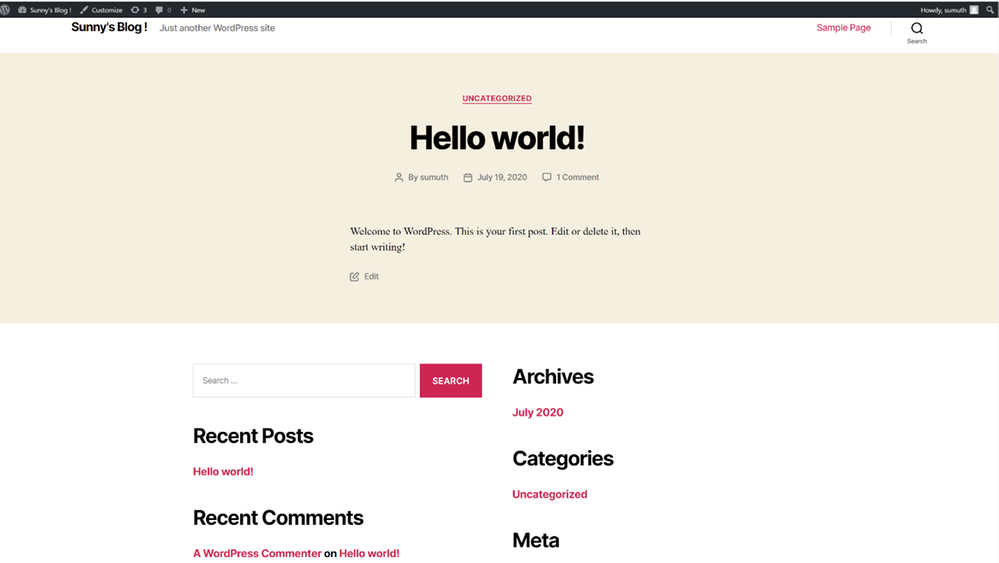
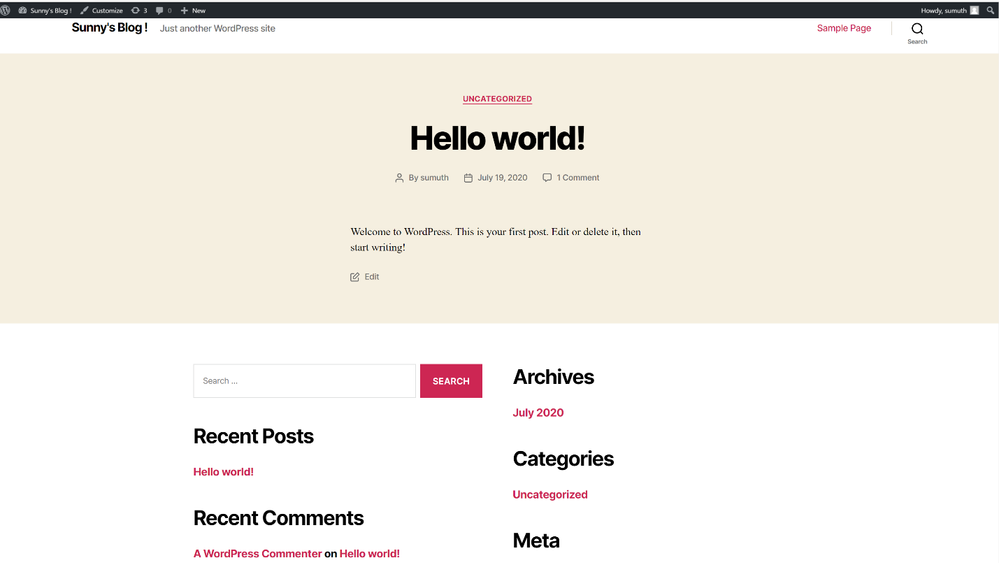
 Open a browser and access WordPress using the obtained URL.

Login with the following credentials below to see your blog:
  echo Username: wpadmin
  echo Password: $(kubectl get secret --namespace default myblog-wordpress -o jsonpath="{.data.wordpress-password}" | base64 --decode)
Note: If you have a custom Helm chart for your WordPress app , you can use it in place of bitnami/wordpress.
After the installation is complete, a service named myblog-wordpress is created within your Kubernetes cluster. This may take a few minutes before the container is ready and the External-IP information is available. To check the status of this service and retrieve its external IP address, run:
kubectl get services
The output should show you the External IP
NAME                   TYPE           CLUSTER-IP     EXTERNAL-IP        PORT(S)       AGE
kubernetes             ClusterIP      10.0.0.1            <none>              443/TCP            19m
myblog-wordpress   LoadBalancer   <IPAddress> <IPAddress>  <ports>  110s
Make a note of the external IP for your app from the above output. Now you can browse your WordPress app on the browser using that external IP address.
The first time your browse the app it can take a while and may timeout as it is completing the WordPress installation. The deployment can take a few minutes to refresh again after 5 mins to see the site up and running
This was your first WordPress app deployment on Azure using AKS and Azure Database for MySQL. Happy Helming with Azure Kubernetes Services and Azure Database for MySQL !
Feedback
We are constantly looking at ways to improve our service and prioritize highly requested items. If you have any feedback, you can use UserVoice .
Questions
If our documentation fails to provide clarity, we encourage customers tocontact uswith questions.
Support
For support with an existing Azure Database for MySQL server, use the Azure portal to open a support request with us.










Recent Comments