by Contributed | May 28, 2021 | Technology
This article is contributed. See the original author and article here.
For many of you—congratulations! You’re almost done with an intense year. For many others, hang in there!
THANK YOU for being amazing. We know that this school year has had its ups and downs, and we are so grateful to you for all your hard work and dedication to not only helping students learn, but supporting their wellbeing. If there’s something you’d like to see more of, please let us know! We’re always listening.
And in case you missed it, check out the more than 35 innovations, inspired by and built for you, that we shared earlier this month, including better LMS integrations, upcoming Assignment improvements, and much more.
For today, we’re excited to share the latest updates in Teams available to help you:
- Personalize learning for each and every student
- Make Assignments more engaging and fun…and easier for you, too!
- Understand student engagement and emotional wellbeing with Education Insights
- Help keep students safe with more options for chat and meetings in Teams
- Create better large meeting and webinar experiences
- Encourage class participation and an improved presenter experience
- More meeting settings on Mac, and ways to see your class on Edge and Chrome
- Broader ways to connect and work together as a team
- Create engaging, interactive classes with Whiteboard.chat and eCareVault in Teams
- Find new Teams resources for training, graduation, and summer
Let’s dive in! (Click here to jump right into a quick list without extra description)
1) Personalize learning for each and every student
Reading Progress
Hundreds of educators and school leaders have shared the challenges and importance of reading fluency checks with us. After collaborating with reading experts and testing with educators, we’re excited to share a new learning tool called Reading Progress. Whether educators are helping emerging readers build confidence or teaching English as a foreign language, Reading Progress enables readers to practice their skills in a safe, student-centric environment. Fluency data from Reading Progress is collected in Insights to support educators in taking evidence-based action for literacy in their classrooms. Reading Progress will be free and available in Teams come August. Learn more about Reading Progress here.
Career Coach
The journey from higher education to career can be challenging. Career Coach, a Microsoft Teams app powered by LinkedIn, provides personalized guidance for higher education students to navigate their career journey. Career Coach uses an AI-based skill identifier and LinkedIn integration that aligns a student’s comprehensive profile with job market trends. Students can discover their career path, grow real-world skills, and build their network as they make progress towards their goals. Education institutions gain insight to enhance the student experience, improve student success, and drive employment outcomes. Learn more.
When: May
2) Make Assignments more engaging and fun…and easier for you, too!
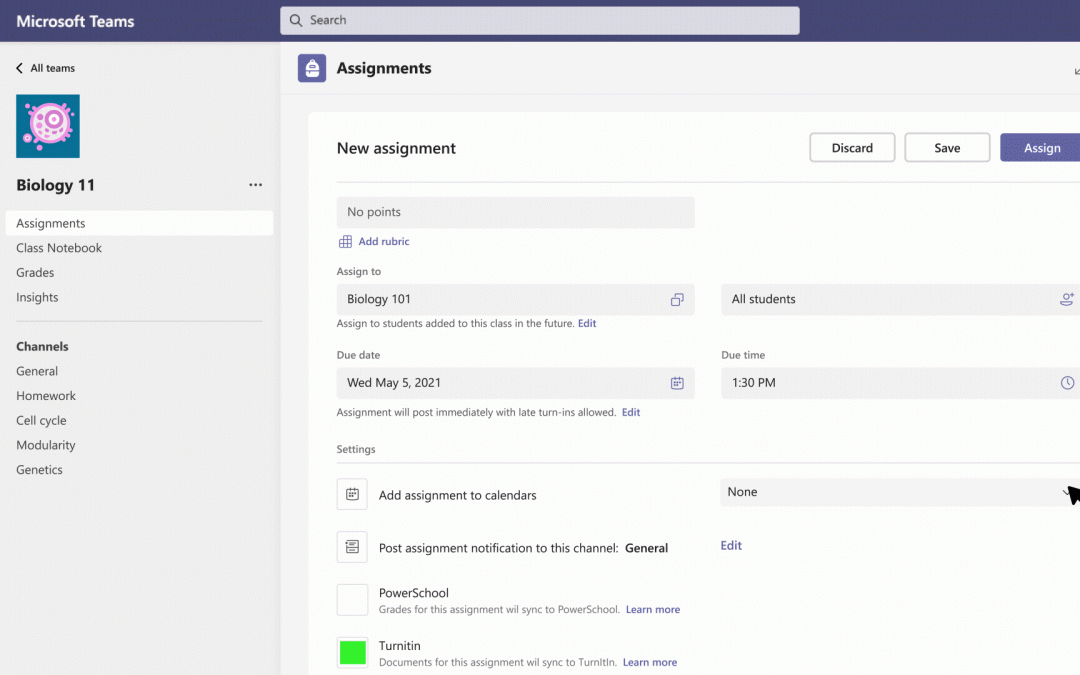
Add assignments to Office 365 calendar
Stay on top of due dates and classwork by turning on calendar sync for Teams assignments. Educators can use this setting for individual assignments or across all assignments for the whole class. Once toggled on in Assignment Settings, the calendar feature adds an entry at the due date and time for that assignment in Teams and Outlook calendars for both educators and students. That way you can see all the things in one place!
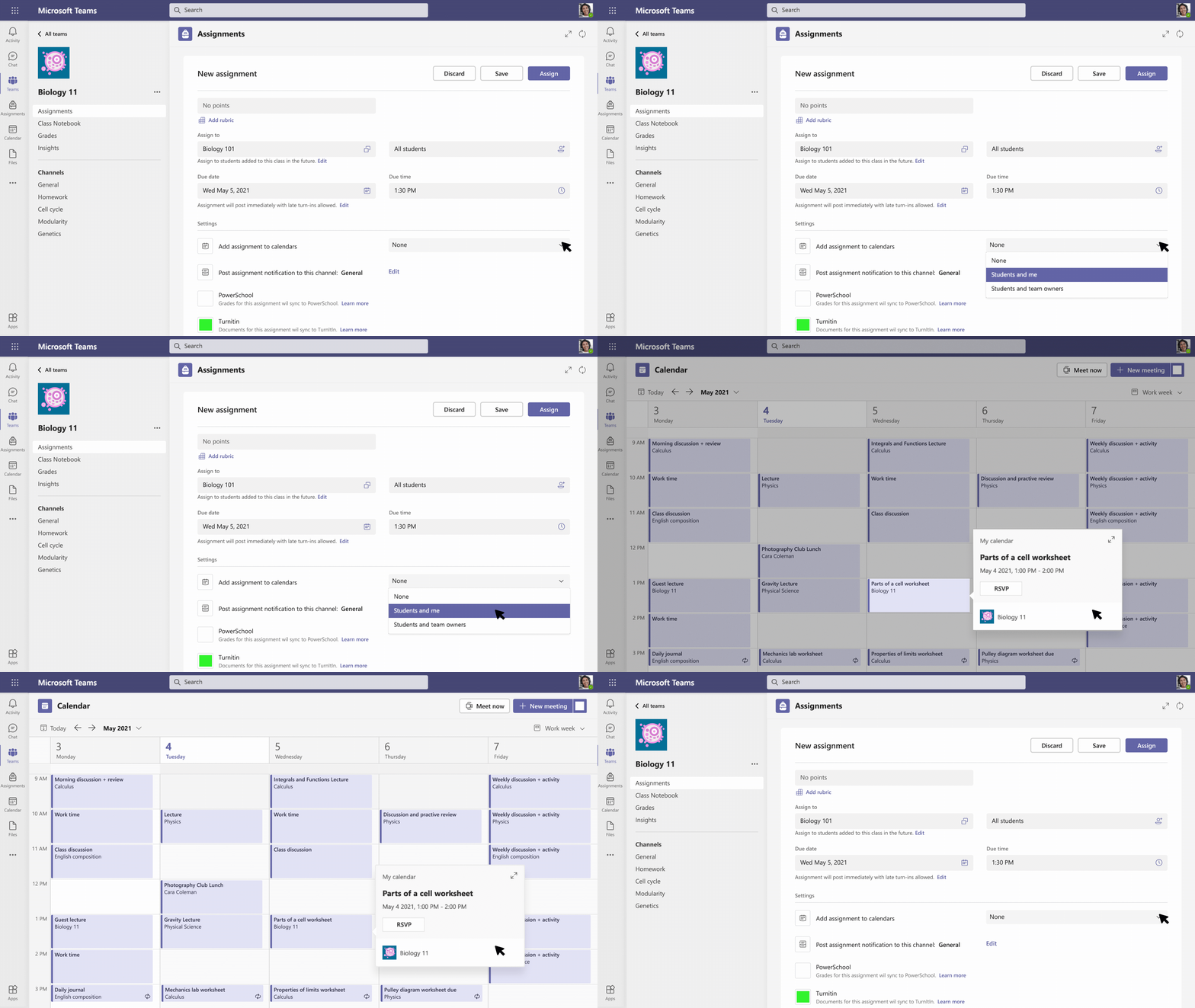
Snap a photo from your mobile phone and submit
We’ve heard from many educators that it’s often simpler for students to snap a quick picture on their phones of their work. Now the new Lens integration in Assignments allows students to take a picture of their paper, whiteboard, or other physical work with their mobile device and turn it in. It’s a snap.
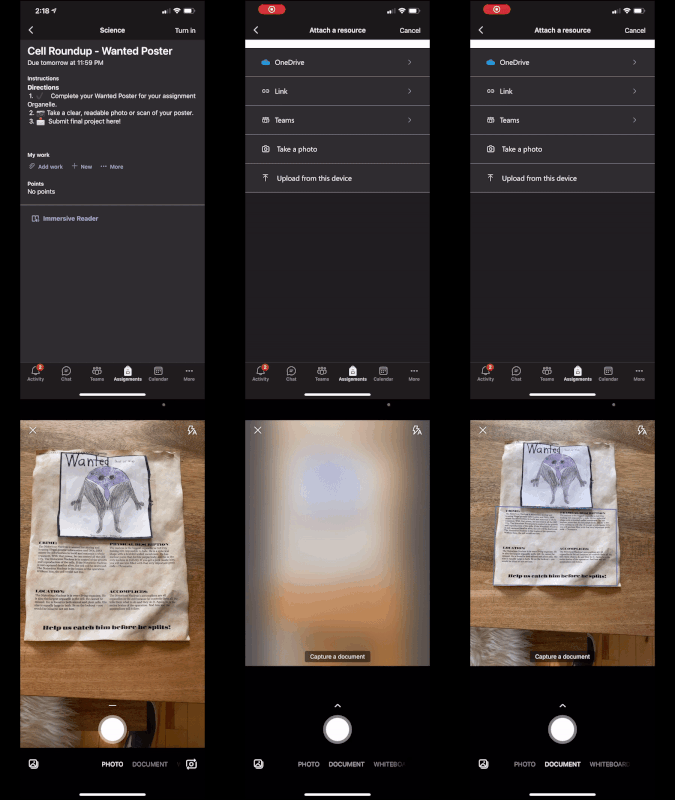
Send grade data automatically to your Student Information System
Educators shouldn‘t have to copy and paste grades – ever. Grade Sync is the time-saving solution within Teams Assignments that automatically sends grades you enter to your Student Information System (SIS) gradebook. We now support syncing to OneRoster v1.1 compliant providers including verified providers: Aequitas, eSchoolData, Infinite Campus, PowerSchool, and Skyward. Learn More about getting started syncing grades.
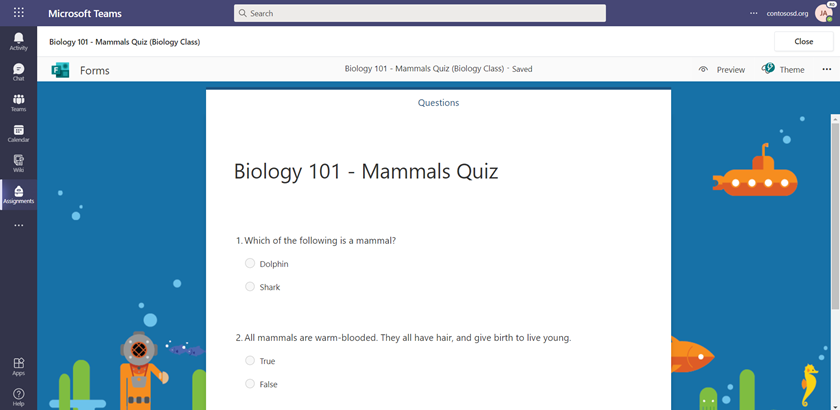
Create and edit a quiz directly from an assignment
We’ve streamlined the experience of creating, editing, and assigning quizzes in Teams. Now you can create your entire quiz without leaving Teams – no extra windows or tabs needed! If you need to make an edit later, quizzes can be updated directly from Teams Assignments.
Assignment limit increase to 300 students
If you’re teaching or lecturing to a large class, we’ve got you covered. You’ll now be able to distribute an assignment to 300 students (up from 200). Learn more about the expanded Assignment limits.
3) Understand student engagement and emotional wellbeing with Education Insights
Reflect app, with new goals and intentions questions (for end of a semester or school year)
Reflect is a check-in tool that educators can leverage to open conversations about social-emotional learning or simply take the temperature of their class. Now you can gain insights into goals and intentions for the next school year, quarter, trimester, or semester with new Reflect questions.
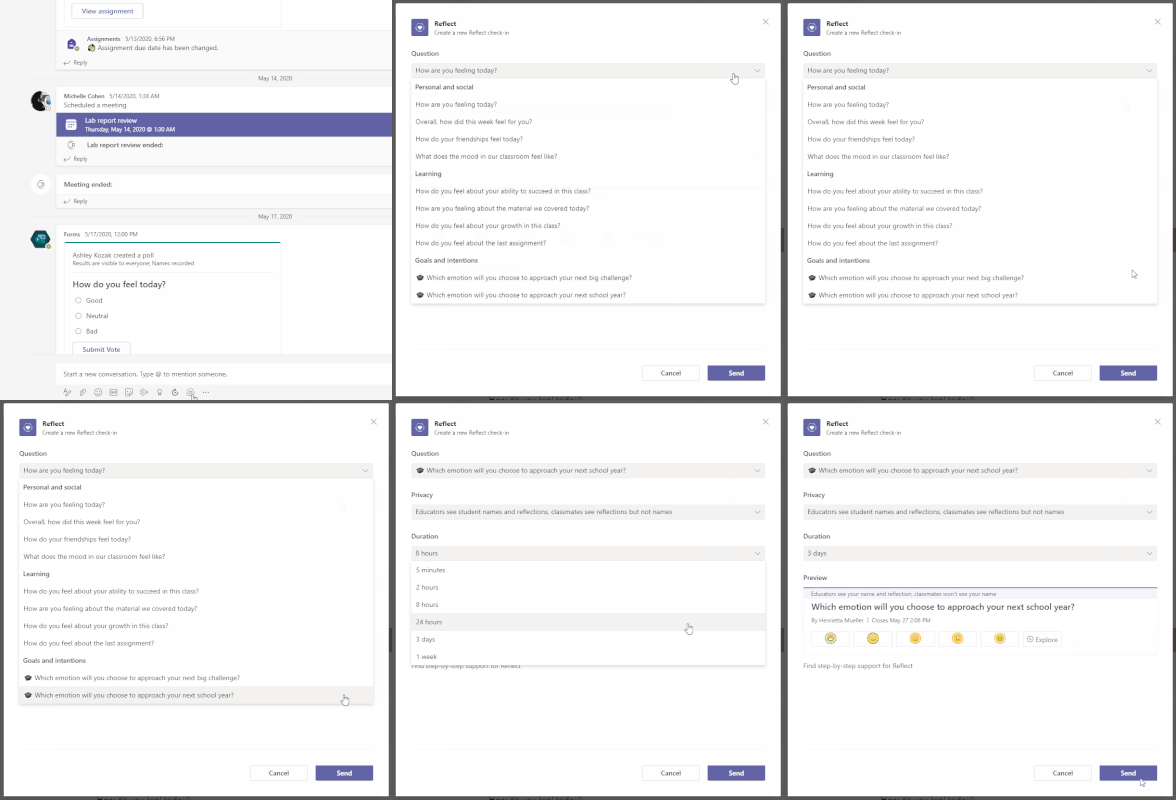
And through Education Insights, educators can see how students respond to check-ins over time, including now added colors for the digital activity report when you filter the activity for “Reflect”. These can help educators identify areas of growth and provide additional support when needed. Learn more about Reflect and Insights.
Check engagement with OneNote Class Notebook
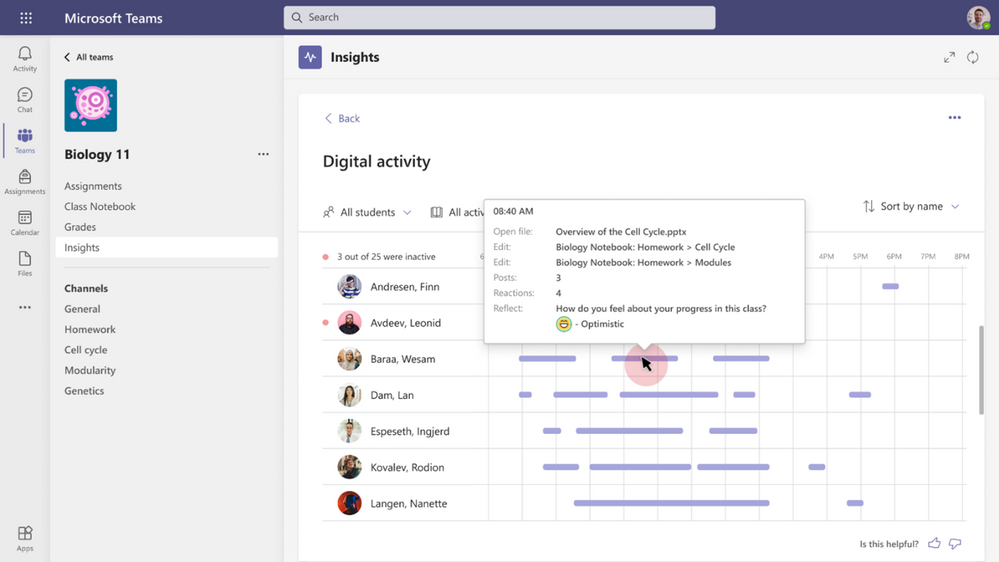
You’ve asked and it’s here! Now educators can gain insights into how students are engaging with their OneNote Class Notebooks – specifically, which pages students have edited and created. If you’re using Class Notebook now for notes, homework, or assignments and want to check it out for yourself, just head to the Insights tab in your class, click on Digital Activity, and filter All activities by OneNote. You can sort by most active and least active from here.
4) Help keep students safe with more options for chats and meetings in Teams
Supervised chat
Chat messaging can be a vital tool for one-on-one follow-up between educators and students or group collaboration between students, but many institutions have concerns about inappropriate use of chat once it’s made available to students. Supervised chat allows designated educators to initiate chats with students and blocks students from starting new chats unless an appropriate educator is present. When chat supervision is enabled, supervisors are not allowed to leave chats, and other participants are not allowed to remove them, ensuring that chats involving students are properly supervised. This means that students can engage in safe chat conversations, and that schools can enable chat at different levels for students, faculty, and staff. Learn more.
And if you’re an IT admin, you can learn more here about supervised chat, and don’t forget about the existing automated chat content monitoring solutions that are already available today.
Disable video for a student or the whole class
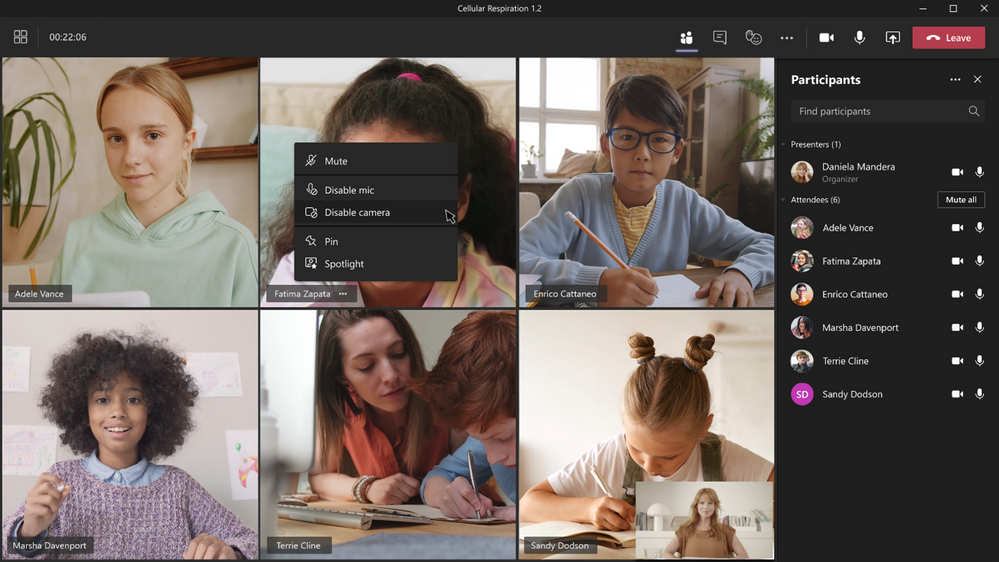
Disable video allows a meeting organizer to disable the video of an individual or all attendees. As a meeting safety capability, disabling video can help educators manage unwanted class disruptions. Similar to hard mute, once an attendee has had their video disabled, they can’t override the organizer and turn their video back on. You can choose to have all students’ cameras disabled by turning Enable camera for attendees to Off from the Meeting Options web page before the meeting. Once this new setting is turned off, you can also reverse it during the meeting to allow all attendees to turn their camera on. Finally, you can also enable or disable the camera for individual attendees. Note that these settings do not automatically turn on attendees’ camera or affect presenters and meeting organizers. Learn more.
5) Create better large meeting and webinar experiences
Large meeting support
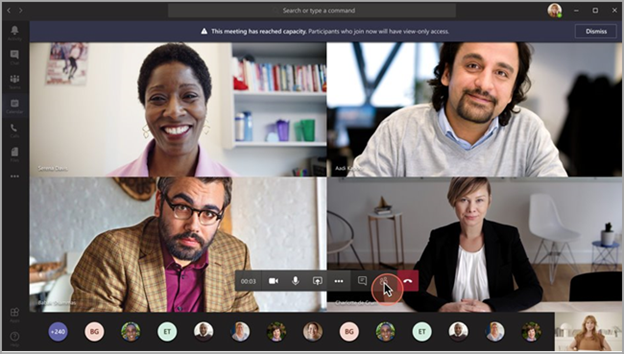
Hold interactive meetings and webinars with more attendees—up to 1,000 people, including chats, polls and Live Reactions. If you go over that limit, your meeting seamlessly scales to accommodate up to 10,000 people in a view-only experience. During this time of increased remote work, you can take advantage of view-only broadcasts for up to 20,000 attendees through the end of this year. Learn more.
Custom attendee registration
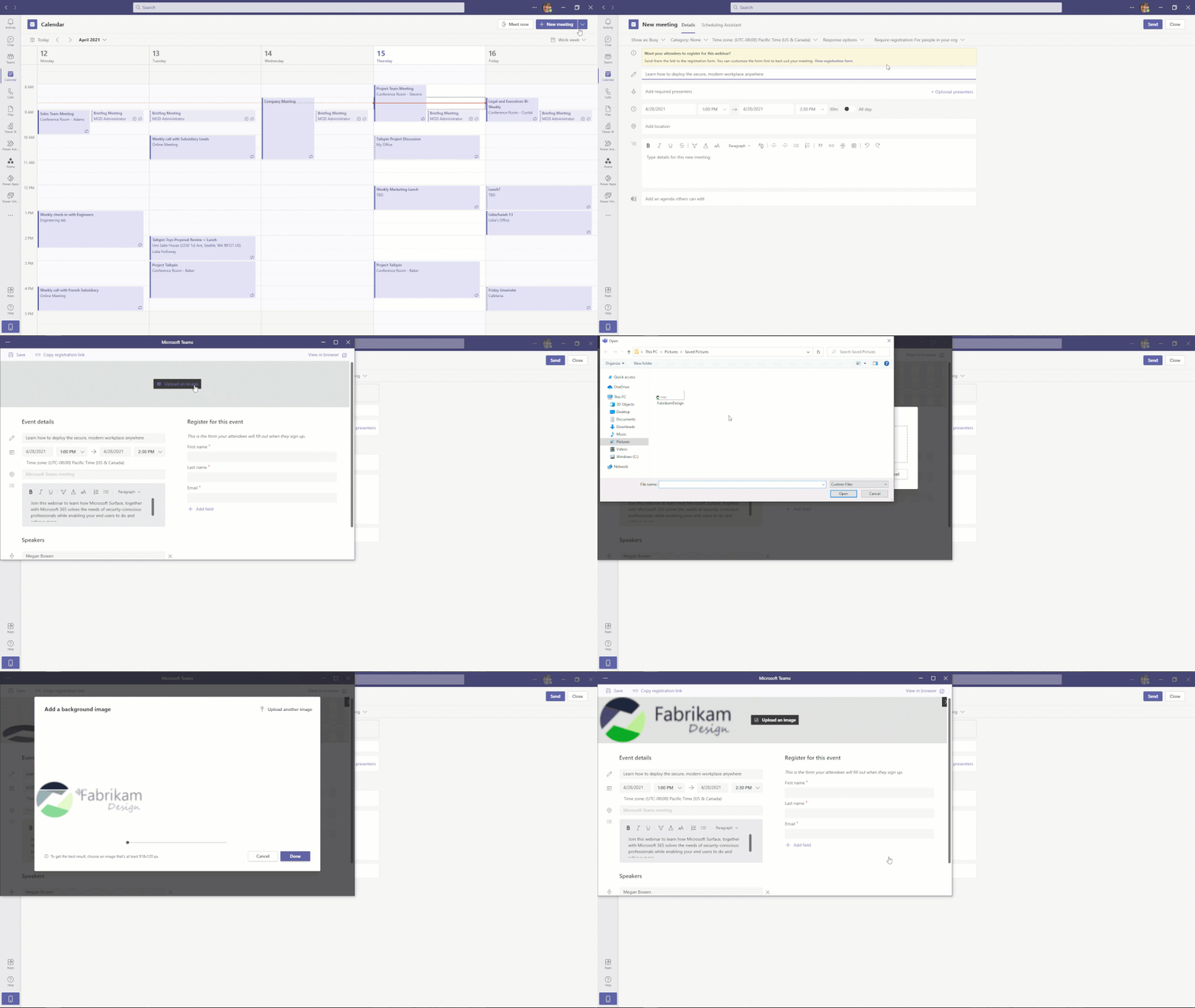
Add a custom attendee registration page to your meetings or webinars to better manage attendance before your virtual event starts. You can add custom questions and images to learn more about your audience and promote your brand. Once your attendees finish registering, they’ll automatically receive a confirmation email with a calendar invite to join the event.
Improved participant list
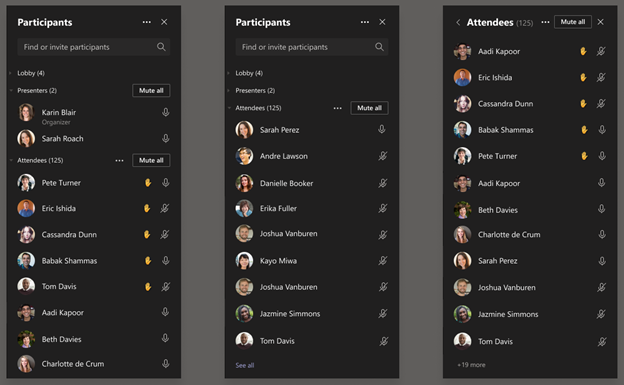
The participant list is now broken out into three sections: Lobby, Presenters, and Attendees. For Lobby, you can now review the full list of people waiting before admitting them all into the meeting. Attendees are sorted in alphabetical order with those who raised their hands elevated to the top of the participant list.
These webinar capabilities are available for Microsoft Education A3 and A5 customers. Learn more about webinars with Teams here.
6) Encourage class participation during synchronous learning for better hybrid and remote classes
Breakout room updates, including timer, participant retention, and room reassignment
- Meeting organizers can now set a timer for breakout rooms from the Breakout Room settings. Once the timer has expired, rooms will automatically close, and students will return to the main meeting.
- We know many classrooms work in the same group configurations over and over again, so it’s now possible to set up groups and then reuse them for future breakout room sessions, saving you time during a busy day of teaching and learning.
- Now it’s easier to manage your meetings with students and get every student into the right breakout room. Organizers can reassign participants to rooms whether they are open or closed, so you can move students without closing rooms first.
Learn more
Improved experience for sharing content in a meeting
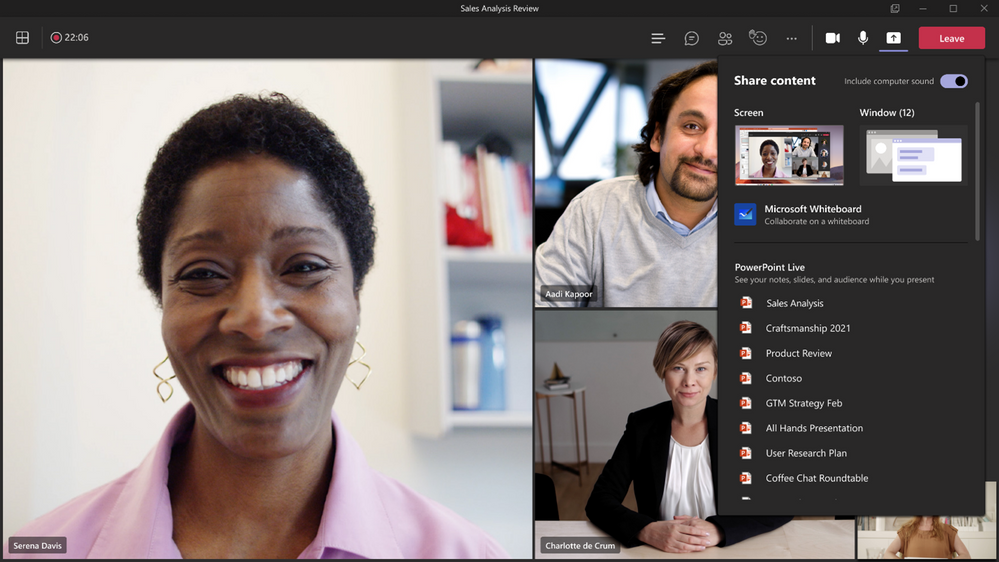
The new share content experience helps presenters find their desired content more quickly and easily. Windows are consolidated into a single area to provide a concise view and all PowerPoints are automatically organized to present with PowerPoint Live. Now you can focus on the content of what you’re sharing instead of rummaging through files to share in your meeting. Learn more.
Search in meeting participant roster
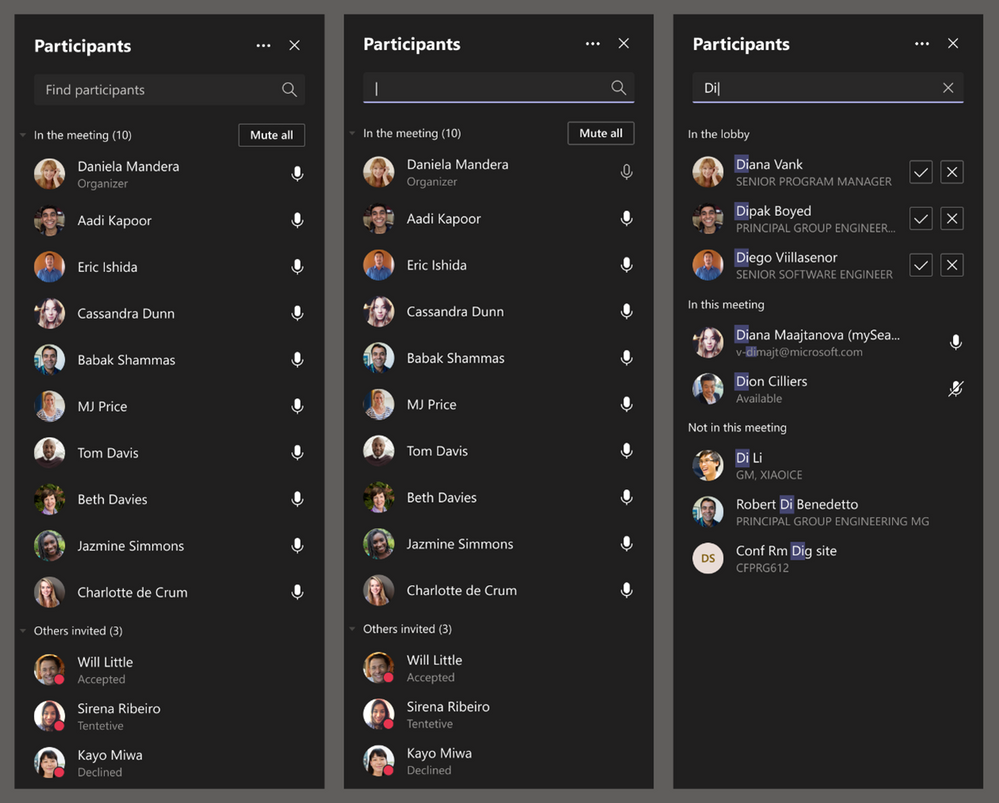
Ever want to quickly find a student in the Participant pane? You can now search by name or PSTN within the meeting Participants roster. The user can continue to search for participants outside the meeting and request for them to join. Whether you are trying to admit a specific attendee into the meeting or pin someone during the meeting, this new search feature makes it easy to quickly locate a specific participant and perform the desired action.
Multiple Choice Quiz option for Microsoft Forms Poll in Teams Meetings
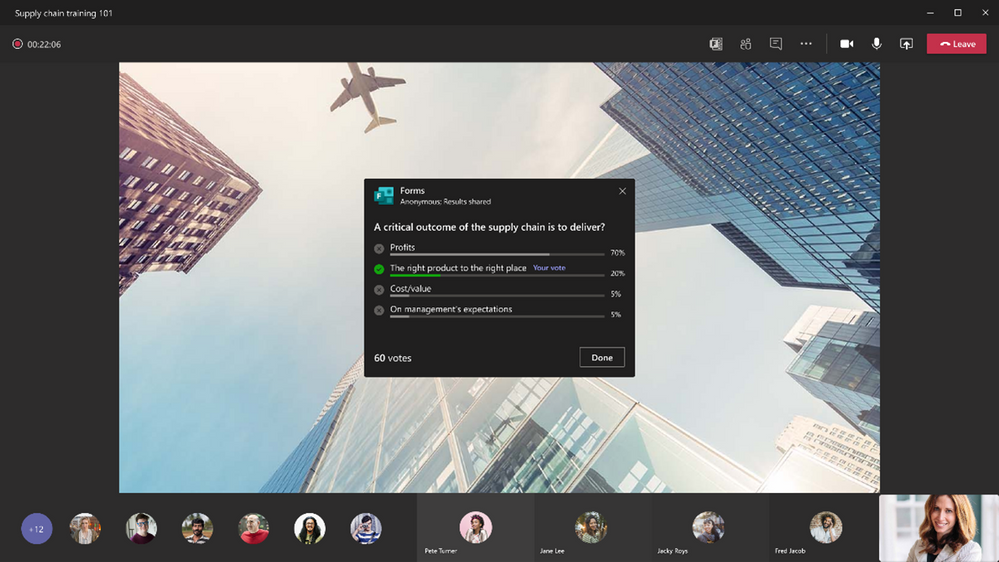
Want to quiz your students during online class? You can now create multiple choice quizzes, powered by Forms Polls in Teams meetings, to engage your students. Create your own knowledge check questions, or try out our intelligent poll and answer choice suggestions that help take care of some of the legwork. As students take the quiz, you get real-time insights that can be used to adjust instruction and support individual students—pretty cool!
7) More meeting settings on Mac and ways to see the class on Edge and Chrome web browsers
Include computer sound when sharing on Mac
Mac desktop users can now include audio when sharing their desktop or window during a Teams meeting. Hooray! This is great when sharing a video with voiceover and music. It allows everyone to watch simultaneously without echoes or sync issues. You can find this setting in the share content. Learn more.
See more participant videos when joining a class in Edge and Chrome browsers
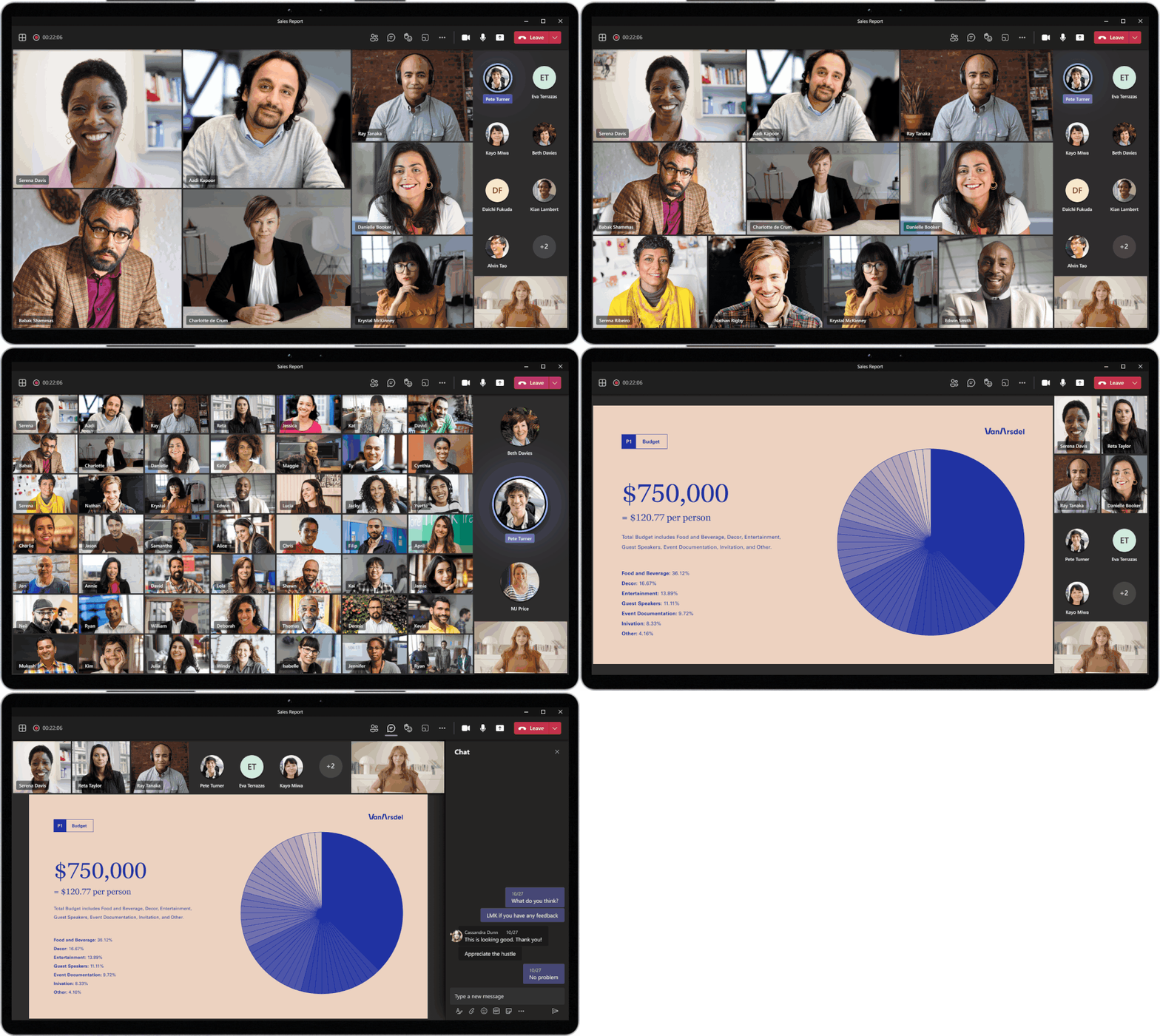
Now when you join a class on Edge and Chrome browsers, users can choose to see participants in a 2×2 Gallery view, Together Mode, or Large gallery. With the ability to see up to 49 participants in a single screen, you can enhance your virtual class experience and help participants feel closer together even when you’re apart.
AI-based noise suppression for Mac users
In November, we launched AI-based noise suppression for Windows. Now, we are expanding this feature for Mac users. Real-time AI noise suppression feature automatically removes unwelcome background noise during your meetings. Your audio feed is analyzed to filter out the noise and retain only the speech signal. You can also control how much noise suppression you want, including a high setting to suppress more background noise. This feature is now available for all Mac users except devices with M1 ARM processor. Learn more.
8)Broader ways to connect and work together as a team
Group chat with external users
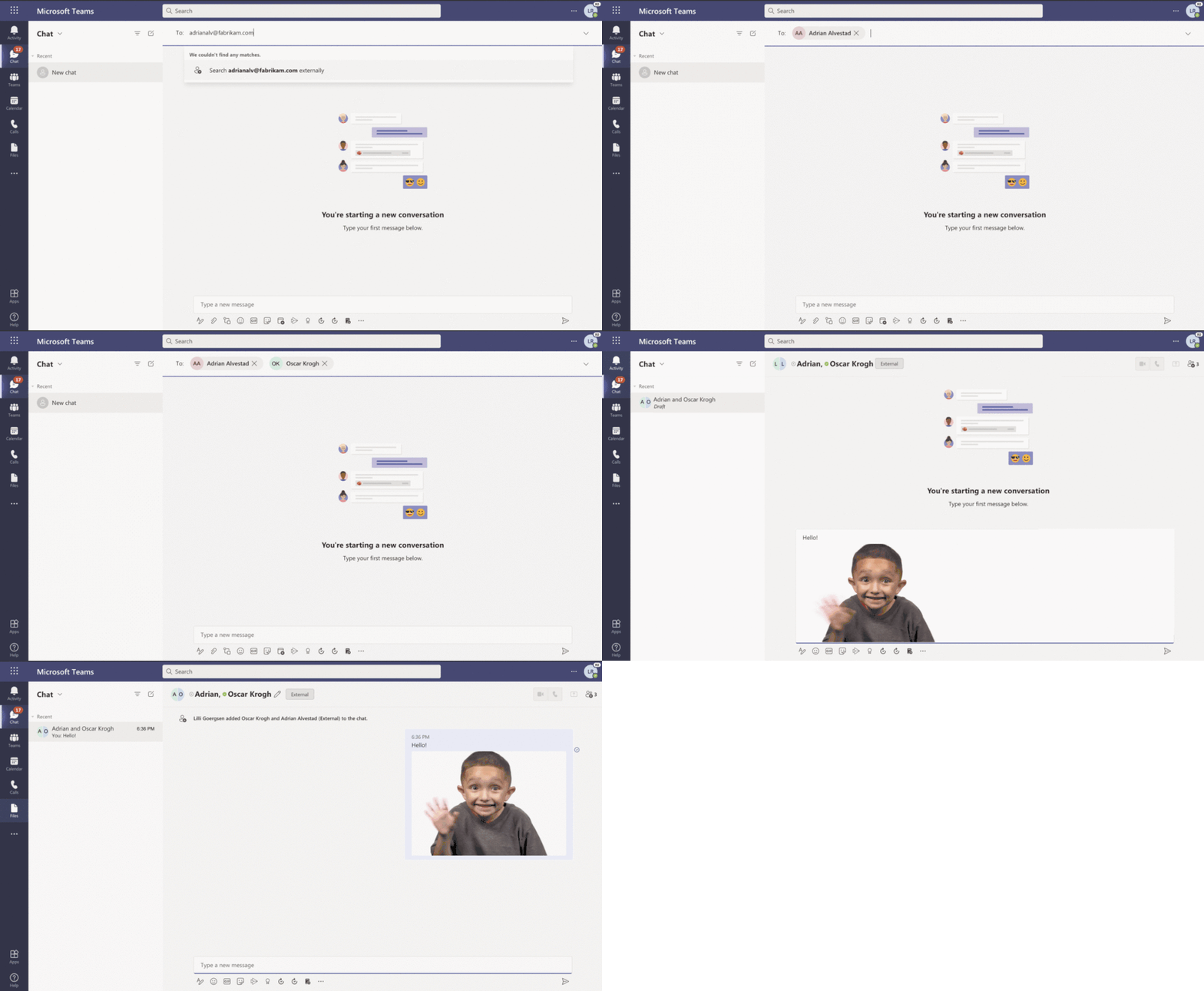
Chat with up to 250 participants across multiple organizations in a single chat. This makes it easy to spin up a chat with external partners, just like it is with someone within the organization. External group chat is expanding on the existing ability for Teams users to find, participate in 1:1 chat, call and set up meetings with external Teams users in federated organizations. Learn more about managing external access.
Adobe Sign Integration in Approvals App
There may be times when you need something approved and recorded with more formal attestation and adding signatures to the approval process is necessary. With the new Adobe Sign integration, you can create an approval request with a natively integrated electronic signature. Once submitted, signers are notified with an email and can easily review and sign. Approvals keeps track of the entire workflow right in context within Teams.
9) Create engaging, interactive classes with Whiteboard.chat and eCareVault in Teams
Whiteboard.chat
Whiteboard.chat is an all-inclusive digital notebook to create engaging and interactive lessons for students using the largest library of digitized math, science and languages manipulatives and active widgets. The students get a copy of the instructor’s notebook, where they work independently. The instructor can observe in real-time or asynchronously all students’ notebooks. They can also join and give personalized feedback. Whiteboard.chat makes access to educational resources equitable for students no matter who they are and where they are. Learn more.
eCareVault
Given the growing need to support students with mental health and learning needs, Safe Spaces by eCare Vault enables you with out-of-the-box HIPAA and FERPA compliant collaboration workspace as a dedicated forum to coordinate support services and drive social-emotional learning for students directly from Microsoft Teams. With Safe Spaces, you can send check-in forms to monitor student well-being, drive time-sensitive collaboration with secure file sharing and multi-way communication, and extend collaboration into the community with streamlined referral management and external invites to include community agencies and parents for whole child care. Want to leverage these capabilities for your school? Start supporting your students with Safe Spaces today and contact us to enjoy a special end-of-school year offer or visit our AppSource page to download the application within your Teams environment.
10) Find new Teams resources for training, graduation, and school breaks
Sign up for the live Microsoft Teams for Education event to get ready and learn the best practices for hybrid learning
Join us and get ready for the school year with Microsoft Teams. Microsoft Teams for Education experts will share common scenarios, use cases, and answer your questions live. Topics include new updates for Microsoft Teams, LMS Integration, Skilling & Learning apps, driving student engagement, and more!
- Leaders & IT Pros – Tuesday Jul 13, 8am-12pm PDT (UTC-7) or GMT (UTC+1)
- Educators – Wednesday Jul 14, 8am-12pm PDT (UTC-7) or GMT (UTC+1)
Join us and sign up at https://aka.ms/TeamsEduEvent
Other training and resources:
- Find free professional development training on Teams, blended learning, and much, much more.
- Check out the Online Virtual Graduation page for more resources and information.
- Find resources to keep kids engaged and learning new skills with family-led learning experiences (for children 3-12).
And for those that love lists, here’s a quick review of all the features we shared that are now generally available:
1) Personalize learning for each and every student
- Reading Progress (available in August)
- Career Coach
2) Make Assignments more engaging and fun…and easier for you, too!
- Add assignments to Office 365 calendar
- Snap a photo from your mobile phone and submit
- Send grade data automatically to your Student Information System
- Create and edit a quiz directly from an assignment
- Assignment limit increase to 300 students
3) Understand student engagement and emotional wellbeing with Education Insights
- Reflect app, with new goals and intentions questions (for end of a semester or school year)
- Check engagement with OneNote Class Notebook
4) Help keep students safe with more options for chat and meetings in Teams
- Supervised chat
- Disable video for a student or the whole class
5) Create better large meeting and webinar experiences
- Large meeting support
- Custom attendee registration
- Improved participant list
6) Encourage class participation and an improved presenter experience
- Improved in-meeting share content experience
- Search in meeting participant roster
- Multiple Choice Quiz option for Microsoft Forms Poll in Teams Meetings
7) More meeting settings on Mac, and ways to see your class on Edge and Chrome
- Include computer sound when sharing on Mac
- See more participant videos when joining a class in Edge and Chrome browsers
- AI-based noise suppression for Mac users
8 )Broader ways to connect and work together as a team
- Group chat with external users
- Adobe Sign Integration in Approvals App
9) Create engaging, interactive classes with Whiteboard.chat and eCareVault in Teams
- Whiteboard.chat
- eCareVault
We’re always looking to improve the education experience in Teams, and our favorite way to do that is with your support and awesome ideas! If there’s something you’d like to see in Teams for Education, please let us know!
by Contributed | May 28, 2021 | Technology
This article is contributed. See the original author and article here.
Welcome to the monthly Healthcare and Life Sciences blog recap, May edition! Check out the highlights below:
Power BI
- Learn with the Nerds: Power BI Dataflows: Register for the Power BI Dataflows with Pragmatic Works where you will learn how to build re-usable, scalable ETL work in the Power BI Service. Click here to learn more.
- MBAS: Power BI Vision & Roadmap Part 1: Interested in the new improvements and capabilities coming to Power BI? Click here to learn more.
- MBAS: Power BI Vision & Roadmap Part 2: In this session of MBAS, you’ll learn about the Anomaly Detection coming to Power BI and the integration with Microsoft Teams Channels. Click here to watch.
- Power BI Governance: Need a jumpstart on your Power BI governance strategy? Join Microsoft Gold Partner, P3 Adaptive, lead a Power BI governance practice session for the Health & Life Sciences industry. Click here to sign-up.
Microsoft Teams
- Automate with Teams Part 1 – Follow Up on a Message: Learn how to save time in your day using automation in Microsoft Teams. Click here to learn more.
- Transitioning to Microsoft Teams Video Conference Rooms: Are your employees returning to work? Learn how to configure existing conference rooms for Teams meetings. Click here to learn more.
- Curbside Consults: Learn how a citizen developer set out to solve a clinical problem leveraging Power Virtual Agent and Microsoft Teams. Read the post here.
Confessions of Health Geeks
- Addressing Selfcare for National Nurses Week: Sarah Romotsky, Director of Healthcare Solution Partnerships at Headspace, discusses the importance of selfcare and mental health during National Nurses Week. Click here to watch the webcast.
- Building a Community of Support for Mental Health: Did you know May is Mental Health Awareness Month? Hear from Microsoft’s Senior Accessibility Evangelist, Megan Lawrence, share how Microsoft has built an employee resource group for mental health. Click here to learn more.
- Educating Patients through Social Media: Do you use social media as a platform to educate your patients? In this episode, Stefan Torres, discusses his journey as a nurse and influencer and the importance of patient education. Click here to watch the webcast.
- Nurse Innovators and the Power of Professional Development: Hear from Microsoft’s Chief Nursing Officer, Kelly Robke, and NICU nurse and co-founder of Lumify Care, Jennifferre Mancillas, discuss continuing education and nurse innovation during National Nurses Week. Click here to watch.
- How Technology impacts mental health: In this episode, Megan Lawrence, Senior Accessibility Evangelist at Microsoft, discusses the duality of how technology is impacting mental health. Learn more here.
- Hear from Dr. Tim Raderstorf, Chief Innovation Officer at Ohio State University School of Nursing. Click here to watch the webcast.
MidDay Café
- MBAS, Single Platform, VIVA Connections: On this episode, hear from Microsoft’s Kendra Burgess and Sue Vencill as they discuss the Microsoft Business Application Summit, Why I came to Microsoft, and Next Generation Intranets with VIVA Connections. Click here to watch.
- Microsoft Teams Large Events and Microsoft Teams for Home: Learn how the release of Microsoft Teams Webinars brings value to large organizations and the features for family and friends in the newly announced Microsoft Teams for Home. Watch the episode here.
- Microsoft Teams Webinars Deep Dive: Join Microsoft’s Johnathan Wynn and take an in-depth look at the newly rolled out Teams Webinar capabilities. Learn more here.
HLS Show Me How
- Leveraging Virtual Tours Inside of Viva Connections: Learn how to create virtual tours inside of Viva Connections for Return-to-Work Scenarios. Click here to watch.
- Setting Up Microsoft Viva Connections: In this podcast, Microsoft’s Scott Moore and Michael Gannotti walk through all of the elements of setting up and deploying Microsoft Viva Connections. Learn how to deploy here.
January’s HLS Blog Contributors:

Michael Gannotti, Principal Technical Specialist, Microsoft Teams

Claire Bonaci, Director, Business Development, Health and Life Sciences

Vasu Sharma, Senior Customer Success Manager, Microsoft Teams

Kendra Burgess, Senior Technical Specialist, Business Applications
Thanks for reading and let us know how else our Microsoft team can help!

Erin Spencer, Technical Specialist, Microsoft Teams
by Contributed | May 28, 2021 | Technology
This article is contributed. See the original author and article here.
We are pleased to announce the enterprise-ready release of the security baseline for Microsoft Edge, version 91!
We have reviewed the new settings in Microsoft Edge version 91 and determined that there are no additional security settings that require enforcement. The settings from the Microsoft Edge version 88 package continues to be our recommended baseline. That baseline package can be downloaded from the Microsoft Security Compliance Toolkit.
Microsoft Edge version 91 introduced 7 new computer settings, 7 new user settings. We have attached a spreadsheet listing the new settings to make it easier for you to find them.
As a friendly reminder, all available settings for Microsoft Edge are documented here, and all available settings for Microsoft Edge Update are documented here.
Please continue to give us feedback through the Security Baselines Discussion site or this post.

by Contributed | May 28, 2021 | Technology
This article is contributed. See the original author and article here.
Power Platform Solution Architect Exams
Kylie Kiser is a Power Platform enthusiast and two-time Business Applications MVP who has been working with Microsoft technologies for over 10 years. Kylie is passionate about the community and shows this through blogging, presenting, and hosting events. Further, she leads a thriving user group based in Washington, DC. For more, check out Kylie’s Twitter @KylieKiser

C# 10.0: Introducing Global Usings
Jaliya Udagedara is a Developer Technologies MVP based in Auckland, New Zealand. Originally from Sri Lanka, Jaliya is currently working as a Technical Lead for a US-based software development company. He has found his most significant interest in the world of Microsoft Software Development Technologies and Azure Stack. He likes to write blog posts and maintains his personal blog. Follow him on Twitter @JaliyaUdagedara

VLC Media Player in Xamarin Forms (an Alternative to AvPlayer and Android Media Player)
Damien Doumer is a software developer and Microsoft MVP in development technologies, who from Cameroon and currently based in France. He plays most often with ASP.Net Core and Xamarin, and builds mobile apps and back-ends. He often blogs, and he likes sharing content on his blog at https://doumer.me. Though he’s had to deal with other programming languages and several frameworks, he prefers developing in C# with the .Net framework. Damien’s credo is “Learn, Build, Share and Innovate”. Follow him on Twitter @Damien_Doumer.

How to set up and use Task Publishing in Teams
Vesku Nopanen is a Principal Consultant in Office 365 and Modern Work and passionate about Microsoft Teams. He helps and coaches customers to find benefits and value when adopting new tools, methods, ways or working and practices into daily work-life equation. He focuses especially on Microsoft Teams and how it can change organizations’ work. He lives in Turku, Finland. Follow him on Twitter: @Vesanopanen

Teams Real Simple with Pictures: Let’s Do Collaborative Calling
Chris Hoard is a Microsoft Certified Trainer Regional Lead (MCT RL), Educator (MCEd) and Teams MVP. With over 10 years of cloud computing experience, he is currently building an education practice for Vuzion (Tier 2 UK CSP). His focus areas are Microsoft Teams, Microsoft 365 and entry-level Azure. Follow Chris on Twitter at @Microsoft365Pro and check out his blog here.

by Contributed | May 28, 2021 | Technology
This article is contributed. See the original author and article here.
A plethora of announcements was released at Microsoft Build 2021 as expected. Here what the team will be reporting on this week: certain certifications will require yearly renewal, Sysinternal Tools Updates Announced, App Service Managed Certificates now generally available, Run App Service on Kubernetes or anywhere with Azure Arc and of course the Microsoft Learn module of the week.
Role-based and specialty certifications to be valid for one year
As of March 2021, recognized Microsoft certified individules are now able to renew thier role-based and specialty certifications by passing a free renewal assessment on Microsoft Learn. Rather than having to retake scheduled exam(s), the renewal assessment can be completed online on your own time, and anytime within six months before your certification expires. After you pass the renewal assessment, your certification is extended by one additional year from the current expiration date which can be done annually.
Starting 12 AM GMT on June 30, 2021, (5 PM PT on June 29, 2021), all newly earned role-based and specialty certifications will be valid for one year from the date the certification was earned. All required exams must be passed before 12 AM GMT on Jun 30, 2021 for certifications to remain valid for two years from the date they were earned; if the required exam(s) are passed after 12 AM GMT on June 30, 2021 certifications will be valid for 1-year from the date they were earned.
Please review the following resources for further details surrounding certification renewal:
Sysinternal Tools Updates Announced at MS Build 2021
Announce during MS Build 2021, Sysinternals recieved a plethora of updates. Here is a quick video of Rick Claus and Mark Russinovich chatting about these updates:
Updated tools include Process Monitor v3.80, Sysmon v13.20, TCPView v4.10, Process Explorer v16.40, PSExec v2.34, Sigcheck v2.81 and WinObj v3.10. Further details surrounding the updates can be found here: Windows Sysinternals – What’s New
App Service Managed Certificates now generally available
Now in general availability, App Service Managed Certificates can secure your custom domains on Linux and on Windows at no additional cost, covering both the apex domain and the sub-domain scenarios. This is a managed offering where you can just set-and-forget the certificate as the lifecycle and syncing of the certificate will be handled by App Service. This provides developers a zero-cost option to work on their dev, test, and production sites.
Further details can be found here: Add a TLS/SSL certificate in Azure App Service
Run App Service on Kubernetes or anywhere with Azure Arc
Azure App Service, now in public preview, can run against Kubernetes clusters in AKS or anywhere with Azure Arc. This preview enables the ability to run Web Apps against a range of fully managed App Service plans or choose to deploy against Azure Kubernetes Service or your own Kubernetes clusters connected through Azure Arc that are running on-premises, at the edge, or in other clouds.
App Service features like deployment slots, turn-key auth, CI/CD with GitHub Actions and domain management vastly simplify the development and management of web apps and are delivered with ARM consistency across hosting models. Customers can configure and enable any Kubernetes cluster and select those clusters as a deployment target when creating their Web App.
App Service on Kubernetes will be available for free during the preview in a limited set of regions, starting with US East and West Europe. To get started, Microsoft has provided a set of scenario-based accelerators available on GitHub, as well as step by step tutorials and Learn modules on the App Service documentation page.
Community Events
MS Learn Module of the Week
Build a cloud governance strategy on Azure
Learn how access policies, resource locks, and tags, as well as Azure services such as Azure Policy and Azure Blueprints, can help you build a comprehensive cloud governance strategy.

Modules include:
- Make organizational decisions about your cloud environment by using the Cloud Adoption Framework for Azure.
- Define who can access cloud resources by using Azure role-based access control.
- Apply a resource lock to prevent accidental deletion of your Azure resources.
- Apply tags to your Azure resources to help describe their purpose.
- Control and audit how your resources are created by using Azure Policy.
- Enable governance at scale across multiple Azure subscriptions by using Azure Blueprints
Learn more here: Build a cloud governance strategy on Azure

Let us know in the comments below if there are any news items you would like to see covered in the next show. Be sure to catch the next AzUpdate episode and join us in the live chat.
by Contributed | May 28, 2021 | Technology
This article is contributed. See the original author and article here.
Welcome to What’s new in Teams for May! We are excited to share all the features and innovation that we have made available in Microsoft Teams in the last month.
Before we get to the updates, this week at Microsoft Build 2021, we announced several new capabilities and tools for developers. These are designed to help you build the next generation of collaborative apps for hybrid work using Microsoft Teams. To learn about all the key Teams announcement, don’t miss reading this blog post.
Also, to stay informed and get notified when we publish new blog posts for Microsoft Teams, remember to follow the Microsoft Teams blog or join the Microsoft Teams community.
Now, let’s check out all the new features we have delivered this month:
Meetings and webinars
Calling
Devices
Chat and Collaboration
Power Platform and custom development
Security, compliance, and privacy
Teams for Education
Frontline worker
Government
Meetings and webinars
Dynamic view
Dynamic view automatically arranges the elements of your meeting for an optimal viewing experience. As people join, turn on video, start to speak, or begin to present in a meeting, Teams auto-adjusts and personalizes your layout.
Presenter mode
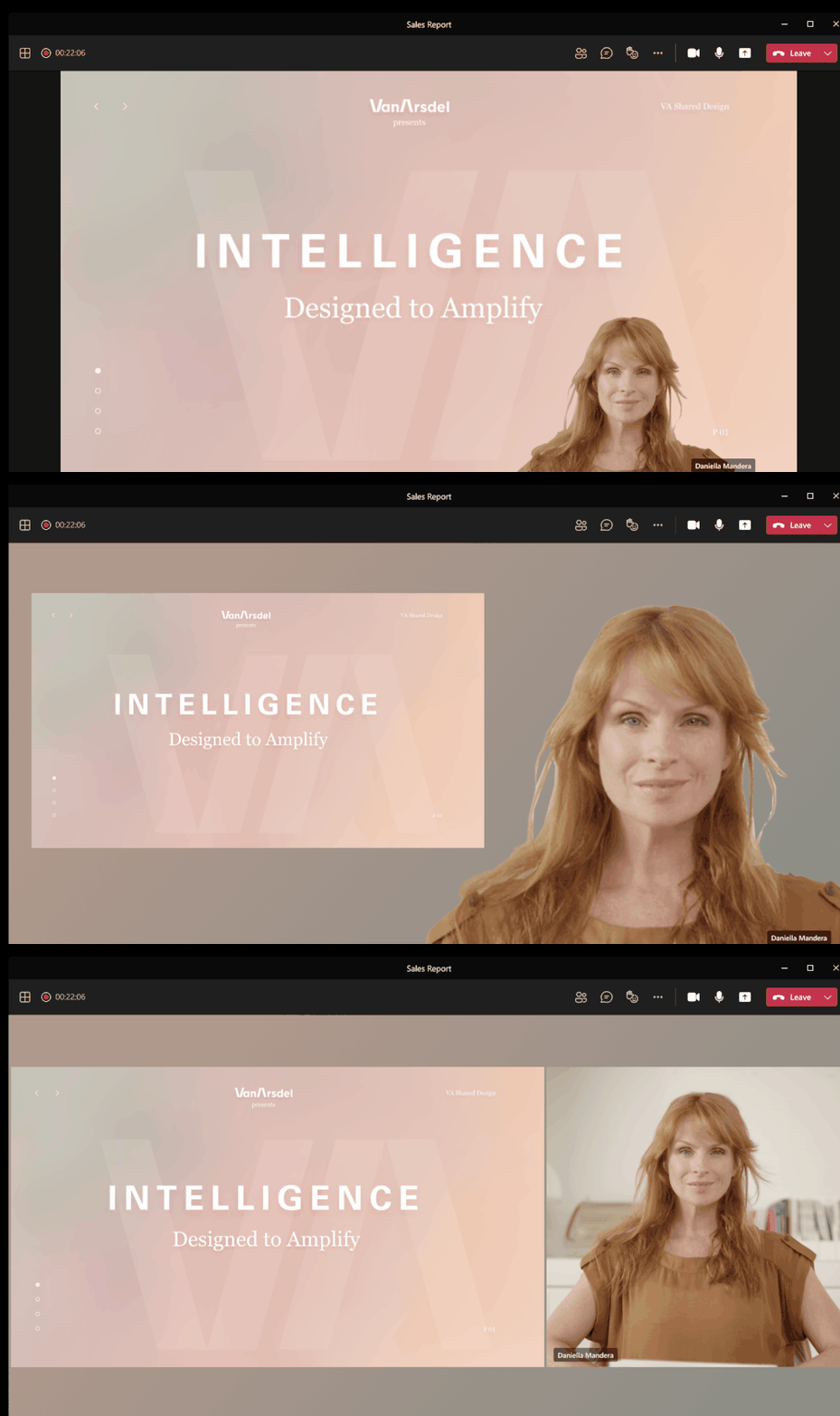
Presenter mode empowers presenters to customize how their video feed and content appear to the audience with powerful professional layouts. The first layout, Standout, is now available to show the speaker’s video feed as a silhouette in front of shared content. That way, you can easily direct your audiences’ attention through hand gestures and facial cues, without making the viewer choose between the speaker and the content. Stay tuned for the next two layouts coming soon: Reporter and Side-by-side.
Large meeting support
Hold interactive meetings and webinars with more attendees—up to 1,000 people, including chats, polls, and Live Reactions. If you go over that limit, your meeting seamlessly scales to accommodate up to 10,000 people in a view-only experience. During this time of increased remote work, you can take advantage of view-only broadcasts for up to 20,000 attendees through the end of this year. Learn more.
Custom attendee registration
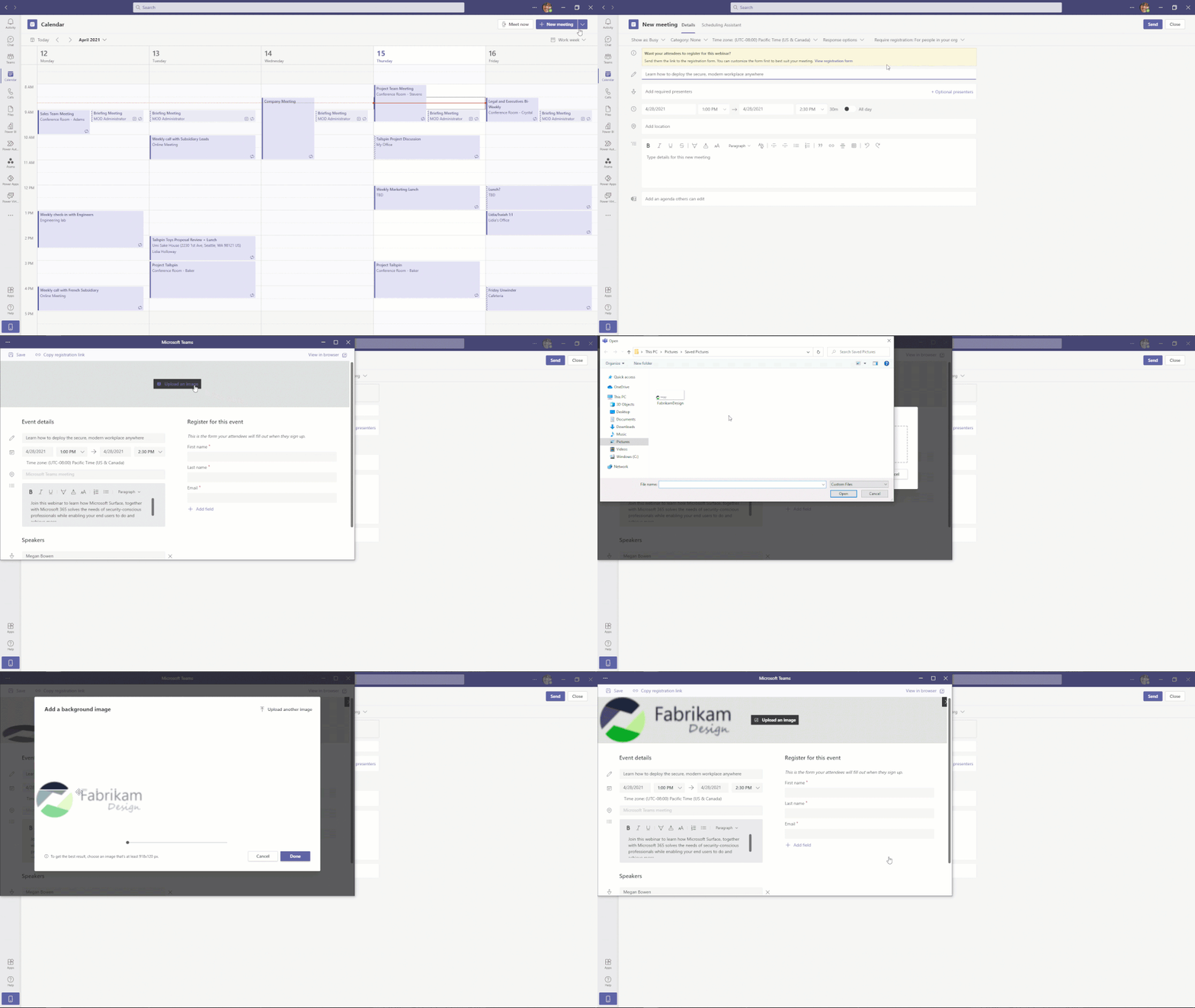
Add a custom attendee registration page to your meetings or webinars to better manage attendance before your virtual event starts. You can add custom questions and images to learn more about your audience and promote your brand. Once your attendees finish registering, they’ll automatically receive a confirmation email with a calendar invite to join the event.
Improved experience for sharing content in a meeting
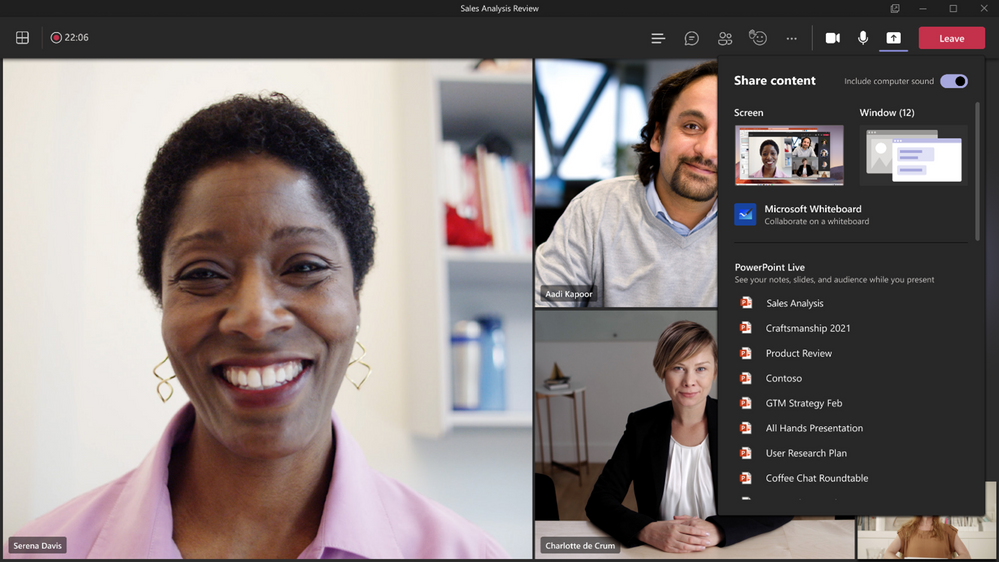
The new share content experience helps presenters find their desired content more quickly and easily. Windows are consolidated into a single bucket to provide a concise view and all PowerPoints are automatically organized to present with PowerPoint Live. Now you can focus on the content of what you’re sharing instead of rummaging through the correct content to share in your meeting. Learn more.
Include computer sound when sharing on Mac
Mac desktop users can now include audio when sharing their desktop or window during a Teams meeting. This is great when sharing a video with voiceover and music. It allows everyone to watch simultaneously without echoes or sync issues. You can find this setting in the share content. Learn more.
Breakout room timer
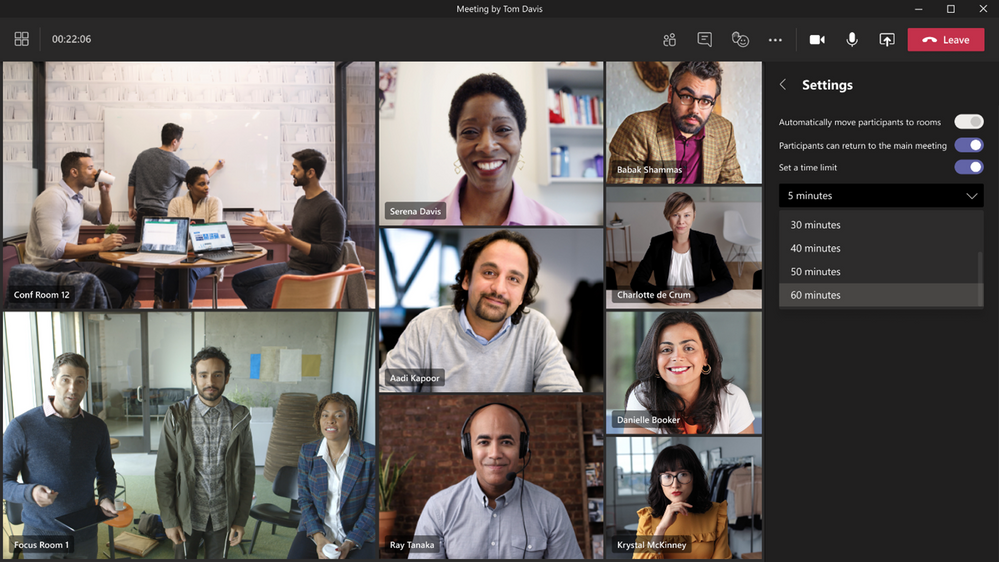
Organizers can now set a timer for Breakout rooms from the Breakout Room settings. Once the timer has expired, rooms will automatically close, and participants will return to the main meeting. Learn more.
Edge and Chrome browser meeting updates
Edge and Chrome browser users are now able to change the Teams meeting layout to 2×2 Gallery view, Together mode, and Large gallery. With the ability to see up to 49 participants in a single screen, you can enhance your virtual meeting experience where participants feel closer together even when you are apart.
Updated settings for attendees video
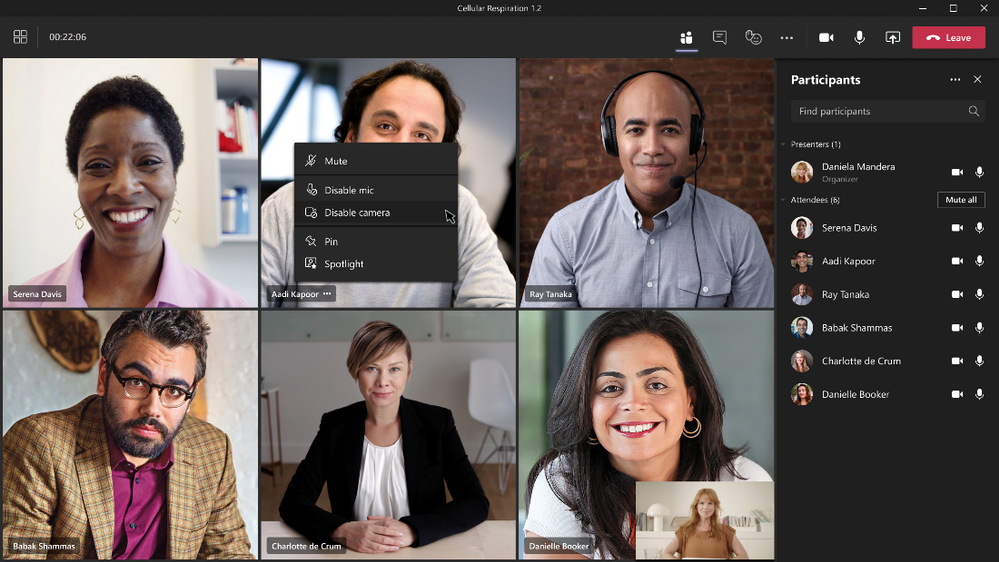
There are three new ways that you can now manage your attendees’ camera. First, meeting attendees are able to turn their camera on or off to share video by default. You can also configure to have all attendees’ camera disabled by setting Enable camera for attendees to Off from the Meeting Options web page before the meeting. Next, once this new setting is turned Off, you can also reverse this setting during the meeting to allow all attendees to turn their camera on. Finally, you can also enable or disable the camera for individual attendees. Note that these settings do not automatically turn on attendees’ camera or affect presenters and meeting organizers. This feature aims to focus on attendees to prevent disruptions during a meeting and help create a safe meeting environment. Learn more.
AI-based noise suppression for Mac users
In November, we launched AI-based noise suppression for Windows. Now, we are expanding this feature for Mac users. Real-time AI noise suppression feature automatically removes unwelcome background noise during your meetings. Your audio feed is analyzed to filter out the noise and retain only the speech signal. You can also control how much noise suppression you want, including a high setting to suppress more background noise. This feature is now available for all Mac users except devices with M1 ARM processor. Learn more.
Improved participant list
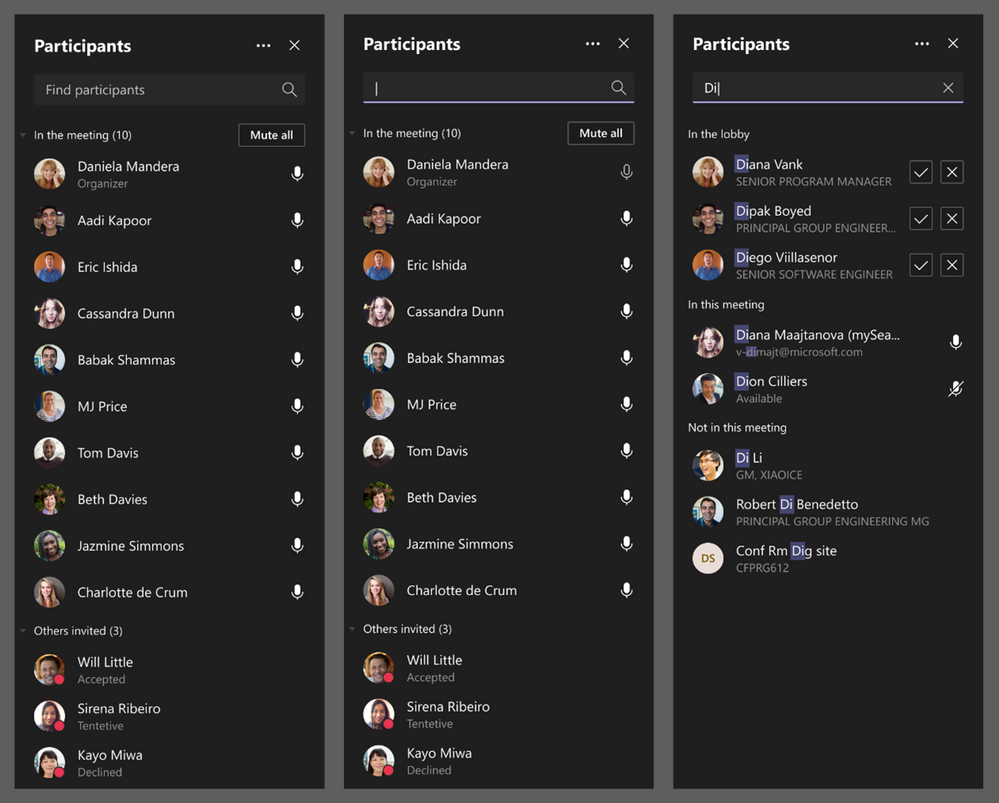
The participant list is now broken out into three sections: Lobby, Presenters, and Attendees. For Lobby, you can now review the full list of people waiting before admitting them all into the meeting. Attendees are sorted in alphabetical order and those who raise their hands are elevated to the top of the participant list.
Search in meeting participant list
You can now search by name or PSTN within the meeting participants roster. The user can continue to search for participants outside the meeting and request for them to join. Whether you are trying to admit a specific attendee into the meeting or pin someone during the meeting, this new search feature makes it easy to quickly locate a specific participant and perform the desired action.
New Teams Live Events eCDN – Ramp
You can now work with Ramp, a certified eCDN partner, to optimize your network for live events held within your organization. Learn more.
Intelligent Question Suggestions for Polls in Teams meeting
Within the Polls tab of your Teams meetings, you now receive intelligent suggestions for polls to launch during your meeting. Based on both your meeting purpose, indicated by your meeting title, and polls you launched in past meetings of the same name, you receive relevant suggestions for questions to ask. With Forms intelligence, poll preparation is now even easier.
Multiple Choice Quiz option for Microsoft Forms Poll in Teams Meetings
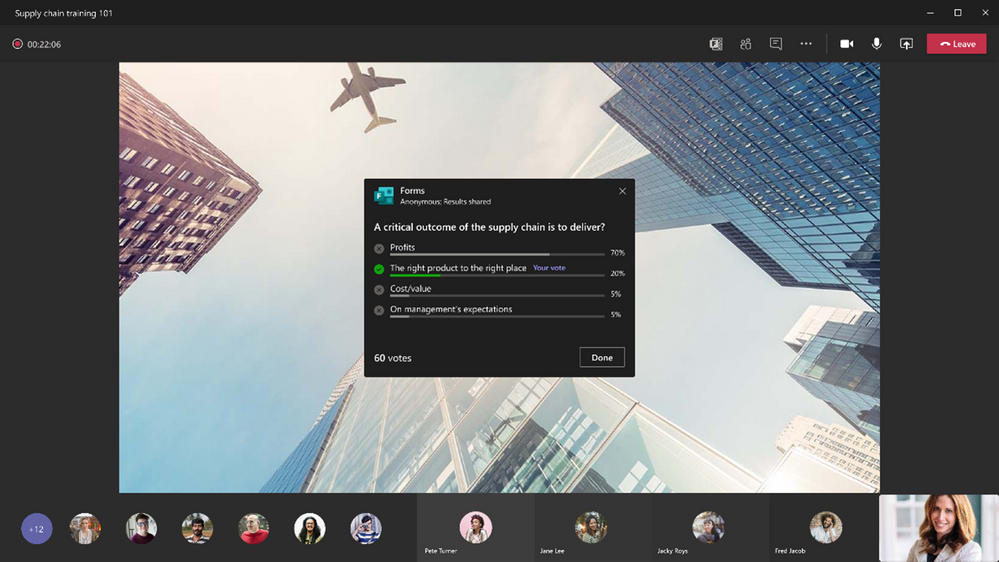
Now, you can launch multiple-choice quizzes (previously known as “Correct Answer Choice”) in your Teams meetings. For this new type of poll question, perfect for trivia questions or knowledge checks, you can mark one or more choices to be correct. After your meeting participants vote, the correct answer(s) to the multiple-choice quiz are shown in the Results card. You can also reference these polls results in read-only mode where all your forms are normally stored. This feature exists not just for Teams Meeting polls (in the pop-up window), but also for polls in Teams Chat both inside and outside of meetings.
Block Downloads for non-channel Teams meeting recordings on OneDrive
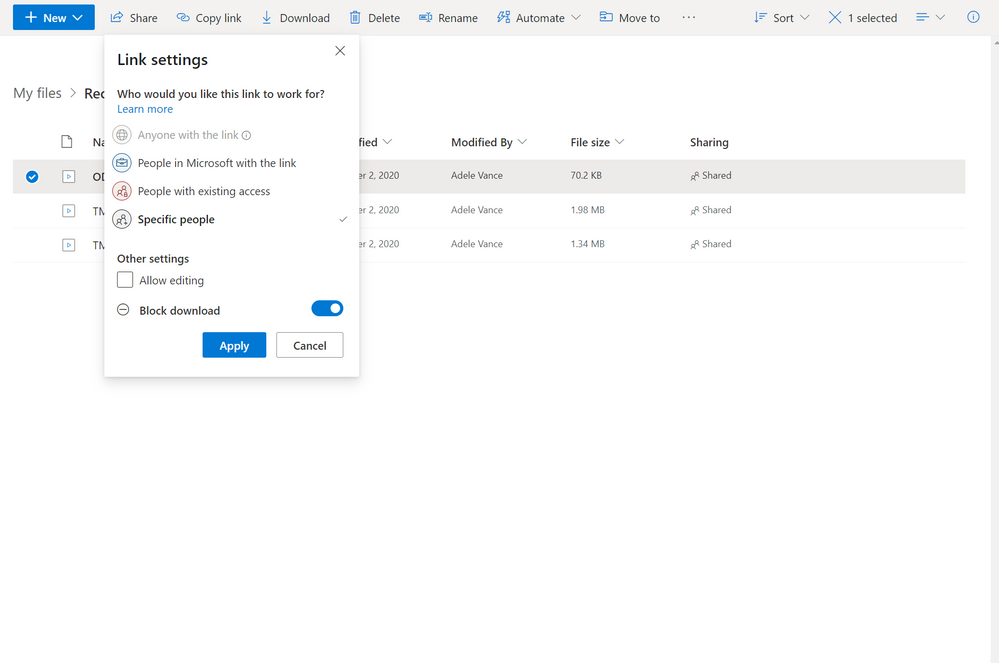
All users with view-only permissions of a non-channel Teams meeting recording uploaded to OneDrive are blocked from downloading the recording by default. This feature provides greater control for end users over meeting recordings and how they are shared. You can toggle the block download feature on or off for individual files through the file share dialog in OneDrive.
Calling
New Calling Experiences
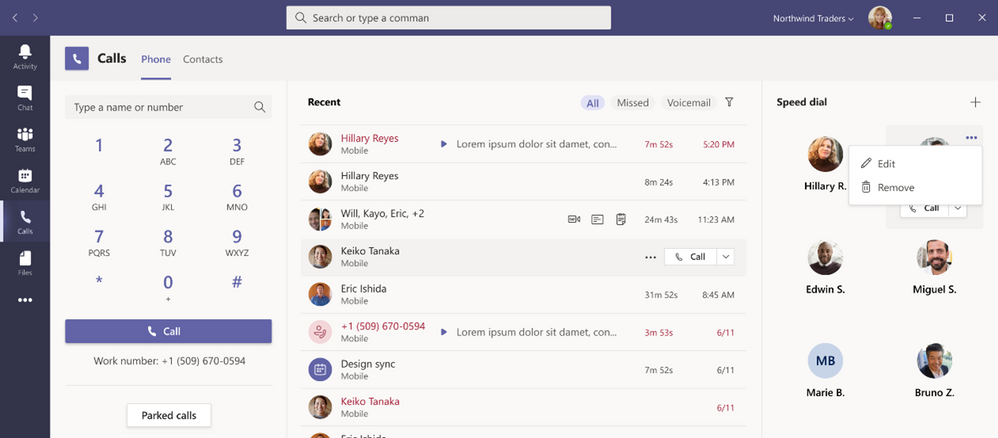
Simplify the calling experience with a streamlined view that shows contacts, voicemail, and calling history together. Previously, you had to select each of these in different tabs. Now, it is consolidated in the same screen, making it easier to initiate or return a call with a single click. Learn more.
Call Merge
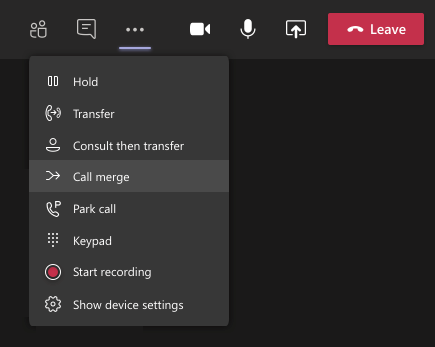
Call Merge gives end users the capability to merge their active 1:1 call into another 1:1 or group call. For example, during a call with someone (or a group), you need to ask someone else a question. With this feature, you may add them directly into the first conversation seamlessly. This applies to Teams VOIP calls and PSTN calls. Learn more.
Microsoft Calling Plan expansion
Microsoft Teams Calling plans provide a fast and simple way to deploy calling in Microsoft Teams with no on-premises equipment. We have expanded our geographic coverage to ten new markets including New Zealand, Singapore, Romania, Czech Republic, Hungary, Finland, Norway, Slovakia, Poland, and Luxembourg. This means that customers in 28 markets can now use Microsoft-provided calling plans to place and receive PSTN calls in Teams. Learn more.
Branch Office Survivability on Teams phones
With this new capability, users in a Branch Office can continue to make PSTN call on Teams phones to other users even if the Branch office loses internet connectivity. This is beneficial for the continuity of communication and adds a layer of confidence that information can be conveyed even when connectivity may be jeopardized.
Devices
Teams casting with Mobile Phone for Microsoft Teams Rooms
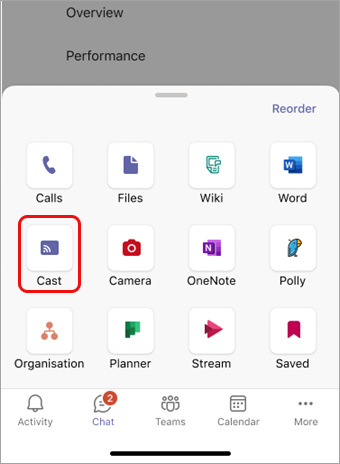
For quick ad-hoc sessions that don’t necessarily require setting up a formal meeting, people can use Teams casting to wirelessly connect to a Teams Room running on Windows, and display content from their mobile phone. Users can broadcast their screen and cast content stored locally on their device or accessible via Office 365. Learn more.
Newly certified devices
We’ve have newly certified devices for Microsoft Teams this month from Creston, Poly, and Yealink.
Crestron Flex Microsoft Teams Rooms
The certification covers the small meeting rooms with the MM30 and B30 products and medium and large rooms with the M50 and M70 products. A benefit of the Crestron Flex X Advanced systems is that it extends the USB and HDMI cables over a Cat5 cable, for a simpler deployment.
www.crestron.com/teams https://aka.ms/teamsdevices

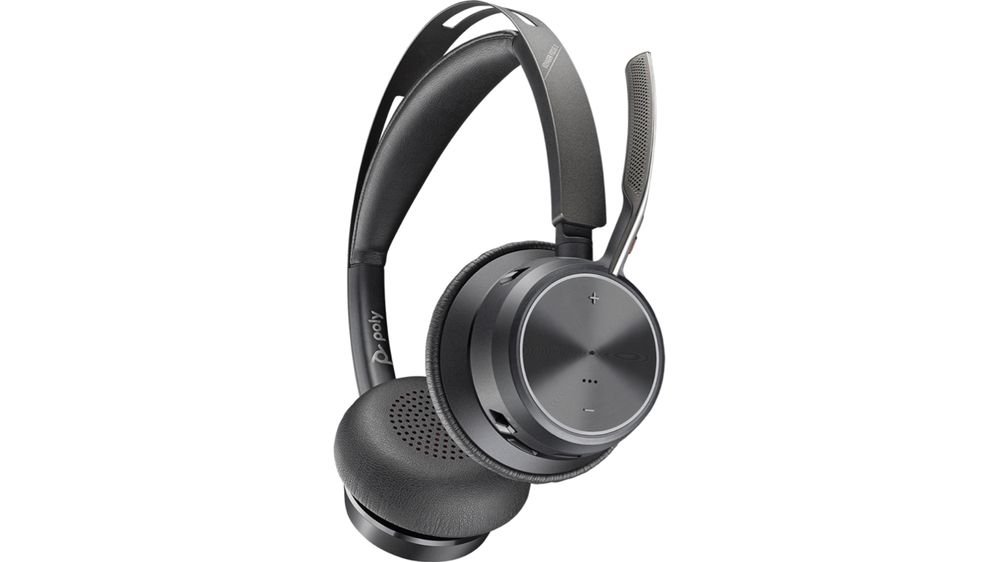
Poly Voyager Focus 2
Voyager Focus 2 is a stereo Bluetooth headset with 3 levels of active noise canceling (ANC) and up to 19 hours of talk time. It is certified under Microsoft Teams premium microphone for open office headset. Learn more.
Yealink MVC840
The Yealink MVC840 Microsoft Teams Room system is a bundle video solution for medium and large spaces. This includes the UVC84 4K camera, VCM34 audio system supporting a 6-meter and 360° voice pickup range, MCore mini-PC, and MTouch II touch panel. Further, it features simplified deployment with one CAT5e-cable technology, wireless content sharing with WPP20, and the Yealink Device Management Platform. https://www.yealink.com/product/microsoft-teams-room-system-mvc840
Chat and collaboration
Group chat with external users
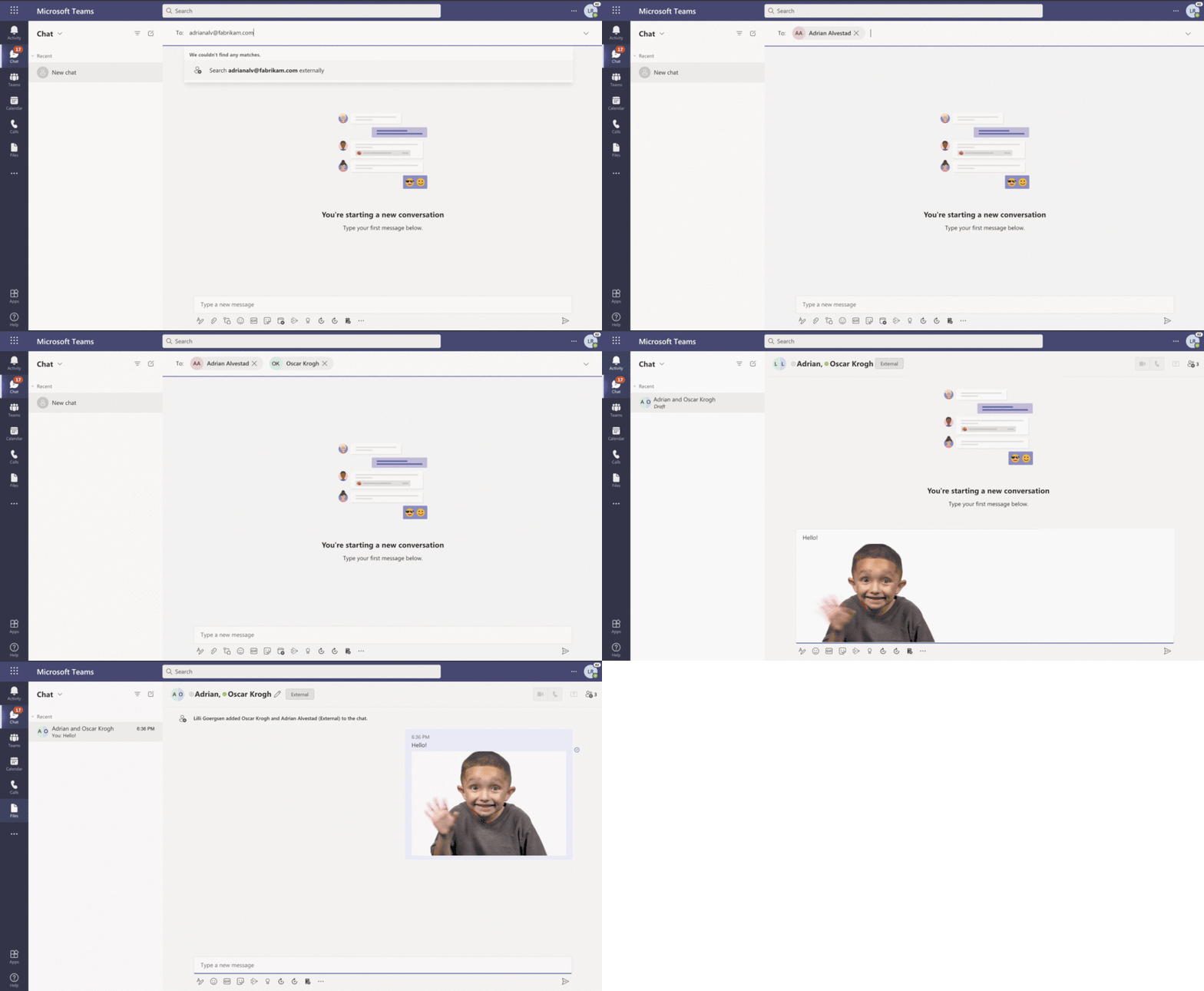
Chat with up to 250 participants across multiple organizations in a single chat. This makes it easy to start a chat with external partners, just like how it’s done today within an organization. External group chat is expanding on the existing ability for Teams users to find, participate in 1:1 chat, calls, and set up meetings with external Teams users in federated organizations. This feature is part of Microsoft Teams Connect, which enables users to share a team with guest users, and share channels as well as chat with people from multiple organizations right from their own tenants.
Microsoft Viva Insights
New personal wellbeing experiences to help you mindfully organize your workday and build better work habits are coming to the Viva Insights app in Teams.
- A reflection feature helps you become more aware of how you’re feeling and identify patterns over time. These insights are personal and private to the individual.
- Praise enables you to express appreciation for your colleagues and schedule praise reminders to build a habit of sharing gratitude.
- Virtual commute helps you wrap up your tasks at the end of the workday, prepare for tomorrow, and transition into your personal time with peace of mind.
Later this year, we are extending these capabilities with a curated set of guided meditations and mindfulness experiences from Headspace. Learn more
.
Adobe Sign Integration in Approvals App
There may be times when you need something approved and recorded with more formal attestation and adding signatures to the approval process is necessary. With the new Adobe Sign integration, you can create an approval request with a natively integrated electronic signature. Once submitted, signers are notified with an email and can easily review and sign. Approvals keeps track of the entire workflow right in the context within Teams.
Power Platform and custom development
Updates to Dataverse for Teams administration
We increased the Dataverse for Teams environment limit for larger tenants from the current 500 limit to now 10,000 for large organizations. Also, now you are able to seamlessly upgrade your Dataverse for Teams environments to take advantage of the full premium license capabilities. This means you can utilize the apps and data you’ve built in Dataverse for Teams in an upgraded solution on full Dataverse without having to re-build apps or transfer data.
Security, compliance, and privacy
Microsoft 365 Customer Key now supports Teams
Microsoft 365 Customer Key enables organizations to meet encryption key management compliance requirements by providing the encryption keys used to encrypt customer data in Microsoft’s datacenters – now extended to include Microsoft Teams! For more information on Customer Key with Microsoft 365 and how you can get started, check out the latest technical guidance here.
Admins can install Apps in Meetings
IT admins can select specific Teams apps that can be installed by end users in Teams meetings for their organization. Apps in Teams meetings are accessible during meetings using the tab gallery. To understand more information about the meet lifecycle and how to integrate extensions into the meeting, please see the following article.
Teams for Education
Supervised chat
Chat messaging can be an important tool for group collaboration between students or one-on-one follow-up between educators and students, but many schools are concerned about inappropriate use of chat. Supervised chat grants designated educators permissions to start chats with students and blocks students from creating new chats unless an appropriate educator is present. When chat supervision is enabled, supervisors are not allowed to leave chats and other participants are not allowed to remove them, ensuring that chats involving students remain properly supervised. Learn more here about supervised chat.
Career Coach – Microsoft Teams for Education app powered by LinkedIn
Career Coach is a Microsoft Teams for Education app powered by LinkedIn that provides personalized guidance for higher education students to navigate their career journey. Students can discover their career path, grow real-world skills, and build their network as they make progress towards their goals. Education institutions gain insight to enhance the student experience, improve student success, and drive employment outcomes. Learn more.
Add assignments to Office 365 calendar
Stay on top of due dates and classwork by turning on calendar sync for Teams assignments. This is a setting that educators can select for individual assignments or turn on in Assignments Settings for their whole class. Once toggled on, the calendar feature adds an entry at the due date and time for that assignment on Teams and Outlook calendars for both educators and students.
Frontline Workers
Tag APIs
Tag APIs let frontline workers quickly reach a group of people by role, shifts etc. Using these new APIs, you can now programmatically create and manage tags in a team with actions like creating tags in a team and assign users, getting a list of tags in a team, updating tags, and deleting tags. Learn more.
Manage retail frontline tasks with Microsoft Dynamics 365 Commerce and Teams
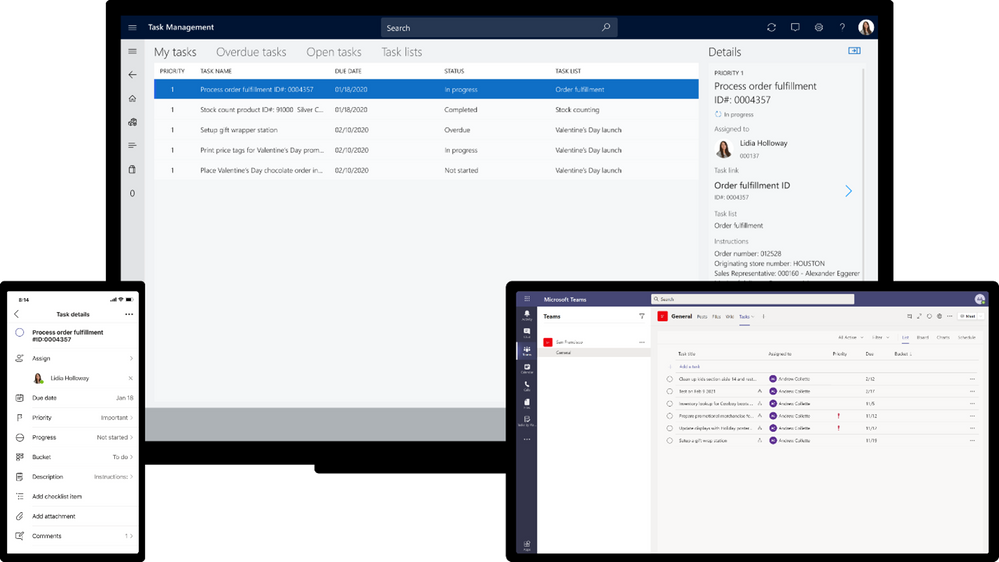
With Teams and Dynamics 365, retailers can provide the frontline with streamlined mobile tools to connect with peers and get near-instant access to information they need to deliver exceptional customer experiences. Task management functionality in Dynamics 365 Commerce allows managers and workers to create task lists, manage assignment criteria, and track task statuses integrated between Dynamics 365 Commerce back office, store commerce, and Teams applications. Users can easily track task completion across all relevant stores, re-assign tasks, and give feedback and proof of execution where applicable directly from Teams.
Government
These features currently available to Microsoft’s commercial customers in multi-tenant cloud environments are now rolling out to our customers in US Government Community Cloud (GCC), US Government Community Cloud High (GCC-High), and/or United States Department of Defense (DoD).
Breakout room timer
Organizers can now set a timer for Breakout rooms from the Breakout Room settings. Once the timer has expired, rooms will automatically close, and participants will return to the main meeting. Available in GCC. Learn more.
Polls in Teams Meetings
Forms polls for Teams meetings provides an easily discoverable and seamless experience that helps you conduct more engaging and productive meetings. With Forms polls, meeting presenters can prepare, launch, and evaluate polls before, during, and after meetings, respectively, all from one place under a tab in the Teams meeting. Now available in GCC.
Updates to Data loss prevention (DLP) for Microsoft Teams
Data loss prevention (DLP) capabilities in Microsoft 365 government clouds is extended to include Microsoft Teams chat and channel messages, including private channel messages. If your organization has DLP, you can now define DLP policies that prevent people from sharing sensitive information in a Teams channel or chat session. Avaliable for DoD. For details on how DLP works with Teams, please review the following article.
Team templates
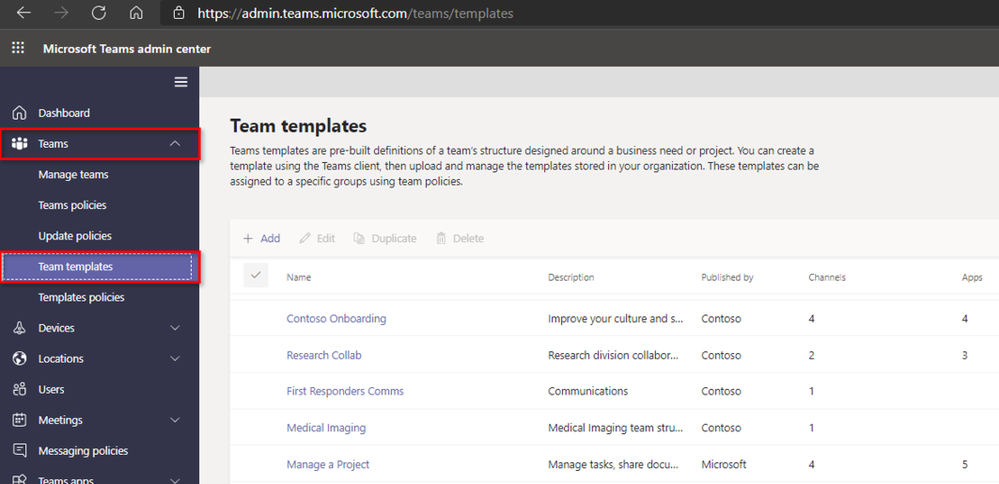
Team templates enable you to quickly and easily create a new team based on standardized team structures with relevant tabs, channels, and apps that scale best practices. You can choose from both Microsoft provided templates, as well as from custom templates within your organization. In the Teams Admin Center, IT admins can create, modify, and remove custom templates for their tenants, as well as manage which templates are shown or hidden to the end user with team templates policies. Available in GCC.


Recent Comments