by Scott Muniz | Jun 2, 2021 | Security, Technology
This article is contributed. See the original author and article here.
As part of an effort to encourage a common language in threat actor analysis, CISA has released Best Practices for MITRE ATT&CK® Mapping. The guide shows analysts—through instructions and examples—how to map adversary behavior to the MITRE ATT&CK framework. CISA created this guide in partnership with the Homeland Security Systems Engineering and Development Institute™ (HSSEDI), a DHS-owned R&D center operated by MITRE, which worked with the MITRE ATT&CK team.
CISA and other organizations in the cybersecurity community use MITRE ATT&CK to identify and analyze threat actor behavior. This analysis enables them to produce a set of mappings to develop adversary profiles; conduct activity trend analyses; and detect, respond to, and mitigate threats. An increase in the number of organizations integrating the ATT&CK framework in their analysis will have a positive impact on the efficiency and efficacy of information sharing within the community.
CISA, HSSEDI, and MITRE ATT&CK encourage users and administrators to review both the guide—as well as CISA Executive Assistant Director Eric Goldstein’s blog post on the guide—to strengthen the security posture of their organization and improve information sharing.
by Scott Muniz | Jun 2, 2021 | Security, Technology
This article is contributed. See the original author and article here.
Mozilla has released security updates to address vulnerabilities in Firefox and Firefox ESR. An attacker could exploit some of these vulnerabilities to take control of an affected system.
CISA encourages users and administrators to review the Mozilla Security Advisory for Firefox 89 and Firefox ESR 78.11 and apply the necessary updates.
by Scott Muniz | Jun 2, 2021 | Security, Technology
This article is contributed. See the original author and article here.
Cisco has released security updates to address a vulnerability in multiple Cisco products. An attacker could exploit this vulnerability to take control of an affected system.
CISA encourages users and administrators to review the following Cisco advisory and apply the necessary updates:
by Contributed | Jun 1, 2021 | Technology
This article is contributed. See the original author and article here.
The product submissions must be tested using the Hardware Lab Kit (HLK) for Windows Server 2022 hardware and software testing. The kit is available at the Partner Center for Windows Hardware, https://docs.microsoft.com/en-us/windows-hardware/test/hlk/.
For information on how to make a submission, see https://docs.microsoft.com/en-us/windows-hardware/drivers/dashboard
Vendors may download the Windows Server 2022 Eval version of the operating system for testing purposes here, https://www.microsoft.com/en-us/evalcenter/evaluate-windows-server-2022-preview
Vendors may also download the Virtual Hardware Lab Kit (VHLK) here, https://docs.microsoft.com/en-us/windows-hardware/test/hlk/ . The VHLK is a complete pre-configured HLK test server on a Virtual Hard Disk (VHD). The VHLK VHD can be deployed and booted as a Virtual Machine (VM) with no installation or configuration of the HLK required.
The playlist for testing Windows Server 2022 hardware and software may also be downloaded at that location. For Windows Server 2022, the release playlist has been consolidated for both X64 and ARM64 architecture. The Playlist may be updated in the future, so it is best to check for new versions regularly.
Preview versions of the OS and HLK cannot be used for certification testing of products for Windows Server 2022.
Previous versions of the HLK to be used for testing previous Windows Server versions will continue to be available in accord with the Microsoft Product Lifecycle guidance.
by Contributed | Jun 1, 2021 | Technology
This article is contributed. See the original author and article here.
Scenario:
With RA-GRS redundancy, you can read the data using secondary endpoint. The document points at connecting to Blob Storage using secondary endpoint and read data ahead.
Actions:
We will be making use of connection string to connect to the secondary endpoint and follow the below steps:
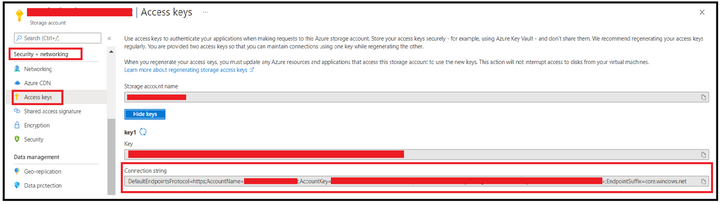
Step 1: Obtain the connection string.
We can obtain this from Azure Portal, from Access Keys section under Security & Networking Pane of Storage Account Blade.
Step 2: Editing connection string to use Secondary Endpoint.
Append the BlobEndpoint section pointing to secondary endpoint at the end of the connection string like the one given below:
DefaultEndpointsProtocol=https;AccountName=<StorageAccountName>;AccountKey=35tCZY3DXXXXXXXXXXXXXXXXXXXXXXXXXX==;EndpointSuffix=core.windows.net;BlobEndpoint=https://<StorageAccountName>–secondary.blob.core.windows.net
In case you want to leverage SAS, then you can edit the SAS URL to add secondary keyword after the account name and blob as endpoint. Below is one of the sample SAS URL:
https://<StorageAccountName>–secondary.blob.core.windows.net/?sv=2020-02-10&ss=bfqt&srt=sco&sp=rwdlacuptfx&se=2021-05-29T11:38:06Z&st=2021-05-29T03:38:06Z&spr=https&sig=XXXXXXXXXXXXXXXXXXXXXX
Step 3: Connecting to Storage Account using the connection string.
We will try connecting and accessing blobs using Azure Storage Explorer and via a powershell script. Let’s check for the process with first option.
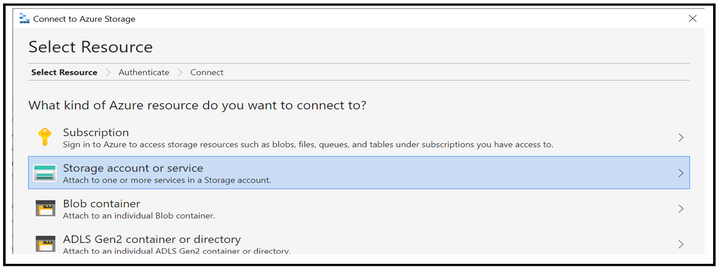
When accessing via Azure Storage Explorer, you can follow the below steps of first selecting the resource type as Storage account.
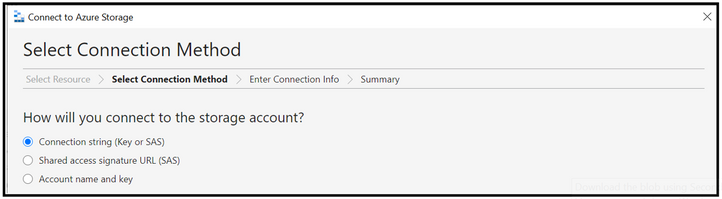
Select the connection method as connection string and then provide the connection string created at step 2 along with the display name using which you want the connection to be displayed. Once done, click on the connect button.
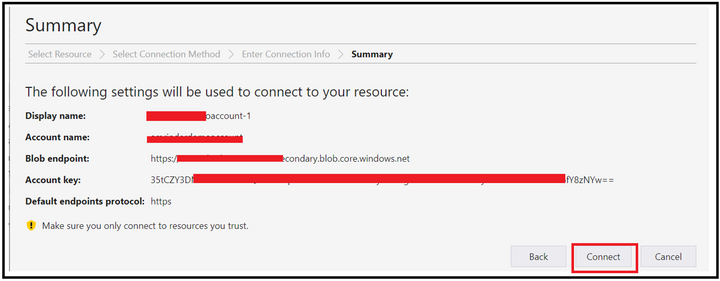
At this point, the connection will get added under the Storage Accounts section of Local & Attached.
Step 4: Validations
To validate you are hitting the secondary endpoint only, you can configure fiddler as a proxy in the storage explorer and then try performing the operation of listing and reading (Get operation) while running the fiddler in the backend.
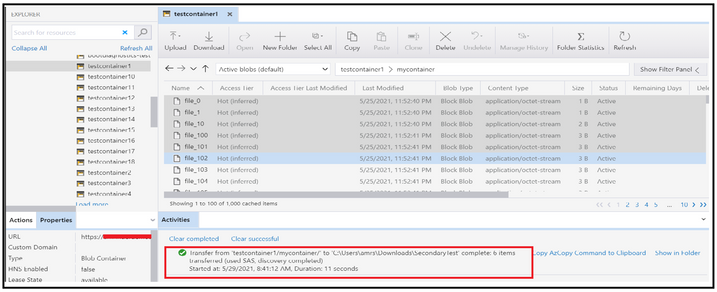
At the backend, you will see that you are hitting the secondary endpoint while trying to access the blobs.
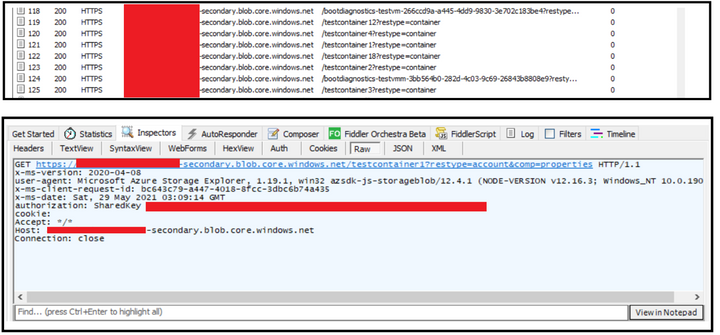
In order to connect using Powershell, you can leverage below script to listing of the blobs inside a container.
$bMaxReturn = 100
$storageContext = New-AzStorageContext -ConnectionString “<String Generated at Step 2>”
do
{
# get a list of all of the blobs in the container
$listOfBlobs = Get-AzStorageBlob -Container “<Container Name>” -Context $storageContext -MaxCount $bMaxReturn -ContinuationToken $bToken
if($listOfBlobs.Length -le 0) { Break;}
foreach($blob in $listOfBlobs) {
write-host “Blob name:”
write-host $blob.Name
}
$bToken = $blob[$blob.Count -1].ContinuationToken;
}while ($bToken -ne $Null)
Disclaimer
By using the following materials or sample code you agree to be bound by the license terms below and the Microsoft Partner Program Agreement the terms of which are incorporated herein by this reference. These license terms are an agreement between Microsoft Corporation (or, if applicable based on where you are located, one of its affiliates) and you. Any materials (other than sample code) we provide to you are for your internal use only. Any sample code is provided for the purpose of illustration only and is not intended to be used in a production environment. We grant you a nonexclusive, royalty-free right to use and modify the sample code and to reproduce and distribute the object code form of the sample code, if you agree:
- to not use Microsoft’s name, logo, or trademarks to market your software product in which the sample code is embedded.
- (ii) to include a valid copyright notice on your software product in which the sample code is embedded.
- (iii) to provide on behalf of and for the benefit of your subcontractors a disclaimer of warranties, exclusion of liability for indirect and consequential damages and a reasonable limitation of liability; and
- (iv) to indemnify, hold harmless, and defend Microsoft, its affiliates and suppliers from and against any third-party claims or lawsuits, including attorney’s fees, that arise or result from the use or distribution of the sample code.”
For any information regarding data redundancy, you can check this link.
Hope this helps!
by Contributed | Jun 1, 2021 | Technology
This article is contributed. See the original author and article here.
The product submissions must be tested using the Hardware Lab Kit (HLK) for Windows Server 2022 hardware and software testing. The kit is available at the Partner Center for Windows Hardware, https://docs.microsoft.com/en-us/windows-hardware/test/hlk/.
For information on how to make a submission, see https://docs.microsoft.com/en-us/windows-hardware/drivers/dashboard
Vendors may download the Windows Server 2022 Eval version of the operating system for testing purposes here, https://www.microsoft.com/en-us/evalcenter/evaluate-windows-server-2022-preview
Vendors may also download the Virtual Hardware Lab Kit (VHLK) here, https://docs.microsoft.com/en-us/windows-hardware/test/hlk/. The VHLK is a complete pre-configured HLK test server on a Virtual Hard Disk (VHD). The VHLK VHD can be deployed and booted as a Virtual Machine (VM) with no installation or configuration of the HLK required.
The playlist for testing Windows Server 2022 hardware and software may also be downloaded at that location. For Windows Server 2022, the release playlist has been consolidated for both X64 and ARM64 architecture. The Playlist may be updated in the future, so it is best to check for new versions regularly.
Preview versions of the OS and HLK cannot be used for certification testing or products for Windows Server 2022.
Previous versions of the HLK to be used for testing previous Windows Server versions will continue to be available in accord with the Microsoft Product Lifecycle guidance.


Recent Comments