Azure HBv3 VMs and Excelero NVMesh Performance Results: 100+ GB/s, 23+ million IOPS, 100 µs latency

Azure HBv3 VMs and Excelero NVMesh Performance Results: 100+ GB/s, 23+ million IOPS, 100 µs latency

This article is contributed. See the original author and article here.

Article contributed by Excelero: Kevin Guinn, Systems Engineer and Kirill Shoikhet, Chief Technical Officer at Excelero.


Azure offers Virtual Machines (VMs) with local NVMe drives that deliver a tremendous amount of performance. These local NVMe drives are ephemeral, so if the VM fails or is deallocated, the data on the drives will no longer be available. Excelero NVMesh provides a means of protecting and sharing data on these drives, making their performance readily available, without risking data longevity. This blog provides in-depth technical information about the performance and scalability of volumes generated on Azure HBv3 VMs with this software-defined-storage layer.


The main conclusion is that the Excelero NVMesh transforms available Azure compute resources into a storage layer on par with typical on-premises HPC cluster storage. With testing as wide as 24 nodes and 2,880 cores, latencies, bandwidth and IO/s levels scale well. Note that 24 nodes is not a limit for scalability as an Azure virtual machine scale set can accommodate up to 1000 VMs (300 if using InfiniBand) in a single tenant. This enables running HPC and AI workloads at any scale, in addition to workloads such as data analytics, with the most demanding IO patterns in an efficient manner without data loss risk.


Azure HBv3 VMs


Microsoft have recently announced HBv3 virtual machines for HPC. These combine AMD EPYC 7003 “Milan” cores with 448 GB of RAM, RDMA-enabled 200 Gbps InfiniBand networking and two 960 GB local NVMe drives to provide unprecedented HPC capabilities anywhere, on-prem or cloud environment. The InfiniBand adapter supports the same standard NVIDIA OpenFabrics Enterprise Distribution (OFED) driver and libraries that are available for bare-metal servers. Similarly, the two NVMe drives are serviced as they would be on bare-metal servers, using NVMe-Direct technology.


The combination of a high bandwidth and low-latency RDMA network fabric and local NVMe drives makes these virtual machines an ideal choice for Excelero NVMesh.


HBv3 virtual machines come in several flavors differentiated by the number of cores available. For simplicity, VMs with the maximum of 120 cores were used throughout these tests.


Excelero NVMesh


Excelero provides breakthrough solutions for the most demanding public and private cloud workloads and provides customers with a reliable, cost-effective, scalable, high-performance storage solution for artificial intelligence, machine learning, high-performance computing, database acceleration and analytics workloads. Excelero’s software brings a new level of storage capabilities to public clouds, paving a smooth transition path for such IO-intensive workloads from on-premises to public clouds supporting digital transformation.


Excelero’s flagship product NVMesh transforms NVMe drives into enterprise-grade protected storage that supports any local or distributed file system. Featuring data-center scalability, NVMesh provides logical volumes with data protection and continuous monitoring of the stored data for reliability. High-performance computing, artificial intelligence and database applications enjoy ultra-low latency with 20 times faster data processing, high-performance throughput of terabytes per second and millions of IOs per second per compute node. As a 100% software-based solution, NVMesh is the only container-native storage solution for IO-intensive workloads for Kubernetes. These capabilities make NVMesh an optimal storage solution that drastically reduces the storage cost of ownership.


Excelero NVMesh on Azure


With up to 120 cores, HBv3 VMs are well suited for running NVMesh in a converged topology, where each node runs both storage services and the application stack for the workloads. Millions of IO/s and 10s of GB/s of storage can be delivered with most of the CPU power available for the application layer.


To ensure proper low-latency InfiniBand connectivity, all members of an NVMesh cluster must either be in a Virtual Machine Scale Set or provisioned within the same Availability Set. The InfiniBand driver and OFED can be installed using the InfiniBand Driver Extension for Linux, or there are HPC-optimized Linux operating system images on the Azure marketplace that have it included.


NVMesh leverages the InfiniBand network to aggregate the capacity and performance of the local NVMe drives on each VM into a shared pool, and optionally allows the creation of protected volumes that greatly reduce the chance of data loss in the event that a drive or VM is disconnected.


Considerations for HBv3 and Excelero NVMesh


For the tests described in this paper, Standard_HB120-32rs_v3 VMs were built with the OpenLogic CentOS-HPC 8_1-gen2 version 8.1.2021020401 image. This image features:


  • Release: CentOS 8.1

  • Kernel: 4.18.0-147.8.1.el8_1.x86_64l

  • NVIDIA OFED: 5.2-1.0.4.0


Excelero NVMesh management servers require MongoDB 4.2 and NodeJS 12 as prerequisites. To provide resilience for the management function in the event of a VM failure or deallocation, three nodes were selected for management, and a MongoDB replica set, consisting of those three nodes, was used to store the management databases.


Deployment Steps


Excelero NVMesh can be deployed manually or through its Azure marketplace image. For these tests, we used automation from the AzureHPC toolset to set up the cluster and then ran Ansible automation to deploy Excelero NVMesh and get the 24-node cluster up in minutes. The Azure HPC toolset deployed a headnode and created a Virtual Machine Scale Set containing 24 nodes in 10-15 minutes. These nodes are automatically configured for access from the headnode and within the cluster using ssh keys and no prompting, and we executed a script that disables SELinux after the VMs are provisioned. To fully disable SELinux, the VMs were restarted. While they were restarting, it was a good time to set up the hosts file, specify the group variables, and install the prerequisite Ansible galaxy collections. All of that was able to be completed in less than 5 minutes, after which the Ansible playbook was executed. The Ansible playbook sets up the nodes for the roles specified in the hosts file.  For management nodes, this includes building a MongoDB replica set, installing Node.JS, and installing and configuring the NVMesh management service. For target nodes, the NVMesh core and utilities packages are installed, and the nvmesh.conf file is populated based on the specified variables and management hosts. (The last two lines in the configuration file below are not currently within the scope of the Ansible playbook, and need to be added manually.) The Ansible playbook completed in 15-20 minutes, so allowing for the manual steps to finalize the configuration file, access the UI, accept the end-user license agreement, and format the NVMe drives to be used by NVMesh, it is possible to have a fully deployed and operational cluster with software-defined storage in less than an hour.


With this method of deployment, the headnode was used to access and manage the cluster. The headnode has a public IP, and hosts a NFS share that provides a home drive that facilitates replicating key configurations and data among the nodes. In each test cluster, NVMesh management was installed on the first 3 nodes and all nodes served both as NVMesh targets and as NVMesh clients consuming IO.  In the case of the four-node cluster, four additional clients were provisioned to increase the workload.


The nvmesh.conf configuration file used is as follows.


# NVMesh configuration file
# This configuration file is utilized by Excelero NVMesh(r) applications for various options.

# Define the management protocol
# MANAGEMENT_PROTOCOL="<https/http>"

MANAGEMENT_PROTOCOL="https"

# Define the location of the NVMesh Management Websocket servers
# MANAGEMENT_SERVERS="<server name or IP>:<port>,<server name or IP>:<port>,..."

MANAGEMENT_SERVERS="compute000000:4001,compute000001:4001,compute000002:4001"

# Define the nics that will be available for NVMesh Client/Target to work with
# CONFIGURED_NICS="<interface name;interface name;...>"

CONFIGURED_NICS="ib0"

# Define the IP of the nic to use for NVMf target
# NVMF_IP="<nic IP>"
# Must not be empty in case of using NVMf target

NVMF_IP=""
MLX5_RDDA_ENABLED="No"
TOMA_CLOUD_MODE="Yes"
AGENT_CLOUD_MODE="Yes"


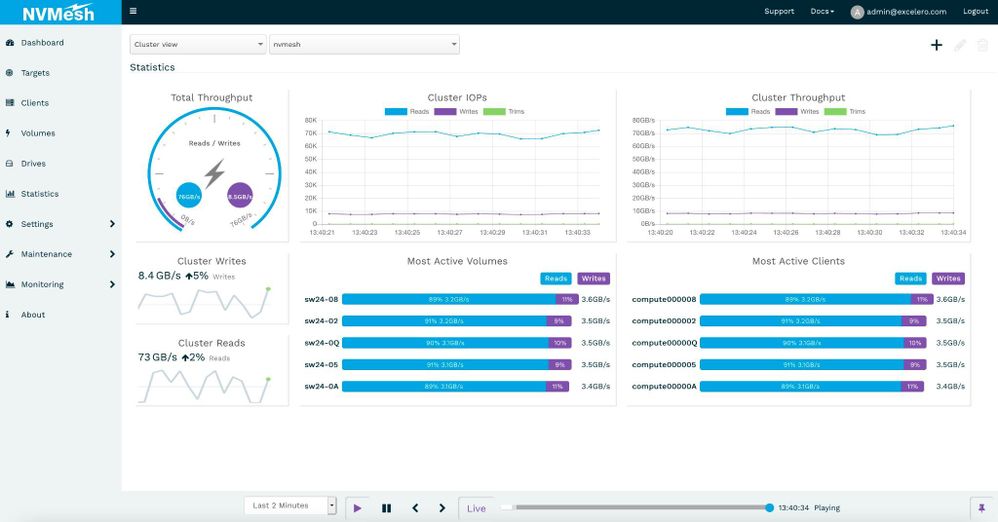
Performance was steady and consistent across workloads. Image 1 is a screenshot captured with a workload of random 1 MB operations run at a 90% read to 10% write ratio.


AmanVerma_0-1624571522458.jpeg


Image 1. 20x IO compute nodes consuming 3.5 GB/s of IO each with a 90/10 read/write ratio.


Synthetic Storage Benchmarks


Block Device Level


As Excelero NVMesh provides virtual volumes, we began with a synthetic block storage benchmark, using FIO. We covered a range of block sizes and data operation types using direct I/O operations against a variety of scales. We measured typical performance parameters as well as latency outliers that are of major importance for larger scale workloads, especially ones where tasks are completed synchronously across nodes.


Table 1 describes the inputs used for the measurements while the graphs below show the results.


Block Size


Operation


Jobs


Outstanding IO /


Queue Depth


4 KB


Read


64


64


Write


8 KB


Read


Write


64 KB


Read


8


Write


1 M


Read


8


4


Write


Table 1


4-node Cluster


With the 4-node cluster, we pooled the 8 NVMe drives and created unique mirrored volumes for each client node. To better demonstrate the effectiveness of NVMesh in serving remote NVMe, 4 additional VM were configured as clients only, without contributing drives or storage services for the test. NVMesh is known for its ability to achieve the same level of performance on a single shared volume or across multiple private volumes. With an eye toward establishing a baseline from which scalability could be assessed, we ran synthetic IO from various sets of these clients concurrently.


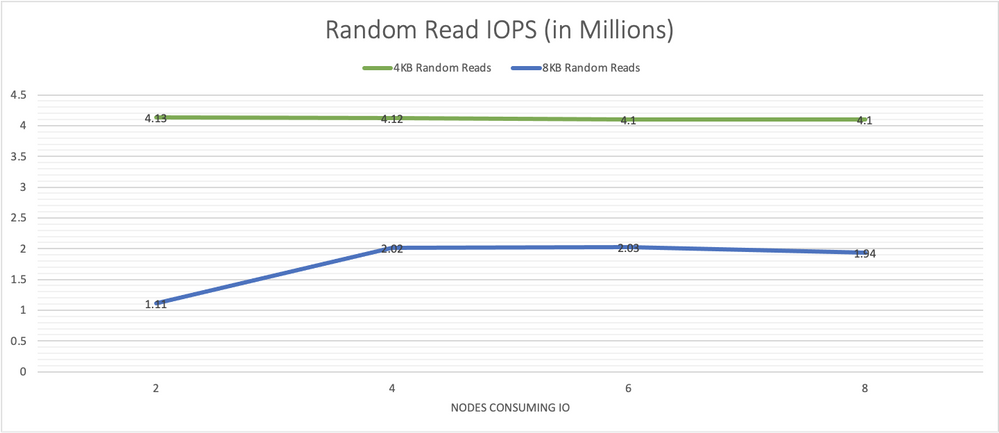
Graph 1 shows performance results for 4 KB and 8 KB random reads with 64 jobs and 64 outstanding IOs run on each client node on the NVMesh virtual volumes. The 4-node cluster consistently demonstrated over 4 million IOPS. The system was able to sustain this rate as additional client nodes were utilized as IO consumers.


AmanVerma_1-1624571522471.png


Graph 1, random read IO/s scale well and remain consistent as more load is put on the system.


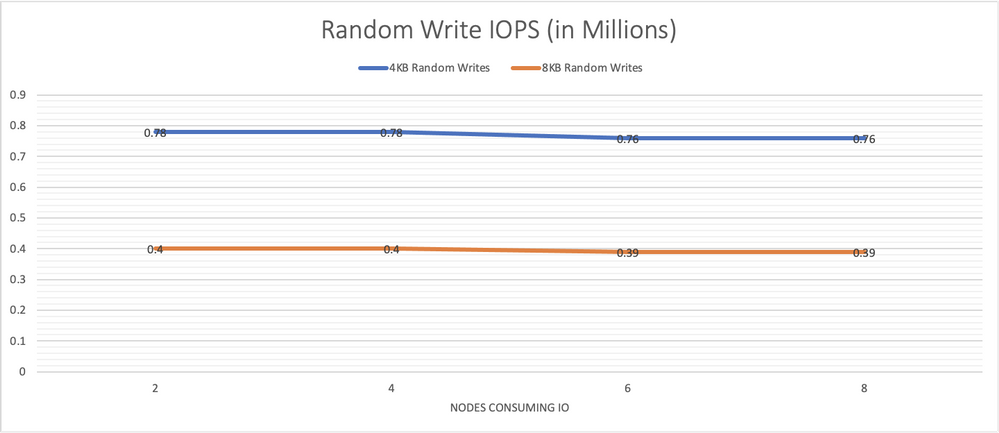
Graph 2 presents performance results for 4 KB and 8 KB random writes performed from 64 jobs, each with 64 outstanding IOs, run on each node. The system is able to sustain the same overall performance even as load rises with an increasing number of storage consumers.


AmanVerma_2-1624571522481.png


Graph 2, random writes IO/s remain consistently high as more load is put on the system.


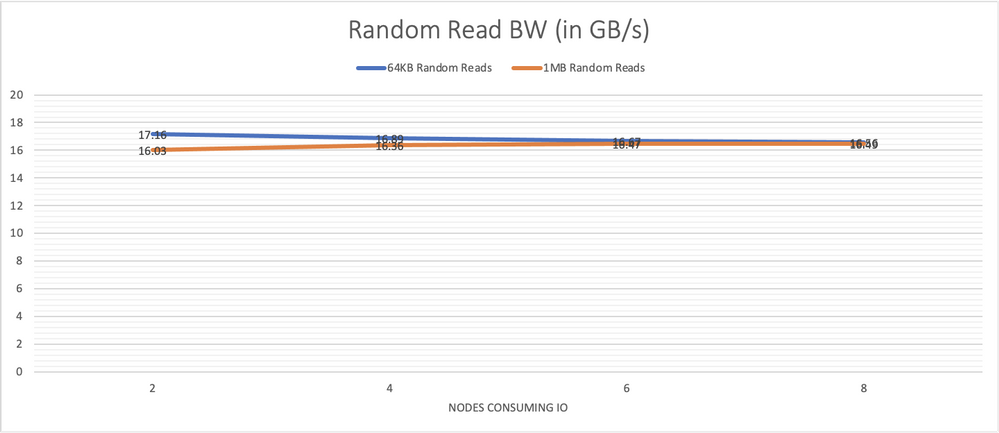
Graph 3 presents performance results for 64 KB random reads performed from 64 jobs with 8 outstanding IO each per node and results for 1 MB reads from 8 jobs each with 4 outstanding IOs.


Graph 4 presents the performance for the equivalent writes. Again, system performance remains steady as the number of nodes generating the load is increased.


AmanVerma_3-1624571522487.png


Graph 3, performance of large random reads also remains steady showing the consistency of the system across all components.
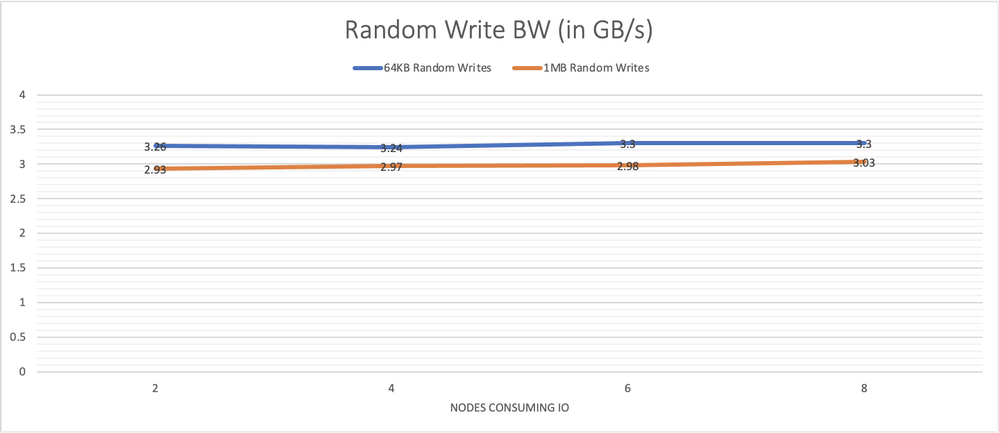


AmanVerma_4-1624571522495.png


Graph 4, system performance with large random writes is consistent under increasing load.


8-node Cluster


For the 8-node cluster, we pooled all 16 drives, and created 8 discrete mirrored volumes, one for each client node. The same IO patterns demonstrated on the 4-node cluster were tested again in order to determine how scaling the cluster would impact IO performance. Graphs 5, 6, 7 and 8 below provide the same tests run across this larger number of target nodes.
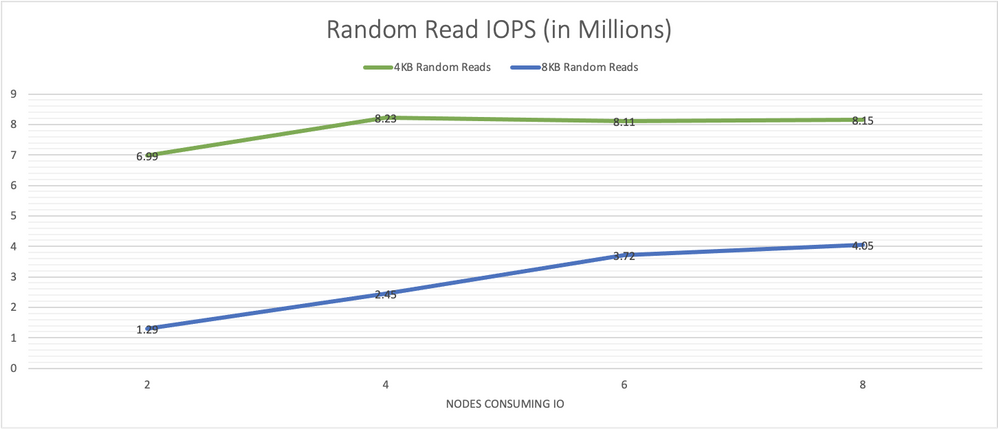


AmanVerma_5-1624571522503.png


Graph 5, random 4 KB and 8 KB read IO/s scale well and remain consistent as more load is put on the system.
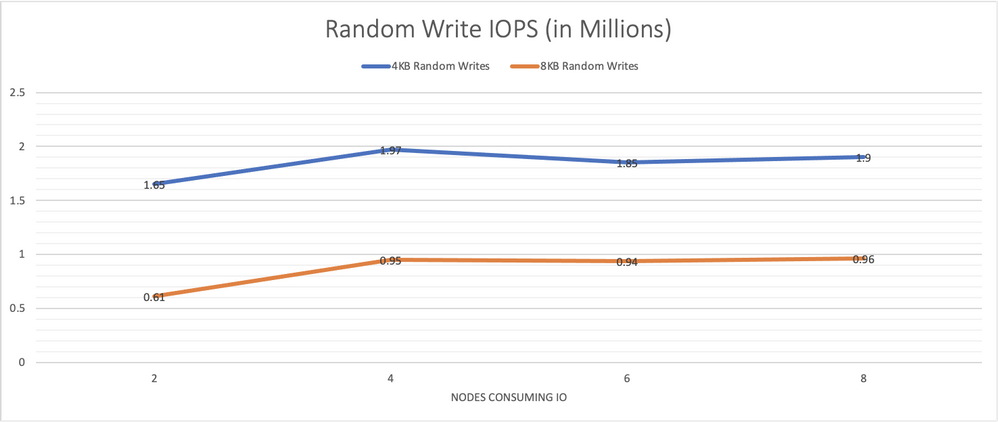


AmanVerma_6-1624571522511.png


Graph 6, random 4 KB and 8 KB writes IO/s remain consistently high as more load is put on the system. 3 nodes are needed to saturate the system.
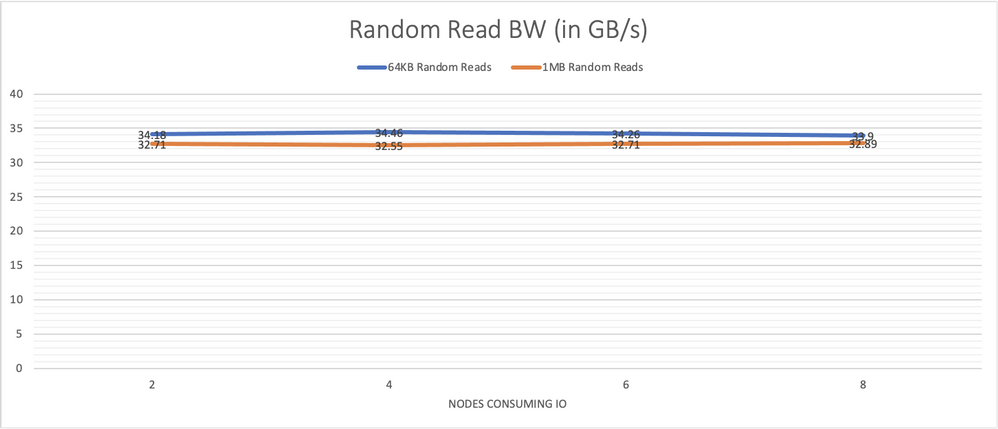


AmanVerma_7-1624571522518.png


Graph 7, performance of larger random reads, of 64 KB and 1 MB, also remains steady showing the consistency of the system across all components.
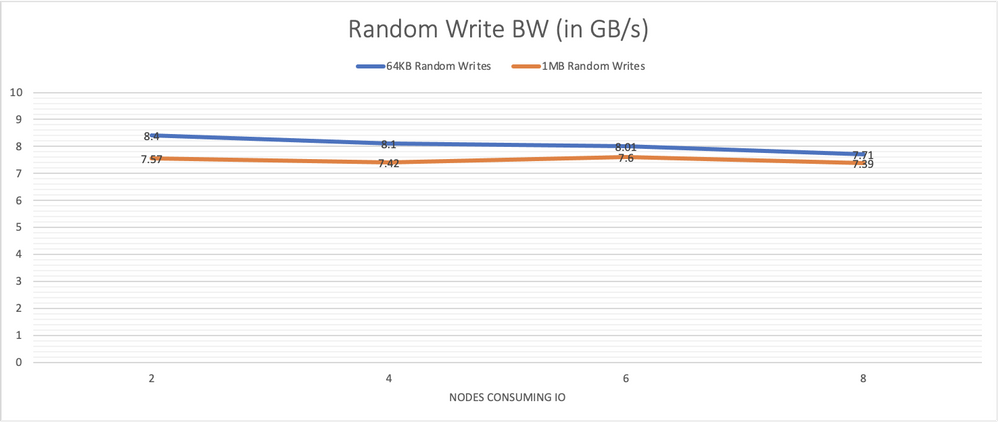


AmanVerma_8-1624571522526.png


Graph 8, system performance with large random writes of 64 KB and 1 MB is also mostly consistent under increasing load.


24-node Cluster


For the 24-node cluster, we pooled all 48 drives and then carved out 24 discrete volumes, one for each client node.


We ran the set of synthetic IO workloads to various sub-clusters as IO consumers. Each measurement was done 3 times, 60 seconds each time.


Graph 9 shows the performance results for random 4 KB and 8 KB reads with 64 jobs and 64 outstanding IOs for each job, run on each node consuming IO. The number of nodes participating was varied. With 3 times the nodes and drives serving IO compared to the 8-node cluster, the 24-nodes continues to scale almost linearly and demonstrates over 23 million 4 KB random read IOPS, which is almost 3 times the IOPS observed with the 8-node cluster. It was also able to sustain this rate with various amounts of client nodes utilized as IO consumers.
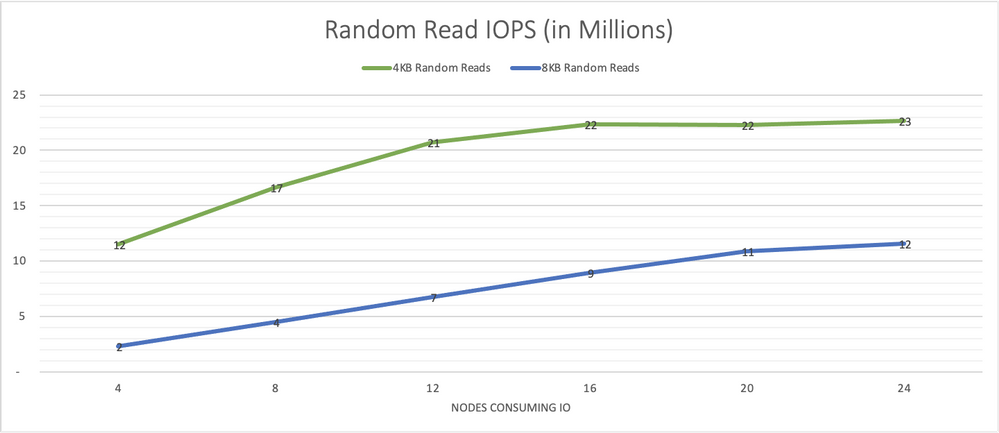


AmanVerma_9-1624571522533.png


Graph 9, outstanding levels of IO/s are made possible with the 24-node cluster


Graph 10 depicts the performance results when employing random writes instead of reads.
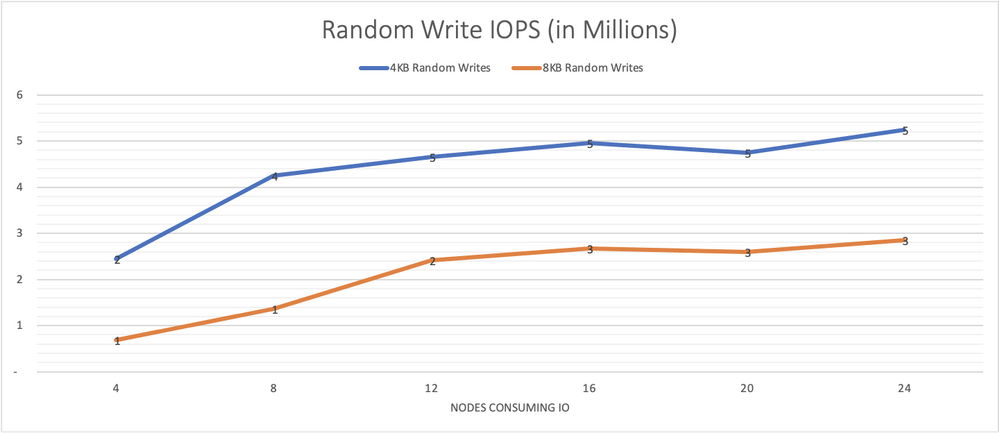


AmanVerma_10-1624571522539.png


Graph 10, random 4 KB and 8 KB writes IO/s remain consistently high as more load is put on the system. 12-16 nodes are needed to saturate the system.


Graph 11 presents performance results for 64 KB random reads with 64 jobs and 8 outstanding IO per consuming node and 1m random reads with 8 jobs and 4 outstanding IOs. With 4 consumers, we see 80 GB/s congruent with a single node capable of 20 GB/s with its HDR link.
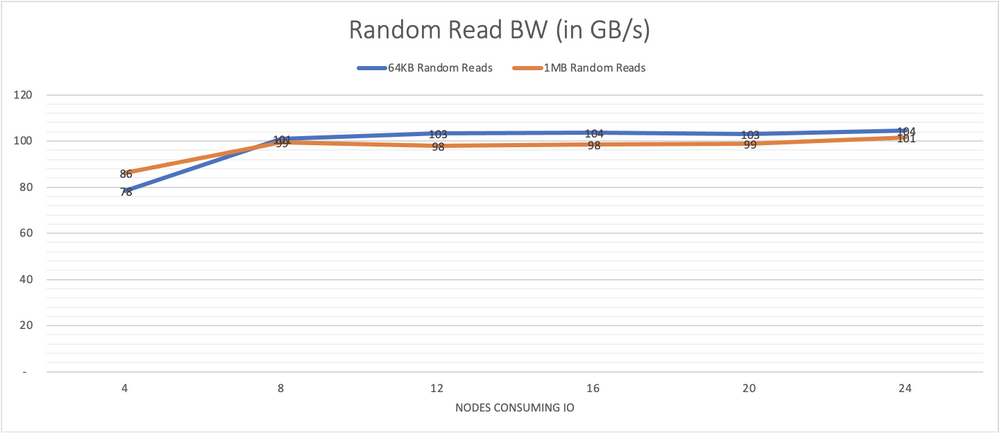


AmanVerma_11-1624571522545.png


Graph 11, performance of larger random reads, of 64 KB and 1 MB, also remains steady showing the consistency of the system across all components. With 5 nodes, the system is already saturated. With over 100 GB/s of bandwidth readily available even for random operations, this is a powerful tool for many Azure’s public cloud HPC use cases.


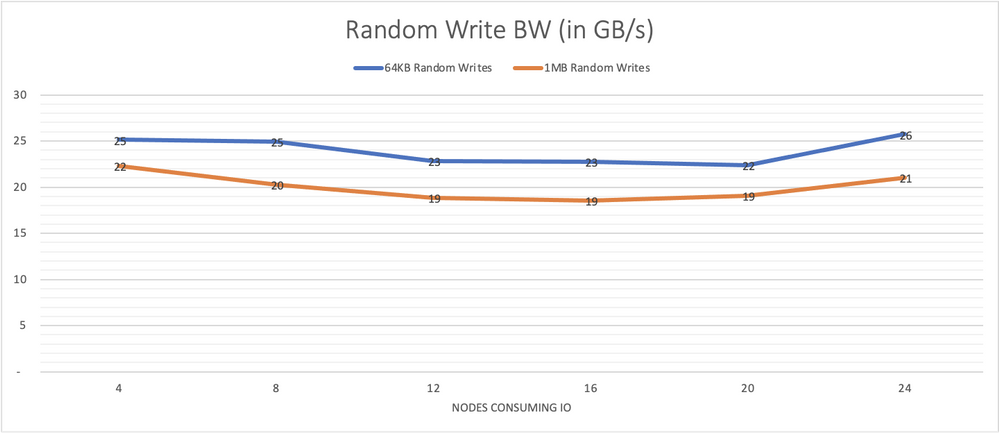
Graph 12 depicts results for 64 KB random writes with 64 jobs and 8 outstanding IO per consuming node and 1 MB random writes with 8 jobs and 4 outstanding IOs. With 4 consumers, we already see that write performance is maximized at around 25 GB/s consistent with single drive performance capped at around 1 GB/s per drive.


AmanVerma_12-1624571522551.png


Graph 12, system performance with large random writes of 64 KB and 1 MB is also consistent under increasing load. This write capability complements the reads from the previous graph to provide a compelling platform for public cloud HPC use cases.


Conclusions


Excelero NVMesh compliments Azure HBv3 virtual machines, adding data protection to mitigate against job disruptions that may otherwise occur when a VM with ephemeral NVMe drives is deallocated while taking full advantage of a pool of NVMe-direct drives across several VM instances.  Deployment and configuration time is modest, allowing cloud spending to be focused on valuable job execution activities.  


The synthetic storage benchmarks demonstrate how Excelero NVMesh efficiently enables the performance of NVMe drives across VM instances to be utilized and shared.  As the number of nodes consuming IO is increased, the system performance remains consistent.  The results also show linear scalability: as additional target nodes are added, the system performance increases with the number of targets providing drives to the pool.
Now accepting Windows 11, version 21H2 submissions

This article is contributed. See the original author and article here.

Windows 11, version 21H2 hardware driver submissions for Windows Hardware Compatibility Program (WHCP) are now being accepted at the Partner Center for Windows Hardware. The updated version of the Windows Hardware Lab Kit (HLK), along with updated playlists for testing Windows 11, version 21H2 hardware may be downloaded from Hardware Lab Kit. As with previous releases of the HLK, this version is intended for exclusive testing for Windows 11, version 21H2. Previous version of the HLK remain available at HLK Kits.


Windows 11, version 21H2 WHCP Playlists


The table below illustrates the playlists needed for testing each architecture: Link –   HLKPlaylist


Testing Target Architecture


Applicable Playlist(s)


x64


HLK Version 21H2 CompatPlaylist x64 ARM64.xml


ARM64*


HLK Version 21H2 CompatPlaylist x64 ARM64.xml


HLK Version 21H2 CompatPlaylist ARM64_x86_on_ARM64.xml


HLK Version 21H2 CompatPlaylist ARM64_x64_on_ARM64.xml


*Testing for ARM64 requires validation in a separate mode for each playlist. Please refer to the HLK ARM64 Getting Started Guide for details on ARM64 HLK client setup and playlist use.


Windows 11, version 21H2 – Submissions on Hardware Dev Center


When making WHCP submissions for the Windows 11, version 21H2 certification, use the following target in Partner Center:


Submission Target


Windows Hardware Compatibility Program – Client, version 21H2


Windows 11, version 21H2 based systems may ship with drivers that have achieved compatibility with Windows 10, version 2004 until September 24, 2021.
Partners looking to achieve compatibility for systems shipping with Windows 11, version 21H2 Release may factory-install drivers for components that achieved compatibility with Windows 10, version 2004 until September 24, 2021.
Errata 81316 is available to filter the “System Logo Check” failure seen when testing Windows 11, version 21H2 based systems with Windows 10, Version 2004 qualified drivers. To apply, download the latest errata filter package.

Use Intune RBAC for tenant attach with Configuration Manager Technical Preview 2106

Use Intune RBAC for tenant attach with Configuration Manager Technical Preview 2106

This article is contributed. See the original author and article here.

Update 2106 for the Technical Preview Branch of Microsoft Endpoint Configuration Manager has been released.


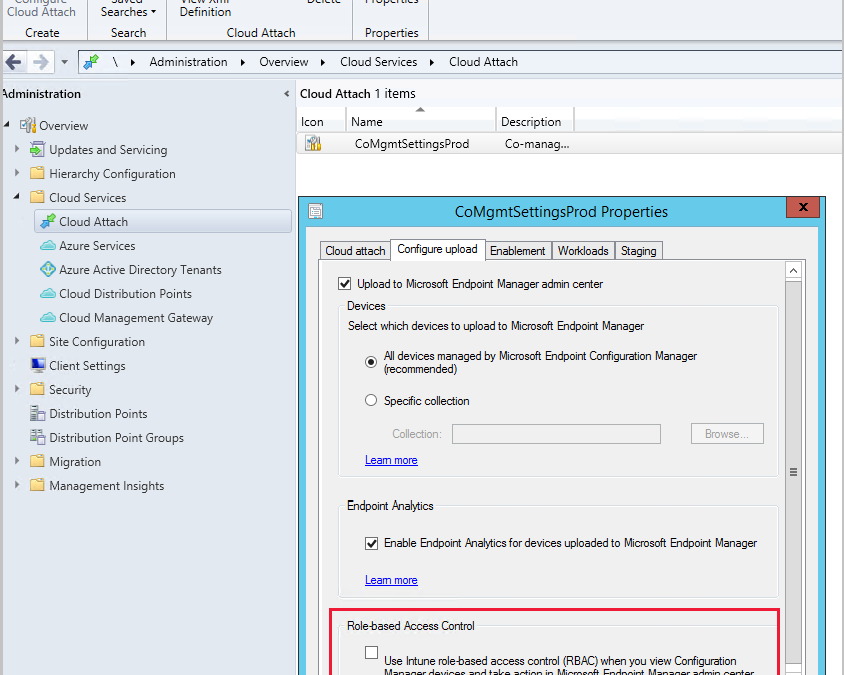
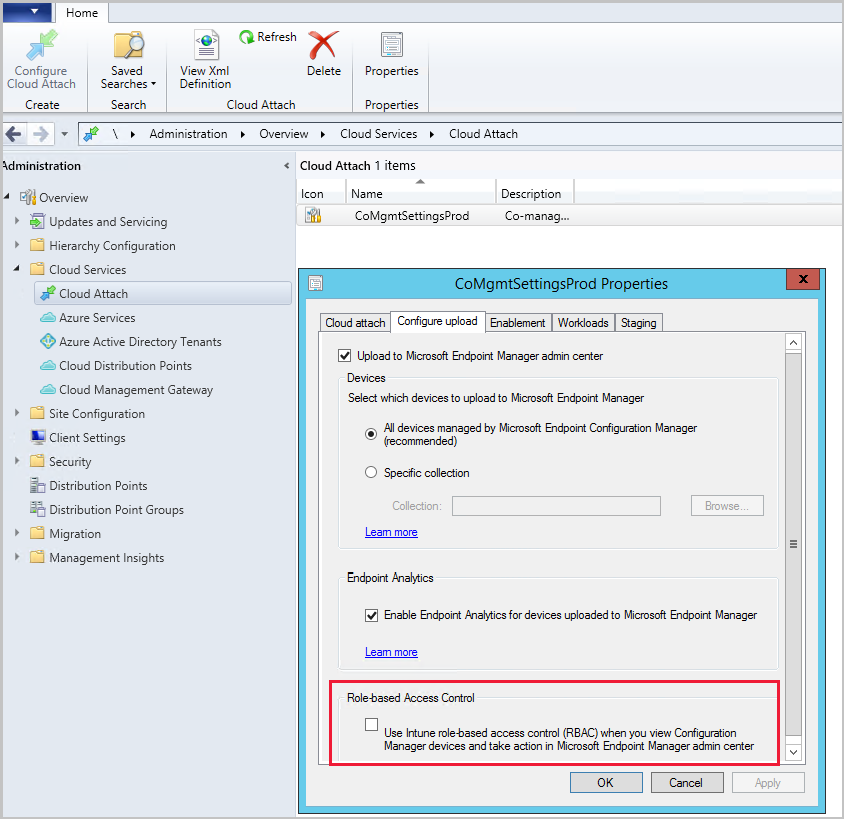
You can use Intune role-based access control (RBAC) when displaying the Client details page for tenant attached devices in the Microsoft Endpoint Manager admin center. When using Intune as the RBAC authority, a user with the Help Desk Operator role  doesn’t need an assigned security role or additional permissions from Configuration Manager. Currently, the Help Desk Operator role can display only the Client details page without additional Configuration Manager permissions.


Screenshot of RBAC settingScreenshot of RBAC setting


For more information, see Intune role-based access control for tenant attach


This preview release also includes:


Convert a CMG to virtual machine scale set – Starting in current branch version 2010, you could deploy the cloud management gateway (CMG) with a virtual machine scale set in Azure. This support was primarily to unblock customers with a Cloud Solution Provider (CSP) subscription. In this release, any customer with a CMG that uses the classic cloud service deployment can convert to a virtual machine scale set.


Implicit uninstall of applications – Many customers have lots of collections because for every application they need at least two collections: one for install and another for uninstall. This practice adds overhead of managing more collections and can reduce site performance for collection evaluation. Starting in this release, you can enable an application deployment to support implicit uninstall. If a device is in a collection, the application installs. Then when you remove the device from the collection, the application uninstalls.


Microsoft .NET requirements – Configuration Manager now requires Microsoft .NET Framework version 4.6.2 for site servers, specific site systems, clients, and the console. Before you run setup to install or update the site, first update .NET and restart the system. If possible in your environment, install the latest version of .NET version 4.8. For more information, see Microsoft .NET requirements.


Audit mode for potentially unwanted applications – An Audit option for potentially unwanted applications (PUA) was added in the Antimalware policy settings. Use PUA protection in audit mode to detect potentially unwanted applications without blocking them. PUA protection in audit mode is useful if your company is conducting an internal software security compliance check and you’d like to avoid any false positives.


External notifications – In a complex IT environment, you may have an automation system like Azure Logic Apps. Customers use these systems to define and control automated workflows to integrate multiple systems. You could integrate Configuration Manager into a separate automation system through the product’s SDK APIs. But this process can be complex and challenging for IT professionals without a software development background.


Starting in this release, you can enable the site to send notifications to an external system or application. This feature simplifies the process by using a web service-based method. You configure subscriptions to send these notifications. These notifications are in response to specific, defined events as they occur. For example, status message filter rules. When you set up this feature, the site opens a communication channel with the external system. That system can then start a complex workflow or action that doesn’t exist in Configuration Manager.


List additional third-party updates catalogs – To help you find custom catalogs that you can import for third-party software updates, there’s now a documentation page with links to catalog providers. Choose More Catalogs from the ribbon in the Third-party software update catalogs node. Selecting More Catalogs opens a link to a documentation page containing a list of additional third-party software update catalog providers.


Management insights rule for TLS/SSL software update points – Management insights has a new rule to detect if your software update points are configured to use TLS/SSL. To review the Configure software update points to use TLS/SSL rule, go to Administration > Management Insights > All Insights > Software Updates.


Renamed Co-management node to Cloud Attach – To better reflect the additional cloud services Configuration Manager offers, the Co-management node has been renamed to the Cloud Attach node. Other changes you may notice include the ribbon button being renamed from Configure Co-management to Configure Cloud Attach and the Co-management Configuration Wizard was renamed to Cloud Attach Configuration Wizard.


Improvements for managing automatic deployment rules – The following items were added to help you better manage your automatic deployment rules:


  • Updated Product parameter for New-CMSoftwareUpdateAutoDeploymentRule cmdlet

  • A script (available in community hub) to apply deployment package settings for automatic deployment rule


New prerequisite check for SQL Server 2012 – When you install or update the site, it now warns for the presence of SQL Server 2012. The support lifecycle for SQL Server 2012 ends on July 12, 2022. Plan to upgrade database servers in your environment, including SQL Server Express at secondary sites.


Console improvements


In this technical preview we’ve made the following improvements to the Configuration Manager console:


  • Shortcuts to status messages were added to the Administrative Users node and the Accounts node. Select an account, then select Show Status Messages.

  • You can now navigate to a collection from the Collections tab in the Devices node. Select View Collection from either the ribbon or the right-click menu in the tab.

  • Maintenance window column was added to the Collections tab in the Devices node.

  • If a collection deletion fails due to scope assignment, the assigned users are displayed.


Client encryption uses AES-256 – Starting in this release, when you enable the site to Use encryption, the client uses the AES-256 algorithm. This setting requires clients to encrypt inventory data and state messages before it sends to the management point. For more information, see Plan for security – signing and encryption.


PowerShell release notes preview – These release notes summarize changes to the Configuration Manager PowerShell cmdlets in technical preview version 2106.


For more details and to view the full list of new features in this update, check out our Features in Configuration Manager technical preview version 2106 documentation. 


Update 2106 for Technical Preview Branch is available in the Microsoft Endpoint Configuration Manager Technical Preview console. For new installations, the 2106 baseline version of Microsoft Endpoint Configuration Manager Technical Preview Branch is available on the Microsoft Evaluation Center. Technical Preview Branch releases give you an opportunity to try out new Configuration Manager features in a test environment before they are made generally available.


We would love to hear your thoughts about the latest Technical Preview!  Send us feedback about product issues directly from the console and continue to share and vote on ideas about new features in Configuration Manager.


Thanks,


The Configuration Manager team


Configuration Manager Resources:


Documentation for Configuration Manager Technical Previews


Try the Configuration Manager Technical Preview Branch


Documentation for Configuration Manager


Configuration Manager Forums


Configuration Manager Support

SMB over QUIC is now in public preview!

This article is contributed. See the original author and article here.

Heya folks, Ned here again. Today I announced the new SMB over QUIC feature for Windows Server 2022 and Windows Insider at the Windows Server 2022, Best on Azure webinar. If you want to cut right to the chase, head to SMB over QUIC (PREVIEW) on Docs.


SMB over QUIC (Preview) offers an “SMB VPN” for telecommuters, mobile device users, and high security organizations. The server certificate creates a TLS 1.3-encrypted tunnel over the internet-friendly UDP port 443 instead of TCP/445. All SMB traffic, including authentication and authorization within the tunnel is never exposed to the network. Inside that tunnel, SMB behaves totally normally with all its usual capabilities.


Here’s a demo of turning on the SMB over QUIC feature & using it. 


To learn more about SMB over QUIC, see demos, and try it out for yourself, head over SMB over QUIC (PREVIEW) on Docs


– Ned “quick!” Pyle

Windows Server 2022 Azure Edition in Public Preview

Windows Server 2022 Azure Edition in Public Preview

This article is contributed. See the original author and article here.

Windows Server Azure Edition is a special version of Windows Server built specifically to run either as an Azure IaaS VM in Azure or as a VM on an Azure Stack HCI cluster. Unlike the traditional Standard or Datacenter editions, you can’t install Azure Edition on bare metal hardware, run it under client or Windows Server Hyper-V, or run it on third party hypervisors or within 3rd party Clouds.


Aerial view of a Microsoft Azure datacenterAerial view of a Microsoft Azure datacenter


Whilst there are restrictions on where you can run it, Azure Edition comes with some unique benefits that aren’t available in the traditional “run anywhere” versions of Windows Server. For example, the most noteworthy feature of the Windows Server 2019 version of Azure Edition was that it supports hotpatching. Rather than requiring a reboot each month to complete update installation, hotpatching allows for most monthly updates to be applied without an operating system restart. With hotpatching enabled, you should only need to bounce a server to install cumulative updates that are released every quarter. The only exception to this quarterly cadence will be when an unplanned update is released that addresses a critical vulnerability and that update requires a reboot.


You can find out more about hotpatch for Azure Edition virtual machines at: https://docs.microsoft.com/en-us/azure/automanage/automanage-hotpatch?WT.mc_id=modinfra-33001-orthomas 


This week Microsoft has announced that the Windows Server 2022 version of Azure edition is in public preview. In addition to hotpatching and all the new features of Windows Server 2022 such as Secured Core, TLS 1.3 by default, support 48 TB of RAM, 64 sockets and 2048 logical processors, Windows Server 2022 Azure Edition will also exclusively support SMB over QUIC and Azure Extended Network.


QUIC is an IETF-standardized protocol that replaces TCP with a web-oriented UDP mechanism that aims to improves performance and reduce congestion. Unlike TCP, QUIC is always encrypted and QUIC requires TLS 1.3 with certificate authentication. When enabled, a file server with SMB over QUIC functions in a similar manner to a normal SMB file server except that the TCP protocol is replaced by the QUIC. You can configure SMB over QUIC to allow remote file share access without a complicated VPN setup. It also allows you to dodge the problem that some ISPs that block port 445, something that plagued organizations that leveraged the original Azure File Shares.


Ned Pyle gave an overview of SMB over QUIC early last year and you can review his post here: https://techcommunity.microsoft.com/t5/itops-talk-blog/smb-over-quic-files-without-the-vpn/ba-p/1183449?WT.mc_id=modinfra-33001-orthomas


Azure Extended Network uses to running VMs to form a VXLAN portal for IP mobility between Azure and on-premises. VXLAN is a network virtualization technology that encapsulates layer 2 ethernet frames within layer 4 UDP datagrams. When Azure Extended Network is implemented, layer 2 frames can pass between Azure Edition hosts running on-premises in Azure Stack HCI and in the cloud on an Azure Virtual Network.


Windows Server 2022 Azure Edition has just been released in public preview and you can find out more about gaining access to it at: https://aka.ms/AutomanageWindowsServer


SMB Compression in Windows Server 2022 and Windows Insider

This article is contributed. See the original author and article here.

Heya folks, Ned here again. Today I announced the new SMB compression feature for Windows Server 2022 and Windows Insider at the Windows Server 2022, Best on Azure webinar. A proper article will be on docs.microsoft.com in the next 24 hours or so, but I wanted you to get a taste here right away with a demo!


SMB compression allows an administrator, user, or application to request compression of files as they transfer over the network. This removes the need to first manually deflate a file with an application, copy it, then inflate on the destination computer. Compressed files will consume less network bandwidth and take less time to transfer, at the cost of slightly increased CPU usage during transfers. SMB compression is most effective on networks with less bandwidth, such as a client’s 1Gbs ethernet or or Wi-Fi network; a file transfer over an uncongested 100Gbs ethernet network between two servers with flash storage may be just as fast without SMB compression in practice, but will still create less congestion for other applications.


Here’s SMB compression in action!


You can try this out right now, get 


Check back for the detailed article, shouldn’t be more than a day or two. 


– Ned “smoosh it” Pyle