by Scott Muniz | Jul 29, 2020 | Alerts, Microsoft, Technology, Uncategorized
This article is contributed. See the original author and article here.
We are delighted to announce that Azure Security Center new Asset Inventory experience is now available in public preview!
What is the Asset Inventory experience?
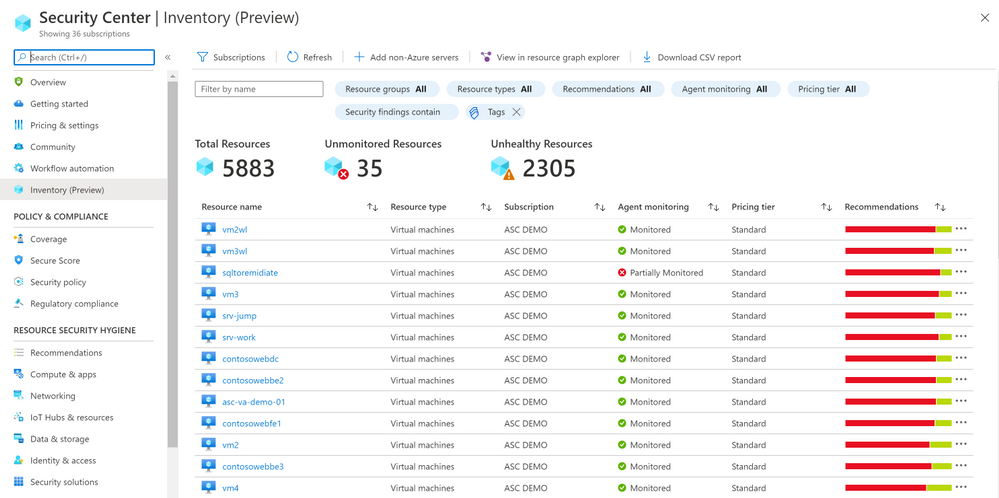
A novel asset management experience providing you with full visibility over all your Security Center monitored resources.
This enables you to explore your security posture data in a much deeper and meaningful way with enhanced capabilities to filter, export, cross reference with different resource properties in addition to ASC generated insights.
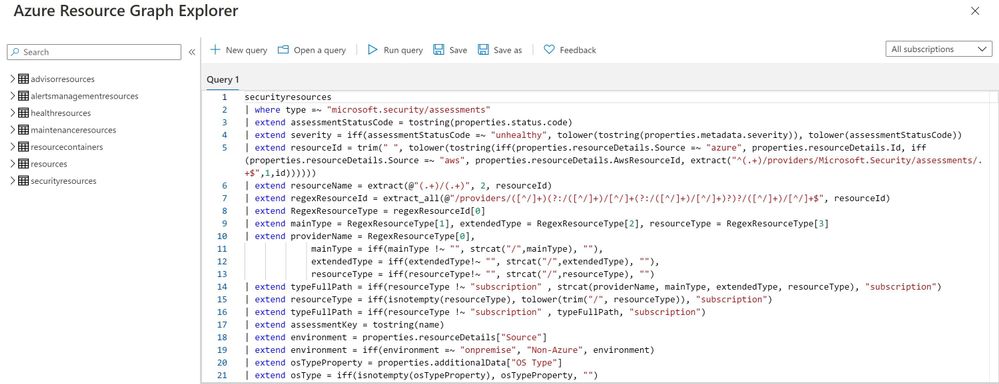
This new experience is fully built on top of Azure Resource Graph (ARG) which now stores all of ASC security posture data, and leveraging its powerful KQL engine enables customers to quickly and easily reach deep insights on top of ASC data and cross reference with any other resource properties.
What can be achieved with this experience?
It is designed to help customers answer questions such as:
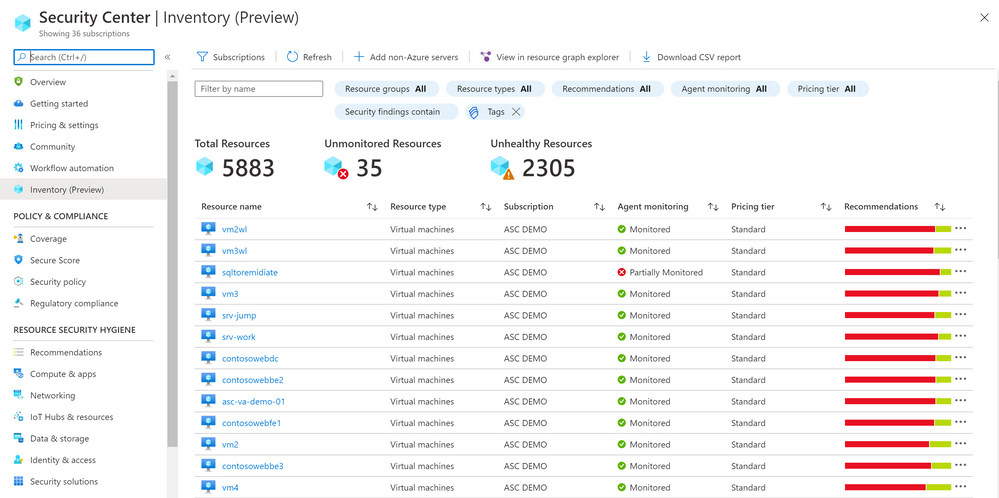
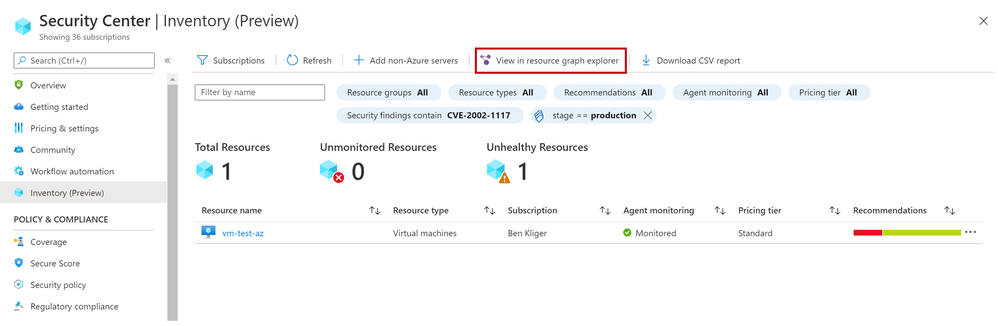
What are all my resources that are covered by Azure Security Center and which of these resources have outstanding security recommendations that should get my attention?
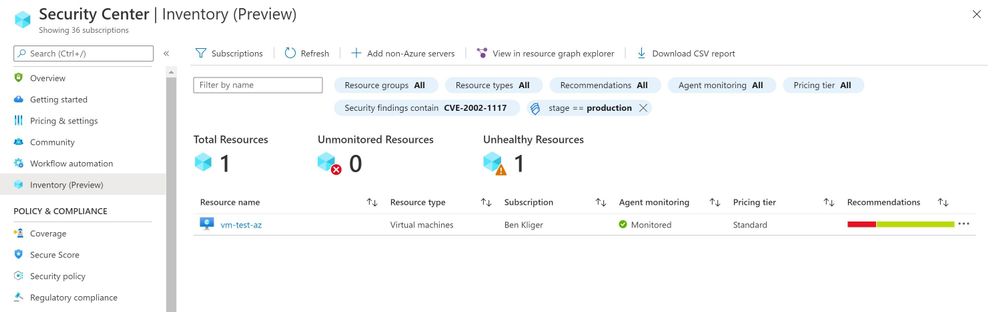
Find all resources that are vulnerable by a specific vulnerability and has a specific Azure resource tag?
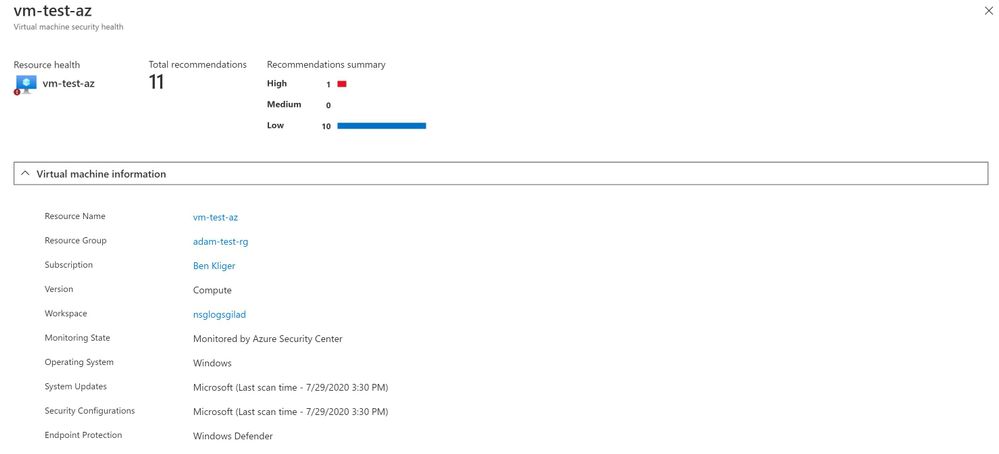
To view more information about a resource, you can select it. The resource health pane opens.
These are just few examples of what can be discovered in the new experience, both in the UI and programmatically by calling the queries directly from Azure Resource Graph.
To save the query for later use, export it.
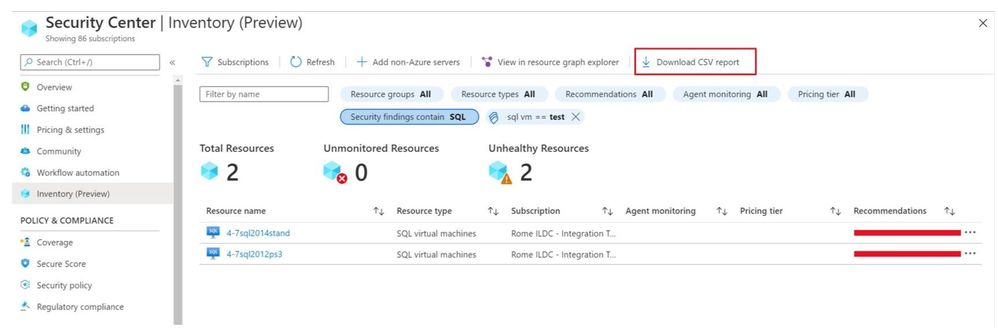
You can export the retrieved resources to CSV file for further use.
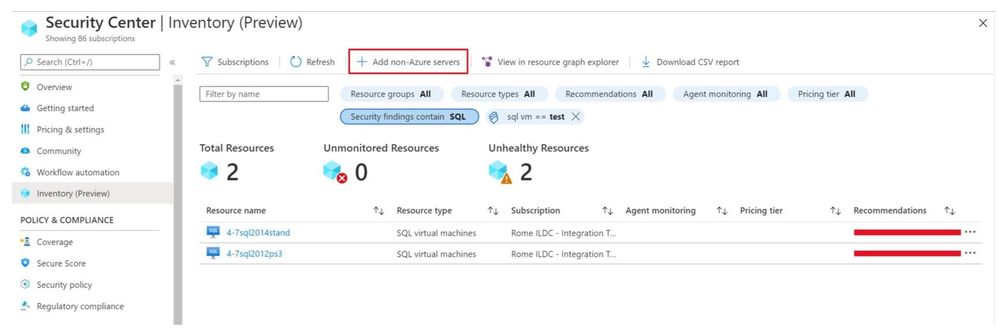
You can also onboard new Non-Azure servers to Azure Security Center.
As mentioned above, the Asset Inventory experience is now in public preview and will be improved constantly, stay tuned.
by Scott Muniz | Jul 29, 2020 | Alerts, Microsoft, Technology, Uncategorized
This article is contributed. See the original author and article here.
Introduction
Machine Learning is widely used these days for various data driven tasks including detection of security threats, monitoring IoT devices for predictive maintenance, recommendation systems, financial analysis and many other domains. Most ML models are built and deployed in two steps:
- Offline training
- Real time scoring
ML Training is done by researchers/data scientists. They fetch the training data, clean it, engineer features, try different models and tune parameters, repeating this cycle to improve the model’s quality and accuracy. This process is usually done using data science tools such as Jupyter, PyCharm, VS Code, Matlab etc. Once the model meets the required quality it is serialized and saved for scoring.
ML Scoring is the process of applying the model on new data to get insights and predictions. This is actually the business goal for building the model. Scoring usually needs to be done at scale with minimal latency, processing large sets of new records. For ADX users, the best solution for scoring is directly in ADX. ADX scoring is done on its compute nodes, in distributed manner near the data, thus achieving the best performance with minimal latency.
There are many types of models such as Bayesian models, decision trees and forests, regressions, deep neural networks and many more. These models can be built by various frameworks and/or packages like Scikit-learn, Tensorflow, CNTK, Keras, Caffe2, PyTorch etc. (here is a nice overview of ML algorithms, tools and frameworks). On one hand this variety is very good – you can find the most convenient algorithm and framework for your scenario, but on the other hand it creates an interoperability issue, as usually the ML scoring is done on infrastructure which is different from the one used for the training.
To resolve it, Microsoft and Facebook introduced in 2017 ONNX, Open Neural Network Exchange, that was adopted by many companies including AWS, IBM, Intel, Baidu, Mathworks, NVIDIA and many more. ONNX is a system for representation and serialization of ML models to a common file format. This format enables smooth switching among ML frameworks as well as allowing hardware vendors and others to improve the performance of deep neural networks for multiple frameworks at once by targeting the ONNX representation.
In this blog we explain how ADX can consume ONNX models, that were built and trained externally, for near real time scoring of new samples that are ingested into ADX.
How to use ADX for scoring ONNX models
ADX supports running Python code embedded in Kusto Query Language (KQL) using the python() plugin. The Python code is run in multiple sandboxes on ADX existing compute nodes. The Python image is based on Anaconda distribution and contains the most common ML frameworks including Scikit-learn, TensorFlow, Keras and PyTorch. To score ONNX models in ADX follow these steps:
- Develop your ML model using your favorite framework and tools
- Convert the final trained model to ONNX format
- Export the ONNX model to a table on ADX or to an Azure blob
- Score new data in ADX using the inline python() plugin
Example
We build a model to predict room occupancy based on Occupancy Detection data, a public dataset from UCI Repository. This model is a binary classifier to predict occupied/empty room based on Temperature, Humidity, Light and CO2 sensors measurements. The complete process can be found in this Jupyter notebook. Here we embed few snips just to present the main concepts
Prerequisite
- Enable Python plugin on your ADX cluster (see the Onboarding section of the python() plugin doc)
- Whitelist a blob container to be accessible by ADX Python sandbox (see the Appendix section of that doc)
- Create a Python environment (conda or virtual env) that reflects the Python sandbox image
- Install in that environment ONNX packages: onnxruntime and skl2onnx packages
- Install in that environment Azure Blob Storage package: azure-storage-blob
- Install KqlMagic to easily connect and query ADX cluster from Jupyter notebooks
Retrieve and explore the data using KqlMagic
reload_ext Kqlmagic
%config Kqlmagic.auto_dataframe = True
%kql kusto://code;cluster='demo11.westus';database='ML' -try_azcli_login
%kql df << OccupancyDetection
df[-4:]
| |
Timestamp
|
Temperature
|
Humidity
|
Light
|
CO2
|
HumidityRatio
|
Occupancy
|
Test
|
|
20556
|
2015-02-18 09:16:00.0000000
|
20.865
|
27.7450
|
423.50
|
1514.5
|
0.004230
|
True
|
True
|
|
20557
|
2015-02-18 09:16:00.0000000
|
20.890
|
27.7450
|
423.50
|
1521.5
|
0.004237
|
True
|
True
|
|
20558
|
2015-02-18 09:17:00.0000000
|
20.890
|
28.0225
|
418.75
|
1632.0
|
0.004279
|
True
|
True
|
|
20559
|
2015-02-18 09:19:00.0000000
|
21.000
|
28.1000
|
409.00
|
1864.0
|
0.004321
|
True
|
True
|
Train your model
Split the data to features (x), labels (y) and for training/testing:
train_x = df[df['Test'] == False][['Temperature', 'Humidity', 'Light', 'CO2', 'HumidityRatio']]
train_y = df[df['Test'] == False]['Occupancy']
test_x = df[df['Test'] == True][['Temperature', 'Humidity', 'Light', 'CO2', 'HumidityRatio']]
test_y = df[df['Test'] == True]['Occupancy']

print(train_x.shape, train_y.shape, test_x.shape, test_y.shape)
(8143, 5) (8143,) (12417, 5) (12417,)
Train few classic models from Scikit-learn:
from sklearn import tree
from sklearn import neighbors
from sklearn import naive_bayes
from sklearn.linear_model import LogisticRegression
from sklearn.model_selection import cross_val_score

#four classifier types
clf1 = tree.DecisionTreeClassifier()
clf2 = LogisticRegression(solver='liblinear')
clf3 = neighbors.KNeighborsClassifier()
clf4 = naive_bayes.GaussianNB()

clf1 = clf1.fit(train_x, train_y)
clf2 = clf2.fit(train_x, train_y)
clf3 = clf3.fit(train_x, train_y)
clf4 = clf4.fit(train_x, train_y)

# Accuracy on Testing set

for clf, label in zip([clf1, clf2, clf3, clf4], ['Decision Tree', 'Logistic Regression', 'K Nearest Neighbour', 'Naive Bayes']):
            scores = cross_val_score(clf, test_x, test_y, cv=5, scoring='accuracy')
            print("Accuracy: %0.4f (+/- %0.4f) [%s]" % (scores.mean(), scores.std(), label))
Accuracy: 0.8605 (+/- 0.1130) [Decision Tree]
Accuracy: 0.9887 (+/- 0.0071) [Logistic Regression]
Accuracy: 0.9656 (+/- 0.0224) [K Nearest Neighbour]
Accuracy: 0.8893 (+/- 0.1265) [Naive Bayes]
The logistic regression model is the best one
Convert the model to ONNX
from skl2onnx import convert_sklearn
from skl2onnx.common.data_types import FloatTensorType

# We define the input type (5 sensors readings), convert the scikit-learn model to ONNX and serialize it

initial_type = [('float_input', FloatTensorType([None, 5]))]
onnx_model = convert_sklearn(clf2, initial_types=initial_type)
bmodel = onnx_model.SerializeToString()
Test ONNX Model
Predict using ONNX runtime
import numpy as np
import onnxruntime as rt

sess = rt.InferenceSession(bmodel)
input_name = sess.get_inputs()[0].name
label_name = sess.get_outputs()[0].name
pred_onnx = sess.run([label_name], {input_name: test_x.values.astype(np.float32)})[0]

# Verify ONNX and Scikit-learn predictions are same

pred_clf2 = clf2.predict(test_x)
diff_num = (pred_onnx != pred_clf2).sum()

if diff_num:
    print(f'Predictions difference between sklearn and onnxruntime, total {diff_num} elements differ')
else:
    print('Same prediction using sklearn and onnxruntime')
Same prediction using sklearn and onnxruntime
Scoring in ADX
Prerequisite
The Python image of ADX sandbox does NOT include ONNX runtime package. Therefore, we need to zip and upload it to a blob container and dynamically install from that container. Note that the blob container should be whitelisted to be accessible by ADX Python sandbox (see the appendix section of the python() plugin doc)
Here are the steps to create and upload the ONNX runtime package:
- Open Anaconda prompt on your local Python environment
- Download the onnxruntime package, run:
pip wheel onnxruntime
- Zip all the wheel files into onnxruntime-1.4.0-py36.zip (or your preferred name)
- Upload the zip file to a blob in the whitelisted blob container (you can use Azure Storage Explorer)
- Generate a SAS key with read permission to the blob
There are 2 options for retrieving the model for scoring:
- serialize the model to a string to be stored in a standard table in ADX
- copy the model to a blob container (that was previously whitelisted for access by ADX Python sandbox)
Scoring from serialized model which is stored in ADX table
Serializing the model and store it in ADX models table using KqlMagic
import pandas as pd
import datetime

models_tbl = 'ML_Models'
model_name = 'ONNX-Occupancy'

smodel = bmodel.hex()
now = datetime.datetime.now()
dfm = pd.DataFrame({'name':[model_name], 'timestamp':[now], 'model':[smodel]})
dfm
| |
name
|
timestamp
|
model
|
|
0
|
ONNX-Occupancy
|
2020-07-28 17:07:20.280040
|
08031208736b6c326f6e6e781a05312e362e3122076169…
|
set_query = '''
.set-or-append {0} <|
let tbl = dfm;
tbl
'''.format(models_tbl)
print(set_query)
.set-or-append ML_Models <|
let tbl = dfm;
tbl
%kql -query set_query
| |
ExtentId
|
OriginalSize
|
ExtentSize
|
CompressedSize
|
IndexSize
|
RowCount
|
|
0
|
bfc9acc2-3d79-4e64-9a79-d2681547e43d
|
1430.0
|
1490.0
|
1040.0
|
450.0
|
1
|
Scoring from serialized model which is stored in ADX table
# NOTE: we run ADX scoring query here using KqlMagic by embedding the query from Kusto Explorer
# with r'''Kusto Explorer query''':

# NOTE: replace the string "**** YOUR SAS KEY ****" in the external_artifacts parameter with the real SAS

scoring_from_table_query = r'''
let classify_sf=(samples:(*), models_tbl:(name:string, timestamp:datetime, model:string), model_name:string, features_cols:dynamic, pred_col:string)
{
    let model_str = toscalar(models_tbl | where name == model_name | top 1 by timestamp desc | project model);
    let kwargs = pack('smodel', model_str, 'features_cols', features_cols, 'pred_col', pred_col);
    let code =
    'n'
    'import picklen'
    'import binasciin'
    'n'
    'smodel = kargs["smodel"]n'
    'features_cols = kargs["features_cols"]n'
    'pred_col = kargs["pred_col"]n'
    'bmodel = binascii.unhexlify(smodel)n'
    'n'
    'from sandbox_utils import Zipackagen'
    'Zipackage.install("onnxruntime-v17-py36.zip")n'
    'features_cols = kargs["features_cols"]n'
    'pred_col = kargs["pred_col"]n'
    'n'
    'import onnxruntime as rtn'
    'sess = rt.InferenceSession(bmodel)n'
    'input_name = sess.get_inputs()[0].namen'
    'label_name = sess.get_outputs()[0].namen'
    'df1 = df[features_cols]n'
    'predictions = sess.run([label_name], {input_name: df1.values.astype(np.float32)})[0]n'
    'n'
    'result = dfn'
    'result[pred_col] = pd.DataFrame(predictions, columns=[pred_col])'
    'n'
    ;
    samples | evaluate python(typeof(*), code, kwargs, external_artifacts=pack('onnxruntime-v17-py36.zip', 'https://artifcatswestus.blob.core.windows.net/kusto/ONNX/onnxruntime-v17-py36.zip? **** YOUR SAS KEY ****')
)
};
OccupancyDetection
| where Test == 1
| extend pred_Occupancy=bool(0)
| invoke classify_sf(ML_Models, 'ONNX-Occupancy', pack_array('Temperature', 'Humidity', 'Light', 'CO2', 'HumidityRatio'), 'pred_Occupancy')
'''

%kql pred_df << -query scoring_from_table_query

pred_df[-4:]
| |
Timestamp
|
Temperature
|
Humidity
|
Light
|
CO2
|
HumidityRatio
|
Occupancy
|
Test
|
pred_Occupancy
|
|
12413
|
2015-02-18 09:16:00+00:00
|
20.865
|
27.7450
|
423.50
|
1514.5
|
0.004230
|
True
|
True
|
True
|
|
12414
|
2015-02-18 09:16:00+00:00
|
20.890
|
27.7450
|
423.50
|
1521.5
|
0.004237
|
True
|
True
|
True
|
|
12415
|
2015-02-18 09:17:00+00:00
|
20.890
|
28.0225
|
418.75
|
1632.0
|
0.004279
|
True
|
True
|
True
|
|
12416
|
2015-02-18 09:19:00+00:00
|
21.000
|
28.1000
|
409.00
|
1864.0
|
0.004321
|
True
|
True
|
True
|
print('Confusion Matrix')
pred_df.groupby(['Occupancy', 'pred_Occupancy']).size()
Confusion Matrix
Occupancy pred_Occupancy
False False 9284
True 112
True False 15
True 3006
Scoring from model which is stored in blob storage
Copy the model to blob
Note again that the blob container should be whitelisted to be accessible by ADX Python sandbox
from azure.storage.blob import BlobClient

conn_str = "BlobEndpoint=https://artifcatswestus.blob.core.windows.net/kusto;SharedAccessSignature=?**** YOUR SAS KEY ****"
blob_client = BlobClient.from_connection_string(conn_str, container_name="ONNX", blob_name="room_occupancy.onnx")

res = blob_client.upload_blob(bmodel, overwrite=True)
# NOTE: we run ADX scoring query here using KqlMagic by embedding the query from Kusto Explorer
# with r'''Kusto Explorer query''':

# NOTE: replace the strings "**** YOUR SAS KEY ****" below with the respective real SAS

scoring_from_blob_query = r'''
let classify_sf=(samples:(*), model_sas:string, features_cols:dynamic, pred_col:string)
{
    let kwargs = pack('features_cols', features_cols, 'pred_col', pred_col);
    let code =
    'n'
    'from sandbox_utils import Zipackagen'
    'Zipackage.install("onnxruntime-v17-py36.zip")n'
    'features_cols = kargs["features_cols"]n'
    'pred_col = kargs["pred_col"]n'
    'n'
    'import onnxruntime as rtn'
    'sess = rt.InferenceSession(r"C:Tempmodel.onnx")n'
    'input_name = sess.get_inputs()[0].namen'
    'label_name = sess.get_outputs()[0].namen'
    'df1 = df[features_cols]n'
    'predictions = sess.run([label_name], {input_name: df1.values.astype(np.float32)})[0]n'
    'n'
    'result = dfn'
    'result[pred_col] = pd.DataFrame(predictions, columns=[pred_col])'
    'n'
    ;
    samples | evaluate python(typeof(*), code, kwargs,
        external_artifacts=pack('model.onnx', model_sas,
                                'onnxruntime-v17-py36.zip', 'https://artifcatswestus.blob.core.windows.net/kusto/ONNX/onnxruntime-v17-py36.zip? **** YOUR SAS KEY ****')
)
};
OccupancyDetection
| where Test == 1
| extend pred_Occupancy=bool(0)
| invoke classify_sf('https://artifcatswestus.blob.core.windows.net/kusto/ONNX/room_occupancy.onnx? **** YOUR SAS KEY ****',
                     pack_array('Temperature', 'Humidity', 'Light', 'CO2', 'HumidityRatio'), 'pred_Occupancy')
'''

%kql pred_df << -query scoring_from_blob_query
pred_df[-4:]
| |
Timestamp
|
Temperature
|
Humidity
|
Light
|
CO2
|
HumidityRatio
|
Occupancy
|
Test
|
pred_Occupancy
|
|
12413
|
2015-02-18 09:16:00+00:00
|
20.865
|
27.7450
|
423.50
|
1514.5
|
0.004230
|
True
|
True
|
True
|
|
12414
|
2015-02-18 09:16:00+00:00
|
20.890
|
27.7450
|
423.50
|
1521.5
|
0.004237
|
True
|
True
|
True
|
|
12415
|
2015-02-18 09:17:00+00:00
|
20.890
|
28.0225
|
418.75
|
1632.0
|
0.004279
|
True
|
True
|
True
|
|
12416
|
2015-02-18 09:19:00+00:00
|
21.000
|
28.1000
|
409.00
|
1864.0
|
0.004321
|
True
|
True
|
True
|
print('Confusion Matrix')
pred_df.groupby(['Occupancy', 'pred_Occupancy']).size()
Confusion Matrix
Occupancy pred_Occupancy
False False 9284
True 112
True False 15
True 3006
Summary
In this tutorial we showed how to train a model in Scikit-learn, convert it to ONNX format and export it to ADX for scoring. This workflow is convenient as
- Training can be done on any hardware platform, using any framework supporting ONNX
- Scoring is done in ADX near the data, on the existing compute nodes, enabling near real time processing of big amounts of new data. There is no the need to export the data to external scoring service and import back the results. Consequently, scoring architecture is simpler and performance is much faster and scalable
by Scott Muniz | Jul 29, 2020 | Alerts, Microsoft, Technology, Uncategorized
This article is contributed. See the original author and article here.
Howdy folks!
Today we’re announcing the public preview of Azure AD Application Proxy (App Proxy) support for the Remote Desktop Services (RDS) web client. Many of you are already using App Proxy for applications hosted on RDS and we’ve seen a lot of requests for extending support to the RDS web client as well.
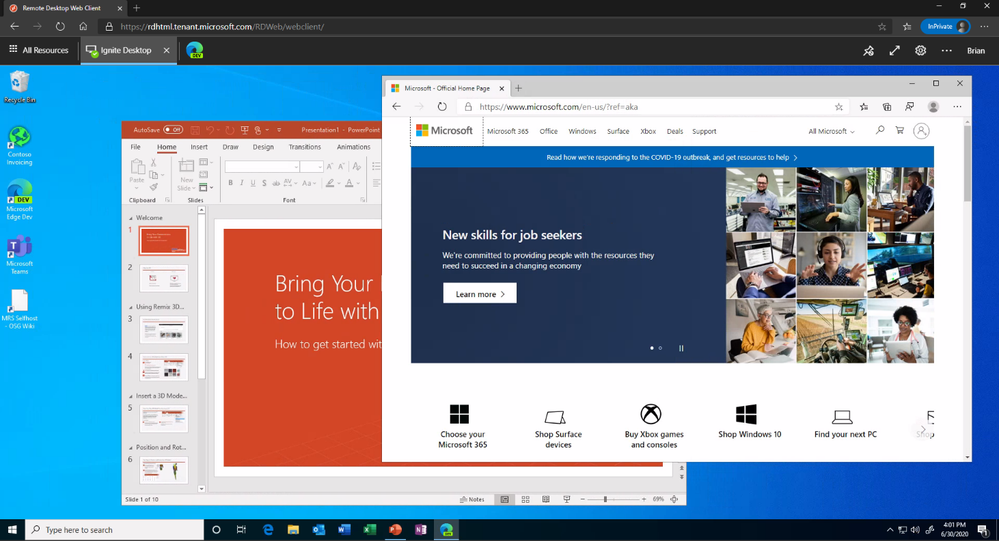
With this preview, you can now use the RDS web client even when App Proxy provides secure remote access to RDS. The web client works on any HTML5-capable browser such as Microsoft Edge, Internet Explorer 11, Google Chrome, Safari, or Mozilla Firefox (v55.0 and later). You can push full desktops or remote apps to the Remote Desktop web client. The remote apps are hosted on the virtualized machine but appear as if they’re running on the user’s desktop like local applications. The apps also have their own taskbar entry and can be resized and moved across monitors.
 Launch rich client apps with a full desktop like experience
Why use App Proxy with RDS?
RDS allows you to extend virtual desktops and applications to any device while helping keep critical intellectual property secure. By using this virtualization platform, you can deploy all types of applications such as Windows apps and other rich client apps as-is with no re-writing required. By using App Proxy with RDS you can reduce the attack surface of your RDS deployment by enforcing pre-authentication and Conditional Access policies like requiring Multi-Factor Authentication (MFA) or using a compliant device before users can access RDS. App Proxy also doesn’t require you to open inbound connections through your firewall.
Getting started
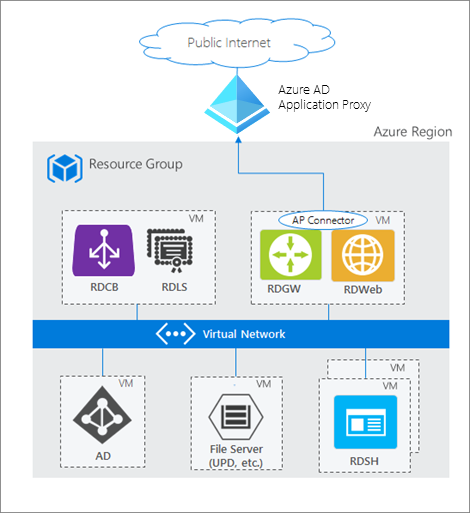
To use the RDS web client with App Proxy, first make sure to update your App Proxy connectors to the latest version, 1.5.1975.0. If you haven’t already, you will need to configure RDS to work with App Proxy. In this configuration, App Proxy will handle the internet facing component of your RDS deployment and protect all traffic with pre-authentication and any Conditional Access policies in place. For steps on how to do this, see Publish Remote Desktop with Azure AD Application Proxy.
 How Azure AD App Proxy works in an RDS deployment
Configure the Remote Desktop web client
Next, complete setup by enabling the Remote Desktop web client for user access. See details on how to do this at Set up the Remote Desktop web client for your users. Now your users can use the external URL to access the client from their browser, or they can launch the app from the My Apps portal.
As always, we’d love to hear any feedback or suggestions you may have. Please let us know what you think in the comments below or on the Azure AD feedback forum.
Best regards,
Alex Simons (@alex_a_simons)
Corporate Vice President Program Management
Microsoft Identity Division
Learn more about Microsoft identity:
by Scott Muniz | Jul 29, 2020 | Alerts, Microsoft, Technology, Uncategorized
This article is contributed. See the original author and article here.
Many organisations have established their data-lake on Azure to manage their end to end data analytics estate. In some cases, organisations’ customers/partners leverage other cloud providers and we want to meet them wherever they are, after all Azure is an open and versatile platform.
If the partner or customer is already using Azure, there are a myriad of options to move data into their estate. Azure Data Share however stands out as its geared towards these cross-tenant data sharing use-cases. It allows users to create invitations, define T&Cs, define snapshot frequency and type (incremental/full), and revoke shares.
Pulling data into Azure from other clouds is also rather straight-forward using one of Azure Data Factory’s 90+ copy-activity connectors, including AWS, GCP, Salesforce, Oracle and many more.
Some of these connectors support being used as a source (read) and sink (write). Azure native services, Oracle, SAP, and some others can be used as source and sink. However, not all connectors support this, in which case developers can default to the generic connectors such as ODBC, filesystem, and SFTP connectors.
In this blog I want to outline another approach using spark to read and write selected datasets to other clouds such as GCS or S3. However, this methodology applies to really any service that has a spark or Hadoop driver. This gives us bidirectional on-demand access to any cloud storage. As data is read into memory we can join, filter, aggregate data as needed from multiple environments.
Caveat emptor, as data egresses you may be subject to network costs.
Pre-Reqs
- Azure subscription, Azure Databricks (ADB) workspace, and Azure Data Factory
- Google Cloud Platform subscription
Google Cloud
- Create a service account https://console.cloud.google.com/iam-admin/serviceaccounts/ > ad/nt > create key with type json > keep the json doc safe
- Go to https://console.cloud.google.com/storage/ > create bucket (single region, standard storage) > add “Storage Object Admin” permission to service account created in step 1. > upload a test csv file
Azure
- Navigate to your Azure Databricks workspace (or create one via Quickstart Guide)
- Upload your GCS service account json to DBFS storage, you can use the Databricks CLI
databricks fs cp ./myspecialkey.json "dbfs:/data"
- Create a cluster using the 6.5 Databricks runtime (includes Apache Spark 2.4.5, Scala 2.11) with the following Spark Config:
spark.hadoop.fs.gs.auth.service.account.json.keyfile /dbfs/data/myspecialkey.json
spark.hadoop.fs.gs.impl com.google.cloud.hadoop.fs.gcs.GoogleHadoopFileSystem
spark.hadoop.fs.gs.project.id {Your-GCP-Project-ID}
spark.hadoop.fs.gs.auth.service.account.enable true
spark.databricks.pyspark.trustedFilesystems com.google.cloud.hadoop.fs.gcs.GoogleHadoopFileSystem,com.databricks.adl.AdlFileSystem,com.databricks.s3a.S3AFileSystem,shaded.databricks.org.apache.hadoop.fs.azure.NativeAzureFileSystem,shaded.databricks.v20180920_b33d810.org.apache.hadoop.fs.azurebfs.SecureAzureBlobFileSystem
Note: the spark.databricks.pyspark.trustedFilesystems is needed to work around org.apache.spark.api.python.PythonSecurityException exception.
- Once the cluster is created add Google’s GCS connector as a library
- Clusters > {your cluster} > Libraries > Install New > Maven > Coordinates: com.google.cloud.bigdataoss:gcs-connector:1.5.2-hadoop2
- Make note of the version, other versions cause inflection and IOException errors as Databricks uses Hadoop 2.x. Later versions of Databricks runtimes (7.1+) may move to Hadoop 3.
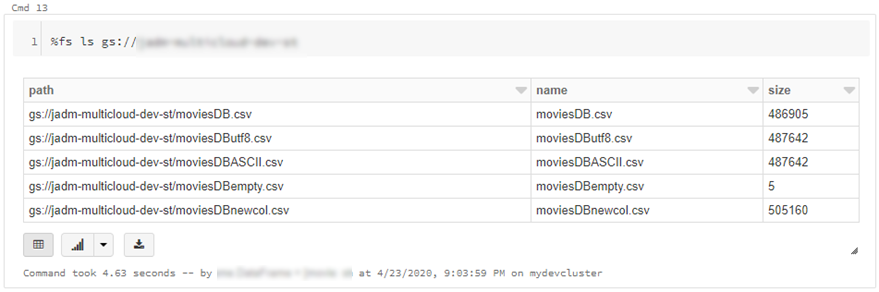
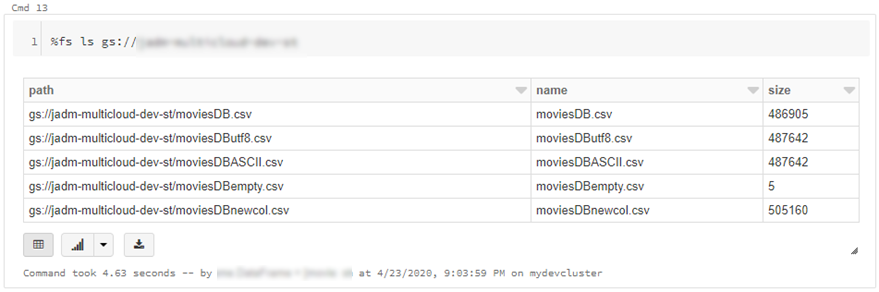
- At this point we can simply use ls, cp, mv, rm to move data across between ADLS storage and GCS. Note: I set up credential pass-through in my cluster which authenticated me to my data-lake using my SSO/Active Directory credentials.
dbutils.fs.cp("abfss://{filesystem}@{yourADLSaccount}.dfs.core.windows.net/movies/","gs://{yourGCSbucket}/",True)
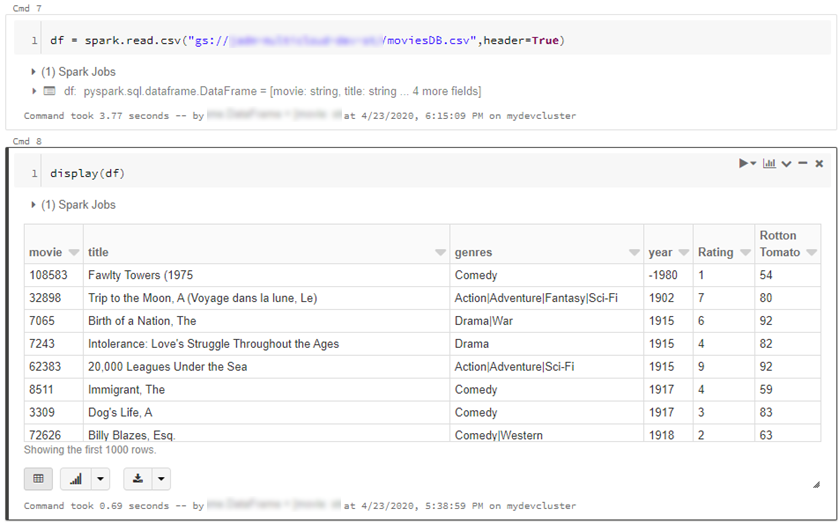
- We can also read individual files/folders into a data-frame.
df = spark.read.csv("gs://{yourGCSbucket}/{somefile} ", header=True)
This will read data directly from your GCS bucket, note this may incur GCP egress costs.
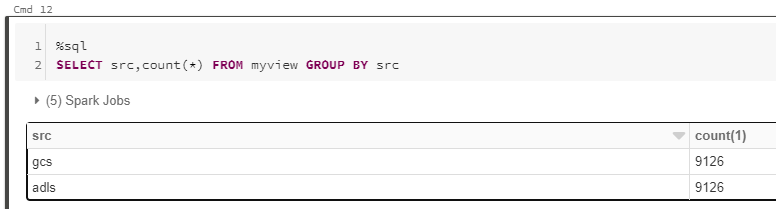
- From here the cloud is the limit, we can define spark tables across multiple environments and query across them as if it were all co-located. Don’t forget however, that spark has to import all the data into memory which may impact performance and egress costs.
%sql
CREATE TABLE adlsstest (movie long, title string, genres string, year long, rating long, RottonTomato string) USING CSV LOCATION "abfss://{filesystem}@{yourADLSaccount}.dfs.core.windows.net/movies/moviesDB.csv";
CREATE TABLE gstest (movie long, title string, genres string, year long, rating long, RottonTomato string) USING CSV LOCATION "gs://{yourGCSbucket}/moviesDB.csv";
CREATE VIEW myview AS
  SELECT *,'adls' AS src FROM adlsstest
  UNION ALL
  SELECT *,'gcs' as src FROM gstest
Automation
From here it is a piece of cake to parameterise and automate movement of data. We can set up an Azure Data Factory pipeline to pass parameters into the Azure Databricks notebooks to do stuff. In this example I copy all files from a specified ADLS directory into a GCS target directory.
- Create a new notebook in Databricks using the code at the end
- Navigate to your Azure Data Factory (or create one via Quickstart Guide)
- Create a pipeline with a Databricks activity (here’s a guide)
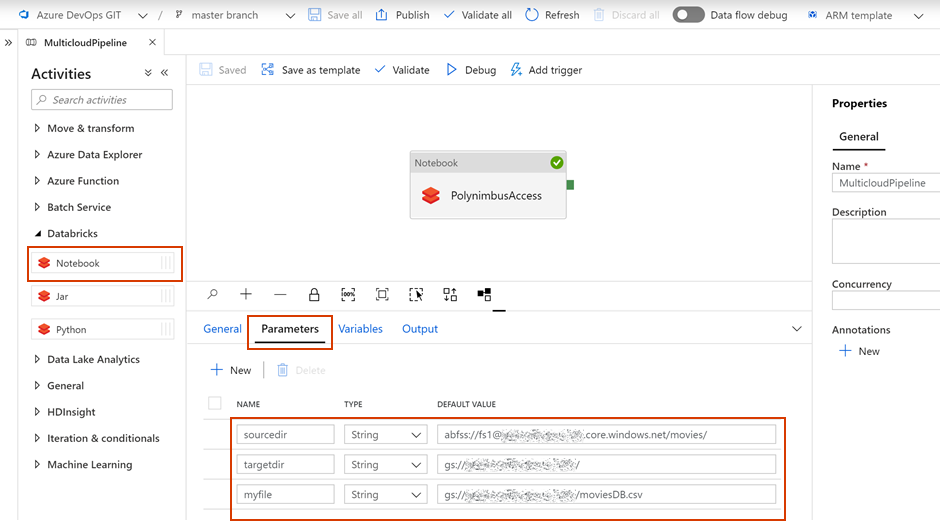
- In the Data Factory pipeline create 3 parameters: sourcedir, targetdir, and myfile. Define some default values using the respective ABFSS and GS formats:
- Add the notebook path and map the pipeline parameters to the notebook parameters under Azure Databricks activity > Settings
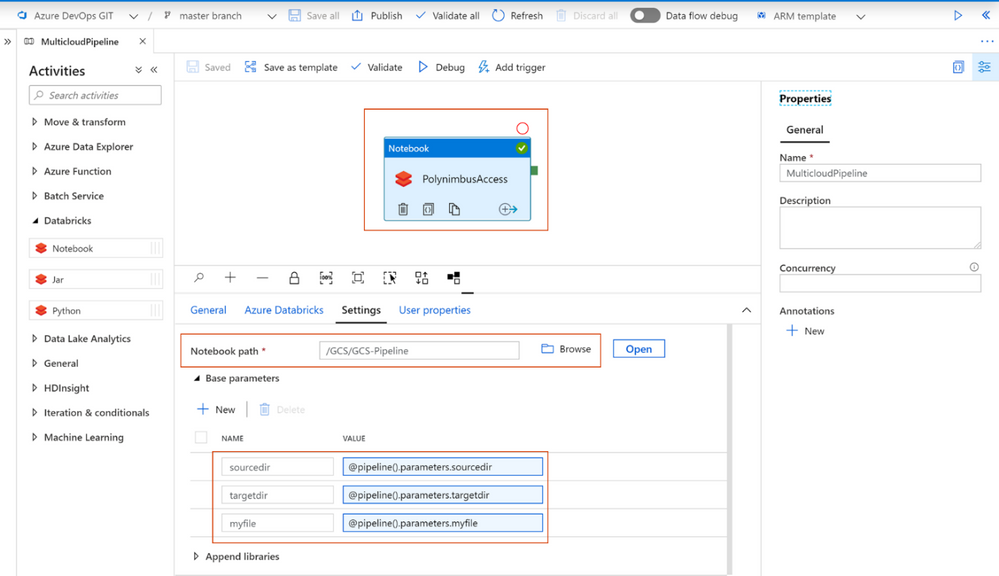
- Click Debug, you can optionally modify the parameter values > Click Ok > As its running click on details (spectacles icon) and view notebook output

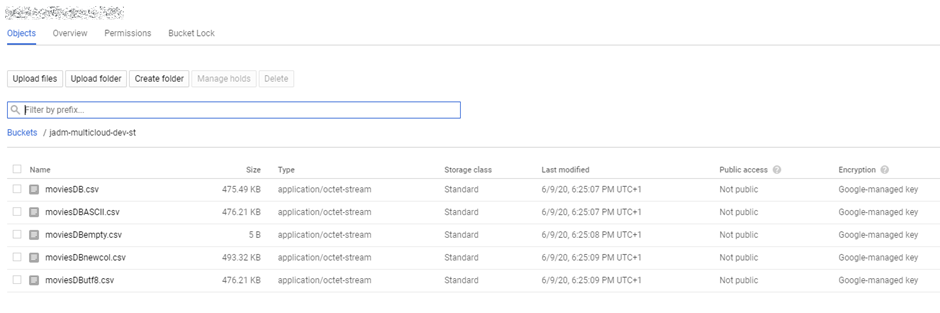
- Head back to your GCP portal, and you will see the files appear in GCS
As we are accessing ADLS from an automated job we cannot use credential passthrough. My colleague Nicholas Hurt wrote a great piece discussing different approaches to authenticating to ADLS from ADB.
I am using a service principal for this demo. Azure documentation outlines how to set this up. Also, I set up a secret scope using the Databricks CLI and stored the service principal key there.
# authenticate using a service principal and OAuth 2.0
spark.conf.set("fs.azure.account.auth.type", "OAuth")
spark.conf.set("fs.azure.account.oauth.provider.type", "org.apache.hadoop.fs.azurebfs.oauth2.ClientCredsTokenProvider")
spark.conf.set("fs.azure.account.oauth2.client.id", "YOUR-APPLICATION-ID")
spark.conf.set("fs.azure.account.oauth2.client.secret", dbutils.secrets.get(scope = "mykeys", key = "mysp"))
spark.conf.set("fs.azure.account.oauth2.client.endpoint", "https://login.microsoftonline.com/YOUR-TENANT-ID/oauth2/token")

# readdf=spark.read.format("csv").option("header", "true").load("abfss://fs1@.dfs.core.windows.net/movies/moviesDB.csv")
dbutils.widgets.text("sourcedir", "","")
sourcedir = dbutils.widgets.get("sourcedir")
print ("Param -'sourcedir':", sourcedir)

dbutils.widgets.text("targetdir", "","")
targetdir = dbutils.widgets.get("targetdir")
print ("Param -'targetdir':", targetdir)

dbutils.widgets.text("myfile", "","")
myfile = dbutils.widgets.get("myfile")
print ("Param -'myfile':", myfile)

##dbutils.fs.cp("abfss://fs1@.dfs.core.windows.net/movies/","gs:///",True)
dbutils.fs.cp(sourcedir,targetdir,True)
##df = spark.read.csv("gs:///moviesDB.csv",header=True)
df = spark.read.csv(myfile,header=True)
Conclusion
Using this approach, we can move data between different storage providers if they provide a compatible jar. In fact, this will work across S3, GCS, BigQuery and many more.
Further we discussed how to automate the process to tie in with broader Azure data orchestration. This approach augments multi-cloud, on-prem data integration capabilities available out of the box with Azure Data Factory.
I should call out that this approach does not support mounts, however that is a minor limitation.
by Scott Muniz | Jul 29, 2020 | Alerts, Microsoft, Technology, Uncategorized
This article is contributed. See the original author and article here.
please help us share the new animation showing Azure Data Explorer at a glance.
We had planned to have a real life movie with our customers, but COVID-19 decided otherwise. We made some adjustments, and here are the results! Please enjoy and please share.
In 2.5 minutes you’ll get a full explanation of What Azure Data Explorer is and when to use it.
YouTube
LinkedIn
Azure Data Explorer Docs
Free online Courses:
- How to Start with Microsoft Azure Data Explorer
- Exploring Data in Microsoft Azure Using Kusto Query Language and Azure Data Explorer
- Microsoft Azure Data Explorer – Advanced KQL
Enjoy.

by Scott Muniz | Jul 28, 2020 | Alerts, Microsoft, Technology, Uncategorized
This article is contributed. See the original author and article here.
This article is the 5th part of the Zero to Hero with App Service series. This article assumes you have completed the first article.
If you would like to customize your web app and have a domain name other than “azurewebsites.net”, you can add a custom domain to your web app. Moreover, you can secure your custom domain with a free certificate with App Service Managed Certificates, which will give your customers peace of mind when browsing your website.
Prerequisite
Before you can add a custom domain to your web app, you need to have purchased a custom domain already. If you don’t have a custom domain, you can buy one through App Service Domains, which you can get started with the App Service Domains section of the article . If you already have your own custom domain, proceed to the adding a custom domain to your web app section of the article.
App Service Domains
App Service Domains lets you create and manage domains hosted on Azure DNS through the Azure portal. The domain can be used for services such as Web Apps, Traffic Manager, and etc.. Purchasing an App Service Domain also provides the added benefit of privacy protection: your personal data will be protected from the WHOIS public database for free. This is often costs extra with other domain registrars. This product can auto-renew your domains and it integrates easily with your web apps.
To create your App Service Domain, you can click on this link here or you can head to the Azure portal and search for “App Service Domain”.
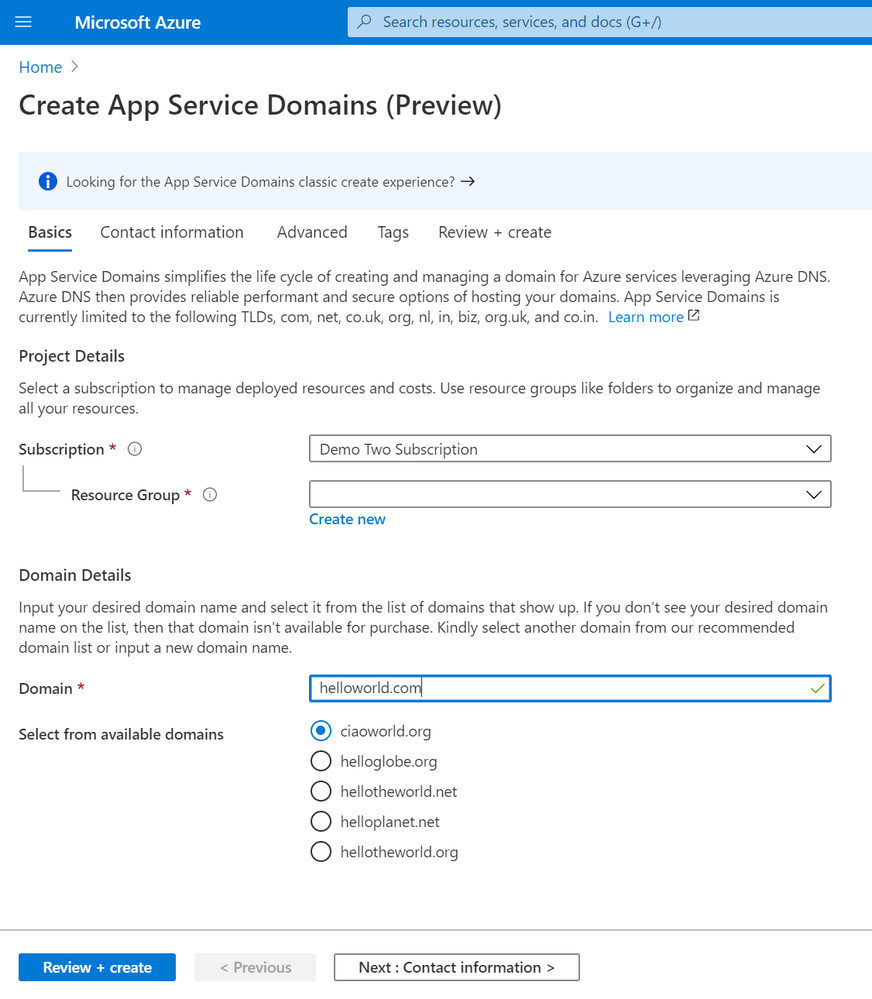
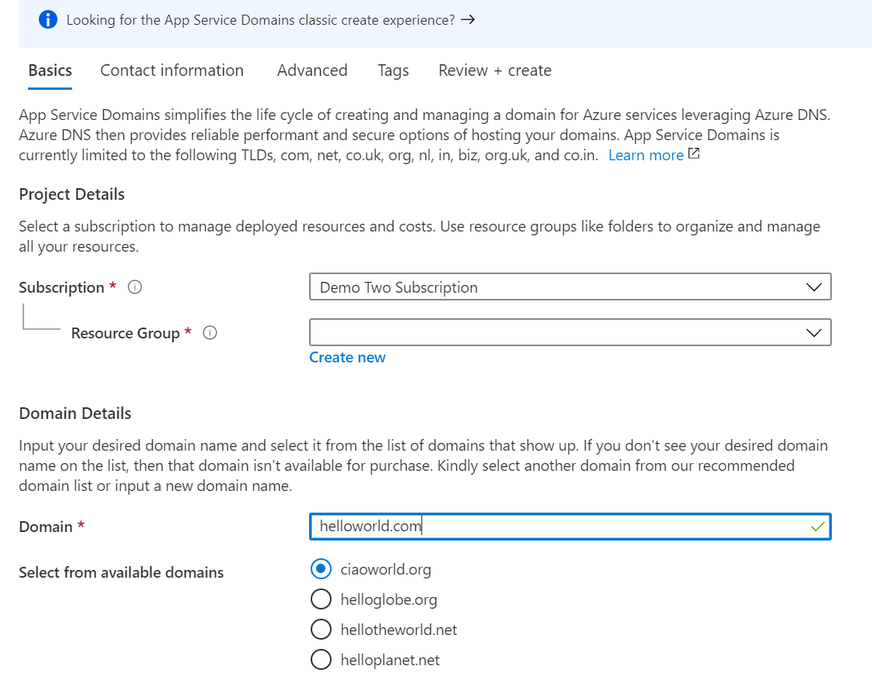
In the domain search bar, type the domain name you would like to purchase. If you don’t see the name in the list of available domains, then the domain isn’t available for purchase. However, you can choose from the suggested list of available domains or enter a new domain you would like to purchase. In the “Contact information” tab, enter your personal information. Then in the “Advanced” tab, choose whether you want to set up auto-renew for the domain. Domain auto-renew prevents accidental loss of domain ownership after expiration. Lastly, decide whether you would like to add privacy protection at no extra charge. Go to “Review + create” to review the legal terms, verify the domain information, and click “Create”. Once your domain has successfully been created, proceed to the adding a custom domain to your web app section of the article.
Adding a custom domain to your web app
To add a custom domain to your web app, you will need to update your domain’s DNS records. If you purchased an App Service Domain, the DNS records will be updated for you automatically and you can proceed to verifying and adding a custom domain section. Otherwise, you will need to work on updating DNS records .
Updating DNS records
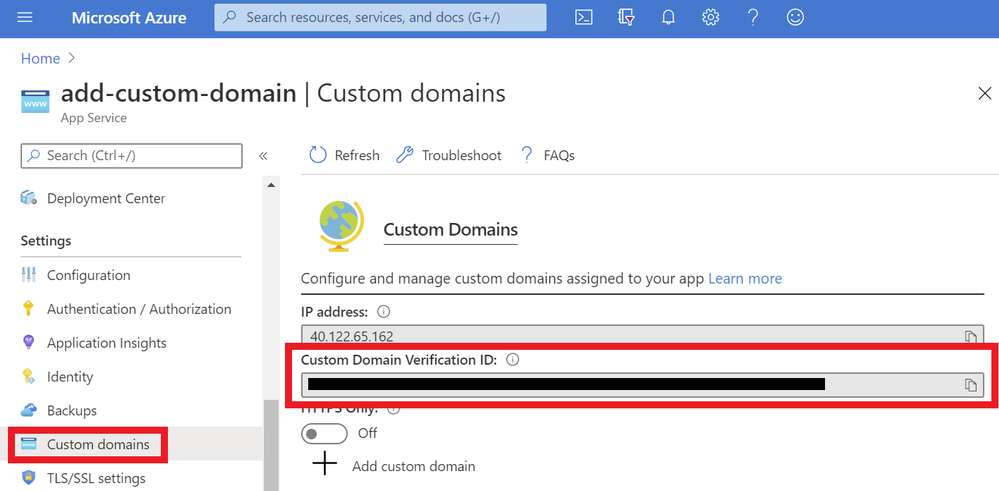
You will need to get the custom domain verification ID of your web app. This token will be used to verify the domain ownership. You can get this value in the “Custom domains” tab of your web app.
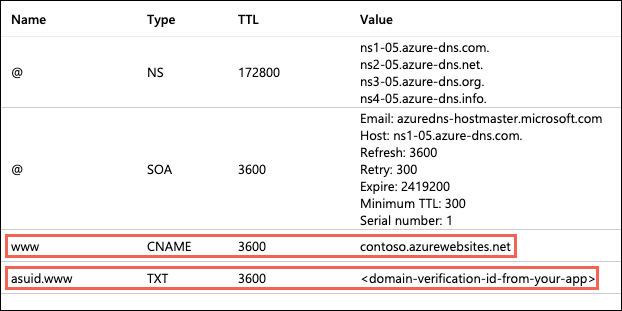
Once you have the ID, go to the domain provider of your domain. In the DNS records, create a CNAME and a TXT Record. As an example, if you want to map your ‘www’ subdomain, refer to the chart below:
| Record Type |
Host |
Value |
| CNAME |
www |
.azurewebsites.net |
| TXT |
asuid.www |
Custom Domain Verification ID |
Your DNS records page should look something like the following example:
Verifying and adding custom domain
After updating your DNS records (if not using App Service Domain):
- Go to your App Service and navigate to the “Custom domain” section under “Settings”.
- Click on the “Add custom domain” button
- Enter the domain that you would like to use
- Click “Validate”
- If you correctly updated your DNS records and the DNS changes have propagated, you will see the option to “add custom domain”. Otherwise, return to the previous updating DNS records section to make sure you have correctly updated your DNS records. Click “add custom domain”.
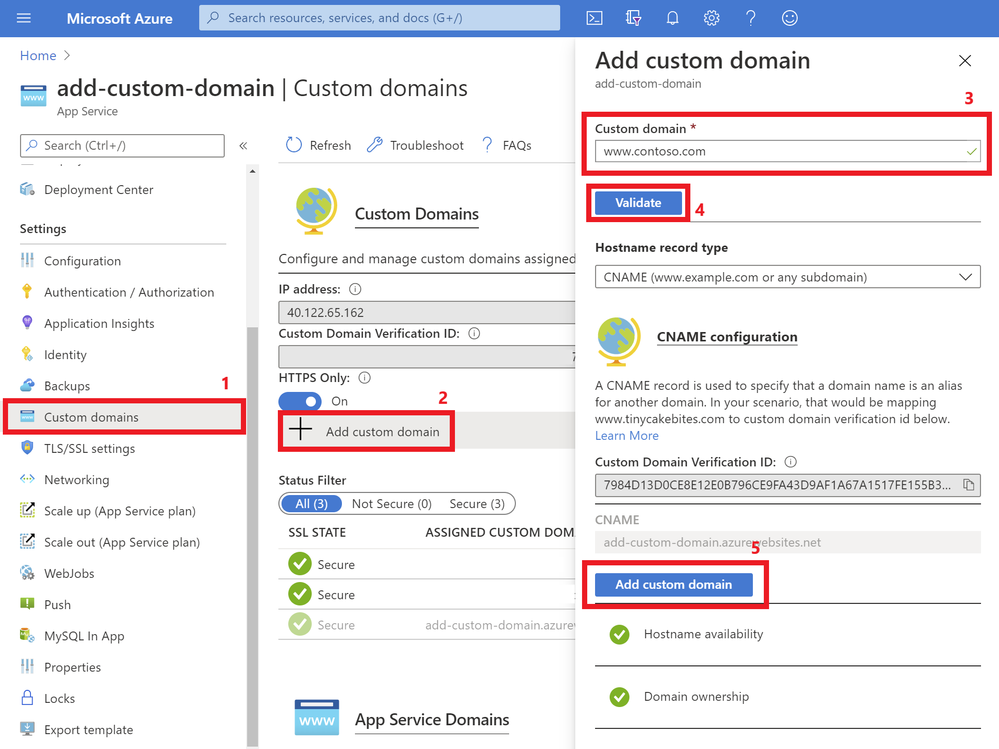
Once the custom domain has successfully been added to your web app, you will see it under the list of “Assigned Custom Domains”. You can navigate to your web app using these domain names.
If you are interested in securing your custom domain, proceed to the following section on Creating an App Service Managed Certificate .
Creating an App Service Managed Certificate
If you would like to secure your custom domain at no cost, you can create an App Service Managed Certificate and bind it to your domain. With Managed Certificates, you don’t have to worry about renewals, as the certificate is automatically renewed for you!
Go to your web app resource and navigate to the “TLS/SSL settings” section under “Settings”. Click on the “Private Key Certificates” blade and look for the “Create App Service Managed Certificate” button.
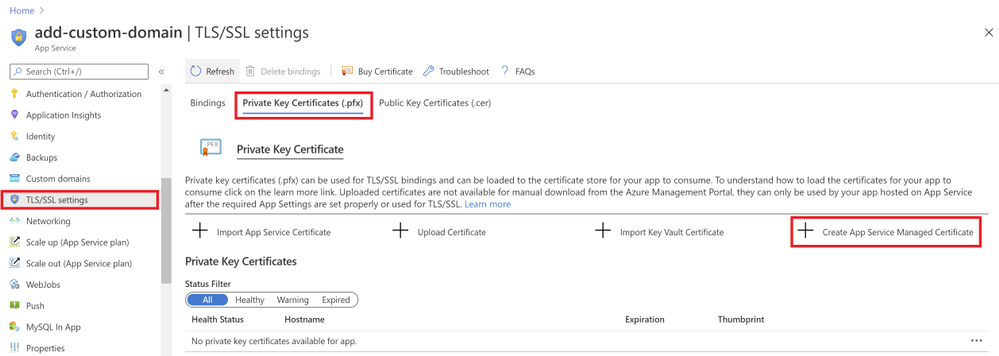
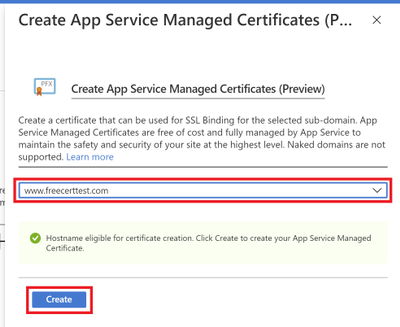
Select the domain from the dropdown menu that you would like to create a certificate for and click “Create”.
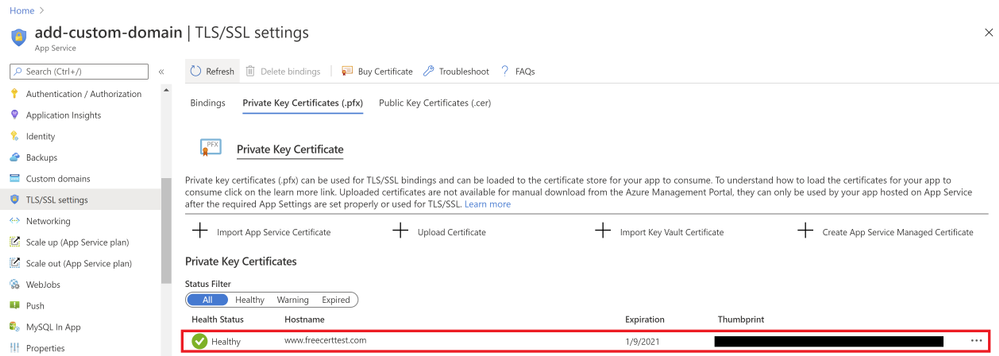
Once the certificate has been created, you will see that it in the list of your private certificates on the “TLS/SSL Settings” blade. In order to use this certificate to secure your domain, you will need to bind this certificate to your domain, which will be explained in the next section of binding your certificate to your web app .
Binding Your Certificate to Your Web App
The final step to securing your domain is to bind your certificate to the domain. In the Portal, go to your web app and navigate to the “Custom domain” section under “Settings”. Look for the domain you want to secure from the list of “Assigned Custom Domains” and click “Add binding”.
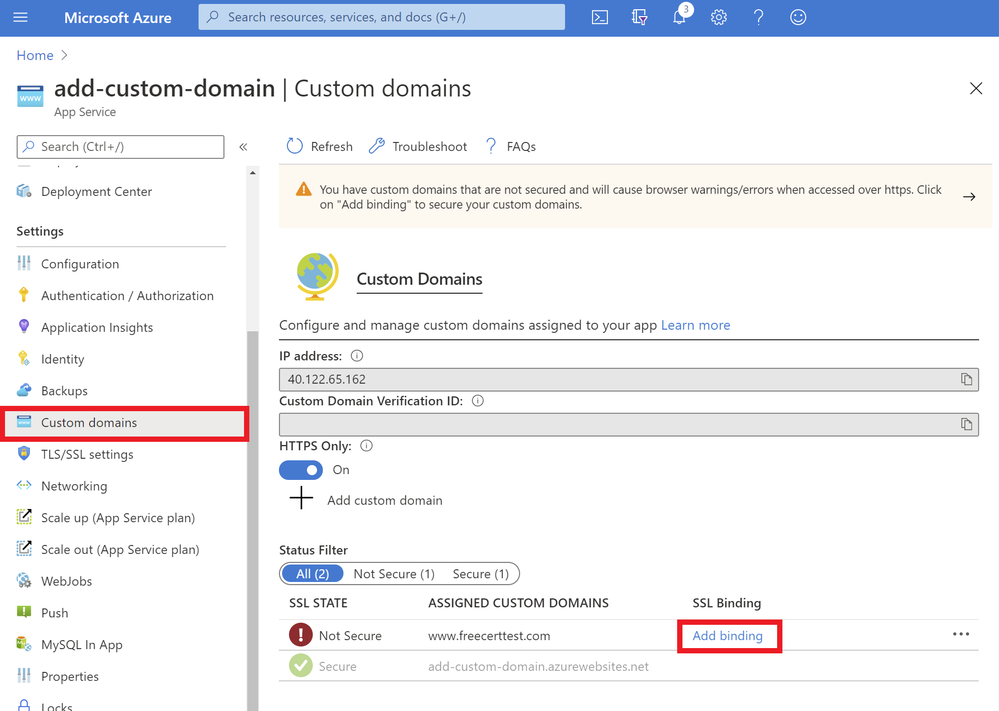
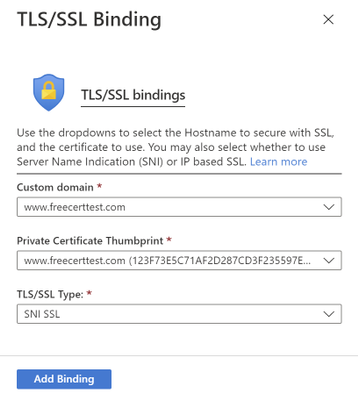
In the following blade…
- Select the correct custom domain
- Select the App Service Managed Certificate you’ve just created from the dropdown menu
- Select “SNI SLL” for the TLS/SSL Type
- Click “Add Binding”
Once the binding has successfully been created, you will see a green checkmark and the word “Secure” beside your custom domain under the “Assigned Custom Domains” list.
Summary
Congratulations! In this article, you have successfully added and secured a custom domain for your App Service! Your users can now reach your web site at the new domain, and their browser will let them know that the site is secured.
Helpful Resources


Recent Comments