When it comes to assistive technologies the person leading the way for Microsoft is their Chief Accessibility Officer Jenny Lay-Flurrie. She’s from Birmingham, England, is profoundly deaf, works in Seattle, Washington, USA, and is passionate about the importance of putting inclusion at the heart of corporate culture. This is no small undertaking as it requires a paradigm shift in corporate thinking. But Jenny has never shied away from a fight. This October 1, 2020 interview may be giving you a first look at this amazing woman. Here’s a more in-depth look into her: https://news.microsoft.com/stories/people/jenny-lay-flurrie.html.
This article is contributed. See the original author and article here.
One of the challenges of large scale data analysis is being able to get the value from data with least effort. Doing that often involves multiple stages: provisioning infrastructure, accessing or moving data, transforming or filtering data, analyzing and learning from data, automating the data pipelines, connecting with other services that provide input or consume the output data, and more. There are quite a few tools available to solve these questions, but it’s usually difficult to have them all in one place and easily connected.
If this article was helpful or interesting to you, follow@lenadroidon Twitter.
Introduction
This is the first article in this series, which will cover what Azure Synapse is and how to start using it with Azure CLI. Make sure yourAzure CLIis installed and up-to-date, and add asynapseextension if necessary:
$ az extension add --name synapse
What is Azure Synapse? In Azure, we haveSynapse Analyticsservice, which aims to provide managed support for distributed data analysis workloads with less friction. If you’re coming from GCP or AWS background, Azure Synapse alternatives in other clouds are products like BigQuery or Redshift. Azure Synapse is currently in public preview.
Serverless and provisioned capacity In the world of large-scale data processing and analytics, things like autoscale clusters and pay-for-what-you-use has become a must-have. In Azure Synapse, you can choose betweenserverless and provisionedcapacity, depending on whether you need to be flexible and adjust to bursts, or have a predictable resource load.
Native Apache Spark support Apache Spark has demonstrated its power in data processing for both batch and real-time streaming models. It offers a great Python and Scala/Java support for data operations at large scale. Azure Synapse providesbuilt-in supportfor data analytics using Apache Spark. It’s possible to create an Apache Spark pool, upload Spark jobs, or create Spark notebooks for experimenting with the data.
SQL support In addition to Apache Spark support, Azure Synapse has excellent support for data analytics withSQL.
Other features Azure Synapse provides smooth integration with Azure Machine Learning and Spark ML. It enables convenient data ingestion and export using Azure Data Factory, which connects with many Azure and independent data input and output sources. Data can be effectively visualized with PowerBI.
At Microsoft Build 2020, Satya Nadella announcedSynapse Linkfunctionality that will help get insights from real-time transactional data stored in operational databases (e.g. Cosmos DB) with a single click, without the need to manage data movement.
Get started with Azure Synapse Workspaces using Azure CLI
Prepare the necessary environment variables:
$ StorageAccountName='<come up with a name for your storage account>'$ ResourceGroup='<come up with a name for your resource group>'$ Region='<come up with a name of the region, e.g. eastus>'$ FileShareName='<come up with a name of the storage file share>'$ SynapseWorkspaceName='<come up with a name for Synapse Workspace>'$ SqlUser='<come up with a username>'$ SqlPassword='<come up with a secure password>'
Create a resource group as a container for your resources:
$ az group create --name$ResourceGroup--location$Region
Create a Data Lake storage account:
$ az storage account create
--name$StorageAccountName--resource-group$ResourceGroup--location$Region--sku Standard_GRS
--kind StorageV2
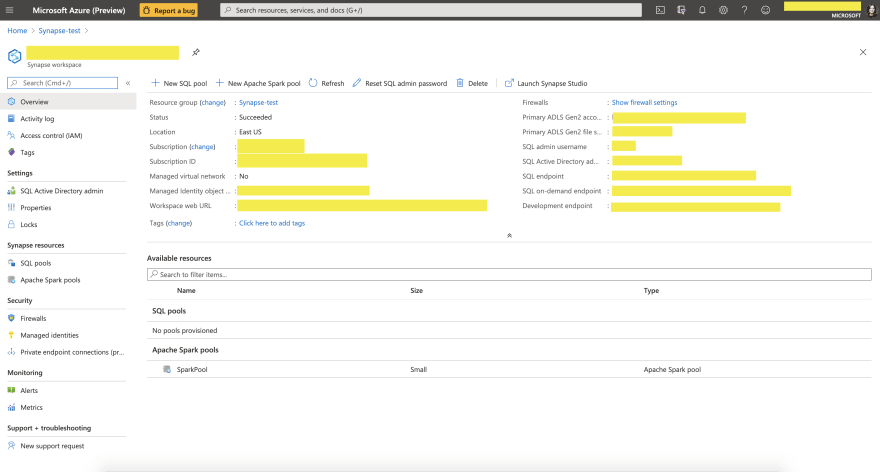
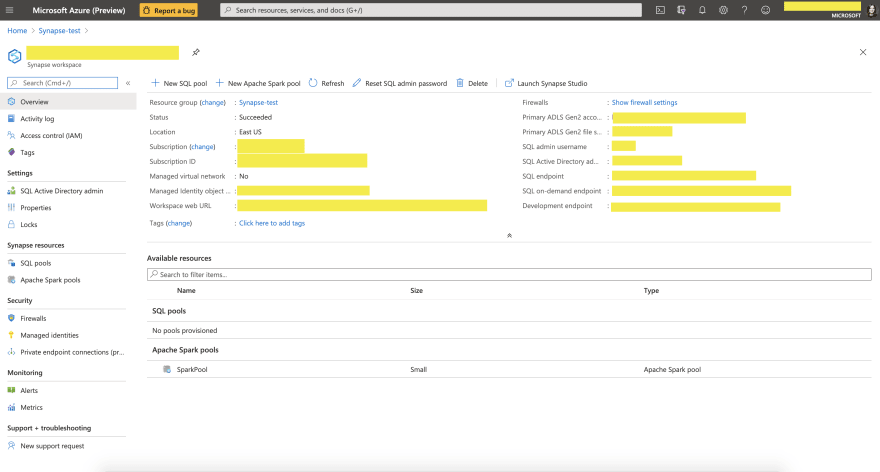
After you successfully created these resources, you should be able to go to Azure Portal, and navigate to the resource called$SynapseWorkspaceNamewithin$ResourceGroupresource group. You should see a similar page:
What’s next?
You can now load data and experiment with it in Synapse Data Studio, create Spark or SQL pools and run analytics queries, connect to PowerBI and visualize your data, and many more.
Stay tuned for next articles to learn more! Thanks for reading!
If this article was interesting to you, follow@lenadroidon Twitter.
This article is contributed. See the original author and article here.
One of the most common concerns for public sector cloud adoption is secure isolation among tenants when multiple customer applications and data are stored on the same physical hardware, as described in our recent blog post on secure isolation. To provide customers with more detailed information about isolation in a multi-tenant cloud, Microsoft has published Azure guidance for secure isolation, which provides technical guidance to address common security and isolation concerns pertinent to cloud adoption. It also explores design principles and technologies available in Azure and Azure Government to help customers achieve their secure isolation objectives. The approach relies on isolation enforcement across compute, storage, and networking, as well as built-in user access control via Azure Active Directory and Microsoft’s internal use of security assurance processes and practices to correctly develop logically isolated cloud services. Read more on our Azure Gov blog here.
About the Author
As Principal Program Manager with Azure Government Engineering, @StevanVidich is focused on Azure security and compliance. He publishes and maintains Azure Government documentation and works on expanding Azure compliance coverage.
This article is contributed. See the original author and article here.
Initial Update: Wednesday, 02 September 2020 16:36 UTC
We are aware of issues within Log Analytics and are actively investigating. Some customers may experience intermittent Data Latency and incorrect alert activation for Heartbeat, Perf and SecurityEvent in East US region.
Work Around: None
Next Update: Before 09/02 20:00 UTC
We are working hard to resolve this issue and apologize for any inconvenience. -Saika
This article is contributed. See the original author and article here.
I was asked to make up a short demo video about creating a custom image for deployment in Microsoft Azure the other week to support some new content going into Microsoft Learn. Since this involves making an on-prem virtual machine first and then preparing it to upload into Azure – I figured I would make a new Windows Server 2019 CORE image (default deployment option) instead of a full desktop. I always found it strange you didn’t have an option to deploy a Core server deployment of Windows Server from Azure Marketplace.
Time to fix that.
Why Windows Server Core? Windows Server Core implementations are:
Smaller in disk footprint, so potentially cheaper to run in an Azure VM
Smaller in attack surface, since fewer binaries and fewer services running inside the VM
Less demand on resources to run workloads, so potentially cheaper to run in an Azure VM
More “remote friendly” then earlier implementations with management tools, remote PowerShell, remote RDP
Runs most workloads you might want to run on-prem or in Azure.
I thought this was going to be a simple process that was documented in a single doc. Little did I know that the info I needed was spread across three different official docs as well as some good old trial and error. To save you time – I’ve pulled everything together and have the main steps here, but include links back to the source documents in case you want more detailed information.
The TL;DR of this process is the following:
Build a Hyper-V VM image of Windows Server 2019 with a Core interface.
Configure specific settings unique to uploading a Custom VM Image for Azure
Generalize your local VM image and shut it down
Upload VHD into a new Azure Managed Disk in your Azure Subscription
Create a VM Image for deployment using the Azure Managed Disk
Deploy a new VM using the uploaded image
From there – you can make a new VM from that custom uploaded image. Management wise – the deployed image is compatible with Azure Bastion, Just-In-Time remote access, Remote PowerShell or PowerShell commands via the Azure Portal.
Lets get started!
Build a Hyper-V VM image of Windows Server 2019 with a Core interface.
This should be self-explanatory. You have a Server that is running Hyper-V and you can make a new Windows Server 2019 VM using the install media (ISO file) for Windows Server 2019. The default install experience is to have a CORE install (i.e. no desktop experience) and you create a new password for the local administrator account to further configure the system. To keep things simple – I created a Generation 1 VM initially to do the install and for the most part kept the defaults for the base creation process.
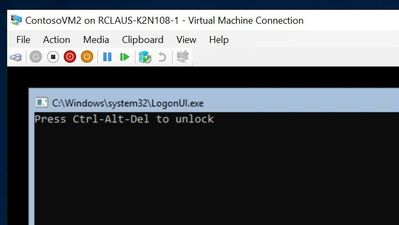
I don’t know what it is, but I really like the simple logon for a Windows Server core box – if I have to logon to the console at all. I need to do some tasks from the Hyper-V host before customizing the local VM – so I’ll shut it down for now.
Configure specific settings unique to uploading a Custom VM Image for Azure
If you made your VM from the Hyper-V Create VM Wizard, you probably have a Generation 1 VM with a dynamically expanding VHDX file. You NEED to convert this to a VHD file and change from a Dynamically expanding file to a FIXED hard drive size. Keep things simple and use the GUI console to do this – or you can follow the instructions in the document referenced above to go the PowerShell route.
With the VM shutdown, edit the VM settings and select the Hard Disk. Choose the EDIT button to manage the disk.
Select Convert to convert the disk. Select VHD for a max size of 2 TB, but we’re going to go smaller here.
Select Fixed Size and choose the appropriate size (I went with 126 GB)
Create a new name for the VHD as it makes a COPY of the disk.
Because you change the disk from Dynamic to Fixed and it’s a new disk – you need to edit the settings of the VM to reference THIS new fixed size disk in order to proceed. Once this is updated – boot the machine and logon as the local administrator account
From the command prompt – start up a PowerShell prompt to continue to prep this VM
Run the System File Checker utility
Sfc.exe /scannow
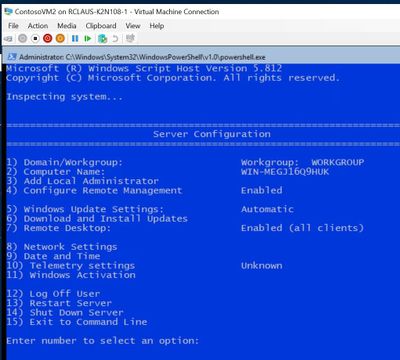
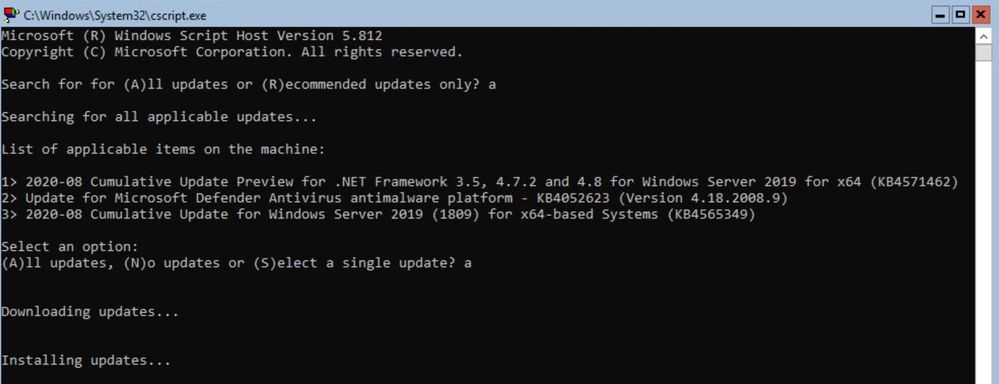
Run and Install all windows updates, I find it’s easies to use SCONFIG to setup Windows Update to run Automatically and check for updates.
I can force an update check with option 6 and In this case – I had three downloads / updates I needed to process which included a reboot.
At this point the document goes through an extensive list of checks and settings you should review and implement in your base image in order to ensure a smooth deployment. I am not going to list them all off here – but refer you to the document to follow:
Note: You will get some errors based on if your image is domain joined or if there are group policies in place. I got a number of red error dumps from PowerShell commands, but they were expected since my VM is not domain joined.
Do some final verification steps that all is well, RDP is working (yes – you can RDP into a Windows Server 2019 CORE box) and enabling some dump log collection and restart / test the VM for connectivity.
OK – we’re ready to go, no turning back now.
Generalize your local VM image and shut it down
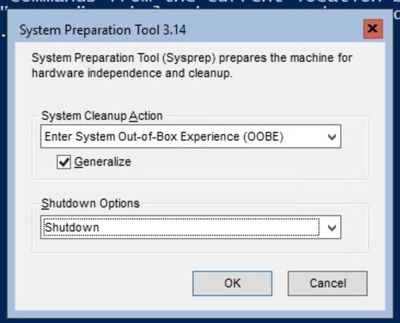
You have prepared your machine, set it up for optimal Azure compatibility and you have it tested for remote connectivity. Time to Generalize it with good old sysprep.exe. Logon to the box and change to the c:windows folder. You can save a bit of space (or a lot of space if this image was an upgrade) by deleting the c:windowspanther directory. Once that’s done, change into c:windowssystem32sysprep folder and then run sysprep.exe.
Make sure you check the Generalize checkbox and choose to Shutdown instead of Reboot.
OK – you are all set for an UPLOAD to Azure now.
Upload VHD into a new Azure Managed Disk in your Azure Subscription
NOTE: I only ever use Managed Disks for my virtual machines now, since it saves me from having to architect a strategy around how many VM disks can be in each storage account before maxing out my throughput OR having issues with storage cluster failures… Just keep it simple and promise me you will always use Azure Managed Disks for your VMs.
You will already need to have a ResourceGroup in azure that you can store these VM images in and you will want to define the location for the storage group to be in the same area where you will be using this image. I assume you are using the same system where the VHD is located OR you have copied it to your admin workstation locally before uploading it.
To upload the image – you first have to create an empty standard HDD managed disk in your pre-created ResourceGroup that is the same size as your soon to be uploaded VHD. These example commands will get your VHD disk size and set the configuration parameters required for making a disk. In order for this to work, you will need to replace <fullVHDFilePath>, <yourdiskname>, <yourresourcegroupname>, and <yourregion> from the example below with your information.
Once the AzCopy command completes, you need to revoke the SAS access in order to change the state of the manage disk and enable the disk to function as an image for deployment.
Create a VM Image for deployment using the Azure Managed Disk
OK – final stretch. You’ve made a Windows Server 2019 Core image locally, prepared it for use in Azure, generalized it and uploaded it into you Azure subscription as a Managed Disk. Now you have to identify that managed disk as a VM Image that can be deployed. We’re following our third document on this called “Upload a generalized VHD and use it to create new VMs in Azure”.
You need to get the information about the Managed Disk you just created. In my case it’s in the ContosoResourceGroup and has a name of ContosoVM2image. The command to run and build the variable is:
Set some more variables including location of where you will be using the image, what image name is and in what resource group does it reside. In my case I used the following:
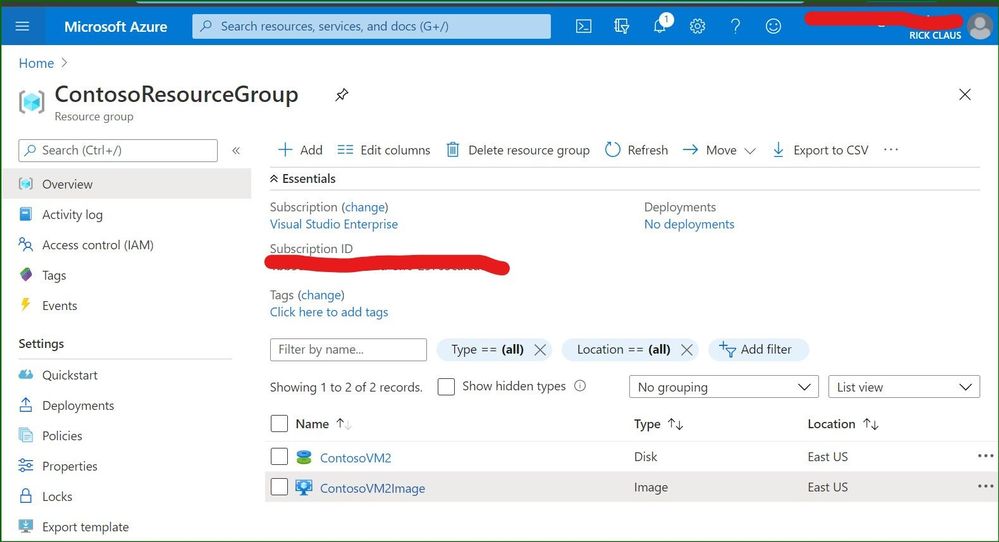
If you open up the Azure portal and explore what is in that resource group where you uploaded the VHD – you should see something similar to what I see in this portal screenshot: a simple VHD uploaded and an Image definition that you can use to deploy new VMs.
In this blog post, the custom local VM that was created was a Windows Server 2019 core install server that was customized, generalized, uploaded and converted into a specialized Image for use in Azure. Because I took the time to build my own custom image and upload it into my Azure subscription – I can deploy as many Windows Server 2019 core boxes as I need for my projects now.
In this article, we will setup an Azure Monitor Alert to Scale up the Storage limit of an SQL Elastic Pool on Azure. Please read more about Elastic Pool in the above article.
We will divide this into three parts
i. Setting up an Automation Runbook and Webhook ii. Setting up an Alert Action Group iii. Setting up an Alert under Azure Monitor.
We will not talk much about Azure Automation or Azure Monitor as they are off the topic, we will only cover the steps for setting up of this Auto scale of storage. Here are some of the articles that should bring you up to Speed.
Create Azure Automation Account [ In this case, we would need to use RunAsAccount]
So, we will import the Az Modules to the Automation Account and not Rm Modules. By default, when you create an Automation Account, there is a bunch of modules imported and we will not touch them as we will use the AZ modules.
Here is what you need to do.
Go to Azure Automation Account.
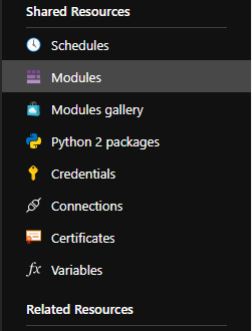
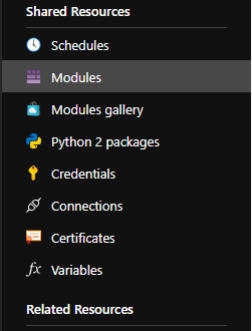
Click on Modules under Shared resource.
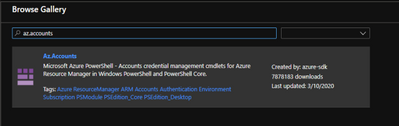
Click on Browse gallery.
Search for Az.Accounts and Click on Import.
Likewise, search of Az.sql and import it too [ once the Az.Accounts import is complete. Otherwise, it may fail].
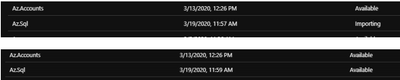
Let the modules get imported.
Once the modules are imported, you would see the status as available..
Further, you don’t need to add any modules as we will use only SQL related Cmdlets unless you are using this Automation Account for other purposes.
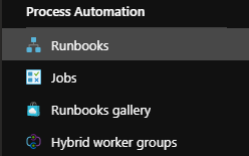
Next, we will need to setup an Automation Account Runbook, for that Navigate to Runbooks under Process Automation under Automation Account.
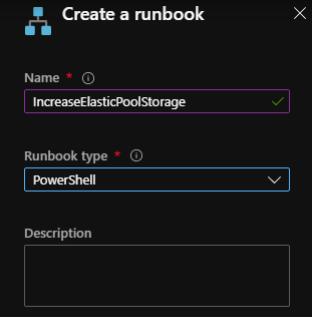
Click on Create Runbook and Provide the details as below, Click Ok
In the Runbook Edit section, copy paste the following script:
#Author: Shashanka Haritsa #Date: 19th March 2020 <#WARNING: The sample scripts are not supported under any Microsoft standard support program or service. The sample scripts are provided AS IS without warranty of any kind. Microsoft further disclaims all implied warranties including, without limitation, any implied warranties of merchantability or of fitness for a particular purpose. The entire risk arising out of the use or performance of the sample scripts and documentation remains with you. In no event shall Microsoft, its authors, or anyone else involved in the creation, production, or delivery of the scripts be liable for any damages whatsoever (including, without limitation, damages for loss of business profits, business interruption, loss of business information, or other pecuniary loss) arising out of the use of or inability to use the sample scripts or documentation, even if Microsoft has been advised of the possibility of such damages. #>
#Read Webhook data param ( [Parameter (Mandatory = $false)] [object] $WebhookData ) # If runbook was called from Webhook, WebhookData will not be null. if ($WebhookData) { #Authenticate to Azure First using an RunAsAccount $getrunasaccount= Get-AutomationConnection -Name ‘AzureRunAsConnection’ Add-AzAccount -ServicePrincipal -ApplicationId $getrunasaccount.ApplicationId -CertificateThumbprint $getrunasaccount.CertificateThumbprint -Tenant $getrunasaccount.TenantId # Authentication Complete $WebhookData.Requestbody $Converteddata = $WebhookData.Requestbody | ConvertFrom-Json $resourcegroupname = $converteddata.data.context.resourceGroupName $resourceName = $converteddata.data.context.resourceName $getservername=(($converteddata.data.context.resourceId) -split(‘/’))[8] #Read ElasticPools Current storage and double it $GetElasticPoolStorage=(Get-AzSqlElasticPool -ElasticPoolName $resourceName -ResourceGroupName $resourcegroupname -ServerName $getservername).StorageMB $GetElasticPoolStorage $NewStorage = ($GetElasticPoolStorage *2) #I am just Increasing my storage to 100% more for my Standard Plan so I am multiplying the storage by 2, you may need to change this according to your requirement #Set the new storare limit Set-AzSqlElasticPool -ElasticPoolName $resourceName -ResourceGroupName $resourcegroupname – StorageMB $NewStorage -ServerName $getservername } Else{ Write-output “No Webhookdata found. Exiting” }
Click on save and Click on Publish.
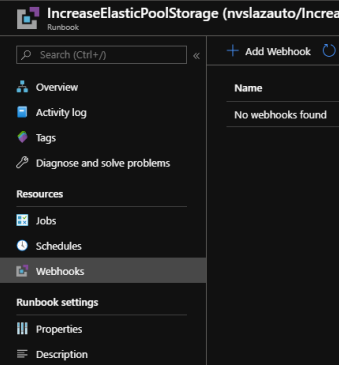
Now, we will need to create a Webhook. Under the same Runbook, Click on Webhooks
Click on Add Webhook.
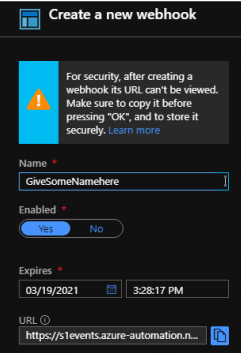
Under Create Webhook, give it a name and copy the URL to a safe place from where you can retrieve it in future. [ NOTE: This URL cannot be retrieved after creation, so please keep it safe] Click ok and Click on Create.
Once the Webhook is created, you will see that under the Webhooks section.
This Completes the first part where we have created the Automation Runbook, setup modules and a Webhook.
Setting up an Alert Action Group
In this section, we will create an Action Group that we will use with an Alert.
Please follow the steps below to create an Action Group
Login into Azure Portal [ If you haven’t already]
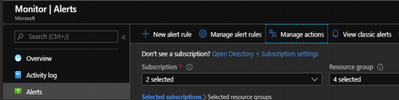
Navigate to Azure Monitor →Alerts and Click on Manage actions
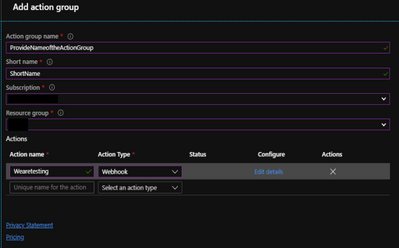
Next, click on Add action group and fill in the information as needed.
Under the Action Name, provide a name as desired and under Action Type, select Webhook
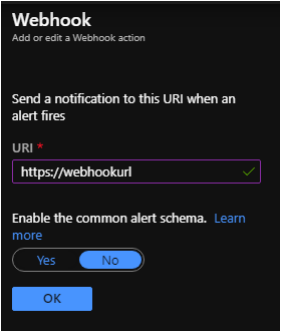
A Webhook URI screen pops up on the right-hand side, please use the Webhook URL we had copied during the Webhook creation under the Automation Account and click ok.
Click OK again on the Add action group screen. This will create an action group.
This completes the creation of Action Group.
Setting up an Alert under Azure Monitor
In this part, we will create an Alert that will trigger our Runbook whenever the used space is greater than some value. Please follow the steps below.
Navigate to Azure Monitor
Click on Alerts and Click on New alert rule
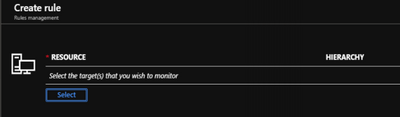
Under the resource, click on Select
Filter the Subscription and Resource type as SQL elastic pools and location, select the Elastic Pool of Interest. This should populate the resource as below.
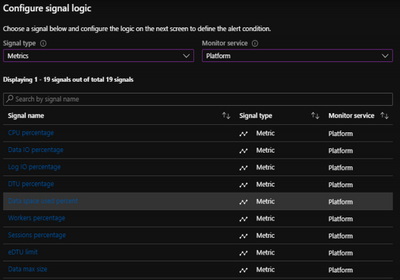
Now, click on add under condition. Select Signal type as Metrics and Monitor Service as Platform
Select the Signal name of interest, in this case we will select Data space used percent
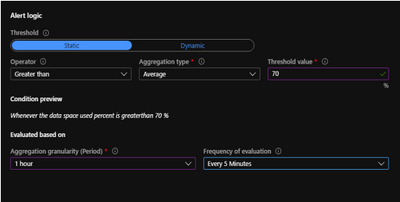
Once you select the Metric, you will now need to add alert logic, lets say that you would like to trigger an alert when the Percentage used space is 70 [ Average] for last 1 hour, we will set it up as below:
What does it mean? We are checking the Average Data space used Percentage for last one hour and we will evaluate this condition every 5 minutes as a part of Alert.
Click on done and now click on Add under ACTIONS GROUPS and select the one you created during the action group creation.
Now provide Alert details and a Description. Select Severity of Interest. Once you are happy with the details provided, click Create alert rule
That covers all the three configurations involved. Whenever the data space used percentage on the Elastic Pool increases over 70%, an alert will be triggered, and the Runbook invoked through Webhook will resize the storage on the Elastic Pool.
IMPORTANT NOTE:
This above sample document is for reference purpose only and is provided AS IS without warranty of any kind.
The author is not responsible for any damage or impact on the production, the entire risk arising out of the use or performance of the above sample document remains with you
For the Script section, under Automation Runbook setup, we have taken Standard plan[ Elastic Pool] in account and have only doubled the storage based on our requirement, if your requirement is different, you should evaluate the logic for increasing the storage and then amend the script as necessary.









Recent Comments