HOW TO AUTHOR SCCM REPORTS LIKE A SUPERHERO

HOW TO AUTHOR SCCM REPORTS LIKE A SUPERHERO

This article is contributed. See the original author and article here.

Hi there, I am Matt Balzan, and I am a Microsoft Modern Workplace Customer Engineer who specializes in SCCM, APP-V and SSRS/PowerBI reporting.

Today I am going to show you how to write up SQL queries, then use them in SSRS to push out beautiful dashboards, good enough to send to your boss and hopefully win that promotion you’ve been gambling on!

INGREDIENTS

  • Microsoft SQL Server Management Studio (download from here)
  • A SQL query
  • Report Builder
  • Your brain

Now that you have checked all the above, let us first go down memory lane and do a recap on SQL.

WHAT EXACTLY IS SQL?

SQL (Structured Query Language) is a standard language created in the early 70s for storing, manipulating and retrieving data in databases.

Does this mean that if I have a database with data stored in it, I can use the SQL [or T-SQL] language to grab the data based on conditions and filters I apply to it?   Yep, you sure can!

A database is made up of tables and views and many more items but to keep things simple we are only interested in the tables and views.

DB-BLOG.png

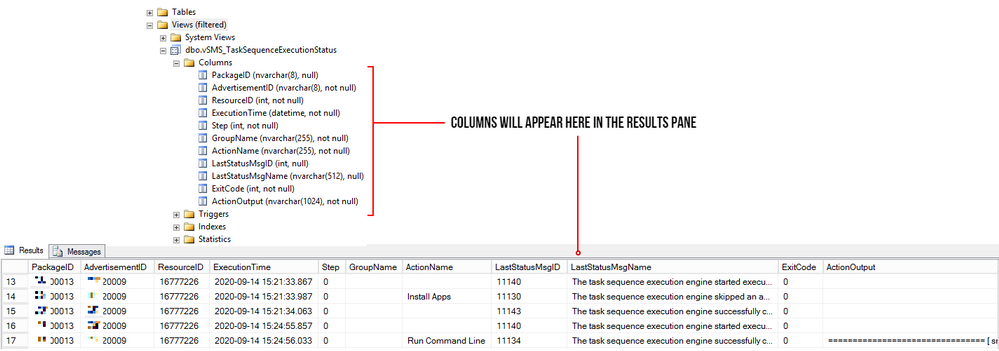
Your table/view will contain columns with headers and in the rows is where all the data is stored.
ROWS-BLOG.png

The rows are made up of these columns which contain cells of data. Each cell can be designed to have text, datetime, integers. Some cells can have no values (or NULL values) and some are mandatory to have data in them. These settings are usual setup by the database developer. But thankfully, for reporting we need not worry about this. What we need is data for our reports, and to look for data, we use t-SQL!

But wait! – I have seen these queries on the web, and they all look double-Dutch to me!

No need to worry, I will show you how to read these bad boys with ease!

ANATOMY OF A SQL QUERY

We have all been there before, someone sent you a SQL query snippet or you were browsing for a specific SQL query and you wasted the whole day trying to decipher the darn thing!

Here is one just for simplicity:

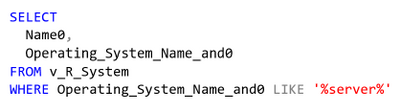
select Name0,Operating_System_Name_and0 from v_R_System where Operating_System_Name_and0 like ‘%server%’

My quick trick here is to go to an online SQL formatter, there are many of these sites but I find this one to be perfect for the job: https://sql-format.com/

Simply paste the code in and press the FORMAT button and BOOM!
query.png

Wow, what a difference!!! Now that all the syntax has been highlighted and arranged, copy the script, open SSMS, click New Query, paste the script in it and press F5 to execute the query.

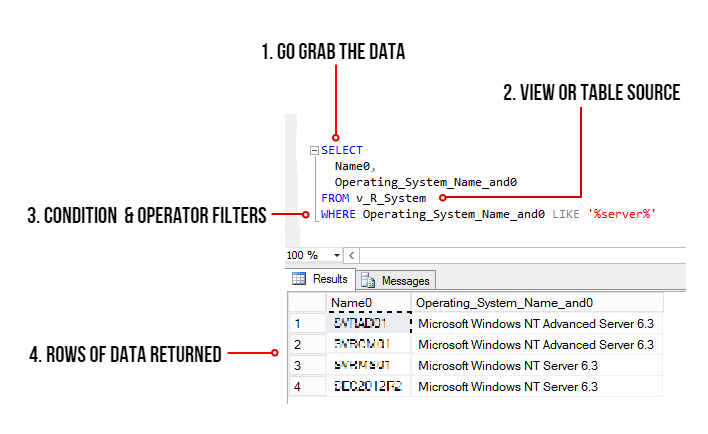
This is what happens:
ANATOMY-BLOG.png

  1. The SELECT command tells the query to grab data, however in this case it will only display 2 columns (use asterisk * to get all the columns in the view)
  2. FROM the v_R_System view
  3. WHERE the column name contains the keyword called server using the LIKE operator (the % tells the filter to bring back zero, one, or multiple characters)
  4. The rows of data are then returned in the Results pane. In this example only all the server names are returned.

 TIPS!

Try to keep all the commands in CAPITALS – this is good practice and helps make the code stand out for easier reading!

ALWAYS use single quotes for anything you are directing SQL to. One common mistake is to use code copied from the browser or emails which have different font types. Paste your code in Notepad and then copy them out after.

Here is another example:   Grab all the rows of data and all the columns from the v_Collections view.

SELECT * FROM v_Collections

The asterisk * means give me every man and his dog. (Please be mindful when using this on huge databases as the query could impact SQL performance!)

Sometimes you need data from different views. This query contains a JOIN of two views:

SELECT vc.CollectionName

,vc.MemberCount

FROM v_Collections AS vc

INNER JOIN v_Collections_G AS cg ON cg.CollectionID = vc.CollectionID

WHERE vc.CollectionName LIKE%desktop%

ORDER BY vc.CollectionName DESC

OK, so here is the above query breakdown:

  1. Grab only the data in the column called vc.CollectionName and vc.MemberCount from the v_Collections view
  2. But first JOIN the view v_Collections_G using the common column CollectionID (this is the relating column that both views have!)
  3. HOWEVER, only filter the data that has the word ‘desktop‘ in the CollectionName column.
  4. Finally, order the list of collection names in descending order.

SIDE NOTE: The command AS is used to create an alias of a table, view or column name – this can be anything but generally admin folk use acronyms of the names (example: v_collections will be vc) – Also noteworthy, is that when you JOIN tables or VIEWS you will need to create the aliases, they probably might have the same column names, so the alias also solves the problem of getting all of the joined columns mixed up.

T-SQL reference guide: https://docs.microsoft.com/en-us/sql/t-sql/language-reference?view=sql-server-ver15

OK, SO WHAT MAKES A GOOD REPORT?

It needs the following:

  • A script that runs efficiently and does not impact the SQL server performance.
  • The script needs to be written so that if you decide to leave the place where you work, others can understand and follow it!
  • Finally, it needs to make sense to the audience who is going to view it – Try not to over engineer it – keep it simple, short and sweet.

SCENARIO: My customer wants to have a Task Sequence report which contains their company logo, the task sequence steps and output result for each step that is run, showing the last step run.

In my lab I will use the following scripts. The first one is the main one, it will join the v_r_System view to the vSMS_TaskSequenceExecutionStatus view so that I can grab the task sequence data and the name of the device.

SELECT vrs.Name0

,[PackageID]

,[AdvertisementID]

,vrs.ResourceID

,[ExecutionTime]

,[Step]

,[GroupName]

,[ActionName]

,[LastStatusMsgID]

,[LastStatusMsgName]

,[ExitCode]

,[ActionOutput]

FROM [vSMS_TaskSequenceExecutionStatus] AS vtse

JOIN v_R_System AS vrs ON vrs.ResourceID = vtse.ResourceID

WHERE AdvertisementID = @ADVERTID

ORDER BY ExecutionTime DESC

The second script is for the @ADVERTID parameter – When the report is launched, the user will be prompted to choose a task sequence which has been deployed to a collection. This @ADVERTID parameter gets passed to the first script, which in turn runs the query to grab all the task sequence data rows.

Also highlighted below, the second script concatenates the column name pkg.Name (this is the name of the Task Seq) with the word ‘ to ‘ and also with the column name col.Name (this is the name of the Collection), then it binds it altogether as a new column called AdvertisementName.

So, for example purposes, the output will be: INSTALL SERVER APPS to ALL DESKTOPS AND SERVERS – this is great, as we now know which task sequence is being deployed to what collection!

SELECT DISTINCT

adv.AdvertisementID,

col.Name AS Collection,

pkg.Name AS Name,

pkg.Name + ‘ to ‘ + col.Name AS AdvertismentName

FROM v_Advertisement adv

JOIN (SELECT

PackageID,

Name

FROM v_Package) AS pkg

ON pkg.PackageID = adv.PackageID

JOIN v_TaskExecutionStatus ts

ON adv.AdvertisementID = (SELECT TOP 1 AdvertisementID

  FROM v_TaskExecutionStatus

  WHERE AdvertisementID = adv.AdvertisementID)

JOIN v_Collection col

ON adv.CollectionID = col.CollectionID

ORDER BY Name

LET US BEGIN BY CREATING THE REPORT

  1. Open Microsoft Endpoint Configuration Manager Console and click on the Monitoring workspace.
  2. Right-click on REPORTS then click Create Report.
  3. Type in the name field – I used TASK SEQUENCE REPORT
  4. Type in the path field – I created a folder called _MATT (this way it sits right at the top of the folder list)
  5. Click Next and then Close – now the Report Builder will automatically launch.
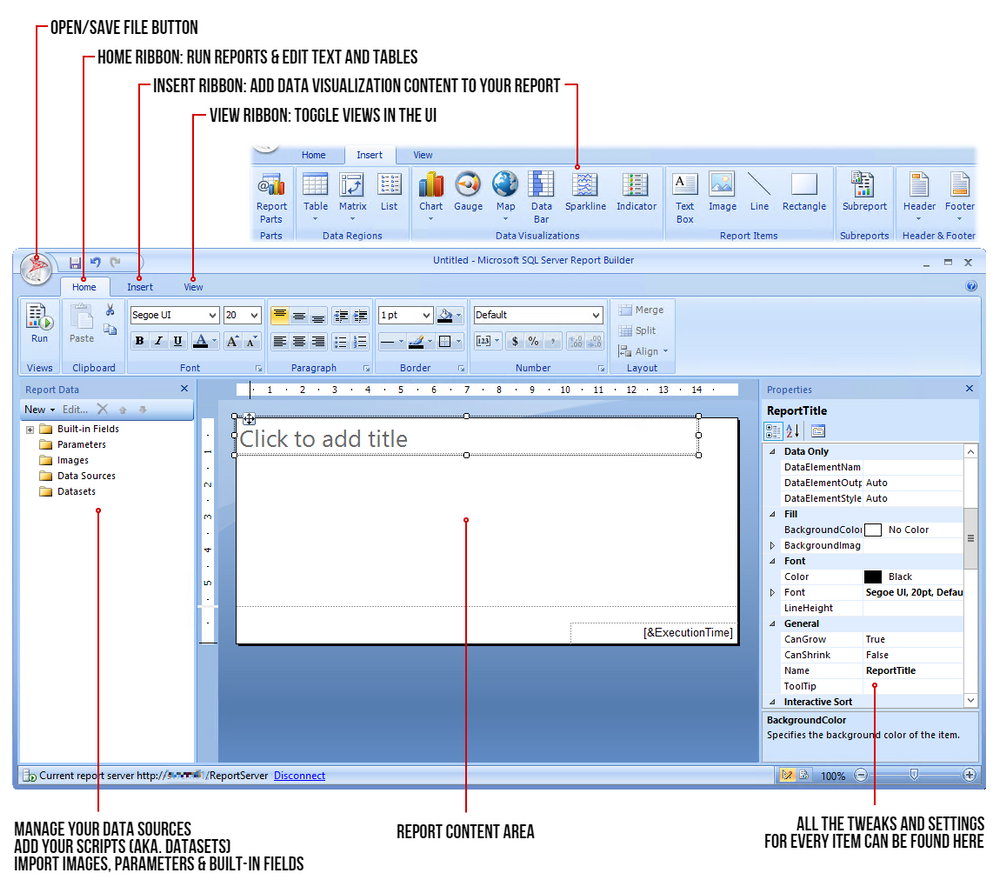
  6. Click Run on the Report Builder popup and wait for the UI to launch. This is what it looks like:
REPORT-BUILDER-BLOG.png

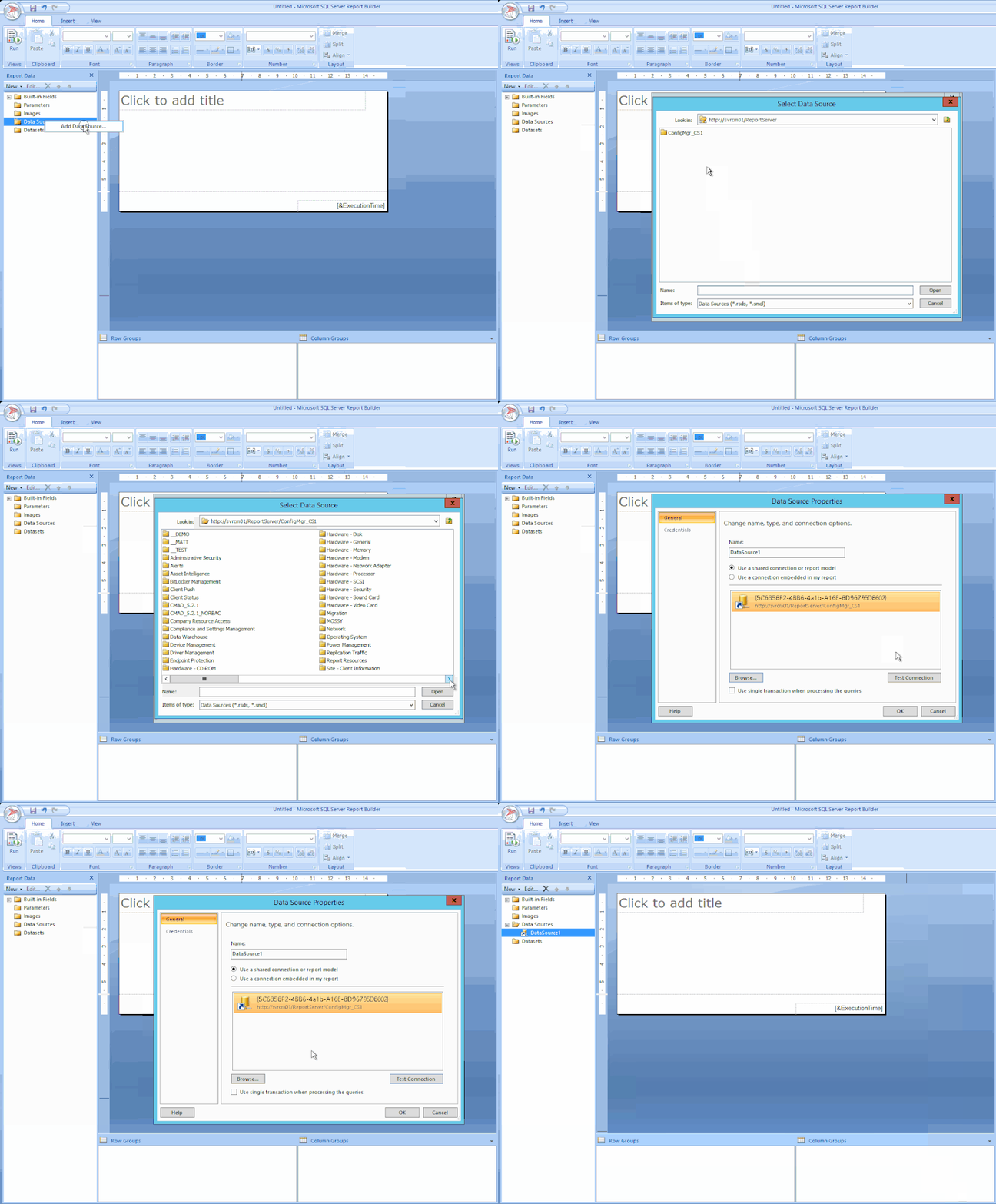
STEP 1 – ADD THE DATA SOURCE

 ADD-DS-BLOG.gif

To get the data for our report, we need to make a connection to the server data source.

Right-click on Data Sources / Click Add Data Source… / Click Browse… / Click on Configmr_<yoursitecode> / Scroll down to the GUID starting with {5C63 and double-click it / Click Test Connection / Click OK and OK.

STEP 2 – ADD THE SQL QUERIES TO THEIR DATASETS
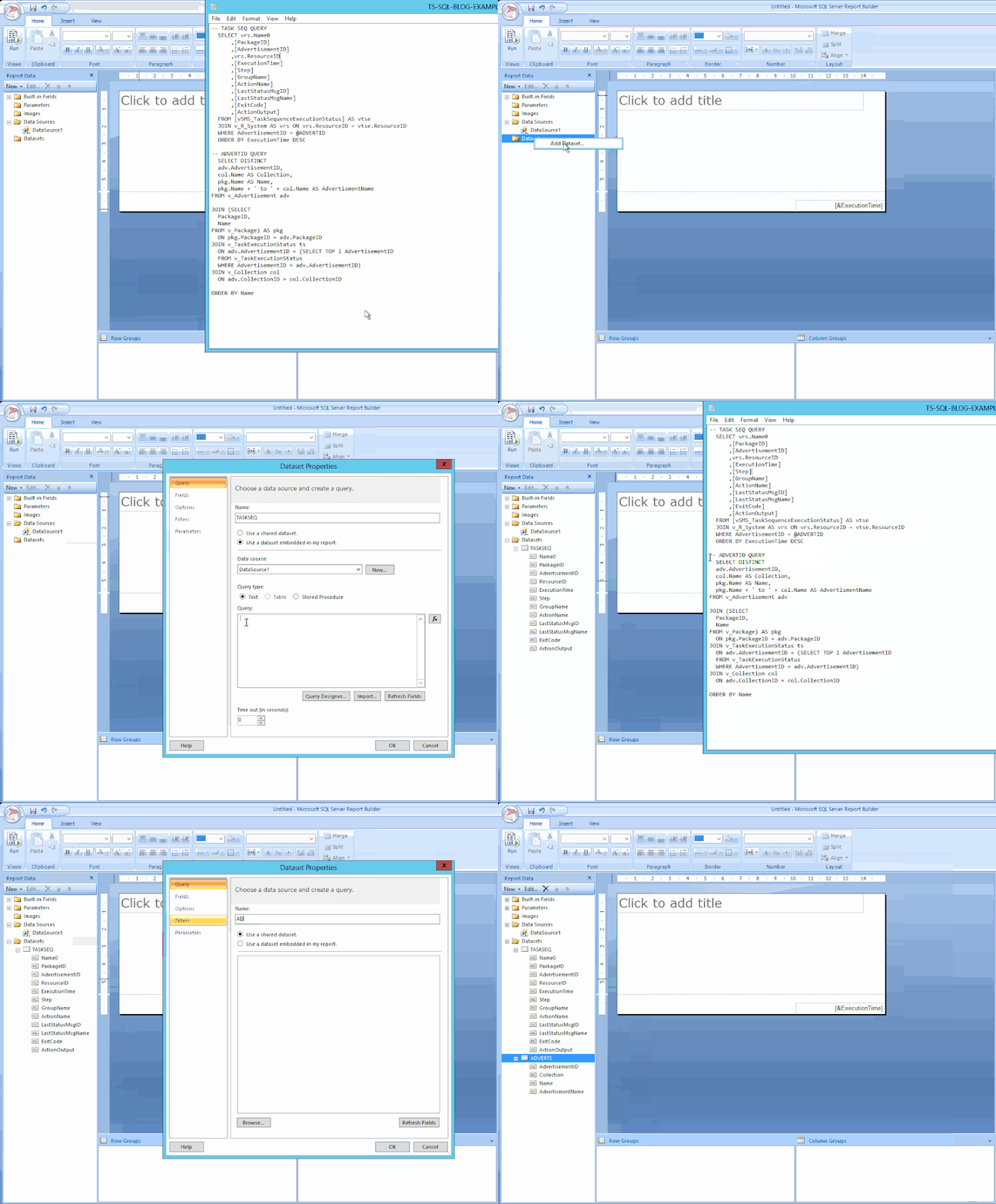
ADD-DATASETS-BLOG.gif

Copy your scripts / Right-click on Datasets / click on Add Dataset… / Type in the name of your dataset (no spaces allowed) / Select the radio button ‘Use a dataset embedded in my report’ / Choose your data source that was added in the previous step / Paste your copied script in the Query window and click OK / Click the radio button ‘Use the current Window user’ and click OK.

STEP 3 – ADJUST THE PARAMETER PROPERTIES
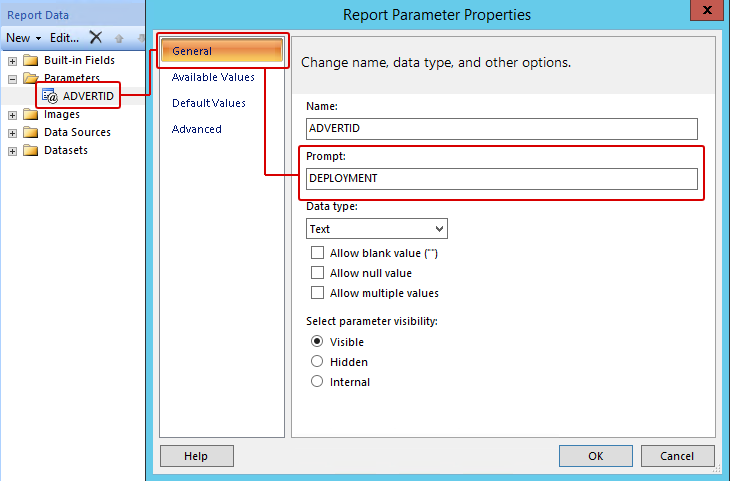
PARAMS-PROPS-GEN-BLOG.png


Expand the Parameters folder / Right-click the parameter ADVERTID / Select the General tab, under the Prompt: field type DEPLOYMENT – leave all the other settings as they are.
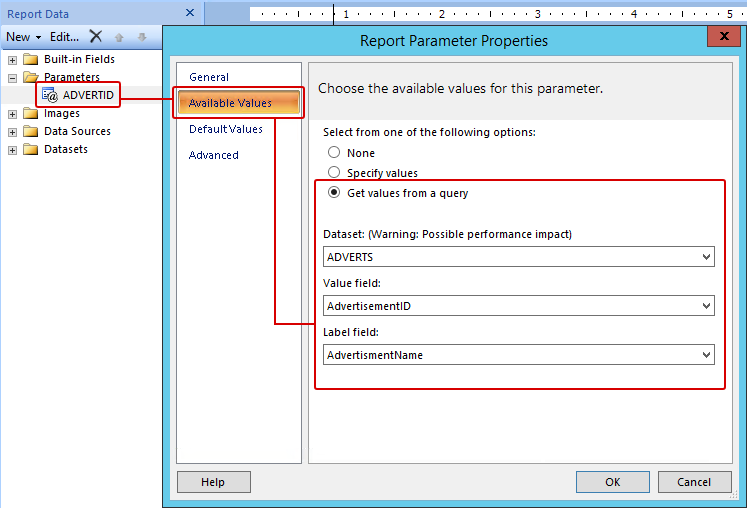
PARAMS-PROPS-BLOG.png


Click on Available Values / Click the radio button ‘Get values from a query’ / for Dataset: choose ADVERTS, for Value field choose AdvertisementID and for Label field choose AdvertisementName / Click OK.

Now when the report first runs, the parameter properties will prompt the user with the DEPLOYMENT label and grab the results of the ADVERTS query – this will appear on the top of the report and look like this (remember the concatenated column?):

DeploymentLabel.png

OK cool – but we are not done yet. Now for the fun part – adding content!

STEP 4 – ADDING A TITLE / LOGO / TABLE
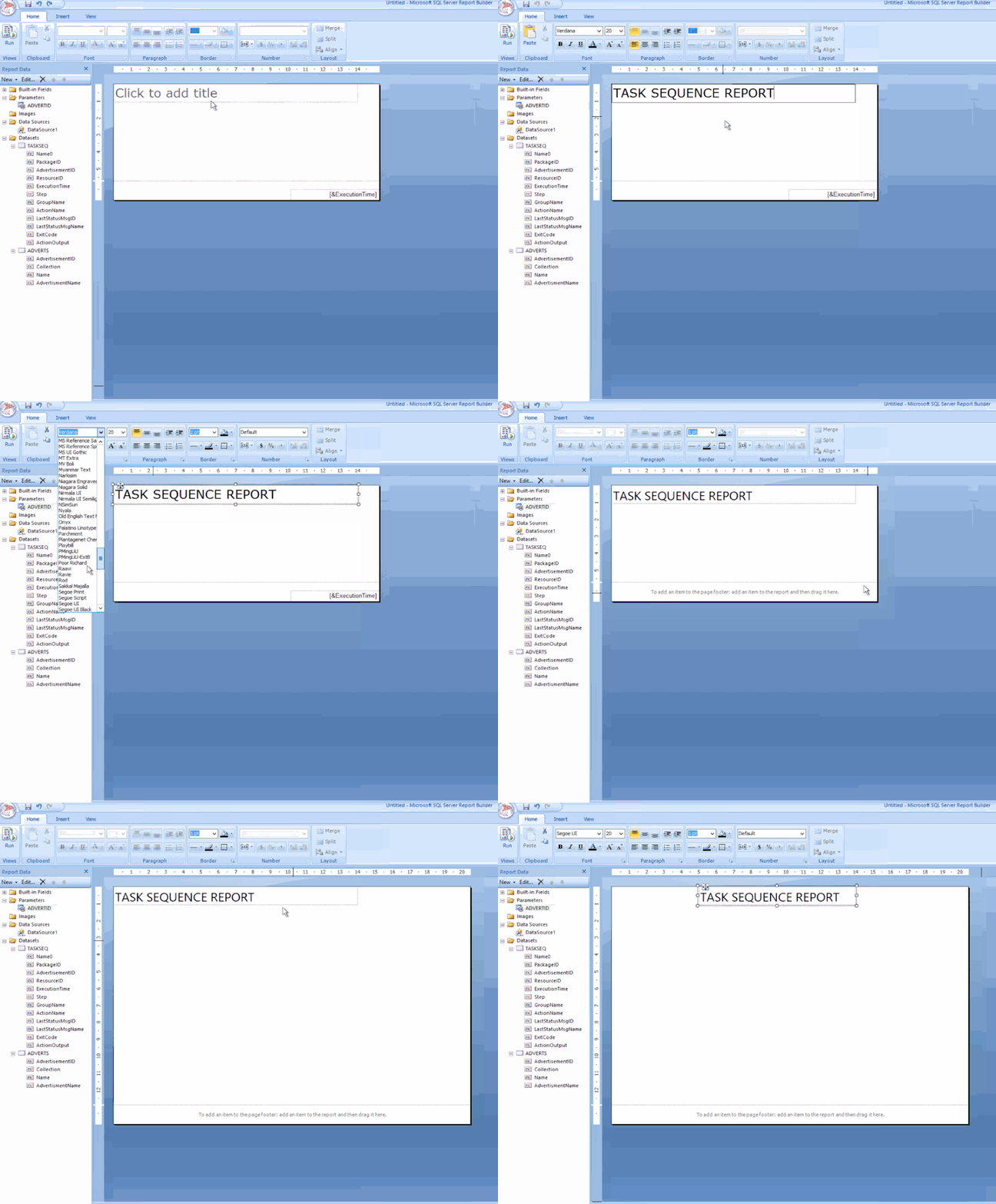
ADD-TITLE-BLOG.gif

Click the label to edit your title / change the font to SEGOE UI then move its position to the centre / Adjust some canvas space then remove the [&ExecutionTime] field.
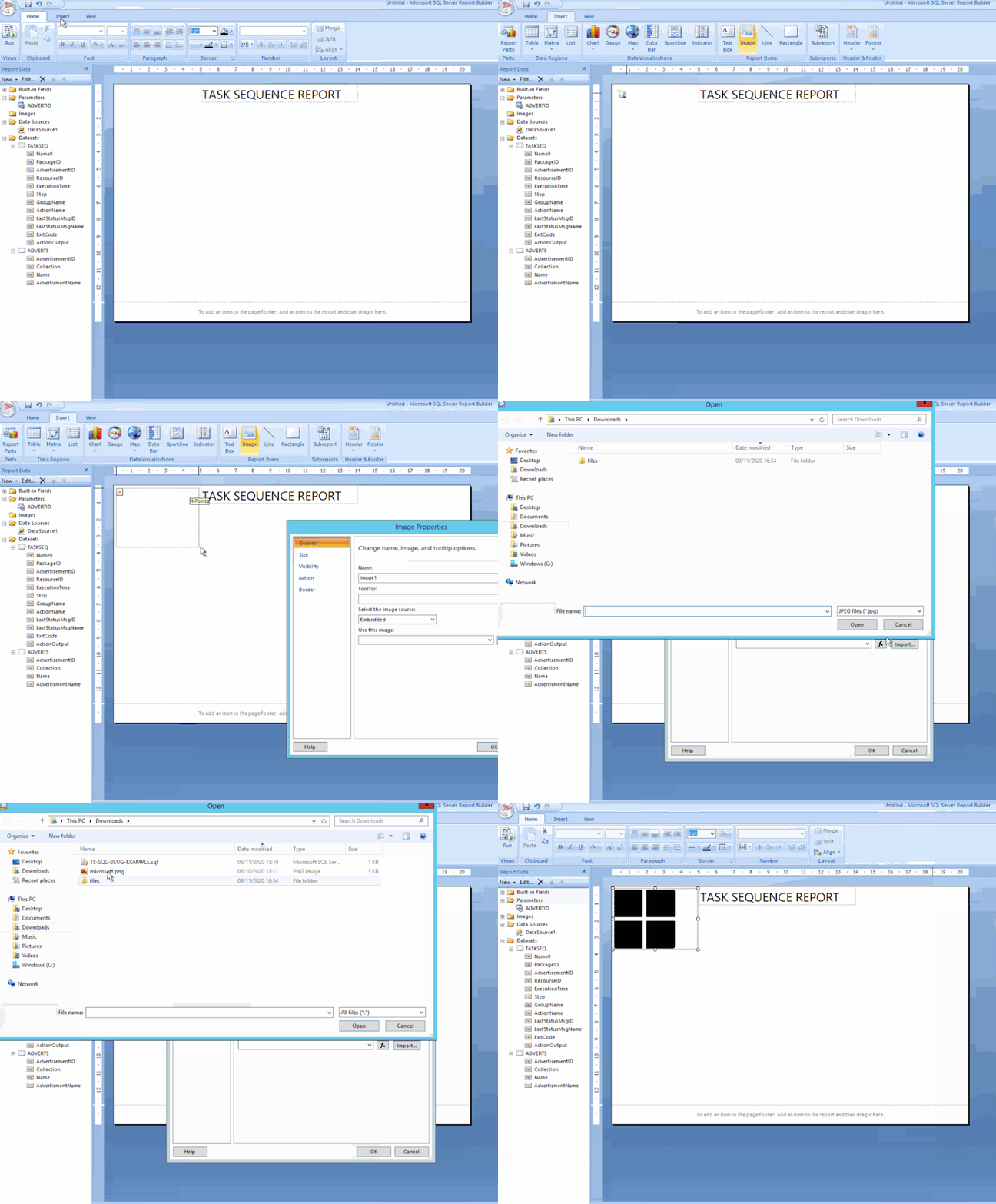
 

ADD-LOGO-BLOG.gif

From the ribbon Insert tab / click Image, find a space on your canvas then drag-click an area / Click Import…, choose ALL files (*.*) image types then find and add your logo / Click OK.
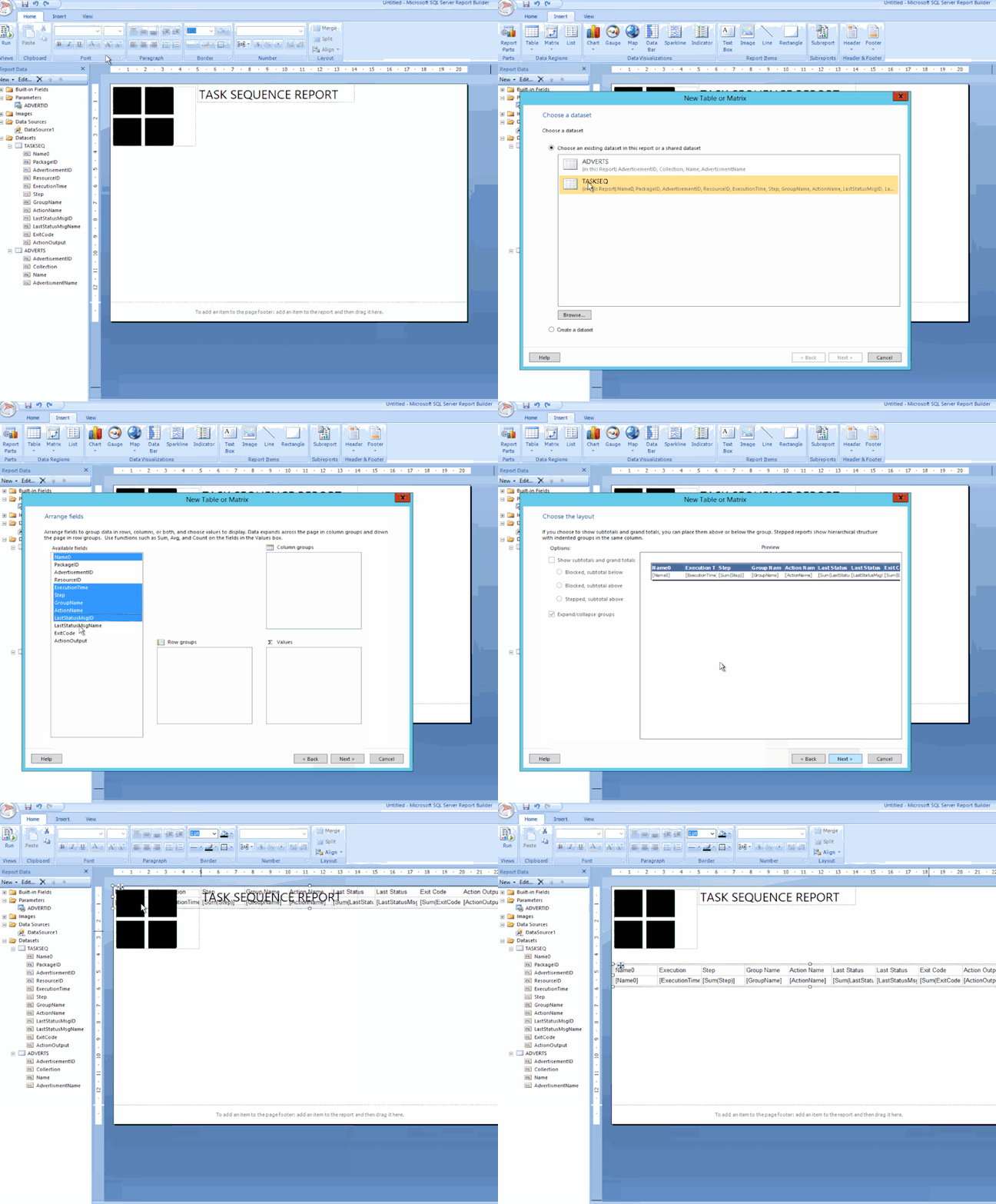
 ADD-TABLE-BLOG.gif

Next click on Table, choose Table Wizard… / Select the TASKSEQ dataset and click Next / Hold down shift key and select all the fields except PackageID, AdvertisementID & ResourceID.

Drag the highlighted fields to the Values box and click Next / Click Next to skip the layout options / Now choose the Generic style and click Finish.

Drag the table under the logo.

STEP 5 – SPIT POLISHING YOUR REPORT
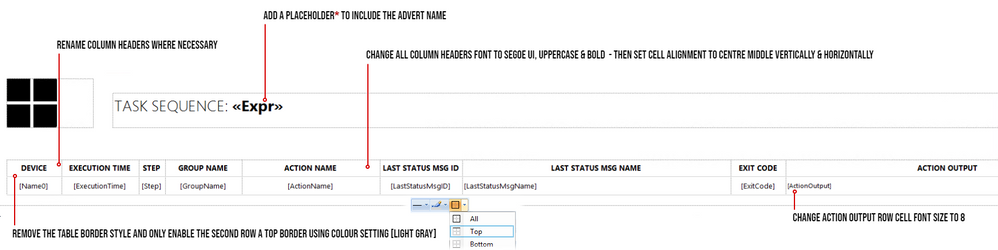
TS-SPITPOLISH-BLOG.png

A Placeholder is a field where you can apply an expression for labels or text, you wish to show in your report.

In my example, I would like to show the Deployment name which is next to the Task Sequence title:
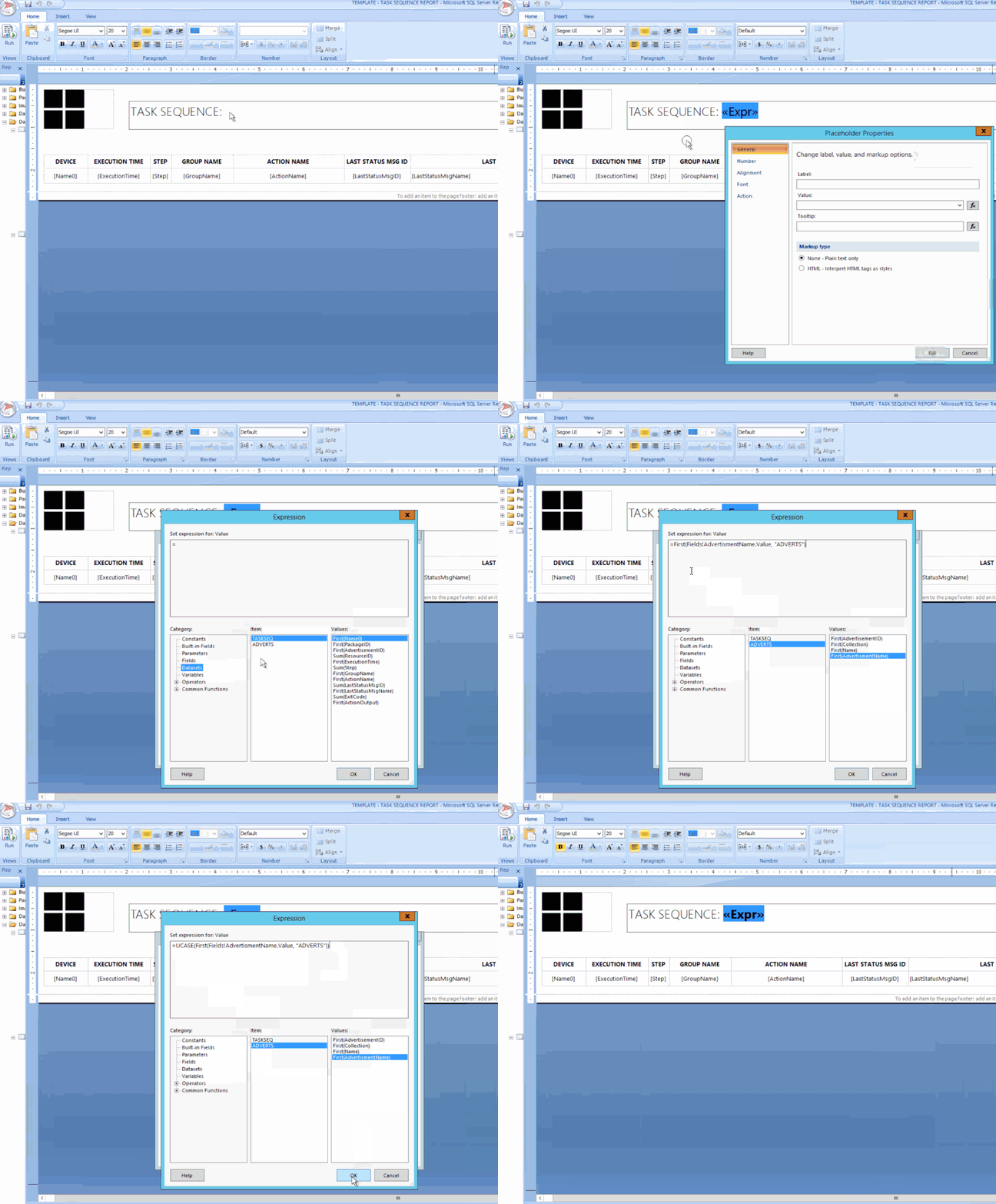
ADD-PLACEHOLDER-BLOG.gif

In the title text box, right-click at the end of the text TASK SEQUENCE: / Click Create Placeholder… / under Value: click on the fx button / click on Datasets / Click on ADVERTS and choose First(AdvertisementName).

Finally, I wanted the value in UPPERCASE and bold. To do this I changed the text value to: =UCASE(First(Fields!AdvertisementName.Value, “ADVERTS”)) , click on OK.

I then selected the <<Expr>> and changed the font to BOLD.

Do not forget to save your report into your folder of choice!

Once you have finished all the above settings and tweaks, you should be good to run the report. Click the Run button from the top left corner in the Home ribbon.

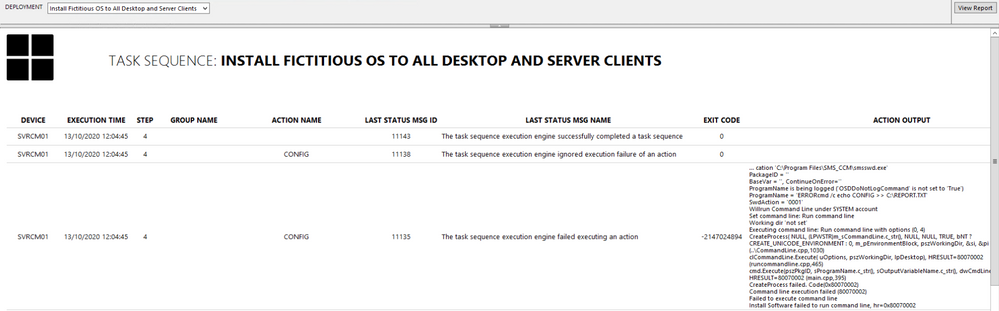
If you followed all the above step by step, you should have now a report fit for your business – this is the output after a Deployment has been selected from the combo list:
FINAL-REPORT-BLOG.png

  • To test the Action Output column, I created a task sequence where I intentionally left some errors in the Run Command Line steps, just to show errors and draw out some detail.
  • To avoid massive row height sizes, I set the cell for this column to font size 8.
  • To give it that Azure report style look and feel, I only set the second row in the table with the top border being set. You can change this to your own specification.

Please feel free to download my report RDL file as a reference guide (Attachment on the bottom of this page)

 LESSONS LEARNED FROM THE FIELD

  • Best advice I give to my customers is to start by creating a storyboard. Draw it out on a sheet of blank or grid paper which gives you an idea where to begin.
  • What data do you need to monitor or report on?
  • How long do these scripts take to run? Test them in SQL SERVER MANAGEMENT STUDIO and note the time in the Results pane.
  • Use the free online SQL formatting tools to create proper readable SQL queries for the rest of the world to understand!
  • Who will have access to these reports? Ensure proper RBAC is in place.
  • What is the target audience? You need to keep in mind some people will not understand the technology of the data.

COMING NEXT TIME…

My next blog will go into a deep dive in report design. I will show you how to manipulate content based on values using expressions, conditional formatting, design tips, best practices and much more….Thanks for reading, keep smiling and stay safe!

DISCLAIMER

The sample files are not supported under any Microsoft standard support program or service. The sample files are provided AS IS without warranty of any kind. Microsoft further disclaims all implied warranties including, without limitation, any implied warranties of merchantability or of fitness for a particular purpose. The entire risk arising out of the use or performance of the sample files and documentation remains with you. In no event shall Microsoft, its authors, or anyone else involved in the creation, production, or delivery of the files be liable for any damages whatsoever (including, without limitation, damages for loss of business profits, business interruption, loss of business information, or other pecuniary loss) arising out of the use of or inability to use the sample scripts or documentation, even if Microsoft has been advised of the possibility of such damages.

Matt Balzan | Modern Workplace Customer Engineer | SCCM, Application Virtualisation, SSRS / PowerBI Reporting

Developers Guide to AI

Developers Guide to AI

This article is contributed. See the original author and article here.

Artificial Intelligence (AI) is driving innovative solutions across all industries, but with machine learning (ML) applying a paradigm change to how we approach building products, we are all exploring how to expand our skill sets and enhance our applications.  

In this session we  won’t be able to teach you how to become a data scientist. But in this on demand session you can spend  3 hours, showing you how to build on your current developer skills to integrate AI services into your business applications and also set you up on your journey to become certified in AI Fundamentals.  

During the session we will show you interesting technology through the lens of real business scenarios and to do that we would like to introduce you to Tailwind Traders. Tailwind Traders is a retail company looking for support on how to benefit from applying AI across their business. In ‘Developers Guide to AI’ we will show how Tailwind Traders have solved business challenges and implemented AI technologies. 

In this online learning series and associated Microsoft Learn learning paths you will see a wide range of examples: dealing with different types of data (text, audio, image, unstructured), sharing best practices around unstructured search and conversational AI or taking your next step in learning more about machine learning theory with low code solutions. 

Session Content

Introduction  Introduction to the show and what we want people to achieve. 
Introducing Computer Vision for Automation in Changing Times  Cognitive Services: Computer Vision 
Interview: Willem Mentis (Global AI Community, AI MVP)  Working with Computer Vision technologies in the real world 
Extracting Value from Text and Audio to Inform Business Strategy  Cognitive Services: Text and Speech 
Interview:  James Mann (UK) AI MVP   Working with Text data and extracting insights 
Making Sense of your Unstructured Data with AI  Azure Cognitive Search  
Interview: Kokila Katyal (BP) / Adelina Balasa (Microsoft)   Unstructured search in the real world 
Improve Customer Engagement and Productivity with Conversational AI  Microsoft Bot Framework Composer + LUIS + QNA Maker 
Interview: Product Group – Senior PM Microsoft Bot Composer Team Gary Pretty  Conversational AI, Bot Framework, and the future of this space 
Start Building Machine Learning Models Faster than You Think  Azure Machine Learning Designer 
Interview: Marta Rodriguez Martinez lead data science coach at WhiteHat  Getting started on your data science journey.  
Q&A / Summary Session   All guests back on for live Q&A 
Close    More details on MS Learn and Certification 

On Demand Session 

Resources & Links from the session.


How the pandemic has impacted well-being at work

Since the world shifted to remote work research shows there are some bright spots. People cite flexibility and greater empathy for team members. 62% of people surveyed said they feel more empathetic toward colleagues now that we can all see into each other’s lives at home. On the other hand, there are concerning trends… We’re eroding the social capital built over decades around water coolers and in hallways leading to loss of connection and feelings of isolation. People are working longer hours – leaving them feeling depleted with the biggest increases in Teams usage outside the typical 9-to-5 workday and on weekends. Workday length increased 17% in Japan, 25% in the U.S., and 45% in Australia. One third of remote workers say the lack of separation between work and life is negatively impacting their well-being and more than 30% of information workers and first line workers say the pandemic has “somewhat” or “significantly increased” their sense of burnout. But, 70% of people also indicate that meditation could help decrease work-related stress. It’s clear that people want to do great work. The big question: How can technology help?

You might also enjoy:

Microsoft Teams

Access Your Desktop And Applications From Anywhere

Access Your Desktop And Applications From Anywhere

This article is contributed. See the original author and article here.

If you are as interested in Windows Virtual Desktop and many are, Christiaan Brinkhoff does a complete walk through of how to prepare and deploy Windows Virtual Desktop. At this point, this is the best place for how to build it from the ground up: https://www.christiaanbrinkhoff.com/2020/05/01/windows-virtual-desktop-technical-2020-spring-update-arm-based-model-deployment-walkthrough/

I used this post back in early May as a guide, following it step-by-step, and found it to be very effective. Christiaan talks about the why and how and has a fantastic viewpoint (and is connected to the product).

For more information or assistance on deploying Azure virtual desktop for your business contact us.

Top 5 Security Questions Asked by our US Government Customers for Microsoft Teams

Top 5 Security Questions Asked by our US Government Customers for Microsoft Teams

This article is contributed. See the original author and article here.

Mission-security-Banner (1).jpg

Interview with Nolene LaNeve, Teams Engineering Senior Technical PM around Security in Teams

This past summer was extremely busy for the Microsoft Teams Engineering team, especially in the US Government space. They helped customers with a record number of net new deployments in the M365 US Gov Clouds; GCC, GCC High and DoD. End users wanted to collaborate with outside agencies but in a way that meant their data was secure. IT Admins wanted to know which configuration options best fit their organization’s security posture. CIO‘s wanted to lean in and give their workforce the best in class technology, all while following US Government accreditation standards. The common theme in most questions asked by our customers was around security. We recently sat down with @NoleneSLaNeve , a Senior Technical Program Manager and all-around security expert from Microsoft Teams Engineering and asked her what are the top 5 security questions asked by our US Government customers for Microsoft Teams. After all, Nolene helped some of our larger Federal Agencies successfully deploy Teams and is known to many as the call quality expert. Interview by Rima Reyes. 

1. File Sharing in a Team

Question: “How can I securely collaborate and share files with other trusted organizations inside of a Team?” 

Answer: “The best and fullest collaboration experience in Teams is called Guest Access. Essentially, Guest Access allows your organization’s users to collaborate with trusted people outside of your organization on documents, tasks, channels, conversations, and other resources within a Team. When someone outside of your organization is added to a Team, this person is called a Guest. Guest users even have a richer experience in Teams chat! Before anyone can add a Guest to a Team, your IT Admins will need to configure a few things first in Azure Active Directory, the M365 Admin Centerthe SharePoint Admin Center and finally the Teams Admin Center. (Everything foGuest Access is off by default.) What’s great about these configuration options is that it really gives IT Admins the power to ‘dial things up or down’ based upon how much you want (or don’t want) to share and with whom exactly your organization wants to share with. A great example of wheGuest Access is appropriate is during mission focused activities, like coordinating with local authorities during a natural disaster or when multiple agencies need to be involved for a policy review. Another thing to note is that Guests in Teams are covered by the same compliance and auditing protection as the rest of Microsoft 365 and come with the added benefit of being centrally managed in Azure Active Directory.” 

US Gov Cloud Caveats: “Guest Access for Azure AD and Teams is available in GCC. GCC High and DOD will have Azure AD and Teams Guest Access capabilities in the future (allowable only per the accreditation guidelines). 

Resources/Screenshots:  

2. External Access with Whitelisted Domains

Question: What is the best way to chat with another trusted organization in Teams without having to share files? 

Answer: “If your organization just wants to chat with people outside of the organization, then configuring External Access would be key. External access is a way for your users to find, call, chat, and set up meetings with external domains in Teams. You can also use External Access to communicate with outside users who are still using Skype for Business (online and on-premises). External Access is a great way to start figuring out what cross-government agency collaboration looks like. It’s so lightweight and easy since no file sharing is at play here. IT Admins have the power to configure who they want their organization to talk to (or not talk to) all through the Teams Admin CenterExternal Access is also useful for government agencies with a small subset of users who happen to be in a location that has extremely low bandwidth (think being in the middle of a forest somewhere) and must still use Skype on Prem. External Access allows for these two entities to talk to one another even while in the same organization.” 

US Gov Cloud Caveats: “GCC & GCC High users can setup External Access with each other and with organizations in Commercial. DOD agencies can setup External Access with each other only.” 

Resources/Screenshots:  

3.Teams Encryption

Question: How is content encrypted in Teams? 

Answer: “Teams data is encrypted in transit and at rest. Microsoft also encrypts all of the data going between a user’s device and when it finally lands in a Microsoft datacenter. (Even between datacenters too!) Compliance data is also encrypted at rest in Microsoft datacenters, but it is done so in a way that allows organizations to decrypt the content if needed for compliance reasons, like running an eDiscovery case. The type of encryption that Teams uses for all chat messages are TLS (Transport Layer Security) and MTLS (Mutual Transport Layer Security). FYI, TLS and MTLS protocols provide encrypted communications and endpoint authentication on the internet. Teams media content uses a type of network protocol used for delivering audio and video called RTP (Real-time Transport Protocol) and SRTP (Secure RTP) to encrypt media traffic. When it comes to how other content in Teams is encrypted, remember that files are stored in SharePoint and are backed by SharePoint encryption. Notes are stored in OneNote and are backed by OneNote encryption. The OneNote data is stored in the team’s SharePoint site. IT Admins should become really comfortable with managing the other services in M365 as well since Teams works in partnership with SharePoint, OneNote, Exchange, and more…” 

Resources/Screenshots: 

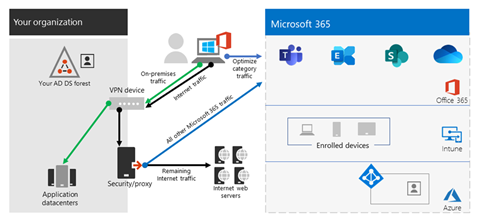
4. VPN Split Tunneling

Question: Why is VPN split tunneling important for just Teams media traffic? How can US Gov organizations champion for this change? 

Answer: “This is the question asked the most by our US Government customers. Most organizations we talk to think that they have to be the ones encrypting all traffic and content over the VPN but in actuality that’s not the case, especially when Microsoft is already encrypting the content for you. (There is no value in double encrypting each packet of data.) In fact, many organizations run their Teams media traffic over the VPN as well causing it to crumble and all but ensuring a poor user experienceLet’s envision an example of how VPN tunnels work. Imagine a 2-lane road. Rush hour has just started so more and more cars are occupying this 2-lane road. The more cars, the slower everyone will move along the road. Cars represent packets of data. If there are too many cars on the road, other important traffic can’t get through. That’s why it’s important for traffic that doesn’t have to be encrypted by the customer’s network be moved off the VPN, like Teams media traffic since it’s encrypted anyway. Split tunneling VPN traffic enables segmenting traffic to be egressed to Office 365 via a direct Internet connection. My team always recommends that at a minimumorganizations enable split-tunnel VPN for Teams media traffic to reduce VPN load. This ensures a high-quality experience for all media scenarios within Teams (and much happier end users with less help desk tickets). Teams Engineering made sure it was easier for customers to implement this since Teams only uses 4 UDP ports and 3 IP ranges for media traffic. In other words, its much easier to split out media traffic and take Teams media traffic off the VPN! Remember, we aren’t saying to remove all M365 traffic off the VPN, just Teams media traffic.” 

Resources/Screenshots: 

Picture1.png

 5. Meeting Security

Question: How can customers be assured they know who is in their meetings and not have any ‘uninvited guests’? 

Answer: “Ever host an event where unexpected folks showed up and no one was checking their invites at the door? Sam‘s 3rd cousin Vinny happened to hear about your party from his great aunt Myra. How did that even happen, right?! Teams can help you check a guest’s invite at the door before they come into the party! The Teams Admin Center has configuration controls that allow organizations to match meeting security to their specific needs.  

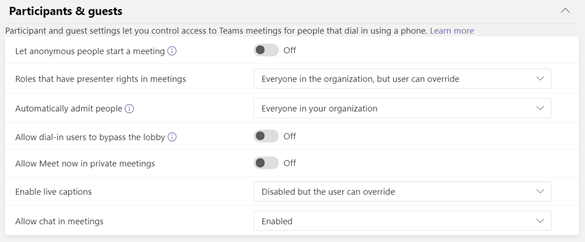
We recommend the following configuration settings for Teams Meetings with external participants 

  • In the Teams Admin Center, turn on the toggle for Anonymous Join. With this setting on, anyone can join the meeting as an outside user by clicking the link in the meeting invitation. Enabling anonymous join is only for Teams meetings and does not allow the sharing of files during a meeting with those outside of your organization. 
    • Outside Users without a Teams Account: 
      • Must enter a name before joining the meeting. 
      • Meeting chat is limited to text only. 
      • Can join via the Teams mobile app, even without an already existing account (the app just needs to be installed on the phone before clicking the meeting link). 
      • Cannot create or join a meeting as a presenter, but can be promoted to presenter after they join a meeting. 
    • Outside users with a Teams Account: 
      • Can choose to sign in before joining the meeting for a richer meeting experience. These users, if promoted to do so, can act as presenters.  
  • Think about using Azure Information Protection Labels in Outlook as an option for meeting organizers to apply classifications that do not allow forwarding of meeting invites. 
  • In the Teams Admin Center under the Meeting Policies Section, most US Gov agencies use these configuration settings…” 

 Picture2.png

US Gov Cloud Caveats: GCC and GCC High organizations can enable anonymous join to allow outside users join their meetings. DOD hosted meetings cannot be joined by users outside of the DOD. 

Resources/Screenshots: 

Deploying Teams Quickly and Securely

Bonus Question: What is the fastest way I can deploy Teams in my organization without missing anything important, all while focusing on security? 

Answer: “We know these are trying times and want to make sure everyone has the best experience when working from home or in a remote environment. We know Teams can help with that better user experience. That’s why we have catered the ‘must do’ list for deploying Microsoft Teams in your US Gov organization! Check out the resource below! 

Resources/Screenshots: 

About the Author 

nolene.JPG

Nolene LaNeve

Senior Technical Program Manager, Teams Customer Engineering

Nolene LaNeve is currently a Senior Technical Program Manager in Microsoft’s Teams Engineering Product Group. Nolene is a subject matter expert on media quality and reliability and specializes in ensuring organizations in highly-regulated industries can deploy and/or upgrade to Microsoft Teams and achieve superior media quality and reliability while maintaining necessary security requirements.

Prior to her role in Teams Engineering, Nolene was a Solutions Architect in the Skype Circle of Excellence, where she built the “Optimize Enterprise Communications” engagement and helped customers optimize their Skype for Business deployments, as well as migrate to Office 365.

Nolene came to Microsoft as a Premier Field Engineer, where she supported financial services and defense technology organizations, after being on the customer side as a lead application engineer at Raymond James Financial Services, as well as a mobility engineer at AVI-SPL.

You also might enjoy:

Sharing Azure Sentinel Workbook Data with Someone Outside the SIEM