by Scott Muniz | Jul 6, 2020 | Azure, Microsoft, Technology, Uncategorized
This article is contributed. See the original author and article here.
Today, we are announcing two new features enabling lift and shift of Always ON SQL server Failover Cluster instances (SQL FCI) from on-premises to Azure Virtual Machines: Distributed Network Name (DNN) for SQL FCI and Azure Shared Disks for SQL FCI.
SQL FCI has been commonly used for years to protect SQL Server instance in case of a failure (hardware failures, operating system failures, application, or service failures), or a planned upgrade. With SQL FCI, SQL instance will be moved to an available Windows Server Failover Cluster (WSFC) node if the current node fails, transparent to the client or application connecting to SQL Server. SQL FCI protects from failures at the instance level through redundancy and automatic failover and fairly simplifies configuration and management for High Availability.
Azure offers many capabilities for SQL Server to maximize performance, optimize cost, reduce maintenance with SQL VM Resource Provider and achieve world class security. On Azure VMs, you can leverage these capabilities by keeping full control on the platform hosting SQL Server; including control on the VM family and size, storage configuration, SQL Server version and edition, deployment options and HADR architecture.
Previously, rehosting SQL FCI on Azure had some differences compared to on-premises as it required an Azure Load Balancer for automated failover and there was no representative of SAN (Storage Array Network) type storage on Azure. With today’s announcement, both differences are addressed by offering an exact representation of SQL FCI architecture on Azure VMs.
DNN support for SQL FCI
DNN for SQL FCI is supported with SQL Server 2019 CU2 on Windows Server 2016 and later and it enables faster failover, simplifies provisioning and maintenance, and improves robustness by removing the need for an Azure Load Balancer.
Traditionally, SQL Clients leveraged Windows Server Failover Cluster Virtual Network Name (VNN) and Virtual IP access points for SQL FCI connectivity. VNN for SQL FCI provided a unified connection point and allows applications to connect to the VNN without the need to know the current active node. Since Virtual IP works different in Azure environment, you are required to configure an Azure Internal Load Balancer for automated failovers through VNN. Azure Load Balancer distributes inbound flows that arrive at the load balancer’s front end to backend pool instances which should be configured as the Azure Virtual Machines running SQL FCI nodes.
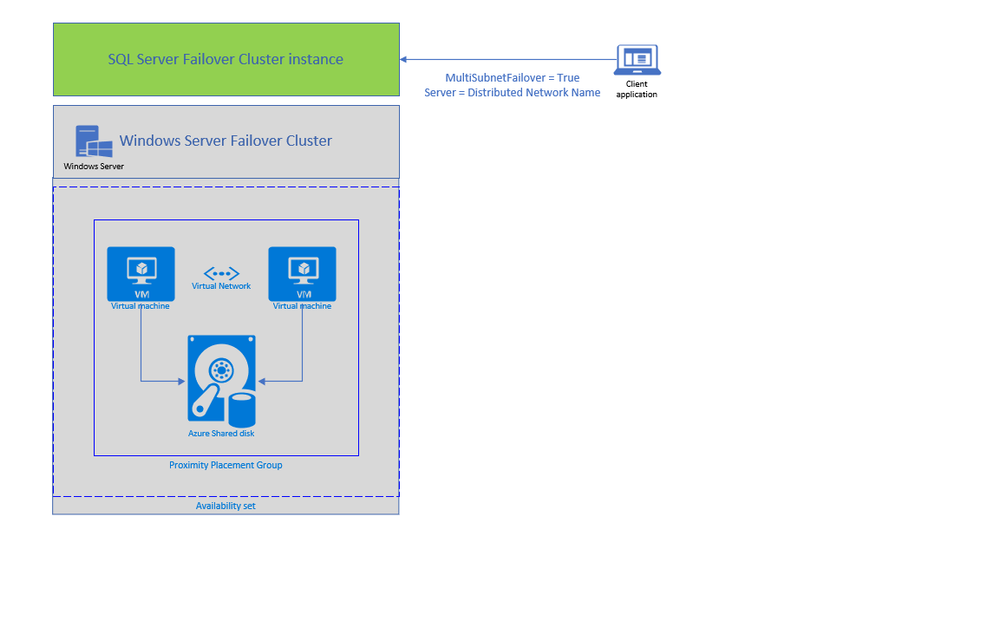
The DNN resource in Windows Server Failover Cluster provides an alternative way for SQL client to connect to the SQL FCI without an Azure Load Balancer. When a DNN resource is created, WSFC binds the DNN DNS name with the IP addresses of all nodes in the cluster. SQL client will try to connect each IP address in this list to find the active node. This connection process can be further accelerated by connecting all IP addresses in parallel with the SQL connection property “MultiSubnetFailover” is set to true, enabling SQL client to connect to the current running FCI instantly. DNN would be helpful in any environment including on-premises where IP Addresses are scarce, and you do not need to connect directly to the cluster group to manage the cluster.
You can configure DNN for SQL FCI connectivity basically in 5 simple steps as shown in the example below. First, create the DNN resource in WFCS for the resource group hosting SQL FCI (for default SQL instance group name is “SQL Server (MSSQLSERVER)”), then set the DNS Name of the DNN resource with “SQL FCI name”, and start the resource (verify owner node list for DNN resource only includes SQL FCI nodes ). At this point DNN resource will be ready to use, so restart SQL Server and update connection string to start using the DNN.
1. Add DNN resource
Add-ClusterResource -Name dnn-demo -ResourceType "Distributed Network Name" -Group "SQL Server (MSSQLSERVER)"
2. Set DNS name of the DNN resource
Get-ClusterResource -Name dnn-demo | Set-ClusterParameter -Name DnsName -Value sqlfciname
3. Start the DNN resource
Start-ClusterResource -Name dnn-demo
4. Restart SQL Server
5. Update Connection String for parallel querying of FCI nodes with Multi Subnet Failover property
Add “MultiSubnetFailover=True” property to SQL connection string and set the Server Name as the DNS name of DNN property.
You can keep using the same name for an existing SQL FCI, to do that simply:
With .NET framework 4.6.1, MultisubnetFailover support is turned on by default; no client-side change is needed if you are using 4.6.1 and higher and same SQL FCI name is used.
Azure Shared Disks for SQL FCI (Preview)
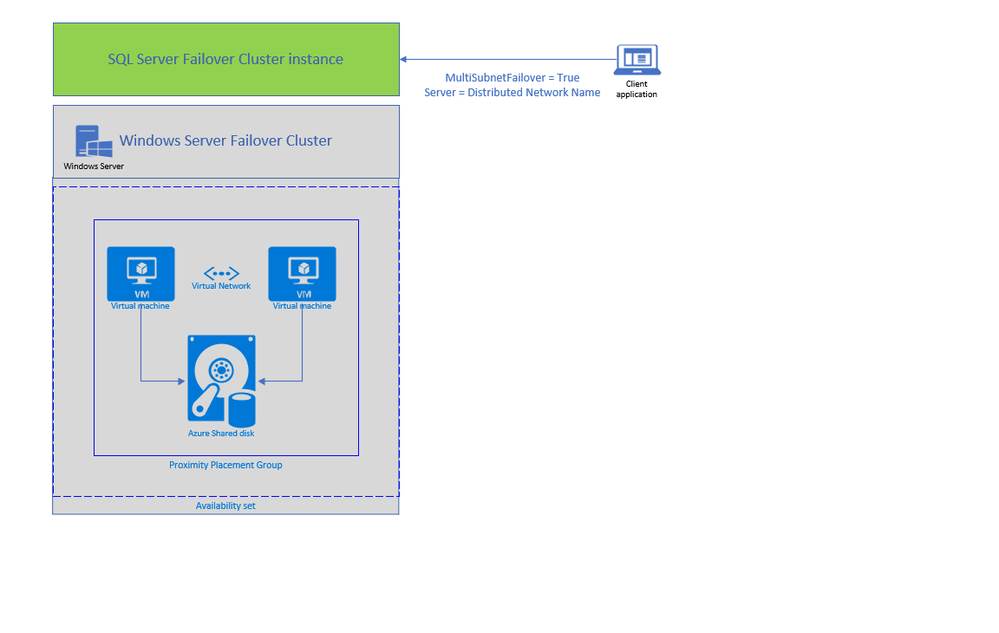
Second feature enabling lift and shift migrations of SQL FCI to Azure is Azure Shared Disks. Azure Shared disks can be attached to multiple VMs in the Windows Failover Cluster at the same time. The VM that can read or write to the disk is chosen by the Cluster service based on the SCSI Persistent Reservations (SCSI PR). SCSI PR is widely leveraged by SQL FCI running on Storage Area Network (SAN) on-premises, and Azure Shared disks enables migrating those to Azure VMs as is.
You should create the Azure Shared disks by setting “Max Shares = 2” for a 2 node SQL FCI, and then attach the disk to both SQL FCI nodes. You can use Failover Cluster Manager and present the shared disk to the cluster as Cluster Shared Volume (CSV) and then use it for SQL Server Data and Log files. Please follow this tutorial to deploy SQL FCI with Azure Shared Disks. You can use Premium SSD Shared disks with SQL FCI 2016 and higher versions, and Ultra Shared Disks with SQL FCI 2019.
To access Azure Shared Disks, both FCI nodes should be placed on the same Availability Set and Proximity Placement Group. Using the same Availability Set guarantees 99.95% HA SLA at the VM level, when one VM is down for planned maintenance the other will be available. Proximity placement groups creates a logical grouping of Azure compute resources which assures that they are physically located close to each other to achieve the lowest network latency. SQL FCI configured with Azure Shared Disks on an availability sets and PPG offers a high-performance HA solution at the instance level for mission critical SQL Server workloads.
Use Azure Migrate to migrate SQL Server workloads to Azure SQL and leverage workload optimizations and total cost of ownership savings today! Get started with a free trial or pre-configured Azure SQL images.
by Scott Muniz | Jul 4, 2020 | Azure, Microsoft, Technology, Uncategorized
This article is contributed. See the original author and article here.
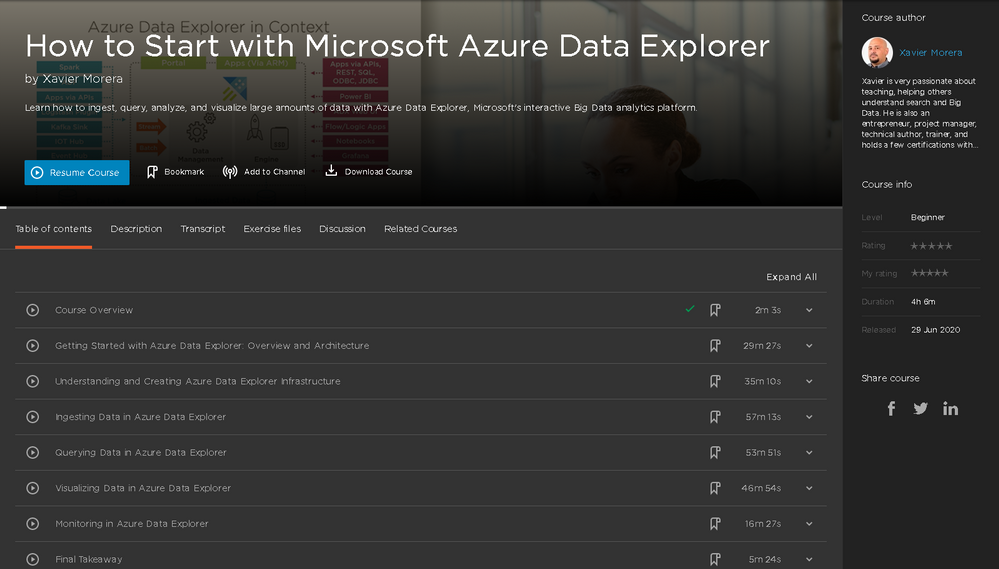
Presenting a brand-new free online course that will teach you everything you ever wanted to know about data analytics with Azure Data Explorer.
Register here to get free access.
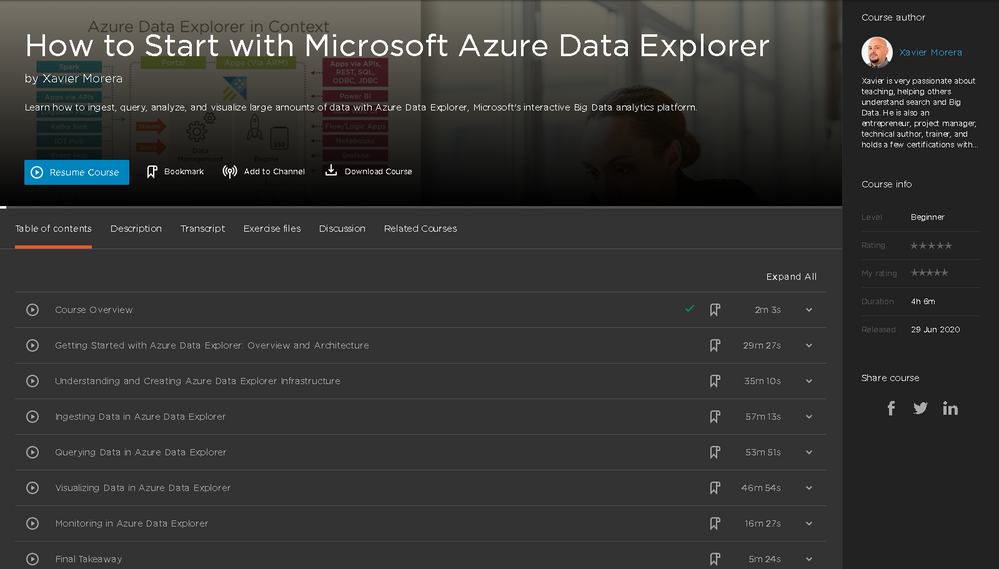
It’s long enough to give you everything you need to know about Azure Data Explorer (ADX), but broken up into bite-sized modules so you can do it at your own pace. Pick and choose your favorite topics and come back to specific topics as many times as you want. Each module is a standalone subject with an explanation, demonstration, and example for you to try at home. Do one module to refresh your knowledge of a certain subject. Do them all, and you’ll be an ADX master!
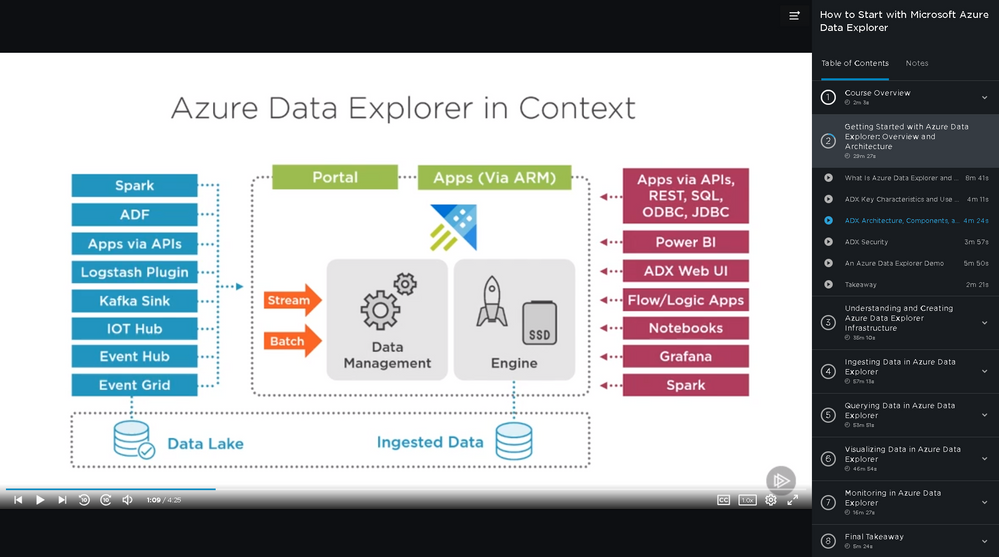
First, you will learn the basic use cases and architecture of ADX. Next, select your cluster size and define a cluster. Then you will ingest data, followed by query with the Kusto Query Language (KQL). Finally, you will explore data visualization options, monitors and alerts, and troubleshooting. When you’re finished with this course, you will have the skills and knowledge of Azure Data Explorer needed for real-time analysis on large volumes of streaming data. Four and a half hours, eight modules in total.
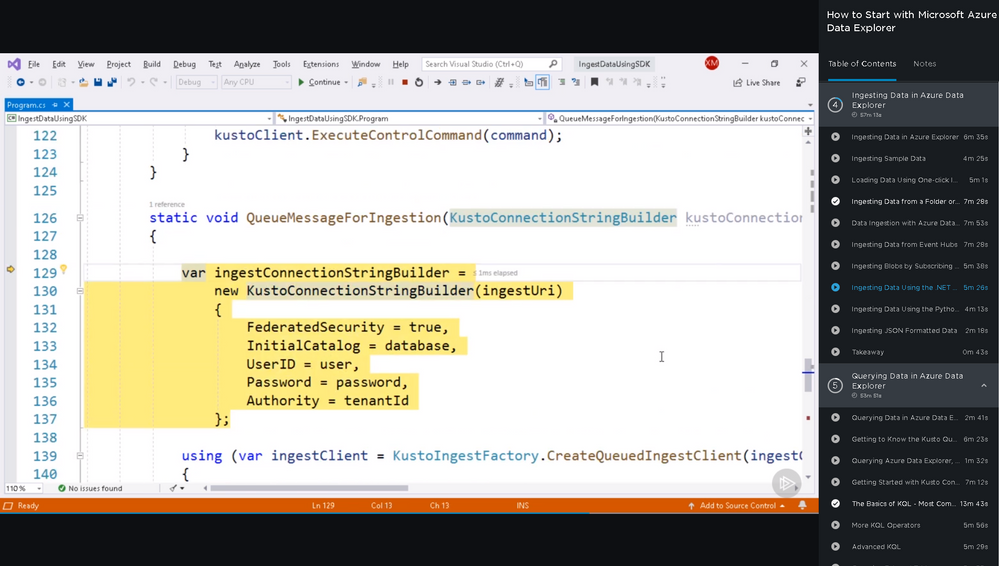
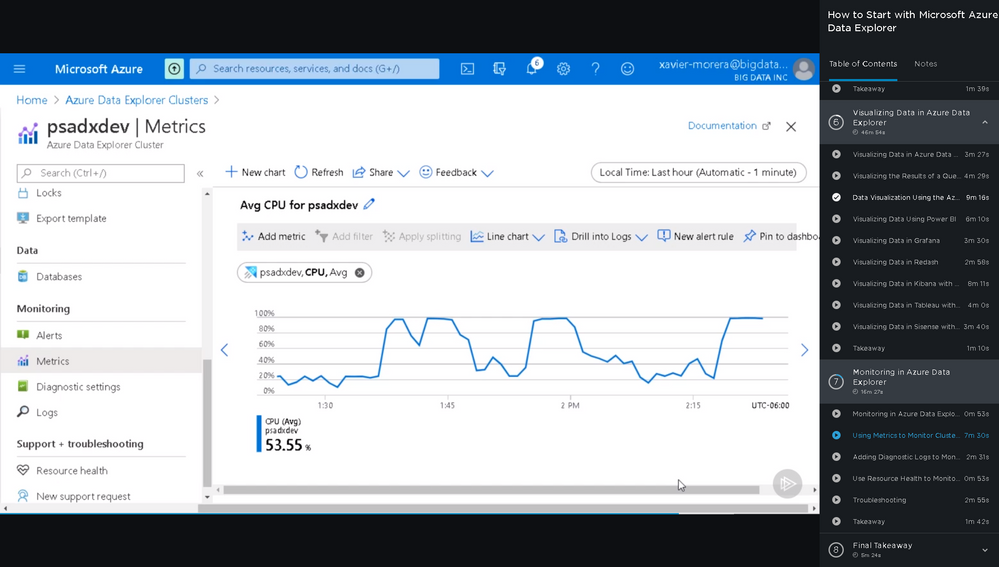
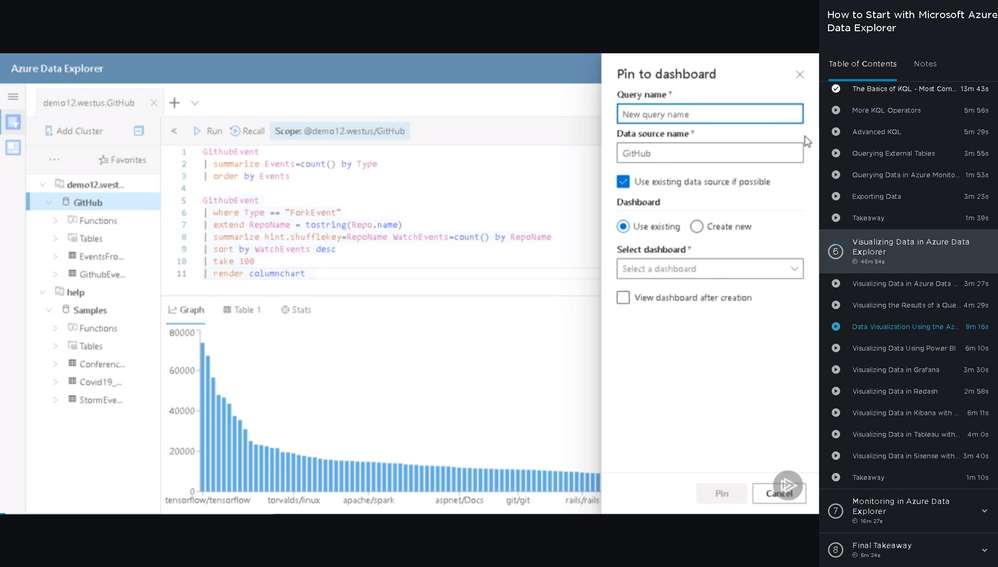
What are you waiting for?
Coming soon (August 2020), Azure Data Explorer Advanced Query Capabilities.
Already here, Basic KQL.
by Scott Muniz | Jul 4, 2020 | Azure, Microsoft, Technology, Uncategorized
This article is contributed. See the original author and article here.
In this episode of One Ops Question, Steven Murawski answers the question “What are Azure Blueprints?”
The cloud can be a scary, wide-open space. Azure Blueprints helps bring structure to your enterprise’s use of Azure subscriptions with RBAC, Azure Policy, and Resource Manager Templates in a versionable artifact.
Just as a blueprint allows an engineer or an architect to sketch a project’s design parameters, Azure Blueprints enables cloud architects and central information technology groups to define a repeatable set of Azure resources that implements and adheres to an organization’s standards, patterns, and requirements.
Azure Blueprints makes it possible for development teams to rapidly build and stand up new environments with trust they’re building within organizational compliance with a set of built-in components, such as networking, to speed up development and delivery.
Blueprints are a declarative way to orchestrate the deployment of artifacts such as:
You can quickly learn how to create and assign blueprints, how to define common patterns to develop reusable and rapidly deployable configurations based on Azure Resource Manager templates, policy, security, and more in this tutorial, you will learn to use Azure Blueprints to do some of the common tasks related to creating, publishing, and assigning a blueprint within your organization.
Check it out!
Cheers!
Pierre
by Scott Muniz | Jul 3, 2020 | Azure, Microsoft, Technology, Uncategorized
This article is contributed. See the original author and article here.
Introduction
MySQL traditionally assigns a thread for every client connection. As the number of concurrent users grows, there is a corresponding drop in performance. Many active threads can impact the performance significantly due to increased context switching, thread contention, and bad locality for CPU caches.
Thread pools which is a server side feature and distinct from connection pooling, maximize performance by introducing a dynamic pool of worker thread that you can use to limit the number of active threads running on the server and minimize thread churn. This helps ensure that a burst of connections will not cause the server to run out of resources or crash with an out of memory error. Thread pools are most efficient for short queries and CPU intensive workloads, for example OLTP workloads.
You can configure a thread pool on Azure Database for MySQL service and gain the resulting performance benefits. This blog post describes different usage scenarios and explains how to enable the thread pool on Azure Database for MySQL.
Note: Thread pool feature is not supported for MySQL 5.6 version.
When using a thread pool is most efficient
Configuring thread pools is most efficient to scale the performance for your short chatty and CPU intensive workloads, for example OLTP workloads. Following are some of the scenario where you should configure and test enabling thread pool on your Azure Database for MySQL server.
- Large number of connections: when the performance drops with the increase of number of connections but you want to have a stable and predictable throughput and latency then thread pool will be efficient for you.
- Avoid out of memory scenario: It can also be efficient to use a thread pool for scenarios in which you can’t manage the number of connections to the server directly and you want to ensure that a burst of connections won’t create database resource issues or cause a server crash because of an out of memory error.
- Sysbench testing: If you plan to perform sysbench testing to evaluate the performance and scale of your workload, you should consider enabling thread pool at higher connection scales.
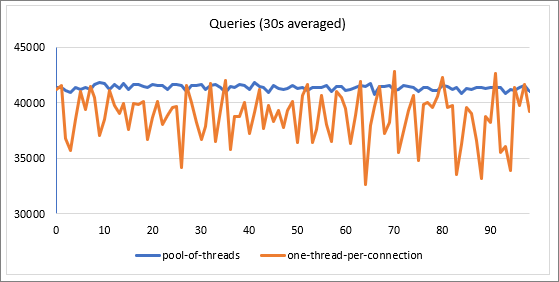
While using the thread pools with Azure Database for MySQL, we see improved and more stable performance.
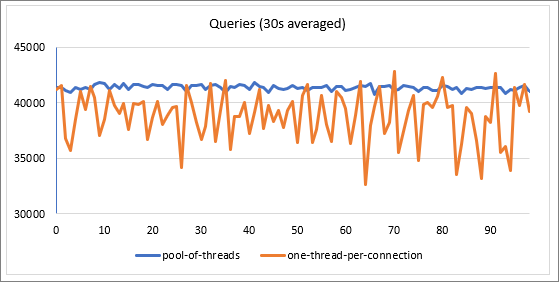
* We ran sysbench against Azure Database for MySQL running on general purpose tier with 16 vCores (GP_Gen_16) for the above test.
When using a thread pool is not as efficient
There are some scenarios in which using a thread pool is likely to be less efficient, and therefore, their use is not recommended.
- Workload experiences long periods of inactivity followed by high activity: If your workload isn’t active for a long period, then is required for short periods to process very high activity by many users, using a thread pool may not work well.
- Workload with many long concurrent and non-yielding queries: If your workload expects queries which are long running and never waits (does not indicate waits to thread pool) then the thread pool will be less efficient for your workload.
Configuring thread pool on your Azure Database for MySQL server
To enable thread pool, update the thread_handling server parameter to “pool-of-threads“. By default, this parameter is set to one-thread-per-connection, which means MySQL creates a new thread for each new connection. Please note that this is a static parameter and requires a server restart to apply.
You can also configure the maximum and minimum number of threads in the pool by setting the following server parameters:
- thread_pool_max_threads : This value ensures that there will not be more than this number of threads in the pool.
- thread_pool_min_threads: This value sets the number of threads that will be reserved even after connections are closed.
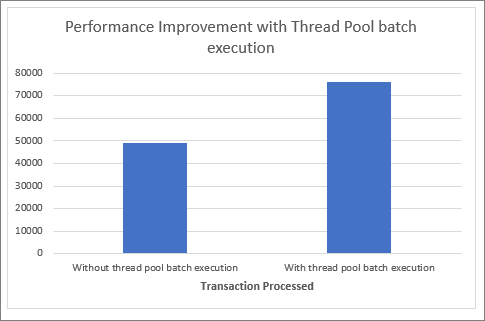
To improve performance issues of short queries on the thread pool, in Azure Database for MySQL you can enable batch execution so that instead of returning to the thread pool immediately after executing a query, threads will remain active for a short time to wait for the next query through this connection. The thread then executes the query rapidly and when finished, the thread waits for the next query, until the overall time consumption of this process exceeds a threshold. The batch execution behavior is determined using the following server parameters:
- thread_pool_batch_wait_timeout: This value specifies the time a thread waits for another query to process.
- thread_pool_batch_max_time: This value sets the max time a thread will repeat the cycle of query execution and wait for the next query
To give some estimates of the performance improvement when using batch execution feature with Azure Database for MySQL, we ran benchmark with read-only simple queries mainly hitting the InnoDB buffer pool with sysbench. The following are the observations with or without batch execution.
Disclaimer: Please test thread pool before turning it ON in production.
Please reach out to the Azure Database for MySQL team at AskAzureDBforMySQL@service.microsoft.com if you have any questions.
Thank you!
Amol Bhatnagar
Program Manager – Microsoft

by Scott Muniz | Jul 3, 2020 | Azure, Microsoft, Technology, Uncategorized
This article is contributed. See the original author and article here.

Step By Step Azure Files share SMB with native AD support and more
Robert Smit is a EMEA Cloud Solution Architect at Insight.de and is a current Microsoft MVP Cloud and Datacenter as of 2009. Robert has over 20 years experience in IT with experience in the educational, health-care and finance industries. Robert’s past IT experience in the trenches of IT gives him the knowledge and insight that allows him to communicate effectively with IT professionals. Follow him on Twitter at @clusterMVP

Struct with “main method” as an entry point
Jiří Činčura is an independent developer focusing on data and business layers, language constructs, parallelism and databases. Specifically Entity Framework, asynchronous and parallel programming, cloud and Azure. He’s a Microsoft MVP and you can read his articles, guides, tips and tricks at www.tabsoverspaces.com. Follow him on Twitter @cincura_net.

Visual Studio 2019: New Windows Terminal has arrived, how to enhance it with posh-git for GIT usage?
Anthony Giretti is a specialist in web technologies with 14 years of experience. He specializes in particular in Microsoft .NET and he is currently learning the Cloud Azure platform. He has twice received the Microsoft MVP award and he is also a certified Microsoft MCSD and Azure Fundamentals. Follow him on Twitter @anthonygiretti.

Azure: Talk about Private Links
George Chrysovalantis Grammatikos is based in Greece and is working for Tisski ltd. as an Azure Cloud Architect. He has more than 10 years’ experience in different technologies like BI & SQL Server Professional level solutions, Azure technologies, networking, security etc. He writes technical blogs for his blog “cloudopszone.com“, Wiki TechNet articles and also participates in discussions on TechNet and other technical blogs. Follow him on Twitter @gxgrammatikos.

Live Events, Whiteboards & one live OneNote
Vesa Nopanen is a Principal Consultant in Office 365 and Modern Work, and is passionate about Microsoft Teams. He enjoys helping and coaching customers to find benefits and value when adopting new tools, methods, ways of working and practices for a daily work-life equation. He focuses especially on Microsoft Teams and how it can change how organizations work. He lives in Turku, Finland. Follow him on Twitter @vesanopanen.
by Scott Muniz | Jul 3, 2020 | Azure, Microsoft, Technology, Uncategorized
This article is contributed. See the original author and article here.
System Center Operations Manager Management Pack for Azure SQL Managed Instance is now available. If you have a hybrid data environment and SCOM is your preferred monitoring solution, you can now use it to monitor your Azure SQL Managed Instances in addition to on premises SQL Servers, SQL VMs, and Azure SQL DBs.
Please download at:
Microsoft System Center Management Pack for Azure SQL Managed Instance
We released public and private preview versions earlier but this management pack is a complete overhaul to reflect the changes in both SQL MP family and managed instances. This version cannot be installed as an update to the previous versions. Please uninstall them before installing this version.
Here are some important features you should know about:
- This release provides an option to keep all deployments of Managed Instances monitored with no manual configuration. Called Automatic Discovery, this option requires you to configure the monitoring just once, instead of constantly adding new instances and removing those getting retired.
- Supported tiers
- General Purpose
- Business Critical (monitoring of Read-Scale Replicas is not supported yet)
- This release provides much wider coverage of Azure SQL Database Managed Instance features and configurations than its predecessors. Here’s a list of Managed Instance features that the management pack covers with monitoring:
- Database Engine
- Database, including DB Space monitoring
- Agent and Jobs
- Memory-Optimized Data (In-Memory OLTP)
- Failover Groups, a high availability feature of Managed Instance, including monitoring of secondary replicas
- Authentication Mode – both SQL Server Authentication and Azure AD Authentication are supported.
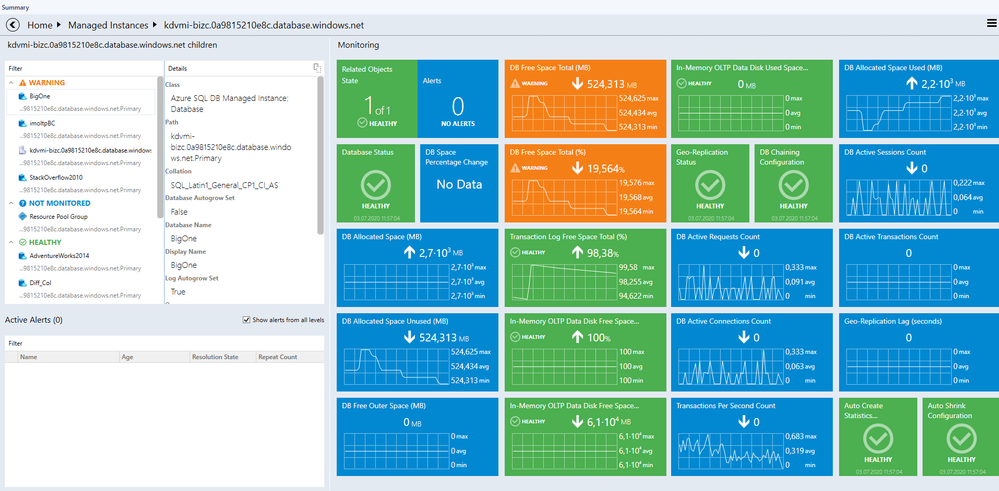
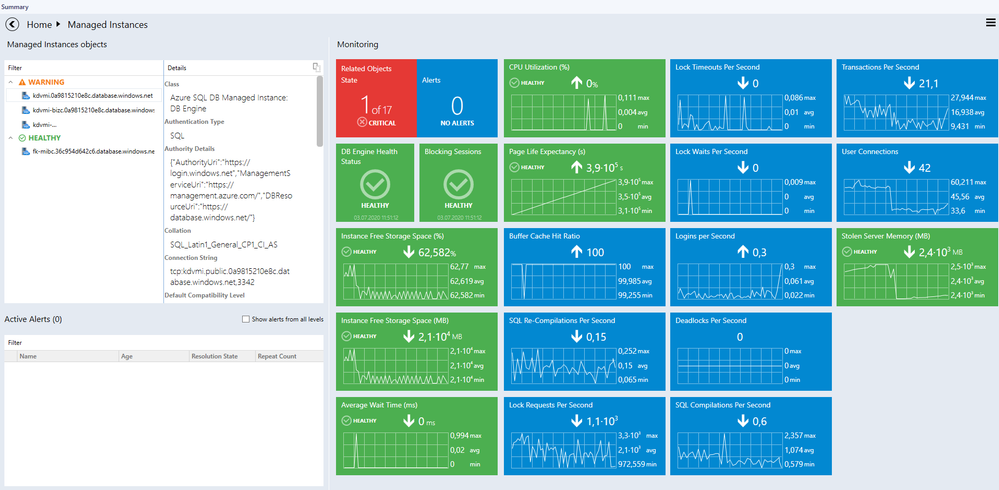
 Instance level dashboard
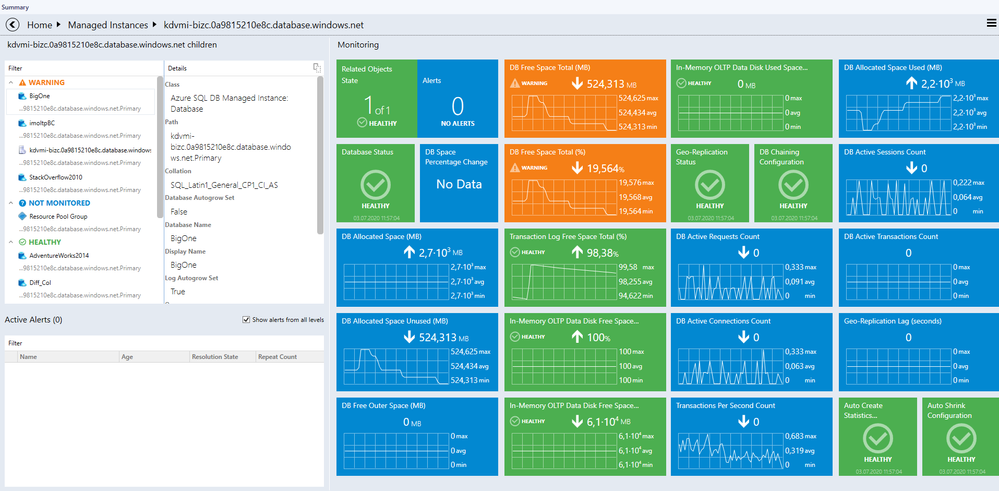
 Database level dashboard
Here is a list of changes since the April public preview (7.0.21.0)
What’s New:
- Updated monitor “Securables Configuration Status”
- Updated monitor “Job Duration” to add current job run’s duration to its alert description
- Updated UI of wizard “Automatic Discovery”
- Updated alerting rules to avoid gathering SQL Log events that happened during maintenance mode
- Updated dashboards
- Updated display strings
Bug Fixes:
- Fixed: Self-diagnostic alerting rules fire alerts for SQL Server MP log events


Recent Comments