by Scott Muniz | Jul 21, 2020 | Uncategorized
This article is contributed. See the original author and article here.
Through an integration with Microsoft 365, IT partners using SolarWinds N-central or RMM gain a singular view to help better protect and manage devices
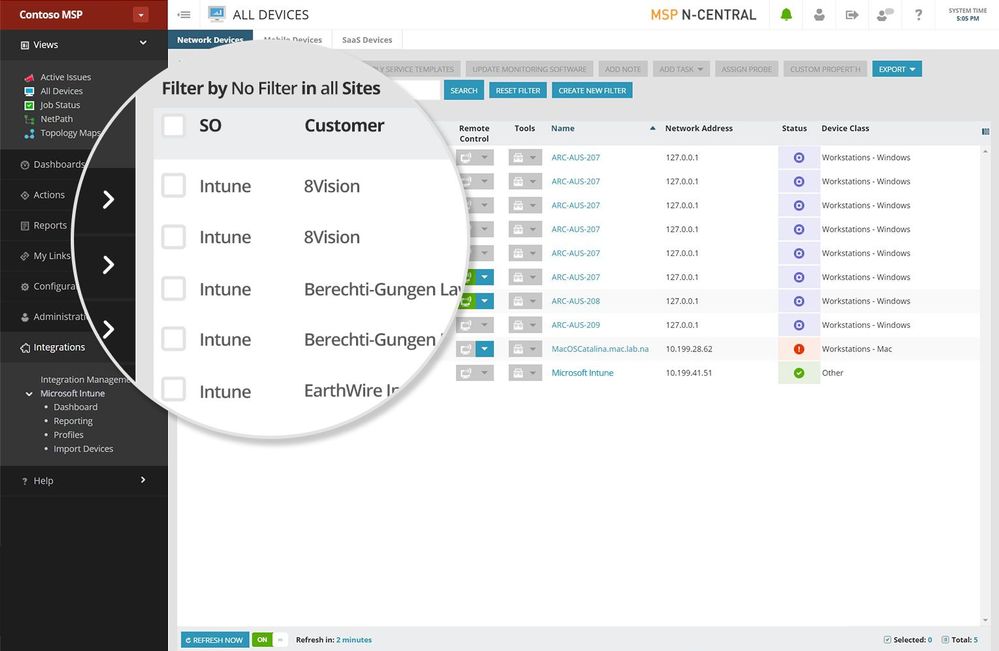
SolarWinds, a leading provider of powerful and affordable IT management software, today announced collaboration with Microsoft to integrate Microsoft 365 capabilities with their remote monitoring and management tools – SolarWinds N-central and SolarWinds RMM. This will deliver monitoring of devices managed by Microsoft Intune from within the N-central and RMM dashboards, enabling a single device view, extensive management features, and impactful reporting.
As more and more businesses have shifted to a long-term work-from-home scenario with an even greater number of devices now in the care of managed services providers (MSPs), the ability to have a single device view has never been more important. The new capabilities, which are slated to go live later this year, will enable partners using N-central or RMM who deploy subscription plans such as Microsoft 365 Business Premium to discover devices managed by Intune and monitor those devices from within the N-central or RMM dashboards. This means that the entirety of client devices will be able to be managed from a single place, with the same configuration and alerting policies, strengthening data protection and streamlining monitoring and management efficiency.
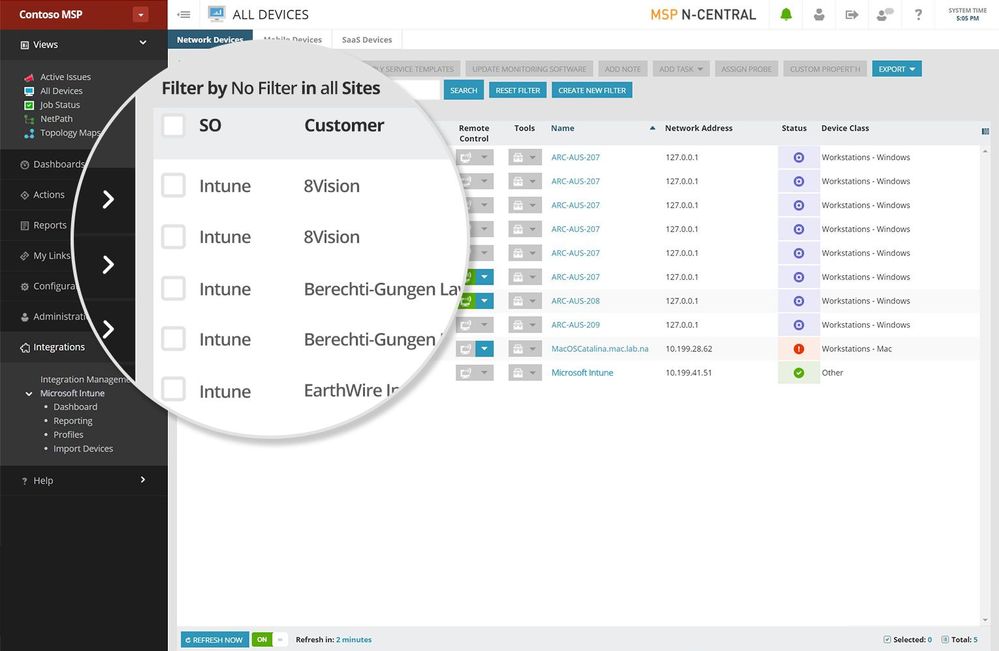 Discover devices managed by Intune and monitor those from SolarWinds N-central or RMM dashboards
Beyond monitoring, MSPs will also be able to receive notifications and alerts for all devices and pass those alerts to the professional service automation (PSA) solution, making it easier for partners to manage all their clients at scale.
“Nearly 90% of the desktop and server devices our partners manage run Microsoft software, and Microsoft 365 is the productivity suite most of them use. The ability to monitor and service devices that are managed under Microsoft Intune from right within the N-central or RMM main dashboard will be a huge productivity boost, and enable our partners to offer more comprehensive service and protection for the myriad of devices they manage.” said Mav Turner, general vice president of products for SolarWinds MSP.
“In these challenging times, small and medium-size businesses need, more than ever, to empower all their employees to work from anywhere and on any device in a secure way. Microsoft 365 integrates Office productivity apps and collaboration tools like Microsoft Teams with advanced security and device management capabilities. We collaborated with SolarWinds, a leader in the MSP software space, to make it simpler for managed service providers to secure data and devices using the security & management services in Microsoft 365.” said Nathalie Irvine, General Manager, Microsoft 365.
If you’re interested in learning more, register for this webcast from SolarWinds on Wednesday, July 29 at 10:00am EST – where specialists from SolarWinds and Microsoft will show a product demonstration and answer questions you may have.
#MSPartner
#MSInspire
————–
Frequently Asked Questions:
Q: What are SolarWinds MSP and Microsoft announcing?
A: Microsoft and SolarWinds MSP are collaborating to bring their Microsoft 365 capabilities and SolarWinds N-central and RMM platforms closer. This will enable MSPs using those remote monitoring and management products to view all the devices they monitor from their SolarWinds dashboards, whether managed with Microsoft Intune or SolarWinds solutions. This will help MSPs standardize the way they receive alerts on the health of all devices and monitor, manage, and maintain those devices. It also enables consolidated device reporting.
Q: Why are SolarWinds MSP and Microsoft doing this integration?
A: Both companies provide powerful tools to help managed services providers (MSPs) and small and medium- sized businesses (SMBs) to manage and secure their IT devices and networks. By integrating Microsoft 365 with remote monitoring and management platforms – N-Central and RMM – from SolarWinds, MSPs will be able to manage the entirety of their clients’ devices from one dashboard, increasing their efficiency and ability to keep their SMB clients secure and running smoothly.
Q: In which Microsoft 365 subscription plans is Microsoft Intune available?
A: Microsoft Intune is available as part of the Microsoft 365 Business Premium subscription plan designed for small and medium-sized businesses. It is also available as part of some enterprise, education and government focused subscription plans from Microsoft 365. More details about Microsoft 365 is available at https://docs.microsoft.com/microsoft-365/.
Q: What is SolarWinds N-central or RMM?
A: SolarWinds N-central and RMM are remote monitoring and management solutions that enables MSPs and IT professionals to maintain and secure thousands of devices from one place. They help IT professionals detect the health of workstations, servers, and other IT endpoints and proactively help ensure they are running properly and are secured with the latest software and layers of data and threat protection. Their automation capabilities and rules-based policy flexibility make N-central and RMM a key tool for both internal IT teams who want to save time to focus on strategic projects and MSPs who want to increase efficiency and take on additional clients to grow their business.
Q: Why would an MSP want both Intune and N-central or RMM?
A: Microsoft Intune, which provides capabilities for PC and mobile device management (MDM) and mobile app management (MAM), is part of Microsoft 365, and many MSPs find Intune—as well as the other components of Microsoft 365—to be beneficial to their business. Along with Intune, Microsoft 365 includes productivity apps from Office and collaboration services such as Microsoft Teams, and advanced security and device management capabilities such as Office 365 Advanced Threat Protection, Conditional Access, Data Loss Prevention, Azure Information Protection, Microsoft Defender, Windows Virtual Desktop and more.
Intune capabilities for mobile device management (MDM) complements and extends the N-central or RMM device and feature reach for service providers that have strong Microsoft 365 sales and support offerings. The integration will enable MSPs to discover clients’ Intune managed devices, bring them under a single device view, consolidate alerts from all devices on state changes to the MSP’s PSA ticketing system, and enrich their reporting information—all from their existing workflows.
Q: When will these new capabilities be available?
A: A beta version of the new capabilities will be available for SolarWinds N-central customers starting in late 2020. They’ll be inviting customers who already use Intune to test drive the new capabilities and give feedback, and they’ll be encouraging customers who have not yet tried Intune to see what it can add to their estate management capabilities.
These new capabilities are projected to be available for SolarWinds RMM solution in 2021.
Q: What will this cost?
A: The new capabilities will be included with SolarWinds N-central and SolarWinds RMM.
Q: Where can I learn more?
A: Register for this upcoming webcast from SolarWinds, where specialists from SolarWinds and Microsoft will show a product demonstration and be available to answer questions.
by Scott Muniz | Jul 21, 2020 | Alerts, Microsoft, Technology, Uncategorized
This article is contributed. See the original author and article here.
As enterprises are working to reduce their attack surface area, one area that is often overlooked is the potential database vulnerabilities and detection of anomalous activity that could indicate a sign of intrusion. In the series of blog post, we will walk you through different scenarios on, how Azure Security Center protects SQL server hosted on either Azure VMs, Azure Arc and On-prem.
Advanced Data Security (ADS) is one of many features that is included in Azure Security Center and falls under Cloud Workload Protection Platform (CWPP) capability (read this article to understand CWPP). Advanced data security for SQL machines is an extension of Azure Security Center’s advanced data security package that’s already available for Azure SQL Databases, Synapse, and SQL Managed Instances. This feature (by the time this blog was written it was in public preview) brings the same level of protection that were introduced for SQL servers on Azure VMs which includes SQL Injection vulnerabilities, brute-force against SQL credentials, and much more.
Cloud security posture management and proactive threat protection with Azure Security Center helps SOC (Security Operation Center) operators to get handle on threats and keep pace with attackers and Advanced Data Security (ADS) for SQL servers on Azure Virtual Machines, is a unified package for advanced SQL security capabilities which is in public preview at the time of this writing.
This public preview feature that was announced last year includes functionalities for identifying and mitigating potential database vulnerabilities and detecting anomalous activities that could indicate threats to your database:
- Vulnerability Assessment
- Advanced Threat Protection
Breakthroughs in big data and machine learning make it possible for Security Center to detect anomalous database access and query patterns, SQL injection attacks, and other threats targeting your SQL databases in Azure. With Azure Security Center you receive alerts on suspicious activity and recommended actions for investigating and mitigating these threats.
Advanced Data Security pricing aligns with Azure Security Center standard tier, where each protected server or managed instance is counted as one node. Newly protected resources qualify for a free trial of Security Center standard tier. For more information, see the Azure Security Center pricing page.
In this blog post, we will be covering how Azure Security Center protects SQL IaaS machines hosted on Azure.
1. SQL server on an Azure VM
SQL Server on Azure Virtual Machines enables you to use full versions of SQL Server in the cloud without having to manage any on-premises hardware. SQL Server virtual machines (VMs) also simplify licensing costs when you pay as you go. Refer this article for more understanding, plus instructions to spin the Azure SQL VM.
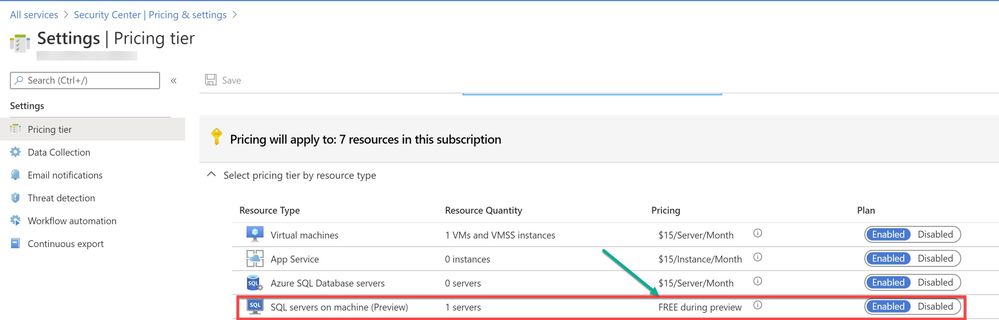
As a prerequisite, make sure the optional bundle (SQL servers on Machine) is enabled in Security Center’s pricing and settings page (Subscription) as shown in ‘Image 1’
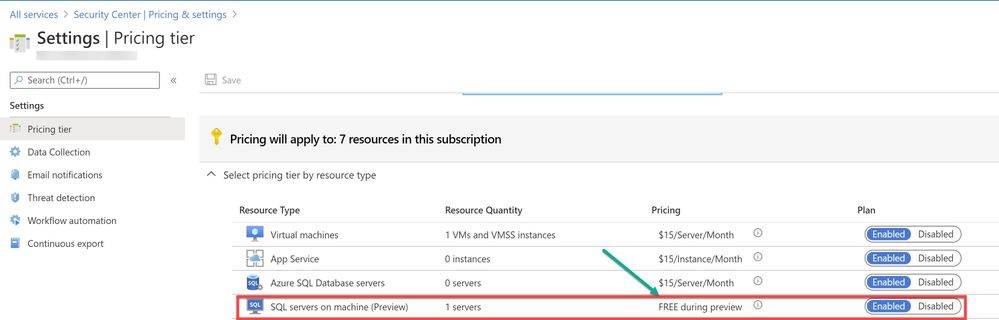
Image 1: Pricing settings in Security Center
If you have Auto-provisioning turned on (Refer, Image 2), Azure Security Center will automatically provision the Log Analytics Agent on the Azure VMs.
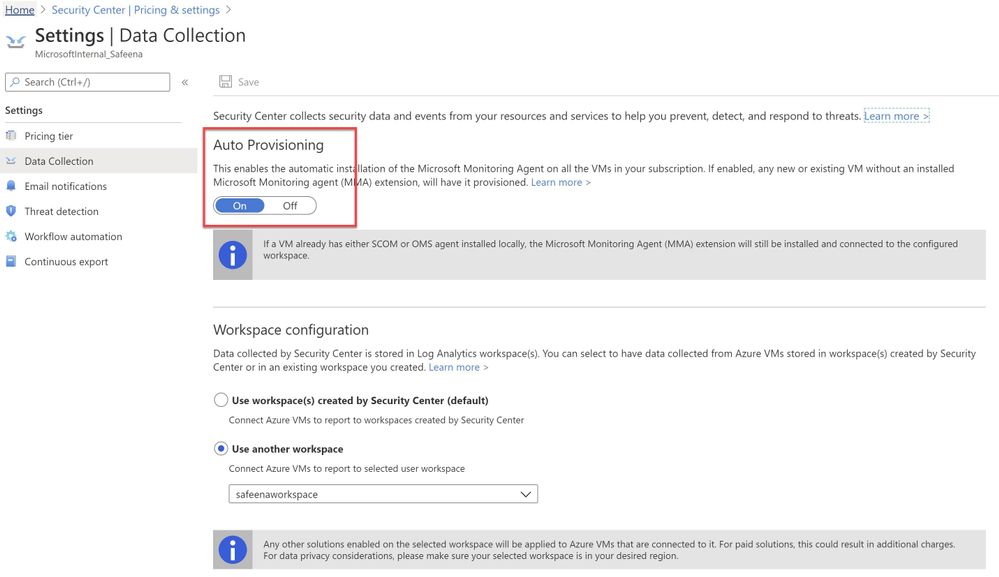
Image 2 : Auto Provisioning
In an instance where you don’t have Auto-Provisioning turned on, you would have to manually install the agent. Refer this article for step-by-step process of the installation.
You may choose to collect the data in a default workspace that Azure Security Center creates or select your own workspace. Advanced Data Security for SQL servers on machines will be enabled on all SQL servers connected to the selected workspace. The protection will be fully active after the first restart of the SQL Server.
In this sample scenario, a SQL IaaS VM (sqlserver) was provisioned. Azure Security Center installed the Log Analytics agent and started gathering data to provide security recommendations for your SQL VM under Recommendations section (as shown in ‘Image 3’). Furthermore, you can select the security option at the left pane and view recommendations from Security Center and alternatively, you may navigate to Azure Security Center for more information on a recommendation. You can enable threat protection for Azure SQL Database SQL servers at either the subscription level or resource level.
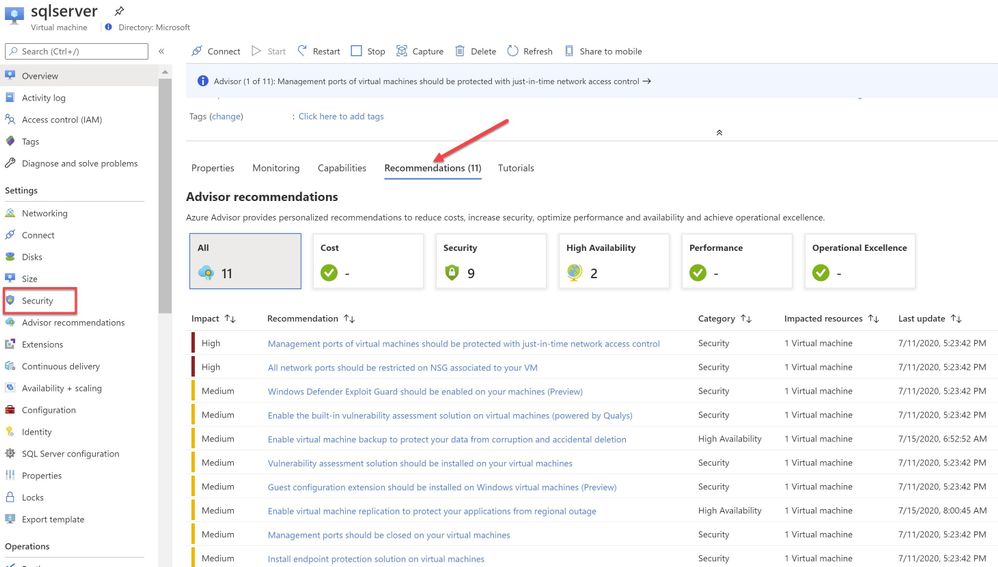
Image 3: Recommendations
You can also filter just the SQL recommendations (Data & Storage hive) from Resource security hygiene section (as shown in the Image 4)
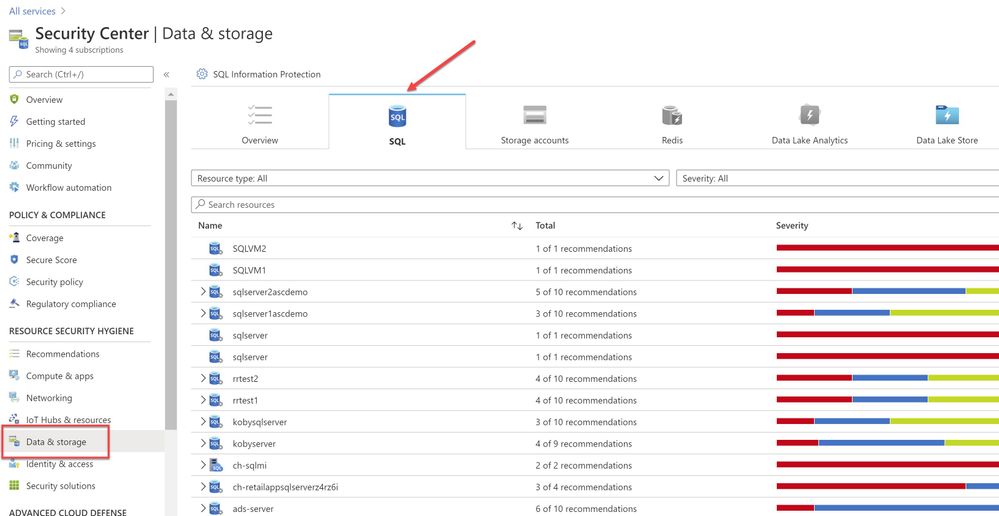
Image 4: Data & Storage
Make sure to address and review all security recommendations for the SQL databases. In my example, I have these unhealthy resources which is grouped beautifully by Severity.
1.1 Executing the Attack
Hackers are always trying to find workloads that are exposed to the Internet and databases that are very common target. As part of this type of attack, it is common to see scanning to discover public IP addresses that have SQL workloads running on it, and once they find that they will move forward to try to crack their password using different methods, such as brute force attack. “Brute Force”, which is a type of attack that attempts to calculate or guess valid username/password combinations to gain unauthorized access to a host. Oftentimes, the sheer amount of Brute Force attempts can effectively result in DDoS of the targeted system. In case threat actors can compromise the SQL database and gain access to it, they will likely find a wealth of valuable information that includes, personally identifiable information, credit card numbers, intellectual property, etc. Even if the database does not have much information, a successful attack on an insecurely configured SQL installation can be leveraged to get full system admin privileges.
For this example, a PowerShell script was utilized to simulate a SQL brute force attack against a SQL database that is connected to the Azure Security Center.
The brute force attempts occurred over TCP port 1433, which was exposed on a public facing interface. TCP port 1433 is the default port for SQL server.
Note: It is a very common recommendation to change the SQL default port 1433, this may impart a “false sensation of security”, because many port scanning tools can scan a “range” of network ports and eventually find SQL listening on ports other than 1433.
The PowerShell script used in this case is simulating the attack by trying to login with ‘sa’ account and trying with a list of commonly used password defined in the text file or the inline array of the script. (In a real-world scenario, once the attacker finds TCP/UDP ports open, it starts to brute force the login with the set of most common passwords used by database administrators to perform a successful attack)
Assuming the attack was successful, Azure Security Center was able to detect and report the attack under Security alerts dashboard as shown in the ‘Image 5’
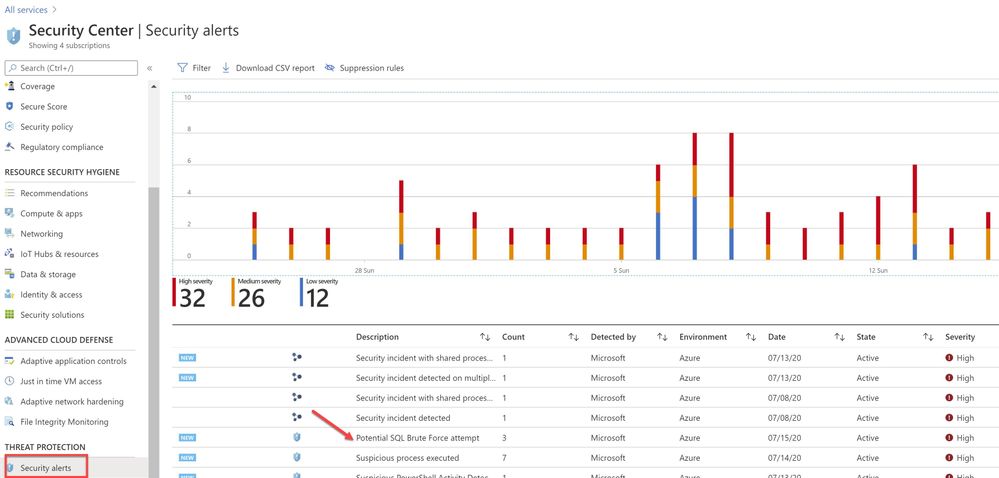
Image 5 : Security Alerts
You can further investigate the alert to view more information of the affected VM name, activity name, Environment, state of alert and more. The first step is to click on the alert itself, and see how many instances does that alert has occurred, as show in the ‘Image 6’
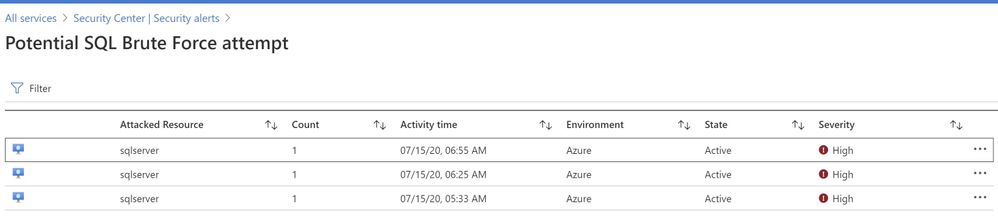
Image 6 : Brute Force attempt alert
You can further select the attacked resource to understand the extent and the details of the attack. Alert details will give you more information that could help during investigation of a security alert, such as, IP addresses, related processes, user accounts and more. ‘Image 7’ below has an example of how this looks like:
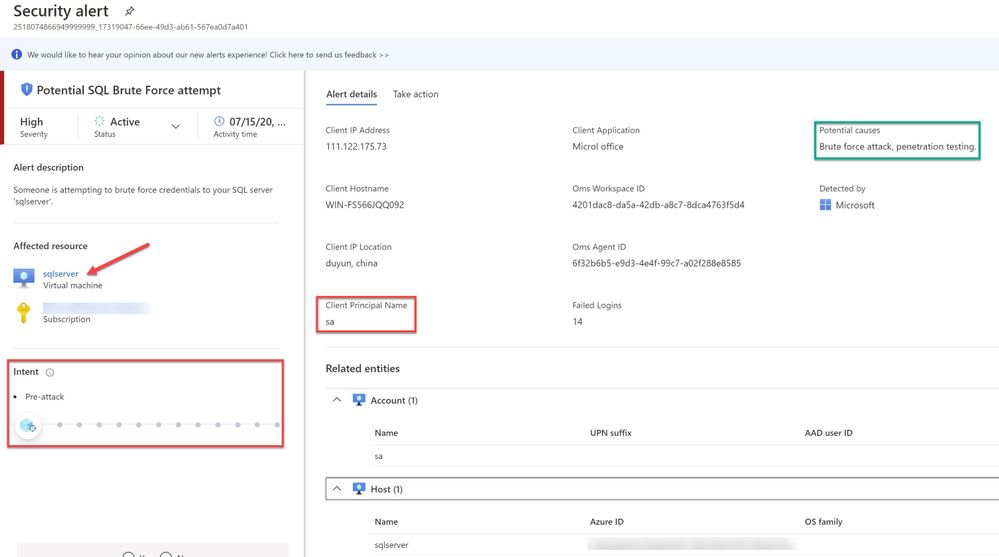
Image 7 : Security Alert details
When you further navigate to the “Take action” tab in the right pane, you can benefit from information like, remediation steps for this alert to mitigate the threat, prevent future attacks by applying the security recommendations and increase security posture.
You can create a logic app defining a workflow automation so that, when an alert is created in Security Center and if it matches the evaluation criteria that you’ve configured in an automation, then the logic app triggers. For example, you might want your Logic App to run when a security alert that contains “SQL” is generated. You can also run Logic Apps manually when viewing a security alert or any recommendation that offers Quick Fix remediation.
You will also notice the option to Suppress the future alerts with similar characteristics if the alert is not relevant for your organization as highlighted below in ‘Image 8’
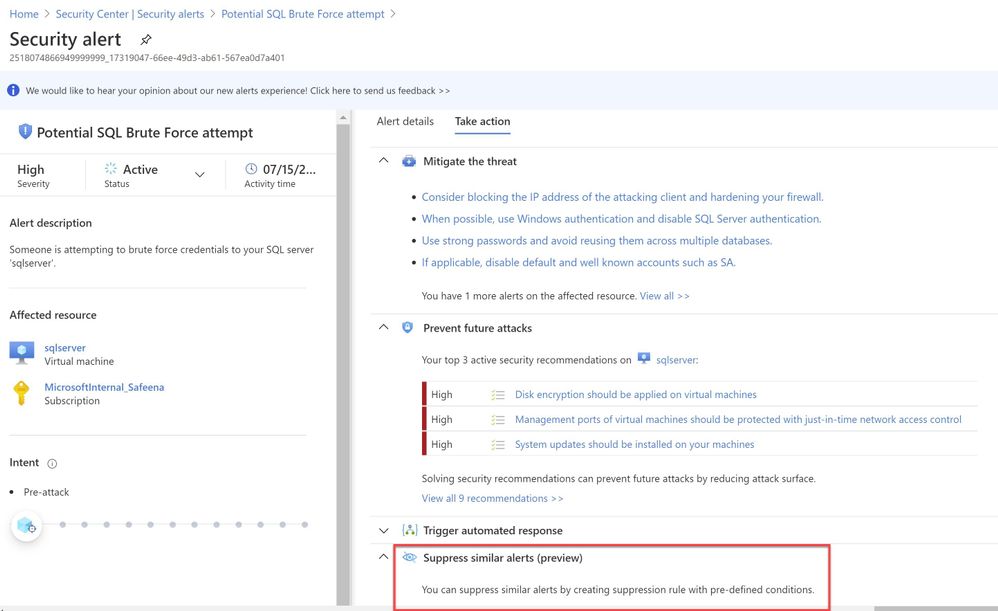
Image 8: Suppress Similar Alerts
It is recommended to configure Azure subscription(s) to receive future alerts and email notifications from Azure Security Center. Please refer to the article that explains how to configure the email settings. Below is an example of the email alert received from ASC when this SQL incident was detected:
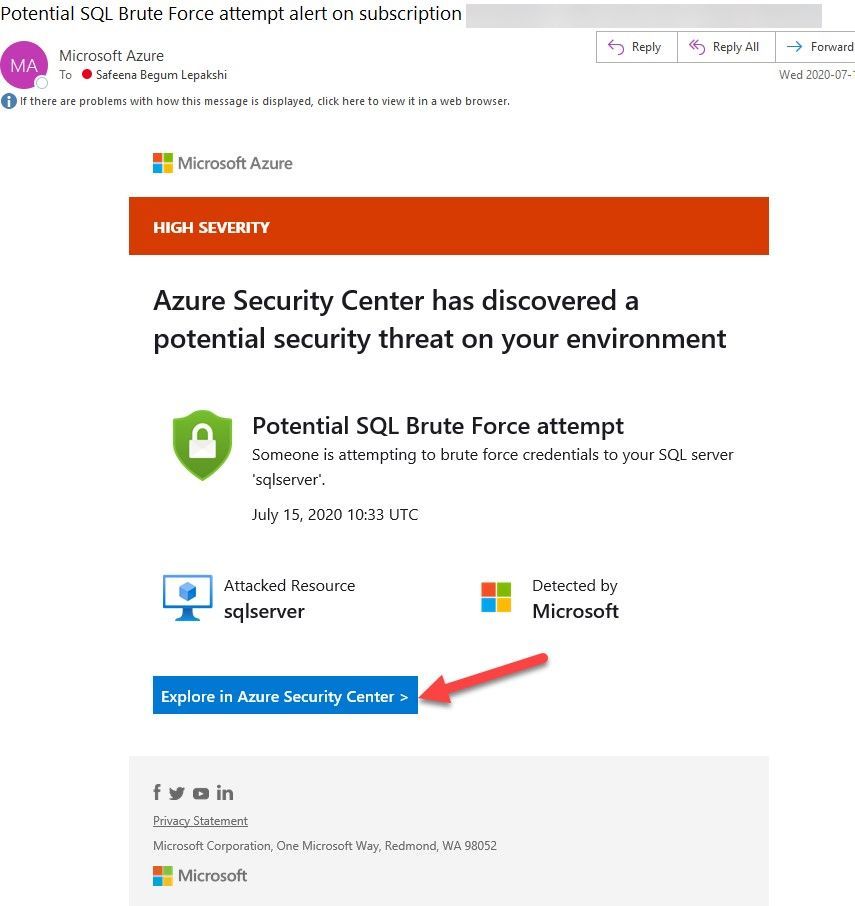
Image 9: Email Notification
In the next blog posts, we will discuss on how you can leverage Azure Security Center to protect your SQL IaaS VMs hosted on Azure Arc and On-premises. Stay Tuned!!
Special thanks to:
Yuri Diogenes, Senior PM, CxE Security – ASC Team for reviewing this post.
by Scott Muniz | Jul 21, 2020 | Uncategorized
This article is contributed. See the original author and article here.
If you see crash at the following call stack, that mostly probably is because web application is currently configured to use Legacy ASP.NET Synchronization Context, but the code is using some new features, such as Tasks (from Task Parallel Library) that require usage of what we call “Task-friendly ASP.NET Synchronization Context.” The old (Legacy) context cannot handle some asynchronous calls properly and this leads to the crash as observed in the above.
Web App Crashes frequently. Below are found in application event log each time of crash:
Application: w3wp.exe
Framework Version: v4.0.30319
Description: The process was terminated due to an unhandled exception.
Exception Info: System.NullReferenceException
at System.Web.ThreadContext.AssociateWithCurrentThread(Boolean)
at System.Web.HttpApplication.OnThreadEnterPrivate(Boolean)
at System.Web.LegacyAspNetSynchronizationContext.CallCallbackPossiblyUnderLock(System.Threading.SendOrPostCallback, System.Object)
at System.Web.LegacyAspNetSynchronizationContext.CallCallback(System.Threading.SendOrPostCallback, System.Object)
at System.Threading.Tasks.AwaitTaskContinuation.RunCallback(System.Threading.ContextCallback, System.Object, System.Threading.Tasks.Task ByRef)
at System.Runtime.ExceptionServices.ExceptionDispatchInfo.Throw()
at System.Threading.ExecutionContext.RunInternal(System.Threading.ExecutionContext, System.Threading.ContextCallback, System.Object, Boolean)
at System.Threading.ExecutionContext.Run(System.Threading.ExecutionContext, System.Threading.ContextCallback, System.Object, Boolean)
at System.Threading.QueueUserWorkItemCallback.System.Threading.IThreadPoolWorkItem.ExecuteWorkItem()
at System.Threading.ThreadPoolWorkQueue.Dispatch()
To Resolve the issue add the following in web.config:
<appSettings>
<add key=”aspnet:UseTaskFriendlySynchronizationContext” value=”true” />
</appSettings>
by Scott Muniz | Jul 21, 2020 | Alerts, Microsoft, Technology, Uncategorized
This article is contributed. See the original author and article here.
Managed Identity are automatically managed by Azure and enable you to authenticate to services that support Azure AD authentication, without needing to insert credentials into your code. You can learn more about this in the following document: how to connect with Managed Identity to Azure Database for MySQL
The blog will outline how to use Function App System Managed Identity to connect to Azure Database for MySQL.
- Step 1: Configure Azure AD Authentication for MySQL
- Step 2:Enable Managed Identity for the Function App
- Step 3: Find the Managed Identity GUID and then create a user in MySQL
- Step 4: Writing code for function app
- Step 5: Test the function app
Step 1: Configure Azure AD Authentication for MySQL
First, we need to make sure that the Azure Database for MySQL is configured for Azure AD authentication. If your server is not already configured, follow the steps in this how-to guide: Use Azure Active Directory for authentication with MySQL
Step 2: Enable Managed Identity for the Function App
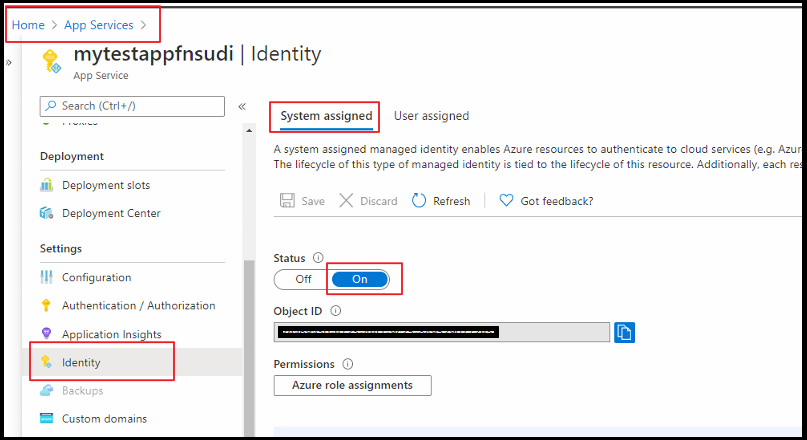
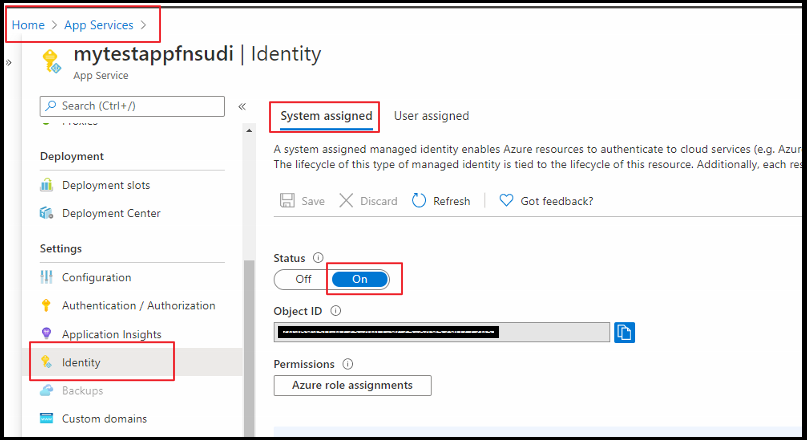
Next, enable Managed identify for a Function app. For this you need to log in to the Azure Portal and then select the Function App which you will be using. Select Identity under Settings. Change the Status to On.
Step 3: Find the Managed Identity GUID and then create a user in MySQL
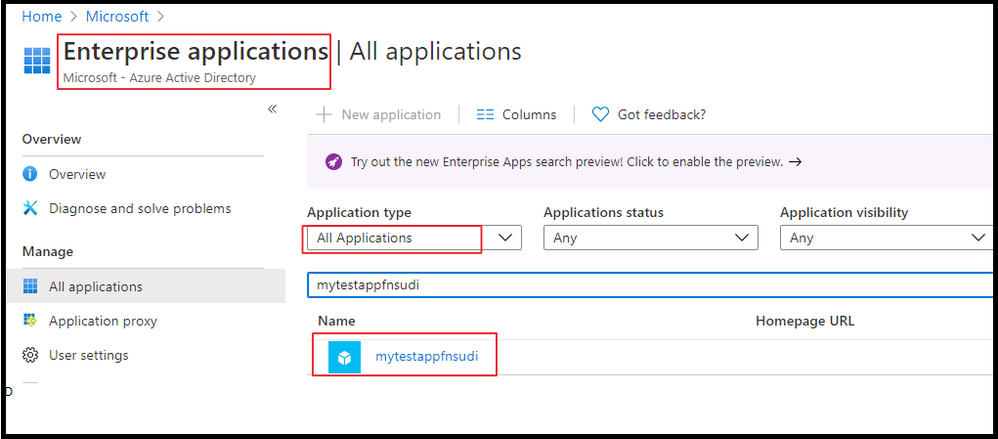
Next, create a MySQL user for your Managed Identity. For this we need to get the application ID. For that, go to Azure Active Directory from the Azure portal and then go to Enterprise Applications.
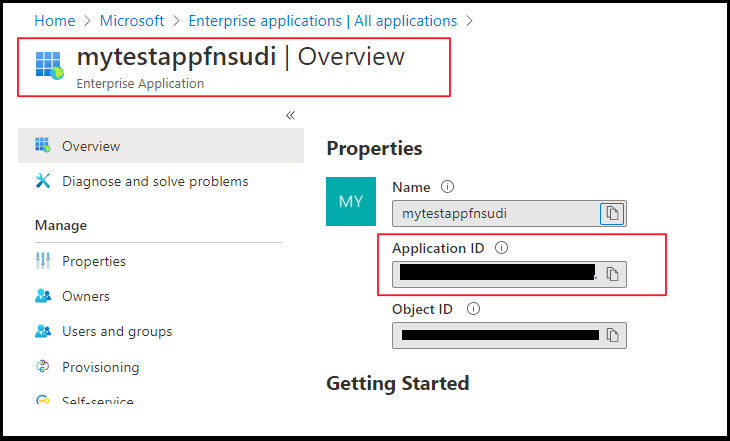
Once you select the application, you can will be able to copy the Application ID.
Once you have the Application ID, log in to Azure Database for MySQL using the AAD login and execute the below query. This query ensures the managed identity now has access when authenticating with the username myuser. Replace the Application ID (GUID) in the query with your own.
SET aad_auth_validate_oids_in_tenant = OFF;
CREATE AADUSER 'myuser' IDENTIFIED BY 'cc5e6297-6bdc-4608-9ab5-ddb0c81e2a7e';
--I would also recommend to GRANTS necessary permission in DB
GRANT SELECT, INSERT, UPDATE, DELETE, CREATE, DROP, RELOAD, PROCESS, REFERENCES, INDEX, ALTER, SHOW DATABASES, CREATE TEMPORARY TABLES, LOCK TABLES, EXECUTE, REPLICATION SLAVE, REPLICATION CLIENT, CREATE VIEW, SHOW VIEW, CREATE ROUTINE, ALTER ROUTINE, CREATE USER, EVENT, TRIGGER ON *.* TO 'myuser'@'%' WITH GRANT OPTION;
FLUSH PRIVILEGES;
Step 4: Writing code for the Function app
Next, let’s see how to get an access token using the Function app System managed identity and use it to call Azure Database for MySQL. Azure Database for MySQL natively supports Azure AD authentication, so it can directly accept access tokens obtained using managed identities for Azure resources. When creating a connection to MySQL, you pass the access token in the password field.
Here’s a .NET code example of opening a connection to MySQL using an access token. This code must run on the Function App to access the Function App system-assigned managed identity’s endpoint. .NET Framework 4.6 or higher or .NET Core 2.2 or higher is required to use the access token method.
Please note the community MySQL Connector/NET (MySql.Data)does not support cleartext plugin. You can use MySqlConnector instead.
The below is a sample code. Replace the values of “Servername”, “User”, and “Database” with your own server credentials.
using System;
using System.IO;
using System.Threading.Tasks;
using Microsoft.AspNetCore.Mvc;
using Microsoft.Azure.WebJobs;
using Microsoft.Azure.WebJobs.Extensions.Http;
using Microsoft.AspNetCore.Http;
using Microsoft.Extensions.Logging;
using Newtonsoft.Json;
using MySqlConnector;
using Microsoft.Azure.Services.AppAuthentication;

namespace myfunappmysqlapp1
{
    public static class mysqlapp
    {
        private static string Host = "<Servername>.mysql.database.azure.com";
        private static string User = "myuser@<Servername>";
        private static string mydatabase = "db";
        [FunctionName("mysqlapp")]
        public static async Task<IActionResult> Run(
            [HttpTrigger(AuthorizationLevel.Anonymous, "get", "post", Route = null)] HttpRequest req,
            ILogger log)
        {
            log.LogInformation("C# HTTP trigger function processed a request.");

            /*Gettting the Token*/
            var sqlServerTokenProvider = new AzureServiceTokenProvider();
            var SqlAccessToken = await sqlServerTokenProvider.GetAccessTokenAsync("https://ossrdbms-aad.database.windows.net");
            //log.LogInformation(SqlAccessToken); /*For troubleshooting in case you need to print the token */
            log.LogInformation("Connecting to database.");

            //
            // Open a connection to the MySQL server using the access token.
            //
            var builder = new MySqlConnectionStringBuilder
            {
                Server = Host,
                Database = mydatabase,
                UserID = User,
                Password = SqlAccessToken,
                SslMode = MySqlSslMode.Required,

            };

            using (var conn = new MySqlConnection(builder.ConnectionString))
            {
                log.LogInformation("Opening connection using access token...");
                await conn.OpenAsync();

                using (var command = conn.CreateCommand())
                {
                    command.CommandText = "SELECT VERSION()";

                    using (var reader = await command.ExecuteReaderAsync())
                    {
                        while (await reader.ReadAsync())
                        {
                            log.LogInformation("nConnected!nnMySQL version: {0}", reader.GetString(0));
responseMessage = reader.GetString(0);
                        }
                    }
                }
            }

             responseMessage = "The versions is Azure Database for Mysql is:" + responseMessage;
            return new OkObjectResult(responseMessage);
        }
    }
}
Step 5: Test the Function app
Once you publish the Application, you can test the with the following steps below.
From the Azure Portal, go to Function App you published and select Functions.
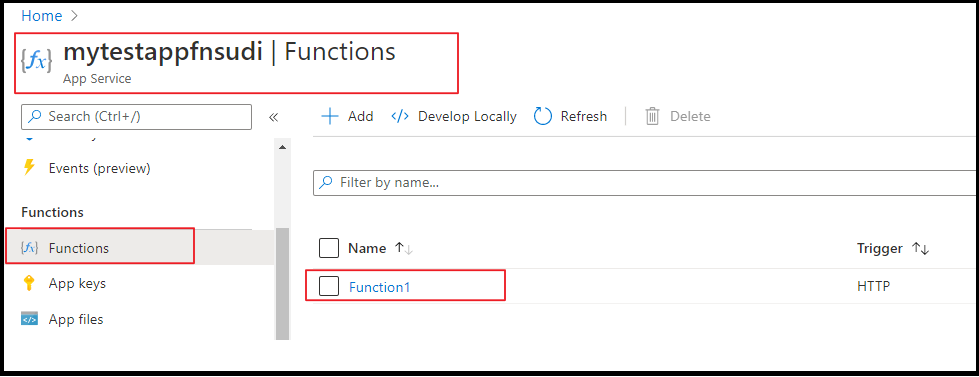
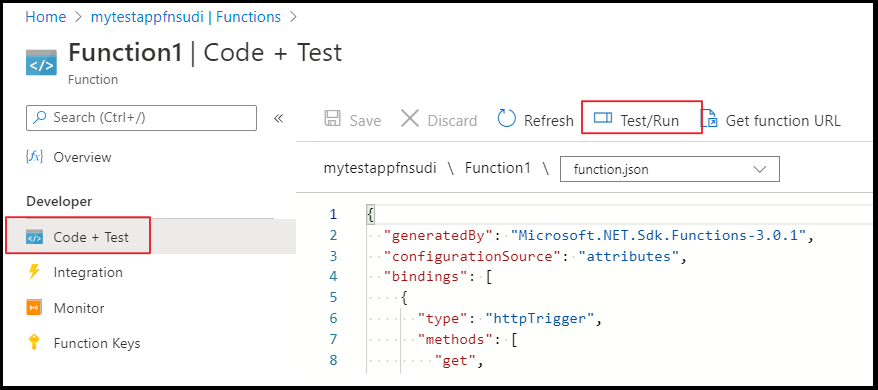
Once the Function is selected, you can select Code+Test and click on Test/Run.
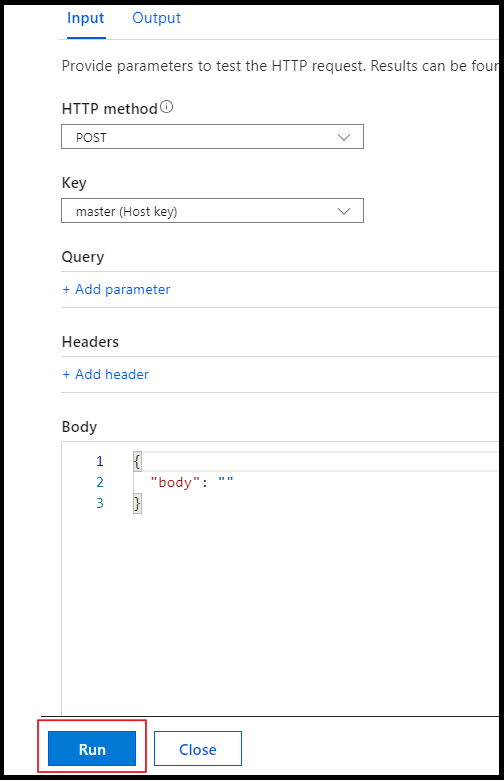
Click on Run on the on the pop up window
You can see the output in terminal for App Insights.
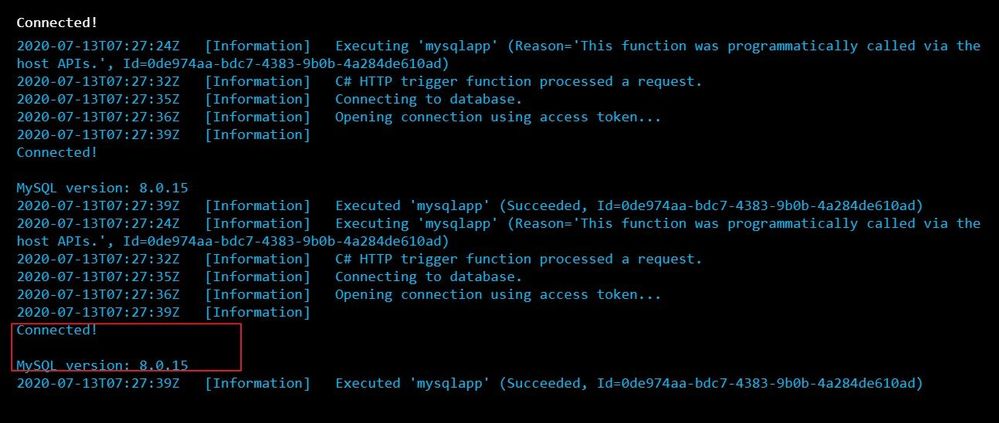
We can see that we connected to the database and could successfully run the query.
Hope this helps!
Sudheesh Narayanaswamy
Technical Support Engineer
by Scott Muniz | Jul 21, 2020 | Uncategorized
This article is contributed. See the original author and article here.
Microsoft Inspire, starting today, provides a forum for Microsoft and our partners to engage and develop plans to further our mission of empowering our customers to achieve more. Project Cortex is our newest endeavor to transform organizational productivity by connecting people with knowledge, insights and expertise.
With Microsoft Inspire offered as a free virtual event this year, we’re happy to share our latest news on availability, partners, and technical updates with everyone.
Project Cortex Availability
We’re excited by the ongoing customer engagement with Project Cortex. As we prepare for general availability, we’re happy to announce our next steps.
Our product team has been tightly focused on delivering a top-notch experience that aligns to customer expectations. One of our healthcare preview customers is eager to bring Project Cortex into production across their organization; noting:
“Cortex would have helped us identify procedural information much faster. When it comes to the treatment of pandemics, we already have workflows in our archives since that type of emergency management procedure has been thought of and written down.”
Over the past year, we’ve been working with dozens of customers in our preview program like Mott Macdonald, Arla Foods, Unilever, and Siemens Healthineers. Project Cortex capabilities are starting to ship, beginning with taxonomy experiences and APIs, which are reaching all SharePoint customers this month.
We’re happy to announce Project Cortex will go to production for existing private preview customers on August 1, 2020. You can expect additional details about general availability at Microsoft Ignite 2020.
Content Services Partner Program 2020-21
The Microsoft Content Services Partner Program is our principal program to prepare and engage partners to deliver knowledge and insights solutions to customers, featuring Project Cortex. For 2020-21, the program will offer three partnership levels for accepted partners.
- Preferred (new level) – Publicly recognized partners in the program, selected for proven customer success, training certifications and competencies, capacity and alignment to Microsoft, and close alignment to the Microsoft field
- Charter – Publicly recognized partners in the program, selected based on proven customer success, training certifications and competencies, capacity and alignment to Microsoft.
- Associate – Registered members of the program, participate in ongoing newsletter, quarterly updates, and training while they develop their competencies, evidence, and offerings to be considered as Charter or Preferred partners.
Here’s the timeline for partners to apply as new or renewed members of the Content Services Partner Program:
- July 21 to August 3 – Partners apply for the program via the application form)
- August 4 – Office hours call (download the invite) for all interested partners to walk through the 2020 CSPP application process and criteria in detail. We’ll also be available to answer questions.
- August 17-19 – Training for partners on Knowledge and Insights, Project Cortex technical details, and Microsoft field engagements. This is a repeat of the initial pilot training developed in June 2020, and we plan to continue to deliver this training periodically throughout the year. Register for the training by August 13, 11:59pm PDT. Attendees will need to be members of a registered Microsoft partner and under NDA.
- September 15 —Microsoft sends program status decisions to applicants.
- Ignite 2020 —Microsoft announces FY21 partner program members (program year runs October 2020 – September 2021)
- October 2020 — Partners participate in new partner onboarding and work begins
on publishing case studies
For more details on the CSPP application process, please see today’s blog post Microsoft 365 Content Services Partner Program – 2020 application announcement.
Project Cortex Launch Partners
As we continue to get Project Cortex ready for launch, we’re also working to ensure that our partners are ready to guide, support, and implement Cortex for our customers. The following Charter partners from our Content Services Partner Program have met the requirements to be recognized as our initial set of launch partners.
System integrators (SI’s)
Independent software vendors (ISVs)
We thank them and congratulate them on their achievement.
Technical Updates
This week, we’re happy to also announce the following technical updates. These were developed as part of Project Cortex to modernize our Microsoft 365 taxonomy service, previously known as Managed Metadata Services. They’re being made available through all Microsoft 365 licensing plans for SharePoint content:
- Our modern taxonomy end user experiences and the modern term store have now reached 100% deployment to all SharePoint customers in Microsoft 365. This week, our modern content type gallery will also reach full general availability.
- Additionally, our taxonomy APIs will be available in the Microsoft Graph APIs by the end of July, as we previewed at Microsoft Build.
These updates help you find these features in the SharePoint admin center, under the ‘Content services’ node, and modernize the user experiences. Existing terms in the term store and content types in the content type hub are all available, to make the transition seamless.
Modern administration experiences are available for the organization-wide term sets and enterprise content types. In the future, these updates will also be made available to the site level term sets and content types.
Tagging and filtering managed metadata columns
Updates to tagging and filtering content with terms are now generally available. Our updated tree view makes it easier to navigate term sets and select terms. You can also use the tree view to filter content with the full hierarchy of the term set. 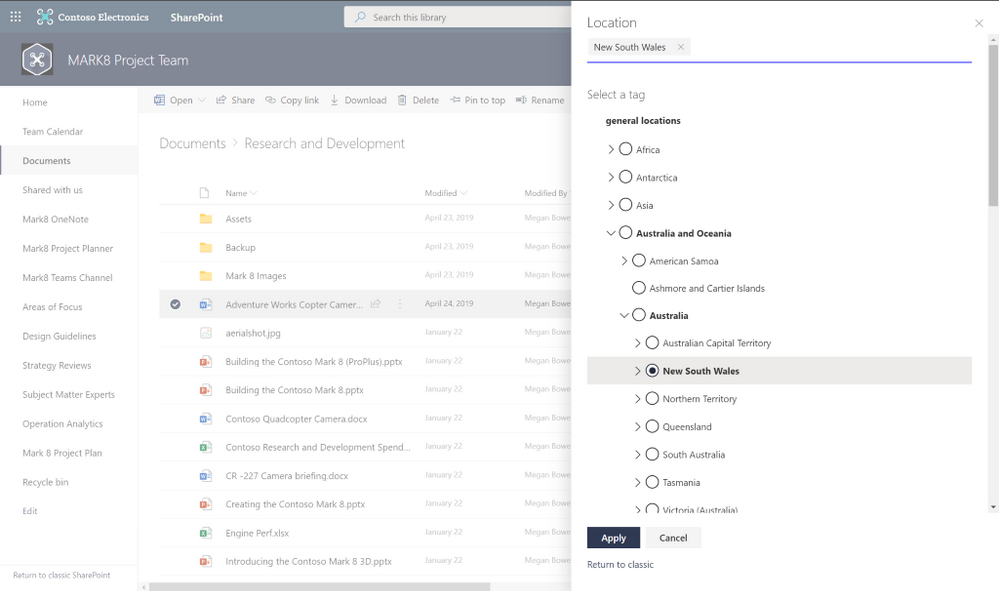 Modern taxonomy filltering
To learn more about filtering in SharePoint, please explore our documentation.
Managing taxonomies in the SharePoint admin center
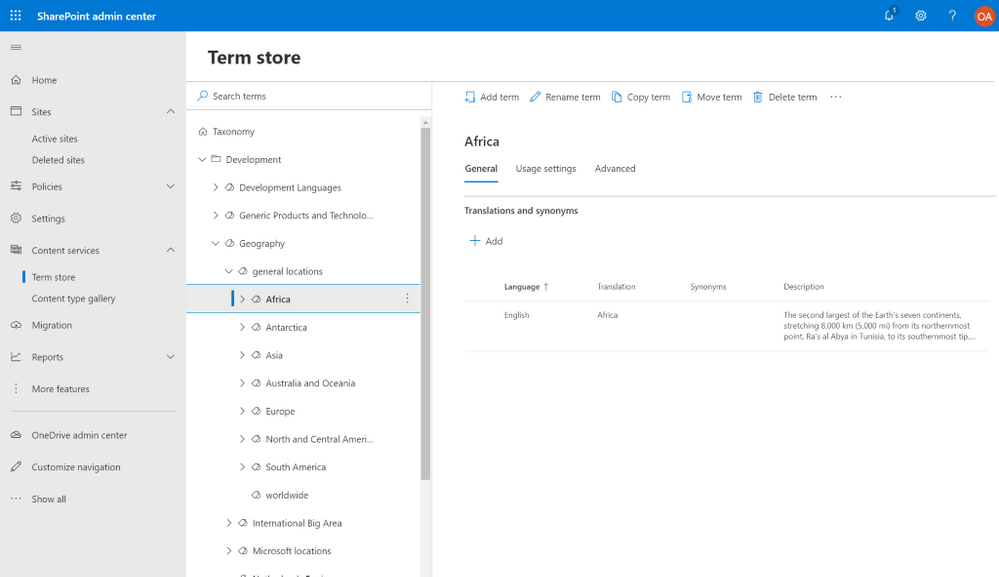
The new term manager, with its modern experiences for creating and managing taxonomies, is now generally available. Available in the new SharePoint admin center, this new manager allows you to work with your pre-existing organization-wide term sets and create new sets easily.
To learn more about taxonomies and managed metadata in SharePoint, and using the new experiences, please explore our documentation.
Content type gallery
The new content type gallery is being released and will be generally available this week. The gallery uses a modern list view of content types in the content type hub, which lets you easily group on different columns and save custom views. The content type ID is also listed for custom coded solutions. Managing your existing enterprise content types and creating new ones is smoother with modern experiences.
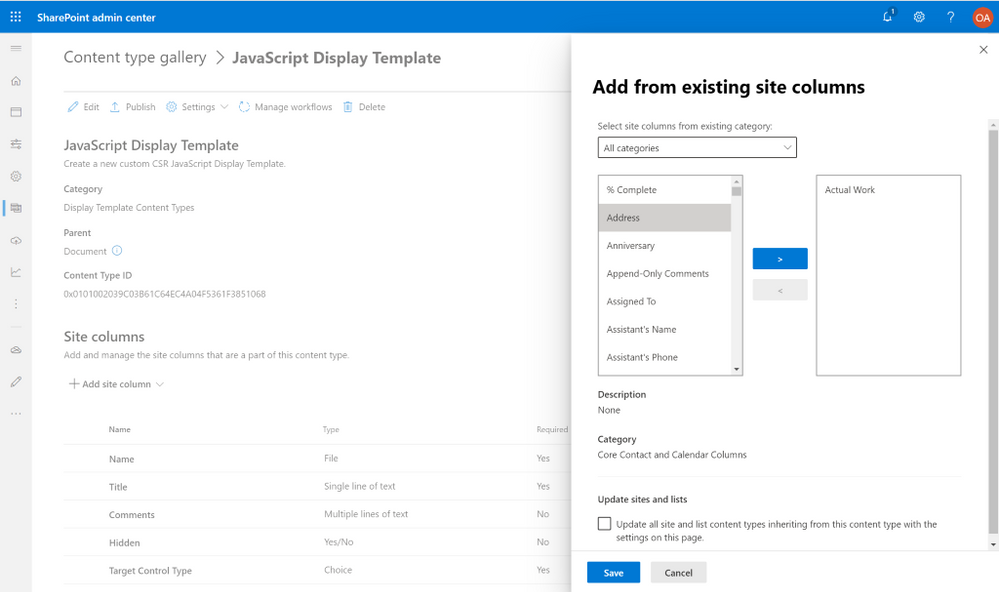
To learn more about content types and the new experiences, please explore our documentation.
Graph APIs
As mentioned at Microsoft Build, we’re developing new Microsoft Graph APIs to support operations on the taxonomy service. These APIs support listing and adding organization-wide term groups, term sets and terms. Listing and editing of most of the properties of these entities are also supported.
The taxonomy APIs will be available for preview in the beta version of Microsoft Graph by the end of July.
Microsoft Inspire
You can learn more about Project Cortex at the following sessions at Microsoft Inspire:
Thanks again. We’re excited by our news and hope you can join us this week and later this year at Microsoft Ignite.
by Scott Muniz | Jul 21, 2020 | Uncategorized
This article is contributed. See the original author and article here.
Microsoft 365 Content Services Partner Program: Accepting applications through August 31, 2020
2020 has been a busy year for the Microsoft 365 Content Services Partner Program. We’ve grown to more than 100 partners this year, including 37 Charter members. Partners in the Microsoft 365 Content Services Partner Program – both SIs and ISVs – are a select group of organizations around the globe who have demonstrated their expertise in delivering solutions that make the transformation of their customers’ content management approach practical and attainable.
This year we’ll look to program partners to help us drive adoption and usage of Microsoft 365, focusing on Project Cortex, and help our customers realize the full value of the knowledge and insights solutions available in Microsoft 365.
As mentioned in today’s Project Cortex announcements at Microsoft Inspire, we’re inviting our partners to join us on this journey. If your organization delivers solutions that make the transformation of your customers’ content management approach practical and attainable, we encourage you to submit an application to join the Microsoft 365 Content Services Partner Program.
We will be accepting applications for new and renewed membership now through August 31, 2020.
Register today for an office hours call on Tuesday, August 4, at 8am PDT, where we’ll walk you through the program, benefits, requirements, and application process. We look forward to telling you more about the program at that time.
A few things to note for this year’s registration for partners applying for all levels:
- You can select at most 2 workloads that align to your current business for this program
- You can select at most 3 industries that you will target for this program
- You must indicate your organization’s status as a registered Microsoft partner
- If you’re applying for charter and preferred status,
- You must indicate their managed partner status, Modern Workplace competencies, and deal capacity
- You must provide two pieces of customer evidence featuring Microsoft 365 Content Services solutions (such as Microsoft 365, SharePoint, Teams) and published to your own website or a Microsoft site
Program partners can receive the following benefits:
- Access to compete and go-to-market collateral
- Access to technical and business training
- Quarterly updates
Charter and preferred partners can receive additional benefits, like:
- NDA briefings and events, like the Microsoft Content Services Summit and the Content Kitchen
- Distribution and amplification of approved partner/customer case studies
- Use of logos and letters recognizing charter and preferred partner status
- Alignment and referral to the Microsoft field
- Additional marketing opportunities
In return for these additional benefits, charter and preferred partners will commit to having team members complete Project Cortex training; obtaining a Gold competency for Knowledge (when it becomes available); and submitting two pieces of customer evidence during the program year.
Furthermore, Preferred partners must have the capacity to lead or support at least 20 Project Cortex engagements.
More details about the partner program, partner levels, incentives, and requirements are available in the Microsoft 365 Content Services Partner Program overview deck.
For more information on the Microsoft 365 Content Services Partner Program, visit aka.ms/ContentServicesProgram.
by Scott Muniz | Jul 21, 2020 | Alerts, Microsoft, Technology, Uncategorized
This article is contributed. See the original author and article here.
Lifting and shifting your application to the cloud is extremely easy, on paper. The hard truth is that the only way to know for sure how it is going to perform is to test it. Benchmarking on-premises is hard enough, but benchmarking in the cloud can get really tricky due to changes in what’s exposed in PaaS environments. WorkloadTools is a set of open-source tools that can help you capture, analyze, and replay your workload, on-premises, and in the cloud. In this episode of Data Exposed: MVP Edition, Gianluca Sartori introduces the tool and its capabilities.
Watch on Data Exposed
Additional Resources:
WorkloadTools on GitHub:
Learn more about Microsoft Most Valuable Professionals (MVPs)
View/share our latest episodes on Channel 9 and YouTube!
by Scott Muniz | Jul 21, 2020 | Uncategorized
This article is contributed. See the original author and article here.
Azure Lab Services provides the ability to create a template machines with nested Hyper-V virtual machines. See Enable nested virtualization on a template virtual machine in Azure Lab Services documentation for further details. This is useful for classes where you need a couple machines to talk to one another, like the Ethical Hacking class described in the class type documentation.
Let’s talk about some tips when you need to create your own template machine with nested Hyper-V virtual machines.
1. Consider which Hyper-V VMs are needed for the class, not the department.
There is sometimes a tendency to want to create one template for all classes in a department. Taking the time to consider what is needed for only a specific class can save money by allowing for a smaller template machine size to be used. Save the image for reuse in the future.
2. Use VHDX for virtual disks.
The OS disk size for Lab Services VMs depends on the selected image and for most of the images its 128 GB. The size of a VHD disk for a Hyper-V VM matches the maximum size you want that virtual disk to be. The VHDX format allows for the actual size of the file to be reduced and to later be increased up to the maximum disk size. Using the VHDX file format for your virtual disk could potentially allow for more Hyper-V VMs on a lab template machine. This is dependent on the number and size of files stored on each virtual disk, though.
The ability to shrink virtual disks only works with the VHDX file format. If you have an existing VHD file, use the Convert-VHD PowerShell cmdlet to convert to a VHD file to VHDX. Use Resize-VHD PowerShell cmdlet to shrink the virtual disk size and store more virtual disks on the template machine.
3. Use dynamic memory when creating the Hyper-V virtual machine.
Users can set the minimum and maximum RAM for the Hyper-V virtual machine. This allows other Hyper-V virtual machines or the host machine to use the memory when it is not needed. This can be useful in cases where a Hyper-V VM only needs to be used in bursts rather than continuously.
We hope you find these tips useful. Please comment below if you know of more tips or have a question.
Thanks,
The Lab Services Team
by Scott Muniz | Jul 21, 2020 | Uncategorized
This article is contributed. See the original author and article here.
Hello Everyone –
This week is Microsoft Inspire where we celebrate our partners that have helped us innovate and accelerate growth over the last year. Whether businesses are starting their journey to cloud identity, migrating applications to modern authentication, or rolling out a passwordless solution to their employees, they often need help. That’s where our identity partners come in, offering everything from migration support to integrating their solutions with our identity platform. They’re a critical part to help us achieve our 5 identity priorities that we outlined earlier this year. We’ve seen amazing progress in our partner ecosystem and wanted to share just some of the ways our partners are contributing to our 5 identity priorities of 2020:
Priority 1: Connect all applications and cloud resources to improve access controls and the user experience.
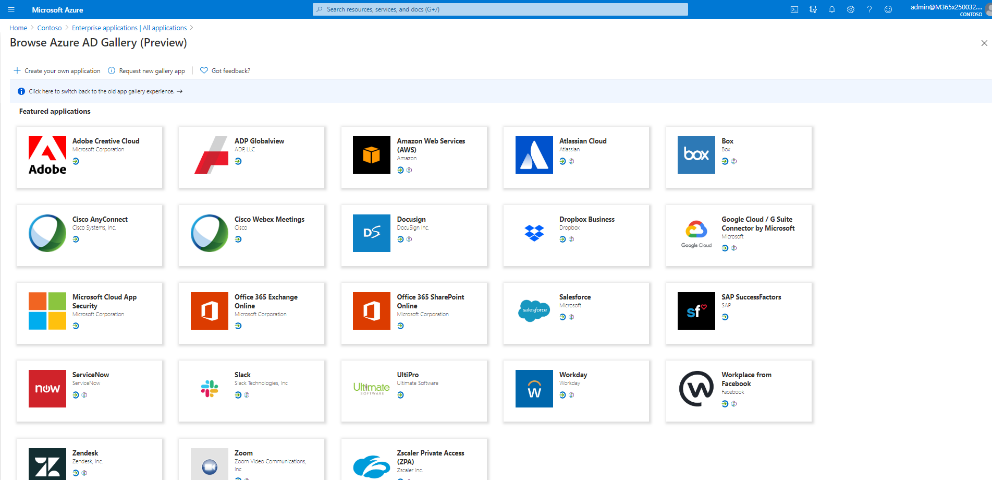
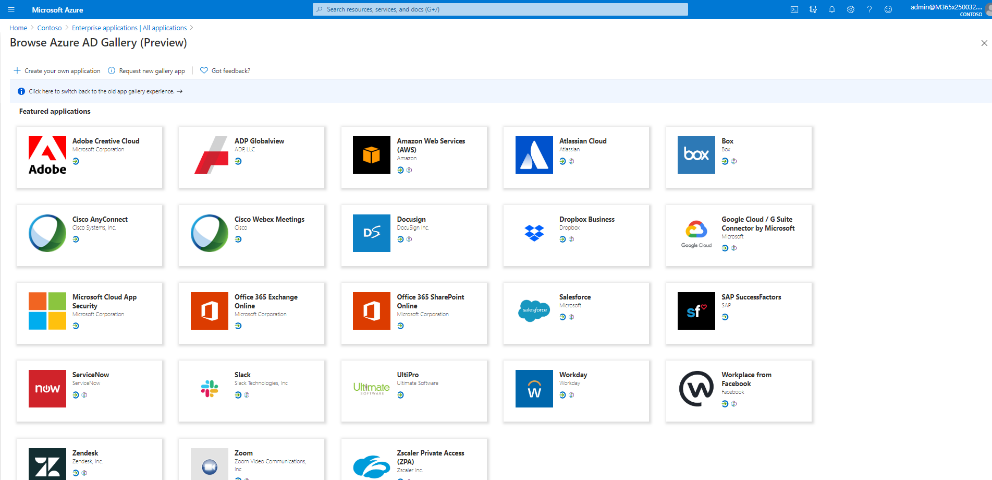
As employees adapt to remote work, they need secure, seamless access to all types of applications from cloud apps to on-premises apps. Organizations are simplifying and securing access to our partner applications like Cisco Webex, Zoom, Box, Docusign, Workplace from Facebook thanks to Azure AD. Hundreds of partners have built integrations that support single sign-on and user provisioning and our Azure AD app gallery has grown to over 3,400 pre-integrated applications.
While the usage of cloud apps continues to grow, many organizations still rely on legacy-auth based applications. Thanks to our secure hybrid access partners – Akamai, Citrix, F5 networks and Zscaler – we’ve been able to help customers access legacy-auth based applications that use protocols like header-based and Kerberos authentication.
Priority 2: Empower developers to integrate identity into their apps and improve security.
At Microsoft Build we announced several enhancements to make it easier for developers to create secure and trustworthy apps. We’ve already seen hundreds of developers get publisher verified that help admins and end-users understand the authenticity of who an app developer is. Over 660 applications by 390 publishers have been verified thus far.
We also added more Azure AD capabilities in Microsoft Graph to enable our partners to build identity and security focused applications and workflows. For example, Lumagate, built an AI-powered chatbot that simplifies management of identities and endpoints with Microsoft Graph. RSA has leveraged Azure AD’s risky user data and other Microsoft security signals to enrich their risk score engine. And F5 networks is using the Azure AD application gallery API to simplify the configuration of select SAP and Oracle applications between Azure AD and F5 BIG-IP APM.
We’ve also extended Azure AD B2C capabilities with several partners that enable developers to further protect their customer-facing applications. Developers can integrate with partners including LexisNexis and Experian for risk analysis and fraud detection and integrate with partners like IDology, Jumio, and Onfido to perform identity verification and proofing.
Priority 3: Go passwordless to make security effortless for users.
Our goal to eliminate dependencies on passwords and replace them with more secure authentication can only be achieved with our partners. Over 150 million people – across our consumer accounts and Azure AD accounts – are signing in using passwordless methods each month. Azure AD supports platform, software, and hardware authenticator options that are phishing-resistant and user-friendly to meet your business needs. Our partners below have built a variety of hardware security keys to choose from that meet FIDO2 standards and integrate with Azure AD. Partners like Yubico and Feitian have recently released new security keys like the iePass FIDO Security Key and YubiKey 5Ci that are designed for ease-of-use with mobile devices.

Priority 4: Enable boundaryless collaboration and automated access lifecycle for all users.
To improve access lifecycle for all users we’ve worked with HR systems like SAP SuccessFactors and Workday to enhance our existing integrations. Earlier this year we announced the public preview of user provisioning from SAP SuccessFactors to Azure AD allowing you to easily orchestrate user data from SAP SuccessFactors into Azure AD. We also added more enhancements to our existing Workday integrations such as support for more writeback fields and the ability to specify the Workday API version to use.
Effective collaboration across employees, partners and customers requires more than simply connecting them to the right resources but ensuring they have the right access. Our integrations with Identity Governance partners like Saviynt and Omada provide advanced governance scenarios such segregation of duties, complex workflows and granular reporting across hybrid application estates, and governance for Microsoft Teams. Additionally, our industry-focused partners like Imprivata provide clinical access governance for cloud and legacy healthcare applications (i.e. EHRs).
Priority 5: Start your Zero Trust journey to protect your organization as you digitally transform.
Zero Trust starts with a strong identity foundation. With customers around the globe responding to COVID-19 by moving their office employees to remote work, identity-driven security solutions are required to help safeguard company resources. Many of our service partners are helping customers implement a Zero Trust security strategy that puts identity at the center. For example, partners like Concurrency, Edgile and Optiv have helped customers transition to remote work with our identity driven security solutions making it easier and more secure for employees to work from home.
Join us virtually, live or on-demand
While we wish we could all meet in person this year at Microsoft Inspire 2020, we have a great line up of free, virtual sessions to share with you wherever you are in the world. If you’re a partner looking to build a practice with Azure AD be sure to attend our identity sessions below and learn how to take advantage of our identity workshops that will help you assess the maturity of your customers identity estate.
Featured session:
Digital Breakouts
Connection zones
On Demand Sessions
Best regards,
Sue Bohn
Partner Director of Program Management
Microsoft Identity Division
by Scott Muniz | Jul 21, 2020 | Uncategorized
This article is contributed. See the original author and article here.
Windows Admin Center version 2007 is generally available today. In this release, we have made Windows Admin Center compatible with the new Azure Stack HCI, which required substantial updates to the cluster deployment experience and various tools across the product. Note that this release is pronounced as “twenty oh-seven” in regard to this year and month, and not in reference to the year 2007.
Download Windows Admin Center version 2007
Windows Admin Center version 2007 new features and updates
Windows Admin Center supports the new Azure Stack HCI
Today we announced the release of a new version of Azure Stack HCI for on-premises hyperconverged infrastructure (HCI) clusters. This version is a subscription-based Azure service that combines the price-performance of our HCI solution with native Azure hybrid capabilities, all while letting enterprises leverage existing skills.
To find out more about the new Azure Stack HCI, check out the Azure Stack HCI page.
What’s new in Windows Admin Center
Cluster deployment
Windows Admin Center now provides a graphical cluster deployment workflow. The cluster deployment workflow allows users to deploy multiple cluster types based on the operating system that runs on their choice of servers.
New location and UI
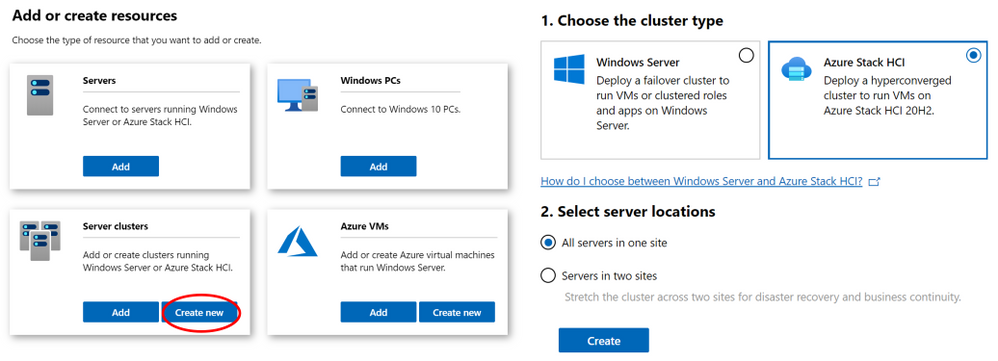
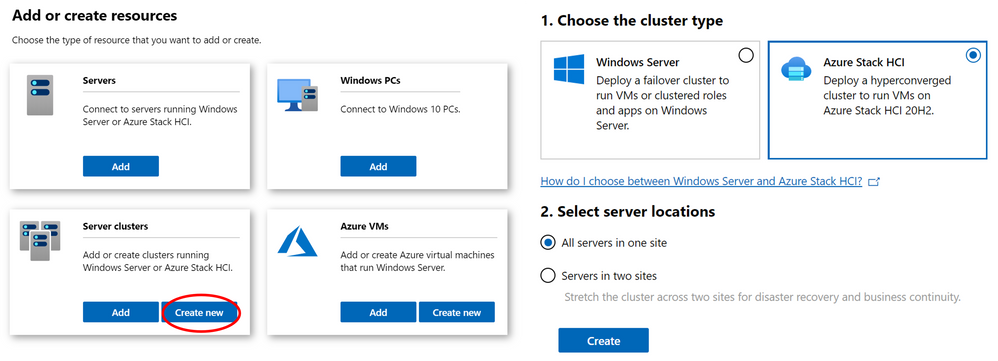
- To launch the workflow, from the All Connections page, click on “+Add” and select “Create new” on the server clusters tile.
- Users can create hyperconverged clusters running Azure Stack HCI, or classic failover clusters running Windows Server.
- The cluster deployment workflow is included in Windows Admin Center without needing to install an extension.
- For the first time ever, use Windows Admin Center to deploy a cluster that’s stretched across two sites.
Workflow details
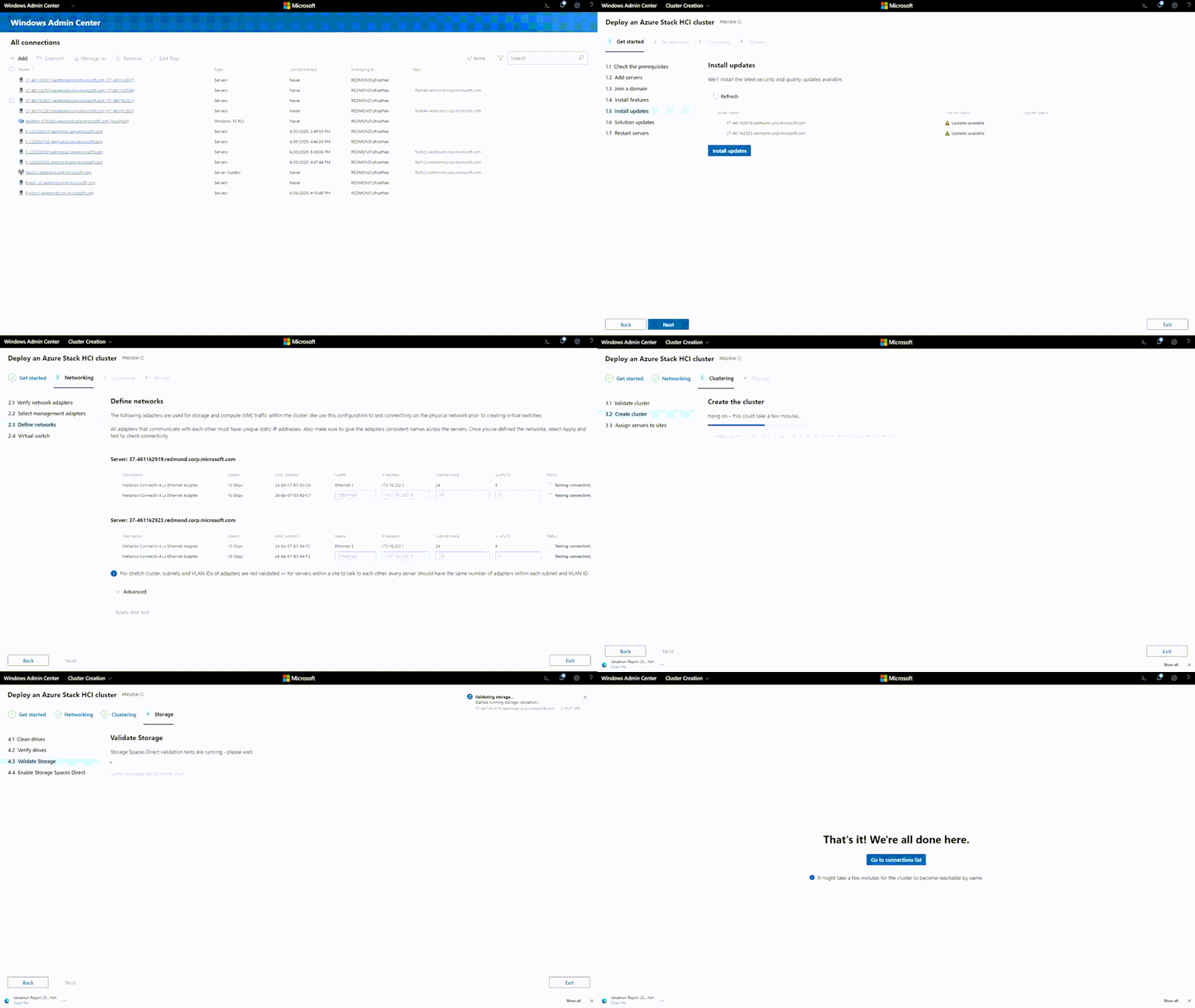
- You can bring in your workgroup servers and get them domain-joined as part of the cluster deployment workflow.
- Windows Admin Center detects the cluster type that is deployed and installs the necessary roles and features.
- We support multiple network topologies to cater to different customer scenarios.
- Windows Admin Center is working to provide an integrated firmware/driver update experience as part of deployment workflow.
If you’re having difficulties with any of these new features, please consult the cluster deployment section of the known issues page of our documentation.
User experience
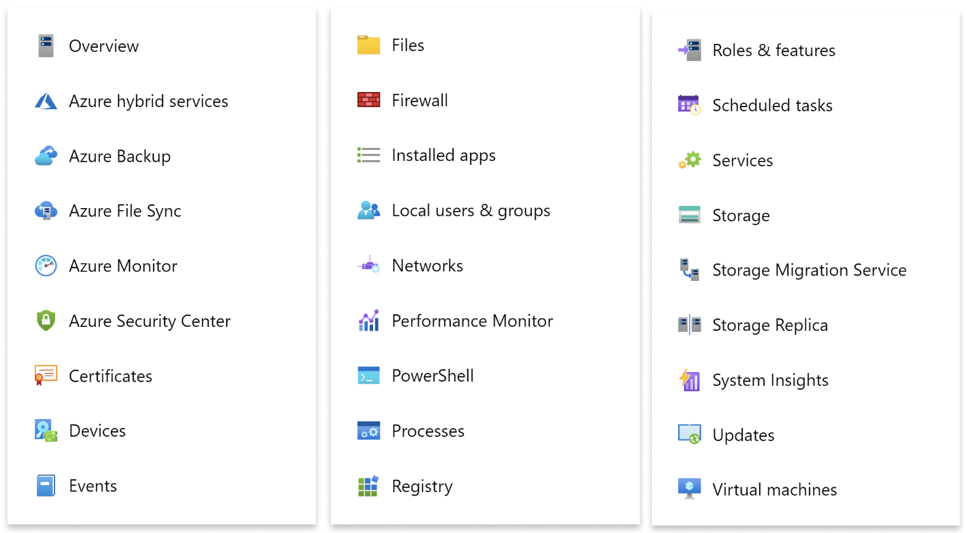
New look
Windows Admin Center has some new color! We hope you like our new icons and the design changes we have made to make Windows Admin Center look more modern. Windows Admin Center has historically been tied to Windows Server, but now it has become its own independent product. While the license terms have been updated, this shouldn’t affect your usage of Windows Admin Center in any way.
Feedback
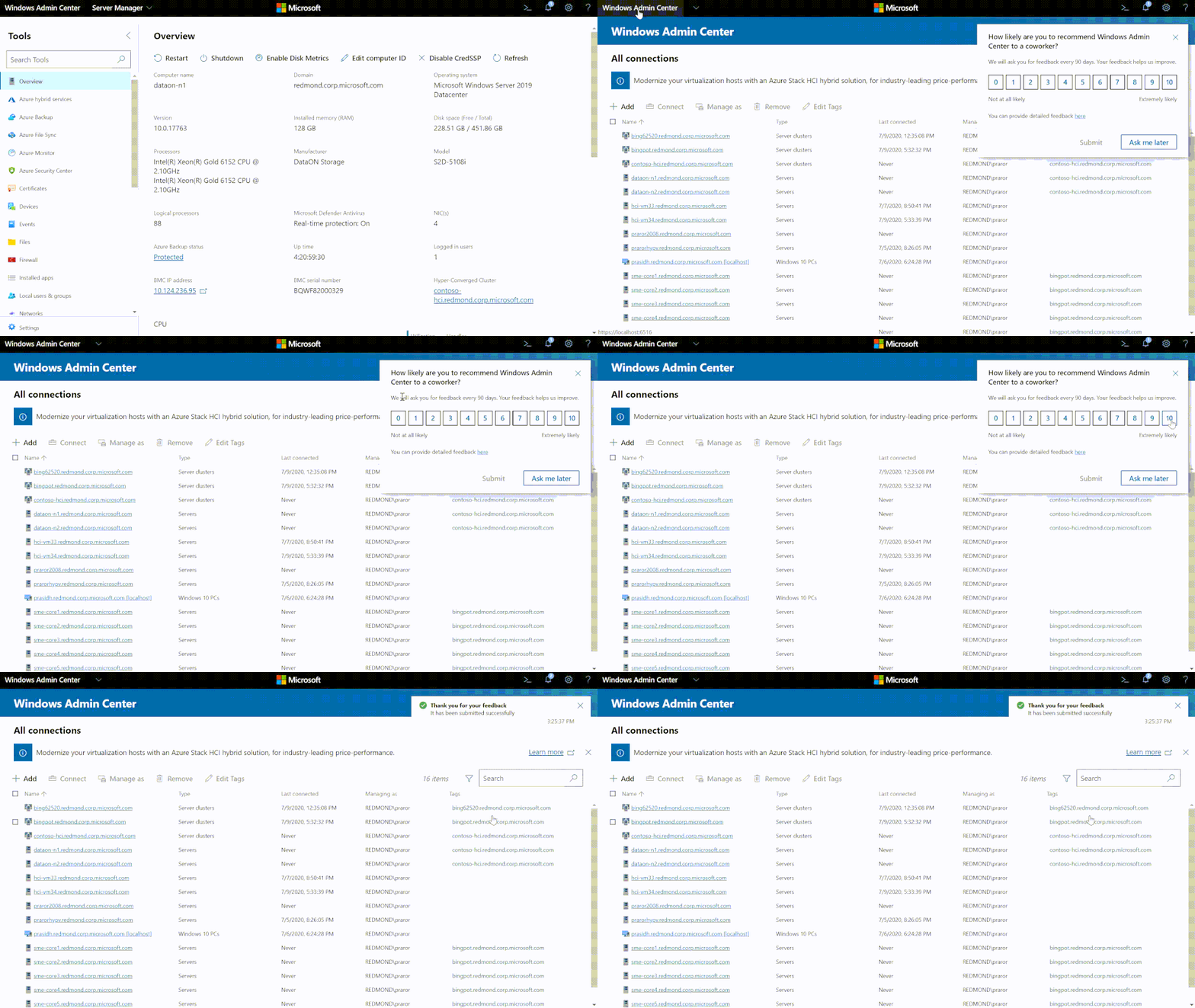
You can now let us know how we are doing from inside Windows Admin Center. Occasionally, you may receive a pop-up asking how likely you are to recommend Windows Admin Center to a coworker. Please provide your feedback as it will help us improve your experience.
Bug fixes and accessibility improvements
- Schedule restarts in the Updates tool: We have fixed the bug where users could not schedule restarts in the Updates tool.
- Connecting to Hyper-V servers: In the previous release, there was a bug that prevented connection to Hyper-V servers. That has been fixed.
- Accessibility fixes: We have been working hard to improve accessibility within the product. If you have any questions or concerns, please email us at wacchat@microsoft.com
Core tools
Active Directory
This release includes a new version, version 0.85.0, of the Active Directory tool based on all the feedback we received from User Voice! Some of the changes from the preview version include:
- Search with more descriptive queries using PowerShell Expression Language syntax
- filter by object type or run range-based queries
- search for users with a password count over a certain threshold
- More connected experience
- Ability to unlock users
Go to Settings > Extensions to install it now.
Containers
The Windows Admin Center containers extension has recently been updated. This extension is available through the Windows Admin Center Insiders feed (https://aka.ms/wac-insiders-feed).
To read more about the extension and its features, read the blog post.
Virtual Machines
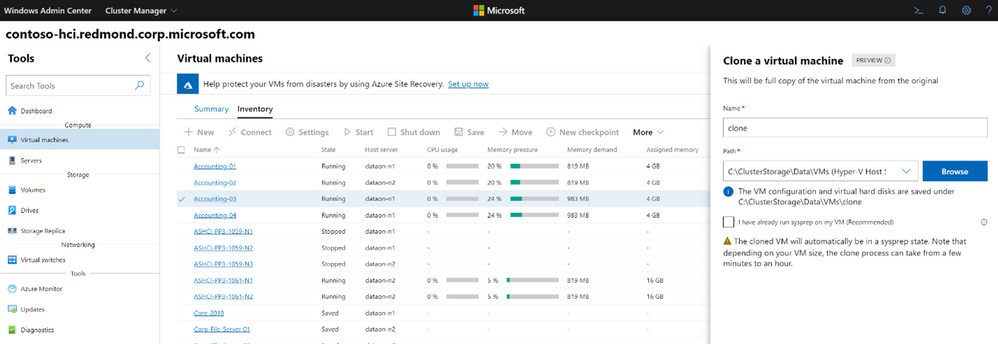
Users are now able to click on a virtual machine and perform a full clone. You can run sysprep on the virtual machine beforehand or let us run it for you. Windows Admin Center brings in an optimized VM clone experience that significantly reduces user effort, time, and engagement needed for the process. This feature is in preview so please give us feedback.
Software Defined Networking (SDN) monitoring
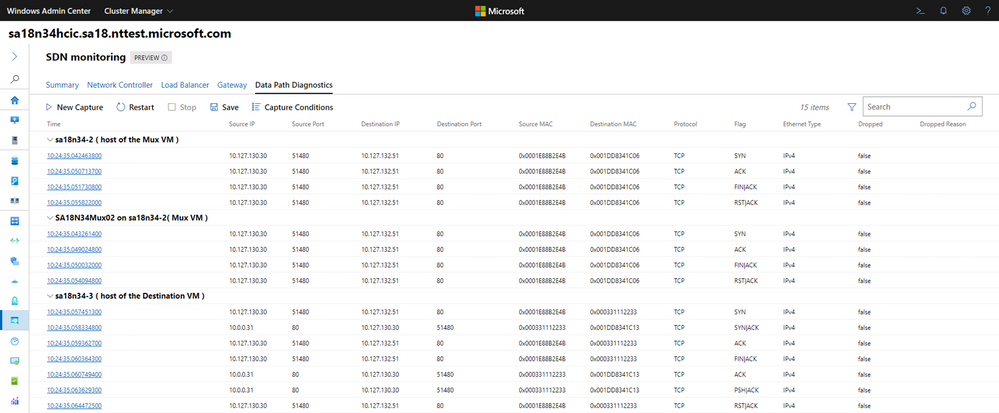
The SDN monitoring extension now includes Data Path Diagnostics. This feature automates packet captures to diagnose networking data path issues in SDN scenarios. After you choose your SDN scenario and provide basic parameters, Windows Admin Center identifies the involved SDN components and their location in the cluster, sets the right packet filters, and captures network traffic on all the relevant machines. Afterwards, we present the captured logs in a single view that is easy to follow and manipulate through Windows Admin Center. This view allows you to download the logs for additional post-processing using your tool of choice.
Partner ecosystem
Windows Admin Center continues to promote an extensible ecosystem and we’re thrilled to collaborate with our external partners. Several of our partners have released updates for their extensions in the past few months that include bug fixes and improvements targeted at Windows Admin Center version 2007.
The Lenovo XClarity Integrator for Windows Admin Center provides IT administrators a smooth and seamless management experience across Windows Server hyper-converged and physical infrastructure. In this release, improvements include:
- New user role-based access control
- Firmware update
- Cluster-aware firmware update for clusters
- Firmware update for Azure HCI clusters with the best recipe for ThinkAgile MX certified nodes, involving both firmware and Windows drivers
- Support compliance policy-based firmware update
- Disk Manager for ThinkAgile MX HCI cluster
- Graphic front/rear view of the Lenovo ThinkAgile MX certified Azure HCI cluster node servers
- Display of overall storage pool, drive, and server information
- Operations on servers, including turning on or turning off the location LED
- Operations on drives, including turning on or turning off the location LED, replacing a drive in a storage pool, adding a drive to a storage pool, and removing a drive from a server
The Dell EMC OpenManage Integration for Microsoft Admin Center extension enables IT administrators to manage Dell EMC PowerEdge servers as hosts, Microsoft Failover Clusters created with PowerEdge servers, and Azure Stack Hyper-Converged Infrastructure created with Dell EMC Microsoft Storage Spaces Direct Ready Nodes, AX Nodes. In this release, improvements include:
- Added support for Dell EMC Online Catalogs
- Ability to perform Server update including selective component updates
- Cluster update—Premium licenses required for respective hardware, such as Dell EMC PowerEdge Server and Azure Stack HCI clusters based on AX nodes or Storage Spaces Direct Ready Nodes from Dell EMC
- To locate physical disks or to identify failed physical disks, provision to blink and unblink the physical disks Light Emitting Diodes (LEDs) is provided
- Support for newer platforms based on AX nodes—Dell EMC Solutions for Microsoft Azure Stack HCI nodes: AX-640, AX-6515, and AX-740xd
- Ability to monitor health and inventory of Accelerators (GPU) with latest iDRAC9 based PowerEdge Servers.
- User interface enhancements for Intel Persistent memory Health monitoring and Inventory.
- Correlation between Storage Controllers and Physical Disks to view the associated disks.
- Ability to refresh the health, inventory, and iDRAC information of the managed target nodes to ensure that displayed inventory information is the latest.
- Usability enhancement by downloading DSU and IC automatically required for components update.
The QCT Management Suite is designed to help users manage and monitor their Windows Server hyper-converged infrastructure and QCT system configuration information on a single dashboard. With the upgrade to version 2.1.0, fixes and additions include:
- Add Switch function.
- Network Adapter and Switch Port mapping.
- PFC enable check of Switch.
- Switch Port Status check.
- Switch Environment Information includes Switch Model, Software Version, Serial Number, Device Name, Fan Status, Power Supply Unit Status.
- Support list:
- QuantaMesh T3048-LY8
- QuantaMesh T4048-IX8D (Preview)
- Add Physical/Virtual Network Adapter information and mapping function.
Keep an eye on your extension manager for new partner extensions coming soon!
Download today
We hope you enjoy this latest update of Windows Admin Center, the various new functionality in preview, and all the extensions now available. Learn more and download today!
As always, thanks for your ongoing support, adoption and feedback.
We are already working hard on our next release and are excited to bring you a lot more features.
Ask Microsoft Anything
While this is not a feature, the Windows Admin Center team hosted our first public Ask Microsoft Anything (AMA). You can view the AMA here. To stay informed about future events like this, follow us on Twitter at @servermgmt.
<3,
Windows Admin Center Team


Recent Comments