
by Scott Muniz | Jul 23, 2020 | Uncategorized
This article is contributed. See the original author and article here.
As the business world shifts to a new normal, digital transformation is taking place at a faster pace than ever before. Safely accessing, collaborating and sharing content remotely is becoming increasingly important.
Files are often the starting point for getting work done and staying connected. Memos, presentations, photos, videos—these are the conduit for more fruitful interactions.
OneDrive is a foundational product in our effort to build a seamless, connected experience in Microsoft 365. It cuts across Microsoft products so you can access and share your files from most endpoints, like Microsoft Teams.
We’re excited to announce new OneDrive features for a more connected, flexible and secure files experience across Microsoft 365 .
Join us for a free webinar to learn about new and upcoming innovations in OneDrive like Add to OneDrive, Sync admin reports, File sharing in Teams, Information barriers and more.
Webinar details
Date: 7/28/2020
Time: 9:00 am PT
Agenda:
- Introduction : OneDrive- your intelligent files app for Microsoft 365
- Powering coherent files experience and collaboration
- Streamlining data administration and control
- Fostering content protection and governance
- Conclusion and QA
Please register for the free webinar here.
Looking forward to interacting with you! :)
Thanks,
Ankita

by Scott Muniz | Jul 23, 2020 | Alerts, Microsoft, Technology, Uncategorized
This article is contributed. See the original author and article here.
|
Microsoft partners like Confluent, NextGate, and CBX Software deliver transact-capable offers, which allow you to purchase directly from Azure Marketplace. Learn about these offers below:
 |
Apache Kafka on Confluent Cloud for Azure: Confluent Cloud is a fully managed cloud-native event streaming service powered by Apache Kafka. Stream confidently with plans featuring no hourly compute cost and 99.5 percent to 99.95 percent uptime service-level agreements. Start streaming in minutes with on-demand provisioning and elastic scaling for a serverless Kafka experience.
|
 |
NextGate Enterprise Master Patient Index (EMPI): NextGate’s fully automated Enterprise Master Patient Index (EMPI) helps healthcare organizations overcome the clinical, operational, and financial challenges of poor identity management, duplicate medical records, and disparate data to enable a longitudinal, enterprise view of patient information across the care continuum. Get it here or at its page on Microsoft AppSource. |
 |
TradeBeyond: TradeBeyond by CBX Software isn’t just another finished-goods online marketplace: Rather, it’s an exclusive network in which retailers, brands, and their suppliers and factories can connect, source, extend innovation, and bring private-label products to market faster. TradeBeyond is home to thousands of validated suppliers, and its retail sourcing app gives you the tools to make connections and win in the industry.
|
|

by Scott Muniz | Jul 23, 2020 | Uncategorized
This article is contributed. See the original author and article here.
Sync Up is your monthly podcast hosted by the OneDrive team taking you behind the scenes of OneDrive, shedding light on how OneDrive connects you to all your files in Microsoft 365 so you can share and work together from anywhere. You will hear from experts behind the design and development of OneDrive, as well as customers and Microsoft MVPs. Each episode will also give you news and announcements, special topics of discussion, and best practices for your OneDrive experience.
So, get your ears ready and Subscribe to Sync up podcast!
Episode 11, “Introducing Add to OneDrive” focuses on the brand new feature announced earlier this month. Add to OneDrive makes it easy to add shared folders directly to your OneDrive.
This month co-hosts Ankita Kirti and Jason Moore talk with Olga Dalecka, who works on making it easier for you to find your files and successfully managed developing the feature . She takes us behind the scenes sharing leanings, inspirations, hitting roadblocks and usage scenarios for the feature.
We also talk about gardening, and how to utilize the powerful Accountability Ladder at work and at home.
Tune in!
Meet your show hosts and guests for the episode:

Jason Moore is the principal group program manager for OneDrive and the Microsoft 365 files experience. He loves files, folders, and metadata. Twitter: @jasmo
Ankita Kirti is a product manager on the Microsoft 365 product marketing team responsible for OneDrive for Business. Twitter: @Ankita_Kirti21
Olga Dalecka is a Senior Program Manager for OneDrive, who works on making it easier for you to find your files. She loves item keeping, shared controls and debating about breadcrumbs.
Listen to the show! If you like what you hear, we’d love for you to Subscribe, Rate and Review it on iTunes or wherever you get your podcasts.
Quick links to the podcast:
Links to resources mentioned in the show:
Be sure to visit our show page to hear all the episodes, access the show notes, and get bonus content. And stay connected to the OneDrive community blog where we’ll share more information per episode, guest insights, and take any questions from our listeners and OneDrive users. We, too, welcome your ideas for future episodes topics and segments. Keep the discussion going in comments below.
As you can see, we continue to evolve OneDrive as a place to access, share, and collaborate on all your files in Office 365, keeping them protected and readily accessible on all your devices, anywhere. We, at OneDrive, will shine a recurring light on the importance of you, the user. We will continue working to make OneDrive and related apps more approachable. The OneDrive team wants you to unleash your creativity. And we will do this, together, one episode at a time.
Thanks for your time reading and listening to all things OneDrive,
Ankita Kirti – OneDrive | Microsoft
by Scott Muniz | Jul 23, 2020 | Alerts, Microsoft, Technology, Uncategorized
This article is contributed. See the original author and article here.
Executive Summary
To improve customer workload performance and reduce unnecessary resource utilization, the default MAXDOP setting for new databases in Azure SQL Database is changing from the previous default of 0 (unlimited) to 8.
Why MAXDOP matters
The “max degree of parallelism” (a.k.a. MAXDOP) SQL Server configuration option controls the ability of the database engine to use parallel threads during query processing. When MAXDOP is other than 1, the database engine may execute queries using multiple concurrent threads. This often results in shorter query duration due to additional CPU resources used for query processing. The number of concurrently executing threads, and the resulting CPU utilization, depends on the MAXDOP value. Higher values generally result in more threads and higher resource utilization.
If a query is using parallelism, it often gets faster as MAXDOP is increased, though after some point additional threads may just use extra CPU cycles without reducing query duration. To learn more about query parallelism, see the Degree of Parallelism section in the Query Processing Architecture Guide.
Azure SQL uses the SQL Server database engine, thus MAXDOP considerations and recommendations for SQL Server are also applicable to Azure SQL. This includes single databases, databases in elastic pools, and managed instances. For all of these deployment options, customers can control MAXDOP at the database level using the MAXDOP database-scoped configuration. For managed instances, customers can also set the server ‘max degree of parallelism’ configuration option, and can control MAXDOP at the Resource Governor workload group level. For all Azure SQL deployment options, MAXDOP can additionally be controlled at the individual query level by using the OPTION (MAXDOP) query hint, which overrides MAXDOP configurations set in the database or instance scope (though without exceeding the Resource Governor workload group cap, if any).
Changing MAXDOP can have major impact on query performance and resource utilization, both positive and negative. However, there is not a single MAXDOP value that is optimal for all workloads. The recommendations for setting MAXDOP are nuanced, and depend on many factors. Customers wishing to achieve optimal performance for their workloads may need to fine-tune MAXDOP, using published recommendations as the starting point.
Importantly, while increasing MAXDOP often reduces duration for long-running queries, excessive parallelism can cause unnecessary CPU and worker utilization, and make the overall workload performance worse by starving other queries of these resources. In extreme cases, excessive parallelism can consume all database or elastic pool resources, causing query timeouts, errors, and application outages.
Historically, the default MAXDOP value in SQL Server has always been set to 0. This means that query parallelism is limited only by the hardware bounds of the machine running the SQL Server instance (up to the maximum MAXDOP of 64). For backward compatibility reasons, this remains the default value in SQL Server, though starting with SQL Server 2019, it is possible to change the instance level MAXDOP during initial instance setup.
In Azure SQL Database, the default MAXDOP value has also been set to 0 (unlimited) for every new database, for similar reasons. However, over time, and especially as databases and elastic pools with many cores became widely used, performance problems due to excessive parallelism caused by MAXDOP set to 0 became more frequent. This particularly impacts customers who are not familiar with the MAXDOP option, and leave it at the default of 0.
To address these performance problems, we are making the following change:
For every new single database and elastic pool database, the MAXDOP database-scoped configuration will be set to 8 by default.
Frequently Asked Questions
Why are you changing default MAXDOP for new Azure SQL databases?
This change is to reduce the frequency and severity of incidents caused by excessive query parallelism, and to improve customer workload performance by reducing unnecessary resource utilization. We expect that this change will benefit the overwhelming majority of customers using Azure SQL Database.
When will this change happen?
We expect this change to roll out worldwide in August of 2020.
Will this change impact my existing Azure SQL databases?
No. Existing databases will not be modified. This change applies only to new databases created after this change is rolled out.
Does this change apply to Azure SQL Managed Instance?
No, at this time this change only applies to single databases and databases in elastic pools in Azure SQL Database.
I know that MAXDOP setting different from 8 is optimal for my workload. What should I do?
Customers who have determined that a specific MAXDOP setting is optimal for their workloads, or customers who prefer to keep MAXDOP 0 used previously by default, can add a step to their database deployment processes to change MAXDOP after database creation.
Should I change MAXDOP on my existing Azure SQL databases?
Customers with existing databases that use the default MAXDOP 0 should consider changing MAXDOP according to standing recommendations. This may improve performance, reduce the risk of performance and availability incidents, and in some cases reduce costs by being able to avoid unnecessary resource utilization, and thus scale down to a lower service objective.
We recommend that customers avoid MAXDOP 0 even if it does not appear to cause problems currently. This will reduce the risk of potential future problems due to excessive parallelism if a database is scaled up to use more cores, or if future hardware generations in Azure SQL provide more cores for the same database service objective.
As with most configuration changes, thorough testing is recommended before making changes in critical environments.
How can I change MAXDOP for an existing database?
MAXDOP can be changed using the ALTER DATABASE SCOPED CONFIGURATION statement in the scope of a database.
To execute the necessary T-SQL statement, customers can use any client tool or programming language that can connect to the database and execute T-SQL commands. The following client tools are commonly used:
- Query editor, which is a part of Azure portal.
- SQL Server Management Studio.
- Azure Data Studio.
For example, to change MAXDOP to 4, use the following T-SQL command when connected to the target database:
ALTER DATABASE SCOPED CONFIGURATION SET MAXDOP = 4;
How do I know if a change to MAXDOP made a difference for my workload?
Customers can see the impact of a change in MAXDOP by making sure that Query Store is enabled for a representative period of time before and after the change is made, to capture resource utilization and performance statistics for each query. For more details, see A/B testing.
What are the symptoms of excessive query parallelism in Azure SQL Database?
In Azure SQL Database, one common symptom of excessive parallelism is exceeding the resource governance limits on the number of worker threads. When this happens, error 10928, “Resource ID : 1. The request limit for the database is N and has been reached” is raised, where N stands for the worker thread limit for the database or elastic pool (note, however, that there are other possible causes for this error).
CXPACKET waits may be another symptom of excessive parallelism. Some amount of CXPACKET waits is normal whenever query parallelism is used; however, if CXPACKET waits dominate other waits types while CPU utilization is greater than 80-90%, it likely also indicates excessive parallelism.
Why did you choose 8 as the new default MAXDOP?
Our telemetry data and our experience running the Azure SQL Database service show that MAXDOP 8 is the optimal value for the widest variety of customer workloads. It is a safe option that reduces the likelihood of performance problems due to excessive parallelism, while still allowing queries to execute faster by using more threads.
At the same time, workloads where a different MAXDOP value is optimal do exist. Customers can experiment with different MAXDOP settings to determine what works best for them.
Shouldn’t the database engine automatically choose the optimal degree of parallelism for every query it executes?
Improvements in Azure SQL and the SQL Server database engine are made continuously. Automatic Tuning, and the Intelligent Query Processing family of features are two examples of improvements in query processing and query performance made in recent years. Today, the database engine already reduces query parallelism at query startup time in response to a shortage of available worker threads. Query processing improvements in future releases of the database engine may adjust parallelism dynamically in a broader set of scenarios.
Why are you changing the default MAXDOP regardless of the database service objective? Shouldn’t this only apply to databases with more than 8 cores?
Limiting MAXDOP to 8 is safe for databases with 8 or less cores (or scheduler threads). In this case, parallelism will be limited by the smaller number of available cores, rather than by the MAXDOP setting. Limiting MAXDOP to 8 protects smaller databases from being exposed to excessive parallelism if scaled up to use more than 8 cores, or if future hardware generations in Azure SQL Database provide more cores for the same database service objective.
What is the impact of this change on index rebuild?
By default, indexes are rebuilt with parallelism, using the database-scoped MAXDOP setting. On databases with more than 8 cores, this change may cause index rebuilds to take longer due to lower degree of parallelism used. If this happens, you can increase parallelism for each index rebuild operation by using the MAXDOP option in the ALTER INDEX … REBUILD statement.
How can I ask questions or provide feedback on this change?
Customers can ask questions or provide feedback via comments to this blog post, or via email to IntelligentQP [at] microsoft.com.
by Scott Muniz | Jul 23, 2020 | Alerts, Microsoft, Technology, Uncategorized
This article is contributed. See the original author and article here.
Now released for general availability (GA), M-series and Fsv2-series are new hardware generations in Azure SQL Database specialized for workloads requiring very high compute or memory scale or very fast CPU speed. M-series and Fsv2-series are supported for both single database and elastic pool deployments. Gen5 hardware in SQL Database continues to provide a balanced compute and memory option that is well-suited for typical workloads.
M-series: memory optimized hardware
M-series is a new memory optimized hardware option in SQL Database for workloads demanding more memory and higher compute limits than provided by Gen5. M-series provides 29 GB per vcore and up to 128 vcores which increases the previous memory limit in SQL Database by 8x to nearly 4 TB. Also, now available are smaller M-series compute sizes starting from 8 vcores on up for workloads requiring less total CPU and memory, but still providing the same high memory-to-vcore ratio for less cost.
Fsv2-series: compute optimized hardware
Fsv2-series is a new compute optimized hardware option in SQL Database delivering low CPU latency and high clock speed for the most CPU demanding workloads. Depending on the workload, Fsv2-series can deliver more CPU performance per vcore than Gen5. The 72 vcore size can also provide more CPU performance for less cost than 80 vcores on Gen5. Also, now available are smaller Fsv2-series compute sizes starting from 8 vcores on up for workloads requiring less total CPU and memory, but still providing the same low CPU latency and high clock speed per vcore for less cost. Note that Fsv2 provides less memory and tempdb per vcore than other hardware so workloads sensitive to those limits may want to consider Gen5 or M-series instead.
Learn more

by Scott Muniz | Jul 22, 2020 | Alerts, Microsoft, Technology, Uncategorized
This article is contributed. See the original author and article here.
If you need to store many objects in the cloud, like pictures, videos, logs, or any other kinds of unstructured data, using a storage blob on Azure is a perfect option. In this post, I walk through the steps of creating a storage account, creating the blob container, uploading the content, and eventually accessing my https available object.
Be sure to share any questions you may have in the comment section below. Also please follow AzureFunBytes on Twitter and Twitch for updates on future episodes.
Links for you!
Introduction to the core Azure Storage services
What is Azure Blob storage?
Introduction to Azure managed disks
Use the portal to attach a data disk to a Linux VM
Microsoft Learn: Core Cloud Services – Azure data storage options
Microsoft Learn: Azure Fundamentals
Microsoft LearnTV 24*7 streaming Azure content
Get $200 in free Azure credit along with 12 months of free services
by Scott Muniz | Jul 22, 2020 | Alerts, Microsoft, Technology, Uncategorized
This article is contributed. See the original author and article here.
`Invoke-AzRestMethod` is a new Azure PowerShell cmdlet. It allows you to make custom HTTP requests to the Azure Resource Management (ARM) endpoint using the Az context.
This cmdlet is useful when you want to manage Azure services for features that aren’t yet available in the Az PowerShell modules.
How to use Invoke-AzRestMethod?
As an example, you can allow access to Azure Container Registry (ACR) only for specific networks or deny public access. This feature isn’t available yet in the Az.ContainerRegistry PowerShell module. However, it can be managed in the interim with `Invoke-AzRestMethod`.
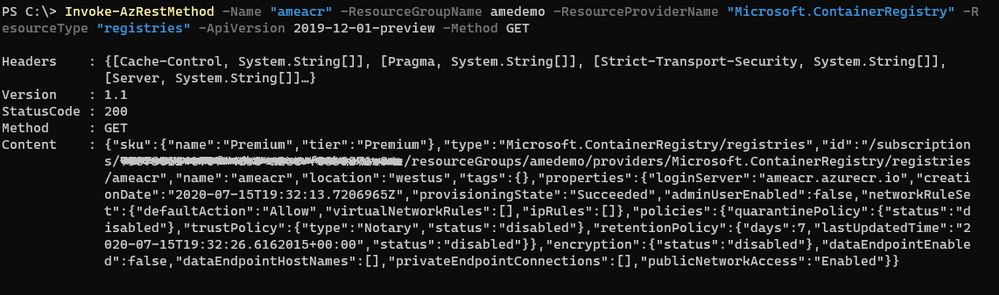
We want to disable public access to the existing ACR named `ameacr` in the `amedemo` resource group. Let’s start by understanding how the cmdlet works with a GET operation:
Invoke-AzRestMethod
-ResourceGroupName “amedemo”
-ResourceProviderName "Microsoft.ContainerRegistry"
-ResourceType “registries”
-Name “ameacr”
-ApiVersion 2019-12-01-preview
-Method GET
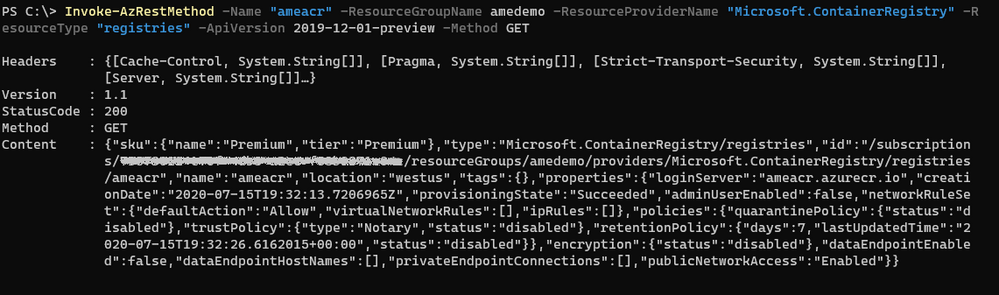
To allow maximum flexibility, most of the parameters are optional. However, when you’re managing resources within a resource group, you’ll most likely need to provide either the full ID to the resource or parameters like resource group, resource provider and resource type.
The ‘ResourceType‘ and ‘Name‘ parameters can take multiple values when targeting resources that require more than one name. For example, to manipulate a saved search in a Log Analytics workspace, the parameters look like the following:
‘-ResourceType @(‘workspaces’, ‘savedsearches’) -Name @(‘ame-la’, ‘ame-search’)’
Using a mapping based on the position in the array, the cmdlet constructs the following resource Id:‘/workspaces/yabo-test-la/savedsearches/ame-search’.
The ‘APIVersion’ parameter allows you to use a specific API, including preview ones as it is the case here. The supported API versions for Azure Resource providers can be found in the following repository: https://github.com/Azure/azure-rest-api-specs
You can find the definition for the 2019-12-01-preview version of ACR at the following location: https://github.com/Azure/azure-rest-api-specs/tree/master/specification/containerregistry/resource-manager/Microsoft.ContainerRegistry/preview
To disable the public network access, we need to make a PATCH call to the API that changes the value of the “publicNetwokAccess” parameter:
Invoke-AzRestMethod
  -ResourceGroupName amedemo
  -Name "ameacr"
  -ResourceProviderName "Microsoft.ContainerRegistry"
  -ResourceType "registries"
  -ApiVersion 2019-12-01-preview
  -Payload '{ "properties": {
     "publicNetworkAccess": "Disabled"
     } }'
  -Method PATCH
The Payload property is a JSON string that shows the path of the property to be modified.
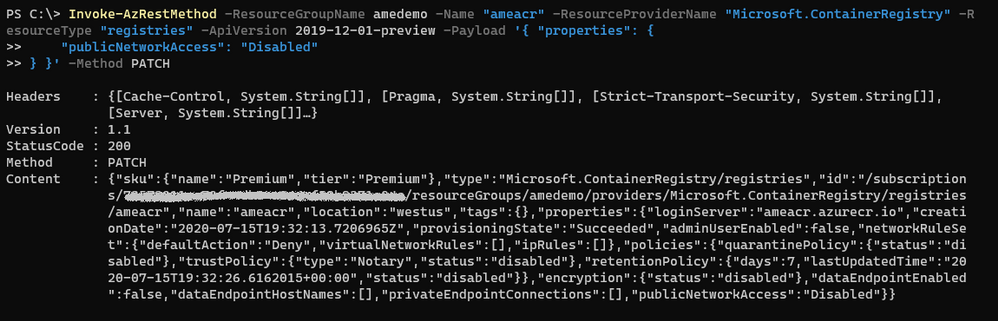
All the parameters for this API are described in the rest-api-spec file associated with this API. More specifically, the definition for the publicNetworkAccess parameter can be found in the following JSON file: https://github.com/Azure/azure-rest-api-specs/blob/2a9da9a79d0a7b74089567ec4f0289f3e0f31bec/specification/containerregistry/resource-manager/Microsoft.ContainerRegistry/preview/2019-12-01-preview/containerregistry.json
To only allow access to the registry from a specific IP address, the payload needs to be adjusted as follows:
Invoke-AzRestMethod
  -ResourceGroupName amedemo
  -Name "ameacr"
  -ResourceProviderName "Microsoft.ContainerRegistry"
  -ResourceType "registries"
  -ApiVersion 2019-12-01-preview
  -Payload '{ "properties": {
      "networkRuleSet": {
      "defaultAction": "Deny",
      "ipRules": [ {
         "action": "Allow",
         "value": "24.22.123.123"
         } ]
      }
  } }'
  -Method PATCH

How does this compare to the (New|Get|Set)-AzResource?
The *-AzResource cmdlets allow you to customize the REST API call to Azure by specifying the resource type, the API version, and the properties to be updated. However, the properties need to be a PSObject which can easily become complicated to create.
With `Invoke-AzRestMethod`, we wanted to offer a simpler way to manage Azure resources. In the previous example, you can see that the payload is a JSON string. You don’t have to struggle with the conversion between JSON and PSObjects.
If you’re already familiar with the *-AzResource cmdlets, you can continue using them. We have no plans to stop supporting them. With `Invoke-AzRestMethod`, we have added a new cmdlet to the family.
Feedback
As always, we value your feedback and welcome issues and contributions on our GitHub repo: https://github.com/Azure/azure-powershell
We’re also conducting a survey until August 15th about the PowerShell modules for Azure. Please take some time to provide your feedback on how we’re doing, it shapes our strategy:
https://microsoft.qualtrics.com/jfe/form/SV_bK37YHU5FBZepcF?Q_CHL=blog

by Scott Muniz | Jul 22, 2020 | Uncategorized
This article is contributed. See the original author and article here.
Test post for work
The post Test Post for Work appeared first on Microsoft 365 Blog.
Brought to you by Dr. Ware, Microsoft Office 365 Silver Partner, Charleston SC.
by Scott Muniz | Jul 22, 2020 | Uncategorized
This article is contributed. See the original author and article here.
Introduction
My name is John Barbare and I am a Sr Customer Engineer at Microsoft focusing on all things in the Cybersecurity space. Welcome to another customer offering article to inform you about the newest threats and what protective measures from Microsoft you can utilize. In this article, we will present Premier Services Offerings around Modern Workplace Threat Protection.
Offering Overview
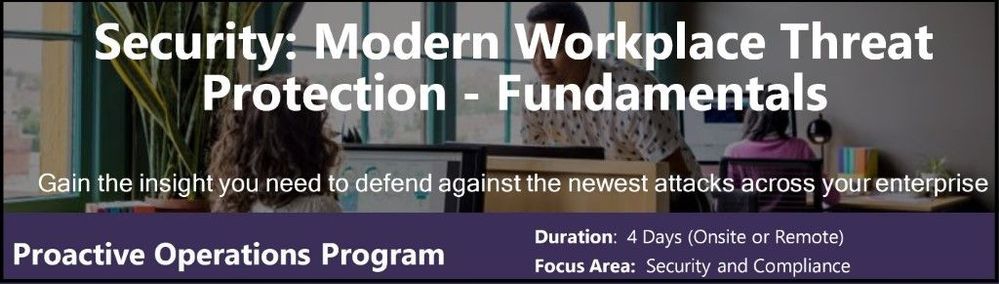
With the rise in Ransomware attacks and increased focus around threats facing small to large scale enterprises, we decided to take two customer offerings and combine them into one. We took the Proactive Operations Program: Protecting Against Ransomware and merged it with Modern Workplace Threat Protection to give the best overview of all the different types of attacks that enterprises are facing and include the entire M365 security stack to protect, detect, and prevent these attacks into a combined four–day customer offering. With this new update, we were able to provide a four–day customer offering to meet and exceed customer expectations.
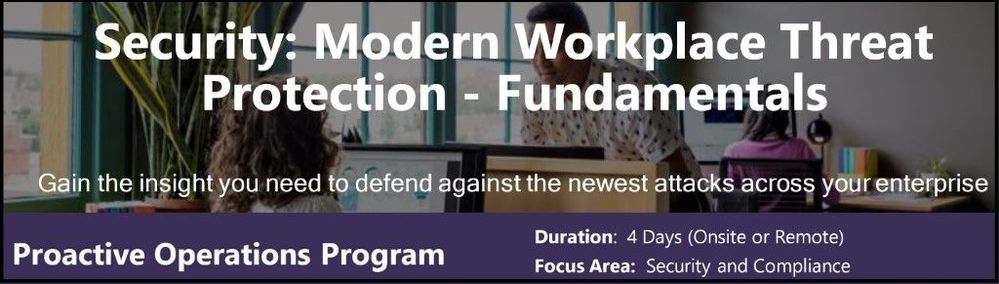 Security: Modern Workplace Threat Protection – Fundamentals
What’s Included
The content of this offering is a mix of education, governance, administration, and security best practices at the L200-L300 level which focuses on the breadth of the M365 security stack.
Modern Workplace Threat Protection is four day engagement where you will learn about modern threat protection components and security technologies, evaluate the features and functionality, and get started in deploying in a Proof of Concept environment wherever feasible. It will also expand your understand of how different types of malware, Zero Days, and Ransomware attacks are carried out and gain improved insights into protecting, detecting, and securing your environment and users against these destructive threat measures.
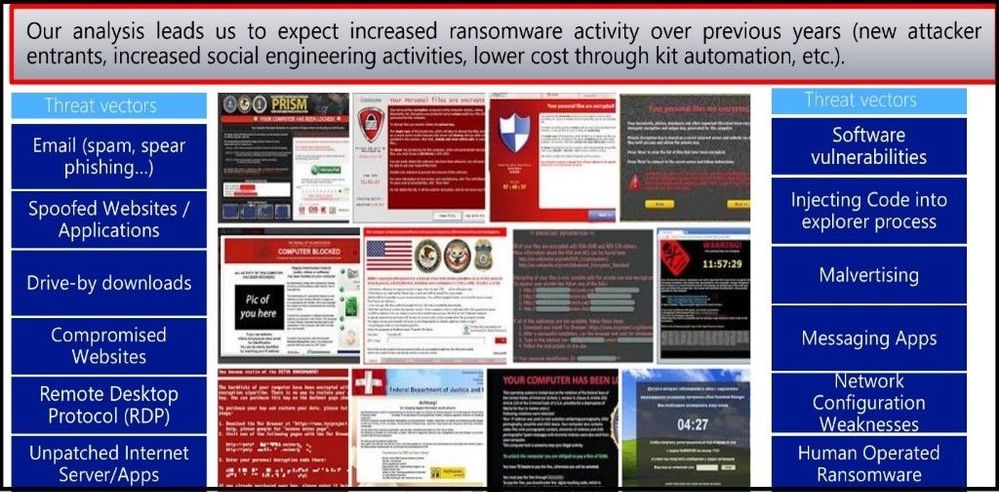 Ransomware attacks are on the rise
Areas Covered
The below sections are covered in detail throughout the four–day offering and expand on each objective to maximize your understanding of each topic and focus area. Deployment methods in the offering cover Group Policy, Microsoft Endpoint Configuration Manager, and Intune.
Ransomware and Dark Market Overview – Objectives focus on Ransomware background, enterprise Ransomware mitigations, trends and observations, key principles, and the different methods Microsoft can help with.
AppLocker & Application Control – Objectives focus on AppLocker overview and Application Whitelisting, prerequisites, rules, PowerShell, event logs, troubleshooting, Windows Defender Application Control and overview, and Application Control Deployment.
Windows Defender Exploit Guard & Application Guard – Objectives focus on Exploit Guard Overview, components, setup and deployment, Application Guard overview, the anatomy of an attack and containment, and Application Guard setup and deployment.
Windows Defender Antivirus – Objectives focus on benefits & unique optics of Windows Defender Antivirus (AV), the evolving threat landscape & the role of cloud-based protection, what’s on your computer – the Windows Defender AV endpoint, Windows Defender AV Block at First Sight, and behind the scenes of using the Potential Unwanted Application feature.
Securing Privileged Access – Objectives focus on a detailed overview of virtualization–based security, Credential Guard, Remote Credential Guard, and using Restricted Admin modes.
Code Signing & Macro Controls – Objectives focus on code signing, the importance of code signing, code signing certificates, and how the signing process works.
Advanced Threat Protection – Objectives focus on the overview of the current threat landscape and how it can impact your environment. Deep dives go into using Microsoft Defender Advanced Threat Protection (ATP), Office ATP, Azure ATP, and the new Microsoft Threat Protection to showcase the latest and best technologies Microsoft is keeping its customers and employees safe.
End user, Phishing & Social Engineering – Objectives focus on social engineering, phishing attacks, spear phishing, using the O365 attack simulator, and overall end user education.
Hardening Basics, Disabling Legacy Protocols, Security Update Management, & Data Backup – Objectives focus on the importance of software updates, hardening basics, using Microsoft security baselines, disabling legacy protocols, and the importance of backups and recovery methods if an attack does occur.
Hands on/Implementation
During this offering there are multiple hands on exercises to use in a Microsoft demo tenant, your own environment, or implement in a proof of concept to deployed later after testing. The following areas are listed below:
•AppLocker
•Exploit Guard and Application Guard
•Virtualization Based Security
•Macro Controls
•Windows Defender Antivirus
•Microsoft Defender ATP
•Office ATP
•Microsoft Threat Protection
•Phishing attacks and Social Engineering -Prevention
•Backups -Azure Backup
Delivery model
The delivery model is designed to be an educational offering covering threat protection technologies within the Modern Workplace including identity, access management, and endpoint security. Proof of Concept pilot enablement of key scoped Windows Defender endpoint defenses.
Key Personnel For this Offering
Within your organization, any Business Decision Makers/Key Stakeholders, IT/Security/Networking staff and management, SecOps, Cyber Analysts, Red Team, Blue Team, or any internal Cybersecurity staff that would assist in implementing and using these security technologies detailed in this offering. Other members of the IT organization that will be engaged as needed in each technology and threat protection area as needed.
Conclusion
Cybersecurity and threat protection are a topic that is being discussed daily with all clients that Microsoft has and also with future clients. Since there is no single product that can fix everything with one click and every client’s environment is unique, Modern Workplace Threat Protection addresses and answers the tough security challenges.
Ann Johnson, Microsoft’s Chief Vice President of Cybersecurity, stated on May 18, 2020 that, “operational resilience cannot be achieved without a true commitment to, and investment in, cyber resilience. We want to help empower every organization on the planet by continuing to share our learnings to help you reach the state where core operations and services won’t be disrupted by geopolitical or socioeconomic events, natural disasters, or even cyber events.”
By selecting this offering, it is a great start to see what Microsoft security features are already in your environment and be able to gain a better understanding around the Microsoft security stack and be ready to deploy and safeguard against the newest threats and attacks.
Ask your Microsoft Account Representative, Technical Account Manager (TAM) or Service Delivery Manager (SDM) to reserve a spot and have one of Microsoft’s highly skilled Cybersecurity Customer Engineers deliver this offering to your organization very soon!
Disclaimer
As of this writing, the above modules are in scope, however, they are subject to change as M365 Security offerings and Modern Workplace Threat Protection evolve responding to customers’ feedback.
Credit
Special thanks to the offering team: Paul Bergson, John Barbare, Anderson Moriya da Silva, and Joe Zerafa.
Thanks for reading and have a great Cybersecurity day!
by Scott Muniz | Jul 22, 2020 | Alerts, Microsoft, Technology, Uncategorized
This article is contributed. See the original author and article here.
Managed identity is a feature that enables you to authenticate to Azure resources securely without needing to insert credentials into your code. Managed identities are automatically managed by Azure and enable you to authenticate to services that support Azure Active Directory authentication, like Azure Database for PostgreSQL – Single Server.
Today we’ll create a managed identity for an Azure Function app and connect to an Azure Database for PostgreSQL server. (We also have a tutorial for connecting from a VM with managed identity).
In this blog, we’ll be going through the following steps:
- Step 1: Configure Azure AD Authentication for PostgreSQL
- Step 2: Enable managed identity for the Function app
- Step 3: Use the managed identity ID to create a user in Postgres
- Step 4: Write code for function app
- Step 5: Test the function app and connect to Postgres
Step 1: Configure Azure AD Authentication for Azure Database for PostgreSQL – Single Server
First, we need to make sure that our Azure Database for PostgreSQL server is configured for Azure Active Directory authentication. The Use Azure Active Directory for authentication with PostgreSQL walkthrough shows you how to do so.
Step 2: Enable a managed identity for the Function app
Next is to enable a system-assigned managed identify for the Azure Function app. A system-assigned managed identity is an Active Directory identity that’s created by Azure for a specific resource.
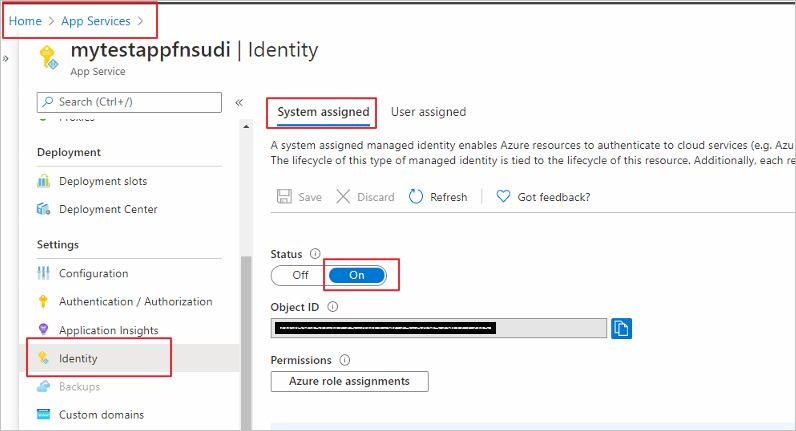
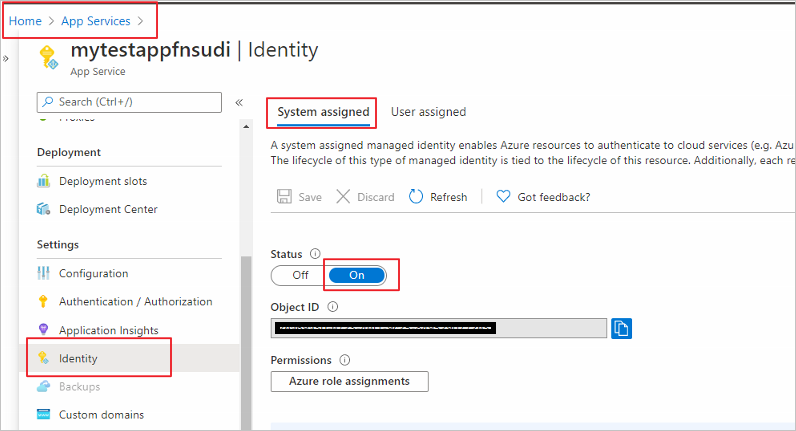
Sign in to the Azure portal and select the Function app you’d like to use. Select Identity under Settings. In the System assigned tab, set Status to On.
Step 3: Use the managed identity ID to create a user in Postgres
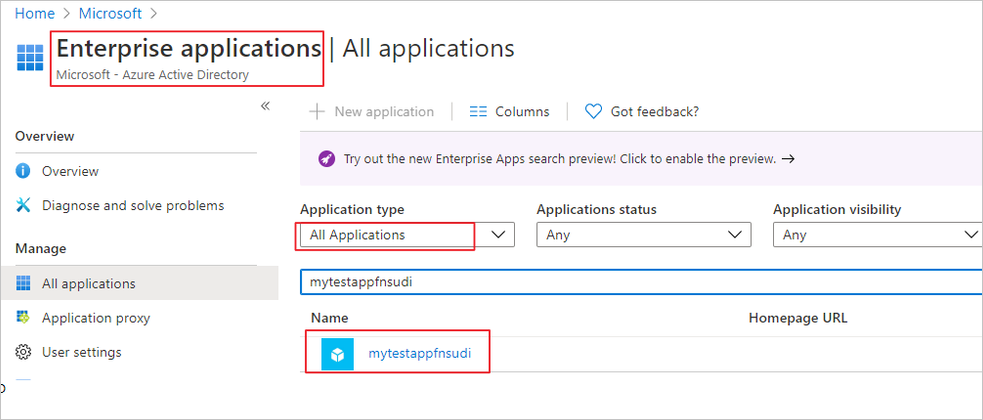
Now we will create a Postgres user for your managed identity. For this we need to get the application’s ID. Search and open Azure Active Directory in the Azure portal. Select Enterprise Applications.
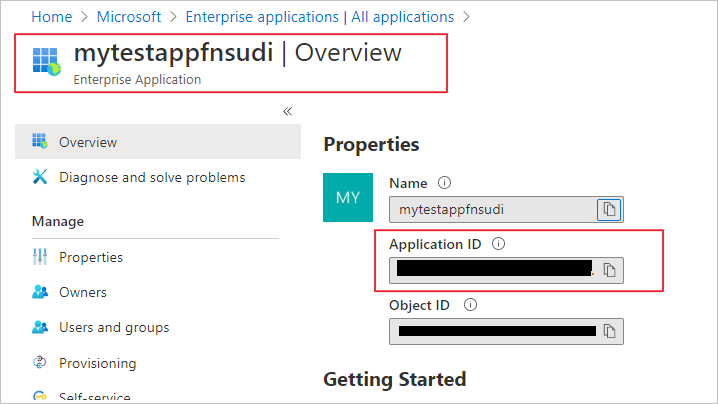
Select your Function app and copy its Application ID.
Now, connect to your Azure Database for PostgreSQL server using your Azure AD administrator user (from Step 1). Run the following in Postgres, substituting in your application ID:
SET aad_validate_oids_in_tenant = off;
CREATE ROLE myuser WITH LOGIN PASSWORD '<APPLICATION_ID>' IN ROLE azure_ad_user;
The managed identity now has access when authenticating to Postgres with the username myuser.
Step 4: Write code for the Function app
Next let’s see how to get an access token using the Function app’s system-managed identity. We’ll use that token to call Azure Database for PostgreSQL. Azure Database for PostgreSQL – Single Server natively supports Azure AD authentication, so it can directly accept access tokens obtained using managed identities for Azure resources. When creating a connection to PostgreSQL, you pass the access token in the password field.
Here’s a .NET code example of opening a connection to PostgreSQL using an access token. This code must run on the Function app to access the system-assigned managed identity’s endpoint. .NET Framework 4.6 or higher or .NET Core 2.2 or higher is required to use the access token method.
Replace the values of Servername, User, and Database to match yours.
using System;
using System.IO;
using System.Threading.Tasks;
using Microsoft.AspNetCore.Mvc;
using Microsoft.Azure.WebJobs;
using Microsoft.Azure.WebJobs.Extensions.Http;
using Microsoft.AspNetCore.Http;
using Microsoft.Extensions.Logging;
using Newtonsoft.Json;
using Npgsql;
using Microsoft.Azure.Services.AppAuthentication;
namespace myfunctionappsudi
{
    public static class Function1
    {
        /*Declare Database Details*/
        private static string Host = "<Servername>.postgres.database.azure.com";/*Database FQDN*/
        private static string User = "myuser@<Servername>"; /*User Created with managed identity*/
        private static string DBname = "<DB Name>";/*Database Name*/
        private static string Port = "5432";/*Database Port*/
        static string responsemsg;
        [FunctionName("Function1")]
        public static async Task<IActionResult> Run(
            [HttpTrigger(AuthorizationLevel.Function, "get", "post", Route = null)] HttpRequest req,
            ILogger log)
        {
            log.LogInformation("C# HTTP trigger function processed a request.");
            /*Gettting the Token*/
            var sqlServerTokenProvider = new AzureServiceTokenProvider();
            var SqlAccessToken = await sqlServerTokenProvider.GetAccessTokenAsync("https://ossrdbms-aad.database.windows.net");
            //log.LogInformation (SqlAccessToken); /*For troubleshooting in case you need to print the token */
            log.LogInformation("Connecting to database.");
            string connString = String.Format(
                    "Server={0}; User Id={1}; Database={2}; Port={3}; Password={4};SSLMode=Prefer",
                    Host,
                    User,
                    DBname,
                    Port,
                    SqlAccessToken);
            /*Connecting to PostgreSQL*/
            using (var conn = new NpgsqlConnection(connString))
            {
                log.LogInformation("Opening connection");
                log.LogInformation(connString);
                conn.Open();
                log.LogInformation("Opening connection using access token....");
                /*Query the Database */
                    using (var command = new NpgsqlCommand("SELECT version()", conn))
                    {

                        var reader = command.ExecuteReader();
                        while (reader.Read())
                        {
                            log.LogInformation("nConnected!nnPostgres version: {0}", reader.GetString(0));
                          responsemsg = reader.GetString(0);
                        }
                    }
              }
             responsemsg = "The version of the Azure Database for PostgreSQL is : " + responsemsg;
            return new OkObjectResult(responsemsg);
        }
    }
}
Step 5: Test the Function app and connect to Postgres
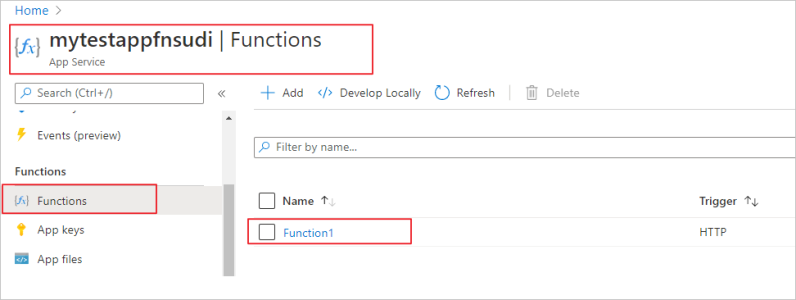
Once you publish the Function app, you can test it. In the Azure portal, go to the Function app you published and select Functions.
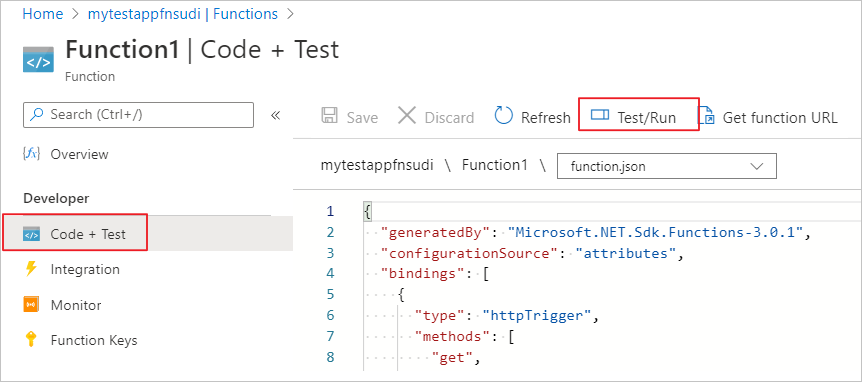
Once the Function is selected you can choose Code+Test and then Test/Run
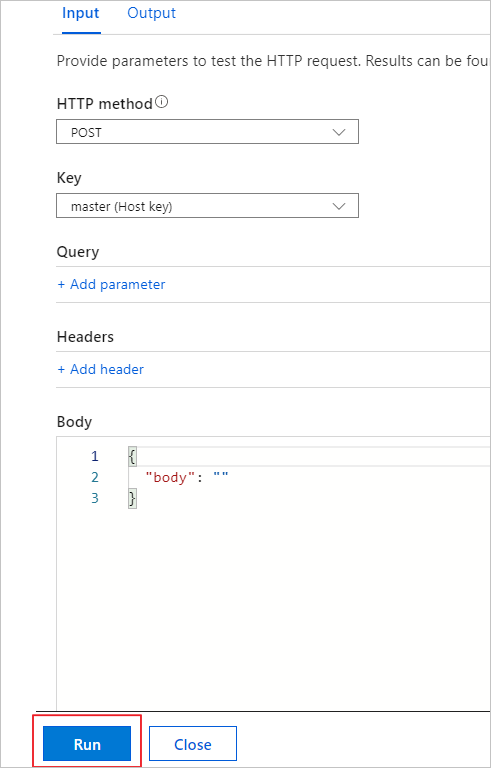
Select Run in the pop-up window.
You can see the function’s output in terminal for App Insights.
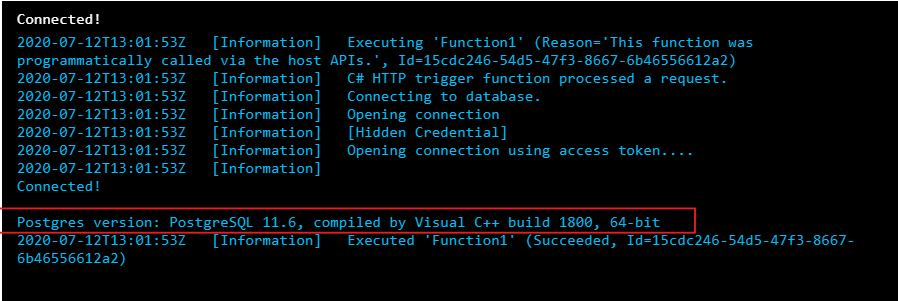
We can see that the function connected to the Postgres database with managed identity and could successfully run the query.
You no longer have to keep credentials in code
Managed identity sets you free from storing credentials in code or source control. If you’re interested in how to use managed identity to connect from an Azure VM to Azure Database for PostgreSQL – Single Server, check out our walkthrough.


Recent Comments