by Scott Muniz | Aug 13, 2020 | Azure, Microsoft, Technology, Uncategorized
This article is contributed. See the original author and article here.
The Azure Service Fabric 7.1 third refresh release includes bug fixes, and performance enhancements for standalone, and Azure environments has started rolling out to the various Azure regions. The updates for .NET SDK, Java SDK and Service Fabric Runtime is available through Web Platform Installer, NuGet packages and Maven repositories in 7-10 days within all regions.
- Service Fabric Runtime
- Windows – 7.1.456.9590
- Ubuntu 16 – 7.1.452.1
- Ubuntu 18 – 7.1.452.1804
- Service Fabric for Windows Server Service Fabric Standalone Installer Package – 7.1.456.9590
- .NET SDK
- Windows .NET SDK – 4.1.456
- Microsoft.ServiceFabric – 7.1.456
- Reliable Services and Reliable Actors – 4.1.456
- ASP.NET Core Service Fabric integration – 4.1.456
- Java SDK – 1.0.6
Key Announcements
- Extended support for 7.0: Support for all 7.0 based Service Fabric releases will be extended by 3 months until October 1st, 2020. We will take measures to ensure support expiration warnings for 7.0 clusters are removed. Please disregard any newsletters regarding support expiration for Service Fabric 7.0, there will be no impact to clusters.
For more details, please read the release notes.
by Scott Muniz | Aug 13, 2020 | Uncategorized
This article is contributed. See the original author and article here.
To help provide additional protection from potential malware attacks, Microsoft recommends using HTTPS with Windows Server Update Services (WSUS).
In this post, we will walk you through the steps required to configure each of your WSUS servers to use HTTPS. We will then share details on how to obtain and bind the necessary certificate, enforce Secure Sockets Layer (SSL)/Transport Layer Security (TLS) encryption, and configure WSUS to use HTTPS. From there, we will discuss how to configure clients to use HTTPS and how to configure WSUS to use HTTPS for synchronization for downstream servers only. We will conclude with a recommended configuration order. These steps are critical in keeping the clients within your organization more secure and we hope you will find this post helpful.
At a time when malware attacks are on the rise across industries, configuring WSUS with HTTPS may further reduce the ability of a potential attacker to remotely compromise a client and elevate privileges. To ensure that the best security protocols are in place, we recommend that you use the SSL/TLS protocol to help secure your WSUS infrastructure. Windows Server Update Services uses SSL/TLS to authenticate client computers and downstream WSUS servers to the upstream WSUS server. WSUS also uses SSL/TLS to encrypt update metadata.
Configuring WSUS to use HTTPS
|
Note: Securing your server with TLS may result in a slight loss in performance.
|
To configure WSUS to use HTTPS, you will need to:
- Obtain a certificate.
- Bind the certificate.
- Enforce SSL/TLS encryption (require SSL) on the following applications:
- ApiRemoting30
- ClientWebService
- DSSAuthWebService
- ServerSyncWebService
- SimpleAuthWebService
- Configure WSUS to use HTTPS using the wsusutil configuressl command.
- Configure clients to use HTTPS communications with WSUS, and specify the intranet Microsoft update service location.
If you have downstream WSUS servers, you will need to complete an additional step. Please reference configure downstream WSUS servers to use HTTPS when syncing. (Use SSL when synchronizing update information.)
|
Important: Follow the WSUS best practices for disabling recycling and configuring memory limits prior to configuring WSUS to use HTTPS.
|
Obtain a certificate
There are a few methods available to obtain a certificate for use with Internet Information Services (IIS). For example, you can create a certificate request and send that request to a known certificate authority (CA), such as Verisign or GeoTrust, or obtain a certificate from an online CA in your intranet domain. If you are using an online CA in your intranet domain, you can follow the steps below to create the required certificate.
- Log on to the WSUS server using a user account that is a member of the local Administrators group.
NOTE: By default, the WebServer certificate template will only issue to Domain Admins. If the user logging in is not a domain admin, their user account will need to be granted the Enroll permission on the WebServer certificate template.
- Launch Internet Information Services (IIS) Manager.
- Click on your server and then launch Server Certificates.
- In the Actions pane, select Create Domain Certificate.
- Fill in the Distinguished Name Properties and select Next. The Common name value must be the FQDN of the WSUS server.
- On the Online Certification Authority page, select your CA and enter a friendly name for the certificate and select Finish.
Bind the certificate
- In Internet Information Services (IIS) Manager expand your server, expand Sites, and select WSUS Administration.
- In the Actions pane, select Bindings.
- Select the SSL binding and click Edit.
- In the drop-down for SSL certificate, select the appropriate SSL certificate and click OK.
- Select Close on the Site Bindings dialog box.
Enforce SSL/TLS encryption
- In Internet Information Services (IIS) Manager expand your server, expand Sites, and expand WSUS Administration.
- Select the application ApiRemoting30 and launch SSL Settings.
- Check Require SSL and then click Apply.
- Repeat the same steps for the other applications noted above.
Configure WSUS to use HTTPS
- Launch an elevated command prompt on the WSUS server.
- Navigate to your WSUS installation folder, e.g. cd “c:Program FilesUpdate ServicesTools”.
- Execute the following command:
WSUSUtil.exe configuressl FQDNofWSUSServer
- Restart the WSUS server to make sure all changes take effect.
Configure clients to use HTTPS
To configure clients to require HTTPS communication to the WSUS server, simply update the domain Group Policy Object (GPO) or the Configuration Service Provider (CSP) policy used to configure WSUS to leverage HTTPS and the desired port.
- For those using Group Policy, configure the Specify intranet Microsoft update service location policy values of : Set the intranet update service for detecting updates and Set the intranet statistics server to point to your desired port (ex. HTTPS://servername:8531). See To enable WSUS through a domain GPO for more info.
- For those using a mobile device management (MDM) tool, CSPs, please configure the Update/UpdateServiceUrl policy to point to your desired port (for example, HTTPS://servername:8531).
Configure WSUS to use HTTPS for synchronization (Downstream servers only)
- Log on to the WSUS server using a user account that is a member of the local Administrators group or the WSUS Administrators group.
- Launch Windows Server Update Services.
- In the right pane, expand the server name.
- Select Options, and then select Update Source and Proxy Server.
- On the Update Source tab, under Synchronize from another Windows Server Update Services server, type the port number that the server uses for SSL connections into the Port number text box.
- Select Use SSL when synchronizing update information and then select OK.
Configuration order
Because every WSUS server must be configured to use the SSL/TLS protocol, the order in which the steps are performed will depend on your environment. If you have a simple infrastructure where the required steps can be performed on all WSUS servers within a single timeframe, then a top-down approach can be used. However, if you have a large infrastructure that will require a phased approach, then a bottom-up approach should be used.
Example 1: Environment with a small number of WSUS Servers
In this example, it is assumed that all WSUS servers can be configured within a single timeframe. In this case, the upstream WSUS server can be configured first using the steps above. Any downstream WSUS servers can then be configured using the steps above in addition to setting the WSUS option to Use SSL when synchronizing update information.
Example 2: Environment with many WSUS Servers
In this example, it is assumed that a phased approach will be required to configure all WSUS servers. In this case, a bottom-up approach should be leveraged. All downstream WSUS servers should be configured for HTTPS before their upstream WSUS server is configured to use HTTPS. After their upstream WSUS server is configured to use HTTPS, the WSUS setting Use SSL when synchronizing update information on each downstream server can be enabled.
Call to action
We recommend that you review the security of your WSUS infrastructure. If HTTPS is not currently in use, see Securing WSUS and follow the instructions in this article to achieve a greater level of security.
by Scott Muniz | Aug 13, 2020 | Uncategorized
This article is contributed. See the original author and article here.
We will have our Service Fabric Community Q&A call for this month on Aug 20th 10am PDT.
Starting this month, we are introducing a framework for our monthly community session. In addition to our normal Q&A in each community call we will focus on topics related to various components of the Service Fabric platform, provide updates on the upcoming releases, and showcase solutions developed by customers that benefit the community.
Agenda:
- Service Fabric Traffic Ingress with Microsoft YARP
- 7.2 Feature highlights
- Q&A
Join us to learn about roadmap and ask us any questions related to Service Fabric, containers in Azure, etc. This month’s Q&A features one session on:
As usual, there is no need to RSVP – just navigate to the link to the call and you are in.
by Scott Muniz | Aug 13, 2020 | Azure, Microsoft, Technology, Uncategorized
This article is contributed. See the original author and article here.
by Scott Muniz | Aug 13, 2020 | Azure, Microsoft, Technology, Uncategorized
This article is contributed. See the original author and article here.
Whether migrating an existing application or designing a brand new one, capacity planning process plays a critical role. Learn how to navigate across Azure SQL Database options like hardware generation, service and compute tiers, and instance sizing principles, trying to find the sweet spot between performance, functionalities, and costs, in the first episode of this three-part series with Silvano Coriani.
Watch on Data Exposed
Additional Resources:
Choose between the vCore and DTU purchasing models
vCore model overview
Service tiers in the DTU-based purchase model
Migrate Azure SQL Database from the DTU-based model to the vCore-based model
Query Performance Insight for Azure SQL Database
Troubleshoot with Intelligent Insights
View/share our latest episodes on Channel 9 and YouTube!
by Scott Muniz | Aug 13, 2020 | Azure, Microsoft, Technology, Uncategorized
This article is contributed. See the original author and article here.
Whether migrating an existing application or designing a brand new one, capacity planning process plays a critical role. Learn how to navigate across Azure SQL Database options like hardware generation, service and compute tiers, and instance sizing principles, trying to find the sweet spot between performance, functionalities, and costs, in the first episode of this three-part series with Silvano Coriani.
Watch on Data Exposed
Additional Resources:
Choose between the vCore and DTU purchasing models
vCore model overview
Service tiers in the DTU-based purchase model
Migrate Azure SQL Database from the DTU-based model to the vCore-based model
Query Performance Insight for Azure SQL Database
Troubleshoot with Intelligent Insights
View/share our latest episodes on Channel 9 and YouTube!

by Scott Muniz | Aug 13, 2020 | Uncategorized
This article is contributed. See the original author and article here.
French and Japanese enthusiasts have united virtually to celebrate all things Power Platform.
Two separate, virtual events held in the local languages in recent months sought to raise awareness and support upskilling.
First, French users met at the start of June for Power Saturday. The online conference is an annual meeting of multiple communities including Club Power BI, Data (GUSS) and M365 (aOS). The event looks to give attendees the keys to understanding topics and trends that are shaking up IT functions and business departments, including self-service BI, collaboration, citizen development, data, artificial intelligence, and more.
Seven tracks, 46 sessions, and 630 attendees later, Power Saturday organizer and MVP for Data Platform Jean-Pierre Riehl says taking the event online was a resounding success.
“Since the beginning, we wanted the event organized like our physical events,” he says. “We wanted it to be like a fair where attendees could walkthrough, watch a session, discuss with others, ask questions at booths – and we did it! Moreover, we organized more animations during the day than an in-person event.”
“We tried to ensure that there was no downtime, no participants left behind,” says MVP for Data Platform Guillaume Gaudfroy. “I think we got there … I believe that we managed to keep a strong interaction with everyone through our activities and volunteers who have worked throughout the day.”
One month later and it was Japan’s turn. One of the highlights of Power Platform Day Summer ’20 – other than diving into anything and everything Power Platform – was the fact the July 4 event leveraged Microsoft Teams like never before in Japan. The virtual conference included 16 sessions divided into four tracks, as well as four ‘medic rooms’ for interaction between the organizers, speakers, and attendees.

MVP for Data Platform Yugo Shimizu – who oversaw the event with MVP for Data Platform Takeshi Kagata and Microsoft Senior Program Manager Taiki Yoshida – noted that the event successfully mixed Teams Live Events and Teams Meetings to host the more than 700 attendees, constituting the largest online event ever for Microsoft Teams in the country. “[The highlight was that] we had no major issues!” Yugo says.
Event track producer and MVP for Business Applications and Azure Noriko Matsumoto says the event reinforced the possibility of virtual meetings. “[It’s amazing how] attendees can join the online event regardless of their physical location. It’s so impressive that more attendees than ever – including the people living in remote areas who have never participated at the in-person event before – joined this online event,” she says.
For more on both events, check out the Power Saturday Twitter the Power Platform Day Summer ’20 YouTube channel.


by Scott Muniz | Aug 13, 2020 | Uncategorized
This article is contributed. See the original author and article here.
French and Japanese enthusiasts have united virtually to celebrate all things Power Platform.
Two separate, virtual events held in the local languages in recent months sought to raise awareness and support upskilling.
First, French users met at the start of June for Power Saturday. The online conference is an annual meeting of multiple communities including Club Power BI, Data (GUSS) and M365 (aOS). The event looks to give attendees the keys to understanding topics and trends that are shaking up IT functions and business departments, including self-service BI, collaboration, citizen development, data, artificial intelligence, and more.
Seven tracks, 46 sessions, and 630 attendees later, Power Saturday organizer and MVP for Data Platform Jean-Pierre Riehl says taking the event online was a resounding success.
“Since the beginning, we wanted the event organized like our physical events,” he says. “We wanted it to be like a fair where attendees could walkthrough, watch a session, discuss with others, ask questions at booths – and we did it! Moreover, we organized more animations during the day than an in-person event.”
“We tried to ensure that there was no downtime, no participants left behind,” says MVP for Data Platform Guillaume Gaudfroy. “I think we got there … I believe that we managed to keep a strong interaction with everyone through our activities and volunteers who have worked throughout the day.”
One month later and it was Japan’s turn. One of the highlights of Power Platform Day Summer ’20 – other than diving into anything and everything Power Platform – was the fact the July 4 event leveraged Microsoft Teams like never before in Japan. The virtual conference included 16 sessions divided into four tracks, as well as four ‘medic rooms’ for interaction between the organizers, speakers, and attendees.
MVP for Data Platform Yugo Shimizu – who oversaw the event with MVP for Data Platform Takeshi Kagata and Microsoft Senior Program Manager Taiki Yoshida – noted that the event successfully mixed Teams Live Events and Teams Meetings to host the more than 700 attendees, constituting the largest online event ever for Microsoft Teams in the country. “[The highlight was that] we had no major issues!” Yugo says.
Event track producer and MVP for Business Applications and Azure Noriko Matsumoto says the event reinforced the possibility of virtual meetings. “[It’s amazing how] attendees can join the online event regardless of their physical location. It’s so impressive that more attendees than ever – including the people living in remote areas who have never participated at the in-person event before – joined this online event,” she says.
For more on both events, check out the Power Saturday Twitter the Power Platform Day Summer ’20 YouTube channel.

by Scott Muniz | Aug 13, 2020 | Uncategorized
This article is contributed. See the original author and article here.
Whether you use to-do lists for work, school, or personal tasks, engaging with your tasks is key to a balanced schedule. Microsoft To Do syncs your tasks across your devices, whether you use Android, iOS, Mac, Windows, or the web. To Do is also integrated with the Microsoft 365 suite of applications, including Outlook and Teams.
In the first installment of our Six Tips series, we’ll focus on Windows 10 devices.
1. Pin to taskbar
You can now pin the Microsoft To Do app to your taskbar to quickly access your favorite lists. Whether you’re adding a new task or updating an existing one, a single click is all it takes.
You can turn this option on in the Settings page of To Do, or right-click on the app when it’s open and select Pin to taskbar.
 You can pin to taskbar from Settings
2. App badge notifications
With app badge notifications, you can get a sense of how many outstanding tasks you have without opening To Do. This visual reminder helps you keep an eye on your tasks even if you’re busy with something else. That way, you can ensure your important tasks don’t fall through the cracks.
We have two options for app badge notifications:
- Due today and overdue (default): The badge notification will show a count of both your tasks that are due today and the ones that are overdue.
- Added to My Day and not completed: The badge notification will show a count of all the tasks that you’ve added to My Day but haven’t completed yet.
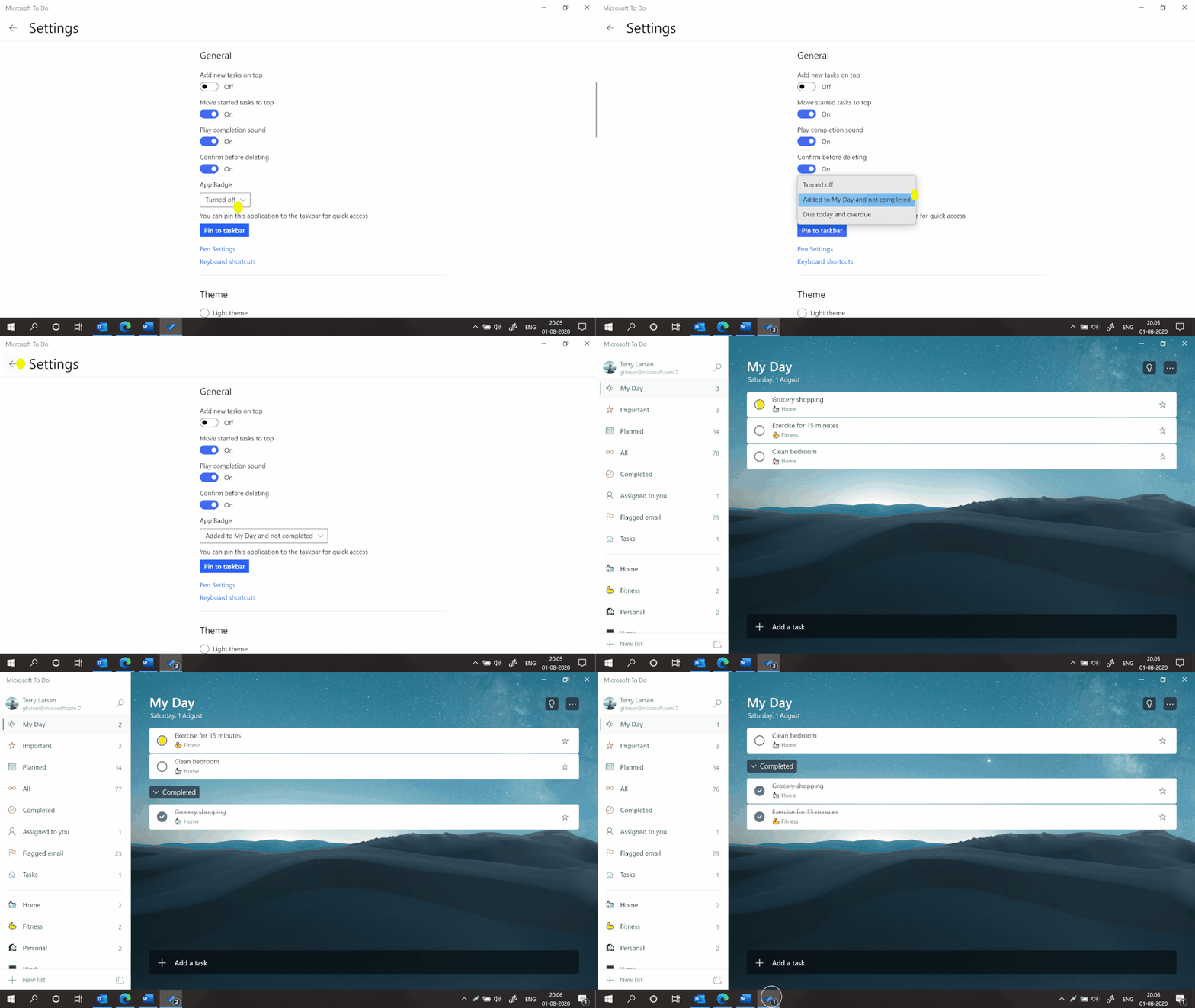 Live update to badge notifications in the taskbar
You can turn this option on from the Settings page, where you can also pick the badge notification type that best reflects your workstyle.
3. Using Live Tiles
Keep an eye on multiple lists from the Windows Start Menu. Live Tiles give you the latest status of your favorite to-do lists. Get started with Live Tiles.
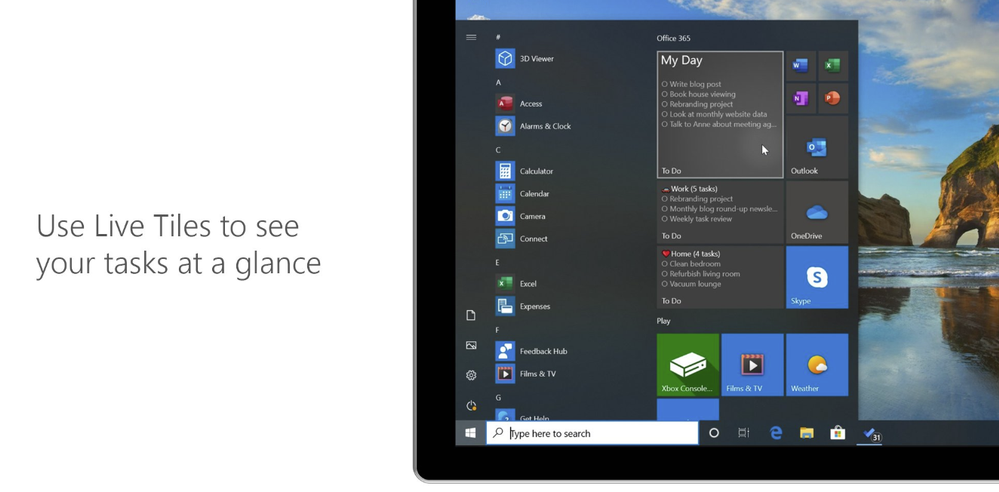 Live Tiles on Windows Start Menu
4. Assigning tasks in shared lists
When you want to delegate a task in a shared list, type @ to assign it to someone.
 Type @ to assign a task to someone
5. Reminders and due dates for tasks
Between multitasking and the number of things going on at any given time, it’s easy to forget the tasks you want to complete. Instead of trying to remember, you can set up reminders and due dates for your tasks in To Do.
 Reminders help you complete your tasks in time
6. Add context to your tasks
It’s sometimes hard to remember what a task is referring to. With these tips, you can quickly recall what a task is about.
- Add #tags to your tasks to help categorize them.
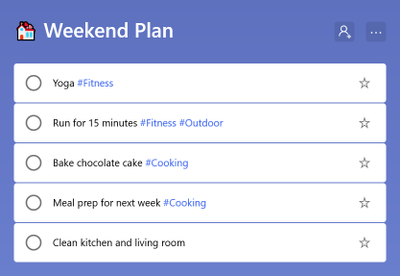 Categorize your tasks with #tags
- Make a few notes in the Add note section of a task to help you or someone else recall important points.
- Attach files that might be relevant to the task.
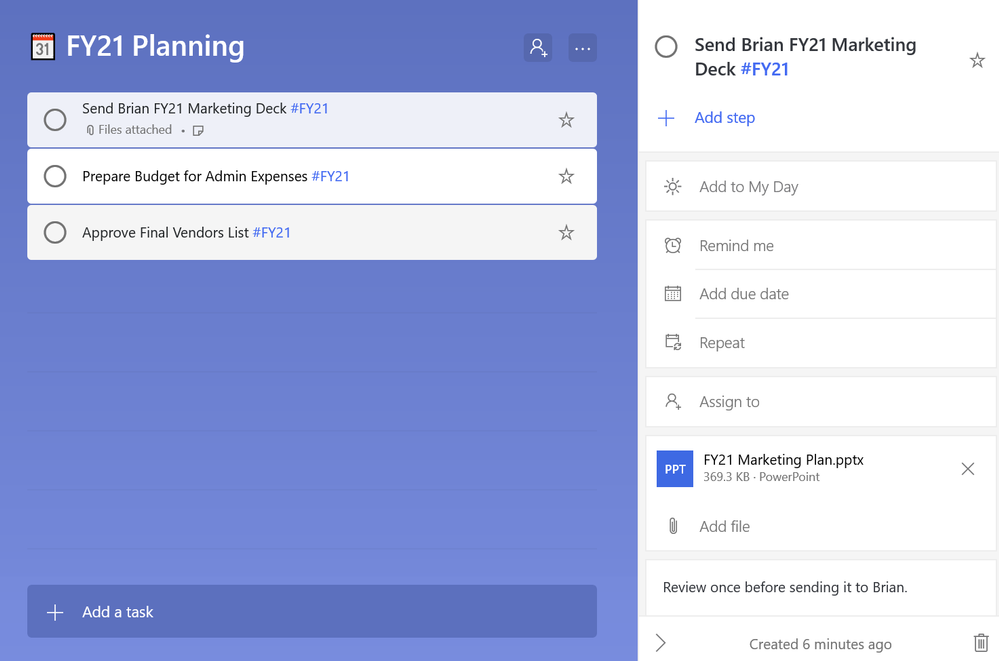 Add notes, attach files to your tasks
With these 6 tips we think you’ll find it easier to manage your tasks in Microsoft To Do on Windows. If you don’t use To Do yet, you can download it here. We can’t wait to hear what you think of these tips – let us know in the comments below or over on Twitter and Facebook. You can also write to us at todofeedback@microsoft.com.
by Scott Muniz | Aug 13, 2020 | Uncategorized
This article is contributed. See the original author and article here.
The best option to replicate the stored functions is to build a script with these commands and use:
“.execute database script” command: https://docs.microsoft.com/en-us/azure/data-explorer/kusto/management/execute-database-script


Recent Comments