by Scott Muniz | Aug 21, 2020 | Azure, Microsoft, Technology, Uncategorized
This article is contributed. See the original author and article here.
Quite a bit of Azure news to cover this week. Items covered include Microsoft 365 apps to retire support for Internet Explorer 11, Azure IoT Central updates including a command line-interface (CLI) IoT extension update and a Mobile app gateway sample, Assigning groups to Azure AD roles is now in public preview and Video Analytics is now available as a new Azure IoT Central App Template.
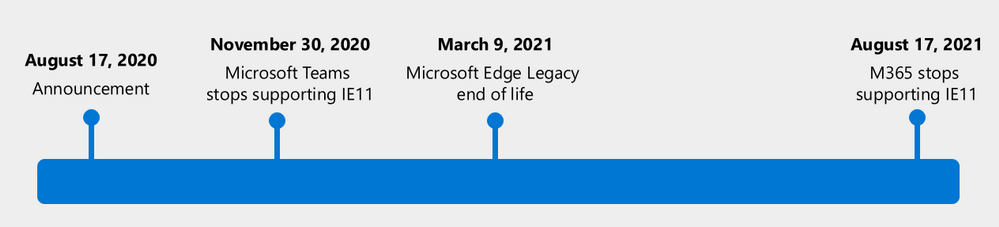
Microsoft 365 apps to retire support for Internet Explorer 11 and Windows 10 sunsets Microsoft Edge Legacy

The Microsoft Teams web app will no longer support IE 11 as of November 30, 2020 and the remaining Microsoft 365 apps and services will no longer support IE 11 as of August 17, 2021. After the above dates, customers will have a degraded experience or will be unable to connect to Microsoft 365 apps and services on IE 11. For degraded experiences, new Microsoft 365 features will not be available or certain features may cease to work when accessing the app or service via IE 11.
After March 9, 2021, the Microsoft Edge Legacy desktop app within Windows 10 will not receive new security updates. The new Microsoft Edge and Internet Explorer mode uses the Trident MSHTML engine from Internet Explorer 11 (IE11) for legacy sites and can be specifically configure via policy.
Azure IoT Central UI new and updated features
A plethora of new Azure IoT Central features updates this week including:
- Azure command line-interface (CLI) IoT extension update
- Enables the ability to troubleshoot and diagnose common issues when connecting a device to IoT Central. For example, you can use the Azure CLI to compare and validate the device property payload against the device model and run a device command and view the response.
- Mobile app gateway sample
-
Most medical wearable devices are Bluetooth Low Energy devices that need a gateway to send data to IoT Central. This phone app acts as that gateway and can be used by a patient who has no access to, or knowledge of, IoT Central. You can customize the IoT Central Continuous Patient Monitoring sample mobile app for other use cases and industries.
- Device builder documentation improvements
-
A new article for device developers describes message payloads. It describes the JSON that devices send and receive for telemetry, properties, and commands defined in a device template. The article includes snippets from the device capability model and provides examples that show how the device should interact with the application.
- User management support with the IoT Central APIs
-
You can now use the IoT Central APIs to manage your application users. This makes it easier to add, remove, and modify users and roles programmatically. You can add and manage service principal (SPNs) as part of your application to make it easier to deploy IoT Central in your existing release pipeline.
Assigning groups to Azure AD roles is now in public preview
Currently available for Azure AD groups and Azure AD built-in roles, and Microsoft will be extending this in the future to on-premises groups as well as Azure AD custom roles. You’ll need to create an Azure AD group and enable it to have roles assigned which can be done by anyone who is either a Privileged Role Administrator or a Global Administrator. To use this feature, you’ll need to create an Azure AD group and enable it to have roles assigned. This can be done by anyone who is either a Privileged Role Administrator or a Global Administrator. After that, any of the Azure AD built-in roles, such as Teams Administrator or SharePoint Administrator, can have groups assigned to them.
New Azure IoT Central Video Analytics App Template now available
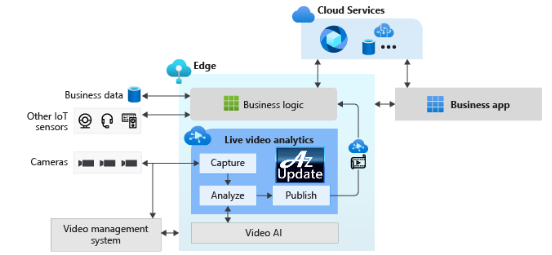
The new IoT Central video analytics template simplifies the setup of an Azure IoT Edge device to act as the gateway between cameras and Azure cloud services. The template installs the IoT Edge modules such as an IoT Central Gateway, Live Video Analytics on IoT Edge, OpenVINO Model server, and an ONVIF module on the Edge device. These modules help the IoT Central application configure and manage the devices, ingest the live video streams from the cameras, and easily apply AI models such as vehicle or person detection. Simultaneously in the cloud, Azure Media Services and Azure Storage record and stream relevant portions of the live video feed.
MS Learn Module of the Week

Develop IoT solutions with Azure IoT Central
Interested in rapidly building enterprise-grade IoT applications on a secure, reliable, and scalable infrastructure? This path is the place to start to learn how to build IoT solutions with Azure IoT Central. IoT Central is an IoT application platform that reduces the burden and cost of developing, managing, and maintaining enterprise-grade IoT solutions.
Let us know in the comments below if there are any news items you would like to see covered in next week show. Az Update streams live every Friday so be sure to catch the next episode and join us in the live chat.
by Scott Muniz | Aug 21, 2020 | Azure, Microsoft, Technology, Uncategorized
This article is contributed. See the original author and article here.
How many times have you wanted to remediate a non-compliant object using Azure Policy but found you can’t because the policy language or type of object can’t be manipulated in that way. Or maybe you’ve had to write a policy with an audit effect instead of being able to create a deployment to remediate the issue. Deployment Scripts are currently in preview and allow you to execute PowerShell or CLI scripts using Azure Container Instances as part of an Azure Resource Manager template. To put it simply – now you can run a script as part of a template deployment.
So my thought was if I can deploy a template using an Azure Policy DeployIfNotExists effect – why can’t I deploy a Deployment Script object which then runs the code to remediate my non-compliant Azure resource?
Well as it turns out you can! And this allows several interesting use cases which are not possible with the default policy language such as: –
- Deleting orphaned objects.
- Changing the license type to Hybrid Benefit for existing Azure machines.
- Detailed tag application – running a script to build a tag value based on many other resources or conditions.
- Performing data plane operations on objects like Azure Key Vault and Azure Storage.
The rest of this post takes you through how I set this functionality up to ensure that all Windows virtual machines are running with Azure Hybrid Benefit enabled.
Azure Policy
I won’t go into the details of creating the basic Azure Policy rules however you want to ensure that the effect for your policy is DeployIfNotExists. In my case I started of with a very simple rule which will help filter out resources I’m not interested in – so as part of the rule I’m looking for resource types which are virtual machines, and that have Microsoft Windows Server as the publisher.
{
    "if": {
        "allOf": [
            {
                "field": "type",
                "equals": "Microsoft.Compute/virtualMachines"
            },
            {
                "field": "Microsoft.Compute/virtualMachines/storageProfile.imageReference.publisher",
                "equals": "MicrosoftWindowsServer"
            }
        ]
    }
}
For the policy effect I specify DeployIfNotExists and then retrieve the same object and apply some more checks to it. This time as part of the existence condition I’m going to check the license type field to check if it is correct.
"existenceCondition": {
    "allOf": [
        {
            "field": "Microsoft.Compute/virtualMachines/licenseType",
            "exists": true
        },
        {
            "field": "Microsoft.Compute/virtualMachines/licenseType",
            "equals": "Windows_Server"
        },
        {
            "field": "Microsoft.Compute/virtualMachines/licenseType",
            "notEquals": "[parameters('StorageAccountId')]"
        }
    ]
}
In the JSON above there is a check for the StorageAccountId parameter which has nothing to do with the object we’re running the policy against – but I need to include it as I’ve used it as a parameter for my policy. It will always return true, so it’s not really included as part of the evaluation and by itself won’t trigger the deployment. (If you try to add a policy without consuming all the parameters in the policy rules you will get an error).
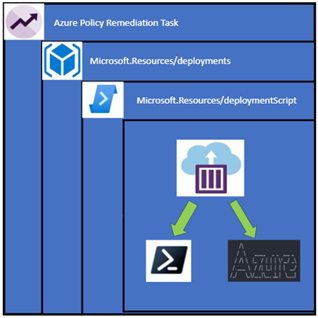
The rest of a DeployIfNotExists policy contains the object I want to deploy, and it does get a bit complicated. If I was to just deploy the deployment script object it would deploy in the same resource group as my resource to be remediated which isn’t a desirable outcome as it would leave a mess of orphaned objects. The deployment script also requires a storage account to work and I don’t want my subscription littered with random storage accounts. To get around this I create a subscription level deployment – which deploys a deployment resource, which contains a nested deployment to deploy the deployment script. Confused? Here it is in a diagram and you can follow the previous links or look at the policy itself.
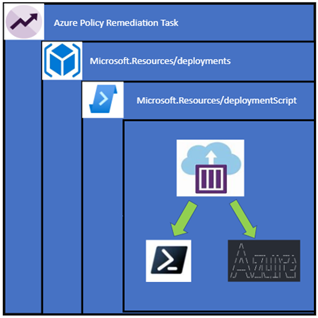
The best part is we don’t have to manage the Azure Container Instance as the deployment script object does that for you.
What I do have to worry about is the script that runs – it uses a user assigned managed identity which must have permission manage the resources, in this case I need to give it Reader and Virtual Machine Contributor rights on the subscription so it can change that license type and update the virtual machine.
The PowerShell script which runs is so simple: –
Param($ResourceGroupName, $VMName)
$vm = Get-AzVM -ResourceGroupName $ResourceGroupName -Name $VMName
$vm.LicenseType = "Windows_Server"
Update-AzVM -VM $vm -ResourceGroupName $ResourceGroupName
The container instance comes with the Az modules already or if you prefer to use the Azure CLI you can specify that in the deployment script object in the template. The script can be either be provided inline or link to an external URL. If you are linking externally and don’t want it to be in a public location, you might have to provide a SAS URL. I also specify arguments to provide to the script in a concatenated string format, the documentation on the deployment script provides some more information on these arguments but you can incorporate parameters from the policy which means the inputs can come from the non-compliant objects. As well you can choose to use an existing storage account, or you can let the deployment script create one for you.
"forceUpdateTag": "[utcNow()]",
"azPowerShellVersion": "4.1",
"storageAccountSettings": {
    "storageAccountName": "[parameters('StorageAccountName')]",
    "storageAccountKey": "[listKeys(resourceId('Microsoft.Storage/storageAccounts', parameters('StorageAccountName')), '2019-06-01').keys[0].value]"
},
"arguments": "[concat('-ResourceGroupName ',parameters('VMResourceGroup'),' -VMName ',parameters('VMName'))]",
"retentionInterval": "P1D",
"cleanupPreference": "OnSuccess",
"primaryScriptUri": "https://raw.githubusercontent.com/anwather/My-Scripts/master/license.ps1"
I’ve linked the policy rule here for you to review, be careful to observe the flow of the parameters as they are provided in the policy assignment and then are passed down through each deployment object as a value. The ‘StorageAccountName’ parameter is a good example of this.
Deploying the Solution
Scripts and policies are located in my GitHub repository – you can clone or download them.
The steps to deploy the required resources and policy are as below: –
- Ensure that you have the latest version of the Az PowerShell modules available.
- Connect to Azure using Connect-AzAccount
- Modify the deploy.ps1 script and change the values where indicated.
$resourceGroupName = "ACI" # <- Replace with your value
$location = "australiaeast" # <- This must be a location that can host Azure Container Instances
$storageAccountName = "deploymentscript474694" # <- Unique storage account name
$userManagedIdentity = "scriptRunner" # <- Change this if you don’t like the name
4. Run the deploy.ps1 script. The output should be like below.

The script will create a resource group, storage account and deploy the policy definition.
Create a Policy Assignment
In the Azure portal Policy section, we can now create the assignment and deploy the policy. Click on “Assign Policy”.

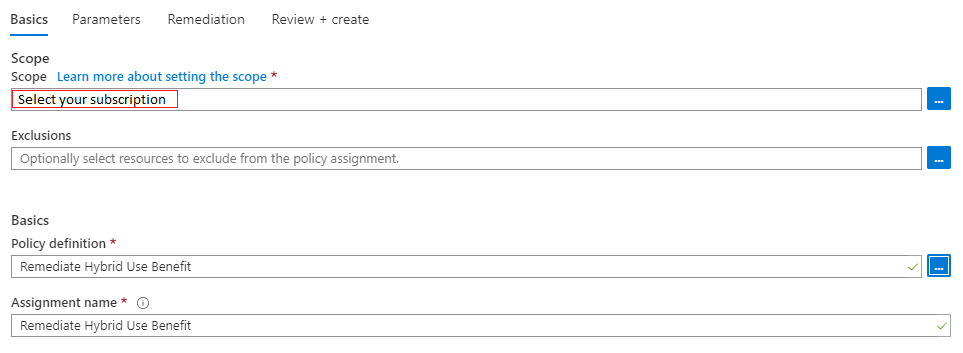
Select the scope you want to assign the policy to and ensure that the correct policy definition is selected.
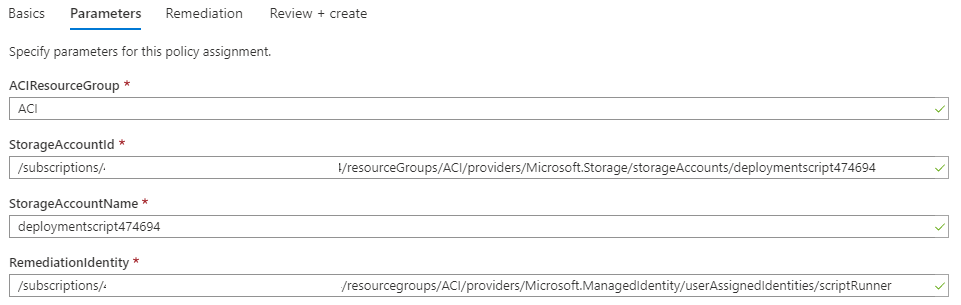
Click next and fill in the parameters – the values for this are output by the deployment script.
Click next – you can leave the options as is for this screen and simply click Review and Create. On the final screen just click create.
The policy will be assigned, and a new managed identity will also be created which allows us to remediate any non-compliant resources.

Testing It Out
To test the policy and remediation task I have built a new Windows Server making sure that I haven’t selected to use Azure Hybrid Benefit.
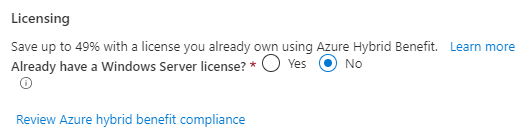
Once the policy evaluation cycle is complete (use Start-AzPolicyComplianceScan to trigger) I can see that my new resource is now showing as non-compliant.

I can go in now and create a remediation task for this machine by clicking on Create Remediation Task. The task will launch and begin the deployment of my Deployment Script object.

I can check the resource group I specified (ACI) that the deployment script objects are created in and will be able to see the object in there.
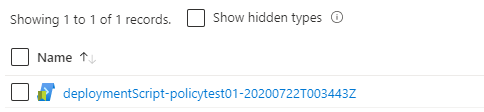
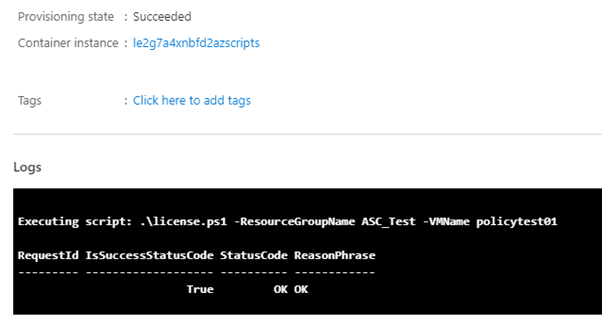
Selecting this resource will show the details about the container instance that was launched (it’s been deleted already since the container has run) and the logs. You can also see that during the script deployment it has been able to bring the parameters I specified in the template into the script.
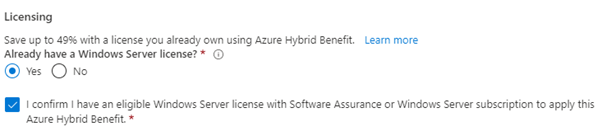
And finally, we can check the virtual machine itself, and I find that the Azure Hybrid Benefit has been applied successfully.
When I look at the resource now in the Azure Policy blade it is now showing the resource as compliant.

So there you have it, what started as a theory for remediating objects has been proven to work nicely and now I have the task of looking over all my other policies and seeing what I can remediate using this method.
Known Issues:
- In the example given – Azure Spot instances can’t be remediated using this process
- My testing cases are small and in no way should reflect your own testing.
- This is hosted on GitHub – if there are issues or you make changes please submit a PR for review.
Disclaimer:
The sample scripts are not supported under any Microsoft standard support program or service. The sample scripts are provided AS IS without warranty of any kind. Microsoft further disclaims all implied warranties including, without limitation, any implied warranties of merchantability or of fitness for a particular purpose. The entire risk arising out of the use or performance of the sample scripts and documentation remains with you. In no event shall Microsoft, its authors, or anyone else involved in the creation, production, or delivery of the scripts be liable for any damages whatsoever (including, without limitation, damages for loss of business profits, business interruption, loss of business information, or other pecuniary loss) arising out of the use of or inability to use the sample scripts or documentation, even if Microsoft has been advised of the possibility of such damages.

by Scott Muniz | Aug 20, 2020 | Uncategorized
This article is contributed. See the original author and article here.
Community is a big part of Microsoft Ignite – and we seek your help to create a great interactive experience that could drive hundreds of thousands of community members to connect and create bridges in ways we never have before.
We will be hosting Table Topics, a set of moderated threaded conversations here in the Tech Community in the following topic categories:
- Application Development
- Azure
- Business Applications
- Career Development
- Community Best Practices and Community Leadership
- Data and AI
- Enabling Remote Work
- Industry
- Learning
- Microsoft 365
- Power Platform
- Security
These Table Topics are Tech Community conversations happening throughout the event, across all timezones, and likely to continue after the event. This will be a great way for the entire planet to connect over these topics (some great ones were proposed on Twitter here). Because this is part of the Tech Community, we will be able to support multiple languages in the online discussion: Brazilian Portuguese, Simplified Chinese, English, French, German, Japanese, Korean and Spanish. We are currently working on a way that the conversations will show up in the MyIgnite experience.
How we see this working – an example for illustration purposes.
We can have multiple threaded conversations for each Table Topic, for example for Enabling Remote Work:
- “Staying connected while working remotely or adjusting your management styles for working remotely.” Moderators: Tom Arbuthnot, Cathrine Wilhelmsen
- “Tips to ensure #worklifebalance while working remote” Moderator: Dux Raymond Sy, Laura Rogers
- “Lessons learned while remote working and home schooling” Moderator: Darrell Webster, Helen Blunden
Will there be an opportunity to speak?
Yes! For each Table Topic, there will be 3x Teams Meetings scheduled covering the three timezones (Americas, APAC, WE/EMEA) aka ‘Table Talks’. Table Talks will be conducted in English. They will be recorded and posted in MyIgnite.
Example of the Table Talks MCs
- Enabling Remote Work – Americas Table Talk MCs: e.g. Dux Raymond Sy, Laura Rogers
- Enabling Remote Work – APAC Table Talk TZ MCs: e.g. Darrell Webster, Helen Blunden
- Enabling Remote Work – WE/EMEA Table Talk MCs: e.g. Tom Arbuthnot, Cathrine Wilhelmsen
We plan to have have a full Table Topic agenda if we have a good list of topics per category and at least 3 unique moderators per timezone for each topic.
The beauty of this is – you don’t have to navigate through crowds to get from Hall A to Hall Z, you can have your own personal beverage of choice to power through the rapid-fire questions, and you can do this all in your pajama pants!
Want to get involved?
Submit your Table Topics today via the submission form. Submissions close August 24th 6PM Pacific Time (UTC-8).

Workflow for Table Topic submissions and selection.
Unfortunately, there will be no Community Call for Content this year. This is the primary source of community-generated interaction at Microsoft Ignite.
Call for Moderators form – Submit your Table Topics here!
We invite you to start submitting today, and to get them in before submissions close 6pm Aug 24th Pacific Time.
If you have any questions, please direct them to @Anna Chu and @Allie Wieczorek!
by Scott Muniz | Aug 20, 2020 | Azure, Microsoft, Technology, Uncategorized
This article is contributed. See the original author and article here.
Final Update: Thursday, 20 August 2020 23:46 UTC
We’ve confirmed that all systems are back to normal with no customer impact as of 8/14/20, 22:12 UTC. Our logs show the incident started on 9/23/19, 00:00 UTC and that during the 326 days that it took to resolve the issue 138 customers using metric alerts based on custom metrics in Brazil South region may have seen incorrect alert activations and or failures.
- Root Cause: The failure was due to a backend storage configuration.
- Incident Timeline: 326 days 22 hours 12 minutes – 9/23/2019, 00:00 UTC through 8/14/2020, 22:12 UTC
We understand that customers rely on Application Insights as a critical service and apologize for any impact this incident caused.
-Jeff
by Scott Muniz | Aug 20, 2020 | Uncategorized
This article is contributed. See the original author and article here.
Windows 10, version 20H2, is now available for commercial customers to begin feature exploration and validation prior to being released for general availability.
As previously announced, version 20H2 will be delivered to devices currently running Windows 10, version 2004 using an enablement package. This is the same technology we used to update devices from Windows 10, version 1903 to version 1909. Do you want to see how quickly devices update from version 2004 to version 20H2, and how little downtime is involved? Do you want to explore the new Local Users and Groups mobile device management (MDM) policy, which allows administrators to make granular changes to a local group on a managed device? Now you can!
You can access Windows 10, version 20H2 through all standard outlets, including Windows Update, Windows Server Update Services (WSUS), and Azure Marketplace, or you can download an ISO file. If you manage updates directly from Windows Update, or have devices enrolled in the Beta Channel (previously the Slow ring) or the Release Preview Channel for validation purposes, you don’t need to take any action. Windows 10, version 20H2 will be automatically deployed to all commercial devices in the Beta and Release Preview Channels and those who have devices on Windows 10, version 2004 will get to experience the remarkably fast update that comes with moving from version 2004 to version 20H2 via an enablement package.
|
Note: We consider a device a commercial device if it isn’t running the Home edition of Windows 10, is being managed by an IT administrator (whether via Microsoft Endpoint Manager or a third-party MDM tool), or if the device has a volume license key, a CommercialID, or is joined to a domain.
|
As with Windows 10, versions 1903 and 1909, versions 2004 and 20H2 share a common core operating system with an identical set of system files. New features are included in monthly quality updates for version 2004 in an inactive and dormant state. These new 20H2 features remain dormant until they are turned on through the “enablement package,” a small, quick-to-install “master switch” that activates the Windows 10, version 20H2 features.
The enablement package is a great option for installing a scoped feature update like Windows 10, version 20H2 as it enables an update from version 2004 to version 20H2 with a single restart, reducing update downtime.
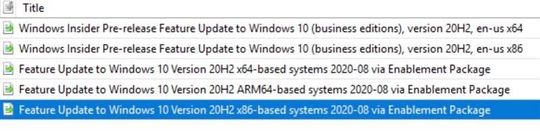
If you are managing updates with WSUS, you will have the option of taking a full feature update to 20H2 or testing out the enablement package path. As with any other validation done on pre-release updates published to WSUS, you will need to first ensure that you have synced the “Windows Insider Preview” category. Once you have synced this category, you should see the following updates show up in your console as shown below:

|
Note: Windows 10, version 20H2 will be made available as an enablement package to devices already running Windows 10, version 2004 that have also installed the June 2020 monthly quality update. It will be available as a full feature update for devices running Windows 10, version 1909 and prior. To see the greatest number of new features, we recommend being on the latest cumulative update.
|
To test out this experience on a virtual machine, check out the Windows 10 Preview on Azure Marketplace or, if you would prefer, you can download the Windows 10, version 20H2 ISO.
We not only want to ensure that you have access to the upcoming Windows 10 feature update payload via any channel you may use today, we also want to enable you to validate with confidence. Therefore, customers in the Windows Insider Program for Business can once again receive Microsoft Support for the Windows 10, version 20H2 build available through WSUS, ISO download, Azure Marketplace, and directly from Windows Update in the Beta and Release Preview Channels. If you run into a severe issue that prevents you or other users in your organization from using a device, or compromises security or personal data, use the online form to request assistance directly from Microsoft Support—at no cost to you.
We hope you enjoy Windows 10, version 20H2!
~ The Windows Insider Program for Business team
For more information, check out these useful links for exploring and validating pre-release Windows feature updates:

by Scott Muniz | Aug 20, 2020 | Uncategorized
This article is contributed. See the original author and article here.
 |
|
I am excited to announce our Microsoft Security Fall 2020 Public Webinars edition!
Another excellent opportunity for our public community to join for free, and be part of the journey that our Microsoft security engineering teams will be sharing through their experiences and provide their recommendations for our security products.
We have more webinars in the pipeline, and will be scheduling them accordingly.
For registration visit us at https://aka.ms/SecurityWebinars.
|
|
Sep 2
Azure Sentinel Webinar: Log Forwarder deep dive: Filtering CEF and Syslog events
|
Presenter: Ofer Shezaf
Description: The Log Forwarder is Azure Sentinel’s prime conduit for collecting Syslog and CEF events, the ubiquitous channel for security and networking telemetry. In this webinar, we will learn more about the Log Forwarded, drill into its internals, learn to troubleshoot, and discover a few tips and tricks, such as filtering events before they are sent to Azure Sentinel.
|
|
Sep 9
Azure Sentinel Webinar: KQL part 3 -Optimizing Azure Sentinel KQL queries performance
|
Presenter: Ofer Shezaf
Description: Azure Sentinel query language is fast. But you can make it faster. Want to make your workbooks faster? Your hunting experience snappier?
Ensure no time outs in your alert rules? In this webinar, we will go over a few simple rules-of-thumb and tips to accelerate your KQL queries. We will also learn how to test your queries’ performance and see the impact of those changes.
|
|
Sep 14
Azure Sentinel Webinar:
Empowering the Azure Sentinel Community with Pre-Recorded Datasets for research and training purposes
|
Presenter: Roberto Rodriguez
Description: As a defensive security practitioner, researching a new technique used by real threat actors to compromise an environment is not as simple as copying, pasting, and running a query. Besides learning about the internals of a technique and ways how it can be executed, eventually, one would need to simulate it. As you may already know, the simulation process takes time and preparation, and usually, the time spent trying to generate data is higher than actually analyzing data. Besides, once you have data, what can you do with it?
|
|
Sep 16
Microsoft Defender Advanced Threat Protection: Get started with Microsoft Defender ATP, from zero to hero
|
Presenter: John Nieves & Steve Newby
Description: Are you ready to hit the ground running with the industry’s leading endpoint security platform – Microsoft Defender ATP? Join this webinar to go from zero to hero in your deployment! During this session, we will take a new Microsoft Defender ATP subscription and walk you through the process of setting up the tenant and its basic settings such as configuring the tenant, tags, groups, and RBAC. Then we will show you how to on-board various endpoints and configure base-line policies (using Microsoft Endpoint Manager). Finally, we will have a deeper look into the configuration options of features and show you how to get your endpoints protected with Microsoft Defender ATP as quickly as possible. We’re looking forward to having you join us!
|
|
Sep 17
Microsoft CyberX:
MITRE ATT&CK for ICS: CyberX Demo and Azure IoT/OT Security Deep Dive
|
Presenter: Phil Neray & Joe DiPietro
Description: MITRE ATT&CK for ICS is a standard framework for understanding the diverse tactics adversaries use to compromise industrial control system (ICS) and operational technology (OT) networks. Unlike ATT&CK for Enterprise, ATT&CK for ICS focuses on adversaries whose primary goal is causing safety incidents, shutting down production, or stealing intellectual property such as proprietary formulas. CyberX, which was recently acquired by Microsoft, is composed of IoT/OT security experts who developed an agentless security platform for IoT/OT providing continuous IoT/OT asset visibility, vulnerability management, and threat monitoring.
|
|
Sep 29
Azure Sentinel: Enabling Entity Behavior Analytics | Hunting for Insider Threats
|
Presenter: Itay Argoety
Description: Learn how to enable Sentinel Behavior Analytics in just two clicks and hunt for insider threats and compromised users leveraging Behavior Analytics.
|
|
Sep 30
Azure Sentinel:
Unleash your Azure Sentinel automation Jedi tricks and build Logic Apps Playbooks like a Boss
|
Presenter: Tiander Turpijn
Description: In this webinar I will be sharing tips and tricks how to create automation Playbooks in Azure Sentinel to more effectively manage incidents and external data sources.
|
|
Oct 26
Azure Security Center: VM Protection
|
Presenter: Aviv Mor
Description: Learn how to better protect your virtual machines using Azure Security Center.
|
|
Oct 28
Azure Security Center: Azure Service Layers protection
|
Presenter: Tal Rosler
Description: In this webinar we will present new threat protection suites in Azure Security Center to protect cloud-native workloads.
|
|
Oct 29
Cybersecurity Basics: Securing Yourself
|
Presenter: Andrew Baze
Description: To stay safe online, one of the best things you can do is stay educated. Join us to learn some quick and simple techniques to secure yourself and your family from the most common and dangerous Internet security threats.
|
by Scott Muniz | Aug 20, 2020 | Uncategorized
This article is contributed. See the original author and article here.
Intune has been working with the Windows team to troubleshoot reports that custom OMA-URI policies with payloads over 350k bytes are not consistently applied in Windows 10 devices. Based on the results of our investigation, we’re going to block Intune creation of any custom OMA-URI policies that are larger than 350k bytes. We do also plan to put an “unsupported” profile type in an upcoming release to help highlight any existing policies greater than 350k.
If you have policies with payloads over 350k bytes, you should see a message center post and actions for you to take to reduce the policy size. To determine the size of the custom OMA-URI policy, check the file properties or the original xml file used to configure the policy. You can remove or reconfigure the unsupported and assigned custom profile names. Remove the non-assigned customURI profiles. Note that when you unassign or remove custom OMA-URI, enrolled devices will continue to stay enrolled, just the policy may not be consistently applied until you resize and assign the policy.
If you have any questions, just let us know @intunesuppteam or through comments on this post.

by Scott Muniz | Aug 20, 2020 | Uncategorized
This article is contributed. See the original author and article here.
Starting in Configuration Manager current branch version 2006, the Company Portal is now the cross-platform app portal experience for Microsoft Endpoint Manager. By configuring co-managed devices to also use the Company Portal, you can provide a consistent user experience on all devices.
The Company Portal supports the following actions:
- Launch the Company Portal app on co-managed devices and sign in with Azure Active Directory (Azure AD) single sign-on (SSO).
- View available and installed Configuration Manager apps in the Company Portal alongside Intune apps.
- Install available Configuration Manager apps from the Company Portal and receive installation status information.
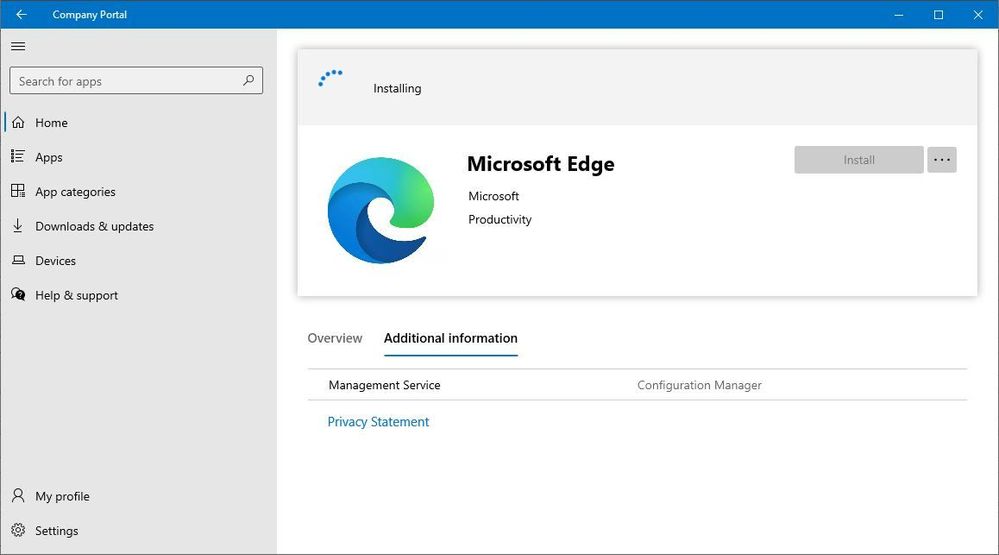 configmgr apps in company portal
Prerequisites include:
- Configuration Manager current branch version 2006 or later
- Windows 10, version 1803 or later:
- The user accounts that sign in to these devices require the following configurations:
- An Azure AD identity
- Assigned an Intune license
Learn more about using the Company Portal app on co-managed devices.
Additional Resources
Update 2006 for Microsoft Endpoint Configuration Manager current branch is now available
by Scott Muniz | Aug 20, 2020 | Azure, Microsoft, Technology, Uncategorized
This article is contributed. See the original author and article here.
Databases > SQL Database
All categories
Intune
Let’s look at each of these updates in greater detail.
Databases > SQL Database
Open your SQL database in Azure Data Studio
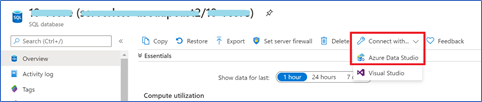
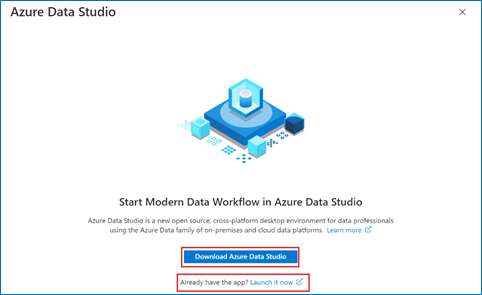
The Azure portal now includes a one-click connection to Azure Data Studio from any Azure SQL Database. Azure Data Studio offers a modern editor experience with IntelliSense, code snippets, source control integration, SQL Notebooks, and an integrated terminal. Simply open the Azure portal, navigate to any SQL Database, and click “Connect with Azure Data Studio”. The experience includes a link to download Azure Data Studio if you do not already have it. The connection info is passed to Azure Data Studio and the connection will automatically go through with AAD or will require just a password to complete the connection.
- Sign in to Azure portal
- Click “All Services”
- Search and select “Azure SQL”
- Find and select any SQL database
- Click “Connect with…”, then click “Azure Data Studio”

6. Click to download or launch Azure Data Studio
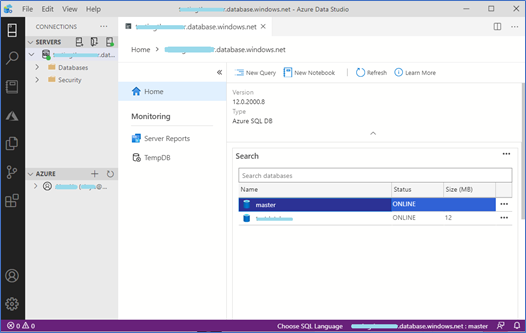
7. Connect to your database and try out Azure Data Studio!
All Categories
Work with a freelancer
It’s now easier than ever to connect and start working with a freelancer who can help you complete your short-term, on-demand Azure projects. Microsoft and Upwork are partnering to provide you with easy access to freelancers with current Azure certifications.
In the upper right corner of the Azure portal, click on the question mark. You’ll see the freelancer information pop up below.
All Categories
View a summary of your resources on a map and in other charts
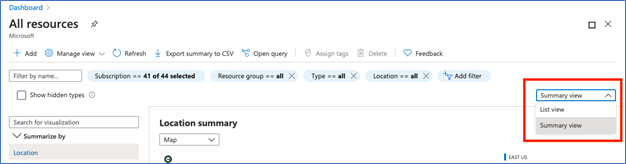
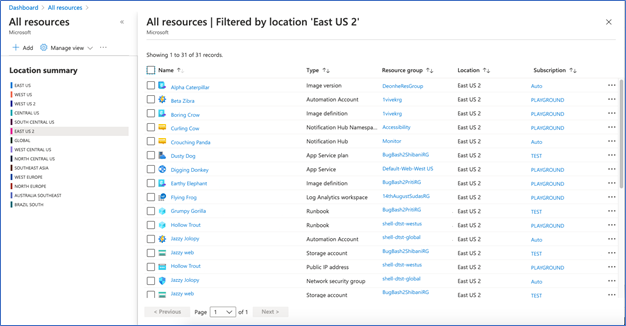
On certain resource list views, you can now see a summary count of your resources. This feature allows you to visually represent your resources on a chart, summarizing over location, resource group, subscription, and resource type. A powerful use case of this would be to visually represent your resources on a map.
a. Go to a list of resources. Check if it has a “List view” dropdown at the top right of the list. If so, you can proceed with the demo. Otherwise, use the “All resource” list as an example.
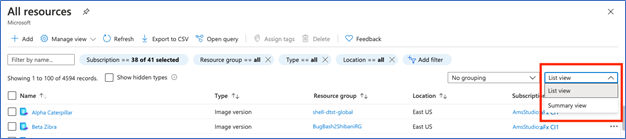
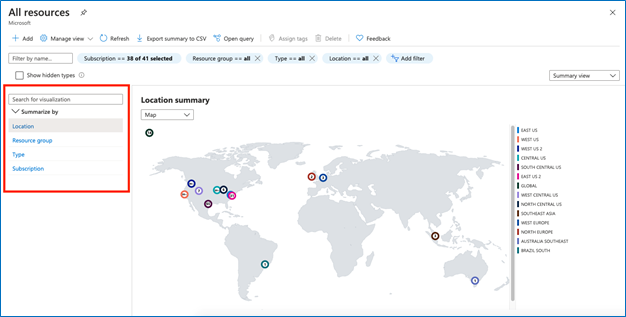
b. In the dropdown, select “Summary view” where you will see a summary count of your resources. You can choose to summarize by location, resources group, subscription, and type, if applicable, from the menu on the left.
c. You can use the filters to scope your results.
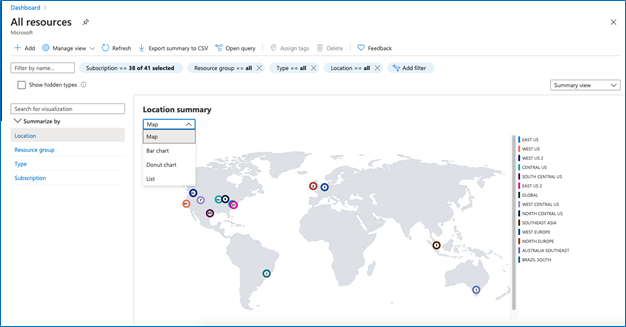
d. In this view, you can change the visualization to a map, bar chart, donut chart, or list. (Note that maps are available for location only).
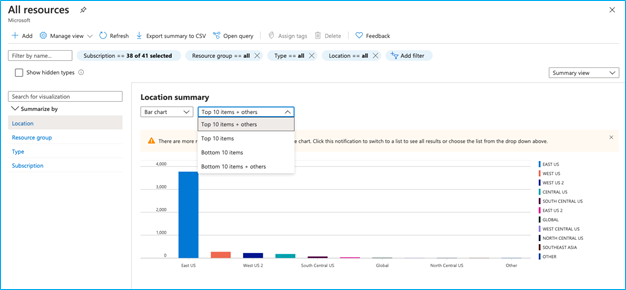
e. If you have more than 10 items in a bar or donut chart, there will be a dropdown to choose your summary preference (see screenshot). If you want to see more than 10 items, change the visualization to “list” as described in step d.
f. If you like this view, you can save it using the “Manage view” dropdown for easy access.

g. If you want to drill down into one of the summary items, click into the item and you will see a list of the resources in that category.
All Categories
Portal search improvements
We have made several improvements to the portal’s search capabilities.
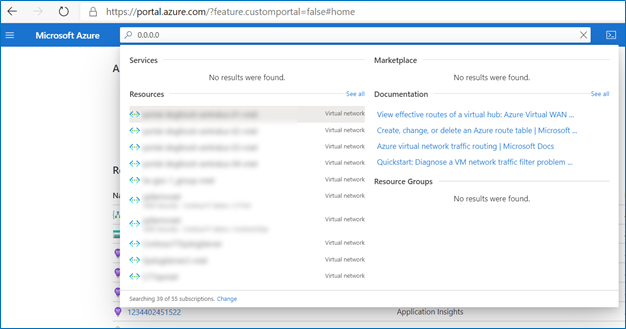
- You can now use the portal’s global search bar to search for resources by IP address. The search will find all resources that have the specified IP address anywhere within their resource properties.
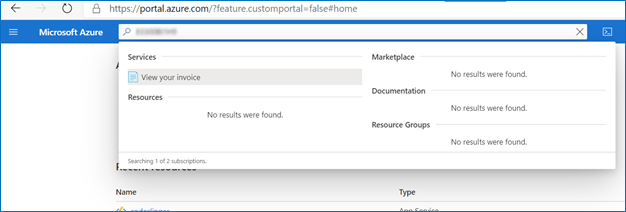
- You can now search for Azure invoices by typing in an invoice id.
- We have improved the search functionality on all pages that have a menu on the left. Previously, a term had to be spelled correctly in order to produce results, but now, slight misspellings are accepted, and any existing results will be shown.
Step 1 – Log into the portal
Step 2 – Paste an IP address or an invoice ID into the global search bar.
Sample search by IP address:
Sample search by Invoice ID:
INTUNE
Updates to Microsoft Intune
The Microsoft Intune team has been hard at work on updates as well. You can find the full list of updates to Intune on the What’s new in Microsoft Intune page, including changes that affect your experience using Intune.
Azure portal “how to” video series
Have you checked out our Azure portal “how to” video series yet? The videos highlight specific aspects of the portal so you can be more efficient and productive while deploying your cloud workloads from the portal. Check out our most recently published videos:
Next steps
The Azure portal has a large team of engineers that wants to hear from you, so please keep providing us your feedback in the comments section below or on Twitter @AzurePortal.
Sign in to the Azure portal now and see for yourself everything that’s new. Download the Azure mobile app to stay connected to your Azure resources anytime, anywhere. See you next month!

by Scott Muniz | Aug 20, 2020 | Uncategorized
This article is contributed. See the original author and article here.
Powered by Artificial Intelligence and the onboard Neural Network accelerator, Eye Contact helps to adjust your gaze on video calls and recordings, so you appear to be looking directly in the camera. Read the full story on the Microsoft Devices blog.

With the custom Microsoft SQ1 chipset, Surface Pro X is the first Surface device to integrate an AI chip and enable AI offload. The feature, delivered as part of the Windows 10 May 2020 Update, can be toggled on or off inside the Surface App. Once enabled, Eye Contact is automatically applied during video calling services and video recordings.


Recent Comments