by Scott Muniz | Aug 26, 2020 | Azure, Microsoft, Technology, Uncategorized
This article is contributed. See the original author and article here.
With so much focus on how the cloud is changing the way we build and deploy applications, cloud security can become an afterthought. Some organizations worry about slowing the momentum of cloud migration. Others find new cloud security processes daunting.
Brad Orluk is the Microsoft Alliance Manager at Check Point, which offers CloudGuard on Azure Marketplace and was recognized as the Most Prolific Integration Partner during Microsoft Security 20/20. He explains common cloud security scenarios, challenges, and best practices below:
Although the concepts may seem similar, cloud security is different than traditional enterprise security. Additionally, there may be industry-specific compliance and security standards.
Public cloud vendors have defined the Shared Responsibility Model where the vendor is responsible for the security “of” their cloud, while their customers are responsible for the security “in” the cloud.
Cloud deployments include multi-layered components, and the security requirements are often different per layer and per component. Often, the ownership of security is blurred when it comes to the application, infrastructure, and sometimes even the cloud platform – especially in multi-cloud deployments.
Cloud vendors, including Microsoft, offer fundamental network-layer, data-layer, and other security tools for use by their customers. Security analysts, managed security service providers, and advanced cloud customers recommend layering on advanced threat prevention and network-layer security solutions to protect against modern-day attacks. These specialized tools evolve at the pace of industry threats to secure the organization’s cloud perimeters and connection points.
Check Point is a leader in cloud security and a trusted security advisor to customers migrating workloads to the cloud. Check Point’s CloudGuard helps protect assets in the cloud with dynamic scalability, intelligent provisioning, and consistent control across public, private, and hybrid cloud deployments. CloudGuard supports Azure and Azure Stack. Customers using CloudGuard can securely migrate sensitive workloads, applications, and data into Azure and thereby improve their security.
But how well does CloudGuard conform to Microsoft’s best practices?
Principal Program Manager of Azure Networking, Dr. Reshmi Yandapalli (DAOM), published a blog post entitled “Best practices to consider before deploying a network virtual appliance,” which outlined considerations when building or choosing Azure security and networking services. Yandapalli defined four best practices for networking and security ISVs – like Check Point – to enhance the cloud experience for Azure customers:
1. Azure accelerated networking support
Make sure an ISV’s Azure security solution is available on one or more Azure virtual machine (VM) type with Azure’s accelerated networking capability to improve networking performance. Yandapalli recommends that users “consider a virtual appliance that is available on one of the supported VM types with Azure’s accelerated networking capability.”
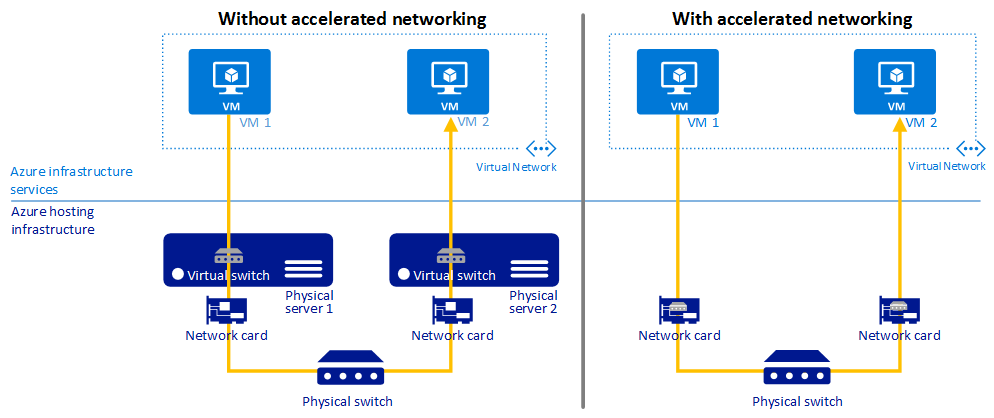
The diagram below (from this Microsoft tutorial) shows communication between VMs, with and without Azure’s accelerated networking:
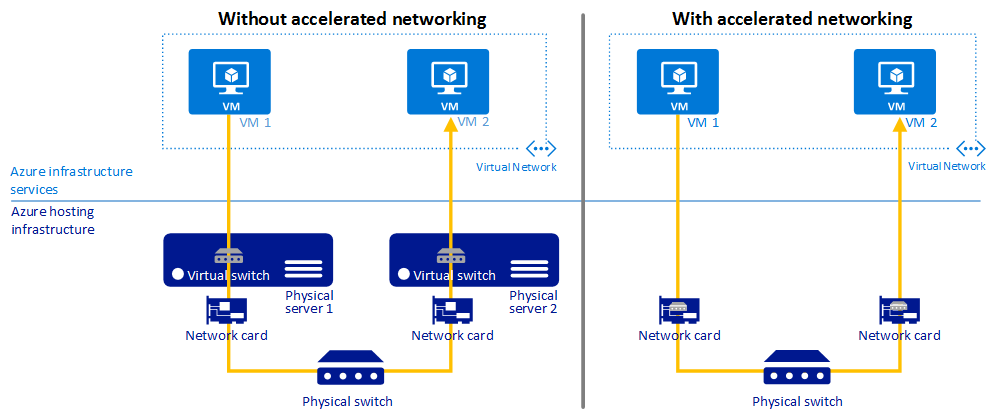 Accelerated networking to improve performance of Azure security (source: Microsoft)
Amir Kaushansky, Check Point’s Head of Cloud Network Security Product Management, said, “Check Point was the first certified compliant vendor with Azure accelerated networking. Accelerated networking can improve performance and reduce jitter, latency, and CPU utilization.”
According to Kaushansky – and depending on workload and VM size – Check Point and customers have observed at least a 2-3 times increase in throughput thanks to Azure accelerated networking.
2. Multi-Network Interface Controller (NIC) support
Using VMs with multiple NICs improves network traffic management via traffic isolation. For example, one NIC can be used for data plane traffic and one NIC for management plane traffic. Yandapalli wrote, “With multiple NICs you can better manage your network traffic by isolating various types of traffic across the different NICs.”
This Microsoft article describes the Azure Dv2-series and defines the maximum NICs.
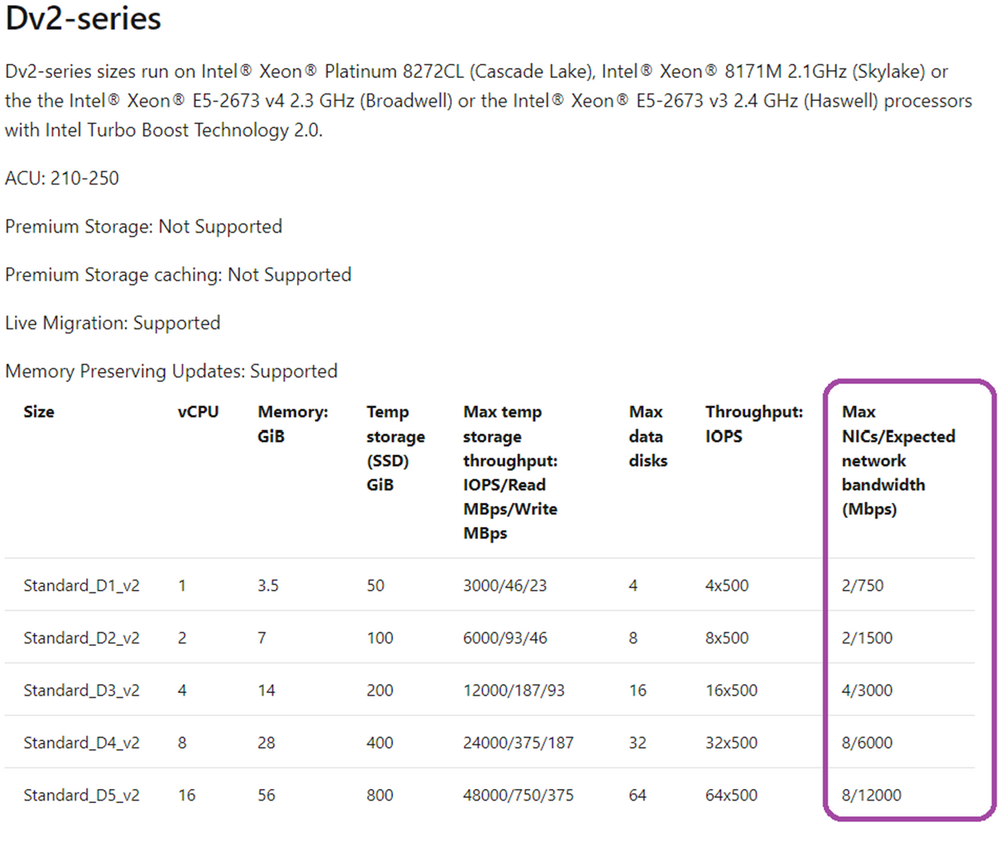 Azure Dv2-series VMs with # NICs (source: Microsoft, June 2020)
CloudGuard supports multi-NIC VMs, without any maximum of the number of NICs. Check Point recommends the use of VMs with at least two NICs – VMs with one NIC are supported but not recommended.
Depending on the customer’s deployment architecture, the customer may use one NIC for internal East-West traffic and the second for outbound/inbound North-South traffic.
3. High Availability (HA) port with Azure load balancer
Azure security and networking services should be reliable and highly available. Yandapalli suggests the use of a High Availability (HA) port load balancing rule.
“You would want your NVA to be reliable and highly available, to achieve these goals simply by adding network virtual appliance instances to the backend pool of your internal load balancer and configuring a HA ports load-balancer rule,” Yandapalli wrote.
The diagram below (from this article) shows an example usage of a HA port:
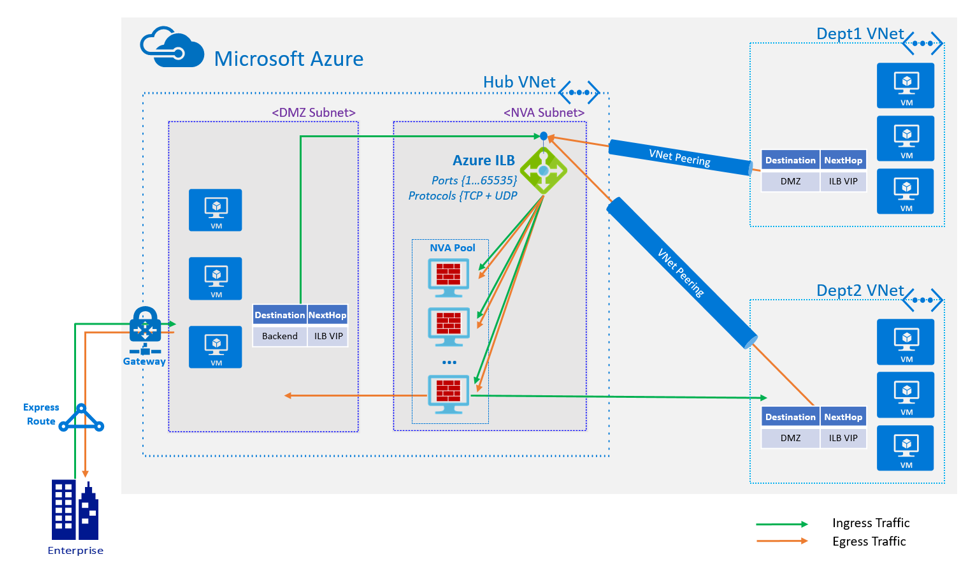 Flowchart example of High Availability port with Azure Load Balancer (source: Microsoft)
“CloudGuard supports this functionality with a standard load balancer via Azure Resource Manager deployment templates, which customers can use to deploy CloudGuard easily in HA mode,” said Kaushansky, whose responsibilities include the CloudGuard roadmap and coordination with the R&D/development team.
4. Support for Virtual Machine Scale Sets (VMSS)
Use Azure VMSS to provide HA. These also provide the management and automation layers for Azure security, networking, and other applications. This cloud-native functionality provides the right amount of infrastructure as a service (IaaS) resources at any given time, depending on application needs. Yandapalli points out that “scale sets provide high availability to your applications, and allow you to centrally manage, configure, and update a large number of VMs.”
In a similar way to the previous best practice, customers can use an Azure Resource Manager deployment template to deploy CloudGuard in VMSS mode. Check Point recommends the use of VMSS for traffic inspection of North-South (inbound/outbound) and East-West (lateral movement) traffic.
Learn more and get a free trial
As can be seen above, CloudGuard is compliant with all four of Microsoft’s common best practices for how to build and deploy Azure network security solutions. Visit Check Point’s website to understand how CloudGuard can help protect your data and infrastructure in Microsoft Azure and hybrid clouds and improve Azure network security. If your customers are evaluating Azure security solutions, they can get a free 30-day trial license of CloudGuard on Azure Marketplace as well as Azure sponsorship credits* to evaluate the technology first hand.
- Visit http://www.checkpoint.com to learn more about how CloudGuard can help you protect your data and infrastructure in Microsoft Azure and hybrid clouds and improve Azure network security.
*Some restrictions may apply to Azure sponsorship credits. Contact the Check Point team to explore further.
by Scott Muniz | Aug 26, 2020 | Azure, Microsoft, Technology, Uncategorized
This article is contributed. See the original author and article here.
Today’s government organizations face ever-increasing and evolving mission demands, requiring greater speed and agility to modernize IT. Some agencies have discovered a path to success by establishing software factories and cloud PMOs to accelerate development and delivery of better mission apps.
To learn more about this new approach, we invite you to RSVP and join us for this virtual Azure Government meetup, “Strategies to stand up a modern gov software factory + cloud PMO, via Teams Live Event. You can register for free here.
During this meetup, which is free and open to the public, you’ll hear from government and industry experts who will share best practices, insights and demos covering:
• Strategies and approaches to get your software factory up and running
• How to take a factory approach to developing and modernizing applications
• Best practices for establishing and running a cloud-native PMO
•Tips for driving necessary talent development and culture change initiatives
•Demos of tools and technologies to accelerate delivery of mission apps
AGENDA (*subject to change)
6:3O PM – 6:40 PM
Welcome & announcements
•Karina Homme, Senior Director, Microsoft Azure Government
•Vishwas Lele, CTO, AIS, and Microsoft MVP/RD
6:40 PM – 7:00 PM
Presentation: 3 pillars that make up a successful cloud PMO
•Bob Ritchie, VP, Software Practice, SAIC
7:00 PM – 7:20 PM
Demo: Automated modern gov software factory in Azure
•Nirali Shah, Program, Manager, Microsoft Azure Government
•Michael Herndon, Chief Transformation Architect, CloudFit Software
7:20 PM – 8:00 PM
Panel: Strategies to stand up a modern gov software factory + cloud PMO
•Jyoti Anand, Lead AI/ML Architect, US Food and Drug Administration
•Irven Ingram, Cloud Architect, Spatial Data Branch, US Army Corps of Engineers
•Jason Payne, Chief Architect, US Regulated Industries, Microsoft Federal
•Karina Homme, Senior Director, Microsoft Azure Government (moderator)
We look forward to “seeing you” for this virtual meetup. Please help us get the word out and share this event with your colleagues and connections.
Be sure to also join the conversation using #AzureGovMeetup on social media.
*We will be adding the video of the session to this post after it has concluded
by Scott Muniz | Aug 26, 2020 | Uncategorized
This article is contributed. See the original author and article here.
We have heard your feedback and understand your need to focus on business continuity in the midst of the global pandemic. As a result, we have decided to delay the scheduled end-of-service date for the Enterprise, Education, and IoT Enterprise editions of Windows 10, version 1803. This means that security updates will continue to be released monthly until May 11, 2021. The final security update for these editions of Windows 10, version 1803 will be released on May 11, 2021 instead of November 10, 2020.
Security updates for Windows 10, version 1803 will be available via our standard servicing outlets: Windows Update, Windows Server Update Services, and the Microsoft Update Catalog. You will not need to alter your current update management workflows.
After May 11, 2021, devices running the Enterprise, Education, and IoT Enterprise editions of Windows 10, version 1803 will no longer receive security updates. Organizations should plan to update their devices to the latest version of Windows 10 to remain supported after this date.
For a comprehensive list of end-of-service dates for all versions and editions of the Windows client and Windows Server operating systems, bookmark the Windows lifecycle fact sheet or use the Microsoft Lifecycle Policy search tool to find lifecycle information for all commercial Microsoft products. We also recommend you bookmark the Windows message center and follow @WindowsUpdate for the latest news and announcements.
by Scott Muniz | Aug 26, 2020 | Uncategorized
This article is contributed. See the original author and article here.
Excel MVPs Liam Bastick and Tim Heng, together with over 50 other MVPs, leading experts across communities around the world, and Excel product managers (PMs) at Microsoft, held the Excel Virtually Global summit this past July, offering over 50 hours of in-depth discussions and presentations on Microsoft Excel, Power BI, and more.
Liam recently shared with us a bit more on how the event came about, lessons learned, and what’s next:
“I had the brainwave to host a bigger virtual event that would run for two days – 48 hours – straight. I asked around and actually had enough for 55 hours (which ended up 57 on the day!), made up of MVPs, Microsoft staff and other experts. I didn’t want to stop anyone from presenting, so I invited them all.“
“Working around the clock was just as fun as we envisaged… To be fair, it was an absolute blast. Running on adrenaline with three to four hours sleep a night, feeding off the energy of other presenters, it’s quite a unique feeling! In terms of what the audience got to see though, one of the best bits in the conference was an ad hoc session that we ran in one of the breaks.”
“To be balanced though, some things were not challenges: it was easy to fill 48+ slots, language barriers were easily overcome, everyone happily marketed, everyone was fully committed and contributed, people turned up on time and hitches were at a minimum (just one internet drop-out). And we all had fun – and then said we’d never do it again. But of course we will!”
“The main thing that inspires me to continue is seeing all the way people use Excel. When it’s good, I want to propagate it and let the world know. When it’s bad, I want to show people how they can do things faster and more easily.”
Read more in Liam’s Excel Virtually Global 2020: A Personal Look Back.
by Scott Muniz | Aug 26, 2020 | Azure, Microsoft, Technology, Uncategorized
This article is contributed. See the original author and article here.
After an introduction to Enterprise-Scale and further information about possible use cases, I would like to focus on one of the design principles: policy-driven governance.
Policy-driven governance means the usage of Azure Policy to build and provide guardrails, and to enable autonomy for the platform and application teams, regardless of their scale points. Those guardrails ensure that deployed workloads and applications are compliant with your organization’s security and compliance requirements, and therefore a secure path to the public cloud.
What is Azure Policy?
From the Azure Policy overview:[1]
Azure Policy evaluates resources in Azure by comparing the properties of those resources to business rules. These business rules, described in JSON format, are known as policy definitions. To simplify management, several business rules can be grouped together to form a policy initiative (sometimes called a policySet). Once your business rules have been formed, the policy definition or initiative is assigned to any scope of resources that Azure supports, such as management groups, subscriptions, resource groups, or individual resources. The assignment applies to all resources within the scope of that assignment. Subscopes can be excluded, if necessary.
Azure Policy uses a JSON format to form the logic the evaluation uses to determine if a resource is compliant or not. Definitions include metadata and the policy rule. The defined rule can use functions, parameters, logical operators, conditions, and property aliases to match exactly the scenario you want. The policy rule determines which resources in the scope of the assignment get evaluated.
In order to understand the behavior of policies in the context of Enterprise-Scale, some basic Policy characteristics must be known.
- Policy operates at a level above other Azure services by applying policy rules against PUT and PATCH requests and GET responses of resource types going between Azure Resource Manager (ARM) and the owning resource provider (RP).[2]
- A newly assigned policy or policySet, to any supported scope, takes around 30 mins for the assignment to be applied scope.[3]
- Compliance data is updated as follows:[3]
- New policy assignments: 30 mins
- Update existing policy definition: 30 mins
- Update existing policy assignment: 30 mins
- On-demand scan (REST API, PowerShell): 3 mins
- Standard compliance evaluation cycle: 24 hours
- Policy provides different effect types (what happens when the policy rule is evaluated), which do behave differently.[4] The effect types are also evaluated in a specific order, as shown below:[6]
- Disabled
- Append and Modify
- Deny
- Audit
- AuditIfNotExists and DeployIfNotExists
In order to understand how the compliance works and when a resource is marked as non-compliant, you need to understand the following:[5]
- For Audit and Deny: It requires IF statement to be TRUE then effect takes place.
- For Audit resource is marked as non-compliant.
- For Deny, new deployment (for new or update resource) is denied while existing resource is marked as non-complaint.
- For DeployIfNotExists and AuditIfNotExists: It requires IF statement to be TRUE and existence condition to be FALSE.
Azure Policy in the context of Enterprise-Scale
As outlined in the Enterprise-Scale design principles, Policy is used build and provide the required guardrails for all landing zones. For example, a policy ensures that all required activity logs for all subscriptions (selected categories in diagnostic settings) are sent to a central Azure Log Analytics workspace. Or all virtual machines are protected by Azure Backup, as another example. For this, Enterprise-Scale is primarily focusing on proactive and preventive policies (e.g. with DeployIfNotExists, or in short DINE) to enable autonomy for the platform, autonomy for the application teams, and ensures that resources are in their compliant goal state, no matter how those resources got created.
In order to simplify the adoption of those proactive and preventive policies, Enterprise-Scale includes three reference implementations for three different customer use cases, all with an extensive list of policy definitions and policy assignments.[7] For example:
- Enable Azure Security Center with Standard tier
- Deploy a virtual network including network peering
- Deploy and enable security features for Azure SQL Databases (Transparent Data Encryption, auditing, etc.)
The three included reference implementations are:[8]
- Contoso – a hybrid networking example using Azure Virtual WAN
- AdventureWorks – a hybrid networking example using the traditional hub and spoke network architecture
- WingTip – an Azure-only example
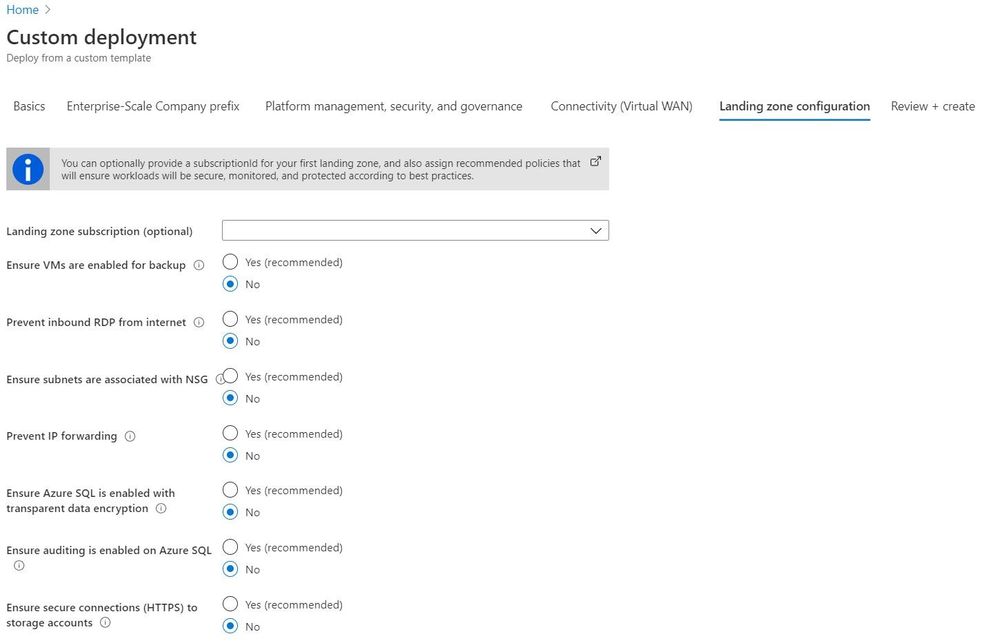
The provided user experience allows you to easily deploy (bootstrap) the selected reference implementation, with all included definitions and assignments. Furthermore, policy definitions and assignments can also be deploy out-of-band on targeted management groups and subscriptions. The user experience when deploying a reference implementation is shown in the figure below:
 User experience when deploying a reference implementation.
Resource deployment and remediation
Although ARM templates can be deployed to all scopes (tenant, management group, subscription, and resource group scope), policies can only deploy to the subscription and resource group scope.[3] This has an impact on the behavior when deploying resources and policy remediations:
- If a deployment is created via Enterprise-Scale, the remediation for the subscription scope is included; consequently, the policy is evaluated and the specific resources (e.g. with DINE) are deployed.
- If a deployment is created outside of Enterprise-Scale, the remediation is not included; consequently, remediation tasks must be created manually or by using Azure CLI or PowerShell.
Finally, a big thank you to @KristianNese for reviewing and providing feedback.
[1] https://docs.microsoft.com/en-us/azure/governance/policy/overview
[2] https://github.com/Azure/azure-policy
[3] https://docs.microsoft.com/en-us/azure/governance/policy/how-to/get-compliance-data
[4] https://docs.microsoft.com/en-us/azure/governance/policy/concepts/effects
[5] https://docs.microsoft.com/en-us/azure/governance/policy/how-to/get-compliance-data#how-compliance-works
[6] https://docs.microsoft.com/en-us/azure/governance/policy/concepts/effects#order-of-evaluation
[7] https://github.com/Azure/Enterprise-Scale/tree/main/azopsreference
[8] https://github.com/Azure/Enterprise-Scale/blob/main/docs/EnterpriseScale-Deploy-reference-implentations.md
by Scott Muniz | Aug 26, 2020 | Uncategorized
This article is contributed. See the original author and article here.
In recent months, we have many changes at architecture design and security, with users, services, and devices. This article attempts to describe the scenarios that could be driven by remote work and could identify possible configurations based on the business requirements.
Keep in mind that for these scenarios the users’ accounts must be synchronized with Azure AD.
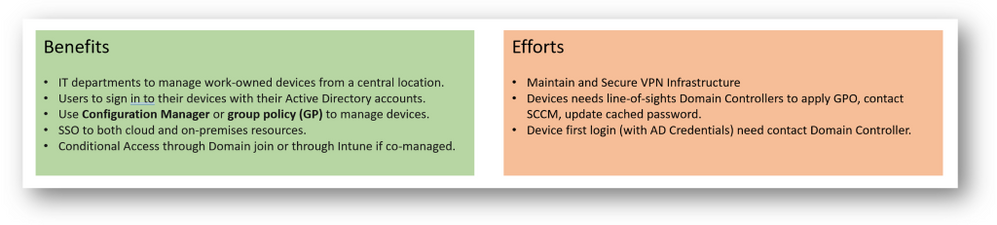
Scenario 1 (Cached Credentials in Workstations/Laptops):
Users who frequently worked from the office (being able to have weekly home offices), today are working from remote locations. Workstations/Laptops no longer connect to Domain Controllers; therefore, it is not possible to change configurations by GPO and to be impacted. In case the user changes his password (through Cloud or VDI services), the device will keep the old password. The user will have to log in to their computer with an old password and then use the new one to access the services.
This scenario is common in those organizations that do not use VPN services. Where your applications are accessed through Remote Apps, Cloud services or VDIs.
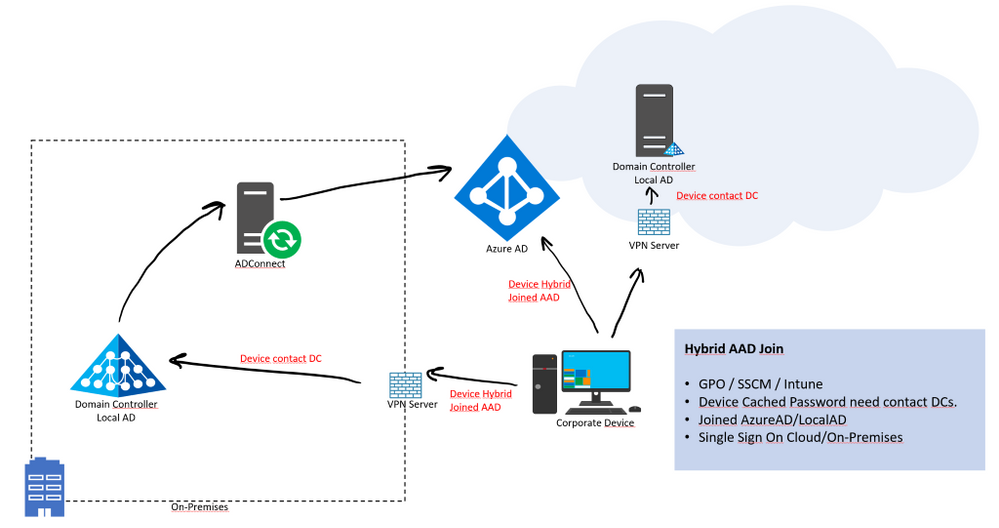
Machines must have network connectivity line of sight to a domain controller to use the new password and update cached credentials. This means that devices must either be on the organization’s internal network or on a VPN with network access to an on-premises domain controller.
If your environment has an on-premises AD footprint and you also want benefit from the capabilities provided by Azure Active Directory, you can implement hybrid Azure AD joined devices. These devices are joined to your on-premises Active Directory and registered with your Azure Active Directory.

For more Information, please see: https://docs.microsoft.com/en-us/azure/active-directory/devices/concept-azure-ad-join-hybrid
Scenario 2: (Device Provisioning for Distributed Users – only Win10 devices)
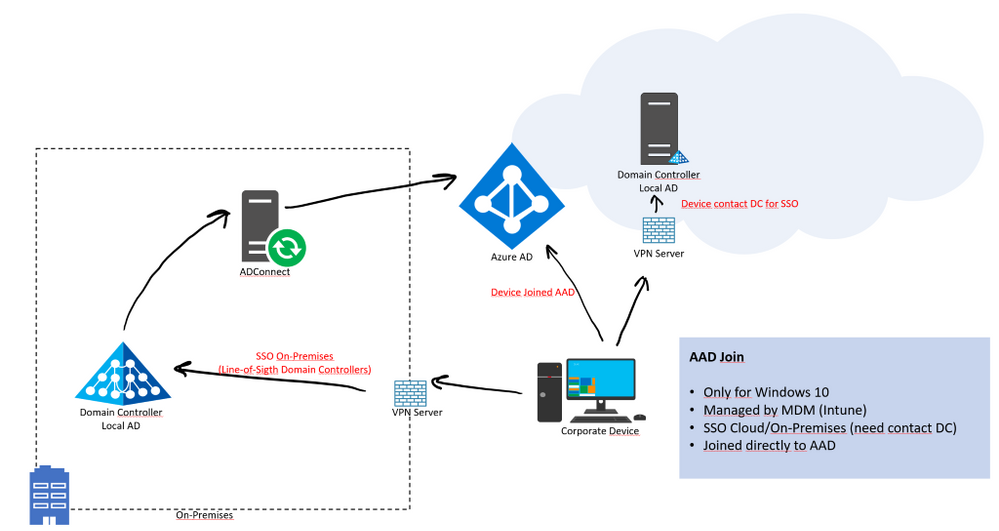
Continuing with the remote work scenarios, maybe, we need to assign new devices (Workstation / Laptops) to users who are outside our offices, therefore, it is not possible to log in for the first time to contact a Domain Controller so that the password is stored (cached) on the device, and then by logging in “offline”.
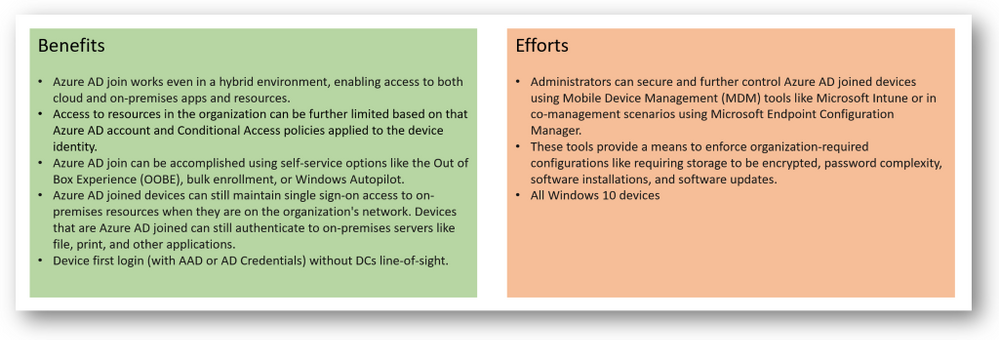
In this scenario, we can use Azure AD Join. It will allow users to log in with their network account (eg UPN) and offer a single sign-on (SSO) experience for both the cloud and their AD Local based applications. If Azure AD joined machines are not connected to your organization’s network, a VPN or other network infrastructure is required. On-premises SSO requires line-of-sight communication with your on-premises AD DS domain controllers.
You can provision Azure AD join using the following approaches:
- Self-service in OOBE/Settings - In the self-service mode, users go through the Azure AD join process either during Windows Out of Box Experience (OOBE) or from Windows Settings. For more information, see Join your work device to your organization’s network.
- Windows Autopilot - Windows Autopilot enables pre-configuration of devices for a smoother experience in OOBE to perform an Azure AD join. For more information, see the Overview of Windows Autopilot.
- Bulk enrollment - Bulk enrollment enables an administrator driven Azure AD join by using a bulk provisioning tool to configure devices. For more information, see Bulk enrollment for Windows devices.
Mobile Device Management (example: Microsoft Intune) is recommended.

by Scott Muniz | Aug 26, 2020 | Azure, Microsoft, Technology, Uncategorized
This article is contributed. See the original author and article here.
|
Microsoft partners like Zaloni, Seeq Corporation, and CloudEngage deliver transact-capable offers, which allow you to purchase directly from Azure Marketplace. Learn about these offers below:
 |
Zaloni Arena: Arena, an augmented data operations platform by Zaloni, provides an active data catalog that enables self-service data enrichment and consumption. Arena drives business and analytics success while providing the controls and extensibility needed across today’s decentralized, multi-cloud data complexity. Safeguard data assets and conquer data sprawl with Arena.
|
 |
Seeq Software – User License: Seeq from Seeq Corporation is an advanced analytics solution that enables process manufacturers to rapidly investigate and share insights from data on Microsoft Azure, as well as contextual data in manufacturing and business systems. Seeq’s extensive support for time series data accelerates analytics, publishing, and decision-making.
|
 |
Personalization Platform: CloudEngage helps retailers give website visitors a personalized, relevant, and intuitive experience. It works seamlessly with any content management or commerce system, and it automatically builds 360-degree audience profiles and segments with machine learning. Serving content based on the individual needs and interests of site visitors improves customer engagement and increases web and mobile conversion rates.
Chord: CloudEngage’s live-chat product, built on a personalization core with machine learning, makes it easy for customers to connect with a real person when browsing your website. Chord keeps track of a visitor’s interests and browsing history, and smart profile cards show ads, interest categories, geolocation, and weather. Adapt in real time to whatever your customer is looking for, and make it easy for your agents to pick up where they left off.
|
|

by Scott Muniz | Aug 26, 2020 | Uncategorized
This article is contributed. See the original author and article here.

Do you want to ensure security for your users as they collaborate in Microsoft Teams? Join us for our next CollabCast with Sam Brown on Wednesday, September 30th at 12 Noon EST, where we are bringing in speakers from Microsoft’s trusted partner Unify Square. They will dive in beyond the basic native Teams governance with third party specialty tools.
Key Topics Covered:
- Key analytics focus areas for collaboration security
- Tips and tricks for breaking the reactive governance loop
- Teams Policies and Use Cases
- Basic (native) governance vs Advance (3rd party tools) governance
Presenters:
- Scott Gode, Chief Product Marketing Officer, Unify Square

- Brandon Long, Collaboration Security Solution Architect, Unify Square

Event details:
Click here to join the live event on Wednesday, September 30th at 12 noon EST.
OR
Click here to download the .ics file for the calendar invite.
I’ll be your producer and moderator for the CollabCast and we hope to see you there!

Sam Brown, Teams Technical Specialist
by Scott Muniz | Aug 26, 2020 | Uncategorized
This article is contributed. See the original author and article here.
Business changes at a faster pace today more than ever before. The agility of IT to be both proactive and reactive in the face of change is a must. Adapt, or fade out. This affects everything and must be reflected in your intranet. The more change you can absorb and respond to, the more value you can provide without compromise or arduous task – for both change and growth expansion.
Microsoft has released numerous admin capabilities to both modernize your intranet, manage change, and keep it dynamic. The SharePoint admin center offers the flexibility and control you need to manage everything your intelligent intranet requires. SharePoint admins create and manage sites, establish or adjust the primary intranet entry point, optimize for spanning geographies – location and languages, and more.
- Adjust a SharePoint site address
- Update the root SharePoint site
- OneDrive and SharePoint multi-geo
- Support multiple languages across your intranet
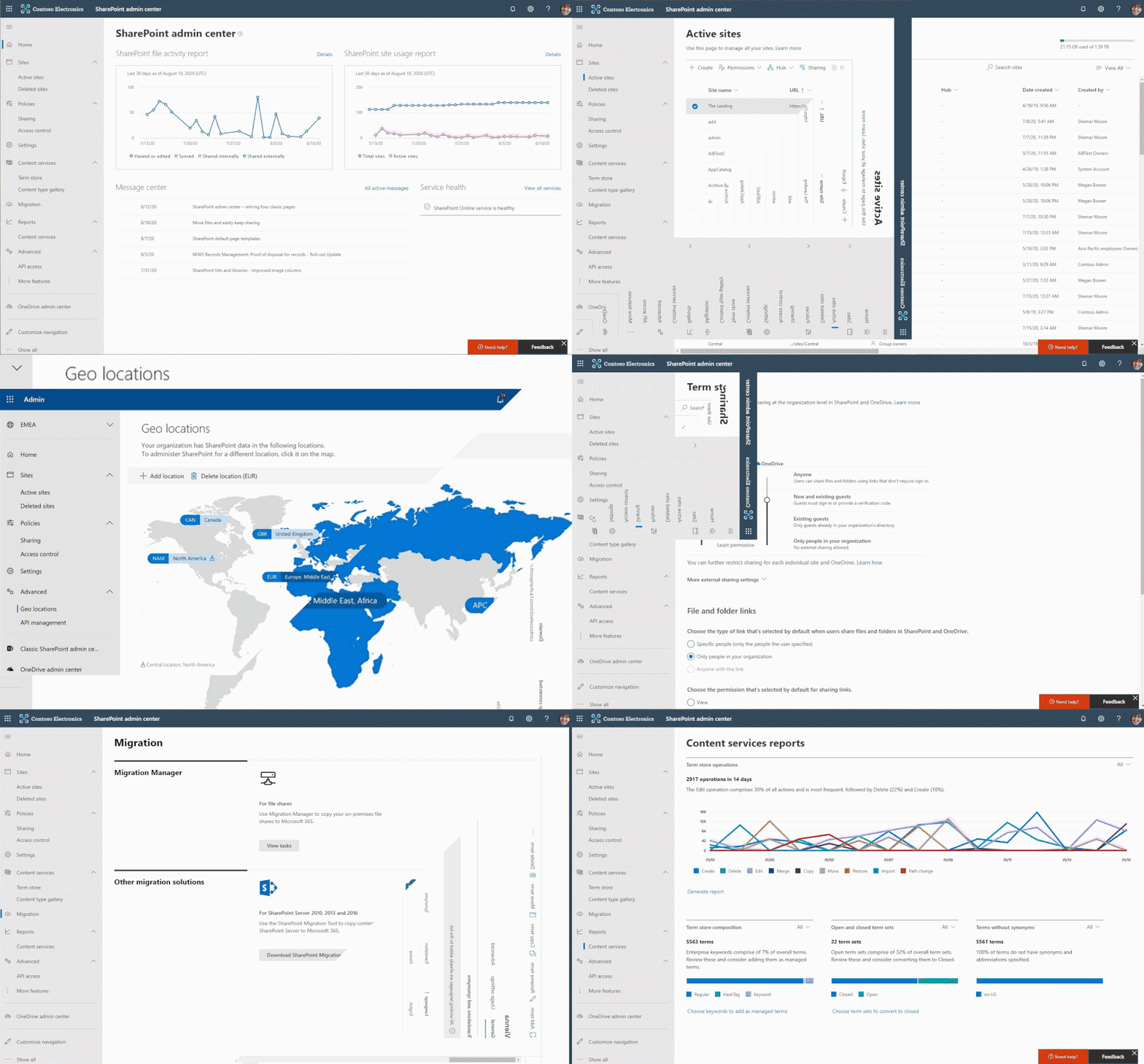
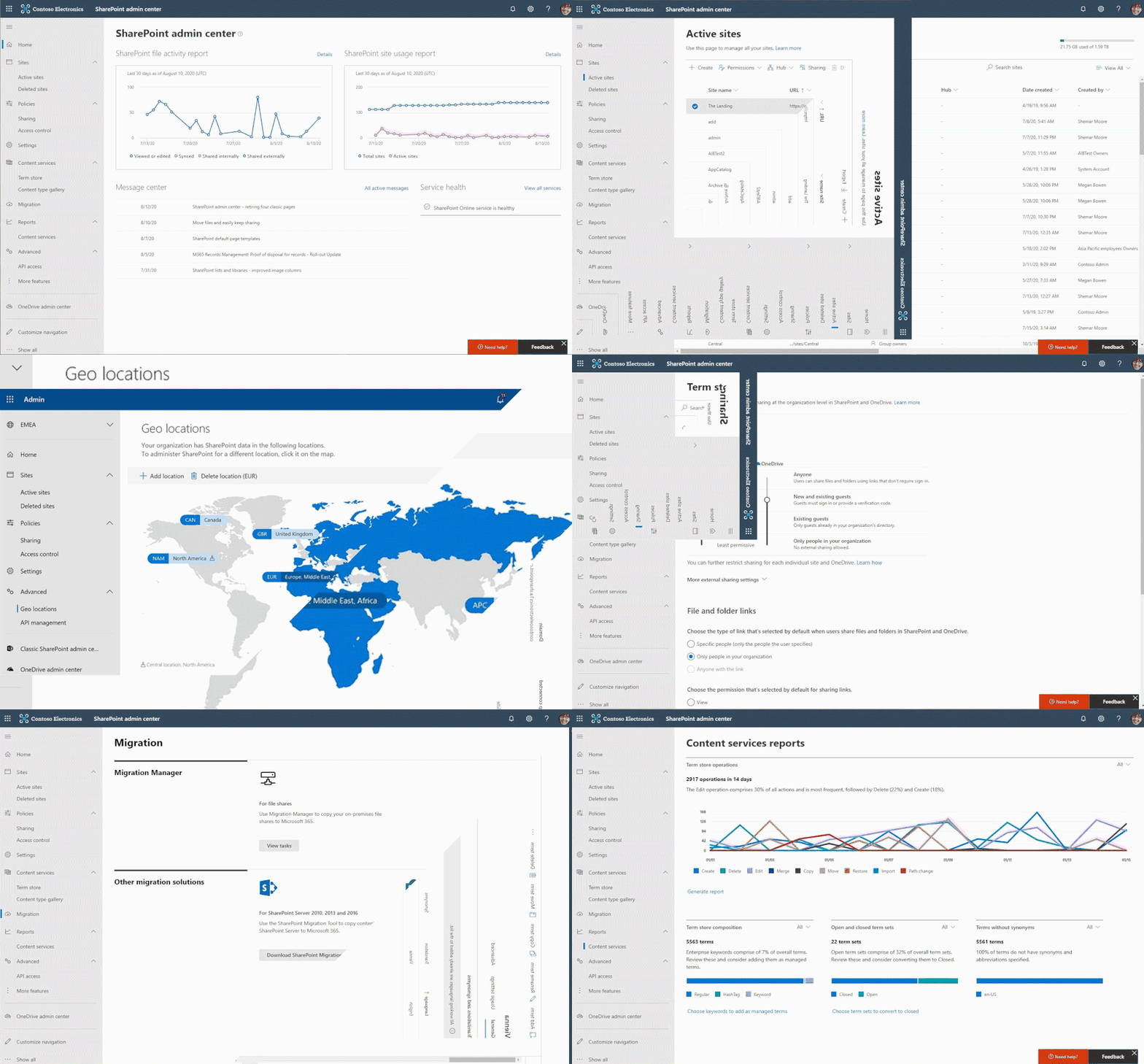 Cycling through several SharePoint admin center pages used to manage sites, optimize experiences across multiple regions, adjust sharing controls, plan and execute migrations, and more.
Adjust a SharePoint site address
Things change, often. Especially when something starts as a concept or a pilot, and then solidifies into a project or product. A SharePoint site with a codename in the URL is no longer the headache it once was.
It is possible for SharePoint administrators to change site URLs. As a global or SharePoint admin, you will be able to change site URLs for the following types of SharePoint sites: classic team sites, communication sites, and both modern team sites that are Microsoft 365 Groups-connected and ones that don’t belong to an Microsoft 365 Groups. And it is possible to perform this action from with the SharePoint admin center or via PowerShell.
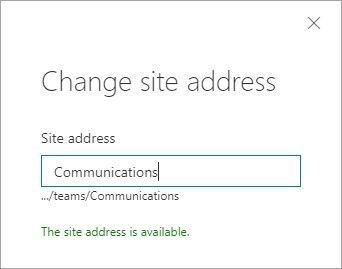 Change the site URL by typing the new desired site address, seeing if it’s available, and clicking OK.
So, for example, if you have a site named: https://contoso.sharepoint.com/sites/Develpment, you can rename the site to correct the incorrect spelling of “development” via the SharePoint admin center. And best of all, the service automatically-generates redirects to ensure that old links do not break.
Note: You can’t change the domain (“contoso” in the previous example) or any other part of the path. For example, you can’t move the site from “/sites” to “/teams.”
It’s inevitable that a site used for the early stages of a project or product in development to require adjust further along in the process – when final names and brands are decided, or simply when ownership changes.
Learn more about changing a SharePoint site address in Microsoft 365.
Update the root SharePoint site
Your root site originally began as a classic, non-group connected SharePoint team site. And now you can make your root site one that is meant more for communication across the company – a modern communication site (recommended). And you, too, can swap in a modern team site if preferred.
Like a magician’s trick (that’s no longer secret), the power to invoke a SharePoint root site swap is possible. You can make your Contoso.Sharepoint.com site – your root site – much more meaningful with just a few clicks. Use the Replace site button in the admin center or via PowerShell using the new cmdlet: Invoke-SPOSiteSwap. Ta da! Rabbit out of the hat. Once swapped, the source site becomes the new SharePoint root site for your tenant. And the previously designated root site automatically gets archived along with any subsites that may have existed.
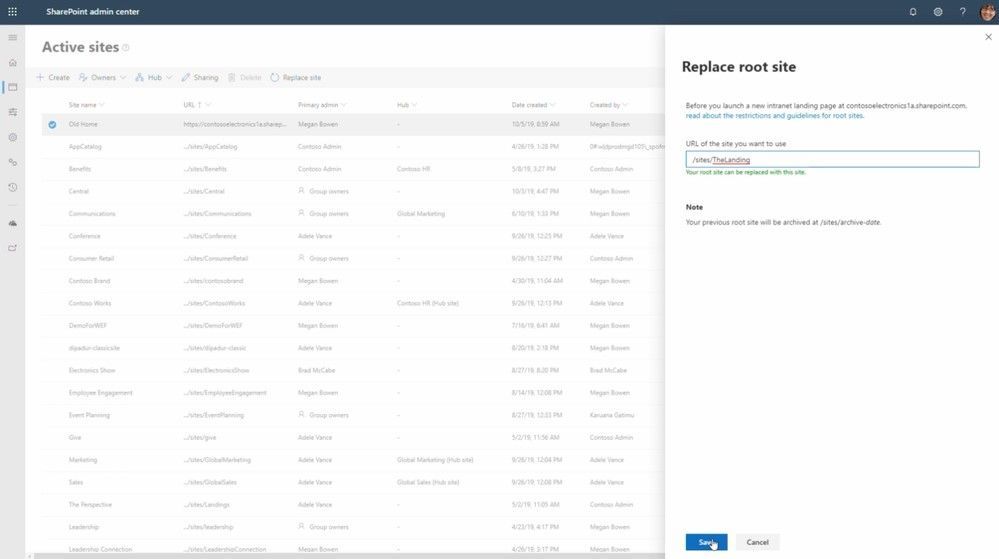 You can now swap the root site with the site of your choice directly from within the SharePoint admin center.
Before and during the site swap, the source or target sites cannot be “associated” with an Office 365 group or be connected to a SharePoint hub site. If the site is “associated” to a Hub Site, then the association can be removed, the swap performed, and the Hub Site re-associated after performing the swap. And it may be that you wish the newly swapped in root site to be a hub site – which you can establish – after the swap.
Note: The Replace site button in the SharePoint admin center is currently only available for customers with less than 10,000 licenses. We will share more before the close of this year when it becomes available to customers of all sizes.
Learn more.
OneDrive and SharePoint multi-geo
Growth. Expansion. Desired outcomes, and a good sign for the business. IT is challenged to keep pace with acquisitions, cross-region movement of people and projects, and the expectation to deliver the best possible performance along with improved data residency across the company per country-by-country policy.
Multi-geo allows multinational companies to meet data residency obligations in M365 by expanding their existing tenant into our GoLocal and regional datacenters. Because Multi-Geo is a single tenant, users can collaborate as a single global organization with a seamless, unified experience. Multi-Geo is offered for OneDrive, SharePoint online, and Exchange online.
Administrators can assign where a user’s OneDrive gets created through the user’s preferred data location (PDL) attribute. Likewise, the user’s PDL determines where they can create shared resources like SharePoint Sites and Groups. OneDrive sites and SharePoint sites can be moved across geo locations as data residency needs change.
Each user’s OneDrive can be provisioned in or moved by an administrator to a satellite location in accordance with the user’s PDL. Personal files are then kept in that geo location, though they can be shared with users in other geo locations. And when a user creates a SharePoint group-connected site in a multi-geo environment, their PDL is used to determine the geo location where the site and its associated Group mailbox is created. (If the user’s PDL value hasn’t been set or has been set to geo location that hasn’t been configured as a satellite location, then the site and mailbox are created in the central location).
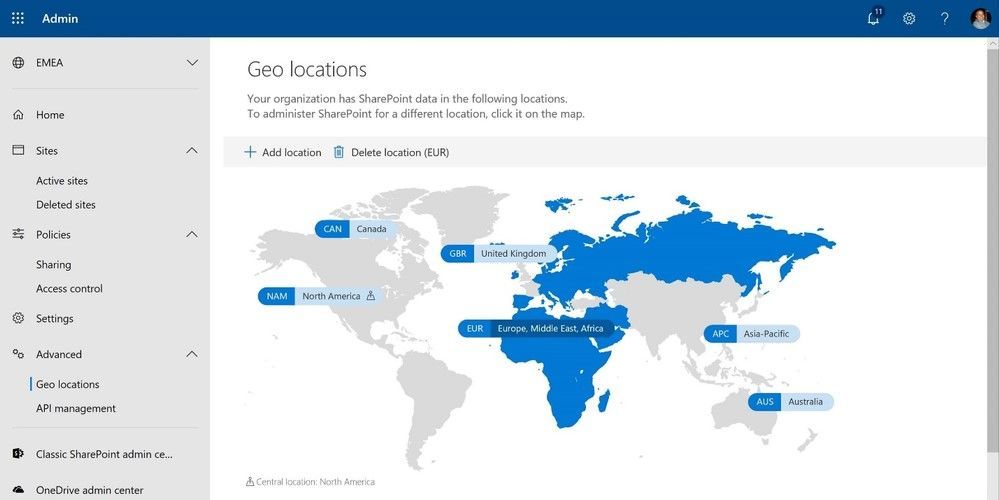 Setting up and managing your multi-geo environment is done through the SharePoint admin center.
With more data residency measures being legislated around the world for cloud data, global businesses are challenged with meeting their data residency requirements and digitally transforming with the cloud.
Multi-Geo addresses these challenges by enabling a single Microsoft 365 tenant to span multiple regions and/or countries and giving customers the flexibility to choose the country or region where each employee’s Microsoft 365 data is stored at-rest. This helps businesses meet their global data residency needs and digitally transform with Microsoft 365.
Get the latest multi-geo updates, plus review the Microsoft 365 multi-geo admin guide.
Support multiple languages across your intranet
Language inside the intranet cannot be a barrier. Global organizations need to enable content across different languages and so we are delivering multilingual site capabilities. This will enable you to create content and sites in multiple languages. Customers can publish and consume modern SharePoint pages/news with language translations.
The multilingual publishing feature for SharePoint communication sites, now rolled out worldwide, enables you to create and translate pages, set translator roles, and get email alerts when pages are ready to be translated, updated, and published. All of this comes on top of the rich and flexible pages and news creation experience in SharePoint.
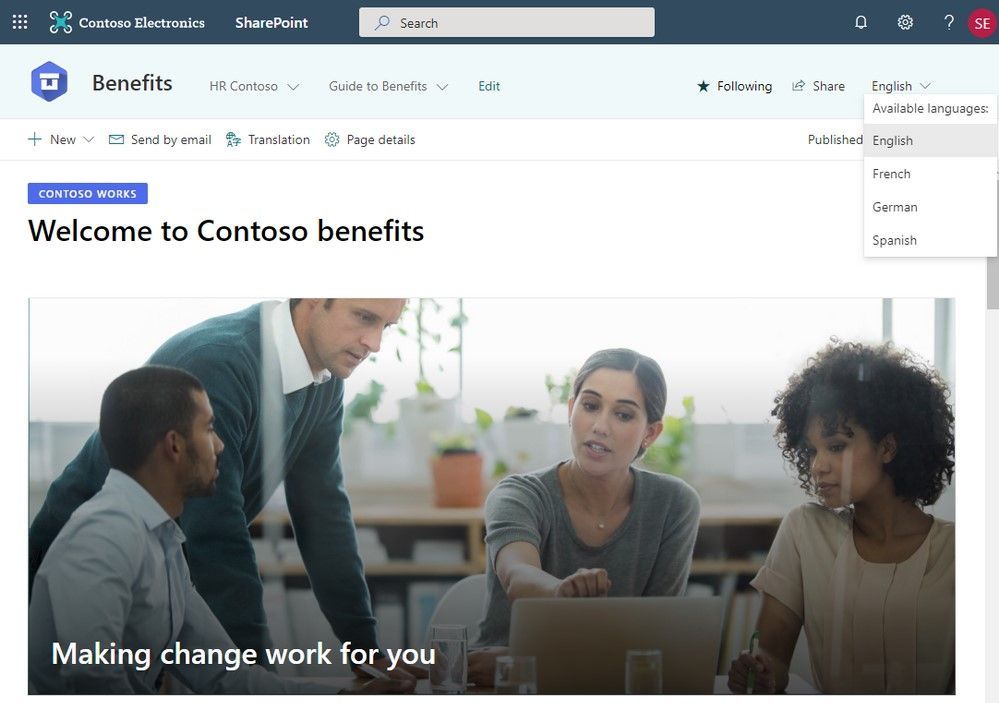 A SharePoint-based intranet can support multiple languages for important sites and pages meant to be consumed by multiple people from multiple regions. People can easily switch from one language to the other.
Communication between teams, managers, and everyone in between is one of the most important things an organization can facilitate currently. With many teams spread all over the globe, Microsoft is proud to be able to provide a tool built into modern SharePoint that helps to ensure your information is easily delivered to your team. Get more information, exact steps and troubleshooting tips in our article: Create multilingual communication sites, pages, and news. You can also view a video demo of the feature here or hear more about the building of the feature in this Intrazone podcast.
Try more of what SharePoint offers – additional resources
Harness the power of the intelligent intranet to communicate effectively across the organization, engage employees, and connect with relevant information and knowledge. We encourage you to get inspired and organize your intelligent intranet. Establish the sites you need and ensure your users can create the sites they need along with business apps that keep business moving forward.
Learn more about the SharePoint admin role in Microsoft 365 with further information about managing sites, external sharing, migration, metadata, and more.
We invite you to engage our FastTrack team to help with adoption and migration. Our goal is to empower you and every person on your team to achieve more. Let us know what you need next. We are always open to feedback via UserVoice and continued dialog in the SharePoint community in the Microsoft Tech Community —and we always have an eye on tweets to @SharePoint. Let us know.
Thanks, Mark Kashman, senior product manager (SharePoint/Microsoft)
by Scott Muniz | Aug 26, 2020 | Uncategorized
This article is contributed. See the original author and article here.
Save teachers and students time and effort with new transcription capabilities in Word
By Mike Tholfsen
Educators and students are actively spending time and energy adapting to virtual learning while handling life at home. Our bandwidth to figure out new processes, keep track of various conversations, and digitize workflows while still aspiring to do our best work is limited and that’s why we’re excited to share that Transcribe in Word is here.
Easy transcriptions save you time, effort, and help better remember conversations
There are several scenarios where Transcribe in Word can help – in example,
- For post-interview processing: From student assignments like interviewing a career role model to formal research studies, a lot of time is wasted today manually re-listening and transcribing recordings to gather quotes and annotate patterns. Students with may struggle focusing on the conversation while jotting down notes.
- For making the most of feedback sessions: Students may need feedback early in their essay-writing process, but when grading comes around, it may be difficult for educators to recollect all the suggestions given from an earlier chat. On the flip side, students may be overwhelmed by all the details in verbal feedback sessions as they try their best to remember it later.
- For referencing notes after meetings or video conferences: Educators may forgo jotting down notes in parent-teacher meeting to be present in the moment, but wish they had key details later.
- For creating during projects: Whether it’s for extracurricular clubs or hobbies such as journalism with the school paper or making a new podcast, a lot of time can be spent working with audio and video media or manually writing up transcripts to publish.
Transcribe in Word can help you stay focused on your conversation in the moment or preserve valuable time and energy by converting speech into text.
Getting started
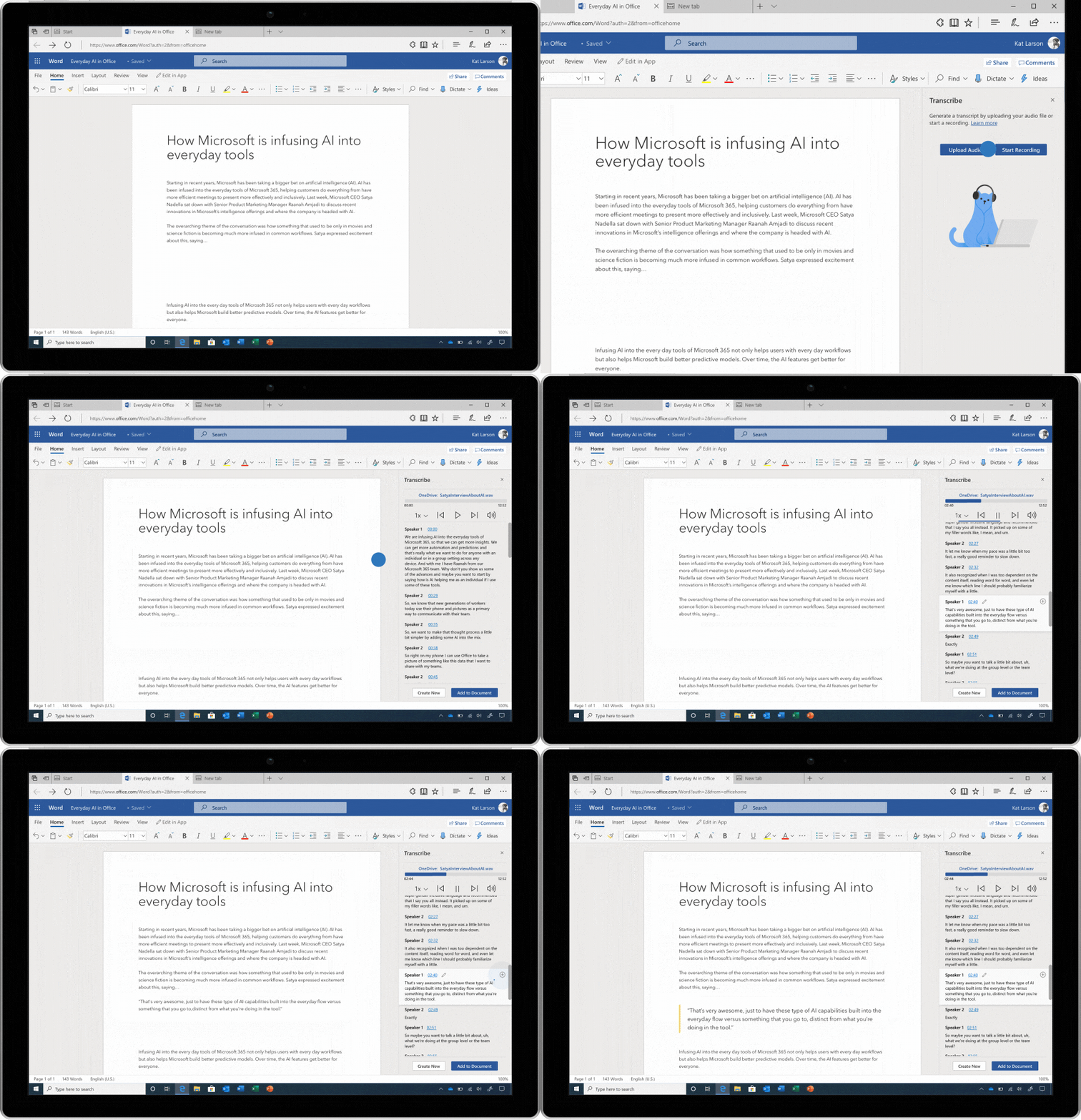
- Make sure you’re signed into Microsoft 365 using the Microsoft Edge or Google Chrome web browser
- Go to the Home tab > Dictate dropdown > Transcribe button
- Select Start recording to Upload audio
- Check out your new transcript with timestamps, speaker labels, audio playback, and options to add the content into the document
Tip: To make this work over a video conferencing call, just start recording in Word while no headset is used so Word can pick up the sound coming out of the device.

Conversations that are recorded or uploaded are saved to your personal OneDrive. Transcribe individually separates different speakers so it’s clear which part was said by a teacher versus a student. After the conversation, parts of the recording can be played back by clicking on timestamped audio and the transcript can be edited.
With smartphones being ubiquitous for educators and students alike, Transcribe enables upload of audio that was recorded outside of Word. Whether recorded on a phone or elsewhere, simply select the file to upload and transcribe. Transcribe supports .
The transcript will appear alongside the Word document, along with the recording which can be played back to hear how something was said, not just read what was said. Want to send or work with an entire transcript? Simply click “add all to document” and the full transcript will be laid out in Word.
Here is a detailed video showing the entire scenario, step by step:
Transcribe in Word is available in Word for the web for all Microsoft 365 subscribers. Currently, only transcribing audio into English (EN-US) is supported. Transcribe in Office mobile will be coming by the end of the year. For more detailed steps see: Transcribe in Word
Mike Tholfsen
Principal Product Manager
Microsoft Education
@mtholfsen


Recent Comments