by Scott Muniz | Sep 22, 2020 | Uncategorized
This article is contributed. See the original author and article here.
In the conclusion to this two-part series with Allan Hirt, learn how Azure can be used to create disaster recovery solutions for your on premises Microsoft SQL Server instances and databases through the use of built-in availability features of SQL Server.
For an introduction to Microsoft Hybrid SQL Server Solutions, watch
part one.
Watch on Data Exposed
Additional Resources:
View/share our latest episodes on Channel 9 and YouTube!
by Scott Muniz | Sep 22, 2020 | Azure, Technology, Uncategorized
This article is contributed. See the original author and article here.
The cloud has simplified and reduced the operational expense (OpEx) and management burden in numerous areas of IT. Many systems that previously ran on-premises and were complex to maintain are now simple ‘point & click’ services in the cloud.
Likewise, running virtual machines (VMs) in Microsoft Azure opens the door to a wealth of convenient services that simplify and automate day-to-day operational requirements in areas such as security, anti-malware, compliance, disaster recovery, etc. We also provide best practices guidance outlining the services that we recommend you onboard your VMs to including each service’s respective configuration. You can find this actionable guidance in the Microsoft Cloud Adoption Framework for Azure.
A new service known as Azure Automanage reduces the OpEx burden for VMs further by automating the guidance mentioned above. Through its virtual machine best practices capability, select services are discovered, onboarded, and configured across the entire lifecycle of both dev/test and production VMs. You can add VMs individually or do so at scale safe in the knowledge that if your VMs deviate from best practices, Azure Automanage will detect and automatically correct it.
Specifically, the VM best practices capability of Azure Automanage does the following five things:
- Intelligently onboards to select best practices Azure services
- Automatically configures each service per Azure best practices
- Configures guest operating system per Microsoft baseline configuration
- Automatically monitors for drift and corrects for it when detected
- Simple experience: Point, click, set, forget -> done
The capabilities of Azure Automanage translate into the following customer benefits:
- Reduced cost by automating Windows Server management
- Improved workload uptime with optimized operations
- Implementation of security best practices
How does it work?
Configuration profiles
Azure Automanage uses configuration profiles to determine what Azure services will be enabled for that VM. At launch, there are two configuration profiles:
- Azure virtual machine best practices – Production
- Azure virtual machine best practices – Dev/Test
Each profile onboards a set of services that fit the workload type. For example, dev/test VMs will not be onboarded to Azure Backup since dev/test VMs are typically short-lived and of low or no direct business impact. Hence, paying for backup storage is unnecessary. On a production VM, however, Azure Backup is configured. For more details about configuration profiles and the services they automatically configure, see the detailed documentation here.
NOTE: While Azure Automanage is currently available only for Windows Server VMs, it will be extended to Linux VMs in the future.
You can assign a configuration profile to a VM using any of the methods:
Configuration profile preferences
Some of the services that the configuration profiles onboard VMs to support a variety of best practice configurations. For example, Azure Backup best practices might require a daily backup with a 6-month retention. However, a twice daily backup with a 3-month retention still conforms to best practices. In scenarios like these, configuration profile preferences provide a way to override the default best practices.
Like configuration profiles, preferences are Azure resources and are assigned to a VM the same way configuration profiles are.
Automanage account
An Automanage account is an Azure System Managed Service Identity (MSI) under which Automanage operations are performed on VMs. You must have at least one Automanage account before you can assign a configuration profile to a VM. When using the Azure portal, an Automanage account will be automatically created if one does not already exist; existing Automanage accounts will be used if permitted for the logged-on user.
Get started
You can assign a configuration profile to both new and existing VMs.
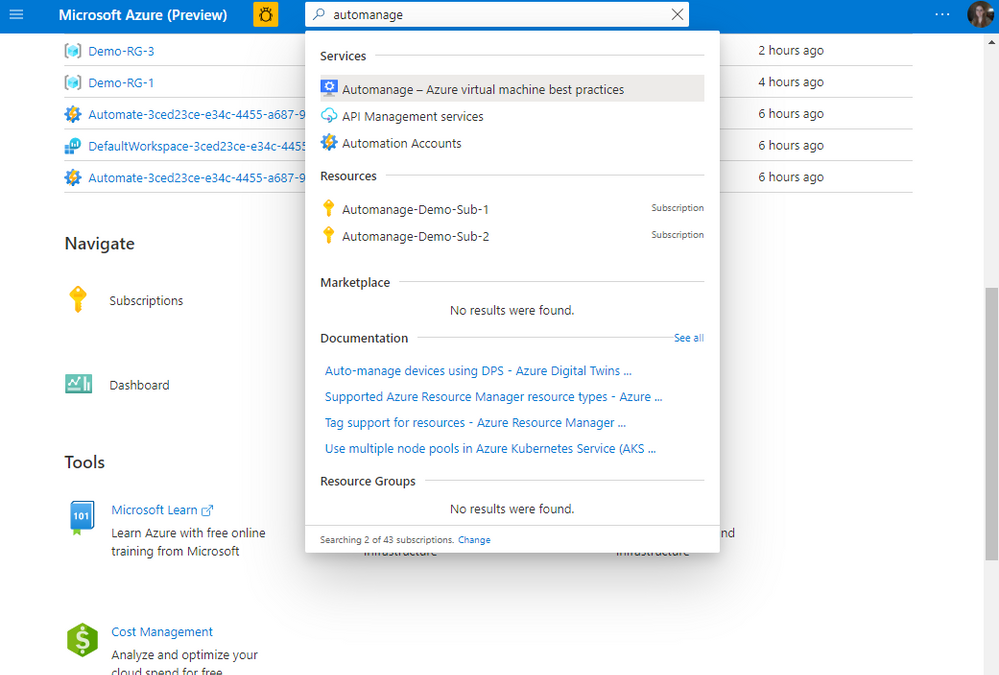
To begin using Azure Automanage VM best practices, visit the Azure portal and search for Automanage as shown below:

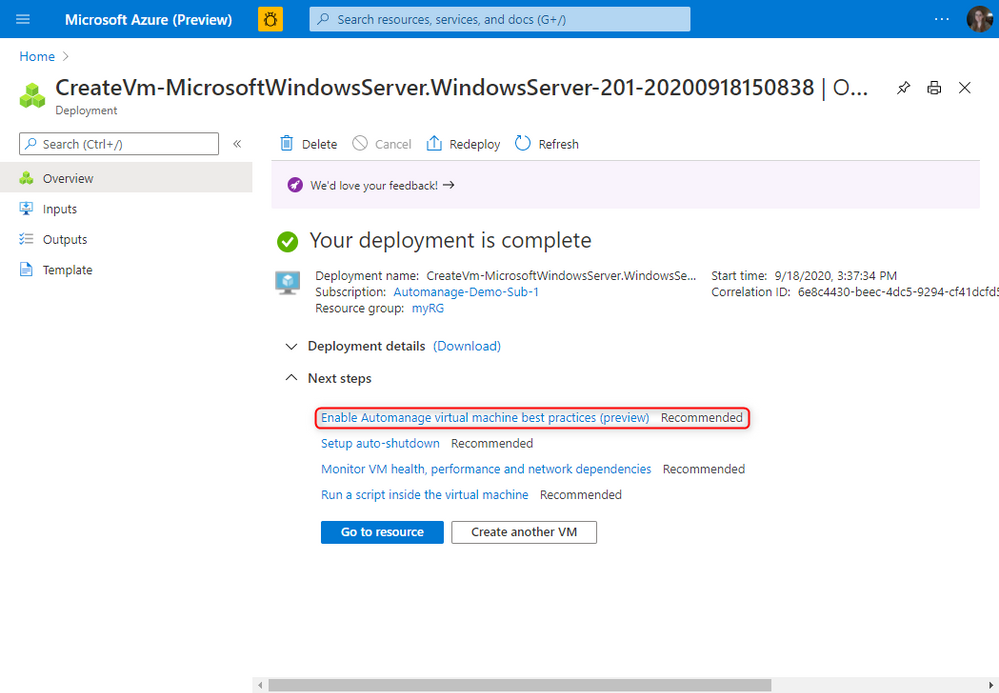
For new VMs, after the deployment is complete, you will see this recommended next step to enable Automanage.
For more information, please take a look at the full documentation here.
by Scott Muniz | Sep 22, 2020 | Azure, Technology, Uncategorized
This article is contributed. See the original author and article here.
Windows Admin Center, your favorite server management tool, is now available in preview in Azure. This new capability allows you to manage the Windows Server OS running on Azure IaaS VMs seamlessly and at a more granular level. This in-built functionality provides the opportunity for greater oversight of your workloads right from the Azure Portal.

Get the job done with simplicity and convenience
Windows Admin Center in Azure unlocks incredible capabilities for the Azure Portal by providing you with an interface to manage the OS of your Windows Server VMs. In the past, the Azure Portal provided a singular view for VM management, giving access to only infrastructure level management. With the addition of Windows Admin Center, we have opened up opportunities for true granular virtual machine management. This will reduce the need for you to Remote Desktop into your Azure VM for administration offering the same experience for VMs with or without a GUI.
Familiar UI
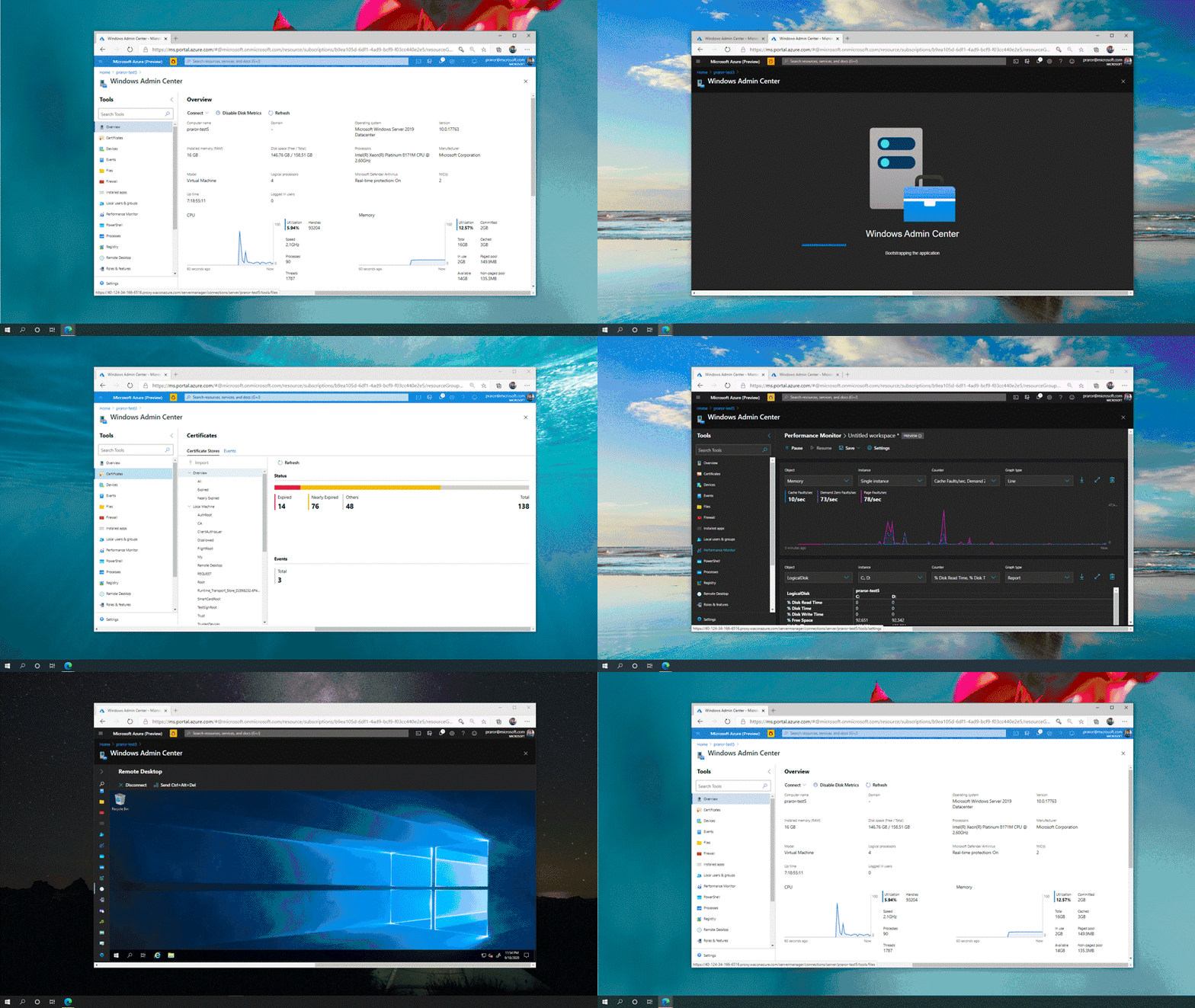
You can now configure, troubleshoot, and perform maintenance tasks with the same Windows Admin Center UI that you know and love using on your Windows Server in your datacenters. Manage your files, view expired certificates, monitor performance, view critical events, use an in-browser RDP session and so much more without leaving the Azure Portal. We now provide cloud capabilities that were once only available to Windows Admin Center users on-premises.
Always up to date
We are continuously adding new capabilities to improve the experience of our customers. On Azure, Windows Admin Center is always kept up to date with the latest and greatest features. In addition, as we enter public preview, Windows Admin Center will be backed by the support infrastructure that provides reliability for all other Azure services. You now have a great way to manage your Windows Server virtual machines in Azure.
Get started
Windows Admin Center in the Azure Portal is available to all Windows Server customers on Azure running Windows Server 2016 or 2019 virtual machines in the public cloud.
Join the preview today!
Please email all questions and feedback to wacazp@microsoft.com.
Learn more
New to Windows Admin Center? Check out this intro video.
Already a Windows Admin Center pro? Check out our blog post announcing general availability of Windows Admin Center v2009 and these skilling videos from Ignite 2020.

by Scott Muniz | Sep 22, 2020 | Uncategorized
This article is contributed. See the original author and article here.
I am excited to echo the announcement from Robin Seiler’s Surface Blog, that starting today in the US, and more markets to follow, the Surface Hub 2S 85” is available for pre-sales reservations. We also shared that the device will be available to commercial customers starting in January 2021*.

I’m personally thrilled to see the public announcement of the Surface Hub 2S 85because it has shared space with me since word of COVID-19 struck the USA. I talked the Surface Engineering team into letting me borrow a device so I could attempt some demos in my satellite office location.

What impresses me most about the Surface Hub 2S 85” is the craftsmanship and attention to detail through-out the device. The form, fit, and finish of the materials, even on the early prototype I’ve been using, is built with fine precision. This is a product that will truly become the cornerstone to any collaborative environment.
Since those early days in March, I’ve been sharing remote presentations, a few times a week, to customers under NDA, explaining the capabilities and technical details inside the largest Surface device we’ve ever made. The device is a true joy to use. It starts with the ability to clearly see co-workers and customers in Microsoft Teams Gallery View where the 85” capitalizes on its size to show people simply in a larger form. From here we can also open the Microsoft Whiteboard and brainstorm with co-workers across the globe while interacting with them across audio and video feeds. The Surface Hub 2S 85” delivers on the idea of remote and in-person collaboration in a truly massive scale.
I’m happy to share that we can now provide this complete demo and product walk through, no NDA required. If interested, please reach out to your Surface Specialist to schedule a time and if you don’t have a Surface Specialist to work with, look for an upcoming Webinar schedule we’ll be sharing soon on this blog.
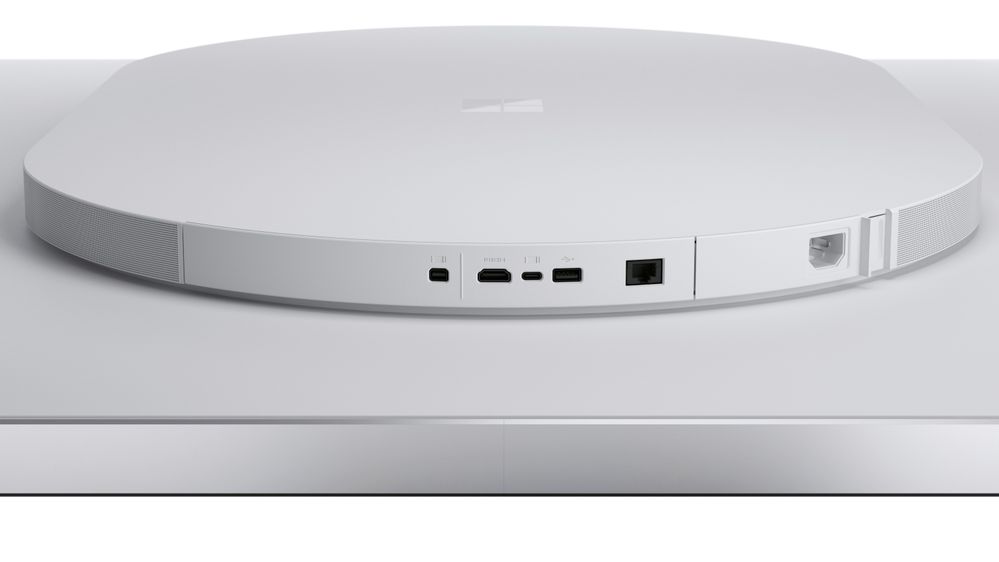
You can learn more about the Tech Specs and device administration details from our updated Docs pages located here: https://docs.microsoft.com/surface-hub/surface-hub-2s-85
If you’re taking part in Microsoft Ignite (It’s FREE, you should!) be sure to watch the following sessions for more details and overview of the Surface Hub 2S 85”.
Let us know what you think about the Surface Hub 2S 85” and any questions you have. We’re happy to answer them here and in the Technical Community forum.
*Surface Hub 2S 85” has not yet been authorized under U.S. Federal Communications Commission (FCC) rules; actual sale and delivery is contingent on compliance with applicable FCC requirements.
by Scott Muniz | Sep 22, 2020 | Uncategorized
This article is contributed. See the original author and article here.
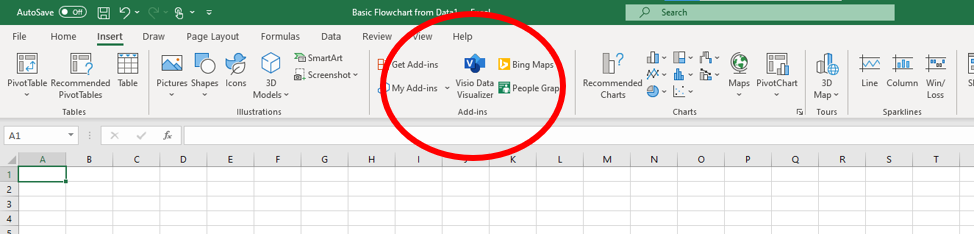
Last year at Microsoft Ignite, we announced the public preview of the Visio Data Visualizer add-in for Excel. This year, we are thrilled to announce that the add-in is now generally available. The Data Visualizer add-in, which is also now available for the first time from a dedicated button in the Excel ribbon, lets you create diagrams—basic flowcharts, cross-functional (swim lane) flowcharts, and org charts—from data directly in Excel.
 Dedicated Data Visualizer button in the Excel ribbon
All you need to get started is a Microsoft work or student account—no Visio subscription is required. This means you can create, view update, edit, share, and print your diagram all for free. If you are using personal accounts like hotmail.com or outlook.com, you can still use the add-in with limited capabilities.
Getting started
The Data Visualizer add-in is available for Excel on Windows (2016 or later), Mac (2016 or later), and Excel for the web with a work or school account. To start using it:
- Open Excel and create a new blank workbook.
- Save the workbook to a OneDrive or SharePoint location. (This step is optional but recommended).
- Add ‘Visio Data Visualizer’ add-in from Insert > Get Add-ins section. You can start from an add-in ready template as well from File > New. Search for keywords like flowchart, org chart etc. in the ‘Search for online templates’ box.
- If you see a security message regarding the add-in, select Trust this add-in.
Using the add-in
You can find a bevy of information about the Data Visualizer add-in on our support site.
The add-in comes with a variety of data-linked samples. Each diagram category comes with a variety of data linked samples in different themes and layouts for your you get started. You can customize the diagram by bringing your own data. When you’re done, click Refresh in the add-in to see your changes sync with the data-linked diagram—all right within Excel.
If you have a Visio Plan 1 or Visio Plan 2 license, you can do even more with your Data Visualizer diagrams, like adding text, applying design themes, and making other modification, using either Visio desktop or Visio for the web. To edit a diagram in Visio for the web, click Edit in the add-in menu bar.
Recent updates
Earlier this year, we announced several updates to the add-in that make it even easier for everyone to use Data Visualizer. Here they are again.
Add-in ready templates:
There are three new templates for the Data Visualizer add-in—one for basic flowcharts, one for cross-functional flowcharts, and one for organizational charts—that offer repeatable models for expediting the diagram creation process. You can find each of these in the Excel backstage or at templates.office.com.
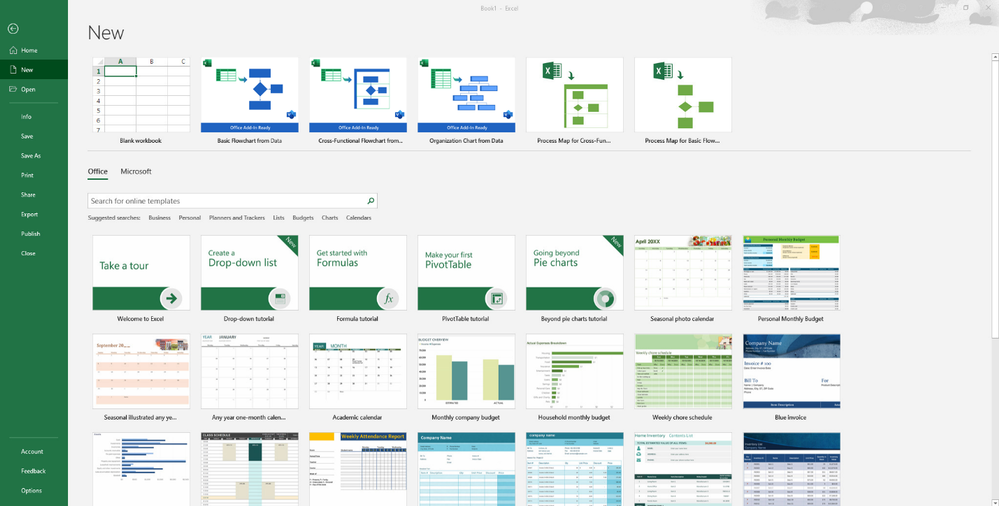 Three new Data Visualizer add-in templates available in the Excel backstage
To get started with these templates in the backstage, open Excel > File > New. Type “flowchart” in the search bar, choose your preferred template, and select Create.
To get started from the tempaltes.office.com, search for “Basic flowchart from data,” “Organization chart from data,” or “Cross-functional flowchart from data.” Again, choose your preferred diagram from the available templates and select Download.
Please note that these new templates are currently only available to Microsoft 365 subscribers on the monthly channel in the Excel backstage. If you’re on the semi-annual channel, you’ll be able to access the new templates from there once they’re deployed; alternatively, you can start using the templates now by downloading them from templates.diagrams.com.
Extended language support:
The add-in now supports all 26 languages available in Visio for the web, extending Data Visualizer to your colleagues around the world. Some of these languages include English, French, German, Spanish, Italian, Dutch, Arabic, Hebrew, Japanese, Korean, Hindi, and Russian. The language defaults to the one set on your browser. If your admins set a tenant-level language, that will take precedence over the browser-level setting.
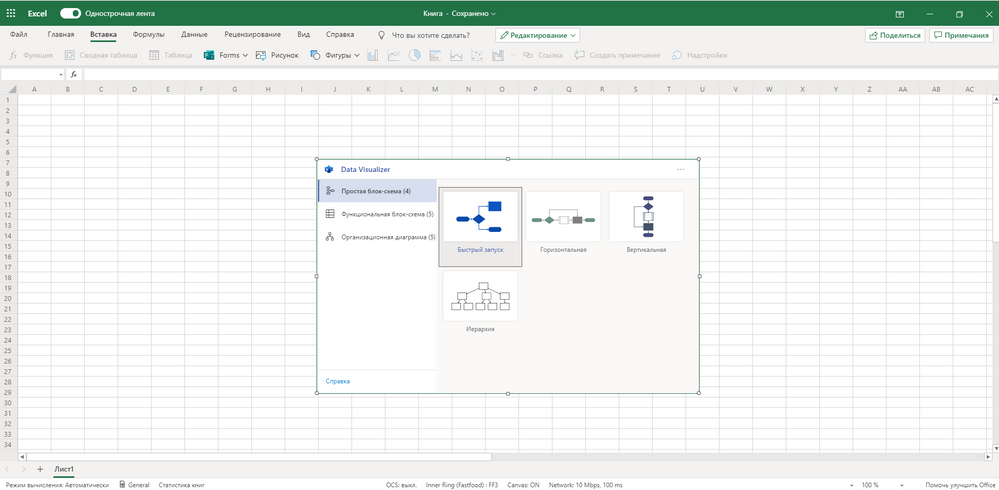 The add-in now supports 26 languages
Single sign-on integration:
If you are already signed into Excel with your work or school account, you’ll be automatically signed into the Data Visualizer add-in, too, bringing more convenience to the add-in experience. For semi-annual channel users, single sign-on will be deployed with next release; until then, those users can continue with manual sign-in.
 If you’re signed into Excel, you’ll be automatically signed into the add-in, too
Centralized deployment:
Lastly, we have made it easier for admins to deploy the add-in directly from the Microsoft 365 admin center. This is the recommended way for admins to deploy all add-ins (including the Data Visualizer add-in) to users in a group or the tenant. You can find all the details for using Centralized Deployment in this article. But for a quick tutorial, follow these steps.
- Log into the Microsoft 365 admin center. From the left sidebar, go to Settings > Add-ins > Deploy Add-in. This will open the add-in wizard.
- In the wizard, select Choose from Store and type “Microsoft Visio Data Visualizer” in the search bar. Then, select the add-in.
- Read through the licensing terms and privacy policy.
- Choose if you want to enable the add-in for your entire organization or just a limited number of users or groups. Once decided, deploy the add-in, which will now appear on the Add-ins list.
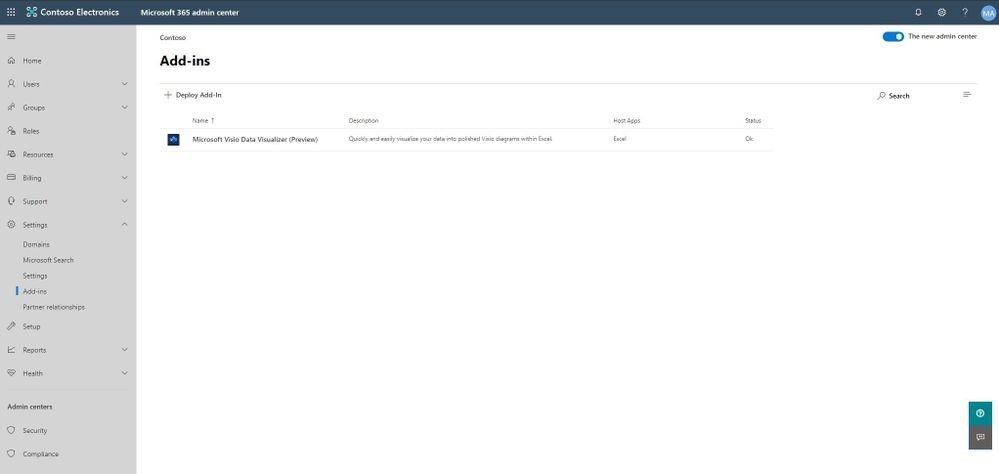 The Data Visualizer add-in on the Add-ins list
If you’d like to learn more about any of these enhancements, please read our blog post from July.
Today marks the opening day of Microsoft’s first all-digital Ignite conference. Check our the Data Visualizer skilling video at aka.ms/Visio/DataVisualizer for additional tips, tricks, and information. All the other Visio conference videos can be found on the Ignite Virtual Hub.
As always, please send us your feedback about the Data Visualizer add-in—or any other Visio feature for that matter—through UserVoice. And keep visiting Tech Community for all the latest Visio news, including more from Ignite in the coming days.
by Scott Muniz | Sep 22, 2020 | Azure, Technology, Uncategorized
This article is contributed. See the original author and article here.
For all of you interested to learn more about Azure Networking, here is a list of technical sessions covering all things new at Microsoft Ignite 2020.
Please visit the Virtual Hub for Azure Security technical sessions.
- Blueprint for securing your web applications and content delivery strategy
- Protecting remote work and digital experiences using cloud native network security
- What’s new in Firewall and Firewall Manager
- Detecting and Responding to Threats using Azure Network Security tools and Azure Sentinel
- Zero Trust approach to network security for your Azure workloads
We welcome your feedback on our new features and capabilities as well as your guidance to further refine our roadmap to meet your requirements.

by Scott Muniz | Sep 22, 2020 | Uncategorized
This article is contributed. See the original author and article here.
Microsoft Ignite 2020 (#MSIgnite) is upon us – in the virtual world – with real-world announcements flowing left and right. And we’ve got a front-row seat with Omar Shahine, VP of OneDrive and SharePoint Program Management; aka, Jeff Teper’s lead guiding what OneDrive and SharePoint are in Microsoft 365.
We asked Omar about the recent back-to-school surge, Ignite updates for Project Cortex, Microsoft Lists, Microsoft Stream, new SharePoint innovation in Microsoft Teams, the Leadership Connection site offering, OneDrive sync reports, and more. And we rounded it all off hearing how he and team take an overall design approach that best provides for “consumers in the commercial space.”
Ok, ok, Mark. Bring on Omar. On to the show…
Subscribe to The Intrazone podcast! And listen to episode 57 now + show links and more below.
 The Intrazone guest, Omar Shahine (VP of OneDrive and SharePoint Program Management).
Link to articles mentioned in the show:
- Hosts and guests
- Articles and sites
- BLOG | “Microsoft Ignite announcements across Project Cortex, SharePoint, OneDrive, Microsoft Teams and more” by Jeff Teper.
- SESSION (on-demand soon) | [#MSIgnite 9/22/20 #DB158]: “Enabling collaboration, communication, and knowledge sharing with Microsoft Teams, SharePoint, Project Cortex, and more“
- OmarKnows blog: https://omar.shahine.com/
- #ProjectCortex: https://aka.ms/ProjectCortex + Cortex Ignite 2020 announcements
- #MicrosoftLists: https://aka.ms/MSLists + Lists Ignite 2020 announcements
- #MicrosoftStream: https://resources.techcommunity.microsoft.com/stream/
- SharePoint education (EDU) templates
- Microsoft Docs – The home for Microsoft documentation for end users, developers, and IT professionals.
- Microsoft Tech Community Home
- Stay on top of Office 365 changes
- Events
Subscribe today!
Listen to the show! If you like what you hear, we’d love for you to Subscribe, Rate and Review it on iTunes or wherever you get your podcasts.
Be sure to visit our show page to hear all the episodes, access the show notes, and get bonus content. And stay connected to the SharePoint community blog where we’ll share more information per episode, guest insights, and take any questions from our listeners and SharePoint users (TheIntrazone@microsoft.com). We, too, welcome your ideas for future episodes topics and segments. Keep the discussion going in comments below; we’re hear to listen and grow.
Subscribe to The Intrazone podcast! And listen to episode 57 now.
Thanks for listening!
The SharePoint team wants you to unleash your creativity and productivity. And we will do this, together, one Omar’ized episode at a time.
The Intrazone links
+ Listen to other Microsoft podcasts at aka.ms/microsoft/podcasts.
![Left to right [The Intrazone co-hosts]: Chris McNulty, senior product manager (SharePoint, #ProjectCortex – Microsoft) and Mark Kashman, senior product manager (SharePoint – Microsoft).](https://www.drware.com/wp-content/uploads/2020/08/large-758 "Mark Kashman_0-1585068611977.jpeg") Left to right [The Intrazone co-hosts]: Chris McNulty, senior product manager (SharePoint, #ProjectCortex – Microsoft) and Mark Kashman, senior product manager (SharePoint – Microsoft).
Left to right [The Intrazone co-hosts]: Chris McNulty, senior product manager (SharePoint, #ProjectCortex – Microsoft) and Mark Kashman, senior product manager (SharePoint – Microsoft).
 The Intrazone, a show about the Microsoft 365 intelligent intranet (aka.ms/TheIntrazone)

by Scott Muniz | Sep 22, 2020 | Uncategorized
This article is contributed. See the original author and article here.
At Ignite this week, we’re announcing many new features and capabilities to empower every person and every organization to thrive in the new world of work.
The post Seven ways we’re empowering every person and every organization to thrive in a new world of work appeared first on Microsoft 365 Blog.
Brought to you by Dr. Ware, Microsoft Office 365 Silver Partner, Charleston SC.
by Scott Muniz | Sep 22, 2020 | Uncategorized
This article is contributed. See the original author and article here.
It’s been over six months since shelter-in-place orders around the world changed work forever. At Microsoft, we’re studying this new world of work very closely,
The post A pulse on employees’ wellbeing, six months into the pandemic appeared first on Microsoft 365 Blog.
Brought to you by Dr. Ware, Microsoft Office 365 Silver Partner, Charleston SC.
by Scott Muniz | Sep 22, 2020 | Uncategorized
This article is contributed. See the original author and article here.
Microsoft Endpoint Manager connects you to all the important aspects of your IT estate with native integration with Microsoft 365 and Microsoft’s advanced security, compliance, and identity solutions. Learn what’s new in Microsoft Endpoint Management and Productivity Score.
The post Making a big impact starts with making things really simple appeared first on Microsoft 365 Blog.
Brought to you by Dr. Ware, Microsoft Office 365 Silver Partner, Charleston SC.


Recent Comments