This article is contributed. See the original author and article here.
Today, we are announcing Windows Autopilot for HoloLens 2 public preview! In May, the HoloLens and Microsoft Endpoint Manager teams announced the Windows Autopilot private preview for HoloLens 2. Since then, hundreds of customers have participated in the program to deliver efficiency and simplify deployments across their organizations. Today, we are bringing Windows Autopilot capabilities to every HoloLens 2 and Microsoft Endpoint Manager customer, allowing administrators to pre-configure new devices and set them up for productive use. Windows Autopilot streamlines deployments and first user experiences, driving significant cost and time savings.
You can read more details about Windows Autopilot for HoloLens 2 here. For Windows Autopilot documentation, see here. In this article, we provide a summary of the program, and useful resources to get started.
Program details
Windows Holographic, version 2004 (released May 2020) or newer is required to use Windows Autopilot. We began shipping devices with this version pre-installed in late September 2020. To confirm the build version on devices, or re-flash to the latest OS, you can use the Advanced Recovery Companion (ARC). You can find instructions here. Please contact your reseller or distributor to ensure that Autopilot-ready devices are shipped to you.
The public preview now enables you to configure Windows Autopilot for HoloLens devices using Microsoft Endpoint Manager controls, for all customer tenants. Get started by logging into Microsoft Endpoint Manager admin center and select Devices > Windows > Windows enrollment, and then under Windows Autopilot Deployment Program, select Deployment Profiles > Create profile > HoloLens (preview).
Windows Autopilot for HoloLens supports Self-Deploying mode and Azure AD Join. Self-Deploying mode joins the device into Azure AD, enrolls the device in Microsoft Endpoint Manager (or another mobile device management, MDM, service), and applies all device targeted policies (such as certificates, networking profiles, and kiosk settings) before the user logs in.
For device registration, we recommend that you work with your reseller or distributor to ensure that when devices are delivered to you or your users, they are Windows-Autopilot-ready. Microsoft Cloud Solution Providers can assist you in that process. If you wish to register HoloLens devices manually using the hardware hash, please see Register devices in Windows Autopilot. For more general information, see Adding devices to Windows Autopilot.
Windows Holographic, version 2004 (build 19041.1103) only supports Windows Autopilot over ethernet connection. Ensure the HoloLens device is connected to ethernet using a “USB-C to ethernet” adapter before turning it on. Upon device boot, no user interaction is required. If you are planning to roll out Windows Autopilot to many HoloLens devices, we recommend that you plan for the adapter infrastructure. We do not recommend USB hubs as they often require additional third-party drivers to be installed which is not supported on HoloLens.
Windows Holographic, version 20H2 (build 19041.1128) or later adds support for Windows Autopilot over Wi-Fi, in addition to the use of an ethernet connection. For devices connected via Wi-Fi, the user must:
Continue past the first interactable moment.
Choose the language and locale.
Go through eye-calibration.
Establish network connection
Known issues and limitations
We are continuously investing in new features and quality improvements. Currently, we are tracking a set of issues and limitations:
While setting up Windows Autopilot over Wi-Fi, there may be an instance where the Windows Autopilot profile is not downloaded when the internet connection is first established. In this case, an end user license agreement (EULA) is presented and the user has the option to proceed with a non-Windows-Autopilot setup experience. To retry setup with Windows Autopilot, put the device to sleep and then power up, or reboot the device and let it try again. We have identified a fix and planning to release it in our next servicing update.
For support on device registration, please contact your reseller or distributor.
For general support inquiries about Windows Autopilot, or for issues like profile assignments, group creation or Microsoft Endpoint Manager admin center controls, please contact Microsoft Endpoint Manager support.
If your device is registered in the Windows Autopilot service and the profile is assigned on the Microsoft Endpoint Manager admin center, please contact HoloLens support by visiting https://docs.microsoft.com/en-us/hololens (see ‘Support’ card).
To provide general feedback on Windows Autopilot for HoloLens, please submit this survey.
Follow us on Twitter @HoloLens to keep up to date with the latest HoloLens and Windows Autopilot for Hololens news!
This article is contributed. See the original author and article here.
This post was written by Office Apps & Services MVP Peter Rising as a part of our Humans of IT Guest blogger series. Peter shares his journey with anxiety, raising a son with severe autism, and coping with working from home during the global pandemic.
All of my life, I never quite fit in and I was never sure why. Everything in the world seemed a little strange to me. I didn’t understand people, they were a real mystery to me. Other children would tease me while adults would always try to get me to do something I wasn’t particularly interested in. One of my first teachers complained to my parents that I had handed a pencil to her to get my work done. But to me, this made perfect sense. The teacher wanted it done, and I didn’t, so in my black and white brain, it was logical that she should do it. In short, I was a loner and an introvert who wanted to do the things that interested me and nothing more.
Somehow though, after surviving the misery of my school years, I managed to start masquerading as a “normal human being” (I now know there is no such thing of course) and became employed. I quickly realized that the world was not going to adapt to me, so I had to adapt to the world. This was very much a performance on my part though and people remained a mystery to me.
Fast forward a few years, and a lovely and beautiful lady called Louise agreed to marry me. Our first son George was born in 2007, two years after we married. Then in 2010, Oliver was born and our little family was complete. Oliver had challenges from very early in his life though. At just under 3 years old, he was diagnosed with extremely severe autism and sensory processing disorder. In the same week of his diagnosis, my mother passed away from a long-term illness. Shortly after that, we were preparing to move to a new home and this is when I broke down.
Peter and his wife Louise at his brother’s wedding
I was at work as an IT Manager for a Global Manufacturing company and suddenly I just felt different. I couldn’t explain it, but I suspected at the time that I may be having a stroke. My colleagues rushed me to the hospital where it was quickly determined that I had in fact had my first panic attack. It took me a long time to accept this and I went through every medical check imaginable over the next few months until I had to accept that the doctors were right.
Anyway, counseling and medication got me back on my feet. It was at this point in my life at the age of 41 that through my anxiety, and Oliver’s autism, I finally started to understand myself as a human being. Oliver is essentially me magnified by 1000! His autism and anxiety explained the challenges that I had always encountered fitting into the world.
In the years between then and now, we have managed to live with our challenges. Simple things like going out for a walk in the park could be fraught with difficulties and unforeseen variables led to many trips abandoned due to Oliver’s distress. Over time, we’ve learned, adapted, and found things that work for us.
I also found a passion in life that I had been missing. After 20 years as an IT generalist who was pretty much strolling through my career, I began to specialize in Office 365, and just like that, my work also became my hobby. I had never really had a hobby before. The 6 year old boy who had handed his teacher the pencil took his first Microsoft exam (the now defunct 70-346 – Managing Office 365 Identities & Requirements to be precise) and cried tears of joy after passing. I found a drive inside of me that I never knew was there.
Anyhow, fast forward to present day, and we are obviously living in perilous times in the world. The Covid-19 pandemic has knocked humanity off its feet and overnight the world started working from home. I was already a passionate evangelist for Microsoft 365 technologies pre Covid-19, but I truly do not know where we would be now without the amazing tools and features that are within the many Microsoft 365 subscriptions or the amazing Humans of IT who share my passion and work together in this community.
It has been challenging for sure. The sudden change in everyday life has been particularly hard for Oliver. He is now 10 but has learning difficulties with no idea what Covid-19 is or means. The change in everyday life has heightened his anxiety and he has numerous triggers which can cause distress. The sound of dogs barking, planes flying overhead, noisy weather.
Despite these challenges, I am so proud of my family. We have adapted amazingly as you can see in the photo with Oliver below.
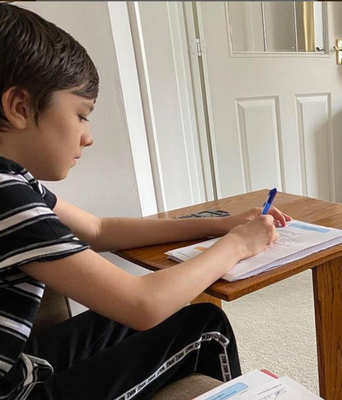
My oldest son George on the other hand is living his best life these days and is pretty much glued to his beloved PS4! That is when we are not challenging him to do some of his school work. Home schooling has been quite the challenge for both of our boys actually.
Peter’s son George reluctantly completing some Math homework during lockdown
So, even though it’s scary times, I’m hugely grateful for all that I have right now. My amazing family, my fantastic job, and my extended family from the amazing Microsoft community who all have their own stories to tell and I’ve enjoyed reading many of them. Thank you so much for allowing me to share mine.
This article is contributed. See the original author and article here.
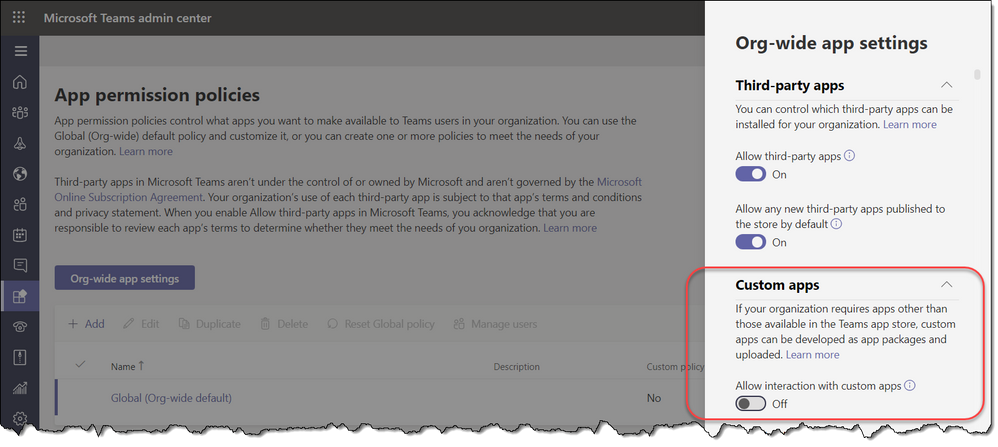
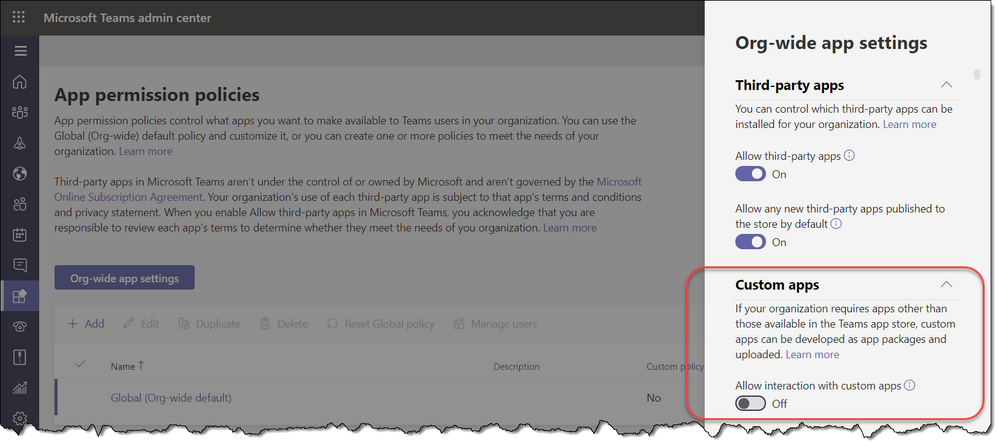
We are excited to announce that sideloading and custom app capabilities are now available for GCC customers. This is in addition to the third-party app capabilities in GCC that we launched earlier this year, which gave access to hundreds of existing app integrations. With this addition of custom app capability, organizations can now explore new ways to enhance their team’s productivity by creating and distributing their own apps on the Microsoft Teams Platform.
These capabilities are disabled by default in GCC environments – admins can enable custom apps through their Teams administration portal:
Once all the related settings are enabled, users in the organization will see UI changes in Microsoft Teams that reflect their ability to directly upload (or sideload) their apps and use them right away. Owners of sites can also control whether the members in their team are enabled to upload apps.
Eva Pardi is an AI MVP, Software Developer and Data Scientist based in Denmark. Eva works at Laerdal, a company which provides training for nurses and doctors all around the world to improve the number of saved lives each year. Eva writes articles and speaks at conferences about data and AI, with her aim being to save lives and support humanity with the help of these technologies. For more on Eva, check out her Twitter @EvePardi
Ahmed Oyelowo is a Microsoft Certified Trainer and Data Platform MVP with Expertise in Power BI and other related technologies. Ahmed has trained more than 40,000 participants across the globe using Power BI for Analyzing Data. Currently, Ahmed the Managing Partner of Foresight BI & Analytics, a Microsoft Practice in Nigeria. For more, check out his Twitter @AhmedOyelowo
Dave Ruijter is a Data Platform MVP from the Netherlands, and he is a public speaker and consultant. His aim is to help organizations realize the full potential of the Azure cloud and the Microsoft Power Platform. He brings a decade’s worth of experience to the table and is a passionate Power BI evangelist, eager to share his knowledge and experiences from the field. For more, check out his blog or Twitter @daveruijter
Chris Hoard is a Microsoft Certified Trainer Regional Lead (MCT RL), Educator (MCEd) and Teams MVP. With over 10 years of cloud computing experience, he is currently building an education practice for Vuzion (Tier 2 UK CSP). His focus areas are Microsoft Teams, Microsoft 365 and entry-level Azure. Follow Chris on Twitter at @Microsoft365Pro and check out his blog here.
George Chrysovalantis Grammatikos is based in Greece and is working for Tisski ltd. as an Azure Cloud Architect. He has more than 10 years’ experience in different technologies like BI & SQL Server Professional level solutions, Azure technologies, networking, security etc. He writes technical blogs for his blog “cloudopszone.com“, Wiki TechNet articles and also participates in discussions on TechNet and other technical blogs. Follow him on Twitter @gxgrammatikos.
This article is contributed. See the original author and article here.
These last weeks we got several cases that our customers reported performance issues. In this YouTube session, we are going to talk about how to identify the impacted resources, what is the query that is taking time and identify the part of the C# code that is causing this issue.
This article is contributed. See the original author and article here.
Hello IT Pros,
When we apply different Edge Profiles in MS Endpoint Manager, we may get a little bit of confusion on what Edge types applied to what Endpoint configuration profiles. In this article, I would like to clear the mist covered Edge and its application. Also, we will make Edge Chromium and Legacy run parallelly on the same Windows 10 systems.
I summarize the difference of Edge’s types and Edge’s usage in the following table:
EdgeHTML is the original Edge (Edge version 45 and earlier)
Other name: Edge Legacy, Edge classic
Source code is written in C++, support web standard (HTML5, Web SQL, WebGL) and interoperability with other modern browser.
Released on 6-2015 with version 19.10149 for Windows 10 mobile and version 20.10158 for desktop.
Microsoft plans to provide security patches for legacy Microsoft Edge until March 9, 2021
Edge Chromium
(Edge version 77 and later)
Other name:
It uses the same rendering engine as Google Chrome but with enhancements developed by Microsoft.
Supported OS: Windows 7, 8.1, 10, macOS
Edge Chromium for Linux OS is in preview, starting 10-20-2020
To Run Edge Legacy and Edge Chromium side-by-side
By default Edge Legacy is hidden when you upgrade it to Edge Chromium. To make both Edges available, adding the following registry key before you do the upgrade to Edge Chromium:
Enable Side-by-side experience using Registry Editing
HKEY_LOCAL_MACHINESOFTWAREPoliciesMicrosoft
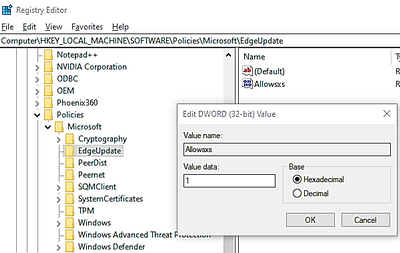
Right-click on the Microsoft folder, and create a new key with name EdgeUpdate, Create a new 32-bit DWORD with the name Allowsxs and set its value as 1
For the best experience, the Allow Microsoft Edge Side by Side browser experience should be enabled before the new version of Microsoft Edge is deployed
Microsoft Edge Legacy will need to be re-pinned to Start or the Taskbar.
Sites that were pinned to Start or the Taskbar for Microsoft Edge Legacy will be migrated to the new version of Microsoft Edge.
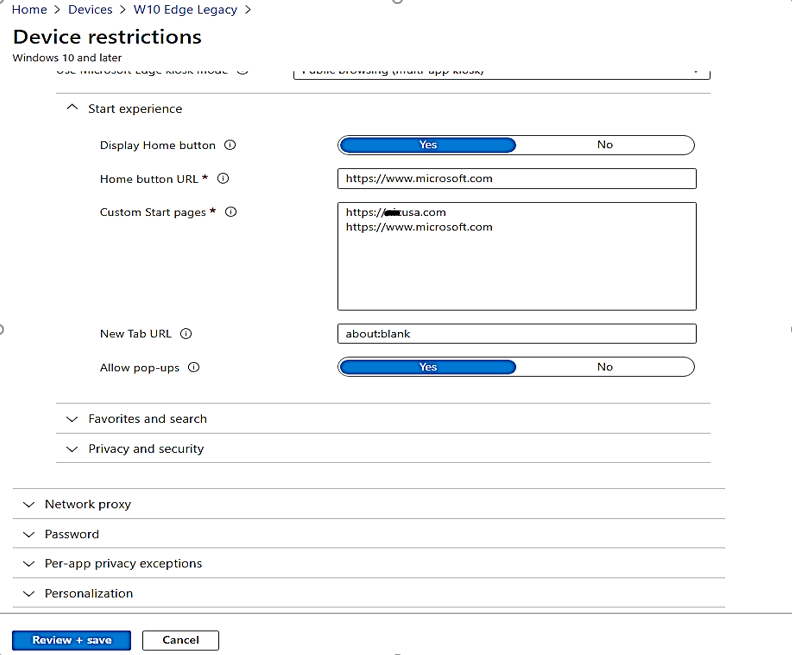
Managing Edge Legacy in Endpoint Manager (Intune)
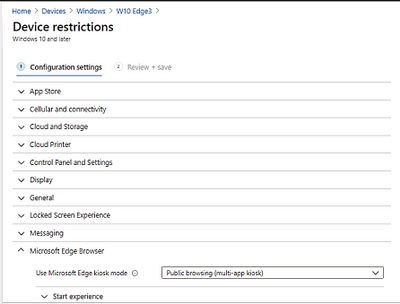
Using Endpoint Manager admin centerWindowsconfiguration profiledevice restrictionMicrosoft Edge browser
Managing Edge Chromium in Endpoint Manager
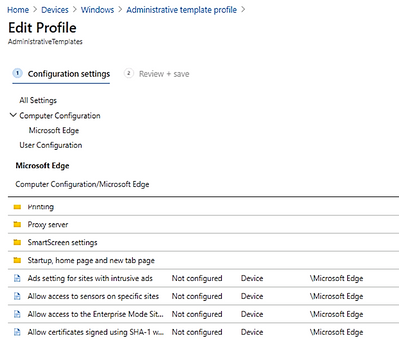
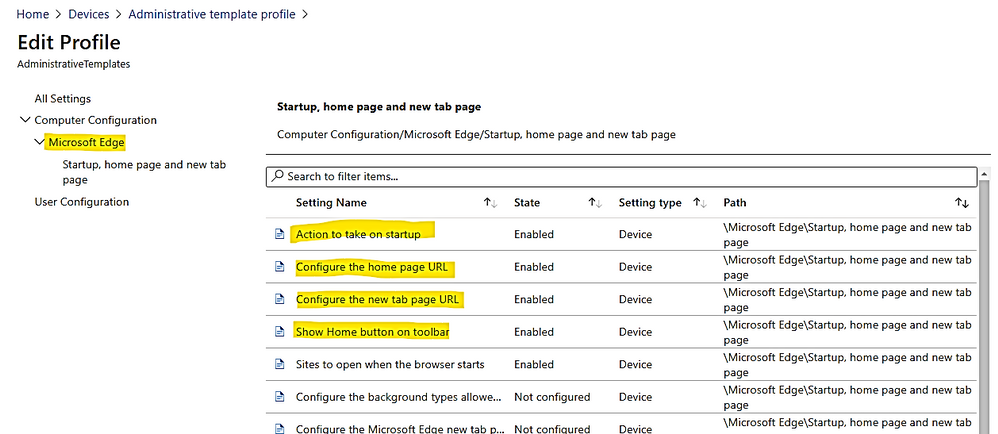
Using Endpoint Manager Admin CenterWindowsAdministrative template profile
Examples:
Using Endpoint Manager, Configuration Profile to set different home pages, startup pages for Edge legacy and Edge Chromium to run parallelly on the same device:
Prerequisite: Make sure the registry key was set to allow running both Edge browsers at the same time as per the above section detail.
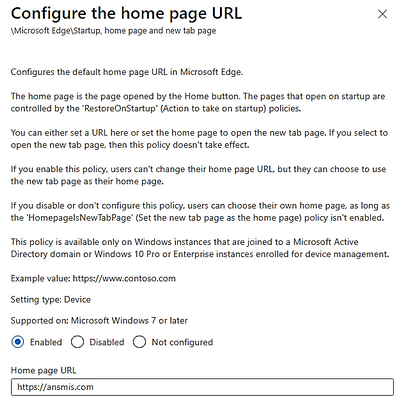
Create the Endpoint ManagerDevicesWindows 10 or later platform with Administrative Template profile contained the following settings:
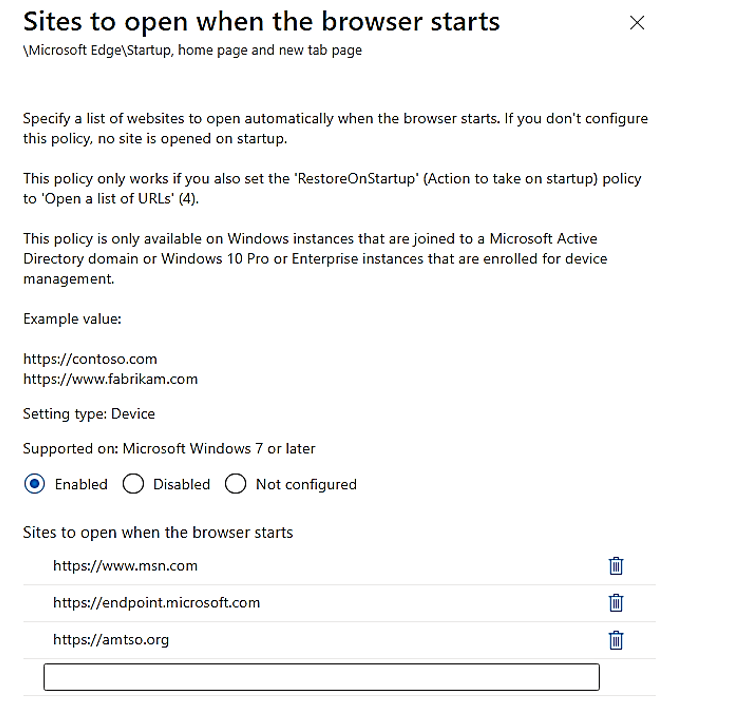
Setting to open multiple brower ‘s tabs
Create the Endpoint ManagerDevicesDevice Restriction for Windows 10 or later platform.
Choose Microsoft Edge Browser
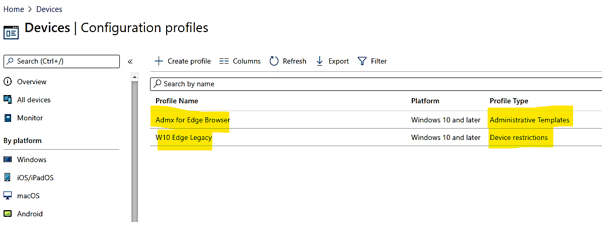
The two profiles now shown in Endpoint Manager admin center:
Testing and Result:
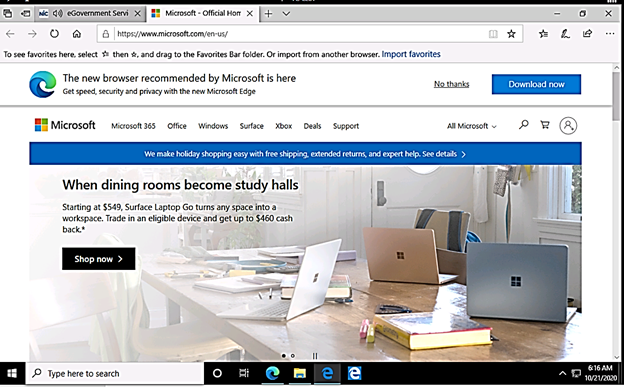
Edge chromium result with correct home pages and multiple tab and web pages opened simultaneously at start:
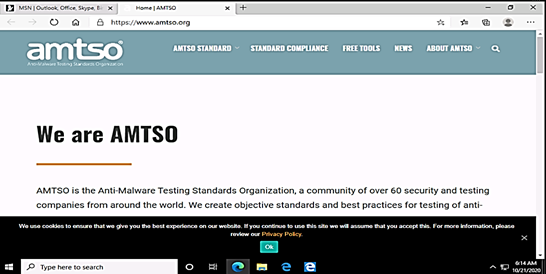
Edge legacy result with multiple opening tab and web pages according to your Endpoint Manager’s configuration profile settings:
This article is contributed. See the original author and article here.
Hello IT Pros,
When we apply different Edge Profiles in MS Endpoint Manager, we may get a little bit of confusion on what Edge types applied to what Endpoint configuration profiles. In this article, I would like to clear the mist covered Edge and its application. Also, we will make Edge Chromium and Legacy run parallelly on the same Windows 10 systems.
I summarize the difference of Edge’s types and Edge’s usage in the following table:
EdgeHTML is the original Edge (Edge version 45 and earlier)
Other name: Edge Legacy, Edge classic
Source code is written in C++, support web standard (HTML5, Web SQL, WebGL) and interoperability with other modern browser.
Released on 6-2015 with version 19.10149 for Windows 10 mobile and version 20.10158 for desktop.
Microsoft plans to provide security patches for legacy Microsoft Edge until March 9, 2021
Edge Chromium
(Edge version 77 and later)
Other name:
It uses the same rendering engine as Google Chrome but with enhancements developed by Microsoft.
Supported OS: Windows 7, 8.1, 10, macOS
Edge Chromium for Linux OS is in preview, starting 10-20-2020
To Run Edge Legacy and Edge Chromium side-by-side
By default Edge Legacy is hidden when you upgrade it to Edge Chromium. To make both Edges available, adding the following registry key before you do the upgrade to Edge Chromium:
Enable Side-by-side experience using Registry Editing
HKEY_LOCAL_MACHINESOFTWAREPoliciesMicrosoft
Right-click on the Microsoft folder, and create a new key with name EdgeUpdate, Create a new 32-bit DWORD with the name Allowsxs and set its value as 1
For the best experience, the Allow Microsoft Edge Side by Side browser experience should be enabled before the new version of Microsoft Edge is deployed
Microsoft Edge Legacy will need to be re-pinned to Start or the Taskbar.
Sites that were pinned to Start or the Taskbar for Microsoft Edge Legacy will be migrated to the new version of Microsoft Edge.
Managing Edge Legacy in Endpoint Manager (Intune)
Using Endpoint Manager admin centerWindowsconfiguration profiledevice restrictionMicrosoft Edge browser
Managing Edge Chromium in Endpoint Manager
Using Endpoint Manager Admin CenterWindowsAdministrative template profile
Examples:
Using Endpoint Manager, Configuration Profile to set different home pages, startup pages for Edge legacy and Edge Chromium to run parallelly on the same device:
Prerequisite: Make sure the registry key was set to allow running both Edge browsers at the same time as per the above section detail.
Create the Endpoint ManagerDevicesWindows 10 or later platform with Administrative Template profile contained the following settings:
Setting to open multiple brower ‘s tabs
Create the Endpoint ManagerDevicesDevice Restriction for Windows 10 or later platform.
Choose Microsoft Edge Browser
The two profiles now shown in Endpoint Manager admin center:
This article is contributed. See the original author and article here.
We have released for general availability Microsoft.Data.SqlClient 2.1. This .NET Data Provider for SQL Server provides general connectivity to the database and supports all the latest SQL Server features for applications targeting .NET Framework, .NET Core, and .NET Standard.
If you’ve been following our preview releases, you know we’ve been busy working to add features to and improve the experience when taking a dependency on the Microsoft.Data.SqlClient library.
Some of the highlights of new features over the 2.0 release of Microsoft.Data.SqlClient include:
Support for Always Encrypted on all supported platforms for .NET Standard 2.0[Read more]
Support for Always Encrypted with secure enclaves on Unix/macOS for .NET Core 2.1+ and on all supported platforms for .NET Standard 2.1+[Read more]
Support for Azure Active Directory Device Code Flow authentication[Read more]
Support for Azure Active Directory Managed Identity authentication[Read more]
This article is contributed. See the original author and article here.
Bringing personal features in Microsoft Teams to desktop and web—now available in preview
By Arjun Tomar, Product Marketing Manager, Microsoft 365
Since the outbreak of COVID-19, it’s become a challenge for many of us to balance the various aspects of our lives. Whether it’s our jobs, homeschooling our kids, or coordinating virtual meetups with friends, managing all of this on a daily basis can get stressful. As a result, tools that help us stay on track and free up time for recharging have become more and more critical. Ever since we expanded Microsoft Teams beyond work and school and announced the preview of personal features in the Teams mobile app, I have found it helpful to organize and plan activities in my day-to-day life. From using tasks to track my grocery shopping list to scheduling virtual birthday celebrations, Teams has become my all-in-one hub for organizing my personal life.
Today, we are excited to announce the preview of more new personal features in Teams that will make it even easier to manage and plan your days. To begin with, you can now add your personal account in the Teams desktop or web app to chat with or call friends and family. With group chat and video calling now available on both desktop and mobile, connecting and organizing with loved ones will be easier than ever before, especially with holidays around the corner. We are also adding new features in preview in the Teams mobile app, such as the ability to chat with friends or family who don’t have Teams on their phones1, location alerts that let you know when someone leaves or arrives at designated locations2, and more.
Chat and call friends and family—right from your desktop
Since most people started working from home, the time we spend on our computers has risen dramatically. If you use your computer to send work emails and your phone to chat with friends and family, it can become difficult to keep track of incoming messages across all your devices. We want to make it easier for you to stay on top of your important communications—across your work and personal life—without having to constantly switch between devices. Now, you can add your personal account in the Teams desktop or web app and sync all your chats to your computer so you can carry on conversations on whatever device you prefer. Plus, you can use the Teams desktop or web app to call friends and family, even if they don’t have Teams installed, making it easier to connect with loved ones during the holidays. Your work and personal accounts open in different windows or browser tabs on your computer, making it easy to keep them separate.
The following features are now available in preview in the Teams desktop and web apps, with more features coming soon:
Start a personal chat or create a group chat with up to 250 people.
Seamlessly sync your existing chats from your phone to your computer and carry-on conversations on the device of your choice.
Talk all day for free with friends and family via video or audio calls.3
Share video meeting invites with anyone, even if they don’t have Teams, and see up to 49 of your friends and loved ones in one frame in Gallery view or Together mode.
Upload and share photos and videos from your computer in any personal or group chat.
To start using personal features in Teams on your computer, follow these steps:
If you are new to Teams, download the Teams desktop app and sign in with a personal Microsoft account or create a new one to get started.
If you currently use the Teams desktop app at work, click on your profile picture on the top-right corner and select ‘Add personal account’. Upon successful login, Teams will launch a new window containing your personal chats and groups so it’s easy to switch between your work and personal accounts.
Note: We are slowly rolling out the option to add a personal account to existing commercial users. So, if you don’t see this option to add your personal account, you may have to wait until your app is updated or for your IT admin to enable it within your organization.
If you want to use the personal features in Teams in your web browser, go to this link and sign in or create a new personal Microsoft account to get started.
While you can use the Teams desktop and web apps to chat with or call friends and family, we are working on bringing all the other personal features available in the Teams mobile app to desktop and web soon.
Adding more features in preview on the Teams mobile app
We are also introducing new features in preview in the Microsoft Teams mobile app to make it easier to stay connected with loved ones.
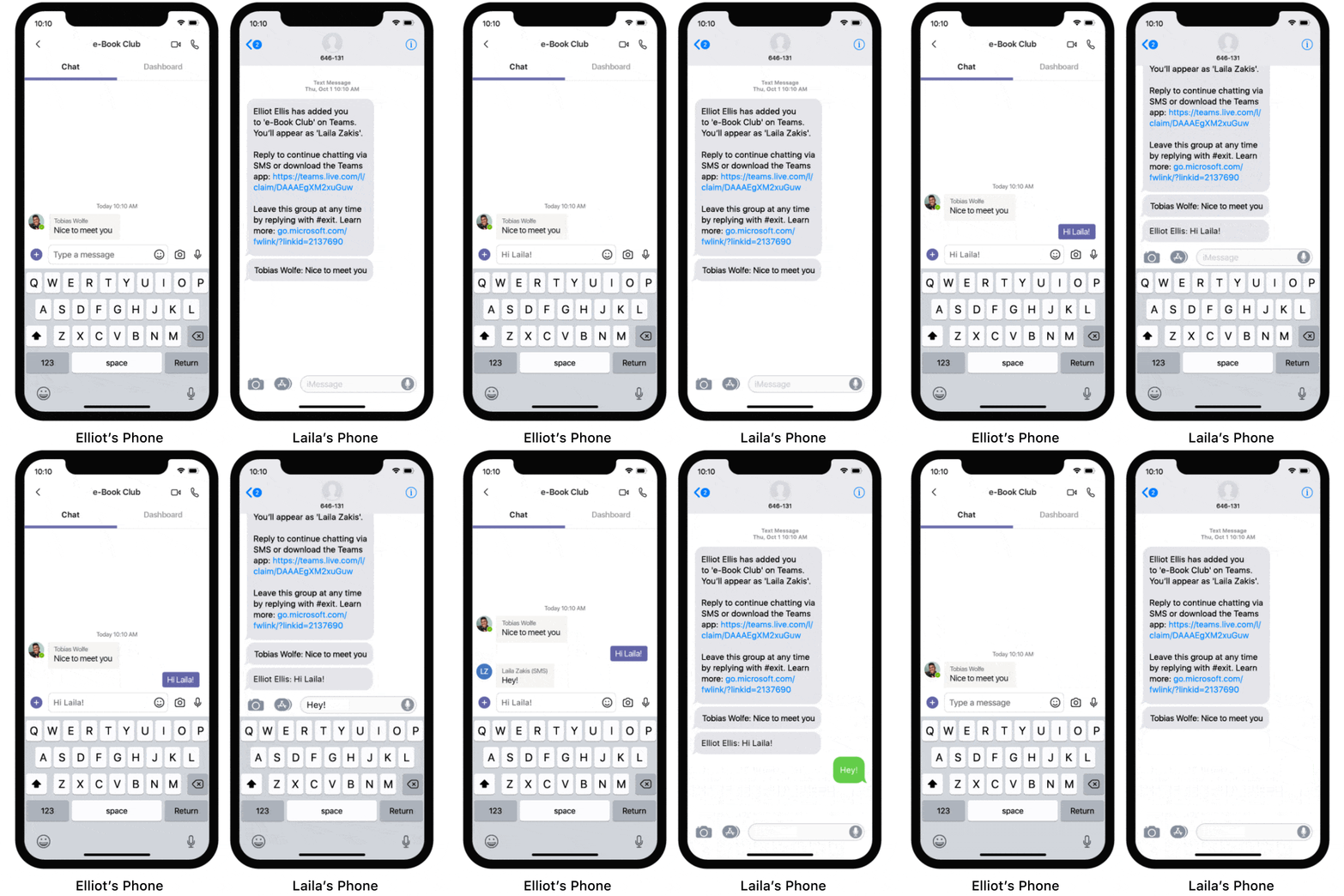
Chat with people in Teams, even if they are not using the app
When starting a group chat with your friends or family, you shouldn’t have to worry about whether they will miss your chats if they don’t have Teams. This is why we are previewing a new feature on our Teams iOS and Android apps that allows you to chat with contacts who don’t have Teams installed on their phones. Simply type a contact’s name or phone number to add them to a group chat and, if they are not on Teams, they can receive and send replies to the group via SMS, keeping the conversation flowing1. SMS participants will also get a link to download the Teams app on their phone making it easy to get started on Teams and take full advantage of rich media messaging and chat via GIFs, images, or videos.
Get notified when loved ones leave or arrive at a location
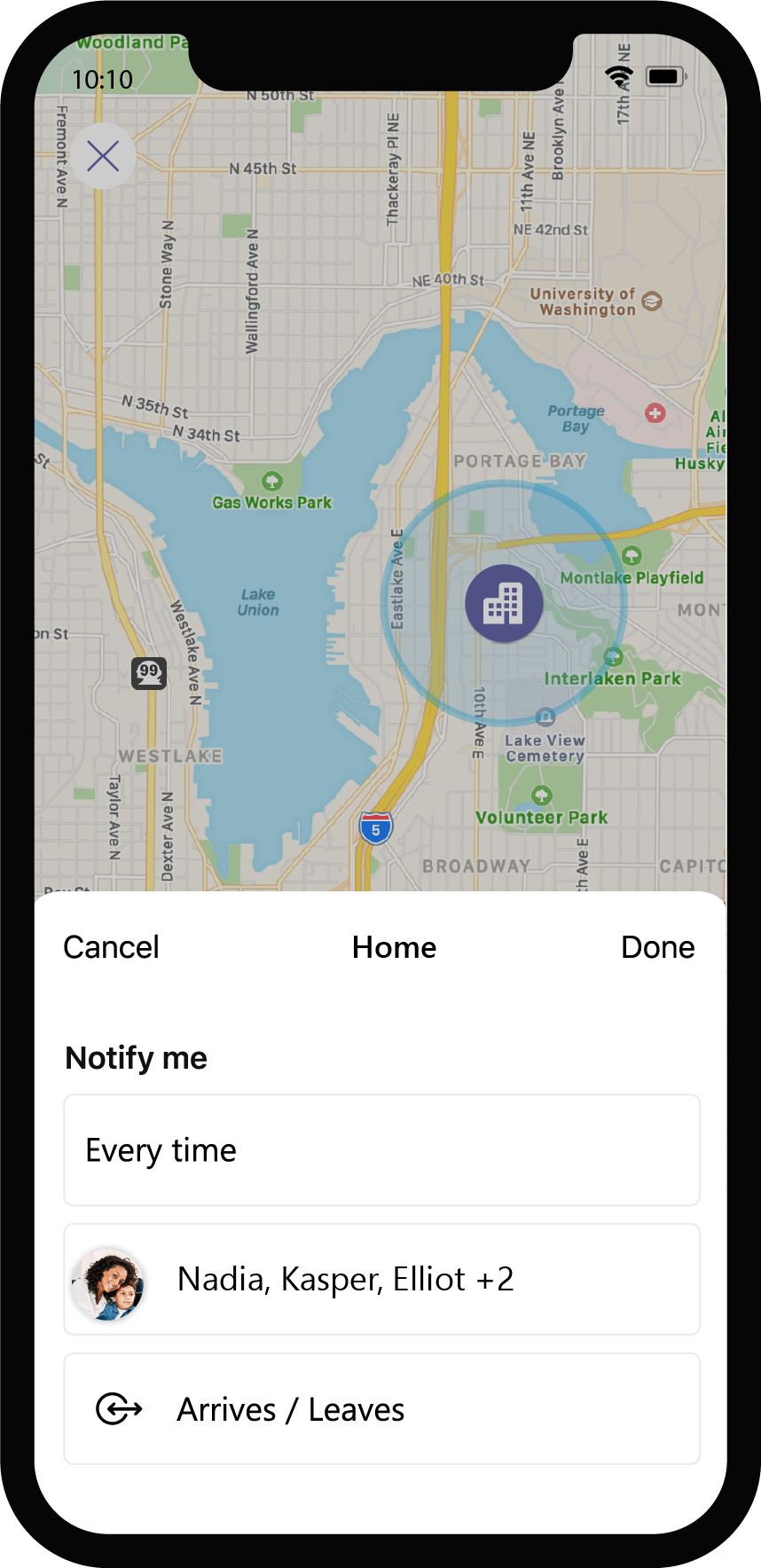
As we all begin to responsibly step out of our homes, we are releasing new location features in preview that will make it easier for your loved ones to receive updates about your physical whereabouts. Starting today, you can allow your loved ones to receive automatic alerts whenever you leave or arrive at a designated location2. So, if you are stepping out of your home on a daily basis, you can choose to let your family get automatic departure or arrival alerts so that they know when you will be back home.
In addition to these, we are also introducing the following new mobile features:
Add group events from your chats to your device’s calendar.
Get task and location updates in your activity feed.
Add a photo to your personal Safe.
The new features have started to roll out in preview on the Teams mobile app and will be fully rolled out in the coming weeks. To get started, download the Teams mobile app from the iOS or Android app store.
We are excited about continuing to preview more features in Teams that make it easier for you to organize and manage your personal life. While today is another step in that direction, we are continuing our efforts to bring even more features to you across all devices as we work towards making these features generally available. As always, we value your inputs during this journey, and we look forward to receiving your feedback.
Brought to you by Dr. Ware, Microsoft Office 365 Silver Partner, Charleston SC.
This article is contributed. See the original author and article here.
By: Laura Arrizza – Program Manager and Spencer Shumway – Program Manager | Microsoft Endpoint Manager – Intune
We are introducing two new reports in the policy configuration space within Microsoft Endpoint Manager to help IT admins troubleshoot where failures may occur across their device configuration profiles and compliance policies. You will be able to use the two reports to see where conflicts and errors are occurring, with the ability to narrow it down to the device and setting level to identify where the issues lie.
In addition, there are a few general reporting infrastructure announcements that customers should be aware of when using all new reports. We’ve called these out at the end of this blog post.
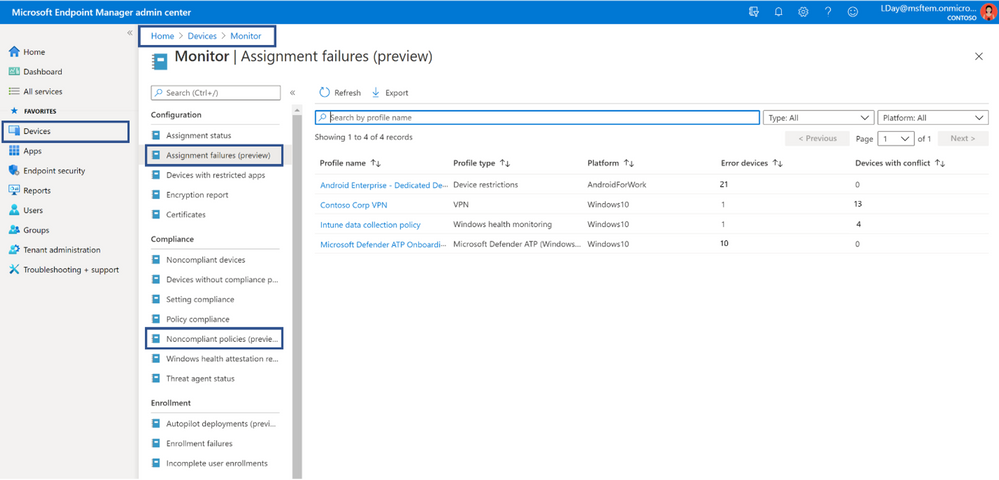
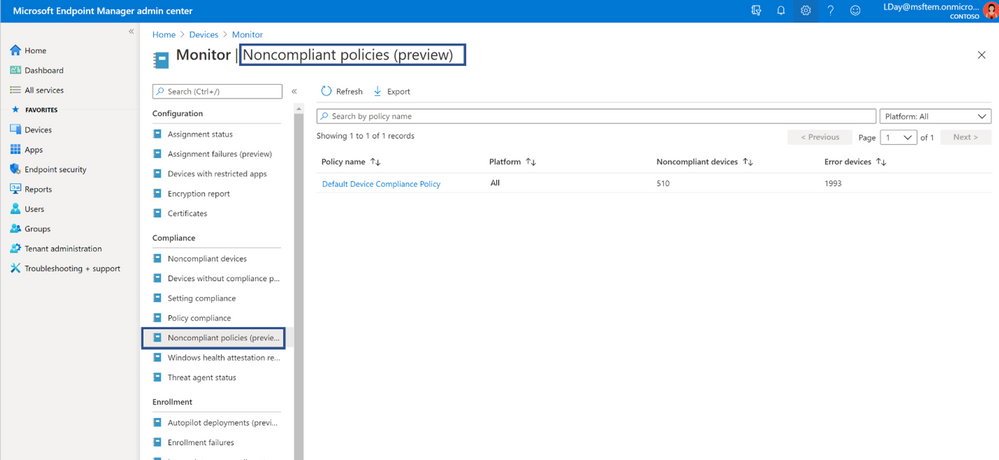
Customers can navigate to the “Monitor” section under the “Devices” node to see two new operational reports under the Configuration and Compliance headers. The “Assignment failures (preview)” report shows device configuration data, and the “Noncompliant policies (preview)” report shows compliance policy data.
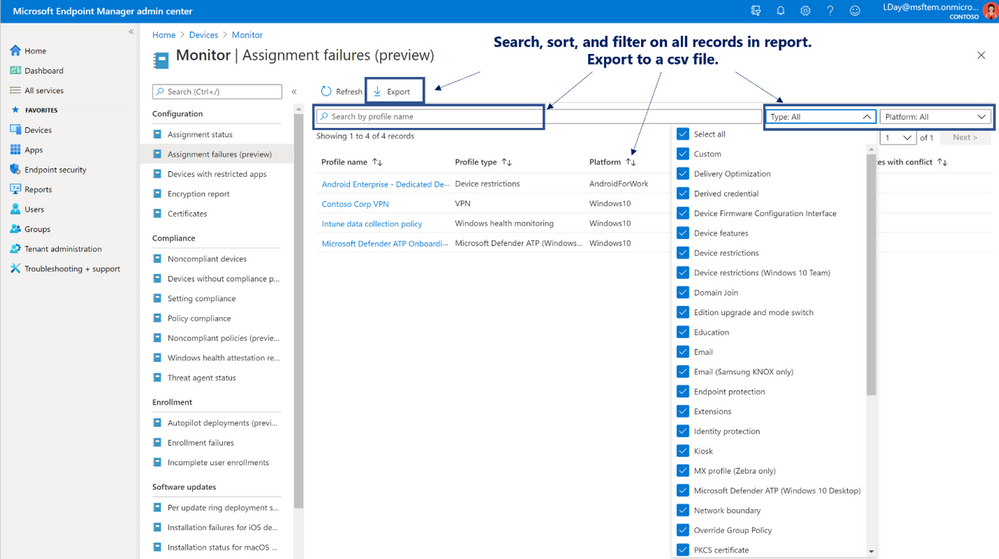
Both reports follow a similar structure where the first view of the report shows the list of policies in your environment and the count of devices in a state of failure. The “Assignment failures” report shows the aggregate number of devices in a state of error or conflict, with the ability to filter by profile type and platform. The “Noncompliant policies” report shows the aggregate number of devices in a state of noncompliant or error, with the ability to filter by platform.
Throughout both reports, you can use the upgraded grid controls to search, sort, and filter across all the records. We have included easier page controls and faster export to a zip file containing the csv records of the report view. In addition, the records will be updated automatically to refresh the data within approximately 20 minutes.
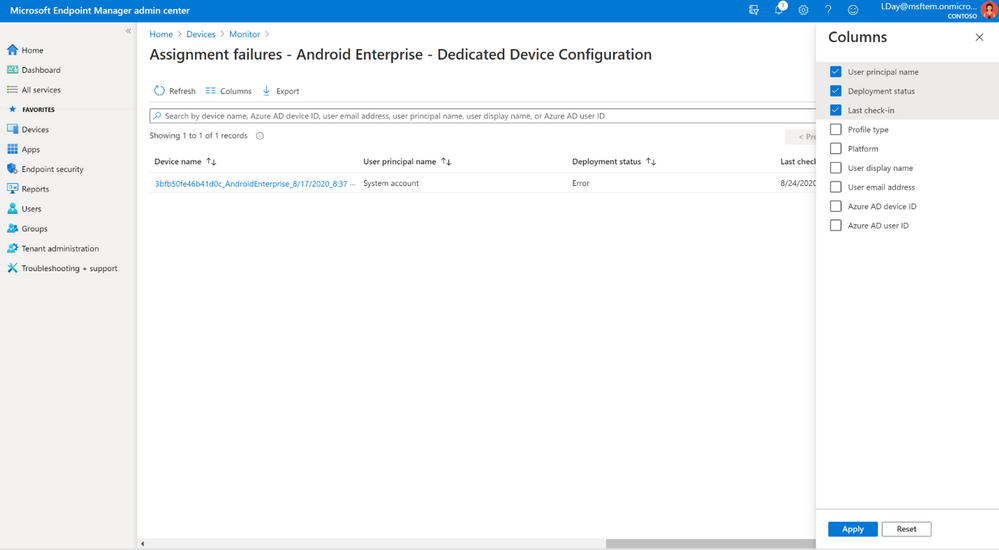
From the first view of the report, you can select the policy or profile that has devices in a failure state. This will navigate to the second level of the report showing the list of device/user combinations that are in the failure state with its status. The number of records in view may be higher than the first aggregate since the records are based on a per device per user basis.
Admins have the same capabilities for the upgraded grid controls on this view and the ability to export the information locally. The report can also add extra columns to see extended Azure AD user information or device ID information.
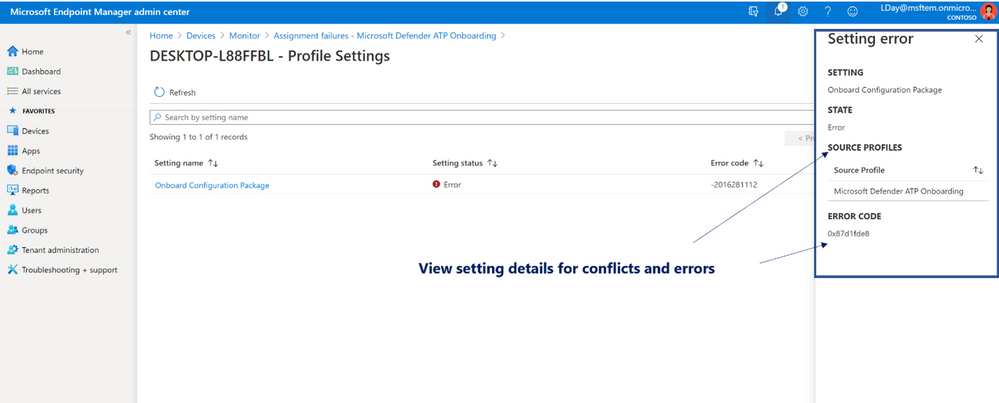
After viewing the devices and users in failure, you can select the device/user record to view all the settings applied on the device from the selected policy. Here, admins can easily see which settings are in an error or conflict state which is causing failure in the first place. Selecting the setting record will open the setting details context pane which provides more insight into troubleshooting. If the setting is in a state of error, the error code can help identify what the error is. If the setting is in a state of conflict, the “source profiles” table can help identify which other profiles are causing the conflict.
Figure 5. Profile Setting Error
Overall, the new reports aim to help streamline the troubleshooting process for admins to identify where failures are occurring across their policies and drill down to the setting level to understand how to mitigate.
Known Issues in Public Preview
The new reports are available in public preview with some known issues that the team will work out before removing the preview tags. See below:
Administrative template profiles are not supported in the Assignment Failures report.
Certificate profile types will have settings may appear as “#” in the report view.Work is in progress on how to report status for certificate profiles.
Specific RBAC roles have access to the reports:
Global administrator
Profile Manager (Built in Role)
Compliance Read-Only Admin
If an admin creates a new scope tag to be applied to the reports, it can take up to 24 hours for the scope tag to take effect. In that time, the policies that are affected by the scope tag may be removed from view in the interim period.
The setting details pane on the third level of the reports currently only show the error code information if the setting is in error. The string version for the “Error details” is not yet available.
Existing Policy Reports and Roadmap
These two new reports are part of the effort toimprove the policy reports across theconsole.As these are additive reportswith fresher data, therecords and numbers shown across the consolein existing reports may be slightly different (i.e.,“Assignment Status” and “Policy Compliance” reports). We encourage you to try out the new reportsand usetheexisting ones foradditional information.
You willcontinue to seeimprovements to the policy reporting spaceover the next few months.This includesadding security baseline and endpoint security records to the new “Assignment Failures” report,replacing older reports with new organizational ones, and ensuring consistency across the console.
Stay tuned for more updates on the What’s New andthrough thisTechCommunityblog!
ReportingAnnouncementsforUpcoming Changes:
Change to the default columns in Devices Export API call
Localization changes for data export
New Azure Monitor diagnostic setting that maps the Devices list
Change to the default columns in Devices Export API call
NOTE:This change only affects those using our newReportingExportGraphAPIwithout any column selections. UI export,which is the more typical way to export the All Devices list,is not affected by this upcoming change.
When you make a request with no select columns provided:
you will receive the default column set. This default column set for the devices report contained some columns that were either not user friendly, not useful, or confusing. We will be removing those columns from the default column list starting December 2020. The columns being removed are listed here:
PhoneNumberE164Format
_ComputedComplianceState
_OS
OSDescription
These columns will still be available for selection if you need them, but only explicitly, and not by default. If you have built automation around the default columns of the device export when using the exportJobs API, and that automation uses any of these columns, you need to refactor your processes to explicitly select these and any other relevant columns like this:
As many customers have noticed, we provide localized and non-localized column information with almost all report exports. It looks something like this for any given column that contains localizable data:
ComplianceState
ComplianceState_loc
0
Not evaluated
0
Not evaluated
2
Not compliant
0
Not evaluated
2
Not compliant
2
Not compliant
0
Not evaluated
0
Not evaluated
0
Not evaluated
2
Not compliant
0
Not evaluated
0
Not evaluated
2
Not compliant
The human readable/localized values are provided in the _loc column, while the actual column contains the enum/dev string values. These enum/dev string values are used to interact with the API and are less likely to change, which make them ideal for automation.
In contrast to this approach, we have a few export experiences that provide only the human readable/localized string data, which looks like this:
OS
Windows
Windows
Windows
Windows
Windows
Android
Android
Android
Android
iOS
iOS
iOS
iOS
We recognize that some customers prefer this approach, especially to avoid column re-mapping when taking data to external tools/sources for reporting.
Currently there is no way to configure which experience you will receive in regard to localization, as each report has a built-in default behavior that remains static. In the future, we are working to add the capability to specify the localization experience you prefer. If you have strong thoughts or feelings about what the new behaviors and defaults should be, or have existing issues with localization, just respond back on this blog post or tag @IntuneSuppTeam out on Twitter!
New Azure Monitor diagnostic setting that maps the Devices list
Wehave recently enabled a newAzure Monitor Diagnostic setting called Devicesforour internal testing. This testingprecedestherelease of a newDevicescategorythat maps to theAllDeviceslist inMicrosoft Endpoint manager admin center. While the setting is visibleand can be configured,we will not publish data to your Azure monitor subscription until we officially enable the setting early next year. We do not recommend enabling this setting until that time. As always, let us know if you have questionson this setting byreplying backon this post or tagging @IntuneSuppTeam out on Twitter!
Total reports supported by our new infrastructure:













Recent Comments