by Contributed | Jan 5, 2021 | Technology
This article is contributed. See the original author and article here.
Why Use Tagging?
One important feature which often isn’t utilised correctly is the use of tags within Microsoft Defender for Endpoint. This is a functionality that was introduced to allow you to apply a granular level of control over how you manage your devices. In this blog we wanted to cover not only the primary uses for the tagging functionality, but also to explain some tips and tricks around how to effectively use this within your organisation. We have split this into three parts to cover the basics but also some advanced scenarios for how to use tagging in your environment, so make sure to stay tuned to the blog for the full series.
Role Based Access Control – RBAC
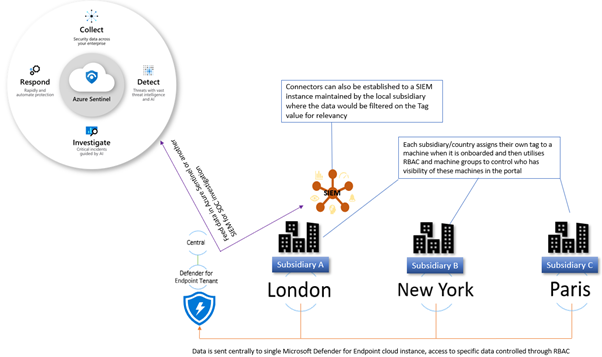
The primary use for tagging is to allow you to create machine groups that can then be used for applying RBAC permissions. Really the purpose of this is to enable a level of control such that different users can log into the portal and see only the machines that they are responsible for. For example, in a large organisation spanning multiple geos rather than each geo having their own instance of Microsoft Defender for Endpoint, you would have a single instance where access is controlled through the use of roles and machine groups. Having a single instance means that threat hunting and automation has full visibility of all devices across the entire organisation which is critical when a threat is hitting multiple endpoints.
The diagram below shows how you would break this down, and how you could further utilise this information to feed data into a SIEM where your SOC analysts can track threats across multiple areas of the infrastructure.
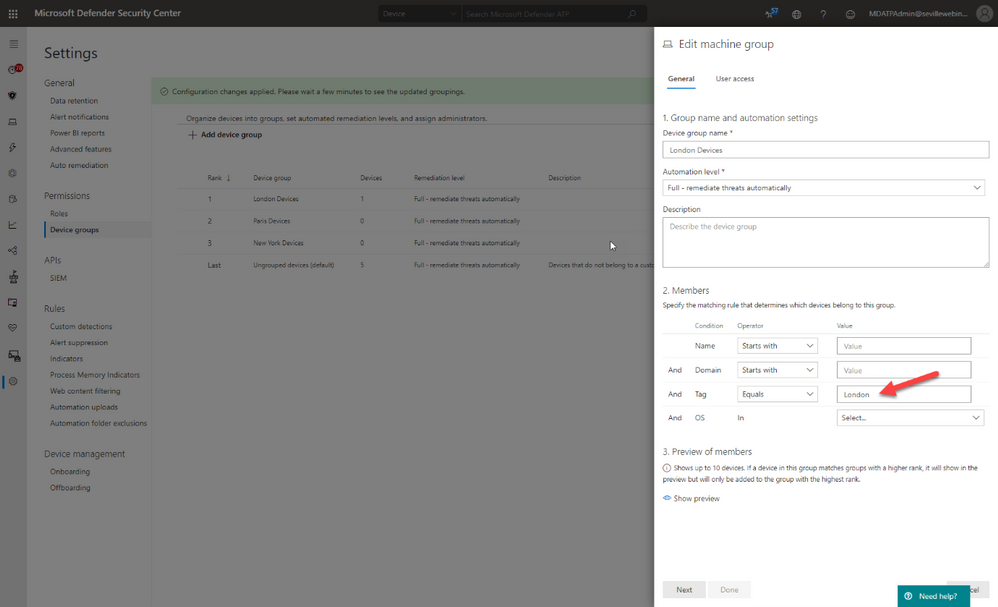
Later in this blog we will talk about the different ways you can apply tags to managed devices, but in order to utilise these tags you first need to create a machine group in Microsoft Defender Security Center portal and then apply specific security groups containing the user accounts of the devices you wish you manage. This is simple to do and the setting up of these machine groups is something you would typically do early on in the setup of the tenant, before you actually start doing any onboarding. This means that each time a machine is onboarded it goes straight into the appropriate group and only the correct people have visibility straight away.
Filtering
One of the great benefits of tagging is using them in machine views to present different views of machine lists. Below are some examples of why you would use tags in filtering include:
- Lab Machines – There is really no reason to have a separate tenant just for testing when the endpoints that report into Microsoft Defender for Endpoint can exist anywhere without any ties to a specific Azure AD or domain. In this scenario, you might want to identify the specific lab machines with a tag:
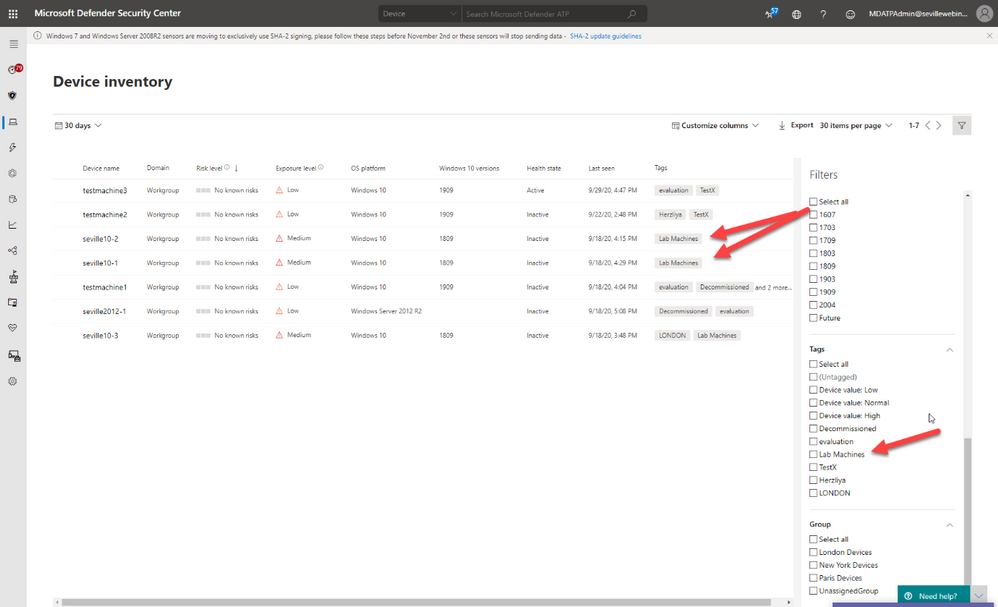
By using this tag to create a machine group you can then exclude these machines from your threat reports or from threat and vulnerability management.
- Decommissioned machines – Something we hear a lot from customers is that they have machines that they have decommissioned which they no longer want to see in their console; however, there is a very good reason why we don’t allow machines to be deleted. Just suppose there is a threat detected on the environment that originated some time back on a machine that had been decommissioned, if you deleted this from the tenant then you would have no way of understanding the source and techniques used in the breach. To address this, a machine record will remain in the tenant until the data retention period of the tenant expires.
We do understand though that you may not want to see these machines in the device list or have them show in the threat reports or threat and vulnerability management and so through the use of tags, and also machine groups, it is possible to effectively make these machines invisible.
The first stage of this would be to apply a tag against the machines, in the example below we have two machines tagged as “Decommissioned”. Once you have set this tag you can then use the filters to exclude these tagged devices from the Device Inventory view:
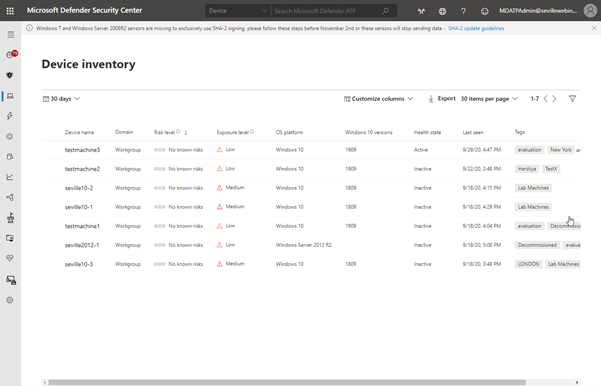
Using this method is a quick and simple way to filter on your device inventory but you cannot use tag-based filtering in your reports or in threat and vulnerability management. For this, you need to use machine groups so the next phase would be to create a machine group based on this tag, as described in the RBAC section above, at which point you can then exclude these groups from the threat and vulnerability management assessment:
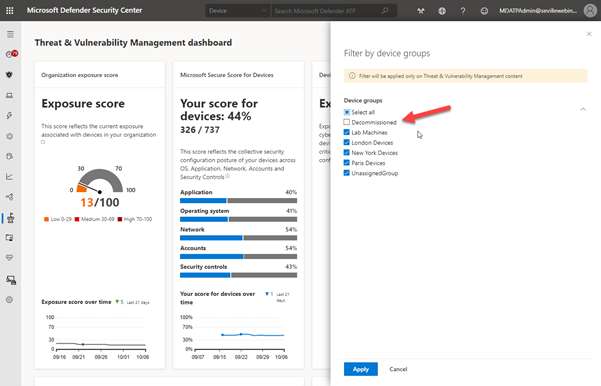
It should be noted though that inactive machines are automatically excluded from threat and vulnerability management after 30 days anyway.
The use of machine groups in this scenario does open up another option which would then give you the desired result of removing a machine from the tenant whilst still maintaining the record for historical threat analysis; effectively hiding it.
To achieve this, create a user group with no members and then assign it to the Machine Group:
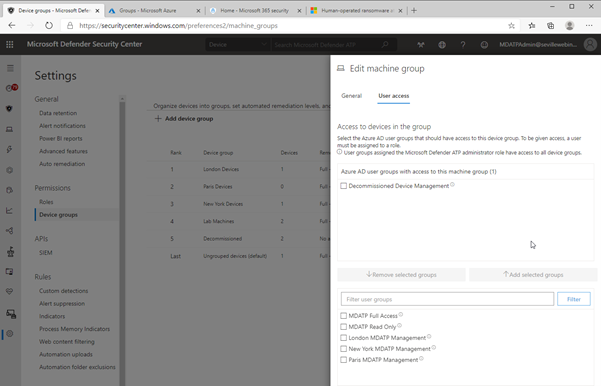
As there are no users assigned to this group, then any users who log into the portal (with the exception of Global Admin or Security Admin) will automatically have their view of any machines with the Decommissioned tag removed from all views, including threat and vulnerability management and reporting. Plus, simply adding the Decommissioned tag to a machine will effectively “delete” the machine from the portal.
Methods of Tag allocation
To utilise tags for RBAC and filtering you first need to make sure that the relevant machines have the tags applied and there are a number of methods to achieve this.
Registry tagging
This is via direct editing of the registry. By setting the tag value in the DeviceTagging key (HKLM:SOFTWAREPoliciesMicrosoftWindows Advanced Threat ProtectionDeviceTagging) you are assigning a value to the machine that is picked up by Microsoft Defender for Endpoint telemetry.
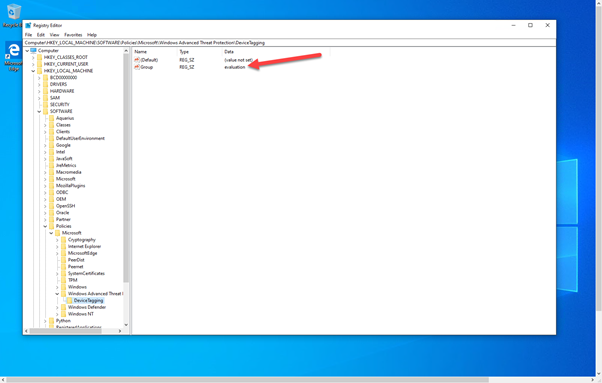
There are a couple of points to be aware of when you are using the registry to tag a machine:
- The tag is fixed and cannot be changed through the portal, it can only be changed by modifying the registry.
- Only one tag can be specified in the registry.
In the image above, you can see the relevant key as displayed in Regedit; however, if you are modifying the registry to assign tags to production machines it is unlikely that it is Regedit you will use to set this value. Instead, you are likely to use a script. Obviously when using a script, you can add a lot of variables to determine what the tag value should be, meaning you could have a single script for all tag values you want to create or have multiple scripts that you then use another method with to define the logic.
What we have seen with several large organisations is utilising the onboarding script and adding a “REG ADD” command to the script and then using different onboarding scripts for different groups of machines. The value that would need to be added is:
REG ADD “HKEY_LOCAL_MACHINESOFTWAREPoliciesMicrosoftWindows Advanced Threat ProtectionDeviceTagging” /v Group /t REG_SZ /d TAGNAME /f
You could use this script and have it as part of a GPO where you target it against an OU or use it in System Center Configuration Manager and target the script at different Collections.
However, if you wanted to keep the tagging separate from the onboarding then you may instead want to utilise a Powershell script which again you could apply via System Center Configuration Manager or another management tool.
To either have a specific script, or to add to another script, the lines you would need are:
New-Item -Path “HKLM:SOFTWAREPoliciesMicrosoftWindows Advanced Threat Protection” -Name DeviceTagging -force
New-ItemProperty -Path “HKLM:SOFTWAREPoliciesMicrosoftWindows Advanced Threat ProtectionDeviceTagging” -Name “Group” -Value “TAGNAME” -PropertyType “String”
Setting the tag via Intune
When using Intune, it is possible to utilise a custom policy to set the machine tag value in the registry via the WindowsAdvancedThreatProtection CSP (https://docs.microsoft.com/en-us/windows/client-management/mdm/windowsadvancedthreatprotection-csp)
This diagram shows the provider:
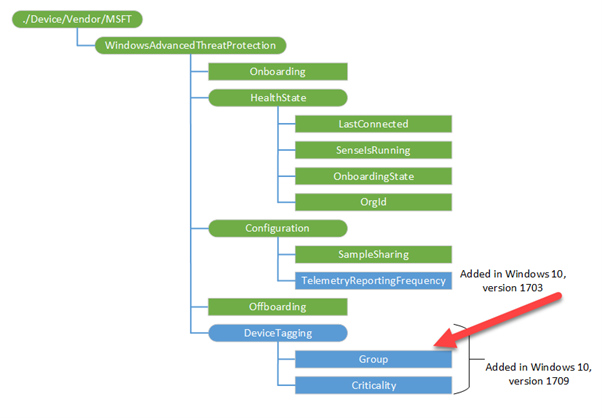
When setting the values in Intune you configure a custom profile and then define the URI to set the device tag.
These are the steps for configuring this:
- Create Custom profile:
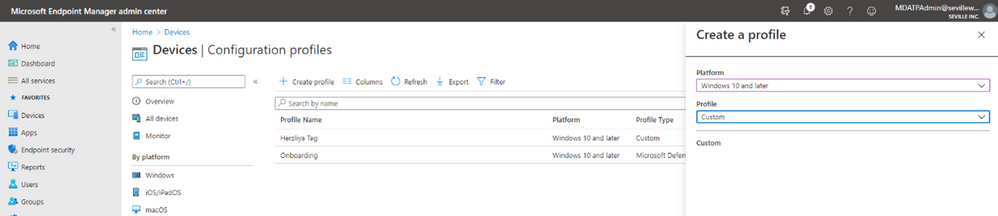
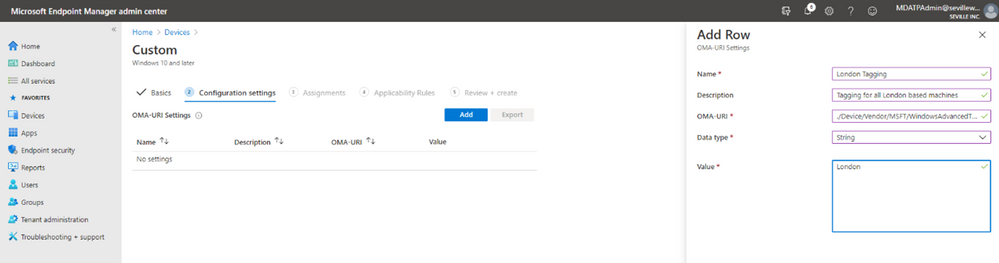
- Give the profile a name and then add the URI value (./Device/Vendor/MSFT/WindowsAdvancedThreatProtection/DeviceTagging/Group), set a data type of “String” and then define the tag you want:
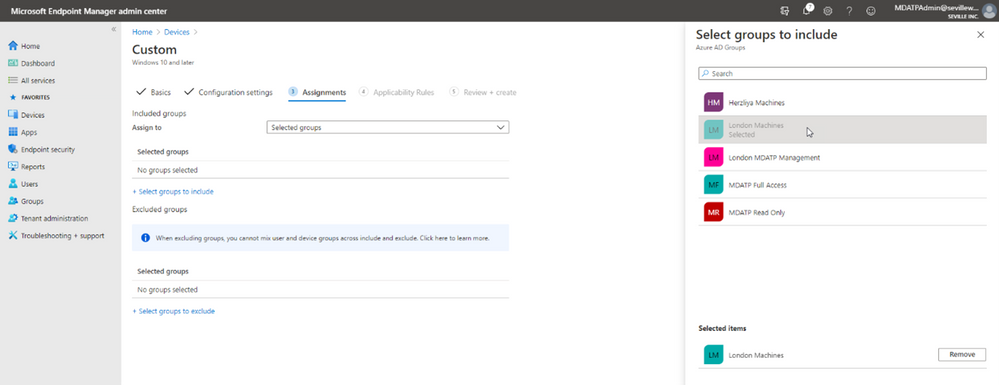
- Now you assign the profile. By assigning it to a specific group in Azure AD it means that you can base your tagging, and therefore RBAC and filtering on existing device groups you may already have in Azure AD:
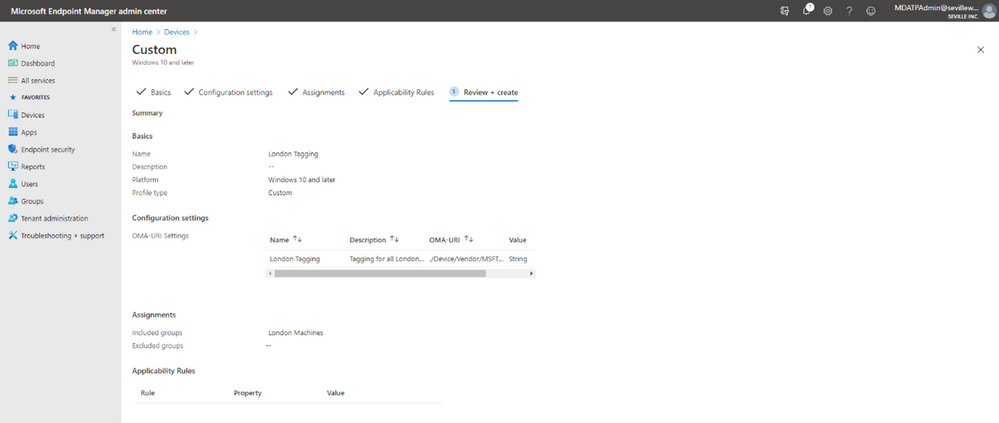
- You can add Applicability Rules if you want, to target it at specific Windows versions/editions, but this shouldn’t really be necessary in the case of Machine Tagging. So then it is simply a case of reviewing the profile and applying it:
Manual tagging
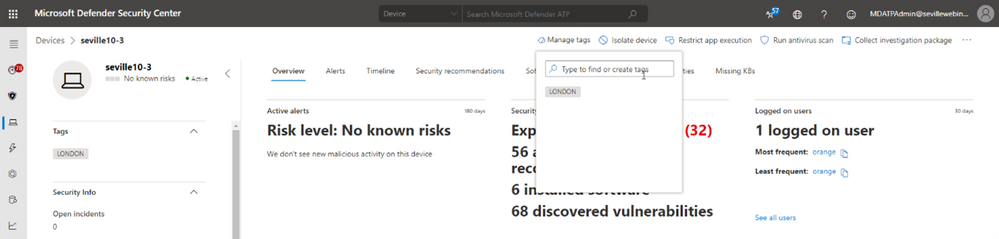
One of the easiest ways to tag a device is to simply add a tag value through the machine page in the portal. Through this method you can add multiple tags or remove existing tags (although not if they have been defined in the registry).
Clicking onto the device page presents you with an option to “Manage Tags” where you can add and remove as required:
Tagging via API
While manual tagging is great and allows you to specify multiple tags against a device to assist with RBAC and filtering, however what if you have 100’s or 1000’s of devices that you want to assign the same tag value to? In this scenario, you can use the API to mass-assign tags, we will be covering this advanced use case in Part 3 of our blog.
Setting the tag on macOS
Obviously, you may not just be managing Windows endpoints in your environment. Microsoft Defender for Endpoint also supports tagging macOS machines. To apply tags on this platform, you can utilise the manual method or the API method. However, if you want to automate this process, then you can push out the settings as part of a Configuration Profile (a .plist file).
When you are creating the .plist file, you would need to add the following entry in order to configure the tag:
<dict>
<key>tags</key>
<array>
<dict>
<key>key</key>
<string>GROUP</string>
<key>value</key>
<string>ExampleTag</string>
</dict>
</array>
</dict>
You can find details of how to do that here: https://docs.microsoft.com/en-us/windows/security/threat-protection/microsoft-defender-atp/mac-jamfpro-policies#step-3-configure-microsoft-defender-atp-settings
This concludes Part 1 of our blog series on how to use tagging effectively. Please join us for Part 2 where Miriam Wiesner will guide you through applying tags based upon the Organisational Unit placement of the device within Active Directory.
We welcome your feedback and questions on this or any of the other parts of this tagging blog and look forward to hearing from you.
Steve Newby (@steve_newby) and Miriam Wiesner (@miriamxyra)
Program Managers @ Microsoft Defender for Endpoint Product Group
by Contributed | Jan 5, 2021 | Technology
This article is contributed. See the original author and article here.
This article is in the Microsoft Tech Community Public Sector Blog that covers Microsoft Government Cloud services in the US Sovereign Cloud with Azure Government and Microsoft 365 US Government (GCC High).
This article focuses on the eligibility for Microsoft Government Cloud services.
Microsoft expands qualification of contractors for government cloud offerings
The primary change to the qualification requirements includes the ability for non-government service providers and contractors to prove eligibility with a U.S. General Services Administration (GSA) System for Award Management (SAM) Registration.
For additional methods to prove eligibility, please see below under “Validation Submission Directions”.
Historically, eligibility has been a hurdle for U.S. Government contractors and the Defense Industrial Base (DIB) to provide documentation from a government customer. This has been especially challenging for contractors that are pursuing new contracts with the government but have not yet been awarded a contract. It is a chicken-and-egg scenario, as these contractors may require the use of Microsoft Government Cloud offers to help demonstrate compliance with government regulations required for contract award. In addition, the contractors who are levels deep in the supply chain may not have a direct relationship with a government customer to solicit the requisite documentation.
By adding SAM.GOV registrations to the qualification requirements, non-government service providers and contractors may prove eligibility without having to provide a government agency sponsorship letter or signed contract. The GSA SAM registration is free and may be obtained relatively quickly. You will need to provide Microsoft with documentation including a valid CAGE Code or full SAM registration. A CAGE Code (also known as SAMs) is a five-character ID number used by the GSA to identify vendors. CAGE stands for “Commercial And Government Entity”. Alternatively, if you prefer to provide your SAM registration, as opposed to a CAGE Code, you will need to furnish your company’s DUNS (Data Universal Numbering System) number. We will look up your SAM registration using your DUNS number.
Note: The purpose of your SAM registration should be for “All Awards”. We cannot use it if the purpose is for “Federal Assistance Awards Only”.
Microsoft Government Cloud qualification
Microsoft Government cloud offers are available to eligible government customers and non-government organizations sponsored to hold or process controlled information. The eligibility criteria are consistent across the Microsoft Government cloud offers, to include the following:
- Microsoft Azure Government
- Microsoft 365 Government (GCC)
- Dynamics 365 Government (GCC)
- Microsoft 365 Government (GCC High)
- Dynamics 365 Government (GCC High)
An eligible government customer is defined by one of the following categories:
- Category 1 “U.S. Government” entity:
- A federal agency, defined as a bureau, office, agency, department, or other entity of the U.S. Government
- A state/local entity, defined as one of the following:
- Any agency of a state or local government in the U.S.
- Any U.S. county, borough, commonwealth, city, municipality, town, township, special purpose district, or other similar type of governmental instrumentality established by the laws of a customer’s state and located within the customer’s state’s jurisdiction and geographic boundaries
- The District of Columbia, the Commonwealth of Puerto Rico, Guam, American Samoa, the United States Virgin Islands, and the Northern Mariana Islands
- A tribal entity, defined as a federally recognized tribal entity eligible for funding and services from the U.S. Department of Interior by virtue of its status as an Indian tribe, or, in Alaska, a native village or Alaska Regional Native corporation, or, in Hawaii, a Native Hawaiian Organization (NHO)
- Category 2 “Solution Provider”: A non-government solution provider doing business with a valid U.S. Government entity
- Category 3 “Contractor”: A non-government organization who holds the following types of data:
- International Traffic in Arms (ITAR)
- Controlled Unclassified Information (CUI)
- Department of Defense (DoD) Covered Defense Information (CDI)
- Department of Defense (DoD) Unclassified Controlled Nuclear Information (UCNI)
- Department of Energy (DoE) Unclassified Controlled Nuclear Information (UCNI)
- North American Electric Reliability Corporation (NERC) Information
- Criminal Justice Information (CJI)
- Internal Revenue Service (IRS) 1075 Information
- Other types of data that require Microsoft Government Clouds
Note: An international commercial entity may qualify, though regulated data may be required to purchase the service through their U.S. subsidiary using U.S. locations only.
Any entity that qualifies for any of the three categories is eligible to purchase any of the Microsoft Government cloud offers. In the past, only Categories 1 and 3 were eligible to purchase GCC or GCC High. That is no longer the case. Category 2 Service Providers are now eligible to purchase GCC and GCC High as well.
Validation Submission Directions
All validation requests can now be submitted directly through our online portal. Please submit for validation using one of the links below:
The following documentation is accepted for validation:
- A valid CAGE Code or full SAM Registration (with DUNS) to determine eligibility to do business with the U.S. Government (sam.gov)
- A copy of Government signed contract (direct or indirect), signed PO, or signed Invoice from a valid U.S. Government entity, or another eligible partner directly doing business with a valid U.S. Government entity
- Documented evidence of a Government contract through a GSA Schedule contract (Direct or Indirect) or the contract number
- A sponsor letter directly from a valid US Government entity, or another previously approved government contractor or solution provider directly doing business with a valid US Government entity, including their signature (ink or certified electronic) and letterhead, supporting an established business relationship between that Government or approved government contractor or solution provider and your business. (A sample sponsor letter is attached if needed)
- Any documentation proving status as a Category 1 U.S. Government entity
Appendix
Please follow me here and on LinkedIn. Here are my additional blog articles:
by Contributed | Jan 5, 2021 | Technology
This article is contributed. See the original author and article here.
On behalf of the entire OneDrive team I would like to wish each and everyone of you a happy and healthy new year ! And to begin this new year on a happier note I am glad to share some really cool features released during the holidays.
Here are the latest functionalities that rolled out to production in the month of December-2020.
- Full fidelity shared libraries in OneDrive web
- Create shared library in OneDrive web
- Exclude specific files from sync
Create shared library in OneDrive web
Roadmap ID: 67163
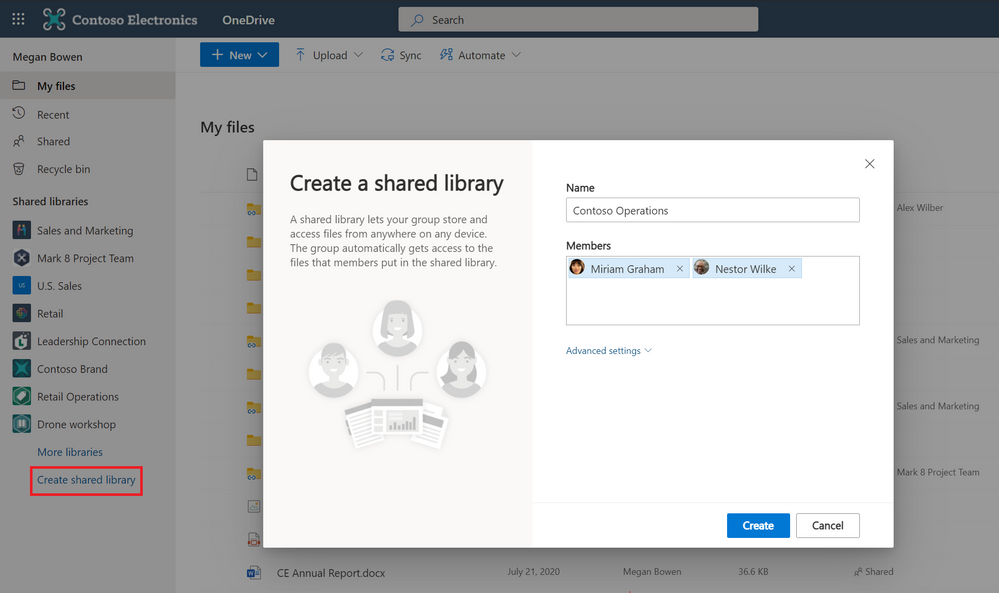
OneDrive connects you to all your files-be it your individual work files or your shared team files. We’re updating the existing experience of creating new Shared Libraries from OneDrive on the web to make it simpler and easier to create collaborative spaces. The new streamlined experience backed by an Office 365 group, allowing you to specify the people you want to share with – and the new shared library appears immediately as a new content collaboration space for your team files.
Create shared libraries from directly within OneDrive on web.
Full fidelity shared libraries in OneDrive web
Roadmap ID: 49093
Along with the ability to create a shared library from within OneDrive we are also making it easier for you to access the content in these shared libraries . Not only can you sync these shared libraries from SharePoint and Microsoft Teams to your PC or Mac using OneDrive, you can now view shared libraries with full fidelity from within the OneDrive on the web. This means you can create new documents, pin important ones to the top, add shortcuts to your OneDrive, create views, manage metadata, share and more.
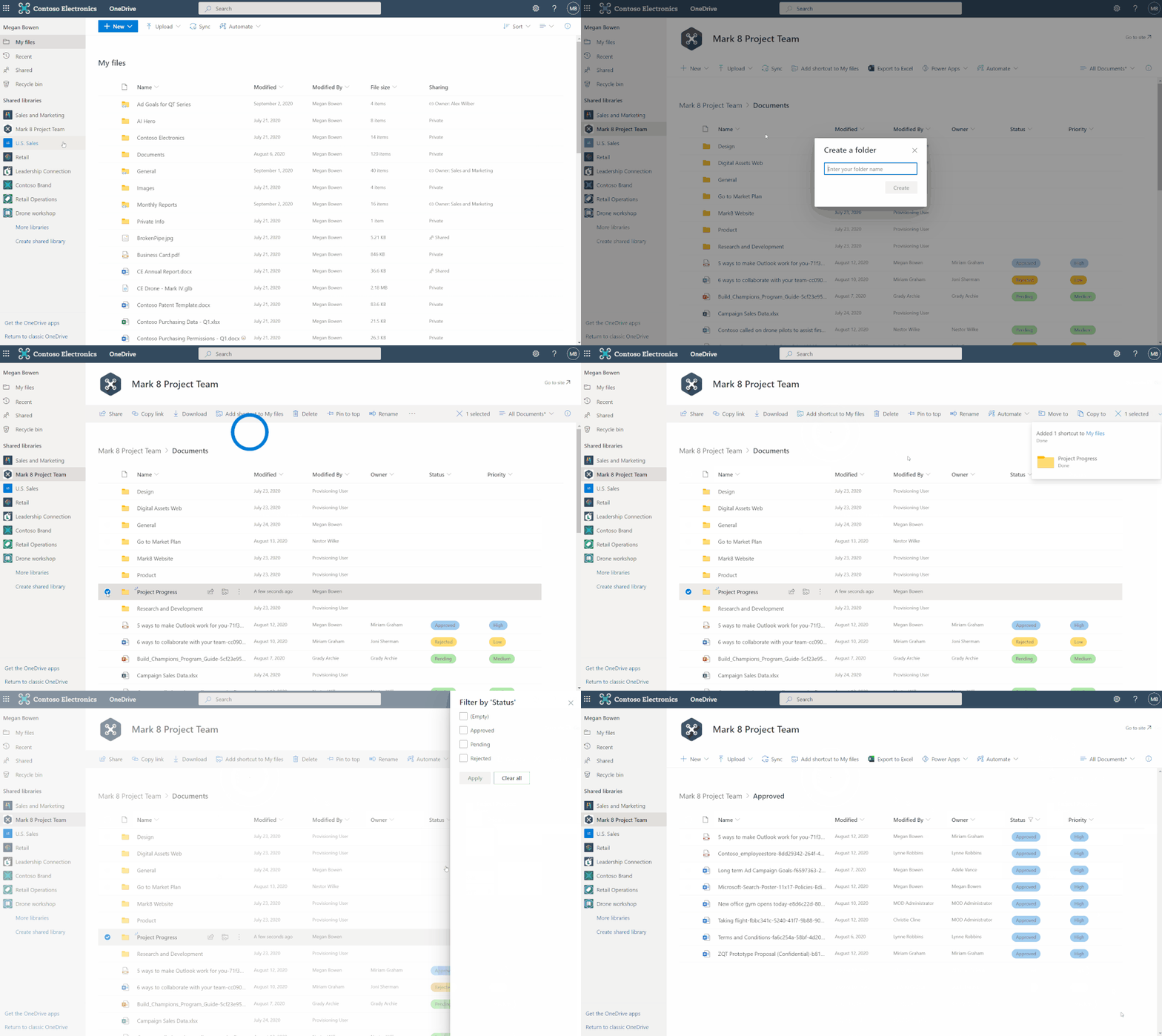 View, access and manage shared libraries from within OneDrive on web.
Also, Learn more how to find team files from your shared libraries from within the OneDrive user interface.
Exclude specific files from sync
Roadmap ID: 66188
Admins! You can now specify a file name or file extension you’d like to exclude from sync at the device level. This setting lets you prevent the OneDrive sync app (OneDrive.exe) from uploading specific files to OneDrive or SharePoint. No errors appear for the skipped files, and the files remain in the local OneDrive folder.
So now as a part of “Known Folder Move” if you need to move a Desktop folder which might consist multiple shortcut files , just add .lnk files to the list of the excluded files and prevent them from syncing.
End users will be notified about the exclusion in the activity center and will be able to recognize these files with “do not enter” status in the File Explorer.
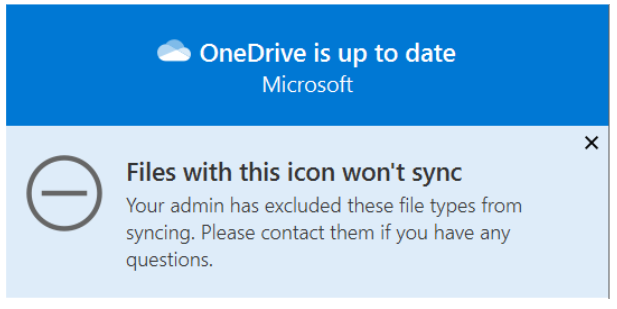 End user notification regarding the excluded files. This change is visible to end users via a new excluded icon and will not result in a red X error.
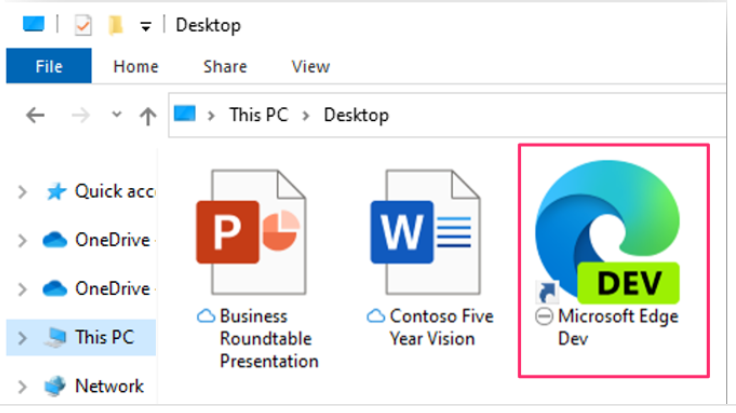 In File Explorer, the files appear with a “do not enter” icon in the Status column.
You can find the new setting in the admx/adml files that ship with OneDrive version 20.201.
- If you are currently using the admin center setting to block certain file types from being uploaded from the OneDrive sync app, you will need to first enable this new setting, make sure it’s applied by restarting the OneDrive sync app, and then disable that current setting in admin center.
- If you enable this setting, the sync app will not upload new files that match the rules you specified. There is no impact on existing files uploaded to OneDrive and SharePoint.
Learn more: Exclude specific kinds of files from being uploaded
Learn more and stay engaged
As you can see, we continue to evolve OneDrive as a place to access, share, and collaborate on all your files in Microsoft 365, keeping them protected and readily accessible on all your devices, anywhere.
You can stay up-to-date on all things via the OneDrive Blog and the OneDrive release notes.
Check out the new and updated OneDrive documentation.
Take advantage of end-user training resources on our Office support center.
Thank you again for your support of OneDrive. We look forward to your continued feedback on UserVoice and hope to connect with you at Ignite or another upcoming Microsoft or community-led event.
Thanks for your time reading all about OneDrive,
Ankita Kirti – Product Manager – OneDrive | Microsoft
by Contributed | Jan 5, 2021 | Technology
This article is contributed. See the original author and article here.
Happy 2021! We’re excited to share the latest updates in December to the Teams experience:
- See the latest features available in Teams, including Breakout Rooms
- Apply policies with the Microsoft Teams for Education policy wizard, available on January 7
- Allow school leaders, substitutes, and other approved individuals to join a class with the Classroom Drop-in app
- Join Public preview to get early access to some of the latest Teams features
- Use Moodle and Teams together with the mConnect app
- Sign up for the live Microsoft Teams for Education event to get ready and learn the best practices for hybrid learning
Let’s dive in!
1) See the latest features available in Teams, including Breakout Rooms
Virtual Breakout Rooms
As the meeting organizer, you can divide your online class into smaller groups to facilitate discussions, brainstorming, and more. A breakout room can be created in a Teams meeting or a Teams channel meeting, giving you greater flexibility depending on how you and your class meet. As the organizer you can easily jump in between breakout rooms, deliver announcements to all breakout rooms at once, and bring everyone back to the main meeting at any time. Any files from the breakout rooms can be shared in the main meeting and are available afterwards in the meeting chat.
If you’re looking for helpful resources to learn more and get started:
- Check out the main breakout rooms blog
- Get the breakout rooms quick start guide for educators (PDF)
- Watch the Tips from the Team breakout rooms video
- Visit the breakout rooms support page to learn more
https://www.microsoft.com/en-us/videoplayer/embed/RE4JVgf
New languages supported for real-time translation in live events
Translate Japanese, Korean, French, French-Canadian, Spanish, Spanish-Mexican, Traditional Chinese, Swedish, Dutch, Italian, Hindi-Indian, Portuguese-Brazilian, and Russian into up to 50 different languages. Learn more
Check out all the latest features available in Teams here.
2) Apply policies with the Microsoft Teams for Education policy wizard, available on January 7
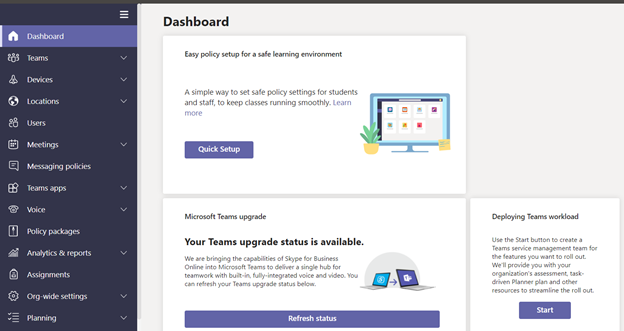
With remote and hybrid learning on online platforms, it’s more important than ever to help keep your school community safe. With the new Microsoft Teams for Education policy wizard, available school IT admins can now easily apply education tailored policies for a safe learning environment.
The policy wizard allows the IT admin to quickly and easily apply the most relevant set of policies for students at a global (Org-wide default) level and apply a custom policy set to a group of educators and staff tailored to their needs. Expected availability, along with more details, will be available on January 7th.
3) Allow school leaders, substitutes, and other approved individuals to join a class with the Classroom Drop-in app
Often times school leaders, substitute instructors, evaluators, TAs, and more individuals need to check in on or become a temporary teacher for a class. With the new Classroom Drop-in app template for Microsoft Teams, school leaders can set up “drop ins” to add a user to a Team without the need to bother IT or the instructor. The dropped in user can then check in on conversation, assignments, grades, class meetings and more!
IT administrators can setup and install the Classroom Drop-in app from GitHub and then make it available to leaders within their organization. Once installed and configured, leaders can begin setting up drop-ins right away.
To learn more, join us for a webinar on January 12 at 8am PST. Sign up at https://aka.ms/DropInWebinar
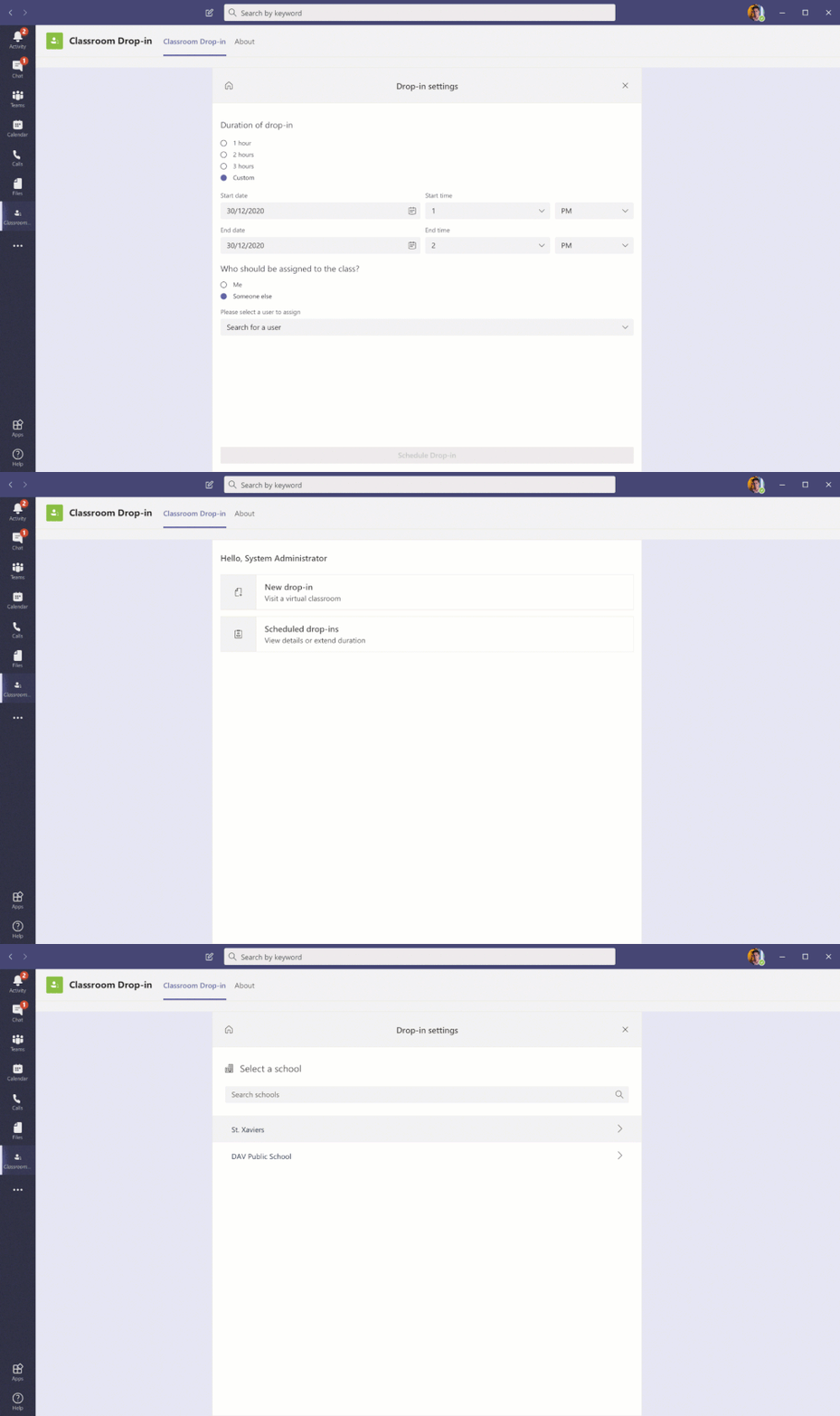 Install and use the Classroom Drop-in app to allow school leaders, substitute instructors, evaluators, TAs, to check in on or become a temporary teacher for a class
4) Join Public Preview to get early access to the latest Teams features
Microsoft Teams Public Preview is now available to help you and your school get early access to the latest Teams features. After an IT Admin enabled policy via a policy setting, individuals in the school can set your Teams client to switch on the public preview mode and try Together mode and Large Gallery (7×7) on the web and live reactions in Teams meetings. Watch how to join in this quick tip video.
5) Use Moodle and Teams together with the mConnect app
Now with the mConnect app by Skooler, you can bring all the richness of Moodle inside Teams to organize your courses and use Teams to learn and work together. The mConnect app allows you to:
- Have one workspace with access to Moodle courses, topics, assignments, and calendar in Teams
- Stay organized with collaborative Learning tabs in Teams channels
- Save time and be more in control with automated team and membership creation
Learn more about the mConnect app here and learn how to get started here.
6) Sign up for the live Microsoft Teams for Education event to get ready and learn the best practices for hybrid learning
Join us and get ready for hybrid learning and teaching with Microsoft Teams. Microsoft Teams for Education experts will share common scenarios, use cases, and answer your questions live. Topics include how to use your favorite apps in Teams, driving student engagement, inclusion, and accessibility, Microsoft Teams with your LMS, and more
- Tuesday Jan 26, 8am-12pm PST – IT Pro
- Wednesday Jan 27, 8am-12pm PST – Teaching & Learning
Join us and sign up at https://aka.ms/TeamsEduEvent.

by Contributed | Jan 5, 2021 | Technology
This article is contributed. See the original author and article here.
Happy new year and welcome to 2021. It’s going to be an exciting year for Microsoft Teams, but before we get any further, let’s have a look at all the great capabilities that launched in December.
What’s New: Meetings
Virtual Breakout Rooms
Breakout rooms allows meeting organizers to divide the meeting into smaller groups to facilitate discussions and brainstorming sessions. A breakout room can be created in a Teams meeting or a Teams channel meeting, allowing greater flexibility on how you want to meet. Organizers can easily jump in between breakout rooms, deliver announcements to all breakout rooms at once, and bring everyone back to the main meeting at any time. Any files from the breakout rooms can be shared in the main meeting and is available afterwards in the meeting chat. Learn more.
End-of-meeting notifications
Microsoft Teams notifies the participants in a meeting when there are five minutes remaining in the scheduled meeting time. The notification appears on screen for 10 seconds and disappears without any user action. This helps you stay on track and wrap up as necessary without unintentionally running late to your next schedule. Notification is triggered for all scheduled private and channel meetings and does not cause the meeting to end automatically.
Teams meeting pre-join experience
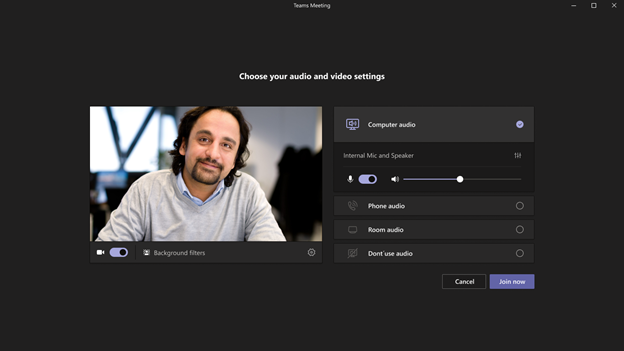
We have now improved the pre-join meeting experience for Teams meetings including easier discovery of audio, video, and device configurations before joining a meeting. Previously, you had to go to settings to change meeting devices, but now these can be easily adjusted prior to the meeting in the pre-join experience.
New languages supported for real-time translation in live events
Translate Japanese, Korean, French, French-Canadian, Spanish, Spanish-Mexican, Traditional Chinese, Swedish, Dutch, Italian, Hindi-Indian, Portuguese-Brazilian, and Russian into up to 50 different languages. Learn more.
Live events limit increases are extended until June 30, 2021
To continue help support our customers, through June 30, 2021, we extended limit increases for live events, including:
- Event support for up to 20,000 attendees
- 50 events can be hosted simultaneously across a tenant
- Event duration of 16 hours per broadcast
Additionally, events for as many as 100,000 attendees can be planned through the live events assistance program. Learn more.
What’s New: Calling
PSTN participant phone number masking
For customers with Audio Conferencing enabled for their Teams meetings, we are providing the ability for tenant administrators to define how Audio Conferencing participants’ phone numbers appear in the roster view for meetings scheduled within their organization: masked to external users, masked for everyone, or off (visible to everyone).
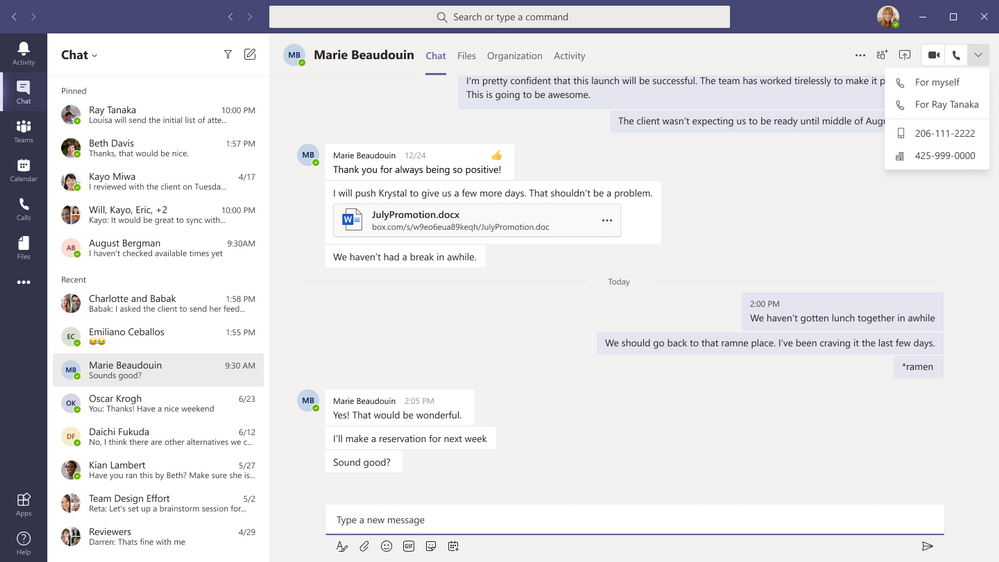
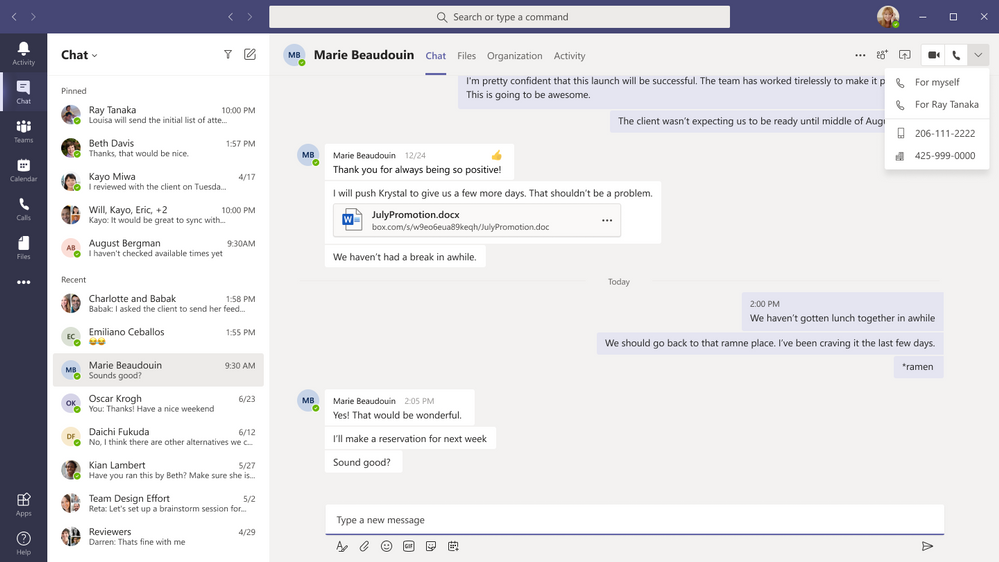
Multiple Number Dialing
You can now see a split button in the chat header for audio/video calling. This displays multiple numbers for a single contact making it easier to view available numbers to initiate a call.
Live Captions for 1:1 Calls
Whether you’re in a noisy environment or just missed what was said, live captions can make it easier to follow along in calls. Admins can disable this capability if desired, and users have control to turn these off. For the most accurate captions possible, it is recommended to speak clearly into the microphone and avoid having multiple people speaking at the same time.
What’s New: Devices
New features rolling out to Microsoft Teams Rooms on Windows
The latest app for Microsoft Teams Rooms on Windows, version 4.7.15.0 is now available in the Teams Admin Center. The latest update includes the following new capabilities:
- Cortana Voice Assistance (Preview): Launching in Preview, in-room meeting attendees can now use voice assistance powered by Cortana to join and end their meetings without touch. Using natural language, people can simply state “Cortana, join/end my meeting” for a seamless hands-free experience.
- Control Spotlight from console: People in the meeting room can now control the Teams meeting Spotlight feature from the Teams Rooms console control. Once enabled, the individual identified as the spotlight will be the main video shown to all participants in the Teams meeting.
- Share HDMI audio: A highly requested feature, users connecting to a Teams Room via HDMI can now share their PC audio into the Teams meeting.

Enhanced meeting experiences on Teams phones
Teams phones now support a new video layout including 3×3 gallery view, large gallery view for more participants and Together mode. Using 3×3, users can see the video feeds of up to 9 meetings participants at a time. For even larger meetings, enable large gallery view to show up to 49 participants. Teams phones now also supports Together mode, the meeting experience where participants are transported to a virtual shared space. No matter which style of meeting you select you can always enable background blur to reduce distractions and obscure any imagery found in a video setting.
Proximity Join for Teams conference phones
Proximity based meeting join for an available Microsoft Teams conference phone is supported from this update. The Microsoft Teams client on your PC and mobile detect proximity of the conference phone via the BLE beacon transmitted by the phone and allow you to add the phone easily to the meeting from your pre-join screen on your desktop or mobile client. When a user adds the conference phone to the meeting, the phone would auto accept the incoming meeting request. Learn more.
New unified communication workstation and phone form factors from Yealink and Audiocodes
Yealink is excited to introduce a new set of peripherals, the WH66 and WH67, an integrated unified communication workstation. The all-in-one format has a built-in speakerphone, wireless mobile phone charger, multi-touch screen and USB hub. Calling is now even more convenient with a dedicated Teams button. All these features reduce the number of tools and wires on a desktop, simplifying a workspace and boosting productivity.
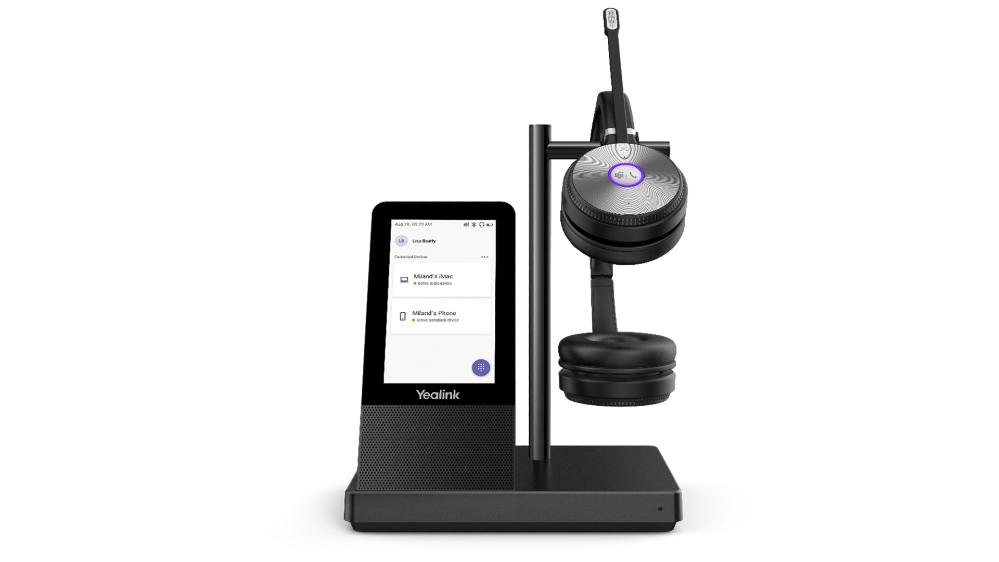
The newly certified Yealink MP58 desk phone provides a high-quality collaboration experience for executives and professionals alike. With HD Audio features, a 7-inch adjustable touch screen and a dedicated Teams button, this phone was built with Teams calling and meetings in mind. Moreover, the MP58 can support the innovative Bluetooth wireless handset, adding extra mobility and flexibility to the users by allowing them to leave the desk while on the call.
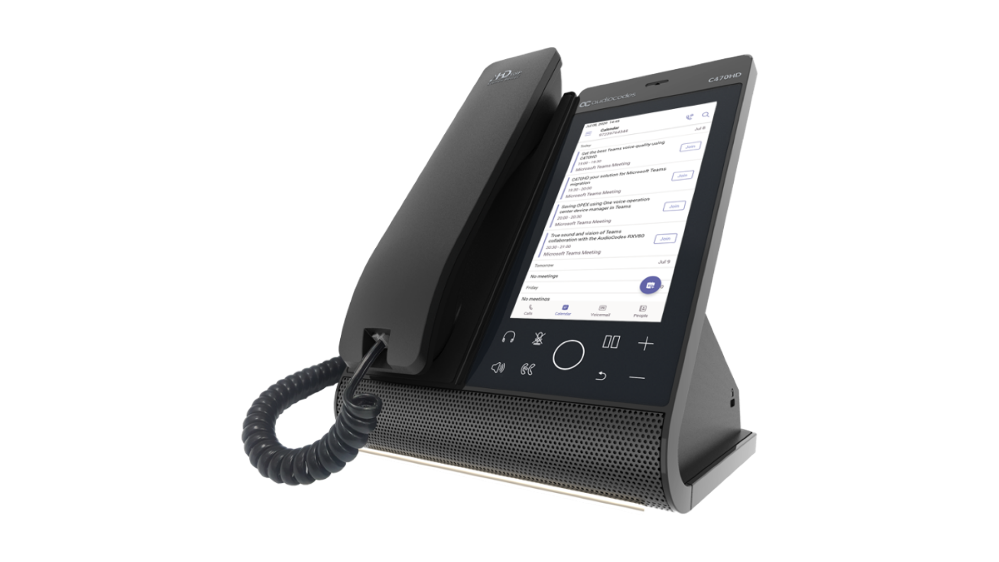
Another newly certified device is the Audiocodes C470, a Teams native high end desk phone. The C470HD is equipped with a large, single surface, full touch interface, incorporating an exceptionally sharp 5.5” color touch screen, with optional support for Wi-Fi and Bluetooth.
Check out these and more devices at http://aka.ms/Teamsdevices!
What’s New: Chat & Collaboration
Improved Search relevance
Now when searching for messages in Microsoft Teams, the top 3 messages are generated and ordered by a newly developed relevance model – previously messages were ordered chronologically with the most recent messages at the top of the search results.
Teams learns the relevant characteristics of a message that matters most to you based on a vast array of active and passive signals, for example, who you interact with most frequently or on which teams and channels you are most active on.
Access files offline on iOS
The Teams mobile app for iOS now allows you to access files even when you are offline or in bad network conditions. Simply select the files you need access to, and Teams will keep a downloaded version to use in your mobile app. You can find all your files that are available offline in the files section of the app.
Improvements to video playback experience
Now included in Teams is a faster-loading experience for embedded videos. You will now experience up to 25% reduction in the time it takes a Stream embedded video to load, and up to a 90% reduction in the time it takes for the video to start playing. This means a much faster Stream video playback experience within Teams. Learn more.
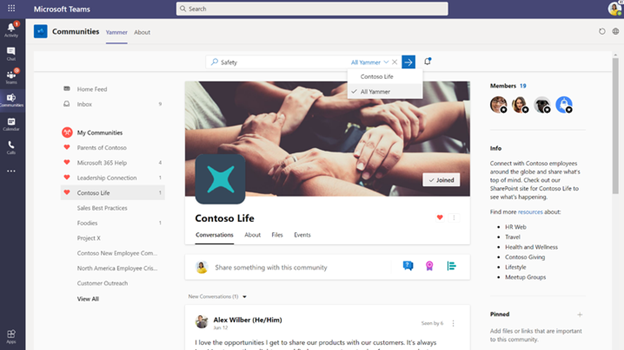
Improvements to Yammer communities and conversations in Teams
You can now search for Yammer conversations while in the Communities app within Microsoft Teams as well as add a tab with new Yammer styling in your Teams channels. Learn more.
Updated ‘Add a Team to a site’ wizard in SharePoint
We want to make it easier to use the connected value of Teams and SharePoint. People can use SharePoint team site home pages with dynamic web parts as mini-dashboards for group content: pages, news, links, documents, group activity and more – and it’s configurable. Choose the SharePoint content that you want to add as tabs in Teams when you first connect them via the “Add a Team” flow from your site. Learn more.
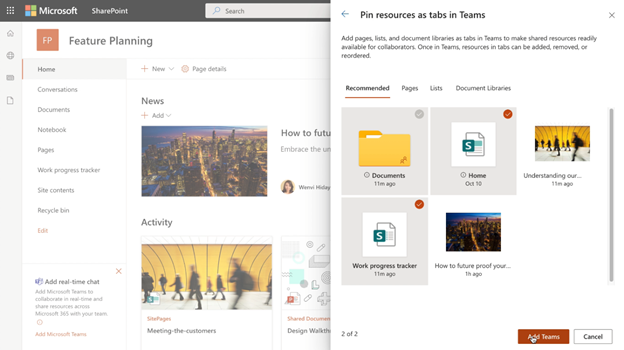
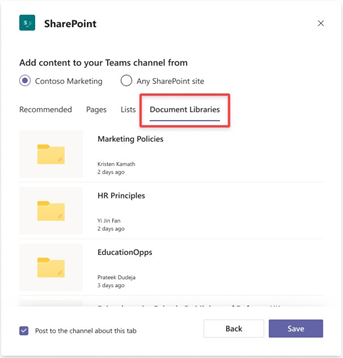
Add document libraries, pages or news to a channel in Teams via the updated SharePoint tab
Team members can now use the SharePoint tab experience to pin any page, news, list or document library as a separate tab in their Teams channel. Just go to the “+” button from any channel in Teams, select SharePoint and start pinning resources that your team needs to collaborate better. Learn more.
Teams and OneDrive destinations in SharePoint admin center Migration Manager
SharePoint Migration Manager now lets you select a Teams channel or a OneDrive username when setting your content migration destination. Learn more.
What’s New: Power Platform and custom development
Power App in Teams – Broad distribution apps
The tight Power Apps and Teams integration empowers you to build custom apps for whatever business challenge you are facing, especially with the recently released Power Apps Teams app. With the Power Apps Teams app you can build custom low code apps to use in Teams – and now you can deploy those apps to your entire tenant. You can still deploy apps to a select team, but this added functionality lets you distribute apps backed with Dataverse for Teams to your entire organization.
App spotlight

Many teams today use Jira for project and issues management and Microsoft Teams for collaboration, but not all users may use both – which may lead to some breaks in the communication flow. That’s where Yasoon comes in to bridge the gap and maintain a clear line of communication across both Jira and Teams. With Yasoon’s Smart Connect for Jira app, users can have cross-tool conversations seamlessly – even with members who can’t access Jira – so now everyone can stay engaged and understand the context of every issue being worked through. Learn more.
What’s New: Management
Restricting Windows and Mac managed device sign-in to specific tenants
You can now restrict Teams sign-in for Windows and Mac managed devices to help ensure that employees cannot sign-in to another organization’s tenant using the other tenant’s credentials from the device they are authorized to use for work. This policy can also be used to configure access to personal accounts.
Manage Teams displays in Team Admin Center
We are adding the Teams Display as one more device category that can now be managed within Teams Admin Center. Learn more.
What’s New: Security, compliance & privacy
Only Invited Users can join directly with new Lobby Setting
A new lobby setting is coming to Teams meeting. We are adding “People I invite” as an option to the “Who can bypass lobby?” setting. Once enabled, only the participants invited by the organizer in the meeting invite can join the meeting directly. Everyone else is sent to the lobby.
Customer Key for Teams available for public preview
Customer Key support for Microsoft Teams is now available for public preview! Customer Key is an added layer of encryption and is already available in Exchange Online, SharePoint Online, and OneDrive. Learn more.
What’s New: Teams for Education
Students and educators get a notification when a new Class Notebook page is distributed
We are making a new update that allows any Educator using Page Distribution in the OneNote client to ensure that all students get a notification in Teams after a page is distributed! This notification works for educators using the Class Notebook Toolbar in OneNote Windows 10, iPad, Web and Mac.
Coming soon – Teams for Education policy wizard
In the next few days, the new Education policy wizard will be available. Using this wizard admins can easily and quickly apply global policy defaults for students and apply a custom policy set to the group of educators and staff tailored to their needs. Learn more.
What’s New: Healthcare
EHR connector for virtual visits in healthcare
The Microsoft Teams EHR connector let’s patients schedule and join the virtual visit from within their electronic health record (EHR) system’s patient portal. Providers can schedule and launch the visits from within the EHR provider portal. Integration with Epic is currently supported by the Microsoft Teams EHR connector, with other EHR systems coming soon. Learn more.
What’s New: Firstline Workers
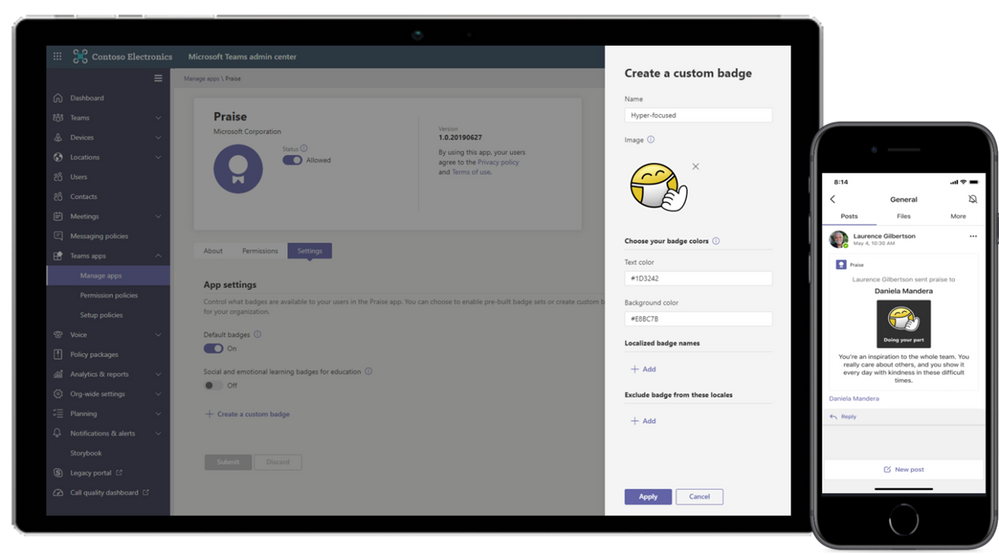
Customizable Praise badges
Now, organizations can create customized Praise badges to express their culture and values when recognizing successes and fostering comradery. Praise can help improve workplace culture and job satisfaction, from corporate headquarters to Firstline Workers. Learn more.
What’s New: Government
Virtual Breakout Rooms
Breakout rooms allows meeting organizers to divide the meeting into smaller groups to facilitate discussions and brainstorming sessions. A breakout room can be created in a Teams meeting or a Teams channel meeting, allowing greater flexibility on how you want to meet. Organizers can easily jump in between breakout rooms, deliver announcements to all breakout rooms at once, and bring everyone back to the main meeting at any time. Any files from the breakout rooms can be shared in the main meeting and are available afterwards in the meeting chat. Available in GCC in December. Learn more.
Teams meeting pre-join experience
We have now improved the pre-join meeting experience for Teams meetings including easier discovery of audio, video, and device configurations before joining a meeting. Previously, you had to go to settings to change meeting devices, but now these can be easily adjusted prior to the meeting in the pre-join experience. Available in GCC in December.
PowerPoint file sharing
PowerPoint file sharing in Teams allows you to share a PowerPoint file within a Teams Meeting without having to use Desktop or Window sharing. Participants can view the presentation at their own pace, navigate through slides on their own and sync back to the presenter at any time. This gives them time to focus on or revisit relevant slides before resuming back to the current presentation. Available in GCC and GCC-High. Learn more.
Multiple number dialing
You can now see a split button in the chat header for audio/video calling. This displays multiple numbers for a single contact making it easier to view available numbers to initiate a call. Available in GCC in December.
Inline message translation in DoD
With a simple click, people who speak different languages can fluidly communicate with one another by translating posts in channels and chat. Inline message translation helps ensure that every worker in the team has a voice and facilitate global collaboration. Learn more.
Set presence status duration in GCC
Let others know when you are available in Teams by managing your presence status. Users can now change their presence status for a specific period. Learn more.
New offline presence status in GCC
Let others know when you are not available in Microsoft Teams. You can now change your presence to “Offline”. This allows you to have full access to Teams while signaling to colleagues that you are unavailable. Learn more.
Linux Client available in GCC-High
The Microsoft Teams Linux client is now available in GCC-High.
Data loss prevention for Microsoft Teams
Data loss prevention (DLP) capabilities in Microsoft 365 government clouds is now extended to include Microsoft Teams chat and channel messages, including private channel messages. If your organization has DLP, you can now define policies that prevent people from sharing sensitive information in a Microsoft Teams channel or chat session.
GCC support for devices management in Teams Admin Center
Device management support in Teams Admin Center is now available in the GCC cloud environment. Admins can now control the entire lifecycle of their Teams devices, which include an increasing variety of supported device types – IP Phones, Collaboration bars, Teams displays, and Teams Meeting Room devices, all from one place.
by Contributed | Jan 5, 2021 | Technology
This article is contributed. See the original author and article here.
Initial Update: Tuesday, 05 January 2021 15:29 UTC
We are aware of issues within Log Search Alerts and are actively investigating. Some customers may experience failure notifications when accessing or performing service management operations such as Create and Update for Azure Log Search Alert Rules.
- Work Around: None
- Next Update: Before 01/05 18:30 UTC
We are working hard to resolve this issue and apologize for any inconvenience.
-Harshita

by Contributed | Jan 5, 2021 | Technology
This article is contributed. See the original author and article here.
The intranet that serves both employee self-service needs and programmatic compliance for IT is one born from human-centric design that safeguards operations at scale.
The Intrazone continues to spotlight Microsoft partners, the people and companies who deliver solutions and services to empower our customers to achieve more. In our 9th partner episode, we talk with Hamish Toll (Founder and Director | Circle T) and his customer, David Benjamin (CIO | Millennium Services Group).
In this episode, we dig into Millennium’s self-maintaining intranet strategy, including integration into Teams – establishing an “enterprise knowledge platform.” We also learn about their policy center that helps “reduce time to content.” And looking forward, Millennium is interested in SharePoint Syntex to improve insider risk management and communication compliance.
And… on with the show.
https://html5-player.libsyn.com/embed/episode/id/17363834/height/90/theme/custom/thumbnail/yes/direction/backward/render-playlist/no/custom-color/247bc1/
Subscribe to The Intrazone podcast! Listen this partner episode on Circle T now + show links and more below.
Left-to-right: Hamish Toll (Founder and Director | Circle T) and his customer, David Benjamin (CIO | Millennium Services Group). [The Intrazone guests]
Link to articles mentioned in the show:
- Hosts and guests
- Articles and sites
- Events
Subscribe today!
Listen to the show! If you like what you hear, we’d love for you to Subscribe, Rate and Review it on iTunes or wherever you get your podcasts.
Be sure to visit our show page to hear all the episodes, access the show notes, and get bonus content. And stay connected to the SharePoint community blog where we’ll share more information per episode, guest insights, and take any questions from our listeners and SharePoint users (TheIntrazone@microsoft.com). We, too, welcome your ideas for future episodes topics and segments. Keep the discussion going in comments below; we’re hear to listen and grow.
Subscribe to The Intrazone podcast! And listen this partner episode on Circle T now.
Thanks for listening!
The SharePoint team wants you to unleash your creativity and productivity. And we will do this, together, one partner at a time.
The Intrazone links
+ Listen to other Microsoft podcasts at aka.ms/microsoft/podcasts.
![Left to right [The Intrazone co-hosts]: Chris McNulty, director (SharePoint, #ProjectCortex – Microsoft) and Mark Kashman, senior product manager (SharePoint – Microsoft).](https://www.drware.com/wp-content/uploads/2020/11/large-375 "Chris-Mark_in-studio.jpg") Left to right [The Intrazone co-hosts]: Chris McNulty, director (SharePoint, #ProjectCortex – Microsoft) and Mark Kashman, senior product manager (SharePoint – Microsoft).
Left to right [The Intrazone co-hosts]: Chris McNulty, director (SharePoint, #ProjectCortex – Microsoft) and Mark Kashman, senior product manager (SharePoint – Microsoft).
 The Intrazone, a show about the Microsoft 365 intelligent intranet: https://aka.ms/TheIntrazone.
by Contributed | Jan 5, 2021 | Technology
This article is contributed. See the original author and article here.
Written in collaboration with @camilamartins
This post will detail how to use Custom Rules on Azure WAF, including some examples of common use cases fulfilled by this rule type. Custom Rules provide a versatile way to build controls that fulfill security requirements and protect applications from attacks that are unique to your applications.
WAF Rule Types and Processing
Azure WAF currently offers 3 rule types, which are processed in the following order:
- Custom Rules – custom rules are processed first, and function according to the logic you select. This makes them very powerful as the first line of defense for web applications.
- SpiderLabs Core Ruleset (CRS), and can detect common web attacks like SQL injection, cross-site scripting, and command injection. These rules cannot be modified, but the ruleset can be tuned by using exclusions and by modifying rule actions (a topic for another post).
- Managed Bot Rules – these rules identify potential bot activity by matching sources against our internal Threat Intelligence feeds. If traffic is coming from a known source of bot activity, the traffic can be blocked.
This post focuses on Custom Rules, but it is important to understand how the managed rulesets work. For more information on these, look for future blog posts here or consult the Azure WAF documentation.
Important Custom Rule Concepts
Custom Rules can be viewed and built using the Azure Portal by navigating to Web Application Firewall Policies (WAF), selecting your policy, and clicking on the Custom Rules blade. Creating a custom rule is as simple as clicking Add Custom Rule and entering a few required fields. However, there are some important concepts to understand before you create your own rules.
The most important thing to mention about Custom Rules is that they are terminating. This means that if the logic of the rule is matched, all other rules stop processing, and both OWASP and Bot managed rulesets. This is the case regardless of the action of the rule; even if traffic is allowed, no further rules are processed. This can have positive or negative implications.
The Allow action should be used sparingly in Custom Rules, because since the rule terminates, it means that all other inspection provided by WAF will be skipped. Understanding this, you can use Allow rules when the intent is to skip the other checks, such as in tuning situations. If certain requests tend to trigger false positives, you can use a Custom Rule to allow the traffic at a more granular level than it would be possible by using exclusions or disabling rules.
In most scenarios, it is best to use Custom Rules with the Deny action, as a terminating Deny rule is entirely expected and without unanticipated consequences. For instance, if you wanted to use a WAF Custom Rule to create an IP Address allow list, it is better to Deny traffic that is not from the IP addresses in the list rather than Allow traffic from those IPs.
Another concept to make use of in constructing effective Custom Rules is compound conditions. Rules can be created with a single condition, or you can add multiple conditions that must be satisfied to constitute a match. When adding multiple conditions, they are added as an AND statement, so all conditions must be met for the Action to take place. If you need to construct a rule with OR logic, it is best to create multiple rules with the same Action.
Custom Rule Example Templates and Use Cases
We have created 2 ARM templates, which will create both WAF Policy types, one for WAF on Application Gateway and one for WAF on Front Door. These policies are intended to give you a starting point for creating your own Custom Rules. To deploy, simply click the Deploy to Azure buttons from the repository, select a Resource Group, and create your policies.
These example policies must be modified to fit your requirements before associating with any Front Door or Application Gateway resources, and the following sections will provide guidance on how to do so.
Block Lists
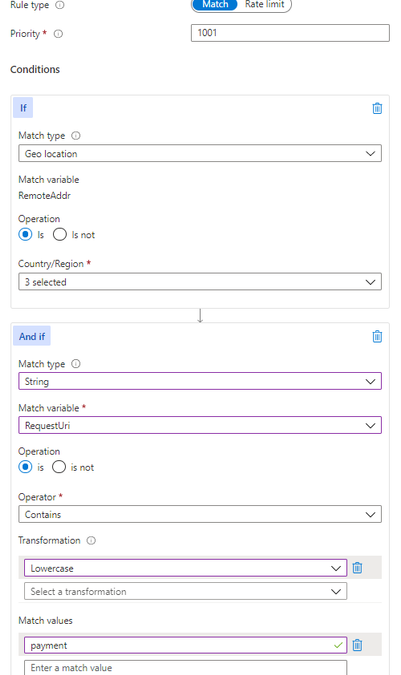
Some customers have the requirement to block certain sources of traffic based on IP address or country of origin. In these scenarios, block lists can be used, which you must create and keep up to date. The examples included in the templates are GeoBlockList and IPBlockList. The behavior of these basic rules can be modified to add conditions if necessary. For example, you may want to block a certain part of a site from a geographic region, as pictured:
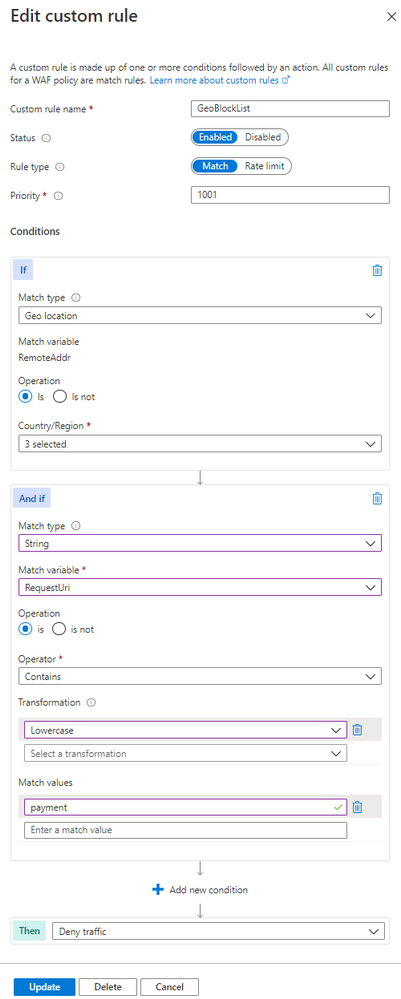
Notice that there is a second condition in the “And if” box, which defines a specific request URI. This additional condition creates an AND expression, meaning that both the first condition about geolocation and the second condition about the request URI must be matched in order for the Deny action to trigger.
These block lists can be added manually via the Portal or managed programmatically using ARM, API, or CLI. One example of adding to a block list automatically using Azure Sentinel Playbooks can be found in a previous post.
Allow Lists
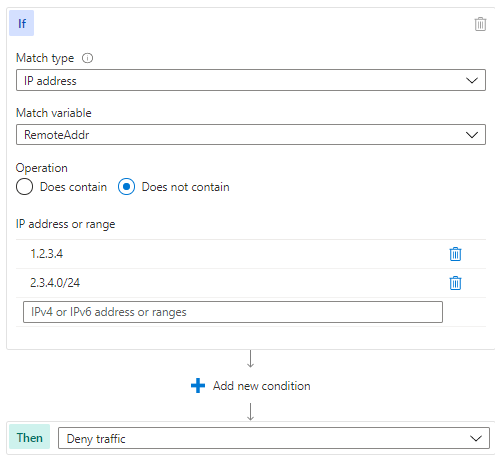
IP address or geographic restrictions can be accomplished effectively using allow lists. This method is preferable if you only do business in certain countries, or if you have an internal website you would like to be available only to trusted IP addresses, such as corporate IP blocks.
The following example shows the IPAllowList rule found in the template:
Controlling Allowed HTTP Methods
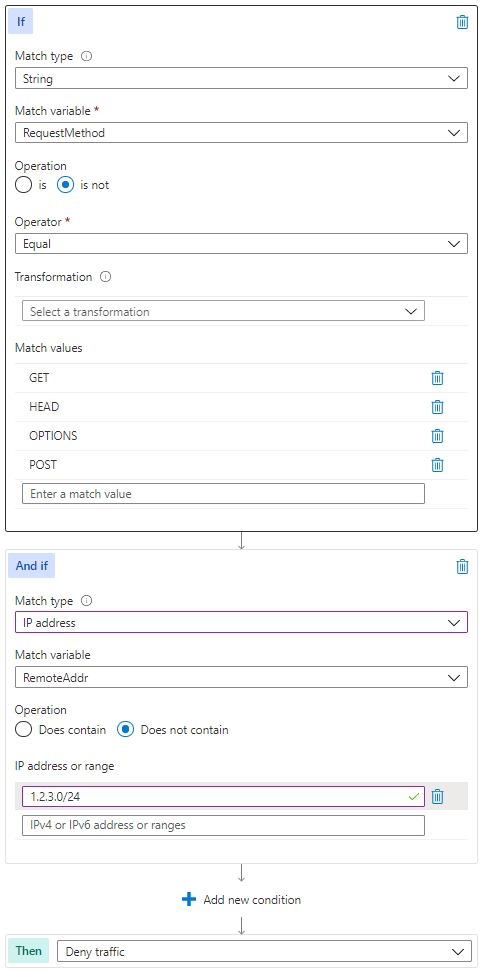
HTTP method enforcement can be done in a dynamic way using WAF Custom Rules. Consider the scenario where you have an API that should be available publicly for customers to GET and POST, but you want to reserve PUT and DELETE actions for traffic originating from trusted locations as an extra layer of security beyond authentication. The following modification of the MethodAllowList rule can be used to accomplish this.
Blocking User Agents
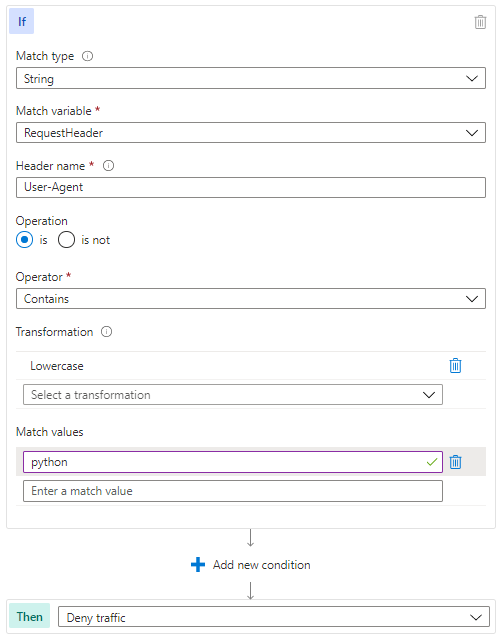
Some of the OWASP managed rules will detect well known malicious user agents, but if you find the need to block a specific set, a Custom Rule is a way to accomplish this. Of course, user agent is not a difficult element for an attacker to change, but this type of rule can help deflect unsophisticated attackers. The logic of the UserAgentBlock rule is represented in the template pictured below.
Rate Limiting with WAF for Front Door
WAF on Azure Front Door has the added capability of Custom Rules with a Rate Limit type, as distinct from Match type rules. Rate Limit rules will keep track of the number of requests from a particular IP address and block requests made after a threshold is reached.
These rules can be part of an effective layer 7 DDoS protection strategy. Azure DDoS Protection, both at the platform level (free) and using the Standard tier (paid) will protect against high volume attacks, but there are application attacks that do not necessarily rely on high volume. Some of these attacks can be mitigated by using source rate limiting in Custom Rules. The idea is that a legitimate user of a site will make a predictable number of requests to the site over a given time period, but an attacker trying to disrupt the site’s availability would likely make more requests. A threshold can be set to limit the volume of traffic to a particular path from a source, as pictured below.
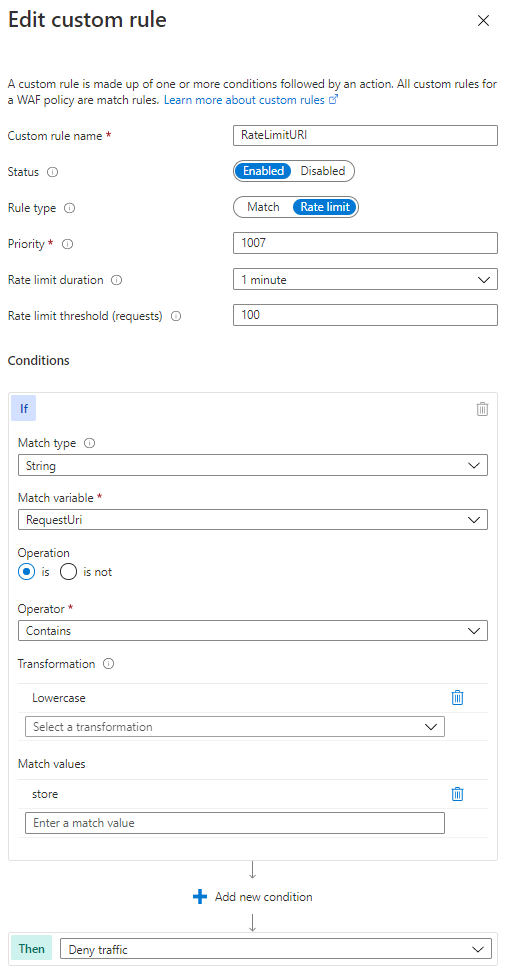
In the above rate limiting rule, 100 requests from the same IP address would be allowed within any 1 minute time period, but after the threshold is met, additional requests from that IP would be dropped for 1 minute. After the rate limiting period expires, traffic is allowed and the counter to 100 starts again.
Using WAF on Application Gateway to only Allow Traffic from your Front Door
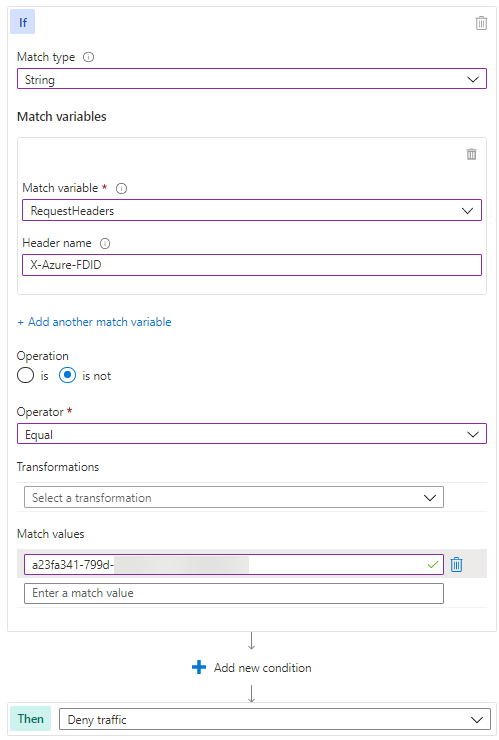
A common architectural design is to use Azure Front Door to provide global load balancing and content distribution in front of Application Gateways hosted in 2 or more regions. You probably want to allow traffic only from your Front Door service specifically to prevent an attacker from setting up a “rogue” Front Door instance without WAF in order to circumvent inspection.
Fortunately, Front Door adds a header (X-Azure-FDID) to all traffic it processes, which identifies it as your instance of Front Door. This guarantees that traffic sourcing from unapproved Front Door instances will not connect to your service.
Summary
The preceding example use cases are not very complex in nature, yet they provide considerable results to improve the security of your applications. We hope these samples help you understand how flexible Custom Rules can be, and that you can use this as a starting point to build more advanced rule logic in your environment. There are many possibilities to add complexity and effectiveness to these examples, including using Regex to look for patterns in the request body. If you come up with any particularly useful rules, please feel free to share in the comments here or add a sample to our GitHub repository.

by Contributed | Jan 5, 2021 | Dynamics 365, Microsoft 365, Technology
This article is contributed. See the original author and article here.
Today’s continuous growth of e-commerce sales drives the need for a stronger focus on fraud detection and protection. To meet demand and stimulate growth it’s become crucial to keep fraud and operational costs low by streamlining business processes. Automating the risk analysis and transactional review process with machine learning platforms, like Dynamics 365 Fraud Protection, is one way to do that.
Platforms like Dynamics 365 Fraud Protection provide a rich set of APIs that you can use to assess the risk surrounding account logins, account creations, and purchases. Rule-based linear models then use the risk score, as well as purchase or account attributes, to segment traffic and return automated decisions. Rules are just one way to automate decisions on events. It’s equally important to have this information feed into your existing business workflows and then automate where possible.
Here are three ways to help you customize and automate your own end-to-end fraud management workflow.
First: Diagram your existing risk management framework
It’s crucial that you develop a business process diagram (from transaction processing to data flows for automated risk assessments, case management, reporting, and communications) with key stakeholders and metrics for tracking success at each stage. Getting a high-level view of existing workflows will help identify areas for improvement or automation.
Second: Identify real-time decision points
Use your fraud management process diagram to identify key metrics or flags that could require real-time actions. For example, the risk score is an actionable data point used to indicate fraudulent activity and could be monitored in real-time. API latencies, rule executions, or changes to existing rules or configurations in your fraud management platform, are other examples of key data points that could be valuable to track in real-time.
Third: Configure triggers and automate actions
After identifying the key real-time decision points throughout your fraud management process, it is important to find a platform that will manage the data egress and automation components.
Dynamics 365 Fraud Protection’s event tracing establishes a real-time telemetry platform that can seamlessly integrate and extend your existing business workflows. You can subscribe to events triggered by the user or system-level actions and forward the data associated with each event to Azure Event Hubs or Blob storage. From there, you can take advantage of powerful fast-development tools such as Azure Logic Apps and Power Automate to configure trigger conditions and real-time actions from all of your connected systems.
For example, if a user’s score is suspiciously low, you can subscribe to a transactional event that will be sent to Azure Event Hubs and consumed in Azure Logic Apps to check the score, trigger an email, and investigate the order before a chargeback occurs. Using an ever-growing library of third-party connectors available in Azure Logic Apps, you can create a highly customizable workflow to cover everything from order investigation, additional verification for suspicious orders, alerting on changes made in the portal, and updates to customized monthly business reports. These connectors work seamlessly with Dynamics 365 Fraud Protection to provide you with a single solution for your business’ fraud detection and protection needs.
Next steps
Developing a robust fraud management workflow that enables your business to scale and operate efficiently is crucial. Dynamics 365 Fraud Protection and its Event Tracing capabilities aim to support your business by easily connecting to and optimizing your existing business workflows. Get started today with Dynamics 365 Fraud Protection and learn more about how Event Tracing can provide real-time insights and workflow automation here:
The post 3 Tips for Creating Intelligent Fraud Management Workflows appeared first on Microsoft Dynamics 365 Blog.
Brought to you by Dr. Ware, Microsoft Office 365 Silver Partner, Charleston SC.
by Contributed | Jan 5, 2021 | Technology
This article is contributed. See the original author and article here.
Monthly Webinar and Ask Me Anything on Azure Data Explorer
Level: beginner
Azure Data Explorer is a fast, fully managed data analytics service for real-time analysis on large volumes of data streaming from applications, websites, IoT devices, and more. Ask questions and iteratively explore data on the fly to improve products, enhance customer experiences, monitor devices, and boost operations. Quickly identify patterns, anomalies, and trends in your data. Explore new questions and get answers in minutes. Run as many queries as you need, thanks to the optimized cost structure.
By end of this session, you will know
1. What is the Kusto Query Language?
2. How to do simple data exploration?
3. How to draw basic insights from your data?
09:00-09:45 AM PST Azure Data Explorere Live Webinar “How to start with KQL”
by Olga Goldenberg and Slavik Neimer
09:00-10:00 AM PST Ask me Anything with Azure Data Explorer Product group.
Register Now and save you spot


Recent Comments