by Contributed | Feb 16, 2021 | Technology
This article is contributed. See the original author and article here.
For millions of users, Microsoft Teams is the digital workspace where work gets done. It’s where we come together to collaborate with teammates and where we integrate apps and processes to work on projects. And in this digital workspace, we rely on multiple apps and windows to work through tasks whether independently or with others – so having access to the tools we need without context switching is essential. That’s why we’ve expanded the capability to pop out multiple windows over the past several months – starting with chats and meetings to now personal apps and tabs! We’ll show you how you can use these capabilities and stay focused to keep your workflows ongoing.
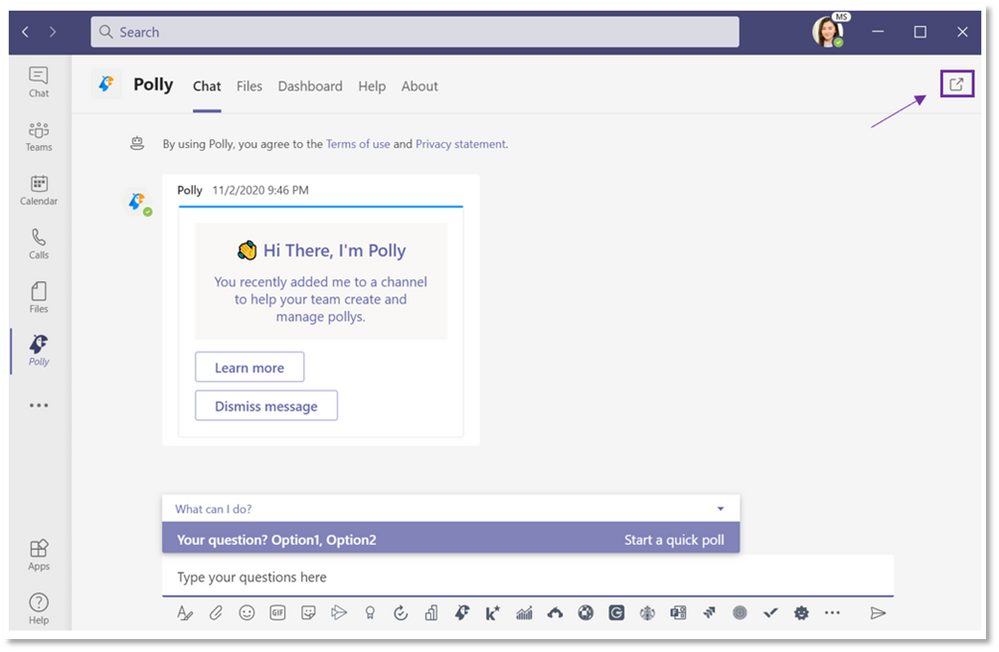
The ‘pop out’ symbol in the app tab bar is in the top right.
Pop out your apps and tabs in multi-windows to stay focused
There are many situations where we need to juggle multiple tools and resources to work through tasks. For example, maybe you need to reference some notes from your team’s shared OneNote pinned in your team channel while working through action items comings out of a recent meeting or perhaps you need talk through some open tasks from your Tasks personal app along with your daily standup chat following a sync with your team. These are just a couple common scenarios which popping out apps and tabs in multiple windows come in handy.
So now how do you do it? Let’s go through a couple ways to easily pop out apps and tabs
1. Pop out your personal apps pinned in your app bar
You can easily pop out your personal apps from your app bar on the left rail. Simply ‘right click’ on the desired app and select the “Pop out app” field in the window or open the app and locate the ‘pop out’ symbol in the top right of the tab bar. Your personal app will then pop out in a separate window, enabling you with the ability to continue utilizing the app while using the main screen for chat or other apps.
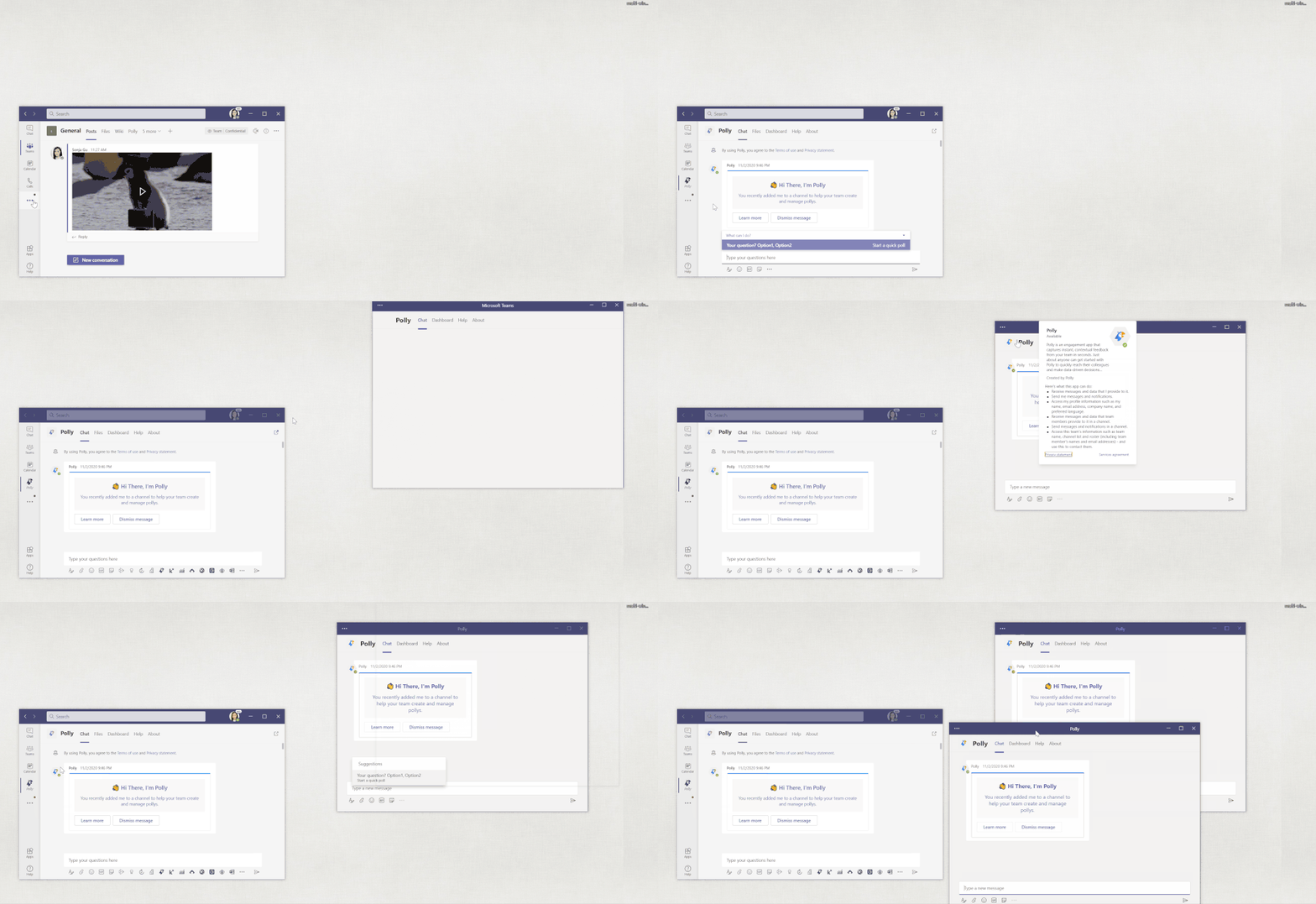 User right clicking on a personal app to pop out in a separate window.
2. Pop out tabs pinned in your chats and channels
You can also pop out tabs pinned in your chats and channels by simply selecting the desired tab and then the “pop out tab” symbol to the right of the header. The tab will pop out in a separate window, enabling you to continue to have access to the tab while navigating elsewhere.
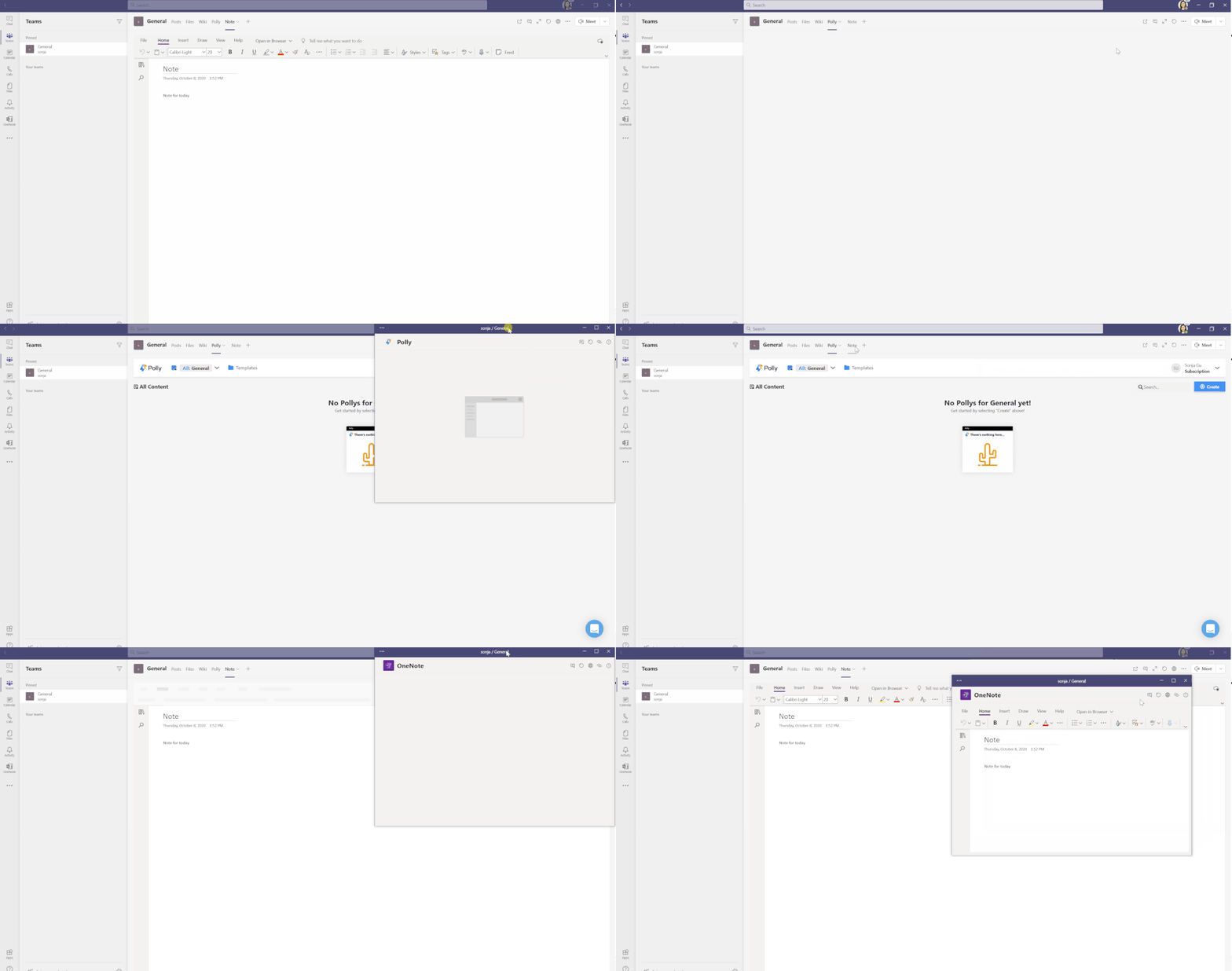 The ‘pop out’ symbol in the channel tab is in the top right.
We’re excited to see how these new capabilities will help users stay productive and increase focus on their tasks. These new capabilities work today for many different apps and tabs and we will continue to expand across more as we continue to progress! Start popping out apps and tabs today!

by Contributed | Feb 16, 2021 | Technology
This article is contributed. See the original author and article here.
Written by Cosmos Darwin, Senior PM Lead on the Azure Edge & Platform team at Microsoft. Follow him on Twitter @cosmosdarwin.
Do you miss in-person industry events and conferences? I do. Here’s what we’re doing about it:
Last December, we announced the general availability of Azure Stack HCI, the new subscription service for hyperconverged infrastructure from Microsoft Azure. In the weeks since, our partners have launched an impressive lineup of hardware solutions, including a new kind of solution called an ‘Integrated System’. Integrated Systems are the fastest and easiest way to get up and running with Azure Stack HCI: they come with the Azure Stack HCI software preinstalled, are jointly supported by Microsoft and the solution builder, and offer management extensions for integrated full stack updates. In addition to Integrated Systems, the broad selection of over 200 validated nodes in the all-new Azure Stack HCI solutions catalog ensures that you can choose the right hardware for your needs, from the partner who offers the best service and support in your region.
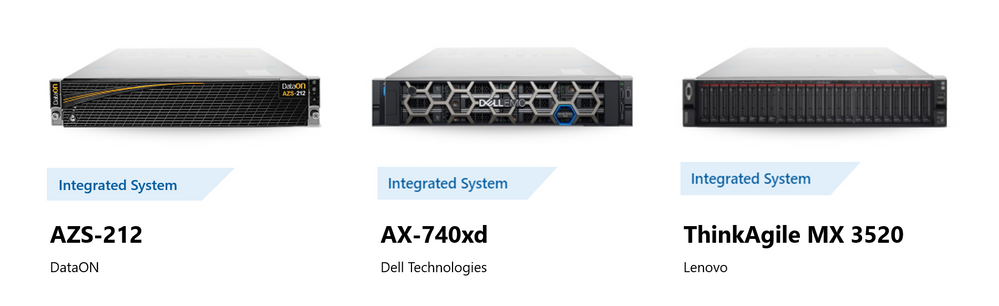
Integrated Systems are available to order today from DataON, Dell Technologies, and Lenovo.
What’s the best way to learn more? Under normal circumstances, getting hands-on with the latest datacenter hardware and learning directly from its makers it my favorite part of an in-person industry event like Microsoft Ignite conference. Alas, that hasn’t been possible this year due to the ongoing global health crisis. Lucky for you, it’s exactly the experience we’re trying to recreate with our ambitious upcoming Digital Event next week!
Azure Stack HCI Partner Solutions Showcase
Together with our friends at Intel, we’re hosting the first-ever Azure Stack HCI Partner Solutions Showcase next Tuesday. The event will kick off with three short keynote sessions, including a technical keynote where I’ll talk about the roadmap for Azure Stack HCI (hint: news and demos!). Then the event will transition to an innovative “virtual expo hall” format where you can visit and talk directly with partners including DataON, Dell, Fujitsu, HPE, Intel, and Lenovo about their solution offerings.
It all starts on Tuesday, February 23rd, 2021 from 8:00AM to 10:00AM Pacific Time. Whether you’re a system administrator, technical manager, solution architect, or other engineer, don’t miss this opportunity to hear from Microsoft, Intel, and our partners about what’s next for Azure Stack HCI and participate in the live Ask the Expert Q&A.
Register now
Did I mention it’s free? :)
Register today and I’ll see you at the Partner Solutions Showcase next week!
– Cosmos

by Contributed | Feb 16, 2021 | Technology
This article is contributed. See the original author and article here.
A drag and drop action within an app, without switching context and being compliant, is a game changer action for employees. This is especially true for Outlook emails and attachments that are deemed records. The intent, and requirement, is to put these “records” into SharePoint for enhanced tracking along with content collaboration improvements – without leaving Outlook.
The Intrazone continues to spotlight Microsoft partners, the people and companies who deliver solutions and services to empower our customers to achieve more. In our 10th partner episode, we talk with David Lavenda (VP of marketing | harmon.ie) and his customer, Daniel Stuch (Senior project lead – app dev | Bosch).
In this episode, we figuratively dig through Bosch’s emails, specifically their solution for how emails and attachments are now saved to SharePoint – readily available for future audits and e-discovery. The combined SharePoint plus harmon.ie solution helps Bosch manage millions of daily emails, including active business records that need to be accessed, shared, and worked on by numerous colleagues.
Drag and drop your mouse or finger onto the Play button, and … on with the show.
https://html5-player.libsyn.com/embed/episode/id/17960438/height/90/theme/custom/thumbnail/yes/direction/backward/render-playlist/no/custom-color/247bc1/
Subscribe to The Intrazone podcast! Listen this partner episode on harmon.ie now + show links and more below.
Left-to-right: David Lavenda (VP of marketing | harmon.ie) and his customer, Daniel Stuch (Senior project lead – app dev | Bosch). [The Intrazone guests]
Link to articles mentioned in the show:
- Hosts and guests
- Articles and sites
- Events
Subscribe today!
Listen to the show! If you like what you hear, we’d love for you to Subscribe, Rate and Review it on iTunes or wherever you get your podcasts.
Be sure to visit our show page to hear all the episodes, access the show notes, and get bonus content. And stay connected to the SharePoint community blog where we’ll share more information per episode, guest insights, and take any questions from our listeners and SharePoint users (TheIntrazone@microsoft.com). We, too, welcome your ideas for future episodes topics and segments. Keep the discussion going in comments below; we’re hear to listen and grow.
Subscribe to The Intrazone podcast! And listen this partner episode on harmon.ie now.
Thanks for listening!
The SharePoint team wants you to unleash your creativity and productivity. And we will do this, together, one partner at a time.
The Intrazone links
![Left to right [The Intrazone co-hosts]: Chris McNulty, director (SharePoint/Viva – Microsoft) and Mark Kashman, senior product manager (SharePoint – Microsoft).](https://www.drware.com/wp-content/uploads/2020/11/large-375 "Chris-Mark_in-studio.jpg") Left to right [The Intrazone co-hosts]: Chris McNulty, director (SharePoint/Viva – Microsoft) and Mark Kashman, senior product manager (SharePoint – Microsoft).
Left to right [The Intrazone co-hosts]: Chris McNulty, director (SharePoint/Viva – Microsoft) and Mark Kashman, senior product manager (SharePoint – Microsoft).
 The Intrazone – a Microsoft podcast that covers the Microsoft 365 intelligent intranet: https://aka.ms/TheIntrazone.
by Contributed | Feb 16, 2021 | Technology
This article is contributed. See the original author and article here.
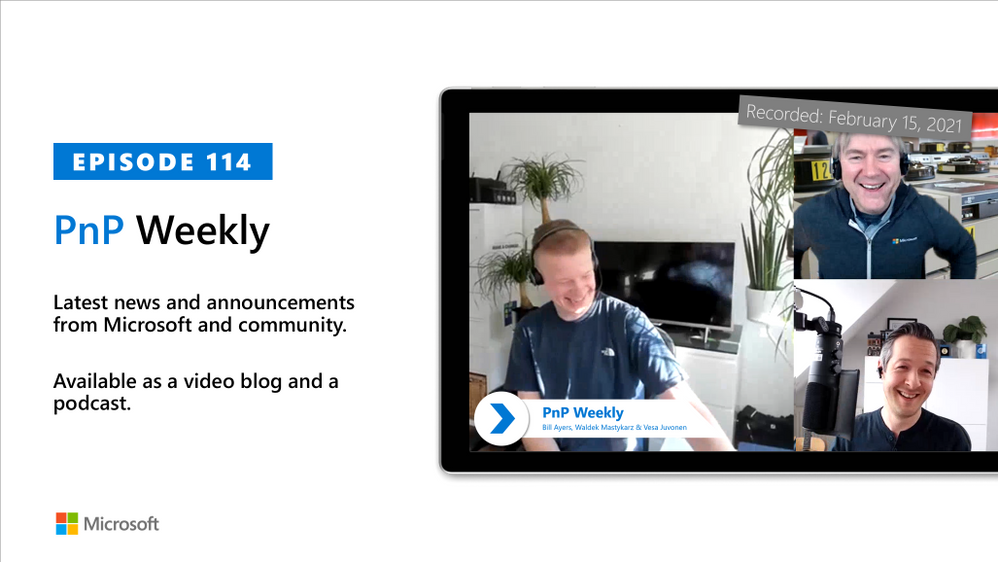
In this installment of the weekly discussion revolving around the latest news and topics on Microsoft 365, hosts – Vesa Juvonen (Microsoft) | @vesajuvonen, Waldek Mastykarz (Microsoft) | @waldekm, are joined by UK-based Office Development MVP, MCT, MCM, focused on Microsoft 365, Microsoft Teams, mobile and AI/ML – Bill Ayers (Flow Simulation Ltd) | @SPDoctor.
In this session Bill shares his tips on dealing with data overload, technology updates, event management, and religious like enthusiasm. His advice – learn broadly, go deep as necessary to solve specific problem, avoid reacting to notifications, beware of same functionality, new name. Adopt latest technology when clear business reason is established.
The session was recorded on Monday, February 15, 2021.
Did we miss your article? Please use #PnPWeekly hashtag in the Twitter for letting us know the content which you have created.
As always, if you need help on an issue, want to share a discovery, or just want to say: “Job well done”, please reach out to Vesa, to Waldek or to your Microsoft 365 PnP Community.
Sharing is caring!
by Contributed | Feb 15, 2021 | Technology
This article is contributed. See the original author and article here.
Before we dive into the differences between Azure Lab Services and Windows Virtual Desktop, let’s first get an overview of each one.
What is Azure Lab Services?
Azure Lab Services (AzLabs) enables institutions to quickly set up and manage classroom labs in Azure. Inside a lab, an educator can easily set up Windows or Linux VM learning environments, assign VMs to students, manage the student roster, and control students’ VM usage. Students see all of their lab resources in a single view and connect to lab VMs for their projects, assignments, and classroom exercises. AzLabs is a managed service that simplifies the experience of using Azure resources for teachinglearning. This means that AzLabs fully manages the cloud infrastructure running behind classroom labs on behalf of the institution. For more information, refer to the AzLabs documentation.
What is Windows Virtual Desktop?
Windows Virtual Desktop (WVD) is Azure’s platform desktop and app virtualization service. WVD is not necessarily education-specific and addresses a wide range of virtualization scenarios across industries. WVD enables organizations to provide users with a full desktop experience for Windows 10, Windows Server, or Windows 7. In addition, WVD enables remote application access, which can be used to provide users with direct access to individual Windows applications, such as Office 365’s Excel or Word applications. WVD is also a managed service since it manages the connections to VMs; however, organizations have greater responsibility when it comes to configuring and managing the involved AAD tenant and infrastructure. For more information, refer to the Virtual Desktop documentation.
Which Do I Use?
Here is a general guide on when to use Azure Lab Services and Windows Virtual Desktop.
Azure Lab Services
AzLabs is optimized to manage classroom labs’ underlying cloud infrastructure on behalf of institutions. With AzLab’s easy to use experience, institutions can quickly set up customized teaching/learning environments for time-boxed events, such as a course running for a semester or a hackathon running for a weekend. AzLabs is lightweight in the sense that labs are created only when you need them and cleaned up when you don’t.
AzLabs is best suited to:
- Enable both IT and educators to quickly set up and manage VMs without technical expertise.
- Provide VM learning environments that can be deleted and easily recreated as needed.
- Control and minimize the costs by managing students’ usage hours on the VMs.
- Estimate costs using a simplified pricing model.
- Provide students with admin access to their own individually assigned VM environment.
- Use multiple applications and tools in conjunction with each other.
- Create both Windows and Linux VMs.
The following list includes example types of classes that institutions have run that showcase where AzLabs is ideal to use:
- Computer programming class – A computer programming class typically requires a development environment, such as Visual Studio, and involves various debugging toolsemulators that must be used in conjunction with one another. This type of class may also require students to make configuration changes to the VM environment itself.
- Data science class – Data science classes are similar to computer programming classes because student workloads involve a variety of deep learning frameworks and tools. Since the process to train machine learning models is often GPUCPU intensive, students may need their own VM for optimal performance.
- Cybersecurity class – In a cybersecurity class, students need access to several VM environments so that they can practice scenarios where one VM demonstrates a vulnerability and another is used to exploit the vulnerability. For this class, each student is provided a Windows Server host VM that has several nested VMs.
For further information on how to use AzLabs to set up various class types, refer to the class types overview.
Windows Virtual Desktop
WVD is optimized to minimize costs by sharing and scaling a pool of VMs across users within an organization. WVD is not education-specific, nor is it focused on the teaching/learning experience. WVD offers highly configurable Windows virtualization experiences, but with this flexibility comes complexity. WVD requires your organization’s IT to be involved in its setup and management of the backing AAD tenant and infrastructure.
WVD is best suited to:
- Give access to individual Windows line-of business or Office 365 apps.
- Provide users with continuous, 24-hour access to apps or desktop environments.
- Minimize costs by sharing and scaling pooled VMs across users.
Here are some educational use cases where WVD is ideal to use:
- Virtual computers for libraries or offices – Institutions looking to replace general-use Windows computers, such as library computers, with a cloud-based offering can use a virtualized environment for this purpose. For example, library computers usually provide students with access to basic applications such as Office and a browser.
- Accounting class that only needs Excel – WVD’s remote app virtualization is ideal for classes that only need to provide students with access to a single application.For example, an accounting class where the students need to learn and have access to Excel.
There are additional factors that should be considered when choosing between these two offerings. The following table summarizes key comparison points based on the current functionality for each offering.
Later in this guide we cover these points in detail and provide a roadmap of upcoming features that will impact these comparison points in the future.
|
|
Azure Lab Services
|
Windows Virtual Desktop
|
1.
|
Setup and management
|
Educators are provided a simplified experience (that requires no technical expertise) to easily set up and manage labs within the policies set by their IT department.
|
IT is solely responsible for setting up and managing the pool of VMs and related resources since technical expertise and access to the institution’s Azure subscription is required.
|
2.
|
WindowsLinux support
|
VMs are provisioned with the flexibility of choosing from a variety of base images, including Linux, various versions of Windows, and custom images.
|
VMs can be provisioned specifically with Windows 10, Windows Server 20162019, or Windows 7 based images (no Linux). Custom images are supported for the previously mentioned Windows versions.
|
3.
|
Student account
domain access
|
Students connect using an Office 365 account, Azure Active Directory email account or personal Microsoft accounts.
|
Users connect using an Office 365 account that is synchronized with an on-premise Active Directory.
|
4.
|
Persistent student workspace
|
Students’ work and data on the VM is persistent across sessions until a lab’s template VM is republished or the lab is deleted.
|
With FSLogix profile containers, users have persistent access to their user settings and their user profile folder which includes subfolders such as Desktop, Documents, Music, Pictures, etc. User profiles are maintained across VMs and when VMs are reimaged.
Like Lab Services, users may also be assigned their own dedicated VM so that their work and data is persistent across sessions for the lifetime of the VM.
|
5.
|
Device connection
|
Students may connect from any device that has a native remote desktop client installed; this includes Windows, Android, MacOS or iOS device.
Also, supports connecting from a modern browser.
|
Same as AzLabs.
In addition, supports IGEL (linux-based) thin clients, with more thin clients coming soon.
|
6.
|
Cost control
|
IT and educators can limit exactly how many hours that students can use a lab’s VMs by setting user schedules and quotas – this ensures the budget is never exceeded.
|
Provides cost savings by sharing VMs across users and scaling VMs to automatically startstop during specified hours – scaling drops costs by 30% on top of the savings from sharing VMs.
There is no ability to set user quotas.
|
7.
|
Pricing model
|
The pricing model is simplified to bundle the cost of storage, networking, and VMs into a single price point.
|
The pricing model is based on the cost of storage, the type of VM used, and networking; institutions are responsible for factoring in these costs.
|
Additional details
Here are comparison points in more detail.
1. Setup and Management
A key decision point to consider is how an institution plans to divide the responsibility of setup and management across their IT department and educators. AzLabs enables educators to self-sufficiently manage their own lab of VMs within the boundaries set by their IT department. WVD is managed entirely by an institution’s IT department.
Azure Lab Services
AzLabs only requires that a lab account and its policies be set up and managed by their IT department; the lab account serves as a management container for one or more classroom labs. Once the lab account is created, educators are granted permission to create and self-manage their classroom labs. Specifically, educators can independently perform the following tasks using AzLabs’s simplified user experience:
- Create, update, and delete VMs.
- Select the base image and install additional softwaretooling on VMs.
- Save and share custom images for reuse.
- Set a schedule for VMs so that they are automatically startedstopped.
- Set a quota for students that limits the number of hours that a VM can be used for.
- Invite students to register for a VM using their email addresses.
Windows Virtual Desktop
WVD supports many of the same tasks mentioned above, but the key difference is that an institution’s IT department must perform these tasks because administrative access to Azure computing, networking, and security resources is required. Also, setup and management of these resources requires technical expertise since this involves using the Azure Portal, PowerShell, and REST programming interfaces.
WindowsLinux Support
With both WVD and AzLabs, you can choose from custom images or images from the public gallery to provision VMs.
Azure Lab Services
AzLabs supports the ability to use a wide variety of Linux and Windows images based on the unique needs of a class.
Windows Virtual Desktop
As the name suggests, WVD is intended only be used with specific versions of Windows – specifically, Windows 10, Windows Server 20162019, and Windows 7. Here’s why:
A key benefit of using WVD is to efficiently share pooled VM resources across users; multisession capabilities are supported only for Windows 10 and Server. Windows 7 is reaching end-of-life support, so for customers that still need to use this version, they can opt to use WVD to create a Windows 7 environment while continuing to receive security updates. If you specifically need to use Windows 7, WVD is the preferred option.
Student AccountDomain Access
An educational institution may require students to use a specific type of account for accessing VM resources. As a result, it’s important to note the differences between the two offerings.
Azure Labs Services
With AzLabs, students have the flexibility of using the following types of accounts:
- A student email account that is provided by a university’s Office 365 or Azure Active Directory (AAD).
- A Microsoft email account, such as @outlook.com, @hotmail.com, @msn.com, or @live.com.
- A non-Microsoft email account, such as one provided by Yahoo or Google; however, these types of accounts must be linked with a Microsoft account.
- A GitHub account; again, this account must be linked with a Microsoft account.
Windows Virtual Desktop
For a student to access a virtualized app or desktop using WVD, they must connect with a domain account from an institution’s Azure Active Directory (AAD).
Note: AzLabs’s VMs are currently not joined to a domain; however, functionality to make it possible to
join to a domain is coming soon. WVD’s VMs are joined to the domain.
Persistent Student Workspace
Another aspect to consider is how students persist their work and data.
Azure Lab Services
For classes that require students to have dedicated access to a VM, AzLabs is designed so that each student is permanently assigned their own VM to use throughout the lifetime of the class’s lab. This means students can save their work and data directly on the VM; and their work and data are persistent across sessions. Their work and data remain persistent unless the educator chooses to republish the lab’s image from the template VM which reimages the labs’ VMs.
Windows Virtual Desktop
WVD can be configured to share pooled VMs across users. With this configuration, each time that a user connects to a virtualized app or desktop, they may be accessing a different VM. In this case, we recommend setting up an FSLogix profile containers so that a student’s profile follows them no matter which VM that they connect to in the pool. This allows them to save their work and data within their user profile folder which includes subfolders such as Desktop, Documents, Music, Pictures, etc.
It is also possible with WVD to virtualize an entire Windows desktop and assign the underlying VM to a single user – this essentially gives a user access to their own permanently assigned Windows VM where any work and data that is saved remains persisted for the lifetime of the VM. This configuration is commonly used for Windows 7 since it requires a full desktop and does not support multiuser sessions.
Device Connection
AzLabs and WVD both support connecting to VM resources using Windows, Android, macOS, and iOS devices. This requires that you install the appropriate remote desktop client on the device that you are connecting from. If you want to avoid installing this on your device, both AzLabs and WVD support the ability to connect using a modern web client.
Azure Lab Services
Refer to the following articles on how to connect to an AzLabs VM:
Connect to the VM
Connect to a VM using RDP on a Mac
Use remote desktop connection for Linux VMs
Windows Virtual Desktop
For further information on how to connect to a WVD resource, refer to the below articles. In addition, WVD is currently working with partners to enable thin clients. The first Linux-based thin client supported by WVD is IGEL.
Connect with the Windows Desktop client
Connect with the Android client
Connect with the macOS client
Connect with the iOS client
Connect with the web client
Cost Control
With AzLabs, you have explicit control over costs to ensure the expected budget is never exceeded. WVD offers cost-minimizing scaling options.
Azure Lab Services
AzLabs provides three key features that allows both IT and educators to easily and precisely control costs:
Lab schedule – You can define a one-time schedule or a recurring schedule so that VMs in the lab automatically start and shutdown at a specified time. Keep in mind that no costs are incurred when the VMs are shutdown. For more details, refer to the guide on how to create and manage schedules.
Hourly student quota – Setting an hourly student quota allows you to specify the number of hours you want to give each student (outside the scheduled lab time) to use their VM. Once the student has reached this quota, the VM is automatically shut down and the student no longer has access. You can also set additional quotas for individual students as needed. For more details, refer to guides on how to set quotas for users and set additional quota for a specific user.
Automatic shutdown of VMs – Each lab comes with a setting to auto-shutdown students’ VMs when students disconnect from the VM (e.g. RDP session ends). This feature is enabled for Windows VMs, and the Linux version is currently being worked on. To learn more, see how to enable automatic shutdown of VMs on disconnect.
Windows Virtual Desktop
WVD has the following features that provide substantial cost savings:
Load balancing – WVD provides a depth-first load-balancing method to use for cost control. This cost control method gives granular control over the number of VMs that are allocated when students connect to resources in the host pool. For more details, refer to host pool load-balancing methods.
Dynamic scaling – To reduce costs further, dynamic scaling is used to shut down and deallocate VMs during off-peak usage hours, then restart them during peak usage hours. For more details, refer to the guide on how to scale session hosts dynamically.
Pricing Model
Both AzLabs and WVD pricing models are based on paying for the storage and type of VMs that you use. However, AzLabs’s pricing model is further simplified by bundling these costs into a single price point, called a Lab Unit.
Azure Lab Services
For AzLabs, the pricing is calculated using similar cost factors as described below for WVD; refer to specific details in the Azure Lab Services pricing guide. The key difference is that the compute size, disk type, and networking costs are bundled together as a Lab Unit. A Lab Unit is the cost unit that determines the price for each VM instance within a lab.
Windows Virtual Desktop
Key cost factors associated with WVD are:
Compute size of VM instances
Disk type of VM instances (Premium SSD, Standard SSD, or Standard HDD)
Number of VM instances
Usage hours (charges are not incurred when a VM is shutdown)
Refer to details in the Windows Virtual Desktop pricing guide.







Recent Comments