by Contributed | Mar 22, 2021 | Technology
This article is contributed. See the original author and article here.
If you are trying to setup Always On availability group between SQL instances deployed as SQL containers on Kubernetes platform, then I hope that this blog provides you the required reference to successfully setup the environment.
Target:
By end of this blog, we should have three SQL Server instances deployed on the Kubernetes aka k8s cluster. With Always On availability group configured amongst the three SQL Server instances in Read scale mode. We will also have the READ_WRITE_ROUTING_URL setup to provide read/write connection redirection.
References:
Refer Use read-scale with availability groups – SQL Server Always On | Microsoft Docs to read more about read scale mode.
To prepare your machine to run helm charts please refer this blog where I talk how you can setup your environment including AKS and preparing your windows client machine with helm and other tools to deploy SQL Server instances on AKS (Azure Kubernetes Service).
Environment layout:
1) To set this environment up, in my case I am using Azure Kubernetes Service as my Kubernetes platform.
2) I will deploy three SQL Server container instances using helm chart in a Statefulset mode you can also deploy this even using deployment mode.
3) I will use T-SQL scripts to setup and configure the always on availability group.
Let’s get the engine started:
Step 1: Using helm deploy three instances of SQL Server on AKS with Always on enabled and create external services of type load balancer to access the deployed SQL Servers.
Download the helm chart and all its files to your windows client, switch to the directory where you have downloaded and after you have done modification to the downloaded helm chart to ensure it is as per your requirement and customization, deploy SQL Servers using the command as shown below, you can change the deployment name (“mssql”) to anything that you’d like.
helm install mssql. --set ACCEPT_EULA.value=Y --set MSSQL_PID.value=Developer
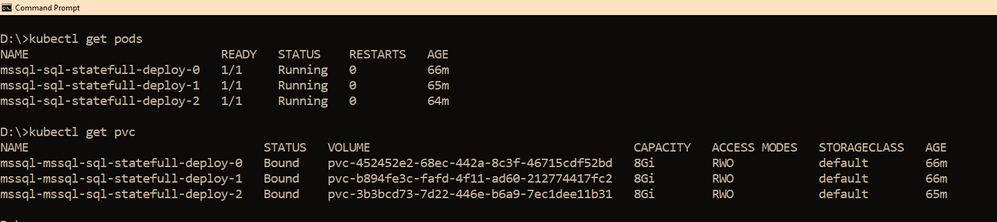
Within few minutes, you should see the pods coming up, the number of pods that would be started depends on the “replicas” value you set in the values.yaml file, if you use it as is, then you should have three pods starting up, as the replicas value is set to three. So you have three SQL Server instances using its own pvc’s up and running as shown below
We also need a way to access these SQL Servers outside the kubernetes cluster, and since I am using AKS as my kubernetes cluster, to access the SQL Server instances, we have created three services one each for the SQL Server pod. The yaml file for the services is also shared with the helm chart under the folder “external services” and the yaml file name is : “ex_service.yaml”. If you are using the sample helm chart, you can create the services using the command shown below:
kubectl apply -f "D:helm-chartssql-statefull-deployexternal servicesex_service.yaml"
Apart from the three external services, we will also need the pods to be able to talk to each other on port 5022 (default port used by AG for endpoints on all the replicas) so we create one clusterip service for each pod, the yaml file for this is also available in the sample helm chart under the folder “external services” and the file name is “ag_endpoint.yaml”. If you have not made any changes then you can create the service using the command:
kubectl apply -f "D:helm-chartssql-statefull-deployexternal servicesag_endpoint.yaml"
If all the above steps are followed you should have the following resources in the kubernetes cluster: 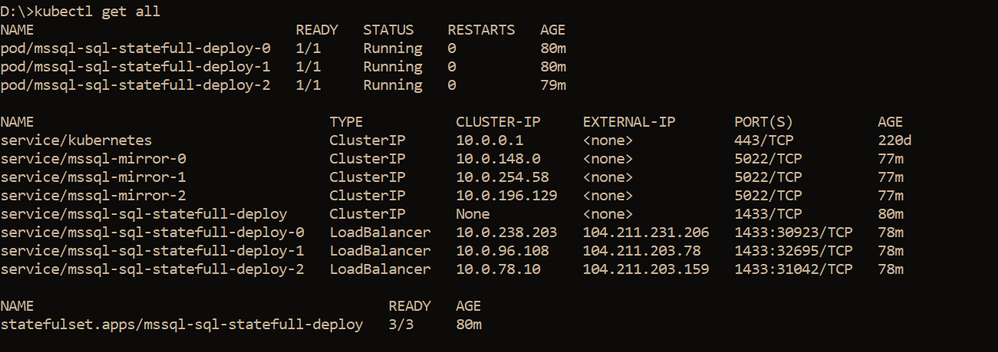
Note: On our cluster, we already have a secret created to store sa password using the command below, the same sa password is being used by all the three SQL Server instances. It is always recommended to change the sa password after the SQL container deployment so the same sa password is not used for all three instances.
kubectl create secret generic mssql --from-literal=SA_PASSWORD="MyC0m9l&xP@ssw0rd"
Step 2: Create Certificates on primary and secondary replicas followed by creation of endpoints on all replicas.
Now it’s time for us to create the certificate and endpoints on all the replicas. Please use the External IP address to connect to SQL Server primary instance and run the below T-SQL command to create the certificate and endpoint.
--In the context of master database, please create a master key
use master
go
CREATE MASTER KEY ENCRYPTION BY PASSWORD = '<'mycomplexpassword'>';

--under the master context, create a certificate that will be used by endpoint for
--authentication. We then backup the created certificate
-- to copy the certificate to all the other replicas

CREATE CERTIFICATE dbm_certificate WITH SUBJECT = 'dbm';

BACKUP CERTIFICATE dbm_certificate TO FILE = '/var/opt/mssql/data/dbm_certificate.cer'
WITH PRIVATE KEY ( FILE = '/var/opt/mssql/data/dbm_certificate.pvk',ENCRYPTION BY PASSWORD = '<'mycomplexpassword'>');

--Now create the endpoint and authenticate using the certificate we created above.
CREATE ENDPOINT [Hadr_endpoint]
AS TCP (LISTENER_PORT = 5022)
FOR DATABASE_MIRRORING
(
 ROLE = ALL,
 AUTHENTICATION = CERTIFICATE dbm_certificate,
 ENCRYPTION = REQUIRED ALGORITHM AES
);
ALTER ENDPOINT [Hadr_endpoint] STATE = STARTED;
On the primary SQL Server instance pod, we should have the dbm_certificate.pvk and dbm_certificate.cer files at the location : /var/opt/mssql/data. As shown below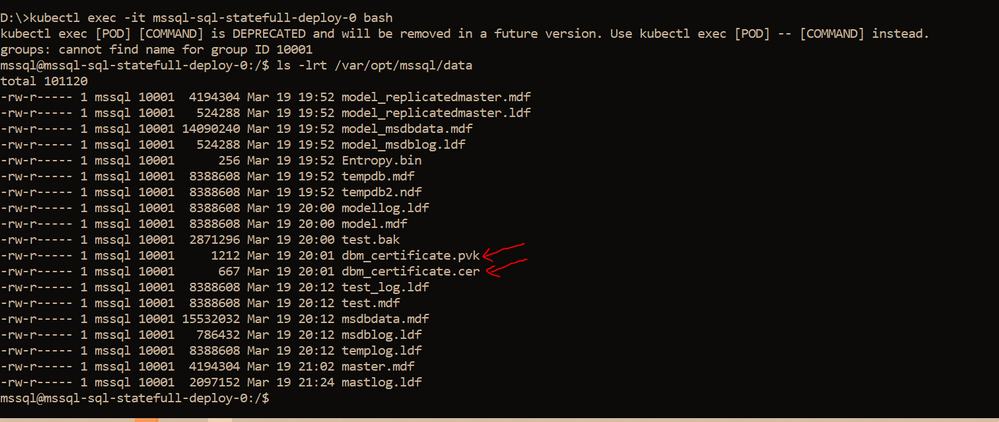
We need to copy these files to the other pods, you can use the kubectl cp commands to copy from the primary pod to your local client and then from the local client to the secondary pods. Sample commands are shown below
--Please ensure on the local machine you create the certificates folder and then run the --below command to copy the files from primary pod to the local machine
kubectl cp mssql-sql-statefull-deploy-0:/var/opt/mssql/data/dbm_certificate.pvk "certificatepvk"
kubectl cp mssql-sql-statefull-deploy-0:/var/opt/mssql/data/dbm_certificate.cer "certificatecer"
--Now copy the files from the local machine to the secondary pods
kubectl cp "certificatecerts" mssql-sql-statefull-deploy-1:/var/opt/mssql/data/dbm_certificate.cer
kubectl cp "certificatepvk" mssql-sql-statefull-deploy-1:/var/opt/mssql/data/dbm_certificate.pvk
kubectl cp "certificatecerts" mssql-sql-statefull-deploy-2:/var/opt/mssql/data/dbm_certificate.cer
kubectl cp "certificatepvk" mssql-sql-statefull-deploy-2:/var/opt/mssql/data/dbm_certificate.pvk
Post this the files should be available on every pod as shown below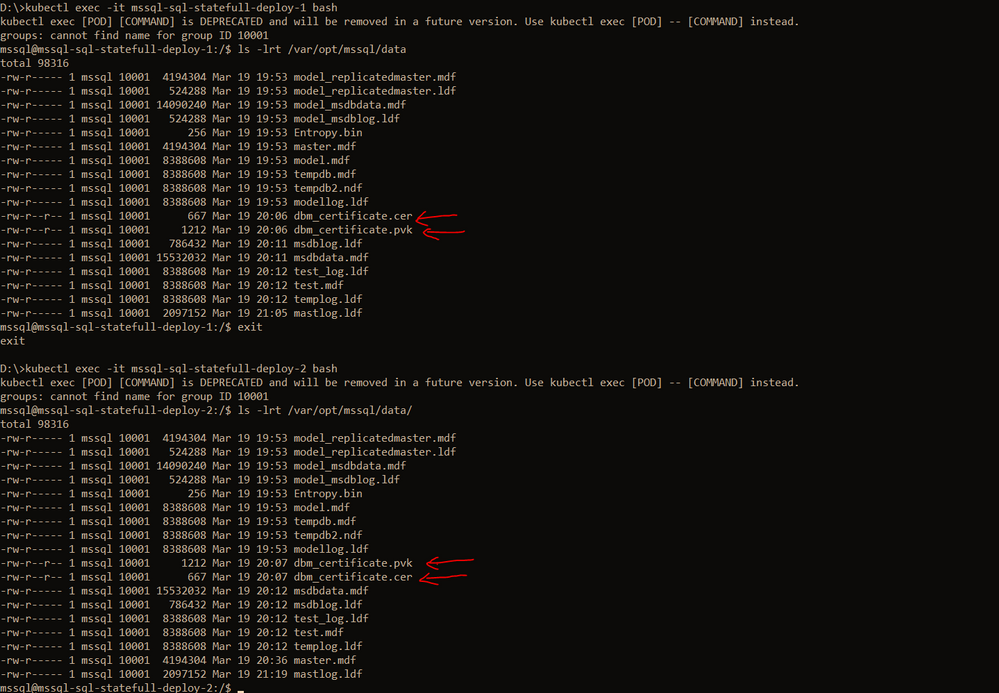
Please create the certificates and endpoints on the secondary replica pods by connecting to the secondary replicas and running the below T-SQL commands:
--Run the below command on secondary 1&2 : mssql-sql-statefull-deploy-1 & mssql-sqlstatefull-deploy-2
--once the cert and pvk files are copied create the cert here on secondary and alsocreate the endpoint

CREATE MASTER KEY ENCRYPTION BY PASSWORD ='<'mycomplexpassoword'>';

CREATE CERTIFICATE dbm_certificate FROM FILE =
'/var/opt/mssql/data/dbm_certificate.cer'
WITH PRIVATE KEY ( FILE = '/var/opt/mssql/data/dbm_certificate.pvk',
DECRYPTION BY PASSWORD = '<'mysamecomplexpassword'>' );

CREATE ENDPOINT [Hadr_endpoint]
AS TCP (LISTENER_PORT = 5022)
FOR DATABASE_MIRRORING (
	    ROLE = ALL,
	    AUTHENTICATION = CERTIFICATE dbm_certificate,
		ENCRYPTION = REQUIRED ALGORITHM AES
		);
ALTER ENDPOINT [Hadr_endpoint] STATE = STARTED;
Step 3: Create the AG on the primary replica and then join the secondary replicas using T-SQL
On the primary replica run the below command to create the AG which has Read_only_routing_list configured and also has Read_write_routing_url configured to redirect connection to primary irrespective of the instance that you connect provided you pass the database name to which you want to connect.
--run the below t-sql on the primary SQL server pod
CREATE AVAILABILITY GROUP MyAg
     WITH ( CLUSTER_TYPE =  NONE )
   FOR
     DATABASE  test
   REPLICA ON
      N'mssql-sql-statefull-deploy-0' WITH
         (
         ENDPOINT_URL = 'TCP://mssql-mirror-0:5022',
         AVAILABILITY_MODE = ASYNCHRONOUS_COMMIT,
         FAILOVER_MODE = MANUAL,
         SEEDING_MODE = AUTOMATIC,
         SECONDARY_ROLE (ALLOW_CONNECTIONS = ALL, READ_ONLY_ROUTING_URL = 'TCP://104.211.231.206:1433' ),
         PRIMARY_ROLE (ALLOW_CONNECTIONS = READ_WRITE, READ_ONLY_ROUTING_LIST = ('mssql-sql-statefull-deploy-1','mssql-sql-statefull-deploy-2'), READ_WRITE_ROUTING_URL = 'TCP://104.211.231.206:1433' ),
         SESSION_TIMEOUT = 10
         ),
         N'mssql-sql-statefull-deploy-1' WITH
         (
         ENDPOINT_URL = 'TCP://mssql-mirror-1:5022',
         AVAILABILITY_MODE = ASYNCHRONOUS_COMMIT,
         FAILOVER_MODE = MANUAL,
		 SEEDING_MODE = AUTOMATIC,
         SECONDARY_ROLE (ALLOW_CONNECTIONS = ALL, READ_ONLY_ROUTING_URL = 'TCP://104.211.203.78:1433' ),
         PRIMARY_ROLE (ALLOW_CONNECTIONS = READ_WRITE, READ_ONLY_ROUTING_LIST = ('mssql-sql-statefull-deploy-0','mssql-sql-statefull-deploy-2'), READ_WRITE_ROUTING_URL = 'TCP://104.211.203.78:1433' ) ,
         SESSION_TIMEOUT = 10
         ),
         N'mssql-sql-statefull-deploy-2' WITH
         (
         ENDPOINT_URL = 'TCP://mssql-mirror-2:5022',
         AVAILABILITY_MODE = ASYNCHRONOUS_COMMIT,
         FAILOVER_MODE = MANUAL,
		 SEEDING_MODE = AUTOMATIC,
         SECONDARY_ROLE (ALLOW_CONNECTIONS = ALL, READ_ONLY_ROUTING_URL = 'TCP://104.211.203.159:1433' ),
         PRIMARY_ROLE (ALLOW_CONNECTIONS = READ_WRITE, READ_ONLY_ROUTING_LIST = ('mssql-sql-statefull-deploy-0','mssql-sql-statefull-deploy-1'), READ_WRITE_ROUTING_URL = 'TCP://104.211.203.159:1433'),
         SESSION_TIMEOUT = 10
         );
GO

ALTER AVAILABILITY GROUP [MyAg] GRANT CREATE ANY DATABASE;
Note: In the above command, please ensure that you pass the service names that you created in step 1 for the enpoint_url and you pass the external IP address of the SQL Server pods when configuring the read_write_routing_url option. Any error here can result in the secondary’s not able to join the AG.
Now on the secondary replicas please run the T-SQL command to join the AG, sample shown below
--On both the secondaries run the below T-SQL commands
ALTER AVAILABILITY GROUP [MyAg] JOIN WITH (CLUSTER_TYPE = NONE);
ALTER AVAILABILITY GROUP [MyAg] GRANT CREATE ANY DATABASE;
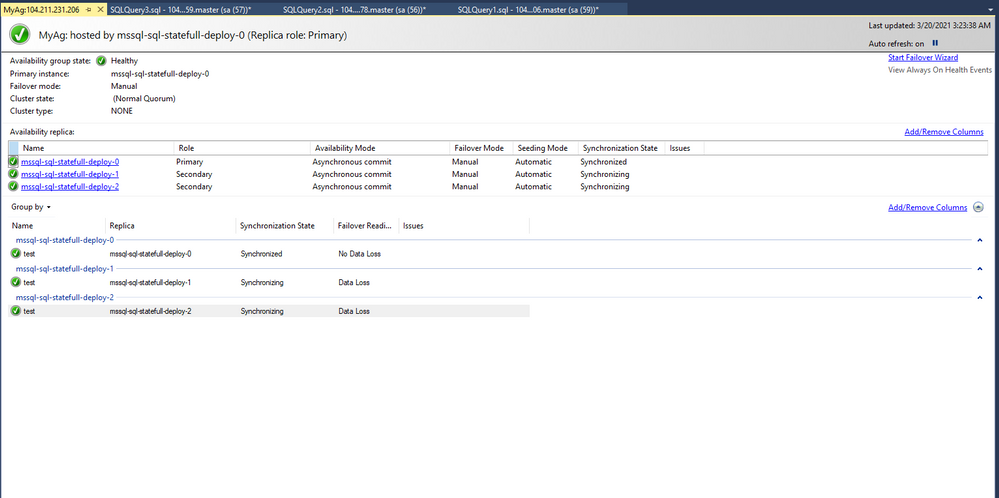
The AG should not be configured and the dashboard should look as shown below
Step 4: Read_write_routing_url in action
You can now try connecting to any of the secondary replicas and provide the AG database as the database context, you will automatically get routed to the current primary even without the presence of listener.
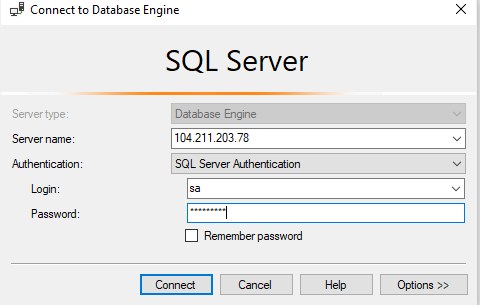
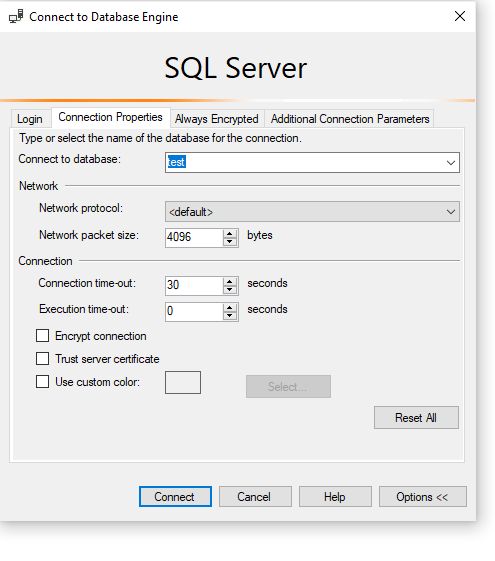
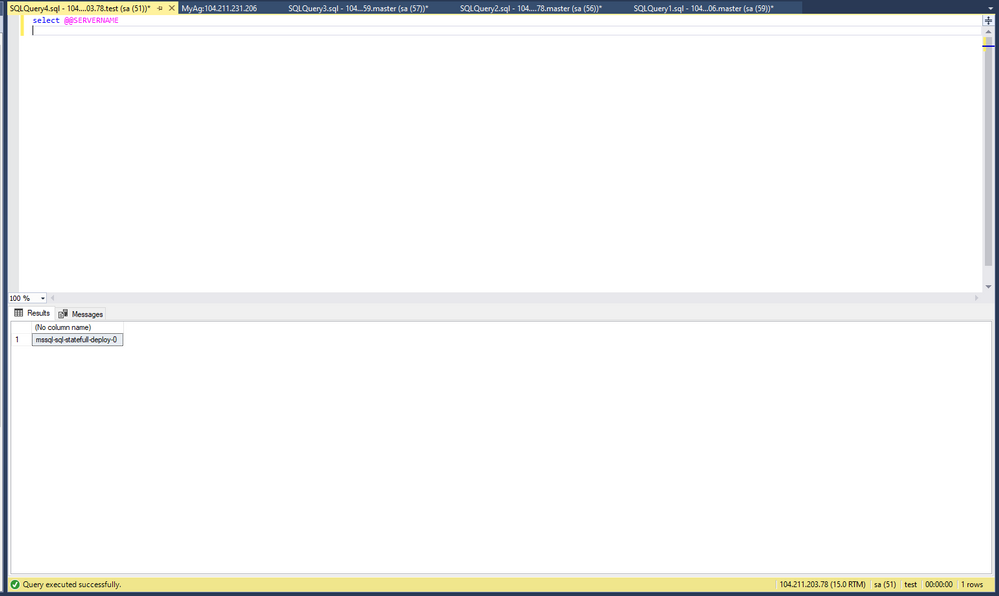
As you can see we are connecting to 104.211.203.78 which is the external IP address for pod: mssql-sql-statefull-deploy-1 which is secondary server, but the connection got re-routed to the current primary which is : mssql-sql-statefull-deploy-0 @ 104.211.231.206
To try manual failover, please follow the steps documented here.
Hope this helps!

by Contributed | Mar 22, 2021 | Technology
This article is contributed. See the original author and article here.
Over the past 19 years of the Imagine Cup, we’ve seen student projects encompassing issues in healthcare, accessibility, education, gaming, sustainability, travel, recreation, and beyond. Student ideas are unique in the passion, creativity, and perspective they bring – not just in new ways to solve global problems, but also how to improve our society as a whole and create a brighter and more inclusive future for all. The Imagine Cup aims to give these ideas the foundation, resources, and mentorship to showcase them on a global stage.
Where do our teams go after competing? We caught up with some Imagine Cup alumni from the past few years to find out what they’ve been up to.
Hollo, Hong Kong
2020 Imagine Cup World Champion
Since winning the trophy in 2020, Hollo has been hard at work expanding their business and growing their team. We chatted to Co-founder and CEO, Cameron van Breda, to see how Hollo’s grown across the past year. As a smart AI-powered preventative platform, Hollo’s app aims to improve individual mental health by integrating Machine Learning with suggestive diagnosis, therapy, and continual monitoring.
“{We’ve} been working on researching our AI technology further as well as growing our team and product. We’ve continued to work with local mental health NGOs and professionals to get the app and supporting web-app to be more polished over time.” Cameron shared the team’s 3 biggest achievements from 2020, which include: growing their team to a group of 10 (including data scientists, developers, psychologists, and interns), developing his personal management skills, and securing more business alliances for future projects.
The team also launched a new business under Hollo this year, Blossom, targeted towards enhancing women’s wellbeing. “Blossom was {our} way of testing how we can take the data we’ll have on our users and give them more value and bring them closer together as a community. Our team thought this would be a great experience to bring impact to a space that is really important. Blossom specifically targets helping {women} feel better…whilst building infrastructure as a social enterprise to bring impact to young women with workshops and community events around wellbeing in general.”
As part of their prize for winning the World Championship, the team also had the opportunity to meet with Microsoft CEO, Satya Nadella, earlier this year to receive mentorship and advice. The top takeaway for Hollo? “We took the chance to ask Satya for some feedback on a proposed research collaboration with the Microsoft Research departments that focus on AI. Our vision is to connect researchers from Microsoft, Hollo, and the University of Hong Kong, to create a breeding ground of innovation and application of AI for good. We felt like the values of Microsoft in using AI for increasing accessibility in Healthcare aligned with our goals, and so we opened the door for shared value creation.”
Tremor Vision, United States
2020 Imagine Cup World Finalist
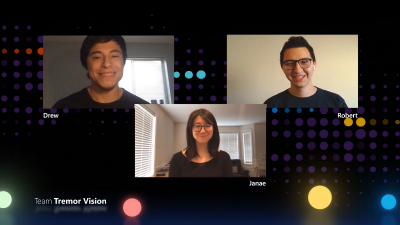
Tremor Vision is a web-based tool that uses Microsoft Azure Custom Vision to enable physicians to detect early onset Parkinson’s disease and quantitatively track patients’ progress throughout a prescribed treatment plan. After competing in the 2020 World Championship, Tremor Vision’s Janae Chan landed a Software Engineering role at Microsoft, and her Imagine Cup experience helped her stand out from the crowd. “It was a good conversation starter and a unique experience for me personally. I was very excited to talk about it. In reviews and recruiting fairs, I would talk about it with passion and kick off conversations that opened opportunities. It makes you memorable. We’re proud of this project and want to share.”
Janae shared that while the team are now all working in separate remote locations and it’s been challenging to grow Tremor Vision the way they wanted over the past year, they still get together virtually to collaborate. “It’s a chatty group, so we’re collaborative online, with lots of ideas flying back and forth. We’re hanging out but also working. We’re night owls and might end up on a long call working and chatting.” Despite the challenges of our current world, Janae has been most excited about the response that Tremor Vision received after competing. “It’s kind of wild. People are reaching out post–Imagine Cup to ask to try Tremor Vision or to help with development. We’ve heard from people with Parkinson’s. We’ve had people from Microsoft reach out internally to team members. We’ve heard from lots of people with family and friends who have Parkinson’s. We had a platform to share and wanted to reach out.”
The team have continued to dig deeper to uncover more ways to make their project beneficial for users: “In further development, we’ve been doing user research and asking people with Parkinson’s what challenges they face, and learning what challenges other people face in taking care of someone with Parkinson’s. It’s a community collaboration effort to reach people. It’s impactful and worthwhile.” Ultimately, the team would like to reach clinical trials with their project to support more Parkinson’s patients.
Other highlights from past competitors
For their 2019 Imagine Cup project, Finderr created an Artificial Intelligence app solution to help visually impaired individuals find lost objects through their phones. Since competing, Finderr has continued working on their project, added new members to their team, and recently launched their iOS app in the App Store.
2018 World Finalists iCry2Talk have also continued to work on their app to translate a baby’s cry, making it available to download and giving numerous presentations since competing, including a TEDXAUTH talk. 2018 World Champions, team smartARM, had the opportunity to share their Machine Learning powered robotic prosthetic hand with Canadian Prime Minister Justin Trudeau.
2016 competitor Petros Psyllos is recognized by American and Polish Forbes in the top 30 brightest young inventors under 30 in Poland. He’s received over 17 main awards at national and international level in the field of invention, and also won a Microsoft Research Special Award.
These are just a few examples out of hundreds of other competitors who continue to innovate, inspire, and impact every day. We’re so glad the Imagine Cup was a part of their journey to make a difference with tech.
Advice for the next Imagine Cup World Champion
Our 2021 World Finalists are currently refining their project pitches for the chance to move forward in the competition. Looking for some preparation advice? Take a World Champion’s top 3 tips from Hollo:
- Keep it simple – the judges may not have tech related backgrounds, so really sell how the innovation simplifies or adds value to whoever it’s benefitting.
- Keep it succinct – you don’t have much time to convey every part of your product and business, so focus on what matters.
- Show how you bring value to users – there are many great ideas and features, but they might not be sustainable as a business. Keep this in mind as you build and pitch! The Imagine Cup is a great experience to compete and gain a funding opportunity to start your business.
Follow the journey of this year’s World Finalists to see who’ll move forward to compete for USD75,000 and mentorship with Microsoft CEO, Satya Nadella. Who will take home the trophy? Stay tuned on Instagram and Twitter.
by Contributed | Mar 22, 2021 | Technology
This article is contributed. See the original author and article here.
This document is provided “as is.” MICROSOFT MAKES NO WARRANTIES, EXPRESS OR IMPLIED, IN THIS DOCUMENT. This document does not provide you with any legal rights to any intellectual property in any Microsoft product. You may copy and use this document for your internal, reference purposes.
|
As announced at Ignite 2021, Azure Defender for DNS is available in Public Preview. This new Azure Defender plan provides threat detection for azure resources connected to the Azure DNS, the intent is to detect malicious communication from an Azure resource and malicious DNS servers trying to compromise with an Azure resource. To learn more about Azure Defender for DNS, read our official documentation. During the public preview time you can enable Azure Defender for DNS without any additional charge, just go to Price & settings, select the subscription, change the plan to ON (as shown below) and click Save to commit the change.

Now that you have this plan set to ON, you can use the steps below to validate this threat detection:
- Provision a new VM and keep the default TCP/IP configuration (by default all VMs will connect to Azure DNS).
- Connect to this machine using RDP.
- Create a file on this machine called DNSAlertSim.ps1 and paste the content below in this file:
Resolve-DnsName bbcnewsv2vjtpsuy.onion.to
Resolve-DnsName all.mainnet.ethdisco.net
Resolve-DnsName micros0ft.com
Resolve-DnsName 164e9408d12a701d91d206c6ab192994.info

For($i=0; $i -le 150; $i++) {
$rand = -join ((97..122) | Get-Random -Count 32 | % {[char]$_})
Resolve-DnsName "$rand.com"
}

$rand = -join ((97..122) | Get-Random -Count 63 | % {[char]$_})
Resolve-DnsName "$rand.contoso.com"

For($i=0; $i -le 1000; $i++) {

$rand = -join ((97..122) | Get-Random -Count 63 | % {[char]$_})
Resolve-DnsName "$rand.contoso.com"
}

Resolve-DnsName reseed.i2p-projekt.de

Write-Host -NoNewLine 'Press any key to continue...';
$null = $Host.UI.RawUI.ReadKey('NoEcho,IncludeKeyDown');
- Save this file
- Execute DNSAlertSim.ps1
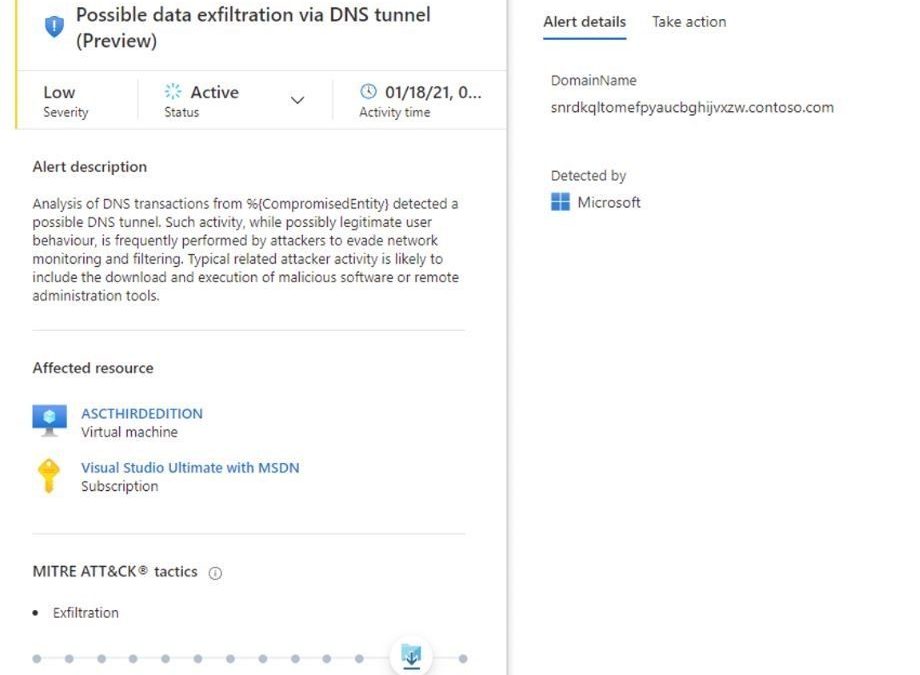
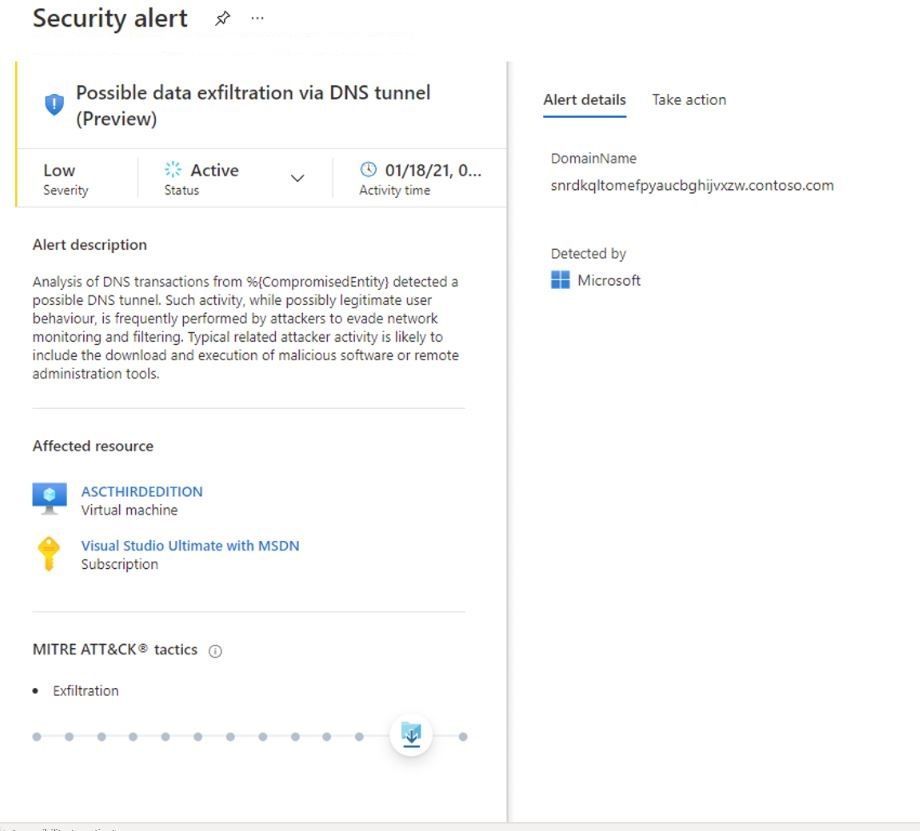
After some minutes you should see Azure Defender for DNS alerts showing up on your dashboard, similar to the one below:
For a complete list of all analytics available for Azure Defender for DNS, read this documentation.
Reviewers
Tal Rosler, Program Manager
Script by John Booth, Senior Software Engineer
by Contributed | Mar 22, 2021 | Technology
This article is contributed. See the original author and article here.
At Microsoft, we recognize the need to easily and securely collaborate with people outside of your business. Organizations need to engage with vendors, partners, customers, consultants and other stakeholders while adhering to privacy and security policies and protocols that keep your business running smoothly. In December, we announced a preview for Azure AD business-to-business (B2B) guest support in Yammer and today, we are excited to announce that Guest Access in Yammer powered by Azure B2B is now generally available.
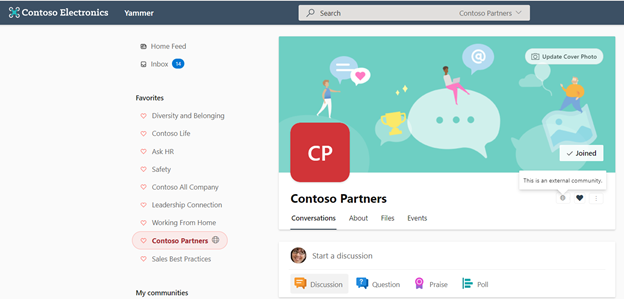
Communities with external members are denoted by a globe icon.
What is Azure Active Directory B2B?
Azure B2B collaboration enables you to share your company’s applications and services with guest users from any other organization, while maintaining control over your own corporate data. Work safely and securely with external partners, large or small, even if they don’t have Azure AD or an IT department.
How can you enable the Azure AD B2B guest functionality in your Yammer network?
If your Yammer network is provisioned after December 15th, 2020 then Azure AD B2B guest functionality is already enabled by default for you. Community admins in your Yammer network can add guests to their communities. Note: Yammer network should be aligned to Native Mode to enable Azure AD B2B guest functionality.
The functionality is now available to all existing Yammer networks but disabled by default. Yammer network admins can enable guest access on their networks from Yammer admin center > Security Settings > External messaging settings.
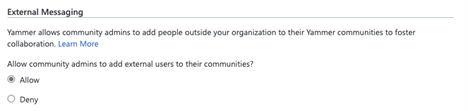
Azure AD B2B guest support in Yammer brings the following capabilities:
- Robust policies for guest invitations and providing access give administrators full control over who can invite guests, which organizations guests can be invited from, and which communities they can be invited to.
- Simplification of guest modes in Yammer with community level guests. A guest can be added to any specific Yammer community based on the admin policy instead of the entire network.
- Easy and compliant external collaboration (within Europe networks) for Yammer networks with data based in the EU geo.
- Parity between participation in Yammer communities across all Yammer experiences (web, mobile (Android / iOS).
- Guests access to community resources like files stored in SharePoint.
- Ability to review guest membership and block unauthorized guest access through Azure AD access reviews and track the guest lifecycle through Azure AD audit logs.
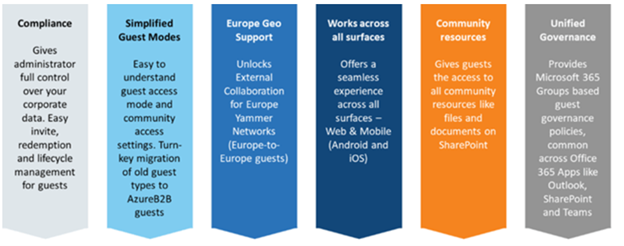
Learn more about Guest Access in Yammer here. We’re continuing to invest in features and capabilities that foster engagement and deliver value to businesses. Stay tuned for updates soon.
Nagaraj Venkatesh
Nagaraj is a PM on the Yammer engineering team
Resources:
Business-to-business (B2B) Guest support in Yammer Preview – Customer Terms and FAQ – Yammer
Microsoft 365 guest sharing settings reference | Microsoft Docs
by Contributed | Mar 22, 2021 | Technology
This article is contributed. See the original author and article here.
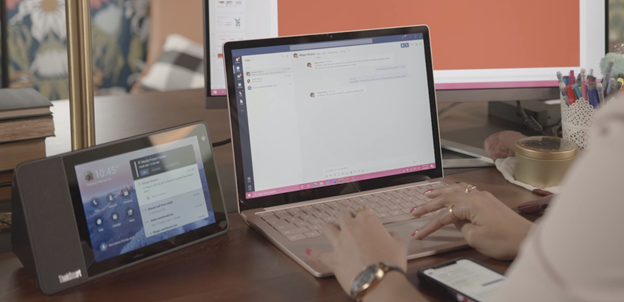
The Teams display experience was built from the roots up knowing that the modern worker needs to balance getting individual work done while engaging in multiple forms of collaboration. To help streamline communications, stay on top of tasks, and save users time we created the ultimate second screen that is dedicated to productivity. This experience running on the Lenovo Thinksmart View, pairs easily with your PC in BetterTogether mode, and uses the power of Teams and AI to keep you in the flow of work.
In this update to theTeams display experience, we are excited to bring enhancements to Cortana, and new capabilities in meetings and chat .
Get your facts fast with Cortana + Bing
In one of our best demonstrations of collaboration, the voice activated AI capabilities in Cortana now leverage Bing to fetch information from the internet and present to users. Imagine you are collaborating with someone in a different time zone, use commands like:
“Hey Cortana, what time is it in New York?”
“Hey Cortana, what’s the weather in New York?”
“Hey Cortana, how much does a flight to New York cost?”
When Cortana and Bing work together they help you stay in the know with relevant facts and information just when you need them, at the sound of your voice.
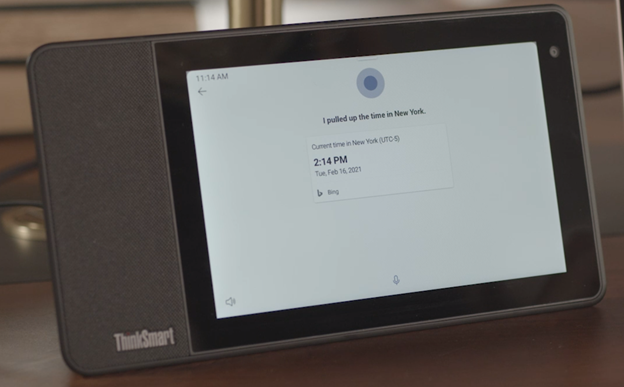
Get ready Canada, Australia, UK, and India, Cortana is coming!
With this app update, users in select English speaking markets will be able to access Cortana and the Bing skills mentioned above. Have Cortana show you your schedule, send messages, make calls, and more in additional geographies starting now.
Swap out your background for the occasion
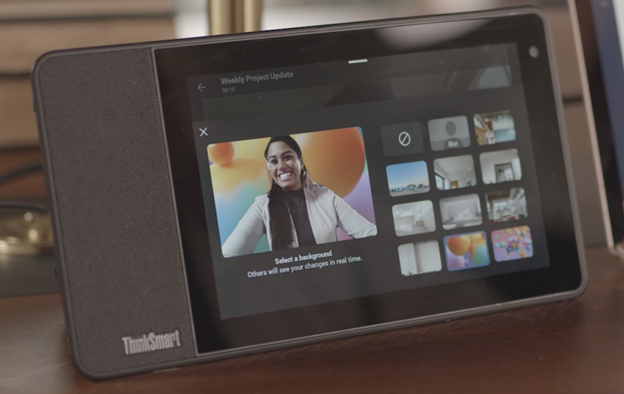
We knew users loved being able to change their backgrounds in Teams meetings and calls on their PC and are thrilled to bring this experience to the display. With a few taps of a finger users can not only blur what’s going on behind them, but upload any of our Teams backgrounds to suit their mood or occasion. A messy room, housemates’ motion, or even weather can be distracting in a meeting. In order for users to present themselves with confidence, we believe this feature will be helpful and fun. Is there a team celebration? Try the balloon background! Virtual happy hour? A trip to the beach can set the scene.
A round of applause goes to…live reactions in meetings!
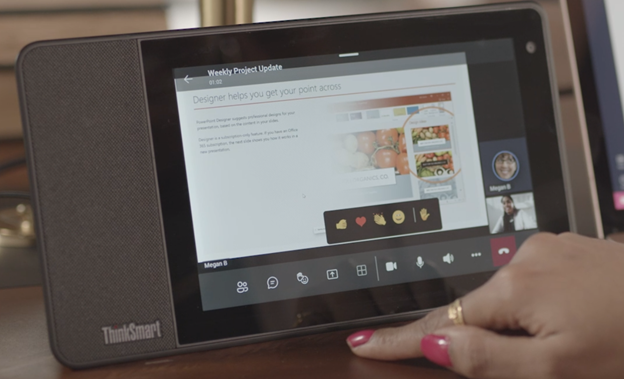
Did your teammate say something impressive that you want to agree with? Is your manager highlighting a colleague’s achievement that you want to support? Or maybe the new hire on the team is sharing their excitement to start work with you? All these situations elicit genuine human emotions like enthusiasm, happiness, and empathy. While where we work has changed, the desire to express these emotions hasn’t. Now in the Teams display experience users can show emotions like support, applause, love and laughter during a meeting. Additionally, you can see what your meeting members are thinking without disrupting an ongoing meeting. Consider asking a question and asking participants to submit their thoughts via live reactions to get a quick survey on participant sentiment. The possibilities are endless and we are excited about this new way to stay engaged during meetings!
When “read” receipts aren’t enough, send quick responses!
Now on the ambient screen users have the ability to press and hold incoming chats for a variety of options. Like, love, laughter, surprise, disappointment and frustration can all be expressed easily for a quick display of reaction to new information. Additionally, using the power of AI, quick responses are generated that a user can choose from. Suppose you get the following message:
“I will send the file over later today.”
The display experience will suggest appropriate responses like:
“Thank you” “I understand” “Looking forward to it”
The user can easily select what’s appropriate for the context and send away without context switching or missing any beats.
With every update we are excited to bring new and innovative experiences that both help users maximize productivity and bring delight to the way they work. We hope these enhancements will make you more productive, save you time, and help you bring your best self to work, from wherever you may be!
by Contributed | Mar 22, 2021 | Technology
This article is contributed. See the original author and article here.
Posted originally May 20, 2020, and updated March 22, 2021
Whether you’re a professional developer or you write code for fun, developing with Microsoft Azure puts the latest cloud technology and best-in-class developer tools at your fingertips. You can even use your preferred language to build for the cloud. How do you prove to the world that you have these modern skills?
The Azure Developer Associate certification validates that you have what it takes to design, build, test, and maintain cloud applications and services on Azure. You earn it by passing Exam AZ-204: Developing Solutions for Microsoft Azure.
If your responsibilities include all phases of cloud development—from requirements definition and design, to development, deployment, and maintenance, performance tuning, and monitoring—this is the certification for you.
What kind of knowledge and experience should you have?
As a candidate for this certification, you should have one or two years of professional development experience, including experience with Azure. Other requirements include the ability to program in a language supported by Azure. Proficiency in Azure SDKs, Azure PowerShell, Azure CLI, data storage options, data connections, and APIs is also important, along with experience in app authentication and authorization, compute and container deployment, debugging, performance tuning, and monitoring.
How can you get ready?
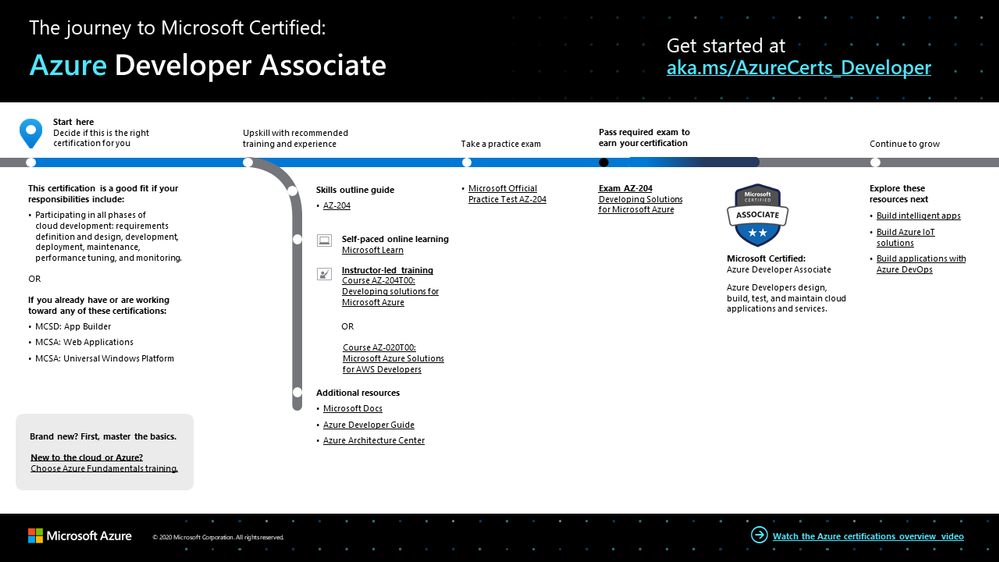
To help you plan your journey, check out our infographic, The journey to Microsoft Certified: Azure Developer Associate. You can also find it in the resources section on the certification and exam pages, which contains other valuable help for Azure developers.
Azure Developer Associate certification journey
To map out your journey, follow the sequence in the infographic. First, decide whether this is the right certification for you.
Next, to understand what you’ll be measured on, review the Exam AZ-204 skills outline guide on the exam page.
Sign up for training that fits your learning style and experience:
Complement your training with additional resources, like Microsoft Docs, the Developer’s Guide to Azure, or the Azure Architecture Center.
Then take a trial run with Microsoft Official Practice Test AZ-204: Developing Solutions for Microsoft Azure. All objectives of the exam are covered in depth, so you’ll find what you need to be ready for any question.
After you pass the exam and earn your certification, check out the many other certification opportunities. Want to add to your toolkit? Consider skilling up on AI apps or in DevOps.
Note: Remember that Microsoft Certifications assess how well you apply what you know to solve real business challenges. Our training resources are useful for reinforcing your knowledge, but you’ll always need experience in the role and with the platform.
Celebrate your Azure talents with the world
When you earn a certification or learn a new skill, it’s an accomplishment worth celebrating with your network. It often takes less than a minute to update your LinkedIn profile and share your achievements, highlight your skills, and help boost your career potential. Here’s how:
- If you’ve earned a certification already, follow the instructions in the congratulations email you received. Or find your badge on your Certification Dashboard, and follow the instructions there to share it. (You’ll be transferred to the Acclaim website.)
- To add specific skills, visit your LinkedIn profile and update the Skills and endorsements section. Tip: We recommend that you choose skills listed in the skills outline guide for your certification.
Keep your certification up to date
If you’ve already earned your Azure Developer Associate certification, but it’s expiring in the near future, we’ve got good news. You can now renew your current certifications by passing a free renewal assessment on Microsoft Learn—anytime within six months before your certification expires. For more details, please read our blog post Is your certification expiring soon? Renew it for free today!
Plus, effective June 2021, a certification is valid for one year from the date you earned it. This shift aligns with the rapid evolution of cloud technology and skills. Get more information in our blog post Stay current with in-demand skills through free certification renewals.
It’s time to level up!
As a developer, when you grow your Azure skills, you can take advantage of more than 200 services to build, deploy, and manage applications—in the cloud, on-premises, and at the edge—using the tools and frameworks of your choice. Earn your certification, and open up new possibilities for your career and for turning your ideas into solutions on Azure.
Related announcements
Understanding Microsoft Azure certifications
Finding the right Microsoft Azure certification for you
Master the basics with Microsoft Certified: Azure Fundamentals
by Contributed | Mar 22, 2021 | Technology
This article is contributed. See the original author and article here.
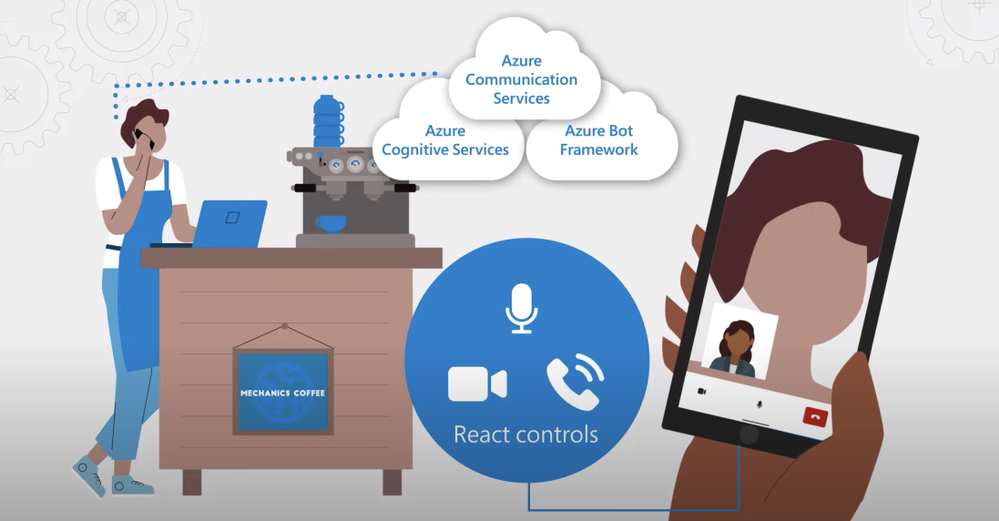
Tour the newest updates to Azure Communications Services (ACS). Microsoft CVP, Scott Van Vliet, joins host Jeremy Chapman to give you the details, from core capabilities generally available this month, to new capabilities available in preview, including interoperability with Microsoft Teams and using the Azure Bot Framework to enable Intelligent Voice Response.
If you’re new to Azure Communications Services, it’s a new platform for building rich custom communication experiences that leverage the same enterprise-grade services that back Microsoft Teams all through Azure.
Generally available later in March 2021:
- Foundational capabilities with voice, video chat, SMS and PSTN calling
- Bring your own existing phone numbers via direct routing with your own SIP trunks.
Public preview:
- ACS’s interoperability with Microsoft Teams
- Integration with Azure bot framework for IVR scenarios.
- UI controls: starting with react controls for video calls and expanding controls available on GitHub
- To automate, use a no-code approach in ACS with Logic App Designer
QUICK LINKS:
01:17 — Updates to foundational capabilities: voice, video chat, SMS and PSTN calling
02:49 — Public preview: interoperability with Teams, bot framework, UI controls
03:26 — Demo: see Communication Services in action
07:02 — How to get it working
08:05 — No-code approach using Logic App Designer
10:28 — What’s next for ACS?
10:45 — Wrap Up
Link References:
Find out more and get started at https://aka.ms/GetStartedWithACS
For the public preview of new features for Azure Communications Services, go to https://aka.ms/ACSPreview
Unfamiliar with Microsoft Mechanics?
We are Microsoft’s official video series for IT. You can watch and share valuable content and demos of current and upcoming tech from the people who build it at Microsoft.
Video Transcript:
– Up next on this special edition of Microsoft Mechanics we’re joined once again by Microsoft CVP Scott Van Vliet to take a look at the latest updates to Azure Communication Services. From core capabilities generally available this month for your production workloads and new capabilities available in preview, such as interoperability with Microsoft Teams, integration with the Azure Bot Framework for intelligent voice response, and new UI controls and much more. So Scott, welcome back to the show.
– Great to be back Jeremy, thanks for having me.
– And thanks so much for joining us from home today. So last time you were on the show about six months ago, we introduced Azure Communication Services. In fact, to catch everyone up if you’re new to the service, it’s a new platform for building rich custom communication experiences that leverage the same enterprise-grade services that back Microsoft Teams all through Azure. Now these are exposed via a selection of APIs and SDKs, and this allows you to hook in the capabilities like voice and video calling over IP, one-to-one and group chat, text messages for SMS, telephony calling with PSTN and deliver authenticated experiences over your identity service of choice to any app, browser, PC and mobile platform, as well as IoT devices on the Edge via Azure, one of the fastest real-time communication networks in the world. So Scott, how have things evolved since the last time you were on Mechanics?
– Well, We have been busy and I’m happy to tell you that the foundational capabilities you mentioned with voice, video, chat, SMS and PSTN calling are generally available this month. As part of this, while you can access ACS anywhere in the world, we are expanding our global telephony coverage beyond toll-free numbers in the US, starting with phone numbers available in the UK and Ireland next month, with dozens more countries coming by the end of the year. You’ll also be able to bring your own existing phone numbers via direct routing with your own SIP trunks.
– That’s really great news, especially given the interest that we’ve seen in the service from our last show. But how are you seeing this then being leveraged?
– There’s been an amazing response to Azure Communication Services across various industries. And this translates to millions of voice and video minutes and tens of millions of chat and SMS messages as many of you experiment with custom app communication experiences. And one of my favorite use cases is from Norwegian company Laerdal Medical, who provide training and education products for life-saving and emergency medical care. They developed a TCPR link app that uses Azure Communication Services to connect their volunteers administering CPR with medical dispatchers via video streaming. So they can get in-the-moment, just-in-time expert feedback as they perform CPR to improve the quality of treatment and patient survival rates. Now they estimate the app will reduce CPR error and save thousands of lives every year.
– And that’s really a great example of real-time communications. And I’m sure we’ll see even more examples now with the general availability of core services coming soon. But there’s more for everyone to look forward to that you’ve just launched today as part of the public preview.
– We have, and this is actually what I’m going to be demonstrating today in the next few minutes. This includes Azure Communication Services interoperability with Microsoft Teams and integration with Azure Bot Framework to connect chat bots to traditional telephone numbers so that the bot can speak responses via natural language processing from Azure Cognitive Services for interactive voice response or IVR scenarios. And lastly, an overwhelming number of you have requested UI controls. So we’ve started with react controls for video calls and we’ll be expanding to controls available on GitHub over the next few months.
– Can we see how this would work in action?
– Well, of course. So Jeremy, last time we talked I was having trouble with my refrigerator and I showed you how we could build a simple customer support video chat application using Azure Communication Services. I thought we could revisit that customer support scenario, but this time take a look at some of the awesome integrations we made into Office and Azure with a Microsoft Teams meeting, Microsoft Graph, and the Bot Framework. So I’m having trouble with my car and I couldn’t resist visiting the Microsoft Mechanics.
– That’s why we’re here.
– So I’m going to contact the Microsoft Mechanics by dialing the 1800 number on their website. And I’ll be greeted by a bot. As we go through this you’ll be able to see the logic behind the bot with the decision tree, for its responses on the side. So I’ll dial the number and wait for the bot to pick up.
– [Bot] Hello and welcome to the Microsoft Mechanics customer support bot. Am I speaking with Scott?
– Yes.
– [Bot] Hi Scott. I see you recently purchased a vehicle from us. How can I help you today?
– Well, I’m having a mechanical issue.
– [Bot] Okay. Can you tell me more about the issue?
– My car is making a rattling noise coming from inside.
– [Bot] Let me transfer you to someone. Would you like to continue on a voice call or a video call.
– Lets do a video call.
– [Bot] I’ve set up an appointment with a technician. Look out for an SMS message at this number with a direct link to the video call. Is there anything else I can help you with today?
– No, that’s it. Thank you so much. So at this stage, once I receive and tap into the SMS I’ll be in a video call with the technician who is on Teams. In this case, that’s you Jeremy. So I’m going to tap in on my phone and be on hold on while I’m waiting for you.
– Okay Scott. So why don’t you head over to your car and we’re going to take the call from there. Okay. So now if we switch over to my screen, I’m in the support channel in Microsoft Teams and I can see a message from the bot. Now it’s already checked my calendar. It knows that I’m free and it’s letting me know that Scott is waiting for a technician. And it’s even provided a description of the issue that he’s facing. So I’ve got now all the contexts I need. And from here I can join the video call. So I’ll go ahead and admit Scott into the meeting. Okay, so I can see you now Scott. And I understand that you’ve got a noise coming from the interior of your car. So why don’t we troubleshoot this a bit further? Can you tell me about the noise, when you hear it, What it sounds?
– Sure, let me flip the camera here so you can see what I’m looking at. So the noise is kind of this plasticky rattling sound coming from the center of car. And it kind of happens when I go over bumps. And so I’ve checked the vents. I’ve also checked the center console here. I’ve also checked the cup holders and even I’ve checked the glove box and I can’t find out what’s going on.
– Are you sure you’ve checked all the compartments?
– I think so.
– What about the overhead console there?
– Oh, here yeah. I usually keep my sunglasses in here. Let me take a look.
– All right so I think I just saw the problem. There’s a little man that’s in your sunglass holder.
– This guy? Oh man, my kids keep coming into my truck and they’ve got to stop doing this.
– So I have a feeling this is going to take care of your rattle. Is there anything else I can help you with?
– No, I think you’ve solved the problem. Thank you so much.
– Perfect. No problem. So while Scott heads back, just a quick recap. So we just saw IVR integration with escalation to Microsoft Teams, adding a video feed for the caller. And the UI controls that were on Scott’s phone: those are also part of the new public preview. So I’ll go ahead and admit Scott.
– Yeah, this is the next chapter in building rich real-time communication experiences with Azure Communication Services.
– And the great thing is it feels like a super high-touch experience from the conversational, intelligent virtual assistant all the way up to the various escalations that we saw to a human expert, in this case it was me. So how did you get all of this working?
– Well, let me show you the code. First, I can use the Bot Framer Composer to quickly visualize the flow of my interactive voice bot. And here’s the decision tree that the bot goes through with each interaction. I can test and debug this flow as a text-based chat bot that uses LUIS and Azure Cognitive Services for natural language understanding. And I can also publish to Azure, right from the composer. You can see here on the flow, where the bot made a decision: when I asked it to talk to an agent. It could have connected directly via PST into a phone number and I would have started talking immediately to a live person. Or it can follow the path I’ve demoed here where it used Microsoft Graph and Azure Communication Services to set up a Microsoft Teams meeting with the technician and send a join link to the customer via SMS message.
– So what did you use then to navigate the logic and flow that was needed to automate all those steps?
– Well, I could write this in native code using the Azure Communication Services STKs for .net or JavaScript, for example. But there is a much easier, no code path using a logic app. So here I am in the logic app designer. First, I’m going to create an HTTP request. This is the HTTP endpoint that my IVR bot will call to send the SMS message. I’m going to paste in an example JSON payload that I would send. The designer automatically parses that data and builds a schema for me with the customer’s name, the meeting join link and the phone number. Now I can add an Azure Communication Service step to send an SMS message. The phone number I have for my Azure Communication Services resource is available from the dropdown, and the parameters from the HTTP request are already available for me to use as inputs to the send SMS connector. So I’ll put in a phone number here, and I’ll create a custom message with the customer’s name and a link to join that Microsoft Teams meeting. Now I can take this URL and paste it back into the Bot Composer.
– Okay, so now we have the bot connected to the service. We’re creating Teams meetings and sending SMS text messages. But what did you have to do then to get this all working with the phone number?
– So from the Azure Portal, I can connect the bot to a PSTN phone number. I’ve already connected this bot to the direct line speech and web chat channels. I can now also connect the bot to the PSTN phone number using Azure Communication Services. I’ll click on the Telephony channel down here and add in the phone number, the end point information and the access key from my Azure Communication Services resource.
– With those pieces in place, how did you then set up the inter-op between Microsoft Teams and your app?
– Well, that’s the next step. My service backend can call Microsoft Graph APIs and set up the meeting. Here from Microsoft Graph Explorer, I can test out the query I want to use. I’ll post to the online meetings create or get API with the meeting information. This returns a boatload of metadata about the meeting. For my Azure Communication Services app to connect to the Teams call, I’ll need the tenant ID and the thread ID. I just pass this information into the Communication Services APIs when I join a group meeting. The Microsoft Mechanics mobile web app uses all the same APIs that are available to all Azure Communication Services apps to join and connect and interact with the video call.
– Awesome. So this looked pretty straight forward to recreate all those different steps. And it’s really great to see the latest round of functionality, but I know you and the team are never done. So what are you working on next?
– We really appreciate getting all the feedback from you. In fact, we’re working on connecting several cool capabilities, such as call recording and live transcription to Azure Cognitive Services so that you can do things like sentiment analysis. And there’s a lot more coming that I’ll share with you next time.
– Okay. So if you want to get started building out some of this stuff, what do you recommend?
– Well, you can start kicking the tires now with the core features of voice, video, chat, SMS and PSTN calling generally available this month. And you can find out more at aka.ms/GetStartedWithACS. For the public preview of the next features for Azure Communication Services, you can find more information at aka.ms/ACSPreview and that includes the interoperability with Microsoft Teams.
– Awesome stuff. Thanks again so much for joining us today, Scott. And hopefully we answered all of your questions about Azure Communication Services and let us know what you think. And also keep watching Microsoft Mechanics for the latest tech updates. Subscribe if you haven’t already and we’ll see you next time.
by Contributed | Mar 22, 2021 | Technology
This article is contributed. See the original author and article here.
We just released new features and capabilities to the Microsoft Live Video Analytics (LVA) service and if you are thinking about Live Video Analytics (LVA) on a Windows IoT device, an Azure Percept DK (dev kit), or on other edge devices powered by AI acceleration from NVIDIA and Intel, then you will really want to learn more about it! Organizations can now drive the next wave of business automation via AI-powered, real-time analytic insights from their own video streams with Microsoft Live Video Analytics (LVA).
In line with Microsoft’s vision of simplifying AI and IoT at the edge from silicon to service, the new features and capabilities we announced at the Microsoft Ignite 2021 event will allow you to deploy LVA capabilities seamlessly on Windows IoT devices, for you to build intelligent video analytics systems leveraging and capitalizing on your Windows expertise and investments. We have also ensured that LVA functions on the new family of Azure Percept devices and works seamlessly across our partner platforms such as Intel and NVIDIA.
With our focus on ensuring a consistent experience for video analytics solutions developers, irrespective of the OS and of underlying hardware acceleration platform, here are the new capabilities that help complete your end-to-end scenarios:
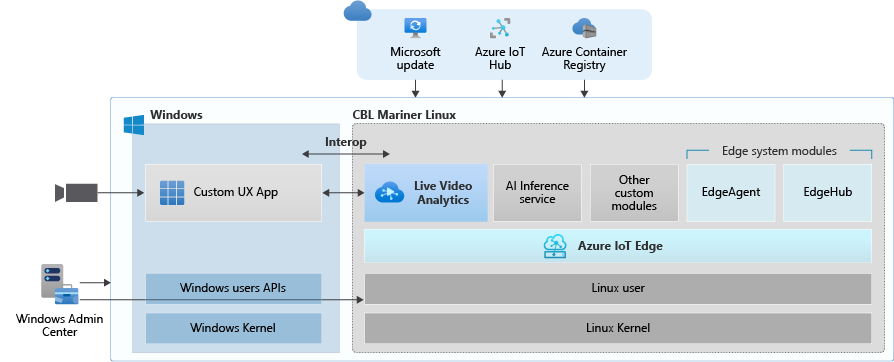
- Deploy LVA with Azure IoT Edge for Linux on Windows (EFLOW) : Leverage LVA to build and deploy Video Analytics workflows on Windows IoT devices with EFLOW.
- LVA with Azure Percept: At Ignite 2021, we announced Azure Percept, an end-to-end platform for creating edge AI solutions in minutes with hardware accelerators built to integrate seamlessly with Azure AI and Azure IoT services. LVA can be leveraged on Percept to record and stream videos from edge to cloud to help you deliver business insights in real time.
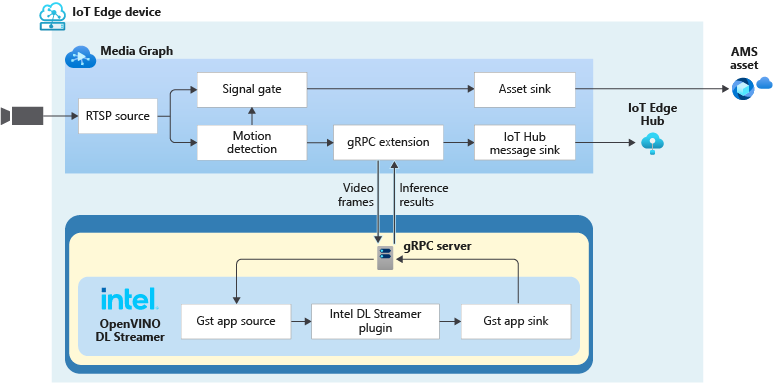
- Intel OpenVINO DL Streamer – Edge AI Extension with LVA: With the latest release of OpenVINO’s DL Streamer – Edge AI Extension from Intel, you can leverage it alongside LVA to detect, classify, and track multiple object classes (e.g., person, vehicle, bike) at high efficiency on a variety of Intel HW architectures
- NVIDIA DeepStream — AI Skills and AI Acceleration for LVA: With the latest DeepStream release (5.1), you can now deploy LVA across multiple cameras for object detection, classification and tracking on NVIDIA GPUs.
Since the preview launch of the Live Video Analytics (LVA) platform on June 2020, we evolved product capabilities and strengthened our platform to meet partner and customers’ needs in the version 2.0 refresh announced in Feb 2021 and related announcements. Additionally, we have a set of exciting capabilities that are not in the public domain yet, but we are getting ready to announce them soon at Build 2021. Please reach out to us (amshelp@microsoft.com) to learn more.
Leverage Windows edge devices as LVA processors
As a customer in industries like Manufacturing, Retail, Public Safety etc. you may have many Windows devices that are enabled as IoT sensors and processing devices. Along with Windows IoT, there is also a growing trend of Linux based containerized microservices backed by cloud-based ISV ecosystem especially for video analytics in real time. Many customers we talk to want to leverage their existing assets, be it cameras, Windows IoT devices or other IoT sensors to derive real time business intelligence by applying AI to video.
Using LVA on EFLOW you get the best of both worlds – a Windows IoT device that leverages existing Windows tooling, infrastructure investment and IT knowledge, Azure managed and deployed as well as gathering business insights via Linux based Live Video Analytics. At Ignite 2021, we delivered a set of simple steps, that can help you bring LVA and EFLOW together and unleash the power of LVA’s media graph on Windows IoT Edge devices.
As an example, you could be a retail store owner with cameras and network video recorders powered by Windows IoT and today the video might be archived and manually reviewed. With LVA and EFLOW, the operator can easily deploy Linux-based Azure Live Video Analytics on Windows, leveraging their existing Windows expertise and investments and could go from having a basic video recording system to an intelligent video analytics solution that can trigger actions driven by AI. You can also learn more about EFLOW, currently in Public preview about its features and deployments.
Live Video Analytics with Azure Percept
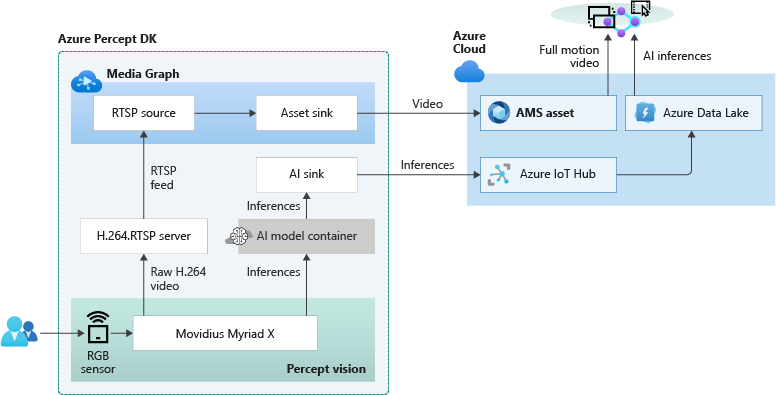
At Ignite 2021, our leadership team has announced Azure Percept that focuses on extending AI to the edge with an end-to-end platform that integrates Intel Movidius Myriad X vision processing unit (VPU) hardware accelerators with Azure AI and Azure IoT services and is designed to be simple to use and ready to go with minimal setup.
Percept helps customers overcome one of the key challenges of navigating the end-to-end edge AI solution creation. As a solution builder, you might already have a working AI model that you want to leverage as part of an end-to-end video analytics solution. We have partnered with the Azure Percept team to provide you with a reference solution. You can get started today by ordering your dev kit and leveraging the GitHub code.
As seen from the reference solution’s architecture below, Azure Percept leverages LVA to record video to the cloud, so that when combined with analytics metadata from the AI, you get a solution for object counting in pre-defined zones. You can visualize the results thanks to video streaming and playback capabilities of LVA.
LVA with Intel’s OpenVINO DL Streamer – AI Edge Extension
Last year, we announced an integration of LVA with Intel’s OpenVINO Model Server –Edge AI Extension module via LVA’s HTTP extension processor. This enabled our customers to run AI inferences such as object detection and classification on a variety of Intel hardware architectures (CPU, iGPU, VPU) at the edge and use cloud services like Azure Media Services and Azure IoT. At Ignite 2021, with the announcement of the OpenVINO DL Streamer – AI Edge Extension module, we are enabling additional capabilities over a highly performant gRPC extension processor while keeping the core OpenVINO inference engine the same to scale across the Intel architectures. With this integration you can now get object detection, classification and tracking for high frame rate video across multiple classes. See this tutorial for more details.
With the pre-validated configurations, pre-trained models as well as scalable hardware, users can jump start solutions to improve business efficiencies across variety of use cases such as retail, industrial, healthcare or smart cities. For example, with the vehicle classification model you can see the type of vehicle and add your own business logic i.e., validate certain vehicle types are parked in the designated area. With the object tracker you can track objects of interest and map on a timeline.
Get Started Today!
- Deploy LVA with Intel DL Streamer – Edge AI Extension using this tutorial
- Explore and deploy Intel DL Streamer – Edge AI Extension Module from Azure Marketplace
- Watch the Intel Ignite 2021 session
LVA with NVIDIA’s DeepStream SDK – AI Skills and AI Acceleration
LVA and NVIDIA DeepStream SDK can be used to build hardware-accelerated AI video analytics apps that combine the power of NVIDIA graphic processing units (GPUs) with Azure cloud services, such as Azure Media Services, Azure Storage, Azure IoT, and more.
NVIDIA recently released DeepStream SDK 5.1, bringing support for NVIDIA’s Ampere architecture GPUs for massive acceleration to inference. With this release, you can leverage LVA to build video workflows that span the edge and cloud, and then combine DeepStream SDK 5.1 to build pipelines to extract insights from video.
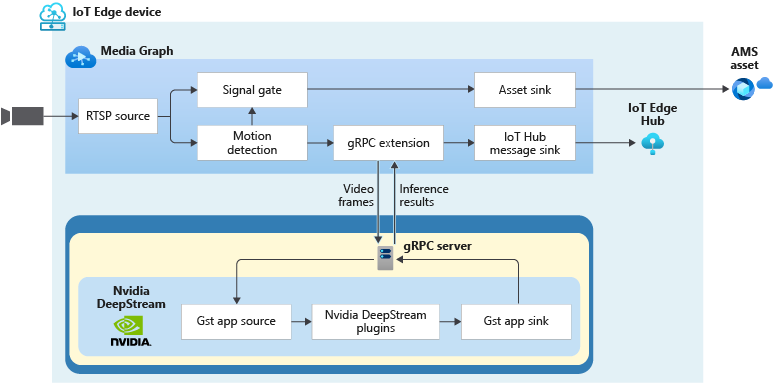
Imagine you work for a county or city government that wants to understand traffic patterns across certain times, a retailer that wants to deliver curbside pickup to certain vehicle types, or a parking lot operator that wants to understand parking lot utilization, traffic flows and monitor in real time. With LVA managing video workflows and NVIDIA DeepStream’s investment in providing optimized AI for their underlying hardware architecture combined with the power of the Azure platform, you can now develop such video analytics pipelines from cloud to edge.
You can explore some samples on GitHub that showcase the composability of both platforms and have been tested for vehicle detection, classification, and tracking on high frame rate video. Feel free to add additional object classes such as bicycle, road sign etc. to leverage detection and tracking capability.
Get Started Today!
In closing, we’d like to thank everyone who is already participating in the Live Video Analytics on IoT Edge public preview. For those of you who are new to our technology, we encourage you to get started today with these helpful resources:
And finally, the LVA product team wants to hear about your experiences with LVA. Please feel free to contact us via TechCommunity to ask questions and provide feedback including what future scenarios you would like to see us focusing on.
**Intel, the Intel logo, and other Intel marks are trademarks of Intel Corporation or its subsidiaries.
by Contributed | Mar 22, 2021 | Technology
This article is contributed. See the original author and article here.
What is Compliance Manager?
What’s in it for compliance managers and IT admins?
Watch out video blog to understand how it can help you navigate between all regulations and compliance requirements today!
Also make sure to request more video blogs here: https://forms.office.com/r/ttQLeJg3WY

by Contributed | Mar 22, 2021 | Business, Microsoft 365, Technology
This article is contributed. See the original author and article here.
n April 2020—just a month into a global pandemic that triggered a worldwide move to remote work—my team and I shared early research on how work was changing. There was so much we didn’t know back then, but we did know there was no going back. As I said at the time, “This moment will change the way we work and connect with each other forever.”
The post One year in: 7 urgent trends for leaders in the shift to hybrid work appeared first on Microsoft 365 Blog.
Brought to you by Dr. Ware, Microsoft Office 365 Silver Partner, Charleston SC.


Recent Comments