by Contributed | May 4, 2021 | Technology
This article is contributed. See the original author and article here.
In this installment of the weekly discussion revolving around the latest news and topics on Microsoft 365, hosts – Vesa Juvonen (Microsoft) | @vesajuvonen, Waldek Mastykarz (Microsoft) | @waldekm are joined by Business Applications MVP, Flow Pro Show co-host, NLightning co-founder and Technical Evangelist at SharePoint ISV Lightning Tools Sandy Ussia | @SandyU.
Topics discussed in this session include: The appeal of Power Apps and Power Automate – enabling Power Users especially in resource constrained smaller businesses, whether or not Power Apps is the epitome or fulfillment of “Good-enough IT”, Sandy 2.0, and Lightning Tools’ business in COVID times. Microsoft and the Community delivered 22 articles in this last week. This session was recorded on Monday, May 3, 2021.
Please remember to keep on providing us feedback on how we can help on this journey. We always welcome feedback on making the community more inclusive and diverse.
This episode was recorded on Monday, May 3, 2021.
These videos and podcasts are published each week and are intended to be roughly 45 – 60 minutes in length. Please do give us feedback on this video and podcast series and also do let us know if you have done something cool/useful so that we can cover that in the next weekly summary! The easiest way to let us know is to share your work on Twitter and add the hashtag #PnPWeekly. We are always on the lookout for refreshingly new content. “Sharing is caring!”
Here are all the links and people mentioned in this recording. Thanks, everyone for your contributions to the community!
Events:
Microsoft articles:
Community articles:
Additional resources:
If you’d like to hear from a specific community member in an upcoming recording and/or have specific questions for Microsoft 365 engineering or visitors – please let us know. We will do our best to address your requests or questions.
“Sharing is caring!”
by Contributed | May 3, 2021 | Technology
This article is contributed. See the original author and article here.
We recently received a report that Customization policies were failing to save when new or updated. Upon investigation, we discovered that a recent change caused generic error to be displayed when you upload a branding logo larger than 400 x 400px.
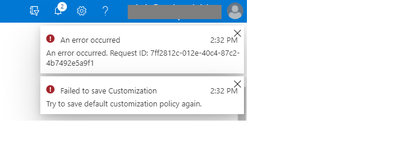
If you run into this, you’ll see the following error:
Customization policy error
To work around this, reduce the file size of your logo.
In an upcoming release, we’ll remove the 400 x 400 px maximum requirement and only the 750KB maximum will remain. Note, there is no end user impact.
Let us know if you have any additional questions on this topic by replying to this post or reaching out to @IntuneSuppTeam on Twitter.
by Contributed | May 3, 2021 | Technology
This article is contributed. See the original author and article here.
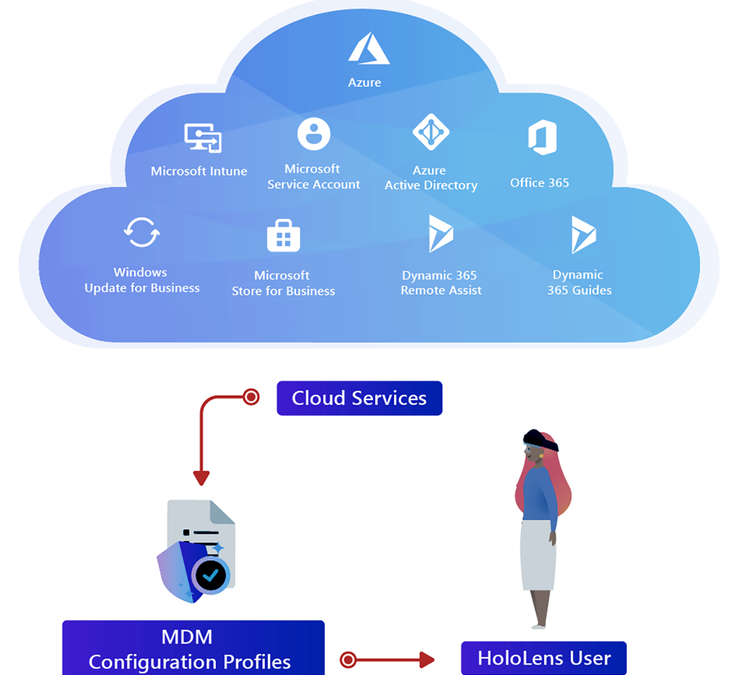
In this article, we outline the key advantages of cloud-based deployments, introduce HoloLens 2 platform fundamentals, and describe the core components needed to successfully deploy HoloLens 2 devices.
Enterprises around the globe are rapidly adopting mobile devices, such as laptops, smartphones, and mixed reality/virtual reality (MR/VR) headsets in an effort to improve workforce productivity and operational efficiency, With Microsoft HoloLens 2 and Mixed Reality solutions, you can transform your business workflows – from remote collaboration and task guidance to employee training and other use cases.
This mobile-first device landscape means that IT teams need to look for new, cost-effective ways to manage corporate devices. Historically, on-premises IT tools such as Active Directory and Configuration Manager, addressed complex desktop PC management needs. Today, the device management and IT infrastructure industries are undergoing massive modernization, moving to cloud-based services that allow for scale at an ever-increasing pace. HoloLens 2 is tightly integrated with Microsoft Azure cloud services that enable administrators to deploy devices at large scale with increased scalability, security, and reliability.
Why cloud management versus on-premises?
HoloLens 2 was designed and built as a modern, cloud-first, device. HoloLens 2 runs on the Windows Holographic OS, which is based on a “flavor” of Windows 10, that provides users, admins, and developers with a robust, performant, and secure platform. Windows Holographic supports end-to-end cloud-based device management capabilities to give companies control over their devices, data, and apps.
The table below briefly illustrates some basic differences between Windows 10 and Windows Holographic.
Topic
|
Windows 10 for desktop
|
Windows Holographic for HoloLens 2
|
Device management
|
Configuration Manager/Group Policy, mobile device management (MDM)
|
Mobile device management (MDM)
|
Identity
|
Cloud and on-premises
|
Cloud
|
Applications supported
|
Windows apps, Win32, Universal Windows Platform (UWP)
|
UWP
|
CSPs and policies
|
Yes
|
Some
|
Scripting
|
Yes
|
No
|
Direct registry access
|
Yes
|
No
|
Antivirus
|
Yes
|
Not applicable
|
It’s not an understatement that on-premises management requires heavy IT involvement. Local storage and processing of corporate data inevitably yields high-touch supervision and costly processes and tools.
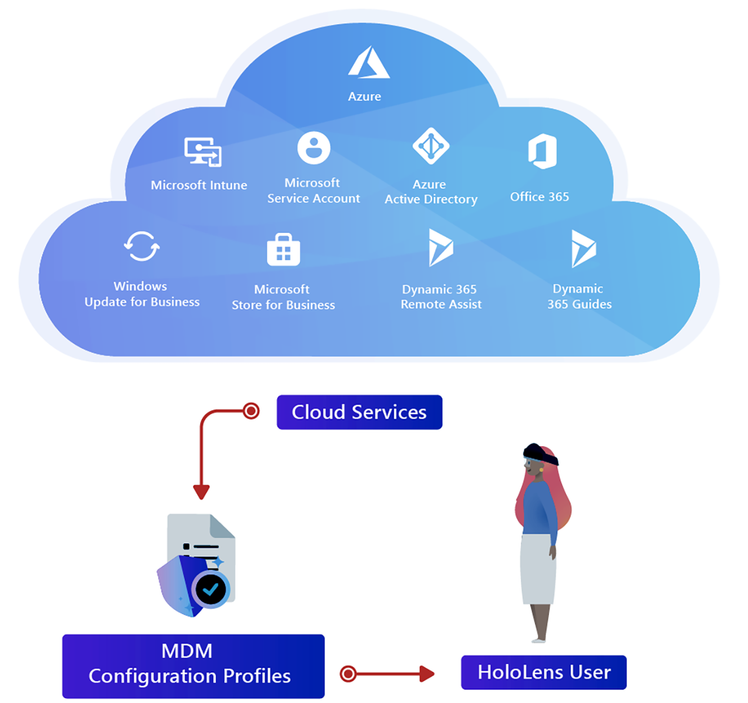
The integration between HoloLens 2 and cloud services, like Azure Active Directory (Azure AD) and Microsoft Intune, allows for fast-time-to-value, and high degrees of scalability. Those services minimize complexity to allow you to expand to more users, devices, and services dynamically, with close-to-zero marginal cost. Continuous service improvements are delivered as part of your Azure subscription, without requiring time-consuming software installation and updates. Every service, from identity, to updates, to app deployment, is designed to keep end-users and corporate assets secure, with low admin maintenance costs. The goal is to reduce the overhead on you, the IT administrator, and empower you to focus on other important activities.
HoloLens 2 deployment checklist
Now let’s explore some essential components for low-touch, cloud-based deployments of HoloLens 2. Although every environment has its own requirements, the information below is intended to outline the foundational services, technologies and tools that can be used to quickly reach deployment scale.
Identity: Azure Active Directory
Azure Azure AD is Microsoft’s cloud identity and access management service. HoloLens 2 treats identity with Azure AD accounts in almost the same manner as other Windows 10 devices, enabling:
- Automatic device enrollment with your organization’s tenant and mobile device management (MDM) solution.
- Secure and seamless user sign-in experiences to devices, applications, and corporate resources
- Windows Hello for Business features for secure authentication with PIN, Iris or FIDO keys, for up to 64 users.
To get started:
- Define your user management and identity model. For more information about creating a tenant for your organization, see the Quickstart Guide.
- Create the appropriate users and groups and assign licenses in the Microsoft 365 Admin Center.
- Get Azure AD Premium P1 (required).
Security: HoloLens 2
Microsoft HoloLens 2 implements the latest standards for a highly secure modern device. The security capabilities are designed for comprehensive coverage – from hardware to software. Some examples include always-enabled device encryption (BitLocker), Trusted Platform Module (TPM), Conditional Access, Windows Defender Smart Screen, and more.
To get started, review the HoloLens 2 security documentation for details about the architecture, capabilities, and deployment considerations.
Device management: Microsoft Intune
Microsoft Intune is a cloud-based MDM service that enables you to control how your organization’s devices are used, including mobile phones, laptops, and HoloLens 2 devices. This service enables people in your organization to be productive on all of their devices, corporate-owned or personal, while keeping your organization’s information protected with policies you create and manage. Intune offers a streamlined management experience with no on-premises resource overheard. The service is part of Enterprise Mobility + Security (EMS) suite and is included with the respective subscriptions.
To get started, review the Setup guide for Microsoft Intune.
Device enrollment: Intune and Azure AD
There are two low-touch solutions to enroll corporate devices to your organization’s Azure AD tenant and MDM:
- Auto-enrollment during initial device setup, which registers and joins Azure Active Directory and allows the device to be managed with Intune; OR
- Windows Autopilot for HoloLens 2 (currently in Public Preview). With Autopilot, the provisioning experience is drastically simplified for both IT and end users. IT admins can preconfigure HoloLens 2 policies, and upon first boot, devices will be deployed in business-ready state with zero end-user interaction. Note that Windows Autopilot also requires Auto-enrollment to be configured first for the low-touch Autopilot flow.
To get started:
- Configure your auto-enrollment profile in Intune.
- Plan your device deployment within your business.
- For Autopilot:
- Contact your reseller to support you with device registration, and
- Prepare your deployment profiles in Intune.
Application deployment: Intune and Microsoft Store for Business
There are several ways to deploy apps to your managed devices, but one common way is by synchronizing Intune with Microsoft Store for Business. On Microsoft Store for Business, admins can find and purchase apps for their organization and by connecting Microsoft Store for Business to Intune, you can manage volume-purchased apps from the portal.
To get started:
- Pick the solution (app) that satisfies your business scenario and acquire licenses.
- Associate and synchronize Microsoft Store for Business with Intune and assign apps to groups.
Policies: Configuration Service Providers
Configuration Service Providers (CSPs) are the foundation of device management. They are an interface to read, set, modify, or delete configuration settings on the device by mapping to registry keys or files. CSPs can be deployed in the form of custom policy or configuration profiles from the MDM platform. Example policies include device restrictions, updates, certificates, or network profiles. HoloLens supports a subset of the Windows 10 CSPs and we continuously expand the list based on customer feedback.
To get started:
- Review the full list of CSPs supported by HoloLens 2.
- Create and deploy profiles via Intune.
Network
HoloLens 2 works best in commercial environments with wireless network availability. It supports modern and widely used networking frameworks such as VPN, Proxy, EAP and Simple Certificate Enrollment Protocol (SCEP) or Public Key Cryptography Standard (PKCS) certificates.
For your network infrastructure, we suggest:
- Test your network with your Mixed Reality solution. For example, for customers using Dynamics 365 Remote Assist, there are certain network network optimizations recommended, along with additional technical requirements.
- For environments using firewall or proxy, ensure that critical endpoints/URLs for HoloLens 2 are allowed.
- In many scenarios, we have observed the following as best practices:
- Use Wi-Fi 4+ (802.11.n+) access points with MU-MIMO capabilities.
- Create a dedicated SSID on 5GHz band dedicated to HoloLens.
- Ensure good network coverage at your end-site.
Today’s mobile-first device landscape has changed the business of IT deployment and device management. Although the shift from on-premises to cloud-based deployments can be challenging, Microsoft’s cloud-based technologies, such as Azure AD and Intune, offer low-touch solutions with the goal of reducing overhead on security and IT admins.
The ultimate reward of implementing these new technologies is threefold – defining the modern workplace for your business, empowering your workforce, and participating in the new wave of computing with Mixed Reality. If you are interested in learning how Mercedes-Benz USA IT deployed hundreds of HoloLens 2 devices to redefine remote collaboration and task guidance, watch this short video from the recent North America HoloLens Industry Summit:
For more information, please explore considerations when deploying and managing HoloLens 2 as well as common deployment scenarios for enterprises.
by Contributed | May 3, 2021 | Technology
This article is contributed. See the original author and article here.
When I joined the Mixed Reality (MR) community a little over a year ago, I hoped that we’d eventually get to a point where getting started in XR could be more approachable for people who were looking for a low code/no code route. There’s a pretty steep barrier to entry for getting started with creating MR apps and experiences. For me, I had to learn a new programming language and game engine. I also needed access to the proper hardware. However, my hope was that this would all change (or at least get better) for future MR developers.
But why?
Well, I strongly feel that there’s so much untapped potential just waiting to be discovered (or even uncovered) in the MR space. Every so often, I meet someone who’s interested in getting started with MR but don’t necessarily have access to all the ‘required’ tools. I often found myself suggesting that they’d build their app/experience then try in an emulator of some sort. However, testing on a computer in no way compares to actually testing on an MR device.
Well, I’ve finally found a solution — or at least an option for folks who have access to a mobile device or tablet. Aside from a computer with an internet connection, there’s no additional hardware required. There’s also no need for a game engine or code editor. With that said, you could get started as soon as you’re done with this post. As for the solution, drum roll please….
Power Apps! Yes, you can create an MR app with Power Apps! Power App is a low code/no code platform for creating apps. The Maker portal is a drag and drop platform that’s great for creating apps without getting code involved. Of course, if you’d prefer to do some coding within PowerApps, there’s always the option to do that as well.
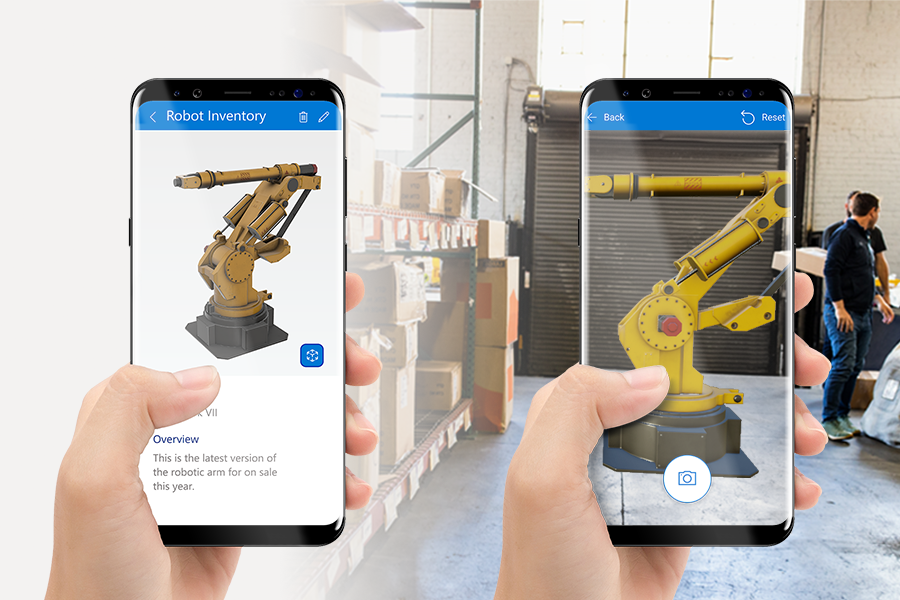
Just last year, the Power Apps team announced new MR components that are available for use in your Power Apps apps! The components include the following:
- View in 3D – Rotate and zoom into the model with simple gestures. Display a single model or let the user select from a gallery of 3D models.
- View in Mixed Reality – See how a particular item might fit within a specified space. Overlays a 3D model or image onto the live camera feed of the device.
- Measure in Mixed Reality – Measure distance, area, and volume. A 2D or 3D polygon is created to confirm how a certain sized object would fit within a space.
All 3D models used within Power Apps must be in .glb format. You could also include 2D images (.jpg or. png). Since I don’t have a personal arsenal of 3D objects, I thought I’d find it difficult to find 3D models to use. Fortunately, we provide an open-source library of 3D models. If you happen to be running on Windows, you could also use Microsoft 3D Builder.
If you’ve never used Power Apps before, my best recommendation is to first work through the Power Platform learning path on Microsoft Learn. This learning path provides quite a thorough introduction to Power Apps. If you happen to already be familiar with creating apps in Power Apps, then dive right in to the Mixed Reality Power Apps components documentation.
If you’re in search of detailed instruction or a sample app that uses some of the components together, check out my YouTube tutorial on how I created a sample interior decorating app.
Here is a list of resources to get you started:
Power Apps
•Microsoft Learn: aka.ms/learn-powerplatform
•Microsoft Docs: aka.ms/docs-powerapps
•Mixed Reality Power Apps Components: aka.ms/powerapps-mr
•Connectors: aka.ms/connectors
3D Models
•GitHub: aka.ms/models
•Microsoft 3D Builder
•Unity Asset Store: assetstore.unity.com
Video Tutorial
•YouTube: aka.ms/mr-powerapps
I’m always in search of new use cases for these features. Please comment below how you plan to use these features!
by Contributed | May 3, 2021 | Technology
This article is contributed. See the original author and article here.
Background and Overview
Azure Machine Learning (AML) natively supports deploying a model as a web service on Azure Kubernetes Service (AKS). Based on the official AML documentation, deploying models to AKS offers the following benefits: Fast response time, Auto-scaling of the deployed service, Logging, Model data collection, Authentication, TLS termination, Hardware acceleration options such as GPU and field-programmable gate arrays (FPGA). Please refer to the official documentation for directions on using AML Python SDK, Azure CLI, or even Visual Studio Code to deploy models to AKS.
This blog article, as well as the accompanying GitHub repo, demonstrates an alternative option, which offers significant flexibility in model deployment. In particular, this solution template helps enable the following use cases:
- Enable multi-region deployment
- More flexibility in endpoint configuration and management
- Model agnostic–one endpoint can invoke several models, providing the required environment is built beforehand. One environment can be reused across several models
- Controlled rollout of model inference deployment
- Enable higher automation across various AML workspaces for CI/CD purposes
- The solution can be customized to retrieve models directly from Azure storage, without invoking AML workspace at all, providing further flexibility
- The solution can be modified to include use cases beyond model inferencing. Data engineering via AKS endpoint without any specified model is also possible.
Contributor:
Han Zhang (Microsoft Data & AI Cloud Solution Architect)
Ganesh Radhakrishnan (Microsoft Senior App & Infra Cloud Solution Architect)
Prerequisites
Before you proceed, please complete the following prerequisites:
- Review and complete all modules in Azure Fundamentals course.
- An Azure Resource Group with Owner Role permission. All Azure resources will be deployed into this resource group.
- A GitHub Account to fork and clone this GitHub repository.
- An Azure DevOps Services (formerly Visual Studio Team Services) Account. You can get a free Azure DevOps account by accessing the Azure DevOps Services web page.
- An Azure Machine Learning workspace. AML is an enterprise-grade machine learning service to build and deploy models faster. In this project, you will use AML to register and retrieve models.
- This project assumes readers/attendees are familiar with Azure Machine Learning, Git SCM, Linux Containers (docker engine), Kubernetes, DevOps (Continuous Integration/Continuous Deployment) concepts and developing Microservices in one or more programming languages. If you are new to any of these technologies, go thru the resources below.
- (Optional) Download and install Postman App, a REST API Client used for testing the Web API’s.
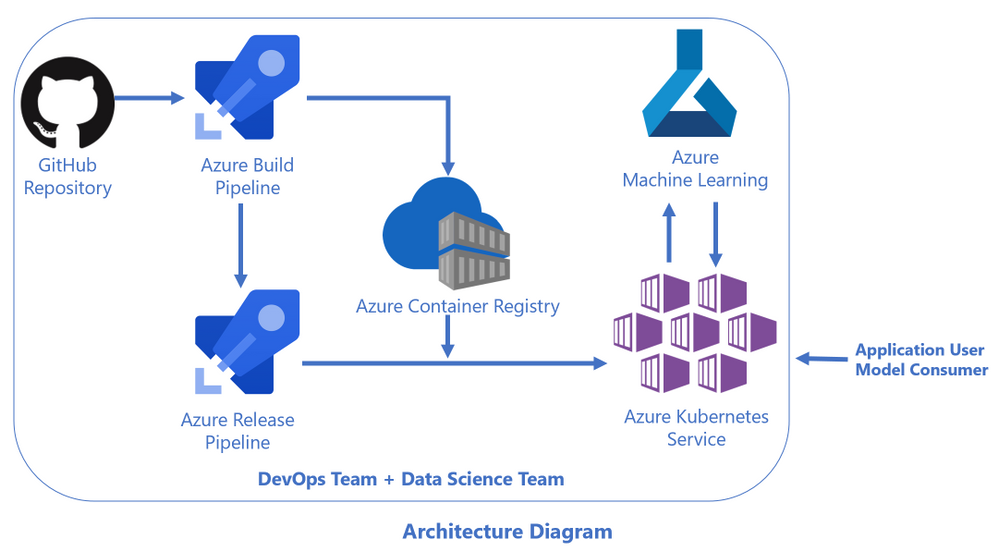
Architecture Diagram
Here is the architecture diagram for this solution template:
For easy and quick reference, readers can refer to the following online resources as needed.
Step by Step Instructions
Set up Azure DevOps Project
- Go to Azure Devops website, and set up a project named AML_AKS_custom_deployment (Substitute any name as you see fit.)
Set up Project
- Go to Repos on the left side, and find Import under Import a repository
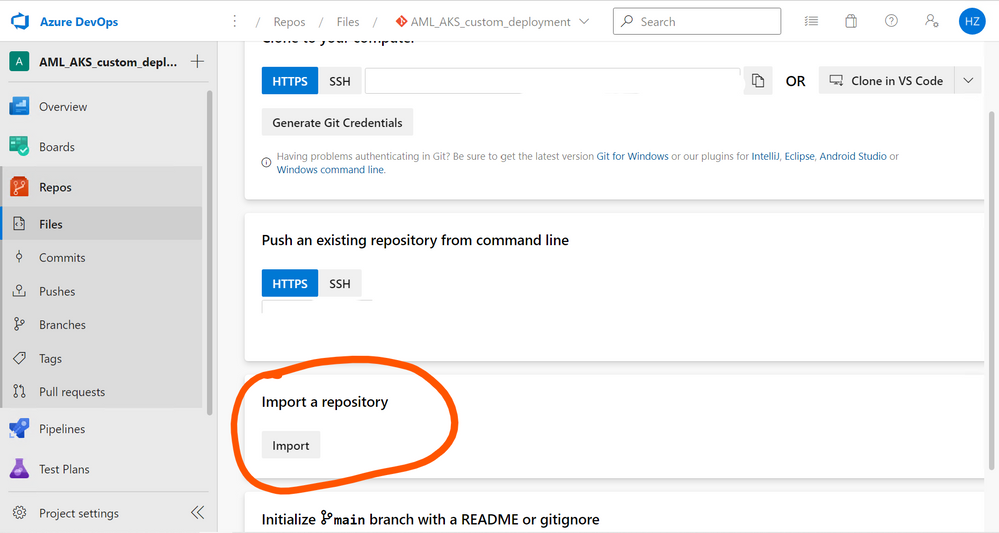
Use https://github.com/HZ-MS-CSA/aml_aks_generic_model_deployment as clone URL
Upload AML Model
As a demonstration, we will be using an onnx model from a Microsoft Cloud Workshop activity.
- “This is a classification model for claim text that will predict
1 if the claim is an auto insurance claim or 0 if it is a home insurance claim. The model will be built using a type of Deep Neural Network (DNN) called the Long Short-Term Memory (LSTM) recurrent neural network using TensorFlow via the Keras library.” Source here.
- For step by step guidance on how to create and train this model, please see the MCW workshop here.
- For your convenience, you can find the onnx model under sample_model/claim_classifer.zip
- Download and unzip the file, and upload the onnx model to Azure ML workspace
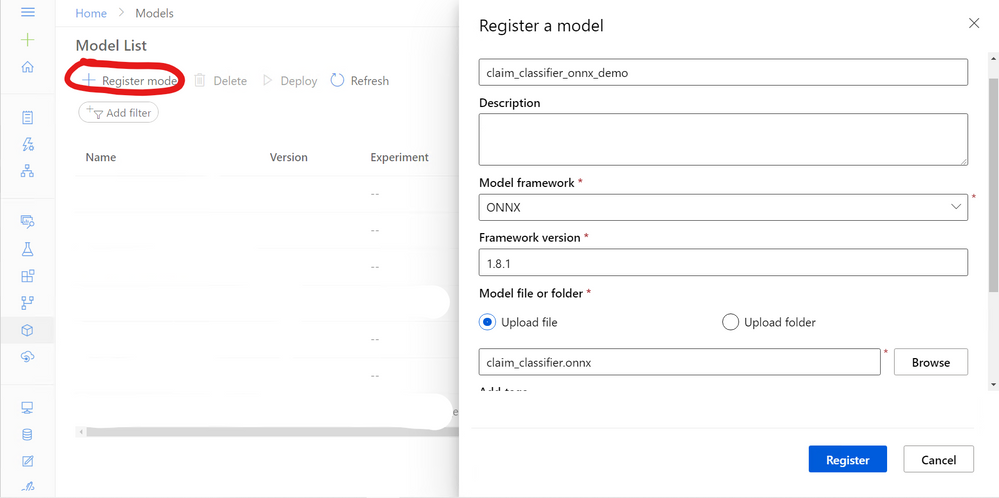
Modify Azure DevOps Repo Content
There are two files that need to be modified to accommodate the onnx model
- ./main-generic.py: This is essentially a scoring entry script that calls AML SDK, retrieve the model from the registry, and wrap it in a flask API. The original main-generic.py is a template, and you can add any relevant codes to execute the model in this file. Please replace the content of this file with ./sample_model/main-generic.py (An example of how to customize this python script)
- ./sample_model/main-generic.py is an adapted version of the original MCW-Cognitive services and deep learning Claim Classification Jupyter Notebook. Please see source here.
- ./project_env.yml: This specifies the dependencies required for the model to execute. Please replace the content of this file with ./sample_model/project_env.yml (An example of how to customize this yml file)
Set up Build Pipeline
- Create a pipeline by using the classical editor. Select your Azure Repos Git as source. Then start with an empty job.
- Change the agent specification as ubuntu-18.04 (same for release pipeline as well)
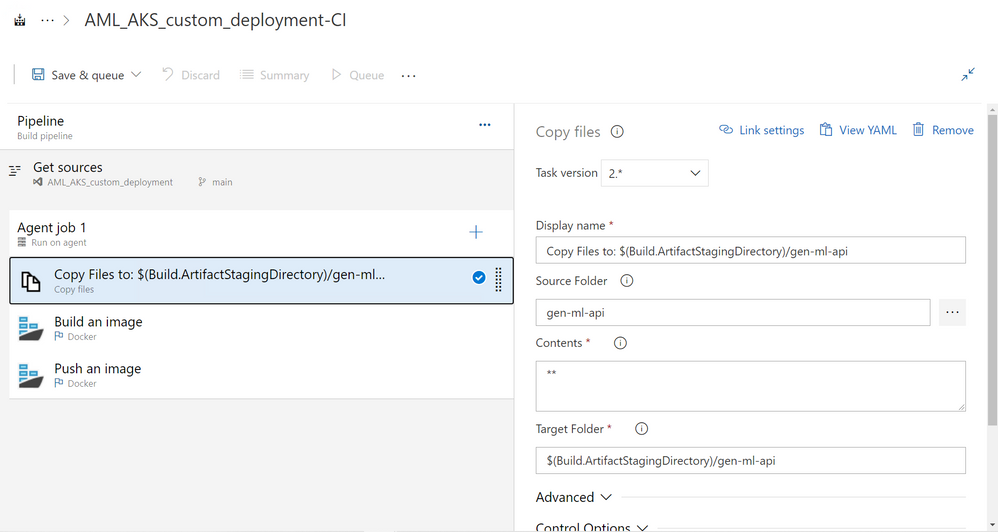
- Copy Files Activity: Configure the activity based on the screenshot below
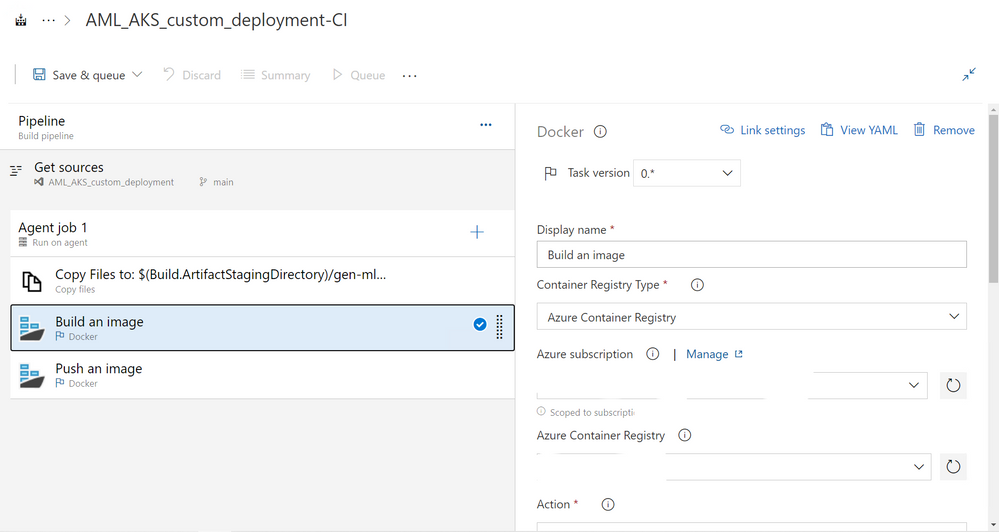
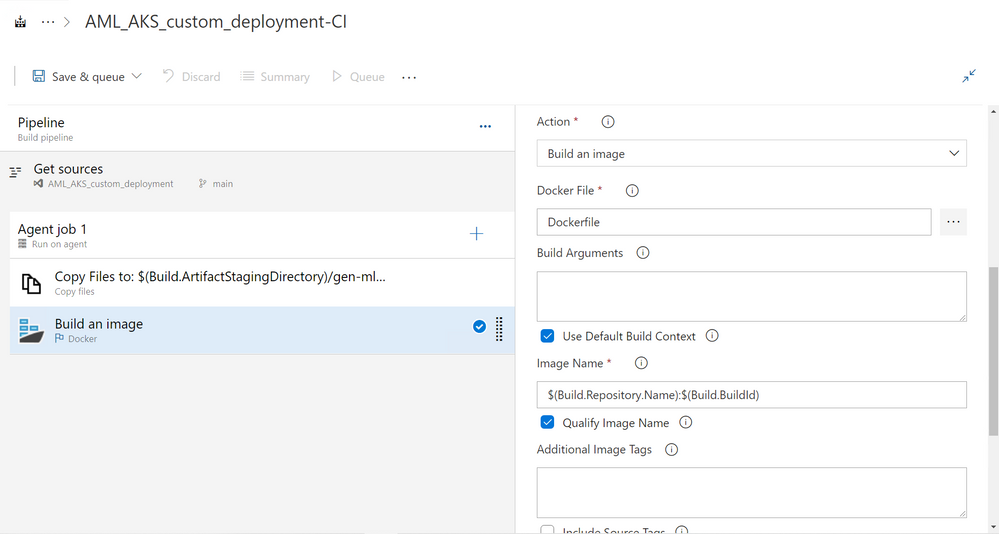
Docker-Build an Image: Configure the activity based on the notes and screenshot below
- Change task version to be 0.*
- Select an Azure container registry, and authorize Azure Devops’s Azure connection
- In the “Docker File” section, select the Dockerfile in Azure Devops repo
- Leave everything else as default
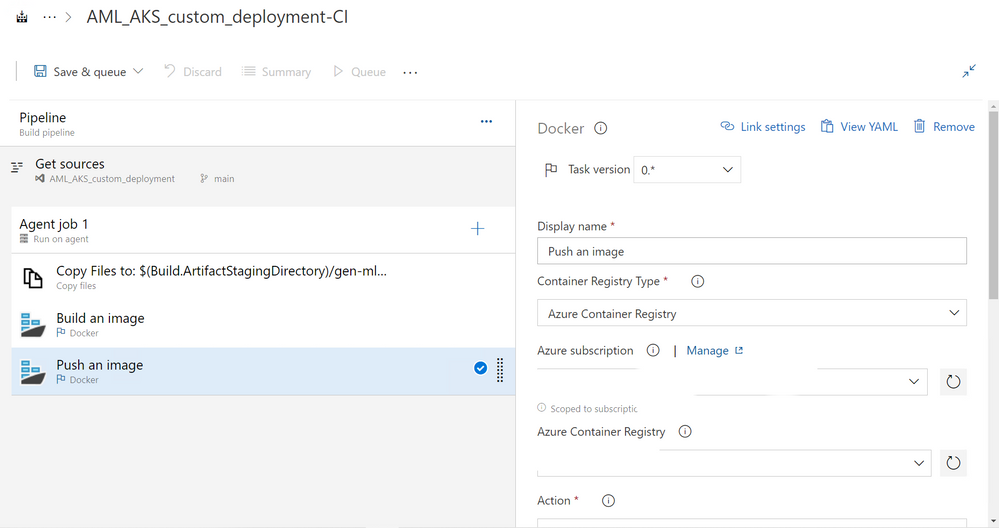
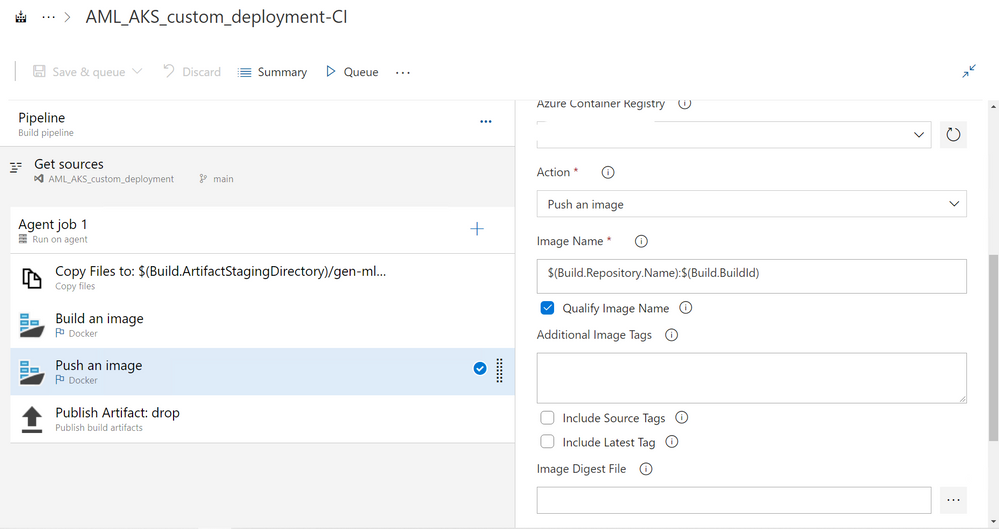
- Docker-Push an Image: Configure the activity based on the notes and screenshot below
- Change task version to be 0.*
- Select the same ACR as Build an Image step above
- Leave everything else as default
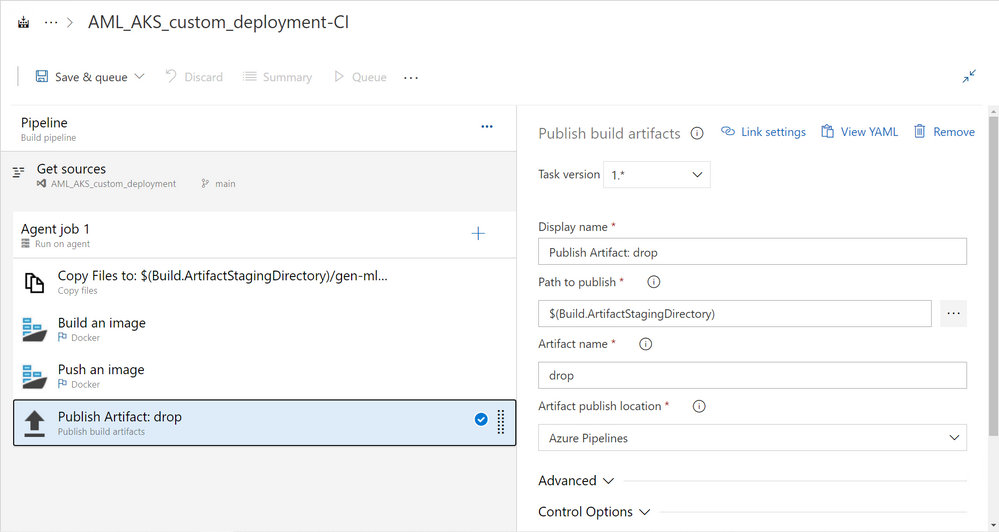
Publish Build Artifact: Leave everything as default
Save and queue the build pipeline.
Set up Release Pipeline
Start with an empty job
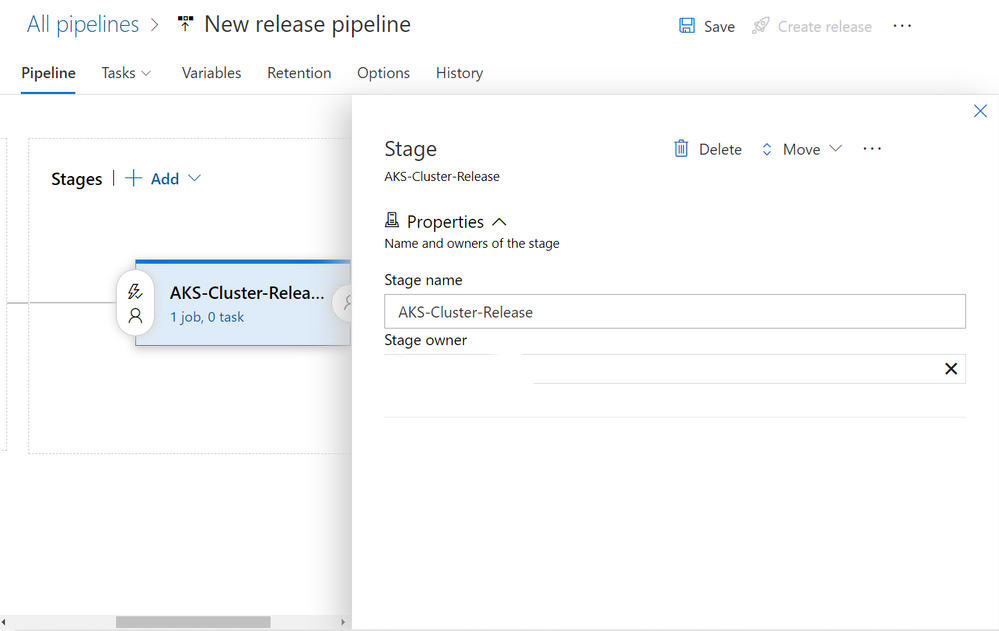
Change Stage name to be AKS-Cluster-Release
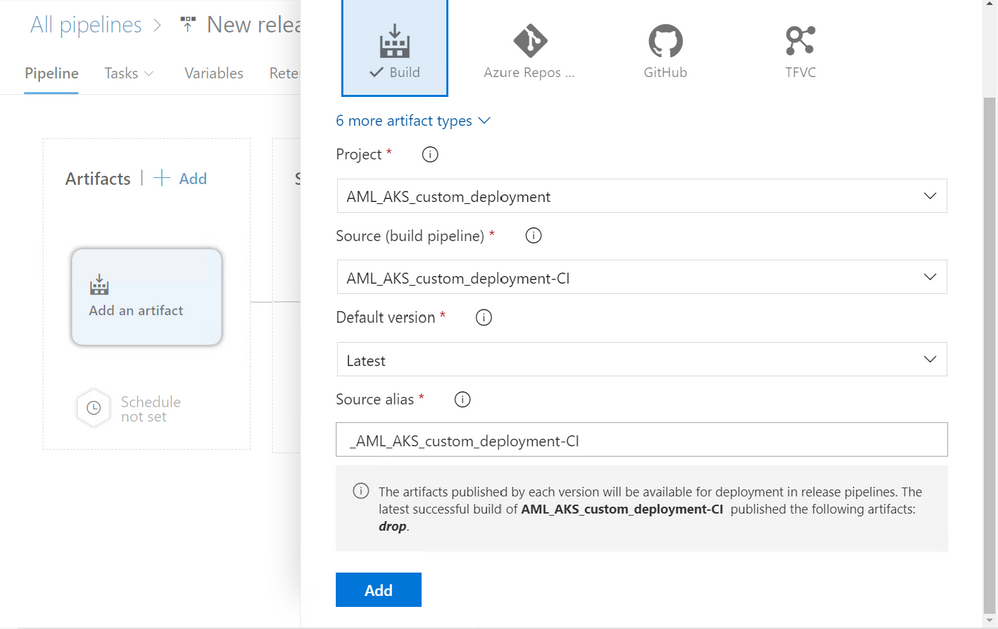
Add build artifact
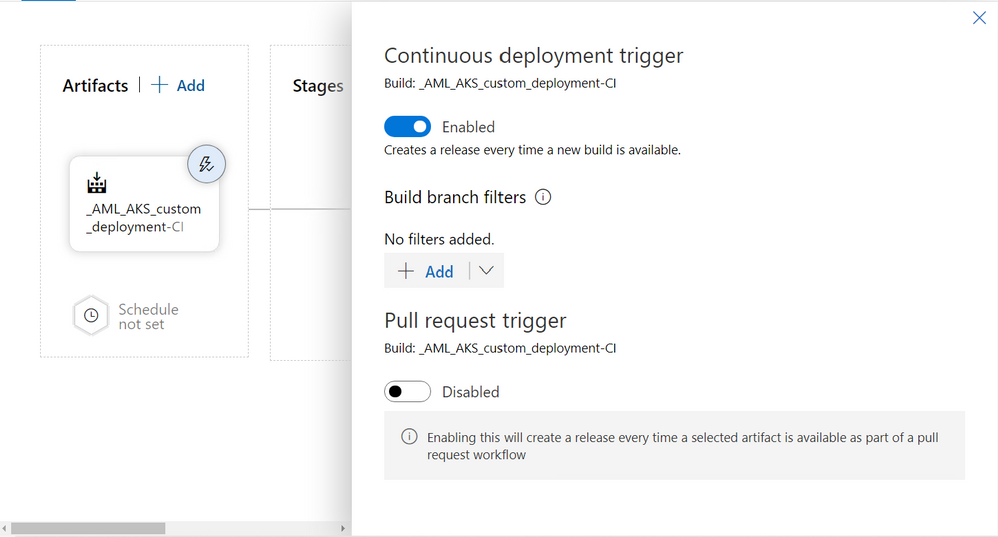
Set up continuous deployment trigger–the release pipeline will be automatically kicked off every time a build pipeline is modified
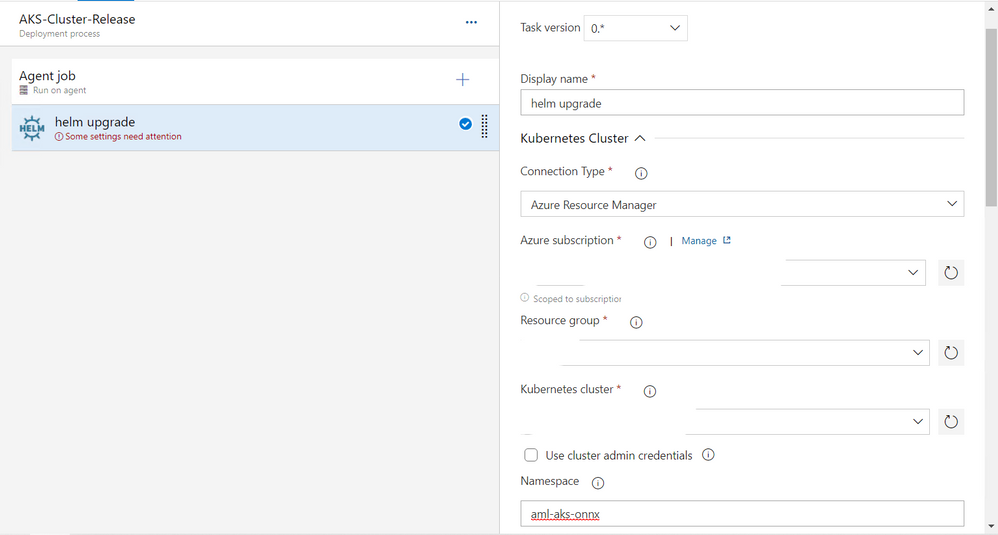
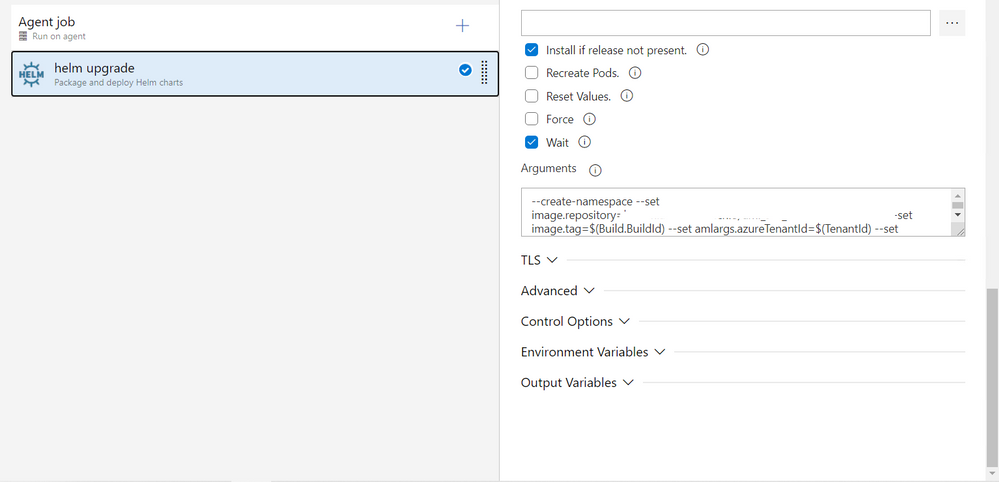
helm upgrade: Package and deploy helm charts activity.
- Select an appropriate AKS cluster
- Enter a custom namespace for this release. For this demo, the namespace is aml-aks-onnx
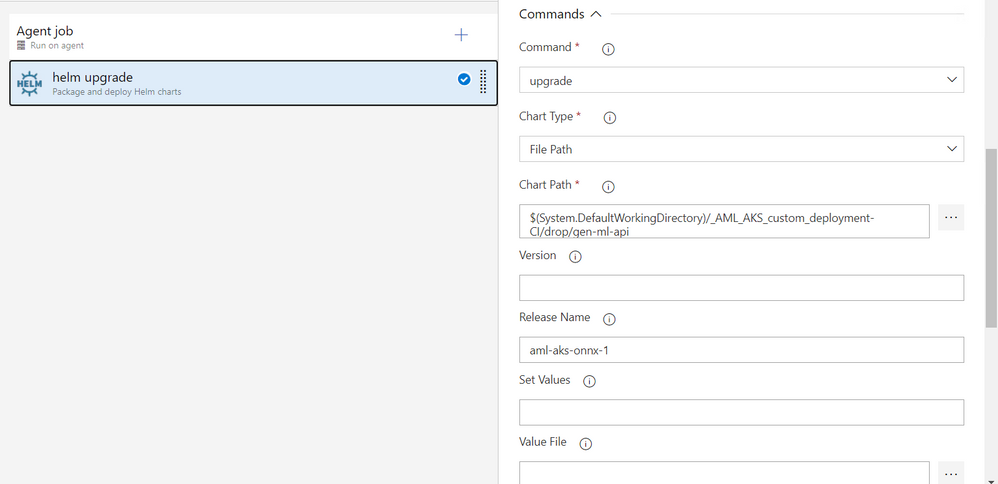
- Command is “upgrade”
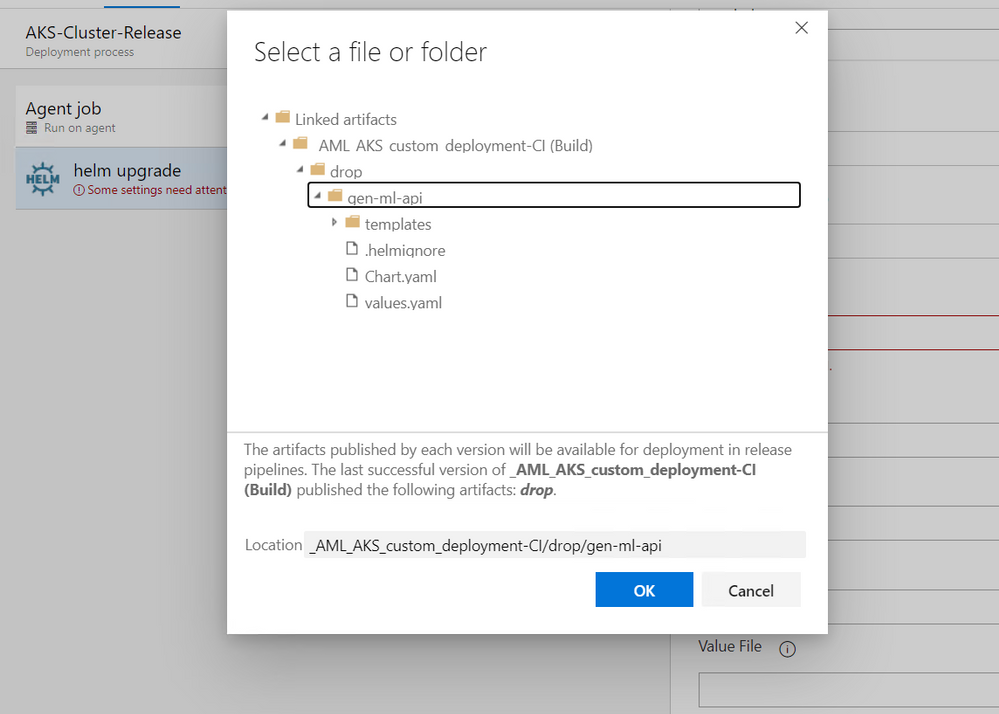
- Chart type is “File path”. Chart path is shown in the screenshot below
- Set release name as aml-aks-onnx-1
- Make sure to select Install if not present and wait
- Go to your Azure Container Registry, and find Login server URL. Your Image repository path is LOGIN_SERVER_URL/REPOSITORY_NAME.
- In arguments, enter the following content:
–create-namespace –set image.repository=IMAGE_REPOSITORY_PATH –set image.tag=$(Build.BuildId) –set amlargs.azureTenantId=$(TenantId) –set amlargs.azureSubscriptionId=$(SubscriptionId) –set amlargs.azureResourceGroupName=$(ResourceGroup) –set amlargs.azureMlWorkspaceName=$(WorkspaceName) –set amlargs.azureMlServicePrincipalClientId=$(ClientId) –set amlargs.azureMlServicePrincipalPassword=$(ClientSecret)
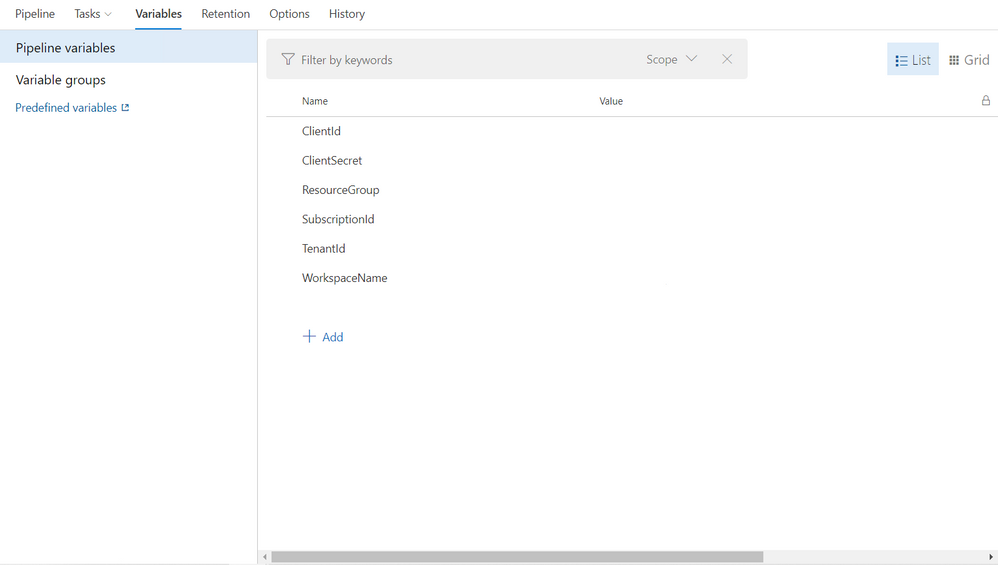
In Variables/Pipeline Variables, create and enter the following required values
- ClientId: Follow How to: Use the portal to create an Azure AD application and service principal that can access resources to create a service principal that can access Azure ML workspace
- ClientSecret: See the instruction for ClientId
- ResourceGroup: Resource Group for AML workspace
- SubscriptionId: Can be found on AML worksapce overview page.
- TenantId: Can be found in Azure Activate Directory
- WorkspaceName: AML workspace name
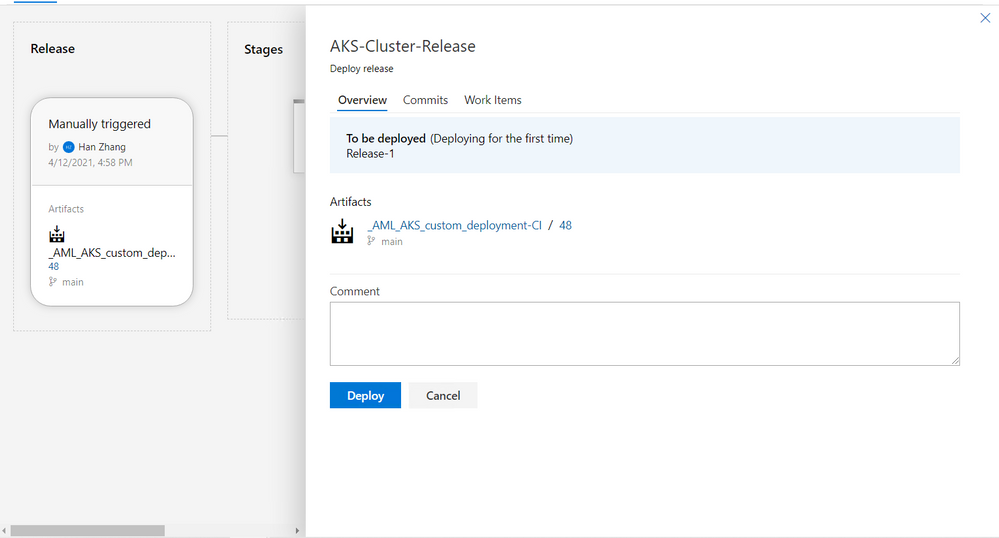
Save, create, and deploy release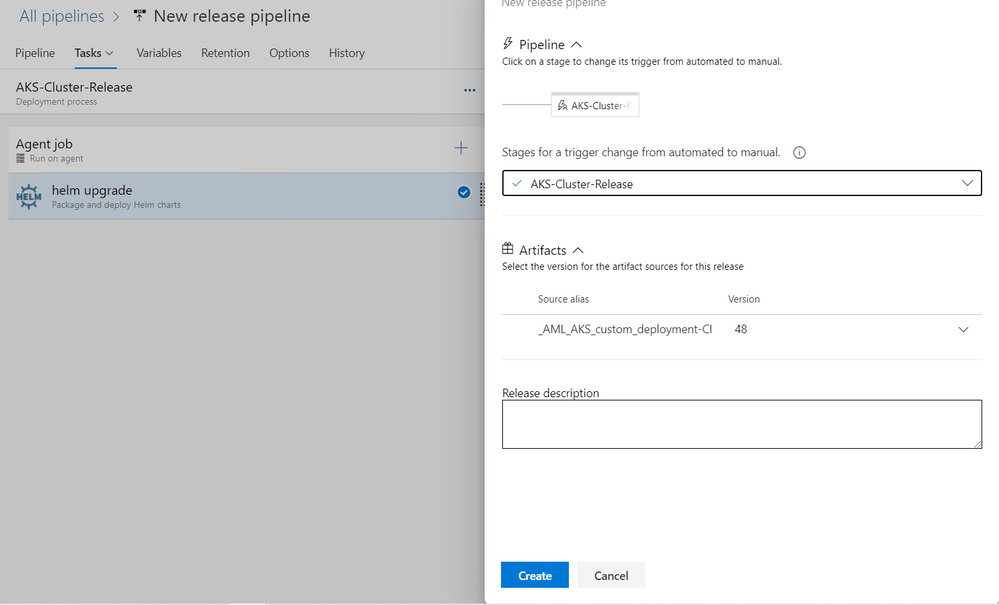
Testing
- Retrieve external IP for deployed service
- Open powershell
az account set –subscription SUBSCRIPTION_ID
az aks get-credentials –resource-group RESOURCE_GROUP_NAME –name AKS_CLUSTER_NAME
kubectl get deployments –all-namespaces=true
- Find the
aml-aks-onnx namespace, make sure it’s ready
kubectl get svc –namespace aml-aks-onnx. External IP will be listed there
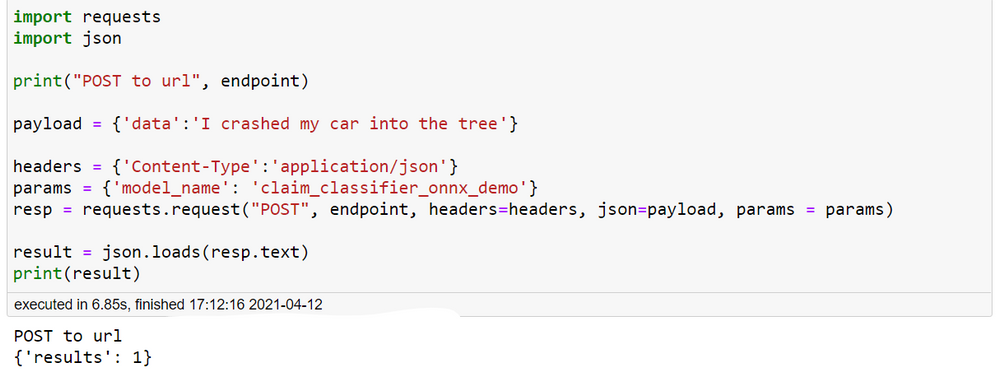
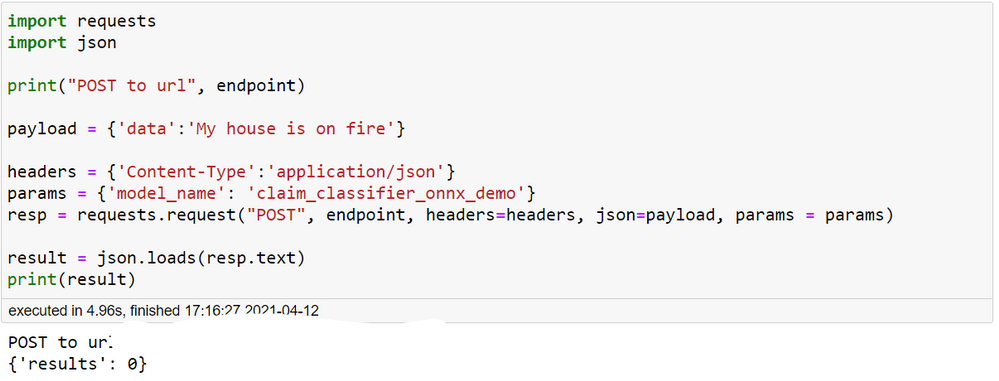
- Use test.ipynb to test it out
- endpoint is
http://EXTERNAL_IP:80/score. You can optionally set it to be http://EXTERNAL_IP:80/healthcheck and then use the get method to do a quick health check
- In the post method section, make sure to enter the model name. In this demo, the model name is claim_classifier_onnx_demo. Enter any potential insurance claim text, and see the model classifies it into auto or home insurance claim in real time.
License
MIT License
Copyright (c) 2021 HZ-MS-CSA
Permission is hereby granted, free of charge, to any person obtaining a copy of this software and associated documentation files (the “Software”), to deal in the Software without restriction, including without limitation the rights to use, copy, modify, merge, publish, distribute, sublicense, and/or sell copies of the Software, and to permit persons to whom the Software is furnished to do so, subject to the following conditions:
The above copyright notice and this permission notice shall be included in all copies or substantial portions of the Software.
THE SOFTWARE IS PROVIDED “AS IS”, WITHOUT WARRANTY OF ANY KIND, EXPRESS OR IMPLIED, INCLUDING BUT NOT LIMITED TO THE WARRANTIES OF MERCHANTABILITY, FITNESS FOR A PARTICULAR PURPOSE AND NONINFRINGEMENT. IN NO EVENT SHALL THE AUTHORS OR COPYRIGHT HOLDERS BE LIABLE FOR ANY CLAIM, DAMAGES OR OTHER LIABILITY, WHETHER IN AN ACTION OF CONTRACT, TORT OR OTHERWISE, ARISING FROM, OUT OF OR IN CONNECTION WITH THE SOFTWARE OR THE USE OR OTHER DEALINGS IN THE SOFTWARE.
by Contributed | May 3, 2021 | Technology
This article is contributed. See the original author and article here.
Below is the latest information on Project for the web. If you use on-premises Project and want to learn about Project 2021, please see below or go to the article.
New Features:
- Email assignment notifications ~ Your teammates will receive an email whenever they are assigned a task in Project for the web. Edit your notification settings by clicking on the gear icon in the top Office ribbon and clicking on the “Notification settings” under the Project heading.
- Actions on Project Home ~ Copy, rename, export, or delete your project directly from Project Home, without needing to open it in the browser.
- Open task from Project Power Bi Report ~ You can now directly open task details in Project Board from the Project Power Bi ‘Task Overview’ page. You can download the updated content pack available here.
Upcoming Features
- Import from Project desktop ~ Import your .mpp files from Project desktop to Project for the web.
- Filtering on Board & Timeline views ~ Find your tasks quickly on the Board and Timeline views by filtering by keyword or assignee.
Announcing Microsoft Office 2021
The entire Microsoft Office team is excited to announce the commercial preview of Microsoft Office Long Term Servicing Channel (LTSC) for Windows and Office 2021 for Mac. You can learn more about this preview by reading the Tech Community blog post here.
Microsoft Project Trivia
Last Month:
Thanks to everyone who put their guesses in the comments last month!
Question: Which type of resource is NOT supported by Project for the web?
A:
- Equipment
- Placeholder
- Crew
- Generic
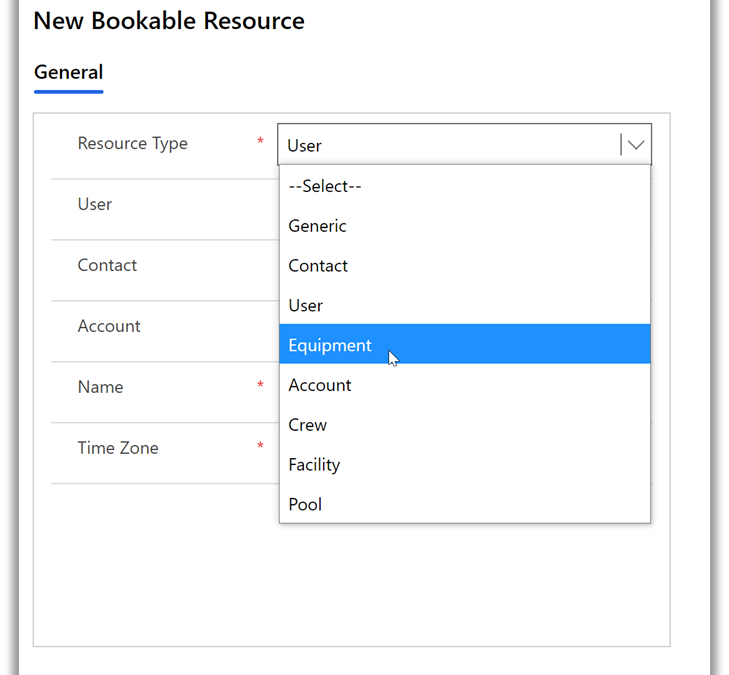
The correct answer was Placeholder. You can create non-user resources in Project for the web through Power Apps:
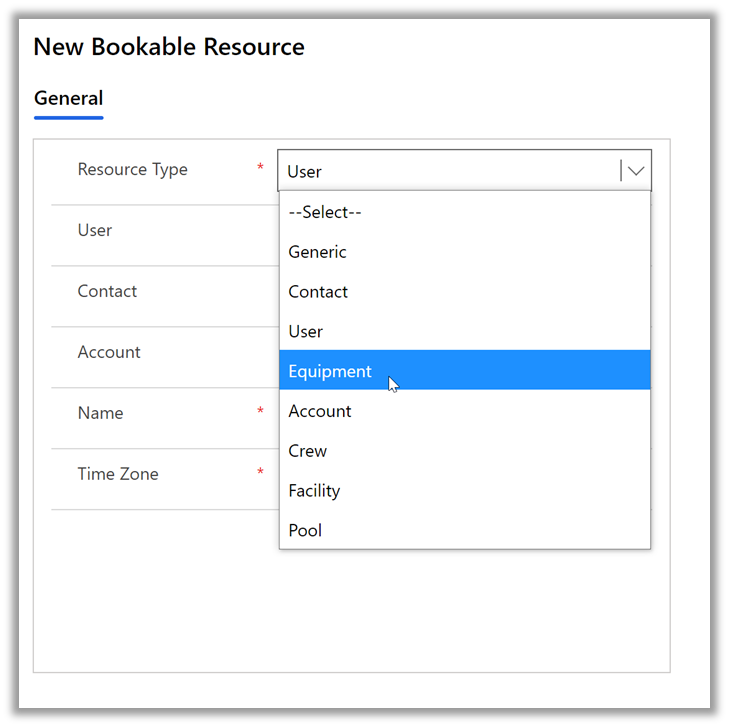
Learn more about how to create non-user resources in Project for the web here.
This Month:
QUESTION: Users with Project Plan 3 or 5 can create roadmaps including all their project information. What year did Roadmap in Microsoft Project first become available to users?
Feedback
Microsoft Project loves feedback! Feel free to leave feedback in the comments of this blog or give us feedback through our in-app feedback button. For the latter option, be sure to leave your email address so we can reach out with any questions or updates we may have.
by Contributed | May 3, 2021 | Technology
This article is contributed. See the original author and article here.
Call summary
April’s call, hosted by David Chesnut, featured the following presenters and topics:
• Richard Taylor discussed different support options available on Microsoft 365, and how to submit a new support ticket.
• Sudhi Ramamurthy shared news about updates to APIs, Recorder, and Admin-control for Office Scripts.
• Leslie Black (Analysis Cloud Limited) demonstrated a TICTACUFO application he created with Office Scripts.
• David Chesnut demonstrated a new PnP sample that shows how to handle event-based activation and set the signature in Outlook.
To watch the call, tap the following link.
Office Add-ins community call – April 2021 – YouTube
Q&A (Question & Answers)
We welcome you to submit questions and topic suggestions prior to each call by using our short survey form.
Support options
When we try to open tickets in the admin center regarding SharePoint Development they are getting immediately closed with the comment “we don’t provide support for developer issues”. Is that different for Office Add-ins?
The comment you see applies if you don’t have a Premier account, or Enterprise SKU. If you do have a Premier account and are seeing this comment, please reach out to us on the next community call web chat so we can follow up with you.
What level of support can I get for my tenant from the Microsoft 365 Developer Program?
The Microsoft 365 Developer Program provides standard Office 365 support, and does not include developer support. You can get help with developer questions at Microsoft Q&A for Office Add-ins, or at Stack Overflow [office-js].
Office Scripts
ServiceHub is not enabled for my Enterprise ID. Is it possible for an admin to configure without admin access to rest of the Office 365 tenant?
If you have a Premier account, we can reach out to your ADC/TAM and ensure you have access. If you just have an Enterprise subscription, use the O365 admin instead. Either should work.
Are Office Scripts for Excel on the web available to Microsoft 365 family accounts or just Enterprise?
Currently, Office Scripts are only available on Enterprise, though we’re exploring expanding availability to other licenses.
Miscellaneous questions
When will the current Outlook preview requirement set, including event-based activation, be available in production?
We don’t have a specific date yet, but we hope to make it available soon.
The Outlook REST API is going to be decommissioned. Is it safe to continue using EWS (Exchange Web Services) with Outlook add-ins going forward or is it also at risk of being decommissioned?
At present, there is no plan to decommission EWS.
Is it possible to port Office.addin.showAsTaskpane common API function to Outlook JS?
This is a great suggestion! Can you please provide more details on this idea, and scenario at Microsoft 365 Developer Platform – Microsoft Tech Community?
One of our custom functions must access data (a table) not specified in the arguments. We’ve noticed that calling Excel.run to request that data through the Excel request context on every formula invocation leads to concurrency issues (RichApi.Error: Wait until the previous call completes.) Is there a flexible way to get this to work?
There is a code approach used in GitHub issue 483 in office-js that may help you. If that doesn’t work for your scenario, please post a question with more information at Microsoft Q&A: Office JavaScript API.
In Excel custom functions, is there a way to pause the calculations and resume later (other than setting calculation mode to manual)? End users want to pass an additional flag to the custom function that indicates if it should run or not run.
We suggest switching to manual recalc mode, instead of using an argument to the function. Our goal is for Excel custom functions to run using the same paradigm as built-in functions. We don’t have a design pattern where we pause recalc based on an argument to a function. It’s clearer for users if you ask them to change to manual recalc, that you could implement in the task pane UI. Then when completed, you can switch back to automatic recalculation and the custom functions will run.
In Excel custom functions, you can get the address of the calling cell from the invocation object. Is there a way to get the current value from the cell along with the address?
We suggest that you use the onCalculated event which is called when custom functions are calculated. Here’s an example:
async function onCalculated(event) {
 await Excel.run(async (context) => {
        console.log(event.address);
        if (event.address == "A13") // “A13” here is an example of the cell that has the custom function. It can be replaced by a real cell address.
        {
           context.load (event.address, “values”);
           await context.sync();
          console.log(`The range value was "${cellC1.values}".`);
        }
      });
    }
Can the Microsoft Graph API be used by an add-in without a dedicated server to proxy requests to the Graph API? We’re trying to replace the usage of the Outlook REST API in an add-in that makes API calls from the client-side. We are struggling to find tutorials covering that case.
If you’re Outlook add-in is basically a single-page app (SPA) this tutorial will help you call the Microsoft Graph API from the add-in: Tutorial: Create a JavaScript single-page app that uses auth code flow – Microsoft identity platform | Microsoft Docs. There are also additional Microsoft Graph samples at https://github.com/Azure-Samples/active-directory-aspnetcore-webapp-openidconnect-v2/tree/master/2-WebApp-graph-user
When will Outlook sideload and debug from VS Code (as demoed in November community call) be available?
This feature is available, but there is an issue that prevents it from working in all scenarios. We’re working to get a fix out soon.
Resources
Microsoft 365 support
Office Scripts demo by Leslie Black
PnP: Outlook set signature
Office Add-ins community call
Office Add-ins feedback
The next Office Add-ins community call is on Wednesday, May 12, 2021 at 8:00AM PDT. You can download the calendar invite at https://aka.ms/officeaddinscommunitycall.
by Contributed | May 3, 2021 | Technology
This article is contributed. See the original author and article here.
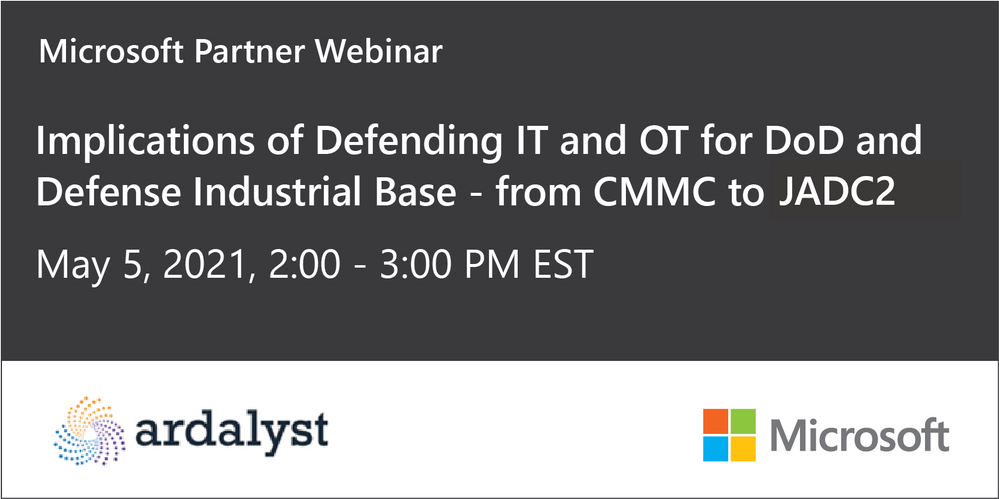
Please join Microsoft, Ardalyst, and featured defense experts Tuesday May 3rd 2:00 – 3:00 PM EDT | 11:00 -12:00 PDT where we will discuss the critical components of a mature cyber defense program from the cradle to the grave of DoD systems. As most DoD warfighting capabilities are born and die in the DIB, we will explore the current art and science of IT and OT cyber defense and its implications from a full lifecycle perspective through a combined government and industry panel.
Defending commercial industry and Defense Industrial Base (DIB) from an Information and Operational Technologies (IT and OT) perspectives underpins the challenges we have in a Joint fight. As the Cybersecurity Maturity Model Certification (CMMC) comes online, it parallels the need for the DoD to mature internal cyber defense requirements and the resilient supply chain necessary to support it.
During the webinar, we will help you better understand:
· Why can’t we fix the vulnerabilities in technologies, specifically OT?
· What is the best way to effectively sensor a system?
· How do we leverage threat intelligence to understand and adapt against adversaries?
· How can OT sensors deter adversaries?
· What is the right workforce to deter, detect, and engage adversaries?
Speakers

Joe DiPietro
Principal Technical Specialist,
Azure IoT Security
Microsoft

Chris Cleary
Principal Cyber Advisor (PCA)
Department of the Navy

Josh O’Sullivan
Chief Technology Officer
Ardalyst
Register here today.
by Contributed | May 3, 2021 | Technology
This article is contributed. See the original author and article here.
Update: Monday, 03 May 2021 17:51 UTC
We continue to investigate issues within Application Insights for South UK. Root cause is not fully understood at this time. Some customers continue to experience data latency and potential data gaps in Application Insights data. This could cause delayed or misfired alerts. We are working to establish the start time for the issue, initial findings indicate that the problem began at 5/03 17:11 UTC. We currently have no estimate for resolution.
- Work Around: none
- Next Update: Before 05/03 20:00 UTC
-Ian
by Contributed | May 3, 2021 | Technology
This article is contributed. See the original author and article here.
Overview
In 2021, each month there will be a monthly blog covering the webinar of the month for the Low-code application development (LCAD) on Azure solution.
LCAD on Azure is a solution to demonstrate the robust development capabilities of integrating low-code Microsoft Power Apps and the Azure products you may be familiar with.
This month’s webinar is ‘Unlock the Future of Azure IoT through Power Platform’.
In this blog I will briefly recap Low-code application development on Azure, provide an overview of IoT on Azure and Azure Functions, how to pull an Azure Function into Power Automate, and how to integrate your Power Automate flow into Power Apps.
What is Low-code application development on Azure?
Low-code application development (LCAD) on Azure was created to help developers build business applications faster with less code.
Leveraging the Power Platform, and more specifically Power Apps, yet helping them scale and extend their Power Apps with Azure services.
For example, a pro developer who works for a manufacturing company would need to build a line-of-business (LOB) application to help warehouse employees’ track incoming inventory.
That application would take months to build, test, and deploy. Using Power Apps, it can take hours to build, saving time and resources.
However, say the warehouse employees want the application to place procurement orders for additional inventory automatically when current inventory hits a determined low.
In the past that would require another heavy lift by the development team to rework their previous application iteration.
Due to the integration of Power Apps and Azure a professional developer can build an API in Visual Studio (VS) Code, publish it to their Azure portal, and export the API to Power Apps integrating it into their application as a custom connector.
Afterwards, that same API is re-usable indefinitely in the Power Apps’ studio, for future use with other applications, saving the company and developers more time and resources.
IoT on Azure and Azure Functions
The goal of this webinar is to understand how to use IoT hub and Power Apps to control an IoT device.
To start, one would write the code in Azure IoT Hub, to send commands directly to your IoT device. In this webinar Samuel wrote in Node for IoT Hub, and wrote two basic commands, toggle fan on, and off.
The commands are sent via the code in Azure IoT Hub, which at first run locally. Once tested and confirmed to be running properly the next question is how can one rapidly call the API from anywhere across the globe?
The answer is to create a flow in Power Automate, and connect that flow to a Power App, which will be a complete dashboard that controls the IoT device from anywhere in the world.
To accomplish this task, you have to first create an Azure Function, which will then be pulled into Power Automate using a “Get” function creating the flow.
Once you’ve built the Azure Function, run and test it locally first, test the on and off states via the Function URL.
To build a trigger for the Azure Function, in this case a Power Automate flow, you need to create an Azure resources group to check the Azure Function and test its local capabilities.
If the test fails it could potentially be that you did not create or have an access token for the IoT device. To connect a device, IoT or otherwise to the cloud, you need to have an access token.
In the webinar Samuel added two application settings to his function for the on and off commands.
After adding these access tokens and adjusting the settings of the IoT device, Samuel was able to successfully run his Azure Function.
Azure Function automated with Power Automate
After building the Azure Function, you now can build your Power Automate flow to start building your globally accessible dashboard to operate your IoT device.
Samuel starts by building a basic Power Automate framework, then flow, and demonstrates how to test the flow once complete.
He starts with a HTTP request, and implements a “Get” command. From there it is a straightforward process, to test and get the IoT Device to run.
Power Automate flow into Power Apps
After building your Power Automate flow, you develop a simple UI to toggle the fan on and off. Do this by building a canvas Power App and importing the Power Automate flow into the app.
To start, create a blank canvas app, and name it. In the Power Apps ribbon, you select “button”, and pick the button’s source, selecting “Power Automate” and “add a flow”.
Select the flow that is connected to the Azure IoT device, its name should be reflected in the selection menu.
If everything is running properly your IoT device will turn on.
FYI in the webinar Samuel is running out of time, so he creates a new Power Automate flow, which he imports into the canvas app.
Summary
Make sure to watch the webinar to learn more about Azure IoT and how to import Azure Functions into your Power Apps.
Additionally, there will be a Low-code application development on Azure ‘Learn Live’ session during Build, covering the new .NET x Power Apps learning path, covering integrations with Azure Functions, Visual Studio, and API Management.
Lastly, tune in to the Power Apps x Azure featured session at Build on May 25th, to learn more about the next Visual Studio extensions, Power Apps source code, and the ALM accelerator package. Start registering for Microsoft Build at Microsoft Build 2021.


Recent Comments