
by Contributed | May 6, 2021 | Technology
This article is contributed. See the original author and article here.
Forgetting to take action on a message, or where that message was?
For busy people who have their lives invested in Microsoft Teams, whether collaborating with colleagues in Team Channels or using the Chat functionality, it’s easy to forget:
- To take action or reply to a message
- The location of where that message is! Is it in a Chat, or a Team Channel? How far up do I have to scroll?
Outlook’s solution: a well trodden path for many
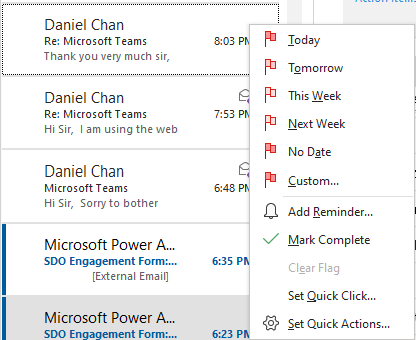 Flags in Outlook have been the bridge to emails and task management
In Outlook, there are “flags” which can be set to remind yourself to take action for a particular email.
However, this functionality is missing from Teams. Even if you are a well seasoned ToDo and Planner user, you would still have to use the Copy Link feature and paste that into the ToDo/Planner task, which can be quite tedious.
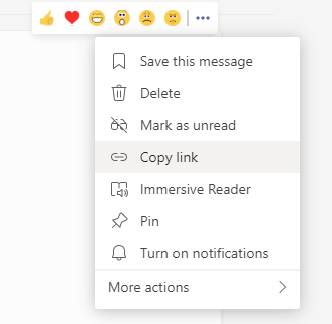 Copy link to a Teams Channel message
Plus I entering a phase where I was forgetting that I had to respond to messages. Sometimes I ended up talking to Google (I use an Android phone, so you might be talking to Siri) to remind myself, but that still doesn’t take you straight back to the original message with a single click – you still had to do a lot of navigation before you arrived at the message you were supposed to take action on.
My poor colleagues were also getting flooded with Teams messages. If they were diligent and cleared their activity bell notifications, they would potentially lose track of a visual reminder that they need to prompt them to action on a message.
So what if you just needed a simple and effective visual reminder, either at some hours/minutes down the track or at a specific time?
A Flow, some delay, and four Adaptive Cards
In comes Power Automate with a few adaptive cards to the rescue – this flow will generate a reminder via the Flow bot at a certain number of hours/minutes, or at a specified time to remind you to take action for a message!
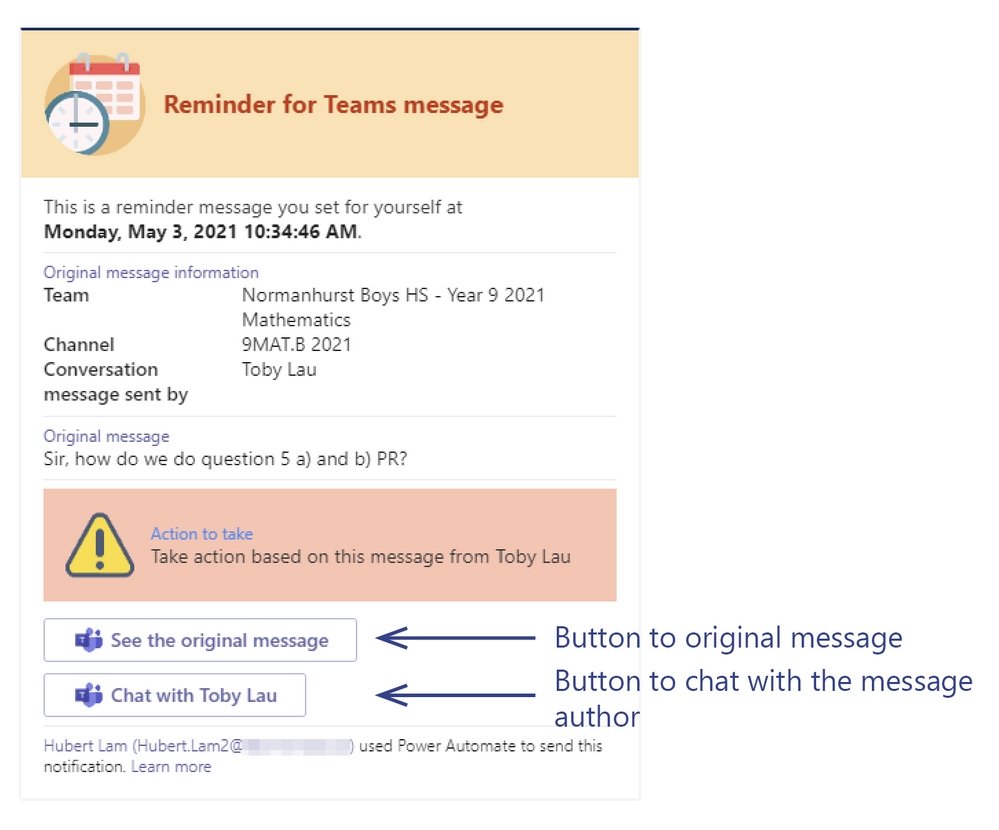 The reminder card we wish to send ourselves
The beauty of this Flow is that it will give you one-click access back to the conversation thread within the team, or back to the chat with a person or a group of people.
So in the blog post below, the Flow will be explained in greater detail, and some caveats highlighted for anyone wanting to pursue this quick reminder flow!
Note: this was partially inspired by Microsoft’s own template that you can create directly from Power Automate, but extends it to bring more flexibility to the reminder time, and also bring a far more visual experience via adaptive cards rather than just the Flow bot.
Inspired by Microsoft
When I first saw the template provided by Microsoft, I thought: this is nice, but it’s a bit too elementary with the fixed timeframes from the choice radio buttons:
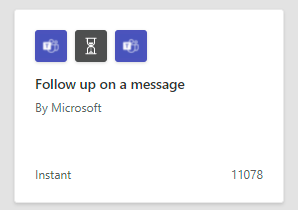 Microsoft’s own sample Flow
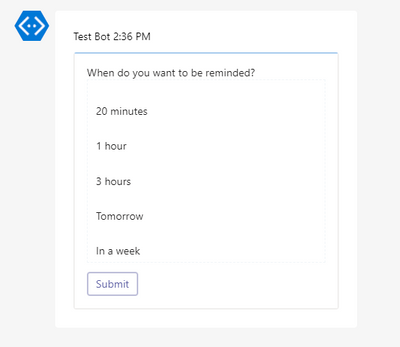 …is perhaps a bit too restrictive
However, that was definitely a starting point. The sample Flow used an adaptive card (with some Input.Choice options) and a Delay action. Why not take this further?
Ingredients
Here’s the “ingredients” needed for the flow to allow ourselves to set a reminder at a particular hour/minute offset from now OR at a specific time:
- One to get user input regarding when they’d like to be reminded
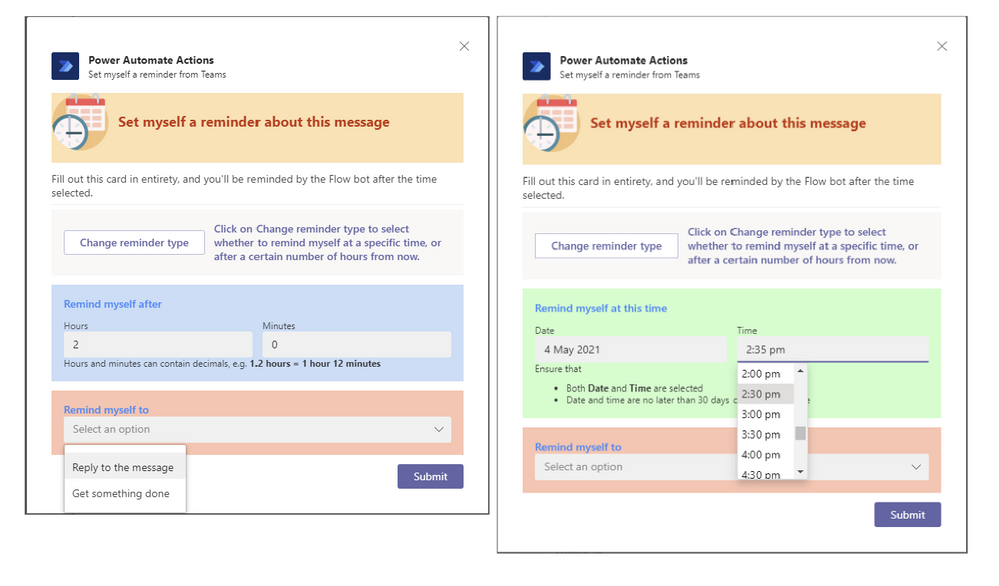 The reminder setting card can accept an hour/minute offset or absolute time as input
- One for the reminder itself:
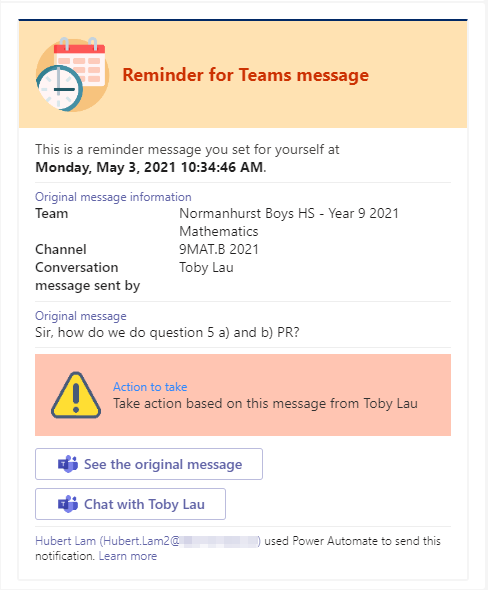 The reminder card itself, with links to the original message and chat with message author
- Two other cards which are for catching errors:
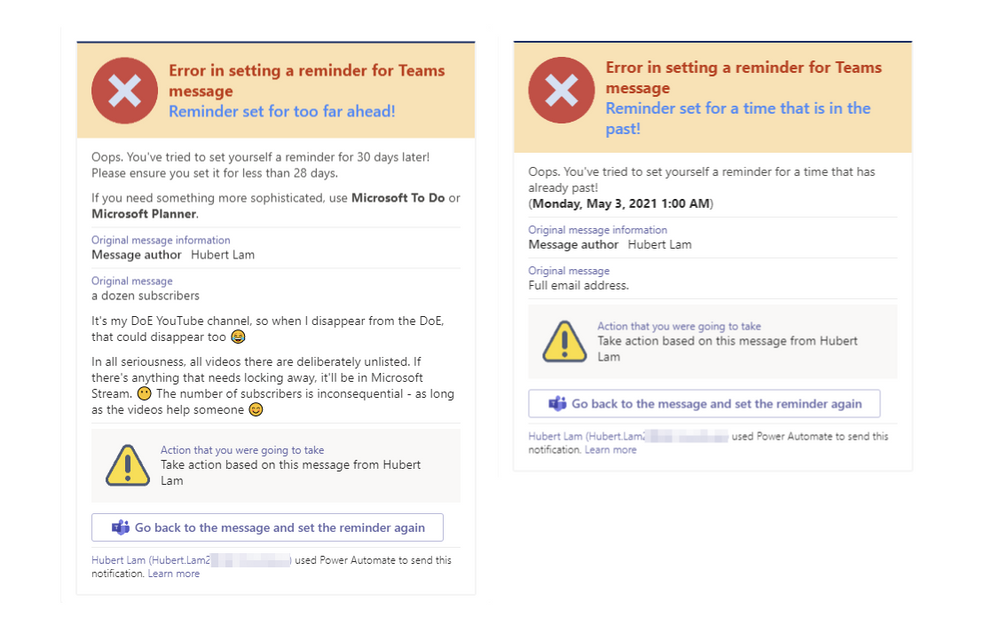 Cards reminding users of input error
The Flow
1. Data entry card
So the concept is basically taken from what Microsoft provided, but here we extend the adaptive card by using an Action.ToggleVisibility button to show and hide parts of a card: the relative time entry and the absolute time entry containers, in blue and green respectively:
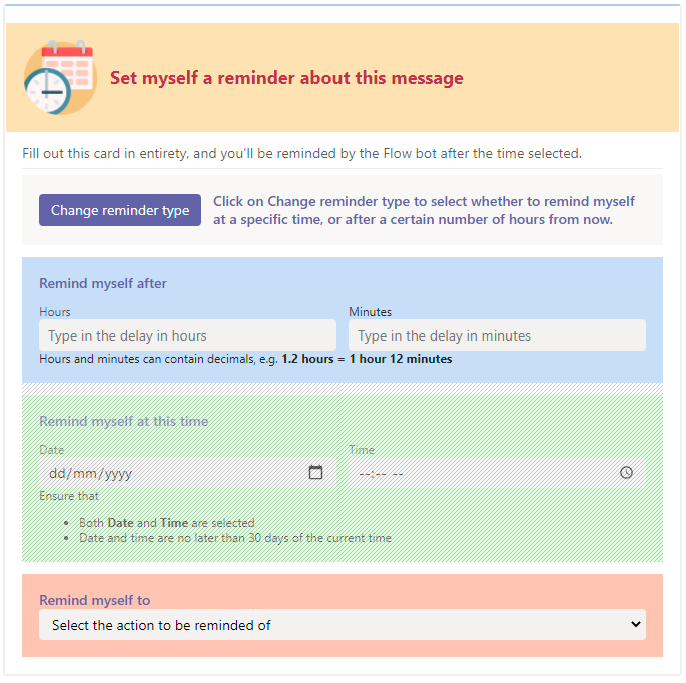 The reminder setting card, with an initially invisible container
The Change reminder type button within the gray container is Action.ToggleVisibility button that you can add from the card elements bar on the left of the adaptive card designer screen. The JSON code looks like this:
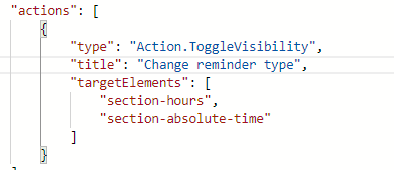
The action button targets the section-hours (blue) and section-absolute-time (green) containers – i.e. when pressed, turns the visibility of section-hours off and section-absolute-time (as the respective ids of the containers) on, and vice versa. The blue and green containers are never on at the same time.
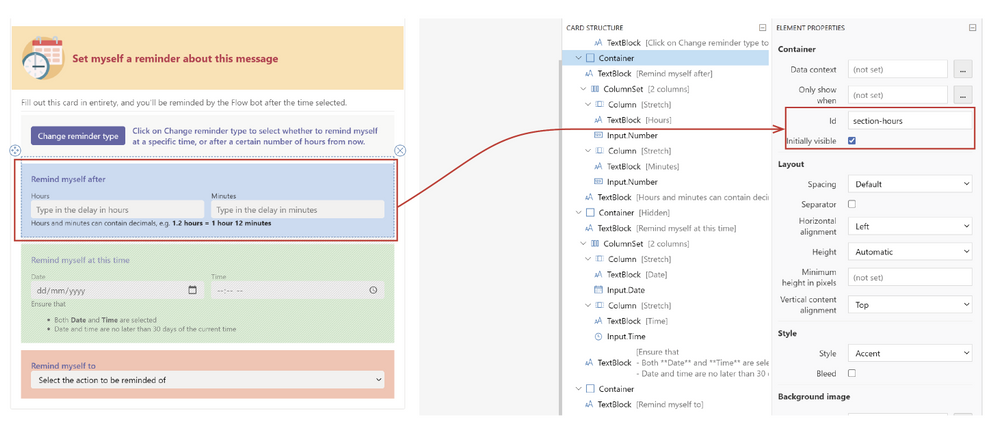 The ID and initial visibility of the blue container
For the Change reminder type button to turn the blue and green containers on and off, the Initially visible checkbox must be
- Checked for the blue container
- Unchecked for the green container:
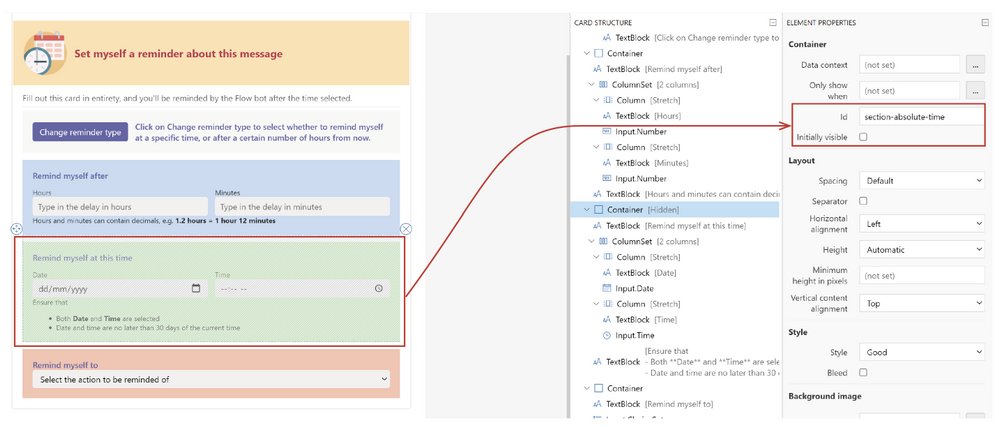 The green container should initially be invisible
Within the containers are also ColumnSets to house the fields side by side, just to make it look nice.
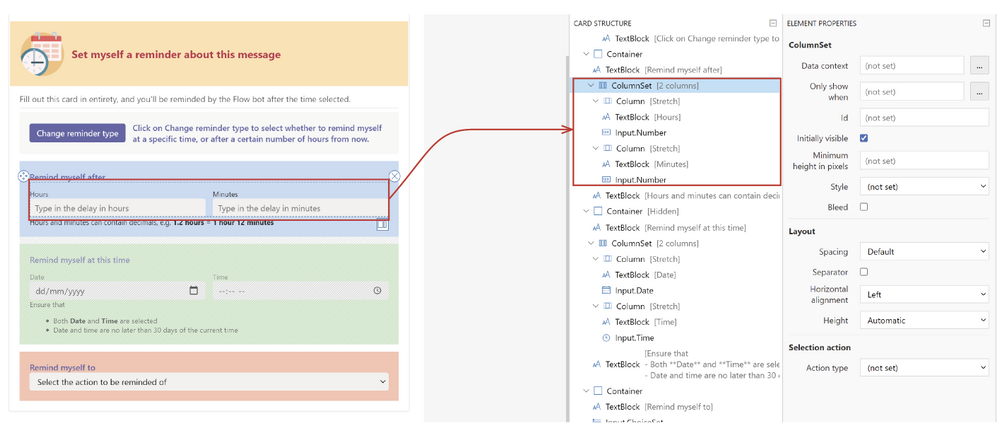 Use the ColumnSet to place fields and labels (as TextBlock) adjacent to each other
The fields also need TextBlocks above them as their labels (until we get Adaptive Cards v1.3 in Teams), as well as having some of the parameters set properly:
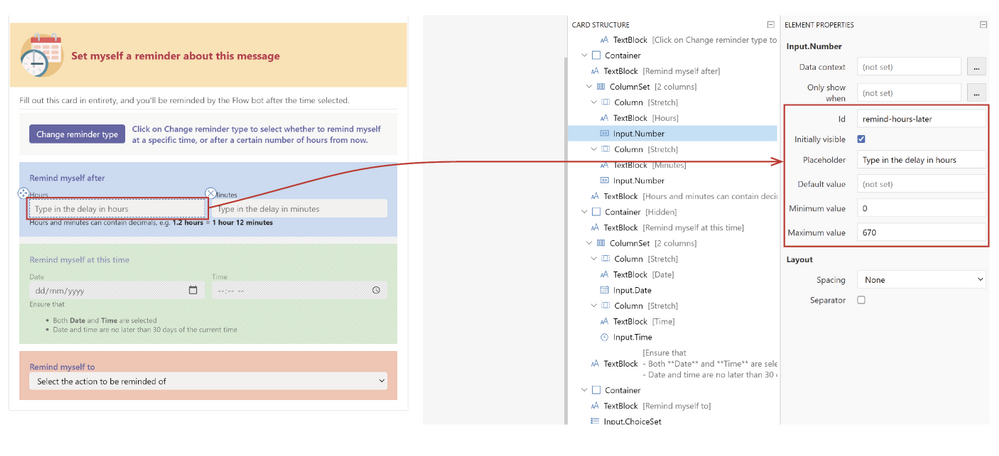 Set some restrictions on the fields, and place TextBlocks above them as labels
Finally, the orange container just contains what to remind yourself of, and has an Input.ChoiceSet to provide the dropdown menu:
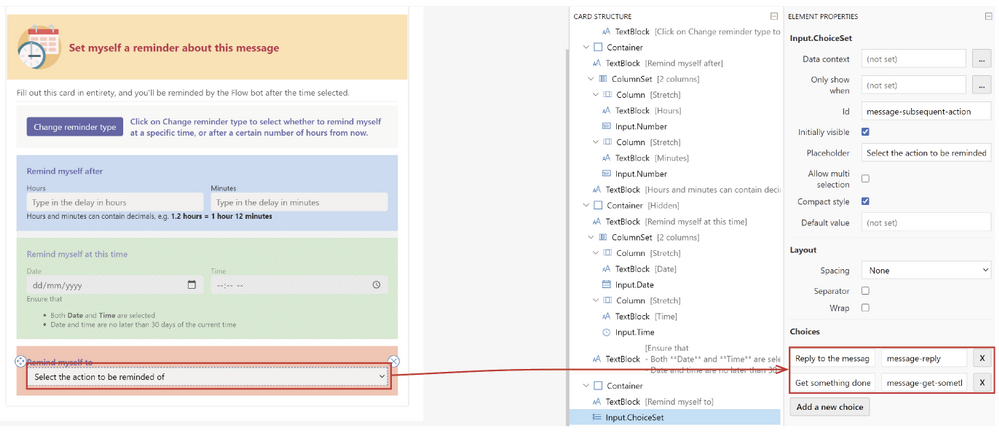 Input.ChoiceSet for dropdown menu
Below is the complete JSON code for the adaptive card that captures the user input:
{
"$schema": "http://adaptivecards.io/schemas/adaptive-card.json",
"type": "AdaptiveCard",
"version": "1.2",
"body": [
{
"type": "Container",
"bleed": true,
"style": "warning",
"items": [
{
"type": "ColumnSet",
"columns": [
{
"width": "75px",
"type": "Column",
"items": [
{
"type": "Image",
"url": "https://normanhurb-h.schools.nsw.gov.au/content/dam/doe/sws/schools/n/normanhurb-h/icons/schedule.png"
}
]
},
{
"width": "stretch",
"type": "Column",
"items": [
{
"type": "TextBlock",
"weight": "Bolder",
"size": "Large",
"text": "**Set myself a reminder about this message**",
"color": "Attention",
"fontType": "Default",
"wrap": true
}
],
"verticalContentAlignment": "Center"
}
]
}
]
},
{
"type": "TextBlock",
"isSubtle": true,
"wrap": true,
"text": "Fill out this card in entirety, and you'll be reminded by the Flow bot after the time selected."
},
{
"type": "Container",
"separator": true,
"style": "emphasis",
"items": [
{
"type": "ColumnSet",
"columns": [
{
"type": "Column",
"width": "auto",
"items": [
{
"type": "ActionSet",
"actions": [
{
"type": "Action.ToggleVisibility",
"title": "Change reminder type",
"targetElements": [
"section-hours",
"section-absolute-time"
]
}
],
"spacing": "None"
}
],
"verticalContentAlignment": "Center"
},
{
"type": "Column",
"width": "stretch",
"items": [
{
"type": "TextBlock",
"text": "Click on Change reminder type to select whether to remind myself at a specific time, or after a certain number of hours from now.",
"wrap": true,
"color": "Accent",
"weight": "Bolder"
}
],
"verticalContentAlignment": "Center"
}
]
}
]
},
{
"type": "Container",
"style": "accent",
"items": [
{
"type": "TextBlock",
"wrap": true,
"color": "Accent",
"weight": "Bolder",
"text": "Remind myself after"
},
{
"type": "ColumnSet",
"columns": [
{
"type": "Column",
"width": "stretch",
"items": [
{
"type": "TextBlock",
"text": "Hours",
"wrap": true,
"maxLines": 0,
"spacing": "None",
"isSubtle": true,
"size": "Small"
},
{
"type": "Input.Number",
"placeholder": "Type in the delay in hours",
"id": "remind-hours-later",
"spacing": "None",
"min": 0,
"max": 670
}
]
},
{
"type": "Column",
"width": "stretch",
"items": [
{
"type": "TextBlock",
"text": "Minutes",
"wrap": true,
"size": "Small"
},
{
"type": "Input.Number",
"placeholder": "Type in the delay in minutes",
"spacing": "None",
"min": 1,
"max": 59,
"id": "remind-minutes-later"
}
]
}
]
},
{
"type": "TextBlock",
"wrap": true,
"text": "Hours and minutes can contain decimals, e.g. **1.2 hours = 1 hour 12 minutes**",
"spacing": "None",
"size": "Small"
}
],
"id": "section-hours"
},
{
"type": "Container",
"style": "good",
"items": [
{
"type": "TextBlock",
"wrap": true,
"color": "Accent",
"weight": "Bolder",
"text": "Remind myself at this time"
},
{
"type": "ColumnSet",
"columns": [
{
"type": "Column",
"width": "stretch",
"items": [
{
"type": "TextBlock",
"text": "Date",
"wrap": true,
"maxLines": 0,
"spacing": "None",
"isSubtle": true,
"size": "Small"
},
{
"type": "Input.Date",
"id": "remind-date",
"spacing": "None"
}
]
},
{
"type": "Column",
"width": "stretch",
"items": [
{
"type": "TextBlock",
"text": "Time",
"wrap": true,
"maxLines": 0,
"spacing": "None",
"isSubtle": true,
"size": "Small"
},
{
"type": "Input.Time",
"id": "remind-time",
"spacing": "None"
}
]
}
]
},
{
"type": "TextBlock",
"text": "Ensure that n- Both **Date** and **Time** are selectedn- Date and time are no later than 30 days of the current time",
"wrap": true,
"size": "Small",
"spacing": "None"
}
],
"id": "section-absolute-time",
"isVisible": false
},
{
"type": "Container",
"style": "attention",
"items": [
{
"type": "TextBlock",
"wrap": true,
"color": "Accent",
"weight": "Bolder",
"text": "Remind myself to"
},
{
"type": "Input.ChoiceSet",
"choices": [
{
"title": "Reply to the message",
"value": "message-reply"
},
{
"title": "Get something done",
"value": "message-get-something-done"
}
],
"placeholder": "Select the action to be reminded of",
"spacing": "None",
"id": "message-subsequent-action"
}
]
}
]
}
2. Reminder card groundwork
After some experimentation with the For a selected message trigger for Teams, it seems that there is a good amount of dynamic content that would be useful for the reminder card:
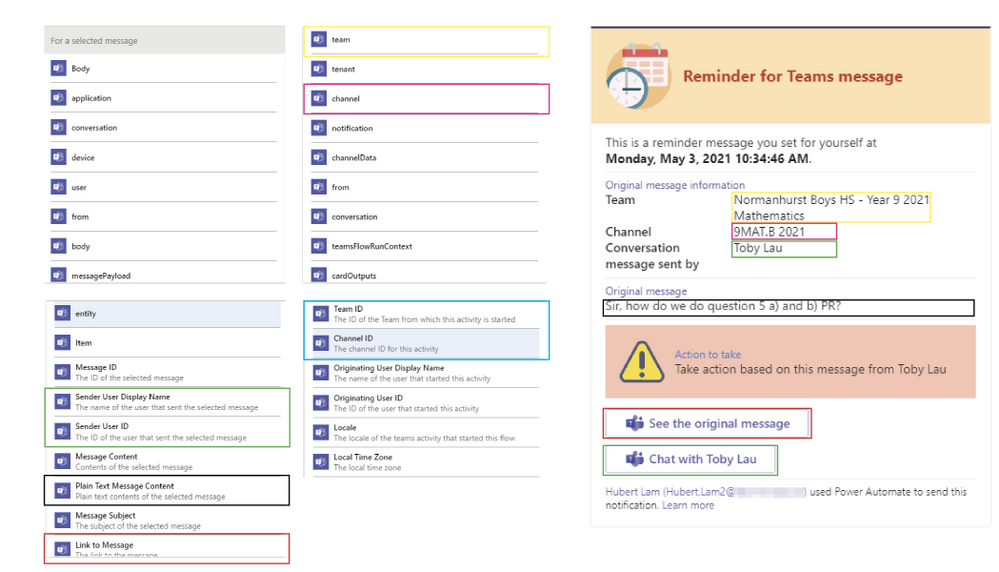 For a selected (Teams) message provides a lot of useful dynamic content
We will return to this card after looking at the upcoming sections after having a look at the actions which the flow will take.
3. Variables required
Some variables are required to hold hold some of the data:
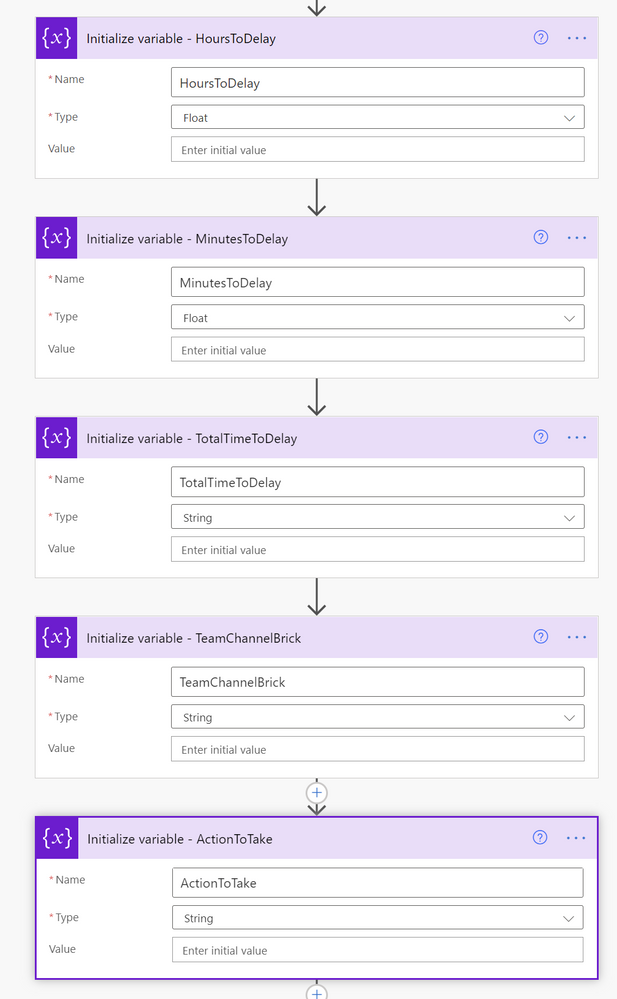 Some variables are required to hold the time information
Then we get the user profiles of the message sender and the person who initiated the flow: interestingly, only the AAD ID is available as dynamic content from the trigger, but thankfully the Get user profile (V2) action is able to handle this and return all of the information required:

4. Check for Chat or Channel conversation message and what action to take
We then build the Original message information block by testing whether the message came from a private chat, or from a Team channel with a simple check of whether the team dynamic content is null or not (input null as an expression, not dynamic content):
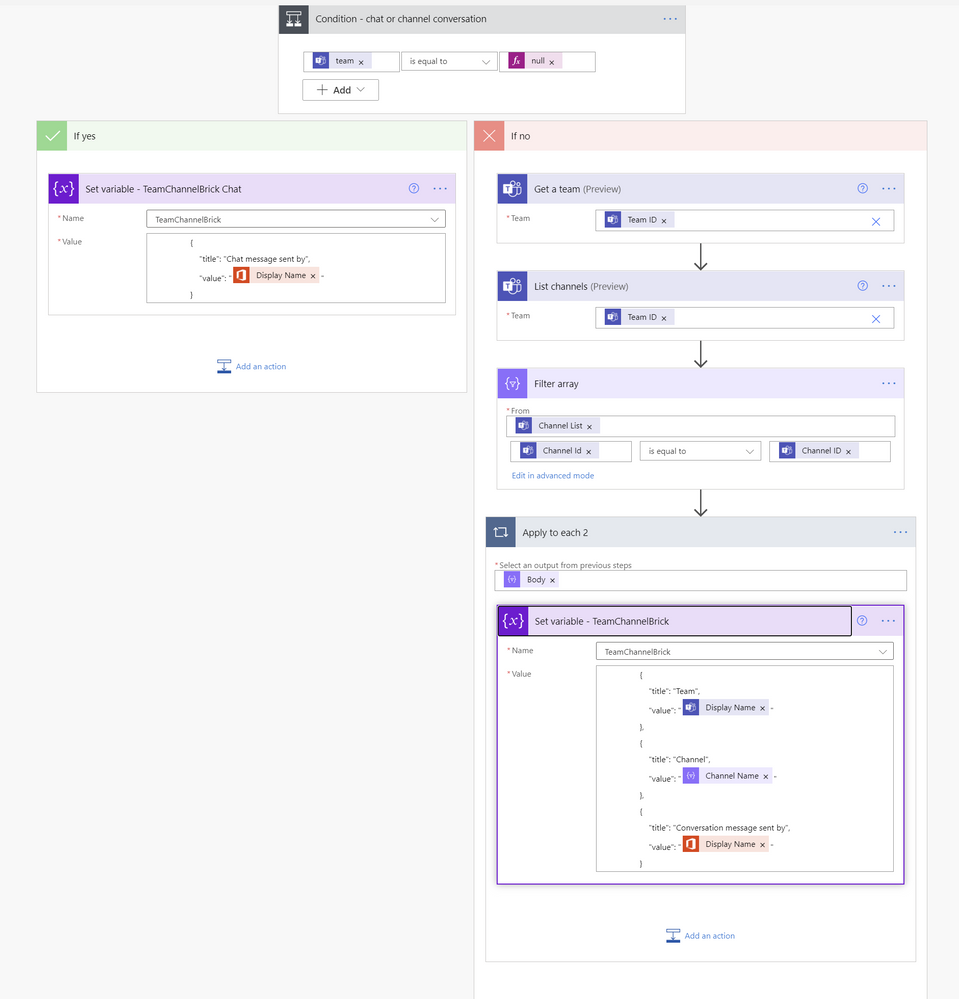 Check whether the message is in a Chat or Channel, and building the adaptive card to suit the occasion
- If the message is from a Team Channel, then the List channels action is run, and a filter applied so that only the Channel Name is extracted out of the channels of the team.
- Channel Id is from the List channels action
- Channel ID (note the case sensitivity!) is from the From a selected message action.
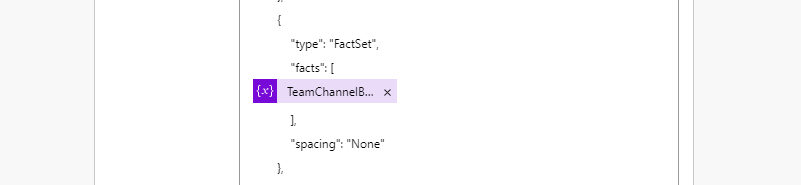
- The JSON card blocks are then saved in the TeamChannelBrick variable.
The ActionToTake variable is also populated after checking for whether it’s been left blank, or one of the selections have been made:
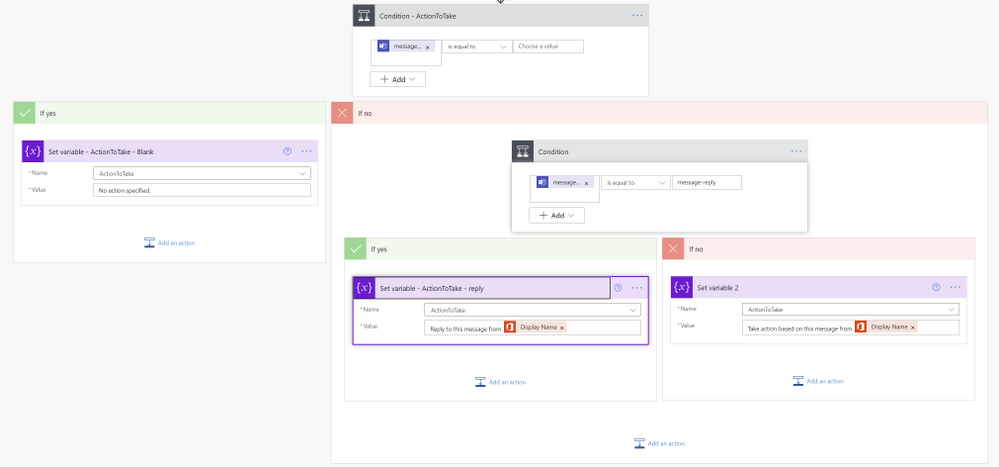 Checking whether the ActionToTake choice has been set, and building the adaptive card brick to suit the input
5. Time calculations, data types & error handling
The difficult part is this bit: making sure the user’s inputs for hours/minutes, or absolute time is valid!
We quickly check whether either date or time entered is null or not, and if so, the user probably has inputted the hour/minute offset instead since that is the default:
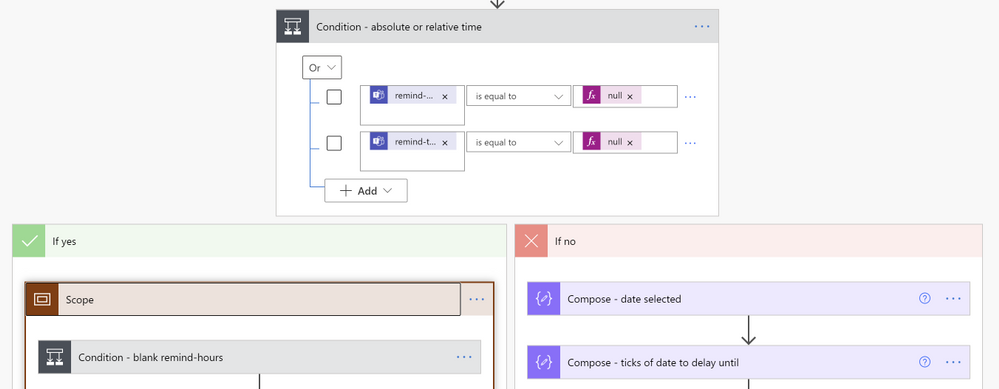 Checking to see whether absolute or relative time delay has been inputted
In the case where the user enters the hours/minutes offset to be reminded:
- Check whether the Hours entered is blank or not (note that there’s a very subtle difference between blank and null!). If so, set the HoursToDelay variable to a “0” or simply use the hours inputted.
- Check whether the Minutes entered is blank or not. If so, set the MinutesToDelay variable to a “0” or simply use the hours inputted.

Finally, the TotalTimeDelay is set to the following expression:
mul(add(mul(variables(‘HoursToDelay’),60),variables(‘MinutesToDelay’)),60)
e.g.
- multiply the number of hours by 60 to obtain the number of minutes
- add that to the number of minutes to delay by
- multiply the final result up by another 60 to obtain the number of seconds
In the case where the user specifies an absolute time to be reminded
A lot more string processing is required!
- Compose – date selected: compose the date/time that the user selected, into ISO8601 format. The caveat here: you need 7 decimal places after the seconds!
- Compose – ticks of date to delay until: find the number of ticks from the previous compose action:
ticks(outputs(‘Compose_-_date_selected’))
- Convert time zone – to UTC+10 (where I live): change this to wherever you are in the world.
- Compose – ticks of current time: get the current time’s ticks
- Compose – difference in ticks: subtract the ticks of current time (4) from the ticks of the selected time (1).
- Then check for whether the selected date is before the current time by seeing whether (5) is a negative number of not in the Condition – check selected date isn’t on or before reminder date
- Then do some final checks for whether the number of seconds falls on “0” by
- Converting the ticks into minutes/seconds (Compose – ticks to seconds)
The TotalTimeToDelay variable in this instance, should contain this expression:
add(0,div(outputs(‘Compose_-_difference_in_ticks’),10000000))
- Checking whether there’s remnant seconds (by looking for modulo 60) in Compose – modulo seconds action. If the number of seconds to delay by, falls on “0” then just add 1 more second to it in case the user enters a time which is just less than 1 minute as the div formula will only work with integers.
The TotalTimeToDelay variable in this instance, becomes this expression instead:
add(1,div(outputs(‘Compose_-_difference_in_ticks’),10000000))
The reason for this check is that the Delay action, is very fussy. It only takes integers, and can’t cope with an input of 0 (you’d think that an input of “0” into the Delay action would just cause it to continue full steam ahead instead of sitting there and waiting!)
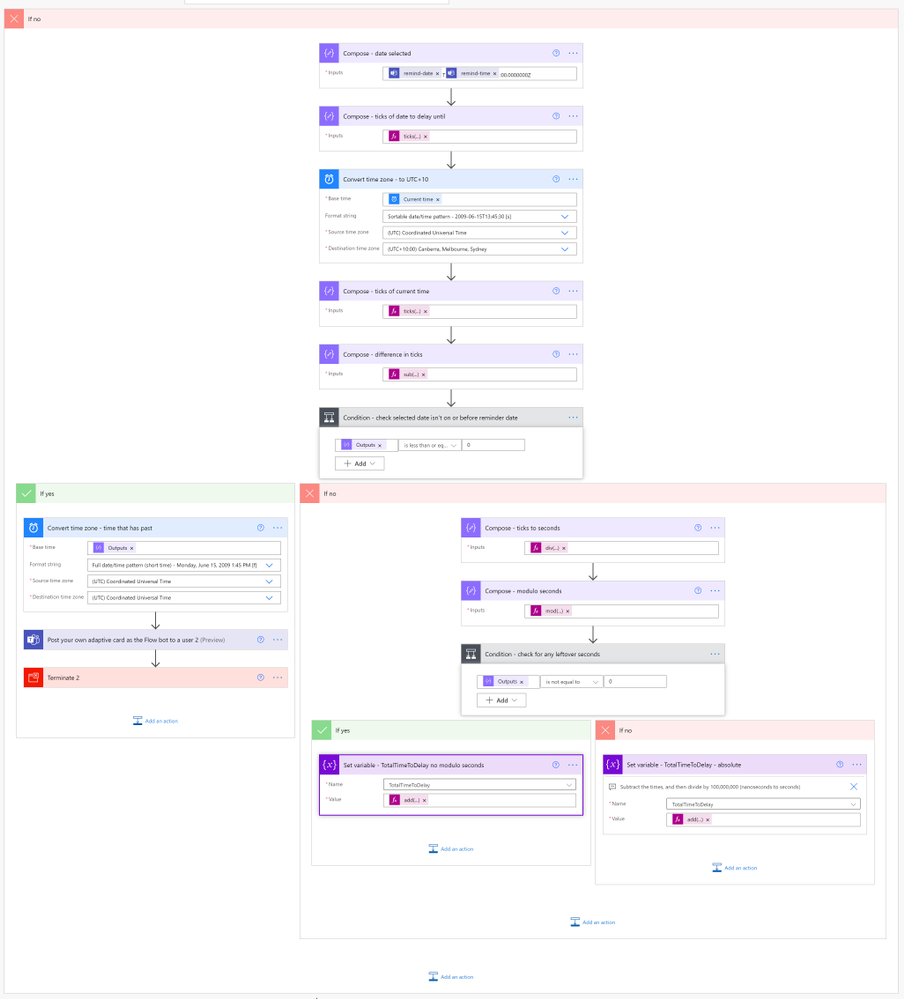 Absolute time calculations: finding out the TotalTimeToDelay
One final major condition block: check to see if the user has set a date over 28 days (or 720 hours)
We check the TotalTimeToDelay variable and see how many days it has racked up:
div(int(variables(‘TotalTimeToDelay’)),86400)
This check is needed as Power Automate will time out after 30 days. But let’s just be a little more conservative and set that at 28 days, and throw an error if so. This will ensure no reminders (especially those over 30 days) are quietly dumped without the user’s knowledge.
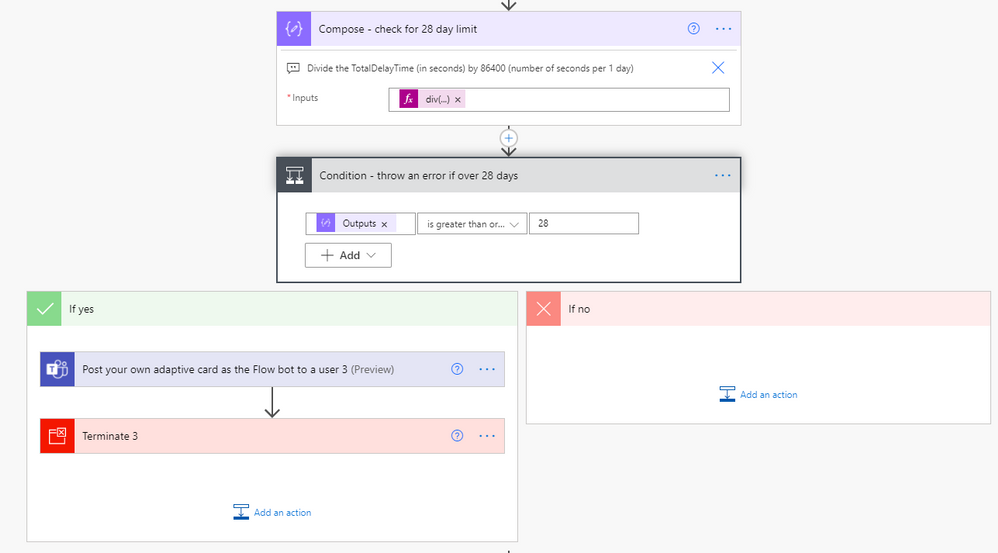 Double checking that the user has entered a date no further than 28 days out to ensure the flow doesn’t time out
The adaptive card that reports the error if a user enters a date that is greater than 28 days:
{
    "$schema": "http://adaptivecards.io/schemas/adaptive-card.json",
    "type": "AdaptiveCard",
    "version": "1.2",
    "body": [
        {
            "type": "Container",
            "bleed": true,
            "style": "warning",
            "items": [
                {
                    "type": "ColumnSet",
                    "columns": [
                        {
                            "width": "75px",
                            "type": "Column",
                            "items": [
                                {
                                    "type": "Image",
                                    "url": "https://normanhurb-h.schools.nsw.gov.au/content/dam/doe/sws/schools/n/normanhurb-h/icons/error.png"
                                }
                            ]
                        },
                        {
                            "width": "stretch",
                            "type": "Column",
                            "items": [
                                {
                                    "type": "TextBlock",
                                    "weight": "Bolder",
                                    "size": "Large",
                                    "text": "**Error in setting a reminder for Teams message**",
                                    "color": "Attention",
                                    "fontType": "Default",
                                    "wrap": true
                                },
                                {
                                    "type": "TextBlock",
                                    "text": "Reminder set for too far ahead!",
                                    "wrap": true,
                                    "size": "Large",
                                    "weight": "Bolder",
                                    "color": "Accent",
                                    "spacing": "None"
                                }
                            ],
                            "verticalContentAlignment": "Center"
                        }
                    ]
                }
            ]
        },
        {
            "type": "TextBlock",
            "isSubtle": true,
            "wrap": true,
            "text": "Oops. You've tried to set yourself a reminder for @{outputs('Compose_-_check_for_28_day_limit')} days later! Please ensure you set it for less than 28 days.nnIf you need something more sophisticated, use **Microsoft To Do** or **Microsoft Planner**."
        },
        {
            "type": "TextBlock",
            "text": "Original message information",
            "wrap": true,
            "separator": true,
            "size": "Small",
            "color": "Accent"
        },
        {
            "type": "FactSet",
            "facts": [
                {
                    "title": "Message author",
                    "value": "@{outputs('Get_user_profile_(V2)_-_person_who_typed_the_message')?['body/displayName']}"
                }
            ],
            "spacing": "None"
        },
        {
            "type": "TextBlock",
            "text": "Original message",
            "wrap": true,
            "separator": true,
            "color": "Accent",
            "size": "Small"
        },
        {
            "type": "TextBlock",
            "text": "@{triggerBody()?['entity']?['teamsFlowRunContext']?['messagePayload']?['body']?['plainText']}",
            "wrap": true,
            "spacing": "None"
        },
        {
            "type": "Container",
            "separator": true,
            "style": "emphasis",
            "items": [
                {
                    "type": "ColumnSet",
                    "columns": [
                        {
                            "type": "Column",
                            "width": "50px",
                            "items": [
                                {
                                    "type": "Image",
                                    "url": "https://normanhurb-h.schools.nsw.gov.au/content/dam/doe/sws/schools/n/normanhurb-h/icons/alert.png"
                                }
                            ]
                        },
                        {
                            "type": "Column",
                            "width": "stretch",
                            "items": [
                                {
                                    "type": "TextBlock",
                                    "text": "Action that you were going to take",
                                    "wrap": true,
                                    "separator": true,
                                    "color": "Accent",
                                    "size": "Small"
                                },
                                {
                                    "type": "TextBlock",
                                    "wrap": true,
                                    "spacing": "None",
                                    "text": "@{variables('ActionToTake')}"
                                }
                            ],
                            "verticalContentAlignment": "Center"
                        }
                    ]
                }
            ]
        },
        {
            "type": "ActionSet",
            "actions": [
                {
                    "type": "Action.OpenUrl",
                    "title": "Go back to the message and set the reminder again",
                    "iconUrl": "https://normanhurb-h.schools.nsw.gov.au/content/dam/doe/sws/schools/n/normanhurb-h/icons/teams.png",
                    "url": "@{triggerBody()?['entity']?['teamsFlowRunContext']?['messagePayload']?['linkToMessage']}"
                }
            ]
        }
    ]
}
6. The Delay vs Delay Until action
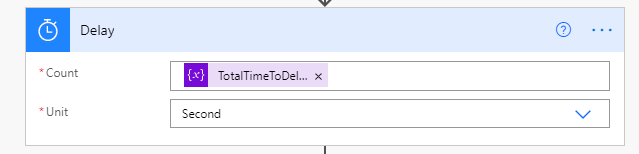 Setting the delay
We are now ready to delay the flow!
Initially there was a consideration to use the Delay Until action if the user enters an absolute date/time, until a major stumbling block was encountered: time zones!
Power Automate basically works in UTC or UTC-8, whereas I live in UTC+10. Having said that, the documentation for the Delay Until action is quite scant, and it doesn’t seem to take into consideration what timezone you are in. Hence all of the effort to subtract ticks and calculate remnant seconds etc when the user selects the date/time option.
7. Oops – don’t forget the characters that adaptive cards dislike!
Two more Compose actions are required before we pop the reminder card out, namely:
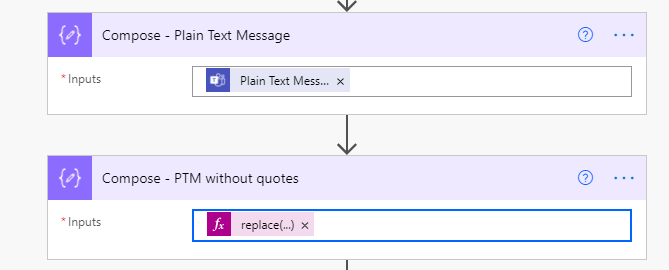
Unfortunately if you wanted to insert the Plain Text Message dynamic content into the replace formula, you’re almost out of luck. Here’s where Compose comes to the rescue. The Compose – PTM without quotes action has this in its formula:
replace(replace(outputs(‘Compose_-_Plain_Text_Message’),'” ‘,”),’ “‘,”)
which replaces every instance of space–double-quote and double-quote–space with empty strings, in order to not allow the reminder card to spit the dummy with any double quotation marks.
8. The reminder card’s code
With the TotalChannelBlock variable inserted into the appropriate location so that the correct information about the message is displayed to the user who initiated the flow:
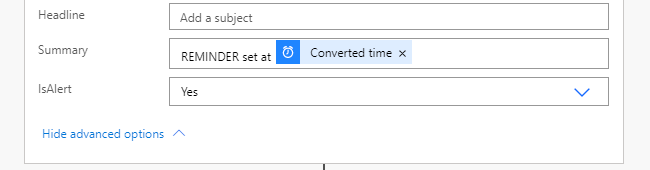
…and a summary at the bottom of the card (pop the Show advanced options open!) to ensure a summary is sent – especially useful if your smartwatch notifications rely on a summary of sorts:
{
    "$schema": "http://adaptivecards.io/schemas/adaptive-card.json",
    "type": "AdaptiveCard",
    "version": "1.2",
    "body": [
        {
            "type": "Container",
            "bleed": true,
            "style": "warning",
            "items": [
                {
                    "type": "ColumnSet",
                    "columns": [
                        {
                            "width": "75px",
                            "type": "Column",
                            "items": [
                                {
                                    "type": "Image",
                                    "url": "https://normanhurb-h.schools.nsw.gov.au/content/dam/doe/sws/schools/n/normanhurb-h/icons/schedule.png"
                                }
                            ]
                        },
                        {
                            "width": "stretch",
                            "type": "Column",
                            "items": [
                                {
                                    "type": "TextBlock",
                                    "weight": "Bolder",
                                    "size": "Large",
                                    "text": "**Reminder for Teams message**",
                                    "color": "Attention",
                                    "fontType": "Default",
                                    "wrap": true
                                }
                            ],
                            "verticalContentAlignment": "Center"
                        }
                    ]
                }
            ]
        },
        {
            "type": "TextBlock",
            "isSubtle": true,
            "wrap": true,
            "text": "This is a reminder message you set for yourself atn"
        },
        {
            "type": "TextBlock",
            "text": " **@{body('Convert_time_zone_-_time_executed')}**.",
            "wrap": true,
            "spacing": "None"
        },
        {
            "type": "TextBlock",
            "text": "Original message information",
            "wrap": true,
            "separator": true,
            "size": "Small",
            "color": "Accent"
        },
        {
            "type": "FactSet",
            "facts": [
@{variables('TeamChannelBrick')}
            ],
            "spacing": "None"
        },
        {
            "type": "TextBlock",
            "text": "Original message",
            "wrap": true,
            "separator": true,
            "color": "Accent",
            "size": "Small"
        },
        {
            "type": "TextBlock",
            "text": "@{outputs('Compose_-_PTM_without_quotes')}",
            "wrap": true,
            "spacing": "None"
        },
        {
            "type": "Container",
            "separator": true,
            "style": "attention",
            "items": [
                {
                    "type": "ColumnSet",
                    "columns": [
                        {
                            "type": "Column",
                            "width": "50px",
                            "items": [
                                {
                                    "type": "Image",
                                    "url": "https://normanhurb-h.schools.nsw.gov.au/content/dam/doe/sws/schools/n/normanhurb-h/icons/alert.png"
                                }
                            ]
                        },
                        {
                            "type": "Column",
                            "width": "stretch",
                            "items": [
                                {
                                    "type": "TextBlock",
                                    "text": "Action to take",
                                    "wrap": true,
                                    "separator": true,
                                    "color": "Accent",
                                    "size": "Small"
                                },
                                {
                                    "type": "TextBlock",
                                    "wrap": true,
                                    "spacing": "None",
                                    "text": "@{variables('ActionToTake')}"
                                }
                            ],
                            "verticalContentAlignment": "Center"
                        }
                    ]
                }
            ]
        },
        {
            "type": "ActionSet",
            "actions": [
                {
                    "type": "Action.OpenUrl",
                    "title": "See the original message",
                    "iconUrl": "https://normanhurb-h.schools.nsw.gov.au/content/dam/doe/sws/schools/n/normanhurb-h/icons/teams.png",
                    "url": "@{triggerBody()?['entity']?['teamsFlowRunContext']?['messagePayload']?['linkToMessage']}"
                },
                {
                    "type": "Action.OpenUrl",
                    "title": "Chat with @{outputs('Get_user_profile_(V2)_-_person_who_typed_the_message')?['body/displayName']}",
                    "iconUrl": "https://normanhurb-h.schools.nsw.gov.au/content/dam/doe/sws/schools/n/normanhurb-h/icons/teams.png",
                    "url": "https://teams.microsoft.com/l/chat/0/0?users=@{outputs('Get_user_profile_(V2)_-_person_who_typed_the_message')?['body/mail']}"
                }
            ]
        }
    ]
}
Thanks for reading! Hope you’ve learned loads yourself!
by Contributed | May 6, 2021 | Technology
This article is contributed. See the original author and article here.
On May 6, 2021, we announced a new pledge for the European Union. If you are a commercial or public sector customer in the EU, we will go beyond our existing data residency commitments and enable you to process and store all your data in the EU. In other words, we will not need to move your data outside the EU. This commitment will apply across all of Microsoft’s main cloud services—Azure, Microsoft 365, and Dynamics 365. We are beginning work immediately on this added step, and we will complete by the end of next year the implementation of all engineering work needed to execute on it. We’re calling this plan the EU Data Boundary for the Microsoft Cloud.
The new step we’re taking builds on our already strong portfolio of solutions and commitments that protect our customers’ data, and we hope today’s update is another step toward responding to customers who want even greater data residency commitments. We will continue to consult with customers and regulators about this plan in the coming months and move forward in a way that is responsive to their feedback.
What exactly will change in 2022 from today?
A: Many of our Online Services already offer customers data storage for Customer Data within customer-selected geographies, with many of Azure services offering the ability to choose to process and store Customer Data in customer-selected geographies. Through our new EU Data Boundary program announced on May 6th, by the end of 2022, we will be taking additional steps to minimize transfers of both Customer Data and Personal Data outside of the EU. We believe our new initiative will meet regulatory requirements and address the needs of our European customers who are looking for even greater data localization commitments.
We’ve identified the technical and operational investments necessary to meet this goal, and we believe we can accomplish it. In the coming months we’ll be discussing our plans with both customers and regulators, and we will be responsive to their feedback.
See: Microsoft Privacy – Where your data is Located
Will this result in a loss of functionality within the EU Data Boundary?
A: The EU Data Boundary is a further development of our existing commercial services that we already offer within the EU and as such, will not require migration. Functionality and continued innovation will apply to the services within the new EU Data Boundary. Customers will still have the option to choose enhancements to services that leverage resources outside the EU boundary.
Will the changes result in a price increase for EU customers?
A: We will build these EU Data Boundary solutions into in-scope Online Services to enhance our current offerings for customers. There may be optional choices in the future, as is already the case with M365 MultiGeo. We will provide more information when it becomes available.
Do I need to wait until 2022 to migrate to the cloud?
A: No. Customers considering migrating on-premises workloads to the Microsoft cloud today can be assured that they can use Microsoft services in compliance with European laws. Microsoft cloud services already comply with or exceed European guidelines even without the plan we are announcing today. These new steps build on our already strong portfolio of solutions and commitments that protect our customers’ data, and new customers will automatically gain the benefits of the engineering changes we are making.
How will the new boundary impact my compliance with the GDPR and the Schrems II ruling?
A: Microsoft Online Services already enable customers to comply with the GDPR even without this additional commitment to store and process data within the EU boundary. We implemented supplementary measures after the Schrems II decision to further support compliance for data transfers, which we believe meet and go beyond what is required by the Schrems II decision. We are making these additional investments to process and store data in the European Union by the end of 2022. This demonstrates our continuing commitment to our customers in Europe and simplifies post-Schrems II compliance by minimizing data transfers outside of the EU boundary.
See: New steps to defend your data – Microsoft on the Issues
Will EU Standard Contractual Clauses still be required or even applicable after 2022?
A: The EU Standard Contractual Clauses (SCCs) are used in agreements between service providers (such as Microsoft) and their customers to ensure that any personal data leaving the European Economic Area (EEA) will be transferred in compliance with EU data protection laws and meet the requirements of the EU Data Protection Directive 95/46/EC.
Microsoft will implement the European Commission’s revised SCCs and continue to offer customers specific guarantees around transfers of personal data for in-scope Microsoft services. This ensures that Microsoft customers can freely move data through the Microsoft cloud from the EEA to the rest of the world. Customers with specific questions about the applicability of SCCs to their own deployments should consult their legal counsel.
How will the US and other government requests be treated under the new EU Data Boundary?
A: Through clearly defined and well-established response policies and processes, strong contractual commitments, and if need be, the courts, Microsoft defends your data. We believe that all government requests for your data should be directed to you. We do not give any government direct or unfettered access to customer data. If Microsoft receives a demand for a customer’s data, we will direct the requesting party to seek the data directly from the customer. If compelled to disclose or give access to any customer’s data, Microsoft will promptly notify the customer and provide a copy of the demand unless legally prohibited from doing so. We will challenge every government request for an EU public sector or commercial customer’s personal data—from any government—where there is a lawful basis for doing so. And we will provide monetary compensation to our customers’ users if we disclose data in violation of the GDPR that causes harm.
Will any personal data be transferred outside the EU after 2022? Can you provide a list of exceptions?
A: We’ve identified the technical and operational investments necessary to meet this goal, and we believe we can accomplish it. We will continue to consult with customers and regulators about our plans in the coming months, including adjustments that are needed in unique circumstances like cybersecurity, and we will move forward in a way that is responsive to their feedback.
Will the EU Data Boundary be consistent with GAIA-X?
A: While GAIA-X has not yet finalized its requirements, we believe the EU Data Boundary for the Microsoft Cloud will provide the technical and business basis to support our ongoing commitment to the GAIA-X initiative.
![[Guest Blog] Stretch Goals will change your life](https://www.drware.com/wp-content/uploads/2021/05/fb_image-313.png)
by Contributed | May 5, 2021 | Technology
This article is contributed. See the original author and article here.
This blog is written by Jerry Weinstock, Microsoft Business Applications MVP. He shares how he set and pursued stretch goals to become a Business Applications MVP and author a white paper for Microsoft.
When you hear the term “Stretch Goals” it is usually in the context of performance metrics for sales people on quota or commission. I am going to tell you two stories where I have used stretch goals to take my career to the so-called next level by getting me out of my comfort zone and accomplishing bucket list items. Stretch goals are also for technology people!
When we think about goals they are generally conservative, somewhat routine and tend to be achievable and perhaps expected to be accomplished. Do not confuse it with “doing your job” and getting a positive review along with the standard merit increase. New Year’s Resolutions are not stretch goals!
A stretch goal is an objective that you set for yourself that is extremely difficult to achieve. It is over and above your normal activities or the results that others expect you to achieve. While there are many ways to define a stretch goal, in my life I have defined it by two criteria; it will take me well out of my comfort zone, requiring me to “stretch” well past my current level of activities and skill level; and it will be something when achieved, is “braggable” either in a personal or business setting. It could also be a bucket list accomplishment but not everything that might fall into a bucket list checklist is a stretch goal.
So now that we have a baseline for stretch goals, let me tell you about two stretch goals that took me well out of my comfort zone, provided some things I could brag about, and catapulted my career to another level.
Microsoft CRM Team Blog – My path to becoming a MVP
Back in the early days – circa 2007-2009, the Microsoft CRM Team Blog (that was its’ name then) was just about the only place online that you could find new product information being posted. We did not have Facebook or Twitter the way it’s used today, nor Linkedin. Additionally, very few people were blogging on their own website. It was the one place you went to almost every day to get the latest CRM news.
I had been voraciously consuming the blog posts as soon as they came out, applying the new found knowledge to projects for my clients. I had noticed a pattern that some of the posts were being made by non-Microsoft people and labeled as “guest posts”. After a while of seeing these posts, I began to think that I had equally good information to share as these guest bloggers. I just had never done anything like that before and I had no clue how to break into the process. All I knew was that all the guest bloggers were MVPs. While I had no direct exposure to these people I knew from seeing them at events and their entourage that they seemed a step ahead of all the other consultants.
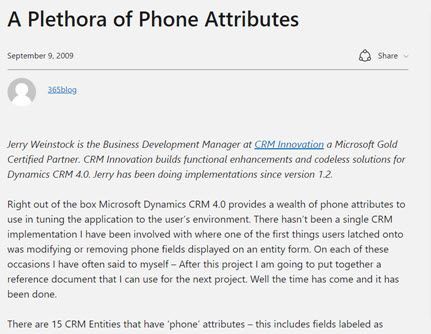
So while I had given no thought to becoming an MVP, I also had no clue where to begin the process. I got it in my head that if I tried, I could write equally valuable blog content. I started working on several candidate posts that went through dozens of iterations. Finally, when I had something that I thought might work, I tracked down Jim Glaas who, at the time, ran the MVP program and managed the team blog. After pinging him with emails, I finally connected with him and we started the process. The first post I submitted was turned down because it was based on what the product team assessed as unsupported methods. I was devastated and almost retreated. The second submission I came up with was accepted and on September 9, 2009 the first post appeared – A Plethora of Phone Attributes.
After successfully getting one post accepted and basking in the glory for a few minutes (my family wasn’t impressed), I set out to see if I could continue to stretch and repeat the accomplishment. I had several more published, one of them is as follows:
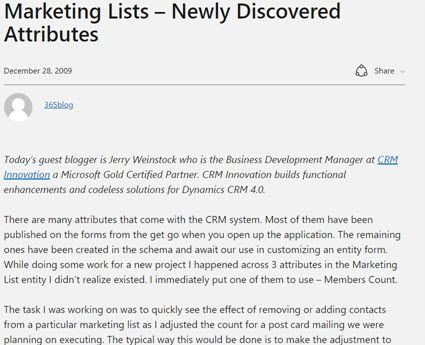
Concurrent with the posting of the Marketing list post, I received an email from Jim asking why I wasn’t a CRM MVP. He advised that if I spent a lot of time in the CRM forum, it would greatly boost my chances. I took him up on it without knowing much about the MVP program, but I felt confident that if I pushed myself, I could demonstrate I was equally qualified.
I received the MVP Application form in January 2010. I then set out to diligently become more active on the community forums. Every morning, as soon as I got to the office, I went to the forums and tried to answer the questions that had been posted the night before. In many cases I actually had to create the submitters’ scenario in CRM to come up with the answer. This went on for months, sometimes my real work didn’t get started for 2+ hours after the day began.
I applied to the MVP program with the formal application in April and was notified that I had been turned down and to re-apply. I decided to ramp it up even more and delivered another guest post and stretched myself to answer even more complex questions on the forums.
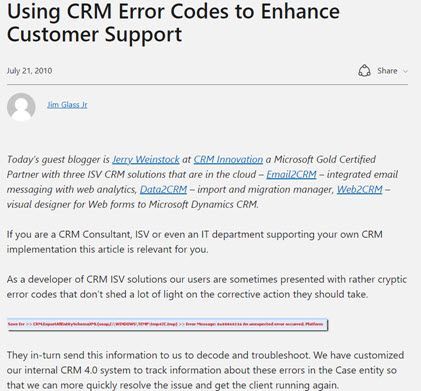
On October 1, 2010 I received the email letting me know that I had been recognized for my community activities and entered the MVP program. It is coming up on 11 years now and I consider it the single biggest professional stretch goal I have accomplished. It has had more impact on my business and personal life than any other career event. Put your mind to it and stretch yourself, you can do it also if you want it.
Microsoft White Paper – Power Automate Flow
Just like I had been observing the guest posts by MVPs circa 2008, I had been consuming Microsoft White Papers. I always marveled over the value of the content along with the prestige that seemed to come to people that were skilled enough to put them together. I had jumped on Microsoft Flow when it was first introduced and felt it was the most powerful tool that the product team had given to functional consultants in the life of the product. After blogging, speaking, and answering forum questions for the first two years I believed I had defined myself as the go to person in the community for Flow and Dynamics 365.
I decided to set my next stretch goal – to firmly establish myself at the pinnacle of Flow and Dynamics 365. After a long and brand new process that took me through selling the idea to Microsoft and then actually delivering on what I told them I could do, in August of 2009 the Flow white paper was released. Did I stretch myself? You bet, the paper went through four iterations with Microsoft and I invested three times the amount of hours that I had originally estimated but I was ecstatic when it was released. It certainly falls into the braggable category. Would I do it again? I could but probably wouldn’t and perhaps that is the third criteria of a stretch goal – something you achieve but only need to do once.
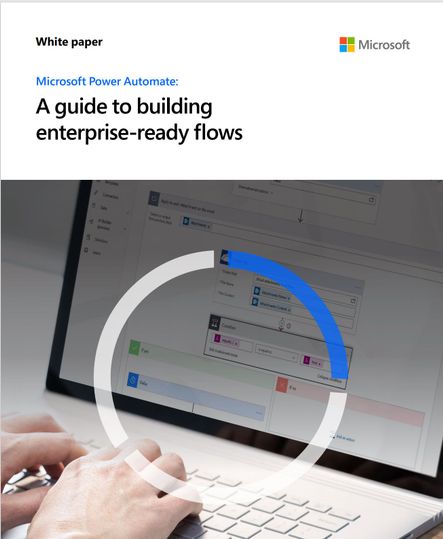
So that kind of sums it up – get out of the routine, think big, take yourself to the next level, accomplish something that no one around you has, look to the leaders that you know, set a stretch goal for yourself and when you achieve it – tell the world. You will have a smiling grin on your face.









Recent Comments