by Contributed | Jun 1, 2021 | Technology
This article is contributed. See the original author and article here.
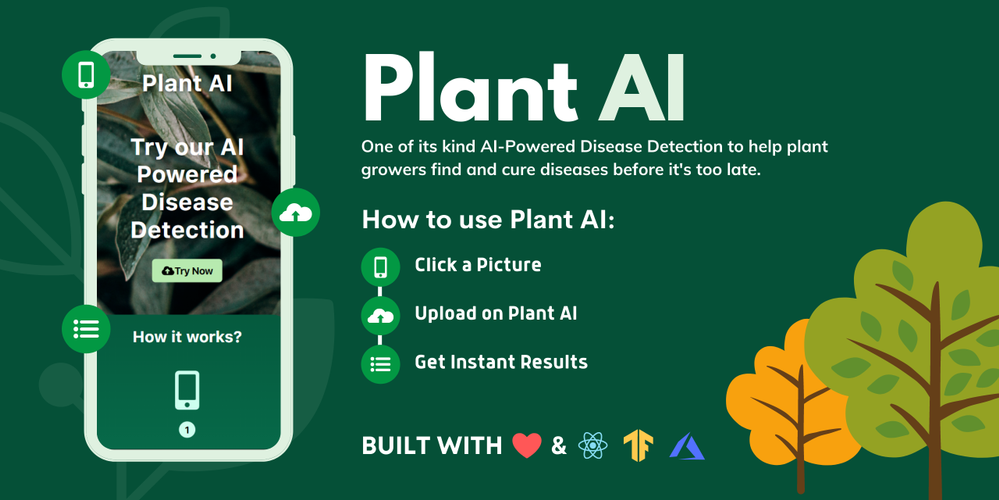
Hello developers :waving_hand:! In this article, we introduce our project “Plant AI :shamrock:” and walk you through our motivation behind building this project, how it could be helpful to the community, the process of building this project, and finally our future plans with this project.
Plant AI :shamrock: is a web application :globe_with_meridians: that helps to easily diagnose diseases in plants from plant images using Machine Learning available on the web. We provide an interface on the website where you can upload images of your plant leaves. Since we focus on plant leaf diseases we can detect the plant’s diseases by seeing an image of the leaves. We also provide users easy ways to treat the diagnosed disease.
As of now, our model supports 38 categories of healthy and unhealthy plant images across species and diseases. See the complete list of supported diseases and species can be found here. If you are want to test out Plant AI, you can use one of these images.
Guess, what? This project is also completely open-sourced:star:, here is the GitHub repo for this project: https://github.com/Rishit-dagli/Greenathon-Plant-AI
The motivation behind building this
Human society needs to increase food production an estimated 70% by 2050 to feed an expected population size that is predicted to be over 9 billion people [1]. Currently, infectious diseases reduce the potential yield by an average of 40% with many farmers in the developing world experiencing yield losses as high as 100%.
The widespread distribution of smartphones among farmers around the world offers the potential of turning smartphones into a valuable tool for diverse communities growing food.
Our motivation with Plant AI is to aid crop growers by turning their smartphones into a diagnosis tool that could substantially increase crop yield and reduce crop failure. We also aim to make this rather easy for crop growers so the tool can be used on a daily basis.
How does this work?
As we highlighted in the previous section, our main target audience with this project is crop growers. We intend for them to use this on a daily basis to diagnose disease from their plant images.
Our application relies on the Machine Learning Model we built to identify plant diseases from images. We first built this Machine Learning model using TensorFlow and Azure Machine Learning to keep track, orchestrate, and perform our experiments in a well-defined manner. A subset of our experiments used to build the current model have also been open-sourced and can be found on the project’s GitHub repo.
We were quite interested in running this Machine Learning model on mobile devices and smartphones to further amplify its use. Using TensorFlow JS to optimize our model allows it to work on the web for devices that are less compute-intensive.
We also optimized this model to work on embedded devices with TensorFlow Lite further expanding the usability of this project and also providing a hosted model API built using TensorFlow Serving and hosted with Azure Container Registry and Azure Container Instances.
We talk about the Machine Learning aspect and our experiments in greater detail in the upcoming sections.
 The model in action
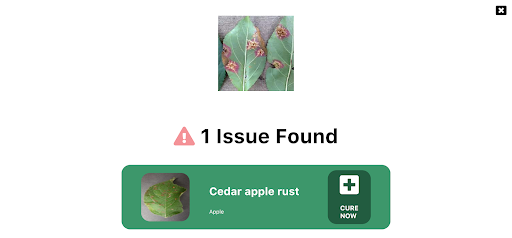
To allow plant growers to easily use this Plant AI, we provide a fully functional web app built with React and hosted on Azure Static Web Apps. This web app allows farmers to use the Machine Learning model and identify diseases from plant images all on the web. You can try out this web app at https://www.plant-ai.tech/ and upload a plant image to our model. In case you want to test out the web app we also provide real-life plant images you can use.
We expect most of the traffic and usage of Plant AI from mobile devices, consequently, the Machine Learning model we run through the web app is optimized to run on the client-side.
This also enables us to have blazing fast performance with our ML model. We use this model on the client-side with TensorFlow JS APIs which also allows us to boost performance with a WebGL backend.
Building the Machine Learning Model
Building the Machine Learning Model is a core part of our project. Consequently, we spent quite some time experimenting and building the Machine Learning Model. We had to build a machine learning model that offers acceptable performance and is not too heavy since we want to run the model on low-end devices
Training the model
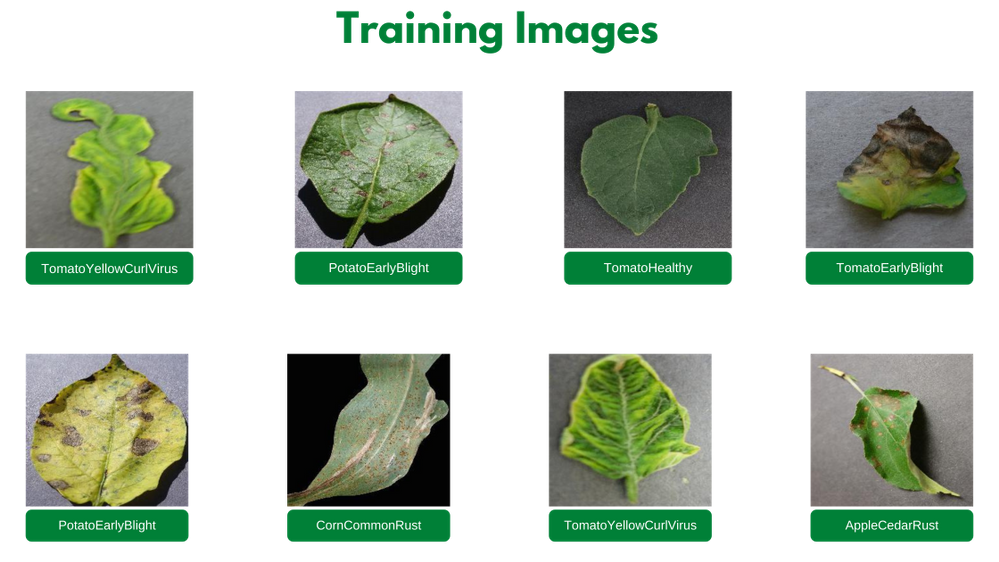
We trained our model on the Plant Village dataset [2] on about 87,000 (+ augmented images) healthy and unhealthy leaf images. These images were classified into 38 categories based on species and diseases. Here are a couple of images the model was trained on:
We experimented with quite a few architectures and even tried building our own architectures from scratch using Azure Machine Learning to keep track, orchestrate, and perform our experiments in a well-defined manner.
It turned out that transfer learning on top of MobileNet [3] was indeed quite promising for our use case. The model we built gave us the acceptable performance and was close to 12 megabytes in size, not a heavy one. Consequently, we built a model on top of MobileNet using initial weights from MobileNet trained on ImageNet [4].
We also made a subset of our experiments used to train the final model for public use through this project’s GitHub repository.
Running the model on a browser
We applied TensorFlow JS (TFLS) to perform Machine Learning on the client-side on the browser. First, we converted our model to the TFJS format with the TensorFlow JS converter, which allowed us to easily convert our TensorFlow SavedModel to TFJS format. The TensorFlow JS Converter also optimized the model for the web by sharding the weights into 4MB files so that they can be cached by browsers. It also attempts to simplify the model graph itself using Grappler such that the model outputs remain the same. Graph simplifications often include folding together adjacent operations, eliminating common subgraphs, etc.
After the conversion, our TFJS format model has the following files, which are loaded on the web app:
- model.json (the dataflow graph and weight manifest)
- group1-shard*of* (collection of binary weight files)
Once our TFJS model was ready, we wanted to run the TFJS model on browsers. To do so we again made use of the TensorFlow JS Converter that includes an API for loading and executing the model in the browser with TensorFlow JS :rocket:. We were excited to run our model on the client-side since the ability to run deep networks on personal mobile devices improves user experience, offering anytime, anywhere access, with additional benefits for security, privacy, and energy consumption.
Designing the web app
One of our major aims while building Plant AI was to make high-quality disease detection accessible to most crop growers. Thus, we decided to build Plant AI in the form of a web app to make it easily accessible and usable by crop growers.
As mentioned earlier, the design and UX of our project are focused on ease of use and simplicity. The basic frontend of Plant AI contains just a minimal landing page and two other subpages. All pages were designed using custom reusable components, improving the overall performance of the web app and helping to keep the design consistent across the web app.
Building and hosting the web app
Once the UI/UX wireframe was ready and a frontend structure was available for further development, we worked to transform the Static React Application into a Dynamic web app. The idea was to provide an easy and quick navigation experience throughout the web app. For this, we linked the different parts of the website in such a manner that all of them were accessible right from the home page.
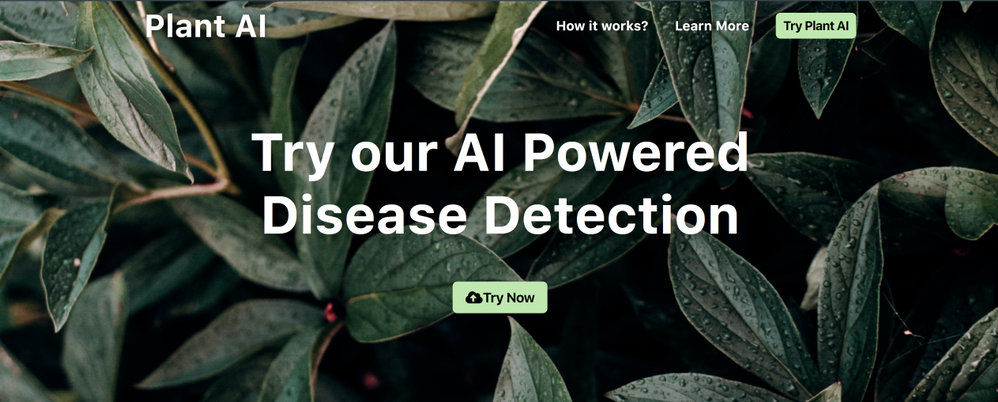 Web landing page
Once we can access the models we load them using TFJS converter model loading APIs by making individual HTTP(S) requests for loading the model.json file (the dataflow graph and weight manifest) and the sharded weight file in the mentioned order. This approach allows all of these files to be cached by the browser (and perhaps by additional caching servers on the internet) because the model.json and the weight shards are each smaller than the typical cache file size limit. Thus a model is likely to load more quickly on subsequent occasions.
We first normalize our images that is to convert image pixel values from 0 to 255 to 0 to 1 since our model has a MobileNet backbone. After doing so we resize our image to 244 by 244 pixels using nearest neighbor interpolation though our model works quite well on other dimensions too. After doing so we use the TensorFlow JS APIs and the loaded model to get predictions on plant images.
Hosting the web app we built was made quite easy for us using Azure Static Web Apps. This allowed us to easily set up a CI/ CD Pipeline and Staging slots with GitHub Actions (Azure’s Static Web App Deploy action) to deploy the app to Azure. With Azure Static Web Apps, static assets are separated from a traditional web server and are instead served from points geographically distributed around the world right out of the box for us. This distribution makes serving files much faster as files are physically closer to end users.
Future Ideas
We are always looking for new ideas and addressing bug reports from the community. Our project is completely open-sourced and we are very excited if you have feedback, feature requests, or bug reports apart from the ones we mention here. Please consider contributing to this project by creating an issue or a Pull Request on our GitHub repo!
One of the top ideas we are currently working on is transforming our web app into a progressive web app to allow us to take advantage of features supported by modern browsers like service workers and web app manifests. We are working on this to allow us to support:
- Offline mode
- Improve performance, using service workers
- Platform-specific features, which would allow us to send push notifications and use location data to better help crop growers
- Considerably less bandwidth usage
We are also quite interested in pairing this with existing on-field cameras to make it more useful for crop growers. We are exploring adding accounts and keeping a track of images the users have run on the model. Currently, we do not store any info about the images uploaded. It would be quite useful to track images added by farmers and store information about disease statistics in a designated piece of land on which we could model our suggestions to treat the diseases.
Thank you for reading!
If you find our project useful and want to support us; consider giving a star :star: on the project’s GitHub repo.
Many thanks to Ali Mustufa Shaikh and Jen Looper for helping me to make this better. :)
Citations
[1] Alexandratos, Nikos, and Jelle Bruinsma. “World Agriculture towards 2030/2050: The 2012 Revision.” AgEcon Search, 11 June 2012, doi:10.22004/ag.econ.288998.
[2] Hughes, David P., and Marcel Salathe. “An Open Access Repository of Images on Plant Health to Enable the Development of Mobile Disease Diagnostics.” ArXiv:1511.08060 [Cs], Apr. 2016. arXiv.org, http://arxiv.org/abs/1511.08060.
[3] Howard, Andrew G., et al. “MobileNets: Efficient Convolutional Neural Networks for Mobile Vision Applications.” ArXiv:1704.04861 [Cs], Apr. 2017. arXiv.org, http://arxiv.org/abs/1704.04861.
[4] Russakovsky, Olga, et al. “ImageNet Large Scale Visual Recognition Challenge.” ArXiv:1409.0575 [Cs], Jan. 2015. arXiv.org, http://arxiv.org/abs/1409.0575.

by Contributed | Jun 1, 2021 | Technology
This article is contributed. See the original author and article here.
360° imagery is a great way to explore the benefits of Mixed Reality while limiting up-front investments in either equipment (e.g. HoloLens and advanced MR headsets) or specialized talent (e.g. 3D artists). There are so many different scenarios for using these images within your organization. These can include training and onboarding employees (e.g. facility tours), celebrating and sharing capabilities of new facilities, and many explorations around documenting current state and monitoring progress of physical spaces. Basically, any time you have a physical space that you need to document or communicate about to others, 360° imagery can be a great tool.
For me, that also extends outside work to backcountry ski adventures where I can show friends, family, and co-workers what it is like to experience remote backcountry destinations that can be a bit challenging to get to. Check out this video below for a quick view of what’s possible or go check out how it was made using the SharePoint spaces 360° tour web part.
SharePoint spaces offers significant flexibility for handling 360° images and videos. Most tools available to capture 360° images and videos will work with Spaces. However, there are several considerations you may not be familiar with from working with 2D images. There are also ways that you can optimize quality and performance both today and into the future as mixed reality devices expand in availability and quality. Here are a few key questions to keep in mind along with suggestions for tools that work well with Spaces today:
- What is the target device? Virtual Reality or Browser, Mobile or Desktop
- Is it better to capture 360° images or video?
- What is the right mix of content?
- What devices can capture 360° images?
- What formats does SharePoint spaces support?
Target Device
Interacting with your spaces has never been easier, SharePoint spaces supports viewing either in a web browser or using mixed reality headsets. The same content can be used for both, but if your primary use case is the browser, it does not make sense to use stereoscopic content. To create the best experience when viewing you may have to reduce resolution or file size to optimize for mobile or standalone VR headsets.
Images or Video
For the sake of simplicity, we recommend starting with 360° images and exploring video only when there is a strong need to capture a dynamic and changing space. Capturing and displaying high quality 360° video is notably more challenging than 360° images. If you pursue videos, make sure you add captions or a transcript and follow the best practices for video format, resolution, etc.
Combining 360° and 2D Images and Videos
In many cases, the best experience can be created by combining video and images, SharePoint spaces supports both 360° and 2D images and videos in the same space. You will find that 360° images are great for understanding spatial context (e.g where things are within a room) but 2D images or videos are useful to highlight specific areas within the image using a high resolution and artfully composed view of a few areas you want to highlight. Users will understand the context from the 360° image while appreciating the detail, artistry, and focused storytelling that are characteristic of high quality 2D images and videos. Spaces makes it easy to combine the two, just add your 2D images as annotations using the 360° tour web part.
Capture Devices
There are many options available for capturing 360° images ranging from smartphone apps (e.g. Google Camera Photo Spheres) to simple consumer handheld 360° cameras (e.g. Ricoh Theta, Insta 360 One X) to more complicated commercial high resolution and stereoscopic cameras (e.g. Insta360 Pro 2). These devices will generally produce outputs that are usable immediately in SharePoint spaces, but often the experience can be improved by optimizing to balance quality and file size as described below. If you are going to be capturing a lot of 360° images, a dedicated camera is recommended because it will be a much faster workflow.
Smartphone apps can produce high resolution and high-quality images, but they require you to take multiple images that are assembled into a 360° image by the app. This means the process of capturing images will be slower than a dedicated multi-lens 360° camera (consumer handheld or commercial). Unless the scene is completely static during the capture, they can also produce image artifacts such as ghosting as seen in this image:

Recommended Image Settings
Format
While SharePoint spaces supports many options for image format (JPG, TIFF, PNG, etc.), we recommend storing images as equirectangular progressive JPEG images with quality setting set to 80% or equivalent in various software tools. Most 360° cameras automatically output equirectangular JPEG images. These can be batch optimized to reduce file size and set the quality setting using various tools like Adobe Photoshop or RIOT image optimizer after the images are captured.
Resolution
It is best to capture images with the highest resolution possible. Equirectangular images have a 4:2 aspect ratio (twice as many pixels wide as tall). We recommend using 8K resolution (8192 X 4096) to achieve maximum quality 360° image output in SharePoint spaces while balancing file size, download time, etc. However, lower resolutions are often acceptable – especially if your goal is communication, documentation, or collaboration instead of a showcase visual experience.
Two examples are shown below – the first is an 8K image (captured with an Android smart phone) while the second is 5.3K resolution (captured with a consumer handheld Ricoh Theta V). Although the 5.3K resolution is acceptable quality for many applications, the 8K resolution captures notably more detail.
If using a camera that can capture above 8K resolution it would be a best practice to keep images at the highest resolution and use image editing tools like Adobe Photoshop or RIOT to save versions optimized for SharePoint spaces. That will allow you to update your SharePoint space as higher resolution mixed reality headsets become available and those extra pixels can be put to good use.
 8K Image in SharePoint spaces
 5.3K image in SharePoint spaces
Conclusion
Following these guidelines should make sure your 360° imagery maintains high quality while balancing performance and load time. Have some ideas for what we should do next with 360° imagery in SharePoint spaces? Let us know what you are looking for or share your 360° imagery scenario in the comments.
by Contributed | Jun 1, 2021 | Technology
This article is contributed. See the original author and article here.
Final Update: Tuesday, 01 June 2021 15:51 UTC
We’ve confirmed that all systems are back to normal with no customer impact as of 06/01, 14:50 UTC. Our logs show the incident started on 06/01, 09:10 UTC and that during the 5 hours 40 minutes that it took to resolve the issue some customers may have experienced failed attempts when performing control plane CRUD operations in US Gov Virginia.
- Root Cause: The failure was due one of our backend dependent service.
- Incident Timeline: 5 Hours & 40 minutes – 06/01, 09:10 UTC through 06/01, 14:50 UTC
We understand that customers rely on Application Insights as a critical service and apologize for any impact this incident caused.
-Harshita
by Contributed | Jun 1, 2021 | Technology
This article is contributed. See the original author and article here.
If you work in project management, you have probably heard of and used Microsoft Project. You may also be familiar with Dynamics 365 Project Operations, the successor to Dynamics 365 Project Service Automation. In this Microsoft Mechanics video, we are going to show you how to use these applications to manage work from simple task management and planning to more complex initiatives like service-oriented projects that drive your business.
As organizations across industries continue to grapple with accelerated digital transformation, remote work, and increasingly diverse teams and work styles, they need to transform how they manage work. Today, almost all work is project work, and everyone works on projects. A project can take a couple of people a few hours, or it can embrace an entire portfolio of initiatives that involves hundreds of employees from across the organization and lasts years. A transformation like this demands new approaches and a new generation of tools that span the entire organization and meet people where they are working – from their homes to the warehouse to the retail store.
Understanding Microsoft Project and Dynamics 365 Project Operations at the functional and technical level
Microsoft Project and Dynamics 365 Project Operations provide end-to-end work management for teams of all sizes and projects of differing complexity. They include core capabilities for project planning & scheduling, collaboration, resource management, reporting, customization, and extensibility, and Project Operations also includes powerful capabilities for deal management, contracting, project finances & accounting, and time & expense management.
Built on the Microsoft cloud, and leveraging 35 years of development on the Microsoft Project scheduling engine, these solutions deliver connected experiences across the organization while providing the flexibility and extensibility needed to innovate with confidence.
In this video we are going to give you an introduction to a new generation of connected project experiences on the Microsoft platform; experiences designed to empower the people in your organization to meet the rising tide of complexity and drive your business forward. We will show you how Microsoft Project, and Dynamics 365 Project Operations are designed to help you organize and view projects, schedules, and tasks—or dive more deeply into all the details. We will also help you identify which solution can best meet your needs. And we will point you to additional information and show you how to get started today with Microsoft Project, and Dynamics 365 Project Operations.
Request a Project Operations trial at aka.ms/ProjectOperationsTrial
Get a Project trial at aka.ms/TryProjectNow

by Scott Muniz | Jun 1, 2021 | Security
This article was originally posted by the FTC. See the original article here.
If you used MoneyGram to send money to a scammer between January 1, 2013 and December 31, 2017, you may be eligible to file a claim for a refund. The company handling claims — Gilardi & Co. LLC — is distributing $125 million from MoneyGram’s 2018 settlements with the FTC and Department of Justice (DOJ). In those cases, the FTC and DOJ charged that MoneyGram failed to meet agreements to crack down on consumer fraud involving money transfers.
You’re eligible to file a claim if:
- you sent a MoneyGram transfer to a scammer from the United States between January 1, 2013 and December 31, 2017, and
- you used your name on the money transfer.
The deadline to file a claim online or by mail
is August 31, 2021.
You don’t have to be a US citizen or in the US to file a claim. If you already returned a prefilled form to Gilardi & Co. LLC, you don’t need to file another claim. You can file online, or print the claim form and mail it in with copies of MoneyGram receipts, “send” forms, and transaction history reports.
The claim form requires you to give your Social Security number (SSN). That’s because the federal Treasury Offset Program must find out whether you owe money to the US government before you can get a payment. It needs your SSN to do that.
You don’t have to pay fees to file your claim. You don’t need a lawyer to file a claim. Don’t pay anyone who contacts you and says they’ll help you file a claim or get your money back. When you file a claim, you have to give a MoneyGram money transfer control number (MTCN), an eight-digit number assigned to a MoneyGram transfer. It’s listed on MoneyGram receipts and completed “send” forms.
For more information about eligibility, the claims process, and other topics, go to ftc.gov/moneygram and moneygramremission.com.
Brought to you by Dr. Ware, Microsoft Office 365 Silver Partner, Charleston SC.
by Contributed | Jun 1, 2021 | Technology
This article is contributed. See the original author and article here.
Synapse Serverless SQL Pool is a serverless query engine platform that allows you to run SQL queries on files or folders placed in Azure storage without duplicating or physically storing the data.
There are broadly three ways to access ADLS using synapse serverless.
- Azure Active Directory
- Managed Identity
- SAS Token
The user would need to be assigned to one of the RBAC role : Azure storage blob data ownercontributorreader role. However, there might be scenario that you would or could not provide access to the ADLS account or container and provide access to granular level directories and folder levels and not complete storage container or blob.
Scenario
You have a data lake that contains employee and social feed data. You have data residing in an employee folder that is used by HR team members and twitter for live social feeds that is usually used by marketing folks. If you use SAS token or RBAC, you cannot control to the folder level.
How do you allow users to perform data exploration using synapse serverless with fine grain control on underlying storage.
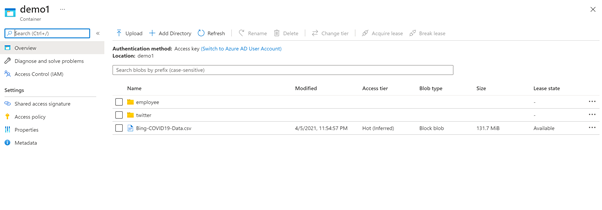
Fig1. A storage account with container demo contains two folder employee and twitter.
Solution
To solve this challenge, you can use directory scoped SAS token along with database scope credentials in synapse serverless.
Directory scoped SAS provides constrained access to a single directory when using ADLS Gen2. This can be used to provide access to a directory and the files it contains. Previously a SAS could be used to provide access to a filesystem or a file but not a directory. This added flexibility allows more granular and easier access privilege assignment.
Directory scoped shared access signatures (SAS) generally available | Azure updates | Microsoft Azure
|
Storage Account
|
Container
|
Folder
|
File
|
AAD
|
YES (RBAC on Account)
|
YES (RBAC on Container)
|
YES (via POSIX ACLs)
|
YES (via POSIX ACLs)
|
Managed Identity (same as AAD)
|
YES (RBAC on Account)
|
YES (RBAC on Container)
|
YES (via POSIX ACLs)
|
YES (via POSIX ACLs)
|
SAS Token
|
YES (Scope – Account)
|
YES(Scope – Container)
|
YES (Scope – Directory and Files)
|
YES (Scope – Files)
|
For
How to create Directory based SAS token
You can do via SDK or portal. To create a SAS token via portal.
a. Navigate to the folder that you would like to provide access and right click on the folder and select generate SAS token.
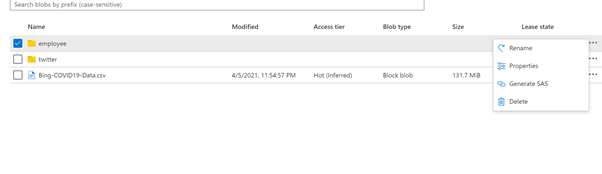
Fig 2 : Directory scope selection for employee folder
b. Select permissions Read, list and execute to read and load all the files in the folder. Provide the expiration date and click generate SAS token and URL. Copy blob SAS token.
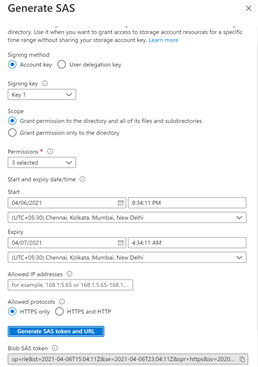
Fig 3 : Generate SAS token.
The step b. can be similar to create storage SAS token . Earlier, it used to apply to storage account, now you can reduce the surface area to directory and files as well.
Use Serverless with directory SAS token
Once the storage account access has been configured using SAS token, the next to access the data using synapse serverless engine.
On Azure synapse Studio, go to develop and SQL Script.
a. Create a master key, if it is not there.
— create master key that will protect the credentials:
CREATE MASTER KEY ENCRYPTION BY PASSWORD = <enter very strong password here>
b. Create a database scope credential using the sas token. You would like to access HR data. So use the blog storage sas token generated for Employee directory.
CREATE DATABASE SCOPED CREDENTIAL mysastokenemployee
WITH IDENTITY = ‘SHARED ACCESS SIGNATURE‘,
SECRET = ‘<blob sas token>‘
c. Create external data source till the container path demo1 and use credential mysastokenemployee
CREATE EXTERNAL DATA SOURCE myemployee
WITH ( LOCATION = ‘https:// <storageaccountname>.dfs.core.windows.net/<filesystemname>‘,
CREDENTIAL = mysastokenemployee
)
d. Once the data is created, lets read the data using OPENROWSET BULK in serverless
SELECT * FROM OPENROWSET(
BULK ‘/employee/*.csv’,
DATA_SOURCE = ‘myemployee’,
FORMAT =’CSV’,
parser_version = ‘2.0’,
HEADER_ROW = TRUE
) AS Data
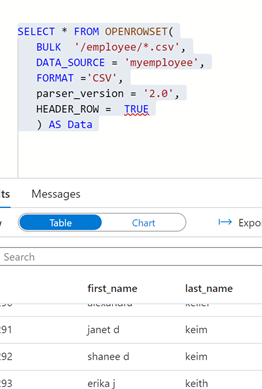
Fig 4 : Openrowset bulk output
e. Now to confirm whether the scope of the SAS token is only restricted to employee folder, lets use the same data source and database credential to access file in twitter folder.
SELECT * FROM OPENROWSET(
BULK ‘/twitter/StarterKitTerms.csv’,
DATA_SOURCE = ‘myemployee’,
FORMAT =’CSV’,
parser_version = ‘2.0’,
HEADER_ROW = TRUE
) AS Data
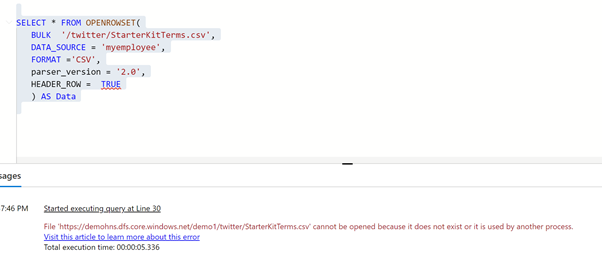
Fig 5: Bulk openrowset access failure
f. You will encounter an error because the scope of the SAS token was restricted to employee folder.
Now, to access twitter folder for the marketing representative, create a database scoped credential using a sas token for twitter folder. Repeat the steps “How to create Directory based SAS token” for twitter folder.
CREATE DATABASE SCOPED CREDENTIAL mysastokentwitter
WITH IDENTITY = ‘SHARED ACCESS SIGNATURE‘,
SECRET = ‘<blob sas token>‘
g. Create an external data source using the scope credential created for twitter directory.
CREATE EXTERNAL DATA SOURCE mytwitter
WITH ( LOCATION = ‘https://<storageaccountname>.dfs.core.windows.net/<filesystemname>/‘,
CREDENTIAL = mysastokentwitter
)
h. Once the data source is created , you can query the twitter data using newly created data source.
SELECT * FROM OPENROWSET(
BULK ‘/twitter/StarterKitTerms.csv’,
DATA_SOURCE = ‘mytwitter’,
FORMAT =’CSV’,
parser_version = ‘2.0’,
HEADER_ROW = TRUE
) AS Data
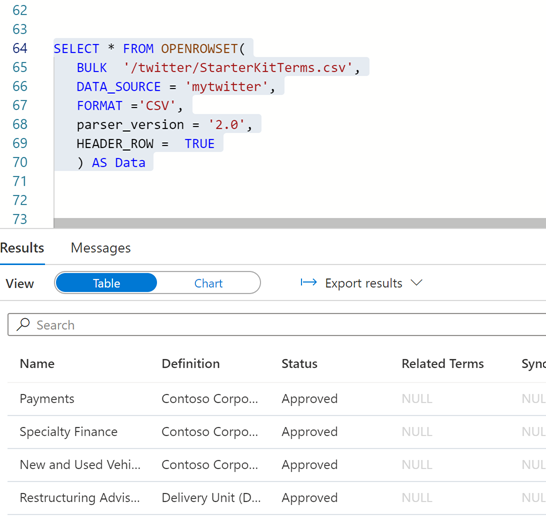
Fig 6 : Twitter data accessed using the directory sas token
Summary
- In a central data lake environment or any file store , directory sas token is a great way of reducing the access surface area without providing access at storage root or account level.
- Separation of duties and roles can be easily achieved as data access is controlled at storage level and synapse serverless
- Create sas token with read, list and execute to minimize the impact of accidental deletion etc. sharing the sas token should be done in a secured manner.
- Expire sas token, regenerate new token and recreate the scope credentials frequently.
- Serverless is great way of data exploration without spinning any additional SQL resources. You would be charged based on data processed by each query.
- Managing too many sas tokens will be challenge. So, use a hybrid approach of breaking the large data lake to smaller pools or mesh and grant RBAC access control and blend with SAS token for regulated users is best way of scaling the serverless capability.
by Contributed | Jun 1, 2021 | Technology
This article is contributed. See the original author and article here.
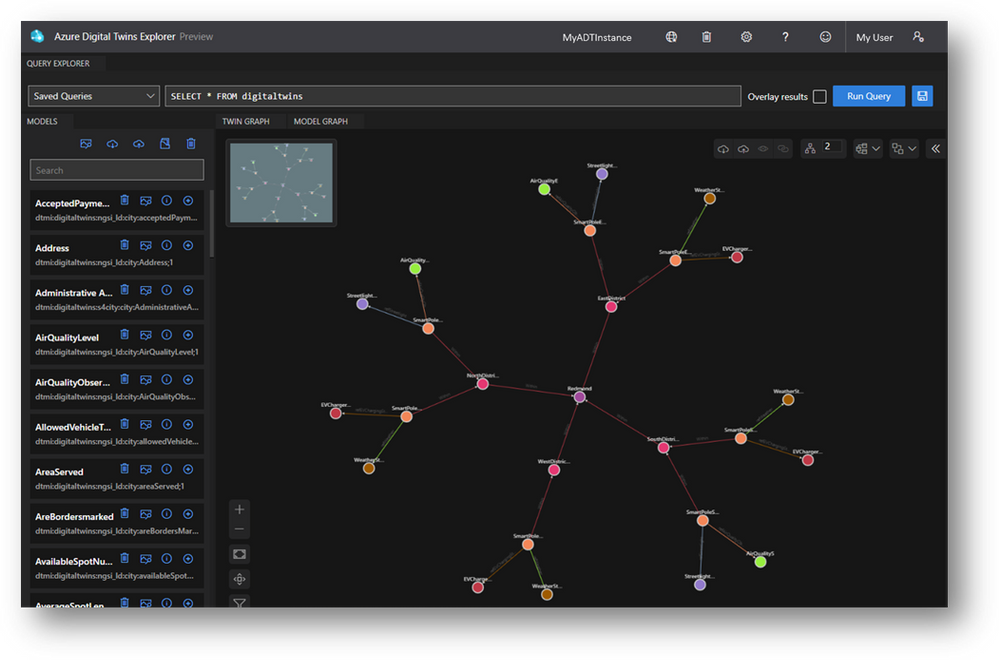
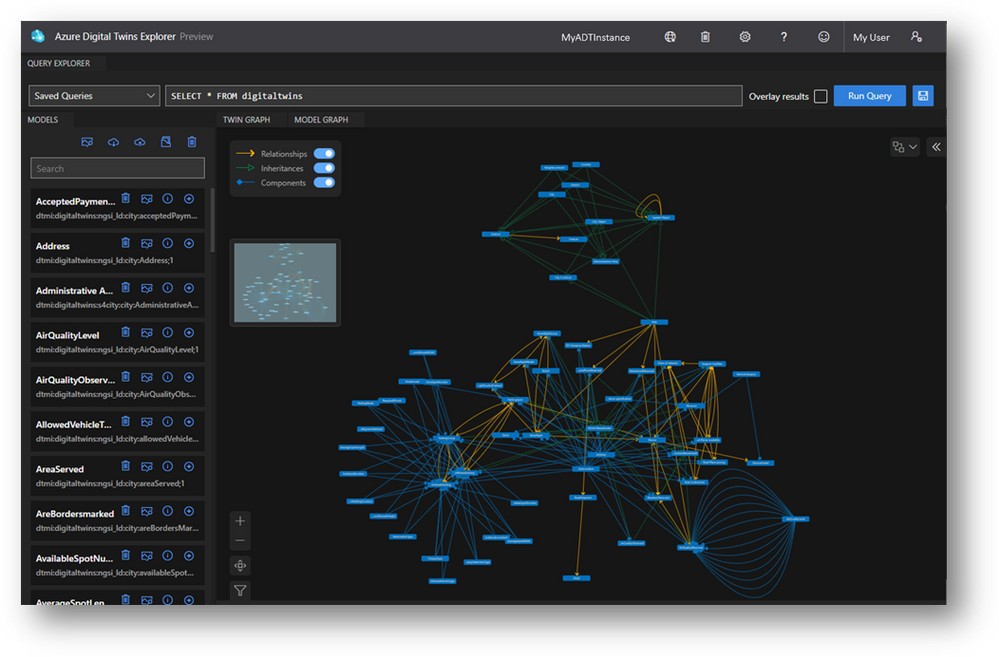
The future of IoT is inherently visual, so why isn’t our tooling? We’ve seen from very early on that Azure Digital Twins solutions are built on visual mental models, so we’ve set out to offer visual tooling with developers in mind. Instead of creating visual tooling from scratch, developers can fork and customize the digital-twins-explorer GitHub sample for their solutions. We’ve had such resounding support for this tool that we’ve taken the next step of hosting it in a web application for developers to take advantage of on Day 1. Learning and exploring Azure Digital Twins just got way easier – and even more collaborative.
Build and validate queries
It’s paramount that the queries you’re leveraging in your solution reflect the logic that you’re intending. The Query Explorer lets you intuitively validate these critical queries through both visual and JSON-structured responses, and even lets you save the queries you use often. Leverage features like Query Overlay to view query results in context of a superset graph and Filtering and Highlighting to investigate those results even further.
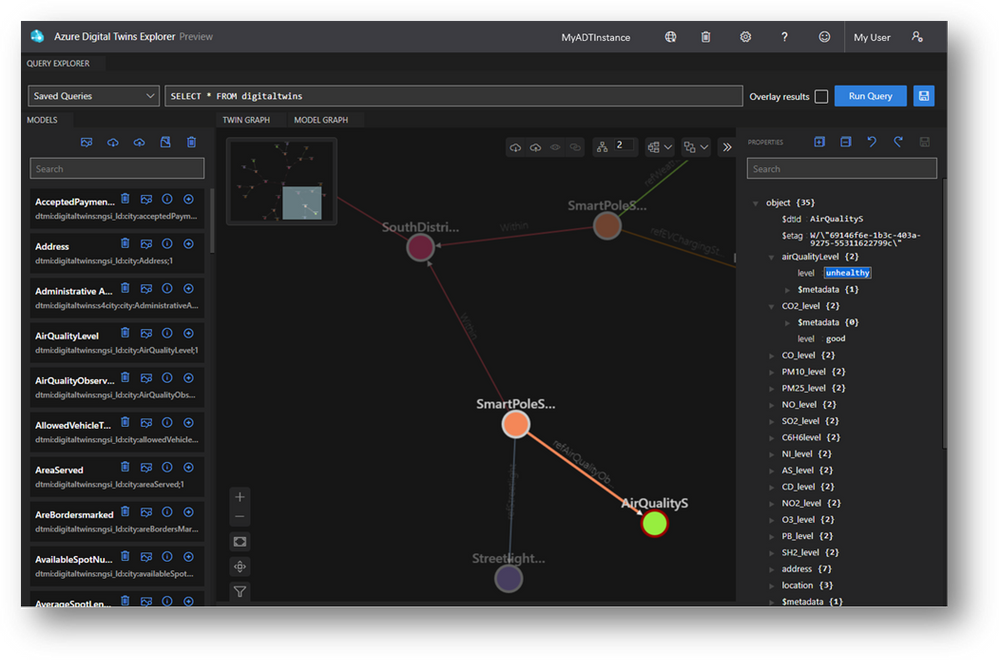
Prototype and test your digital twins
Your digital twin graph is never static – there are new machines to model, model versions to upgrade and properties being updated all the time to reflect your environment’s state. The Explorer lets you both create twins and relationships from inside the Twin Graph viewer and click into them to modify properties of all types. From creating missing relationships to testing a property-change-triggered event handler, managing properties in the Explorer makes your ad-hoc operations simpler.
Explore your model ontology
Model graphs can be large and complex, especially with more real-world domains being modeled – like parking infrastructure and weather data in a Smart City. Whether you’re authoring your own ontology or leveraging the industry-standard ontologies, the Model Graph viewer helps you understand your ontology at a high level and drill into the models with filtering and highlighting.
Now, more collaborative!
Importing and exporting your digital twin graph has already made it far easier to share the current state of your modeled environment with teammates, but we’ve extended the collaborative nature of the tool. With the hosted Explorer, we’ve enabled linking to environments which lets you share a specific query of your twin graph with teammates that have access to your Azure Digital Twins instance.
Get started
Resources
by Contributed | Jun 1, 2021 | Technology
This article is contributed. See the original author and article here.
By John Mighell, Sr. Product Marketing Manager, Viva Learning Marketing Lead
Along with so many aspects of our work and personal lives, enterprise learning has undergone a massive shift in the last 18 months. As we look towards the future of work and the future of learning, one thing is certain – we’ll never go back to the way it was.
With so much accelerated forward progress, we’re more excited than ever to share our latest insights and learning product news at the upcoming Microsoft Learning Transformation Briefings.
You’ll not only hear the latest from Microsoft & LinkedIn, but also from CLOs at companies right at the forefront of the learning transformation, and from leading industry analyst Josh Bersin, as he provides insights on his new research: “Developing Capabilities for the Future: the Whole Story.”
If you haven’t signed up yet, there’s still time. The Learning Transformation Briefings start on June 2 and run through June 9 across 10 geography specific deliveries. You can register here and choose the session that works best for you.
As a critical part of our next generation employee experience approach, we’ll be discussing our journey with Microsoft Viva – toward enabling an employee experience that empowers people to be their best at work. Make sure to attend Kirk Koenigsbauer’s (Microsoft COO & CVP, Experiences + Devices) session for his deep dive on Viva Learning, including a product demo with an exciting set of new features.
By bringing learning in the flow of work with Microsoft 365, we see Viva Learning as a transformational tool for learning leaders to help build a robust learning culture. And we’re not the only ones excited. Our outstanding partner ecosystem sees a similar opportunity, and we’re thrilled to share the comments below from a few names you’ll recognize.
“The world of work is evolving at speed. The workforce, workplace and workspace are all changing the nature of work, and learning is evolving with it. We see the entire Viva suite as being a next generation solution that will transform the employee experience. With Viva Learning in particular, we’re excited to work with Microsoft on cloud-based KPMG Learning Solutions to help transform learning experiences for clients and their employees by bringing learning into the flow of their work.”
– Jens Rassloff, Global Head of Strategic Relations & Investments, KPMG

“We see Viva as a progressive EX platform that can accelerate the Workplace Experience journey for our clients – putting people at the center of the organization. With Viva Learning in particular, we’re excited to partner with Microsoft on a product that brings learning seamlessly into the flow of work, making it more accessible for employees, and easier than ever for leaders to build a learning culture.”
– Veit Siegenheim, Global Modern Workplace Solution Area Lead, Avanade & Accenture Microsoft Business Group

“Viva Learning opens new opportunities for learning in the flow of work, which is a foundational strategy of our sales L&D transformation. We look forward to the ongoing partnership with Microsoft as we explore the value to our organization.”
– Bruce Sánchez, Global Lead, Sales Learning and Development Technology, Dell Technologies Global Sales L&D

We hope to see you at the Learning Transformation Briefings. And if you’re not convinced yet, we’ll let Josh Bersin – one of our featured speakers – have the last word.
“I’m really excited about the 2021 Microsoft Learning Transformation briefings – we’ve brought together the latest research, case studies, and breakthrough new ideas to help you develop your company’s skills for the future!”
– John Bersin, Founder and Dean, Josh Bersin Academy

We’re looking forward to sharing the latest on Viva Learning, and so much more. See you there!
by Contributed | Jun 1, 2021 | Technology
This article is contributed. See the original author and article here.
The launch of Microsoft Lists and Tasks in Microsoft Teams last year added new options to an already robust catalog of Microsoft work management tools. They seemed to overlap with Microsoft To Do, Microsoft Planner, and Microsoft Project for the web, causing a lot of (understandable) confusion and questions, all of which boiled down to, “Which tool should I use?”
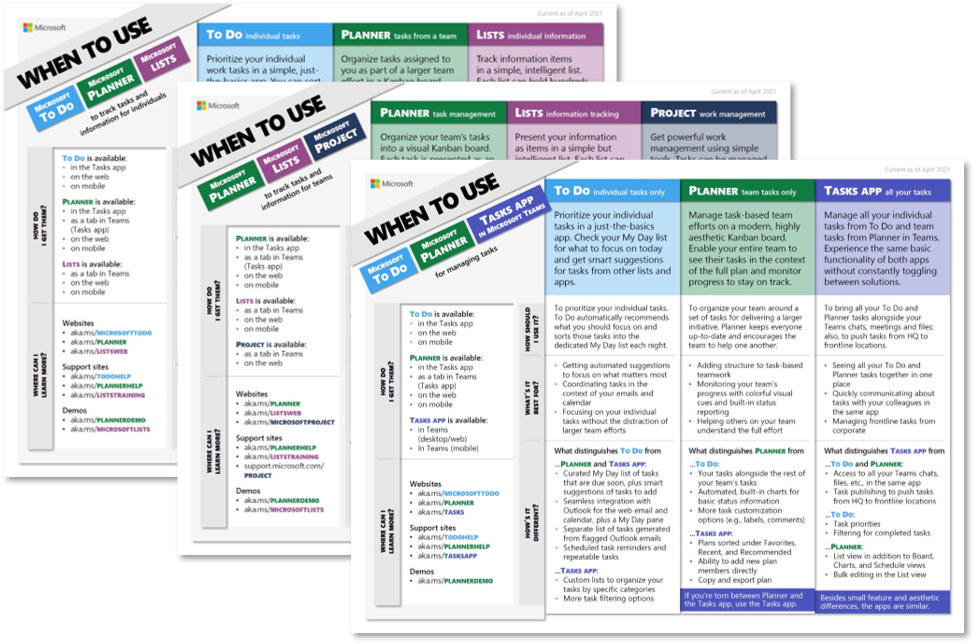
Today, we’re answering that question with three aptly named when-to-use guides. These one-page documents, which are linked below, focus on different work management scenarios and the Microsoft tools that enable them:
The goal of these guides is to help you determine the best tool for managing your work and its associated tasks and information; they are not meant as comprehensive fact sheets. Those details are available on the associated support pages, which are linked in the guides. Instead, the when-to-use guides focus on the best use for each tool and its distinguishing features. All in all, the guides are broken up into four main sections:
- General tool description
- How should I use it? Overall purpose of the tool
- What’s it best for? Scenarios where the tool excels
- How’s it different? Features that distinguish the tool from others
There’s also a pair of sections about where each tool is available (How do I get them?) and how you can find more information (Where can I learn more?).
It’s important to note that the four main sections describe each tool in the context of the others. For example, you’ll see Planner is for “visually managing simple, task-based efforts” in the guide focused on team-based work. Both Lists and Project for the web can support simple, task-based efforts too—but compared to Planner, it’s not where they excel. Lists is for tracking information and Project for the web is for managing more complex work initiatives—scenarios where Planner is not the best fit.
This approach is worth remembering as you’re reading through these guides. If you find a tool is missing a feature or obvious use case, it’s because there’s another one that’s better suited for that scenario. Again, our goal is to help you decide which tool is best for managing your work, not providing a comprehensive run-down of those tools.
The when-to-use guides are part of our ongoing journey/effort for task management. Work is more disorienting than ever these days, but Microsoft 365 helps streamline all the competing to-dos, resources, and collaboration requirements. For all the latest task management in Microsoft 365 news , continue visiting our Planner Tech Community.
by Contributed | Jun 1, 2021 | Technology
This article is contributed. See the original author and article here.
Everyone likes to get reliable answers from a trustworthy expert, right? Stoneridge Software is the expert that other organizations call when they need help tackling their most complex business systems. But what does it take these days to be an expert in a world that’s constantly changing—and to cultivate trust in that expertise? According to Stoneridge, it takes a love of technology, more than 200 Microsoft Certifications, and a company-wide commitment to learning.
The ever-curious team at Microsoft Learn wanted to find out more about what learning, training, and certification mean to Stoneridge Software and how these contribute to the company’s success. We talked to Principal Developer and Team Lead Nicole Gentz and her colleague, Team Manager Jessica Dunlap, and asked them about the company’s learning culture and how the experts at Stoneridge got so many Microsoft Certifications.
Staying Gold means staying on top of change
Stoneridge is a Microsoft Gold partner and an expert in Microsoft Dynamics 365—a suite of cloud-based products that bring together customer relationship management (CRM) and enterprise resource planning (ERP) functions for large and small organizations. It’s the software that companies need to run their mission-critical systems, including sales, finance, operations, service, human resources, and more.
“In tech especially, you’re only as good as what you keep up with,” Dunlap points out. “In order for us to be the best in the industry, we have to make sure we’re allowing people to invest in themselves.”
Stoneridge was founded in 2012 by former Microsoft employees who proudly call themselves “technology nerds.” It’s even on the Stoneridge website! Even longtime employees like Gentz invest in training classes. She has been with the company since its earliest days and has more than 20 years of ERP experience. “You can’t be stagnant,” she notes. “You have to constantly keep up and grow.”
Today she and Dunlap lead teams of expert consultants, solution architects, and developers who maintain their technology nerd status in a variety of ways—instructor-led programs taught by Microsoft Learning Partners, self-paced online courses, in-house lunch-and-learn events, monthly get-togethers, and tactical internet browsing.
That investment has helped Stoneridge grow into an award-winning global business that employs more than 200 people and provides guidance for a long client list that represents manufacturing, agriculture, construction, and other industries.
Certifications drive a culture that drives the certifications
To maintain Gold partner status, an organization needs to employ a certain number of employees who have current Microsoft Certifications. That’s another reason why Stoneridge promotes a culture of learning where employees are rewarded for achieving those certifications.
“It’s a big reason why we want our employees to be certified,” explains Dunlap, “but at the same time, we realize how important it is to have the knowledge and skill set to support the type of clients we have asking for our services.”
Gentz agrees, adding, “It says a lot to our clients to know, ‘Hey, these guys say they know what they’re doing!’ Certification is an extra layer.” Gentz has personally accumulated an impressive number of Microsoft Certifications in Dynamics 365 during her time at Stoneridge. “I worked in ERP for years, but the certifications helped me ensure that I knew what I knew.”
Gentz’s team supports enterprises that use Dynamics 365 Finance and other products in the suite that meet the needs of Stoneridge’s largest clients. Dunlap’s team works with small-to-medium-sized organizations with implementations of all Dynamics products, including Dynamics 365 Business Central and earlier versions of Dynamics. “Our training programs help us keep up with all the changes,” Dunlap notes. “It’s been great having the experts to show us what’s new.”
Regardless of the size of the client, the Stoneridge teams take their training seriously. This year, the company set a goal to achieve 60 new certifications by the end of the year. “We’re more than halfway there already,” Dunlap reports.
The training and certification process typically starts with a simple request, such as, “Hey, Jessica, I’d really like to get certified.” And she says, “OK! When?”
Even Stoneridge developers who’ve been at it for decades work toward Microsoft Certifications in their areas of interest. “I have guys on my team who worked at Microsoft for 25 years,” Gentz notes. “They still want to make sure their skills are up to par. The exams test you on another level.”
Gentz and Dunlap agree. When it comes to gaining the skills and knowledge for the associate and expert certifications, there’s no substitute for real-world experience. And that day-to-day, hands-on work with the technology augments the more structured training in the classroom. The result is good for Stoneridge clients, because as Gentz explains, “You really need to have a deep understanding of the products.”
Finding time for training
In addition to the Dynamics 365 certifications, such as Microsoft Certified: Dynamics 365 Finance and Operations Apps Developer Associate (candidates need to pass Exam MB-300 and Exam MB-500) and Microsoft Certified: Dynamics 365 Field Service Functional Consultant Associate (candidates need to pass Exam PL-200 and Exam MB-240), this year, the Stoneridge team is adding Microsoft Power Platform training to the list. The team is skilling up for the Microsoft Certified: Power Platform Functional Consultant Associate certification (candidates need to pass Exam PL-200) and for the Microsoft Certified: Power Platform Developer Associate certification (candidates need to pass Exam PL-400).
According to Dunlap, “The timing of these courses was great for us, since we just rolled out our five-year vision.” The company’s focus is Dynamics 365, but it recognizes the value of Microsoft Power Platform and the growing trend of low-code and no-code projects. As noted in Microsoft named a Leader in the 2021 Gartner Magic Quadrant for Analytics and BI Platforms on the Microsoft Power BI Blog, 97 percent of Fortune 500 companies are using Microsoft Power Platform. Its popular approach to app making is creating a new category of users called “citizen developers.” Other developers also appreciate how quickly they can build apps using Microsoft Power Platform tools. For Stoneridge, that means added value for their Dynamics 365 clients.
However, even the most enthusiastic learners at Stoneridge have a busy client schedule. “Developers always think they’re too busy,” Dunlap laughs. However, every developer sets certification goals, and the team managers give them the time they need. It’s a key part of the company’s core values.
Dunlap’s strategy for her busy team is to find downtime between client engagements. “Before the next project starts, I like to give my team members a change of pace, a week to wind down and invest in some learning and development.” Even in a small project that might take only half a day of client work, “I tell them to spend the other half of your day investing in yourself. Study for an exam. Write a blog.”
Not only does the company maintain a budget for its learning culture, but also it encourages team members to share what they know. Team members write blog posts with practical tips from their Dynamics 365 client engagements. Internal experts lead “confabs” where they talk about the latest industry trends.
“Last week they talked about data lakes,” Dunlap recalls. “It was really interesting, and they put it in a way that people who aren’t technical can understand. It’s super important that we’re not only investing in ourselves, but we share all the info we can to let others know, hey, this is great stuff!”
Expertise builds trust
Like any smart business, Stoneridge Software knows that fostering customer trust creates return engagements. Each individual Microsoft Certification is a building block toward creating that trust, and each team member’s commitment to training helps the company uphold its proud technology nerd status.
“Customers come to us for advice, asking, ‘How should I design my system?’” Gentz explains. “They come to us for expert knowledge. They come to us with big, long-term plans, and we have to be able to provide that. When we do, we gain their trust. And then they come back years later because of that trust.”
Learn more:
Microsoft Certifications
Microsoft Learning Partners
Dynamics 365 on Microsoft Learn
Microsoft Power Platform on Microsoft Learn



Recent Comments