by Scott Muniz | Jul 5, 2021 | Security, Technology
This article is contributed. See the original author and article here.
| adobe — acrobat_reader_dc |
Acrobat Reader DC versions versions 2021.001.20150 (and earlier), 2020.001.30020 (and earlier) and 2017.011.30194 (and earlier) are affected by a Use After Free vulnerability when executing search queries through Javascript. An unauthenticated attacker could leverage this vulnerability to achieve arbitrary code execution in the context of the current user. Exploitation of this issue requires user interaction in that a victim must open a malicious file. |
2021-06-28 |
not yet calculated |
CVE-2021-28562
MISC |
| adobe — animate |
Adobe Animate version 21.0.5 (and earlier) is affected by an Out-of-bounds Read vulnerability when parsing a specially crafted file. An unauthenticated attacker could leverage this vulnerability to disclose sensitive information in the context of the current user. Exploitation of this issue requires user interaction in that a victim must open a malicious file. |
2021-06-28 |
not yet calculated |
CVE-2021-28575
MISC |
| adobe — animate |
Adobe Animate version 21.0.5 (and earlier) is affected by an Out-of-bounds Read vulnerability when parsing a specially crafted file. An unauthenticated attacker could leverage this vulnerability to disclose sensitive information in the context of the current user. Exploitation of this issue requires user interaction in that a victim must open a malicious file. |
2021-06-28 |
not yet calculated |
CVE-2021-28574
MISC |
| adobe — animate |
Adobe Animate version 21.0.5 (and earlier) is affected by an Out-of-bounds Read vulnerability when parsing a specially crafted file. An unauthenticated attacker could leverage this vulnerability to disclose sensitive information in the context of the current user. Exploitation of this issue requires user interaction in that a victim must open a malicious file. |
2021-06-28 |
not yet calculated |
CVE-2021-28576
MISC |
adobe — illustrator
|
Adobe Illustrator version 25.2 (and earlier) is affected by a Path Traversal vulnerability when parsing a specially crafted file. An unauthenticated attacker could leverage this vulnerability to achieve arbitrary code execution in the context of the current user. Exploitation of this issue requires user interaction in that a victim must open a malicious file. |
2021-06-28 |
not yet calculated |
CVE-2021-21102
MISC |
adobe — illustrator
|
Adobe Illustrator version 25.2 (and earlier) is affected by an Out-of-bounds Write vulnerability when parsing a specially crafted file. An unauthenticated attacker could leverage this vulnerability to achieve arbitrary code execution in the context of the current user. Exploitation of this issue requires user interaction in that a victim must open a malicious file. |
2021-06-28 |
not yet calculated |
CVE-2021-21101
MISC |
adobe — incopy
|
Adobe InCopy version 16.0 (and earlier) is affected by an path traversal vulnerability when parsing a crafted file. An unauthenticated attacker could leverage this vulnerability to achieve remote code execution in the context of the current user. Exploitation of this issue requires user interaction in that a victim must open a malicious file. |
2021-06-28 |
not yet calculated |
CVE-2021-21090
MISC |
adobe — indesign
|
Adobe InDesign version 16.0 (and earlier) is affected by an Out-of-bounds Write vulnerability when parsing a crafted file. An unauthenticated attacker could leverage this vulnerability to achieve remote code execution in the context of the current user. Exploitation of this issue requires user interaction in that a victim must open a malicious file. |
2021-06-28 |
not yet calculated |
CVE-2021-21099
MISC |
adobe — indesign
|
Adobe InDesign version 16.0 (and earlier) is affected by an Out-of-bounds Write vulnerability when parsing a crafted file. An unauthenticated attacker could leverage this vulnerability to achieve remote code execution in the context of the current user. Exploitation of this issue requires user interaction in that a victim must open a malicious file. |
2021-06-28 |
not yet calculated |
CVE-2021-21098
MISC |
| adobe — magento |
Magento versions 2.4.2 (and earlier), 2.4.1-p1 (and earlier) and 2.3.6-p1 (and earlier) are affected by a Violation of Secure Design Principles vulnerability in RMA PDF filename formats. Successful exploitation could allow an attacker to get unauthorized access to restricted resources. |
2021-06-28 |
not yet calculated |
CVE-2021-28583
MISC |
| adobe — magento |
Magento versions 2.4.2 (and earlier), 2.4.1-p1 (and earlier) and 2.3.6-p1 (and earlier) are affected by a Path Traversal vulnerability when creating a store with child theme.Successful exploitation could lead to arbitrary file system write by an authenticated attacker. Access to the admin console is required for successful exploitation. |
2021-06-28 |
not yet calculated |
CVE-2021-28584
MISC |
| adobe — magento |
Magento versions 2.4.2 (and earlier), 2.4.1-p1 (and earlier) and 2.3.6-p1 (and earlier) are affected by an Improper input validation vulnerability in the New customer WebAPI.Successful exploitation could allow an attacker to send unsolicited spam e-mails. |
2021-06-28 |
not yet calculated |
CVE-2021-28585
MISC |
akcp — akcp
|
Stored cross-site scripting (XSS) in the embedded webserver of AKCP sensorProbe before SP480-20210624 enables remote authenticated attackers to introduce arbitrary JavaScript via the Sensor Description, Email (from/to/cc), System Name, and System Location fields. |
2021-06-30 |
not yet calculated |
CVE-2021-35956
MISC
MISC
MISC |
akkadian — provisioning_manager
|
An issue exists within Akkadian Provisioning Manager 4.50.02 which allows attackers to view sensitive information within the /pme subdirectories. |
2021-07-01 |
not yet calculated |
CVE-2020-27361
MISC |
akkadian — provisioning_manager
|
An issue exists within the SSH console of Akkadian Provisioning Manager 4.50.02 which allows a low-level privileged user to escape the web configuration file editor and escalate privileges. |
2021-07-01 |
not yet calculated |
CVE-2020-27362
MISC |
| apache — druid |
In the Druid ingestion system, the InputSource is used for reading data from a certain data source. However, the HTTP InputSource allows authenticated users to read data from other sources than intended, such as the local file system, with the privileges of the Druid server process. This is not an elevation of privilege when users access Druid directly, since Druid also provides the Local InputSource, which allows the same level of access. But it is problematic when users interact with Druid indirectly through an application that allows users to specify the HTTP InputSource, but not the Local InputSource. In this case, users could bypass the application-level restriction by passing a file URL to the HTTP InputSource. |
2021-07-02 |
not yet calculated |
CVE-2021-26920
MISC
MLIST |
| apache — traffic_server |
Incorrect handling of url fragment vulnerability of Apache Traffic Server allows an attacker to poison the cache. This issue affects Apache Traffic Server 7.0.0 to 7.1.12, 8.0.0 to 8.1.1, 9.0.0 to 9.0.1. |
2021-06-29 |
not yet calculated |
CVE-2021-27577
MISC |
apache — traffic_server
|
Invalid values in the Content-Length header sent to Apache Traffic Server allows an attacker to smuggle requests. This issue affects Apache Traffic Server 7.0.0 to 7.1.12, 8.0.0 to 8.1.1, 9.0.0 to 9.0.1. |
2021-06-29 |
not yet calculated |
CVE-2021-32565
MISC |
apache — traffic_server
|
Stack-based Buffer Overflow vulnerability in cachekey plugin of Apache Traffic Server. This issue affects Apache Traffic Server 7.0.0 to 7.1.12, 8.0.0 to 8.1.1, 9.0.0 to 9.0.1. |
2021-06-30 |
not yet calculated |
CVE-2021-35474
MISC |
arlo_q_plus — arlo_q_plus
|
This vulnerability allows attackers with physical access to escalate privileges on affected installations of Arlo Q Plus 1.9.0.3_278. Authentication is not required to exploit this vulnerability. The specific flaw exists within the SSH service. The device can be booted into a special operation mode where hard-coded credentials are accepted for SSH authentication. An attacker can leverage this vulnerability to escalate privileges and execute arbitrary code in the context of root. Was ZDI-CAN-12890. |
2021-06-29 |
not yet calculated |
CVE-2021-31505
MISC
MISC |
artica — pandora_fms
|
In Artica Pandora FMS <=754 in the File Manager component, there is sensitive information exposed on the client side which attackers can access. |
2021-06-30 |
not yet calculated |
CVE-2021-34075
MISC |
chevereto — chevereto
|
Chevereto before 3.17.1 allows Cross Site Scripting (XSS) via an image title at the image upload stage. |
2021-06-30 |
not yet calculated |
CVE-2021-31721
MISC
MISC |
cms_made_simple — cms_made_simple
|
A stored cross scripting (XSS) vulnerability in CMS Made Simple 2.2.14 allows authenticated attackers to execute arbitrary web scripts or HTML via a crafted payload entered into the “Search Text” field under the “Admin Search” module. |
2021-07-02 |
not yet calculated |
CVE-2020-36412
MISC |
cms_made_simple — cms_made_simple
|
A stored cross scripting (XSS) vulnerability in CMS Made Simple 2.2.14 allows authenticated attackers to execute arbitrary web scripts or HTML via a crafted payload entered into the “Path for the {page_image} tag:” or “Path for thumbnail field:” parameters under the “Content Editing Settings” module. |
2021-07-02 |
not yet calculated |
CVE-2020-36411
MISC |
cms_made_simple — cms_made_simple
|
A stored cross scripting (XSS) vulnerability in CMS Made Simple 2.2.14 allows authenticated attackers to execute arbitrary web scripts or HTML via a crafted payload entered into the “Email address to receive notification of news submission” parameter under the “Options” module. |
2021-07-02 |
not yet calculated |
CVE-2020-36410
MISC |
cms_made_simple — cms_made_simple
|
A stored cross scripting (XSS) vulnerability in CMS Made Simple 2.2.14 allows authenticated attackers to execute arbitrary web scripts or HTML via a crafted payload entered into the “URL (slug)” or “Extra” fields under the “Add Article” feature. |
2021-07-02 |
not yet calculated |
CVE-2020-36414
MISC |
cms_made_simple — cms_made_simple
|
A stored cross scripting (XSS) vulnerability in CMS Made Simple 2.2.14 allows authenticated attackers to execute arbitrary web scripts or HTML via a crafted payload entered into the “Add Shortcut” parameter under the “Manage Shortcuts” module. |
2021-07-02 |
not yet calculated |
CVE-2020-36408
MISC |
cms_made_simple — cms_made_simple
|
A stored cross scripting (XSS) vulnerability in CMS Made Simple 2.2.14 allows authenticated attackers to execute arbitrary web scripts or HTML via a crafted payload entered into the “Exclude these IP addresses from the “Site Down” status” parameter under the “Maintenance Mode” module. |
2021-07-02 |
not yet calculated |
CVE-2020-36413
MISC |
cms_made_simple — cms_made_simple
|
A stored cross scripting (XSS) vulnerability in CMS Made Simple 2.2.14 allows authenticated attackers to execute arbitrary web scripts or HTML via a crafted payload entered into the “Create a new Stylesheet” parameter under the “Stylesheets” module. |
2021-07-02 |
not yet calculated |
CVE-2020-36415
MISC |
cms_made_simple — cms_made_simple
|
A stored cross scripting (XSS) vulnerability in CMS Made Simple 2.2.14 allows authenticated attackers to execute arbitrary web scripts or HTML via a crafted payload entered into the “Create a new Design” parameter under the “Designs” module. |
2021-07-02 |
not yet calculated |
CVE-2020-36416
MISC |
cms_made_simple — cms_made_simple
|
A stored cross scripting (XSS) vulnerability in CMS Made Simple 2.2.14 allows authenticated attackers to execute arbitrary web scripts or HTML via a crafted payload entered into the “Add Category” parameter under the “Categories” module. |
2021-07-02 |
not yet calculated |
CVE-2020-36409
MISC |
coral — coral
|
Talk 4 in Coral before 4.12.1 allows remote attackers to discover e-mail addresses and other sensitive information via GraphQL because permission checks use an incorrect data type. |
2021-06-30 |
not yet calculated |
CVE-2021-35970
MISC
MISC
MISC
MISC |
| craft_cms — craft_cms |
An issue was discovered in Craft CMS before 3.6.7. In some circumstances, a potential Remote Code Execution vulnerability existed on sites that did not restrict administrative changes (if an attacker were somehow able to hijack an administrator’s session). |
2021-06-30 |
not yet calculated |
CVE-2021-27903
MISC
MISC
MISC |
| craft_cms — craft_cms |
An issue was discovered in Craft CMS before 3.6.0. In some circumstances, a potential XSS vulnerability existed in connection with front-end forms that accepted user uploads. |
2021-06-30 |
not yet calculated |
CVE-2021-27902
MISC
MISC
MISC |
| delta_electronics — dopsoft |
Delta Electronics DOPSoft Versions 4.0.10.17 and prior are vulnerable to an out-of-bounds read while processing project files, which may allow an attacker to disclose information. |
2021-07-02 |
not yet calculated |
CVE-2021-27455
MISC |
| delta_electronics — dopsoft |
Delta Electronics DOPSoft Versions 4.0.10.17 and prior are vulnerable to an out-of-bounds read, which may allow an attacker to execute arbitrary code. |
2021-07-02 |
not yet calculated |
CVE-2021-27412
MISC |
django — django
|
Django 3.1.x before 3.1.13 and 3.2.x before 3.2.5 allows QuerySet.order_by SQL injection if order_by is untrusted input from a client of a web application. |
2021-07-02 |
not yet calculated |
CVE-2021-35042
MISC
CONFIRM
MISC
CONFIRM |
djvulibre — djvulibre
|
An out-of-bounds write vulnerability was found in DjVuLibre in DJVU::DjVuTXT::decode() in DjVuText.cpp via a crafted djvu file which may lead to crash and segmentation fault. This flaw affects DjVuLibre versions prior to 3.5.28. |
2021-06-30 |
not yet calculated |
CVE-2021-3630
MISC |
ec-cube — ec-cube
|
Improper access control vulnerability in EC-CUBE 4.0.6 (EC-CUBE 4 series) allows a remote attacker to bypass access restriction and obtain sensitive information via unspecified vectors. |
2021-07-01 |
not yet calculated |
CVE-2021-20778
MISC
MISC
JVN |
ec-cube — ec-cube
|
Cross-site scripting vulnerability in EC-CUBE EC-CUBE 4.0.0 to 4.0.5-p1 (EC-CUBE 4 series) allows a remote attacker to inject an arbitrary script by leading an administrator or a user to a specially crafted page and to perform a specific operation. |
2021-06-28 |
not yet calculated |
CVE-2021-20751
MISC
MISC |
ec-cube — ec-cube
|
Cross-site scripting vulnerability in EC-CUBE EC-CUBE 3.0.0 to 3.0.18-p2 (EC-CUBE 3 series) and EC-CUBE 4.0.0 to 4.0.5-p1 (EC-CUBE 4 series) allows a remote attacker to inject an arbitrary script by leading an administrator or a user to a specially crafted page and to perform a specific operation. |
2021-06-28 |
not yet calculated |
CVE-2021-20750
MISC
MISC
MISC |
emissary — emissary
|
Emissary is a P2P-based, data-driven workflow engine. Emissary version 6.4.0 is vulnerable to Server-Side Request Forgery (SSRF). In particular, the `RegisterPeerAction` endpoint and the `AddChildDirectoryAction` endpoint are vulnerable to SSRF. This vulnerability may lead to credential leaks. Emissary version 7.0 contains a patch. As a workaround, disable network access to Emissary from untrusted sources. |
2021-07-02 |
not yet calculated |
CVE-2021-32639
CONFIRM
MISC
MISC |
ethereum — solidity
|
Solidity 0.7.5 has a stack-use-after-return issue in smtutil::CHCSmtLib2Interface::querySolver. NOTE: c39a5e2b7a3fabbf687f53a2823fc087be6c1a7e is cited in the OSV “fixed” field but does not have a code change. |
2021-07-01 |
not yet calculated |
CVE-2020-36402
MISC
MISC
MISC |
fluent — fluent_bit
|
Fluent Bit (aka fluent-bit) 1.7.0 through 1.7,4 has a double free in flb_free (called from flb_parser_json_do and flb_parser_do). |
2021-07-01 |
not yet calculated |
CVE-2021-36088
MISC
MISC
MISC
MISC |
fudousan_plugin_pro — fudousan_plugin_pro
|
Cross-site scripting vulnerability in Fudousan plugin ver5.7.0 and earlier, Fudousan Plugin Pro Single-User Type ver5.7.0 and earlier, and Fudousan Plugin Pro Multi-User Type ver5.7.0 and earlier allows a remote authenticated attacker to inject an arbitrary script via unspecified vectors. |
2021-06-28 |
not yet calculated |
CVE-2021-20749
MISC
MISC
MISC |
getkirby — kirby
|
Kirby is a content management system. In Kirby CMS versions 3.5.5 and 3.5.6, the Panel’s `ListItem` component (used in the pages and files section for example) displayed HTML in page titles as it is. This could be used for cross-site scripting (XSS) attacks. Malicious authenticated Panel users can escalate their privileges if they get access to the Panel session of an admin user. Visitors without Panel access can use the attack vector if the site allows changing site data from a frontend form. Kirby 3.5.7 patches the vulnerability. As a partial workaround, site administrators can protect against attacks from visitors without Panel access by validating or sanitizing provided data from the frontend form. |
2021-07-02 |
not yet calculated |
CVE-2021-32735
CONFIRM
MISC |
| google — chrome |
Use after free in WebGL in Google Chrome prior to 91.0.4472.114 allowed a remote attacker to potentially exploit heap corruption via a crafted HTML page. |
2021-07-02 |
not yet calculated |
CVE-2021-30554
MISC
MISC |
| google — chrome |
Use after free in Sharing in Google Chrome prior to 91.0.4472.114 allowed an attacker who convinced a user to install a malicious extension to potentially exploit heap corruption via a crafted HTML page and user gesture. |
2021-07-02 |
not yet calculated |
CVE-2021-30555
MISC
MISC |
| google — chrome |
Use after free in WebAudio in Google Chrome prior to 91.0.4472.114 allowed a remote attacker to potentially exploit heap corruption via a crafted HTML page. |
2021-07-02 |
not yet calculated |
CVE-2021-30556
MISC
MISC |
google — chrome
|
Use after free in TabGroups in Google Chrome prior to 91.0.4472.114 allowed an attacker who convinced a user to install a malicious extension to potentially exploit heap corruption via a crafted HTML page. |
2021-07-02 |
not yet calculated |
CVE-2021-30557
MISC
MISC |
grok — grok
|
Grok 7.6.6 through 9.2.0 has a heap-based buffer overflow in grk::FileFormatDecompress::apply_palette_clr (called from grk::FileFormatDecompress::applyColour). |
2021-07-01 |
not yet calculated |
CVE-2021-36089
MISC
MISC
MISC |
hitachi — virtual_file_platform_versions
|
Hitachi Virtual File Platform Versions prior to 5.5.3-09 and Versions prior to 6.4.3-09, and NEC Storage M Series NAS Gateway Nh4a/Nh8a versions prior to FOS 5.5.3-08(NEC2.5.4a) and Nh4b/Nh8b, Nh4c/Nh8c versions prior to FOS 6.4.3-08(NEC3.4.2) allow remote authenticated attackers to execute arbitrary OS commands with root privileges via unspecified vectors. |
2021-06-28 |
not yet calculated |
CVE-2021-20740
MISC
MISC
MISC |
huawei — multiple_products
|
There is a multiple threads race condition vulnerability in Huawei product. A race condition exists for concurrent I/O read by multiple threads. An attacker with the root permission can exploit this vulnerability by performing some operations. Successful exploitation of this vulnerability may cause the system to crash. Affected product versions include: ManageOne 6.5.1.SPC200, 8.0.0,8.0.0-LCND81, 8.0.0.SPC100, 8.0.1,8.0.RC2, 8.0.RC3, 8.0.RC3.SPC100;SMC2.0 V600R019C10SPC700,V600R019C10SPC702, V600R019C10SPC703,V600R019C10SPC800, V600R019C10SPC900, V600R019C10SPC910, V600R019C10SPC920, V600R019C10SPC921, V600R019C10SPC922, V600R019C10SPC930, V600R019C10SPC931 |
2021-06-29 |
not yet calculated |
CVE-2021-22340
MISC |
huawei — multiple_products
|
There has a license management vulnerability in some Huawei products. An attacker with high privilege needs to perform specific operations to exploit the vulnerability on the affected device. Due to improper license management of the device, as a result, the license file can be applied and affect integrity of the device. Affected product versions include:S12700 V200R007C01,V200R007C01B102,V200R008C00,V200R010C00SPC300,V200R011C00,V200R011C00SPC100,V200R011C10;S1700 V200R010C00SPC300,V200R011C00,V200R011C00SPC100,V200R011C10;S2700 V200R008C00,V200R010C00SPC300,V200R011C00,V200R011C00SPC100,V200R011C10;S5700 V200R008C00,V200R010C00SPC300,V200R011C00,V200R011C00SPC100,V200R011C10,V200R011C10SPC100;S6700 V200R008C00,V200R010C00SPC300,V200R011C00,V200R011C00SPC100,V200R011C10,V200R011C10SPC100;S7700 V200R008C00,V200R010C00SPC300,V200R011C00,V200R011C00SPC100,V200R011C10;S9700 V200R007C01,V200R007C01B102,V200R008C00,V200R010C00SPC300,V200R011C00,V200R011C00SPC100,V200R011C10. |
2021-06-29 |
not yet calculated |
CVE-2021-22329
MISC |
| huawei — smartphone |
There is an Improper Validation of Array Index Vulnerability in Huawei Smartphone. Successful exploitation of this vulnerability may cause stability risks. |
2021-06-30 |
not yet calculated |
CVE-2021-22374
MISC |
| huawei — smartphone |
There is a Memory Buffer Improper Operation Limit Vulnerability in Huawei Smartphone. Successful exploitation of this vulnerability may cause the device to crash and restart. |
2021-06-30 |
not yet calculated |
CVE-2021-22350
MISC |
| huawei — smartphone |
There is a Credentials Management Errors Vulnerability in Huawei Smartphone. Successful exploitation of this vulnerability may induce users to grant permissions on modifying items in the configuration table,causing system exceptions. |
2021-06-30 |
not yet calculated |
CVE-2021-22351
MISC |
| huawei — smartphone |
There is a Configuration Defect Vulnerability in Huawei Smartphone. Successful exploitation of this vulnerability may allow attackers to hijack the device and forge UIs to induce users to execute malicious commands. |
2021-06-30 |
not yet calculated |
CVE-2021-22352
MISC |
| huawei — smartphone |
There is a Memory Buffer Improper Operation Limit Vulnerability in Huawei Smartphone. Successful exploitation of this vulnerability may cause the kernel to restart. |
2021-06-30 |
not yet calculated |
CVE-2021-22353
MISC |
| huawei — smartphone |
There is a Key Management Errors Vulnerability in Huawei Smartphone. Successful exploitation of this vulnerability may lead to authentication bypass. |
2021-06-30 |
not yet calculated |
CVE-2021-22367
MISC |
| huawei — smartphone |
There is a Permission Control Vulnerability in Huawei Smartphone. Successful exploitation of this vulnerability may affect normal use of the device. |
2021-06-30 |
not yet calculated |
CVE-2021-22368
MISC |
| huawei — smartphone |
There is an Input Verification Vulnerability in Huawei Smartphone. Successful exploitation of insufficient input verification may cause the system to restart. |
2021-06-30 |
not yet calculated |
CVE-2021-22349
MISC |
| huawei — smartphone |
There is a Defects Introduced in the Design Process Vulnerability in Huawei Smartphone. Successful exploitation of this vulnerability may affect service integrity and availability. |
2021-06-30 |
not yet calculated |
CVE-2021-22373
MISC |
| huawei — smartphone |
There is an Improper Permission Management Vulnerability in Huawei Smartphone. Successful exploitation of this vulnerability may affect service confidentiality. |
2021-06-30 |
not yet calculated |
CVE-2021-22371
MISC |
| huawei — smartphone |
There is a Security Features Vulnerability in Huawei Smartphone. Successful exploitation of this vulnerability may affect service confidentiality. |
2021-06-30 |
not yet calculated |
CVE-2021-22372
MISC |
| huawei — smartphone |
There is a Key Management Errors Vulnerability in Huawei Smartphone. Successful exploitation of this vulnerability may affect service confidentiality,availability and integrity. |
2021-06-30 |
not yet calculated |
CVE-2021-22375
MISC |
| huawei — smartphone |
There is an Improper Permission Management Vulnerability in Huawei Smartphone. Successful exploitation of this vulnerability may affect service confidentiality, availability and integrity. |
2021-06-30 |
not yet calculated |
CVE-2021-22376
MISC |
| huawei — smartphone |
There is a Cleartext Transmission of Sensitive Information Vulnerability in Huawei Smartphone. Successful exploitation of this vulnerability may affect service confidentiality and availability. |
2021-06-30 |
not yet calculated |
CVE-2021-22380
MISC |
| huawei — smartphone |
There is a Credentials Management Errors Vulnerability in Huawei Smartphone. Successful exploitation of this vulnerability may affect service confidentiality. |
2021-06-30 |
not yet calculated |
CVE-2021-22370
MISC |
| huawei — smartphone |
There is a Time-of-check Time-of-use (TOCTOU) Race Condition Vulnerability in Huawei Smartphone. Successful exploitation of these vulnerabilities may escalate the permission to that of the root user. |
2021-06-30 |
not yet calculated |
CVE-2021-22369
MISC |
huawei — smartphone
|
There is a Configuration Defect vulnerability in Huawei Smartphone. Successful exploitation of this vulnerability may affect service integrity and availability. |
2021-07-01 |
not yet calculated |
CVE-2021-22343
MISC |
huawei — smartphone
|
There is an Improper Access Control vulnerability in Huawei Smartphone. Successful exploitation of this vulnerability may cause temporary DoS. |
2021-07-01 |
not yet calculated |
CVE-2021-22344
MISC |
huawei — smartphone
|
There is a Missing Cryptographic Step vulnerability in Huawei Smartphone. Successful exploitation of this vulnerability may cause DoS of Samgr. |
2021-07-01 |
not yet calculated |
CVE-2020-9158
MISC |
huawei — smartphone
|
There is a Memory Buffer Improper Operation Limit Vulnerability in Huawei Smartphone. Successful exploitation of this vulnerability may cause code to execute. |
2021-06-30 |
not yet calculated |
CVE-2021-22348
MISC |
huawei — smartphone
|
There is an Improper Permission Management Vulnerability in Huawei Smartphone. Successful exploitation of this vulnerability may lead to the disclosure of user habits. |
2021-06-30 |
not yet calculated |
CVE-2021-22346
MISC |
huawei — smartphone
|
There is an Input Verification Vulnerability in Huawei Smartphone. Successful exploitation of this vulnerability may cause out-of-bounds memory write. |
2021-06-30 |
not yet calculated |
CVE-2021-22345
MISC |
huawei — smartphone
|
There is an Improper Access Control vulnerability in Huawei Smartphone. Successful exploitation of this vulnerability may cause temporary DoS. |
2021-07-01 |
not yet calculated |
CVE-2021-22347
MISC |
huawei — smartphone
|
There is an Incorrect Privilege Assignment Vulnerability in Huawei Smartphone. Successful exploitation of this vulnerability may affect service confidentiality. |
2021-06-30 |
not yet calculated |
CVE-2021-22326
MISC |
huawei — smartphone
|
There is an Integer Overflow Vulnerability in Huawei Smartphone. Successful exploitation of these vulnerabilities may escalate the permission to that of the root user. |
2021-06-30 |
not yet calculated |
CVE-2021-22323
MISC |
ibm — cognos_analytics
|
IBM Cognos Analytics 10.0 and 11.1 is susceptible to a weakness in the implementation of the System Appearance configuration setting. An attacker could potentially bypass business logic to modify the appearance and behavior of the application. IBM X-Force ID: 196770. |
2021-06-30 |
not yet calculated |
CVE-2021-20461
XF
CONFIRM |
ibm — datacap_fastdoc_capture
|
IBM Datacap Fastdoc Capture (IBM Datacap Navigator 9.1.7 ) is vulnerable to cross-site scripting. This vulnerability allows users to embed arbitrary JavaScript code in the Web UI thus altering the intended functionality potentially leading to credentials disclosure within a trusted session. IBM X-Force ID: 191753. |
2021-07-01 |
not yet calculated |
CVE-2020-4935
CONFIRM
XF |
ibm — datacap_taskmaster_capture
|
IBM Datacap Taskmaster Capture (IBM Datacap Navigator 9.1.7) is vulnerable to SQL injection. A remote attacker could send specially crafted SQL statements, which could allow the attacker to view, add, modify or delete information in the back-end database. IBM X-Force ID: 191045. |
2021-07-01 |
not yet calculated |
CVE-2020-4902
XF
CONFIRM |
ibm — security_identity_manager_adapters
|
IBM Security Identity Manager Adapters 6.0 and 7.0 could allow a remote authenticated attacker to conduct an LDAP injection. By using a specially crafted request, an attacker could exploit this vulnerability and takeover other accounts. IBM X-Force ID: 199252. |
2021-06-28 |
not yet calculated |
CVE-2021-20574
CONFIRM
XF |
jenkins — jenkins
|
A missing permission check in Jenkins requests-plugin Plugin 2.2.6 and earlier allows attackers with Overall/Read permission to view the list of pending requests. |
2021-06-30 |
not yet calculated |
CVE-2021-21674
CONFIRM
MLIST |
jenkins — jenkins
|
Jenkins requests-plugin Plugin 2.2.7 and earlier does not perform a permission check in an HTTP endpoint, allowing attackers with Overall/Read permission to send test emails to an attacker-specified email address. |
2021-06-30 |
not yet calculated |
CVE-2021-21676
CONFIRM
MLIST |
jenkins — jenkins
|
Jenkins CAS Plugin 1.6.0 and earlier improperly determines that a redirect URL after login is legitimately pointing to Jenkins, allowing attackers to perform phishing attacks. |
2021-06-30 |
not yet calculated |
CVE-2021-21673
CONFIRM
MLIST |
jenkins — jenkins
|
Jenkins Selenium HTML report Plugin 1.0 and earlier does not configure its XML parser to prevent XML external entity (XXE) attacks. |
2021-06-30 |
not yet calculated |
CVE-2021-21672
CONFIRM
MLIST |
jenkins — jenkins
|
Jenkins 2.299 and earlier, LTS 2.289.1 and earlier does not invalidate the previous session on login. |
2021-06-30 |
not yet calculated |
CVE-2021-21671
CONFIRM
MLIST |
jenkins — jenkins
|
Jenkins 2.299 and earlier, LTS 2.289.1 and earlier allows users to cancel queue items and abort builds of jobs for which they have Item/Cancel permission even when they do not have Item/Read permission. |
2021-06-30 |
not yet calculated |
CVE-2021-21670
CONFIRM
MLIST |
jenkins — jenkins
|
A cross-site request forgery (CSRF) vulnerability in Jenkins requests-plugin Plugin 2.2.12 and earlier allows attackers to create requests and/or have administrators apply pending requests. |
2021-06-30 |
not yet calculated |
CVE-2021-21675
CONFIRM
MLIST |
| johnson_controls — c-cure_9000 |
An insecure client auto update feature in C-CURE 9000 can allow remote execution of lower privileged Windows programs. |
2021-07-01 |
not yet calculated |
CVE-2021-27660
CERT
CONFIRM |
| johnson_controls — facility_explorer |
Successful exploitation of this vulnerability could give an authenticated Facility Explorer SNC Series Supervisory Controller (F4-SNC) user an unintended level of access to the controller’s file system, allowing them to access or modify system files by sending specifically crafted web messages to the F4-SNC. |
2021-07-01 |
not yet calculated |
CVE-2021-27661
CERT
CONFIRM |
| jtekt_corporation — toyopuc_plc |
When JTEKT Corporation TOYOPUC PLC versions PC10G-CPU, 2PORT-EFR, Plus CPU, Plus EX, Plus EX2, Plus EFR, Plus EFR2, Plus 2P-EFR, PC10P-DP, PC10P-DP-IO, Plus BUS-EX, Nano 10GX, Nano 2ET,PC10PE, PC10PE-16/16P, PC10E, FL/ET-T-V2H, PC10B,PC10B-P, Nano CPU, PC10P, and PC10GE receive an invalid frame, the outside area of a receive buffer for FL-net are overwritten. As a result, the PLC CPU detects a system error, and the affected products stop. |
2021-07-01 |
not yet calculated |
CVE-2021-27477
MISC |
kde — kimageformats
|
KDE KImageFormats 5.70.0 through 5.81.0 has a stack-based buffer overflow in XCFImageFormat::loadTileRLE. |
2021-07-01 |
not yet calculated |
CVE-2021-36083
MISC
MISC
MISC |
keystone_engine — keystone_engine
|
Keystone Engine 0.9.2 has a use-after-free in llvm_ks::X86Operand::getToken. |
2021-07-01 |
not yet calculated |
CVE-2020-36405
MISC
MISC
MISC |
keystone_engine — keystone_engine
|
Keystone Engine 0.9.2 has an invalid free in llvm_ks::SmallVectorImpl<llvm_ks::MCFixup>::~SmallVectorImpl. |
2021-07-01 |
not yet calculated |
CVE-2020-36404
MISC
MISC
MISC |
lavalite — cms
|
A stored cross site scripting (XSS) vulnerability in the /admin/user/team component of LavaLite 5.8.0 allows authenticated attackers to execute arbitrary web scripts or HTML via a crafted payload entered into the “New” parameter. |
2021-07-02 |
not yet calculated |
CVE-2020-36395
MISC |
lavalite — cms
|
A stored cross site scripting (XSS) vulnerability in the /admin/roles/role component of LavaLite 5.8.0 allows authenticated attackers to execute arbitrary web scripts or HTML via a crafted payload entered into the “New” parameter. |
2021-07-02 |
not yet calculated |
CVE-2020-36396
MISC |
lavalite — cms
|
A stored cross site scripting (XSS) vulnerability in the /admin/contact/contact component of LavaLite 5.8.0 allows authenticated attackers to execute arbitrary web scripts or HTML via a crafted payload entered into the “New” parameter. |
2021-07-02 |
not yet calculated |
CVE-2020-36397
MISC |
libavif — libavif
|
libavif 0.8.0 and 0.8.1 has an out-of-bounds write in avifDecoderDataFillImageGrid. |
2021-07-01 |
not yet calculated |
CVE-2020-36407
MISC
MISC
MISC |
libredgw — libredwg
|
GNU LibreDWG 0.12.3.4163 through 0.12.3.4191 has a double-free in bit_chain_free (called from dwg_encode_MTEXT and dwg_encode_add_object). |
2021-07-01 |
not yet calculated |
CVE-2021-36080
MISC
MISC
MISC |
libressl — libressl
|
LibreSSL 2.9.1 through 3.2.1 has a heap-based buffer over-read in do_print_ex (called from asn1_item_print_ctx and ASN1_item_print). |
2021-07-01 |
not yet calculated |
CVE-2019-25048
MISC
MISC
MISC |
libressl — libressl
|
LibreSSL 2.9.1 through 3.2.1 has an out-of-bounds read in asn1_item_print_ctx (called from asn1_template_print_ctx). |
2021-07-01 |
not yet calculated |
CVE-2019-25049
MISC
MISC
MISC |
lkalka_rss_reader — lkalka_rss_reader
|
Cross-site scripting vulnerability in IkaIka RSS Reader all versions allows a remote attacker to inject an arbitrary script via unspecified vectors. |
2021-07-01 |
not yet calculated |
CVE-2021-20752
MISC |
| mediawiki — mediawiki |
An issue was discovered in the CentralAuth extension in MediaWiki through 1.36. The Special:GlobalUserRights page provided search results which, for a suppressed MediaWiki user, were different than for any other user, thus easily disclosing suppressed accounts (which are supposed to be completely hidden). |
2021-07-02 |
not yet calculated |
CVE-2021-36127
MISC
MISC |
mediawiki — mediawiki
|
An issue was discovered in the CentralAuth extension in MediaWiki through 1.36. The Special:GlobalRenameRequest page is vulnerable to infinite loops and denial of service attacks when a user’s current username is beyond an arbitrary maximum configuration value (MaxNameChars). |
2021-07-02 |
not yet calculated |
CVE-2021-36125
MISC
MISC |
mediawiki — mediawiki
|
An XSS issue was discovered in the SportsTeams extension in MediaWiki through 1.36. Within several special pages, a privileged user could inject arbitrary HTML and JavaScript within various data fields. The attack could easily propagate across many pages for many users. |
2021-07-02 |
not yet calculated |
CVE-2021-36131
MISC
MISC |
mediawiki — mediawiki
|
An issue was discovered in the AbuseFilter extension in MediaWiki through 1.36. If the MediaWiki:Abusefilter-blocker message is invalid within the content language, the filter user falls back to the English version, but that English version could also be invalid on a wiki. This would result in a fatal error, and potentially fail to block or restrict a potentially nefarious user. |
2021-07-02 |
not yet calculated |
CVE-2021-36126
MISC
MISC |
mediawiki — mediawiki
|
An issue was discovered in the FileImporter extension in MediaWiki through 1.36. For certain relaxed configurations of the $wgFileImporterRequiredRight variable, it might not validate all appropriate user rights, thus allowing a user with insufficient rights to perform operations (specifically file uploads) that they should not be allowed to perform. |
2021-07-02 |
not yet calculated |
CVE-2021-36132
MISC
MISC |
mediawiki — mediawiki
|
An XSS issue was discovered in the SocialProfile extension in MediaWiki through 1.36. Within several gift-related special pages, a privileged user with the awardmanage right could inject arbitrary HTML and JavaScript within various gift-related data fields. The attack could easily propagate across many pages for many users. |
2021-07-02 |
not yet calculated |
CVE-2021-36130
MISC
MISC |
mediawiki — mediawiki
|
An issue was discovered in the CentralAuth extension in MediaWiki through 1.36. Autoblocks for CentralAuth-issued suppression blocks are not properly implemented. |
2021-07-02 |
not yet calculated |
CVE-2021-36128
MISC
MISC
MISC |
mediawiki — mediawiki
|
In MediaWiki before 1.31.15, 1.32.x through 1.35.x before 1.35.3, and 1.36.x before 1.36.1, bots have certain unintended API access. When a bot account has a “sitewide block” applied, it is able to still “purge” pages through the MediaWiki Action API (which a “sitewide block” should have prevented). |
2021-07-02 |
not yet calculated |
CVE-2021-35197
CONFIRM
MISC |
mediawiki — mediawiki
|
An issue was discovered in the Translate extension in MediaWiki through 1.36. The Aggregategroups Action API module does not validate the parameter for aggregategroup when action=remove is set, thus allowing users with the translate-manage right to silently delete various groups’ metadata. |
2021-07-02 |
not yet calculated |
CVE-2021-36129
MISC
MISC |
microsoft — windows
|
Windows Print Spooler Remote Code Execution Vulnerability |
2021-07-02 |
not yet calculated |
CVE-2021-34527
MISC |
monstra_cms — monstra
|
Monstra CMS 3.0.4 allows attackers to execute arbitrary code via a crafted payload entered into the “Snippet content” field under the “Edit Snippet” module. |
2021-07-01 |
not yet calculated |
CVE-2020-23219
MISC |
monstra_cms — monstra
|
A stored cross site scripting (XSS) vulnerability in Monstra CMS version 3.0.4 allows attackers to execute arbitrary web scripts or HTML via crafted a payload entered into the “Site Name” field under the “Site Settings” module. |
2021-07-01 |
not yet calculated |
CVE-2020-23205
MISC |
mruby — mruby
|
mruby 2.1.2 has a double free in mrb_default_allocf (called from mrb_free and obj_free). |
2021-07-01 |
not yet calculated |
CVE-2020-36401
MISC
MISC
MISC |
netgear — wac104_devices
|
NETGEAR WAC104 devices before 1.0.4.15 are affected by an authentication bypass vulnerability in /usr/sbin/mini_httpd, allowing an unauthenticated attacker to invoke any action by adding the ¤tsetting.htm substring to the HTTP query, a related issue to CVE-2020-27866. This directly allows the attacker to change the web UI password, and eventually to enable debug mode (telnetd) and gain a shell on the device as the admin limited-user account (however, escalation to root is simple because of weak permissions on the /etc/ directory). |
2021-06-30 |
not yet calculated |
CVE-2021-35973
MISC
MISC |
nodemailer — nodemailer
|
The package nodemailer before 6.6.1 are vulnerable to HTTP Header Injection if unsanitized user input that may contain newlines and carriage returns is passed into an address object. |
2021-06-29 |
not yet calculated |
CVE-2021-23400
MISC
MISC
MISC
MISC |
ntop — ndpi
|
ntop nDPI 3.4 has a stack-based buffer overflow in processClientServerHello. |
2021-07-01 |
not yet calculated |
CVE-2021-36082
MISC
MISC
MISC |
nvidia — mb2
|
Bootloader contains a vulnerability in NVIDIA MB2 where a potential heap overflow could cause memory corruption, which might lead to denial of service or code execution. |
2021-06-30 |
not yet calculated |
CVE-2021-34384
CONFIRM |
nvidia — mb2
|
Bootloader contains a vulnerability in NVIDIA MB2 where a potential heap overflow might lead to denial of service or escalation of privileges. |
2021-06-30 |
not yet calculated |
CVE-2021-34383
CONFIRM |
nvidia — mb2
|
Bootloader contains a vulnerability in NVIDIA MB2 where potential heap overflow might cause corruption of the heap metadata, which might lead to arbitrary code execution, denial of service, and information disclosure during secure boot. |
2021-06-30 |
not yet calculated |
CVE-2021-34380
CONFIRM |
| nvidia — trusty |
Trusty contains a vulnerability in the HDCP service TA where bounds checking in command 11 is missing. Improper restriction of operations within the bounds of a memory buffer might lead to information disclosure, denial of service, or escalation of privileges. |
2021-06-30 |
not yet calculated |
CVE-2021-34378
CONFIRM |
| nvidia — trusty |
Trusty contains a vulnerability in the HDCP service TA where bounds checking in command 9 is missing. Improper restriction of operations within the bounds of a memory buffer might lead to escalation of privileges, information disclosure, and denial of service. |
2021-06-30 |
not yet calculated |
CVE-2021-34377
CONFIRM |
| nvidia — trusty |
Trusty contains a vulnerability in the HDCP service TA where bounds checking in command 5 is missing. Improper restriction of operations within the bounds of a memory buffer might lead to denial of service, escalation of privileges, and information disclosure. |
2021-06-30 |
not yet calculated |
CVE-2021-34376
CONFIRM |
| nvidia — trusty |
Trusty contains a vulnerability in all trusted applications (TAs) where the stack cookie was not randomized, which might result in stack-based buffer overflow, leading to denial of service, escalation of privileges, and information disclosure. |
2021-06-30 |
not yet calculated |
CVE-2021-34375
CONFIRM |
| nvidia — trusty |
Trusty contains a vulnerability in command handlers where the length of input buffers is not verified. This vulnerability can cause memory corruption, which may lead to information disclosure, escalation of privileges, and denial of service. |
2021-06-30 |
not yet calculated |
CVE-2021-34374
CONFIRM |
| nvidia — trusty |
Trusty trusted Linux kernel (TLK) contains a vulnerability in the NVIDIA TLK kernel where a lack of heap hardening could cause heap overflows, which might lead to information disclosure and denial of service. |
2021-06-30 |
not yet calculated |
CVE-2021-34373
CONFIRM |
nvidia — trusty
|
Trusty TLK contains a vulnerability in the NVIDIA TLK kernel where an integer overflow in the calculation of a length could lead to a heap overflow. |
2021-06-30 |
not yet calculated |
CVE-2021-34385
CONFIRM |
nvidia — trusty
|
Trusty contains a vulnerability in the HDCP service TA where bounds checking in command 10 is missing. The length of an I/O buffer parameter is not checked, which might lead to memory corruption. |
2021-06-30 |
not yet calculated |
CVE-2021-34379
CONFIRM |
nvidia — trusty
|
Trusty TLK contains a vulnerability in the NVIDIA TLK kernel function where a lack of checks allows the exploitation of an integer overflow on the size parameter of the tz_map_shared_mem function, which might lead to denial of service, information disclosure, or data tampering. |
2021-06-30 |
not yet calculated |
CVE-2021-34381
CONFIRM |
nvidia — trusty
|
Trusty TLK contains a vulnerability in the NVIDIA TLK kernel’s tz_map_shared_mem function where an integer overflow on the size parameter causes the request buffer and the logging buffer to overflow, allowing writes to arbitrary addresses within the kernel. |
2021-06-30 |
not yet calculated |
CVE-2021-34382
CONFIRM |
openthread — wpantund
|
OpenThread wpantund through 2021-07-02 has a stack-based Buffer Overflow because of an inconsistency in the integer data type for metric_len. |
2021-07-02 |
not yet calculated |
CVE-2021-33889
MISC
MISC
CONFIRM |
openvpn — openvpn
|
OpenVPN before version 2.5.3 on Windows allows local users to load arbitrary dynamic loadable libraries via an OpenSSL configuration file if present, which allows the user to run arbitrary code with the same privilege level as the main OpenVPN process (openvpn.exe). |
2021-07-02 |
not yet calculated |
CVE-2021-3606
MISC
MISC |
openvpn — openvpn_connect
|
OpenVPN Connect 3.2.0 through 3.3.0 allows local users to load arbitrary dynamic loadable libraries via an OpenSSL configuration file if present, which allows the user to run arbitrary code with the same privilege level as the main OpenVPN process (OpenVPNConnect.exe). |
2021-07-02 |
not yet calculated |
CVE-2021-3613
MISC |
phpfusion — phpfusion
|
A stored cross site scripting (XSS) vulnerability in /administration/settings_registration.php of PHP-Fusion 9.03.60 allows authenticated attackers to execute arbitrary web scripts or HTML via a crafted payload entered into the “Registration” field. |
2021-07-02 |
not yet calculated |
CVE-2020-23184
MISC |
phpfusion — phpfusion
|
A stored cross site scripting (XSS) vulnerability in administration/settings_main.php of PHP-Fusion 9.03.50 allows authenticated attackers to execute arbitrary web scripts or HTML via a crafted payload entered into the “Site footer” field. |
2021-07-02 |
not yet calculated |
CVE-2020-23179
MISC |
phpfusion — phpfusion
|
An issue exists in PHP-Fusion 9.03.50 where session cookies are not deleted once a user logs out, allowing for an attacker to perform a session replay attack and impersonate the victim user. |
2021-07-02 |
not yet calculated |
CVE-2020-23178
MISC |
phpfusion — phpfusion
|
The component /php-fusion/infusions/shoutbox_panel/shoutbox_archive.php in PHP-Fusion 9.03.60 allows attackers to redirect victim users to malicious websites via a crafted payload entered into the Shoutbox message panel. |
2021-07-02 |
not yet calculated |
CVE-2020-23182
MISC |
phpfusion — phpfusion
|
A reflected cross site scripting (XSS) vulnerability in /administration/theme.php of PHP-Fusion 9.03.60 allows authenticated attackers to execute arbitrary web scripts or HTML via a crafted payload entered into the “Manage Theme” field. |
2021-07-02 |
not yet calculated |
CVE-2020-23181
MISC |
phpfusion — phpfusion
|
A stored cross site scripting (XSS) vulnerability in /administration/setting_security.php of PHP-Fusion 9.03.60 allows authenticated attackers to execute arbitrary web scripts or HTML via a crafted payload. |
2021-07-02 |
not yet calculated |
CVE-2020-23185
MISC |
phplist — phplist
|
A stored cross site scripting (XSS) vulnerability in phplist 3.5.3 allows attackers to execute arbitrary web scripts or HTML via a crafted payload entered into the “Configure categories” field under the “Categorise Lists” module. |
2021-07-01 |
not yet calculated |
CVE-2020-23214
MISC |
phplist — phplist
|
A stored cross site scripting (XSS) vulnerability in phplist 3.5.3 allows attackers to execute arbitrary web scripts or HTML via a crafted payload entered into the “List Description” field under the “Edit A List” module. |
2021-07-01 |
not yet calculated |
CVE-2020-23209
MISC |
phplist — phplist
|
A stored cross site scripting (XSS) vulnerability in the “Import emails” module in phplist 3.5.4 allows authenticated attackers to execute arbitrary web scripts or HTML via a crafted payload. |
2021-07-02 |
not yet calculated |
CVE-2020-23190
MISC |
phplist — phplist
|
A stored cross site scripting (XSS) vulnerability in phplist 3.5.3 allows attackers to execute arbitrary web scripts or HTML via a crafted payload entered into the “Edit Values” field under the “Configure Attributes” module. |
2021-07-01 |
not yet calculated |
CVE-2020-23207
MISC |
phplist — phplist
|
A stored cross site scripting (XSS) vulnerability in phplist 3.5.3 allows attackers to execute arbitrary web scripts or HTML via a crafted payload entered into the “Add a list” field under the “Import Emails” module. |
2021-07-01 |
not yet calculated |
CVE-2020-23217
MISC
MISC |
phplist — phplist
|
A stored cross site scripting (XSS) vulnerability in phplist 3.5.4 and below allows attackers to execute arbitrary web scripts or HTML via a crafted payload in the “Campaign” field under the “Send a campaign” module. |
2021-07-02 |
not yet calculated |
CVE-2020-36398
MISC |
phplist — phplist
|
A stored cross site scripting (XSS) vulnerability in phplist 3.5.4 and below allows attackers to execute arbitrary web scripts or HTML via a crafted payload in the “rule1” parameter under the “Bounce Rules” module. |
2021-07-02 |
not yet calculated |
CVE-2020-36399
MISC |
phplist — phplist
|
A stored cross site scripting (XSS) vulnerability in phplist 3.5.3 allows attackers to execute arbitrary web scripts or HTML via a crafted payload entered into the “Send test” field under the “Start or continue campaign” module. |
2021-07-01 |
not yet calculated |
CVE-2020-23208
MISC |
phplist — phplist
|
A stored cross site scripting (XSS) vulnerability in phplist 3.5.4 and below allows authenticated attackers to execute arbitrary web scripts or HTML via a crafted payload in the “admin” parameter under the “Manage administrators” module. |
2021-07-02 |
not yet calculated |
CVE-2020-23192
MISC |
phplist — phplist
|
A stored cross site scripting (XSS) vulnerability in the “Import Subscribers” feature in phplist 3.5.4 and below allows authenticated attackers to execute arbitrary web scripts or HTML via a crafted payload. |
2021-07-02 |
not yet calculated |
CVE-2020-23194
MISC |
| plizer — scrutinizer |
Plixer Scrutinizer 19.0.2 is affected by: SQL Injection. The impact is: obtain sensitive information (remote). |
2021-06-30 |
not yet calculated |
CVE-2021-28993
MISC
MISC |
powermux — powermux
|
PowerMux is a drop-in replacement for Go’s http.ServeMux. In PowerMux versions prior to 1.1.1, attackers may be able to craft phishing links and other open redirects by exploiting the trailing slash redirection feature. This may lead to users being redirected to untrusted sites after following an attacker crafted link. The issue is resolved in v1.1.1. There are no existing workarounds. |
2021-06-29 |
not yet calculated |
CVE-2021-32721
CONFIRM |
project_acrn — acrn-hypervisor
|
ACRN before 2.5 has a devicemodel/hw/pci/xhci.c NULL Pointer Dereference for a trb pointer. |
2021-07-02 |
not yet calculated |
CVE-2021-36146
MISC |
project_acrn — acrn-hypervisor
|
ACRN before 2.5 has a hw/pci/virtio/virtio.c vq_endchains NULL Pointer Dereference. |
2021-07-02 |
not yet calculated |
CVE-2021-36143
MISC |
project_acrn — acrn-hypervisor
|
An issue was discovered in ACRN before 2.5. It allows a devicemodel/hw/pci/virtio/virtio_net.c virtio_net_ping_rxq NULL pointer dereference for vq->used. |
2021-07-02 |
not yet calculated |
CVE-2021-36147
MISC |
project_acrn — acrn-hypervisor
|
An issue was discovered in ACRN before 2.5. dmar_free_irte in hypervisor/arch/x86/vtd.c allows an irte_alloc_bitmap buffer overflow. |
2021-07-02 |
not yet calculated |
CVE-2021-36148
MISC |
project_acrn — acrn-hypervisor
|
The Device Model in ACRN through 2.5 has a devicemodel/core/mem.c use-after-free for a freed rb_entry. |
2021-07-02 |
not yet calculated |
CVE-2021-36145
MISC |
project_acrn — acrn-hypervisor
|
The polling timer handler in ACRN before 2.5 has a use-after-free for a freed virtio device, related to devicemodel/hw/pci/virtio/*.c. |
2021-07-02 |
not yet calculated |
CVE-2021-36144
MISC |
| qnap – qts_and_quts_hero |
A command injection vulnerabilities have been reported to affect QTS and QuTS hero. If exploited, this vulnerability allows attackers to execute arbitrary commands in a compromised application. This issue affects: QNAP Systems Inc. QTS versions prior to 4.5.1.1540 build 20210107. QNAP Systems Inc. QuTS hero versions prior to h4.5.1.1582 build 20210217. |
2021-07-01 |
not yet calculated |
CVE-2021-28804
CONFIRM |
qnap — nas_devices
|
A stored XSS vulnerability has been reported to affect QNAP NAS running QuLog Center. If exploited, this vulnerability allows attackers to inject malicious code. This issue affects: QNAP Systems Inc. QuLog Center versions prior to 1.2.0. |
2021-07-01 |
not yet calculated |
CVE-2020-36196
CONFIRM |
qnap — nas_devices
|
An XSS vulnerability has been reported to affect QNAP NAS running QTS and QuTS hero. If exploited, this vulnerability allows attackers to inject malicious code. This issue affects: QNAP Systems Inc. QTS versions prior to 4.5.2.1566 Build 20210202. QNAP Systems Inc. QuTS hero versions prior to h4.5.2.1638 build 20210414. This issue does not affect: QNAP Systems Inc. QTS 4.5.3. |
2021-07-01 |
not yet calculated |
CVE-2020-36194
CONFIRM |
| qnap — q’center |
This issue affects: QNAP Systems Inc. Q’center versions prior to 1.11.1004. |
2021-07-01 |
not yet calculated |
CVE-2021-28803
CONFIRM |
| qnap — qts_and_quts_hero |
A command injection vulnerabilities have been reported to affect QTS and QuTS hero. If exploited, this vulnerability allows attackers to execute arbitrary commands in a compromised application. This issue affects: QNAP Systems Inc. QTS versions prior to 4.5.1.1540 build 20210107. QNAP Systems Inc. QuTS hero versions prior to h4.5.1.1582 build 20210217. |
2021-07-01 |
not yet calculated |
CVE-2021-28802
CONFIRM |
rarlab — unrar
|
UnRAR 5.6.1.7 through 5.7.4 and 6.0.3 has an out-of-bounds write during a memcpy in QuickOpen::ReadRaw when called from QuickOpen::ReadNext. |
2021-07-01 |
not yet calculated |
CVE-2018-25018
MISC
MISC
MISC |
rarlab — unrar
|
UnRAR 5.6.1.2 and 5.6.1.3 has a heap-based buffer overflow in Unpack::CopyString (called from Unpack::Unpack5 and CmdExtract::ExtractCurrentFile). |
2021-07-01 |
not yet calculated |
CVE-2017-20006
MISC
MISC
MISC |
| ratpack — ratpack |
Ratpack is a toolkit for creating web applications. In versions prior to 1.9.0, the client side session module uses the application startup time as the signing key by default. This means that if an attacker can determine this time, and if encryption is not also used (which is recommended, but is not on by default), the session data could be tampered with by someone with the ability to write cookies. The default configuration is unsuitable for production use as an application restart renders all sessions invalid and is not multi-host compatible, but its use is not actively prevented. As of Ratpack 1.9.0, the default value is a securely randomly generated value, generated at application startup time. As a workaround, supply an alternative signing key, as per the documentation’s recommendation. |
2021-06-29 |
not yet calculated |
CVE-2021-29480
MISC
CONFIRM |
| ratpack — ratpack |
Ratpack is a toolkit for creating web applications. In versions prior to 1.9.0, a user supplied `X-Forwarded-Host` header can be used to perform cache poisoning of a cache fronting a Ratpack server if the cache key does not include the `X-Forwarded-Host` header as a cache key. Users are only vulnerable if they do not configure a custom `PublicAddress` instance. For versions prior to 1.9.0, by default, Ratpack utilizes an inferring version of `PublicAddress` which is vulnerable. This can be used to perform redirect cache poisoning where an attacker can force a cached redirect to redirect to their site instead of the intended redirect location. The vulnerability was patched in Ratpack 1.9.0. As a workaround, ensure that `ServerConfigBuilder::publicAddress` correctly configures the server in production. |
2021-06-29 |
not yet calculated |
CVE-2021-29479
MISC
CONFIRM |
| ratpack — ratpack |
Ratpack is a toolkit for creating web applications. In versions prior to 1.9.0, the default configuration of client side sessions results in unencrypted, but signed, data being set as cookie values. This means that if something sensitive goes into the session, it could be read by something with access to the cookies. For this to be a vulnerability, some kind of sensitive data would need to be stored in the session and the session cookie would have to leak. For example, the cookies are not configured with httpOnly and an adjacent XSS vulnerability within the site allowed capture of the cookies. As of version 1.9.0, a securely randomly generated signing key is used. As a workaround, one may supply an encryption key, as per the documentation recommendation. |
2021-06-29 |
not yet calculated |
CVE-2021-29481
MISC
CONFIRM |
| ratpack — ratpack |
Ratpack is a toolkit for creating web applications. In versions prior to 1.9.0, a malicious attacker can achieve Remote Code Execution (RCE) via a maliciously crafted Java deserialization gadget chain leveraged against the Ratpack session store. If one’s application does not use Ratpack’s session mechanism, it is not vulnerable. Ratpack 1.9.0 introduces a strict allow-list mechanism that mitigates this vulnerability when used. Two possible workarounds exist. The simplest mitigation for users of earlier versions is to reduce the likelihood of attackers being able to write to the session data store. Alternatively or additionally, the allow-list mechanism could be manually back ported by providing an alternative implementation of `SessionSerializer` that uses an allow-list. |
2021-06-29 |
not yet calculated |
CVE-2021-29485
MISC
CONFIRM |
rawspeed — rawspeed
|
RawSpeed (aka librawspeed) 3.1 has a heap-based buffer overflow in TableLookUp::setTable. |
2021-07-01 |
not yet calculated |
CVE-2018-25017
MISC
MISC
MISC |
| record-like-deep-assign — record-like-deep-assign |
All versions of package record-like-deep-assign are vulnerable to Prototype Pollution via the main functionality. |
2021-07-02 |
not yet calculated |
CVE-2021-23402
CONFIRM
CONFIRM |
samtools — htslib
|
HTSlib 1.10 through 1.10.2 allows out-of-bounds write access in vcf_parse_format (called from vcf_parse and vcf_read). |
2021-07-01 |
not yet calculated |
CVE-2020-36403
MISC
MISC
MISC |
| selinux_project — selinux |
The CIL compiler in SELinux 3.2 has a use-after-free in cil_reset_classpermission (called from cil_reset_classperms_set and cil_reset_classperms_list). |
2021-07-01 |
not yet calculated |
CVE-2021-36086
MISC
MISC
MISC |
| selinux_project — selinux |
The CIL compiler in SELinux 3.2 has a use-after-free in __cil_verify_classperms (called from __verify_map_perm_classperms and hashtab_map). |
2021-07-01 |
not yet calculated |
CVE-2021-36085
MISC
MISC
MISC |
| selinux_project — selinux |
The CIL compiler in SELinux 3.2 has a use-after-free in __cil_verify_classperms (called from __cil_verify_classpermission and __cil_pre_verify_helper). |
2021-07-01 |
not yet calculated |
CVE-2021-36084
MISC
MISC
MISC |
selinux_project — selinux
|
The CIL compiler in SELinux 3.2 has a heap-based buffer over-read in ebitmap_match_any (called indirectly from cil_check_neverallow). NOTE: bad0a746e9f4cf260dedba5828d9645d50176aac is cited in the OSV “fixed” field but does not have a code change. |
2021-07-01 |
not yet calculated |
CVE-2021-36087
MISC
MISC
MISC |
seromq — libzmq
|
ZeroMQ libzmq 4.3.3 has a heap-based buffer overflow in zmq::tcp_read, a different vulnerability than CVE-2021-20235. |
2021-07-01 |
not yet calculated |
CVE-2020-36400
MISC
MISC
MISC |
| sita — azurcms |
A SQL injection vulnerability in azurWebEngine in Sita AzurCMS through 1.2.3.12 allows an authenticated attacker to execute arbitrary SQL commands via the id parameter to mesdocs.ajax.php in azurWebEngine/eShop. By default, the query is executed as DBA. |
2021-07-02 |
not yet calculated |
CVE-2021-27950
MISC
MISC
MISC
MISC |
sloan — smartfaucets
|
There exists an unauthenticated BLE Interface in Sloan SmartFaucets including Optima EAF, Optima ETF/EBF, BASYS EFX, and Flushometers including SOLIS. The vulnerability allows for unauthenticated kinetic effects and information disclosure on the faucets. It is possible to use the Bluetooth Low Energy (BLE) connectivity to read and write to many BLE characteristics on the device. Some of these control the flow of water, the sensitivity of the sensors, and information about maintenance. |
2021-06-30 |
not yet calculated |
CVE-2021-20107
MISC |
sourcecodester — phone_shop_sales_managements_system
|
Sourcecodester Phone Shop Sales Managements System 1.0 is vulnerable to Insecure Direct Object Reference (IDOR). Any attacker will be able to see the invoices of different users by changing the id parameter. |
2021-07-01 |
not yet calculated |
CVE-2021-35337
MISC |
stellar — js-stellar-sdk
|
js-stellar-sdk is a Javascript library for communicating with a Stellar Horizon server. The `Utils.readChallengeTx` function used in SEP-10 Stellar Web Authentication states in its function documentation that it reads and validates the challenge transaction including verifying that the `serverAccountID` has signed the transaction. In js-stellar-sdk before version 8.2.3, the function does not verify that the server has signed the transaction. Applications that also used `Utils.verifyChallengeTxThreshold` or `Utils.verifyChallengeTxSigners` to verify the signatures including the server signature on the challenge transaction are unaffected as those functions verify the server signed the transaction. Applications calling `Utils.readChallengeTx` should update to version 8.2.3, the first version with a patch for this vulnerability, to ensure that the challenge transaction is completely valid and signed by the server creating the challenge transaction. |
2021-07-02 |
not yet calculated |
CVE-2021-32738
CONFIRM
MISC |
| stormshield — stormshield |
An issue was discovered in Stormshield SNS through 4.2.1. A brute-force attack can occur. |
2021-07-01 |
not yet calculated |
CVE-2021-28127
MISC
MISC |
sulu — sulu
|
Sulu is an open-source PHP content management system based on the Symfony framework. In versions of Sulu prior to 1.6.41, it is possible for a logged in admin user to add a script injection (cross-site-scripting) in the collection title. The problem is patched in version 1.6.41. As a workaround, one may manually patch the affected JavaScript files in lieu of updating. |
2021-07-02 |
not yet calculated |
CVE-2021-32737
CONFIRM
MISC |
| suse — linux_enterprise_server |
A UNIX Symbolic Link (Symlink) Following vulnerability in arpwatch of SUSE Linux Enterprise Server 11-SP4-LTSS, SUSE Manager Server 4.0, SUSE OpenStack Cloud Crowbar 9; openSUSE Factory, Leap 15.2 allows local attackers with control of the runtime user to run arpwatch as to escalate to root upon the next restart of arpwatch. This issue affects: SUSE Linux Enterprise Server 11-SP4-LTSS arpwatch versions prior to 2.1a15. SUSE Manager Server 4.0 arpwatch versions prior to 2.1a15. SUSE OpenStack Cloud Crowbar 9 arpwatch versions prior to 2.1a15. openSUSE Factory arpwatch version 2.1a15-169.5 and prior versions. openSUSE Leap 15.2 arpwatch version 2.1a15-lp152.5.5 and prior versions. |
2021-06-30 |
not yet calculated |
CVE-2021-25321
CONFIRM |
suse — linux_enterprise_server
|
A Use of Password Hash Instead of Password for Authentication vulnerability in cryptctl of SUSE Linux Enterprise Server for SAP 12-SP5, SUSE Manager Server 4.0 allows attackers with access to the hashed password to use it without having to crack it. This issue affects: SUSE Linux Enterprise Server for SAP 12-SP5 cryptctl versions prior to 2.4. SUSE Manager Server 4.0 cryptctl versions prior to 2.4. |
2021-06-30 |
not yet calculated |
CVE-2019-18906
CONFIRM |
symantec — advanced_secure_gateway
|
The Symantec Advanced Secure Gateway (ASG) and ProxySG web management consoles are susceptible to an authentication bypass vulnerability. An unauthenticated attacker can execute arbitrary CLI commands, view/modify the appliance configuration and policy, and shutdown/restart the appliance. |
2021-06-30 |
not yet calculated |
CVE-2021-30648
MISC |
synacor — zimbra_collaboration_suite
|
An issue was discovered in ProxyServlet.java in the /proxy servlet in Zimbra Collaboration Suite 8.8 before 8.8.15 Patch 23 and 9.x before 9.0.0 Patch 16. The value of the X-Host header overwrites the value of the Host header in proxied requests. The value of X-Host header is not checked against the whitelist of hosts Zimbra is allowed to proxy to (the zimbraProxyAllowedDomains setting). |
2021-07-02 |
not yet calculated |
CVE-2021-35209
MISC
MISC
MISC
MISC |
synacor — zimbra_collaboration_suite
|
An issue was discovered in ZmMailMsgView.js in the Calendar Invite component in Zimbra Collaboration Suite 8.8.x before 8.8.15 Patch 23. An attacker could place HTML containing executable JavaScript inside element attributes. This markup becomes unescaped, causing arbitrary markup to be injected into the document. |
2021-07-02 |
not yet calculated |
CVE-2021-35208
MISC
MISC
MISC
MISC |
synacor — zimbra_collaboration_suite
|
An issue was discovered in Zimbra Collaboration Suite 8.8 before 8.8.15 Patch 23 and 9.0 before 9.0.0 Patch 16. An XSS vulnerability exists in the login component of Zimbra Web Client, in which an attacker can execute arbitrary JavaScript by adding executable JavaScript to the loginErrorCode parameter of the login url. |
2021-07-02 |
not yet calculated |
CVE-2021-35207
MISC
MISC
MISC
MISC |
synacor — zimbra_collaboration_suite
|
An open redirect vulnerability exists in the /preauth Servlet in Zimbra Collaboration Suite through 9.0. To exploit the vulnerability, an attacker would need to have obtained a valid zimbra auth token or a valid preauth token. Once the token is obtained, an attacker could redirect a user to any URL via isredirect=1&redirectURL= in conjunction with the token data (e.g., a valid authtoken= value). |
2021-07-02 |
not yet calculated |
CVE-2021-34807
MISC
MISC
MISC
MISC |
| teachers_record_management_system — teachers_record_managemet_system |
Multiple SQL Injection vulnerabilities in Teachers Record Management System 1.0 allow remote authenticated users to execute arbitrary SQL commands via the ‘editid’ GET parameter in edit-subjects-detail.php, edit-teacher-detail.php, or the ‘searchdata’ POST parameter in search.php. |
2021-07-01 |
not yet calculated |
CVE-2021-28423
MISC
MISC
MISC
MISC |
| teachers_record_management_system — teachers_record_managemet_system |
A stored cross-site scripting (XSS) vulnerability in Teachers Record Management System 1.0 allows remote authenticated users to inject arbitrary web script or HTML via the ’email’ POST parameter in adminprofile.php. |
2021-07-01 |
not yet calculated |
CVE-2021-28424
MISC
MISC
MISC
MISC |
tensorflow — tensorflow
|
** DISPUTED ** TensorFlow through 2.5.0 allows attackers to overwrite arbitrary files via a crafted archive when tf.keras.utils.get_file is used with extract=True. NOTE: the vendor’s position is that tf.keras.utils.get_file is not intended for untrusted archives. |
2021-06-30 |
not yet calculated |
CVE-2021-35958
MISC
MISC
MISC
MISC
MISC |
tesseract_ocr — tesseract
|
Tesseract OCR 5.0.0-alpha-20201231 has a one_ell_conflict use-after-free during a strpbrk call. |
2021-07-01 |
not yet calculated |
CVE-2021-36081
MISC
MISC
MISC |
think-js — think-helper
|
think-helper defines a set of helper functions for ThinkJS. In versions of think-helper prior to 1.1.3, the software receives input from an upstream component that specifies attributes that are to be initialized or updated in an object, but it does not properly control modifications of attributes of the object prototype. The vulnerability is patched in version 1.1.3. |
2021-06-30 |
not yet calculated |
CVE-2021-32736
CONFIRM |
| tibco — multiple products |
The Windows Installation component of TIBCO Software Inc.’s TIBCO Enterprise Runtime for R – Server Edition, TIBCO Enterprise Runtime for R – Server Edition, TIBCO Enterprise Runtime for R – Server Edition, TIBCO Spotfire Analytics Platform for AWS Marketplace, TIBCO Spotfire Server, TIBCO Spotfire Server, TIBCO Spotfire Server, TIBCO Spotfire Statistics Services, TIBCO Spotfire Statistics Services, and TIBCO Spotfire Statistics Services contains a vulnerability that theoretically allows a low privileged attacker with local access on some versions of the Windows operating system to insert malicious software. The affected component can be abused to execute the malicious software inserted by the attacker with the elevated privileges of the component. This vulnerability results from a lack of access restrictions on certain files and/or folders in the installation. Affected releases are TIBCO Software Inc.’s TIBCO Enterprise Runtime for R – Server Edition: versions 1.2.4 and below, TIBCO Enterprise Runtime for R – Server Edition: versions 1.3.0 and 1.3.1, TIBCO Enterprise Runtime for R – Server Edition: versions 1.4.0, 1.5.0, and 1.6.0, TIBCO Spotfire Analytics Platform for AWS Marketplace: versions 11.3.0 and below, TIBCO Spotfire Server: versions 10.3.12 and below, TIBCO Spotfire Server: versions 10.4.0, 10.5.0, 10.6.0, 10.6.1, 10.7.0, 10.8.0, 10.8.1, 10.9.0, 10.10.0, 10.10.1, 10.10.2, 10.10.3, and 10.10.4, TIBCO Spotfire Server: versions 11.0.0, 11.1.0, 11.2.0, and 11.3.0, TIBCO Spotfire Statistics Services: versions 10.3.0 and below, TIBCO Spotfire Statistics Services: versions 10.10.0, 10.10.1, and 10.10.2, and TIBCO Spotfire Statistics Services: versions 11.1.0, 11.2.0, and 11.3.0. |
2021-06-29 |
not yet calculated |
CVE-2021-23275
CONFIRM
CONFIRM |
| tibco — multiple products |
The TIBCO Spotfire Server and TIBCO Enterprise Runtime for R components of TIBCO Software Inc.’s TIBCO Enterprise Runtime for R – Server Edition, TIBCO Enterprise Runtime for R – Server Edition, TIBCO Enterprise Runtime for R – Server Edition, TIBCO Spotfire Analytics Platform for AWS Marketplace, TIBCO Spotfire Server, TIBCO Spotfire Server, TIBCO Spotfire Server, TIBCO Spotfire Statistics Services, TIBCO Spotfire Statistics Services, and TIBCO Spotfire Statistics Services contain a vulnerability that theoretically allows a low privileged attacker with local access on the Windows operating system to insert malicious software. The affected component can be abused to execute the malicious software inserted by the attacker with the elevated privileges of the component. This vulnerability results from the affected component searching for run-time artifacts outside of the installation hierarchy. Affected releases are TIBCO Software Inc.’s TIBCO Enterprise Runtime for R – Server Edition: versions 1.2.4 and below, TIBCO Enterprise Runtime for R – Server Edition: versions 1.3.0 and 1.3.1, TIBCO Enterprise Runtime for R – Server Edition: versions 1.4.0, 1.5.0, and 1.6.0, TIBCO Spotfire Analytics Platform for AWS Marketplace: versions 11.3.0 and below, TIBCO Spotfire Server: versions 10.3.12 and below, TIBCO Spotfire Server: versions 10.4.0, 10.5.0, 10.6.0, 10.6.1, 10.7.0, 10.8.0, 10.8.1, 10.9.0, 10.10.0, 10.10.1, 10.10.2, 10.10.3, and 10.10.4, TIBCO Spotfire Server: versions 11.0.0, 11.1.0, 11.2.0, and 11.3.0, TIBCO Spotfire Statistics Services: versions 10.3.0 and below, TIBCO Spotfire Statistics Services: versions 10.10.0, 10.10.1, and 10.10.2, and TIBCO Spotfire Statistics Services: versions 11.1.0, 11.2.0, and 11.3.0. |
2021-06-29 |
not yet calculated |
CVE-2021-28830
CONFIRM
CONFIRM |
tieline — ip_audio_gateway
|
Tieline IP Audio Gateway 2.6.4.8 and below is affected by Incorrect Access Control. A vulnerability in the Tieline Web Administrative Interface could allow an unauthenticated user to access a sensitive part of the system with a high privileged account. |
2021-07-01 |
not yet calculated |
CVE-2021-35336
MISC |
torproject — tor
|
An issue was discovered in Tor before 0.4.6.5, aka TROVE-2021-006. The v3 onion service descriptor parsing allows out-of-bounds memory access, and a client crash, via a crafted onion service descriptor |
2021-06-29 |
not yet calculated |
CVE-2021-34550
MISC
CONFIRM |
torproject — tor
|
An issue was discovered in Tor before 0.4.6.5, aka TROVE-2021-005. Hashing is mishandled for certain retrieval of circuit data. Consequently. an attacker can trigger the use of an attacker-chosen circuit ID to cause algorithm inefficiency. |
2021-06-29 |
not yet calculated |
CVE-2021-34549
MISC
CONFIRM |
torproject — tor
|
An issue was discovered in Tor before 0.4.6.5, aka TROVE-2021-003. An attacker can forge RELAY_END or RELAY_RESOLVED to bypass the intended access control for ending a stream. |
2021-06-29 |
not yet calculated |
CVE-2021-34548
MISC
CONFIRM |
| ts-nodash — ts-nodash |
All versions of package ts-nodash are vulnerable to Prototype Pollution via the Merge() function due to lack of validation input. |
2021-07-02 |
not yet calculated |
CVE-2021-23403
MISC
MISC |
unetworking — uwebsockets
|
uWebSockets 18.11.0 and 18.12.0 has a stack-based buffer overflow in uWS::TopicTree::trimTree (called from uWS::TopicTree::unsubscribeAll). |
2021-07-01 |
not yet calculated |
CVE-2020-36406
MISC
MISC
MISC |
veeam — veeam
|
Veeam Backup and Replication 10 before 10.0.1.4854 P20210609 and 11 before 11.0.0.837 P20210507 mishandles deserialization during Microsoft .NET remoting. |
2021-06-30 |
not yet calculated |
CVE-2021-35971
MISC
MISC |
western_digital — multiple_products
|
Western Digital WD My Book Live (2.x and later) and WD My Book Live Duo (all versions) have an administrator API that can perform a system factory restore without authentication, as exploited in the wild in June 2021, a different vulnerability than CVE-2018-18472. |
2021-06-29 |
not yet calculated |
CVE-2021-35941
MISC
MISC |
| xen — xen |
Guest triggered use-after-free in Linux xen-netback A malicious or buggy network PV frontend can force Linux netback to disable the interface and terminate the receive kernel thread associated with queue 0 in response to the frontend sending a malformed packet. Such kernel thread termination will lead to a use-after-free in Linux netback when the backend is destroyed, as the kernel thread associated with queue 0 will have already exited and thus the call to kthread_stop will be performed against a stale pointer. |
2021-06-29 |
not yet calculated |
CVE-2021-28691
MISC |
| xen — xen |
x86: TSX Async Abort protections not restored after S3 This issue relates to the TSX Async Abort speculative security vulnerability. Please see https://xenbits.xen.org/xsa/advisory-305.html for details. Mitigating TAA by disabling TSX (the default and preferred option) requires selecting a non-default setting in MSR_TSX_CTRL. This setting isn’t restored after S3 suspend. |
2021-06-29 |
not yet calculated |
CVE-2021-28690
MISC |
| xen — xen |
xen/arm: Boot modules are not scrubbed The bootloader will load boot modules (e.g. kernel, initramfs…) in a temporary area before they are copied by Xen to each domain memory. To ensure sensitive data is not leaked from the modules, Xen must “scrub” them before handing the page over to the allocator. Unfortunately, it was discovered that modules will not be scrubbed on Arm. |
2021-06-30 |
not yet calculated |
CVE-2021-28693
MISC |
| xen — xen |
inappropriate x86 IOMMU timeout detection / handling IOMMUs process commands issued to them in parallel with the operation of the CPU(s) issuing such commands. In the current implementation in Xen, asynchronous notification of the completion of such commands is not used. Instead, the issuing CPU spin-waits for the completion of the most recently issued command(s). Some of these waiting loops try to apply a timeout to fail overly-slow commands. The course of action upon a perceived timeout actually being detected is inappropriate: – on Intel hardware guests which did not originally cause the timeout may be marked as crashed, – on AMD hardware higher layer callers would not be notified of the issue, making them continue as if the IOMMU operation succeeded. |
2021-06-30 |
not yet calculated |
CVE-2021-28692
MISC |
| xml2dict — xml2dict |
XXE vulnerability in ‘XML2Dict’ version 0.2.2 allows an attacker to cause a denial of service. |
2021-06-30 |
not yet calculated |
CVE-2021-25951
MISC |
xwiki — xwiki
|
XWiki Platform is a generic wiki platform offering runtime services for applications built on top of it. A cross-site request forgery vulnerability exists in versions prior to 12.10.5, and in versions 13.0 through 13.1. It’s possible for forge an URL that, when accessed by an admin, will reset the password of any user in XWiki. The problem has been patched in XWiki 12.10.5 and 13.2RC1. As a workaround, it is possible to apply the patch manually by modifying the `register_macros.vm` template. |
2021-07-01 |
not yet calculated |
CVE-2021-32730
CONFIRM
MISC
MISC |
xwiki — xwiki
|
XWiki Platform is a generic wiki platform offering runtime services for applications built on top of it. Between (and including) versions 13.1RC1 and 13.1, the reset password form reveals the email address of users just by giving their username. The problem has been patched on XWiki 13.2RC1. As a workaround, it is possible to manually modify the `resetpasswordinline.vm` to perform the changes made to mitigate the vulnerability. |
2021-07-01 |
not yet calculated |
CVE-2021-32731
MISC
CONFIRM
MISC |
xwiki — xwiki
|
XWiki Platform is a generic wiki platform offering runtime services for applications built on top of it. A vulnerability exists in versions prior to 12.6.88, 12.10.4, and 13.0. The script service method used to reset the authentication failures record can be executed by any user with Script rights and does not require Programming rights. An attacher with script rights who is able to reset the authentication failure record might perform a brute force attack, since they would be able to virtually deactivate the mechanism introduced to mitigate those attacks. The problem has been patched in version 12.6.8, 12.10.4 and 13.0. There are no workarounds aside from upgrading. |
2021-07-01 |
not yet calculated |
CVE-2021-32729
CONFIRM
MISC |
zoho — manageengine_adselfservice_plus
|
Zoho ManageEngine ADSelfService Plus before 6104, in rare situations, allows attackers to obtain sensitive information about the password-sync database application. |
2021-07-02 |
not yet calculated |
CVE-2021-31874
MISC |
zoho — manageengine_applications_manager
|
Zoho ManageEngine Applications Manager before 15130 is vulnerable to Stored XSS while importing malicious user details (e.g., a crafted user name) from AD. |
2021-07-01 |
not yet calculated |
CVE-2021-31813
MISC |
zyxel — firmware
|
An authentication bypasss vulnerability in the web-based management interface of Zyxel USG/Zywall series firmware versions 4.35 through 4.64 and USG Flex, ATP, and VPN series firmware versions 4.35 through 5.01, which could allow a remote attacker to execute arbitrary commands on an affected device. |
2021-07-02 |
not yet calculated |
CVE-2021-35029
MISC |


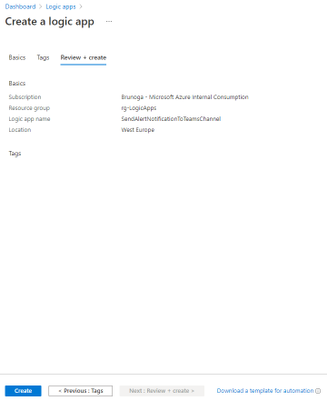
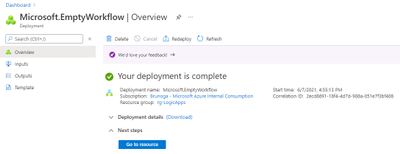
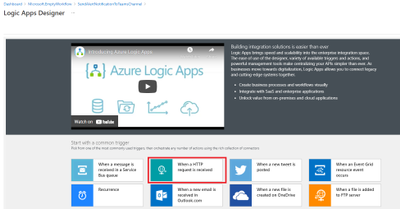
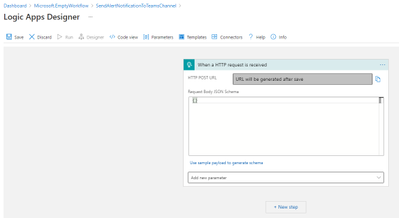
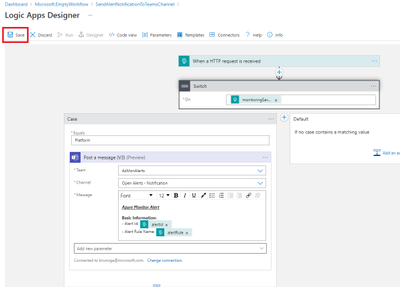

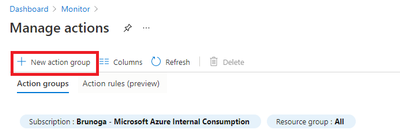
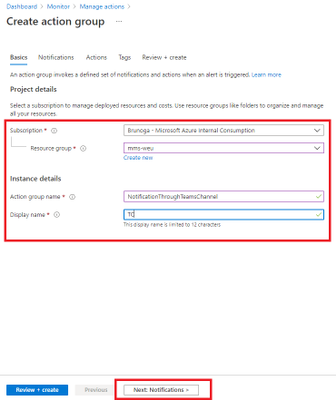
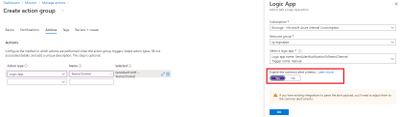

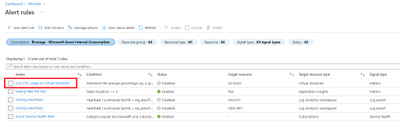

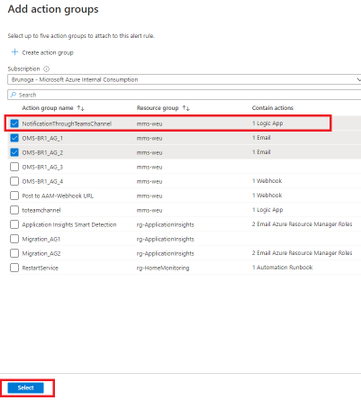
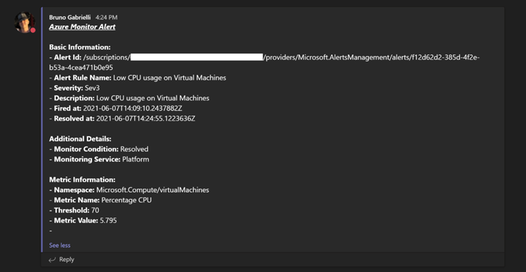






Recent Comments