by Scott Muniz | Jul 21, 2020 | Alerts, Microsoft, Technology, Uncategorized
This article is contributed. See the original author and article here.
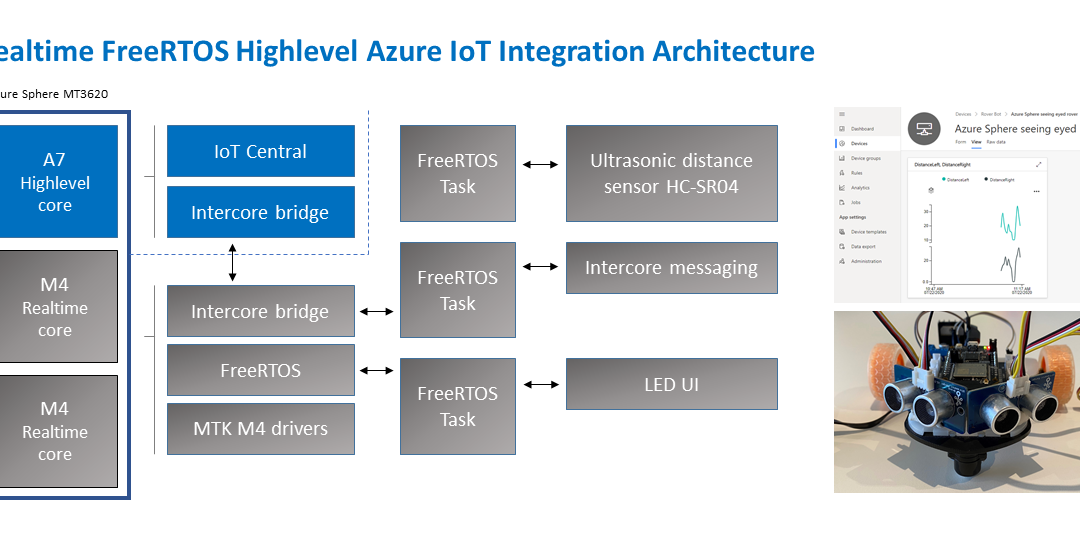
Build a Rover combining the best of Azure Sphere security with FreeRTOS
What you will learn
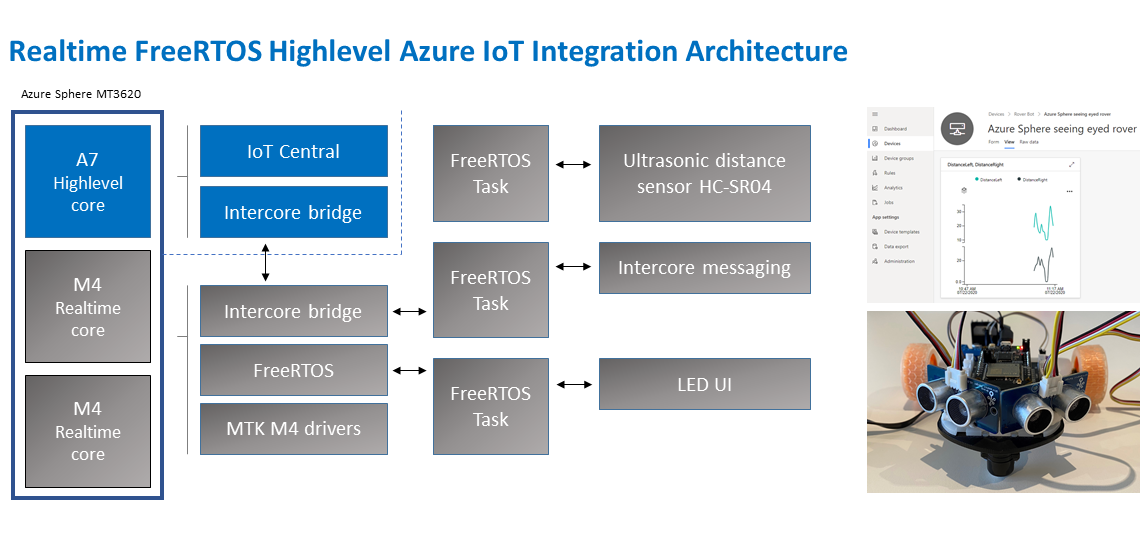
You will learn how to integrate a Real-time FreeRTOS application responsible for running a timing-sensitive ultrasonic distance sensor with the security and cloud connectivity of Azure Sphere.
#JulyOT
This is part of the #JulyOT IoT Tech Community series, a collection of blog posts, hands-on-labs, and videos designed to demonstrate and teach developers how to build projects with Azure Internet of Things (IoT) services. Please also follow #JulyOT on Twitter.
Source code and learning resources
Source code: Azure Sphere seeing eyed rover Real-time FreeRTOS sensors and Azure IoT.
Learning resources: Azure Sphere Developer Learning Path.
Learn more about Azure Sphere
Azure Sphere is a comprehensive IoT security solution – including hardware, OS, and cloud components – to actively protect your devices, your business, and your customers.
Application architecture
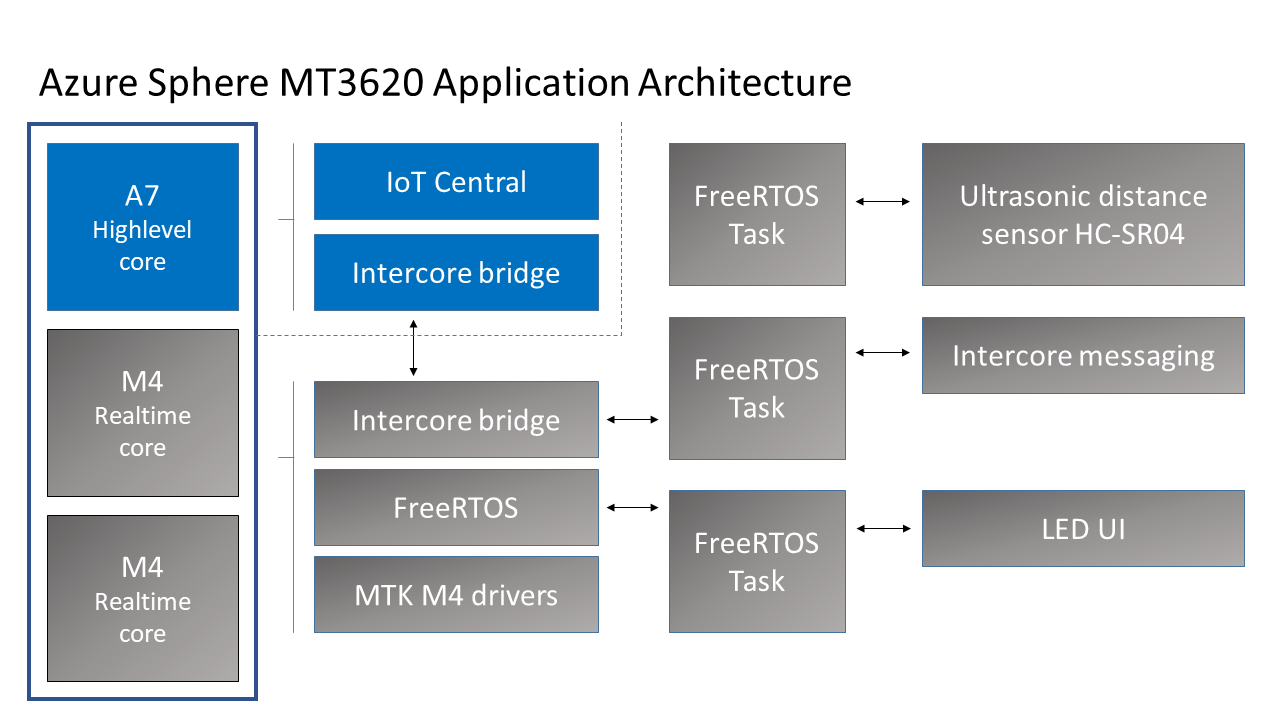
The application running on the Azure Sphere consists of two parts.
Real-time FreeRTOS Application
- The Real-time FreeRTOS application running on one of the M4 cores that is responsible for running the timing-sensitive HC-SR04 ultrasonic distance sensor.
- Distance is measured every 100 milliseconds so the rover can decide the best route.
- The sensor requires precise microsecond timing to trigger the distance measurement process, so it is a perfect candidate for running on the Real-time core as a FreeRTOS Task.
- Every 5 seconds a FreeRTOS Task sends distance telemetry to the Azure Sphere A7 High-level application.
Azure IoT High-level Application
- The application running on the Azure Sphere A7 High-level application core is responsible for less timing-sensitive tasks such as establishing WiFi/Network connectivity, negotiating security and connecting with Azure IoT Central, updating the device twin and send telemetry messages.
Extending
- I am thinking about extending this solution with a local TinyML module for smarter navigation.
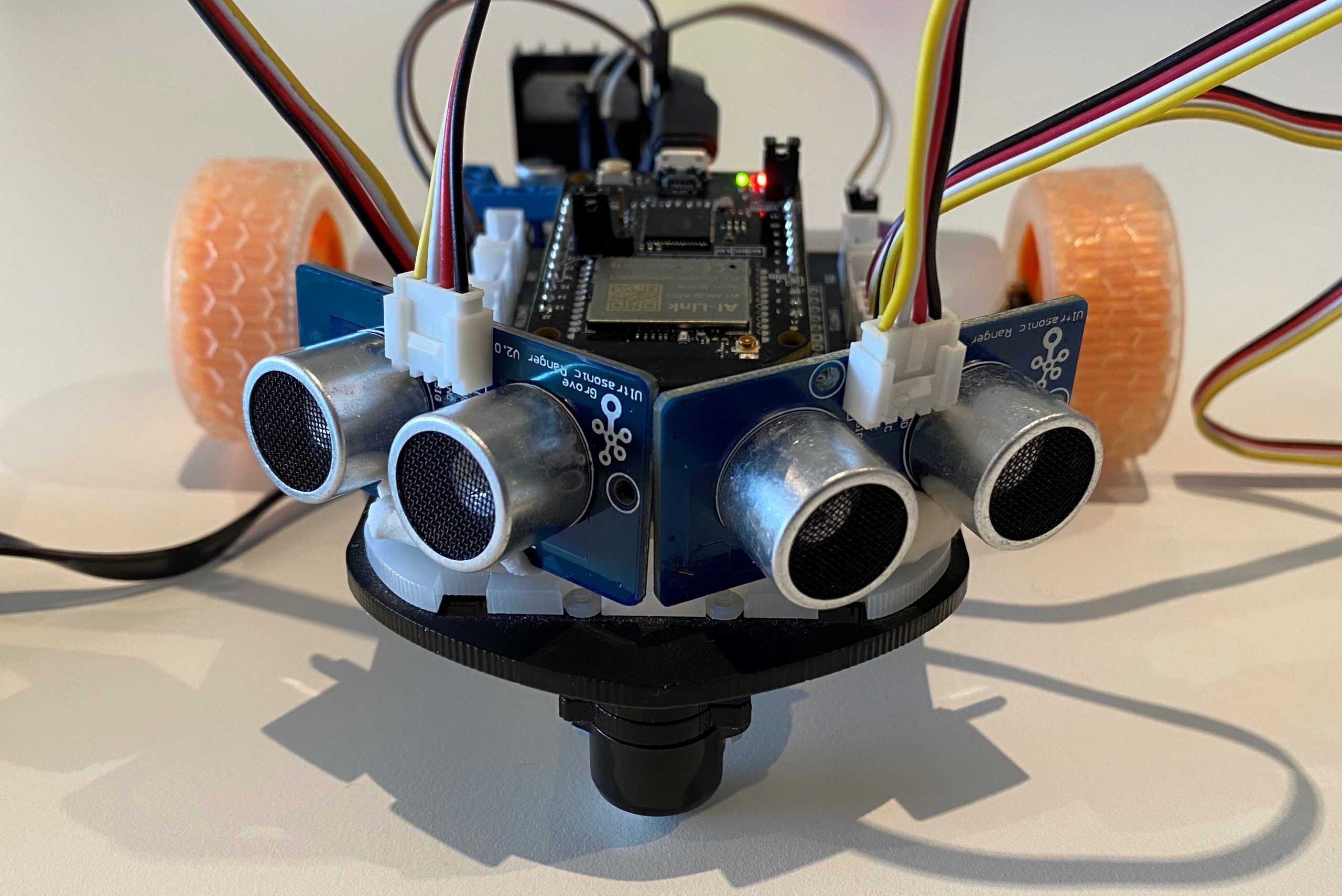
Parts list
Azure IoT Central
Azure IoT Central provides an easy way to connect, monitor, and manage your Internet of Things (IoT) assets at scale.
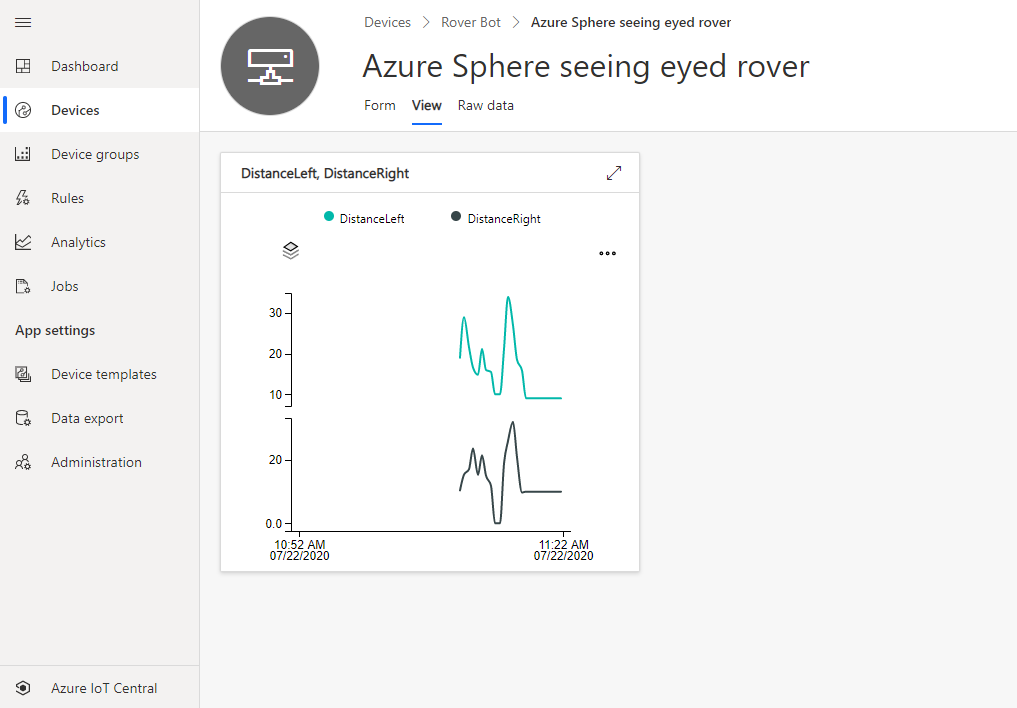
I created a free trial of Azure IoT Central and in no time I had the rover distance sensor charted and available for deeper analysis. By the way, you can continue to connect two devices for free to IoT Central after the trial period expires.
Extend and integrate Azure IoT Central applications with other cloud services
Azure IoT Central is also extensible using rules and workflows. For more information, review Use workflows to integrate your Azure IoT Central application with other cloud services
How to build the solution
- Set up your Azure Sphere development environment.
- Review Integrate FreeRTOS Real-time room sensors with Azure IoT.
- Learn how to connect and Azure Sphere to Azure IoT Central or Azure IoT Hub.
- The IoT Central Device Template Capabilities Model JSON file for this solution is included in the iot_central directory of this repo.
Have fun and stay safe and be sure to follow us on #JulyOT.
by Scott Muniz | Jul 21, 2020 | Uncategorized
This article is contributed. See the original author and article here.
One of the best ways to protect your organization from security threats is to make sure that your staff uses the appropriate level of access to perform their job, ideally following the concept of least privilege. Like other services in Microsoft 365, Intune uses a role-based access control (RBAC) model that helps you manage who has access to your organization’s resources and what they can do with those resources. By assigning roles to your Intune admins, you can limit what they can see and change.
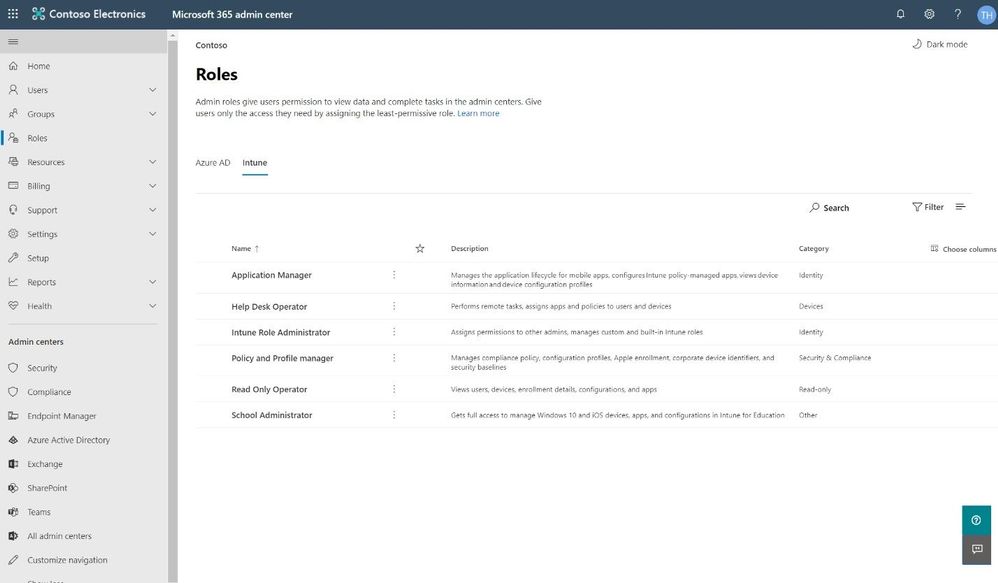
We have added Intune role management to the Microsoft 365 admin center, where you can also leverage features such as the ability to search for roles and view role permissions. This means you don’t need two separate tools to manage roles for Microsoft 365 and Intune. When you sign into the Microsoft 365 admin center, you’ll see that there are two pivots on the Roles page, one for Azure Active Directory (Azure AD) and one for Intune.
 Intune pivot on the Roles page in the Microsoft 365 admin center
Search for the right role
As with the Azure AD pivot, the Intune pivot also includes Search, which allows you to use keywords to find roles bases on the role name, description, or the permissions associated with the role. This allows you to find the right role with the least amount of privileges necessary for the role tasks.
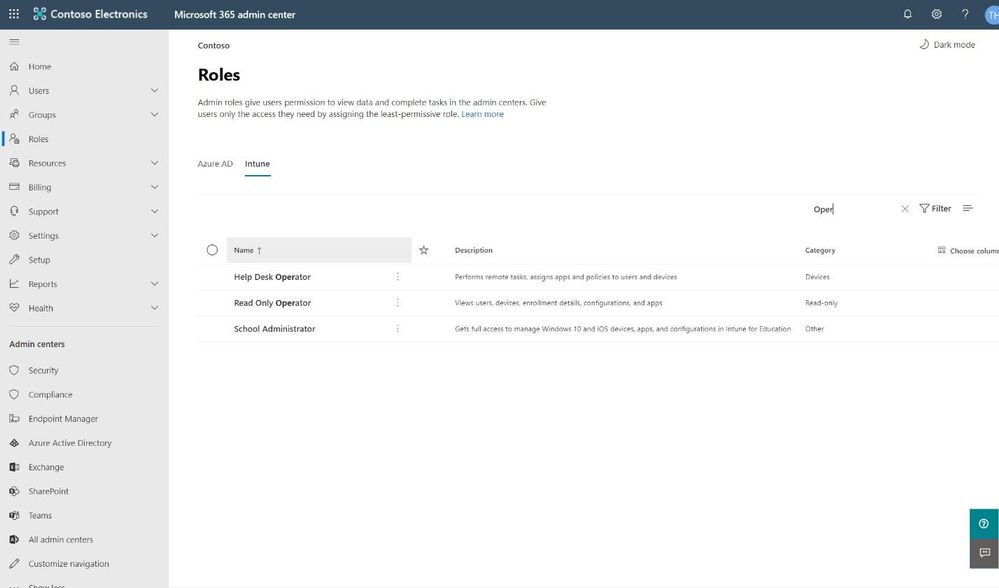 Search for the right role
Assigning a Role
Assigning a role is quick and easy. The wizard in the Microsoft 365 admin center walks you through a series of steps to identify who is being given access and what they will be able to manage.
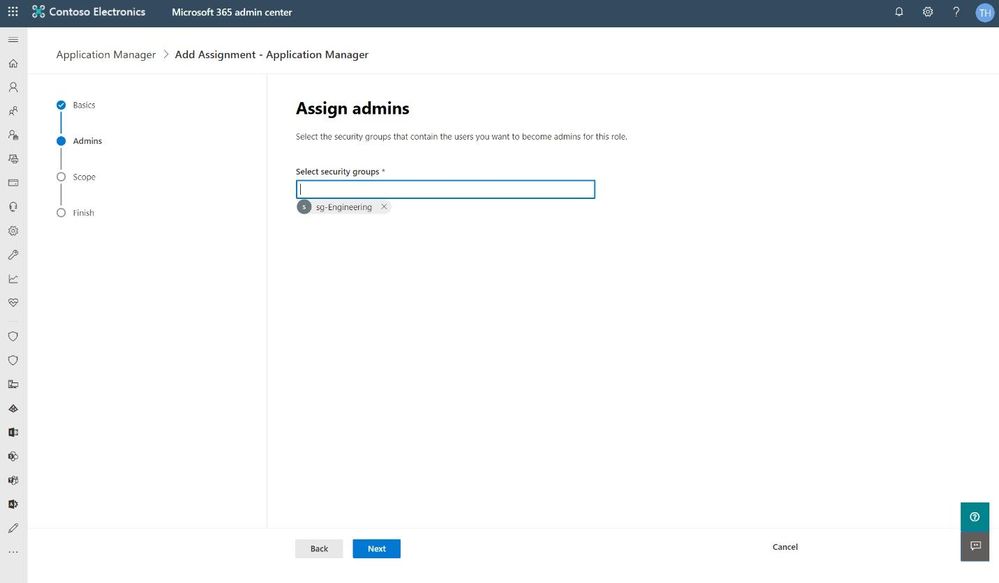 Assign an Intune role in the Microsoft 365 admin center
The wizard also supports assigning scope tags from Microsoft Endpoint Manager. Roles determine what access admins have to which resources, and scope tags determine which objects admins can see.
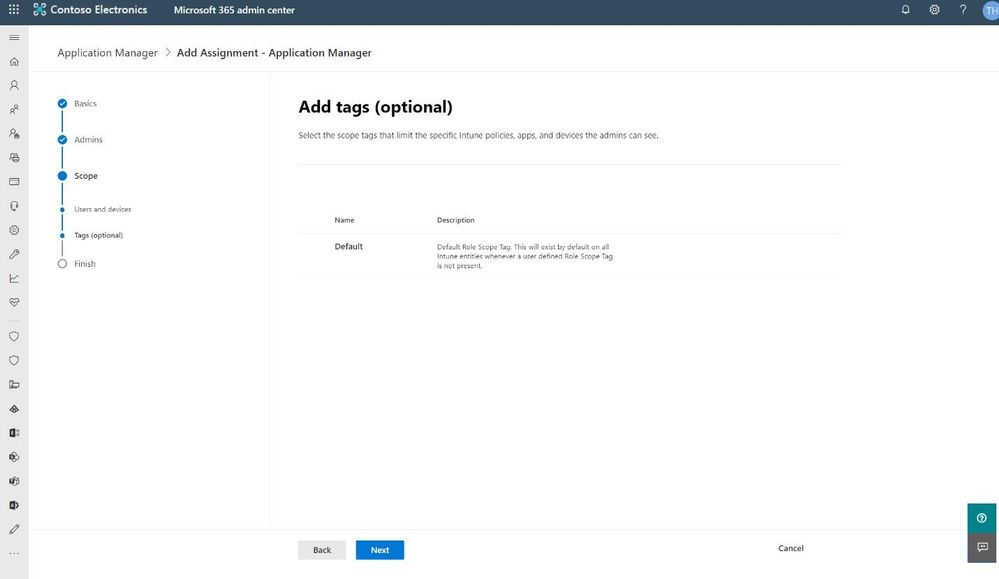 Use optional scope tags when assigning an Intune admin role
Our hope is that the wizard gives a clear path to getting the right Intune roles assigned to the right people. We’d love to get your feedback, so please try this new experience and use the in-product feedback button in the bottom right corner to let us know what you think.
We have a lot more in store for role management in the Microsoft 365 admin center, so stay tuned!
–The Microsoft 365 admin center team
by Scott Muniz | Jul 21, 2020 | Alerts, Microsoft, Technology, Uncategorized
This article is contributed. See the original author and article here.
As companies continue their cloud journey, they are more and more adopting a microservice architecture as part of their application modernization. In this blog post, we have Walter Oliver (@walterov) who is a Program Manager in the Azure Stack Hub team to explore how Azure API Management Gateway on Azure Stack Hub can help in the hybrid strategy for these services.
While some of the applications are being deployed on Azure, companies face challenges with operational consistency when it comes to those apps that must remain on premises. That is one of the scenarios where Azure Stack Hub (ASH) can provide the platform where to host their on-premises applications, while keeping operational consistency. Enterprises are increasingly using Kubernetes on Azure Stack Hub as their choice for their microservices, as they seek increased autonomy for their development teams, flexibility, and modularity. But the process of decoupling single tier monolithic applications into smaller API services brings new problems: how do you know what are these services? Do they meet the security requirements? How are they accessed and monitored?
Azure API Management (APIM) helps address these issues. APIM is part of the Microsoft hybrid strategy, it will help you in:
- Publishing a catalog of APIs available and control access to them
- Preventing DOS attacks for externally available APIs
- Implementing security policies
- Onboarding the ISV partner ecosystem
- Supporting your microservices program with a robust internal API program
Challenges to API Management on Premises
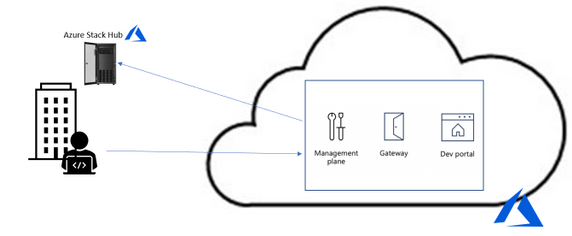
However, since the Azure API Management service is on the cloud, utilizing it implies a round trip to the cloud and then to the on-premises service to service every call. In some cases, this is acceptable, but in many it is not (figure 1).
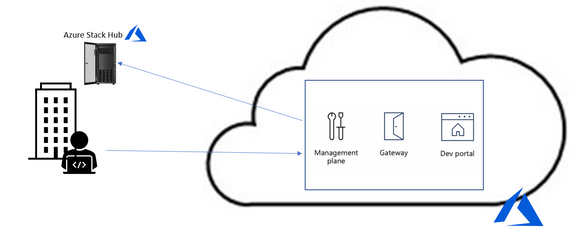
Figure 1. API Management without self-hosted gateway
To solve it the Azure APIM team created the API Management self-hosted gateway. The self-hosted gateway, as the name implied, can be hosted locally in your data center (figure 2).

Figure 2. API Management with self-hosted gateway
Running the Self-hosted Gateway in Azure Stack
The APIM’s self-hosted gateway feature enables Azure Stack Hub customers (and customers in general) to manage their on-premises microservices APIs on a central portal in Azure. The self-hosted gateway is a containerized, functionally equivalent version of the managed gateway deployed to Azure as part of every API Management service.
Now you can deploy it inside Azure Stack Hub as a Linux -based Docker container from the Microsoft Container Registry. This means that you can hosted inside the AKS-engine-deployed Kubernetes cluster inside ASH. In cases where you have microservices APIs exposed to applications inside the Kubernetes cluster all the calls happen locally with minimal latency and no extra data transfer costs. More importantly, it also ensures that compliance is maintained since there are not round trips to Azure. Yet, all the benefits of utilizing APIM from Azure remain: single point of management, observability, and discovery of all APIs within the organization.
For complete documentation on AIPM self-hosted gateway see the overview here. To provision the gateway in APIM in Azure follow the instructions here. To deploy the gateway containers in Kubernetes follow the instructions here.
Considerations when running the gateway in Azure Stack Hub
- A common question is whether there is a need for opening ports for inbound connectivity, the answer is no. Self-hosted gateway only requires outbound TCP/IP connectivity to Azure on port 443, it follows a pull model, not a push model for communication. Connectivity is required so that information such as health reporting, updates, events, logs, and metrics can be transferred. This also implies that when there is no communication with Azure, the data does not flow, yet the gateway continues to operate as expected.
- When running the gateway container in your Kubernetes cluster with the configuration backup option, you will notice an extra managed disk being created in the cluster, this is the disk where the configuration backup is stored. This is particularly useful in case that connection to Azure can become unavailable. Notice that the gateway container is not meant to be run on an ASH stamp that will be disconnected from the internet or is planned to be disconnected most of the time. In fact, if the stamp is disconnected temporarily and for some reason the gateway container is stopped, Kubernetes will try to restart it but if the option of running with backup configuration was off, it will fail. In those cases, you need to ensure that connectivity to Azure is restored.
- Another question is whether that Gateway container automatically discovers the available APIs. The answer is that they are not, you must explicitly go to the Azure APIM portal and register the APIs you need to manage.
- In the case that you have APIs in another Kubernetes cluster (or anywhere in your data center) that you would like to manage you can publish them via the same gateway container or provision and deploy another gateway instance
- Deploying a new microservice and publishing its API or applying changes to an existing one is something that is better formalized in a CI/CD Pipeline. Getting familiarized with the available operations will be useful, see the reference here. For a guide on how to architect a CI/CD pipeline with corresponding repo see this blog.
Summary
Azure’s API Management service is very helpful for managing large microservices deployments, now the self-hosted APIM Gateway makes it very appealing for including APIs deployed on premises. The documentation provided online in Azure covers the basic concepts, provisioning, and deploying of self-hosted gateways, the summary provided above is an introduction to the subject tailored to Azure Stack Hub customers. Subsequent posts will include a sample deployment of an API and its publishing through APIM on Azure.
by Scott Muniz | Jul 21, 2020 | Alerts, Microsoft, Technology, Uncategorized
This article is contributed. See the original author and article here.
I’ve done a few posts recently around using GraphQL, especially with Azure Static Web Apps, and also on some recent streams. This has led to some questions coming my way around the best way to use GraphQL with Azure.
Let me start by saying that I’m by no means a GraphQL expert. In fact, I’ve been quite skeptical of GraphQL over the years.
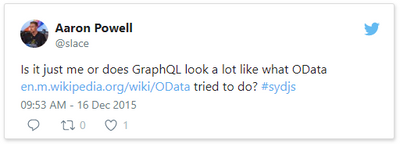
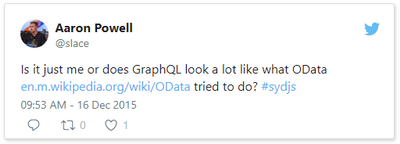
This tweet here was my initial observation when I first saw it presented back in 2015 (and now I use it to poke fun at friends now) and I still this there are some metis in the comparison, even if it’s not 100% valid.
So, I am by no means a GraphQL expert, meaning that in this series I want to share what my perspective is as I come to looking at how to be do GraphQL with Azure, and in this post we’ll look at how to get started with it.
Running GraphQL on Azure
This question has come my way a few times, “how do you run GraphQL on Azure?” and like any good problem, the answer to it is a solid it depends.
When I’ve started to unpack the problem with people it comes down to wanting to find a service on Azure that does GraphQL, in the same way that you can use something like AWS Amplify to create a GraphQL endpoint for an application. Presently, Azure doesn’t have this as a service offering, and to have GraphQL as a service sounds is a tricky proposition to me because GraphQL defines how you interface as a client to your backend, but not how your backend works. This is an important thing to understand because the way you’d implement GraphQL would depend on what your underlying data store is, is it Azure SQL or CosmosDB? maybe it’s Table Storage, or a combination of several storage models.
So for me the question is really about how you run a GraphQL server and in my mind this leaves two types of projects; one is that it’s a completely new system you’re building with no relationship to any existing databases or backends that you’ve got* or two you’re looking at how to expose your existing backend in a way other than REST.
*I want to point out that I’m somewhat stretching the example here. Even in a completely new system it’s unlikely you’d have zero integrations to existing systems, I’m more point out the two different ends of the spectrum.
If you’re in the first bucket, the world is your oyster, but you have the potential of choice paralysis, there’s no single thing to choose from in Azure, meaning you have to make a lot of decisions to get up and running with GraphQL. This is where having a service that provides you a GraphQL interface over a predefined data source would work really nicely and if you’re looking for this solution I’d love to chat more to provide that feedback to our product teams (you’ll find my contact info on my About page). Whereas if you’re in the second, the flexibility of not having to conform to an existing service design means it’s easier to integrate into. What this means is that you need some way to host a GraphQL server, because when it comes down to it, that’s the core piece of infrastructure you’re going to need, the rest is just plumbing between the queries/mutations/subscriptions and where your data lives.
Hosting a GraphQL Server
There are implementations of GraphQL for lots of languages so whether you’re a .NET or JavaScript dev, Python or PHP, there’s going to be an option for you do implement a GraphQL server in whatever language you desire.
Let’s take a look at the options that we have available to us in Azure.
Azure Virtual Machines
Azure Virtual Machines are a natural first step, they give us a really flexible hosting option, you are responsible for the infrastructure so you can run whatever you need to run on it. Ultimately though, a VM has some drawbacks, you’re responsible for the infrastructure security like patching the host OS, locking down firewalls and ports, etc..
Personally, I would skip a VM as the management overhead outweighs the flexibility.
Container Solutions
The next option to look at is deploying a GraphQL server within a Docker container. Azure Kubernetes Service (AKS) would be where you’d want to look if you’re looking to include GraphQL within a larger Kubernetes solution or wanting to use Kubernetes as a management platform for your server. This might be a bit of an overkill if it’s a standalone server, but worthwhile if it’s part of a broader solution.
My preferred container option would be Azure Web Apps for Containers. This is an alternative to the standard App Service (or App Service on Linux) but useful if you’re runtime isn’t one of the supported ones (runtimes like .NET, Node, PHP, etc.). App Service is a great platform to host on, it gives you plenty of management over the environment that you’re running in, but keeps it very much in a PaaS (Platform as a Service) model, so you don’t have to worry about patching the host OS, runtime upgrades, etc., you just consume it. You have the benefit of being able to scale both up (bigger machines) and out (more machines), building on top of an backend system allows for a lot of scale in the right way.
Azure Functions
App Service isn’t the only way to run a Node.js GraphQL service, and this leads to my preference, Azure Functions with Apollo Server. The reason I like Functions for GraphQL is that I feel GraphQL fits nicely in the Serverless design model nicely (not to say it doesn’t fit others) and thus Functions is the right platform for it. If the kinds of use cases that you’re designing your API around fit with the notion of the on-demand scale that Serverless provides, but you do have a risk of performance impact due to cold start delays (which can be addressed with Always On plans).
Summary
We’re just getting started on our journey into running GraphQL on Azure. In this post we touched on the underlying services that we might want to look at when it comes to looking to host a GraphQL server, with my pick being Azure Functions if you’re doing a JavaScript implementation, App Service and App Service for Containers for everything else.
As we progress through the series we’ll look at each piece that’s important when it comes to hosting GraphQL on Azure, and if there’s something specific you want me to drill down into in more details, please let me know.
This post was originally posted on www.aaron-powell.com.
by Scott Muniz | Jul 21, 2020 | Uncategorized
This article is contributed. See the original author and article here.
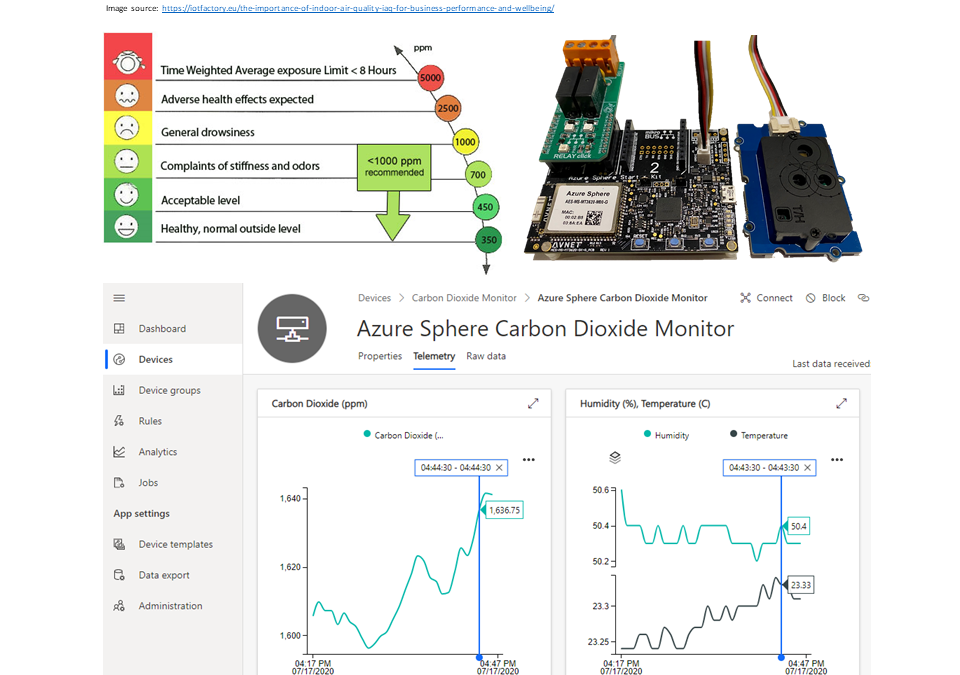
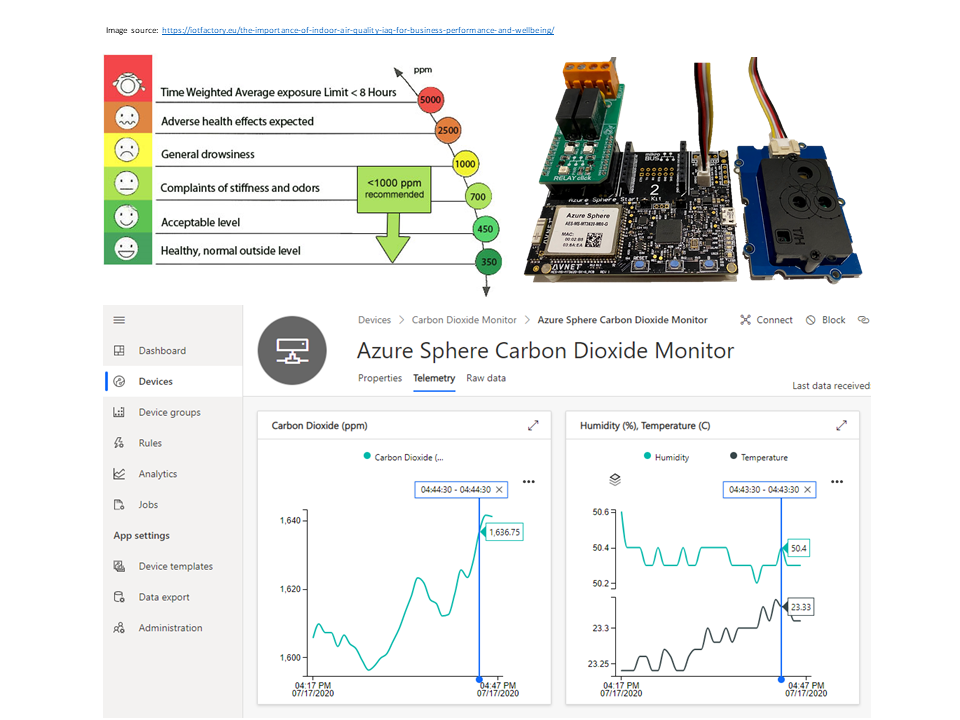
Improve health, wellbeing, and productivity by tracking your home workspace CO2 levels
How to build a healthier working environment by monitoring CO2, temperature, and humidity levels with an Azure Sphere, an SDC30 sensor, and Azure IoT Central.
#JulyOT
This is part of the #JulyOT IoT Tech Community series, a collection of blog posts, hands-on-labs, and videos designed to demonstrate and teach developers how to build projects with Azure Internet of Things (IoT) services. Please also follow #JulyOT on Twitter.
Source code and learning resources
Source code: Track CO2 levels in your workspace to improve health, wellbeing, and productivity.
Learning resources: Azure Sphere Developer Learning Path.
Are CO2 levels making you grumpy, sleepy, or sad
Working from home it is easy to close the door to shut out the noise of everyday life while we get on with work. Closing the door can lead to a build-up of CO2 gas, a by-product of our breathing, which can impact our wellbeing, concentration, and productivity levels.
Check out “Indoor carbon dioxide levels could be a health hazard, scientists warn“.
The problem is we cannot see or smell Carbon Dioxide, it just keeps building up, and we have no way of knowing it is happening other than getting tired or a headache. So, with that in mind, I figured it was the Internet of Things to the rescue!
The solution
I wanted to build a secure IoT device with Azure Sphere using the Seeed Studio Grove CO2 & Temperature & Humidity Sensor I had in my box of bits. The folks at Sensirion made it super easy to port their SCD30 driver to Azure Sphere. It was just a matter of implementing the I2C init/read/write functions, a microsecond sleep function, plus setting up CMake build. It all just worked. The ported driver is included in this project.
Azure IoT Central
Azure IoT Central provides an easy way to connect, monitor, and manage your Internet of Things (IoT) assets at scale.
I created a free trial of Azure IoT Central and in no time I had CO2, temperature, and humidity telemetry displayed (yes, the data is real, so we have made some changes at home!). By the way, you can continue to connect two devices for free to IoT Central after the trial period expires.
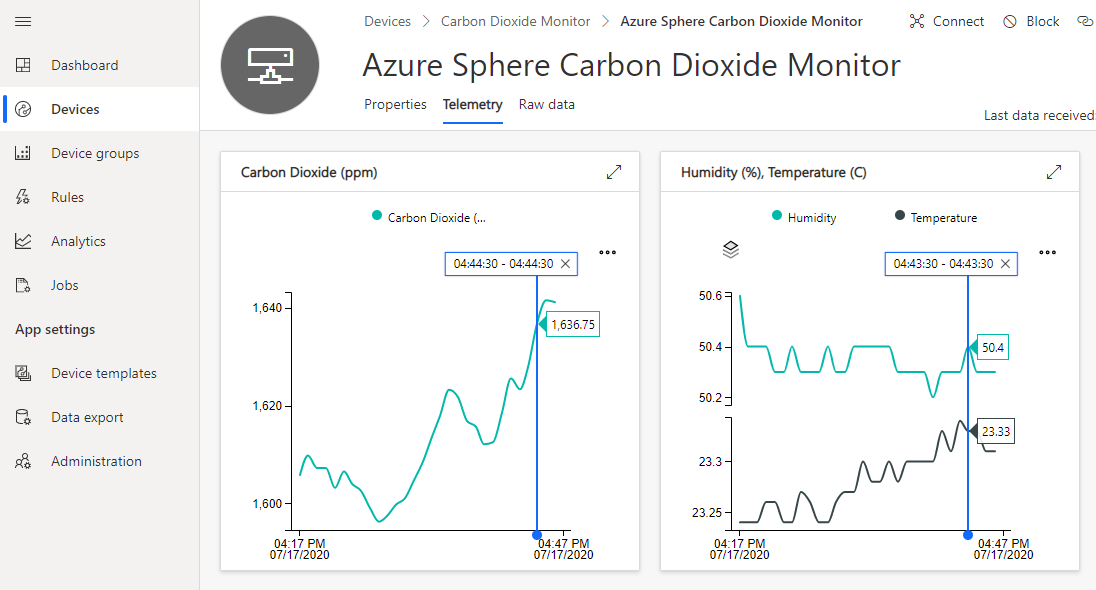
Extend and integrate Azure IoT Central applications with other cloud services
Azure IoT Central is also extensible using rules and workflows. For more information, review Use workflows to integrate your Azure IoT Central application with other cloud services
Parts list
The solution supports two configurations.
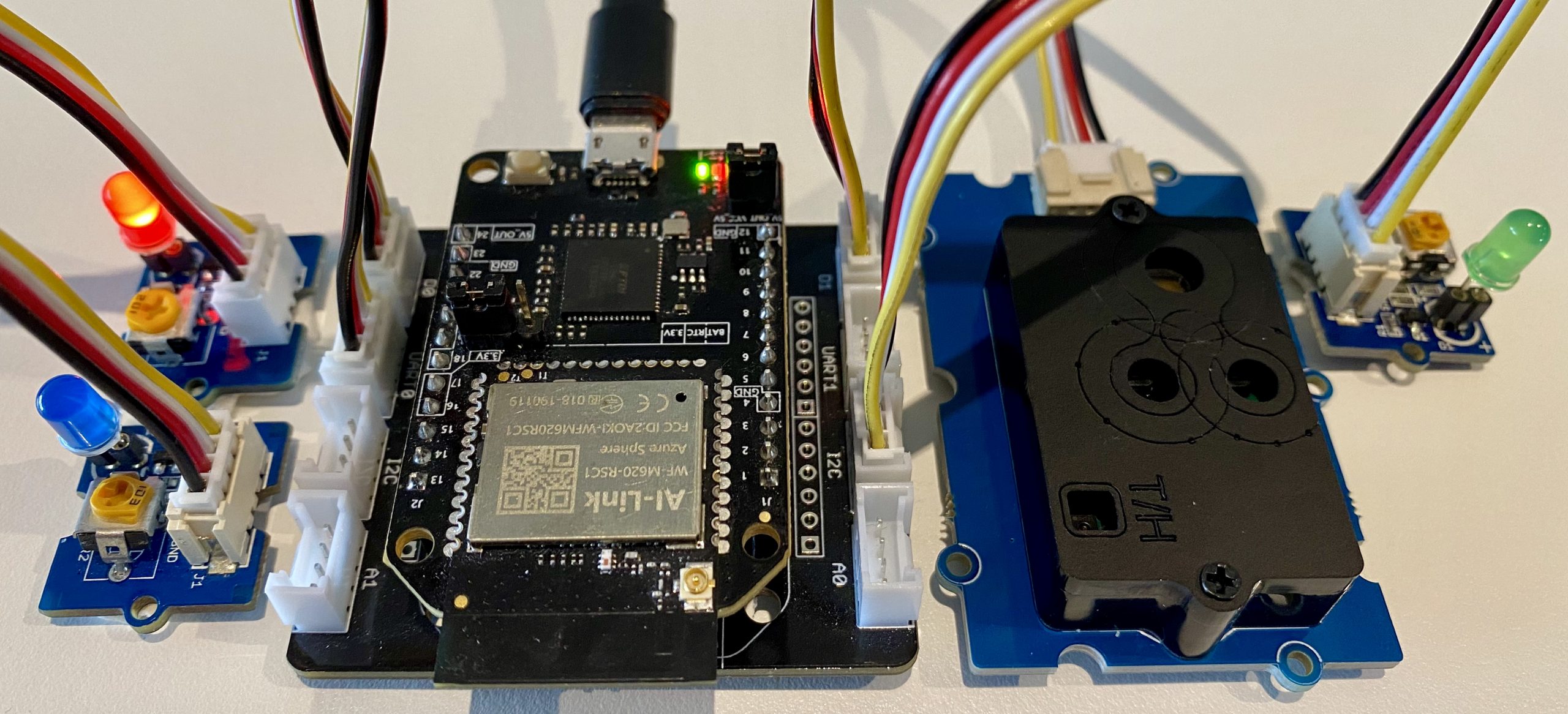
Seeed Studio Azure Sphere Mini Dev Board
- Seeed Studio Seeed Studio MT3620 Mini Dev Board
- MT3620 Grove Breakout
- Seeed Studio Grove CO2 & Temperature & Humidity Sensor
- Optional, 3 x Grove LEDs, or a Grove Relay to drive a bigger warning light!
Connect Grove peripherals
Attach the Azure Sphere to the Grove Breakout board and plug in the following peripherals.
- Green LED plugged into Grove Socket D1
- Red LED plugged into Grove Socket D0
- Blue LED plugged into Grove Socket UART0
- CO2, Temperature, & Humidity sensor into Grove Socket I2C
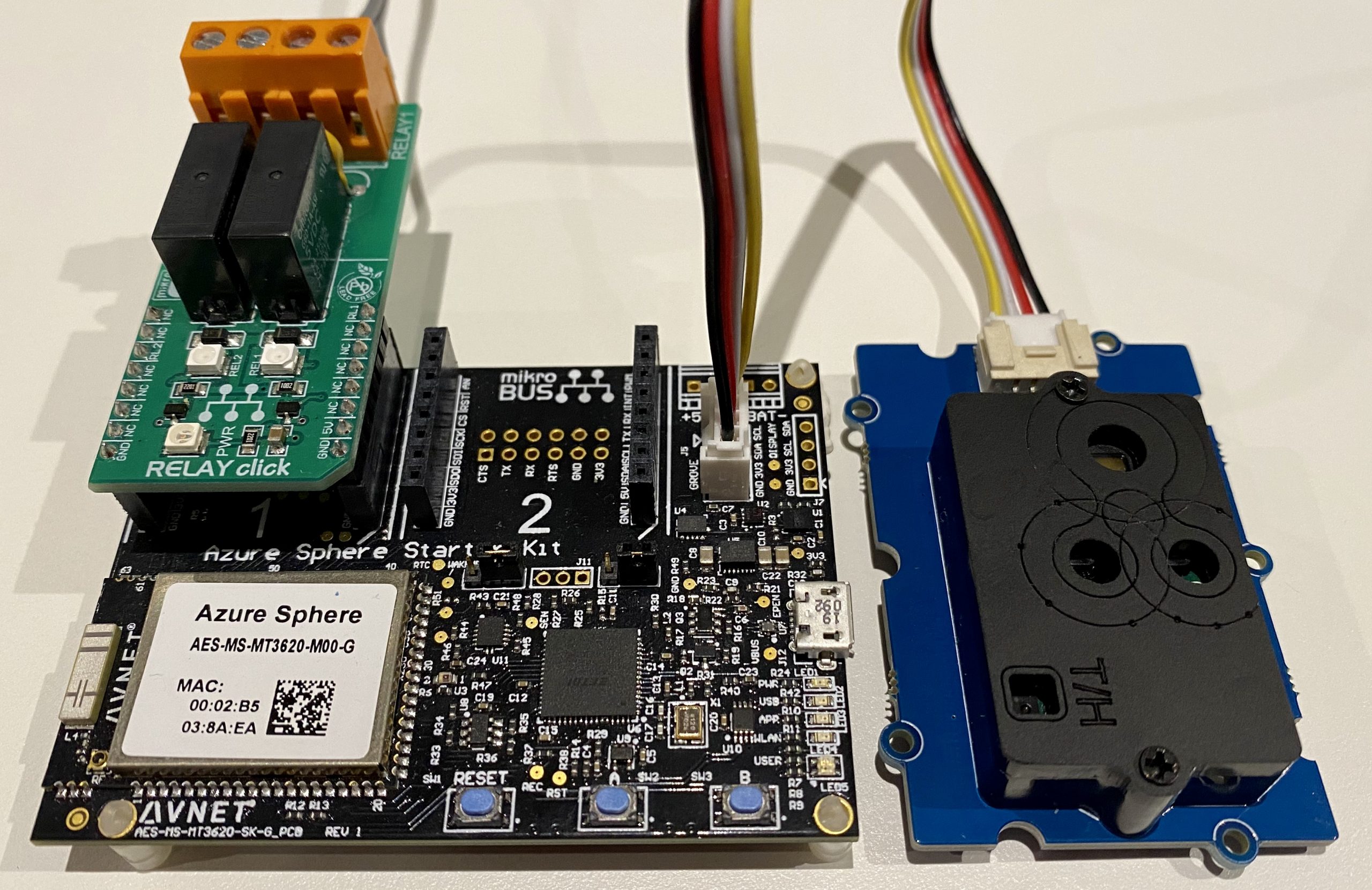
AVNET Azure Sphere Starter Kit
- AVNET Azure Sphere Starter Kit
- Seeed Studio Grove CO2 & Temperature & Humidity Sensor
- Optional, 1 x Click Relay to drive a bigger warning light.
Connect the Grove peripheral
- Plug the CO2, Temperature, & Humidity sensor into Grove Socket I2C on the AVNET Starter Kit.
Calibrating the SCD20 CO2 Sensor
IMPORTANT. Be sure to read up on calibrating the Grove – CO2 & Temperature & Humidity Sensor (SCD30) Calibration sensor. This solution will enable auto-calibration.
How to build the solution
Clone the Azure Sphere CO2 Monitor solution to your desktop.
git clone https://github.com/gloveboxes/Track-CO2-levels-in-your-workspace-to-improve-health-wellbeing-and-productivity.git azure-sphere-co2-monitor
Set up your developer tools and your Azure Sphere
Follow the Azure Sphere Developer Learning Path Lab Set Up to set up the developer tools, claim you Azure Sphere, and configure the device WiFi, and enable developer mode.
Azure IoT Central
Your Azure Sphere device can securely connect and communicate with cloud services. Azure Sphere includes built-in library support for both Azure IoT Hub and Azure IoT Central. This lab focuses on Azure IoT Central. Take a moment to read Your IoT journey: simplified and secure with Azure IoT Central and Azure Sphere.
Azure IoT Central provides an easy way to connect, monitor, and manage your Internet of Things (IoT) assets at scale.
Step 1: Create a new IoT Central Application
-
So the lab instructions are still visible, right mouse click, and open this link “Azure IoT Central” in a new window.
-
Click Build a solution.
-
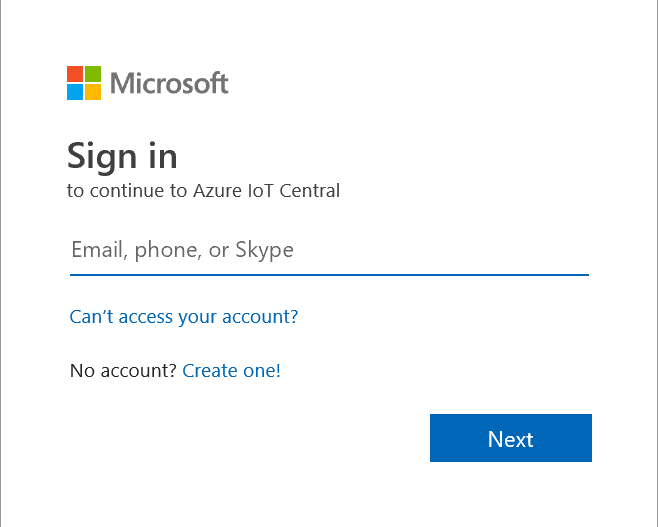
Next, you will need to sign with your Microsoft Personal, or Work, or School account. If you do not have a Microsoft account, then you can create one for free using the Create one! link.
-
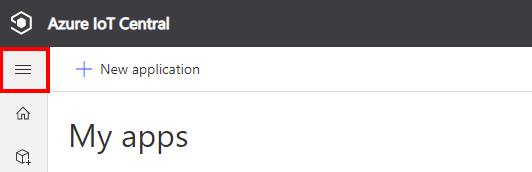
Expand the sidebar menu by clicking on the Burger menu icon.
-
Click + New application to create a new Azure IoT Central application.
-
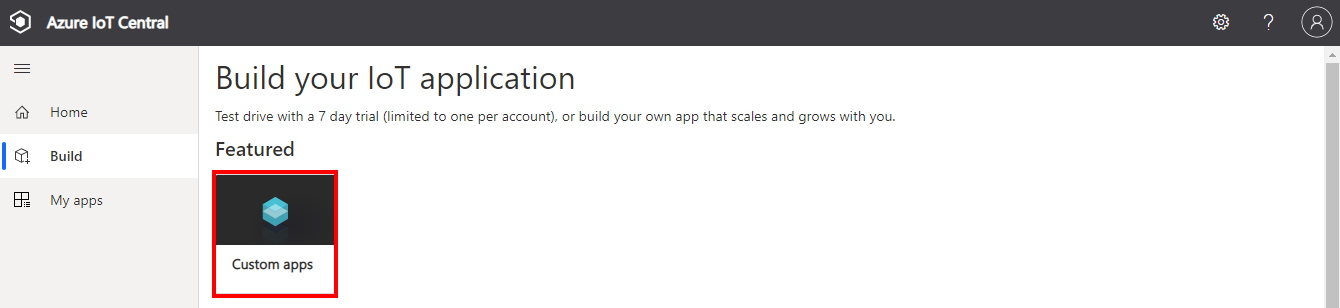
Select Custom app
Create a new application
-
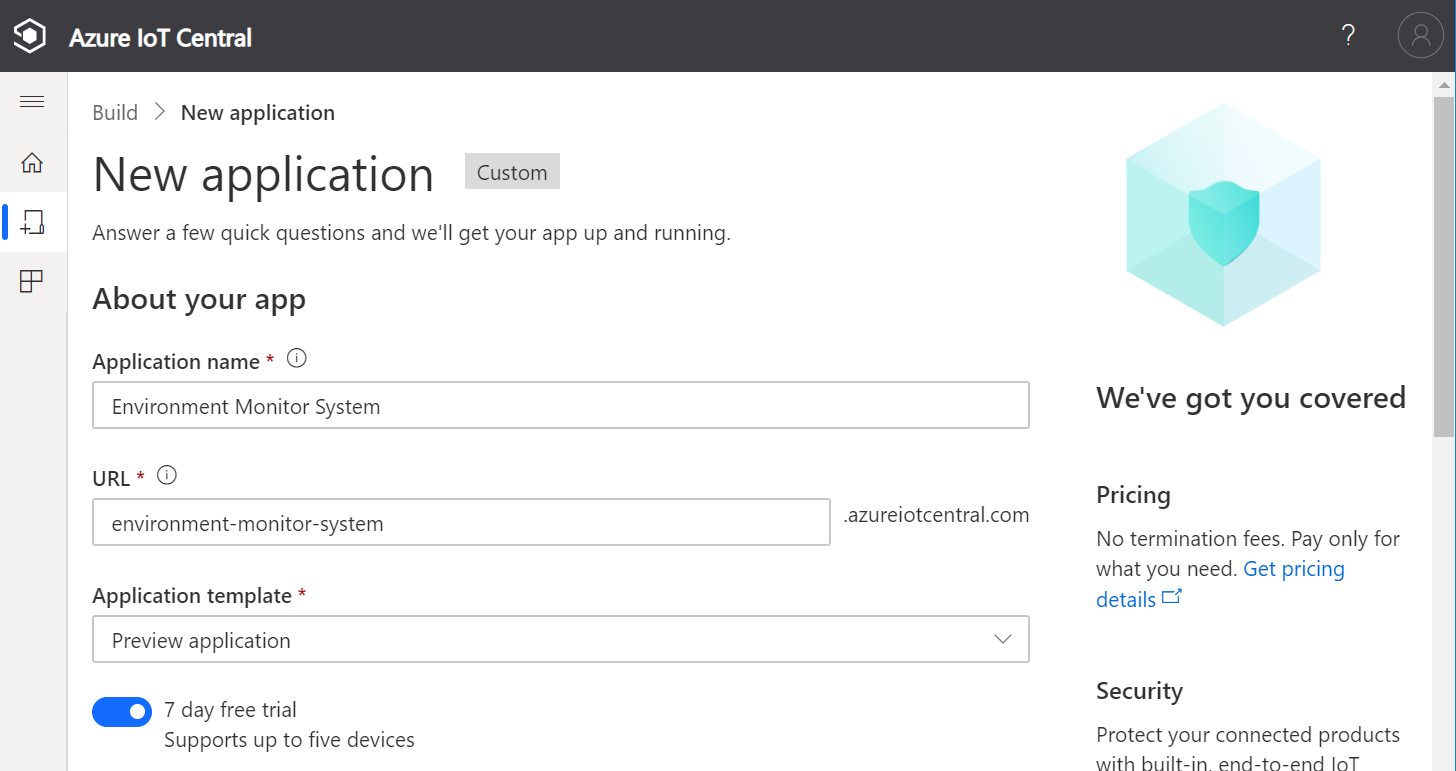
Specify the Application name, the URL, select the Free pricing plan, and complete the registration form.
-
Then click Create.
Create a new device template
A device template is a blueprint that defines the characteristics and behaviors of a type of device that connects to an Azure IoT Central application.
For more information on device templates, review the Define a new IoT device type in your Azure IoT Central application article.
-
Click Device templates, then + New. 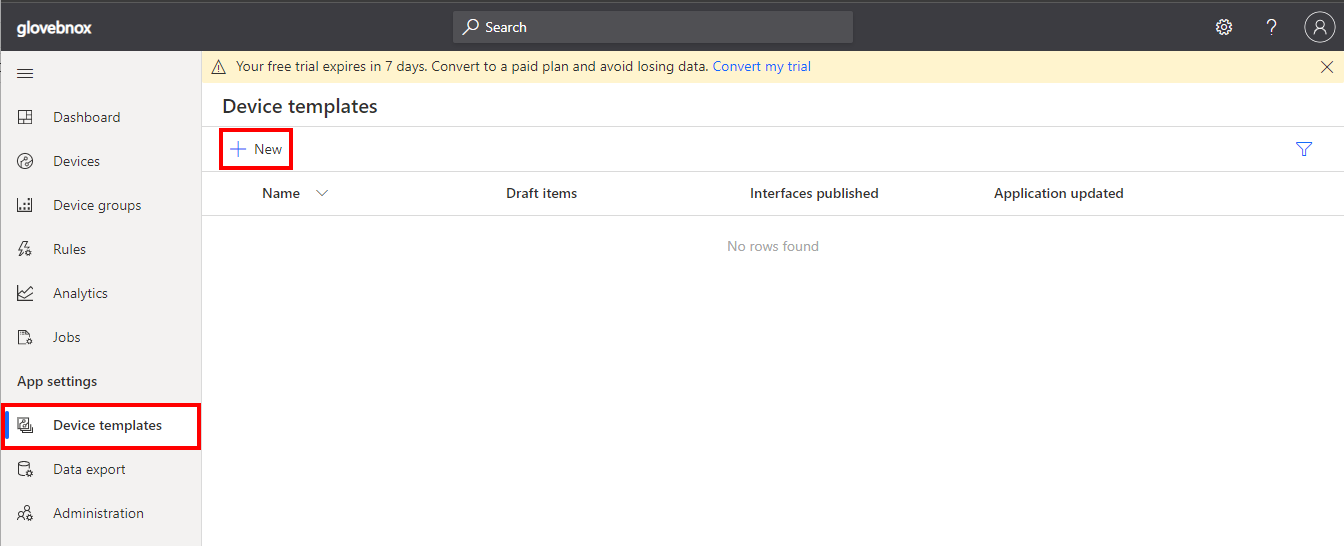
-
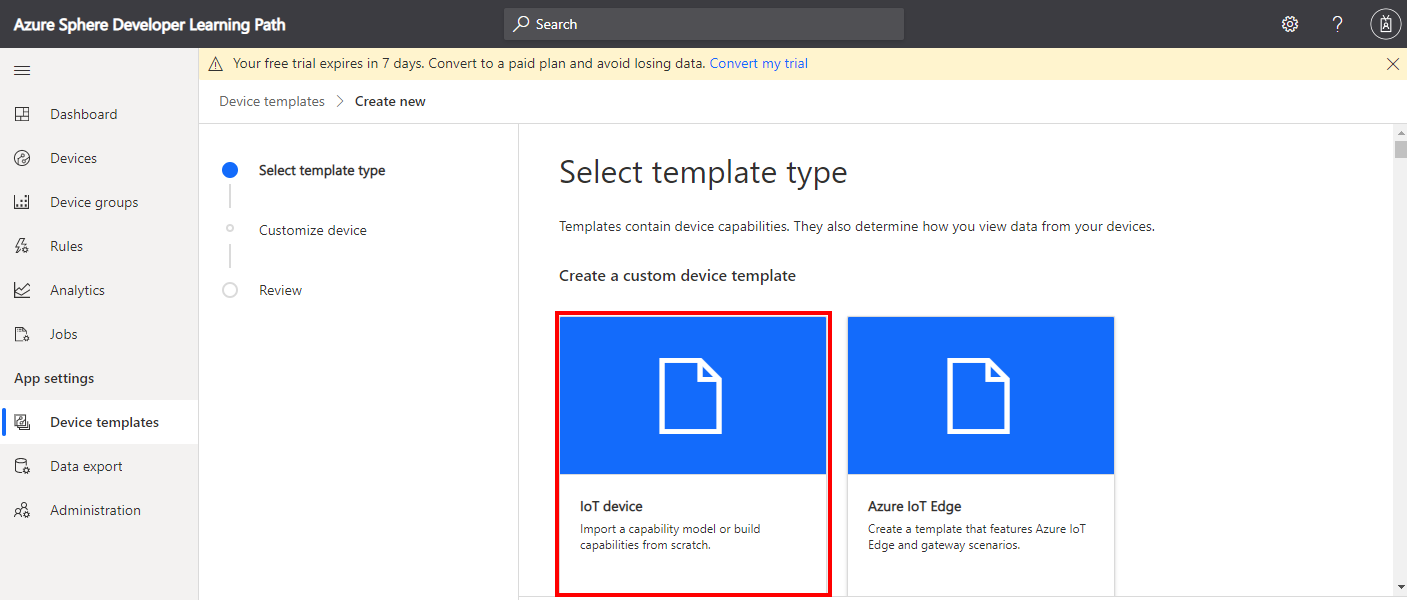
Click the IoT device template type.
-
Create an IoT Device Template.
- Select IoT device,
- Click Next:Customise,
- Name your template Carbon Dioxide Monitor,
- Click Next: Review,
- Click Create.
Import a Capability Model
- Click Import capability model
- Navigate to the folder you cloned the CO2 Monitor solution into.
- Navigate to the iot_central folder.
- Select CO2MonitorCapability_Model.json and open
Create a device visualization view
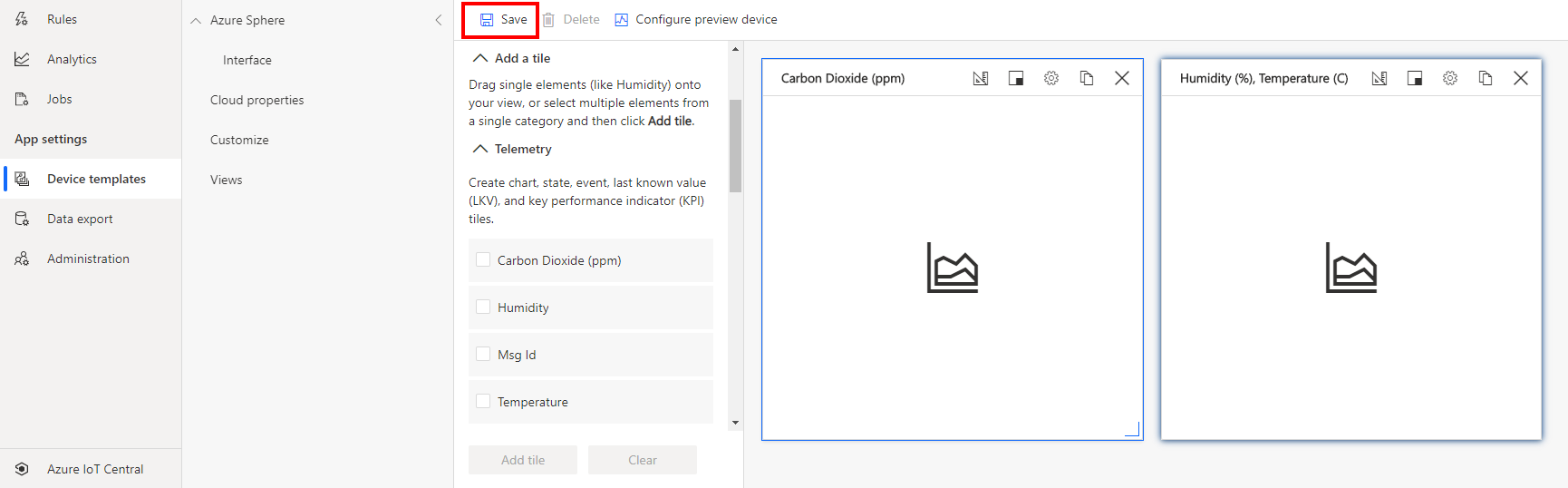
- Click Views.
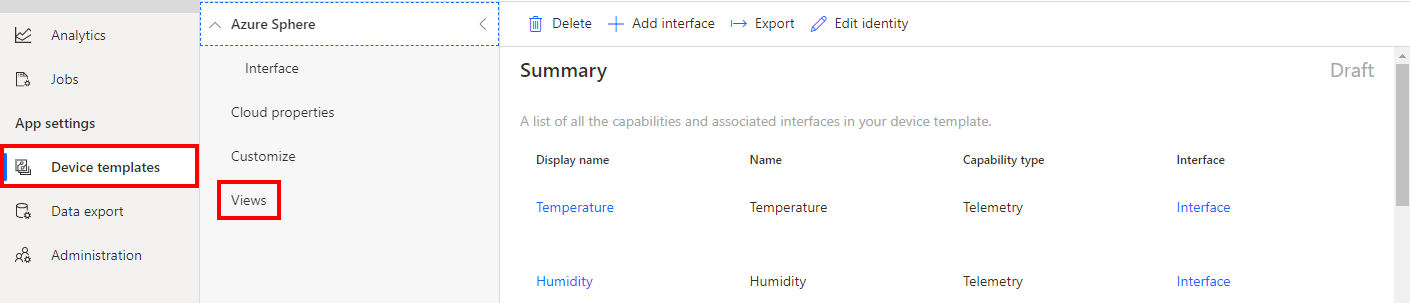
- Select Visualizing the device.
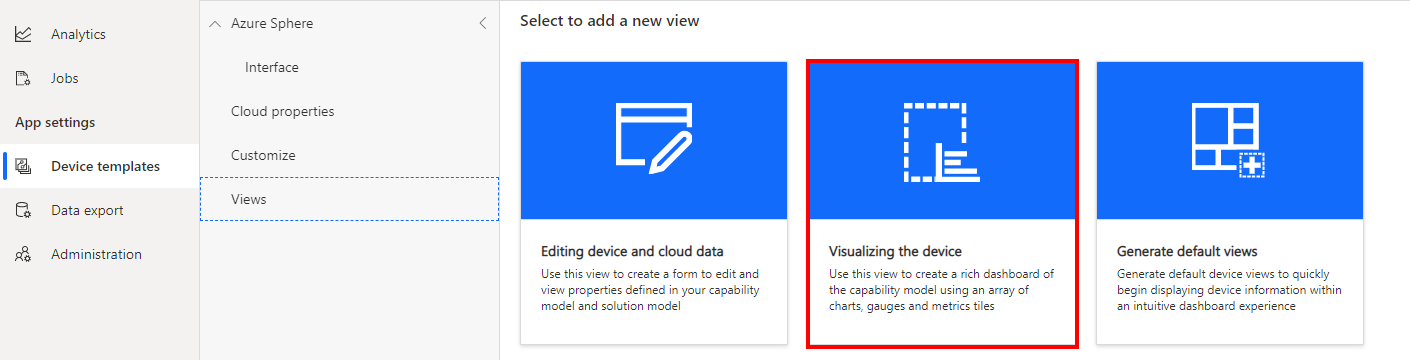
- Expand the Telemetry section
- Select Carbon Dioxide (ppm)
- Click Add Tile
- Select Humidity and Temperature telemetry items.
- Click Add Tile.
- Click Save to save the view.
Create a properties form
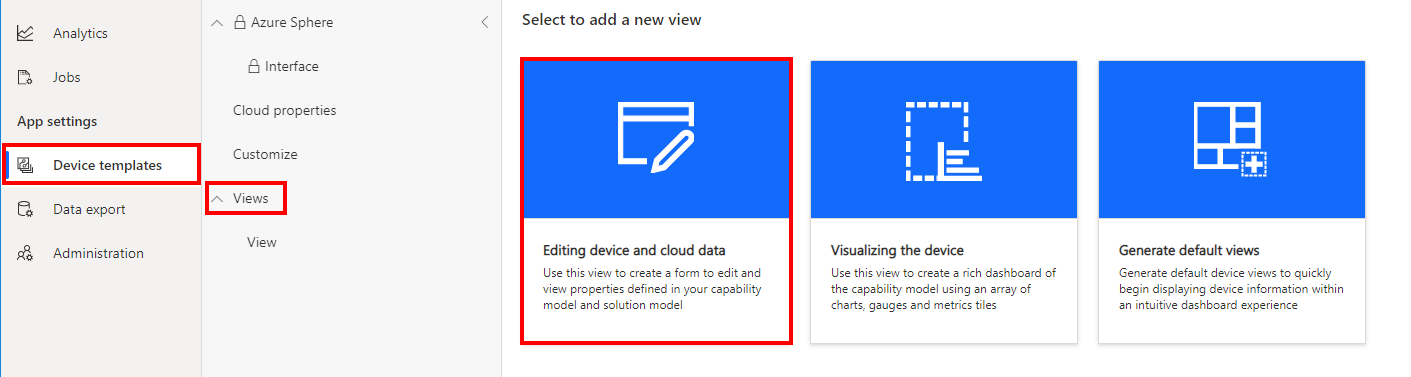
- Click Views.
- Click the Editing device and cloud data option.
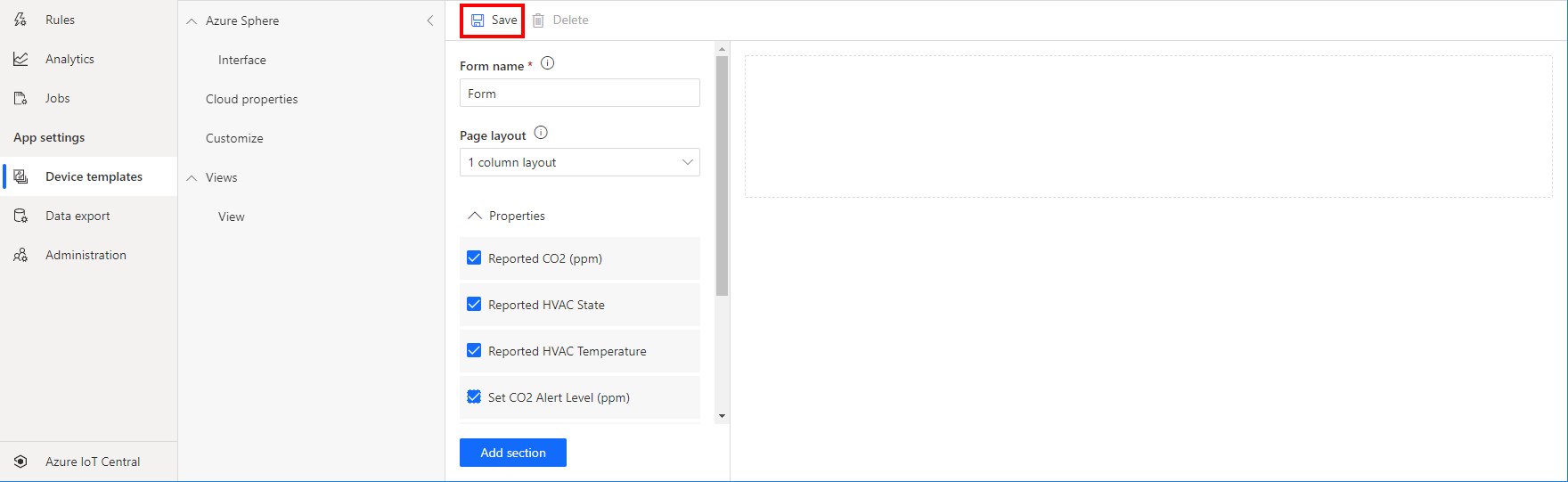
- Expand the Properties section.
- Select all properties.
- Click Add Section.
- Click Save to save the form.
Publish the device template
-
Click Publish to publish the template. Publishing the template makes it available for devices. 
-
Next, confirm and click Publish
See Define a new IoT device type in your Azure IoT Central application for information on creating your own device templates.
Step 2: Link your Azure Sphere Tenant to IoT Central
You need to set up a trust relationship between your Azure Sphere tenant and your IoT Central application.
Devices claimed by your Azure Sphere tenant will be automatically enrolled when it first connects to your IoT Central application.
Download the tenant authentication CA certificate
- Open an Azure Sphere Developer Command Prompt
- Be sure to make a note of the current directory, or change to the CO2 Monitor directory. You will need the name of this directory in the next step.
-
Download the Certificate Authority (CA) certificate for your Azure Sphere tenant:
azsphere tenant download-CA-certificate --output CAcertificate.cer
The output file must have the .cer extension.
Upload the tenant CA certificate to Azure IoT Central and generate a verification code
-
In Azure IoT Central, go to Administration > Device Connection > Manage primary certificate.
-
Click the folder icon next to the Primary box and navigate to the directory where you downloaded the certificate. If you don’t see the .cer file in the list, make sure that the view filter is set to All files (*). Select the certificate and then click the gear icon next to the Primary box.
-
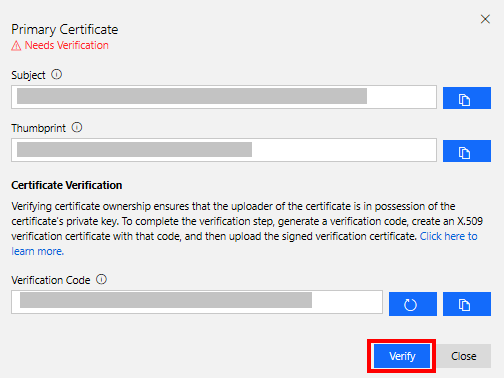
The Primary Certificate dialog box appears. The Subject and Thumbprint fields contain information about the current Azure Sphere tenant and primary root certificate.
-
Click the Refresh icon to the right of the Verification Code box to generate a verification code. Copy the verification code to the clipboard.
Verify the tenant CA certificate
-
Return to the Azure Sphere Developer Command Prompt.
-
Download a validation certificate that proves that you own the tenant CA certificate. Replace code in the command with the verification code from the previous step.
azsphere tenant download-validation-certificate --output ValidationCertification.cer --verificationcode <code>
- The Azure Sphere Security Service signs the validation certificate with the verification code to prove that you own the CA.
Use the validation certificate to verify the tenant identity
- Return to Azure IoT Central and click Verify.
-
When prompted, navigate to the validation certificate that you downloaded in the previous step and select it. When the verification process is complete, the Primary Certificate dialog box displays the Verified message. Click Close to dismiss the box.
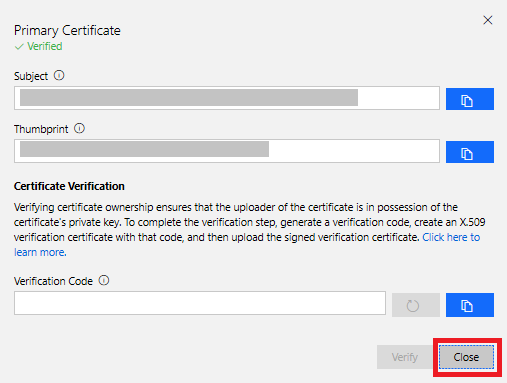
After you complete these steps, any device that is claimed into your Azure Sphere tenant will automatically be enrolled in your Azure IoT Central application when it first connects.
Step 3: Explicitly allow connections to Azure IoT Central Endpoints
Remember, applications on Azure Sphere are locked down by default, including hardware and network endpoints. You must explicitly allow connections to the network endpoints of your Azure IoT Central application otherwise your Azure Sphere application will not be able to connect.
Follow these steps:
- Open the Azure Sphere Developer Command Prompt.
-
Navigate to the Samples -> AzureIoT -> Tools directory. You cloned the Azure Sphere samples repository in the first lab.
- On Windows, navigate to the SamplesAzureIoTToolswin-x64 directory.
- On Linux, navigate to the SamplesAzureIoTToolslinux-x64 directory. On Linux, you may need to explicitly set execution permissions for the ShowIoTCentralConfig tool. From a terminal, run
chmod +x ShowIoTCentralConfig to add execution permissions for the tool.
-
When you run the ShowIoTCentralConfig tool, you will be prompted for input data. The following table outlines what information you will be prompted for and where to obtain the required data.
| Input data |
From |
| Are you using a legacy (2018) IoT Central application (Y/N) |
Respond N |
| IoT Central App URL |
This can be found in your browser address bar. For Example https://myiotcentralapp.azureiotcentral.com/ |
| API token |
This can be generated from your IoT Central application. In the Azure IoT Central application select Administration, select API Tokens, select Generate Token, provide a name for the token (for example, “AzureSphereSample”), select Administrator as the role, and click Generate. Copy the token to the clipboard. The token starts with SharedAccessSignature. |
| ID Scope |
In the Azure IoT Central application, select Administration > Device Connection and then copy the ID Scope |
-
Run the ShowIoTCentralConfig tool. Now follow the prompts that the tool provides, and copy the information from the output into the app_manifest.json file in Visual Studio.
Note: Your organization might require consent for the ShowIoTCentralConfig tool to access your Azure IoT Central data in the same way that the Azure API requires such consent. In some organizations, enterprise application permissions must be granted by an IT administrator.
-
Review the output from the ShowIoTCentralConfig tool. It will look similar to the following text.
Find and modify the CmdArgs, AllowedConnections and DeviceAuthentication lines in your app_manifest.json so each includes the content from the below:
"CmdArgs": [ "0ne000BDC00" ],
"Capabilities": {
    "AllowedConnections": [ "global.azure-devices-provisioning.net", "iotc-9999bc-3305-99ba-885e-6573fc4cf701.azure-devices.net", "iotc-789999fa-8306-4994-b70a-399c46501044.azure-devices.net", "iotc-7a099966-a8c1-4f33-b803-bf29998713787.azure-devices.net", "iotc-97299997-05ab-4988-8142-e299995acdb7.azure-devices.net", "iotc-d099995-7fec-460c-b717-e99999bf4551.azure-devices.net", "iotc-789999dd-3bf5-49d7-9e12-f6999991df8c.azure-devices.net", "iotc-29999917-7344-49e4-9344-5e0cc9999d9b.azure-devices.net", "iotc-99999e59-df2a-41d8-bacd-ebb9999143ab.azure-devices.net", "iotc-c0a9999b-d256-4aaf-aa06-e90e999902b3.azure-devices.net", "iotc-f9199991-ceb1-4f38-9f1c-13199992570e.azure-devices.net" ],
    "DeviceAuthentication": "--- YOUR AZURE SPHERE TENANT ID---",
}
-
Copy the output from the ShowIoTCentralConfig tool to Notepad as you will need this information soon.
Step 4: Get the Azure Sphere Tenant ID
We need the ID of the Azure Sphere Tenant that is now trusted by Azure IoT Central.
- From the Azure Sphere Developer Command Prompt, run
azsphere tenant show-selected.
- The output of this command will look similar to the following.
text

Default Azure Sphere tenant ID is 'yourSphereTenant' (99999999-e021-43ce-9999-fa9999499994).
- The Tenant ID is the numeric value inside the parentheses.
- Copy the Tenant ID to Notepad as you will need it soon.
Open the CO2 Monitor solution
Step 1: Start Visual Studio Code
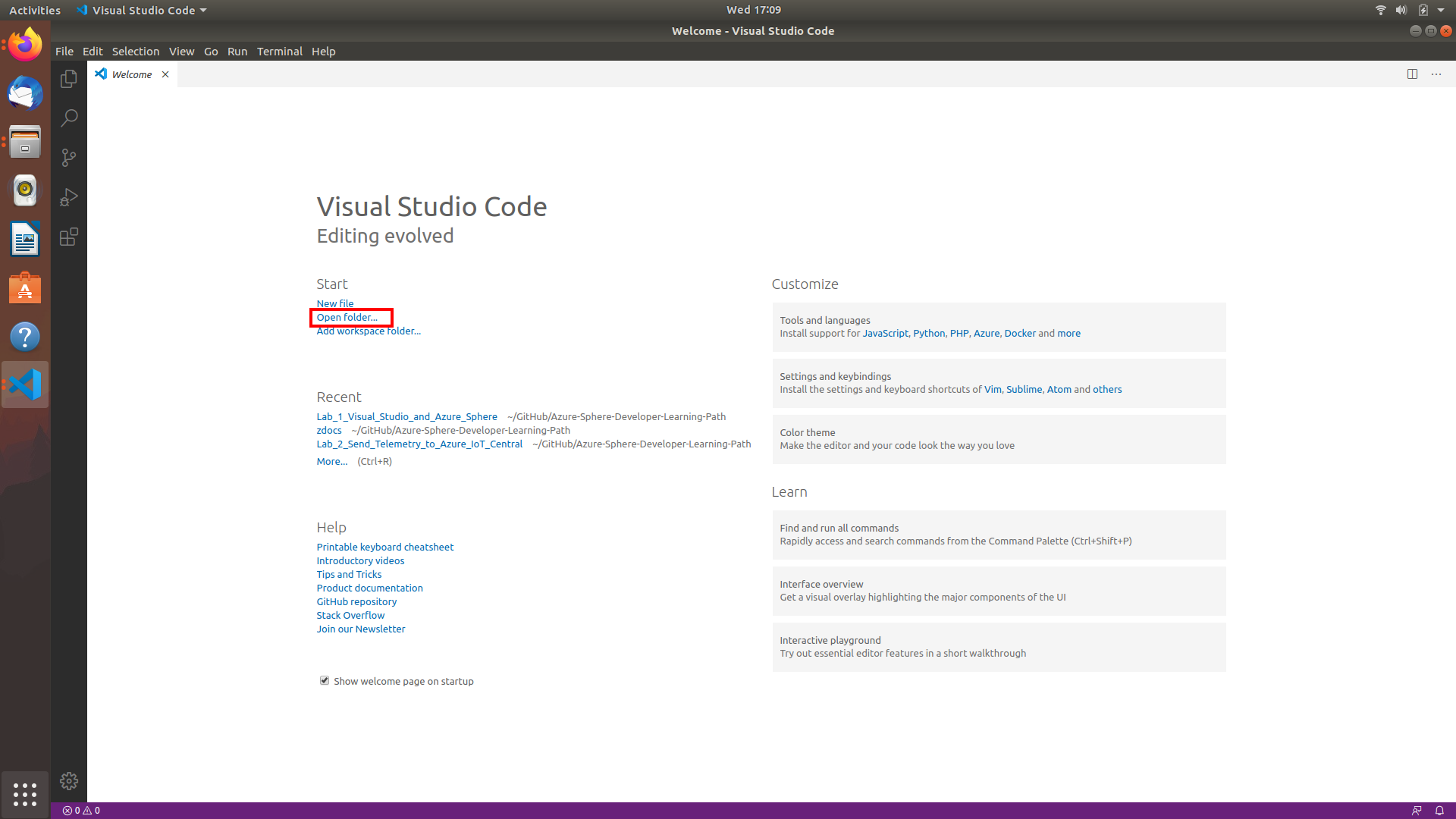
Step 2: Open the lab project
- Click Open folder.
- Open the azure-sphere-co2-monitor solution folder.
- Open the co2-monitor folder.
- Click Select Folder or the OK button to open the project.
Step 3: Set your developer board configuration
This solution supports the AVNET Starter Kit and the Seeed Studio Mini Dev Board with the Grove Breakout. You need to set the configuration that matches your developer board.
The default developer board configuration is for the AVENT Azure Sphere Starter Kit. If you have this board, there is no additional configuration required.
- Open CMakeList.txt
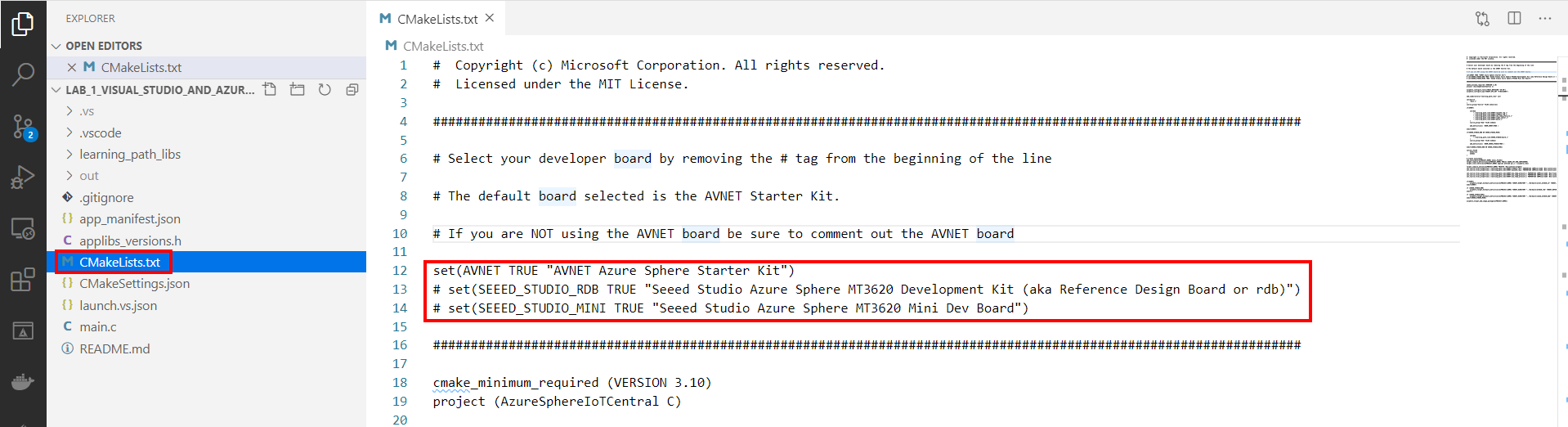
- Add a # at the beginning of the set AVNET line to disable it.
-
Uncomment the set command that corresponds to your Azure Sphere developer board.
set(AVNET TRUE "AVNET Azure Sphere Starter Kit")
# set(SEEED_STUDIO_RDB TRUE "Seeed Studio Azure Sphere MT3620 Development Kit (aka Reference Design Board or rdb)")
# set(SEEED_STUDIO_MINI TRUE "Seeed Studio Azure Sphere MT3620 Mini Dev Board")
-
Save the file. This will auto-generate the CMake cache.
Step 4: Configure the Azure Sphere Application
-
Open the app_manifest.json file
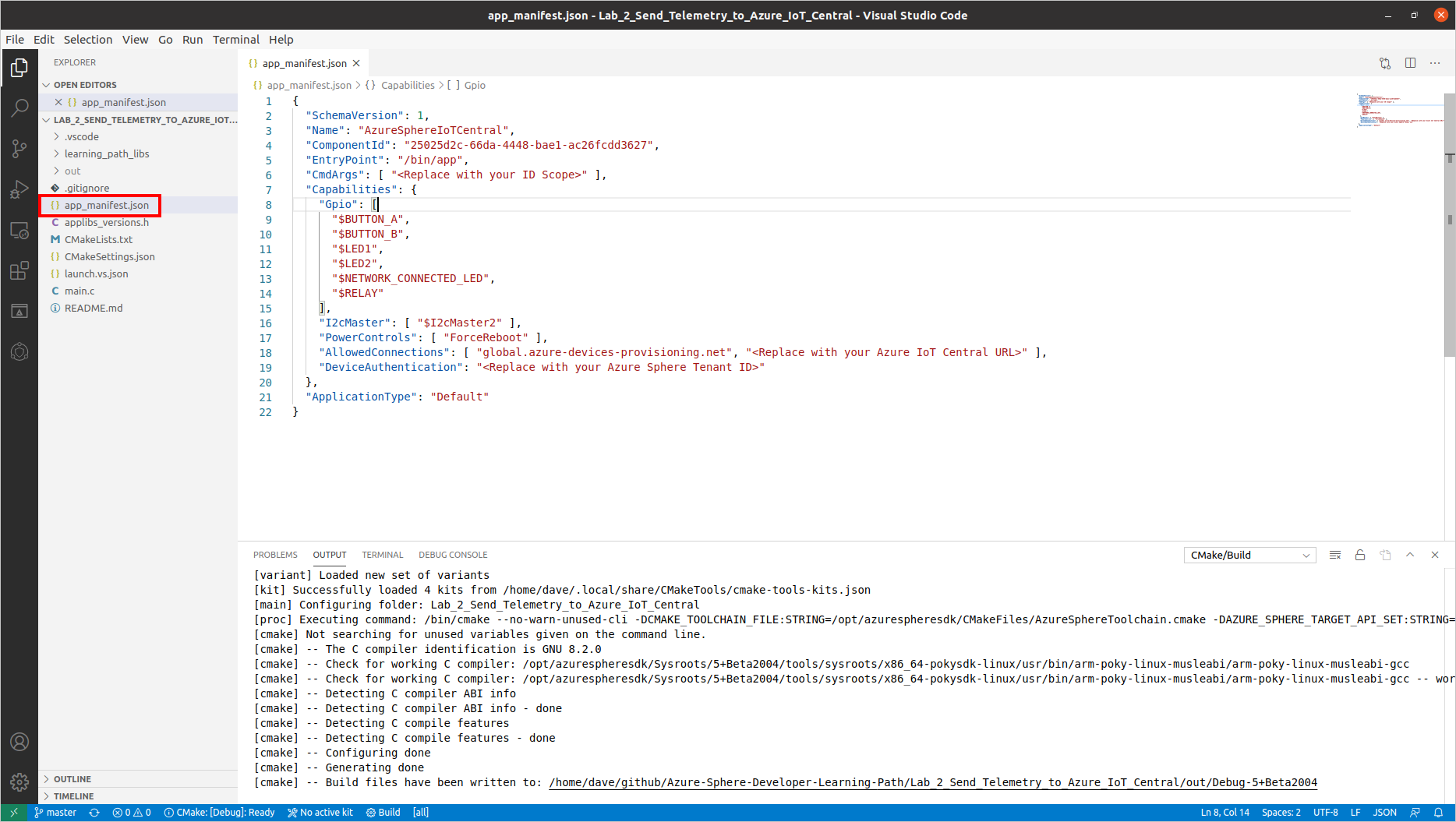
-
Update the Azure IoT Central Application connection properties.
- Update CmdArgs with your Azure IoT Central ID Scope.
- Update DeviceAuthentication with your Azure Sphere Tenant ID. Remember, this was the numeric value output from the
azsphere tenant show-selected command that you copied to Notepad.
-
Update the network endpoints AllowedConnections with your Azure IoT Central Application endpoint URLs you copied to Notepad.
-
Review your updated manifest_app.json file. It should look similar to the following.
{
    "SchemaVersion": 1,
    "Name": "AzureSphereIoTCentral",
    "ComponentId": "25025d2c-66da-4448-bae1-ac26fcdd3627",
    "EntryPoint": "/bin/app",
    "CmdArgs": [ "0ne0099999D" ],
    "Capabilities": {
        "Gpio": [
            "$BUTTON_A",
            "$BUTTON_B",
            "$LED2",
            "$NETWORK_CONNECTED_LED",
            "$LED_RED",
            "$LED_GREEN",
            "$LED_BLUE"
        ],
        "I2cMaster": [ "$I2cMaster2" ],
        "PowerControls": [ "ForceReboot" ],
        "AllowedConnections": [
            "global.azure-devices-provisioning.net",
            "iotc-9999bc-3305-99ba-885e-6573fc4cf701.azure-devices.net",
            "iotc-789999fa-8306-4994-b70a-399c46501044.azure-devices.net",
            "iotc-7a099966-a8c1-4f33-b803-bf29998713787.azure-devices.net",
            "iotc-97299997-05ab-4988-8142-e299995acdb7.azure-devices.net",
            "iotc-d099995-7fec-460c-b717-e99999bf4551.azure-devices.net",
            "iotc-789999dd-3bf5-49d7-9e12-f6999991df8c.azure-devices.net",
            "iotc-29999917-7344-49e4-9344-5e0cc9999d9b.azure-devices.net",
            "iotc-99999e59-df2a-41d8-bacd-ebb9999143ab.azure-devices.net",
            "iotc-c0a9999b-d256-4aaf-aa06-e90e999902b3.azure-devices.net",
            "iotc-f9199991-ceb1-4f38-9f1c-13199992570e.azure-devices.net"
        ],
        "DeviceAuthentication": "9d7e79eb-9999-43ce-9999-fa8888888894"
    },
    "ApplicationType": "Default"
}
Deploying the Application to Azure Sphere
Step 1: Start the app build deploy process
- Ensure main.c is open.
-
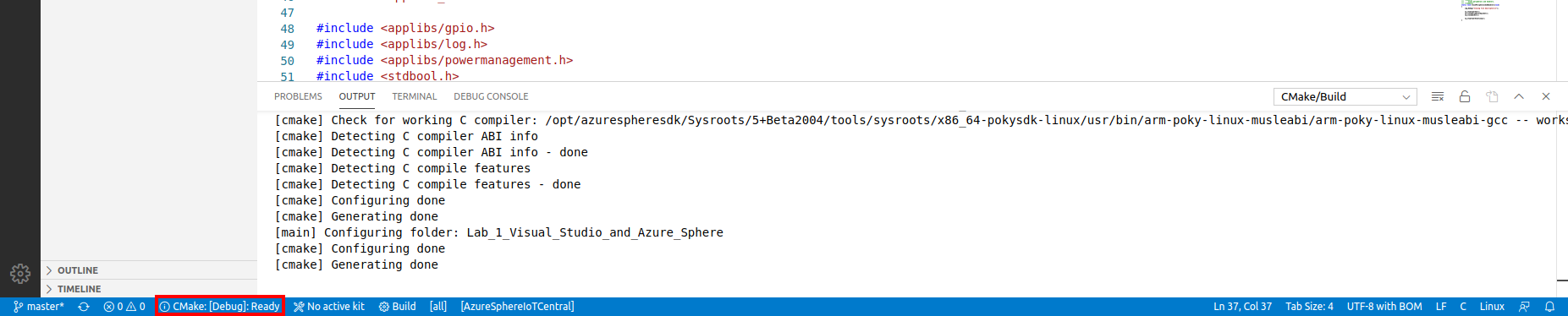
Select CMake: [Debug]: Ready from the Visual Studio Code Status Bar.
-
From Visual Studio Code, press F5 to build, deploy, start, and attached the remote debugger to the application now running the Azure Sphere device.
Step 2: View debugger output
-
Open the Visual Studio Code Output tab to view the output from Log_Debug statements in the code.
Pro Tip. You can open the output window by using the Visual Studio Code Ctrl+K Ctrl+H shortcut or click the Output tab.
- You will see the device negotiating security, and then it will start sending telemetry to Azure IoT Central.
You may see a couple of ERROR: failure to create IoTHub Handle messages displayed. These messages occur while the connection to IoT Central is being negotiated.
Expected Device Behaviour
Avnet Azure Sphere MT3620 Starter Kit
- The yellow WLAN LED will turn on when a connection is established with IoT Central.
- The RBG will turn red or blue depending on HVAC Temperature you set in IoT Central.
- The App Status LED will turn on if the CO2 level exceeds the CO2 alert level set in IoT Central.
Seeed Studio MT3620 Mini Dev Board
- The yellow User LED will turn on when a connection is established with IoT Central.
- The red or blue LED will turn depending on HVAC Temperature you set in IoT Central.
- The green LED will turn on if the CO2 level exceeds the CO2 alert level set in IoT Central.
Step 3: View the device telemetry on the Azure IoT Central Dashboard
- Switch back to Azure IoT Central in your web browser.
- You need to wait a minute or two before your Azure Sphere device is automatically enrolled.
- The newly enrolled device will have a numeric name that matches your Azure Sphere Device ID.
-
To display your Azure Sphere Device ID, start the Azure Sphere Developer Command Prompt and run the following command.
azsphere device show-attached
Step 4: Migrate your device to the Azure Sphere Template
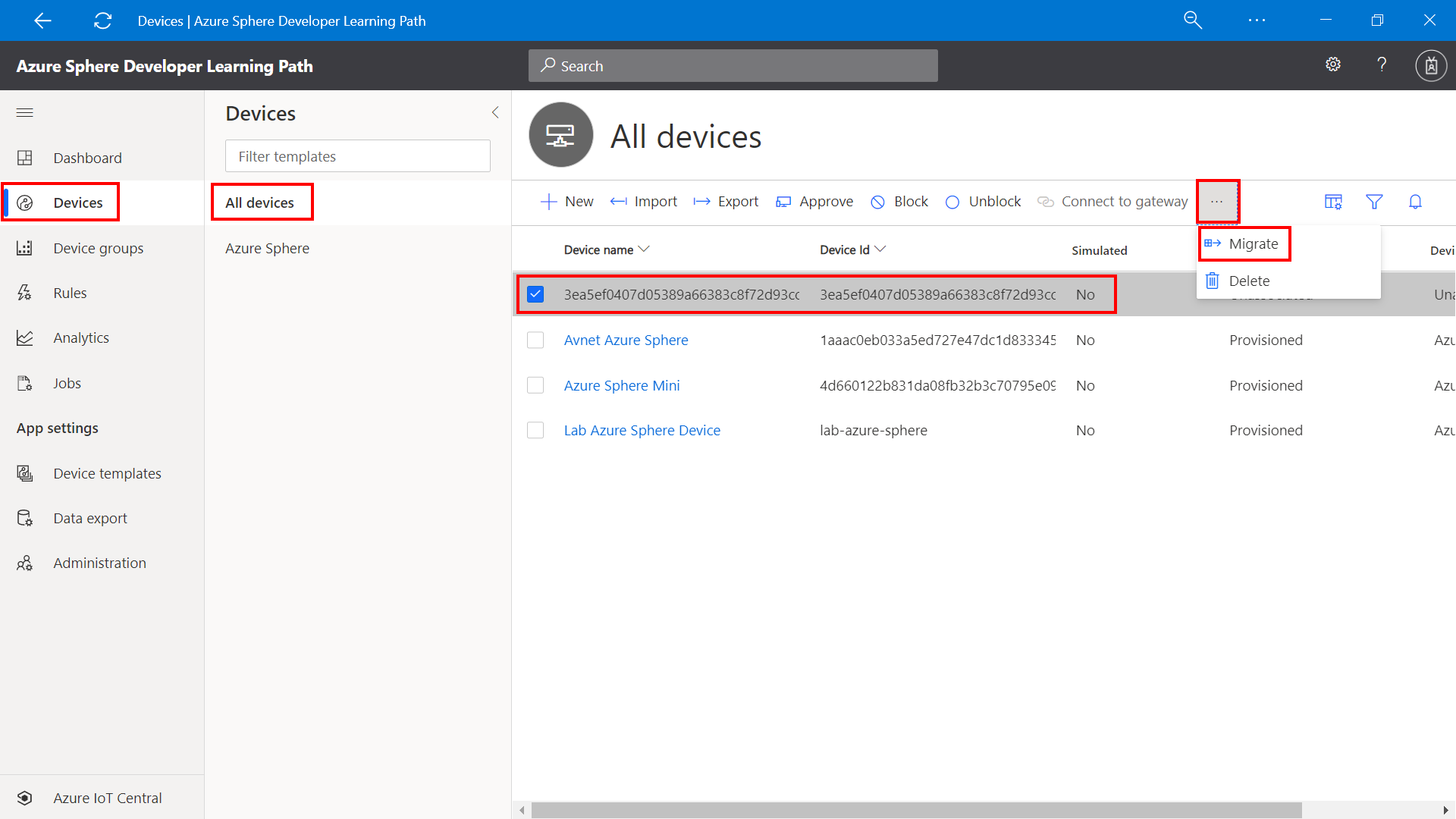
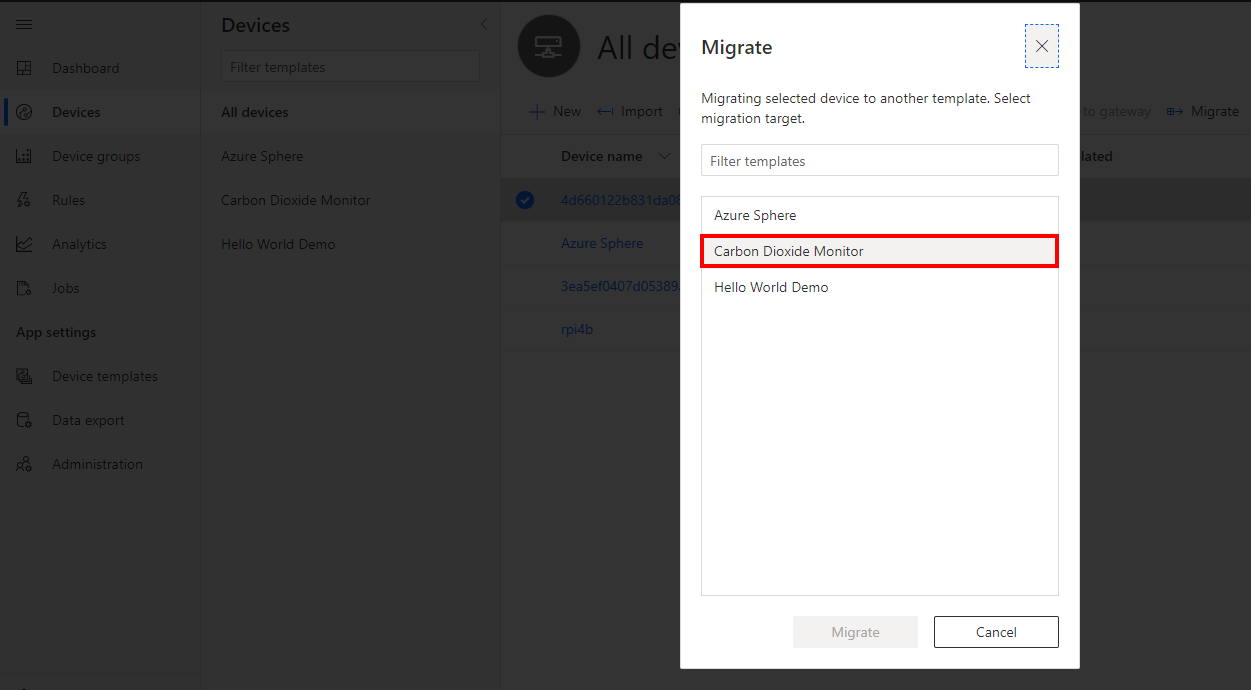
You need to Migrate the newly enrolled device to the Carbon Dioxide Monitor template. The template maps the JSON formatted telemetry to the dashboard.
- Select the newly enrolled device from the All devices template.
-
Click Migrate
-
Select the Carbon Dioxide Monitor Template, and then click migrate.
Step 5: Display the Azure Sphere device telemetry
- Click Devices on the sidebar.
- Select the Carbon Dioxide template.
- Click on the migrated device.
- Select the View tab to view the device telemetry.
- Rename your device. Click the Rename button and give your device a friendly name.
Azure IoT Central does not update immediately. It may take a minute or two for the temperature, humidity, and pressure telemetry to be displayed.
Properties view
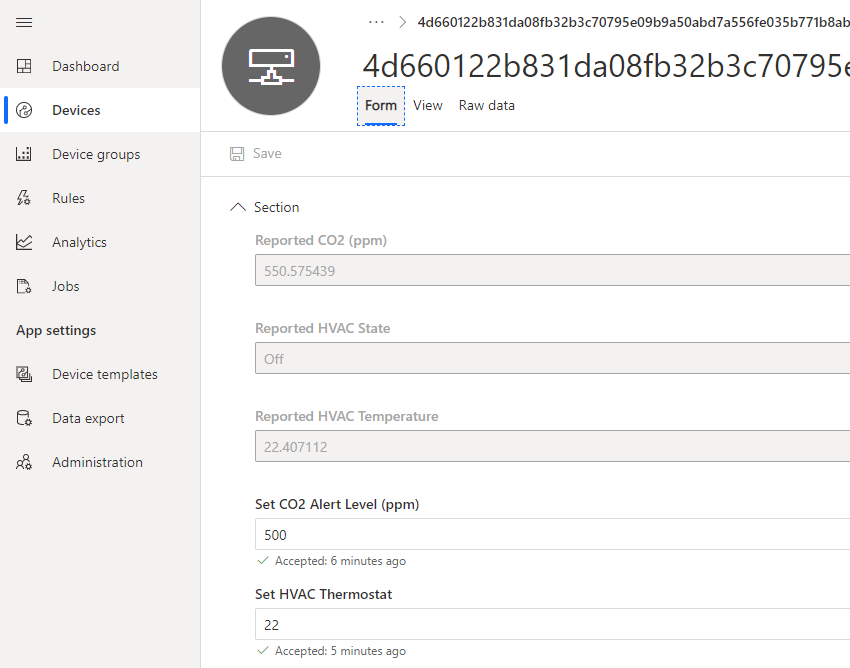
You can view and set device properties from the Form tab.
Setting the HVAC thermostat
The device simulates an HVAC. If the current temperature read by the device is greater than the thermostat setting then the blue LED will turn on to signify the room needs to be cooled. If the room temperature is less than the thermostat setting the red LED will be turned on to signify the heater needs to be turned on.
Setting the CO2 alert level from the properties view
From the properties view you can set the CO2 alert level. Azure IoT Central uses properties and ultimately Azure IoT Hub device twins to set the alert threshold on the device.
When the CO2 level reaches the alert level on the device you can set an action. The action that has been defined in code is to switch on an LED, but you can go bigger, and instead of setting an LED you could drive a relay to turn on a light, buzz an alarm, or turn on a fan.
Learn more about IoT Central properties and Azure IoT Hub device twins
Learn more about Azure IoT Central, properties, and device twins from Azure Sphere Developer Learning Path lab 3 Set the room virtual thermostat with Azure IoT Device Twins.
Extend and integrate Azure IoT Central applications with other cloud services
Azure IoT Central is also extensible using rules and workflows. For more information, review Use workflows to integrate your Azure IoT Central application with other cloud services
Have fun and stay safe and be sure to follow us on #JulyOT.


Recent Comments