![[Guest blog] In a Pond Full of Odd IT Ducks](https://www.drware.com/wp-content/uploads/2020/09/medium-26)
by Scott Muniz | Sep 3, 2020 | Uncategorized
This article is contributed. See the original author and article here.
This article was written by Navrioska Mateo, a Network Engineer at a multinational company in New York City and a proud member of the Humans of IT community. Navrioska once told her story as a speaker on the renowned storytelling slam + podcast called The Moth, in an episode titled “Life Plan, Rebooted“. She shares her unique career journey and how becoming a dedicated IT professional shaped who she is today.
Being a misfit was second nature to me growing up, combined with an insatiable thirst for learning. I was a massive bookworm with a selective group of friends and very little social skills. I often felt like an odd duck for my interest in wanting to understand the: “How does that work” of everything, building whole worlds with plastic block bricks, and taking apart electronics appliances like my grandmother’s phone to see what was inside. Not many kids in my neighborhood were interested in the same things, so it was hard making friends.
Finding information before search engines was a complex endeavor that resulted in me practically living in libraries and having books as my best friends, before eventually traveling the world one disc at the time on digital encyclopedias (yep, I’m dating myself here).
We humans are complex beings with a tendency to individualize our feelings and problems. I used to think that there were not many people with my interests, and that this was necessary to establish long-lasting relationships.
And then, on that self-discovery journey, I had my first encounter with WinPopup and my life changed. Writing became second nature to me and even if I knew I was just IM-ing with people within the same computer lab, it was liberating. You see, I could be freely be myself behind that screen.
Around that same time, I dove into a command line on MS-DOS, and little did I know that 10 years later I would enroll in engineering school to pursue a Telecommunications, Networking, and Programming degree in my home country, the Dominican Republic.
This brings me to my next point:
Finding my unique identity in tech
 This is how I look working from CLI
I started finding my tribe at college, learning about decoding/encoding, signal transmission, electronics, and a group of skills that created my foundation to be an honest and dedicated professional. However, I discovered something even more important (surprising to me, even) that working as a group towards a goal could be fun, that there is always something to learn from the people you meet no matter their backgrounds, that in diversity there is power, and that no impactful change can be done if everyone thinks the same way.
Today, I am a Network Engineer at a multinational company based in NYC. My professional background is a technical and project management hybrid, and I love what I do but more than that, I love all the doors that this career has opened for me and the people I have met behind those doors.
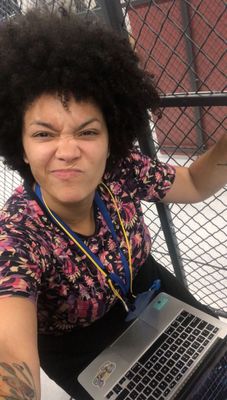 Working from a datacenter floor
A year ago I received an email from a stranger saying she had heard about my story at The Moth podcast. She invited me to participate as a panelist for an upcoming session as part of the Microsoft Women IT Pros call series to talk about “My favorite mistake… and recovery” – specifically, to tell one of the stories about something that went wrong in my professional life, and how I recovered from the incident. I said yes to @Cathy Moya and I will always be grateful for her and the #WomenITPros allies I met after that meeting. She is an incredible professional, mentor, and my personal Microsoft fairy godmother.
As my tribe of odd ducks increased, I kept on growing and learning. I decided to resuscitate my (then) abandoned Twitter account and connected with @ShonaBang @Jess Dodson @Ryen Macababbad @systemsmaven, and other amazing IT ninjas. Here is where I found out about #MSIgnite2019 and was awarded a community ambassador pass! It was a proud moment for me:
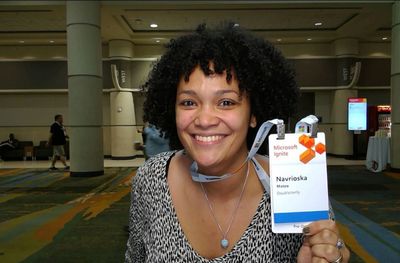 Me at MSIgnite 2019
There is a pre/post and post-me after this event and talking about everything I learned, felt, and experienced during that week deserves a whole other blog post on its own, but I will summarize it as such: All the panels and workshops on the Humans of IT pre-day truly changed me for the best. I met strangers that became family at the end of that week, countless mentors on the #HumansofIT Community Mentors program and community, I met the man behind the ceramic dinosaur @threddy and got a reminder engraved on my soul that at the end is not so much about the tools and technologies but the humans behind it and how it serves us to build and give back to our own personal global tribe.
It is my hope that you, dear reader, will find your home and newfound family right here on the Humans of IT Community as well, even when – no, especially when – you’ve felt like an odd IT duck like me. This is a place where we can truly belong.
#HumansofIT
#MSIgnite
by Scott Muniz | Sep 3, 2020 | Azure, Technology, Uncategorized
This article is contributed. See the original author and article here.
This installment is part of a broader series to keep you up to date with the latest features in Azure Sentinel. The installments will be bite-sized to enable you to easily digest the new content.
Azure Sentinel supports a set of standard patterns for ingesting data at scale. Customers are able to easily onboard data sources via an extensive gallery of connectors and data collection technologies. Data is the foundation for Azure Sentinel. To increase our set of data sources, we are delighted to announce that the Azure Firewall data connector is now public preview!
Azure Firewall is a managed, cloud-based network security service that protects your Azure Virtual Network resources. It’s a fully stateful firewall-as-a-service with built-in high availability and unrestricted cloud scalability.
You can connect Azure Firewall logs to Azure Sentinel, enabling you to view log data in workbooks, use it to create custom analytics,, and incorporate it to improve your investigation/hunting activities.
Learn more about monitoring Azure Firewall logs.
How to enable:
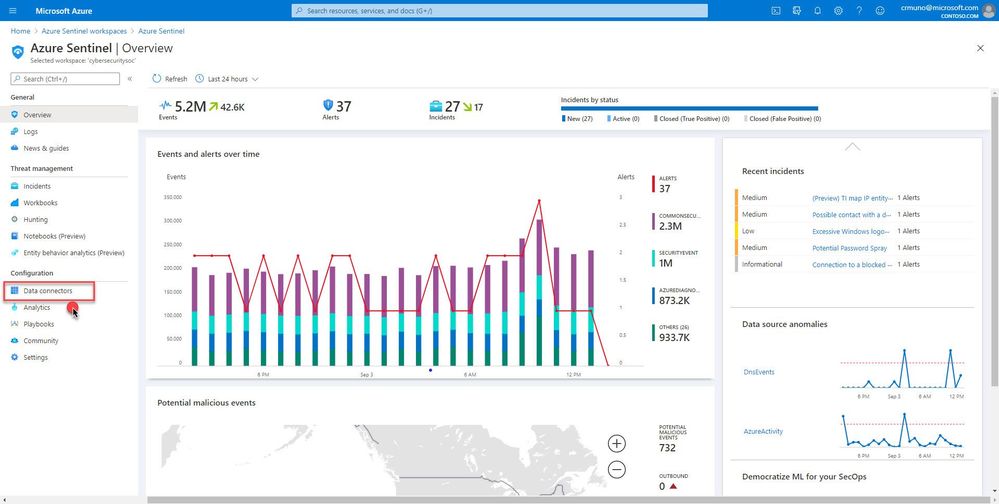
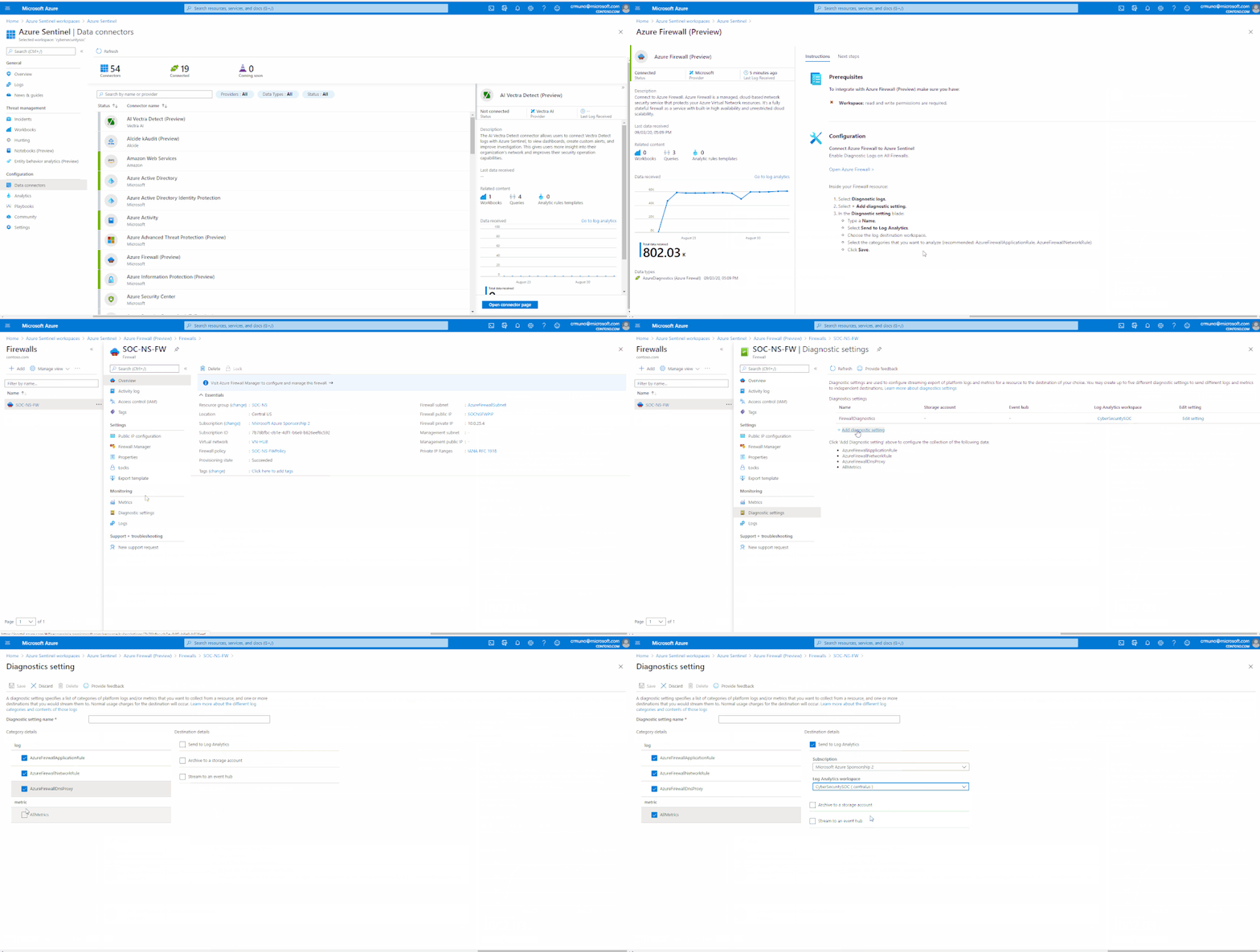
- From the Azure Sentinel navigation menu, select Data connectors.
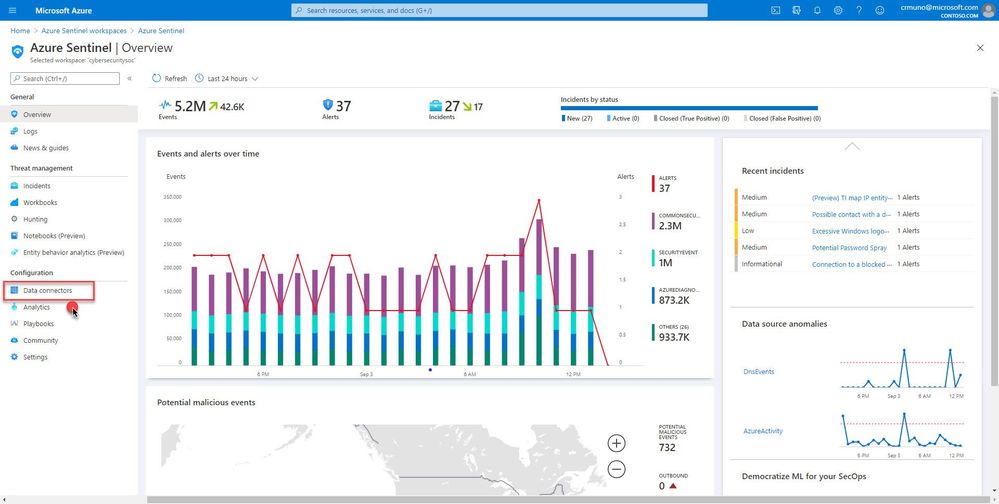
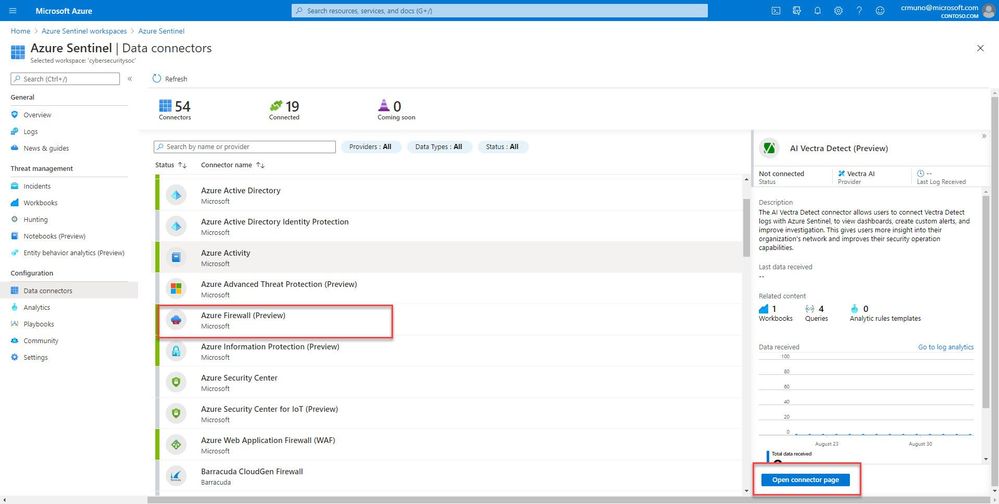
2. Select Azure Firewall from the data connectors gallery, and then select Open Connector Page on the preview pane.
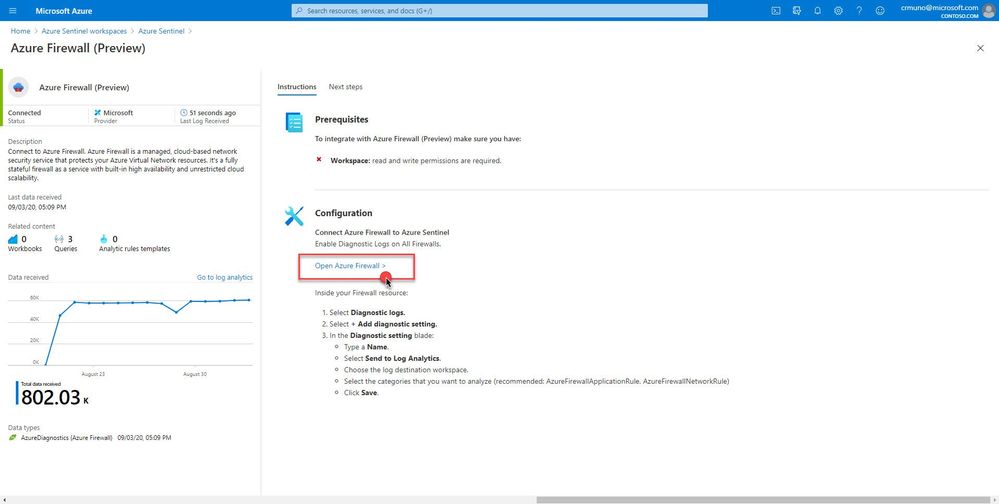
Enable Diagnostic logs on all the firewalls whose logs you wish to connect:
3. Select the Open Azure Firewall resource > link.
4. From the Firewalls navigation menu, select Diagnostic settings.
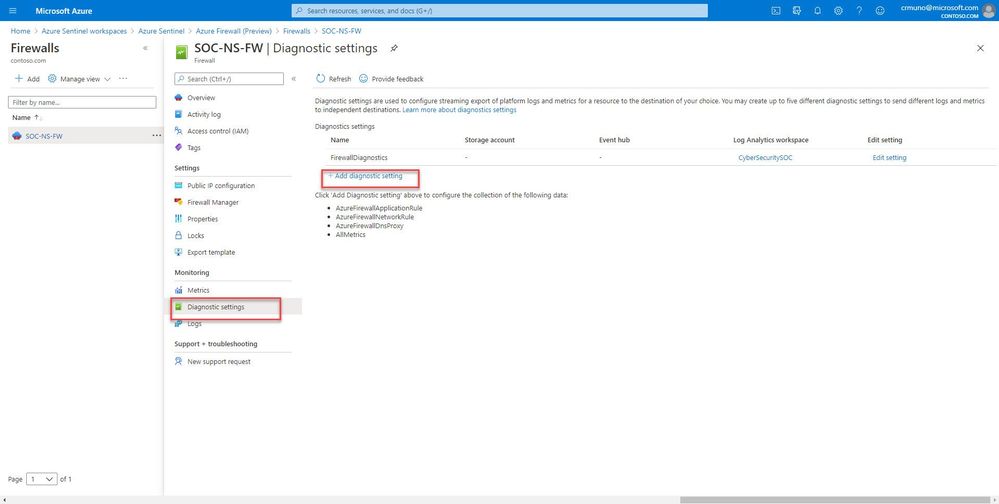
5. Select + Add diagnostic setting at the bottom of the list.
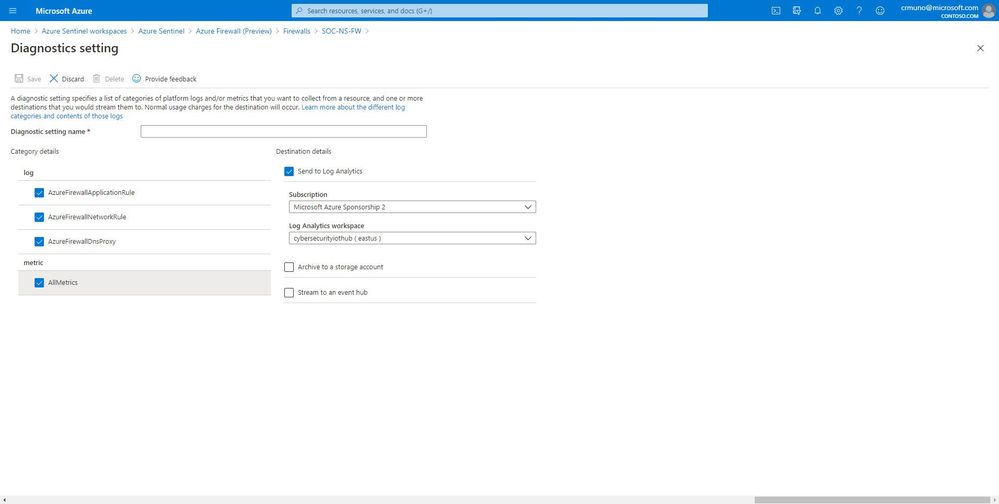
GIF Demonstration:
Get Started Today!
Try out the new connector and let us know your feedback using any of the channels listed in the Resources.
You can also contribute new connectors, workbooks, analytics and more in Azure Sentinel. Get started now by joining the Azure Sentinel Threat Hunters GitHub community and follow the guidance.
by Scott Muniz | Sep 3, 2020 | Uncategorized
This article is contributed. See the original author and article here.
In September, we expect Android 11 to be released by Google. Both our App Protection Policy (APP) team and our Mobile Device Management (MDM) team have been testing each beta release and wanted to keep you posted on what we’ve been finding. So far, all major current Intune APP and MDM scenarios are compatible with this latest version of Android, but there are some changes and best practices to be aware of, which we share in the post below.
Here are a few things you’ll want to know:
- Update apps: Encourage your end users to update to the latest version of the Company Portal, Edge, and other APP-supported apps. The latest version will provide the best experience with devices running Android 11.
- APP and Shared Datasets: Note that requiring encryption by policy will have the following effect on the Shared Datasets introduced with Android 11. If encryption policy Is not required, then Shared Dataset storage will be allowed. If encryption is required by policy, then:
- For a single-identity app, the blob storage (Shared Dataset) commit will be allowed if the data is private to the app. Otherwise, it will be blocked.
- For a multi-identity app, the blob storage commit will be blocked.
- Privacy messaging: Android 11 introduces some user experience changes to increase transparency for users. User may see new messaging, such as additional notifications about app permissions granted by their organization.
- Device administrator management: Google has been communicating their plans to decrease their support for device administrator managed devices for several years. The release of Android 11 will cause changes and reductions in management capabilities on device administrator managed devices.
- Camera: For device administrator managed devices running Android 11 (excluding Samsung), you will no longer be able to set the device restriction to block camera use. Policies blocking camera that are applied to devices before they update to Android 11 will continue to apply.
- Trusted root certificates: With Android 11, trusted root certificates can no longer be deployed to devices enrolled with device administrator (except on Samsung devices). Users must manually install the trusted root certificate on the device. With the trusted root certificate manually installed on a device, you can then use SCEP to provision certificates to the device. In this scenario you must still create and deploy a trusted certificate policy to the device and link that policy to the SCEP certificate profile.
- If the trusted root certificate is on the device, then the SCEP certificate profile will install successfully.
- If the trusted certificate cannot be found, the SCEP certificate profile will fail.
- Reminder about October device administrator changes on Android 10 and 11: Following the expected release of Android 11, Google is requiring all apps to update their API targeting to at least 29. The Company Portal will be making this change in October. This will cause different and decreased manageability on device administrator devices running Android 10 and later. Impacted settings include setting password requirements, blocking camera, blocking Smart Lock and other trust agents, and a change in the Wi-Fi end user experience. You can read full details of the changes in the blog about decreasing support for device administrator management.
As with previous major Android OS updates, check mobile app compatibility with your app providers to confirm your users’ apps work with Android 11. You’ll see a “What’s New for the app” in the Play Store or in-app details on an application’s website. Some apps provide Day 0 support, while others update over time. Ensure your users’ managed apps that are deployed through Intune have been updated to a version that supports Android 11.
How Can You Reach Us?
Keep us posted on your Android 11 experience through comments on this blog post, through Twitter (@IntuneSuppTeam), and request any new features on UserVoice. We will update this post with any additional information we learn when Android 11 releases.

by Scott Muniz | Sep 3, 2020 | Uncategorized
This article is contributed. See the original author and article here.
September Edition Sections:
- Highlighted
- Microsoft Ignite
- Microsoft Teams – IT Admins & Planning
- Microsoft Teams – End Users & Champions
- Other M365 Topics
- Security & Azure AD
- Blogs of Interest
Highlighted
Remote Working Federal Training
The Microsoft Federal Customer Success team has been working hard to provide remote working skilling and instruction to our customers working remote on the following topics:
- Teams Fundamentals: High-level Teams overview
- Productivity in Teams: Best practices for using Teams
- App Integration: Microsoft & 3rd Party apps that be utilized in GCC
- Smart Meetings: Using meetings in Teams to their full potential
- Live Events: Hosting virtual events up to 10K+
- Best Practices: Various topics based on feedback
Below is a schedule of upcoming events. Join all sessions at https://aka.ms/LearnTeamsforGov (we will use the same links daily to host the sessions). Feedback will be available during each session.
|
Date
|
1-2pm (EST)
|
| Thursday September 3, 2020 |
Teams Fundamentals focus on Structures and Channel Management |
| Tuesday September 8, 2020 |
App Integration with Teams |
| Thursday September 10, 2020 |
Smart Meetings with Teams |
| Tuesday September 15, 2020 |
Teams Fundamentals |
| Thursday September 17, 2020 |
Productivity in Teams |
| Tuesday September 22, 2020 |
Teams Live Events |
| Thursday September 24, 2020 |
Teams Fundamentals with Emphasis on Best Practices |
| Tuesday September 29, 2020 |
App Integration |
Above times don’t work? Check out our on-demand recordings of previous sessions.
Microsoft 365 Adoption Portal
Microsoft recently announced its launch of a comprehensive adoption portal. Here you’ll find numerous resources, including: Adoption Guides in flipbook format, Day in the Life training cards, Links to key scenario guidance such as enabling remote work and virtual events, Links to our newly expanded Microsoft 365 Champion program information, Microsoft 365 learning pathways overview, and more.
Microsoft Teams: Master working from home
Working from home offers the opportunity to maintain your workflow while allowing flexibility in how and where you get your work done. Shifting to a remote worker status can be an adjustment as you look for ways to balance home and work life, maintain focus and be fully productive. Microsoft Teams can help you stay connected to your team while providing access to all of the tools and resources you need to get your work done. Join us to learn tips that can help set you up for success as you transition into a ‘work from home’ scenario. During this session, we’ll share: (1) Guidance for setting up your home environment for work, (2) Best practices for maintaining your workflow while working at home, (3) Tips for staying connected to your team while remote, and (4) Insights for effectively supporting a remote team.
Microsoft Ignite
Enabling Remote Work with Microsoft Teams: Microsoft Ignite 2020 Pre-Show
When: Tuesday, September 15, 2020 at 9:00am PT | The recent shift to remote, hybrid and on-premise work has IT professionals across every industry looking for more solutions and support for deploying Microsoft Teams. That’s why we’re excited to launch this new live webcast series. In this special episode, you’ll get a preview of what’s coming up at Microsoft Ignite. Hear about upcoming sessions you don’t want to miss, as well as new resources that will help you make the most of your experience. Be sure to add this event to your calendar!
Enabling Remote Work with Microsoft Teams: Microsoft Ignite 2020 Wrap-Up Part 1
When: Wednesday, September 23, 2020 at 9:00am PT | The recent shift to remote, hybrid and on-premise work has IT professionals across every industry looking for more solutions and support for deploying Microsoft Teams. That’s why we’re excited to launch this new live webcast series. Join us for a wrap-up of day 1 at Microsoft Ignite. You’ll hear all the highlights and we’ll talk about what’s coming up on day 2. Be sure to add this event to your calendar!
Enabling Remote Work with Microsoft Teams: Microsoft Ignite 2020 Wrap-Up Part 2
When: Friday, September 25, 2020 at 9:00am PT | The recent shift to remote, hybrid and on-premise work has IT professionals across every industry looking for more solutions and support for deploying Microsoft Teams. That’s why we’re excited to launch this new live webcast series. Join us for a complete wrap-up of day 1 and 2 at Microsoft Ignite. You’ll hear all the highlights and talk with product experts. Be sure to add this event to your calendar!
Microsoft Teams – IT Admins & Planning

Microsoft Teams: Plan your upgrade (Start here!)
Discover everything you need to facilitate a successful upgrade to Teams. By the end of this workshop, participants will be able to: (1) Understand why a formal plan is crucial for upgrade success, (2) Identify the steps to the upgrade success framework, (3) Recognize common attributes of successful customers, and (4) Create and implement their own upgrade plan. The audience for this session is All (Business Sponsors, IT Admins, User Readiness/Change Manager, Project Lead).
- On-Demand Session
- Tuesday, September 1, 2020 at 8am PT
- Wednesday, September 2, 2020 at 9am PT
- Tuesday, September 8, 2020 at 8am PT
- Wednesday, September 9, 2020 at 9am PT
- Tuesday, September 15, 2020 at 8am PT
- Wednesday, September 16, 2020 at 9am PT
- Tuesday, September 22, 2020 at 8am PT
- Wednesday, September 23, 2020 at 9am PT
- Tuesday, September 29, 2020 at 8am PT
- Wednesday, September 30, 2020 at 9am PT
Microsoft Teams: Identify your upgrade approach
Determine the most suitable approach based on your current Skype for Business implementation and upgrade goals. By the end of this workshop, participants will be able to: (1) Understand common scenarios and upgrade approaches, (2) Visualize the user experience for each approach, and (3) Determine the optimal upgrade approach for your organization. IT Admins are the primary audience for this session.
- On-Demand Session
- Tuesday, September 1, 2020 at 9am PT
- Tuesday, September 1, 2020 at 4pm PT
- Tuesday, September 8, 2020 at 9am PT
- Tuesday, September 8, 2020 at 4pm PT
- Tuesday, September 15, 2020 at 9am PT
- Tuesday, September 15, 2020 at 4pm PT
- Tuesday, September 22, 2020 at 9am PT
- Tuesday, September 22, 2020 at 4pm PT
- Tuesday, September 29, 2020 at 9am PT
- Tuesday, September 29, 2020 at 4pm PT
Microsoft Teams: Implement your upgrade approach
Execute your defined upgrade approach as part of your formal upgrade plan. By the end of this workshop, participants will be able to: (1) Recognize the upgrade settings in your O365 tenant admin portal, (2) Understand technical tips and considerations for a successful upgrade, and (3) Apply the appropriate settings in the Portal to execute your upgrade. The primary audience for this session is IT Admins.
- On-Demand Session
- Thursday, September 3, 2020 at 9am PT
- Thursday, September 3, 2020 at 4pm PT
- Thursday, September 10, 2020 at 9am PT
- Thursday, September 10, 2020 at 4pm PT
- Thursday, September 17, 2020 at 9am PT
- Thursday, September 17, 2020 at 4pm PT
- Thursday, September 24, 2020 at 9am PT
- Thursday, September 24, 2020 at 4pm PT
Microsoft Teams: Ready your end users
Design a user readiness strategy to help your users love and adopt Teams. By the end of this workshop, participants will be able to: (1) Recognize factors that influence user acceptance and adoption, (2) Define core value messaging for Teams in your organization, and (3) Outline your awareness, training and support activities. The audience for this session is: User Readiness/Change Manager.
- On-Demand Session
- Tuesday, September 1, 2020 at 10am PT
- Wednesday, September 2, 2020 at 7am PT
- Wednesday, September 2, 2020 at 4pm PT
- Thursday, September 3, 2020 at 10am PT
- Tuesday, September 8, 2020 at 10am PT
- Wednesday, September 9, 2020 at 7am PT
- Wednesday, September 9, 2020 at 4pm PT
- Thursday, September 10, 2020 at 10am PT
- Tuesday, September 15, 2020 at 10am PT
- Wednesday, September 16, 2020 at 7am PT
- Wednesday, September 16, 2020 at 4pm PT
- Thursday, September 17, 2020 at 10am PT
- Tuesday, September 22, 2020 at 10am PT
- Wednesday, September 23, 2020 at 4pm PT
- Thursday, September 24, 2020 at 10am PT
- Tuesday, September 29, 2020 at 10am PT
- Wednesday, September 30, 2020 at 7am PT
- Wednesday, September 30, 2020 at 4pm PT
Enabling Remote Work with Microsoft Teams: Microsoft Teams Security
When: Tuesday, September 8, 2020 at 9:00am PT | The recent shift to remote, hybrid and on-premise work has IT professionals across every industry looking for more solutions and support for deploying Microsoft Teams. That’s why we’re excited to launch this new live webcast series. Let’s talk security in Episode 3. The top challenge IT pros are facing right now is securing data. Join our product expert for a deep dive discussion on identity and authentication. Be sure to add this event to your calendar!
Microsoft Teams – End User & Champions
Get Started with Microsoft Teams
Whether you are switching from Skype for Business or brand new, join us to learn the basics of how to use Teams to chat with your colleagues and collaborate on projects. Through a series of live demonstrations and best practices, you’ll leave this session with everything you need to start using Teams. After this session, you will be able to: (1) Set up your profile and notifications in Microsoft Teams, (2) Use chat and calling for 1:1 and group conversations, sharing and collaboration in Microsoft Teams, (3) Schedule and conduct meetings in Microsoft Teams, and (4) Align your team and teamwork in Microsoft Teams.
Go Deeper with Microsoft Teams: Build collaborative workspaces in Microsoft Teams
Designed for those who are already familiar with Microsoft Teams, our ‘Go Deeper’ sessions offer insights and best practices. Learn how Teams can help organize your workday and make it easier to stay connected with colleagues. Explore ways to determine the best approach for creating workspaces for projects and workgroups. After this session, you will be able to: (1) Determine the best approach for your collaboration needs (chat versus teams & channels), (2) Create workspaces for your team to provide the best teamwork experience, and (3) Determine best practices in Microsoft Teams to enhance productivity. Note: This session was previously called ‘Learn tips for taking Microsoft Teams to the next level – Part 1’.
- On-Demand Session
- Tuesday, September 1, 2020 at 4pm PT
- Wednesday, September 2, 2020 at 5am PT
- Tuesday, September 8, 2020 at 8am PT
- Tuesday, September 15, 2020 at 3pm PT
- Thursday, September 17, 2020 at 12pm PT
Run Effective Meetings with Microsoft Teams
Have you spent significant time and resources to prepare for a meeting and still felt it wasn’t productive? Have you attended a meeting only to leave feeling like not much was accomplished? Join this class to learn how to make your meetings engaging, productive and effective. Microsoft Teams can help make your meetings worth showing up for. After this session, you will be able to: (1) Use Teams for your entire meeting experience, (2) Record your meeting, making it easy for those who couldn’t attend to get caught up, (3) Keep important meetings at your fingertips by pinning them for easy access, and (4) Assess which audio and video devices are best for your meeting needs.
Integrate apps to do more in Microsoft Teams
Do you want to get more done in Teams? Receive targeted and timely updates? Access services directly through Teams? Apps let you complete tasks, receive updates and communicate. This session introduces you to the key activities needed to get started with adding applications, bots and connectors in Microsoft Teams today. Through a series of live demonstrations and best practices, you’ll leave this session with everything you need to start using apps in Teams. After this session, you will be able to: (1) See how applications, bots and connectors can help you be more efficient while working in Teams, (2) Select an application, bot or connector for your workspace, (3) Install an application, bot or connector, and (4) Use an application, bot or connector in your workspace.
Microsoft Teams: Do more with apps
Join Microsoft Teams experts as we review how you can deploy commonly-used applications directly within Teams, enabling your users to work more efficiently and effectively by accessing everything they need in a single interface. This foundational workshop covers basic capabilities across app management and security. With over 400 out-of-the-box applications available (and growing), you’re sure to find an app, or two, that your team can begin using today in Teams. After this session, you will be able to: (1) Identify suitable apps to meet the needs for your organization, (2) Recognize common attributes of successful app deployment, (3) Navigate security and compliance considerations for Teams’ apps, and (4) Determine the next steps to deploy an app to your environment.
- Tuesday, September 1, 2020 at 8am PT
- Thursday, September 3, 2020 at 8am PT
- Tuesday, September 8, 2020 at 8am PT
- Thursday, September 10, 2020 at 8am PT
- Tuesday, September 15, 2020 at 8am PT
- Thursday, September 17, 2020 at 8am PT
- Tuesday, September 22, 2020 at 8am PT
- Thursday, September 24, 2020 at 8am PT
- Tuesday, September 29, 2020 at 8am PT
Microsoft Teams: Master working from home
Working from home offers the opportunity to maintain your workflow while allowing flexibility in how and where you get your work done. Shifting to a remote worker status can be an adjustment as you look for ways to balance home and work life, maintain focus and be fully productive. Microsoft Teams can help you stay connected to your team while providing access to all of the tools and resources you need to get your work done. Join us to learn tips that can help set you up for success as you transition into a ‘work from home’ scenario. During this session, we’ll share: (1) Guidance for setting up your home environment for work, (2) Best practices for maintaining your workflow while working at home, (3) Tips for staying connected to your team while remote, and (4) Insights for effectively supporting a remote team.
Microsoft Teams: Enabling Real-time Collaboration for Cross-functional Teams
How do you bring various stakeholders together across multiple teams to achieve your goal? Do you wish you could reduce the number of meetings or e-mails while still being able to solicit feedback, keep everyone informed, and get consensus? Join us to explore how to bring everything together in a shared workspace with Microsoft Teams. Learn how to chat, meet, share files, and work with other business applications to effectively engage others. This interactive 2-hour session will give you the opportunity to try it for yourself and test drive Microsoft Teams in a live cloud environment. A trained facilitator will guide you as you apply these tools to your own business scenarios and experience how they can work for you. Each session is limited to 12 participants, reserve your seat now.
Go Deeper with Microsoft Teams: Leverage pro tips and tricks for Microsoft Teams
Designed for those who are already familiar with Microsoft Teams, our ‘Go Deeper’ sessions offer insights and best practices. Learn how Teams can help organize your workday and make it easier to stay connected with colleagues. Learn tips and tricks for managing and organizing work and communications in Teams. After this session, you will be able to: (1) Leverage formatting best practices to help get your messages noticed (and responded to), (2) Easily find files, chats and projects, (3) Implement strategies to manage and organize your work, and (4) Simplify your workday. Note: This session was previously called ‘Learn tips for taking Microsoft Teams to the next level – Part 2’.
- On-Demand Session
- Thursday, September 3, 2020 at 5am PT
- Thursday, September 3, 2020 at 8am PT
- Wednesday, September 9, 2020 at 4pm PT
- Thursday, September 10, 2020 at 8am PT
- Tuesday, September 15, 2020 at 10am PT
Microsoft Teams: Seamless Collaboration with Microsoft 365
Are you still sending an e-mail with an attachment to your teammates when you want to collaborate on a file? How fast do they respond? How do you know if they are working on the file? How do you manage version control? With Microsoft 365 tools for teamwork, you can seamlessly collaborate on files with your team members. Using Microsoft Teams, you can invite your teammates into an environment where they can effectively collaborate and engage in a persistent conversation. Join us for this session and explore how to avoid productivity sinkholes and increase productivity. This interactive 2-hour session will give you the opportunity to test drive Microsoft Teams in a live cloud environment. A trained facilitator will guide you as you apply these tools to your own business scenarios and experience how they can work for you. Each session is limited to 12 participants, reserve your seat now.
Microsoft Teams: Staying connected with your team while remote
We designed Microsoft Teams to be a virtual office you can take anywhere you go. Work seamlessly and transparently with your remote team and discover greater collaboration and productivity. Join us for this session and explore how to avoid communication sinkholes and do more together, no matter where you are. Each session is limited to 12 participants, reserve your seat now.
- Wednesday, September 9, 2020 from 9am – 11am PT
- Wednesday, September 9, 2020 from 12pm – 2pm PT
- Tuesday, September 15, 2020 from 9am – 11am PT
- Tuesday, September 15, 2020 from 12pm – 2pm PT
- Wednesday, September 23, 2020 from 9am – 11am PT
- Wednesday, September 23, 2020 from 12pm – 2pm PT
Other M365 Topics
Ask Microsoft Anything (AMA): Upcoming Changes to Office Support
When: Wednesday, September 9, 2020 at 9:00am PT | Join us for an opportunity to “Ask Microsoft Anything” (AMA) about upcoming changes to support for Office 2016 for Mac, Office 2010 and Office 2013 connectivity to Office 365 services. To join, simply visit the Office End of Support AMA space at 9:00am Pacific and submit a question. An AMA is a live, online, text-based question-and-answer event similar to a “YamJam” on Yammer or an “Ask Me Anything” on Reddit. Note: While we’ll only be answering questions in real-time from 9am – 10am Pacific, you can post your questions for the AMA to the Office End of Support AMA space up to 24 hours in advance. We look forward to seeing you there!
Security & Azure AD
Enabling Remote Work with Microsoft Teams: Microsoft Teams Security
When: Tuesday, September 8, 2020 at 9:00am PT | The recent shift to remote, hybrid and on-premise work has IT professionals across every industry looking for more solutions and support for deploying Microsoft Teams. That’s why we’re excited to launch this new live webcast series. Let’s talk security in Episode 3. The top challenge IT pros are facing right now is securing data. Join our product expert for a deep dive discussion on identity and authentication. Be sure to add this event to your calendar!
Customer Immersion Experience: Simplifying Your Privacy and Compliance Journey
Your business needs to control how sensitive data is managed. Join us and explore how to assess your compliance risk, protect sensitive and business critical data, and respond efficiently to data discovery requests. During this 2-hour interactive session, you will explore how to: (1) Simplify assessment of compliance risk, (2) Integrate protection and governance of data, and (3) Intelligently respond to data discovery requests. Each session is limited to 12 participants, reserve your seat now.
Customer Immersion Experience: Protecting Identity, Apps, Data and Devices
Identity is at the center of security: don’t compromise when it comes to your company’s valuable information. Join us to explore how to use secure authentication, govern access, get comprehensive protection and set the right identity foundation. During this 2-hour interactive session, you will explore how to: (1) Enable password protection, (2) Bring multi-factor authentication to your Windows 10 users, (3) Protect your users and data through Office 365 multi-factor authentication, and (4) Use conditional access to protect across devices, locations and apps. Each session is limited to 12 participants, reserve your seat now.
Blogs of Interest
Public Sector Blog Website | RSS Feed
Microsoft Teams Blog Website | RSS Feed
Office & Microsoft 365
Enterprise identity, mobility, and security
Microsoft Azure and Development
Windows, Operations, Management, and Deployment
Support and adoption
Misc
Thanks for stopping by and reading our monthly resources. Feel free to reach out in the comments below with any comments, questions or ideas on other events to add to the list. Here in Public Sector we want to make sure we are giving you the information and insights to best serve your needs in this community.

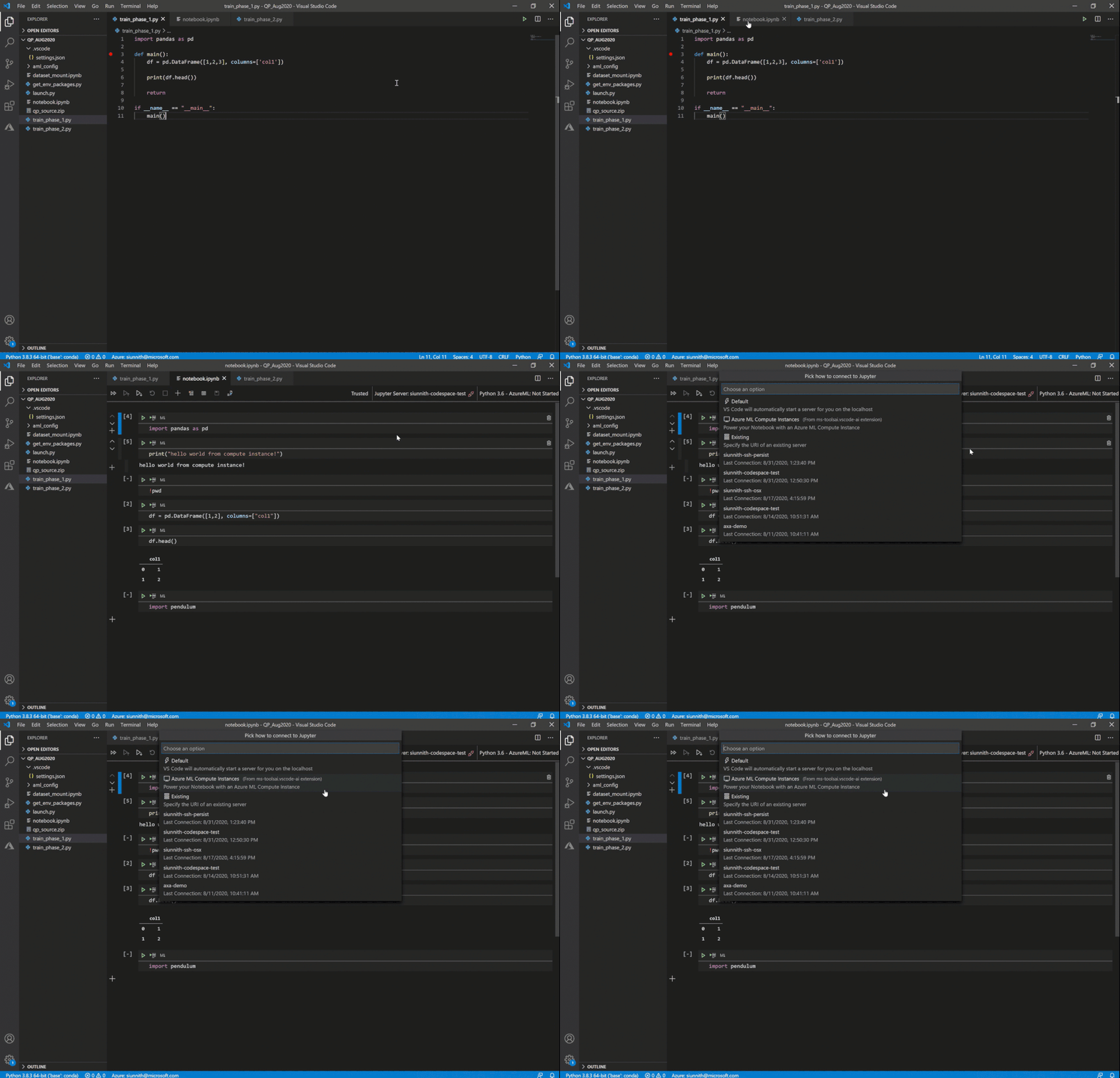
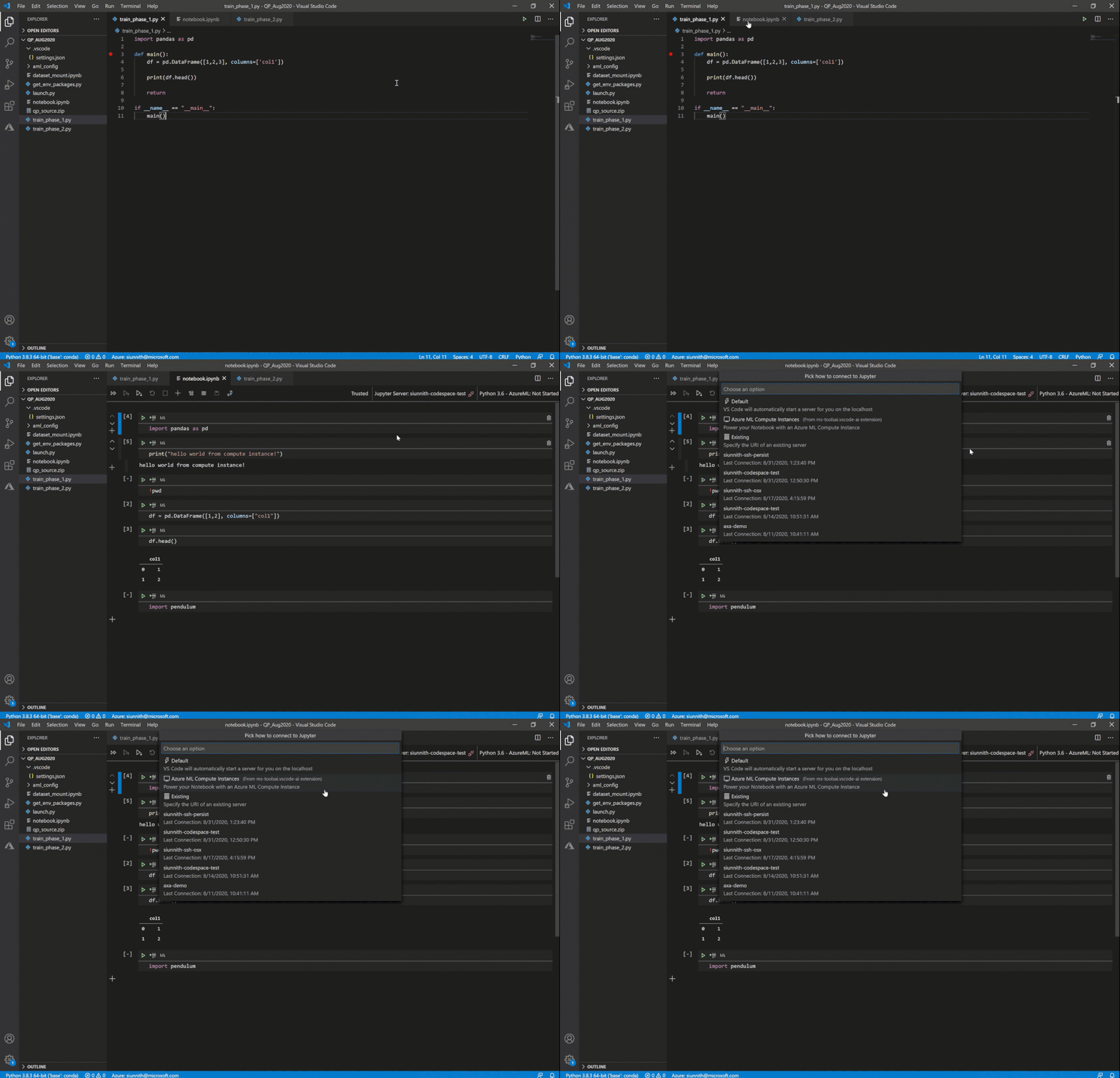 Invoke remote Jupyter server connection
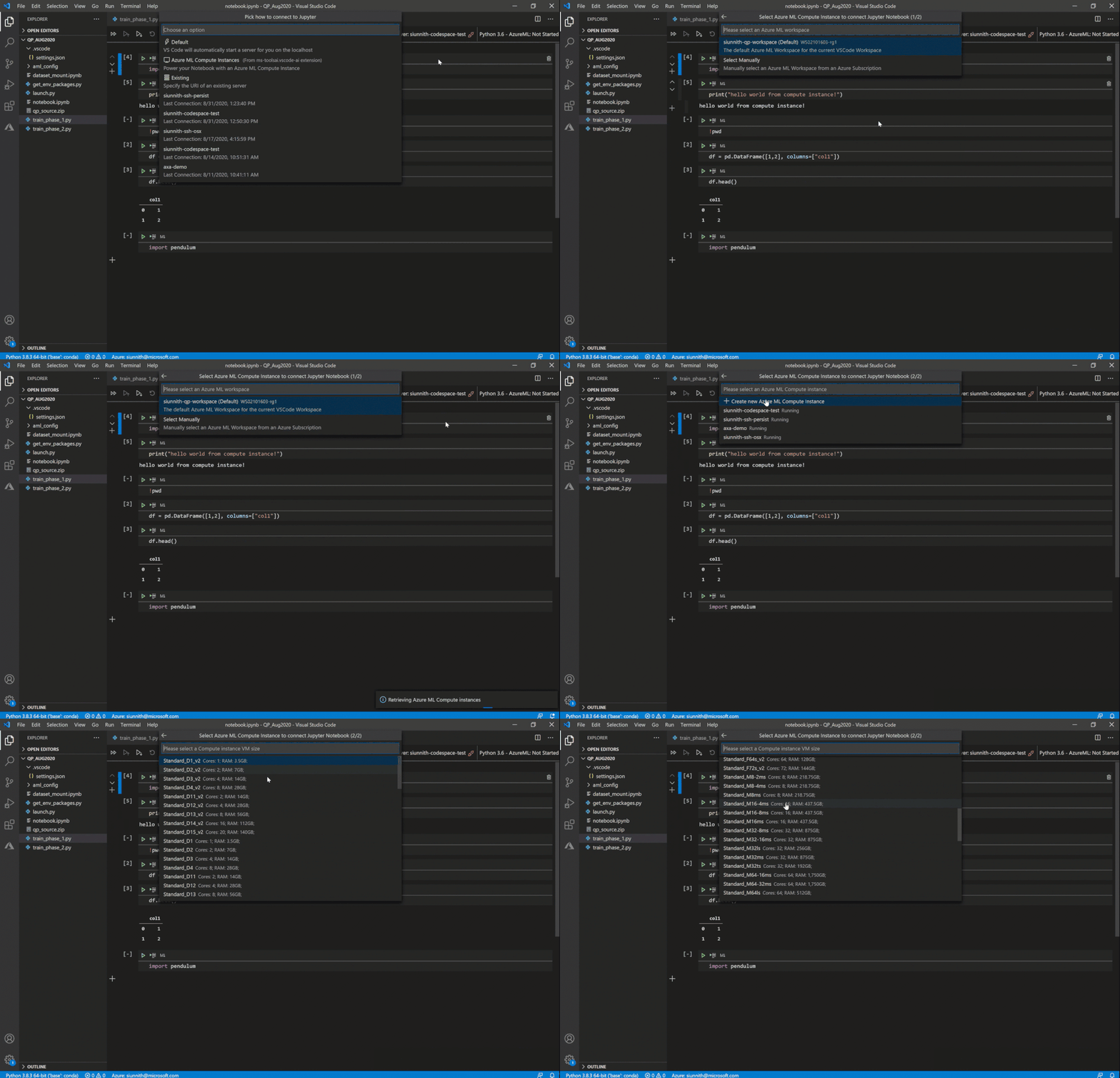 Select or create a new compute instance
 Run a cell to connect to the compute instance
 Create a dataset from an existing datastore

Recent Comments