This article is contributed. See the original author and article here.
Using AI for Digital Background Checking
3-2-1 Go Check, a global background checking startup, and has revolutionized its services by leveraging the Microsoft Founders Hub program. The company offers its comprehensive background checking solutions as a Software as a Service (SaaS), and Founders’ Hub benefits have enhanced its accessibility and efficiency.
Founders Hub Benefits
What benefits have they been using?Power Platform, M365 & Azure
Use of Microsoft 365: 3-2-1 Go Check has a global team located in Hungary, UK, Czech Republic, Australia, Canada, India, and Germany and they are under one calendar and mailbox.
All of their company documents are on OneDrive, which is allowing the, to use PowerAutomate to automate their sales campaigns using Dynamics. The integration with Microsoft Dynamics and Power Automate stands out, enabling 321 Go Check to establish a repeatable sales pipeline. This integration ensures secure management of solutions and synergizes with other Microsoft products to provide a cohesive user experience.
Use of Azure: Hosting and managing the 3-2-1-Go Check global background checking solutionusing Static Web App, and Azure Functions so that they can scale and be secure. This facilitated seamless deployment of their SaaS solutions, particularly for enterprise clients, ensuring a higher level of service. Additionally, they haveintegrated platform products like OpenAI, Various API Services to make their product available in the MS ecosystem.
Interested in taking your startup to the next level? The Microsoft for Startups Founders Hub unlocks a world of possibilities for budding entrepreneurs, offering complimentary access to advanced AI technologies via Azure. Participants can benefit from up to $150,000 in Azure credits, personalized mentorship from seasoned Microsoft professionals, and a wealth of additional resources. This initiative is designed to be inclusive, welcoming individuals with a vision to innovate, without the prerequisite of prior funding.
This article is contributed. See the original author and article here.
In Dynamics 365 Customer Service, agents use Copilot to resolve issues based on the corpus of data in their organization’s knowledge base or SharePoint. Additionally, we are introducing prompt plugins, enabling agents to securely access Dataverse data such as customers, products, and cases, through Copilot. This enables agents to gain a better understanding of customer needs, preferences, and history, which empowers them to provide more personalized and effective support.
With Copilot Studio, we enable customers to build and manage their prompt plugins to address various types of customer scenarios based on the organization’s needs. Plugins reduce the need for customer service representatives to switch to other tabs and tools to do their work. The result is improved resolution time and customer satisfaction. Organizations can build a single plugin and use that plugin in all copilots. So, regardless of where an agent asks a service-related question, they benefit from a consistent experience.
Create prompt plugins
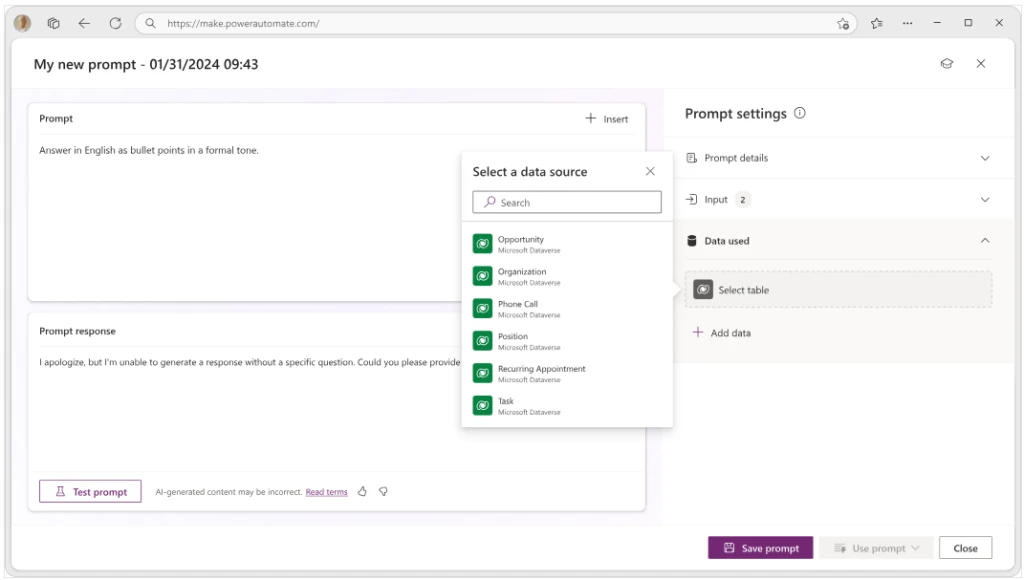
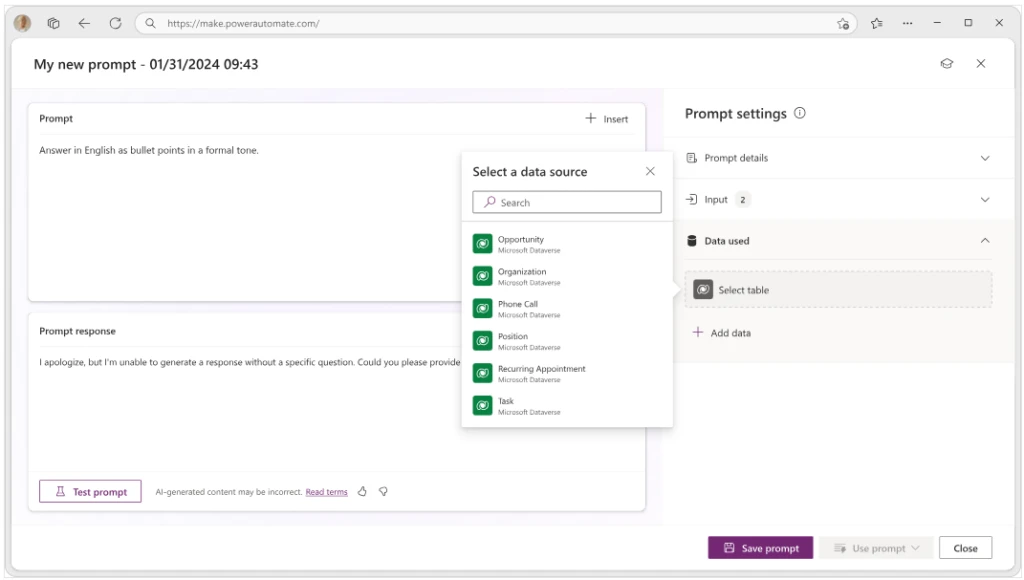
You can create a prompt plugin using Copilot Studio and choose the data from Dataverse based on your needs.
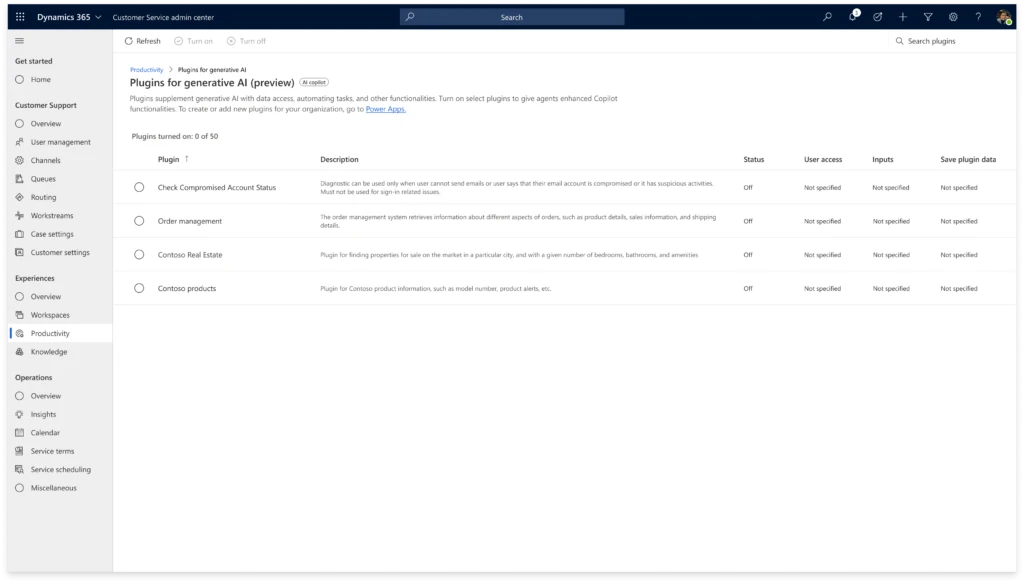
Once you generate prompt plugins, the Customer Service administrator can manage plugins in the Customer Service admin center.
Administrators have the following capabilities:
Turn on and turn off the plugins
Provide access to all Copilot users or manage user access by roles
Map data field input parameters for the plugin, reducing how much context agents have to manually add to the prompt during plugin use
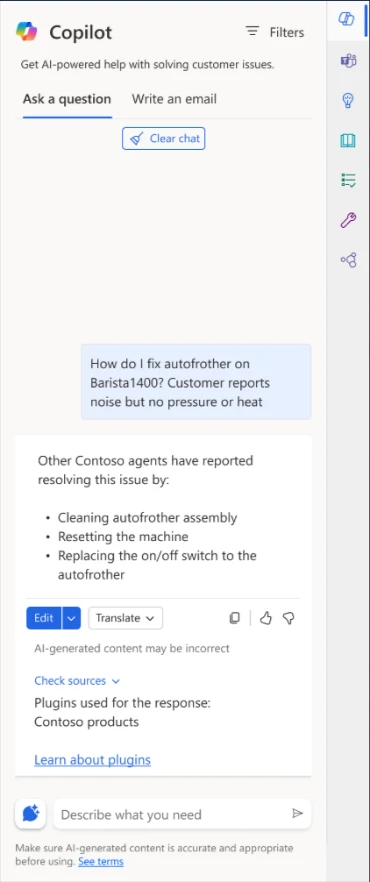
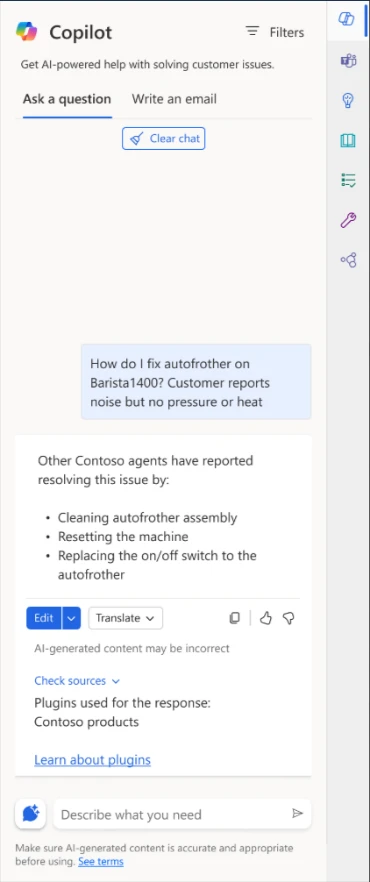
Copilot automatically identifies the plugin based on the agent’s question. With deep understanding of the user’s intent, Copilot can select the right plugin to help the agent, resulting in better experience for customers who have their issues addressed faster.
When the agent clicks Check sources, they can see the plugin used to generate the response. They can also click the Learn about plugins documentation link to understand how plugins work and their use in Copilot.
If Copilot didn’t identify a plugin, it falls back to the knowledge source to create a response to the agent.
Coming soon: Other types of plugins
Connector plugins extend Copilot’s value by connecting to a variety of external data sources and applications that agents rely on to answer customer queries. The plugins let your agents securely access data from those systems through Copilot without juggling multiple different systems to deliver service. For example, the agents can retrieve information like purchase orders and shipping details via Copilot without logging in to order management systems. The agents simply ask for what they need, and Copilot responds, resulting in decreased time to resolution.
Learn more
Below are the detailed steps to create and configure prompt plugins for your organization.
This article is contributed. See the original author and article here.
In Dynamics 365 Customer Service, agents use Copilot to resolve issues based on the corpus of data in their organization’s knowledge base or SharePoint. Additionally, we are introducing prompt plugins, enabling agents to securely access Dataverse data such as customers, products, and cases, through Copilot. This enables agents to gain a better understanding of customer needs, preferences, and history, which empowers them to provide more personalized and effective support.
With Copilot Studio, we enable customers to build and manage their prompt plugins to address various types of customer scenarios based on the organization’s needs. Plugins reduce the need for customer service representatives to switch to other tabs and tools to do their work. The result is improved resolution time and customer satisfaction. Organizations can build a single plugin and use that plugin in all copilots. So, regardless of where an agent asks a service-related question, they benefit from a consistent experience.
Create prompt plugins
You can create a prompt plugin using Copilot Studio and choose the data from Dataverse based on your needs.
Once you generate prompt plugins, the Customer Service administrator can manage plugins in the Customer Service admin center.
Administrators have the following capabilities:
Turn on and turn off the plugins
Provide access to all Copilot users or manage user access by roles
Map data field input parameters for the plugin, reducing how much context agents have to manually add to the prompt during plugin use
Copilot automatically identifies the plugin based on the agent’s question. With deep understanding of the user’s intent, Copilot can select the right plugin to help the agent, resulting in better experience for customers who have their issues addressed faster.
When the agent clicks Check sources, they can see the plugin used to generate the response. They can also click the Learn about plugins documentation link to understand how plugins work and their use in Copilot.
If Copilot didn’t identify a plugin, it falls back to the knowledge source to create a response to the agent.
Coming soon: Other types of plugins
Connector plugins extend Copilot’s value by connecting to a variety of external data sources and applications that agents rely on to answer customer queries. The plugins let your agents securely access data from those systems through Copilot without juggling multiple different systems to deliver service. For example, the agents can retrieve information like purchase orders and shipping details via Copilot without logging in to order management systems. The agents simply ask for what they need, and Copilot responds, resulting in decreased time to resolution.
Learn more
Below are the detailed steps to create and configure prompt plugins for your organization.
This article is contributed. See the original author and article here.
In theAzure Developers JavaScript Day 2024,Maya Shavina Senior Software Engineer at Microsoft, presented a session called “Have a safe coffee chat with your documentation using Azure AI Services”. And she introduced innovative approaches for integrating AI technologies to ensure the safety of document-based Q&A systems.
Let’s dive into the content!
What was covered during the session?
Now let’s talk about what was covered during the session! If you wish, you can watch the video of the session at the link below:
Introduction to AI-Powered Safety in Documentation
Maya opened her presentation by introducing her background in Microsoft’s industrial AI division, where she focuses on incorporating AI technologies into industry-specific applications. With over a decade of experience in both Front-End and Back-End development, she also highlighted her contributions to the Tech Community as an author and Community Organizer.
Concept of Document Q&A Assistant
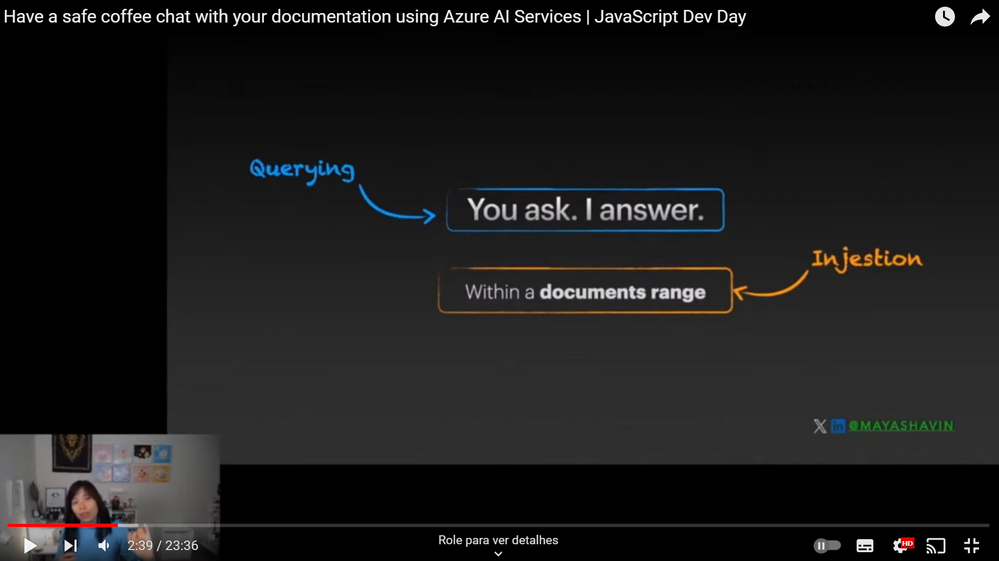
Maya described the document Q&A assistant as a straightforward interaction system where an AI, not a human, responds to user queries. The system processes in two primary phases:
Injection Phase: here, documents are uploaded, segmented, indexed with metadata and stored in a searchable database.
Query Phase: the phase where the AI retrieves and summarizes relevant document sections in response to user queries.
The Importance of Content Moderation
A significant portion of her talk focused on content moderation, crucial for preventing inappropriate or harmful content from undermining the AI system’s integrity. She explained how AI responses could potentially reflect, or be influenced by, the offensive content within user inputs. To combat this, Microsoft promotes responsible AI practices structured around in:
Fairness: AI systems should treat all people fairly.
Reliability and safety: AI systems should perform reliably and safely.
Privacy and security: AI systems should be secure and respect privacy.
Inclusiveness: AI systems should empower everyone and engage people.
Transparency: AI systems should be understandable.
Accountability: People should be accountable for AI systems.
For more information on Microsoft’s Responsible AI Practices, visit the link.
Azure AI Content Safety
Maya introduced Azure AI Content Safety, a pivotal service for detecting harmful content in both user inputs and AI-generated responses. This service supports multiple programming languages and offers a studio experience for testing various content sensitivity levels. Its primary features include:
Text Analysis API:Scans text for sexual content, violence, hate, and self-harm with multi-severity levels.
Image Analysis API:Scans images for sexual content, violence, hate, and self-harm with multi-severity levels.
Text Blocklist Management APIs:The default AI classifiers are sufficient for most content safety needs; however, you might need to screen for terms that are specific to your use case. You can create blocklists of terms to use with the Text API.
To understand how Azure AI Content Safety works, there’s a video below about the service:
Demonstrating Azure AI Content Safety in Action
Maya demonstrated how to integrate Azure AI Content Safety into a JavaScript project. She showcased a function that analyzes content and adjusts responses based on predefined sensitivity levels, thus preventing the system from providing harmful output.
This function works by categorizing content into several types of sensitive material—like hate speech, sexual content, and violence—and filtering them accordingly.
She also mentioned the use of the Azure AI Content Safety SDK for JavaScript/TypeScript, which you can find at thelink
Comparing Azure AI Content Safety and Azure OpenAI Content Filters
Maya also compared the Azure AI Content Safety with OpenAI’s content filtering features. She highlighted that while Azure AI Content Safety is versatile and can be integrated into various AI workflows, OpenAI’s content filtering is bundled with their services and might not incur additional costs.
However, Azure AI Content Safety offers more control over the moderation process and supports more languages.
Final Thoughts and Steps Forward
Concluding her talk, Maya stressed the ongoing need for manual oversight in content moderation to ensure that AI interactions remain appropriate and effective. She encouraged attendees to implement Azure AI content safety in their projects to enhance the security layers of their AI applications.
Maya Shavin’s session provided valuable insights into the mechanisms of safeguarding AI-driven document assistants, ensuring that they operate within the realms of safety and ethics dictated by modern AI standards.
Azure Developers JavaScript Day Cloud Skills Challenge
Don’t forget to participate in the Azure Developers JavaScript Day Cloud Skills Challenge to test your knowledge and skills in a series of learn modules and learn more about Azure services and tools. As I mentioned in the previous articles, besides the challenge is over, you can still access the content and learn more about the topics covered during the event.
If you wish, you can follow what happened during the two days of the event via theplaylist on YouTube. The event was full of interesting content and insights for JavaScript developers!
If you are a JavaScript/TypeScript developer, follow me onTwitteror LinkedInGlaucia Lemosfor more news about the development and technology world! Especially if you are interested in how to integrate JavaScript/TypeScript applications with the Azure, Artificial Intelligence, Web Development, and more!
This article is contributed. See the original author and article here.
We are excited to announce the release of Single Sign-On (SSO) for the Defender for IoT Sensor Console! This powerful feature simplifies the login process, enhances security, and provides a seamless experience for all users. Let’s dive into the details:
What’s New?
SSO Support on the sensor console
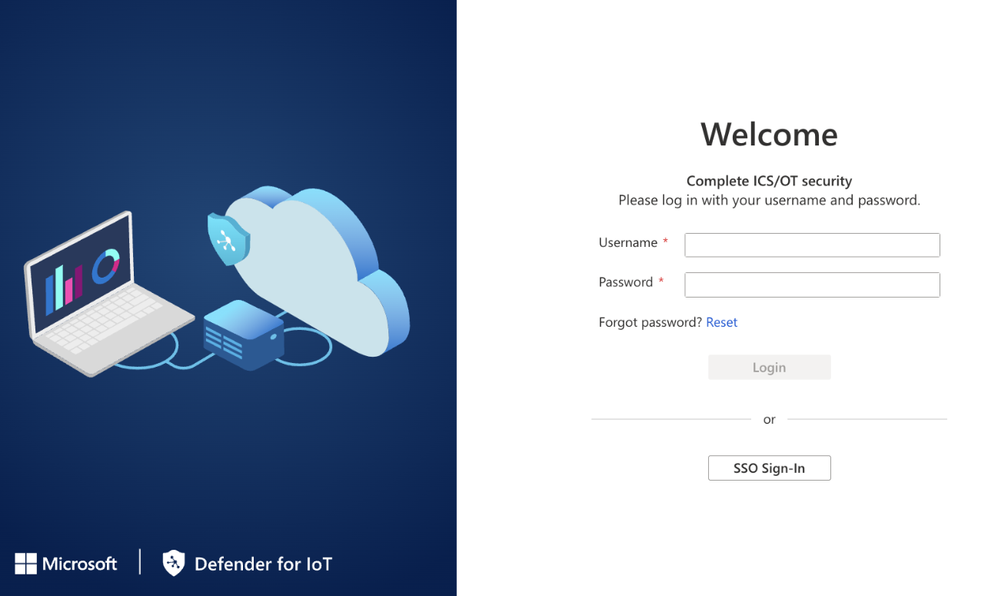
With SSO, users can log in once and gain access to the sensor console without the hassle of re-entering credentials.
Figure 1: Defender for IoT login page
New integration with Microsoft Entra ID
By using Entra ID, your organization ensures consistent access controls across different sensors and sites. SSO simplifies onboarding and offboarding processes, reduces administrative overhead, and strengthens security.






Recent Comments