by Contributed | May 26, 2021 | Technology
This article is contributed. See the original author and article here.
Create three scripts scripts:
SELECT ‘ALTER TABLESPACE ‘||tablespace_name||’ OFFLINE NORMAL;’ from DBA_TABLESPACES;
SELECT ‘ALTER DATABASE RENAME FILE ”’||NAME|| ”’ TO ‘||NAME||’;’ from V$DATAFILES;
SELECT ‘ALTER TABLESPACE ‘||tablespace_name||’ ONLINE;’ from DBA_TABLESPACES;
Now I could update this with the location path for where I want my new files and then proceed to shutdown the database, copy the files after I run the first script for each tablespace, then update the metadata for the datafile location and then bring it back online.
So the steps would be-
- Take the tablespace offline.
- Copy the file to the new location.
- Update the metadata to point to the new location
- Put the tablespace online.
AS this database isn’t active, I can do this…but with ASM…I have two choices that are the common path for copying datafiles to a new diskgroup:
1. RMAN copy
2. DBMS_FILE_TRANSFER
Due to a design challenge in the path naming, etc., I wasn’t able to use DBMS_FILE_TRANSFER and had to use RMAN, but it also meant I had to put the database in archive log mode to choose this second option.
Example of a file copy using DBMS_FILE_TRANSFER:
BEGIN
DBMS_FILE_TRANSFER.COPY_FILE(
source_directory_object => ‘+DATA_DG1/oradata/DB1’,
source_file_name => ,’edata_01.dbf’
destination_directory_object => ‘SDATA’,
destination_file_name => ‘edata_01.dbf’);
END;
There’s a lot more to do with either when ASM is involved. With the logical design of the physical datafiles, all changes have to be done via Multiple tools:
- Present the storage to ASM
- Create the disk
- Create the diskgroup
Take the inventory as we would above, then I need to put the database in archivelog mode to use RMAN:
RMAN> report schema;
List of Permanent Datafiles
===========================
File Size(MB) Tablespace RB segs Datafile Name
—- ——– ——————– ——- ————————
1 1920 SYSTEM YES +DATA_DG1/oradata/DB1/system01.dbf
2 2850 SYSAUX NO +DATA_DG1/oradata/DB1/sysaux01.dbf
3 373760 UNDOTBS1 YES +DATA_DG1/oradata/DB1/undotbs01.dbf
4 250 USERS NO +DATA_DG1/oradata/DB1/users01.dbf
5 6213231 SDATA NO +DATA_DG1/oradata/DB1/sdata_01.dbf
6 68817 WDATA NO +DATA_DG1/oradata/DB1/wdata_01.dbf
7 5120 IDATA NO +DATA_DG1/oradata/DB1/idata_01.dbf
8 1024 EDATA NO +DATA_DG1/oradata/DB1/edata_01.dbf
9 2048 XDB NO +DATA_DG1/oradata/DB1/xdb.dbf
List of Temporary Files
=======================
File Size(MB) Tablespace Maxsize(MB) Tempfile Name
—- ——– ——————– ———– ——————–
1 373760 TEMP 67108863 +DATA_DG1/oradata/DB1/temp01.dbf
What’s required for RMAN with ASM datafile copies for a new diskgroup?
- Backup the datafile as a copy, format it with the new diskgroup.
- Offline the datafile
- Switch the datafile to the copy, which is pointed to the new diskgroup
- Recover the datafile copy
- Online the datafile
- Delete the previous datafile, (now viewed as the copy)
Unless you format your datafile backups with additional configurations, there’s very little dynamic SQL that can assist in getting this automated for you, as your new files will have the dynamic generated file extension for ASM. In our example below, we’ll use the Users tablespace datafile, which is datafile #4:
BACKUP AS COPY
DATAFILE 4
FORMAT “+SDATA”;
SQL “ALTER DATABASE DATAFILE ”+DATA_DG1/oradata/DB1/users01.dbf” OFFLINE”;
SWITCH DATAFILE “+DATA_DG1/oradata/DB1/users01.dbf” to COPY;
RECOVER DATAFILE “+DATA_DG1/oradata/DB1/users01.259.1073503311”;
SQL “ALTER DATABASE DATAFILE ” +DATA_DG1/oradata/DB1/users01.259.1073503311” ONLINE”;
DELETE DATAFILECOPY “+DATA_DG1/oradata/DB1/users01.dbf”;
Notice that some of the syntax involved quotes and others involve double, single ticks. You need to make sure you use the correct ones for the push of a SQL statement via RMAN vs. the commands to identify the ASM datafile path.
Unlike a Linux/Unix MV command, RMAN ends up making three copies of the file instead of two, which means you need a little bit more space, (also depends on you settings for ASM redundancy, too):
1. Original
2. The copy in the new Diskgroup
3. A third used for the substantiated file to bring online before it drops the older copy.
With the time that it takes to back up and move files, for any tablespaces that didn’t have anything in them and for temp and undo, it was simpler to just create new ones that run through the steps to move a datafile that didn’t have anything in it.
All this reminded me was why I’m a performance DBA and not a backup and recovery DBA…. :)
CREATE TEMPORARY TABLESPACE TEMP2 TEMPFILE
‘+SDATA’ SIZE 100M AUTOEXTEND ON NEXT 1024M MAXSIZE UNLIMITED
TABLESPACE GROUP ”
EXTENT MANAGEMENT LOCAL UNIFORM SIZE 1M;

CREATE UNDO TABLESPACE UNDOTBS2 DATAFILE
‘+SDATA’ SIZE 100M AUTOEXTEND ON NEXT 1024M MAXSIZE UNLIMITED
RETENTION NOGUARANTEE;
ALTER SYSTEM SET UNDO TABLESPACE=UNDOTBS2;
ALTER DATABASE SET DEFAULT TEMPORARY TABLESPACE=TEMP2;
In the end I ended up with the following RMAN schema report:
List of Permanent Datafiles
===========================
File Size(MB) Tablespace RB segs Datafile Name
—- ——– ——————– ——- ————————
1 1920 SYSTEM YES +SDATA/DB1/DATAFILE/system01.263.1073698411
2850 SYSAUX NO +SDATA/DB1/DATAFILE/sysaux01.265.1073712889
4 250 USERS NO +SDATA/DB1/DATAFILE/users01.264.1073711908
5 6213231 SDATA NO+SDATA/DB1DATAFILE/sdata_01.262.1073711893
6 68817 WDATA NO +SDATA/DB1/DATAFILE/wdata.259.1073503311
7 5120 IDATA NO +SDATA/DB1/DATAFILE/idata.258.1073502989
8 1024 EDATA NO +SDATA/DB1/DATAFILE/edata.257.1073502623
9 2048 XDB NO +SDATA/DB1/DATAFILE/xdb.256.1073501461
10 1024 UNDOTBS2 YES +SDATA/DB1/DATAFILE/undotbs2.260.1073514289
List of Temporary Files
=======================
File Size(MB) Tablespace Maxsize(MB) Tempfile Name
—- ——– ——————– ———– ——————–
1 373760 TEMP 67108863 +DATA_DG1/oradata/DB1/temp01.dbf
2 1024 TEMP2 65535 +SDATA/DB1/TEMPFILE/temp2.262.1073514495
Only the one tempfile exists in the old diskgroup and it’s no longer used by anything or anyone. All temp usage has been switched over to the TEMP2 tablespace that has the new tempfile residing in +SDATA diskgroup.
by Contributed | May 26, 2021 | Technology
This article is contributed. See the original author and article here.
This week at Microsoft’s annual Build conference, we made two announcements related to Azure Durable Functions: Two new backend storage providers, and the General Availability of Durable Functions for PowerShell. In this post, we’ll go into more details about the new capabilities that Durable Functions brings to PowerShell developers.
Stateful workflows with Durable Functions
Durable Functions is an extension to Azure Functions that lets you write stateful workflows in a serverless compute environment.
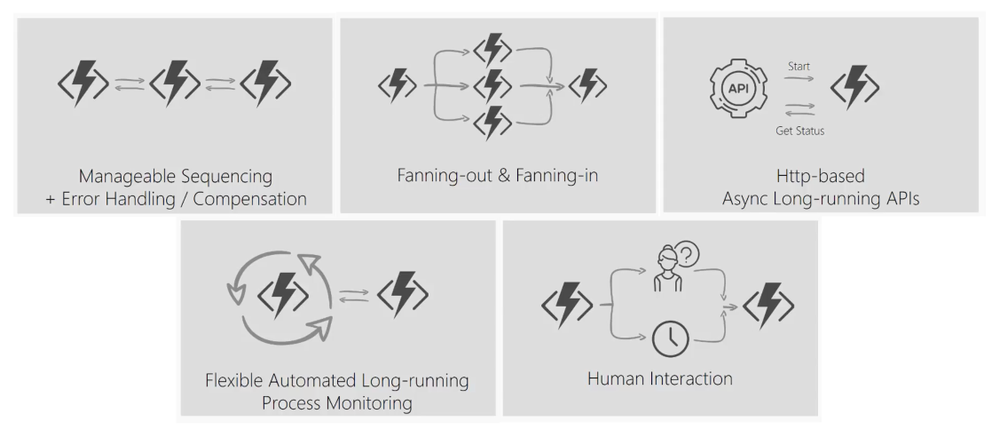
Using a special type of function called an orchestrator function, you can write PowerShell code to describe a stateful workflow that orchestrates other PowerShell Azure Functions that perform activities in the workflow. Using familiar PowerShell language constructs such as loops and conditionals, your orchestrator function can execute complex workflows that consist of activity functions running in sequence and/or concurrently. An orchestration can be started by any Azure Functions trigger. Additionally, it can wait for timers or external input and handle errors using try/catch statements.
Some patterns supported by Durable Functions
Uses for Durable Functions in PowerShell
With a large ecosystem of modules, PowerShell Azure Functions are extremely popular in automation workloads. Many modules integrate with managed identity—making PowerShell Azure Functions especially useful for managing Azure resources and calling the Microsoft Graph. Durable Functions allows you to extend Azure Functions’ capabilities by composing multiple PowerShell Azure Functions together to perform complex automation workflow scenarios.
Here are some examples of what you can achieve with Durable Functions and PowerShell.
Automate resource provisioning and application deployment
PowerShell Azure Functions are commonly used to perform automation of Azure resources. This can include provisioning and populating resources like Storage accounts and starting and stopping virtual machines. Often, these operations can extend beyond the 10-minute maximum duration supported by Azure Functions in the Consumption plan.
Using Durable Functions, you can decompose your sequential workflow into a Durable Functions orchestration that consists of multiple shorter functions. The orchestration can last for hours or longer, and you write it in PowerShell. It can include logic for retries and custom error handling. In addition, Durable Functions automatically checkpoints your progress so if your orchestration is interrupted for any reason, it can automatically restart and pick up where it left off.
param($Context)

$Group = Invoke-ActivityFunction -FunctionName 'CreateResourceGroup'
$VM = Invoke-ActivityFunction -FunctionName 'CreateVirtualMachine' -Input $Group

do {
    $ExpiryTime = New-TimeSpan -Seconds 10
    $TimerTask = Start-DurableTimer -Duration $ExpiryTime
    $VMStatus = Invoke-ActivityFunction -FunctionName 'CreateVirtualMachine' -Input $VM
}
until ($VMStatus -eq 'started')

Invoke-ActivityFunction -FunctionName 'DeployApplication' -Input $VM
Invoke-ActivityFunction -FunctionName 'RunJob' -Input $VM
Invoke-ActivityFunction -FunctionName 'DeleteResourceGroup' -Input $Group
Orchestrate parallel processing
Durable Functions makes it simple to implement fan-out/fan-in. Many workflows have steps that can be run concurrently. You can write an orchestration that fans out processing to many activity functions. Using the power of the Cloud, Durable Functions automatically schedules the functions to run on many different machines in parallel, and it allows your orchestrator to wait for all the functions to complete and access their results.
param($Context)

# Get a list of work items to process in parallel.
$WorkBatch = Invoke-ActivityFunction -FunctionName 'GetWorkItems'

# Fan out
$ParallelTasks =
    foreach ($WorkItem in $WorkBatch) {
        Invoke-ActivityFunction -FunctionName 'ProcessItem' -Input $WorkItem -NoWait
    }
$Outputs = Wait-ActivityFunction -Task $ParallelTasks

# Fan in
Invoke-ActivityFunction -FunctionName 'AggregateResults' -Input $Outputs
Audit Azure resource security
Any of Azure Functions’ triggers can start Durable Functions orchestrations. Many events that can occur in an Azure subscription, such as the creation of resource groups and Azure resources, are published to Azure Event Grid. Using the Event Grid trigger, you can listen for resource creation events and kick off a Durable Functions orchestration to perform checks to ensure permissions are correctly set on each created resource and automatically apply role assignments, add tags, and send notifications.
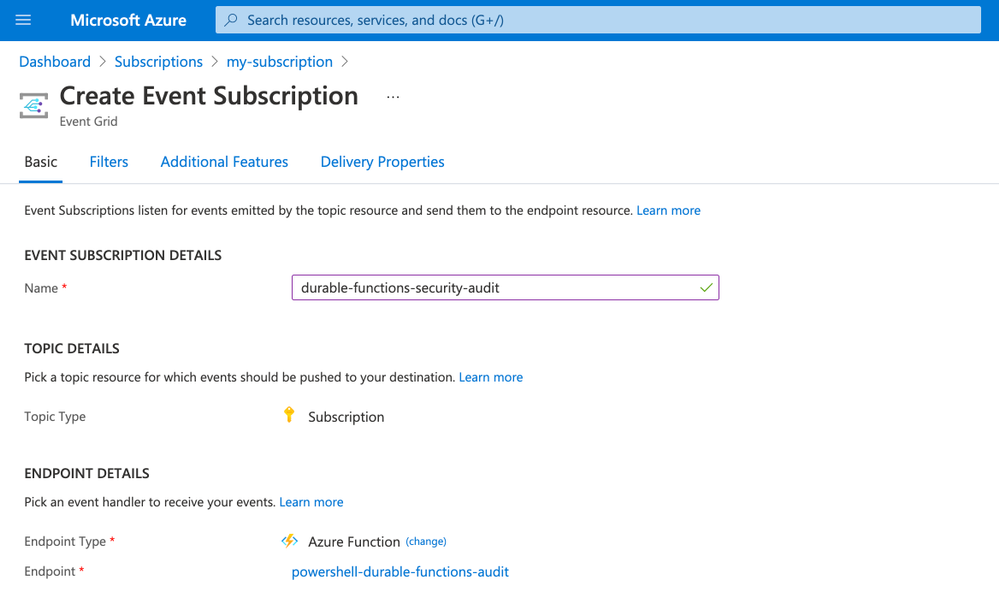 Create an Azure Event Grid subscription that invokes a PowerShell Durable Function
Try PowerShell Durable Functions
PowerShell Durable Functions are generally available and you can learn more about them by reading the documentation or by trying the quickstart.
by Contributed | May 26, 2021 | Technology
This article is contributed. See the original author and article here.
Sync Up is your monthly podcast hosted by the OneDrive team taking you behind the scenes of OneDrive, shedding light on how OneDrive connects you to all your files in Microsoft 365 so you can share and work together from anywhere. You will hear from experts behind the design and development of OneDrive, as well as customers and Microsoft MVPs. Each episode will also give you news and announcements, special topics of discussion, and best practices for your OneDrive experience.
So, get your ears ready and Subscribe to Sync up podcast!
Our guest today is Chenying Yang, a senior Program Manager on OneDrive focusing on making OneDrive Sync great across consumer and enterprise. OneDrive Sync Admin Reports empowers IT admins with actionable insights about the adoption and health of the sync client. These reports give visibility into who in your company is running the OneDrive Sync app, how is Known Folder Move rollout going, as well as surfacing any errors that end users might be experiencing so you can proactively address them. You’ll also learn the team’s favorite go-to beverages to wind up or wind down.
Tune in!
Meet your show hosts and guests for the episode:
Jason Moore is the Principal Group Program Manager for OneDrive and the Microsoft 365 files experience. He loves files, folders, and metadata. Twitter: @jasmo
Ankita Kirti is a Product Manager on the Microsoft 365 product marketing team responsible for OneDrive for Business. Twitter: @Ankita_Kirti21
Chenying Yang is a senior Program Manager on OneDrive focusing on making OneDrive Sync great across consumer and enterprise
Twitter: @CYatSeattle
Quick links to the podcast
Links to resources mentioned in the show:
Be sure to visit our show page to hear all the episodes, access the show notes, and get bonus content. And stay connected to the OneDrive community blog where we’ll share more information per episode, guest insights, and take any questions from our listeners and OneDrive users. We, too, welcome your ideas for future episodes topics and segments. Keep the discussion going in comments below.
As you can see, we continue to evolve OneDrive as a place to access, share, and collaborate on all your files in Office 365, keeping them protected and readily accessible on all your devices, anywhere. We, at OneDrive, will shine a recurring light on the importance of you, the user. We will continue working to make OneDrive and related apps more approachable. The OneDrive team wants you to unleash your creativity. And we will do this, together, one episode at a time.
Thanks for your time reading and listening to all things OneDrive,
Ankita Kirti – OneDrive | Microsoft
by Contributed | May 26, 2021 | Technology
This article is contributed. See the original author and article here.
Last year at Build 2020, we debuted the Microsoft Teams Toolkit for Visual Studio Code and Visual Studio – extensions that streamlined the app development process within the tools developers already knew and loved. Now, a year later at Build 2021, we’re continuing that momentum by sharing a major update to the Teams Toolkit, available today in preview, that provides many new features and capabilities that make it faster and easier for any developer to build apps for Teams.
As a developer, you have a unique opportunity to shape the future of how we work. This past year has seen the rise of a collaborative apps to meet the demands of hybrid work – where collaboration is at the center versus individual productivity. By building apps for Teams, you can optimize business processes and meet users where they are.
New features available in the Microsoft Teams Toolkit
The enhancements to the Teams Toolkit were crafted to improve you and your team’s velocity – from scaffolding a new app to real-time monitoring in production. Some of the notable new features include:
- Frameworks & Tools: First-class support for React, SharePoint Framework (SPFx), and ASP.NET Core Blazor frameworks in Visual Studio and Visual Studio Code. You can even bring your own framework to leverage toolkit debugging and deployment support.
- Capabilities: Support for extending Teams with tabs, bots, messaging extensions, and meeting extensions capabilities.
- Rapid Development Loop: Debug your app in web, desktop, and mobile Teams clients with rapid, real-time iteration with hot reload. You can also debug frontend and backend code together, with full support for breakpoints, watches, and locals.
- Simplified Authentication: Automated single sign-on (SSO) configuration, single-line authentication, and single-line authenticated access to the Microsoft Graph.
- Full-Stack: Integrated support for hosting, data storage, and serverless functions from Azure and Microsoft 365 cloud providers.
- CI/CD: Command line interface for continuous integration and deployment pipelines for Teams apps.
- Deployment & Monitoring: The Developer Portal enables you to distribute applications to users in your tenant or all Microsoft tenants and monitor key metrics like usage after publishing.
Learn more on how to get started building apps with the Teams Toolkit today.
Build better Microsoft Teams apps even faster
The Teams Toolkit increases the velocity of your development team by helping you do the right things faster, with support for optimized project scaffolds and samples, rapid inner development loop, and deployment.
Get started fast with the languages, frameworks, tools, and services you know and love with first-class support for React, SharePoint Framework (SPFx), and ASP.NET Core Blazor in Visual Studio and Visual Studio Code. The Teams Toolkit can also be used to debug and deploy front-end web apps from other frameworks such as Angular.
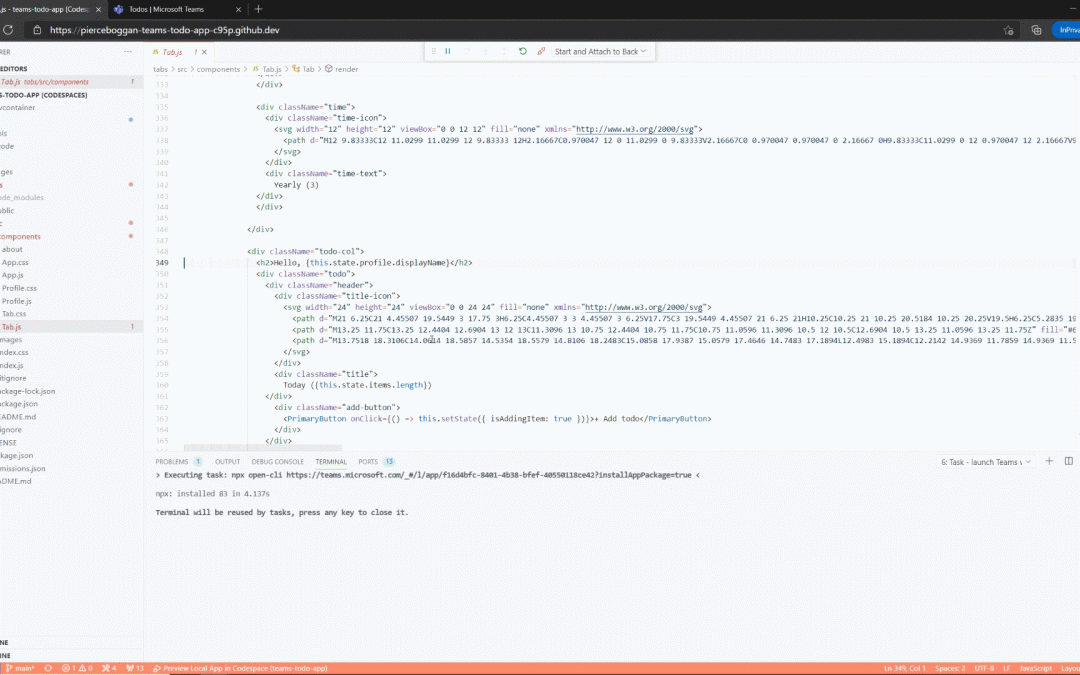
Edits to your source code are applied in real-time with hot reload without having to rebuild and deploy for each change. Apps can be debugged as standalone web apps or directly inside the Teams desktop, web, and mobile clients with full support for breakpoints, watches, and locals. Teams apps even work with standard web tooling, such as Microsoft Edge or Chrome Developer Tools, so you can test your application with different form factors and network conditions.
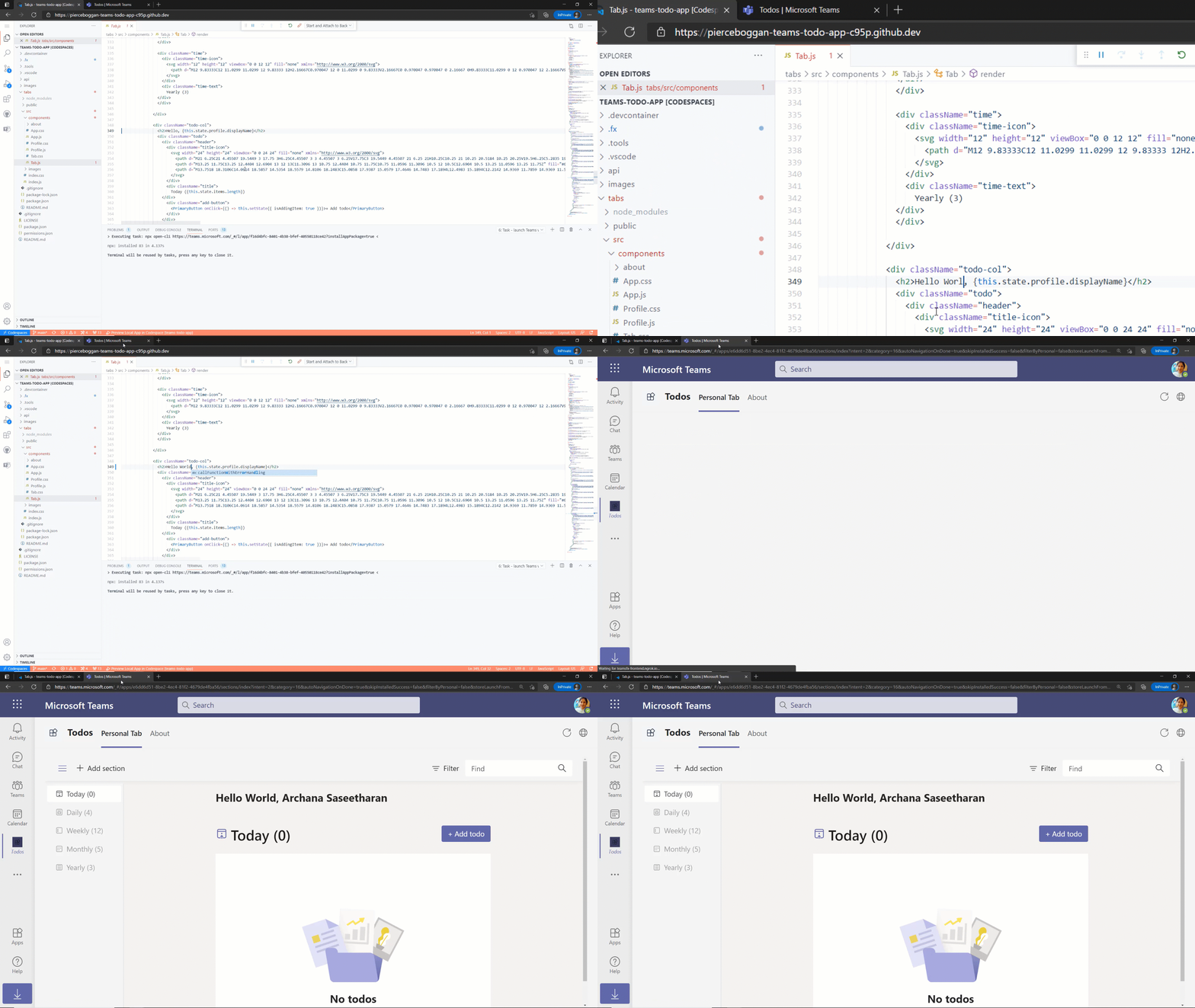
Real time iteration with hot reload
When your app is ready for distribution, publish directly to Teams from Visual Studio Code or as part of a continuous integration and deployment pipeline. Once the app is published, the Developer Portal for Teams enables you to update app branding, flight apps with a subset of users, publish new versions of the app, and even monitor usage with real-time analytics.
Simplified authentication
We heard your feedback – authentication is hard. With the updated Teams Toolkit, we have made integrating single sign-on (SSO) to your apps simpler.
The Teams Toolkit takes care of all necessary configuration steps and enables you to authenticate users in your enterprise with a single line of code. The Teams Toolkit also manages the configuration to ensure that only authenticated users can access cloud assets. We have also made it single line to obtain an authenticated Microsoft Graph client, enabling you with easy access to organizational context like documents or capabilities like notifications.
Integrated hosting, data storage, and functions
Building full-stack apps for Teams is faster with integrated support for identity, hosting, data storage, and serverless functions. The Teams Toolkit supports providers from both Azure and Microsoft 365, including Azure Storage and SharePoint Framework (SPFx) for hosting, Azure SQL, and the Microsoft Graph for data storage and Azure Functions for application logic.
Visual Studio Code automatically enables you to debug both your front-end and back-end code together, with full support for breakpoints, watches, and locals. When your back-end resources are ready to deploy to the cloud, you can deploy with one-click directly from Visual Studio Code or use a CLI to deploy locally or as part of a continuous integration and deployment pipeline.
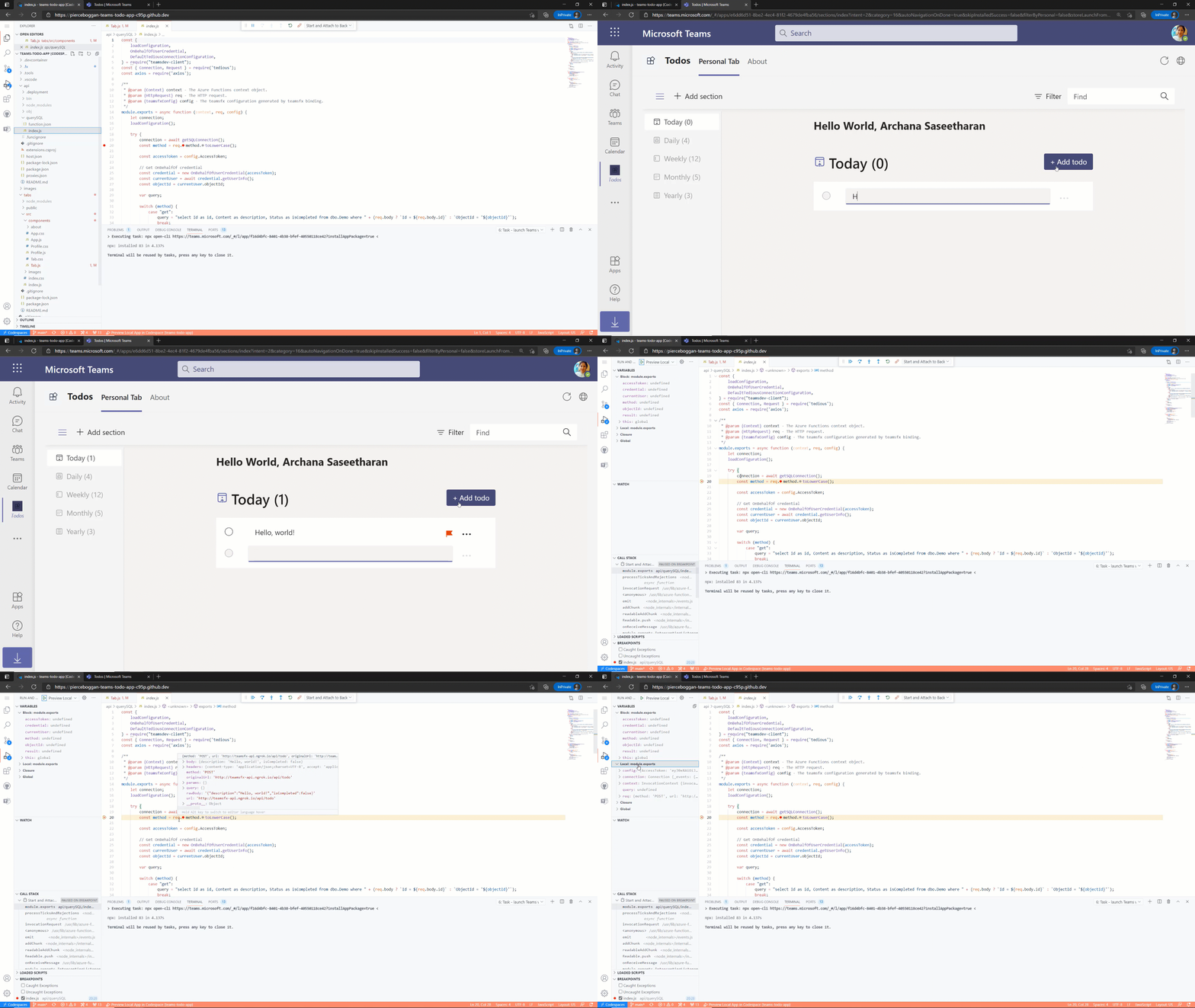
Azure Functions for debugging
Get started building apps with the Microsoft Teams Toolkit today
We’re excited to debut all these new features and can’t wait for developers to build the next generation of collaborative apps. You can learn more on getting started by reading our documentation the toolkit, which also provides a link to where you can install it. And if you missed it be sure to check out the technical keynote and breakout session at Build, where we cover the announcement of the Teams Toolkit.
Our roadmap is driven by your feedback. To leave your comments, feedback, suggestions, and issues, file an issue on our repository on GitHub. We look forward to seeing what you create for Teams.
by Contributed | May 26, 2021 | Technology
This article is contributed. See the original author and article here.
I had a chance to sit down and interview the Susquehanna Township School District and Martin Schultz with HP to discuss the amazing work they did with Microsoft Teams . They were able to provide not only an engaging and forwarding thinking model for delivering classes during the pandemic, but also the groundbreaking work to make the in-school experience more engaging and personal. The one major feedback I received from our interview was that IT Pros wanted to better understand how the school district put this hybrid system of HP, Logitech, and Jabra devices, paired with Windows 10 and Microsoft Teams together.
If you have not had a chance to watch this episode yet, please check it out first: “How Susquehanna Township School District delivered world-class hybrid education solution using Teams”.
In this blog, I am excited to have the architect of the system and show guest, Martin Schultz from HP, dive deeper into this experience. Let’s walk through the process of how Susquehanna Township School District started preparing their students and teachers for hybrid learning.
Martin Schultz: When I was first introduced to the IT Director of the school district back in the middle of the pandemic in the summer of 2020. It was immediately obvious that the school district needed to architect a solution to support hybrid, synchronous learning for the fall session. The key issue was how they were going to support both in-room and at-home students with live, synchronous instruction from the teachers and ensure the remote experience was as engaging as the in-classroom experience, and they had to achieve all this without adding further complexity for the teachers, IT staff, and students.
Right away, we started collaborating with the IT Director on the necessities of the core workflows: a camera fixed on the teacher wherever the teacher moved, a camera to share whiteboard content, and the ability to show lab experiments, books, and objects as teaching aids, as well as ensuring mask-wearing teachers could be clearly heard by the remote students, and ensuring the remote students could participate in class assignments and discussions by raising their hands, be assigned into breakout workgroups, and be clearly seen and heard by the in-room classmates and teacher when participating.
One key challenge was audio performance and how to make sure everyone could be heard from the classroom. They went through several design alternatives, including considering lavalier mics for the teachers, in-ceiling mic/speakers to capture full room sound, and hand-held mics to pass around the classroom. Another challenge was camera placement: should they install from the ceiling, should they use multiple cameras for different angles/perspectives, and how to cover the entire front of classroom setting where the teacher was likely to do most of their instruction from.
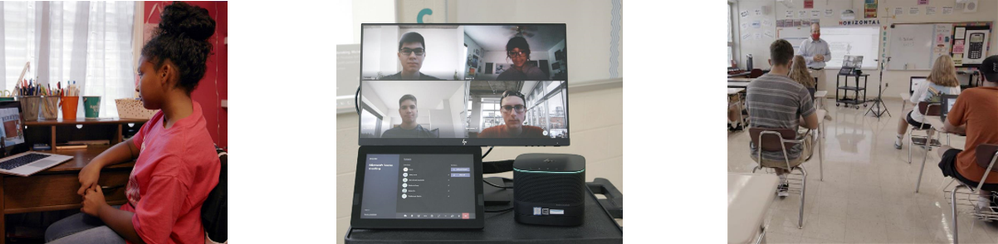
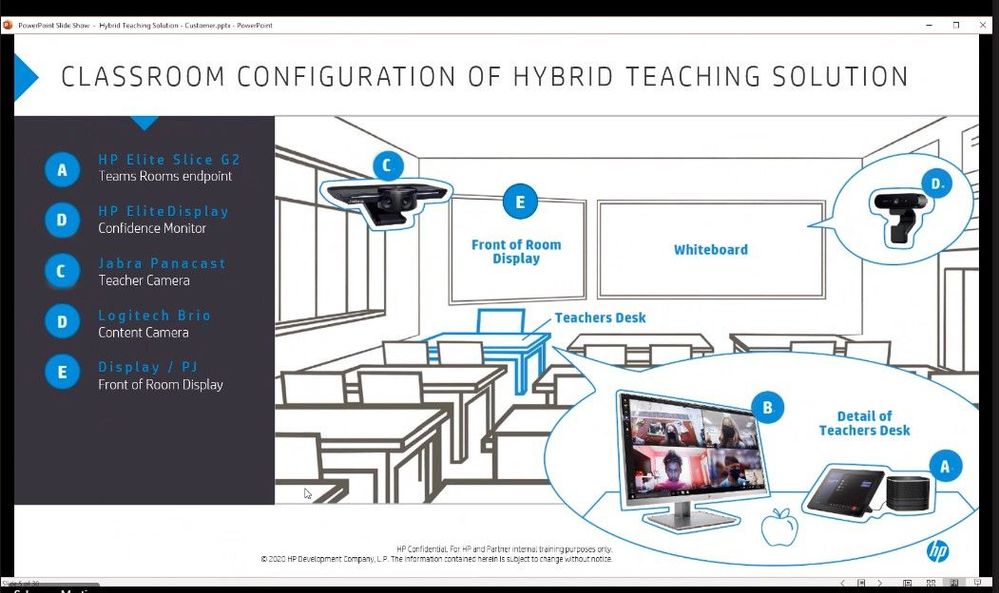
They began some early testing and selected the HP Elite Slice G2 with Microsoft Teams Rooms as the core endpoint device. The HP Elite Slice G2 includes a touch panel to easily start each class period and control the remote class experience, four microphones to allow the teacher to freely roam the classroom and still be heard even with a mask on, speakers to provide a 360-degree surround sound experience to hear the remote students even from the back of the classroom, and a confidence monitor for the teacher to engage and view the remote students. The HP Elite Slice G2 performed exactly as designed for the audio capabilities: there was no need for lavalier mics, expensive in-ceiling modifications, or worrying about batteries; it just worked and allowed everyone to hear the teacher, the in-room students, and the remote students!
For convenience, the HP Elite Slice G2 was placed on a cart next to the teacher’s desk and an HDMI cable was connected between the teacher’s docking station and the Slice G2 ingest port to allow for instant content sharing from the teacher’s laptop for both in-room and remote viewing and instruction. They had some early challenges as this was not a supported specification for MTR devices, but with the help of Microsoft and HP engineering, an upgrade was provided just in time before the school year started.
To make sure the school district maximized visual engagement between the teacher and the remote students, two cameras were designed into the solution. The Jabra Panacast camera was selected as it allowed the teacher to roam anywhere in front of the classroom – where they spend most of their instructional time – and the camera automatically auto-framed and auto-tracked wherever the teacher walked. This was critical as the teacher was always in focus for remote students to see, even while viewing content. The spotlight mode in the Microsoft Teams client also became generally available, which greatly enhanced the remote experience.
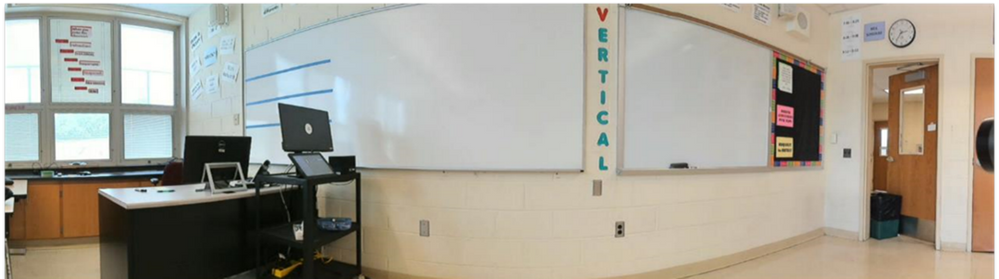
A second camera, a Logitech Brio content camera, was mounted next to the Jabra Panacast camera on a dual camera mount on a tripod. The Logitech Brio was selected to perform dual purposes: to share whiteboard content with the MTR enhanced mode turned on and as a secondary object camera to show lab experiments, do manipulative teaching, show objects, and even read/see pages from a book in class. The content camera provided the unique advantage of allowing in-room students to stay at their desks while the teacher shared content from the Logitech Brio, which was displayed on the projector in-class and on the screens of the remote students simultaneously – enhancing the experience for everyone. At one point, there was discussion of ceiling mounting the cameras, but it turned out that the tripod supported a third use case: the ability to swivel the Jabra Panacast camera 180 degrees and allow the remote students to see and interact with the in-room students for certain instructional sessions.
After piloting all the workflows and experiences of the system and testing with a handful of teachers, the deployment of all 240 classrooms across four buildings was scheduled two weeks before school started. The deployment took about five days, just in time to allow for a soft-launch of the first week of school for in-room students, remote students, and teachers to get accustomed to the system and start their school year.
Remote students using their laptops, tablets, and the Microsoft Teams app are now learning just as well as their in-room classmates, thus providing a choice to parents and students to learn in-class or from home. In fact, when a survey was sent out to the parents for the second semester, over 90% of the remote students preferred to continue learning using the hybrid teaching solution from home, and the solution in place will also support future learning-from-home for any reason going forward.
Since then, HP has added formal professional development services to the hybrid teaching solution to help school districts get specific teacher training on the various workflows of the system, train-the-trainer workshops, webinars, and assessment results. In addition, HP offers a 30-day trunk-kit loaners for qualified schools, which includes all the components of the hybrid learning solution, including the HP Elite Slice G2, cameras, and cabling needed to setup a turnkey hybrid teaching environment in a classroom and test out the new workflows.
For more information on the Hybrid Teaching Solution: http://www8.hp.com/h20195/v2/GetPDF.aspx/4AA7-8612ENW.pdf
Contact info: Martin Schwarz, HP Global Solution Architect martin.schwarz@hp.com
Be sure to watch past episodes of Inside Microsoft Teams here: https://aka.ms/InsideMSTeams


Recent Comments