by Contributed | Jun 1, 2021 | Technology
This article is contributed. See the original author and article here.
If you work in project management, you have probably heard of and used Microsoft Project. You may also be familiar with Dynamics 365 Project Operations, the successor to Dynamics 365 Project Service Automation. In this Microsoft Mechanics video, we are going to show you how to use these applications to manage work from simple task management and planning to more complex initiatives like service-oriented projects that drive your business.
As organizations across industries continue to grapple with accelerated digital transformation, remote work, and increasingly diverse teams and work styles, they need to transform how they manage work. Today, almost all work is project work, and everyone works on projects. A project can take a couple of people a few hours, or it can embrace an entire portfolio of initiatives that involves hundreds of employees from across the organization and lasts years. A transformation like this demands new approaches and a new generation of tools that span the entire organization and meet people where they are working – from their homes to the warehouse to the retail store.
Understanding Microsoft Project and Dynamics 365 Project Operations at the functional and technical level
Microsoft Project and Dynamics 365 Project Operations provide end-to-end work management for teams of all sizes and projects of differing complexity. They include core capabilities for project planning & scheduling, collaboration, resource management, reporting, customization, and extensibility, and Project Operations also includes powerful capabilities for deal management, contracting, project finances & accounting, and time & expense management.
Built on the Microsoft cloud, and leveraging 35 years of development on the Microsoft Project scheduling engine, these solutions deliver connected experiences across the organization while providing the flexibility and extensibility needed to innovate with confidence.
In this video we are going to give you an introduction to a new generation of connected project experiences on the Microsoft platform; experiences designed to empower the people in your organization to meet the rising tide of complexity and drive your business forward. We will show you how Microsoft Project, and Dynamics 365 Project Operations are designed to help you organize and view projects, schedules, and tasks—or dive more deeply into all the details. We will also help you identify which solution can best meet your needs. And we will point you to additional information and show you how to get started today with Microsoft Project, and Dynamics 365 Project Operations.
Request a Project Operations trial at aka.ms/ProjectOperationsTrial
Get a Project trial at aka.ms/TryProjectNow
by Contributed | Jun 1, 2021 | Technology
This article is contributed. See the original author and article here.
Synapse Serverless SQL Pool is a serverless query engine platform that allows you to run SQL queries on files or folders placed in Azure storage without duplicating or physically storing the data.
There are broadly three ways to access ADLS using synapse serverless.
- Azure Active Directory
- Managed Identity
- SAS Token
The user would need to be assigned to one of the RBAC role : Azure storage blob data ownercontributorreader role. However, there might be scenario that you would or could not provide access to the ADLS account or container and provide access to granular level directories and folder levels and not complete storage container or blob.
Scenario
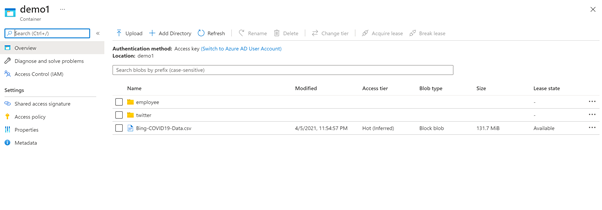
You have a data lake that contains employee and social feed data. You have data residing in an employee folder that is used by HR team members and twitter for live social feeds that is usually used by marketing folks. If you use SAS token or RBAC, you cannot control to the folder level.
How do you allow users to perform data exploration using synapse serverless with fine grain control on underlying storage.
Fig1. A storage account with container demo contains two folder employee and twitter.
Solution
To solve this challenge, you can use directory scoped SAS token along with database scope credentials in synapse serverless.
Directory scoped SAS provides constrained access to a single directory when using ADLS Gen2. This can be used to provide access to a directory and the files it contains. Previously a SAS could be used to provide access to a filesystem or a file but not a directory. This added flexibility allows more granular and easier access privilege assignment.
Directory scoped shared access signatures (SAS) generally available | Azure updates | Microsoft Azure
|
Storage Account
|
Container
|
Folder
|
File
|
AAD
|
YES (RBAC on Account)
|
YES (RBAC on Container)
|
YES (via POSIX ACLs)
|
YES (via POSIX ACLs)
|
Managed Identity (same as AAD)
|
YES (RBAC on Account)
|
YES (RBAC on Container)
|
YES (via POSIX ACLs)
|
YES (via POSIX ACLs)
|
SAS Token
|
YES (Scope – Account)
|
YES(Scope – Container)
|
YES (Scope – Directory and Files)
|
YES (Scope – Files)
|
For
How to create Directory based SAS token
You can do via SDK or portal. To create a SAS token via portal.
a. Navigate to the folder that you would like to provide access and right click on the folder and select generate SAS token.
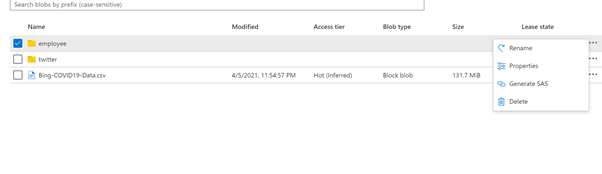
Fig 2 : Directory scope selection for employee folder
b. Select permissions Read, list and execute to read and load all the files in the folder. Provide the expiration date and click generate SAS token and URL. Copy blob SAS token.
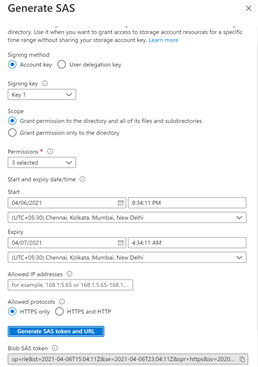
Fig 3 : Generate SAS token.
The step b. can be similar to create storage SAS token . Earlier, it used to apply to storage account, now you can reduce the surface area to directory and files as well.
Use Serverless with directory SAS token
Once the storage account access has been configured using SAS token, the next to access the data using synapse serverless engine.
On Azure synapse Studio, go to develop and SQL Script.
a. Create a master key, if it is not there.
— create master key that will protect the credentials:
CREATE MASTER KEY ENCRYPTION BY PASSWORD = <enter very strong password here>
b. Create a database scope credential using the sas token. You would like to access HR data. So use the blog storage sas token generated for Employee directory.
CREATE DATABASE SCOPED CREDENTIAL mysastokenemployee
WITH IDENTITY = ‘SHARED ACCESS SIGNATURE‘,
SECRET = ‘<blob sas token>‘
c. Create external data source till the container path demo1 and use credential mysastokenemployee
CREATE EXTERNAL DATA SOURCE myemployee
WITH ( LOCATION = ‘https:// <storageaccountname>.dfs.core.windows.net/<filesystemname>‘,
CREDENTIAL = mysastokenemployee
)
d. Once the data is created, lets read the data using OPENROWSET BULK in serverless
SELECT * FROM OPENROWSET(
BULK ‘/employee/*.csv’,
DATA_SOURCE = ‘myemployee’,
FORMAT =’CSV’,
parser_version = ‘2.0’,
HEADER_ROW = TRUE
) AS Data
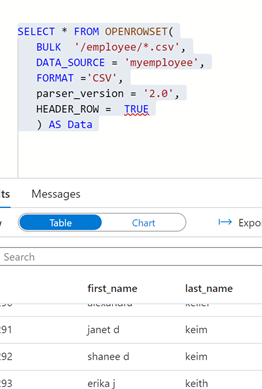
Fig 4 : Openrowset bulk output
e. Now to confirm whether the scope of the SAS token is only restricted to employee folder, lets use the same data source and database credential to access file in twitter folder.
SELECT * FROM OPENROWSET(
BULK ‘/twitter/StarterKitTerms.csv’,
DATA_SOURCE = ‘myemployee’,
FORMAT =’CSV’,
parser_version = ‘2.0’,
HEADER_ROW = TRUE
) AS Data
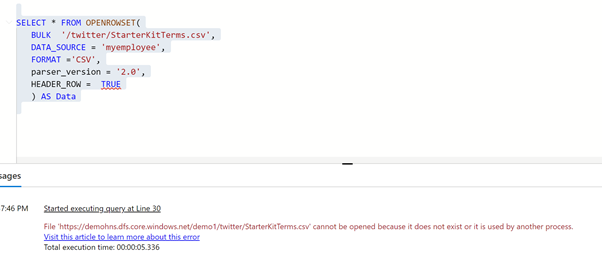
Fig 5: Bulk openrowset access failure
f. You will encounter an error because the scope of the SAS token was restricted to employee folder.
Now, to access twitter folder for the marketing representative, create a database scoped credential using a sas token for twitter folder. Repeat the steps “How to create Directory based SAS token” for twitter folder.
CREATE DATABASE SCOPED CREDENTIAL mysastokentwitter
WITH IDENTITY = ‘SHARED ACCESS SIGNATURE‘,
SECRET = ‘<blob sas token>‘
g. Create an external data source using the scope credential created for twitter directory.
CREATE EXTERNAL DATA SOURCE mytwitter
WITH ( LOCATION = ‘https://<storageaccountname>.dfs.core.windows.net/<filesystemname>/‘,
CREDENTIAL = mysastokentwitter
)
h. Once the data source is created , you can query the twitter data using newly created data source.
SELECT * FROM OPENROWSET(
BULK ‘/twitter/StarterKitTerms.csv’,
DATA_SOURCE = ‘mytwitter’,
FORMAT =’CSV’,
parser_version = ‘2.0’,
HEADER_ROW = TRUE
) AS Data
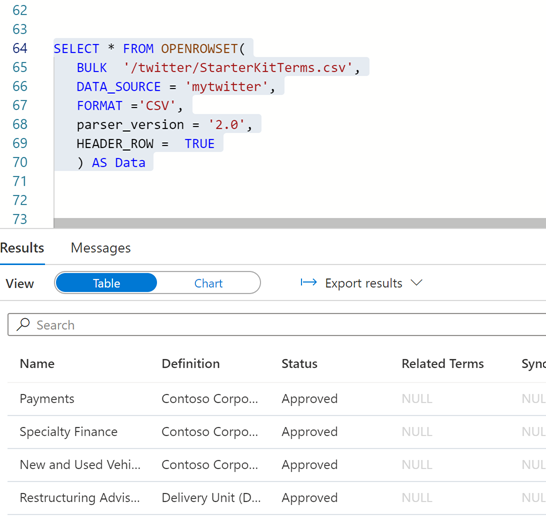
Fig 6 : Twitter data accessed using the directory sas token
Summary
- In a central data lake environment or any file store , directory sas token is a great way of reducing the access surface area without providing access at storage root or account level.
- Separation of duties and roles can be easily achieved as data access is controlled at storage level and synapse serverless
- Create sas token with read, list and execute to minimize the impact of accidental deletion etc. sharing the sas token should be done in a secured manner.
- Expire sas token, regenerate new token and recreate the scope credentials frequently.
- Serverless is great way of data exploration without spinning any additional SQL resources. You would be charged based on data processed by each query.
- Managing too many sas tokens will be challenge. So, use a hybrid approach of breaking the large data lake to smaller pools or mesh and grant RBAC access control and blend with SAS token for regulated users is best way of scaling the serverless capability.
by Contributed | Jun 1, 2021 | Technology
This article is contributed. See the original author and article here.
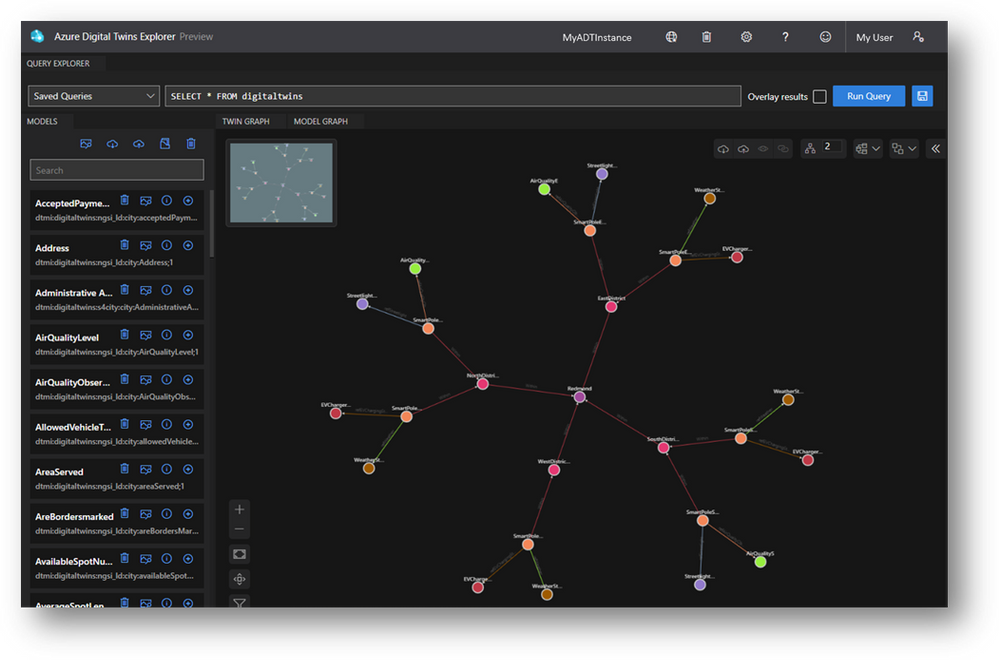
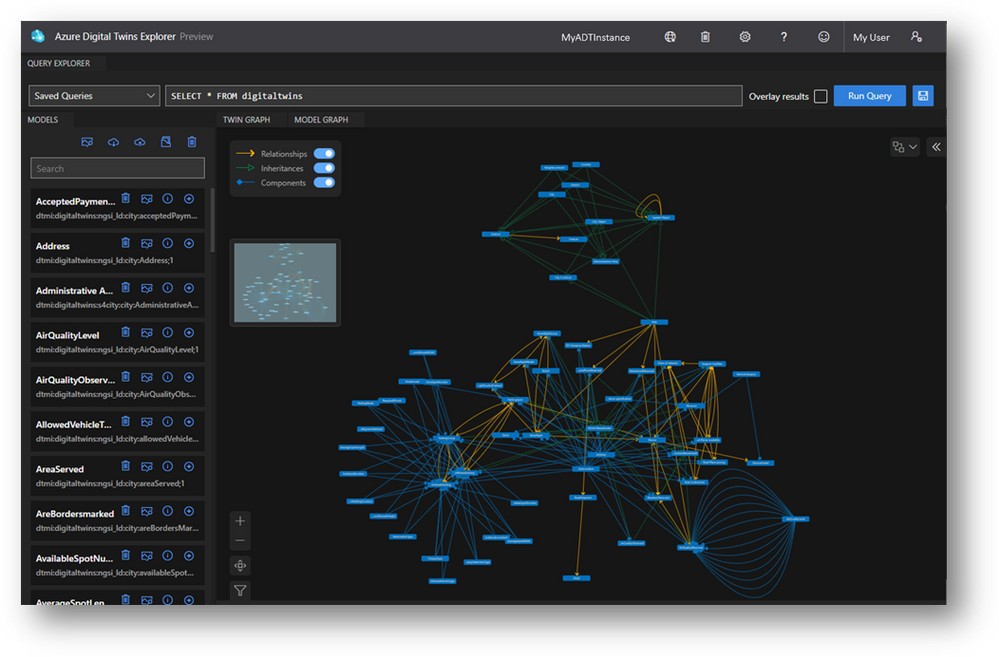
The future of IoT is inherently visual, so why isn’t our tooling? We’ve seen from very early on that Azure Digital Twins solutions are built on visual mental models, so we’ve set out to offer visual tooling with developers in mind. Instead of creating visual tooling from scratch, developers can fork and customize the digital-twins-explorer GitHub sample for their solutions. We’ve had such resounding support for this tool that we’ve taken the next step of hosting it in a web application for developers to take advantage of on Day 1. Learning and exploring Azure Digital Twins just got way easier – and even more collaborative.
Build and validate queries
It’s paramount that the queries you’re leveraging in your solution reflect the logic that you’re intending. The Query Explorer lets you intuitively validate these critical queries through both visual and JSON-structured responses, and even lets you save the queries you use often. Leverage features like Query Overlay to view query results in context of a superset graph and Filtering and Highlighting to investigate those results even further.
Prototype and test your digital twins
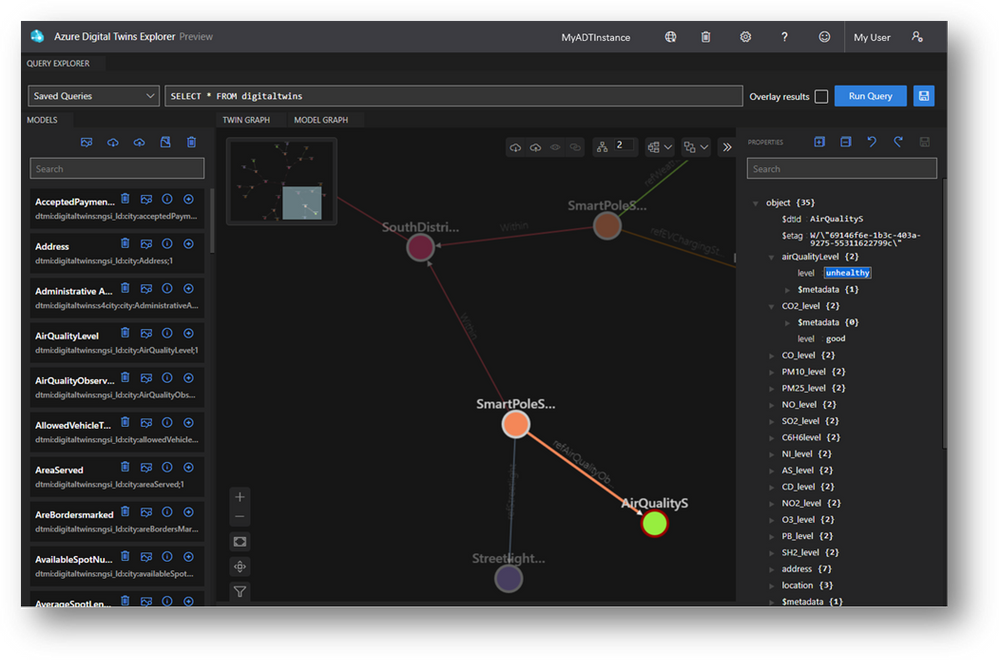
Your digital twin graph is never static – there are new machines to model, model versions to upgrade and properties being updated all the time to reflect your environment’s state. The Explorer lets you both create twins and relationships from inside the Twin Graph viewer and click into them to modify properties of all types. From creating missing relationships to testing a property-change-triggered event handler, managing properties in the Explorer makes your ad-hoc operations simpler.
Explore your model ontology
Model graphs can be large and complex, especially with more real-world domains being modeled – like parking infrastructure and weather data in a Smart City. Whether you’re authoring your own ontology or leveraging the industry-standard ontologies, the Model Graph viewer helps you understand your ontology at a high level and drill into the models with filtering and highlighting.
Now, more collaborative!
Importing and exporting your digital twin graph has already made it far easier to share the current state of your modeled environment with teammates, but we’ve extended the collaborative nature of the tool. With the hosted Explorer, we’ve enabled linking to environments which lets you share a specific query of your twin graph with teammates that have access to your Azure Digital Twins instance.
Get started
Resources
by Contributed | Jun 1, 2021 | Technology
This article is contributed. See the original author and article here.
By John Mighell, Sr. Product Marketing Manager, Viva Learning Marketing Lead
Along with so many aspects of our work and personal lives, enterprise learning has undergone a massive shift in the last 18 months. As we look towards the future of work and the future of learning, one thing is certain – we’ll never go back to the way it was.
With so much accelerated forward progress, we’re more excited than ever to share our latest insights and learning product news at the upcoming Microsoft Learning Transformation Briefings.
You’ll not only hear the latest from Microsoft & LinkedIn, but also from CLOs at companies right at the forefront of the learning transformation, and from leading industry analyst Josh Bersin, as he provides insights on his new research: “Developing Capabilities for the Future: the Whole Story.”
If you haven’t signed up yet, there’s still time. The Learning Transformation Briefings start on June 2 and run through June 9 across 10 geography specific deliveries. You can register here and choose the session that works best for you.
As a critical part of our next generation employee experience approach, we’ll be discussing our journey with Microsoft Viva – toward enabling an employee experience that empowers people to be their best at work. Make sure to attend Kirk Koenigsbauer’s (Microsoft COO & CVP, Experiences + Devices) session for his deep dive on Viva Learning, including a product demo with an exciting set of new features.
By bringing learning in the flow of work with Microsoft 365, we see Viva Learning as a transformational tool for learning leaders to help build a robust learning culture. And we’re not the only ones excited. Our outstanding partner ecosystem sees a similar opportunity, and we’re thrilled to share the comments below from a few names you’ll recognize.
“The world of work is evolving at speed. The workforce, workplace and workspace are all changing the nature of work, and learning is evolving with it. We see the entire Viva suite as being a next generation solution that will transform the employee experience. With Viva Learning in particular, we’re excited to work with Microsoft on cloud-based KPMG Learning Solutions to help transform learning experiences for clients and their employees by bringing learning into the flow of their work.”
– Jens Rassloff, Global Head of Strategic Relations & Investments, KPMG

“We see Viva as a progressive EX platform that can accelerate the Workplace Experience journey for our clients – putting people at the center of the organization. With Viva Learning in particular, we’re excited to partner with Microsoft on a product that brings learning seamlessly into the flow of work, making it more accessible for employees, and easier than ever for leaders to build a learning culture.”
– Veit Siegenheim, Global Modern Workplace Solution Area Lead, Avanade & Accenture Microsoft Business Group

“Viva Learning opens new opportunities for learning in the flow of work, which is a foundational strategy of our sales L&D transformation. We look forward to the ongoing partnership with Microsoft as we explore the value to our organization.”
– Bruce Sánchez, Global Lead, Sales Learning and Development Technology, Dell Technologies Global Sales L&D

We hope to see you at the Learning Transformation Briefings. And if you’re not convinced yet, we’ll let Josh Bersin – one of our featured speakers – have the last word.
“I’m really excited about the 2021 Microsoft Learning Transformation briefings – we’ve brought together the latest research, case studies, and breakthrough new ideas to help you develop your company’s skills for the future!”
– John Bersin, Founder and Dean, Josh Bersin Academy

We’re looking forward to sharing the latest on Viva Learning, and so much more. See you there!
by Contributed | Jun 1, 2021 | Technology
This article is contributed. See the original author and article here.
The launch of Microsoft Lists and Tasks in Microsoft Teams last year added new options to an already robust catalog of Microsoft work management tools. They seemed to overlap with Microsoft To Do, Microsoft Planner, and Microsoft Project for the web, causing a lot of (understandable) confusion and questions, all of which boiled down to, “Which tool should I use?”
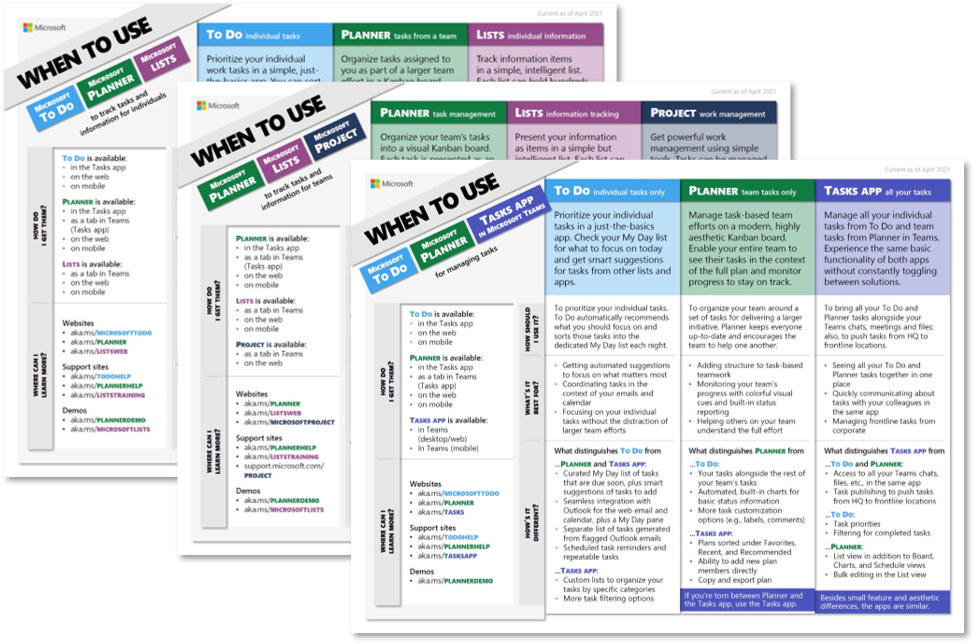
Today, we’re answering that question with three aptly named when-to-use guides. These one-page documents, which are linked below, focus on different work management scenarios and the Microsoft tools that enable them:
The goal of these guides is to help you determine the best tool for managing your work and its associated tasks and information; they are not meant as comprehensive fact sheets. Those details are available on the associated support pages, which are linked in the guides. Instead, the when-to-use guides focus on the best use for each tool and its distinguishing features. All in all, the guides are broken up into four main sections:
- General tool description
- How should I use it? Overall purpose of the tool
- What’s it best for? Scenarios where the tool excels
- How’s it different? Features that distinguish the tool from others
There’s also a pair of sections about where each tool is available (How do I get them?) and how you can find more information (Where can I learn more?).
It’s important to note that the four main sections describe each tool in the context of the others. For example, you’ll see Planner is for “visually managing simple, task-based efforts” in the guide focused on team-based work. Both Lists and Project for the web can support simple, task-based efforts too—but compared to Planner, it’s not where they excel. Lists is for tracking information and Project for the web is for managing more complex work initiatives—scenarios where Planner is not the best fit.
This approach is worth remembering as you’re reading through these guides. If you find a tool is missing a feature or obvious use case, it’s because there’s another one that’s better suited for that scenario. Again, our goal is to help you decide which tool is best for managing your work, not providing a comprehensive run-down of those tools.
The when-to-use guides are part of our ongoing journey/effort for task management. Work is more disorienting than ever these days, but Microsoft 365 helps streamline all the competing to-dos, resources, and collaboration requirements. For all the latest task management in Microsoft 365 news , continue visiting our Planner Tech Community.


Recent Comments