
This article is contributed. See the original author and article here.
Missed our recent Microsoft Reactor “Mixed Reality BizApps 101: Dynamics 365 Remote Assist Deployment Best Practices” event? We’ve got you covered! Here is a quick summary of Payge Winfield’s top 5 takeaways from the session. You can also watch the full session recording here.
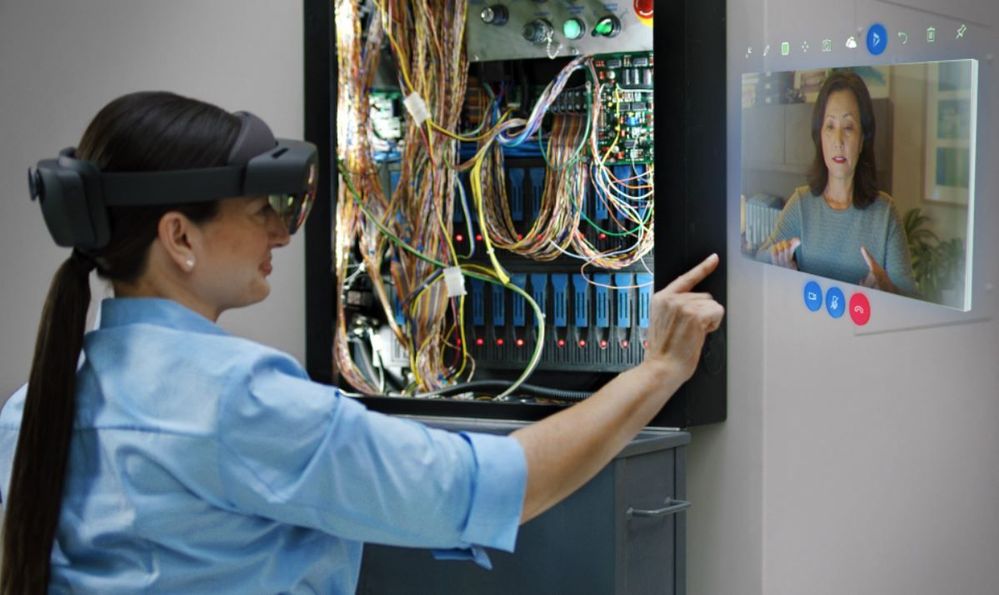 Engineer using Dynamics 365 Remote Assist
1. The Big Three
There are three common deployment scenarios that we typically see.
Scenario 1: Internal Remote Assist Communications
In this scenario Company X owns the Remote Assist and Teams licenses. Company X provides their internal users with Remote Assist and Team licenses to make internal calls to one another.
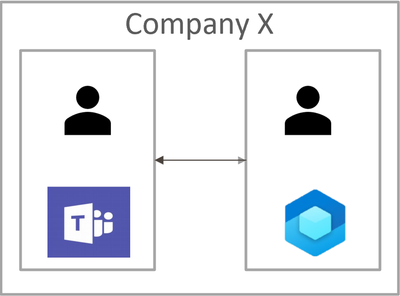
Scenario 2
In this scenario Company X owns Remote Assist licenses, and Company Y owns Teams licenses. Each company assigns their users with their respective licenses. The Remote Assist users in Company X need to communicate with the Teams users in Company Y.
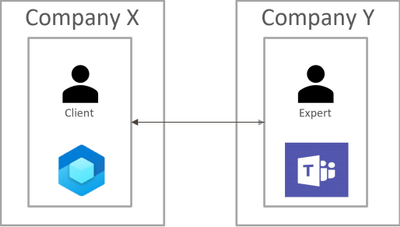
Scenario 3
In this scenario Company Y owns both the Remote Assist and Teams licenses. Company Y assigns their experts with Teams licenses. Company Y wants assign Remote Assist licenses to external clients using “service accounts“. A service account is an account in your tenant that you distribute to external users.
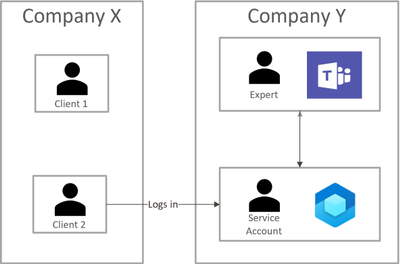
Each of these scenarios pose different concerns. The rest of this blog will highlight the top three, common concerns as well as some Do’s and Don’ts.
2. How do I Lock Down/Restrict the HoloLens?
One of the best ways to lock down the HoloLens is to use Kiosk mode and WDAC. While Kiosk Mode and WDAC are typically viewed as interchangeable methods for locking down the HoloLens device, this couldn’t be further from the truth. Both Kiosk Mode and WDAC can lock down the device, but the methods these features use differ. Kiosk Mode is a user experience feature, while WDAC is a security feature. While Kiosk Mode disables the visibility of an app to a user, WDAC places the app on an actual allow/block list.
3. How do Companies Communicate with Each Other?
In scenario 2, Company X (Remote Assist user) and Company Y (Teams user) both owned their own licenses. However, it is important to note that Remote Assist is built on top of the Teams platform. This means that Remote Assist will honor any communication (federation) configurations that are implemented by Teams.
Specifically, there are three methods that Company X and Company Y can use to communicate with each other:
- Both companies enable open federation – which is the default setting in Teams.
- Both companies ensure that they are federated with one another. More specifically, each company needs to add the other to their “Allow” list or remove them from their “Block” list.
- Company X (the person with Remote Assist) can guest Company Y (Teams) users into their tenant.
4. Mobile Device Management (MDM) Recommendations
Managing HoloLens devices is an important step in deploying at scale. Below are some recommendations for CSPs (Configuration Service Providers) to deploy to HoloLens 2 devices.
- Wi-Fi profiles and device-based certificates
- Tenant locking the device ensures that nefarious actors (Company Z) cannot wipe a HoloLens device and enroll it into their own company’s tenant
- Manage OS updates with Update/AllowAutoUpdates
To learn more about CSPs, please check out our documentation:
Policies in Policy CSP supported by HoloLens 2 – Windows Client Management | Microsoft Docs
Configuration service provider reference – Windows Client Management | Microsoft Docs
5. Do’s and Don’ts
Last – but not least – it is important to keep these do’s and don’ts in mind when deploying HoloLens devices.
Do’s | Don’ts |
|
|
Here are some other documents that I highly recommend reading in your HoloLens + Remote Assist deployment journey. Thanks for reading!
- Deployment Guide | Microsoft Docs
- Deployment Guide – Cloud connected HoloLens 2 with Remote Assist – Overview | Microsoft Docs
- Overview of Dynamics 365 Remote Assist on HoloLens and HoloLens 2 – Dynamics 365 Mixed Reality | Microsoft Docs
#MixedRealityBizApps #RemoteAssist #Deployment
Brought to you by Dr. Ware, Microsoft Office 365 Silver Partner, Charleston SC.

Recent Comments