
by Contributed | May 6, 2021 | Technology
This article is contributed. See the original author and article here.
Forgetting to take action on a message, or where that message was?
For busy people who have their lives invested in Microsoft Teams, whether collaborating with colleagues in Team Channels or using the Chat functionality, it’s easy to forget:
- To take action or reply to a message
- The location of where that message is! Is it in a Chat, or a Team Channel? How far up do I have to scroll?
Outlook’s solution: a well trodden path for many
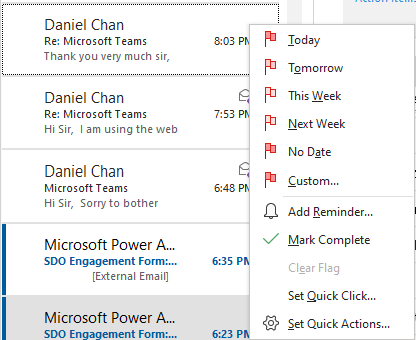 Flags in Outlook have been the bridge to emails and task management
In Outlook, there are “flags” which can be set to remind yourself to take action for a particular email.
However, this functionality is missing from Teams. Even if you are a well seasoned ToDo and Planner user, you would still have to use the Copy Link feature and paste that into the ToDo/Planner task, which can be quite tedious.
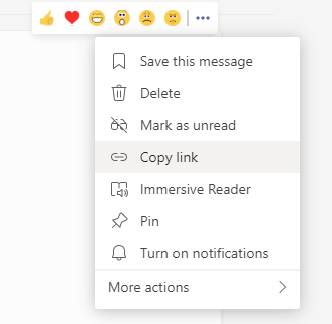 Copy link to a Teams Channel message
Plus I entering a phase where I was forgetting that I had to respond to messages. Sometimes I ended up talking to Google (I use an Android phone, so you might be talking to Siri) to remind myself, but that still doesn’t take you straight back to the original message with a single click – you still had to do a lot of navigation before you arrived at the message you were supposed to take action on.
My poor colleagues were also getting flooded with Teams messages. If they were diligent and cleared their activity bell notifications, they would potentially lose track of a visual reminder that they need to prompt them to action on a message.
So what if you just needed a simple and effective visual reminder, either at some hours/minutes down the track or at a specific time?
A Flow, some delay, and four Adaptive Cards
In comes Power Automate with a few adaptive cards to the rescue – this flow will generate a reminder via the Flow bot at a certain number of hours/minutes, or at a specified time to remind you to take action for a message!
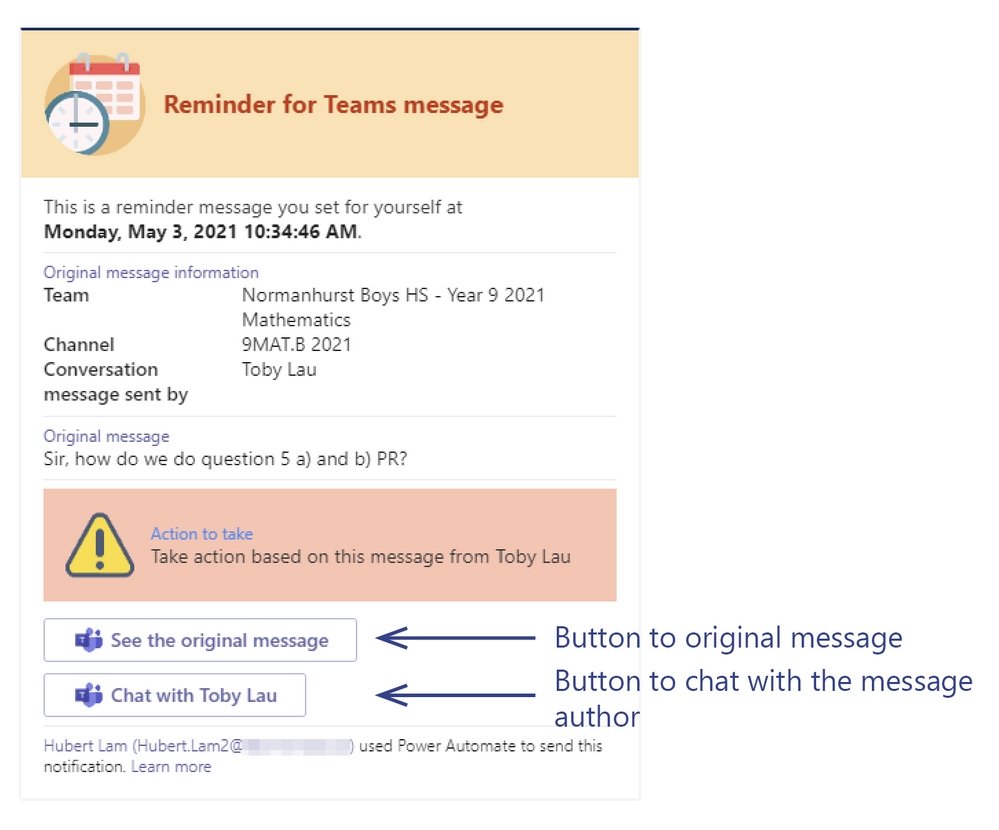 The reminder card we wish to send ourselves
The beauty of this Flow is that it will give you one-click access back to the conversation thread within the team, or back to the chat with a person or a group of people.
So in the blog post below, the Flow will be explained in greater detail, and some caveats highlighted for anyone wanting to pursue this quick reminder flow!
Note: this was partially inspired by Microsoft’s own template that you can create directly from Power Automate, but extends it to bring more flexibility to the reminder time, and also bring a far more visual experience via adaptive cards rather than just the Flow bot.
Inspired by Microsoft
When I first saw the template provided by Microsoft, I thought: this is nice, but it’s a bit too elementary with the fixed timeframes from the choice radio buttons:
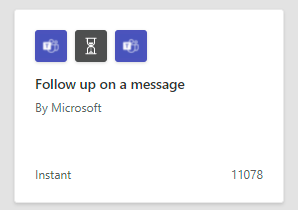 Microsoft’s own sample Flow
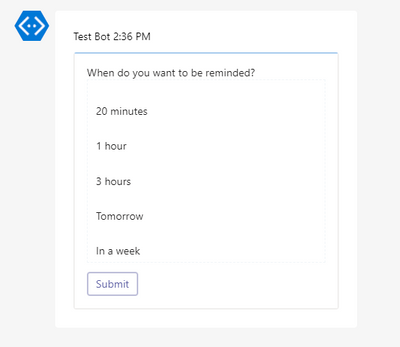 …is perhaps a bit too restrictive
However, that was definitely a starting point. The sample Flow used an adaptive card (with some Input.Choice options) and a Delay action. Why not take this further?
Ingredients
Here’s the “ingredients” needed for the flow to allow ourselves to set a reminder at a particular hour/minute offset from now OR at a specific time:
- One to get user input regarding when they’d like to be reminded
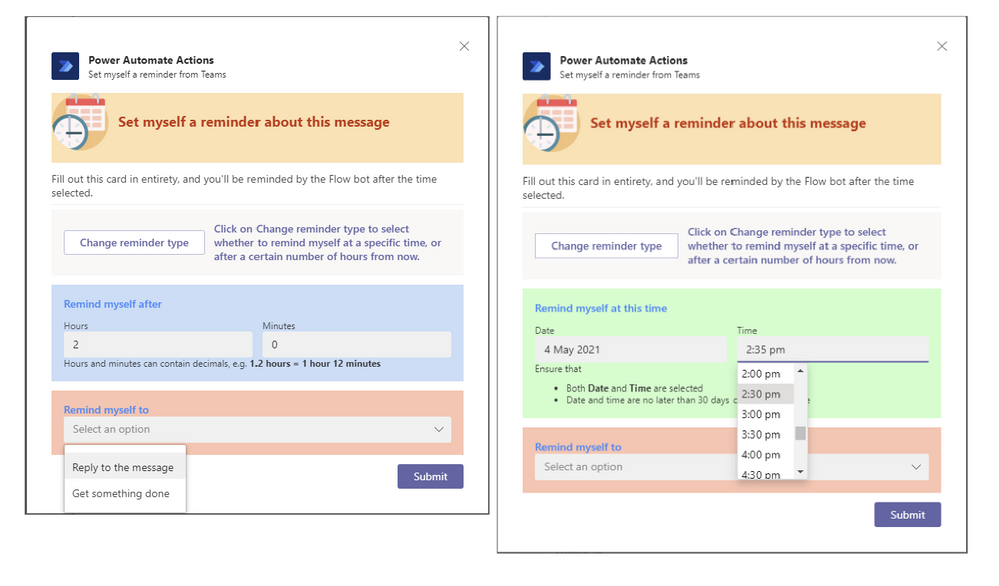 The reminder setting card can accept an hour/minute offset or absolute time as input
- One for the reminder itself:
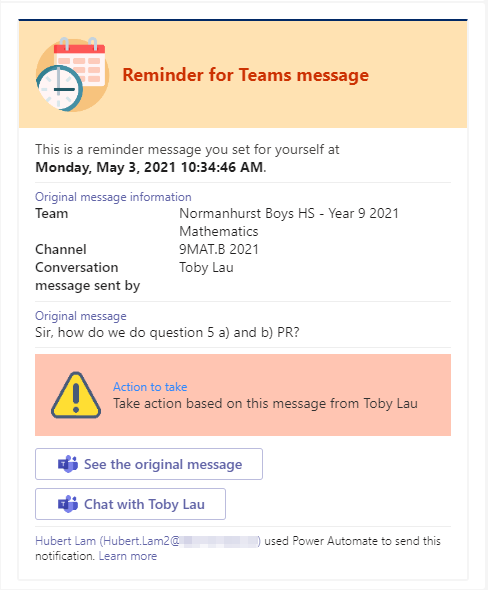 The reminder card itself, with links to the original message and chat with message author
- Two other cards which are for catching errors:
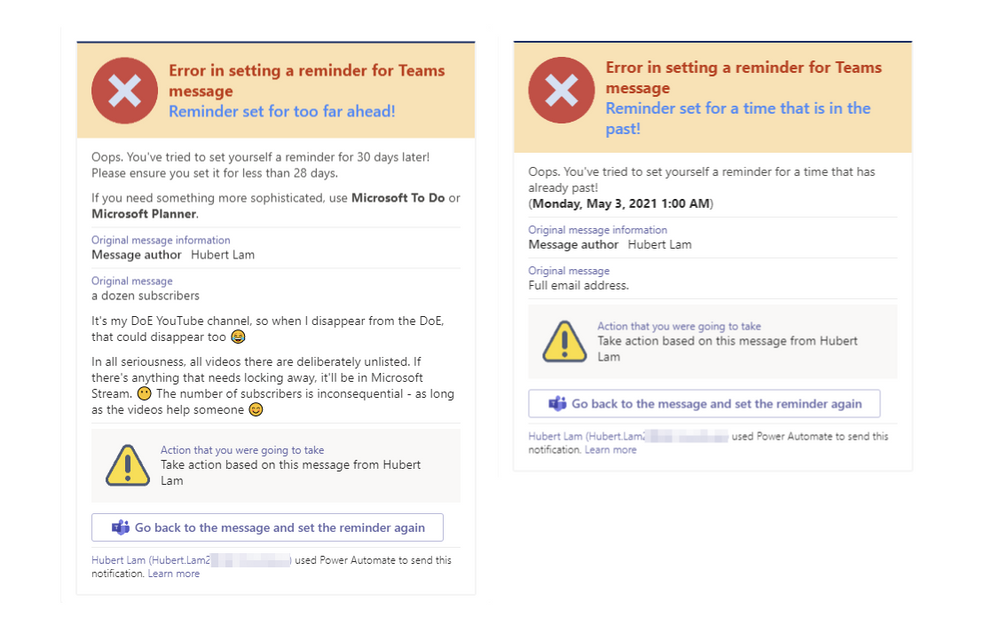 Cards reminding users of input error
The Flow
1. Data entry card
So the concept is basically taken from what Microsoft provided, but here we extend the adaptive card by using an Action.ToggleVisibility button to show and hide parts of a card: the relative time entry and the absolute time entry containers, in blue and green respectively:
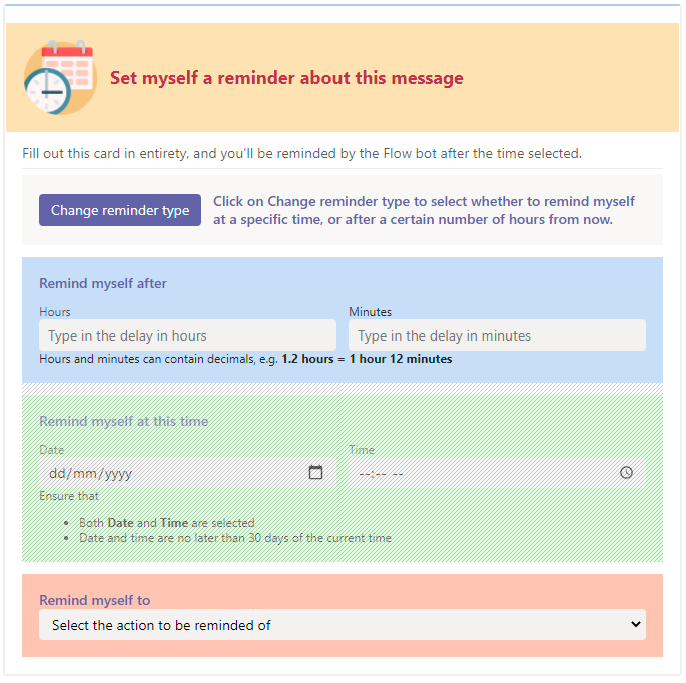 The reminder setting card, with an initially invisible container
The Change reminder type button within the gray container is Action.ToggleVisibility button that you can add from the card elements bar on the left of the adaptive card designer screen. The JSON code looks like this:
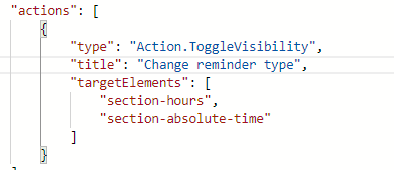
The action button targets the section-hours (blue) and section-absolute-time (green) containers – i.e. when pressed, turns the visibility of section-hours off and section-absolute-time (as the respective ids of the containers) on, and vice versa. The blue and green containers are never on at the same time.
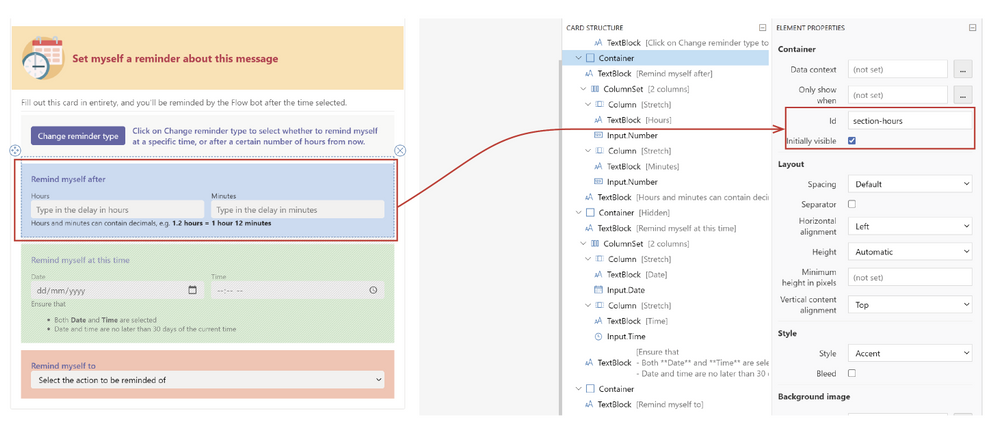 The ID and initial visibility of the blue container
For the Change reminder type button to turn the blue and green containers on and off, the Initially visible checkbox must be
- Checked for the blue container
- Unchecked for the green container:
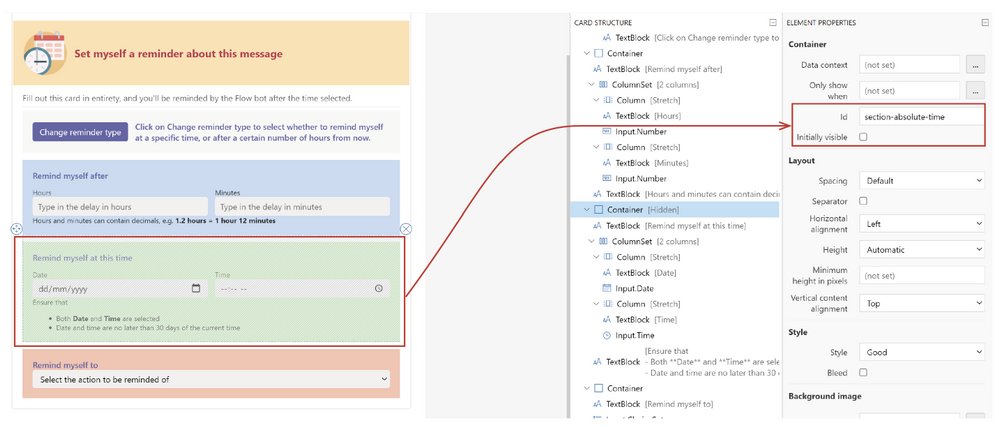 The green container should initially be invisible
Within the containers are also ColumnSets to house the fields side by side, just to make it look nice.
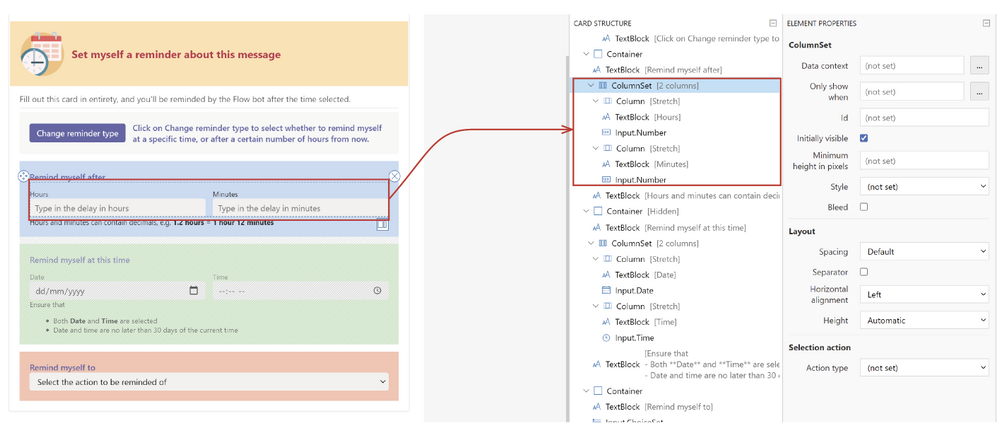 Use the ColumnSet to place fields and labels (as TextBlock) adjacent to each other
The fields also need TextBlocks above them as their labels (until we get Adaptive Cards v1.3 in Teams), as well as having some of the parameters set properly:
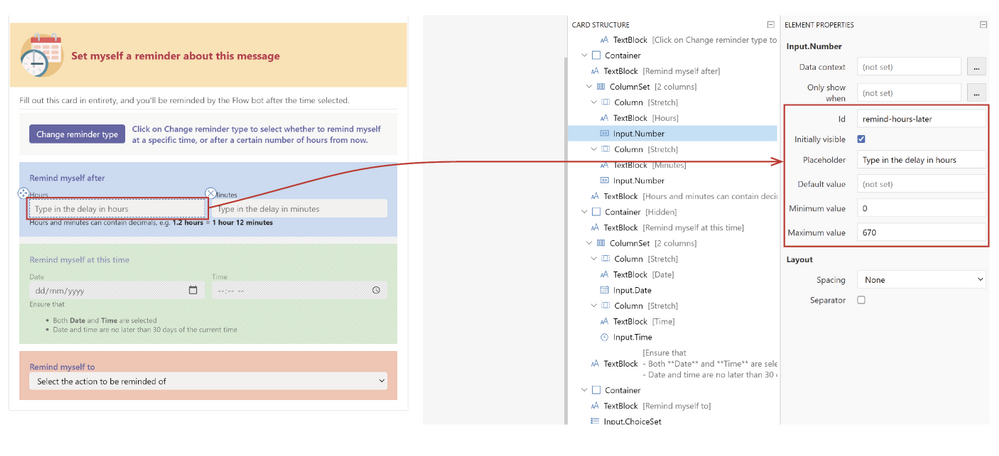 Set some restrictions on the fields, and place TextBlocks above them as labels
Finally, the orange container just contains what to remind yourself of, and has an Input.ChoiceSet to provide the dropdown menu:
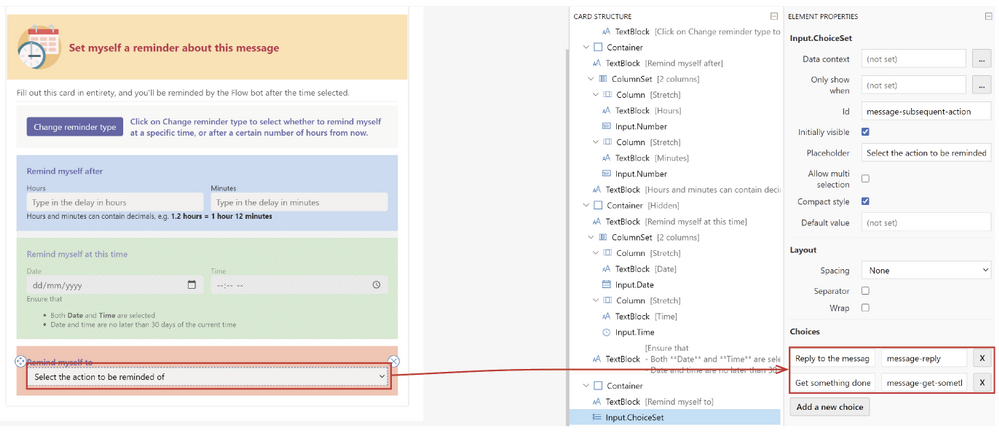 Input.ChoiceSet for dropdown menu
Below is the complete JSON code for the adaptive card that captures the user input:
{
"$schema": "http://adaptivecards.io/schemas/adaptive-card.json",
"type": "AdaptiveCard",
"version": "1.2",
"body": [
{
"type": "Container",
"bleed": true,
"style": "warning",
"items": [
{
"type": "ColumnSet",
"columns": [
{
"width": "75px",
"type": "Column",
"items": [
{
"type": "Image",
"url": "https://normanhurb-h.schools.nsw.gov.au/content/dam/doe/sws/schools/n/normanhurb-h/icons/schedule.png"
}
]
},
{
"width": "stretch",
"type": "Column",
"items": [
{
"type": "TextBlock",
"weight": "Bolder",
"size": "Large",
"text": "**Set myself a reminder about this message**",
"color": "Attention",
"fontType": "Default",
"wrap": true
}
],
"verticalContentAlignment": "Center"
}
]
}
]
},
{
"type": "TextBlock",
"isSubtle": true,
"wrap": true,
"text": "Fill out this card in entirety, and you'll be reminded by the Flow bot after the time selected."
},
{
"type": "Container",
"separator": true,
"style": "emphasis",
"items": [
{
"type": "ColumnSet",
"columns": [
{
"type": "Column",
"width": "auto",
"items": [
{
"type": "ActionSet",
"actions": [
{
"type": "Action.ToggleVisibility",
"title": "Change reminder type",
"targetElements": [
"section-hours",
"section-absolute-time"
]
}
],
"spacing": "None"
}
],
"verticalContentAlignment": "Center"
},
{
"type": "Column",
"width": "stretch",
"items": [
{
"type": "TextBlock",
"text": "Click on Change reminder type to select whether to remind myself at a specific time, or after a certain number of hours from now.",
"wrap": true,
"color": "Accent",
"weight": "Bolder"
}
],
"verticalContentAlignment": "Center"
}
]
}
]
},
{
"type": "Container",
"style": "accent",
"items": [
{
"type": "TextBlock",
"wrap": true,
"color": "Accent",
"weight": "Bolder",
"text": "Remind myself after"
},
{
"type": "ColumnSet",
"columns": [
{
"type": "Column",
"width": "stretch",
"items": [
{
"type": "TextBlock",
"text": "Hours",
"wrap": true,
"maxLines": 0,
"spacing": "None",
"isSubtle": true,
"size": "Small"
},
{
"type": "Input.Number",
"placeholder": "Type in the delay in hours",
"id": "remind-hours-later",
"spacing": "None",
"min": 0,
"max": 670
}
]
},
{
"type": "Column",
"width": "stretch",
"items": [
{
"type": "TextBlock",
"text": "Minutes",
"wrap": true,
"size": "Small"
},
{
"type": "Input.Number",
"placeholder": "Type in the delay in minutes",
"spacing": "None",
"min": 1,
"max": 59,
"id": "remind-minutes-later"
}
]
}
]
},
{
"type": "TextBlock",
"wrap": true,
"text": "Hours and minutes can contain decimals, e.g. **1.2 hours = 1 hour 12 minutes**",
"spacing": "None",
"size": "Small"
}
],
"id": "section-hours"
},
{
"type": "Container",
"style": "good",
"items": [
{
"type": "TextBlock",
"wrap": true,
"color": "Accent",
"weight": "Bolder",
"text": "Remind myself at this time"
},
{
"type": "ColumnSet",
"columns": [
{
"type": "Column",
"width": "stretch",
"items": [
{
"type": "TextBlock",
"text": "Date",
"wrap": true,
"maxLines": 0,
"spacing": "None",
"isSubtle": true,
"size": "Small"
},
{
"type": "Input.Date",
"id": "remind-date",
"spacing": "None"
}
]
},
{
"type": "Column",
"width": "stretch",
"items": [
{
"type": "TextBlock",
"text": "Time",
"wrap": true,
"maxLines": 0,
"spacing": "None",
"isSubtle": true,
"size": "Small"
},
{
"type": "Input.Time",
"id": "remind-time",
"spacing": "None"
}
]
}
]
},
{
"type": "TextBlock",
"text": "Ensure that n- Both **Date** and **Time** are selectedn- Date and time are no later than 30 days of the current time",
"wrap": true,
"size": "Small",
"spacing": "None"
}
],
"id": "section-absolute-time",
"isVisible": false
},
{
"type": "Container",
"style": "attention",
"items": [
{
"type": "TextBlock",
"wrap": true,
"color": "Accent",
"weight": "Bolder",
"text": "Remind myself to"
},
{
"type": "Input.ChoiceSet",
"choices": [
{
"title": "Reply to the message",
"value": "message-reply"
},
{
"title": "Get something done",
"value": "message-get-something-done"
}
],
"placeholder": "Select the action to be reminded of",
"spacing": "None",
"id": "message-subsequent-action"
}
]
}
]
}
2. Reminder card groundwork
After some experimentation with the For a selected message trigger for Teams, it seems that there is a good amount of dynamic content that would be useful for the reminder card:
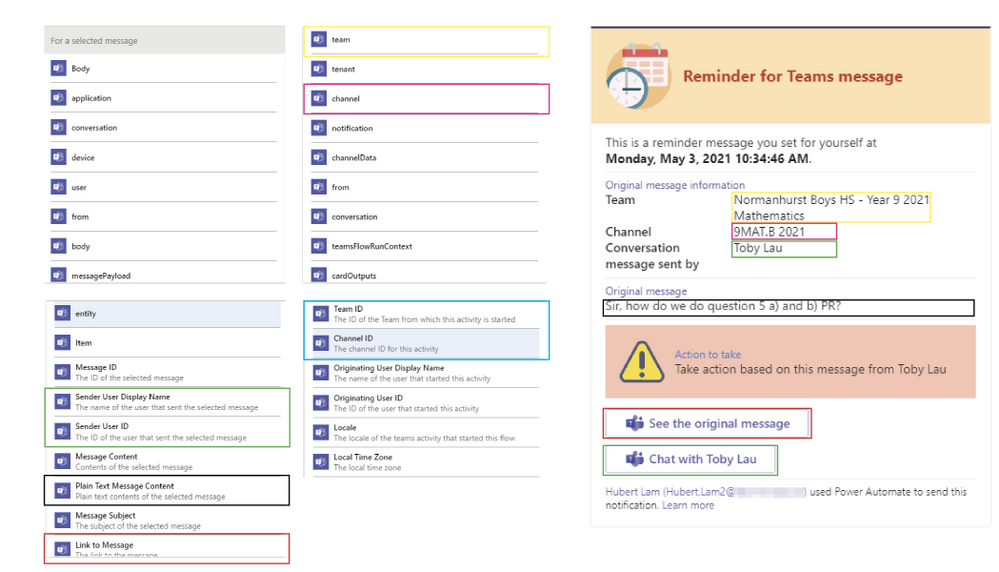 For a selected (Teams) message provides a lot of useful dynamic content
We will return to this card after looking at the upcoming sections after having a look at the actions which the flow will take.
3. Variables required
Some variables are required to hold hold some of the data:
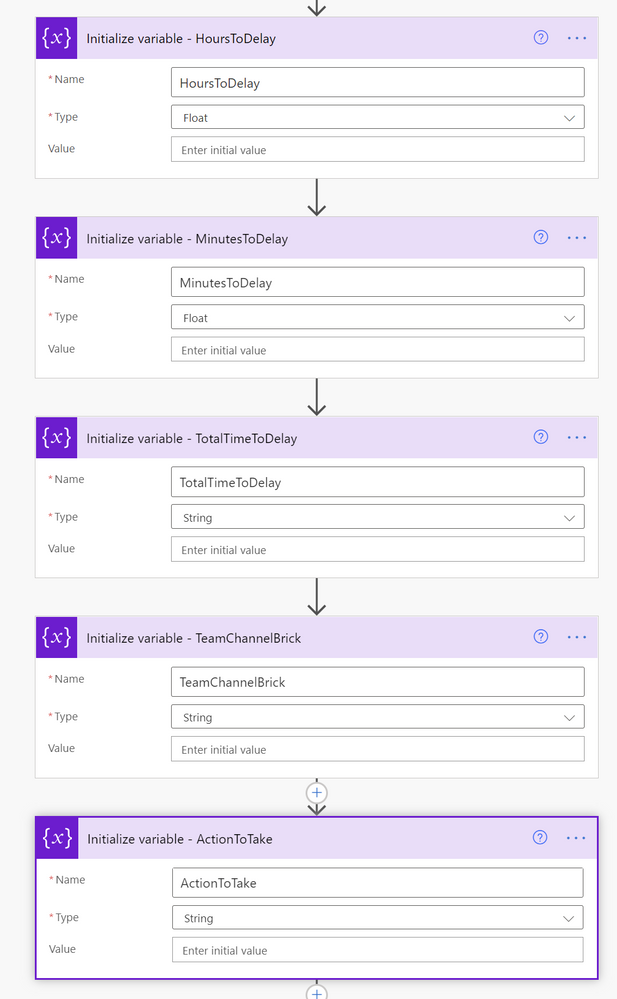 Some variables are required to hold the time information
Then we get the user profiles of the message sender and the person who initiated the flow: interestingly, only the AAD ID is available as dynamic content from the trigger, but thankfully the Get user profile (V2) action is able to handle this and return all of the information required:

4. Check for Chat or Channel conversation message and what action to take
We then build the Original message information block by testing whether the message came from a private chat, or from a Team channel with a simple check of whether the team dynamic content is null or not (input null as an expression, not dynamic content):
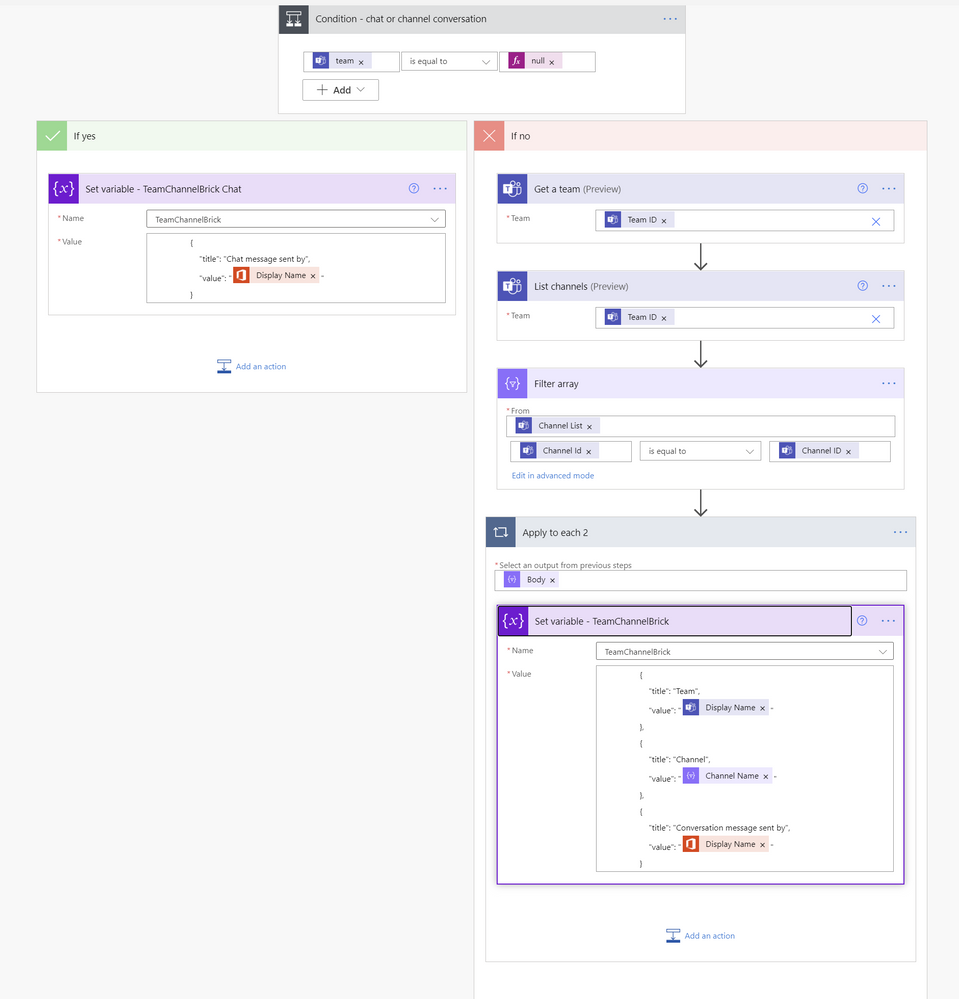 Check whether the message is in a Chat or Channel, and building the adaptive card to suit the occasion
- If the message is from a Team Channel, then the List channels action is run, and a filter applied so that only the Channel Name is extracted out of the channels of the team.
- Channel Id is from the List channels action
- Channel ID (note the case sensitivity!) is from the From a selected message action.
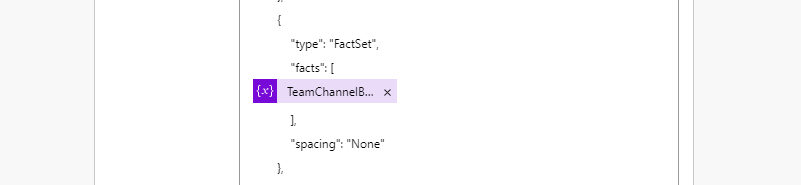
- The JSON card blocks are then saved in the TeamChannelBrick variable.
The ActionToTake variable is also populated after checking for whether it’s been left blank, or one of the selections have been made:
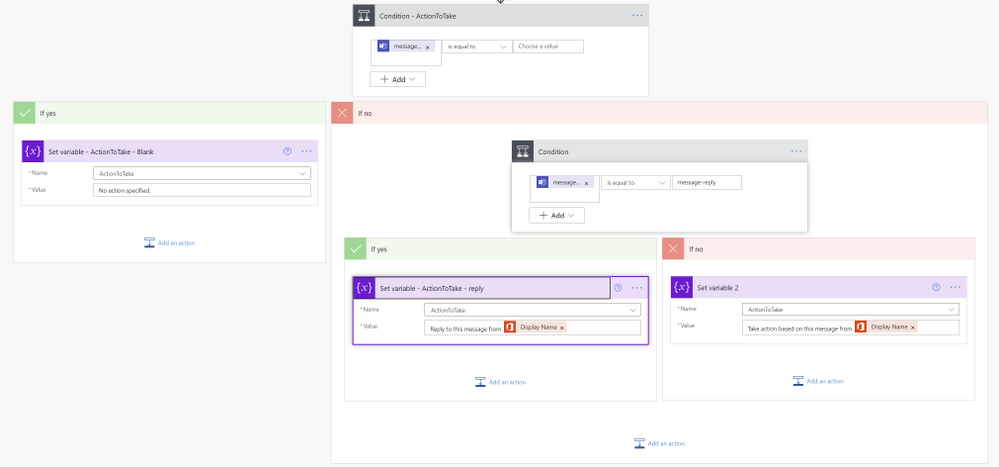 Checking whether the ActionToTake choice has been set, and building the adaptive card brick to suit the input
5. Time calculations, data types & error handling
The difficult part is this bit: making sure the user’s inputs for hours/minutes, or absolute time is valid!
We quickly check whether either date or time entered is null or not, and if so, the user probably has inputted the hour/minute offset instead since that is the default:
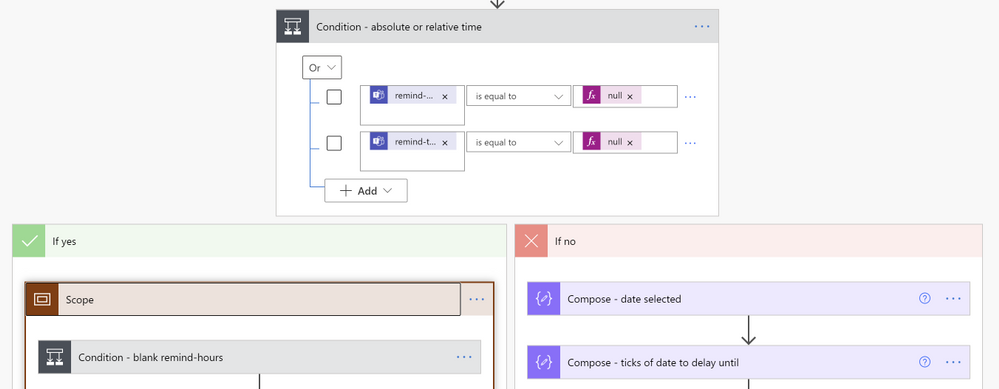 Checking to see whether absolute or relative time delay has been inputted
In the case where the user enters the hours/minutes offset to be reminded:
- Check whether the Hours entered is blank or not (note that there’s a very subtle difference between blank and null!). If so, set the HoursToDelay variable to a “0” or simply use the hours inputted.
- Check whether the Minutes entered is blank or not. If so, set the MinutesToDelay variable to a “0” or simply use the hours inputted.

Finally, the TotalTimeDelay is set to the following expression:
mul(add(mul(variables(‘HoursToDelay’),60),variables(‘MinutesToDelay’)),60)
e.g.
- multiply the number of hours by 60 to obtain the number of minutes
- add that to the number of minutes to delay by
- multiply the final result up by another 60 to obtain the number of seconds
In the case where the user specifies an absolute time to be reminded
A lot more string processing is required!
- Compose – date selected: compose the date/time that the user selected, into ISO8601 format. The caveat here: you need 7 decimal places after the seconds!
- Compose – ticks of date to delay until: find the number of ticks from the previous compose action:
ticks(outputs(‘Compose_-_date_selected’))
- Convert time zone – to UTC+10 (where I live): change this to wherever you are in the world.
- Compose – ticks of current time: get the current time’s ticks
- Compose – difference in ticks: subtract the ticks of current time (4) from the ticks of the selected time (1).
- Then check for whether the selected date is before the current time by seeing whether (5) is a negative number of not in the Condition – check selected date isn’t on or before reminder date
- Then do some final checks for whether the number of seconds falls on “0” by
- Converting the ticks into minutes/seconds (Compose – ticks to seconds)
The TotalTimeToDelay variable in this instance, should contain this expression:
add(0,div(outputs(‘Compose_-_difference_in_ticks’),10000000))
- Checking whether there’s remnant seconds (by looking for modulo 60) in Compose – modulo seconds action. If the number of seconds to delay by, falls on “0” then just add 1 more second to it in case the user enters a time which is just less than 1 minute as the div formula will only work with integers.
The TotalTimeToDelay variable in this instance, becomes this expression instead:
add(1,div(outputs(‘Compose_-_difference_in_ticks’),10000000))
The reason for this check is that the Delay action, is very fussy. It only takes integers, and can’t cope with an input of 0 (you’d think that an input of “0” into the Delay action would just cause it to continue full steam ahead instead of sitting there and waiting!)
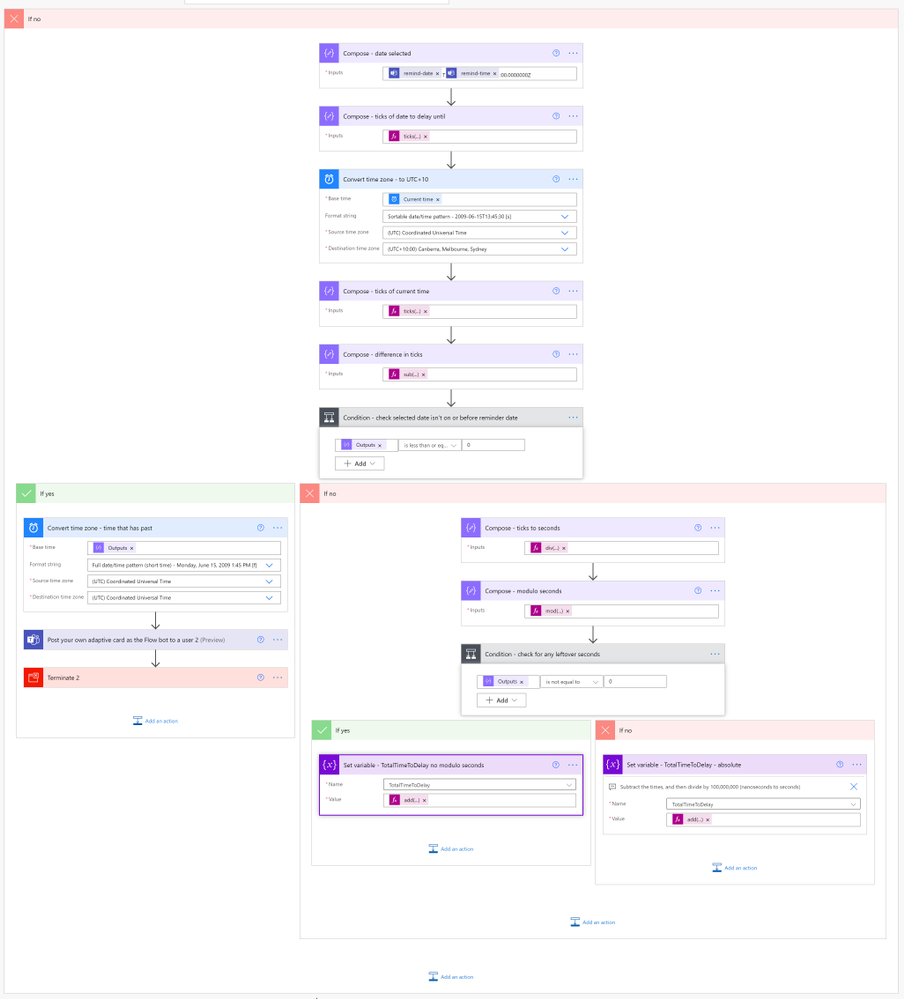 Absolute time calculations: finding out the TotalTimeToDelay
One final major condition block: check to see if the user has set a date over 28 days (or 720 hours)
We check the TotalTimeToDelay variable and see how many days it has racked up:
div(int(variables(‘TotalTimeToDelay’)),86400)
This check is needed as Power Automate will time out after 30 days. But let’s just be a little more conservative and set that at 28 days, and throw an error if so. This will ensure no reminders (especially those over 30 days) are quietly dumped without the user’s knowledge.
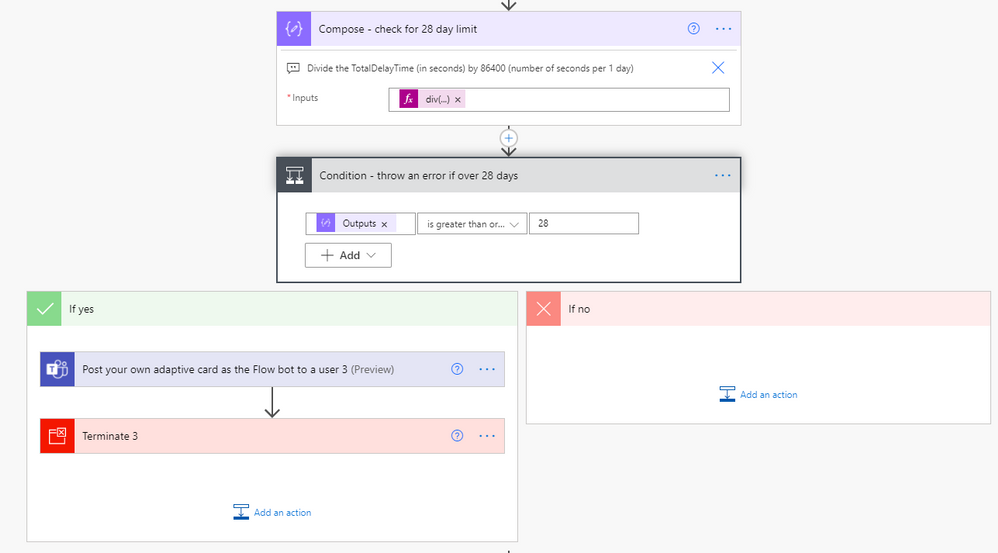 Double checking that the user has entered a date no further than 28 days out to ensure the flow doesn’t time out
The adaptive card that reports the error if a user enters a date that is greater than 28 days:
{
    "$schema": "http://adaptivecards.io/schemas/adaptive-card.json",
    "type": "AdaptiveCard",
    "version": "1.2",
    "body": [
        {
            "type": "Container",
            "bleed": true,
            "style": "warning",
            "items": [
                {
                    "type": "ColumnSet",
                    "columns": [
                        {
                            "width": "75px",
                            "type": "Column",
                            "items": [
                                {
                                    "type": "Image",
                                    "url": "https://normanhurb-h.schools.nsw.gov.au/content/dam/doe/sws/schools/n/normanhurb-h/icons/error.png"
                                }
                            ]
                        },
                        {
                            "width": "stretch",
                            "type": "Column",
                            "items": [
                                {
                                    "type": "TextBlock",
                                    "weight": "Bolder",
                                    "size": "Large",
                                    "text": "**Error in setting a reminder for Teams message**",
                                    "color": "Attention",
                                    "fontType": "Default",
                                    "wrap": true
                                },
                                {
                                    "type": "TextBlock",
                                    "text": "Reminder set for too far ahead!",
                                    "wrap": true,
                                    "size": "Large",
                                    "weight": "Bolder",
                                    "color": "Accent",
                                    "spacing": "None"
                                }
                            ],
                            "verticalContentAlignment": "Center"
                        }
                    ]
                }
            ]
        },
        {
            "type": "TextBlock",
            "isSubtle": true,
            "wrap": true,
            "text": "Oops. You've tried to set yourself a reminder for @{outputs('Compose_-_check_for_28_day_limit')} days later! Please ensure you set it for less than 28 days.nnIf you need something more sophisticated, use **Microsoft To Do** or **Microsoft Planner**."
        },
        {
            "type": "TextBlock",
            "text": "Original message information",
            "wrap": true,
            "separator": true,
            "size": "Small",
            "color": "Accent"
        },
        {
            "type": "FactSet",
            "facts": [
                {
                    "title": "Message author",
                    "value": "@{outputs('Get_user_profile_(V2)_-_person_who_typed_the_message')?['body/displayName']}"
                }
            ],
            "spacing": "None"
        },
        {
            "type": "TextBlock",
            "text": "Original message",
            "wrap": true,
            "separator": true,
            "color": "Accent",
            "size": "Small"
        },
        {
            "type": "TextBlock",
            "text": "@{triggerBody()?['entity']?['teamsFlowRunContext']?['messagePayload']?['body']?['plainText']}",
            "wrap": true,
            "spacing": "None"
        },
        {
            "type": "Container",
            "separator": true,
            "style": "emphasis",
            "items": [
                {
                    "type": "ColumnSet",
                    "columns": [
                        {
                            "type": "Column",
                            "width": "50px",
                            "items": [
                                {
                                    "type": "Image",
                                    "url": "https://normanhurb-h.schools.nsw.gov.au/content/dam/doe/sws/schools/n/normanhurb-h/icons/alert.png"
                                }
                            ]
                        },
                        {
                            "type": "Column",
                            "width": "stretch",
                            "items": [
                                {
                                    "type": "TextBlock",
                                    "text": "Action that you were going to take",
                                    "wrap": true,
                                    "separator": true,
                                    "color": "Accent",
                                    "size": "Small"
                                },
                                {
                                    "type": "TextBlock",
                                    "wrap": true,
                                    "spacing": "None",
                                    "text": "@{variables('ActionToTake')}"
                                }
                            ],
                            "verticalContentAlignment": "Center"
                        }
                    ]
                }
            ]
        },
        {
            "type": "ActionSet",
            "actions": [
                {
                    "type": "Action.OpenUrl",
                    "title": "Go back to the message and set the reminder again",
                    "iconUrl": "https://normanhurb-h.schools.nsw.gov.au/content/dam/doe/sws/schools/n/normanhurb-h/icons/teams.png",
                    "url": "@{triggerBody()?['entity']?['teamsFlowRunContext']?['messagePayload']?['linkToMessage']}"
                }
            ]
        }
    ]
}
6. The Delay vs Delay Until action
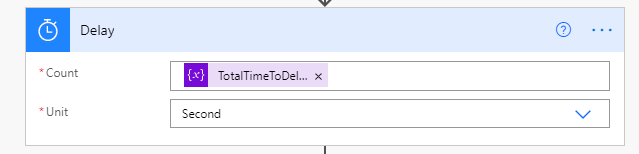 Setting the delay
We are now ready to delay the flow!
Initially there was a consideration to use the Delay Until action if the user enters an absolute date/time, until a major stumbling block was encountered: time zones!
Power Automate basically works in UTC or UTC-8, whereas I live in UTC+10. Having said that, the documentation for the Delay Until action is quite scant, and it doesn’t seem to take into consideration what timezone you are in. Hence all of the effort to subtract ticks and calculate remnant seconds etc when the user selects the date/time option.
7. Oops – don’t forget the characters that adaptive cards dislike!
Two more Compose actions are required before we pop the reminder card out, namely:
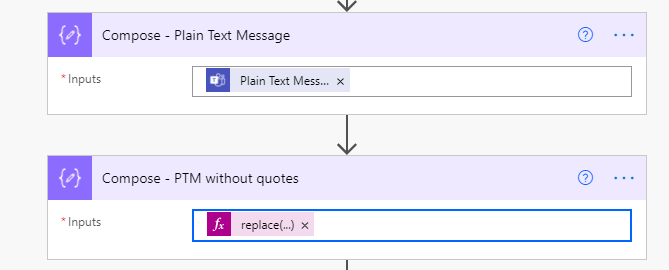
Unfortunately if you wanted to insert the Plain Text Message dynamic content into the replace formula, you’re almost out of luck. Here’s where Compose comes to the rescue. The Compose – PTM without quotes action has this in its formula:
replace(replace(outputs(‘Compose_-_Plain_Text_Message’),'” ‘,”),’ “‘,”)
which replaces every instance of space–double-quote and double-quote–space with empty strings, in order to not allow the reminder card to spit the dummy with any double quotation marks.
8. The reminder card’s code
With the TotalChannelBlock variable inserted into the appropriate location so that the correct information about the message is displayed to the user who initiated the flow:
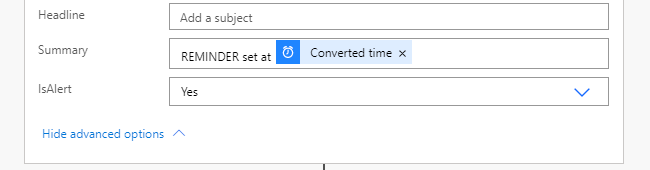
…and a summary at the bottom of the card (pop the Show advanced options open!) to ensure a summary is sent – especially useful if your smartwatch notifications rely on a summary of sorts:
{
    "$schema": "http://adaptivecards.io/schemas/adaptive-card.json",
    "type": "AdaptiveCard",
    "version": "1.2",
    "body": [
        {
            "type": "Container",
            "bleed": true,
            "style": "warning",
            "items": [
                {
                    "type": "ColumnSet",
                    "columns": [
                        {
                            "width": "75px",
                            "type": "Column",
                            "items": [
                                {
                                    "type": "Image",
                                    "url": "https://normanhurb-h.schools.nsw.gov.au/content/dam/doe/sws/schools/n/normanhurb-h/icons/schedule.png"
                                }
                            ]
                        },
                        {
                            "width": "stretch",
                            "type": "Column",
                            "items": [
                                {
                                    "type": "TextBlock",
                                    "weight": "Bolder",
                                    "size": "Large",
                                    "text": "**Reminder for Teams message**",
                                    "color": "Attention",
                                    "fontType": "Default",
                                    "wrap": true
                                }
                            ],
                            "verticalContentAlignment": "Center"
                        }
                    ]
                }
            ]
        },
        {
            "type": "TextBlock",
            "isSubtle": true,
            "wrap": true,
            "text": "This is a reminder message you set for yourself atn"
        },
        {
            "type": "TextBlock",
            "text": " **@{body('Convert_time_zone_-_time_executed')}**.",
            "wrap": true,
            "spacing": "None"
        },
        {
            "type": "TextBlock",
            "text": "Original message information",
            "wrap": true,
            "separator": true,
            "size": "Small",
            "color": "Accent"
        },
        {
            "type": "FactSet",
            "facts": [
@{variables('TeamChannelBrick')}
            ],
            "spacing": "None"
        },
        {
            "type": "TextBlock",
            "text": "Original message",
            "wrap": true,
            "separator": true,
            "color": "Accent",
            "size": "Small"
        },
        {
            "type": "TextBlock",
            "text": "@{outputs('Compose_-_PTM_without_quotes')}",
            "wrap": true,
            "spacing": "None"
        },
        {
            "type": "Container",
            "separator": true,
            "style": "attention",
            "items": [
                {
                    "type": "ColumnSet",
                    "columns": [
                        {
                            "type": "Column",
                            "width": "50px",
                            "items": [
                                {
                                    "type": "Image",
                                    "url": "https://normanhurb-h.schools.nsw.gov.au/content/dam/doe/sws/schools/n/normanhurb-h/icons/alert.png"
                                }
                            ]
                        },
                        {
                            "type": "Column",
                            "width": "stretch",
                            "items": [
                                {
                                    "type": "TextBlock",
                                    "text": "Action to take",
                                    "wrap": true,
                                    "separator": true,
                                    "color": "Accent",
                                    "size": "Small"
                                },
                                {
                                    "type": "TextBlock",
                                    "wrap": true,
                                    "spacing": "None",
                                    "text": "@{variables('ActionToTake')}"
                                }
                            ],
                            "verticalContentAlignment": "Center"
                        }
                    ]
                }
            ]
        },
        {
            "type": "ActionSet",
            "actions": [
                {
                    "type": "Action.OpenUrl",
                    "title": "See the original message",
                    "iconUrl": "https://normanhurb-h.schools.nsw.gov.au/content/dam/doe/sws/schools/n/normanhurb-h/icons/teams.png",
                    "url": "@{triggerBody()?['entity']?['teamsFlowRunContext']?['messagePayload']?['linkToMessage']}"
                },
                {
                    "type": "Action.OpenUrl",
                    "title": "Chat with @{outputs('Get_user_profile_(V2)_-_person_who_typed_the_message')?['body/displayName']}",
                    "iconUrl": "https://normanhurb-h.schools.nsw.gov.au/content/dam/doe/sws/schools/n/normanhurb-h/icons/teams.png",
                    "url": "https://teams.microsoft.com/l/chat/0/0?users=@{outputs('Get_user_profile_(V2)_-_person_who_typed_the_message')?['body/mail']}"
                }
            ]
        }
    ]
}
Thanks for reading! Hope you’ve learned loads yourself!




Recent Comments