
by Contributed | May 6, 2021 | Technology
This article is contributed. See the original author and article here.
In the past year or so, I’ve been knee-deep in Azure Synapse. I have to say, it’s been a super popular platform in Azure. Many clients are either migrating to Azure Synapse from SQL Server, data warehouse appliances or implementing net new solutions on Synapse Analytics.
One of the most asked questions or subjects that are top of mind revolves around security. As company move sensitive data to the cloud, checks and balances need to be in place to meet security requirements and the first thing that comes up is: does my data flow through the internet?
When it comes down to private endpoints, virtual networks, private and public IPs, things start getting complex…
So let’s try to make sense of all this.
Note, I will not be doing a deep dive into networking as there are people that are more knowledgeable on this subject. But, I will try to clarify to the best of my abilities
Network security
In order to expand on the topic of security and network traffic, we need to dive into network security.
This topic can be broken down in a few categories:
- Firewall
- Virtual network
- Data exfiltration
- Private endpoint
Firewall
Bing defines firewall as “… a security device that monitors and filters incoming and outgoing network traffic based on an organization’s previously established security policies. … A firewall’s main purpose is to allow non-threatening traffic in and to keep dangerous traffic out.”
In the context of Azure Synapse, it will allow you to grant or deny access to your Synapse workspace based on IP addresses. This can be effectively used to block traffic to your workspace via the internet. Normally, firewalls would control both outbound and inbound traffic, but in this case, it’s inbound only.
I’ll cover outbound later when talking about managed virtual network and data exfiltration.
When creating your workspace, you have the option to allow ALL IP address through.
IP Filtering
If you enable this option, you’ll end up with the following rule added:
 IP Filtering Rules
Note, if you don’t enable this, you will NOT be able to connect to your workspace right away. Best to keep it enabled, then go back and modify / tweak it.
See this documentation from Microsoft on Synapse workspace IP Firewall rules
Virtual Network
Virtual network will give you network isolation against other workspaces. This is accomplished by enabling the “Enable managed virtual network” option during the deployment of the workspace.
 Enable Managed Virtual Network
Alert, you can only enable this option during the creation of your workspace.
The great thing about this is it gives you all the benefits of having your workspace in a virtual network without the need to manage it. Look it up here for more details on benefits.
Data Exfiltration
Another benefit of enabling managed virtual network and private endpoints, which we’re tackling next, is that you’re now protected against data exfiltration.
Definition: occurs when malware and/or a malicious actor carries out an unauthorized data transfer from a computer. It is also commonly called data extrusion or data exportation.
In the context of Azure, protection agains data exfiltration guards against malicious insiders accessing your Azure resources and exfiltrating sensitive data to locations outside of your organization’s scope.
In addition to enabling the managed virtual network option, you can also specify which Azure Active Directory tenant your workspace can communicate with.
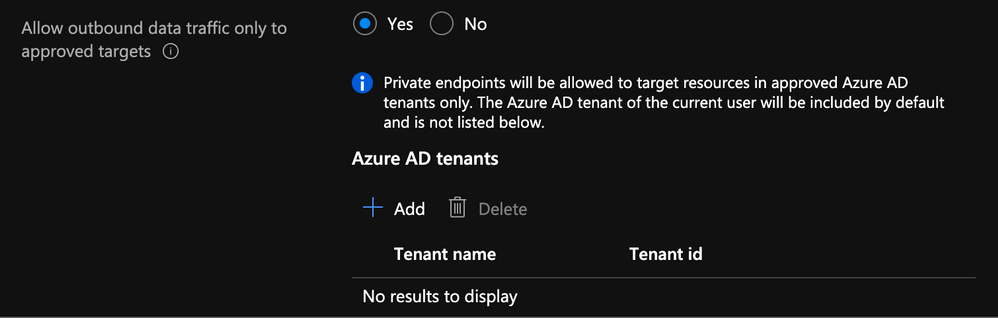 Specify AD Tenant
Check out this documentation on data exfiltration with Synapse
Private Endpoints
Microsoft defines Private Endpoints as “Azure Private Endpoint is a network interface that connects you privately and securely to a service powered by Azure Private Link. Private Endpoint uses a private IP address from your VNet, effectively bringing the service into your VNet.”
In short, you can access a public service using a private endpoint.
Every Synapse workspace comes with a few endpoints which are used to connect to from various applications:
 Synapse workspace endpoints
Dedicated SQL endpoint |
Used to connect to the Dedicated SQL Pool from external applications like Power BI, SSMS |
Serverless SQL endpoint |
Used to connect to the Serverless SQL Pool from external applications like Power BI, SSMS |
Development endpoint |
This is used by the workspace web UI as well as DevOps to execute and publish artifacts like SQL scripts, notebook. |
workspace web URL |
Used to connect to the Synapse Studio web UI |
If we take the dedicated SQL endpoint for example and we add private endpoint. What’s basically happening is when you connect to it, your request goes through a redirection to a private IP.
If you do a nslookup to the SQL endpoint, you can see it routes to the private endpoint:
nslookup synapseblog-ws.sql.azuresynapse.net
 Traceroute Output
Managed Private Endpoints
Synapse uses a managed VNET / Subnet (i.e. not a customer’s one) and exposes private endpoints in customers’ vnets as needed. This is the reason you never pick a VNET in the wizard during the creation.
Since that VNET belongs to Microsoft and is managed, it is isolated by itself. It therefore requires private endpoints from other PaaS to be created into it.
It is similar to how the managed VNET feature of Azure Data Factory operates
I have a diagram outlining all this later.
When you create a new Synapse workspace, you’ll notice in the Synapse Studio, under the manage hub, security section and managed private endpoint that 2 private endpoints were created by default.
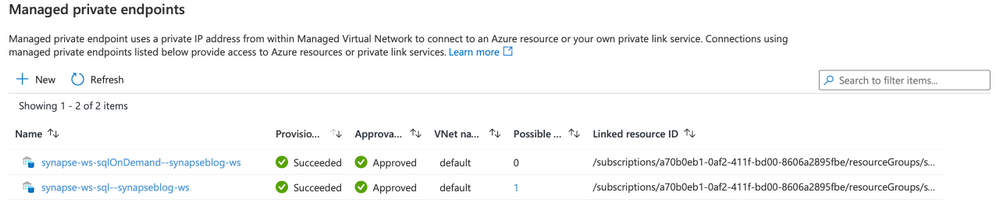 Managed Private Endpoint
Note, for the curious that noticed the private endpoint blade in Azure portal for the Synapse resource and wondering what that’s about, I’ll cover that next.
When you deploy a Synapse workspace in a managed virtual network, you need to tell Synapse how to communicate with other Azure PaaS (Platform As A Service)
Therefore, these endpoints are required by Synapse’s orchestration (the studio UI, Synapse Pipeline, etc.) to communicate with the 2 SQL pools; dedicated and serverless… This will make more sense once you see the detailed architecture diagram.
:police_car_light: Alert, one common issue I see people facing is their Spark pools not being able to read files on the storage account. This is because you need to manually create a managed service endpoint the storage account.
Check out this documentation to see how: How to create a managed private endpoint
Private Endpoint Connections
Now that we’ve covered managed private endpoints, you’re probably asking yourself why you have a private endpoint connection blade in the Azure portal for your Synapse workspace.
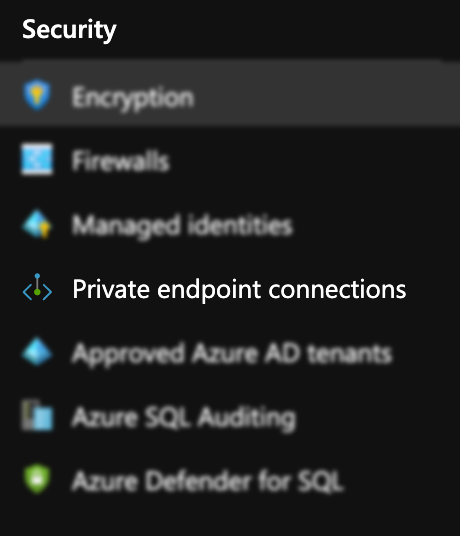 Private Endpoint Blade in Portal
Where managed private endpoints allows the workspace to connect to other PaaS services outside of its managed virtual network, private endpoint connections allow for everyone and everything to connect to Synapse endpoints using a private endpoint.
You will need to create a private endpoint for the following:
|
|
|---|
Dedicated SQL endpoint |
Select the SQL sub resource during the creation. |
Serverless SQL endpoint |
Select the SqlOnDemand sub resource during the creation |
Development endpoint |
Select the DEV sub resource during the creation. |
Private Link Hub
You might’ve noticed in the list of private endpoint, we only had 3 of them while your workspace has 4 endpoints. That’s because the studio workspace web URL will need a Private Link Hub to setup the secured connection.
Check out this document for instructions on how to set this up.
Connect to Azure Synapse Studio using Azure Private
Time to put it all together!
Now that we’ve covered firewalls, managed private endpoint, private endpoint connections and private link hub, let’s take a look how it looks when you deploy a secured end to end Synapse workspace.
 Azure Synapse Detailed Diagram
This architecture assumes the following:
You have two storage accounts, one for the workspace file system (this is required by Synapse deployment), the another, to store any audits and logs.
For each of the storage accounts, you’ve disabled access from all networks and enabled the firewall to block internet traffic.
Now let’s break this diagram down.
Synapse workspace
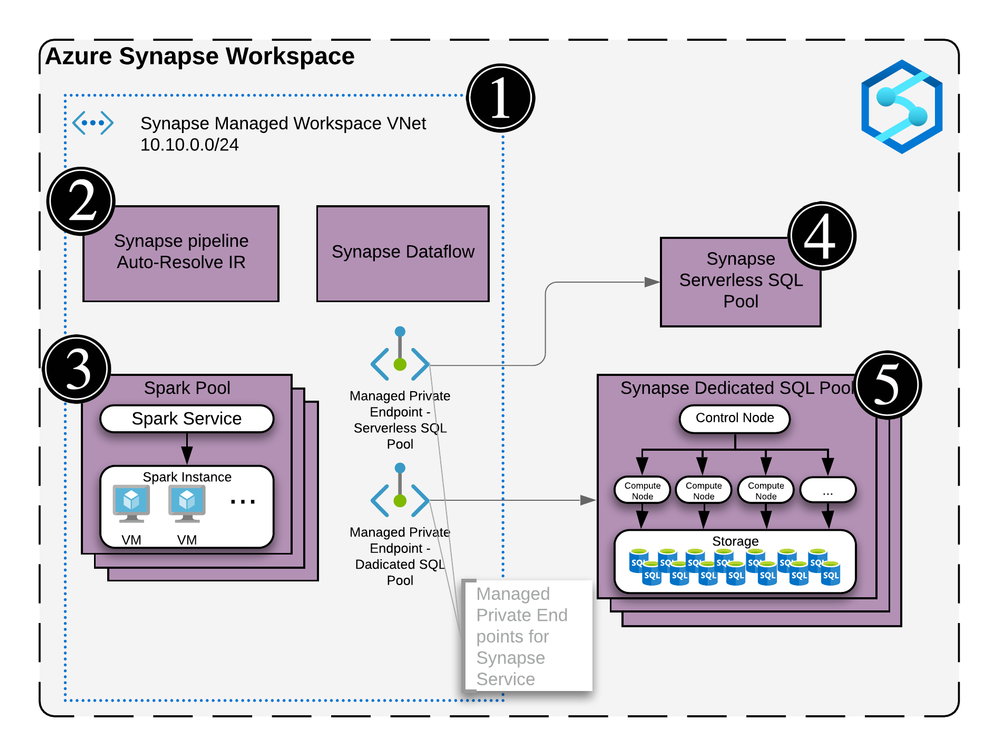 Synapse Workspace architecture
The virtual network created as part of the managed vNet workspace deployment. This vNet is managed by Microsoft and cannot be seen in the Azure portal’s resource list.
It contains the compute for the self-hosted integration runtime and the compute for the Synapse Dataflow.
Any spark pools will create virtual machines behind the scene. These will also be hosted inside the managed virtual network (vNet).
The Serverless SQL pool is a multi-tenant service and will not be physically deployed in the vNet but you can communicate with the service via private endpoints.
Same as the Serverless SQL pools, it’s a multi-tenant service and will not be physically deployed in the vNet but will communicate with the service via private endpoints.
Remember the two managed private endpoints created when you deployed your new Synapse workspace? This is why they’re created.
Synapse Studio
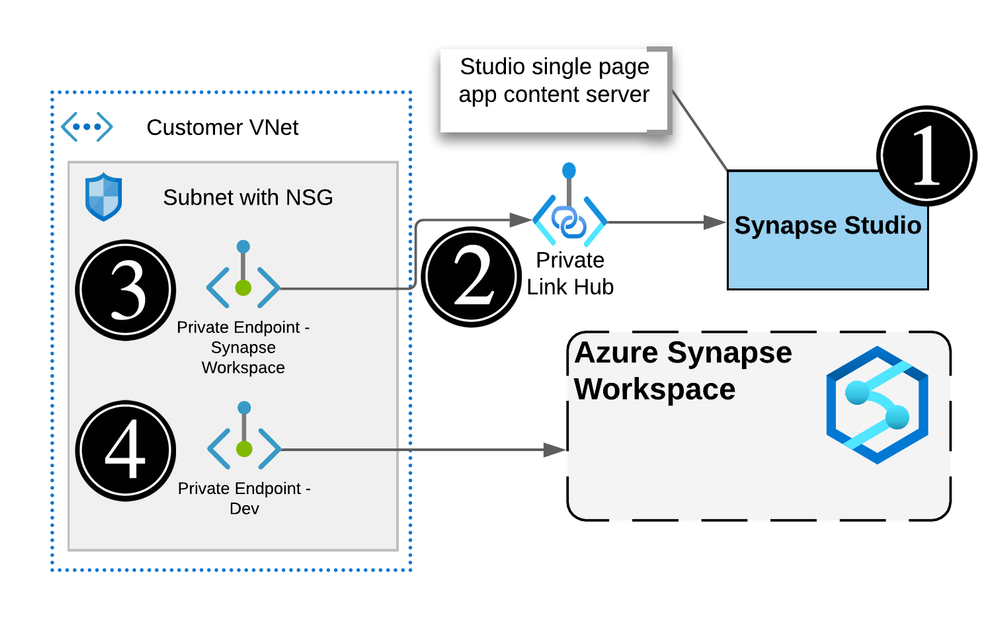 Actual Synapse Workspace architecture
The workspace studio UI is a single page application (SPA) and is created as part of the Synapse workspace deployment.
Utilizing an Azure Synpase Link Hub, you’re able to create a private endpoint into the customer’s owned vNet.
Users can connect to the Studio UI using this private endpoint.
Executions like notebooks or SQL scripts made from the Studio web interface will submit commands via the DEV private endpoint and ran on the appropriate pool.
Note, the web app for the UI will not be visible and is managed by Microsoft
Storage Accounts and Synapse
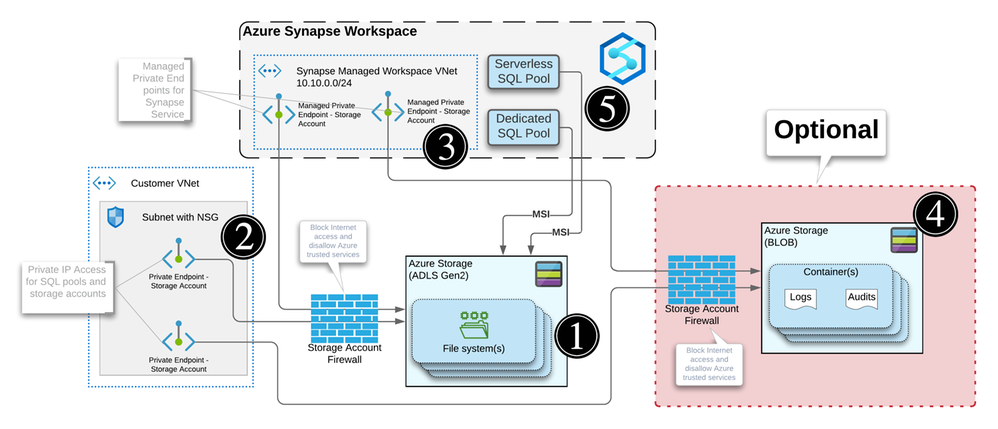 Storage Accounts Private Endpoints
For each workspace created, you will need to specify a storage account / file system with hierarchical name space enabled in order for Synapse to store its metadata.
When your storage account is configured to limit access to certain vNets, endpoints are needed to allow the connection and authentication. Similar to how Synapse needs private endpoints to communicate with the storage account, any external systems or people that need to read or write to the storage account will require a private endpoint.
Every storage accounts that you connect to your Synapse workspace via linked services will need a managed private endpoint like we mentioned previously. This applies to each service within the managed vNet.
Optional: You can use another storage account to store any logs or audits.
Note, logs and audits cannot use storage accounts with hierarchical namespace enabled. Hence the reason why we have 2 storage accounts in the diagram.
The SQL pools, which are multi-tenant services, talk to the Storage over public IPs but use trusted service based isolation. However, going over public IPs doesn’t mean data is going to the internet. Azure networking implements cold potato routing, so traffic stays on Azure backbone as long as the two entities communicating are on Azure. This can be configured within the storage account networking configuration.
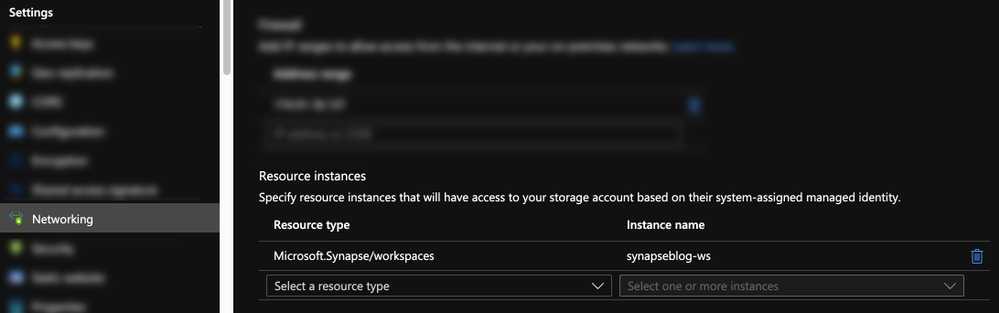 Storage Account Trusted MSI
Or can also be set during the Synapse workspace creation.
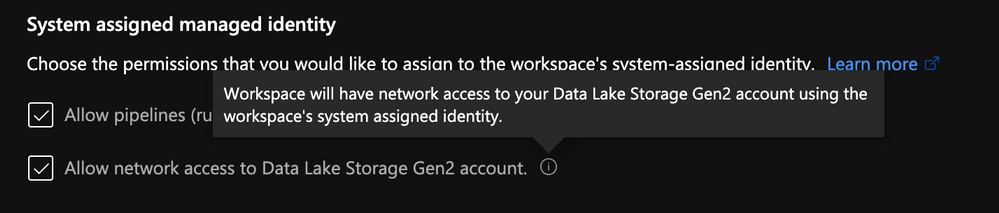 Storage Account Trusted MSI
Definition: In commercial network routing between autonomous systems which are interconnected in multiple locations, hot-potato routing is the practice of passing traffic off to another autonomous system as quickly as possible, thus using their network for wide-area transit. Cold-potato routing is the opposite, where the originating autonomous system holds onto the packet until it is as near to the destination as possible.
Private endpoints in customer-owned vNet
Like I mentioned previously for the storage accounts, private endpoints need to be created in the customer’s vNet for the following:
- Dedicated SQL Pool
- Serverless SQL Pool
- Dev
Like you can see here:
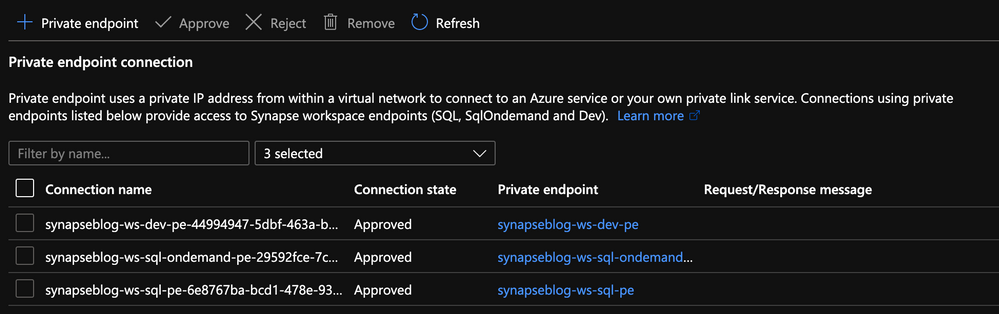 Private Endpoints created in the portal
Conclusion
Hope this helps clarifying some of the complexities of deploying a secured Synapse workspace and that you understand the nuances of each private endpoint.
The last piece of the puzzle that can cause issues would be authentication and access control.
I can’t recommend strongly enough that you go through this documentation which outlines all the steps you need to take.
How to set up access control for your Synapse workspace
Thanks!

by Contributed | May 6, 2021 | Technology
This article is contributed. See the original author and article here.
The is the first blog in a series to address long term advanced hunting capabilities using the streaming API. The primary focus will be data from Microsoft Defender for Endpoint, followed up later with posts on other data tables (i.e., Microsoft Defender for Office).
2020 saw one of the biggest supply-chain attacks in the industry (so far) with no entity immune to its effects. Over 6 months later, organizations continue to struggle with the impact of the breach – hampered by the lack the visibility and/or the retention of that data to fully eradicate the threat.
Fast-forward to 2021, customers filled some of the visibility gap with tools like an endpoint detection and response (EDR) solution. Assuming all EDR tools are all equal (they’re not), organizations could move data into a SIEM solution to extend retention and reap the traditional rewards (i.e., correlation, workflow, etc.). While this would appear to be good on paper, the reality is that keeping data for long periods of time in the SIEM is expensive.
Are there other options? Pushing data to cold storage or cheap cloud containers/blobs is a possible remedy, however what supply chain attacks have shown us is that we need a way for data to be available for hunting – data stored using these methods often require data to be hydrated before it is usable (i.e., querying) which often comes at a high operational cost. This hydration may also come over with caveats, the most prevalent one being that restored data and current data often resides on different platforms, requiring queries/IP to be re-written.
In summary, the most ideal solution would:
- Retain data for an organization’s required length of time.
- Make hydration quick, simple, scalable, and/or, always online.
- Reduce or eliminate the need for IP (queries, investigations, …) to be recreated.
The solution
Azure Data Explorer (ADX) offers a scalable and cost-effective platform for security teams to build their hunting platforms on. There are many methods to bring data to ADX but this post will be focused be the event-hub which offers terrific scalability and speed. Data from Microsoft 365 Defender (M365D – security.microsoft.com), Microsoft’s XDR solution, more specifically data from the EDR, Microsoft Defender For Endpoint (MDE – securitycenter.windows.com) will be sent to ADX to solve the aforementioned problems.
Solution architecture:
Using Microsoft Defender For Endpoint’s streaming API to an event-hub and Azure Data Explorer, security teams can have limitless query access to their data.
Questions and considerations:
- Q: Should I go from Sentinel/Azure Monitor to the event-hub (continuous export) or do I go straight to the event hub from source?
A: Continuous export currently only supports up to 10 tables and carries a cost (TBD). Consider going directly to the event-hub
IF detection and correlations are not important (if they are, go to Azure Sentinel) and cost/operational mitigation is paramount.
- Q: Are all tables supported in continuous export?
A: Not yet. The list of supported tables can be found here.
- Q: How long do I need to retain information for? How big should I make the event-hub? + + +
A: There are numerous resources to understand how to size and scale. Navigating through this document will help you at least understand how to bring data in so sizing can be done with the most accurate numbers.
Prior to starting, here are several “variables” which will be referred to. To eliminate effort around recreating queries, keep the table names the same.
- Raw table for import: XDRRaw
- Mapping for raw data: XDRRawMapping
- Event-hub resource ID: <myEHRID>
- Event-Hub name: <myEHName>
- Table names to be created:
- DeviceRegistryEvents
- DeviceFileCertificateInfo
- DeviceEvents
- DeviceImageLoadEvents
- DeviceLogonEvents
- DeviceFileEvents
- DeviceNetworkInfo
- DeviceProcessEvents
- DeviceInfo
- DeviceNetworkEvents
Step 1: Create the Event-hub
For your initial event-hub, leverage the defaults and follow the basic configuration. Remember to create the event-hub and not just the namespace. Record the values as previously mentioned – Event–hub resource ID and event-hub name.
Step 2: Enable the Streaming API in XDR/Microsoft Defender for Endpoint to Send Data to the Event-hub
Using the previously noted event-hub resource ID and name and follow the documentation to get data into the event-hub. Verify the event-hub has been created in the event-hub namespace.
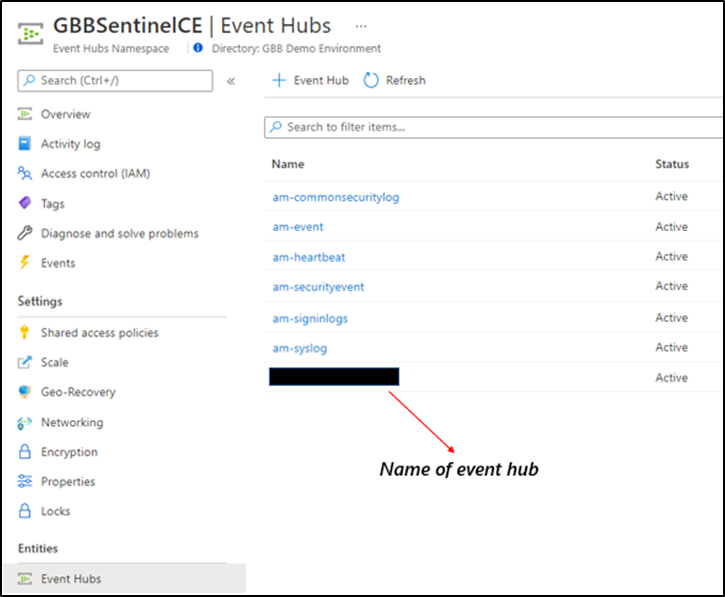 Create the event-hub namespace AND the event-hub. Record the resource ID of the namespace and name of the event-hub for use when creating the streaming API.
Step 3: Create the ADX Cluster
As with the event-hub, ADX clusters are very configurable after-the-fact and a guide is available for a simple configuration.
Step 4: Create a Data Connection to Microsoft Defender for Endpoint
Prior to creating the data connection, a staging table and mapping need to be configured. Navigate to the previously created database and select Query or from the cluster, select query, and make sure your database is highlighted.
Use the code below into the query area to create the RAW table with name XDRRaw:
//Create the staging table (use the above RAW table name)
.create table XDRRaw (Raw: dynamic)
The following will create the mapping with name XDRRawMapping:
//Pull the elements into the first column so we can parse them (use the above RAW Mapping Name)
.create table XDRRaw ingestion json mapping 'XDRRawMapping' '[{"column":"Raw","path":"$","datatype":"dynamic","transform":null}]'
With the RAW staging table and mapping function created, navigate to the database, and create a new data connection in the “Data Ingestion” setting under “Settings”. It should look as follows:
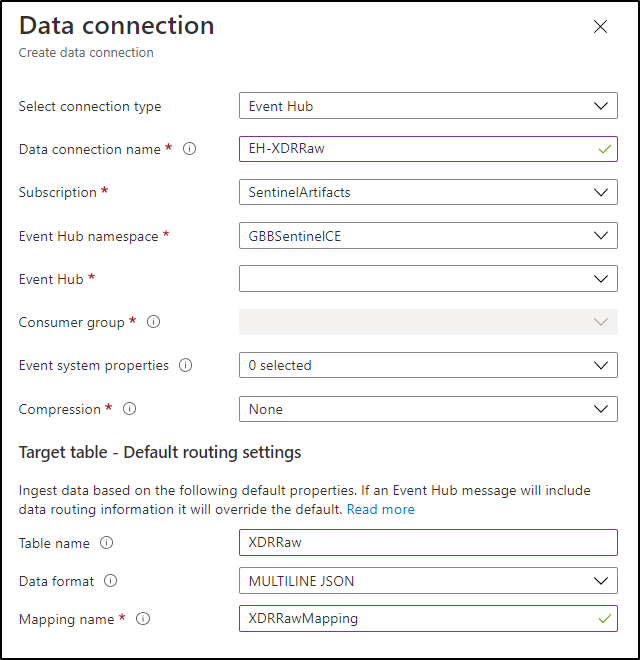 Create a data connection only after you have created the RAW table and the mapping.
NOTE: THE XDR/Microsoft Defender for Endpoint streaming API supplies multiple tables of data so using MULTILINE JSON is the data format.
If all permissions are correct, the data connection should create without issue… Congratulations! Query the RAW table to review the data sources coming in from the service with the following query:
//Here’s a list of the tables you’re going to have to migrate
XDRRaw
| mv-expand Raw.records
| project Properties=Raw_records.properties, Category=Raw_records.category
| summarize by tostring(Category)
NOTE: Be patient! ADX has a ingests in batches every 5 minutes (default) but can be configured lower however it is advised to keep the default value as lower values may result in increased latency. For more information about the batching policy, see IngestionBatching policy.
Step 4: Ingest Specified Tables
The Microsoft Defender for Endpoint data stream enables teams to pick one, some, or all tables to be exported. Copy and run the queries below (one at a time in each code block) based on which tables are being pushed to the event-hub.
DeviceEvents
//Create the parsing function
.create function with (docstring = "Filters data for Device Events for ingestion from XDRRaw", folder = "UpdatePolicies") XDRFilterDeviceEvents()
{
XDRRaw
 | mv-expand Raw.records
 | project Properties=Raw_records.properties, Category=Raw_records.category
 | where Category == "AdvancedHunting-DeviceEvents"
 | project
TenantId = tostring(Properties.TenantId),AccountDomain = tostring(Properties.AccountDomain),AccountName = tostring(Properties.AccountName),AccountSid = tostring(Properties.AccountSid),ActionType = tostring(Properties.ActionType),AdditionalFields = tostring(Properties.AdditionalFields),AppGuardContainerId = tostring(Properties.AppGuardContainerId),DeviceId = tostring(Properties.DeviceId),DeviceName = tostring(Properties.DeviceName),FileName = tostring(Properties.FileName),FileOriginIP = tostring(Properties.FileOriginIP),FileOriginUrl = tostring(Properties.FileOriginUrl),FolderPath = tostring(Properties.FolderPath),InitiatingProcessAccountDomain = tostring(Properties.InitiatingProcessAccountDomain),InitiatingProcessAccountName = tostring(Properties.InitiatingProcessAccountName),InitiatingProcessAccountObjectId = tostring(Properties.InitiatingProcessAccountObjectId),InitiatingProcessAccountSid = tostring(Properties.InitiatingProcessAccountSid),InitiatingProcessAccountUpn = tostring(Properties.InitiatingProcessAccountUpn),InitiatingProcessCommandLine = tostring(Properties.InitiatingProcessCommandLine),InitiatingProcessFileName = tostring(Properties.InitiatingProcessFileName),InitiatingProcessFolderPath = tostring(Properties.InitiatingProcessFolderPath),InitiatingProcessId = tostring(Properties.InitiatingProcessId),InitiatingProcessLogonId = tostring(Properties.InitiatingProcessLogonId),InitiatingProcessMD5 = tostring(Properties.InitiatingProcessMD5),InitiatingProcessParentFileName = tostring(Properties.InitiatingProcessParentFileName),InitiatingProcessParentId = tostring(Properties.InitiatingProcessParentId),InitiatingProcessSHA1 = tostring(Properties.InitiatingProcessSHA1),InitiatingProcessSHA256 = tostring(Properties.InitiatingProcessSHA256),LocalIP = tostring(Properties.LocalIP),LocalPort = tostring(Properties.LocalPort),LogonId = tostring(Properties.LogonId),MD5 = tostring(Properties.MD5),MachineGroup = tostring(Properties.MachineGroup),ProcessCommandLine = tostring(Properties.ProcessCommandLine),ProcessId = tostring(Properties.ProcessId),ProcessTokenElevation = tostring(Properties.ProcessTokenElevation),RegistryKey = tostring(Properties.RegistryKey),RegistryValueData = tostring(Properties.RegistryValueData),RegistryValueName = tostring(Properties.RegistryValueName),RemoteDeviceName = tostring(Properties.RemoteDeviceName),RemoteIP = tostring(Properties.RemoteIP),RemotePort = tostring(Properties.RemotePort),RemoteUrl = tostring(Properties.RemoteUrl),ReportId = tostring(Properties.ReportId),SHA1 = tostring(Properties.SHA1),SHA256 = tostring(Properties.SHA256),TimeGenerated = todatetime(Properties.Timestamp),Timestamp = todatetime(Properties.Timestamp),SourceSystem = tostring(Properties.SourceSystem),Type = tostring(Properties.Type), customerName = tostring(Properties.Customername)
}

//Create the table for DeviceEvents
.set-or-append DeviceEvents <| XDRFilterDeviceEvents()

//Set to autoupdate
.alter table DeviceEvents policy update
@'[{"IsEnabled": true, "Source": "XDRRaw", "Query": "XDRFilterDeviceEvents()", "IsTransactional": true, "PropagateIngestionProperties": true}]'
DeviceFileEvents
//Create the parsing function
.create function with (docstring = "Filters data for DeviceFileEvents for ingestion from XDRRaw", folder = "UpdatePolicies") XDRFilterDeviceFileEvents()
{
XDRRaw
 | mv-expand Raw.records
 | project Properties=Raw_records.properties, Category=Raw_records.category
 | where Category == "AdvancedHunting-DeviceFileEvents"
 | project
TenantId = tostring(Properties.TenantId),ActionType = tostring(Properties.ActionType),AdditionalFields = tostring(Properties.AdditionalFields),AppGuardContainerId = tostring(Properties.AppGuardContainerId),DeviceId = tostring(Properties.DeviceId),DeviceName = tostring(Properties.DeviceName),FileName = tostring(Properties.FileName),FileOriginIP = tostring(Properties.FileOriginIP),FileOriginReferrerUrl = tostring(Properties.FileOriginReferrerUrl),FileOriginUrl = tostring(Properties.FileOriginUrl),FileSize = tostring(Properties.FileSize),FolderPath = tostring(Properties.FolderPath),InitiatingProcessAccountDomain = tostring(Properties.InitiatingProcessAccountDomain),InitiatingProcessAccountName = tostring(Properties.InitiatingProcessAccountName),InitiatingProcessAccountObjectId = tostring(Properties.InitiatingProcessAccountObjectId),InitiatingProcessAccountSid = tostring(Properties.InitiatingProcessAccountSid),InitiatingProcessAccountUpn = tostring(Properties.InitiatingProcessAccountUpn),InitiatingProcessCommandLine = tostring(Properties.InitiatingProcessCommandLine),InitiatingProcessFileName = tostring(Properties.InitiatingProcessFileName),InitiatingProcessFolderPath = tostring(Properties.InitiatingProcessFolderPath),InitiatingProcessId = tostring(Properties.InitiatingProcessId),InitiatingProcessIntegrityLevel = tostring(Properties.InitiatingProcessIntegrityLevel),InitiatingProcessMD5 = tostring(Properties.InitiatingProcessMD5),InitiatingProcessParentFileName = tostring(Properties.InitiatingProcessParentFileName),InitiatingProcessParentId = tostring(Properties.InitiatingProcessParentId),InitiatingProcessSHA1 = tostring(Properties.InitiatingProcessSHA1),InitiatingProcessSHA256 = tostring(Properties.InitiatingProcessSHA256),InitiatingProcessTokenElevation = tostring(Properties.InitiatingProcessTokenElevation),IsAzureInfoProtectionApplied = tostring(Properties.IsAzureInfoProtectionApplied),MD5 = tostring(Properties.MD5),MachineGroup = tostring(Properties.MachineGroup),PreviousFileName = tostring(Properties.PreviousFileName),PreviousFolderPath = tostring(Properties.PreviousFolderPath),ReportId = tostring(Properties.ReportId),RequestAccountDomain = tostring(Properties.RequestAccountDomain),RequestAccountName = tostring(Properties.RequestAccountName),RequestAccountSid = tostring(Properties.RequestAccountSid),RequestProtocol = tostring(Properties.RequestProtocol),RequestSourceIP = tostring(Properties.RequestSourceIP),RequestSourcePort = tostring(Properties.RequestSourcePort),SHA1 = tostring(Properties.SHA1),SHA256 = tostring(Properties.SHA256),SensitivityLabel = tostring(Properties.SensitivityLabel),SensitivitySubLabel = tostring(Properties.SensitivitySubLabel),ShareName = tostring(Properties.ShareName),TimeGenerated =todatetime(Properties.Timestamp),Timestamp = todatetime(Properties.Timestamp),InitiatingProcessParentCreationTime = todatetime(Properties.InitiatingProcessParentCreationTime),InitiatingProcessCreationTime = todatetime(Properties.InitiatingProcessCreationTime),SourceSystem = tostring(Properties.SourceSystem),Type = tostring(Properties.Type)
}

//create table
.set-or-append DeviceFileEvents <| XDRFilterDeviceFileEvents()

//Set to autoupdate
.alter table DeviceFileEvents policy update
@'[{"IsEnabled": true, "Source": "XDRRaw", "Query": "XDRFilterDeviceFileEvents()", "IsTransactional": true, "PropagateIngestionProperties": true}]'
DeviceLogonEvents
//Create the parsing function
.create function with (docstring = "Filters data for DeviceLogonEvents for ingestion from XDRRaw", folder = "UpdatePolicies") XDRFilterDeviceLogonEvents()
{
XDRRaw
 | mv-expand Raw.records
 | project Properties=Raw_records.properties, Category=Raw_records.category
 | where Category == "AdvancedHunting-DeviceLogonEvents"
 | project
TenantId = tostring(Properties.TenantId),AccountDomain = tostring(Properties.AccountDomain),AccountName = tostring(Properties.AccountName),AccountSid = tostring(Properties.AccountSid),ActionType = tostring(Properties.ActionType),AdditionalFields = tostring(Properties.AdditionalFields),AppGuardContainerId = tostring(Properties.AppGuardContainerId),DeviceId = tostring(Properties.DeviceId),DeviceName = tostring(Properties.DeviceName),FailureReason = tostring(Properties.FailureReason),InitiatingProcessAccountDomain = tostring(Properties.InitiatingProcessAccountDomain),InitiatingProcessAccountName = tostring(Properties.InitiatingProcessAccountName),InitiatingProcessAccountObjectId = tostring(Properties.InitiatingProcessAccountObjectId),InitiatingProcessAccountSid = tostring(Properties.InitiatingProcessAccountSid),InitiatingProcessAccountUpn = tostring(Properties.InitiatingProcessAccountUpn),InitiatingProcessCommandLine = tostring(Properties.InitiatingProcessCommandLine),InitiatingProcessFileName = tostring(Properties.InitiatingProcessFileName),InitiatingProcessFolderPath = tostring(Properties.InitiatingProcessFolderPath),InitiatingProcessId = tostring(Properties.InitiatingProcessId),InitiatingProcessIntegrityLevel = tostring(Properties.InitiatingProcessIntegrityLevel),InitiatingProcessMD5 = tostring(Properties.InitiatingProcessMD5),InitiatingProcessParentFileName = tostring(Properties.InitiatingProcessParentFileName),InitiatingProcessParentId = tostring(Properties.InitiatingProcessParentId),InitiatingProcessSHA1 = tostring(Properties.InitiatingProcessSHA1),InitiatingProcessSHA256 = tostring(Properties.InitiatingProcessSHA256),InitiatingProcessTokenElevation = tostring(Properties.InitiatingProcessTokenElevation),IsLocalAdmin = tostring(Properties.IsLocalAdmin),LogonId = tostring(Properties.LogonId),LogonType = tostring(Properties.LogonType),MachineGroup = tostring(Properties.MachineGroup),Protocol = tostring(Properties.Protocol),RemoteDeviceName = tostring(Properties.RemoteDeviceName),RemoteIP = tostring(Properties.RemoteIP),RemoteIPType = tostring(Properties.RemoteIPType),RemotePort = tostring(Properties.RemotePort),ReportId = tostring(Properties.ReportId),TimeGenerated = todatetime(Properties.Timestamp),Timestamp = todatetime(Properties.Timestamp),InitiatingProcessParentCreationTime = todatetime(Properties.InitiatingProcessParentCreationTime),InitiatingProcessCreationTime = todatetime(Properties.InitiatingProcessCreationTime),SourceSystem = tostring(Properties.SourceSystem),Type = tostring(Properties.Type)
}

//create table
.set-or-append DeviceLogonEvents <| XDRFilterDeviceLogonEvents()

//Set to autoupdate
.alter table DeviceLogonEvents policy update
@'[{"IsEnabled": true, "Source": "XDRRaw", "Query": "XDRFilterDeviceLogonEvents()", "IsTransactional": true, "PropagateIngestionProperties": true}]'
DeviceRegistryEvents
//Create the parsing function
.create function with (docstring = "Filters data for DeviceRegistryEvents for ingestion from XDRRaw", folder = "UpdatePolicies") XDRFilterDeviceRegistryEvents()
{
XDRRaw
 | mv-expand Raw.records
 | project Properties=Raw_records.properties, Category=Raw_records.category
 | where Category == "AdvancedHunting-DeviceRegistryEvents"
 | project
TenantId = tostring(Properties.TenantId),ActionType = tostring(Properties.ActionType),AppGuardContainerId = tostring(Properties.AppGuardContainerId),DeviceId = tostring(Properties.DeviceId),DeviceName = tostring(Properties.DeviceName),InitiatingProcessAccountDomain = tostring(Properties.InitiatingProcessAccountDomain),InitiatingProcessAccountName = tostring(Properties.InitiatingProcessAccountName),InitiatingProcessAccountObjectId = tostring(Properties.InitiatingProcessAccountObjectId),InitiatingProcessAccountSid = tostring(Properties.InitiatingProcessAccountSid),InitiatingProcessAccountUpn = tostring(Properties.InitiatingProcessAccountUpn),InitiatingProcessCommandLine = tostring(Properties.InitiatingProcessCommandLine),InitiatingProcessFileName = tostring(Properties.InitiatingProcessFileName),InitiatingProcessFolderPath = tostring(Properties.InitiatingProcessFolderPath),InitiatingProcessId = tostring(Properties.InitiatingProcessId),InitiatingProcessIntegrityLevel = tostring(Properties.InitiatingProcessIntegrityLevel),InitiatingProcessMD5 = tostring(Properties.InitiatingProcessMD5),InitiatingProcessParentFileName = tostring(Properties.InitiatingProcessParentFileName),InitiatingProcessParentId = tostring(Properties.InitiatingProcessParentId),InitiatingProcessSHA1 = tostring(Properties.InitiatingProcessSHA1),InitiatingProcessSHA256 = tostring(Properties.InitiatingProcessSHA256),InitiatingProcessTokenElevation = tostring(Properties.InitiatingProcessTokenElevation),MachineGroup = tostring(Properties.MachineGroup),PreviousRegistryKey = tostring(Properties.PreviousRegistryKey),PreviousRegistryValueData = tostring(Properties.PreviousRegistryValueData),PreviousRegistryValueName = tostring(Properties.PreviousRegistryValueName),RegistryKey = tostring(Properties.RegistryKey),RegistryValueData = tostring(Properties.RegistryValueData),RegistryValueName = tostring(Properties.RegistryValueName),RegistryValueType = tostring(Properties.RegistryValueType),ReportId = tostring(Properties.ReportId),TimeGenerated = todatetime(Properties.Timestamp),Timestamp = todatetime(Properties.Timestamp),InitiatingProcessParentCreationTime = todatetime(Properties.InitiatingProcessParentCreationTime),InitiatingProcessCreationTime = todatetime(Properties.InitiatingProcessCreationTime),SourceSystem = tostring(Properties.SourceSystem),Type = tostring(Properties.Type)
}

//create table
.set-or-append DeviceRegistryEvents <| XDRFilterDeviceRegistryEvents()

//Set to autoupdate
.alter table DeviceRegistryEvents policy update
@'[{"IsEnabled": true, "Source": "XDRRaw", "Query": "XDRFilterDeviceRegistryEvents()", "IsTransactional": true, "PropagateIngestionProperties": true}]'
DeviceImageLoadEvents
//Create the parsing function
.create function with (docstring = "Filters data for DeviceImageLoadEvents for ingestion from XDRRaw", folder = "UpdatePolicies") XDRFilterDeviceImageLoadEvents()
{
XDRRaw
 | mv-expand Raw.records
 | project Properties=Raw_records.properties, Category=Raw_records.category
 | where Category == "AdvancedHunting-DeviceImageLoadEvents"
 | project
TenantId = tostring(Properties.TenantId),ActionType = tostring(Properties.ActionType),AppGuardContainerId = tostring(Properties.AppGuardContainerId),DeviceId = tostring(Properties.DeviceId),DeviceName = tostring(Properties.DeviceName),FileName = tostring(Properties.FileName),FolderPath = tostring(Properties.FolderPath),InitiatingProcessAccountDomain = tostring(Properties.InitiatingProcessAccountDomain),InitiatingProcessAccountName = tostring(Properties.InitiatingProcessAccountName),InitiatingProcessAccountObjectId = tostring(Properties.InitiatingProcessAccountObjectId),InitiatingProcessAccountSid = tostring(Properties.InitiatingProcessAccountSid),InitiatingProcessAccountUpn = tostring(Properties.InitiatingProcessAccountUpn),InitiatingProcessCommandLine = tostring(Properties.InitiatingProcessCommandLine),InitiatingProcessFileName = tostring(Properties.InitiatingProcessFileName),InitiatingProcessFolderPath = tostring(Properties.InitiatingProcessFolderPath),InitiatingProcessId = tostring(Properties.InitiatingProcessId),InitiatingProcessIntegrityLevel = tostring(Properties.InitiatingProcessIntegrityLevel),InitiatingProcessMD5 = tostring(Properties.InitiatingProcessMD5),InitiatingProcessParentFileName = tostring(Properties.InitiatingProcessParentFileName),InitiatingProcessParentId = tostring(Properties.InitiatingProcessParentId),InitiatingProcessSHA1 = tostring(Properties.InitiatingProcessSHA1),InitiatingProcessSHA256 = tostring(Properties.InitiatingProcessSHA256),InitiatingProcessTokenElevation = tostring(Properties.InitiatingProcessTokenElevation),MD5 = tostring(Properties.MD5),MachineGroup = tostring(Properties.MachineGroup),ReportId = tostring(Properties.ReportId),SHA1 = tostring(Properties.SHA1),SHA256 = tostring(Properties.SHA256),TimeGenerated = todatetime(Properties.Timestamp),Timestamp = todatetime(Properties.Timestamp),InitiatingProcessParentCreationTime = todatetime(Properties.InitiatingProcessParentCreationTime),InitiatingProcessCreationTime = todatetime(Properties.InitiatingProcessCreationTime),SourceSystem = tostring(Properties.SourceSystem),Type = tostring(Properties.Type)
}

//create table
.set-or-append DeviceImageLoadEvents <| XDRFilterDeviceImageLoadEvents()

//Set to autoupdate
.alter table DeviceImageLoadEvents policy update
@'[{"IsEnabled": true, "Source": "XDRRaw", "Query": "XDRFilterDeviceImageLoadEvents()", "IsTransactional": true, "PropagateIngestionProperties": true}]'
DeviceNetworkInfo
//Create the parsing function
.create function with (docstring = "Filters data for DeviceNetworkInfo for ingestion from XDRRaw", folder = "UpdatePolicies") XDRFilterDeviceNetworkInfo()
{
XDRRaw
 | mv-expand Raw.records
 | project Properties=Raw_records.properties, Category=Raw_records.category
 | where Category == "AdvancedHunting-DeviceNetworkInfo"
 | project
TenantId = tostring(Properties.TenantId),ConnectedNetworks = tostring(Properties.ConnectedNetworks),DefaultGateways = tostring(Properties.DefaultGateways),DeviceId = tostring(Properties.DeviceId),DeviceName = tostring(Properties.DeviceName),DnsAddresses = tostring(Properties.DnsAddresses),IPAddresses = tostring(Properties.IPAddresses),IPv4Dhcp = tostring(Properties.IPv4Dhcp),IPv6Dhcp = tostring(Properties.IPv6Dhcp),MacAddress = tostring(Properties.MacAddress),MachineGroup = tostring(Properties.MachineGroup),NetworkAdapterName = tostring(Properties.NetworkAdapterName),NetworkAdapterStatus = tostring(Properties.NetworkAdapterStatus),NetworkAdapterType = tostring(Properties.NetworkAdapterType),ReportId = tostring(Properties.ReportId),TimeGenerated = todatetime(Properties.Timestamp),Timestamp = todatetime(Properties.Timestamp),TunnelType = tostring(Properties.TunnelType),SourceSystem = tostring(Properties.SourceSystem),Type = tostring(Properties.Type)
}

//create table
.set-or-append DeviceNetworkInfo <| XDRFilterDeviceNetworkInfo()

//Set to autoupdate
.alter table DeviceNetworkInfo policy update
@'[{"IsEnabled": true, "Source": "XDRRaw", "Query": "XDRFilterDeviceNetworkInfo()", "IsTransactional": true, "PropagateIngestionProperties": true}]'
DeviceProcessEvents
//Create the parsing function
.create function with (docstring = "Filters data for DeviceProcessEvents for ingestion from XDRRaw", folder = "UpdatePolicies") XDRFilterDeviceProcessEvents()
{
XDRRaw
 | mv-expand Raw.records
 | project Properties=Raw_records.properties, Category=Raw_records.category
 | where Category == "AdvancedHunting-DeviceProcessEvents"
 | project
TenantId = tostring(Properties.TenantId),AccountDomain = tostring(Properties.AccountDomain),AccountName = tostring(Properties.AccountName),AccountObjectId = tostring(Properties.AccountObjectId),AccountSid = tostring(Properties.AccountSid),AccountUpn= tostring(Properties.AccountUpn),ActionType = tostring(Properties.ActionType),AdditionalFields = tostring(Properties.AdditionalFields),AppGuardContainerId = tostring(Properties.AppGuardContainerId),DeviceId = tostring(Properties.DeviceId),DeviceName = tostring(Properties.DeviceName),FileName = tostring(Properties.FileName),FolderPath = tostring(Properties.FolderPath),InitiatingProcessAccountDomain = tostring(Properties.InitiatingProcessAccountDomain),InitiatingProcessAccountName = tostring(Properties.InitiatingProcessAccountName),InitiatingProcessAccountObjectId = tostring(Properties.InitiatingProcessAccountObjectId),InitiatingProcessAccountSid = tostring(Properties.InitiatingProcessAccountSid),InitiatingProcessAccountUpn = tostring(Properties.InitiatingProcessAccountUpn),InitiatingProcessCommandLine = tostring(Properties.InitiatingProcessCommandLine),InitiatingProcessFileName = tostring(Properties.InitiatingProcessFileName),InitiatingProcessFolderPath = tostring(Properties.InitiatingProcessFolderPath),InitiatingProcessId = tostring(Properties.InitiatingProcessId),InitiatingProcessIntegrityLevel = tostring(Properties.InitiatingProcessIntegrityLevel),InitiatingProcessLogonId = tostring(Properties.InitiatingProcessLogonId),InitiatingProcessMD5 = tostring(Properties.InitiatingProcessMD5),InitiatingProcessParentFileName = tostring(Properties.InitiatingProcessParentFileName),InitiatingProcessParentId = tostring(Properties.InitiatingProcessParentId),InitiatingProcessSHA1 = tostring(Properties.InitiatingProcessSHA1),InitiatingProcessSHA256 = tostring(Properties.InitiatingProcessSHA256),InitiatingProcessTokenElevation = tostring(Properties.InitiatingProcessTokenElevation),LogonId = tostring(Properties.LogonId),MD5 = tostring(Properties.MD5),MachineGroup = tostring(Properties.MachineGroup),ProcessCommandLine = tostring(Properties.ProcessCommandLine),ProcessCreationTime = todatetime(Properties.ProcessCreationTime),ProcessId = tostring(Properties.ProcessId),ProcessIntegrityLevel = tostring(Properties.ProcessIntegrityLevel),ProcessTokenElevation = tostring(Properties.ProcessTokenElevation),ReportId = tostring(Properties.ReportId),SHA1 = tostring(Properties.SHA1),SHA256 = tostring(Properties.SHA256),TimeGenerated = todatetime(Properties.Timestamp),Timestamp = todatetime(Properties.Timestamp),InitiatingProcessParentCreationTime = todatetime(Properties.InitiatingProcessParentCreationTime),InitiatingProcessCreationTime = todatetime(Properties.InitiatingProcessCreationTime),SourceSystem = tostring(Properties.SourceSystem),Type = tostring(Properties.Type)
}

//create table
.set-or-append DeviceProcessEvents <| XDRFilterDeviceProcessEvents()

//Set to autoupdate
.alter table DeviceProcessEvents policy update
@'[{"IsEnabled": true, "Source": "XDRRaw", "Query": "XDRFilterDeviceProcessEvents()", "IsTransactional": true, "PropagateIngestionProperties": true}]'
DeviceFileCertificateInfo
//Create the parsing function
.create function with (docstring = "Filters data for DeviceFileCertificateInfo for ingestion from XDRRaw", folder = "UpdatePolicies") XDRFilterDeviceFileCertificateInfo()
{
XDRRaw
 | mv-expand Raw.records
 | project Properties=Raw_records.properties, Category=Raw_records.category
 | where Category == "AdvancedHunting-DeviceFileCertificateInfo"
 | project
TenantId = tostring(Properties.TenantId),CertificateSerialNumber = tostring(Properties.CertificateSerialNumber),CrlDistributionPointUrls = tostring(Properties.CrlDistributionPointUrls),DeviceId = tostring(Properties.DeviceId),DeviceName = tostring(Properties.DeviceName),IsRootSignerMicrosoft = tostring(Properties.IsRootSignerMicrosoft),IsSigned = tostring(Properties.IsSigned),IsTrusted = tostring(Properties.IsTrusted),Issuer = tostring(Properties.Issuer),IssuerHash = tostring(Properties.IssuerHash),MachineGroup = tostring(Properties.MachineGroup),ReportId = tostring(Properties.ReportId),SHA1 = tostring(Properties.SHA1),SignatureType = tostring(Properties.SignatureType),Signer = tostring(Properties.Signer),SignerHash = tostring(Properties.SignerHash),TimeGenerated = todatetime(Properties.Timestamp),Timestamp = todatetime(Properties.Timestamp),CertificateCountersignatureTime = todatetime(Properties.CertificateCountersignatureTime),CertificateCreationTime = todatetime(Properties.CertificateCreationTime),CertificateExpirationTime = todatetime(Properties.CertificateExpirationTime),SourceSystem = tostring(Properties.SourceSystem),Type = tostring(Properties.Type)
}

//create table
.set-or-append DeviceFileCertificateInfo <| XDRFilterDeviceFileCertificateInfo()

//Set to autoupdate
.alter table DeviceFileCertificateInfo policy update
@'[{"IsEnabled": true, "Source": "XDRRaw", "Query": "XDRFilterDeviceFileCertificateInfo()", "IsTransactional": true, "PropagateIngestionProperties": true}]'
DeviceInfo
//Create the parsing function
.create function with (docstring = "Filters data for DeviceInfo for ingestion from XDRRaw", folder = "UpdatePolicies") XDRFilterDeviceInfo()
{
XDRRaw
 | mv-expand Raw.records
 | project Properties=Raw_records.properties, Category=Raw_records.category
 | where Category == "AdvancedHunting-DeviceInfo"
 | project
TenantId = tostring(Properties.TenantId),AdditionalFields = tostring(Properties.AdditionalFields),ClientVersion = tostring(Properties.ClientVersion),DeviceId = tostring(Properties.DeviceId),DeviceName = tostring(Properties.DeviceName),DeviceObjectId= tostring(Properties.DeviceObjectId),IsAzureADJoined = tostring(Properties.IsAzureADJoined),LoggedOnUsers = tostring(Properties.LoggedOnUsers),MachineGroup = tostring(Properties.MachineGroup),OSArchitecture = tostring(Properties.OSArchitecture),OSBuild = tostring(Properties.OSBuild),OSPlatform = tostring(Properties.OSPlatform),OSVersion = tostring(Properties.OSVersion),PublicIP = tostring(Properties.PublicIP),RegistryDeviceTag = tostring(Properties.RegistryDeviceTag),ReportId = tostring(Properties.ReportId),TimeGenerated = todatetime(Properties.Timestamp),SourceSystem = tostring(Properties.SourceSystem),Type = tostring(Properties.Type)
}

//create table
.set-or-append DeviceInfo <| XDRFilterDeviceInfo()

//Set to autoupdate
.alter table DeviceInfo policy update
@'[{"IsEnabled": true, "Source": "XDRRaw", "Query": "XDRFilterDeviceInfo()", "IsTransactional": true, "PropagateIngestionProperties": true}]'
DeviceNetworkEvents
//Create the parsing function
.create function with (docstring = "Filters data for DeviceNetworkEvents for ingestion from XDRRaw", folder = "UpdatePolicies") XDRFilterDeviceNetworkEvents()
{
XDRRaw
 | mv-expand Raw.records
 | project Properties=Raw_records.properties, Category=Raw_records.category
 | where Category == "AdvancedHunting-DeviceNetworkEvents"
 | project
TenantId = tostring(Properties.TenantId),ActionType = tostring(Properties.ActionType),AdditionalFields = tostring(Properties.AdditionalFields),AppGuardContainerId = tostring(Properties.AppGuardContainerId),DeviceId = tostring(Properties.DeviceId),DeviceName = tostring(Properties.DeviceName),InitiatingProcessAccountDomain = tostring(Properties.InitiatingProcessAccountDomain),InitiatingProcessAccountName = tostring(Properties.InitiatingProcessAccountName),InitiatingProcessAccountObjectId = tostring(Properties.InitiatingProcessAccountObjectId),InitiatingProcessAccountSid = tostring(Properties.InitiatingProcessAccountSid),InitiatingProcessAccountUpn = tostring(Properties.InitiatingProcessAccountUpn),InitiatingProcessCommandLine= tostring(Properties.InitiatingProcessCommandLine),InitiatingProcessFileName = tostring(Properties.InitiatingProcessFileName),InitiatingProcessFolderPath = tostring(Properties.InitiatingProcessFolderPath),InitiatingProcessId = tostring(Properties.InitiatingProcessId),InitiatingProcessIntegrityLevel = tostring(Properties.InitiatingProcessIntegrityLevel),InitiatingProcessMD5 = tostring(Properties.InitiatingProcessMD5),InitiatingProcessParentFileName = tostring(Properties.InitiatingProcessParentFileName),InitiatingProcessParentId = tostring(Properties.InitiatingProcessParentId),InitiatingProcessSHA1 = tostring(Properties.InitiatingProcessSHA1),InitiatingProcessSHA256 = tostring(Properties.InitiatingProcessSHA256),InitiatingProcessTokenElevation = tostring(Properties.InitiatingProcessTokenElevation),LocalIP = tostring(Properties.LocalIP),LocalIPType = tostring(Properties.LocalIPType),LocalPort = tostring(Properties.LocalPort),MachineGroup = tostring(Properties.MachineGroup),Protocol = tostring(Properties.Protocol),RemoteIP = tostring(Properties.RemoteIP),RemoteIPType = tostring(Properties.RemoteIPType),RemotePort = tostring(Properties.RemotePort),RemoteUrl = tostring(Properties.RemoteUrl),ReportId = tostring(Properties.ReportId),TimeGenerated = todatetime(Properties.Timestamp),Timestamp = todatetime(Properties.Timestamp),InitiatingProcessParentCreationTime = todatetime(Properties.InitiatingProcessParentCreationTime),InitiatingProcessCreationTime = todatetime(Properties.InitiatingProcessCreationTime),SourceSystem = tostring(Properties.SourceSystem),Type = tostring(Properties.Type)
}

//create table
.set-or-append DeviceNetworkEvents <| XDRFilterDeviceNetworkEvents()

//Set to autoupdate
.alter table DeviceNetworkEvents policy update
@'[{"IsEnabled": true, "Source": "XDRRaw", "Query": "XDRFilterDeviceNetworkEvents()", "IsTransactional": true, "PropagateIngestionProperties": true}]'
Step 5: Review Benefits
With data flowing through, select any device query from the security.microsoft.com/securitycenter.windows.com portal and run it, “word for word” in the ADX portal. As an example, the following query shows devices creating a PNP device call:
DeviceEvents
| where ActionType == "PnpDeviceConnected"
| extend parsed=parse_json(AdditionalFields)
| project className=parsed.ClassName, description=parsed.DeviceDescription, parsed.DeviceId, DeviceName
In addition to being to reuse queries, if you are also using Azure Sentinel and have XDR/Microsoft Defender for Endpoint data connected, try the following:
- Navigate to your ADX cluster and get copy the scope. It will be formatted as <clusterName>.<region>/<databaseName>:
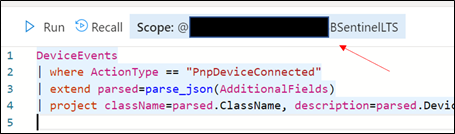 Retrieve the ADX scope for external use from Azure Sentinel.NOTE: Unlike queries in XDR/Microsoft Defender for Endpoint and Sentinel/Log Analytics, queries in ADX do NOT have a default time filter. Queries run without filters will query the entire database and likely impact performance.
- Navigate to an Azure Sentinel instance and place the query together with the adx() operator:
adx("###ADXSCOPE###").DeviceEvents
| where ActionType == "PnpDeviceConnected"
| extend parsed=parse_json(AdditionalFields)
| project className=parsed.ClassName, description=parsed.DeviceDescription, parsed.DeviceId, DeviceName
For example:

NOTE: As the ADX operator is external, auto-complete will not work.
Notice the query will complete completely but not with Azure Sentinel resources but rather the resources in ADX! (This operator is not available in Analytics rules though)
Summary
Using the XDR/Microsoft Defender for Endpoint streaming API and Azure Data Explorer (ADX), teams can very easily achieve terrific scalability on long term, investigative hunting, and forensics. Cost continues to be another key benefit as well as the ability to reuse IP/queries.
For organizations looking to expand their EDR signal and do auto correlation with 3rd party data sources, consider leveraging Azure Sentinel, where there are a number of 1st and 3rd party data connectors which enable rich context to added to existing XDR/Microsoft Defender for Endpoint data. An example of these enhancements can be found at https://aka.ms/SentinelFusion.
Additional information and references:
Special thanks to @Beth_Bischoff, @Javier Soriano, @Deepak Agrawal, @Uri Barash, and @Steve Newby for their insights and time into this post.




Recent Comments