by Contributed | Mar 17, 2021 | Technology
This article is contributed. See the original author and article here.
This week we announced the Get started with Microsoft Graph Toolkit module is available on Microsoft Learn for all learners.
The Microsoft Graph Toolkit is for developers interested in building web-based productivity and collaboration solutions in a simple way. Basically, Microsoft Graph Toolkit is a set of HTML components and authentication providers that help you build a complete experience with three lines of code.
One of the biggest issues many institutions have faced when teaching student Microsoft Graph is permissions and providing access to institutional Microsoft Graph resources.
Well this is no longer a problem, as you can now get a FREE Microsoft 365 Tenant
Step 1: tenant from Microsoft 365 Developer Program
The Microsoft 365 Developer Program provides a free Microsoft 365 tenant for everyone! The program provides a free sandbox, tools, and resources to build solutions for the Microsoft 365 platform.
1. Go to the Microsoft 365 Developer Program website and select JOIN NOW.
2. Login with a Microsoft account (work, school or personal). Once logged in, you will be directed to a page to fill out the following details:
- Country/Region
- Company
- Language Preferences
3. Make sure to select Terms & Conditions and click Next.
4. When your profile is successfully created you will be directed to the program page. Select SET UP E5 SUBSCRIPTION to create your free tenant
5. Fill in the following details and select Continue:
- Username
- Domain – must be globally unique
- Password
6. Add a phone number for security purposes and select Set up.
7. Congratulations! Your tenant and administrator account are successfully created.
Now you can use your Administrator account to build and test your solutions for Microsoft 365 Platform.
Step 2: Install Visual Studio Code
You will use Visual Studio Code while working on practice units in the learn module. Install Visual Studio Code by visiting: https://code.visualstudio.com/download.
Step 3: Install Visual Studio Code Live Server
You will need the Visual Studio Code Live Server extension to run and test your project at the end of each practice unit in the Microsoft Learn module. Install the Visual Studio Code Live Server extension from the Marketplace: https://marketplace.visualstudio.com/items?itemName=ritwickdey.LiveServer.
Let’s start your journey with Microsoft Graph Toolkit!
Now that you have all the pre-requisites squared away…are you ready to begin your journey with Microsoft Graph Toolkit? Visit the Get started with Microsoft Graph Toolkit module and start learning how to build productivity & collaboration solutions today.
Want to learn more about Microsoft Graph Toolkit?
Join us for a 2-hr livestream event on April 14 to learn together, more information coming soon via aka.ms/learntogether-graph!
Showcasing the solution built using Microsoft Graph Toolkit?
Over the next few weeks I will be showcasing some of the amazing projects students at University College London have been working on around Microsoft Graph.
If you have students building applications on Graph please reach out as we would love to showcase your curricula or student project activities.
by Contributed | Mar 17, 2021 | Technology
This article is contributed. See the original author and article here.
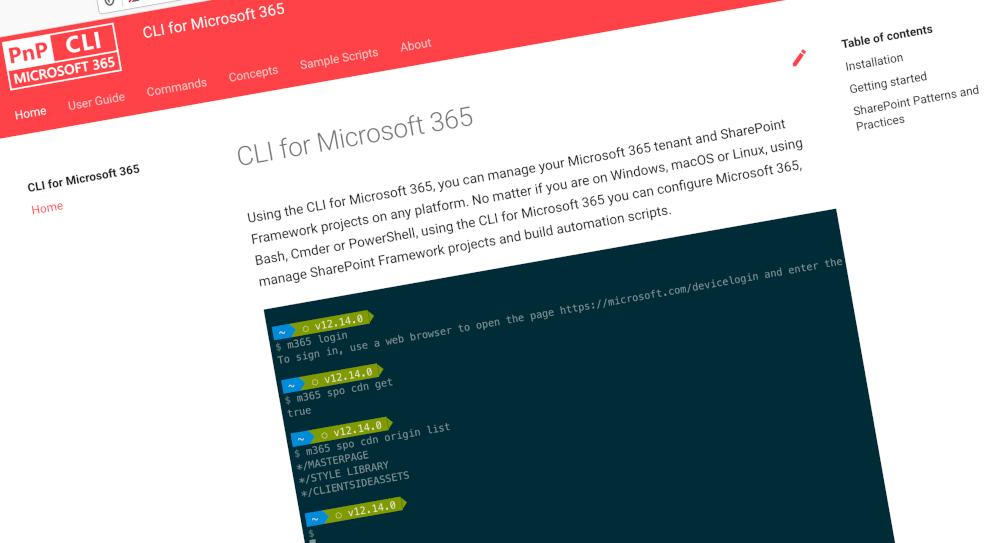
We’ve just published a new version of the CLI for Microsoft 365 with new commands for working with and managing Microsoft 365 tenants and SharePoint Framework projects on any platform.
Manage Microsoft 365 and SharePoint Framework projects on any platform
CLI for Microsoft 365 is a cross-platform CLI that allows you to manage various configuration settings of Microsoft 365 and SharePoint Framework projects no matter which operating system or shell you use.
While building solutions for Microsoft 365 expands beyond the Windows operating system, managing many of the platform settings is possible only through PowerShell on Windows. As more and more users work on non-Windows machines, it’s inconvenient for them to have to use a Windows virtual machine to configure their tenants. With the CLI for Microsoft 365, you can configure your tenant no matter which operating system you use. Additionally, using CLI for Microsoft 365, you can manage your SharePoint Framework projects.
New version of CLI for Microsoft 365 – v3.7
With the release of SharePoint Framework v1.12, we release this new version of CLI for Microsoft 365 to help you upgrade your projects. Along with it, we included some new commands and improvements. Here are some of the most noteworthy additions. For the full list of changes, see our release notes.
Upgrade SharePoint Framework projects to v1.12
Microsoft has just released a new version of SharePoint Framework v1.12. The most notable improvements are support for Node@12, including custom Teams manifests and support for building Teams meetings apps. For the full list of features, see the documentation.
Upgrading SharePoint Framework projects goes beyond updating dependencies to the latest version. Often, there are changes to the different files in the project. To help you upgrade your SPFx project to the latest version and benefit from the latest improvements, we offer you a one-command upgrade.
To get a list of changes necessary to upgrade your project to the latest version of the SharePoint Framework, execute in the folder of your SharePoint Framework project:
m365 spfx project upgrade –output md > report.md
This will generate a Markdown report with all findings. From the summary section of the report, you can copy a complete set of commands to run to update all packages.
If you want to better understand what’s changed and where, I’d recommend you use the CodeTour report, which you can get by executing:
m365 spfx project upgrade –output tour
When you open your SharePoint Framework project in VSCode, you will get an interactive tour of all the locations in your project that needs an update.
Ensure that you have all prerequisites for building apps using SharePoint Framework v1.12
SharePoint Framework v1.12 comes with a new set of prerequisites. To build apps on SPFx v1.12, you need to be using Node v12 and Gulp v4. To help you double check that you have all prerequisites and won’t hit any errors, we offer the spfx doctor command.
To check if your machine has all prerequisites for building apps using SPFx v1.12, install the SharePoint Framework Yeoman generator v1.12 and run:
m365 spfx doctor
The command will check if your machine for all prerequisites and tell you if there is anything missing.
Configure CLI to your personal preferences
As more and more people use CLI for Microsoft 365, we get more feedback about what they’d prefer CLI to work. Some of our users, prefer for example to automatically get command help when running the command fails. Others, prefer to see help only when they explicitly ask for. When you use CLI for building scripts, you might want it to use the JSON output by default. On the other hand, if you use it for quickly looking things up, you’d prefer to use the text mode.
Because the only person knowing best how to work is you, we want to give you the ability configure CLI to your personal preferences. In this release we introduce support for configuring CLI. The first option that you can set, is to choose if you want to automatically see help when running command failed. It’s turned on by default, and to turn it off you can run:
m365 cli config set –key showHelpOnFailure –value false
We’re planning to introduce the ability to configure the default output mode next. And if there are other things that you’d like to be able to configure, please let us know.
List application permissions for SharePoint sites
Recently, Microsoft released a new way of granting apps access to SharePoint sites. Rather than having apps access all sites, you can let them access selected sites only.
In this version of CLI for Microsoft 365, we introduce support for retrieving app permissions set on a specific site.
To get the list of permissions granted to apps on a specific site, execute:
m365 spo site apppermission list –siteUrl https://contoso.sharepoint.com/sites/project-x
To get more information about a specific site app permission, execute:
m365 spo site apppermission get –siteUrl https://contoso.sharepoint.com/sites/project-x –permissionId aTowaS50fG1zLnNwLmV4dHw4OWVhNWM5NC03NzM2LTRlMjUtOTVhZC0zZmE5NWY2MmI2NmVAZGUzNDhiYzctMWFlYi00NDA2LThjYjMtOTdkYjAyMWNhZGI0
In the future versions of CLI for Microsoft 365, you can expect more commands allowing you to manage app permissions for SharePoint sites.
Changes
We’ve continued improving CLI, building upon the changes we’ve introduced in the previous version.
Improved managing SharePoint pages and sites
CLI for Microsoft 365 is a great tool for automating managing your Microsoft 365 tenant and SharePoint Framework projects. It’s also great as an engine to build other tools on top!
Elio Struyf has build a static site generator for SharePoint named Doctor. If you want to author product documentation or a knowledgebase in Markdown but publish it to SharePoint, Doctor is the tool for the job! As Elio is extending Doctor with new capabilities, he’s contributed a number of enhancements to managing pages and sites with CLI for Microsoft 365.
Added Remote Development container
One of the things that often stand in the way of contributing to open source projects is setting up the dev environment. Often, specific projects require specific tools and sometimes even specific versions of them. If you’re not using the particular stack in your daily work, it can be cumbersome to even get started.
To help you contribute to CLI for Microsoft 365, we’d like to introduce a Remote Developer container. Using GitHub Codespaces, it allows you to get up and running your dev environment in minutes, without worrying about installing dependencies. We’ll provide instructions on how to get started using the Remote Development container shortly.
Sample scripts
CLI for Microsoft 365 is a great tool both for quick adjustments to the configuration of your Microsoft 365 tenant as well as automating more complex tasks. Because CLI for Microsoft 365 is cross-platform you can use it on any OS and in any shell. To help you get started using the CLI for Microsoft 365 for automation scenarios, we started gathering some sample scripts.
If you have any scripts that you use frequently, please share them with us so that we can learn more about the common automation scenarios.
Provision a Team with channels and assign a custom icon
A sample script which creates a Microsoft 365 Group, associates a logo to it and some members. Afterward, it teamyfies the Group and creates two public channels.
List site collections and their lists
This script helps you to list and export all site collection and their lists SharePoint Online sites, ideal for getting insights into the size of your environment.
List all external users in all site collections
This script helps you to list all external users in all SharePoint Online sites. It provides insights in who the users are, and if available who they where invited by.
Delete all Microsoft 365 groups and SharePoint sites
There are so many different ways to create Microsoft 365 groups. Teams, Planner, SharePoint team sites, etc. — you can accumulate a lot of them very fast. Use this script to delete the ones you no longer need.
Contributors
This release wouldn’t be possible without the help of (in alphabetical order) Aakash Bhardwaj, Luise Freese, Patrick Lamber, Michaël Maillot, Waldek Mastykarz, Arjun Menon, Abderahman Moujahid, Nanddeep Nachan, Albert-Jan Schot, Elio Struyf, Fredrik Thorild, Garry Trinder and Rabia Williams. Thank you all for the time you chose to spend on the CLI for Microsoft 365 and your help to advance it!
Work in progress
Here are some things that we’re currently working on.
More commands, what else
Microsoft 365 is evolving and new capabilities are being released every day. With CLI for Microsoft 365, we aim to help you manage your tenant on any platform in a consistent way, no matter which part of Microsoft 365 you interact with. While we keep adding new commands to CLI for Microsoft 365 each release, we still barely scratched the surface with what’s possible in Microsoft 365. In the upcoming versions of the CLI for Microsoft, you can expect us to add more commands across the different workloads in Microsoft 365.
Improved managing SharePoint pages
Microsoft keeps investing in modern SharePoint pages continuously introducing new capabilities to let us publish rich content. We’re looking into extending our support for managing modern SharePoint pages to let you use them to their full potential.
Improved creating Azure AD apps
Recently, we’ve introduced a command to easily create Azure AD app registrations. Because they’re backbone of every app you’d build on Microsoft 365, we think you should be able to create them as easily as possible. So with CLI for Microsoft 365, you can create a fully configured Azure AD app for the most common scenarios with just one line of code.
In the future versions of CLI for Microsoft 365 you can expect us extend the capabilities with additional scenarios and features supported by Azure AD.
Script examples
In every release of the CLI for Microsoft 365, we introduce new commands for managing Microsoft 365. With over 350 commands across the different Microsoft 365 services, the CLI for Microsoft 365 has become a powerful tool, not just for managing your tenant but also for automating your daily work.
We’d love to show you how you can use the CLI for Microsoft 365 to build automation scripts in PowerShell Core and Bash. If you have any scripts using SPO or PnP PowerShell that you use frequently, please share them with us so that we can learn more about the common automation scenarios.
ensure commands
We’ve just shipped our first ensure command – an easy way to help you that a site with specific settings exists. If it doesn’t, CLI creates it for you, if it does, CLI ensures it has the right properties. All in one line of code. We’d love to hear from you how you like it and if it’s something you’d like us to implement for other commands as well.
Try it today
Get the latest release of the CLI for Microsoft 365 from npm by executing in the command line:
npm i -g @pnp/cli-microsoft365
Alternatively, you can get the latest release from Docker by executing in the command line:
docker run –rm -it m365pnp/cli-microsoft365:latest
If you need more help getting started or want more details about the commands, the architecture or the project, go to aka.ms/cli-m365.
If you see any room for improvement, please, don’t hesitate to reach out to us either on GitHub or twitter.

by Contributed | Mar 17, 2021 | Technology
This article is contributed. See the original author and article here.
Hi everyone, welcome to the post-Ignite edition of the Azure CLI blog. Today I will share with you a list of the latest features we released in the Azure CLI supporting various announcements for Microsoft Ignite. However Microsoft Ignite is not just about the major announcements. We also released several updates to Azure CLI commands based on customer asks surfacing improvements to our core platform services during the Ignite timeframe. Here are some of the announcements and updates.
Announcements
Azure Arc-enabled Kubernetes is now generally available. This allows organizations to connect, manage and govern any Kubernetes cluster across datacenters, multicloud and edge from Azure. You can reap the benefits of Azure Arc-enabled Kubernetes by connecting an existing Kubernetes cluster to Azure Arc using the Azure CLI via the az connectedk8s connect command. (Learn more at Connect an existing Kubernetes cluster to Azure Arc)
Azure Resource Mover, which provides portability between Azure regions and is unique to the Azure platform, is now generally available. Azure Resource Mover allows new customers to create applications in existing regions and migrate them upon new region launch or move into regions with availability zones (AZs) if not planned for their region. This service can now be accessed from the Azure CLI via az resource-mover. We would love to hear your feedback about managing this new service via the Azure CLI.
Mongo v4.0 server support in Azure Cosmos DB API for Mongo DB is now generally available. This makes it easier for developers using MongoDB v4.0 to migrate to Azure Cosmos DB. Support for Mongo v4.0 can now be leveraged from the Azure CLI via the az cosmosdb mongodb commands.
Azure Managed Instance for Apache Cassandra is a new service that automates deployment, scaling, and management operations for open-source Apache Cassandra datacenters. It is an ideal service if you want to create hybrid deployments that can extend the capacity in your existing on-premises or cloud datacenters. Customers can now create a managed instance cluster as well as connect to the cluster via az managed-cassandra (Learn more at Use CLI to create Azure Managed Instance for Apache Cassandra cluster)
Azure Cosmos DB Continuous Backup and Point-in-Time is now available in preview. This provides ongoing backups and enables customers to recover and restore data from any point within the past 30 days. To provision an API for MongoDB or SQL API account with continuous backup, an extra argument –backup-policy-type Continuous should be passed along with az cosmosdb create. You can also use commands with restorable- prefix to enumerate restorable resources; like az cosmosdb mongodb restorable-database list. (Learn more at Use Azure CLI to configure continuous backup and point in time restore ).
Azure Virtual Machine Scale Sets flexible orchestration mode is now available in preview. Customers may now change VM sizes without redeploying their scale set, resulting in greater operational agility. Customers will also be able to mix Spot Virtual Machines and pay-as-you-go VMs within the same scale set to optimize costs. Customers can now create VM Scale Sets in this mode via the Azure CLI using az vmss create –orchestration-mode Flexible.
Security updates to Storage
Preventing authorization with shared keys is now in preview. Every secure request to an Azure Storage account must be authorized. By default, requests can be authorized with either Azure Active Directory (Azure AD) credentials, or by using the account access key for Shared Key authorization. Of these two types of authorization, Azure AD provides superior security and ease of use over Shared Key, and is recommended by Microsoft. So we are more secure by default and require Azure AD to authorize requests, disallowing requests to the storage account that are authorized with Shared Key. For accounts that still need to use shared keys, you will need to explicitly enable this at the account level using az storage account create/update with the new –allow-shared-key-access flag. (Learn more at Prevent authorization with Shared Key (preview) )
Encryption scopes (preview) enable you to manage encryption at the level of an individual blob or container. An encryption scope isolates blob data in a secure enclave within a storage account. You can use encryption scopes to create secure boundaries between data that resides in the same storage account but belongs to different customers. You can create an encryption scope using Microsoft managed keys or customer managed keys (in a key vault or managed HSM) based on –key-source in the az storage account encryption-scope create command. (Learn more at Create and manage encryption scopes (preview) ). In addition, you can rewrite a blob with a specified encryption scope using az storage blob rewrite with –encryption-scope. This will change the encryption used to protect a blob’s content (Learn more at Encryption scopes for Blob storage (preview) )
Customers who require higher levels of assurance that their data is secure can enable 256-bit AES encryption at the Azure Storage infrastructure level. When infrastructure encryption is enabled, data in a storage account is encrypted twice — once at the service level and once at the infrastructure level — with two different encryption algorithms and two different keys. Double encryption of Azure Storage data protects against a scenario where one of the encryption algorithms or keys may be compromised. In this scenario, the additional layer of encryption continues to protect your data. To set this up, create a general-purpose v2 storage account by calling the az storage account create command with –kind StorageV2 and include the –require-infrastructure-encryption option which enables infrastructure encryption and double encrypts your data.
IP address related updates to Networking
Azure Public IP SKU upgrade is now generally available. This allows customers to upgrade and retain the same IPs without management overhead or notices to their end customers and now supports the ability to upgrade from Basic to Standard SKU using the Azure CLI az network public-ip update with –sku Standard. Optionally first updating the Basic SKU IP using az network public-ip update with –allocation-method Static. (Learn more at Upgrade public IP addresses ).
Standard SKU IPs can be zone-redundant (advertised from all 3 zones). This can be configured using az network public-ip create with –zone 1 2 3. (Learn more at Public IP addresses in Azure ) You can also indicate if a Standard SKU IP address is “anycast” from multiple regions (Global) using –tier Global. Note that a “Global Tier” IP is only utilized for the cross-region Load Balancer.
Finally, speaking of IP addresses, Azure ExpressRoute supports IPv6 addresses for peering using az network express-route peering create with –ip-version ipv6
Azure CLI core updates
We recently blogged about our AI-powered az next commands, and are eager to know what you think (Learn more at https://techcommunity.microsoft.com/t5/azure-tools/az-next-ai-powered-interactive-assistant/ba-p/2118582)
We also need your valuable feedback on our Azure CLI Beta which is setup for customers to try out the breaking changes that our shift to the Microsoft Authentication Library (MSAL) from the Azure Active Directory Authentication Library (ADAL) will require. (Learn more at Azure CLI Beta release notes )
Looking forward to all of your feedback on these updates and anything else you would like to see. Thanks a lot for your continued support!



 ) or https:// means you’ve safely connected to the .gov website. Share sensitive information only on official, secure websites.
Recent Comments