by Contributed | Mar 23, 2021 | Technology
This article is contributed. See the original author and article here.
We’ve all been in situations where we’re double-booked or joined a meeting late. You don’t want to interrupt the flow but need to catch up quickly. Or, for accessibility reasons or ambient noise situations, you need help following the conversation and understanding who’s speaking. Wouldn’t it be great to have transcription with speaker attribution built into the meeting?
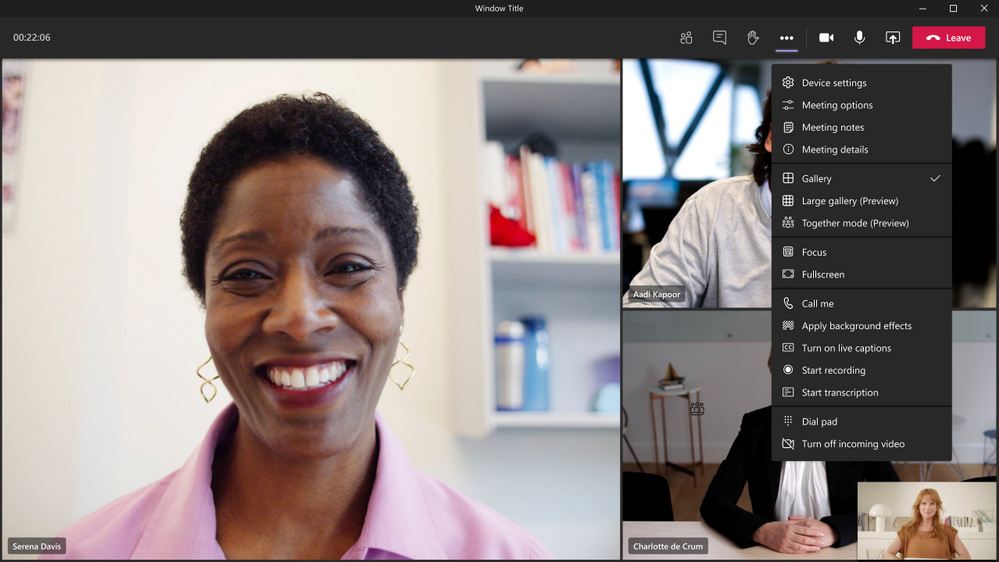
We’re excited to now offer live transcription in Microsoft Teams meetings for English (US). Live transcription is a written record of the spoken text that occurs during a meeting. It identifies each speaker, is captured automatically in near real time, and is available during and after the meeting.
Delivering live transcription with high accuracy, minimal latency, and cost efficiency at enterprise scale has been one of the toughest challenges in the industry. Over the last two years we’ve made significant strides in solving this problem and have dramatically improved our models for accuracy using meeting context in real time and cutting edge AI.
Live transcription in Teams uses a meeting’s invitation, participant names, attachments, etc. to improve the accuracy and recognize meeting-specific jargon for each transcript automatically, without any human involvement. This means no one at Microsoft ever sees the meeting’s content, and the models are automatically deleted immediately after each meeting. In addition, Microsoft doesn’t use or store this data for improving its own AI.
How to set up live transcription in Teams meetings
To get started, the tenant admin just needs to turn on the Allow Transcription policy. Then the meeting organizer or a presenter can start transcription.
In terms of privacy, live transcription is similar to recording a meeting. Participants are notified that live transcription is on and have the ability to hide it from their meeting view with just a click. If they choose not be identified, attendees can also turn off speaker attribution in their profile settings.

After the meeting, the saved transcript is available for reference and download in Teams for desktop and web.
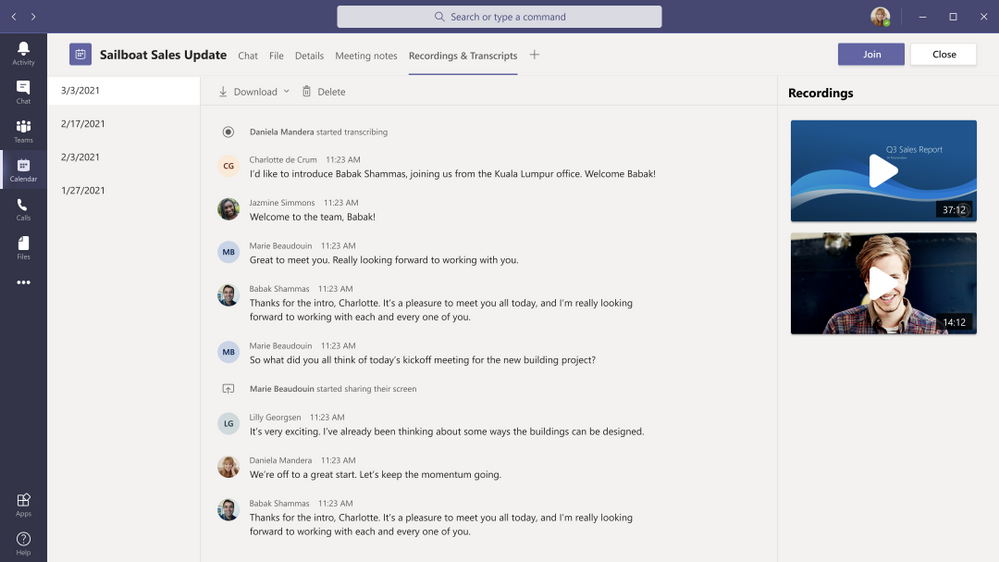
The transcript is also immediately available in the meeting event in Teams calendar, as well as through the transcript tile in the chat.
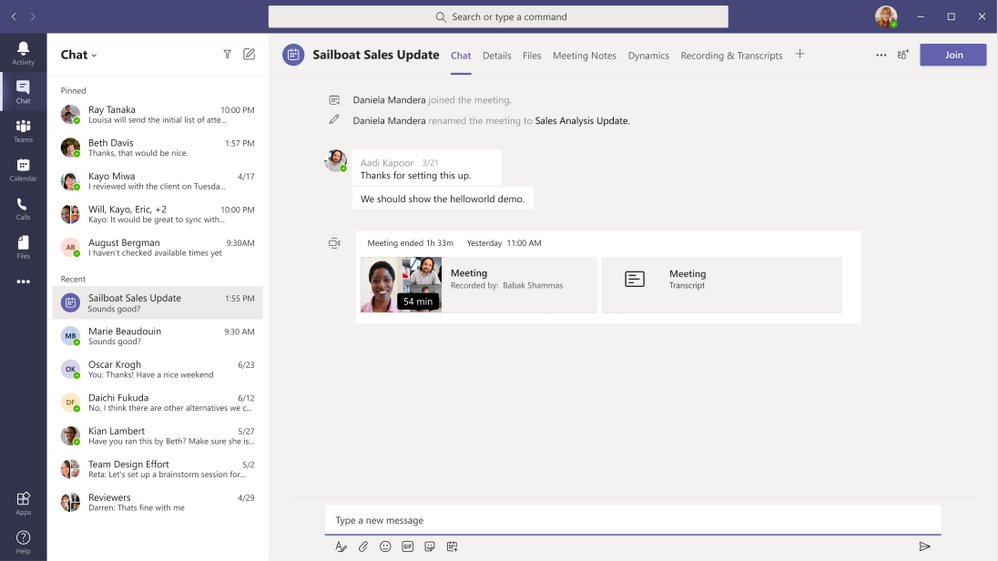
Teams live transcription files are stored in the meeting organizer’s Exchange Online account and only the organizer and tenant admin have permissions to delete it.
Teams meeting recordings that are saved in OneDrive for Business and SharePoint (ODSP) use Teams live transcript to display captions in recordings, so we recommend turning on live transcript to ensure captions are present in post-meeting recordings.
Note that live transcription is not guaranteed to be 100% accurate and so should not be relied upon in life-altering situations.
Who can start using live transcriptions?
Live transcription with speaker attribution is available for scheduled Microsoft Teams meetings (in U.S. English) to our public cloud customers with licenses for Microsoft 365 E3, Microsoft 365 E5, Microsoft 365 Business Standard, and Microsoft 365 Business Premium SKUs. Live transcripts for channel and Meet Now meetings will be coming soon.
Delivering highly accurate, AI-based live transcriptions for Teams meetings has been a massive and rewarding effort across the company. With this powerful foundation built at scale, we’re ready to tackle the next set of challenges to keep improving inclusivity, accessibility, and productivity in Microsoft Teams meetings. Stay tuned…
by Contributed | Mar 23, 2021 | Technology
This article is contributed. See the original author and article here.
Purpose:
The purpose of this post is to walk through the experience of configuring a Windows client to map a drive to an Azure File Share, with the User Experience that they are used to. The process is documented in a multi-part article on Microsoft Docs. This post is meant to summarize the experience of going through this process and offer some guidance on areas that may be confusing. The steps to complete this task along with notes on the experience will be listed below.
Assumptions:
Knowledge of creating Azure Storage Accounts, Azure File Shares, and Synchronizing on-premise Active Directory user accounts to Azure AD with Azure AD Connect is assumed. It is also assumed that you have inserted data into the Azure File Share with a supported tool, like Azure File Sync, AzCopy, Windows Explorer, etc. Depending on the security posture needed for a production environment, this configuration would likely have tighter access controls. For our demonstration purposes, this configuration is being used for functionality and convenience.
Steps:
- Join the Azure Storage Account containing the file share to AD (https://docs.microsoft.com/en-us/azure/storage/files/storage-files-identity-ad-ds-enable)
Run “Join-AzStorageAccountForAuth” cmdlet to join Storage account to Azure AD as shown here:
$ResourceGroupName = "My-Resource-Group-Name"
$StorageAccountName = "My-Sub-Name"
$Domain = "My-FQDN"
Import-Module -Name AzFilesHybrid
Join-AzStorageAccountForAuth `
        -ResourceGroupName $ResourceGroupName `
        -StorageAccountName $StorageAccountName `
        -DomainAccountType "ComputerAccount" # Default is set as ComputerAccount `
        -Domain $Domain
- Sync AD Users that need to map the drives to Azure AD using Azure AD Connect.
Note: These accounts cannot be privileged accounts in Active Directory because Azure AD Connect will not sync those accounts to Azure AD.
- Synchronize/Rotate Azure Storage Account AD Computer Object Password to your Azure Storage Account (https://docs.microsoft.com/en-us/azure/storage/files/storage-files-identity-ad-ds-update-password).
Note: If you omit this process, your AD users will NOT be able to access the Azure File Share as intended
Connect-AzAccount -Environment "AzureCloud" #Adjust as-necessary
$ResourceGroupName = "My-Resource-Group-Name"
$StorageAccountName = "My-Sub-Name"
Ipmo AzFilesBybrid
Update-AzStorageAccountADObjectPassword `
        -RotateToKerbKey kerb2 `
        -ResourceGroupName $ResourceGroupName `
        -StorageAccountName $StorageAccountName
- Assign share permissions: Assign Azure Storage Share Level Access roles (“SMB Roles”) to sync’d AD Users (https://docs.microsoft.com/en-us/azure/storage/files/storage-files-identity-ad-ds-assign-permissions)
Note: There are three built-in Azure SMB Roles that can be used to control access at the Azure File Share Level. These are share-level permissions; NTFS permissions do NOT control access at the Azure File Share level.
- Administratively Modify/Assign NTFS permissions (Only If Needed): The following scenarios will determine your path to assigning NTFS permissions:
- Your permissions are fine and do not need modified: Skip to Step 8
- Your permissions need to be changed and you have an AD Sync’d user that has the permissions to make the needed changes via mapped drive: Skip to Step 8
- Your permissions need to be changed and you do NOT have a Sync’d user that has NTFS permissions to do it, follow the code block below: Keep in mind that this method of mapping is using the storage account key and not a user account so proceed with caution.
$StorageAccountName = "My-Sub-Name"
$AzureFileShare = "My-Share-Name"
$connectTestResult = Test-NetConnection -ComputerName "$StorageAccountName.file.core.windows.net" -Port 445
if ($connectTestResult.TcpTestSucceeded)
{
  net use X: "$StorageAccountName.file.core.windows.net$AzureFileShare" /user:Azure<StorageAcctName> '<StorageAccessKey>'
}
else
{
  Write-Error -Message "Unable to reach the Azure storage account via port 445. Check to make sure your organization or ISP is not blocking port 445, or use Azure P2S VPN,   Azure S2S VPN, or Express Route to tunnel SMB traffic over a different port."
}
- If you used Step 5: Set ACL’s on File system in Azure Share (https://docs.microsoft.com/en-us/azure/storage/files/storage-files-identity-ad-ds-configure-permissions)
- If you used Step 5: Remove Drive Mapping Using Storage account key. If you used the script from above, you can use the following script to remove the drive mapping as the storage account key. This step is necessary so that you are able to successfully map the drive with your user account, as described in step 8.
Note: It is not recommended to keep the drive mapped with the Storage Account Key.
net use X: /DELETE
- Map a drive to your Azure File Share using your AD user account (Windows Explorer, Command-Line, PowerShell, etc.)
- Once the drive is mapped, make any necessary NTFS ACL Changes as-needed.
- Troubleshooting: If you encounter issues with this process, try the following tools for troubleshooting/debug information:
- https://docs.microsoft.com/en-us/azure/storage/files/storage-troubleshoot-windows-file-connection-problems#unable-to-mount-azure-files-with-ad-credentials
- Specifically, the following PowerShell command can expose many things that could be causing problems:
Connect-AzAccount -Environment "AzureCloud" #Adjust as-necessary
$ResourceGroupName = "My-Resource-Group-Name"
$StorageAccountName = "My-Sub-Name"
Ipmo AzFilesBybrid
Debug-AzStorageAccountAuth -StorageAccountName $StorageAccountName -ResourceGroupName $ResourceGroupName -Verbose
References:
Overview – On-premises AD DS authentication to Azure file shares | Microsoft Docs
Enable AD DS authentication to Azure file shares | Microsoft Docs
Control access to Azure file shares – on-premises AD DS authentication | Microsoft Docs
Control what a user can do at the file level – Azure file shares | Microsoft Docs
Mount Azure file share to an AD DS-joined VM | Microsoft Docs
Update AD DS storage account password | Microsoft Docs
by Contributed | Mar 23, 2021 | Technology
This article is contributed. See the original author and article here.
During the past three months, we posted a short series of whitepapers on the Visio Enthusiasts LinkedIn group about the development history of some of our favorite Visio products and capabilities. But since that group is private, you might have missed it.
Now, all three whitepapers from our under-the-hood series are available for you to download at the bottom of this blog post. We’ve also included a short summary of each, so you can read about the product or capability that’s most interesting to you (although we hope you’ll read all three).
The Visio Enthusiasts group is a great place to interact with other professional diagrammers and the internal Visio product group. It’s also where you can find exclusive content, including an upcoming series about enabling remote work with Visio. Select the link above to send us a request to join. We hope to see you in there!
Data Visualizer: simple but powerful data visualization
Data visualization tools are essential for analyzing information, exposing unique data to everyone in the organization, and making data-driven decisions. To enable all this, we developed Data Visualizer, an easy-to-use tool that quickly converts your Excel process map data into visual diagrams. Read this whitepaper to learn how we tested early ideas before landing on the Data Visualizer wizard; taught the tool how to refresh diagrams, handle interactions, and write back to the source code; and, just last year, launched the Data Visualizer add-in for Visio.
Visio layout: automating flowchart layouts
With so many ways to visualize data, it can be difficult to find the best layout for an aesthetic diagram. That’s why we developed Visio layout, a set of algorithms that work in the background to help you make smart decisions about shapes and semantic logic. For example, if you insert a shape in a diagram, Visio layout will add the appropriate connectors; and if you remove that shape, it will connect the remaining shapes. Read this whitepaper to learn how we developed Visio layout to automate the design of professional-looking diagrams.
Visio for the web: from desktop to browser and beyond
Five years ago, you could only create and edit Visio diagrams on the desktop client. Sharing those diagrams required manual workarounds, making it difficult to gather, collate, and incorporate input from across the organization. It was these challenges that prompted the development of Visio for the web. This under-the-hood whitepaper takes you on the journey from Visio Viewer to the Visio web app and the design considerations it took to get there, from load time optimizations to extensibility.
For questions or feedback about Visio, please email us at tellvisio [at] microsoft.com. Keep visiting the Visio Tech Community and follow us Twitter to stay current on the latest Visio releases. Remember to join the Visio Enthusiasts LinkedIn group for access to exclusive content and networking opportunities with your diagramming peers. All three whitepapers mentioned in this blog are available to download below.
by Scott Muniz | Mar 23, 2021 | Security, Technology
This article is contributed. See the original author and article here.
Adobe has released security updates to address a vulnerability affecting ColdFusion. An attacker could exploit this vulnerability to take control of an affected system.
CISA encourages users and administrators to review Adobe Security Bulletin APSB21-16 and apply the necessary updates.

by Contributed | Mar 23, 2021 | Dynamics 365, Microsoft 365, Technology
This article is contributed. See the original author and article here.
Join us for a 90-minute webinar on April 8 at 9 AM Pacific Time to learn about the new capabilities in Dynamics 365 Field Service 2021 release wave 1, including: A simplified set-up experience. New schedule board and map capabilities. How knowledge articles and virtual assistants on the mobile app help technicians. A new portal for your customers to self schedule and view a technician’s estimated arrival time. We’ll discuss how to enable these capabilities in your environment and you’ll have an opportunity to ask questions of product team members. Speakers: David Clarke, Program Manager Vinay Nalam, Senior Program Manager Jason Cohen, Senior Program Manager Jonathan Baker, Senior Program Manager Dhruv Goel, Senior Program Manager Sanjay Jethva, Senior Product Marketing Manager Rag Guru, Program Manager How to watch To watch live, fill out a short form to register. You can also view the recording on-demand after the webinar. Next steps Dynamics 365 Field Service enables organizations to dispatch technicians to customer locations to provide installation, repair, or maintenance services. To learn more, check out the documentation or the Field Service video playlist
The post Webinar: See what’s new in Dynamics 365 Field Service 2021 release wave 1 appeared first on Microsoft Dynamics 365 Blog.
Brought to you by Dr. Ware, Microsoft Office 365 Silver Partner, Charleston SC.


Recent Comments