by Contributed | Mar 2, 2021 | Technology
This article is contributed. See the original author and article here.
Historically, we could assign an employee to an administrative role through the Azure portal or through Windows PowerShell and that employee would be a permanent administrator; their elevated access would remain active in the assigned role. Azure AD PIM introduced the concept of permanent and eligible administrators in Azure AD and Azure. Permanent administrators have persistent elevated role connections; whereas, eligible administrators have privileged access only when they need it. The eligible administrator role is inactive until the employee needs access, then they complete an activation process and become an active administrator for a set amount of time.
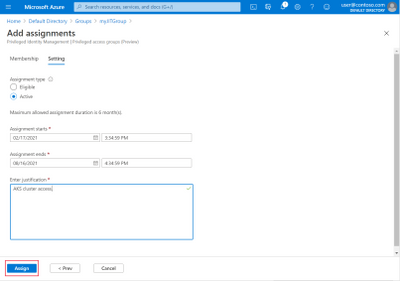
For example, leverage Just-in-Time access to “Assign” an Administrator access to the CLI to run commands against the cluster during the allotted timeframe.
For more information please refer to the document below to enable Just-in-Time access for your administrators.
Use Azure AD in Azure Kubernetes Service – Azure Kubernetes Service | Microsoft Docs
by Contributed | Mar 2, 2021 | Technology
This article is contributed. See the original author and article here.
Microsoft has released a set of out of band security updates for vulnerabilities for the following versions of Exchange Server:
- Exchange Server 2013
- Exchange Server 2016
- Exchange Server 2019
Security updates are available for the following specific versions of Exchange:
- Exchange Server 2010 (RU 31 for Service Pack 3 – this is a Defense in Depth update)
- Exchange Server 2013 (CU 23)
- Exchange Server 2016 (CU 19, CU 18)
- Exchange Server 2019 (CU 8, CU 7)
Because we are aware of active exploits of related vulnerabilities in the wild (limited targeted attacks), our recommendation is to install these updates immediately to protect against these attacks.
The vulnerabilities affect Microsoft Exchange Server. Exchange Online is not affected.
For more information, please see the Microsoft Security Response Center (MSRC) blog.
For technical details of these exploits and how to help with detection, please see HAFNIUM Targeting Exchange Servers.
Additional details
Does installing the March Security Updates require my servers to be up to date?
Today we shipped Security Update (SU) fixes. These fixes can be installed only on servers that are running the specific versions listed previously, which are considered up to date. If your servers are running older Exchange Server cumulative or rollup update, you will need to install a currently supported RU/CU before you can install the security updates.
How can I get an inventory of the update-level status of my on-premises Exchange servers?
You can use the Exchange Server Health Checker script, which can be downloaded from GitHub (use the latest release). Running this script will tell you if you are behind on your on-premises Exchange Server updates (note that the script does not support Exchange Server 2010).
What is the order of installation for the Security Updates mentioned here?
Exploitation of the security vulnerabilities addressed in these fixes requires HTTPS access over the Internet. Therefore, our recommendation is to install the security updates first on Exchange servers exposed/published to the Internet (e.g., servers publishing Outlook on the web/OWA and ECP) and then update the rest of your environment.
Will the installation of the Security Updates take as long as installing an RU/CU?
Installation of Security Updates does not take as long as installing a CU or RU, but you will need to plan for some downtime.
The last Exchange 2016 and Exchange 2019 CU’s were released in December of 2020. Are new CU’s releasing in March 2021?
We are still on schedule to release Exchange Server 2016 CU 20 and Exchange Server 2019 CU 9 in March 2021 and those CUs will contain the Security Updates mentioned here (along with other fixes). Our strong recommendation is to install security updates immediately.
How can I tell if my servers have already been compromised?
Information on Indicators of Compromise (IOCs) – such as what to search for, and how to find evidence of successful exploitation (if it happened), can be found in HAFNIUM Targeting Exchange Servers.
Are there any other resources that you can recommend?
Microsoft Defender Security Research Team has published a related blog post called Defending Exchange servers under attack which can help you understand some general practices around detection of malicious activity on your Exchange servers and help improve your security posture.
The Exchange Team
by Contributed | Mar 2, 2021 | Technology
This article is contributed. See the original author and article here.
At times, organizations, in the interest of consistency, may be forced to take the axe to an otherwise nuanced business glossary but for data consumers across the business to make the most of data, they need the nuance. For instance, in a healthcare organization, it makes sense to have a term, API as app programming interface as required by a technical data analyst in IT department whereas a data scientist in research department may be looking for data on active pharmaceutical ingredients and so the business glossary must be able to absorb both interpretations of the same glossary term. Currently Azure Purivew does not support having multiple instances of the same term with variations in glossary and this is where hierarchical glossary terms will help.
With the introduction of hierarchial glossary terms in Azure Purview you can now define parent-child relationship between terms, and this gives you the ability to define the same term name in different parents. So, a term “customer” can be present in parent “finance” as well as “sales” with different term templates and custom attributes. This grouping of terms into hierarchies is not just for organizational purpose but will be used in future for access control i.e., providing right set of users have access to right terms using hierarchical path of the glossary.
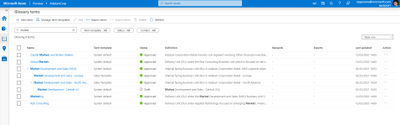
Figure 1: Screenshot showing hierarchical glossary in Purview.
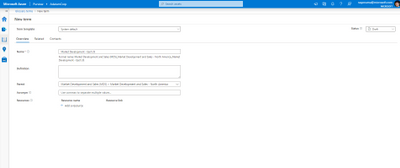
Figure 2: Screenshot showing creation of a term as a child to another parent term.
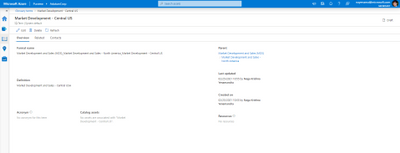
Figure 3: Screenshot showing complete hierarchical path for a term.
To Summarize, grouping business terms in hierarchies will empower you with the following capabilities:
- Organize glossary terms in hierarchies i.e., defining parent-child relationship between terms.
- Same term name can be created in different parents to contextualize them as per organization needs.
- Access control using hierarchical path will allow right set of users to manage the right glossary terms.
Next Steps:
- Get an overview of business glossary.
- Go through how-to-guides to create, import and export glossary terms, manage term templates and bulk edit assets to tag glossary terms.
- Use the tutorials document to setup glossary terms in Azure Purview
- Start a conversation on the Azure Purview tech community.
by Contributed | Mar 2, 2021 | Technology
This article is contributed. See the original author and article here.
Delighting our customers with faster, smoother, and richer experiences in Excel for the web is an uncompromised goal across our Excel team. Recently we shared how we’ve continued to improve performance to make opening workbooks, navigating a workbook, and other interactions faster and smoother for you. Today we’re introducing several additional features to help you better navigate and manipulate your Excel files in a browser:
- Easier worksheet navigation
- Multiple range selection
- Zoom in/out
- Excel keyboard shortcuts by default
- Version history
- Regional settings
Easier worksheet navigation
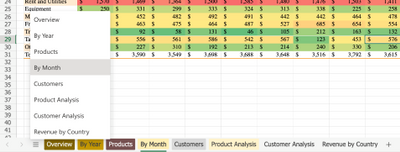
When opening an Excel workbook with multiple worksheets, you can now jump directly to the worksheet you want. Simply click on the new All Sheets button in the lower left corner and then select your worksheet.
Multiple range selection
You can now select multiple ranges that are not adjacent to each other – and fill color or copy-and paste. Hold the Ctrl key while selecting as many ranges as you want. The example below shows how you can select two non-adjacent columns and apply conditional formatting.

Excel keyboard shortcuts by default
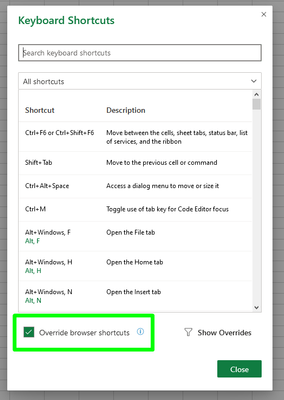
Excel for the web now supports your keyboard shortcuts by default. Keyboard shortcuts like Alt, Ctrl-1, Ctrl-Shift-A, etc., go to Excel and not your browser. To see the list of Excel keyboard shortcuts, click on the Help tab and select Keyboard Shortcuts – Override browser shortcuts is checked by default.
Zoom in/out
Excel for the web now supports many ways to zoom in/out. Zoom in to get a close-up view of your data or zoom out for an overview look of your worksheet:
- Pinch/stretch to zoom on touch screen or trackpad
- Ctrl + mouse wheel
- Ctrl Alt +/- key
- Click the +/- button
- Select a predefined zoom level from 25% to 200% in the bottom right corner

- Coming soon: Zoom button in the menu ribbon under the View tab!

Version history
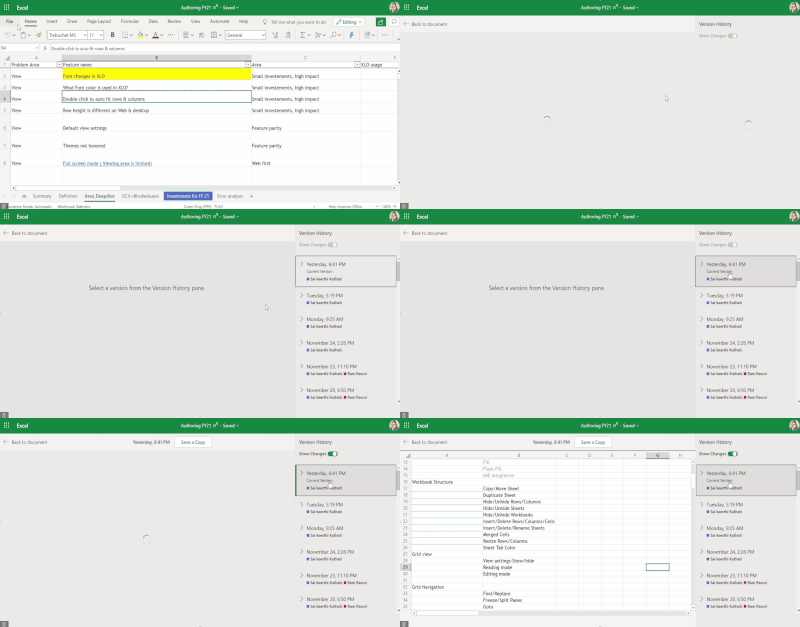
You can now view and restore previous versions of your Excel file using version history. Track activities in the workbook by others collaborating with you and revert to a previous version if needed. Select File > Info > Version History
Regional settings
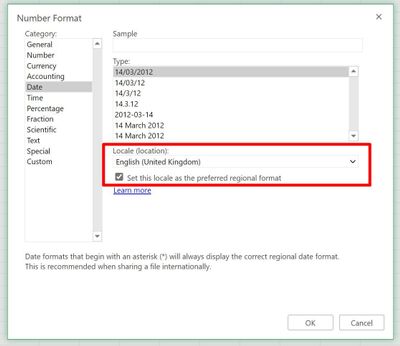
You can now change region settings in Excel for the web to set your date/time, number, and currency formats in a couple ways:
- Select File > Options > Regional Format Settings, or

- Select the Number Format drop down list > More Number Formats…
These are just some of the latest improvements, many more are coming soon!
Your feedback helps shape the future of Excel for the web. Please let us know how you like a particular feature and what we can improve upon—send us a smile or frown.
Want to know more about Excel for the web? See What’s new in Excel for the web and subscribe to our Excel Blog to get the latest updates. Stay connected with us and other Excel fans around the world – join our Excel Community and follow us on Facebook and Twitter.

by Contributed | Mar 2, 2021 | Technology
This article is contributed. See the original author and article here.
Best practices for Microsoft Learn LMS integration with University of Oxford
Higher Education Future Ready Skills Webinar Series
When: March 09, 2021 4:00 PM (Europe/London)
The growth in recent years of Industry 4.0 technology pillars, has presented the need for students to gain experience of areas such as IoT, Machine Learning, Artificial Intelligence, Data Science and Networking.
Learn from the University of Oxford how they have been working with Microsoft in the development of series of Microsoft Learn modules based around AI Edge Engineering and 5G for the Enterprise. These courses have been designed to help ensure students have hands on labs and gain the necessary industry-transferable digital skills for the workplace.
This session looks at how the University of Oxford Artificial Intelligence: Cloud and Edge Implementation course is utilizing the Microsoft Learn LTI Application and Microsoft Learn Modules and Units within their curriculum to support students in developing digital skills to succeed in the workplace.
Presented By
Ajit Jaokar Course Director – Artificial Intelligence
University of Oxford
Ajit Jaokar is Course Director: Artificial Intelligence: Cloud and Edge implementations at the University of Oxford. Ajit built the course at Oxford and is a Data Scientist at his company, Feynlabs. He has also conducted AI courses in the London School of Economics (LSE), Universidad Politécnica de Madrid (UPM) and as part of the The Future Society at the Harvard Kennedy School of Government.
Lee Stott Principal Program Manager
Microsoft
Lee Stott is Principal Program Manager at Microsoft, for the Cloud and AI Engineering team. Lee is an experienced business technology leader with extensive Data Science, Mobile and Cloud industry knowledge. He applies that experience to help Microsoft engage with developers and strategic decision makers across the world. Lee’s focus is on developing Microsoft global strategy for faculty engineering engagements and student developers.



Recent Comments